Introduction to
Microsoft Teams
April 2018
@directorcia
http://about.me/ciaops
Overview
• You get Microsoft Teams if you have a full SharePoint License
(i.e. you don’t get it with Office 365 Business)
• Teams is available to all Office 365 Suites (apart from above
exceptions)
• Utilises existing services like Exchange, SharePoint, etc
• Has a dedicated app available on all platforms
• Is now enabled by default on all Office 365 tenants
• Microsoft Teams administration is available in the Services
area in the Office 365 Admin portal
Collaboration
Universes
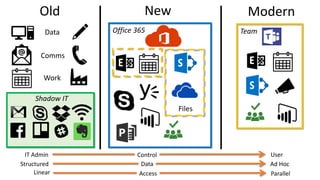
Old New Modern
Data
Comms
Shadow IT
Files
IT Admin
Ad Hoc
Linear Parallel
User
Structured
Control
Data
Access
Office 365 Team
Work
What is Teams?
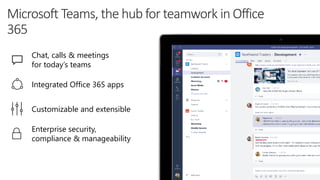
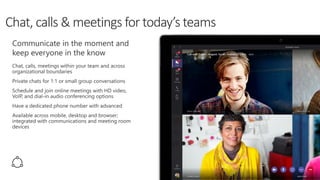
Chat, calls & meetings
for today’s teams
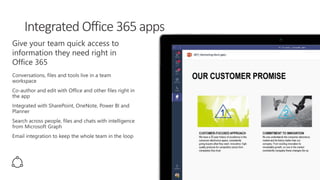
Integrated Office 365 apps
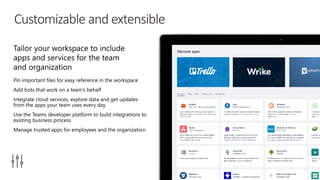
Customizable and extensible
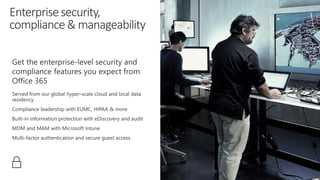
Enterprise security,
compliance & manageability
Unlock productivity with
150+ integrations
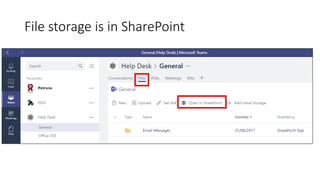
File storage is in SharePoint
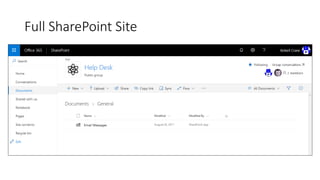
Full SharePoint Site
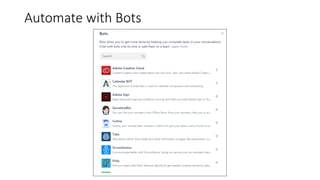
Automate with Bots
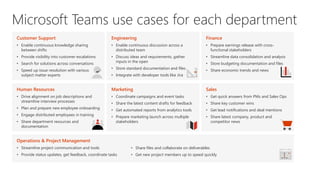
Customer Support
• Enable continuous knowledge sharing
between shifts
• Provide visibility into customer escalations
• Search for solutions across conversations
• Speed up issue resolution with various
subject matter experts
Engineering
• Enable continuous discussion across a
distributed team
• Discuss ideas and requirements, gather
inputs in the open
• Store standard documentation and files
• Integrate with developer tools like Jira
Finance
• Prepare earnings release with cross-
functional stakeholders
• Streamline data consolidation and analysis
• Store budgeting documentation and files
• Share economic trends and news
Human Resources
• Drive alignment on job descriptions and
streamline interview processes
• Plan and prepare new employee onboarding
• Engage distributed employees in training
• Share department resources and
documentation
Marketing
• Coordinate campaigns and event tasks
• Share the latest content drafts for feedback
• Get automated reports from analytics tools
• Prepare marketing launch across multiple
stakeholders
Sales
• Get quick answers from PMs and Sales Ops
• Share key customer wins
• Get lead notifications and deal mentions
• Share latest company, product and
competitor news
Operations & Project Management
• Streamline project communication and tools
• Provide status updates, get feedback, coordinate tasks
• Share files and collaborate on deliverables
• Get new project members up to speed quickly
Guest Access
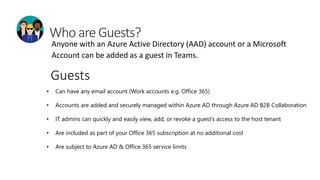
Anyone with an Azure Active Directory (AAD) account or a Microsoft
Account can be added as a guest in Teams.
• Can have any email account (Work accounts e.g. Office 365)
• Accounts are added and securely managed within Azure AD through Azure AD B2B Collaboration
• IT admins can quickly and easily view, add, or revoke a guest’s access to the host tenant
• Are included as part of your Office 365 subscription at no additional cost
• Are subject to Azure AD & Office 365 service limits
Guests
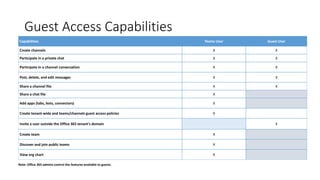
Guest Access Capabilities
Capabilities Teams User Guest User
Create channels X X
Participate in a private chat X X
Participate in a channel conversation X X
Post, delete, and edit messages X X
Share a channel file X X
Share a chat file X
Add apps (tabs, bots, connectors) X
Create tenant-wide and teams/channels guest access policies X
Invite a user outside the Office 365 tenant's domain X
Create team X
Discover and join public teams X
View org chart X
Note: Office 365 admins control the features available to guests.
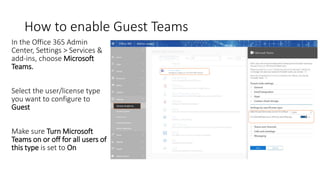
How to enable Guest Teams
In the Office 365 Admin
Center, Settings > Services &
add-ins, choose Microsoft
Teams.
Select the user/license type
you want to configure to
Guest
Make sure Turn Microsoft
Teams on or off for all users of
this type is set to On
Demo
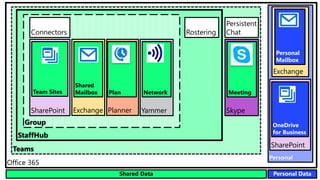
Personal
Teams
StaffHub
Group
Office 365
Exchange
Shared
Mailbox
SharePoint
Team Sites
YammerPlanner
Connectors
Persistent
Chat
Skype
Plan Network
Rostering
Meeting
Exchange
Personal
Mailbox
SharePoint
OneDrive
for Business
Personal DataShared Data
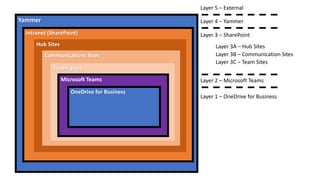
Yammer
Intranet (SharePoint)
Hub Sites
Communications Sites
Teams Sites
Microsoft Teams
OneDrive for Business
Layer 1 – OneDrive for Business
Layer 2 – Microsoft Teams
Layer 3 – SharePoint
Layer 4 – Yammer
Layer 5 – External
Layer 3A – Hub Sites
Layer 3B – Communication Sites
Layer 3C – Team Sites
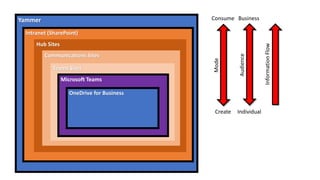
Yammer
Intranet (SharePoint)
Hub Sites
Communications Sites
Teams Sites
Microsoft Teams
OneDrive for Business
Create
Consume
Individual
Business
Audience
Mode
InformationFlow
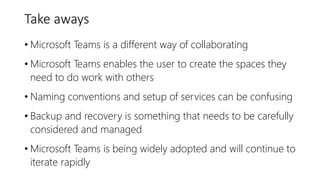
Take aways
• Microsoft Teams is a different way of collaborating
• Microsoft Teams enables the user to create the spaces they
need to do work with others
• Naming conventions and setup of services can be confusing
• Backup and recovery is something that needs to be carefully
considered and managed
• Microsoft Teams is being widely adopted and will continue to
iterate rapidly
Resources
• Introducing Microsoft Teams- https://www.youtube.com/watch?v=nKU-
FMzZFF0&t=68s
• Teams Quickstart - https://support.office.com/en-us/article/Microsoft-Tea
ms-Quick-Start-422bf3aa-9ae8-46f1-83a2-e65720e1a34d
• Administrator settings for Microsoft Teams - https://support.office.
com/en-us/article/Administrator-settings-for-Microsoft-Teams-3966a3f5-7e0f-4e
a9-a402-41888f455ba2
• Get started with Microsoft Teams - https://www.microsoft.com/itshow
case/Article/Content/872/Getting-started-with-Microsoft-Teams
• Success with Teams - https://www.successwithteams.com/
CIAOPS Resources
• Blog – http://blog.ciaops.com
• Free SharePoint Training via email – http://bit.ly/cia-gs-spo
• Free Office 365, Azure Administration newsletter – http://bit.ly/cia-o365-tech
• Free Office 365, Azure video tutorials – http://www.youtube.com/directorciaops
• Free documents, presentations, eBooks – http://docs.com/ciaops
• Office 365, Azure, Cloud podcast – http://ciaops.podbean.com
• Office 365, Azure online training courses – http://www.ciaopsacademy.com
• Office 365 and Azure community – http://www.ciaopspatron.com/
Twitter
@directorcia
Facebook
https://www.facebook.com/ciaops
Email
director@ciaops.com
Skype for Business
admin@ciaops365.com

Introduction to Microsoft Teams

  • 1.
    Introduction to Microsoft Teams April2018 @directorcia http://about.me/ciaops
  • 2.
    Overview • You getMicrosoft Teams if you have a full SharePoint License (i.e. you don’t get it with Office 365 Business) • Teams is available to all Office 365 Suites (apart from above exceptions) • Utilises existing services like Exchange, SharePoint, etc • Has a dedicated app available on all platforms • Is now enabled by default on all Office 365 tenants • Microsoft Teams administration is available in the Services area in the Office 365 Admin portal
  • 3.
  • 4.
    Old New Modern Data Comms ShadowIT Files IT Admin Ad Hoc Linear Parallel User Structured Control Data Access Office 365 Team Work
  • 5.
  • 6.
    Chat, calls &meetings for today’s teams Integrated Office 365 apps Customizable and extensible Enterprise security, compliance & manageability
  • 10.
  • 11.
    File storage isin SharePoint
  • 12.
  • 13.
  • 15.
    Customer Support • Enablecontinuous knowledge sharing between shifts • Provide visibility into customer escalations • Search for solutions across conversations • Speed up issue resolution with various subject matter experts Engineering • Enable continuous discussion across a distributed team • Discuss ideas and requirements, gather inputs in the open • Store standard documentation and files • Integrate with developer tools like Jira Finance • Prepare earnings release with cross- functional stakeholders • Streamline data consolidation and analysis • Store budgeting documentation and files • Share economic trends and news Human Resources • Drive alignment on job descriptions and streamline interview processes • Plan and prepare new employee onboarding • Engage distributed employees in training • Share department resources and documentation Marketing • Coordinate campaigns and event tasks • Share the latest content drafts for feedback • Get automated reports from analytics tools • Prepare marketing launch across multiple stakeholders Sales • Get quick answers from PMs and Sales Ops • Share key customer wins • Get lead notifications and deal mentions • Share latest company, product and competitor news Operations & Project Management • Streamline project communication and tools • Provide status updates, get feedback, coordinate tasks • Share files and collaborate on deliverables • Get new project members up to speed quickly
  • 16.
  • 17.
    Anyone with anAzure Active Directory (AAD) account or a Microsoft Account can be added as a guest in Teams. • Can have any email account (Work accounts e.g. Office 365) • Accounts are added and securely managed within Azure AD through Azure AD B2B Collaboration • IT admins can quickly and easily view, add, or revoke a guest’s access to the host tenant • Are included as part of your Office 365 subscription at no additional cost • Are subject to Azure AD & Office 365 service limits Guests
  • 18.
    Guest Access Capabilities CapabilitiesTeams User Guest User Create channels X X Participate in a private chat X X Participate in a channel conversation X X Post, delete, and edit messages X X Share a channel file X X Share a chat file X Add apps (tabs, bots, connectors) X Create tenant-wide and teams/channels guest access policies X Invite a user outside the Office 365 tenant's domain X Create team X Discover and join public teams X View org chart X Note: Office 365 admins control the features available to guests.
  • 19.
    How to enableGuest Teams In the Office 365 Admin Center, Settings > Services & add-ins, choose Microsoft Teams. Select the user/license type you want to configure to Guest Make sure Turn Microsoft Teams on or off for all users of this type is set to On
  • 20.
  • 21.
    Personal Teams StaffHub Group Office 365 Exchange Shared Mailbox SharePoint Team Sites YammerPlanner Connectors Persistent Chat Skype PlanNetwork Rostering Meeting Exchange Personal Mailbox SharePoint OneDrive for Business Personal DataShared Data
  • 22.
    Yammer Intranet (SharePoint) Hub Sites CommunicationsSites Teams Sites Microsoft Teams OneDrive for Business Layer 1 – OneDrive for Business Layer 2 – Microsoft Teams Layer 3 – SharePoint Layer 4 – Yammer Layer 5 – External Layer 3A – Hub Sites Layer 3B – Communication Sites Layer 3C – Team Sites
  • 23.
    Yammer Intranet (SharePoint) Hub Sites CommunicationsSites Teams Sites Microsoft Teams OneDrive for Business Create Consume Individual Business Audience Mode InformationFlow
  • 24.
    Take aways • MicrosoftTeams is a different way of collaborating • Microsoft Teams enables the user to create the spaces they need to do work with others • Naming conventions and setup of services can be confusing • Backup and recovery is something that needs to be carefully considered and managed • Microsoft Teams is being widely adopted and will continue to iterate rapidly
  • 25.
    Resources • Introducing MicrosoftTeams- https://www.youtube.com/watch?v=nKU- FMzZFF0&t=68s • Teams Quickstart - https://support.office.com/en-us/article/Microsoft-Tea ms-Quick-Start-422bf3aa-9ae8-46f1-83a2-e65720e1a34d • Administrator settings for Microsoft Teams - https://support.office. com/en-us/article/Administrator-settings-for-Microsoft-Teams-3966a3f5-7e0f-4e a9-a402-41888f455ba2 • Get started with Microsoft Teams - https://www.microsoft.com/itshow case/Article/Content/872/Getting-started-with-Microsoft-Teams • Success with Teams - https://www.successwithteams.com/
  • 26.
    CIAOPS Resources • Blog– http://blog.ciaops.com • Free SharePoint Training via email – http://bit.ly/cia-gs-spo • Free Office 365, Azure Administration newsletter – http://bit.ly/cia-o365-tech • Free Office 365, Azure video tutorials – http://www.youtube.com/directorciaops • Free documents, presentations, eBooks – http://docs.com/ciaops • Office 365, Azure, Cloud podcast – http://ciaops.podbean.com • Office 365, Azure online training courses – http://www.ciaopsacademy.com • Office 365 and Azure community – http://www.ciaopspatron.com/ Twitter @directorcia Facebook https://www.facebook.com/ciaops Email director@ciaops.com Skype for Business admin@ciaops365.com