Hi there!
People at SocialCops.
Let me introduce you to an
easy-to-use messaging app.
Imagine all your team communication in one place, wherever
you go.
That's Slack.
Available for Mac, PC, iOS and Android.
IT’S USED BY THE PEOPLE WHO PUT A ROBOT ON MARS!
NASA’S Jet Propulsion Laboratory is one of tens of thousands of teams around the world using Slack
to make their working lives simpler, more pleasant and more productive.
A Messaging App
Here’s Slack.
Created by Flickr co-founder Stewart
Butterfield, the San Francisco-based
company has over 200,000 paid users, and
750,000 people access the service daily.
Customers include Adobe, the New York
Times, HBO and Expedia.
Slack valuation: $1.2 to $2.8 billion in 6 months
DST Global and Index Ventures have valued
the start-up, all for a service that's
effectively trying to kill internal e-mail use
by simplifying communication among
teams.
Slack CEO Stewart Butterfield was on stage
at the Fortune Brainstorm Tech conference,
where he revealed that his company is
expected to make $30 million in revenue
this year - roughly 100X its current
valuation.
Slack: growth rate compared to other messaging apps
STARTING OFF WITH SLACK
Start With a pilot team
• Try using Slack, exclusively for a day with a small
group of people you work with closely, instead of
sending emails (or IMs, or Skype messages so that
your team can realize the benefits.
Start With a pilot team
• Try using Slack, exclusively for a day with a small
group of people you work with closely, instead of
sending emails (or IMs, or Skype messages so that
your team can realize the benefits.
• Keep your starting set of channels small. When
conversations emerge about a certain subject — like
discussing a project, or regular topics like #lunch —
create a new channel.
Start With a pilot team
• Try using Slack, exclusively for a day with a small
group of people you work with closely, instead of
sending emails (or IMs, or Skype messages so that
your team can realize the benefits.
• Keep your starting set of channels small. When
conversations emerge about a certain subject — like
discussing a project, or regular topics like #lunch —
create a new channel.
• Communicate in open channels. Draw your team into
Slack. (No one wants to miss out on critical
conversations!) Gain visibility into everything
happening in your team. Build a database of
organizational knowledge with zero effort.
INTEGRATE WITH AS MANY TOOLS AS YOU NEED!
Slack is most useful when you can see everything your team is doing
— that includes all the tools you use outside of Slack!
Integrations let you automatically pull information and activity from
outside tools into Slack in a way that's timely, relevant, and
searchable. Or, make your own!
Current Slack Integrations
And a lot more!
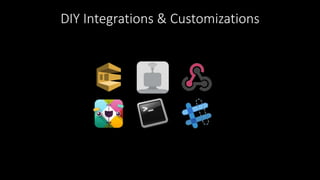
DIY Integrations & Customizations
SET UP YOUR TEAM PREFERENCES
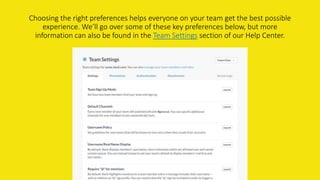
Choosing the right preferences helps everyone on your team get the best possible
experience. We’ll go over some of these key preferences below, but more

information can also be found in the Team Settings section of our Help Center.
Team Signup
 SSO — Enabling Single Sign-On (SSO)
 Email signup
 Invitations — Team Admins and Owners can invite new team members to Slack
from the Invitations page.
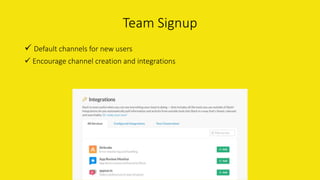
 Default channels for new users
 Encourage channel creation and integrations
Team Signup
Add more owners and admins
It’s lonely being the only Admin on a team. Appoint additional Owners and Admins
early on.
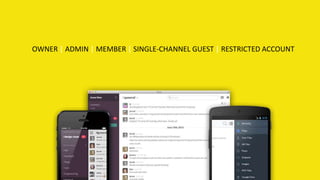
There are five different roles a person can have on a Slack team, each
with their own level of permissions:
OWNER | ADMIN | MEMBER | SINGLE-CHANNEL GUEST | RESTRICTED ACCOUNT
Establish Channel Conventions
While we don’t recommend trying to set up every channel in advance, it can be useful to create a few channels
that reflect the structure of your organization.
Examples
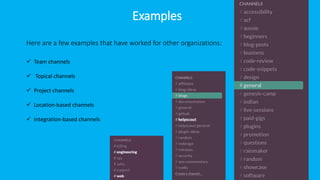
Here are a few examples that have worked for other organizations:
 Team channels
 Topical channels
 Project channels
 Location-based channels
 Integration-based channels
A TESTAMENT TO THE SUCCESS OF SLACK!
WORKING WITHIN SLACK
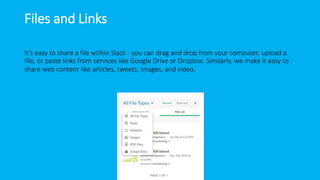
Files and Links
It’s easy to share a file within Slack - you can drag and drop from your computer, upload a
file, or paste links from services like Google Drive or Dropbox. Similarly, we make it easy to
share web content like articles, tweets, images, and video.
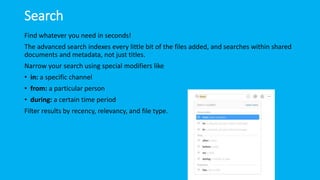
Search
Find whatever you need in seconds!
The advanced search indexes every little bit of the files added, and searches within shared
documents and metadata, not just titles.
Narrow your search using special modifiers like
• in: a specific channel
• from: a particular person
• during: a certain time period
Filter results by recency, relevancy, and file type.
Now say hi to Slackbot!
Get To Know Slackbot
Slackbot is Slack's built-in robot.
Slackbot will help your team fill out their
account profile, and offer them a safe, private
space to store notes and links.
But beyond that, Slackbot can also be a
useful (and motivational) part of your team.
Yes, really.
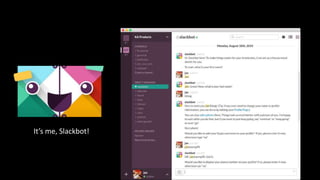
It’s me, Slackbot!
You can also configure your own
custom responses!
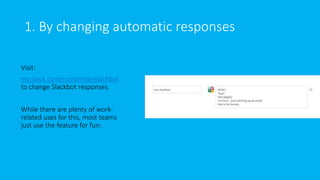
1. By changing automatic responses
Visit:
my.slack.com/customize/slackbot
to change Slackbot responses.
While there are plenty of work-
related uses for this, most teams
just use the feature for fun:
2. By programming Slackbot
Your team can set up Slackbot to say
things programmatically by creating
a new Slackbot integration
@ my.slack.com/services/new/slack
bot.
This will give your team a unique
URL for posting messages as
Slackbot via HTTP POST.
OTHER FEATURES OF SLACK
Shortcuts
Use keyboard shortcuts to help you speed right through whatever it is you need to do.
Just type “⌘/” or “Ctrl/” in a message box.
Type “/” to see a full list of those commands directly from the message box.
Better still, you can create your own custom slash commands
@ my.slack.com/services/new/slash-commands
See the official blog here
Migrate Your Data
Slack supports importing data from a variety of other communication tools, including
HipChat, Flowdock, Campfire, and other Slack teams. We’ll map imported users to new ones
based on their email address, so it’s best to do the data import after your team has already
signed up.
For help on importing data, please see this helpdesk article.
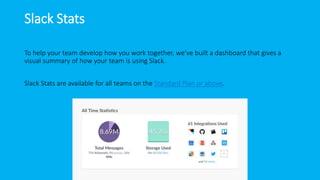
Slack Stats
To help your team develop how you work together, we’ve built a dashboard that gives a
visual summary of how your team is using Slack.
Slack Stats are available for all teams on the Standard Plan or above.
Slack in NEWS
The End. Thank you!

Presentation On Slack

  • 1.
  • 2.
    Let me introduceyou to an easy-to-use messaging app.
  • 4.
    Imagine all yourteam communication in one place, wherever you go. That's Slack. Available for Mac, PC, iOS and Android.
  • 5.
    IT’S USED BYTHE PEOPLE WHO PUT A ROBOT ON MARS! NASA’S Jet Propulsion Laboratory is one of tens of thousands of teams around the world using Slack to make their working lives simpler, more pleasant and more productive.
  • 6.
  • 7.
    Here’s Slack. Created byFlickr co-founder Stewart Butterfield, the San Francisco-based company has over 200,000 paid users, and 750,000 people access the service daily. Customers include Adobe, the New York Times, HBO and Expedia.
  • 8.
    Slack valuation: $1.2to $2.8 billion in 6 months DST Global and Index Ventures have valued the start-up, all for a service that's effectively trying to kill internal e-mail use by simplifying communication among teams. Slack CEO Stewart Butterfield was on stage at the Fortune Brainstorm Tech conference, where he revealed that his company is expected to make $30 million in revenue this year - roughly 100X its current valuation.
  • 9.
    Slack: growth ratecompared to other messaging apps
  • 10.
  • 11.
    Start With apilot team • Try using Slack, exclusively for a day with a small group of people you work with closely, instead of sending emails (or IMs, or Skype messages so that your team can realize the benefits.
  • 12.
    Start With apilot team • Try using Slack, exclusively for a day with a small group of people you work with closely, instead of sending emails (or IMs, or Skype messages so that your team can realize the benefits. • Keep your starting set of channels small. When conversations emerge about a certain subject — like discussing a project, or regular topics like #lunch — create a new channel.
  • 13.
    Start With apilot team • Try using Slack, exclusively for a day with a small group of people you work with closely, instead of sending emails (or IMs, or Skype messages so that your team can realize the benefits. • Keep your starting set of channels small. When conversations emerge about a certain subject — like discussing a project, or regular topics like #lunch — create a new channel. • Communicate in open channels. Draw your team into Slack. (No one wants to miss out on critical conversations!) Gain visibility into everything happening in your team. Build a database of organizational knowledge with zero effort.
  • 14.
    INTEGRATE WITH ASMANY TOOLS AS YOU NEED! Slack is most useful when you can see everything your team is doing — that includes all the tools you use outside of Slack! Integrations let you automatically pull information and activity from outside tools into Slack in a way that's timely, relevant, and searchable. Or, make your own!
  • 15.
  • 16.
    DIY Integrations &Customizations
  • 17.
    SET UP YOURTEAM PREFERENCES
  • 18.
    Choosing the rightpreferences helps everyone on your team get the best possible experience. We’ll go over some of these key preferences below, but more information can also be found in the Team Settings section of our Help Center.

  • 19.
    Team Signup  SSO— Enabling Single Sign-On (SSO)  Email signup  Invitations — Team Admins and Owners can invite new team members to Slack from the Invitations page.

  • 20.

     Default channelsfor new users  Encourage channel creation and integrations Team Signup
  • 21.
    Add more ownersand admins It’s lonely being the only Admin on a team. Appoint additional Owners and Admins early on.
  • 22.
    There are fivedifferent roles a person can have on a Slack team, each with their own level of permissions:
  • 23.
    OWNER | ADMIN| MEMBER | SINGLE-CHANNEL GUEST | RESTRICTED ACCOUNT
  • 24.
    Establish Channel Conventions Whilewe don’t recommend trying to set up every channel in advance, it can be useful to create a few channels that reflect the structure of your organization.
  • 25.
    Examples Here are afew examples that have worked for other organizations:  Team channels  Topical channels  Project channels  Location-based channels  Integration-based channels
  • 26.
    A TESTAMENT TOTHE SUCCESS OF SLACK!
  • 28.
  • 29.
    Files and Links It’seasy to share a file within Slack - you can drag and drop from your computer, upload a file, or paste links from services like Google Drive or Dropbox. Similarly, we make it easy to share web content like articles, tweets, images, and video.
  • 30.
    Search Find whatever youneed in seconds! The advanced search indexes every little bit of the files added, and searches within shared documents and metadata, not just titles. Narrow your search using special modifiers like • in: a specific channel • from: a particular person • during: a certain time period Filter results by recency, relevancy, and file type.
  • 31.
    Now say hito Slackbot!
  • 32.
    Get To KnowSlackbot Slackbot is Slack's built-in robot. Slackbot will help your team fill out their account profile, and offer them a safe, private space to store notes and links. But beyond that, Slackbot can also be a useful (and motivational) part of your team. Yes, really.
  • 33.
  • 34.
    You can alsoconfigure your own custom responses!
  • 35.
    1. By changingautomatic responses Visit: my.slack.com/customize/slackbot to change Slackbot responses. While there are plenty of work- related uses for this, most teams just use the feature for fun:
  • 36.
    2. By programmingSlackbot Your team can set up Slackbot to say things programmatically by creating a new Slackbot integration @ my.slack.com/services/new/slack bot. This will give your team a unique URL for posting messages as Slackbot via HTTP POST.
  • 37.
  • 38.
    Shortcuts Use keyboard shortcutsto help you speed right through whatever it is you need to do. Just type “⌘/” or “Ctrl/” in a message box. Type “/” to see a full list of those commands directly from the message box. Better still, you can create your own custom slash commands @ my.slack.com/services/new/slash-commands See the official blog here
  • 39.
    Migrate Your Data Slacksupports importing data from a variety of other communication tools, including HipChat, Flowdock, Campfire, and other Slack teams. We’ll map imported users to new ones based on their email address, so it’s best to do the data import after your team has already signed up. For help on importing data, please see this helpdesk article.
  • 40.
    Slack Stats To helpyour team develop how you work together, we’ve built a dashboard that gives a visual summary of how your team is using Slack. Slack Stats are available for all teams on the Standard Plan or above.
  • 42.
  • 43.