Introduction to Microsoft Teams in
Preview
Chat-centered workspace in Office 365
Agenda
• Microsoft Teams Introduction
• Microsoft Teams Features
• Microsoft Teams Requirements
• Appendix Items
Goals of this Training
• Get an understanding of what Microsoft Teams can do for you
• Highlight some key features to help increase your organizations
productivity
• Identify the Licensing, Deployment and Software requirements
Out of Scope
• How to Deploy Microsoft Teams
• Settings Management
• Overview of Meetings
• Chat Services
T H EN
How we work has changed
NOW
1 Source: 2009, 2014 US IW Survey
Employees work on 2x more teams
now than they did five years ago1
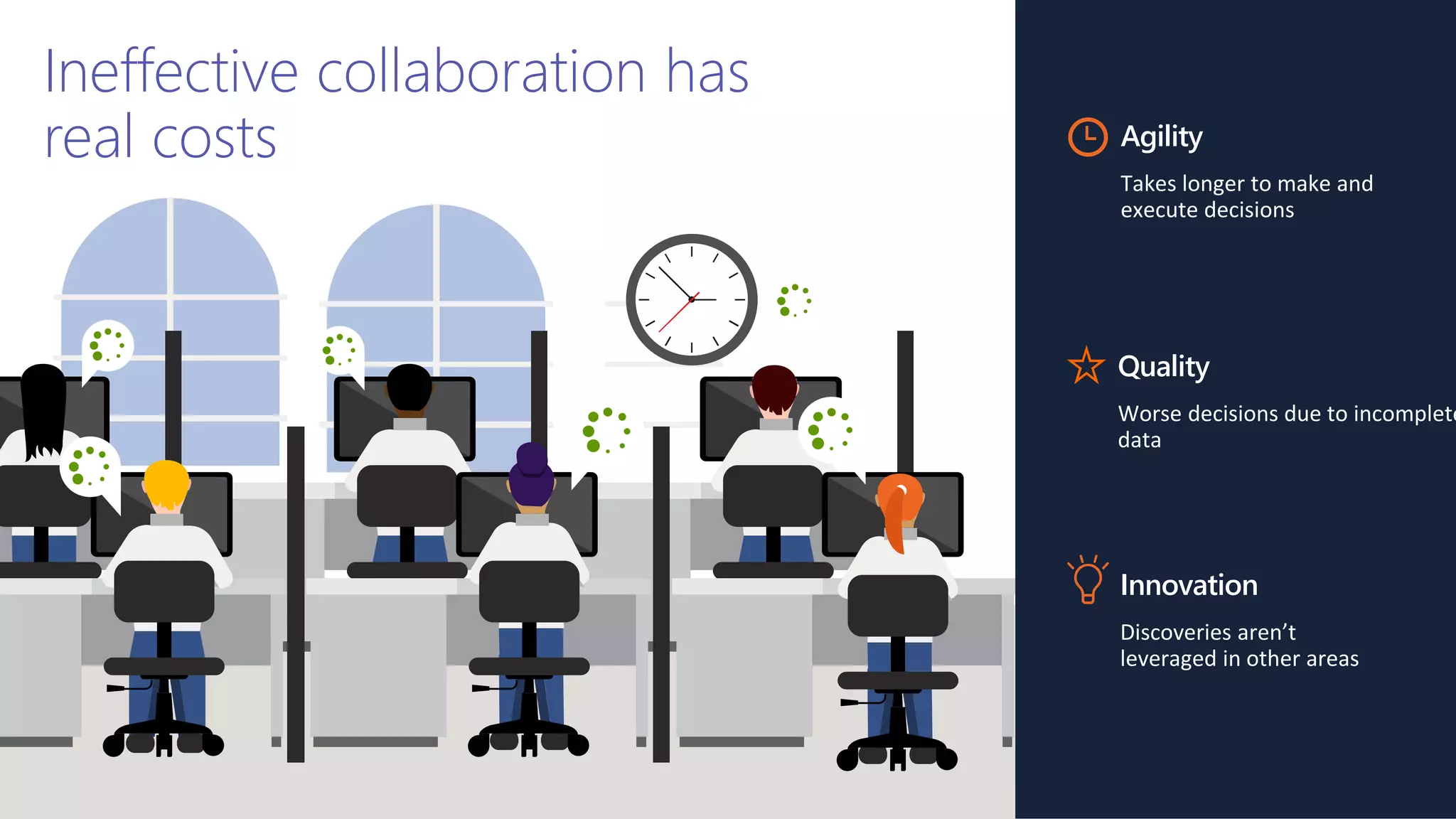
Ineffective collaboration has
real costs Agility
Takes longer to make and
execute decisions
Innovation
Discoveries aren’t
leveraged in other areas
Quality
Worse decisions due to incomplete
data
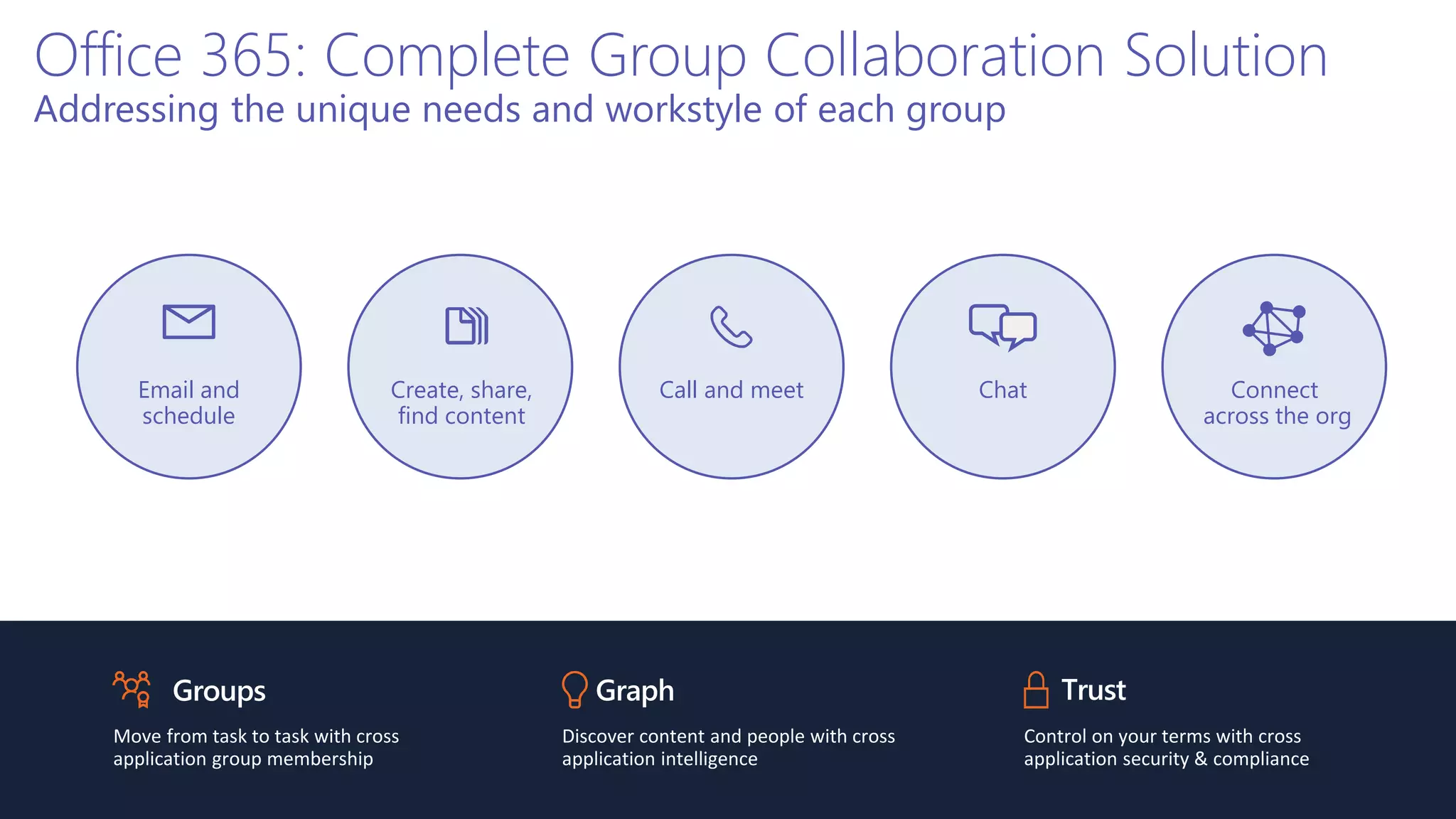
Office 365: Complete Group Collaboration Solution
Addressing the unique needs and workstyle of each group
Groups
Move from task to task with cross
application group membership
Graph
Discover content and people with cross
application intelligence
Trust
Control on your terms with cross
application security & compliance
Email and
schedule
Call and meet ChatCreate, share,
find content
Connect
across the org
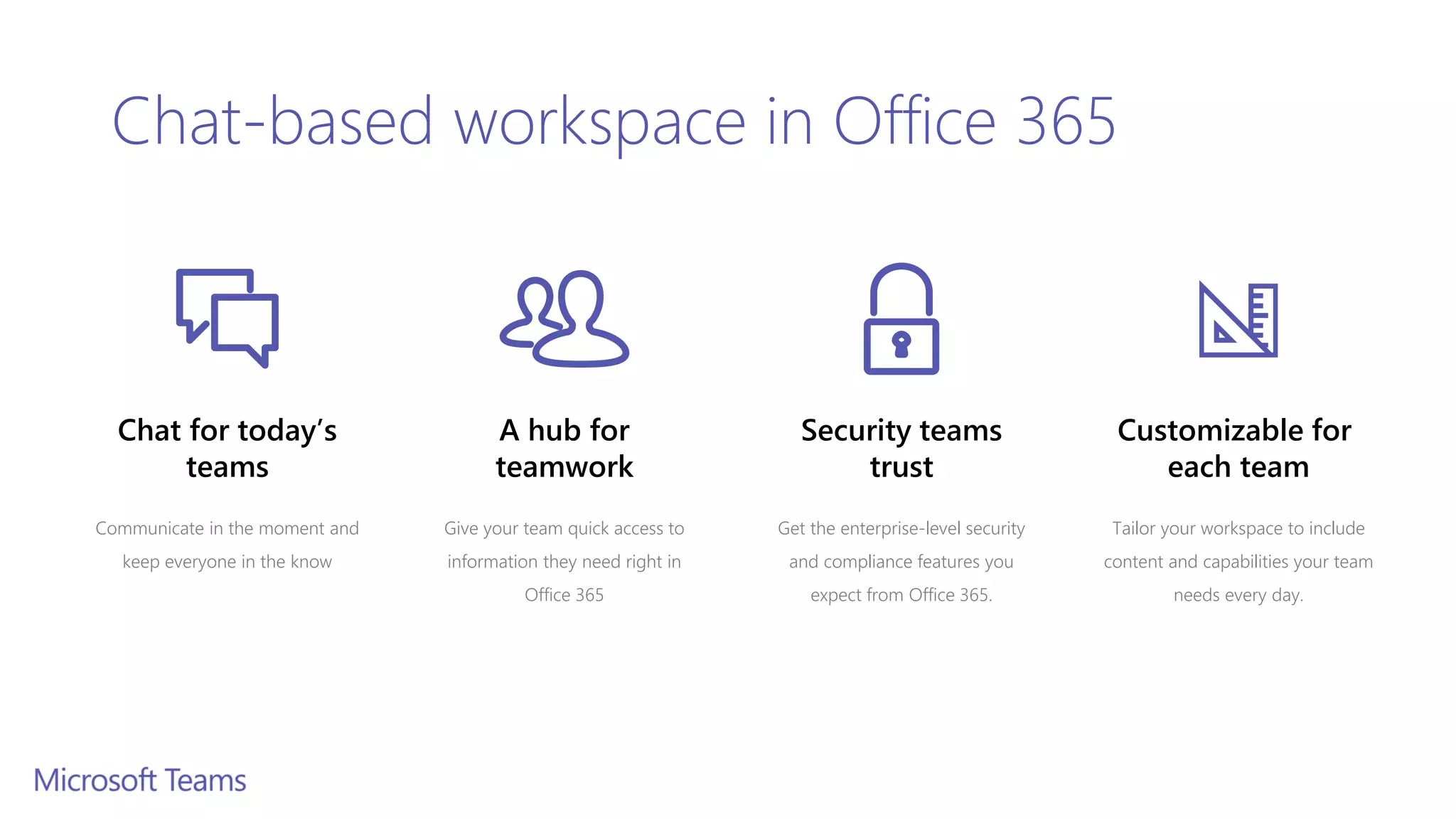
Security teams
trust
Get the enterprise-level security
and compliance features you
expect from Office 365.
Chat for today’s
teams
Communicate in the moment and
keep everyone in the know
Customizable for
each team
Tailor your workspace to include
content and capabilities your team
needs every day.
A hub for
teamwork
Give your team quick access to
information they need right in
Office 365
Chat-based workspace in Office 365
Teams and Channels
Helps groups of people get organized with more focused
conversations.
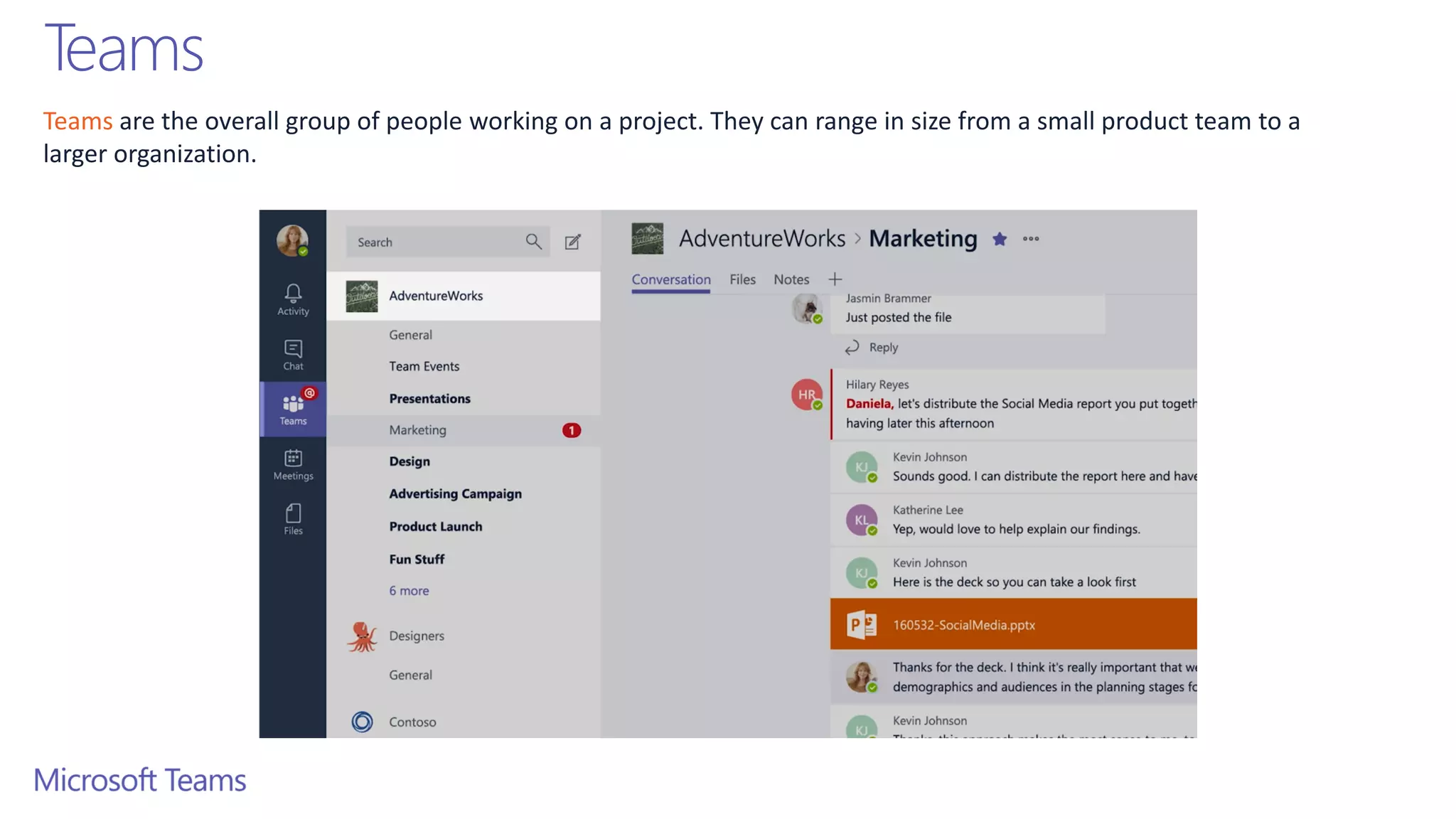
Teams are the overall group of people working on a project. They can range in size from a small product team to a
larger organization.
Teams
Creating Teams
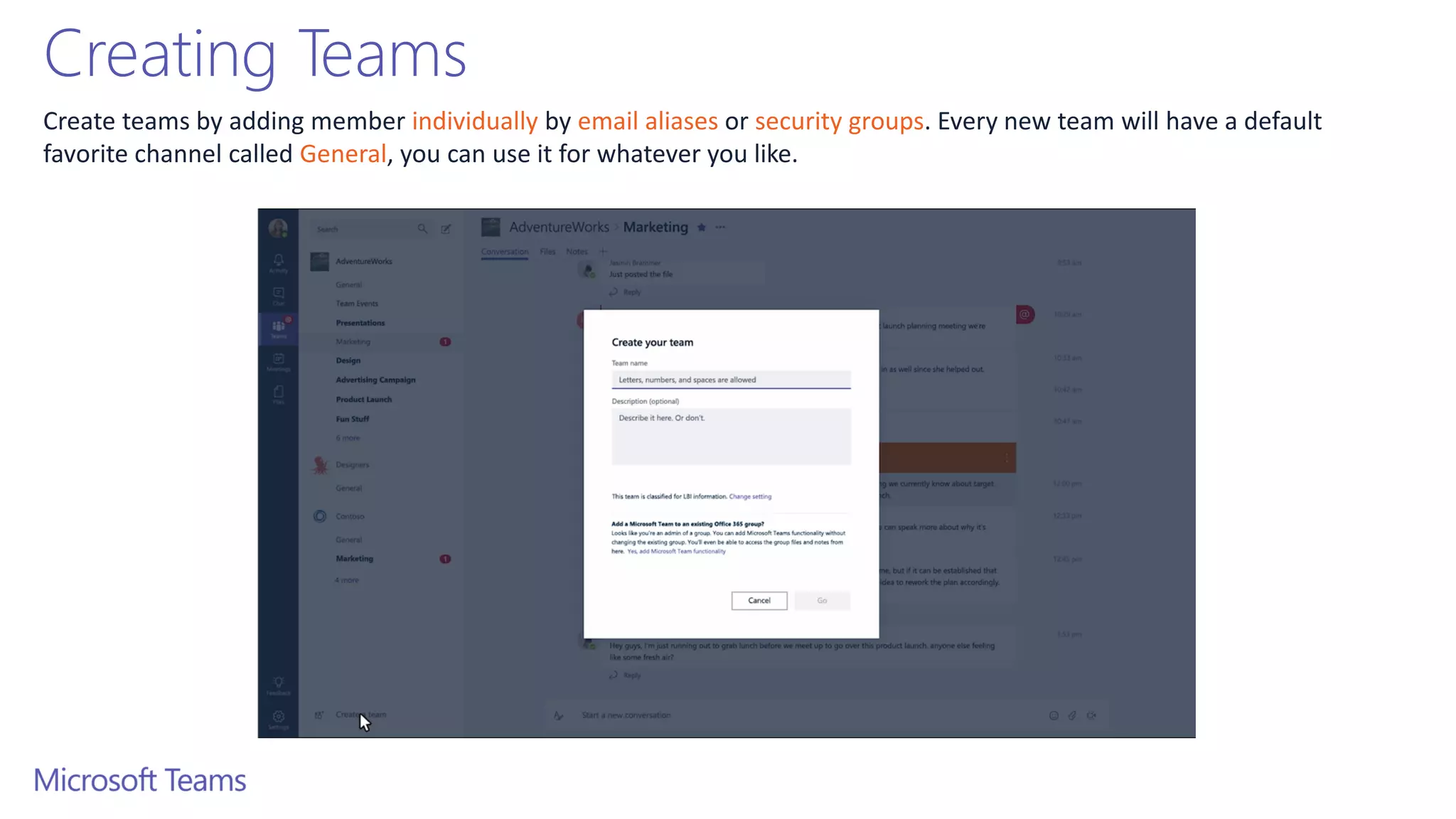
Create teams by adding member individually by email aliases or security groups. Every new team will have a default
favorite channel called General, you can use it for whatever you like.
Channels
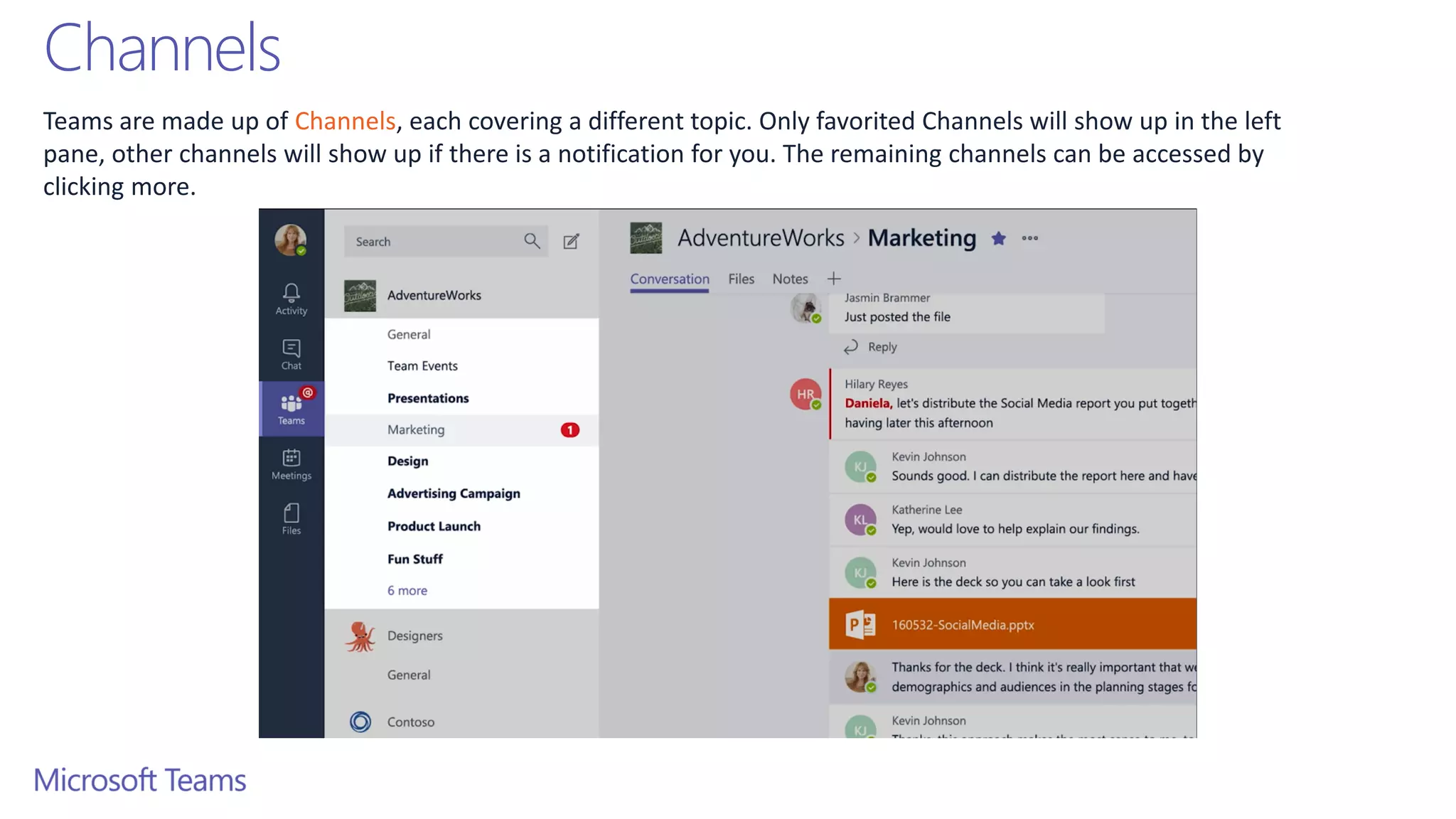
Teams are made up of Channels, each covering a different topic. Only favorited Channels will show up in the left
pane, other channels will show up if there is a notification for you. The remaining channels can be accessed by
clicking more.
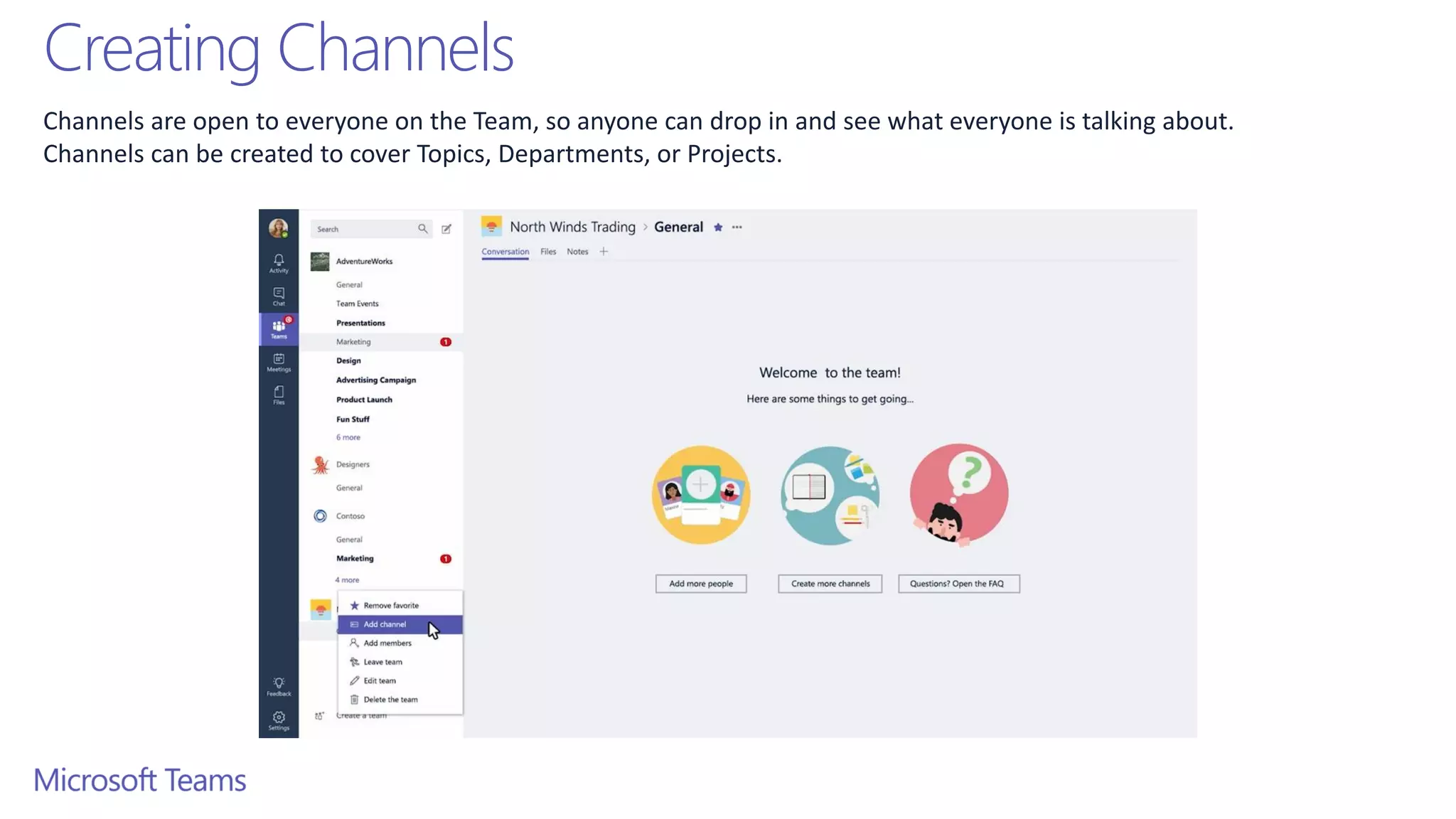
Creating Channels
Channels are open to everyone on the Team, so anyone can drop in and see what everyone is talking about.
Channels can be created to cover Topics, Departments, or Projects.
Teams Owners
• There can only be 10 owners per Team
• Owners can:
• Add new members and other owners
• Manage Team settings:
• EnableDisable @Mentioning
• Allowing GIFs, stickers, memes, and moderation settings
• Rename the Team
• Delete the Team
Teams Members
• There can be as many as 600 members per Team
• Members can add additional channels to the team
Productive Chat
Threaded conversations
Threaded Conversations
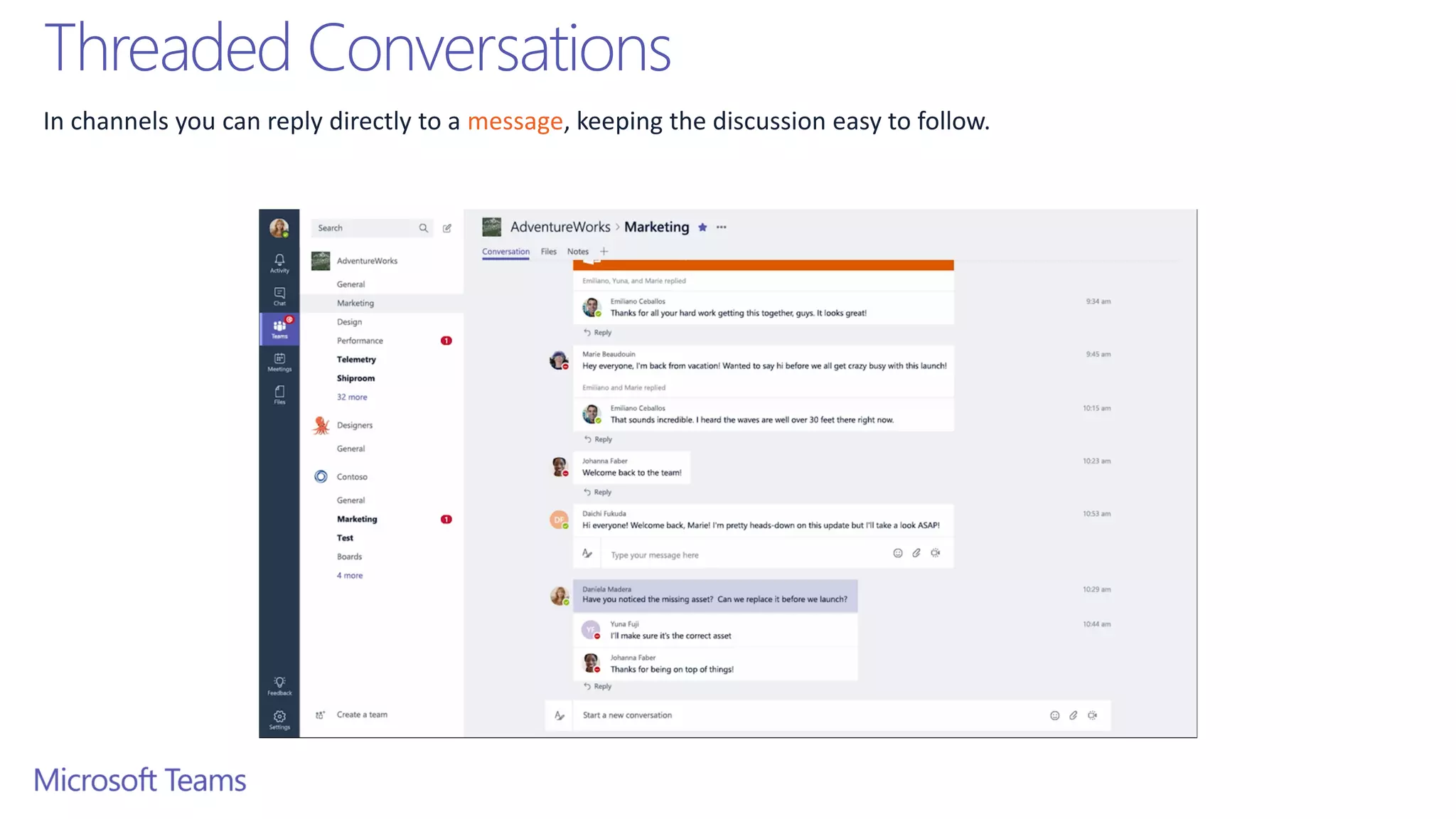
In channels you can reply directly to a message, keeping the discussion easy to follow.
Like and Save messages
At the top right corner of all messages in Channels, you have an option to like messages or save them for later. Saved
messages will be kept in Saved along the left rail.
Documents and Conversations
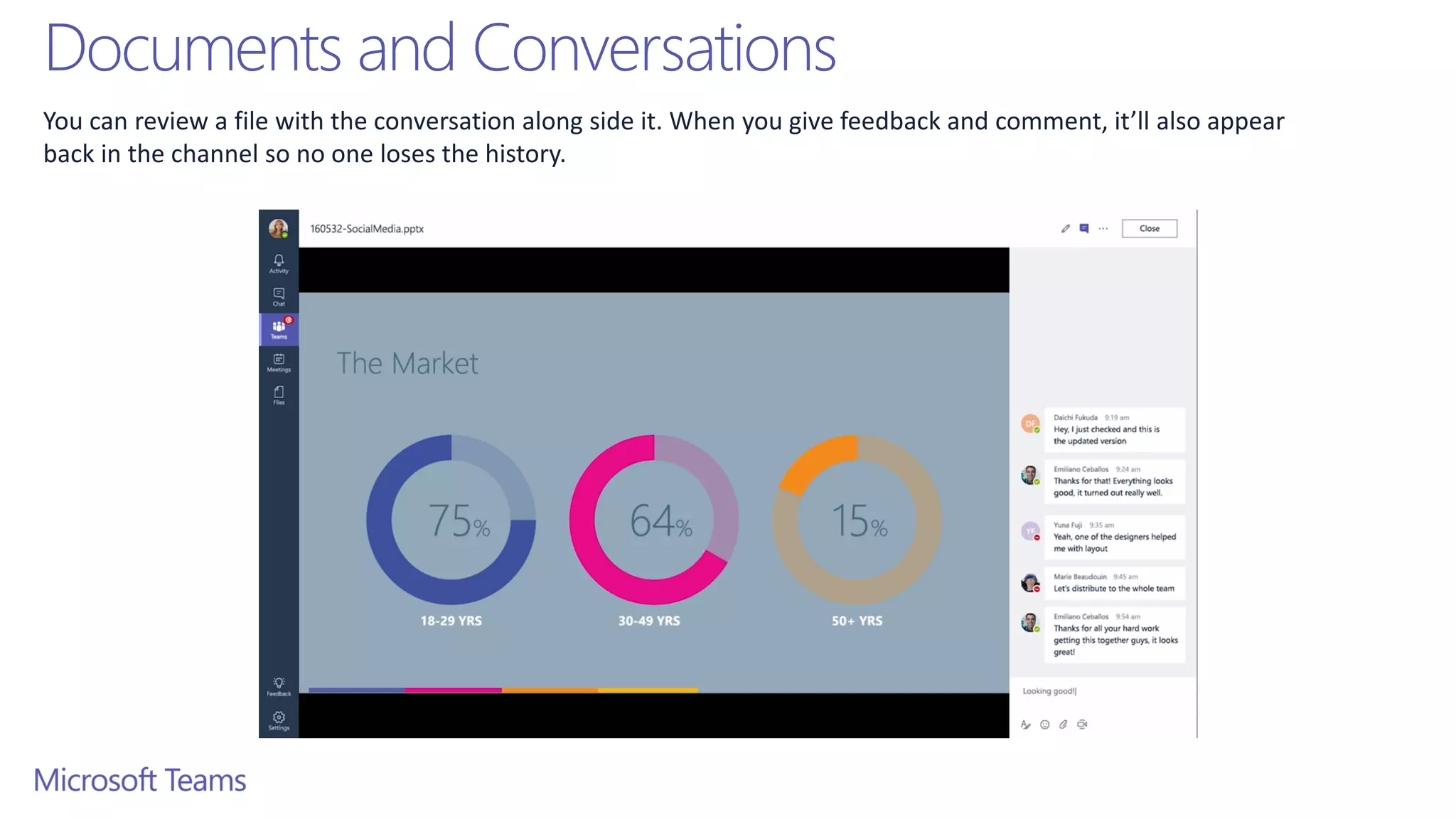
You can review a file with the conversation along side it. When you give feedback and comment, it’ll also appear
back in the channel so no one loses the history.
Mention Team Members
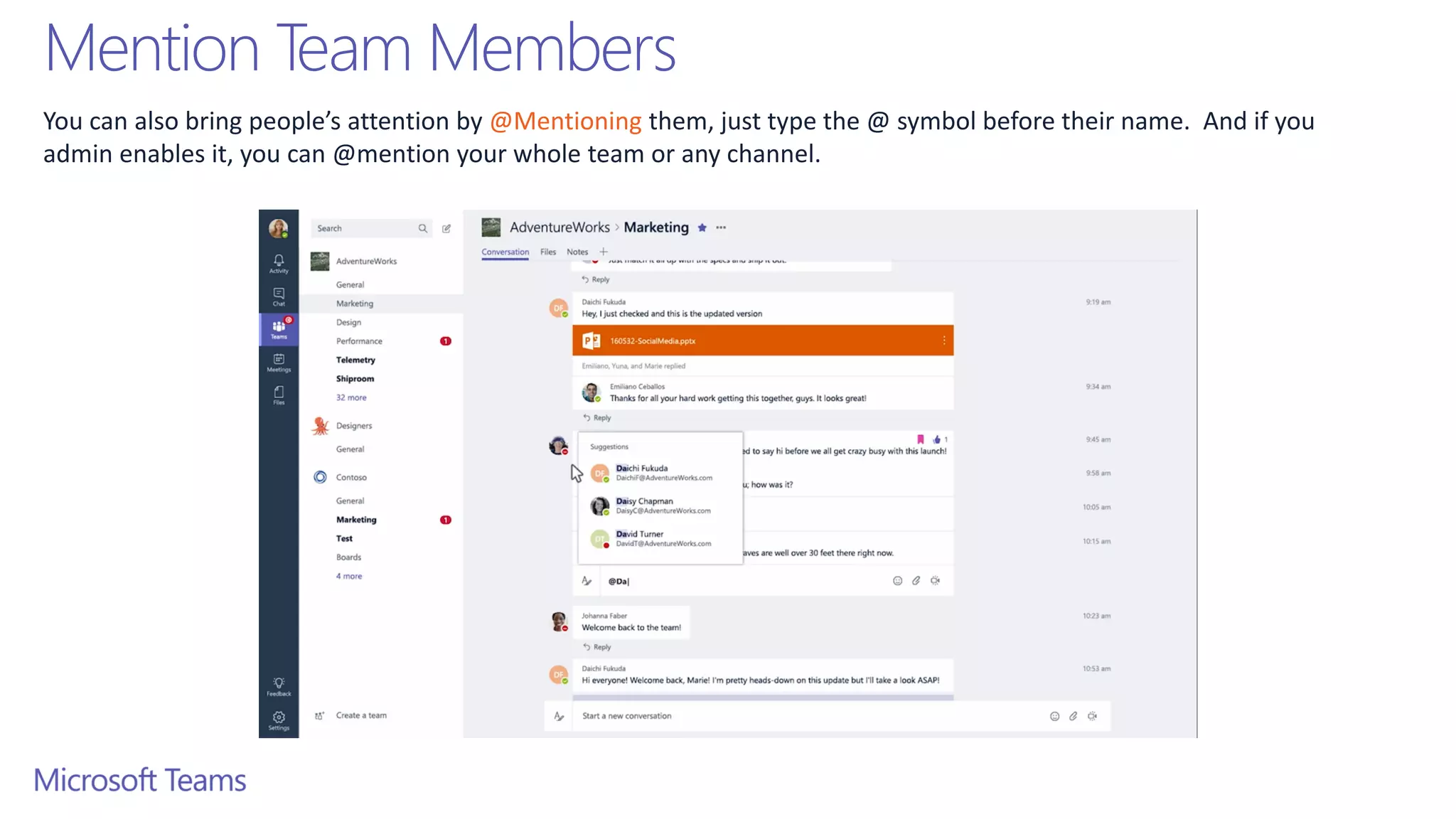
You can also bring people’s attention by @Mentioning them, just type the @ symbol before their name. And if you
admin enables it, you can @mention your whole team or any channel.
Ways to Express Yourself
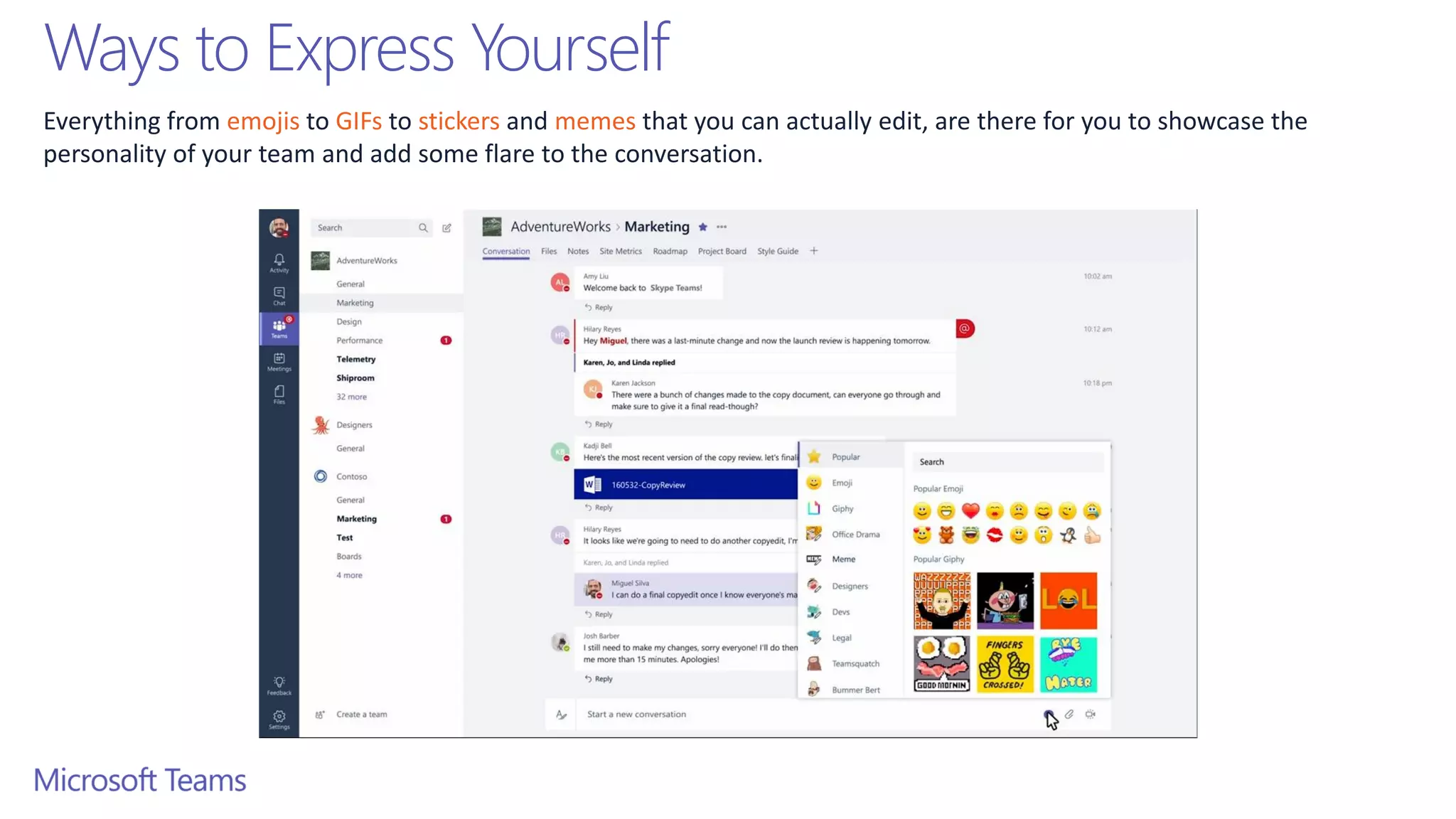
Everything from emojis to GIFs to stickers and memes that you can actually edit, are there for you to showcase the
personality of your team and add some flare to the conversation.
Private Conversations
Open team channels are great for collaboration, but sometimes
you need to talk privately
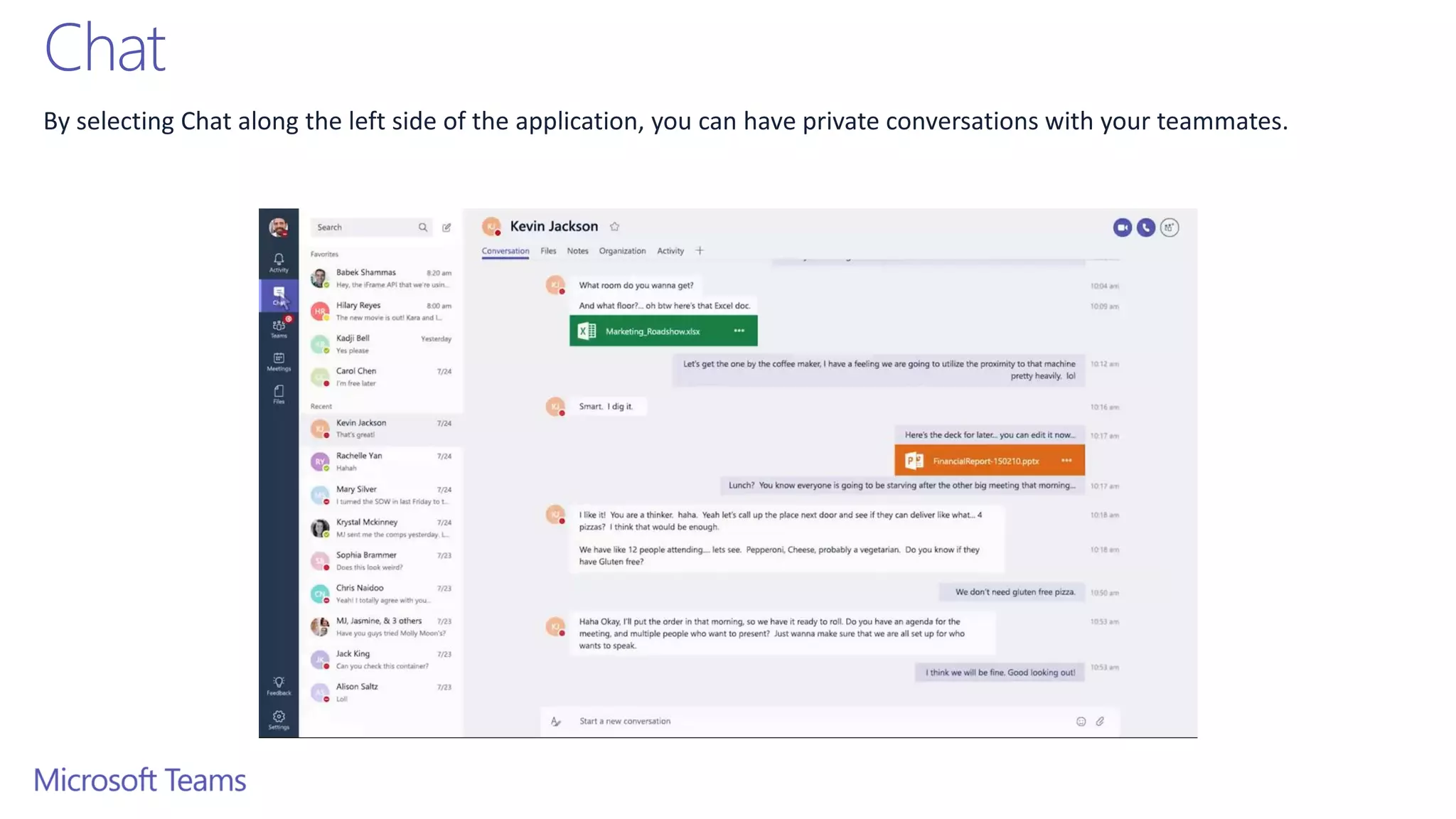
Chat
By selecting Chat along the left side of the application, you can have private conversations with your teammates.
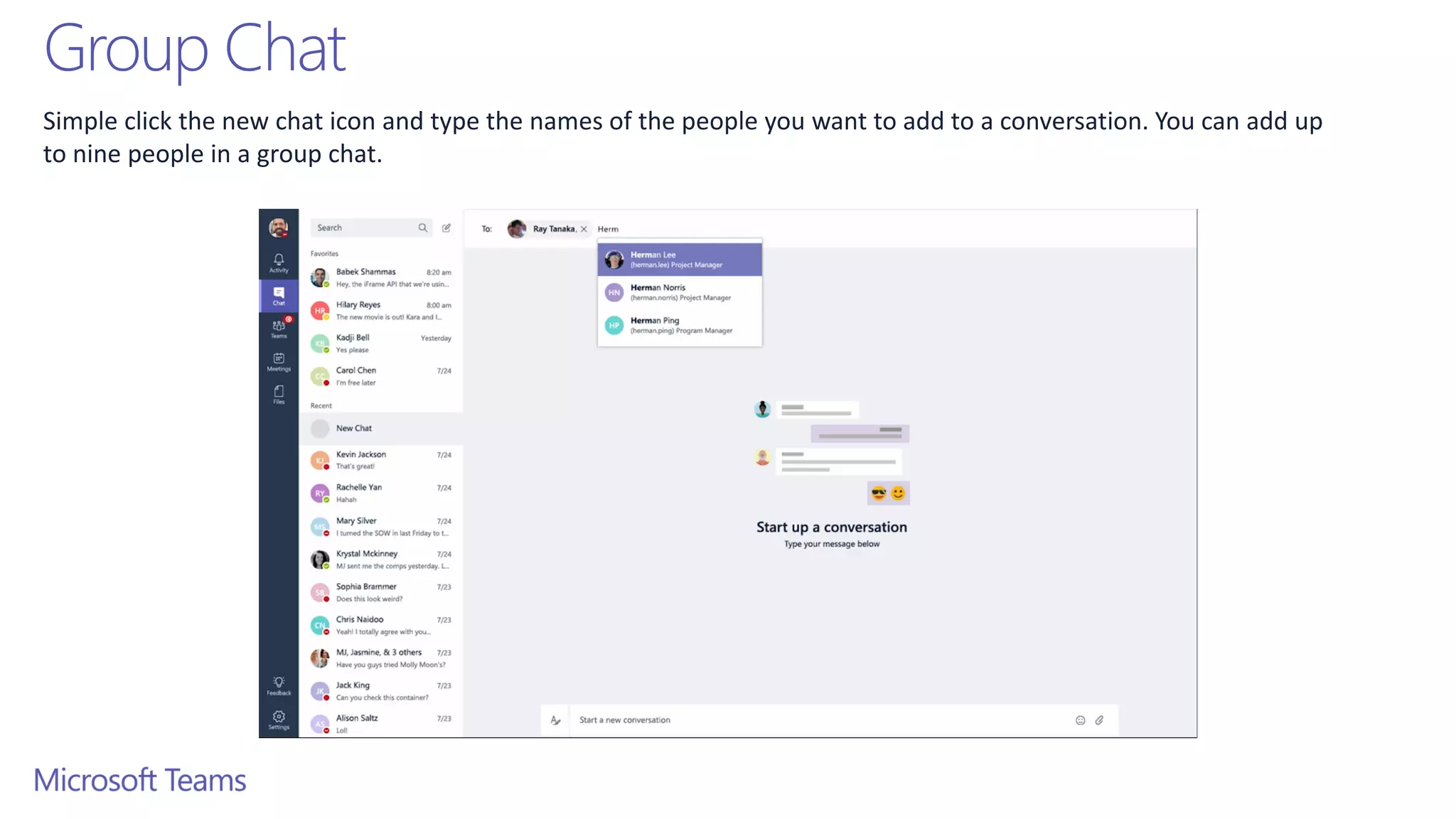
Group Chat
Simple click the new chat icon and type the names of the people you want to add to a conversation. You can add up
to nine people in a group chat.
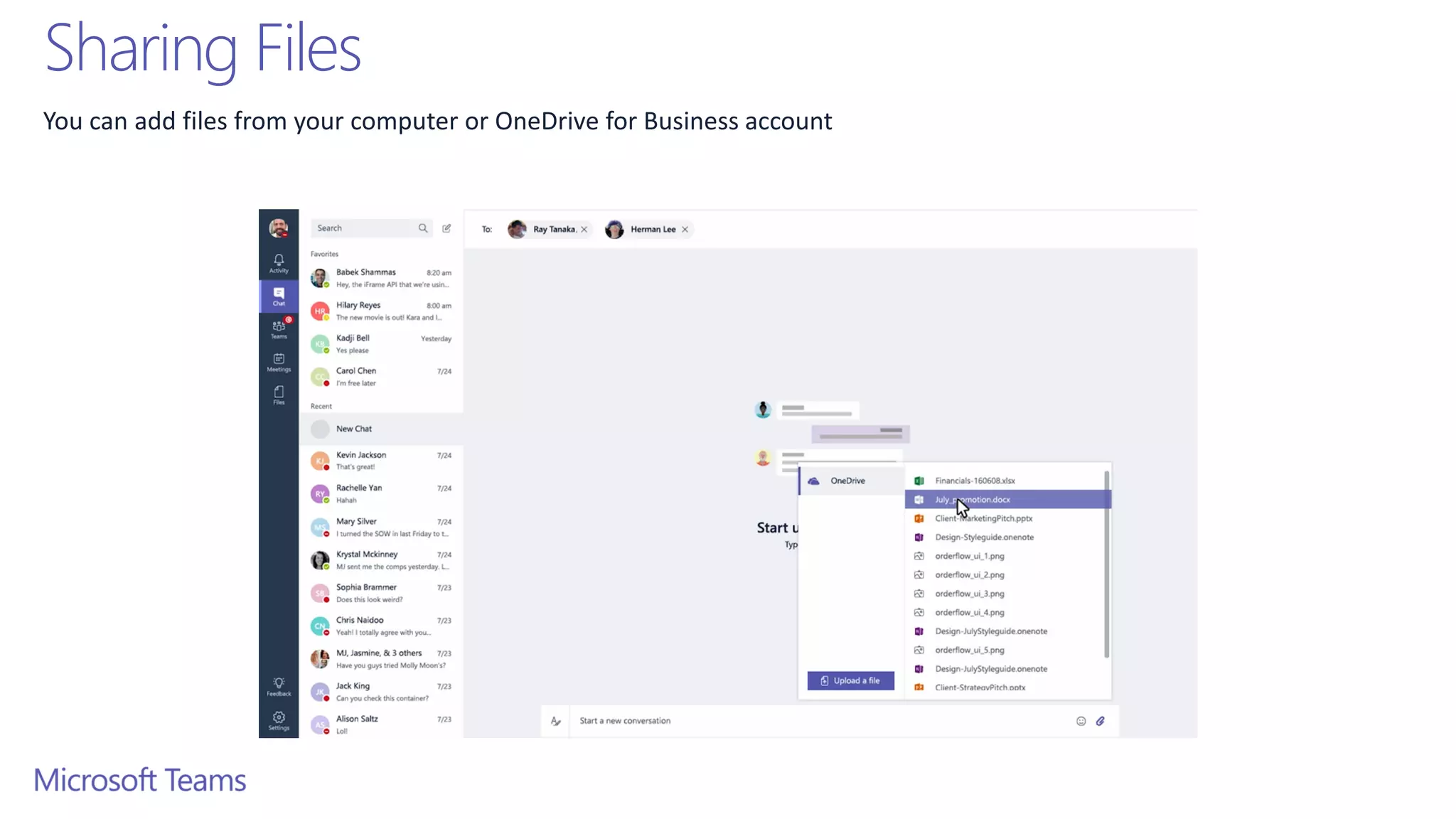
Sharing Files
You can add files from your computer or OneDrive for Business account
Meetings
Microsoft Teams makes it easy for people in a channel to go from a
group conversation to a meeting.
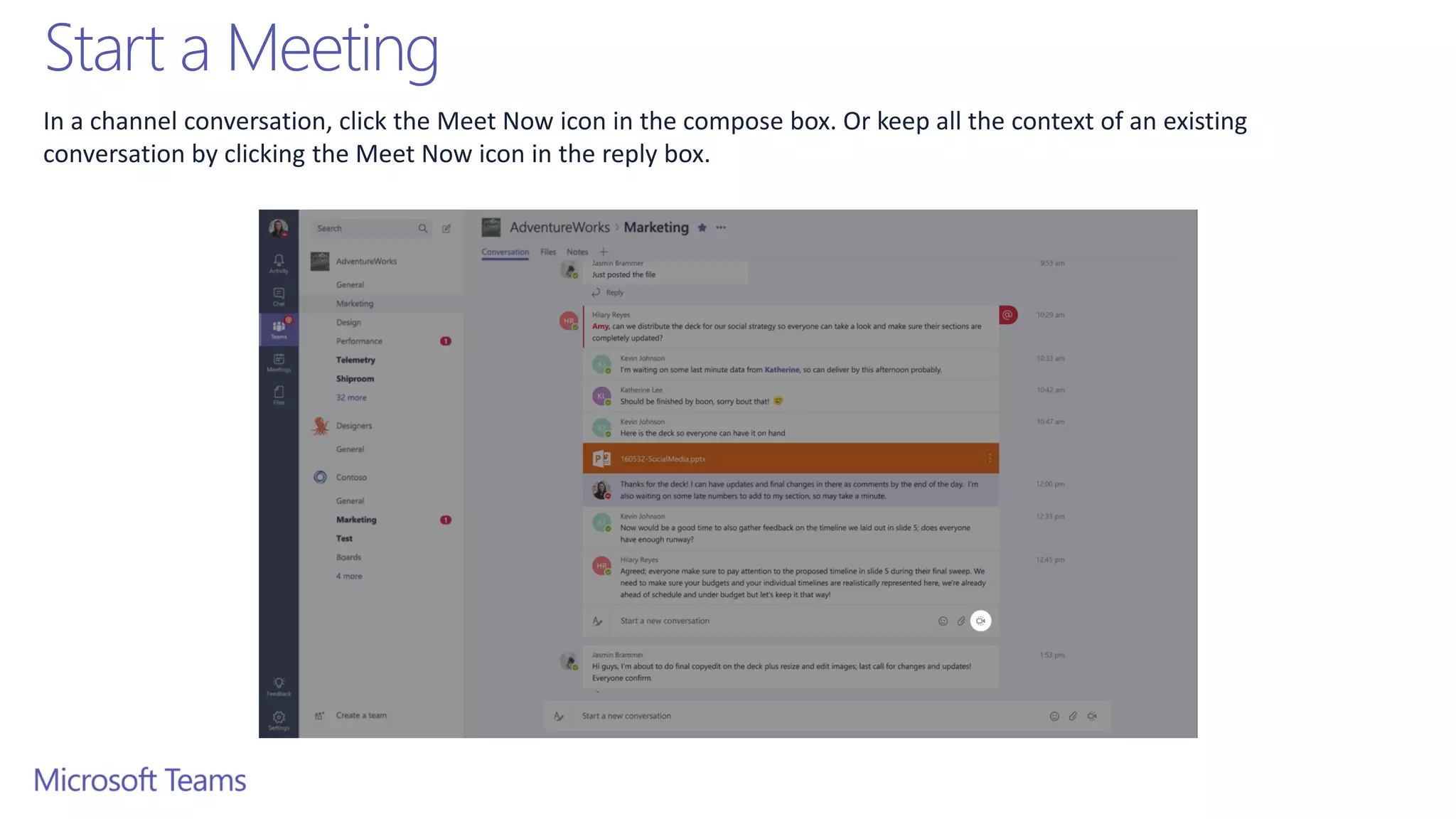
Start a Meeting
In a channel conversation, click the Meet Now icon in the compose box. Or keep all the context of an existing
conversation by clicking the Meet Now icon in the reply box.
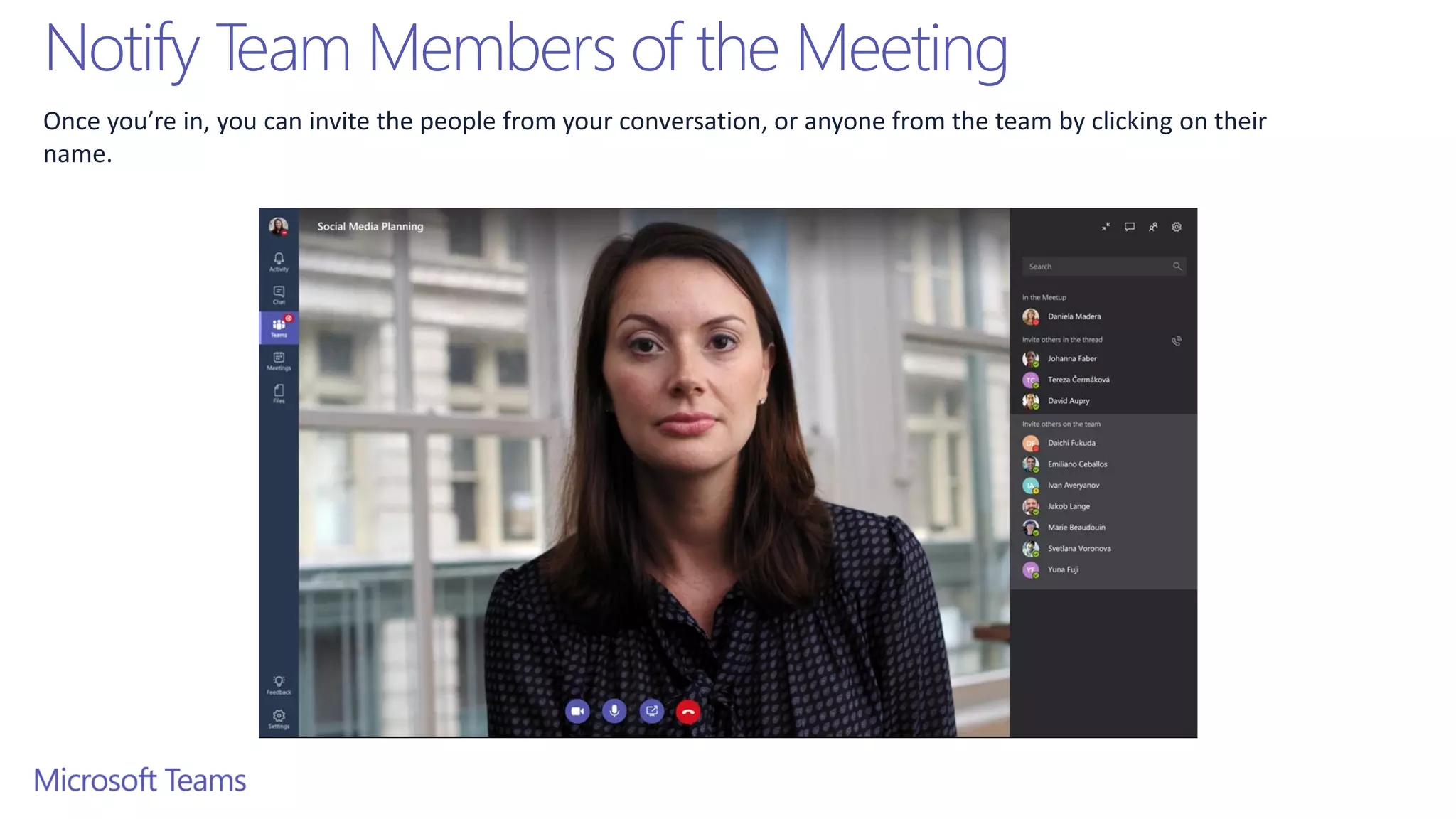
Notify Team Members of the Meeting
Once you’re in, you can invite the people from your conversation, or anyone from the team by clicking on their
name.
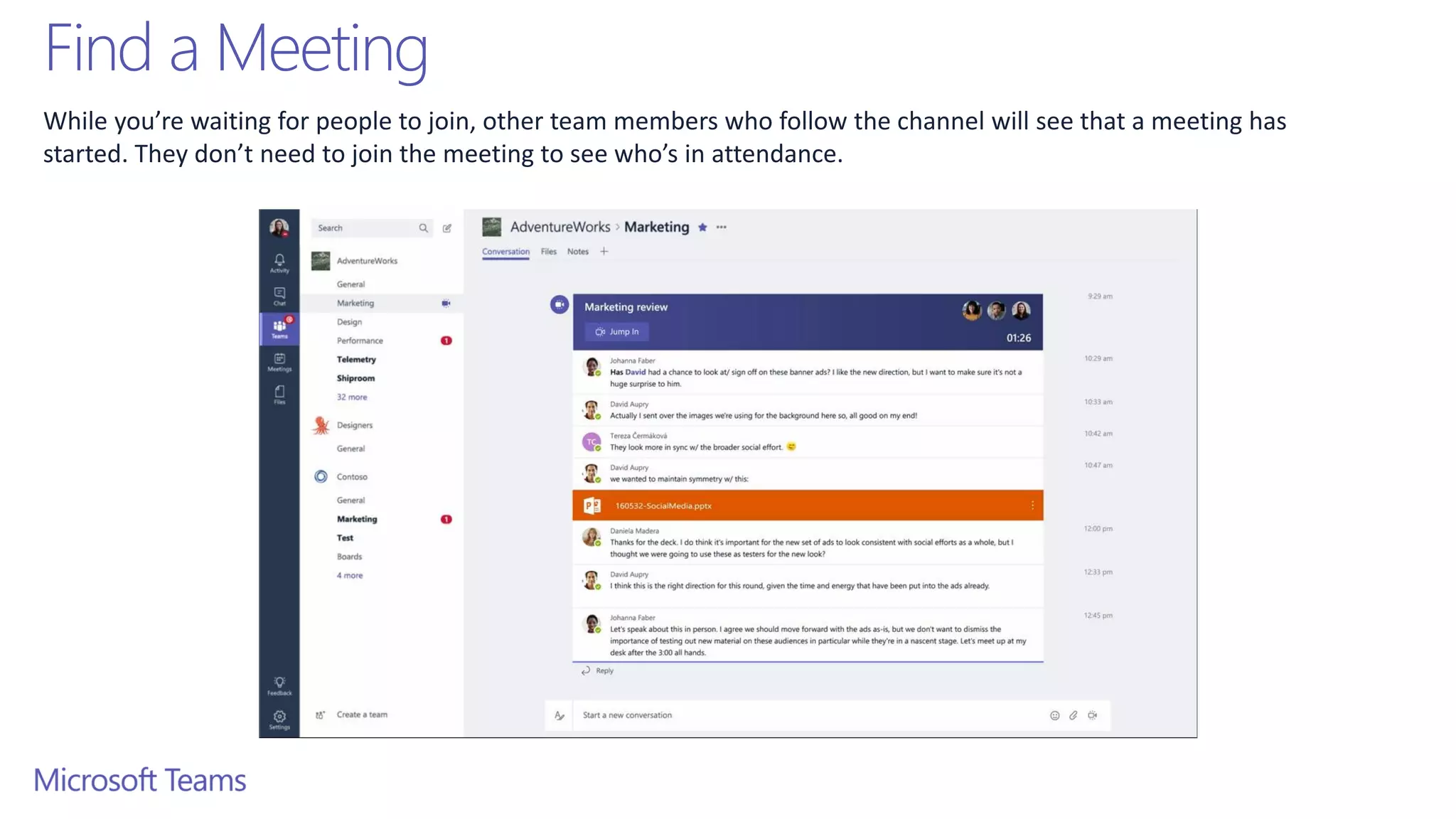
Find a Meeting
While you’re waiting for people to join, other team members who follow the channel will see that a meeting has
started. They don’t need to join the meeting to see who’s in attendance.
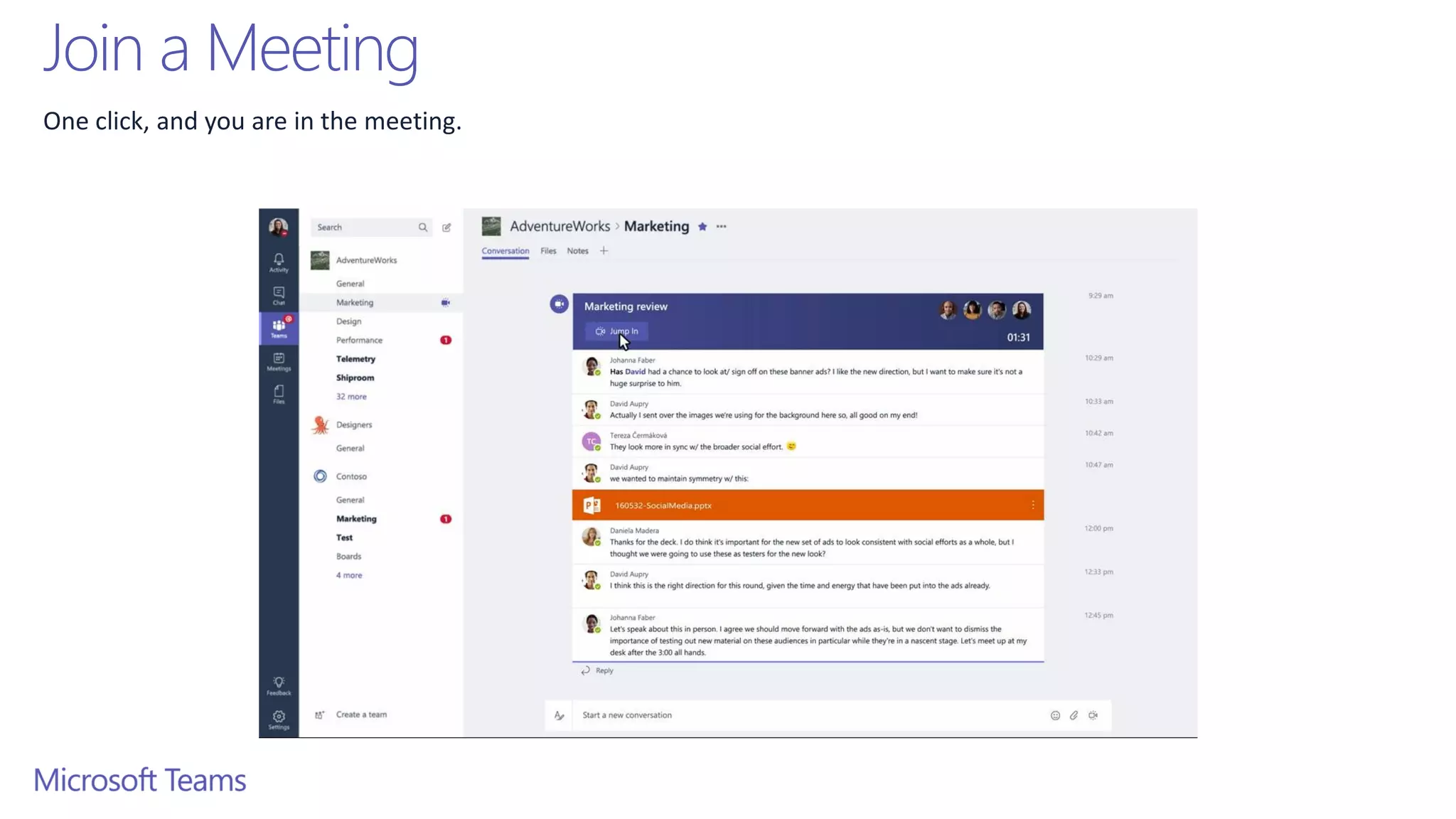
Join a Meeting
One click, and you are in the meeting.
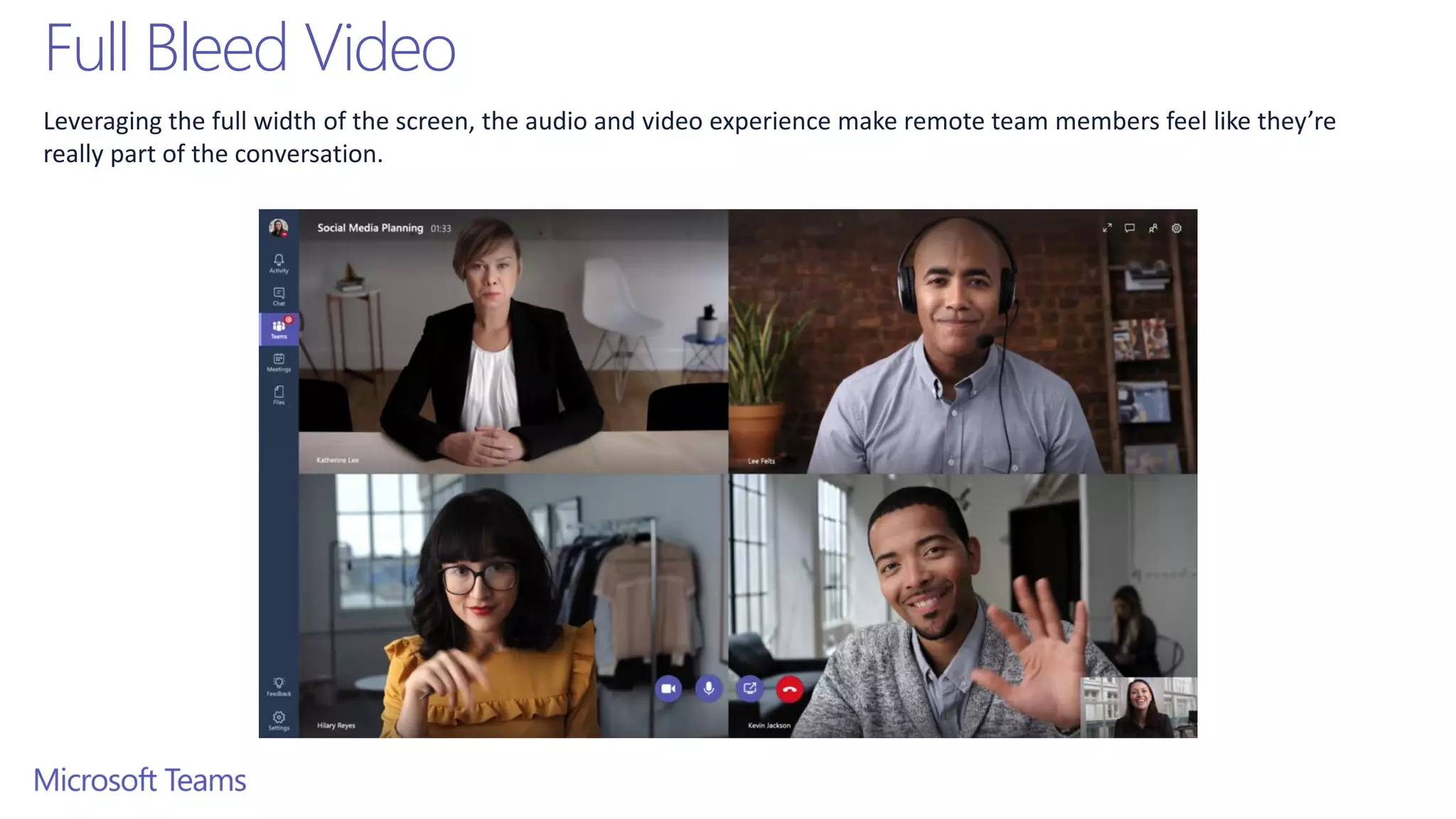
Full Bleed Video
Leveraging the full width of the screen, the audio and video experience make remote team members feel like they’re
really part of the conversation.
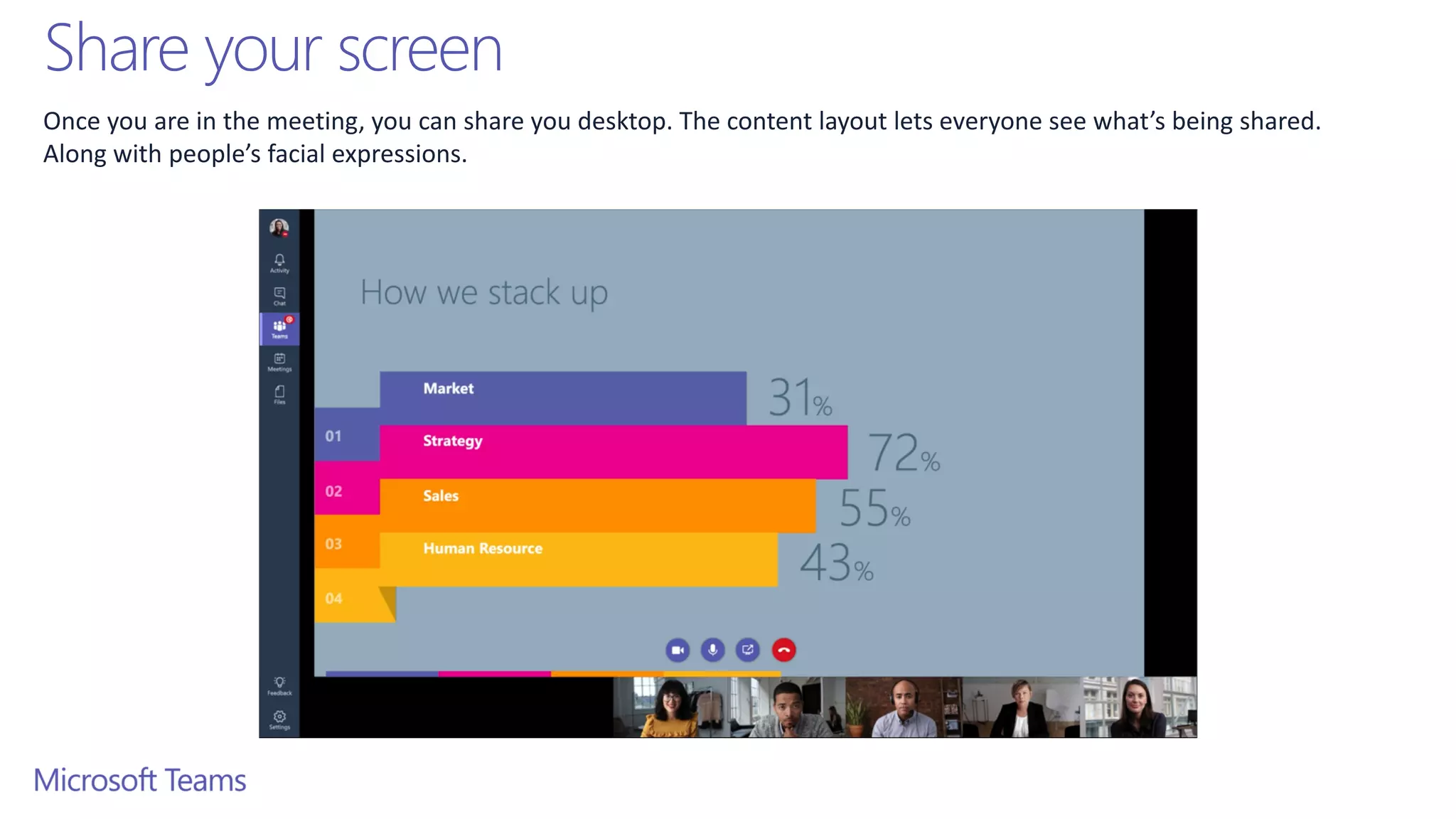
Share your screen
Once you are in the meeting, you can share you desktop. The content layout lets everyone see what’s being shared.
Along with people’s facial expressions.
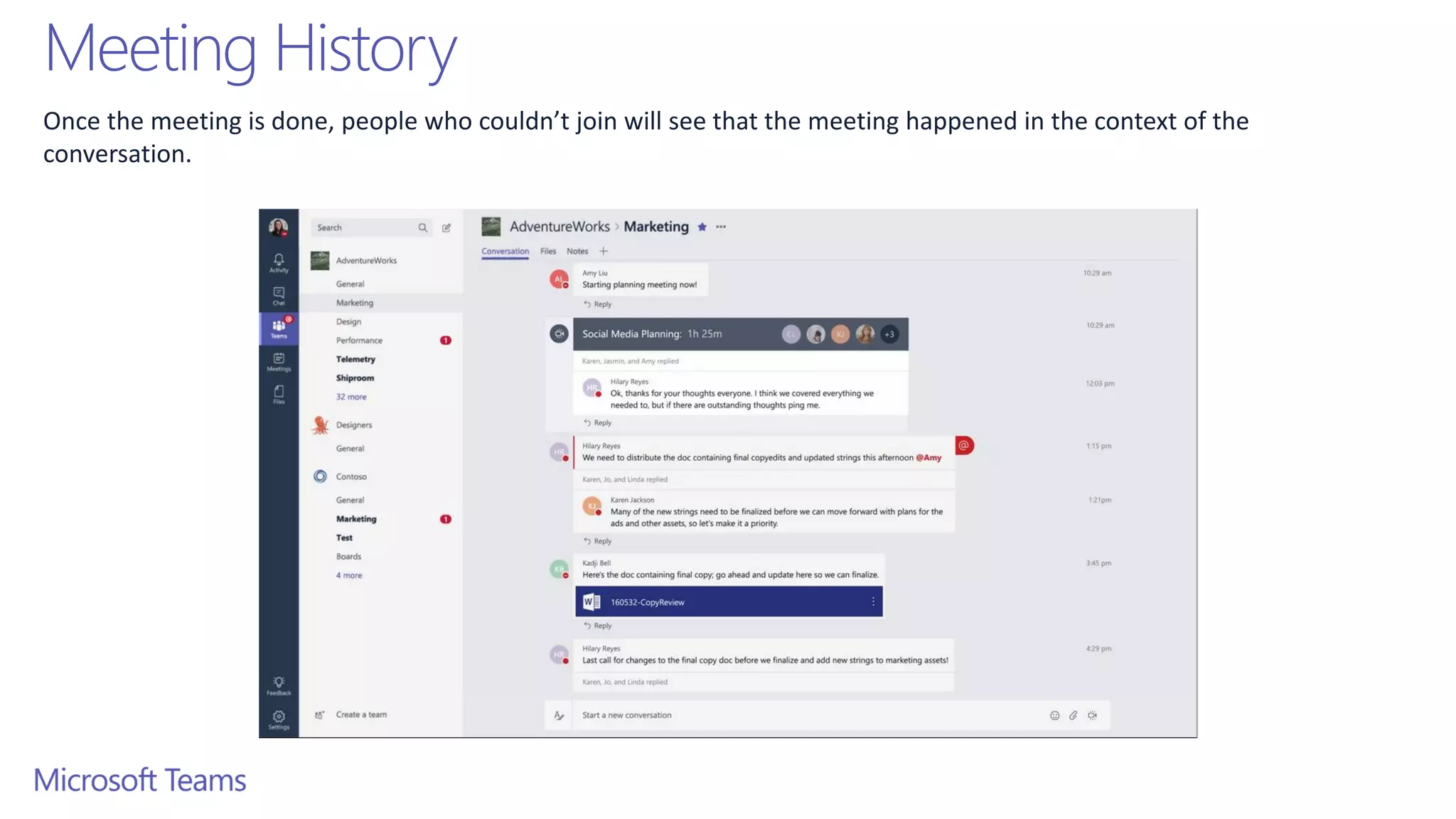
Meeting History
Once the meeting is done, people who couldn’t join will see that the meeting happened in the context of the
conversation.
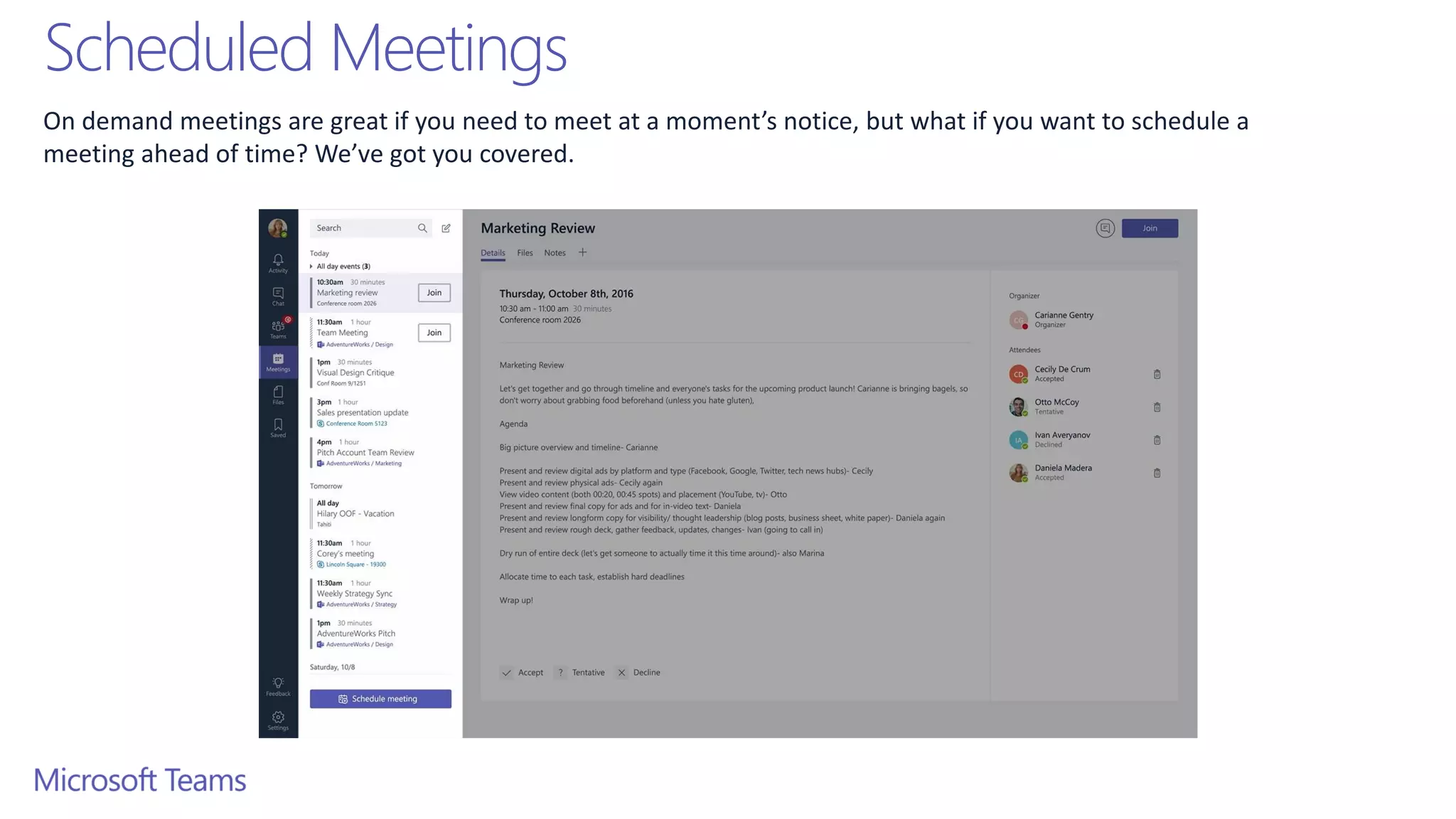
Scheduled Meetings
On demand meetings are great if you need to meet at a moment’s notice, but what if you want to schedule a
meeting ahead of time? We’ve got you covered.
Tabs and Connectors
Allow you to integrate the tools and services you love right into
your chat or channel
Tabs
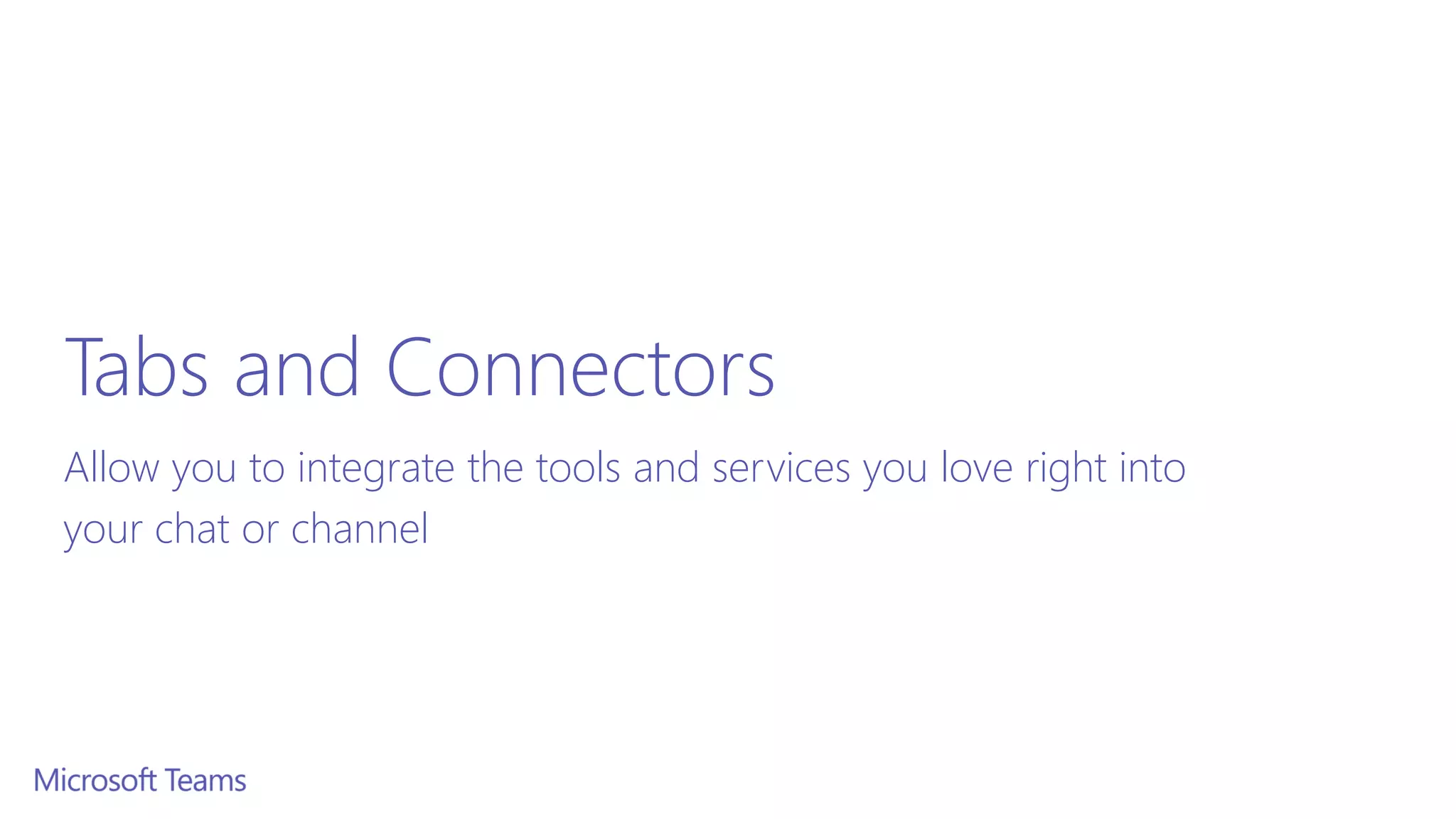
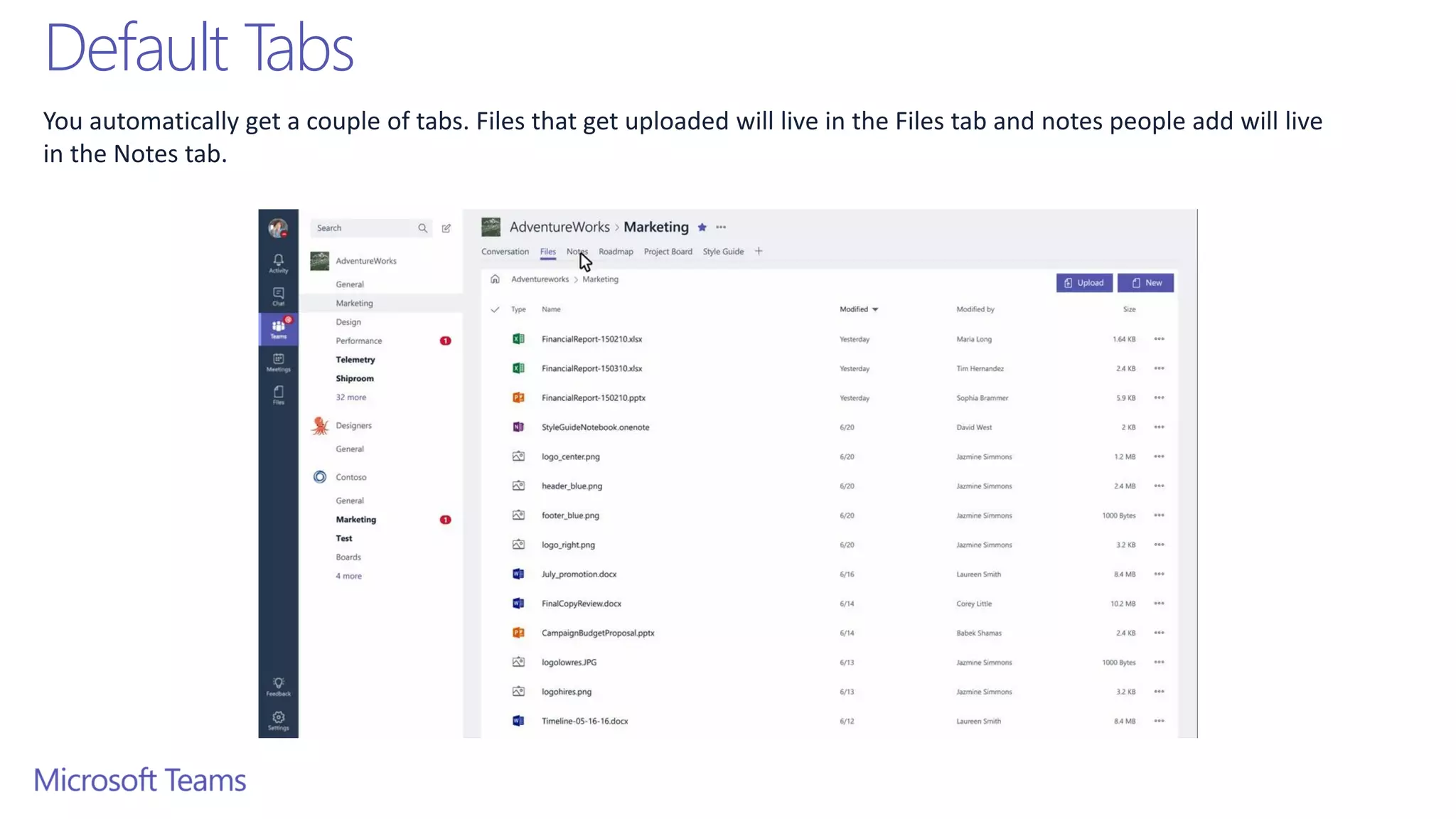
Tabs are always visible at the top and stay with the conversation, so everyone can get to them easily.
Default Tabs
You automatically get a couple of tabs. Files that get uploaded will live in the Files tab and notes people add will live
in the Notes tab.
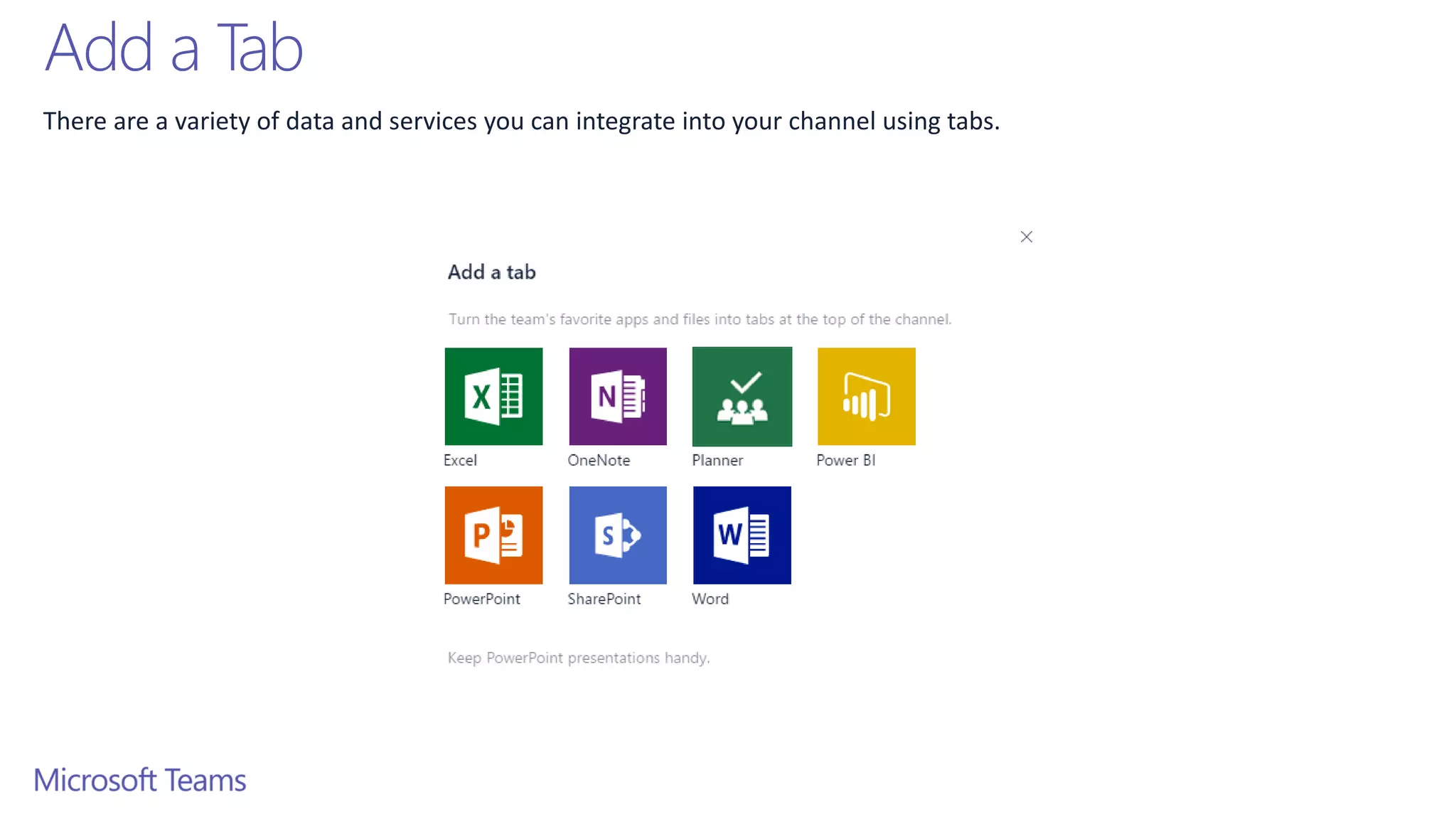
Add a Tab
There are a variety of data and services you can integrate into your channel using tabs.
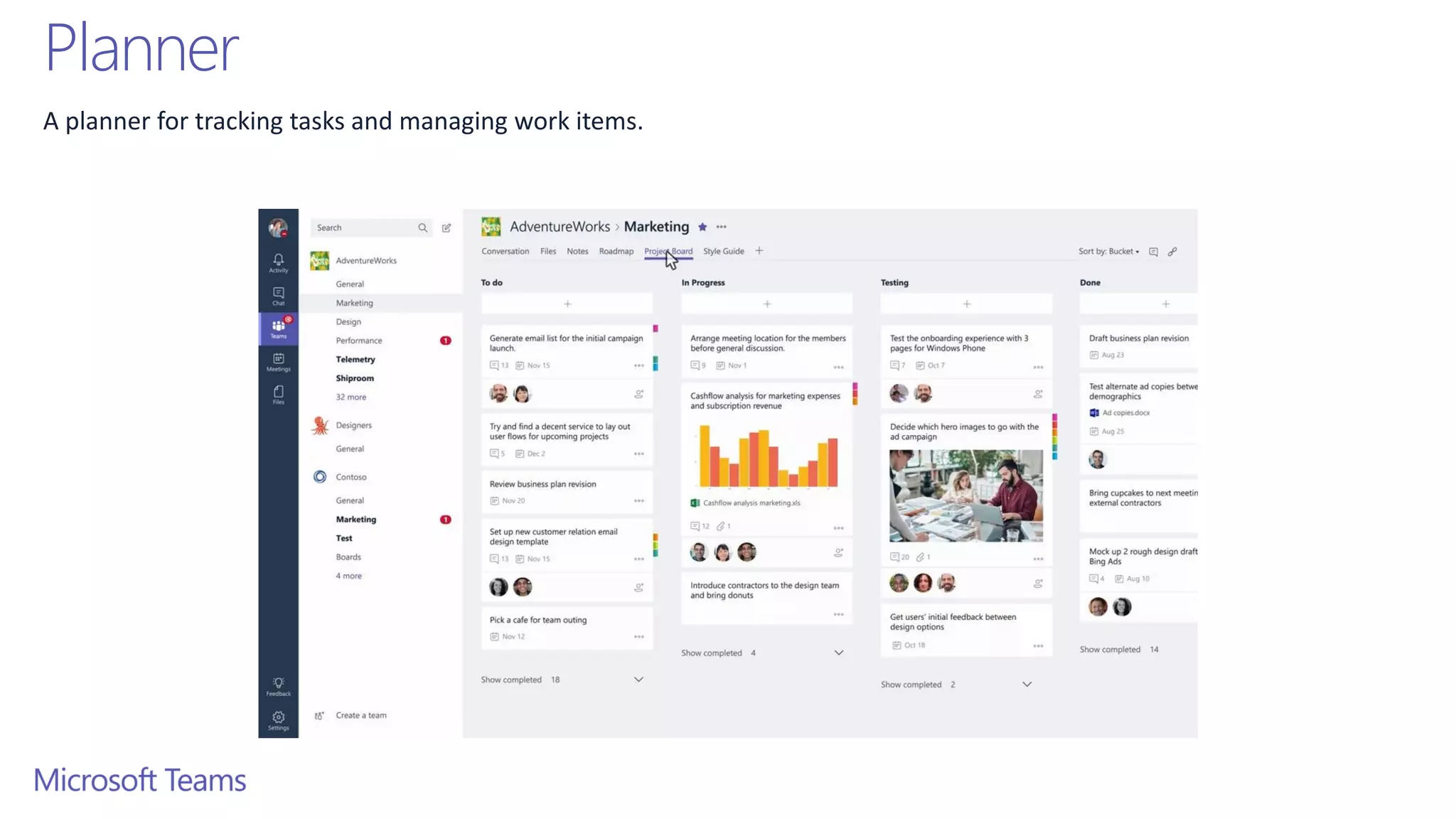
Planner
A planner for tracking tasks and managing work items.
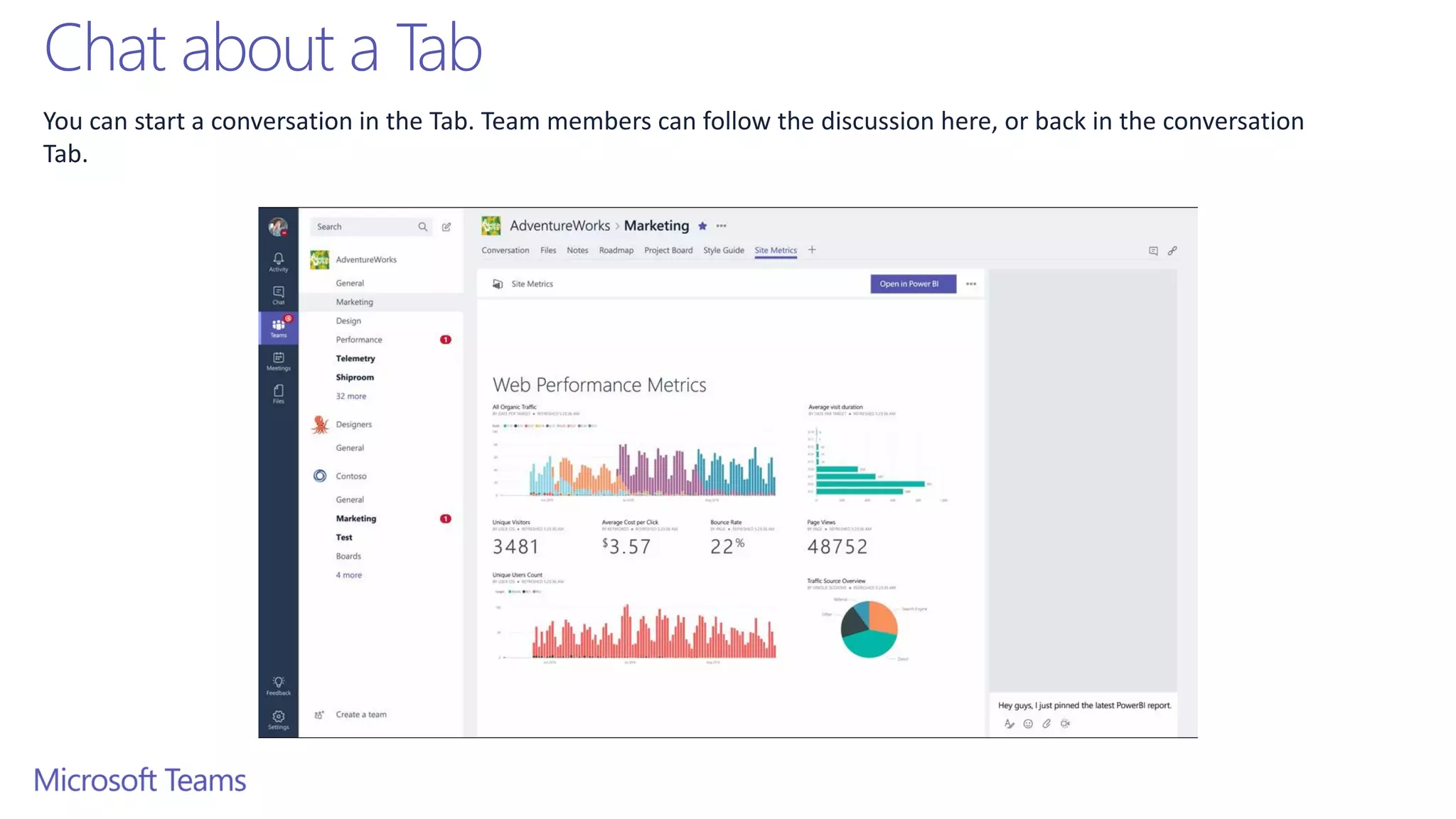
Chat about a Tab
You can start a conversation in the Tab. Team members can follow the discussion here, or back in the conversation
Tab.
Connectors
Office 365 Connectors in Microsoft Teams
Connectors
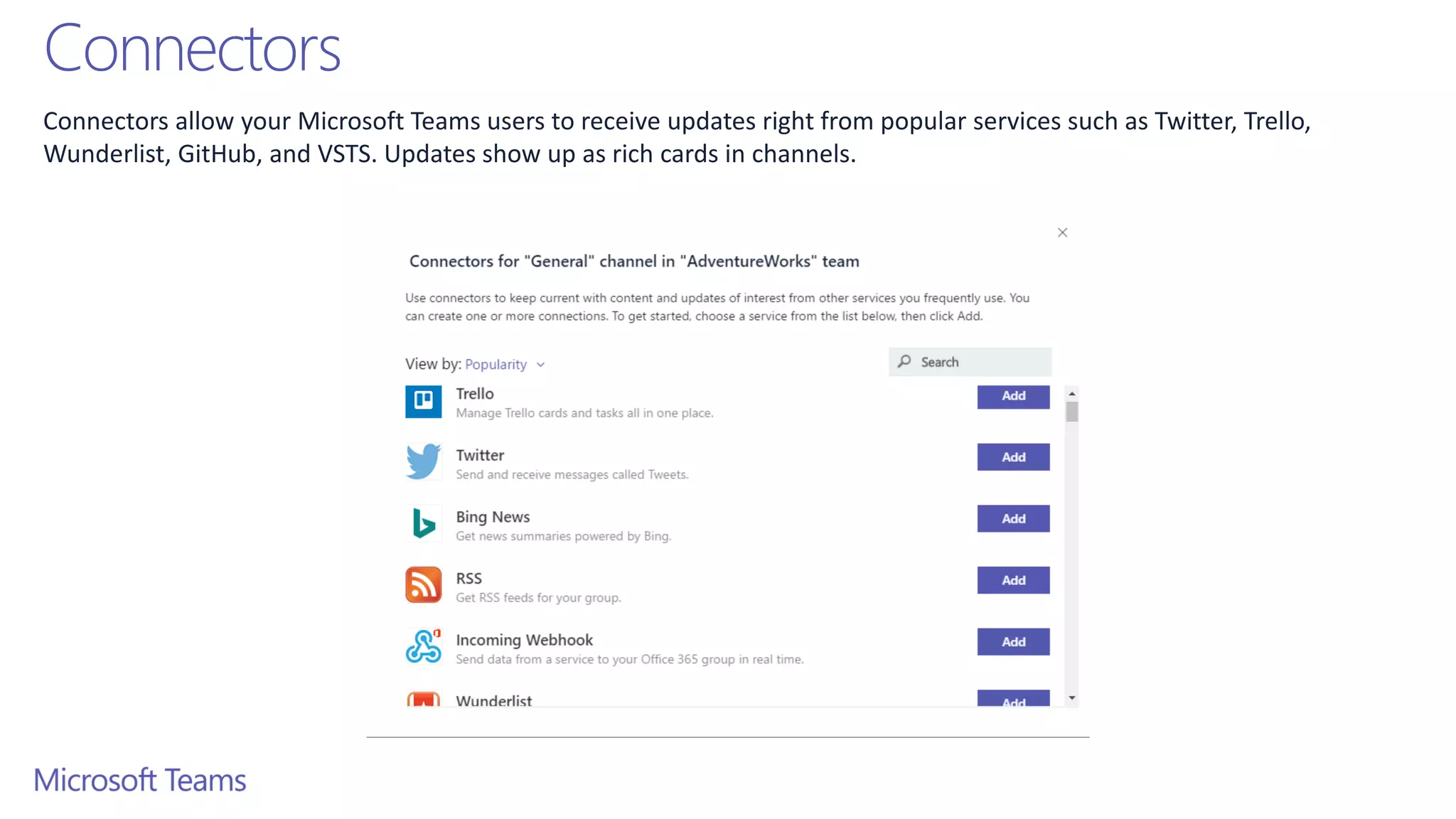
Connectors allow your Microsoft Teams users to receive updates right from popular services such as Twitter, Trello,
Wunderlist, GitHub, and VSTS. Updates show up as rich cards in channels.
Connector Framework
• For a more comprehensive list of Connectors and introduction to
connectors check out Connect apps to your groups
• If you’re interested in building your own Connectors, check out the
Office 365 Connectors development site
Bots
Bots allow users to complete tasks such as querying information
and performing commands
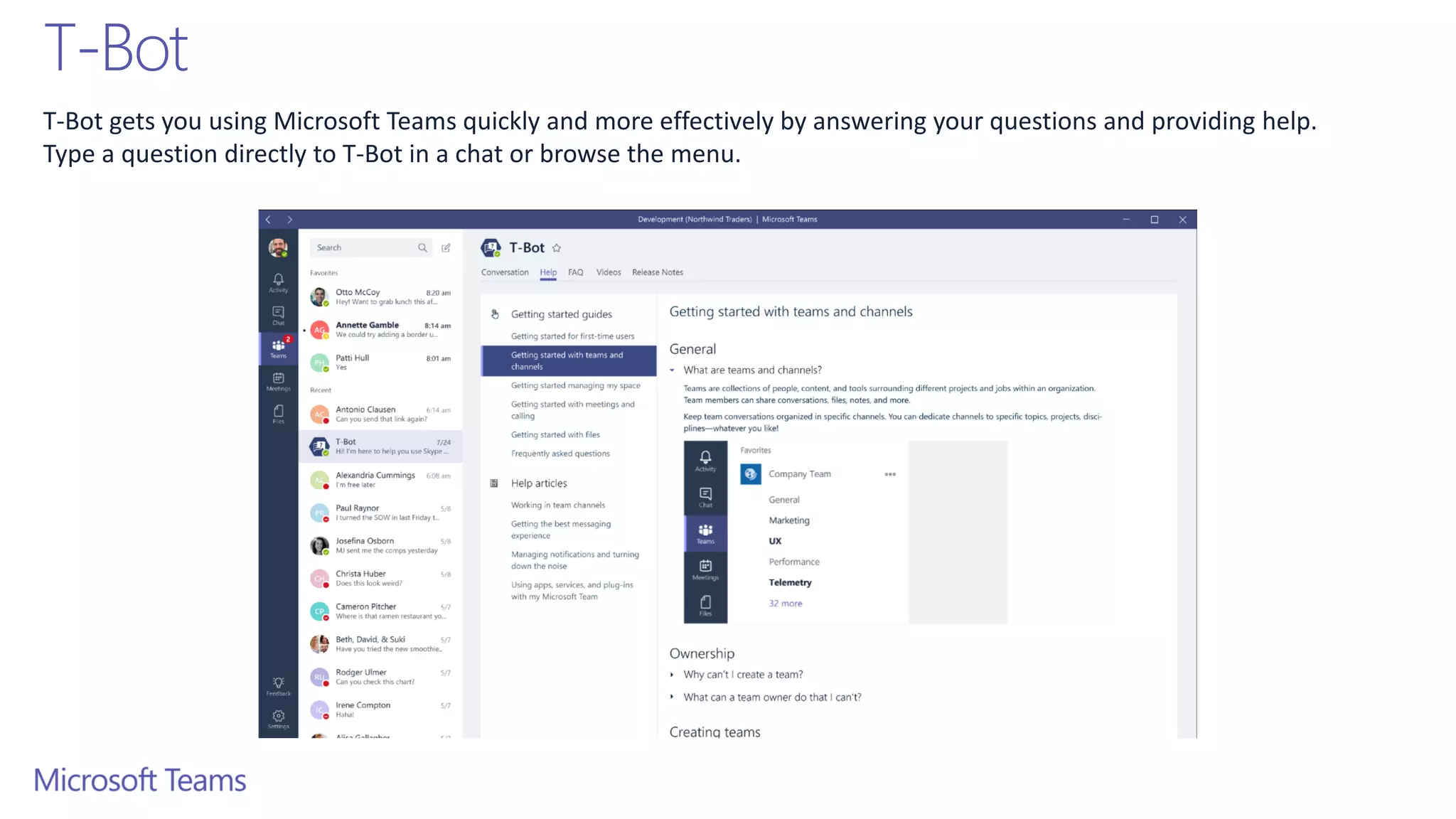
T-Bot
T-Bot gets you using Microsoft Teams quickly and more effectively by answering your questions and providing help.
Type a question directly to T-Bot in a chat or browse the menu.
Bot Framework
• Integrate existing line of business systems with Microsoft Teams via
a bot
• A full suite of indispensable bots are coming soon
• Check out the Microsoft Bot Framework
O365 Licensing Requirements
Microsoft Teams is currently available in preview to customers with
• Business Essentials
• Business Premium
• Enterprise E1, E3, and E5 subscriptions.
• Existing E4 subscriptions (Retired SKU)
Deployment Requirements
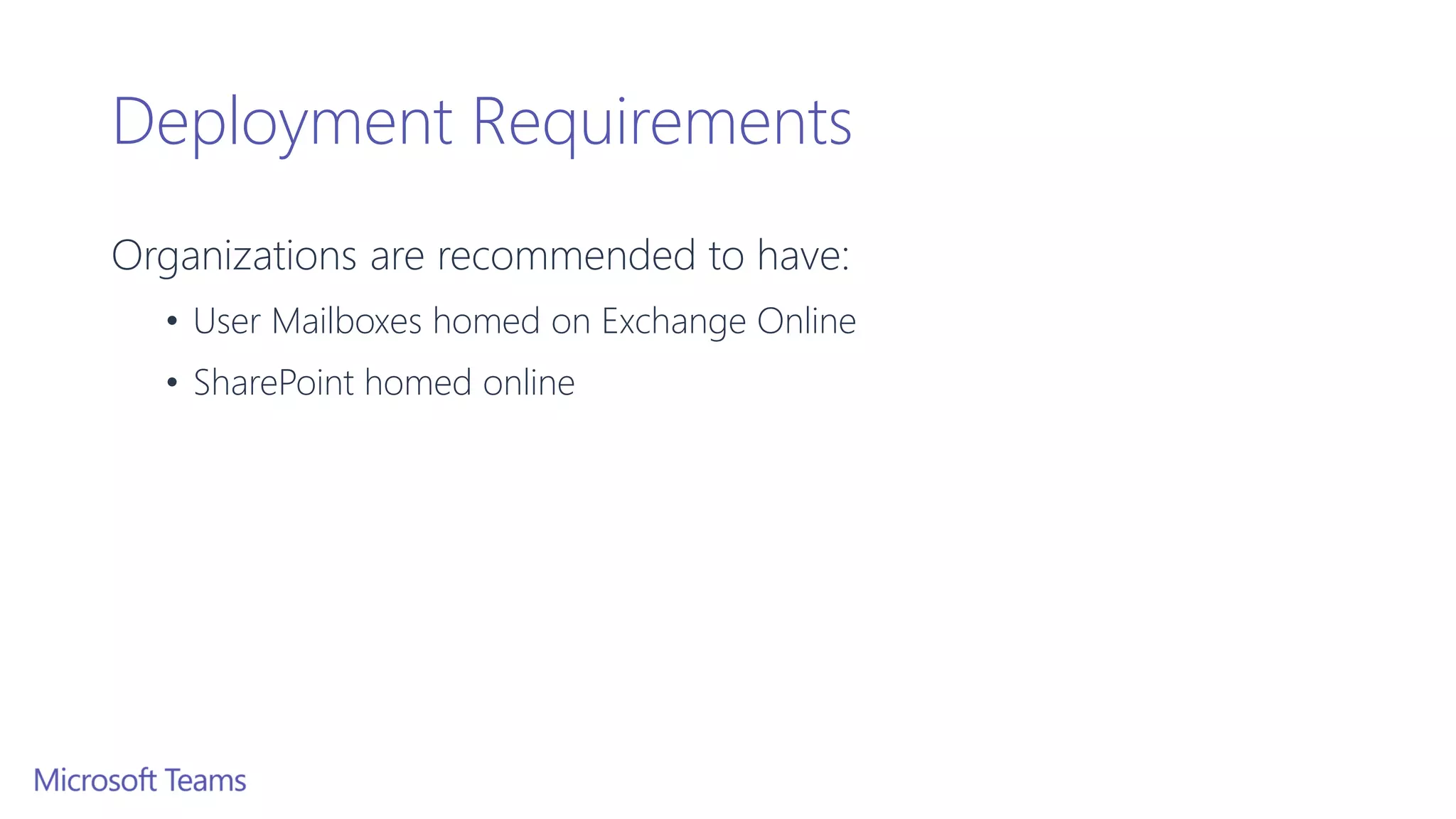
Organizations are recommended to have:
• User Mailboxes homed on Exchange Online
• SharePoint homed online
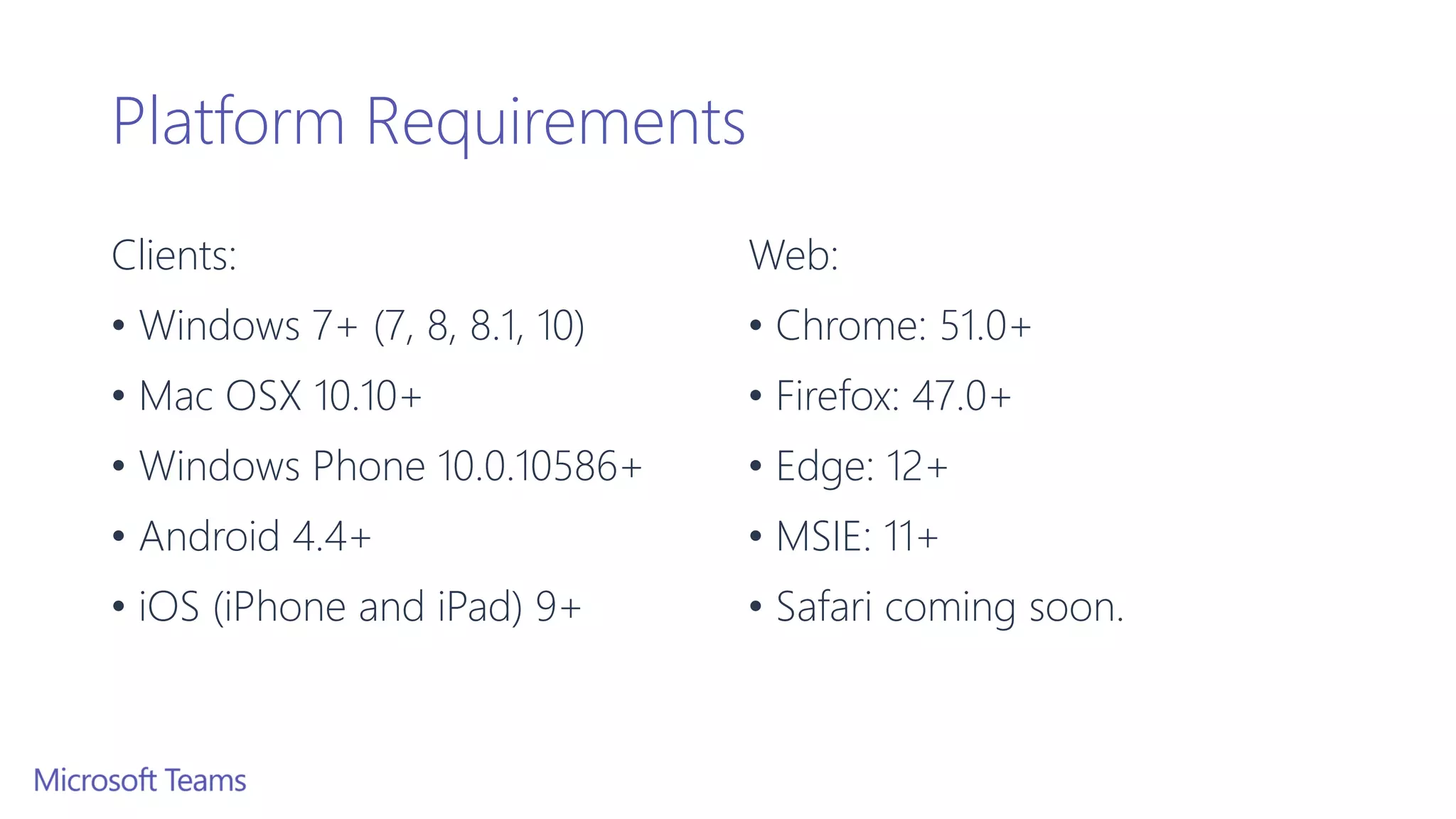
Platform Requirements
Clients:
• Windows 7+ (7, 8, 8.1, 10)
• Mac OSX 10.10+
• Windows Phone 10.0.10586+
• Android 4.4+
• iOS (iPhone and iPad) 9+
Web:
• Chrome: 51.0+
• Firefox: 47.0+
• Edge: 12+
• MSIE: 11+
• Safari coming soon.
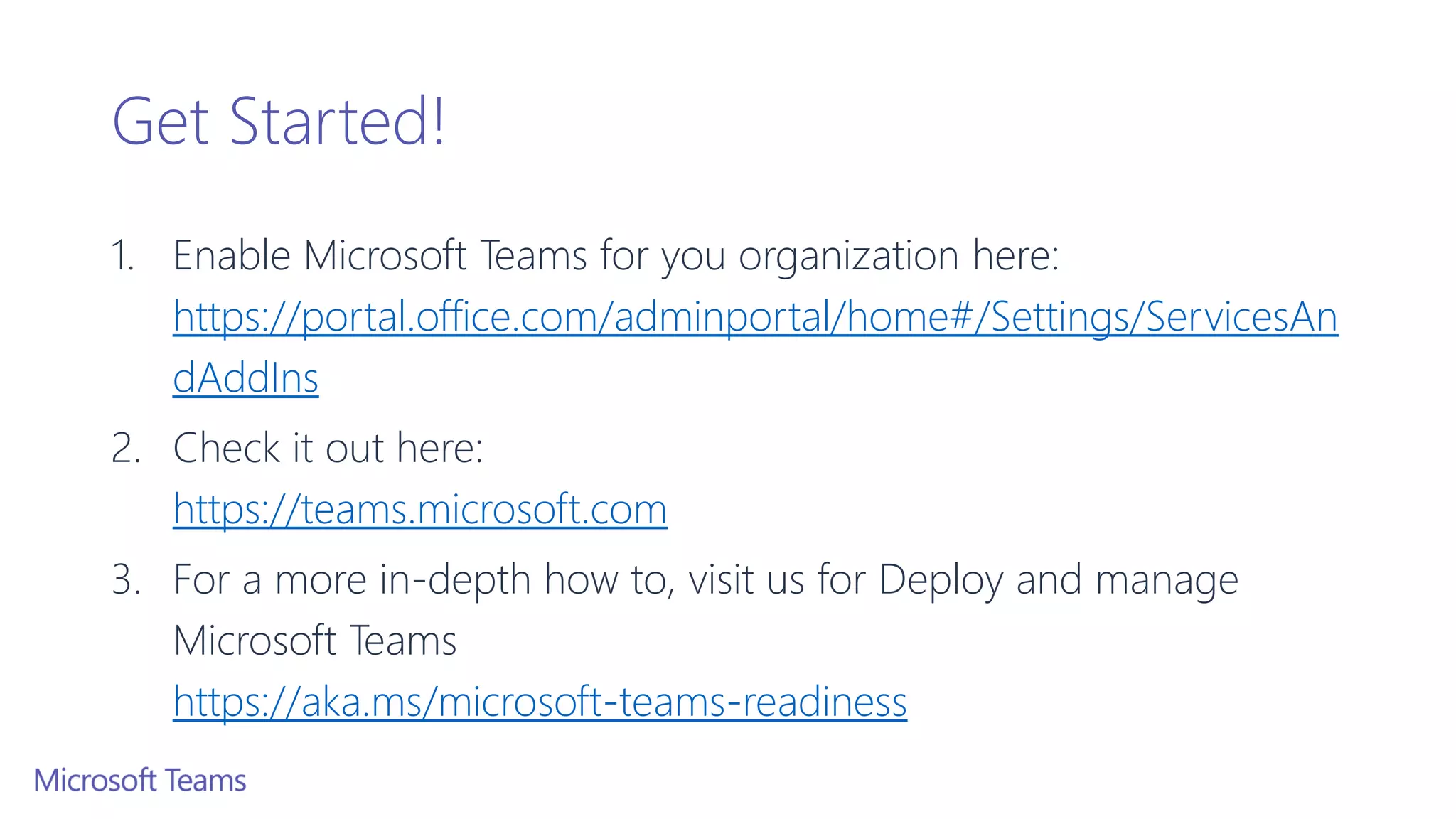
Get Started!
1. Enable Microsoft Teams for you organization here:
https://portal.office.com/adminportal/home#/Settings/ServicesAn
dAddIns
2. Check it out here:
https://teams.microsoft.com
3. For a more in-depth how to, visit us for Deploy and manage
Microsoft Teams
https://aka.ms/microsoft-teams-readiness
Download Links
• Desktop Clients
https://teams.microsoft.com/downloads
• Apple’s App Store – iOS
http://aka.ms/iosteams
• Google Play Store – Android
http://aka.ms/androidteams
• Microsoft’s Store – Windows Phone
http://aka.ms/wpteams
Reference Items
• Microsoft Teams Readiness
https://aka.ms/microsoft-teams-readiness
• Administrator settings for Microsoft Teams
https://support.office.com/article/3966a3f5-7e0f-4ea9-a402-41888f455ba2
• Frequently asked questions about Microsoft Teams – Admin Help
https://support.office.com/article/05cbe533-2181-4e95-a4b0-52cd7695fafc
• Office 365 URLs and IP address ranges
https://support.office.com/en-us/article/Office-365-URLs-and-IP-address-
ranges-8548a211-3fe7-47cb-abb1-355ea5aa88a2
• RSS Feed: https://support.office.com/en-us/o365ip/rss
Development Documentation
• Microsoft Teams Tabs Platform
https://aka.ms/microsoftteamstabsplatform
• Bots in Microsoft Teams
https://aka.ms/microsoftteamsbotsplatform
• Office Connectors in Microsoft Teams
https://aka.ms/microsoftteamsconnectorsplatform
Product Videos
For more product information, you can check out the videos below:
• Product Walkthrough:
https://support.office.com/en-us/article/Microsoft-Teams-Quick-Start-422bf3aa-9ae8-
46f1-83a2-e65720e1a34d?ui=en-US&rs=en-US&ad=US#ID0EAABAAA=Overview
• Onboard your Teams
https://support.office.com/article/702a2977-e662-4038-bef5-bdf8ee47b17b
• Teams and Channels
https://support.office.com/article/c3d63c10-77d5-4204-a566-53ddcf723b46
• Use Tabs
https://support.office.com/article/7350a03e-017a-4a00-a6ae-1c9fe8c497b3
Product Videos (Continued)
For more product information, you can check out the videos below:
• Productive Conversations
https://support.office.com/article/99d33aaa-0743-47c6-a476-eb0a24abcb7e
• Private Conversations and Calling
https://support.office.com/article/a864b052-5e4b-4ccf-b046-2e26f40e21b5
• Meet now
https://support.office.com/article/26e06837-853d-4df1-a729-06bf700d4ecf
• Schedule a meeting
https://support.office.com/article/ba44d0fd-da3c-4541-a3eb-a868f5e2b137
Continue to Conversation
https://aka.ms/msteamscommunity
Microsoft Confidential
Thank you

Introduction to microsoft teams

  • 1.
    Introduction to MicrosoftTeams in Preview Chat-centered workspace in Office 365
  • 2.
    Agenda • Microsoft TeamsIntroduction • Microsoft Teams Features • Microsoft Teams Requirements • Appendix Items
  • 3.
    Goals of thisTraining • Get an understanding of what Microsoft Teams can do for you • Highlight some key features to help increase your organizations productivity • Identify the Licensing, Deployment and Software requirements
  • 4.
    Out of Scope •How to Deploy Microsoft Teams • Settings Management • Overview of Meetings • Chat Services
  • 6.
    T H EN Howwe work has changed NOW 1 Source: 2009, 2014 US IW Survey Employees work on 2x more teams now than they did five years ago1
  • 7.
    Ineffective collaboration has realcosts Agility Takes longer to make and execute decisions Innovation Discoveries aren’t leveraged in other areas Quality Worse decisions due to incomplete data
  • 8.
    Office 365: CompleteGroup Collaboration Solution Addressing the unique needs and workstyle of each group Groups Move from task to task with cross application group membership Graph Discover content and people with cross application intelligence Trust Control on your terms with cross application security & compliance Email and schedule Call and meet ChatCreate, share, find content Connect across the org
  • 9.
    Security teams trust Get theenterprise-level security and compliance features you expect from Office 365. Chat for today’s teams Communicate in the moment and keep everyone in the know Customizable for each team Tailor your workspace to include content and capabilities your team needs every day. A hub for teamwork Give your team quick access to information they need right in Office 365 Chat-based workspace in Office 365
  • 11.
    Teams and Channels Helpsgroups of people get organized with more focused conversations.
  • 12.
    Teams are theoverall group of people working on a project. They can range in size from a small product team to a larger organization. Teams
  • 13.
    Creating Teams Create teamsby adding member individually by email aliases or security groups. Every new team will have a default favorite channel called General, you can use it for whatever you like.
  • 14.
    Channels Teams are madeup of Channels, each covering a different topic. Only favorited Channels will show up in the left pane, other channels will show up if there is a notification for you. The remaining channels can be accessed by clicking more.
  • 15.
    Creating Channels Channels areopen to everyone on the Team, so anyone can drop in and see what everyone is talking about. Channels can be created to cover Topics, Departments, or Projects.
  • 16.
    Teams Owners • Therecan only be 10 owners per Team • Owners can: • Add new members and other owners • Manage Team settings: • EnableDisable @Mentioning • Allowing GIFs, stickers, memes, and moderation settings • Rename the Team • Delete the Team
  • 17.
    Teams Members • Therecan be as many as 600 members per Team • Members can add additional channels to the team
  • 18.
  • 19.
    Threaded Conversations In channelsyou can reply directly to a message, keeping the discussion easy to follow.
  • 20.
    Like and Savemessages At the top right corner of all messages in Channels, you have an option to like messages or save them for later. Saved messages will be kept in Saved along the left rail.
  • 21.
    Documents and Conversations Youcan review a file with the conversation along side it. When you give feedback and comment, it’ll also appear back in the channel so no one loses the history.
  • 22.
    Mention Team Members Youcan also bring people’s attention by @Mentioning them, just type the @ symbol before their name. And if you admin enables it, you can @mention your whole team or any channel.
  • 23.
    Ways to ExpressYourself Everything from emojis to GIFs to stickers and memes that you can actually edit, are there for you to showcase the personality of your team and add some flare to the conversation.
  • 24.
    Private Conversations Open teamchannels are great for collaboration, but sometimes you need to talk privately
  • 25.
    Chat By selecting Chatalong the left side of the application, you can have private conversations with your teammates.
  • 26.
    Group Chat Simple clickthe new chat icon and type the names of the people you want to add to a conversation. You can add up to nine people in a group chat.
  • 27.
    Sharing Files You canadd files from your computer or OneDrive for Business account
  • 28.
    Meetings Microsoft Teams makesit easy for people in a channel to go from a group conversation to a meeting.
  • 29.
    Start a Meeting Ina channel conversation, click the Meet Now icon in the compose box. Or keep all the context of an existing conversation by clicking the Meet Now icon in the reply box.
  • 30.
    Notify Team Membersof the Meeting Once you’re in, you can invite the people from your conversation, or anyone from the team by clicking on their name.
  • 31.
    Find a Meeting Whileyou’re waiting for people to join, other team members who follow the channel will see that a meeting has started. They don’t need to join the meeting to see who’s in attendance.
  • 32.
    Join a Meeting Oneclick, and you are in the meeting.
  • 33.
    Full Bleed Video Leveragingthe full width of the screen, the audio and video experience make remote team members feel like they’re really part of the conversation.
  • 34.
    Share your screen Onceyou are in the meeting, you can share you desktop. The content layout lets everyone see what’s being shared. Along with people’s facial expressions.
  • 35.
    Meeting History Once themeeting is done, people who couldn’t join will see that the meeting happened in the context of the conversation.
  • 36.
    Scheduled Meetings On demandmeetings are great if you need to meet at a moment’s notice, but what if you want to schedule a meeting ahead of time? We’ve got you covered.
  • 37.
    Tabs and Connectors Allowyou to integrate the tools and services you love right into your chat or channel
  • 38.
    Tabs Tabs are alwaysvisible at the top and stay with the conversation, so everyone can get to them easily.
  • 39.
    Default Tabs You automaticallyget a couple of tabs. Files that get uploaded will live in the Files tab and notes people add will live in the Notes tab.
  • 40.
    Add a Tab Thereare a variety of data and services you can integrate into your channel using tabs.
  • 41.
    Planner A planner fortracking tasks and managing work items.
  • 42.
    Chat about aTab You can start a conversation in the Tab. Team members can follow the discussion here, or back in the conversation Tab.
  • 43.
  • 44.
    Connectors Connectors allow yourMicrosoft Teams users to receive updates right from popular services such as Twitter, Trello, Wunderlist, GitHub, and VSTS. Updates show up as rich cards in channels.
  • 45.
    Connector Framework • Fora more comprehensive list of Connectors and introduction to connectors check out Connect apps to your groups • If you’re interested in building your own Connectors, check out the Office 365 Connectors development site
  • 46.
    Bots Bots allow usersto complete tasks such as querying information and performing commands
  • 47.
    T-Bot T-Bot gets youusing Microsoft Teams quickly and more effectively by answering your questions and providing help. Type a question directly to T-Bot in a chat or browse the menu.
  • 48.
    Bot Framework • Integrateexisting line of business systems with Microsoft Teams via a bot • A full suite of indispensable bots are coming soon • Check out the Microsoft Bot Framework
  • 50.
    O365 Licensing Requirements MicrosoftTeams is currently available in preview to customers with • Business Essentials • Business Premium • Enterprise E1, E3, and E5 subscriptions. • Existing E4 subscriptions (Retired SKU)
  • 51.
    Deployment Requirements Organizations arerecommended to have: • User Mailboxes homed on Exchange Online • SharePoint homed online
  • 52.
    Platform Requirements Clients: • Windows7+ (7, 8, 8.1, 10) • Mac OSX 10.10+ • Windows Phone 10.0.10586+ • Android 4.4+ • iOS (iPhone and iPad) 9+ Web: • Chrome: 51.0+ • Firefox: 47.0+ • Edge: 12+ • MSIE: 11+ • Safari coming soon.
  • 53.
    Get Started! 1. EnableMicrosoft Teams for you organization here: https://portal.office.com/adminportal/home#/Settings/ServicesAn dAddIns 2. Check it out here: https://teams.microsoft.com 3. For a more in-depth how to, visit us for Deploy and manage Microsoft Teams https://aka.ms/microsoft-teams-readiness
  • 55.
    Download Links • DesktopClients https://teams.microsoft.com/downloads • Apple’s App Store – iOS http://aka.ms/iosteams • Google Play Store – Android http://aka.ms/androidteams • Microsoft’s Store – Windows Phone http://aka.ms/wpteams
  • 56.
    Reference Items • MicrosoftTeams Readiness https://aka.ms/microsoft-teams-readiness • Administrator settings for Microsoft Teams https://support.office.com/article/3966a3f5-7e0f-4ea9-a402-41888f455ba2 • Frequently asked questions about Microsoft Teams – Admin Help https://support.office.com/article/05cbe533-2181-4e95-a4b0-52cd7695fafc • Office 365 URLs and IP address ranges https://support.office.com/en-us/article/Office-365-URLs-and-IP-address- ranges-8548a211-3fe7-47cb-abb1-355ea5aa88a2 • RSS Feed: https://support.office.com/en-us/o365ip/rss
  • 57.
    Development Documentation • MicrosoftTeams Tabs Platform https://aka.ms/microsoftteamstabsplatform • Bots in Microsoft Teams https://aka.ms/microsoftteamsbotsplatform • Office Connectors in Microsoft Teams https://aka.ms/microsoftteamsconnectorsplatform
  • 58.
    Product Videos For moreproduct information, you can check out the videos below: • Product Walkthrough: https://support.office.com/en-us/article/Microsoft-Teams-Quick-Start-422bf3aa-9ae8- 46f1-83a2-e65720e1a34d?ui=en-US&rs=en-US&ad=US#ID0EAABAAA=Overview • Onboard your Teams https://support.office.com/article/702a2977-e662-4038-bef5-bdf8ee47b17b • Teams and Channels https://support.office.com/article/c3d63c10-77d5-4204-a566-53ddcf723b46 • Use Tabs https://support.office.com/article/7350a03e-017a-4a00-a6ae-1c9fe8c497b3
  • 59.
    Product Videos (Continued) Formore product information, you can check out the videos below: • Productive Conversations https://support.office.com/article/99d33aaa-0743-47c6-a476-eb0a24abcb7e • Private Conversations and Calling https://support.office.com/article/a864b052-5e4b-4ccf-b046-2e26f40e21b5 • Meet now https://support.office.com/article/26e06837-853d-4df1-a729-06bf700d4ecf • Schedule a meeting https://support.office.com/article/ba44d0fd-da3c-4541-a3eb-a868f5e2b137
  • 60.
  • 61.