AGENDA
- Introduction of Teams
- Highlight key features of teams to increase organization productivity
- Collaboration and integration in teams
- Tips and tricks
- Question and answers
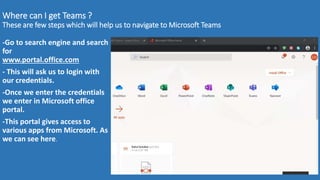
Where can I get Teams ?
These are few steps which will help us to navigate to Microsoft Teams
-Go to search engine and search
for
www.portal.office.com
- This will ask us to login with
our credentials.
-Once we enter the credentials
we enter in Microsoft office
portal.
-This portal gives access to
various apps from Microsoft. As
we can see here.
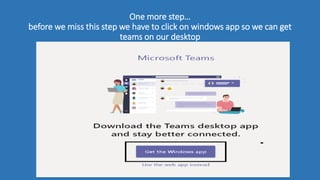
One more step…
before we miss this step we have to click on windows app so we can get
teams on our desktop
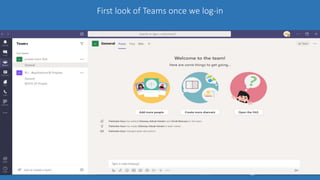
First look of Teams once we log-in
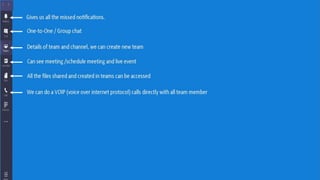
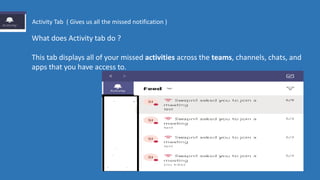
What does Activity tab do ?
This tab displays all of your missed activities across the teams, channels, chats, and
apps that you have access to.
Activity Tab ( Gives us all the missed notification )
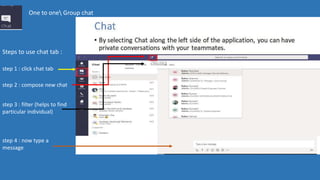
One to one Group chat
Steps to use chat tab :
step 1 : click chat tab
step 2 : compose new chat
step 3 : filter (helps to find
particular individual)
step 4 : now type a
message
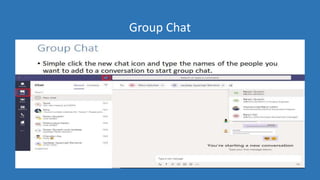
Group Chat
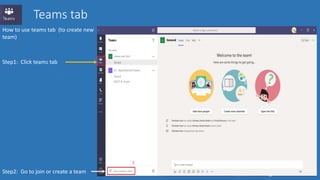
Teams tab
How to use teams tab (to create new
team)
Step1: Click teams tab
Step2: Go to join or create a team
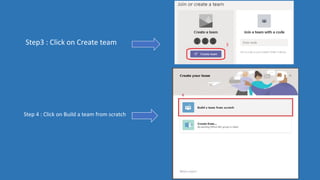
Step3 : Click on Create team
Step 4 : Click on Build a team from scratch
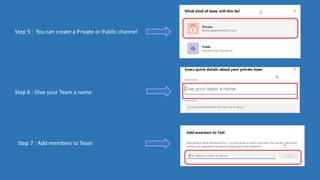
Step 5 : You can create a Private or Public channel
Step 6 : Give your Team a name
Step 7 : Add members to Team
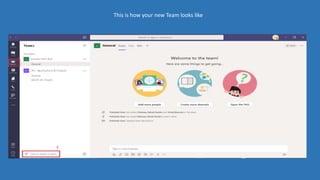
This is how your new Team looks like
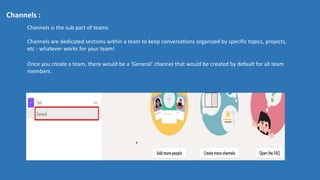
Channels :
Channels is the sub part of teams
Channels are dedicated sections within a team to keep conversations organized by specific topics, projects,
etc - whatever works for your team!
Once you create a team, there would be a ‘General’ channel that would be created by default for all team
members.
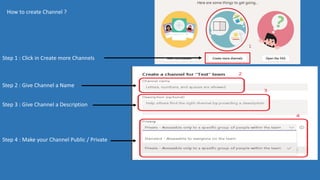
How to create Channel ?
Step 1 : Click in Create more Channels
Step 2 : Give Channel a Name
Step 3 : Give Channel a Description
Step 4 : Make your Channel Public / Private
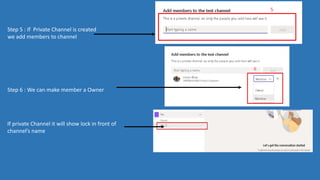
Step 5 : If Private Channel is created
we add members to channel
Step 6 : We can make member a Owner
If private Channel it will show lock in front of
channel’s name
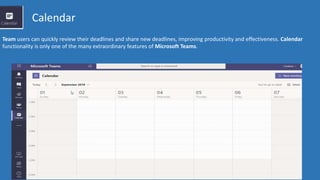
Calendar
Team users can quickly review their deadlines and share new deadlines, improving productivity and effectiveness. Calendar
functionality is only one of the many extraordinary features of Microsoft Teams.
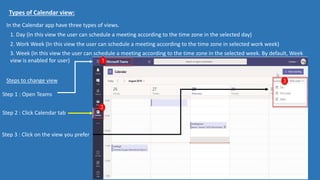
Types of Calendar view:
In the Calendar app have three types of views.
1. Day (In this view the user can schedule a meeting according to the time zone in the selected day)
2. Work Week (In this view the user can schedule a meeting according to the time zone in selected work week)
3. Week (In this view the user can schedule a meeting according to the time zone in the selected week. By default, Week
view is enabled for user)
Steps to change view
Step 1 : Open Teams
Step 2 : Click Calendar tab
Step 3 : Click on the view you prefer
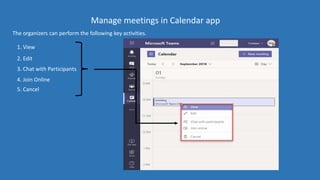
Manage meetings in Calendar app
The organizers can perform the following key activities.
1. View
2. Edit
3. Chat with Participants
4. Join Online
5. Cancel
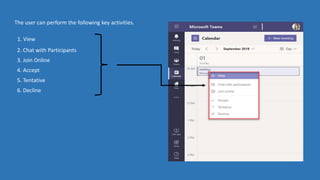
The user can perform the following key activities.
1. View
2. Chat with Participants
3. Join Online
4. Accept
5. Tentative
6. Decline
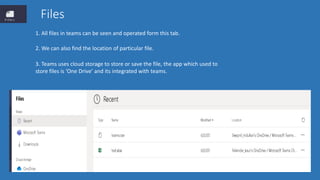
Files
1. All files in teams can be seen and operated form this tab.
2. We can also find the location of particular file.
3. Teams uses cloud storage to store or save the file, the app which used to
store files is ‘One Drive’ and its integrated with teams.
Calls
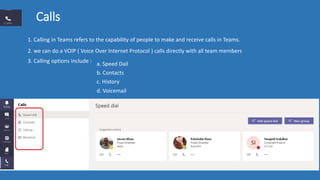
1. Calling in Teams refers to the capability of people to make and receive calls in Teams.
2. we can do a VOIP ( Voice Over Internet Protocol ) calls directly with all team members
3. Calling options include : a. Speed Dail
b. Contacts
c. History
d. Voicemail
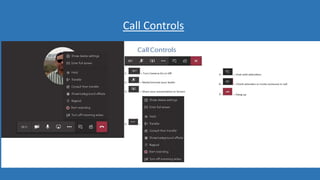
Call Controls
Apps
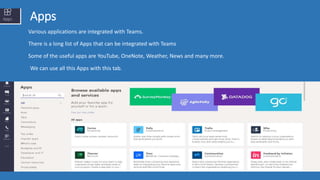
Various applications are integrated with Teams.
There is a long list of Apps that can be integrated with Teams
Some of the useful apps are YouTube, OneNote, Weather, News and many more.
We can use all this Apps with this tab.
Help
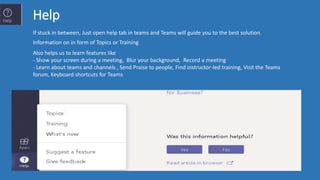
If stuck in between, Just open help tab in teams and Teams will guide you to the best solution.
Information on in form of Topics or Training
Also helps us to learn features like
- Show your screen during a meeting, Blur your background, Record a meeting
- Learn about teams and channels , Send Praise to people, Find instructor-led training, Visit the Teams
forum, Keyboard shortcuts for Teams
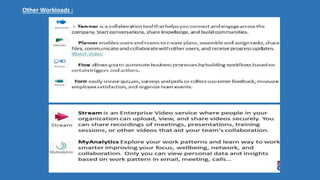
Other Workloads :
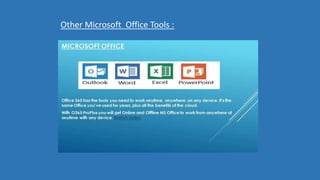
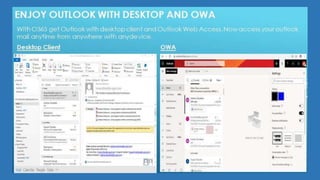
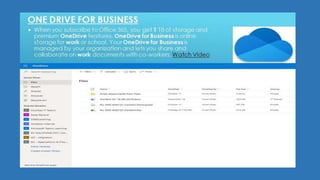
Other Microsoft Office Tools :
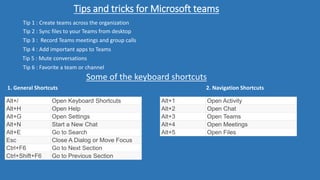
Tips and tricks for Microsoft teams
Tip 1 : Create teams across the organization
Tip 2 : Sync files to your Teams from desktop
Tip 3 : Record Teams meetings and group calls
Tip 4 : Add important apps to Teams
Tip 5 : Mute conversations
Tip 6 : Favorite a team or channel
Some of the keyboard shortcuts
1. General Shortcuts
Alt+/ Open Keyboard Shortcuts
Alt+H Open Help
Alt+G Open Settings
Alt+N Start a New Chat
Alt+E Go to Search
Esc Close A Dialog or Move Focus
Ctrl+F6 Go to Next Section
Ctrl+Shift+F6 Go to Previous Section
2. Navigation Shortcuts
Alt+1 Open Activity
Alt+2 Open Chat
Alt+3 Open Teams
Alt+4 Open Meetings
Alt+5 Open Files
Thankyou TEAM.
Chinmay Ashok Hendre.

Microsoft Teams

  • 2.
    AGENDA - Introduction ofTeams - Highlight key features of teams to increase organization productivity - Collaboration and integration in teams - Tips and tricks - Question and answers
  • 4.
    Where can Iget Teams ? These are few steps which will help us to navigate to Microsoft Teams -Go to search engine and search for www.portal.office.com - This will ask us to login with our credentials. -Once we enter the credentials we enter in Microsoft office portal. -This portal gives access to various apps from Microsoft. As we can see here.
  • 5.
    One more step… beforewe miss this step we have to click on windows app so we can get teams on our desktop
  • 6.
    First look ofTeams once we log-in
  • 8.
    What does Activitytab do ? This tab displays all of your missed activities across the teams, channels, chats, and apps that you have access to. Activity Tab ( Gives us all the missed notification )
  • 9.
    One to oneGroup chat Steps to use chat tab : step 1 : click chat tab step 2 : compose new chat step 3 : filter (helps to find particular individual) step 4 : now type a message
  • 10.
  • 12.
    Teams tab How touse teams tab (to create new team) Step1: Click teams tab Step2: Go to join or create a team
  • 13.
    Step3 : Clickon Create team Step 4 : Click on Build a team from scratch
  • 14.
    Step 5 :You can create a Private or Public channel Step 6 : Give your Team a name Step 7 : Add members to Team
  • 15.
    This is howyour new Team looks like
  • 16.
    Channels : Channels isthe sub part of teams Channels are dedicated sections within a team to keep conversations organized by specific topics, projects, etc - whatever works for your team! Once you create a team, there would be a ‘General’ channel that would be created by default for all team members.
  • 17.
    How to createChannel ? Step 1 : Click in Create more Channels Step 2 : Give Channel a Name Step 3 : Give Channel a Description Step 4 : Make your Channel Public / Private
  • 18.
    Step 5 :If Private Channel is created we add members to channel Step 6 : We can make member a Owner If private Channel it will show lock in front of channel’s name
  • 19.
    Calendar Team users canquickly review their deadlines and share new deadlines, improving productivity and effectiveness. Calendar functionality is only one of the many extraordinary features of Microsoft Teams.
  • 20.
    Types of Calendarview: In the Calendar app have three types of views. 1. Day (In this view the user can schedule a meeting according to the time zone in the selected day) 2. Work Week (In this view the user can schedule a meeting according to the time zone in selected work week) 3. Week (In this view the user can schedule a meeting according to the time zone in the selected week. By default, Week view is enabled for user) Steps to change view Step 1 : Open Teams Step 2 : Click Calendar tab Step 3 : Click on the view you prefer
  • 21.
    Manage meetings inCalendar app The organizers can perform the following key activities. 1. View 2. Edit 3. Chat with Participants 4. Join Online 5. Cancel
  • 22.
    The user canperform the following key activities. 1. View 2. Chat with Participants 3. Join Online 4. Accept 5. Tentative 6. Decline
  • 23.
    Files 1. All filesin teams can be seen and operated form this tab. 2. We can also find the location of particular file. 3. Teams uses cloud storage to store or save the file, the app which used to store files is ‘One Drive’ and its integrated with teams.
  • 24.
    Calls 1. Calling inTeams refers to the capability of people to make and receive calls in Teams. 2. we can do a VOIP ( Voice Over Internet Protocol ) calls directly with all team members 3. Calling options include : a. Speed Dail b. Contacts c. History d. Voicemail
  • 25.
  • 26.
    Apps Various applications areintegrated with Teams. There is a long list of Apps that can be integrated with Teams Some of the useful apps are YouTube, OneNote, Weather, News and many more. We can use all this Apps with this tab.
  • 27.
    Help If stuck inbetween, Just open help tab in teams and Teams will guide you to the best solution. Information on in form of Topics or Training Also helps us to learn features like - Show your screen during a meeting, Blur your background, Record a meeting - Learn about teams and channels , Send Praise to people, Find instructor-led training, Visit the Teams forum, Keyboard shortcuts for Teams
  • 28.
  • 29.
  • 33.
    Tips and tricksfor Microsoft teams Tip 1 : Create teams across the organization Tip 2 : Sync files to your Teams from desktop Tip 3 : Record Teams meetings and group calls Tip 4 : Add important apps to Teams Tip 5 : Mute conversations Tip 6 : Favorite a team or channel Some of the keyboard shortcuts 1. General Shortcuts Alt+/ Open Keyboard Shortcuts Alt+H Open Help Alt+G Open Settings Alt+N Start a New Chat Alt+E Go to Search Esc Close A Dialog or Move Focus Ctrl+F6 Go to Next Section Ctrl+Shift+F6 Go to Previous Section 2. Navigation Shortcuts Alt+1 Open Activity Alt+2 Open Chat Alt+3 Open Teams Alt+4 Open Meetings Alt+5 Open Files
  • 34.