
Microsoft Teams - The Future of
Teamwork in Office 365
Notes:
 If you experience audio issues during the webinar, you can dial in through telephone details provided to you in
your registration confirmation email.
 Please feel free to post questions in the questions dialog & we will try to answer as many as we can at the end.
 Recording of this session will be shared in next 24-48 hours.
 You can also write to us at marketing@winwire.com for any clarifications or information.
1
Madan M
Senior Technical Architect
WinWire Technologies
Session Speaker
2
Agenda
 Options for Teamwork in Office 365
 Microsoft Teams Introduction
 Use cases and best practices
 Office 365 config to be enabled
 Teams Rollout methodology
 Q & A
3
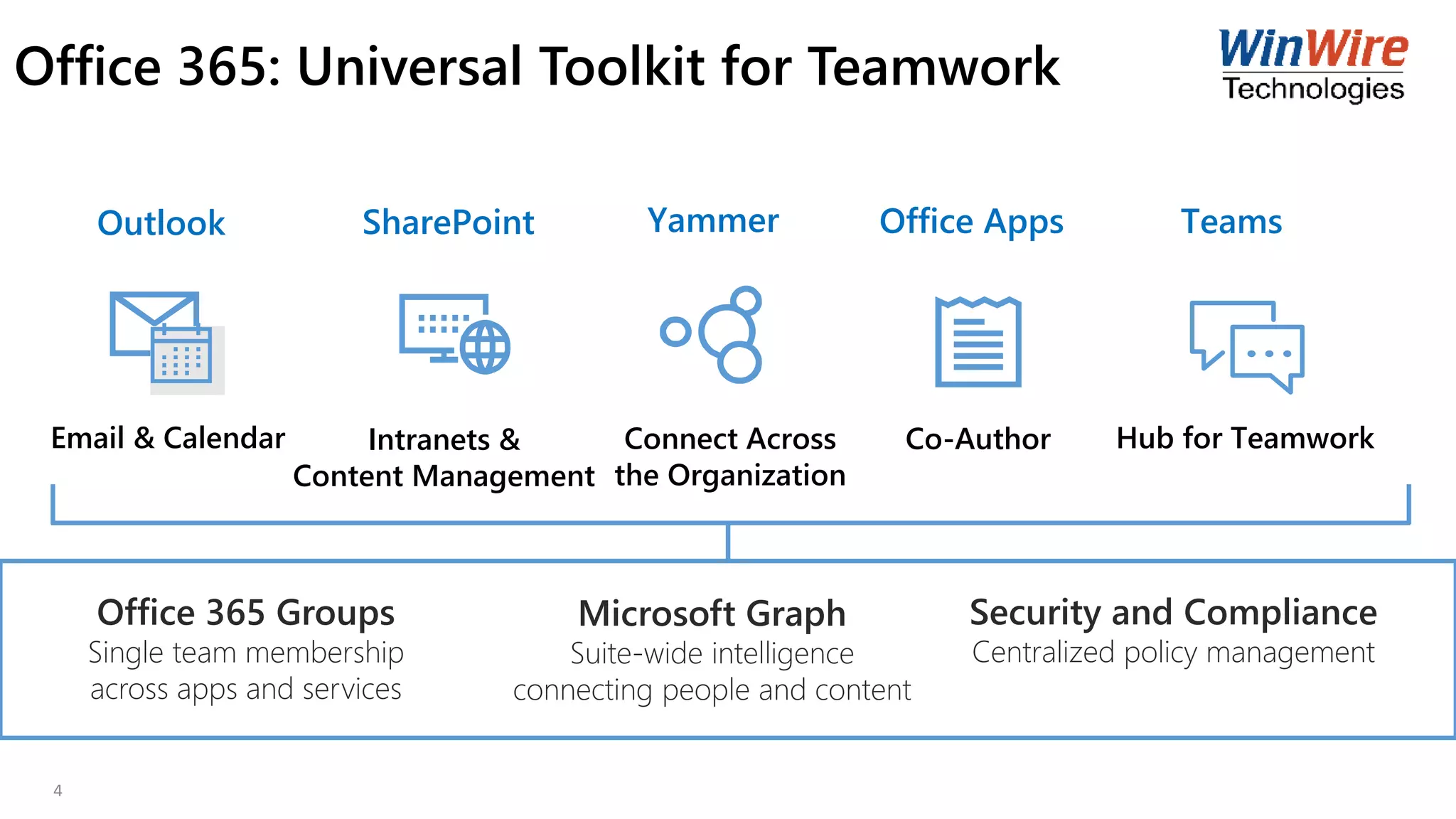
Office 365: Universal Toolkit for Teamwork
Office 365 Groups
Single team membership
across apps and services
Microsoft Graph
Suite-wide intelligence
connecting people and content
Security and Compliance
Centralized policy management
Hub for TeamworkCo-AuthorConnect Across
the Organization
Intranets &
Content Management
Email & Calendar
TeamsOffice AppsYammerSharePointOutlook
4
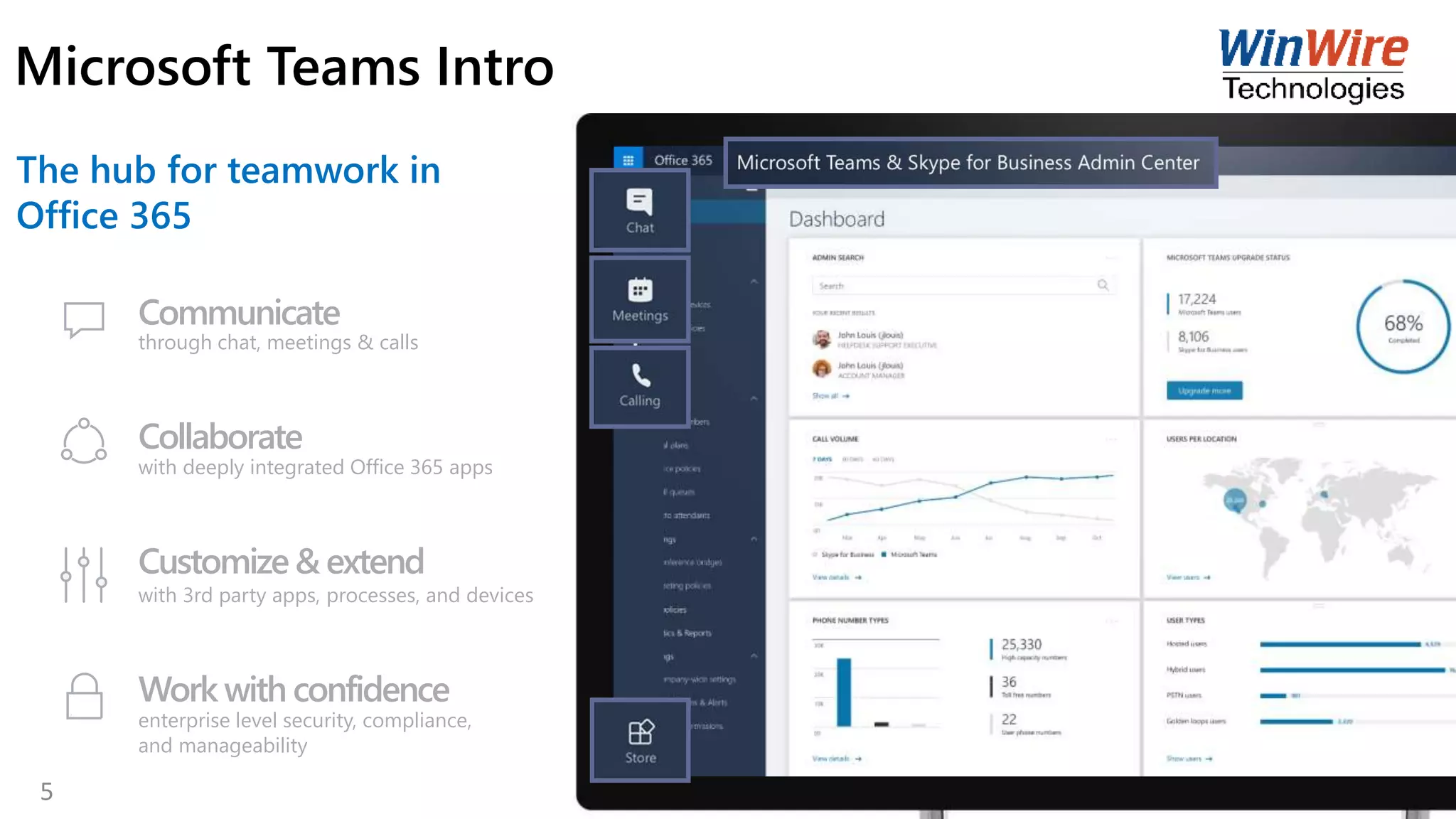
The hub for teamwork in
Office 365
Communicate
through chat, meetings & calls
Collaborate
with deeply integrated Office 365 apps
Customize& extend
with 3rd party apps, processes, and devices
Work with confidence
enterprise level security, compliance,
and manageability
Microsoft Teams Intro
5
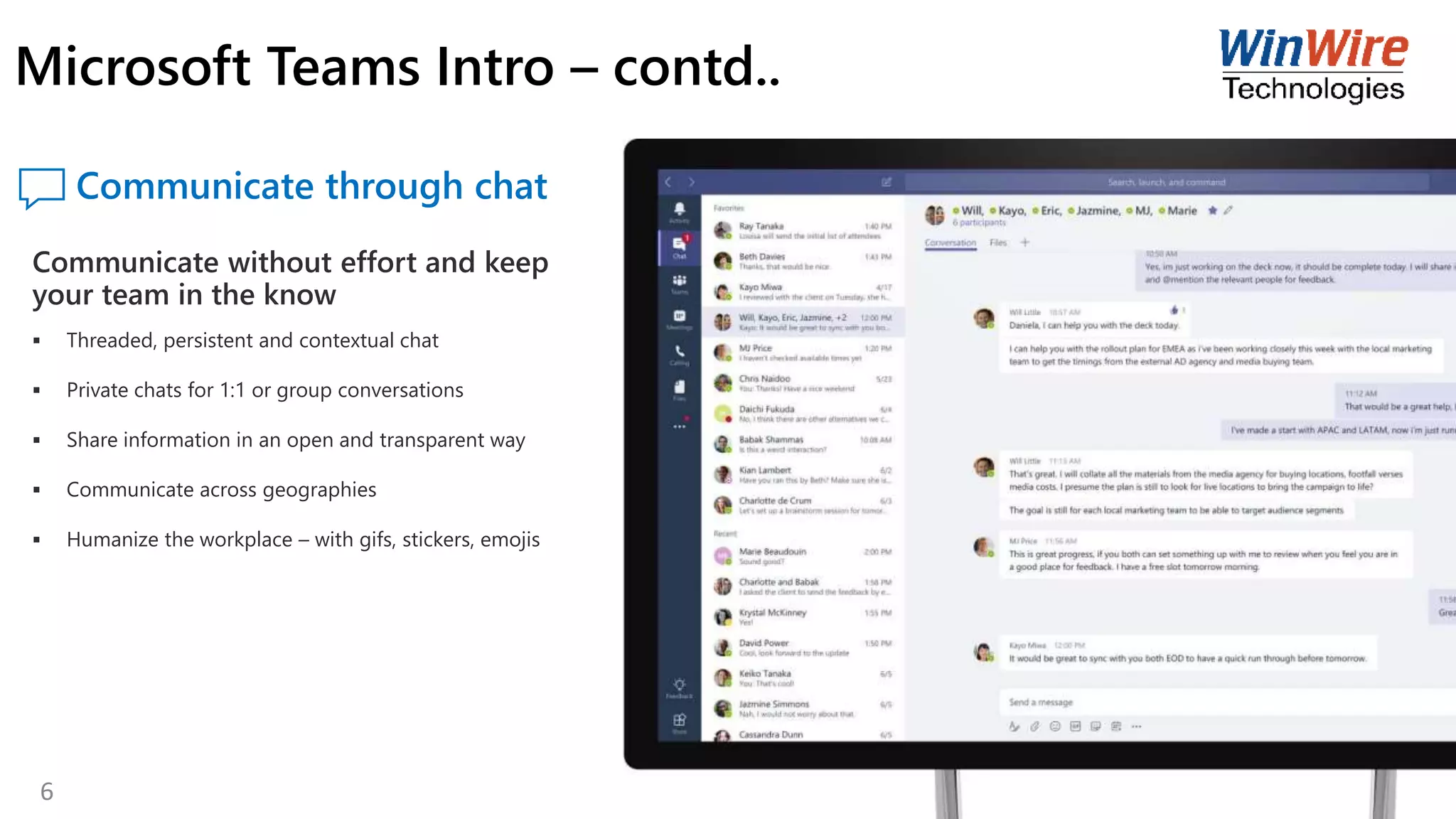
Communicate through chat
Communicate without effort and keep
your team in the know
 Threaded, persistent and contextual chat
 Private chats for 1:1 or group conversations
 Share information in an open and transparent way
 Communicate across geographies
 Humanize the workplace – with gifs, stickers, emojis
Microsoft Teams Intro – contd..
6
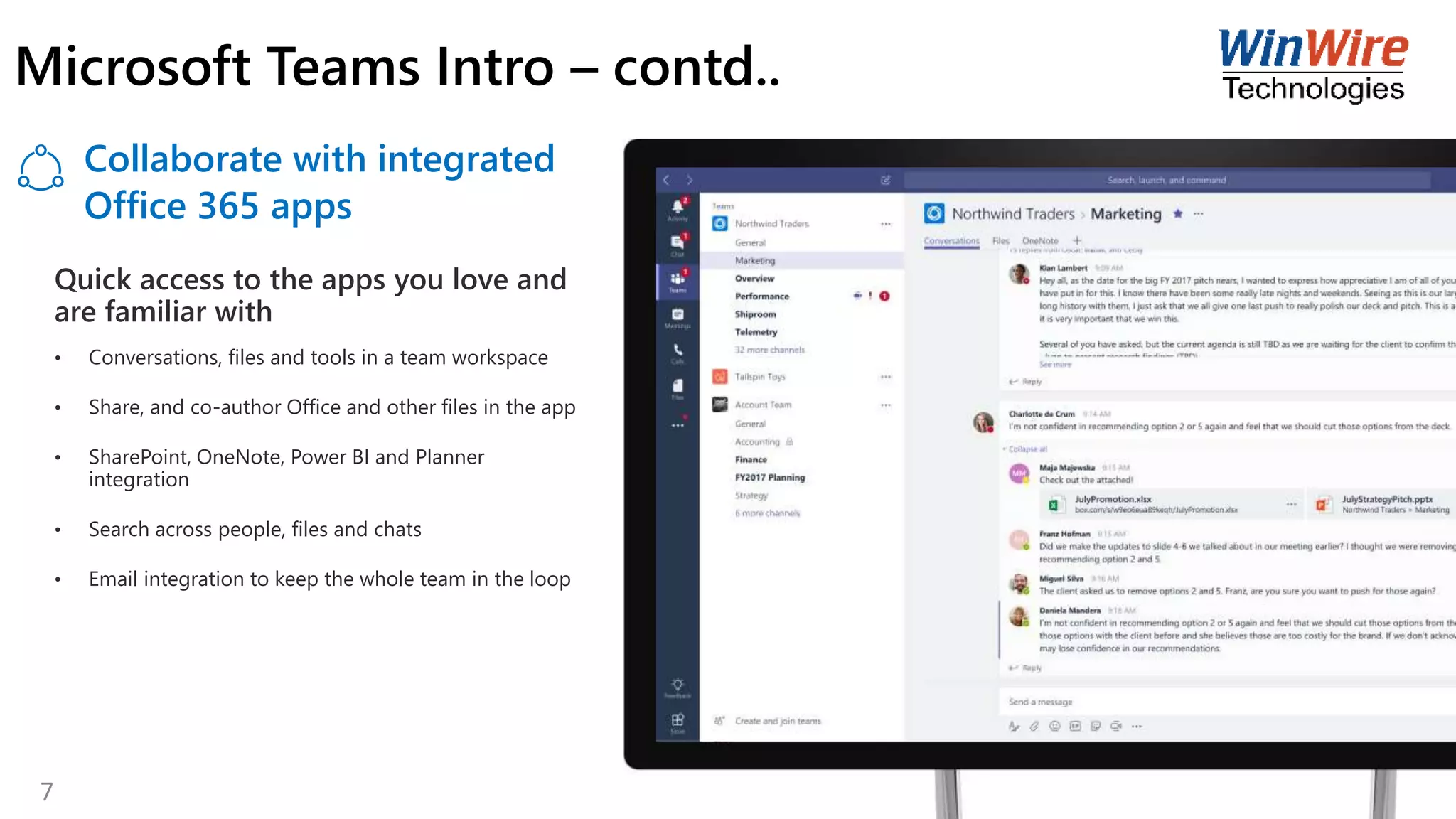
Collaborate with integrated
Office 365 apps
Quick access to the apps you love and
are familiar with
• Conversations, files and tools in a team workspace
• Share, and co-author Office and other files in the app
• SharePoint, OneNote, Power BI and Planner
integration
• Search across people, files and chats
• Email integration to keep the whole team in the loop
Microsoft Teams Intro – contd..
7
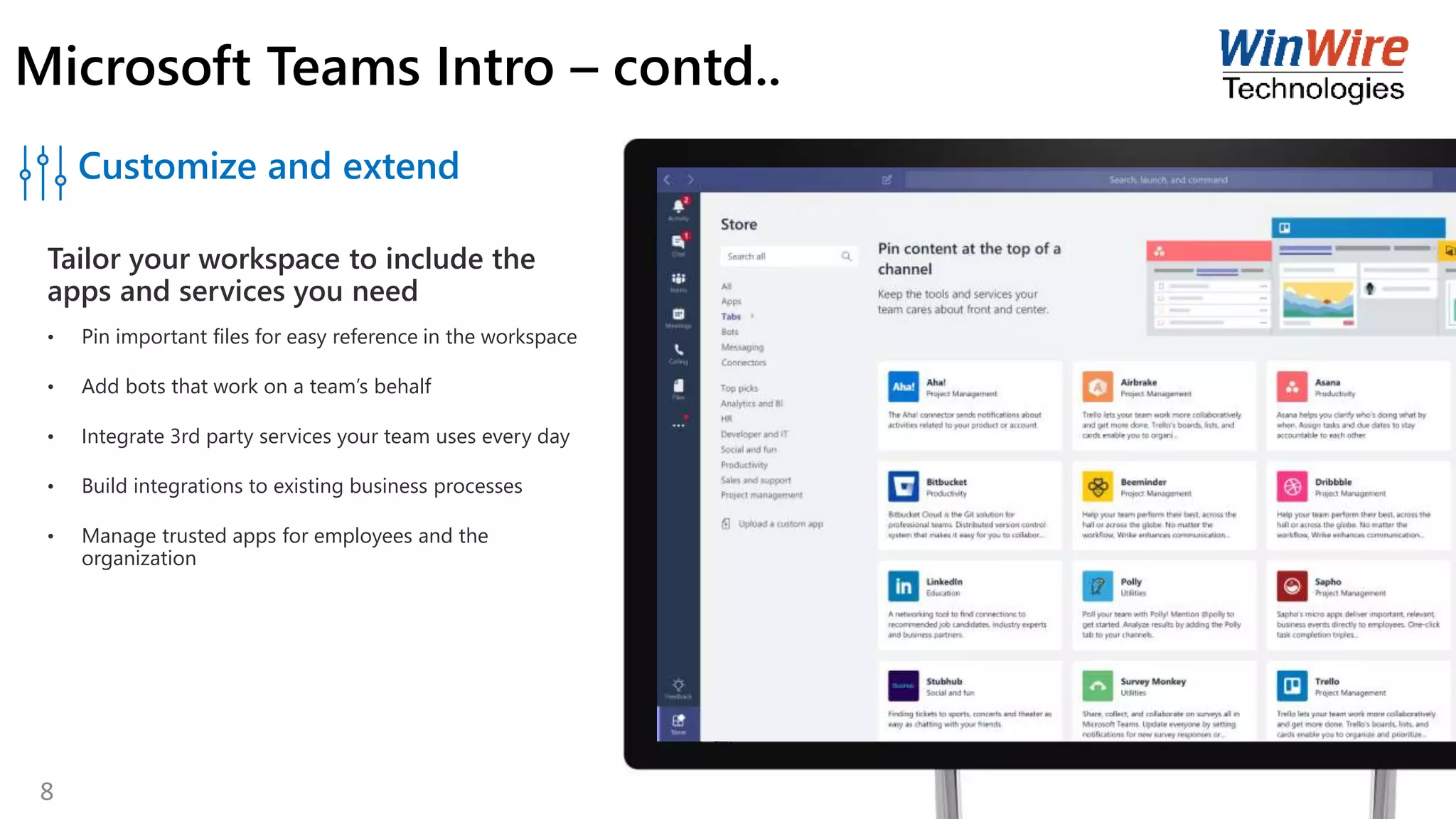
Customize and extend
Tailor your workspace to include the
apps and services you need
• Pin important files for easy reference in the workspace
• Add bots that work on a team’s behalf
• Integrate 3rd party services your team uses every day
• Build integrations to existing business processes
• Manage trusted apps for employees and the
organization
Microsoft Teams Intro – contd..
8
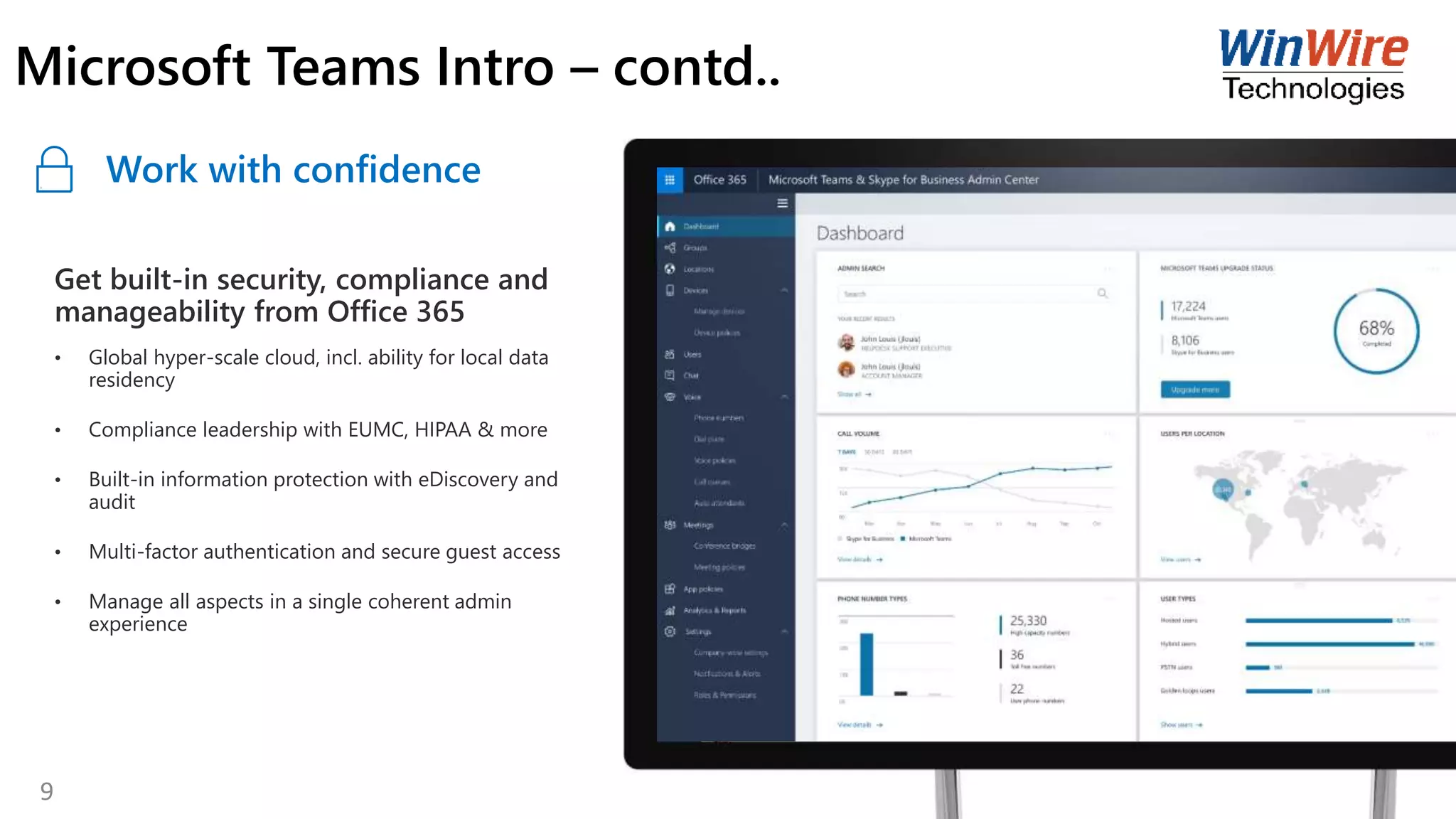
Work with confidence
Get built-in security, compliance and
manageability from Office 365
• Global hyper-scale cloud, incl. ability for local data
residency
• Compliance leadership with EUMC, HIPAA & more
• Built-in information protection with eDiscovery and
audit
• Multi-factor authentication and secure guest access
• Manage all aspects in a single coherent admin
experience
Microsoft Teams Intro – contd..
9
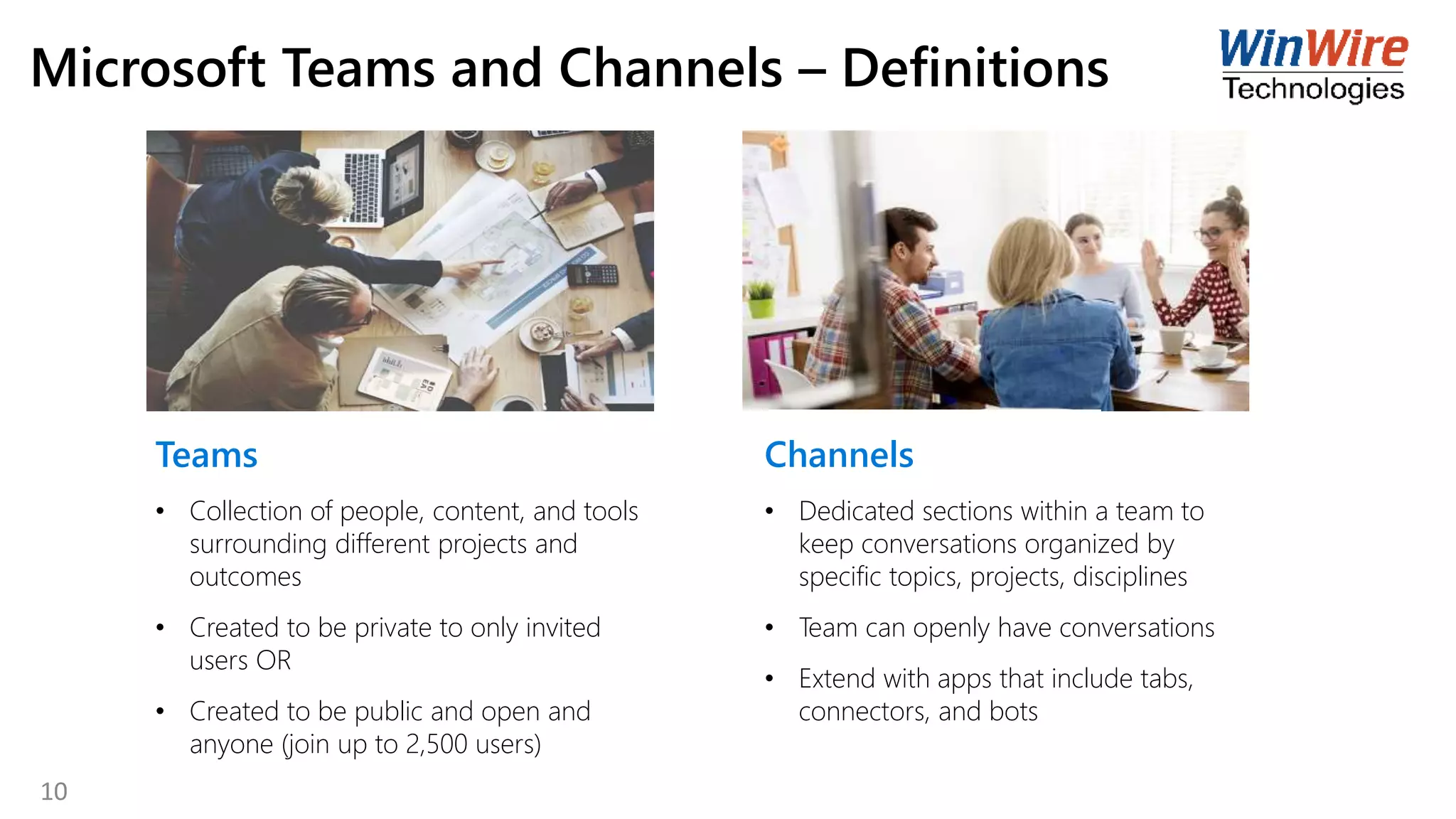
Microsoft Teams and Channels – Definitions
Teams
• Collection of people, content, and tools
surrounding different projects and
outcomes
• Created to be private to only invited
users OR
• Created to be public and open and
anyone (join up to 2,500 users)
Channels
• Dedicated sections within a team to
keep conversations organized by
specific topics, projects, disciplines
• Team can openly have conversations
• Extend with apps that include tabs,
connectors, and bots
10
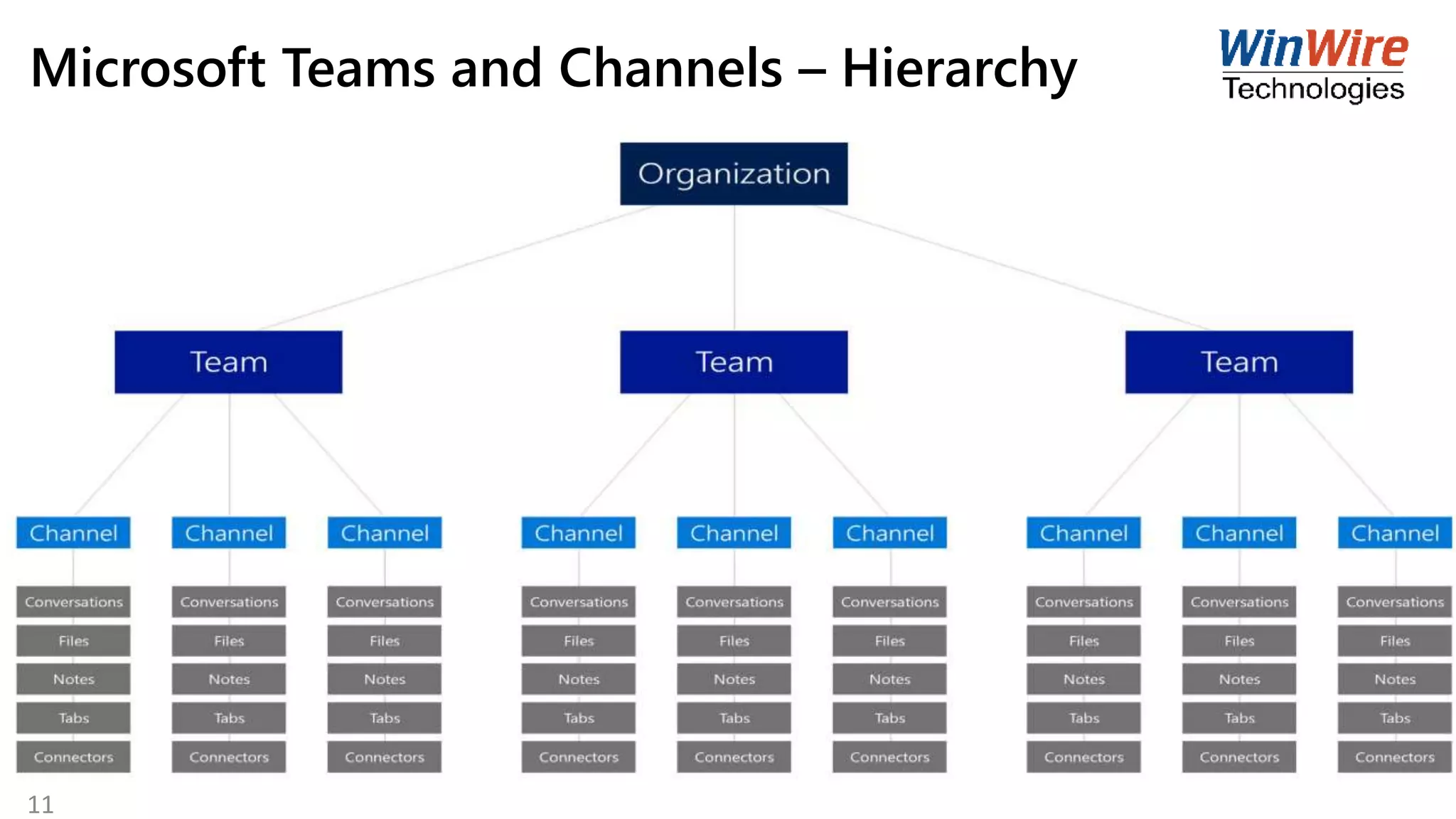
Microsoft Teams and Channels – Hierarchy
11
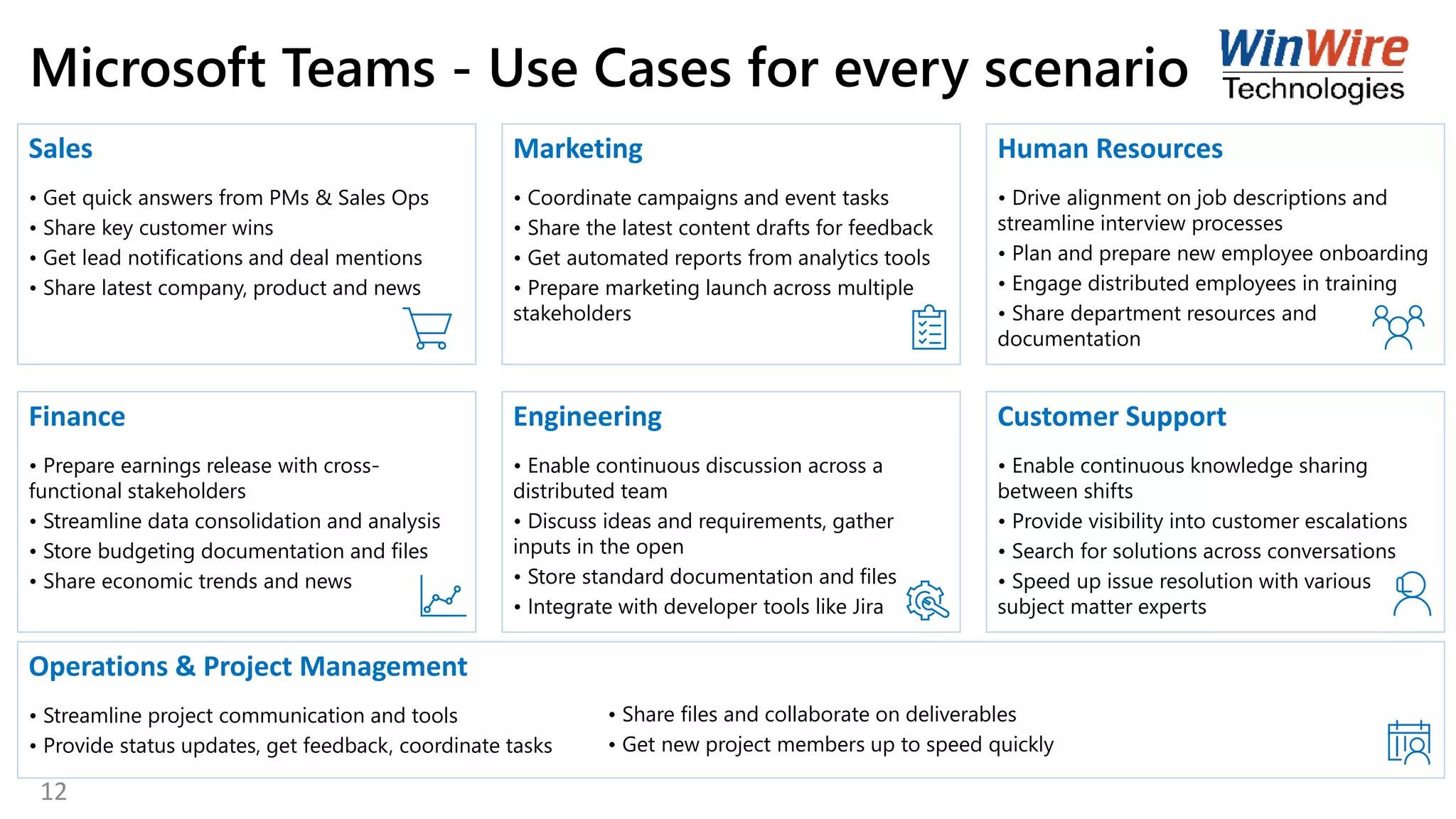
Microsoft Teams - Use Cases for every scenario
Sales
• Get quick answers from PMs & Sales Ops
• Share key customer wins
• Get lead notifications and deal mentions
• Share latest company, product and news
Marketing
• Coordinate campaigns and event tasks
• Share the latest content drafts for feedback
• Get automated reports from analytics tools
• Prepare marketing launch across multiple
stakeholders
Human Resources
• Drive alignment on job descriptions and
streamline interview processes
• Plan and prepare new employee onboarding
• Engage distributed employees in training
• Share department resources and
documentation
Finance
• Prepare earnings release with cross-
functional stakeholders
• Streamline data consolidation and analysis
• Store budgeting documentation and files
• Share economic trends and news
Engineering
• Enable continuous discussion across a
distributed team
• Discuss ideas and requirements, gather
inputs in the open
• Store standard documentation and files
• Integrate with developer tools like Jira
Customer Support
• Enable continuous knowledge sharing
between shifts
• Provide visibility into customer escalations
• Search for solutions across conversations
• Speed up issue resolution with various
subject matter experts
Operations & Project Management
• Streamline project communication and tools
• Provide status updates, get feedback, coordinate tasks
• Share files and collaborate on deliverables
• Get new project members up to speed quickly
12
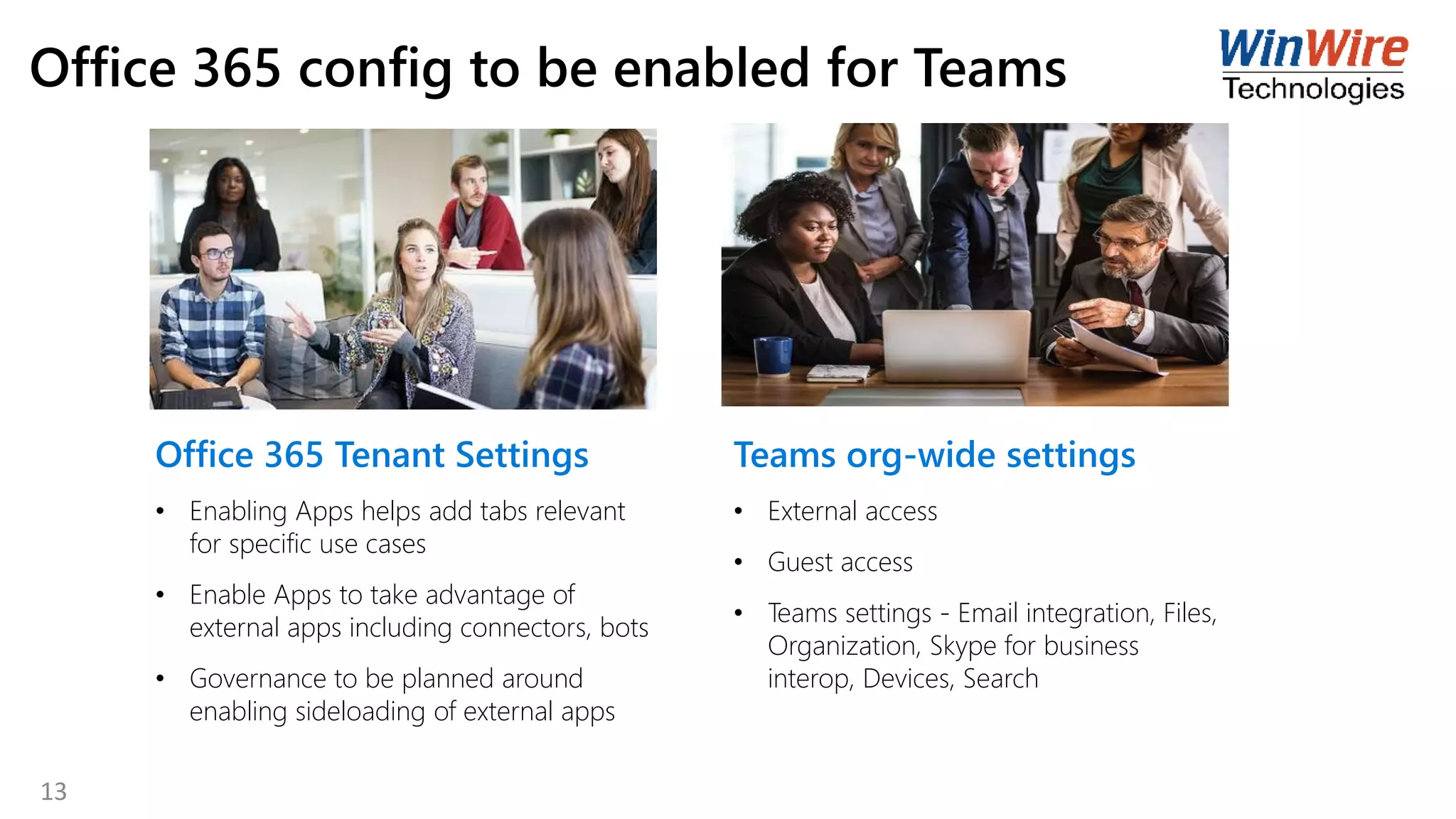
Office 365 config to be enabled for Teams
Office 365 Tenant Settings
• Enabling Apps helps add tabs relevant
for specific use cases
• Enable Apps to take advantage of
external apps including connectors, bots
• Governance to be planned around
enabling sideloading of external apps
Teams org-wide settings
• External access
• Guest access
• Teams settings - Email integration, Files,
Organization, Skype for business
interop, Devices, Search
13
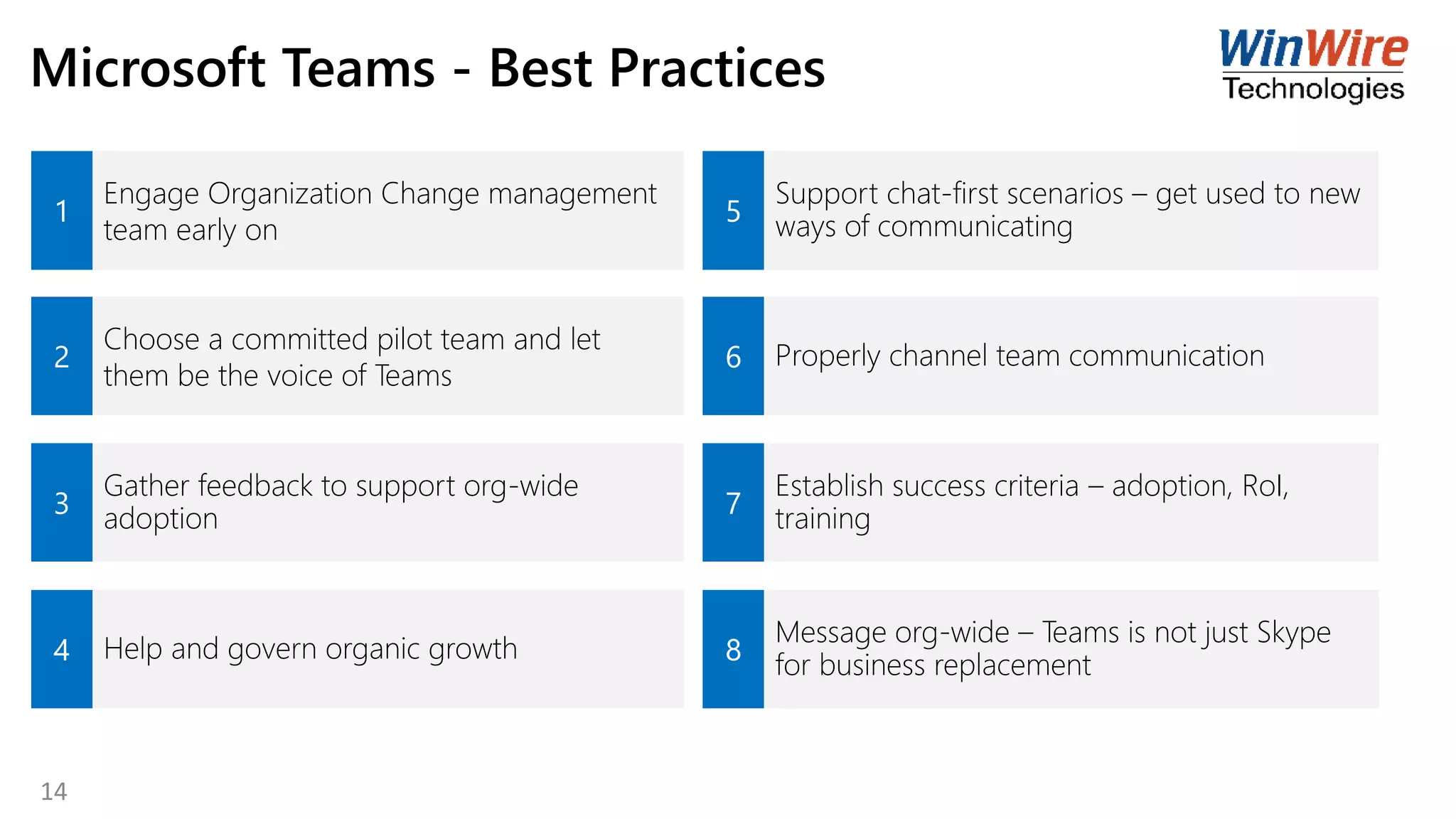
Microsoft Teams - Best Practices
1
Engage Organization Change management
team early on
5
Support chat-first scenarios – get used to new
ways of communicating
2
Choose a committed pilot team and let
them be the voice of Teams
6 Properly channel team communication
3
Gather feedback to support org-wide
adoption 7
Establish success criteria – adoption, RoI,
training
4 Help and govern organic growth 8
Message org-wide – Teams is not just Skype
for business replacement
14
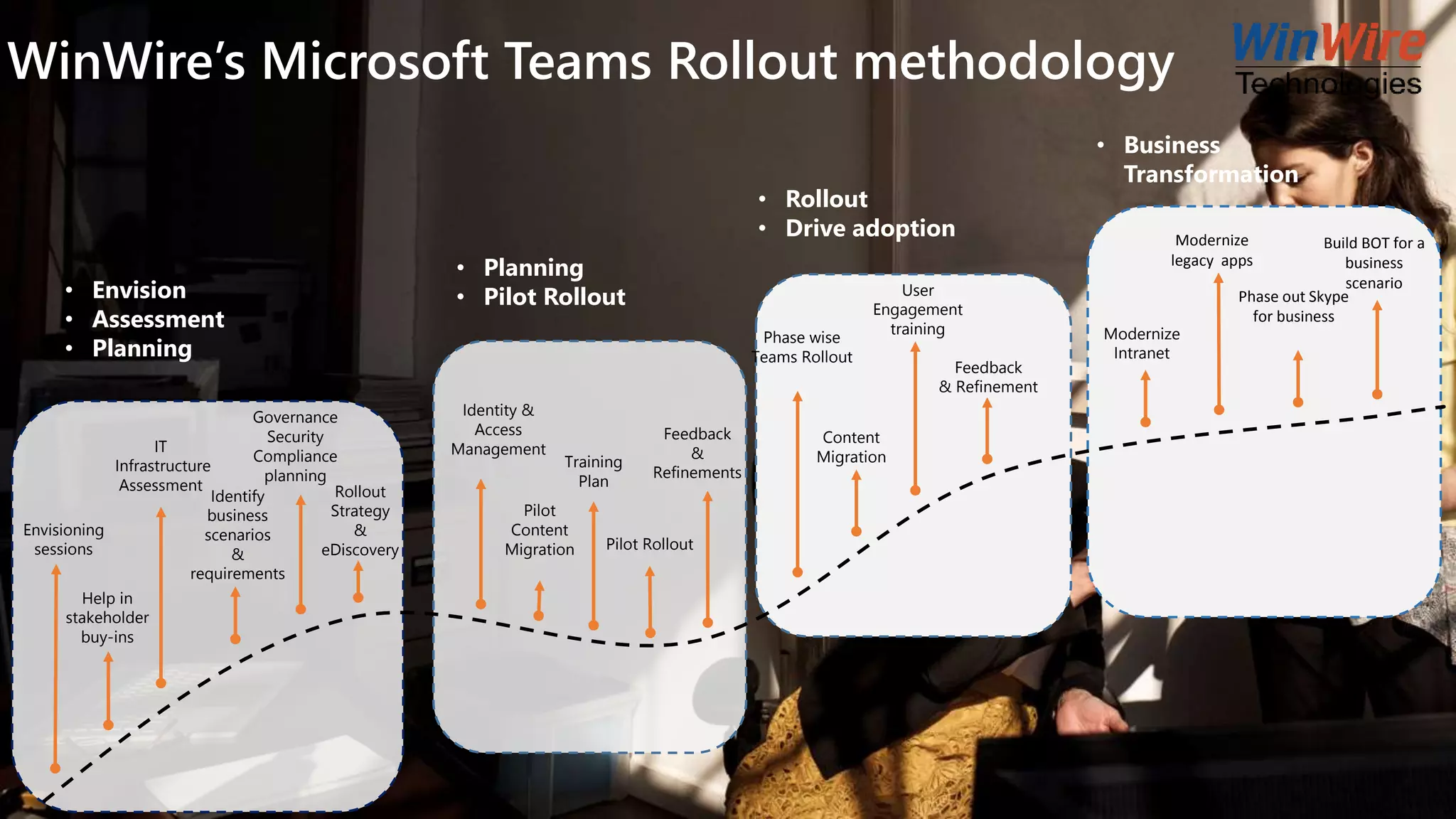
WinWire’s Microsoft Teams Rollout methodology
Identity &
Access
Management
Content
Migration
Modernize
legacy apps
Build BOT for a
business
scenario
• Envision
• Assessment
• Planning
• Business
Transformation
• Rollout
• Drive adoption
IT
Infrastructure
Assessment
• Planning
• Pilot Rollout
Envisioning
sessions
Help in
stakeholder
buy-ins
Identify
business
scenarios
&
requirements
Governance
Security
Compliance
planning
Rollout
Strategy
&
eDiscovery
Pilot
Content
Migration
Training
Plan
Pilot Rollout
Feedback
&
Refinements
Phase wise
Teams Rollout
User
Engagement
training
Feedback
& Refinement
Modernize
Intranet
Phase out Skype
for business
• Website: www.winwire.com
• Email: marketing@winwire.com
• Blog: http://www.winwire.com/blog-winsights/
• Twitter: @winwire
Q & A
Our Blogs on Microsoft Teams
• Office 365 – New Features You Need to Know
• A Glance into Microsoft Teams – The Chat-based
Workspace in Office 365
• How to integrate external services with Microsoft
Teams via Custom Bot
16

Microsoft Teams – The Future of Teamwork in Office 365

  • 1.
    Microsoft Teams -The Future of Teamwork in Office 365 Notes:  If you experience audio issues during the webinar, you can dial in through telephone details provided to you in your registration confirmation email.  Please feel free to post questions in the questions dialog & we will try to answer as many as we can at the end.  Recording of this session will be shared in next 24-48 hours.  You can also write to us at marketing@winwire.com for any clarifications or information. 1
  • 2.
    Madan M Senior TechnicalArchitect WinWire Technologies Session Speaker 2
  • 3.
    Agenda  Options forTeamwork in Office 365  Microsoft Teams Introduction  Use cases and best practices  Office 365 config to be enabled  Teams Rollout methodology  Q & A 3
  • 4.
    Office 365: UniversalToolkit for Teamwork Office 365 Groups Single team membership across apps and services Microsoft Graph Suite-wide intelligence connecting people and content Security and Compliance Centralized policy management Hub for TeamworkCo-AuthorConnect Across the Organization Intranets & Content Management Email & Calendar TeamsOffice AppsYammerSharePointOutlook 4
  • 5.
    The hub forteamwork in Office 365 Communicate through chat, meetings & calls Collaborate with deeply integrated Office 365 apps Customize& extend with 3rd party apps, processes, and devices Work with confidence enterprise level security, compliance, and manageability Microsoft Teams Intro 5
  • 6.
    Communicate through chat Communicatewithout effort and keep your team in the know  Threaded, persistent and contextual chat  Private chats for 1:1 or group conversations  Share information in an open and transparent way  Communicate across geographies  Humanize the workplace – with gifs, stickers, emojis Microsoft Teams Intro – contd.. 6
  • 7.
    Collaborate with integrated Office365 apps Quick access to the apps you love and are familiar with • Conversations, files and tools in a team workspace • Share, and co-author Office and other files in the app • SharePoint, OneNote, Power BI and Planner integration • Search across people, files and chats • Email integration to keep the whole team in the loop Microsoft Teams Intro – contd.. 7
  • 8.
    Customize and extend Tailoryour workspace to include the apps and services you need • Pin important files for easy reference in the workspace • Add bots that work on a team’s behalf • Integrate 3rd party services your team uses every day • Build integrations to existing business processes • Manage trusted apps for employees and the organization Microsoft Teams Intro – contd.. 8
  • 9.
    Work with confidence Getbuilt-in security, compliance and manageability from Office 365 • Global hyper-scale cloud, incl. ability for local data residency • Compliance leadership with EUMC, HIPAA & more • Built-in information protection with eDiscovery and audit • Multi-factor authentication and secure guest access • Manage all aspects in a single coherent admin experience Microsoft Teams Intro – contd.. 9
  • 10.
    Microsoft Teams andChannels – Definitions Teams • Collection of people, content, and tools surrounding different projects and outcomes • Created to be private to only invited users OR • Created to be public and open and anyone (join up to 2,500 users) Channels • Dedicated sections within a team to keep conversations organized by specific topics, projects, disciplines • Team can openly have conversations • Extend with apps that include tabs, connectors, and bots 10
  • 11.
    Microsoft Teams andChannels – Hierarchy 11
  • 12.
    Microsoft Teams -Use Cases for every scenario Sales • Get quick answers from PMs & Sales Ops • Share key customer wins • Get lead notifications and deal mentions • Share latest company, product and news Marketing • Coordinate campaigns and event tasks • Share the latest content drafts for feedback • Get automated reports from analytics tools • Prepare marketing launch across multiple stakeholders Human Resources • Drive alignment on job descriptions and streamline interview processes • Plan and prepare new employee onboarding • Engage distributed employees in training • Share department resources and documentation Finance • Prepare earnings release with cross- functional stakeholders • Streamline data consolidation and analysis • Store budgeting documentation and files • Share economic trends and news Engineering • Enable continuous discussion across a distributed team • Discuss ideas and requirements, gather inputs in the open • Store standard documentation and files • Integrate with developer tools like Jira Customer Support • Enable continuous knowledge sharing between shifts • Provide visibility into customer escalations • Search for solutions across conversations • Speed up issue resolution with various subject matter experts Operations & Project Management • Streamline project communication and tools • Provide status updates, get feedback, coordinate tasks • Share files and collaborate on deliverables • Get new project members up to speed quickly 12
  • 13.
    Office 365 configto be enabled for Teams Office 365 Tenant Settings • Enabling Apps helps add tabs relevant for specific use cases • Enable Apps to take advantage of external apps including connectors, bots • Governance to be planned around enabling sideloading of external apps Teams org-wide settings • External access • Guest access • Teams settings - Email integration, Files, Organization, Skype for business interop, Devices, Search 13
  • 14.
    Microsoft Teams -Best Practices 1 Engage Organization Change management team early on 5 Support chat-first scenarios – get used to new ways of communicating 2 Choose a committed pilot team and let them be the voice of Teams 6 Properly channel team communication 3 Gather feedback to support org-wide adoption 7 Establish success criteria – adoption, RoI, training 4 Help and govern organic growth 8 Message org-wide – Teams is not just Skype for business replacement 14
  • 15.
    WinWire’s Microsoft TeamsRollout methodology Identity & Access Management Content Migration Modernize legacy apps Build BOT for a business scenario • Envision • Assessment • Planning • Business Transformation • Rollout • Drive adoption IT Infrastructure Assessment • Planning • Pilot Rollout Envisioning sessions Help in stakeholder buy-ins Identify business scenarios & requirements Governance Security Compliance planning Rollout Strategy & eDiscovery Pilot Content Migration Training Plan Pilot Rollout Feedback & Refinements Phase wise Teams Rollout User Engagement training Feedback & Refinement Modernize Intranet Phase out Skype for business
  • 16.
    • Website: www.winwire.com •Email: marketing@winwire.com • Blog: http://www.winwire.com/blog-winsights/ • Twitter: @winwire Q & A Our Blogs on Microsoft Teams • Office 365 – New Features You Need to Know • A Glance into Microsoft Teams – The Chat-based Workspace in Office 365 • How to integrate external services with Microsoft Teams via Custom Bot 16

Editor's Notes

  • #11 Teams are a collection of people, content, and tools surrounding different projects and outcomes within an organization. Teams can be created to be private to only invited users Teams can also be created to be public and open and anyone within the organization can join (up to 2500 members) A team is designed to bring together a group of people that work closely to get things done Channels are dedicated sections within a team to keep conversations organized by specific topics, projects, disciplines—-whatever works for your team! Team channels are places where everyone on the team can openly have conversations. Private chats are only visible to those people in the chat Channels are most valuable when extended with apps that include tabs, connectors, and bots that increase their value to the members of the team