T E A M W O R K O R G A N I Z E D
OFFICE 365 PLANNER
’PREVIEW’
DAVID J. ROSENTHAL
CEO, ATIDAN
MICROSOFT BRIEFING CENTER, MALVERN, PA
MARCH 9, 2016
TRADITIONAL TEAMING
TEAMING TODAY
1. Forrester.
62% of employees work from multiple locations in a month1
30% of executives say the greatest
challenge to executing strategy is
the failure to coordinate across units1
40% of productivity is
lost when switching tasks2
25% of the average worker’s day is
wasted on nonproductive activities3
1. Harvard Business Review. “Why Strategy Execution
Unravels—and What to Do About It.”
2. Microsoft. “Sell in the Now.”
3. IDC. “The High Cost of Not Finding Information.”
MODERN WORKPLACE CHALLENGES
Design
Marketing
Procurement
Operations
Sales
Accounting
Facilities
Support
Strategy
Support
Sales
Sales
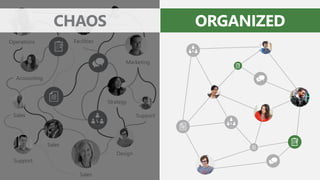
CHAOS ORGANIZED
Design
Marketing
Procurement
Operations
Sales
Accounting
Facilities
Support
Strategy
Support
Sales
Sales
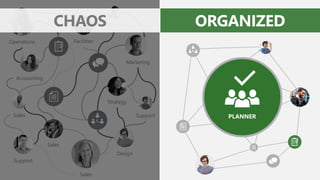
CHAOS ORGANIZED
PLANNER
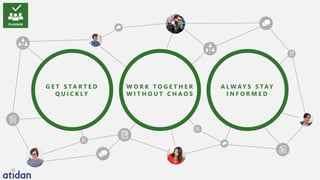
G E T S T A R T E D
Q U I C K LY
W O R K T O G E T H E R
W I T H O U T C H A O S
A L W AY S S T AY
I N F O R M E D
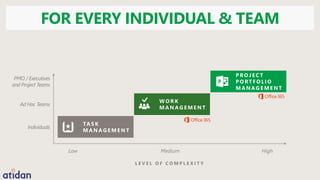
Low Medium High
Ad Hoc Teams
PMO / Executives
and Project Teams
L E V E L O F C O M P L E X I T Y
TA S K
M A N A G E M E N T
W O R K
M A N A G E M E N T
Individuals
P ROJ E C T
P O RT F O L I O
M A N A G E M E N T
FOR EVERY INDIVIDUAL & TEAM
Planner Overview
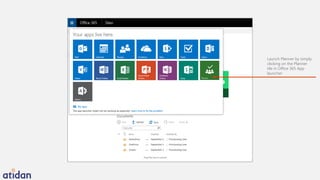
Launch Planner by simply
clicking on the Planner
tile in Office 365 App
launcher
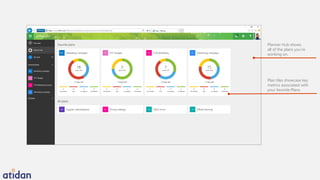
Planner Hub shows
all of the plans you’re
working on.
Plan tiles showcase key
metrics associated with
your favorite Plans.
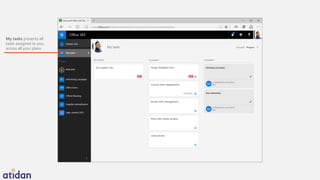
My tasks presents all
tasks assigned to you,
across all your plans.
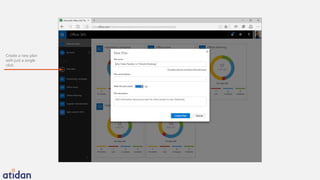
Create a new plan
with just a single
click.
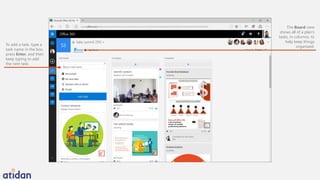
The Board view
shows all of a plan’s
tasks, in columns, to
help keep things
organized.To add a task, type a
task name in the box,
press Enter, and then
keep typing to add
the next task.
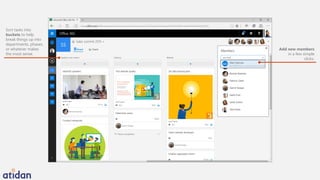
Add new members
in a few simple
clicks.
Sort tasks into
buckets to help
break things up into
departments, phases,
or whatever makes
the most sense.
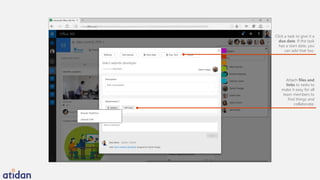
Click a task to give it a
due date. If the task
has a start date, you
can add that too.
Attach files and
links to tasks to
make it easy for all
team members to
find things and
collaborate.
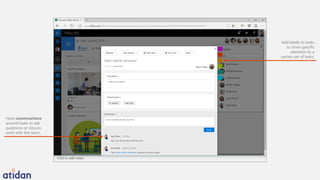
Have conversations
around tasks to ask
questions or discuss
work with the team.
Add labels to tasks
to drive specific
attention to a
certain set of tasks.
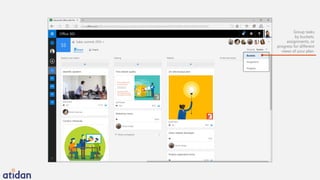
Group tasks
by buckets,
assignments, or
progress for different
views of your plan.
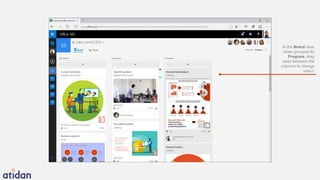
In the Board view,
when grouped by
Progress, drag
tasks between the
columns to change
status.
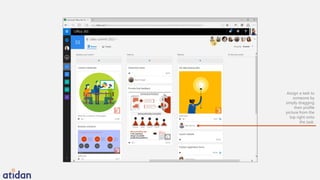
Assign a task to
someone by
simply dragging
their profile
picture from the
top right onto
the task.
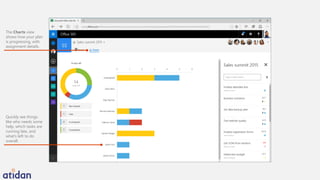
Quickly see things
like who needs some
help, which tasks are
running late, and
what’s left to do
overall.
The Charts view
shows how your plan
is progressing, with
assignment details.
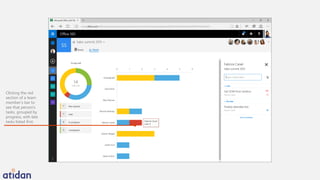
Clicking the red
section of a team
member’s bar to
see that person’s
tasks, grouped by
progress, with late
tasks listed first.
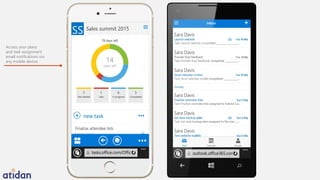
Access your plans
and task assignment
email notifications via
any mobile device.
© 2015 Microsoft Corporation. All rights reserved.
Contact Atidan for Office 365 demonstrations,
deployment offers and additional solutions
office365@Atidan.com
1-215-825-5045 x5001

Microsoft Planner for Office 365 - Presented by Atidan

  • 1.
    T E AM W O R K O R G A N I Z E D OFFICE 365 PLANNER ’PREVIEW’ DAVID J. ROSENTHAL CEO, ATIDAN MICROSOFT BRIEFING CENTER, MALVERN, PA MARCH 9, 2016
  • 2.
    TRADITIONAL TEAMING TEAMING TODAY 1.Forrester. 62% of employees work from multiple locations in a month1
  • 3.
    30% of executivessay the greatest challenge to executing strategy is the failure to coordinate across units1 40% of productivity is lost when switching tasks2 25% of the average worker’s day is wasted on nonproductive activities3 1. Harvard Business Review. “Why Strategy Execution Unravels—and What to Do About It.” 2. Microsoft. “Sell in the Now.” 3. IDC. “The High Cost of Not Finding Information.” MODERN WORKPLACE CHALLENGES
  • 4.
  • 5.
  • 6.
    G E TS T A R T E D Q U I C K LY W O R K T O G E T H E R W I T H O U T C H A O S A L W AY S S T AY I N F O R M E D
  • 7.
    Low Medium High AdHoc Teams PMO / Executives and Project Teams L E V E L O F C O M P L E X I T Y TA S K M A N A G E M E N T W O R K M A N A G E M E N T Individuals P ROJ E C T P O RT F O L I O M A N A G E M E N T FOR EVERY INDIVIDUAL & TEAM
  • 8.
  • 9.
    Launch Planner bysimply clicking on the Planner tile in Office 365 App launcher
  • 10.
    Planner Hub shows allof the plans you’re working on. Plan tiles showcase key metrics associated with your favorite Plans.
  • 11.
    My tasks presentsall tasks assigned to you, across all your plans.
  • 12.
    Create a newplan with just a single click.
  • 13.
    The Board view showsall of a plan’s tasks, in columns, to help keep things organized.To add a task, type a task name in the box, press Enter, and then keep typing to add the next task.
  • 14.
    Add new members ina few simple clicks. Sort tasks into buckets to help break things up into departments, phases, or whatever makes the most sense.
  • 15.
    Click a taskto give it a due date. If the task has a start date, you can add that too. Attach files and links to tasks to make it easy for all team members to find things and collaborate.
  • 16.
    Have conversations around tasksto ask questions or discuss work with the team. Add labels to tasks to drive specific attention to a certain set of tasks.
  • 17.
    Group tasks by buckets, assignments,or progress for different views of your plan.
  • 18.
    In the Boardview, when grouped by Progress, drag tasks between the columns to change status.
  • 19.
    Assign a taskto someone by simply dragging their profile picture from the top right onto the task.
  • 20.
    Quickly see things likewho needs some help, which tasks are running late, and what’s left to do overall. The Charts view shows how your plan is progressing, with assignment details.
  • 21.
    Clicking the red sectionof a team member’s bar to see that person’s tasks, grouped by progress, with late tasks listed first.
  • 22.
    Access your plans andtask assignment email notifications via any mobile device.
  • 23.
    © 2015 MicrosoftCorporation. All rights reserved. Contact Atidan for Office 365 demonstrations, deployment offers and additional solutions office365@Atidan.com 1-215-825-5045 x5001