Presentation
Objectives
Overview ofthe Microsoft Excel
application
Customizing a Worksheet
Formatting and Managing a Worksheet
Introduction to formulas and functions
Printing an Excel document
3.
Microsoft 365 Apps
Microsoft365 is a subscription service that includes the latest
versions of Microsoft Office apps, such as Word, Excel,
PowerPoint, Outlook etc.
It also includes cloud storage and online collaboration tools.
4.
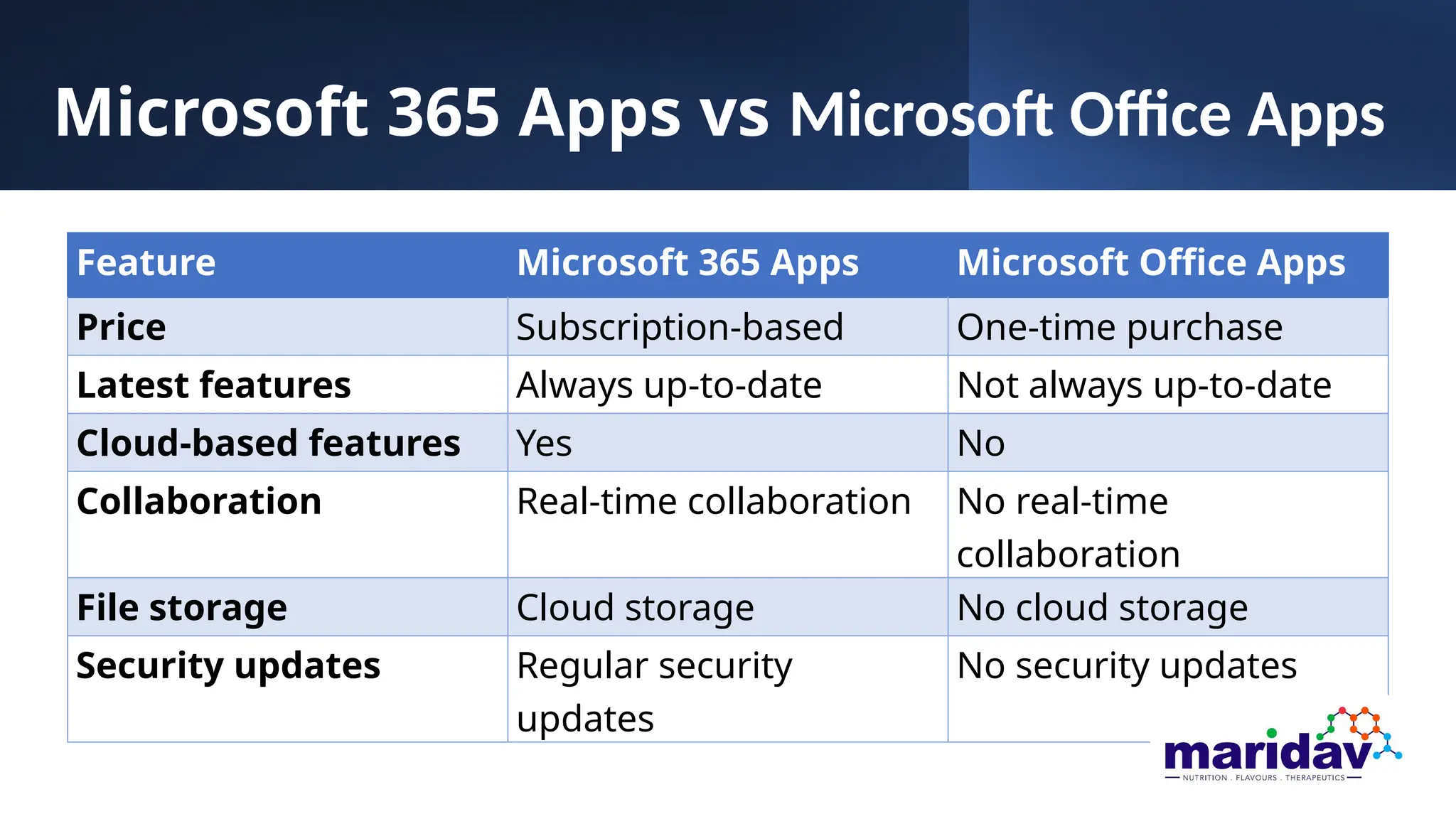
Microsoft 365 Appsvs Microsoft Office Apps
Feature Microsoft 365 Apps Microsoft Office Apps
Price Subscription-based One-time purchase
Latest features Always up-to-date Not always up-to-date
Cloud-based features Yes No
Collaboration Real-time collaboration No real-time
collaboration
File storage Cloud storage No cloud storage
Security updates Regular security
updates
No security updates
5.
Microsoft Excel
Microsoft Excelis a spreadsheet program that allows
you to store, organize, and analyse data in a grid of
rows and columns.
A spreadsheet is an electronic analysis of sheets of
rows and columns.
Egs. Google sheets, LibreOffice Calc, WPS Office Spreadsheet
etc.
6.
Uses of MicrosoftExcel
• Records keeping
• Preparation and analysis of Financial statements
• Marketing and sales
• Manufacturing
7.
Starting MS-Excel
• Openingfrom Taskbar
• Using the Start Button
• Using the Search icon
• Right click as New from any folder
• Using the Run Command (Win + R excel)
8.
Viewing the Excelwindow
Start screen (Backstage)
•The left Navigation Pane
•The Right Pane
9.
Parts of theExcel window
• Title bar
• Tabs
• Ribbon
• Quick Access Toolbar
• Name box and Formula
bar
• The row/columns headers
• Worksheet area
• Sheet tabs
• Horizontal and Vertical Scrollbar
• Status Bar
10.
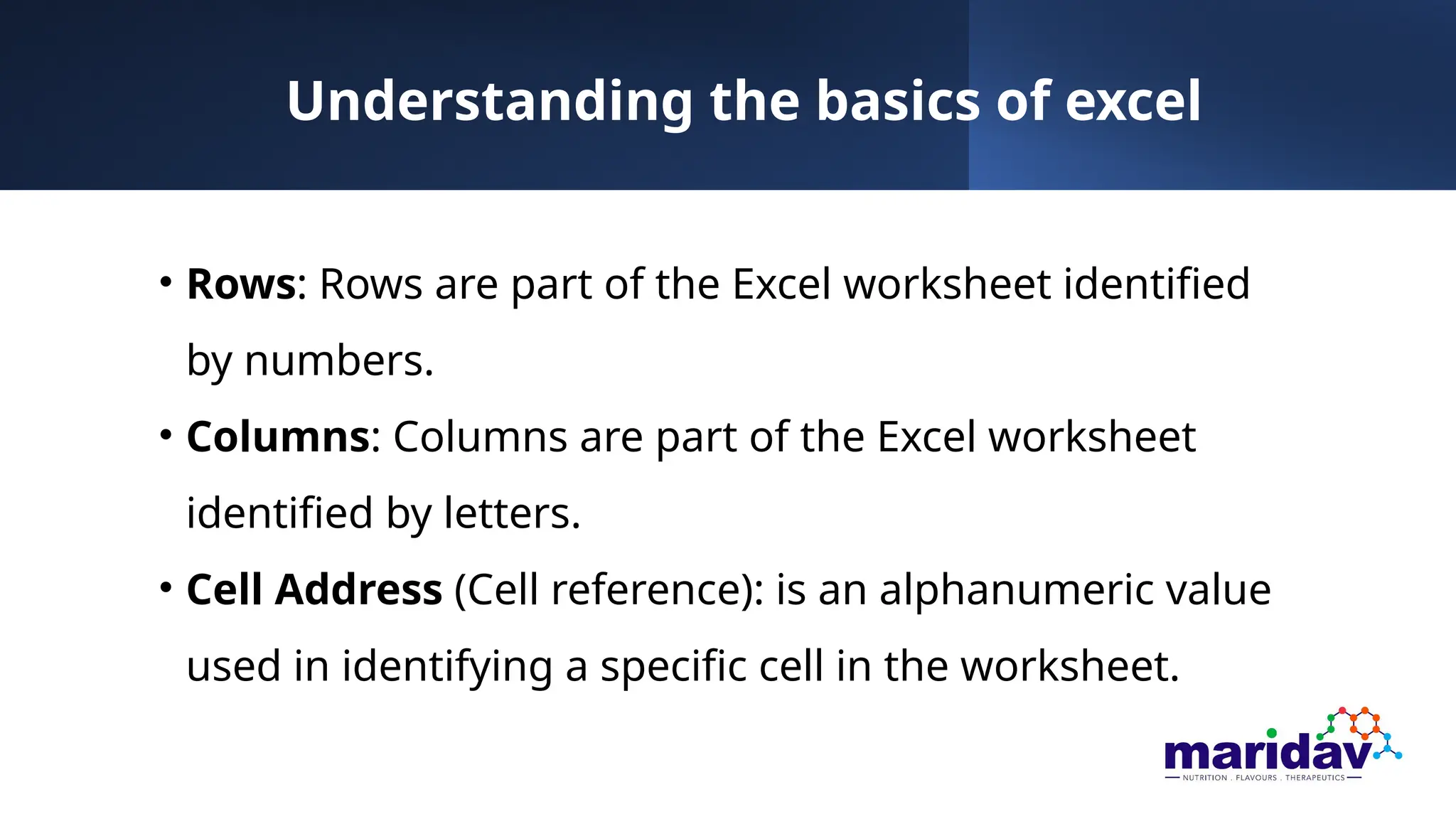
Understanding the basicsof excel
• Rows: Rows are part of the Excel worksheet identified
by numbers.
• Columns: Columns are part of the Excel worksheet
identified by letters.
• Cell Address (Cell reference): is an alphanumeric value
used in identifying a specific cell in the worksheet.
11.
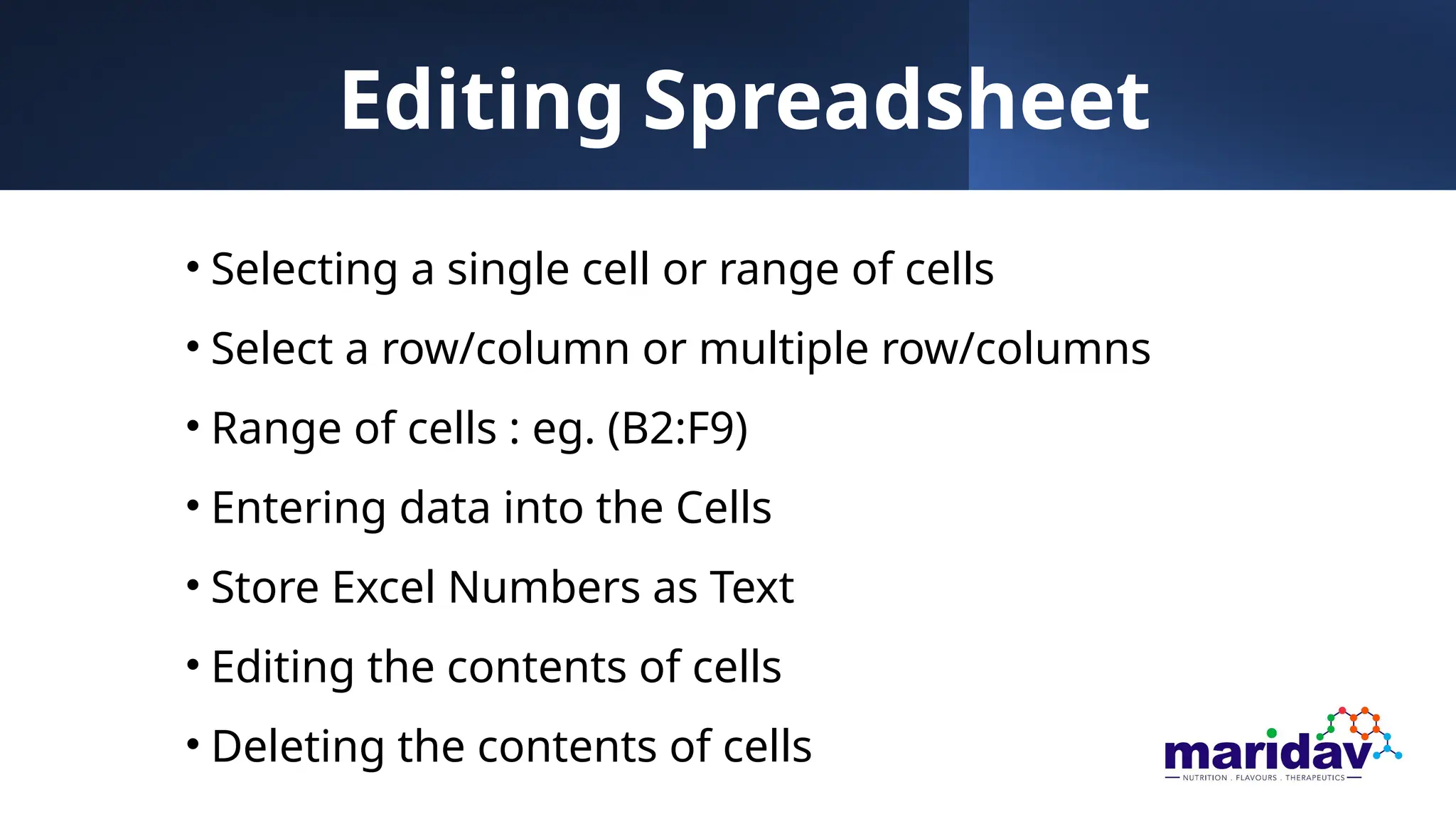
Editing Spreadsheet
• Selectinga single cell or range of cells
• Select a row/column or multiple row/columns
• Range of cells : eg. (B2:F9)
• Entering data into the Cells
• Store Excel Numbers as Text
• Editing the contents of cells
• Deleting the contents of cells
12.
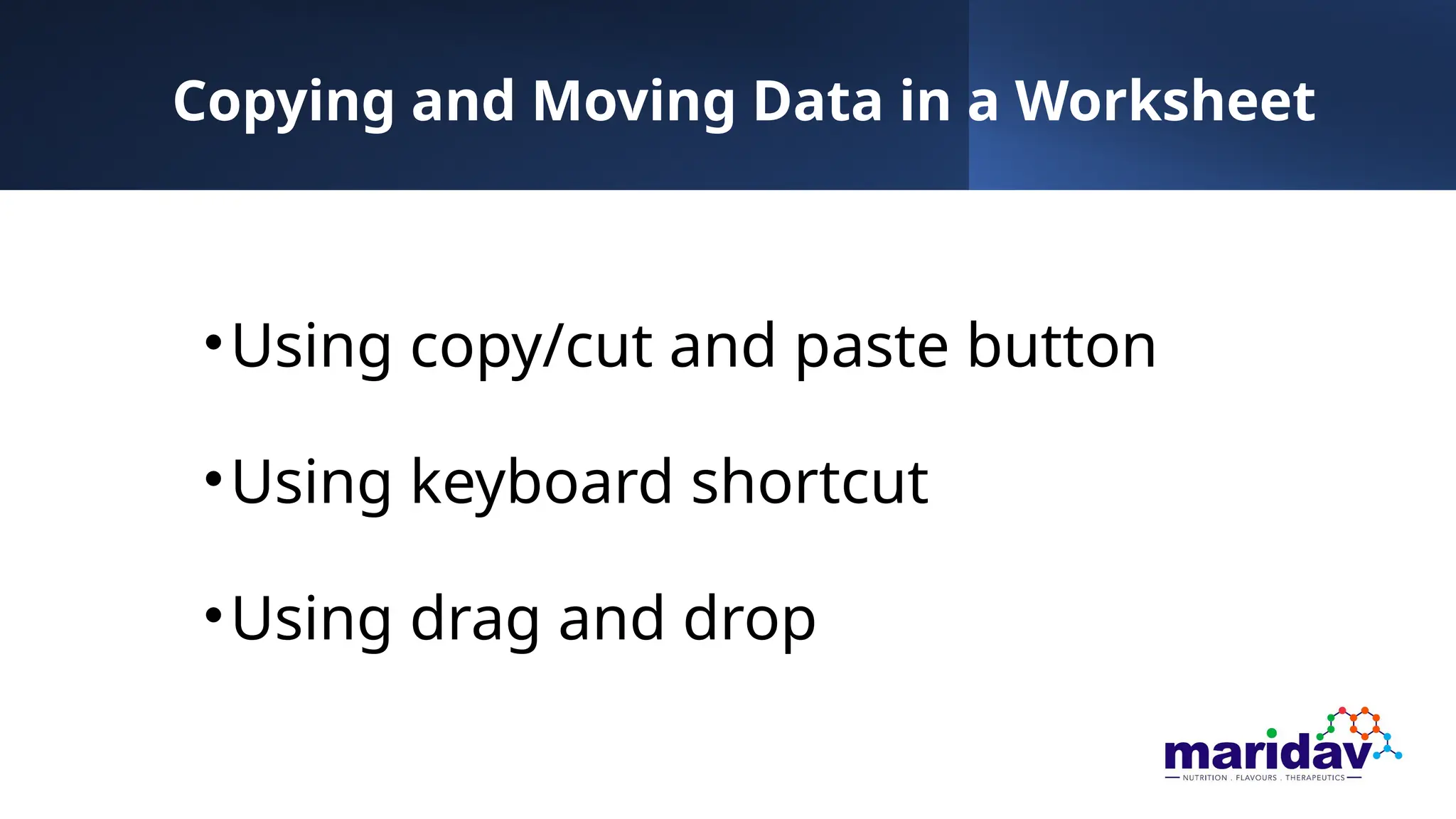
Copying and MovingData in a Worksheet
•Using copy/cut and paste button
•Using keyboard shortcut
•Using drag and drop
13.
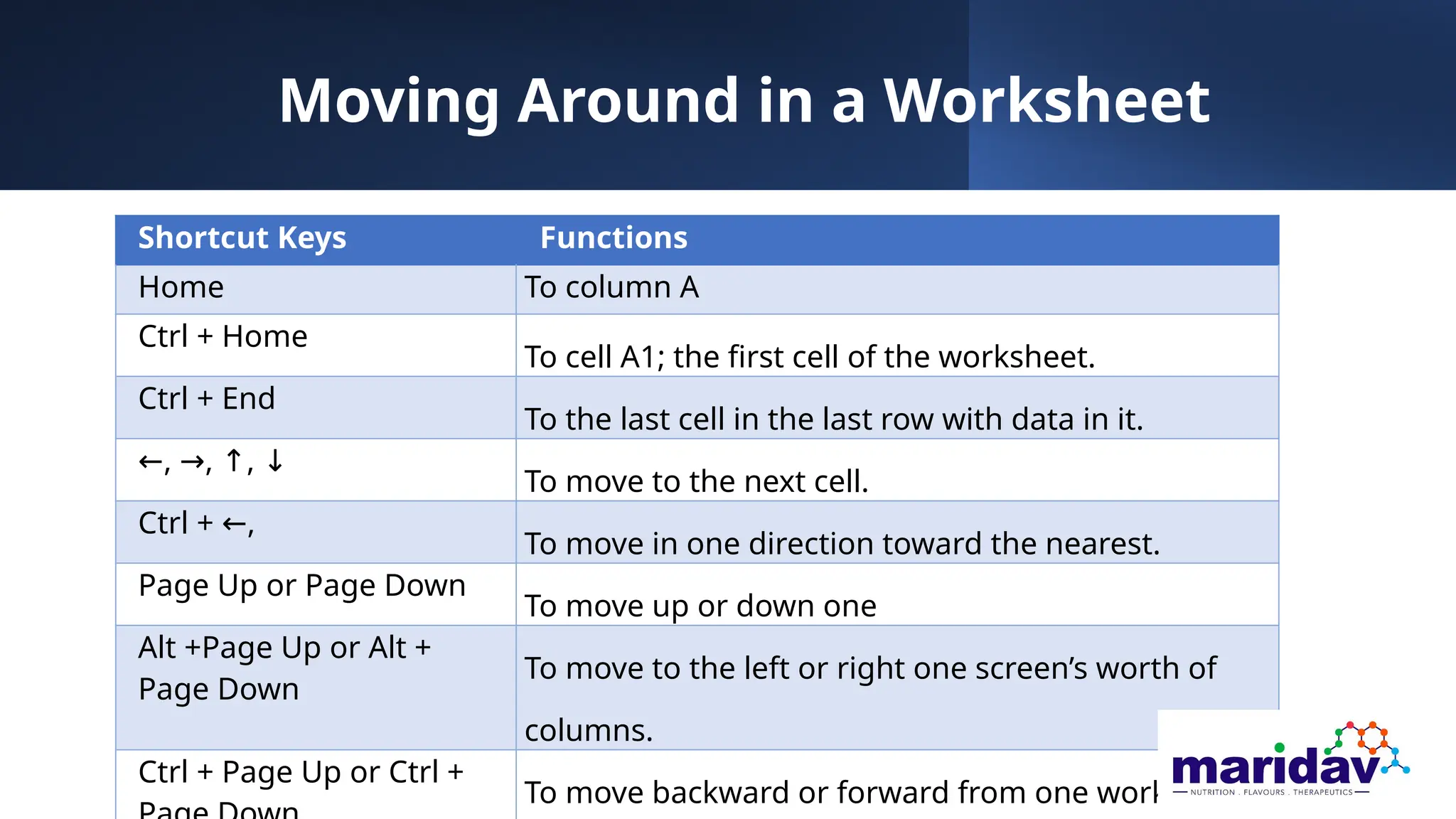
Moving Around ina Worksheet
Shortcut Keys Functions
Home To column A
Ctrl + Home
To cell A1; the first cell of the worksheet.
Ctrl + End
To the last cell in the last row with data in it.
←, ,
→ ,
↑ ↓
To move to the next cell.
Ctrl + ,
←
To move in one direction toward the nearest.
Page Up or Page Down
To move up or down one
Alt +Page Up or Alt +
Page Down
To move to the left or right one screen’s worth of
columns.
Ctrl + Page Up or Ctrl +
To move backward or forward from one worksheet
14.
Customizing the worksheet
•Changing the Font, Font Style, and Font Size
• Changing the Cell Background Colour of Your
Worksheet
• Showing/hiding Gridlines
15.
Working with Formulas
•Formulas are expressions which describe the calculation you
want to perform.
• Elements of a formula
oBegin with “=”
oReference to a particular cell or ranges. Eg. A1 or B12:B35
oOperators. Egs. “+”, “-”, “/”, “*” etc.
oBuilt in functions. Eg. Sum, Average, min, max etc.
• The Autofill Command
16.
Changing the appearanceof a worksheet
• Adjust column width.
• Adjust row height.
• Inserting/deleting rows and
columns
• Freezing pane (Locking title )
• Inserting/deleting a worksheet
• Hiding and unhiding a
Rows/Columns
• Hiding and unhiding a worksheet
• Renaming a worksheet
• Tab colour
17.
Applying formatting toText
• Numbers and Text Alignment in Rows and Columns
• Merging Cells
• Adding Comments
18.
Applying formatting tocells
• Format cells
• Displaying Numbers in decimal and with a Thousand
Separator (Comma)
• Displaying Numbers with Currency Symbols
• Displaying Numbers as Percentage
• Changing the Date Format in your Cell
#6 Records keeping: sales register, general ledger, invoice systems, pay roll etc.
Preparation and analysis of Financial statements: Statements of accounts, budget, profit and loses etc.
Marketing and sales: tracking sales data, Price decision, statistical analysis of survey and questionnaires, etc.
Manufacturing: inventory management, production scheduling, quality control andanalyzing production data
#8 NB: After clicking on “Blank workbook” the worksheet appears on your screen.
#10 A worksheet contains 1048576 rows and 16384 columns.
#13 You can also use the Scroll Bars to navigate within a worksheet
#15 NB : when using multiple operators, enclose in parenthesis those expressions you want to calculate first.




![Vibe Coding vs. Spec-Driven Development [Free Meetup]](https://cdn.slidesharecdn.com/ss_thumbnails/vibecodingvsspecdrivendevelopment-251209105622-43f455e7-thumbnail.jpg?width=640&height=640&fit=bounds)


