Data Loss Prevention in Office 365
Presenter – Abhishek Kumar
Agenda:
• Introduction
• Creating a DLP policy
• Using Labels as a condition in DLP policy
• Document Fingerprint
• DLP Reports
Introduction:
Data loss prevention (DLP) is a strategy for making sure that end users do not
send sensitive information (example of sensitive data that you might want to
protect from leaking include financial data or PII such a Credit Card
numbers) outside the corporate network. You can set up policies to help make
sure information in email and docs isn’t shared with the wrong people. With a
DLP policy, you can identify, track, and protect sensitive information across
Office 365.
DLP is an inbuilt feature in Office 365 Security & Compliance which comes
with Office 365 E1, E3, E5 and Microsoft 365.
In this webinar, we will walkthrough Data Loss Prevention in Office 365. We
will see how to create DLP policy with Labels as a condition. We will see
Document fingerprint in Exchange Online DLP and DLP reports.
Creating a DLP Policy
In order to create DLP Policy, go to Office 365 Security & Compliance center and
navigate to Data Loss Prevention.
DLP policy contains a few basic things –
1. Locations – Exchange Online, SharePoint Online & OneDrive for Business sites.
2. Conditions the content must match before the rule is enforces.
3. Actions that you want the rule to take automatically when content matched
conditions.
Labels as a Condition
Labels are used to classify data across your Office 365 organization for governance.
Labels can be created and then published on the locations such as Exchange
Online, SharePoint Online and OneDrive for Business.
After you create and publish a Label, it can then be used as a condition in your DLP
policies.
For example – You published a Label name Confidential, so that people in your
organization can manually apply the Label to confidential documents. By using this
Label as a condition in DLP policy restrict content lebeled Confidential from being
shared with people outside your organization.
Document Fingerprint
If your organization uses forms to collect sensitive information
Document Fingerprint makes it easier for you to protect this
information by identifying standard forms that are used throughout
your organization. Document Fingerprint is a feature of Data Loss
Prevention that converts a standard form into a sensitive information
type which you can use to define DLP Policies.
For using Document Fingerprint, go to Exchange Admin Center >
Compliance Management > Data Loss Prevention.
DLP reports
After you create and turn on your DLP policies, you’ll want to verify
that they’re working as you intended and helping you stay compliant.
With DLP reports, you can quickly view the number of DLP policy and
rule matches over time, and the number of false positives and
overrides.
You can also create schedule so that you can get the DLP reports on
your mail.
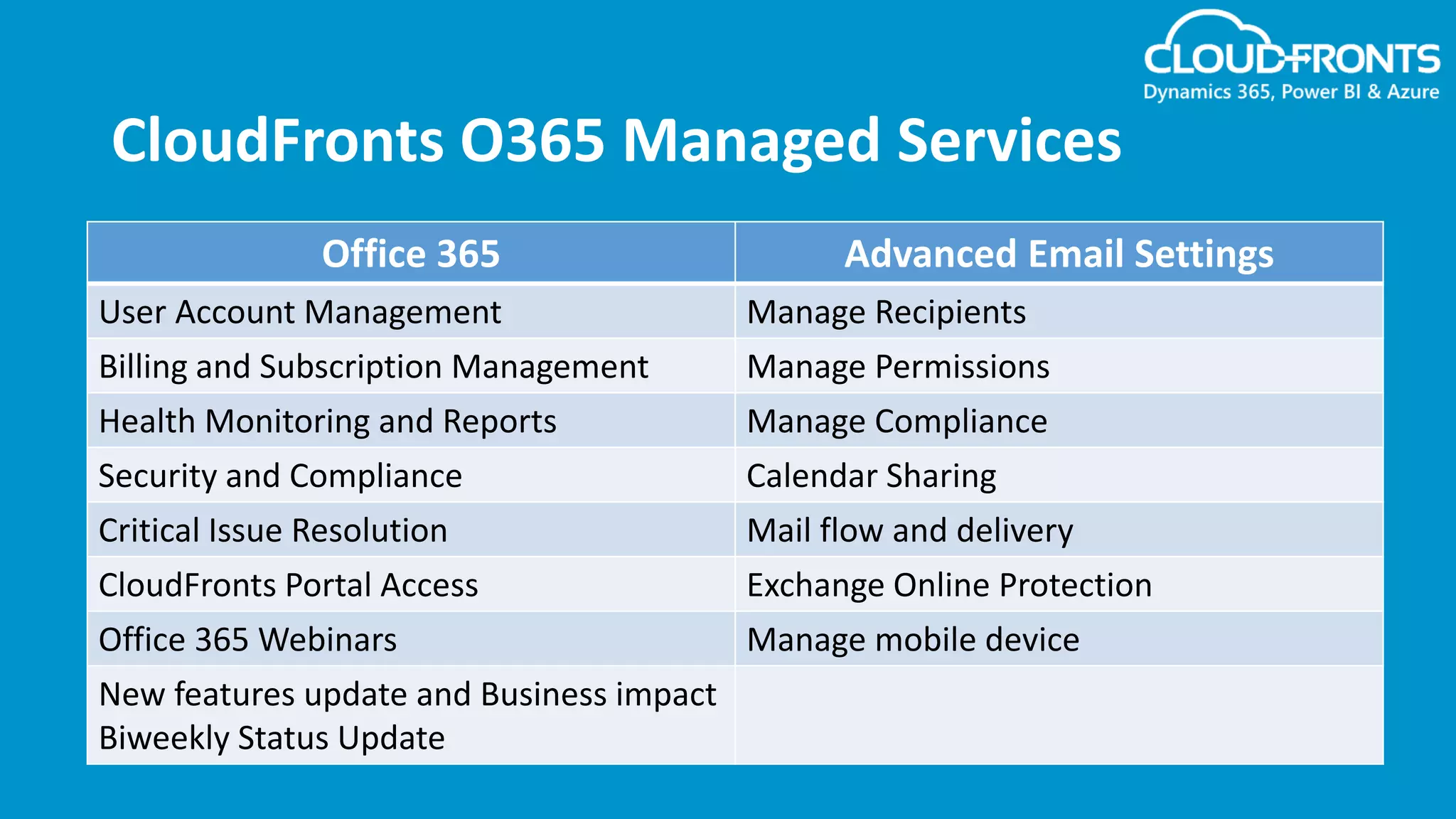
CloudFronts O365 Managed Services
Office 365 Advanced Email Settings
User Account Management Manage Recipients
Billing and Subscription Management Manage Permissions
Health Monitoring and Reports Manage Compliance
Security and Compliance Calendar Sharing
Critical Issue Resolution Mail flow and delivery
CloudFronts Portal Access Exchange Online Protection
Office 365 Webinars Manage mobile device
New features update and Business impact
Biweekly Status Update
Connect with us!
https://www.linkedin.com/company/cloudfronts
@cloudfronts
https://www.youtube.com/cloudfronts
info@cloudfronts.com
CloudFronts Technologies, LLP.
+1 855 796 4355 (USA) | +91 92 2358 3878 (India)
Write to us : info@cloudfronts.com

Data Loss Prevention in Office 365

  • 1.
    Data Loss Preventionin Office 365 Presenter – Abhishek Kumar
  • 2.
    Agenda: • Introduction • Creatinga DLP policy • Using Labels as a condition in DLP policy • Document Fingerprint • DLP Reports
  • 3.
    Introduction: Data loss prevention(DLP) is a strategy for making sure that end users do not send sensitive information (example of sensitive data that you might want to protect from leaking include financial data or PII such a Credit Card numbers) outside the corporate network. You can set up policies to help make sure information in email and docs isn’t shared with the wrong people. With a DLP policy, you can identify, track, and protect sensitive information across Office 365. DLP is an inbuilt feature in Office 365 Security & Compliance which comes with Office 365 E1, E3, E5 and Microsoft 365. In this webinar, we will walkthrough Data Loss Prevention in Office 365. We will see how to create DLP policy with Labels as a condition. We will see Document fingerprint in Exchange Online DLP and DLP reports.
  • 4.
    Creating a DLPPolicy In order to create DLP Policy, go to Office 365 Security & Compliance center and navigate to Data Loss Prevention. DLP policy contains a few basic things – 1. Locations – Exchange Online, SharePoint Online & OneDrive for Business sites. 2. Conditions the content must match before the rule is enforces. 3. Actions that you want the rule to take automatically when content matched conditions.
  • 5.
    Labels as aCondition Labels are used to classify data across your Office 365 organization for governance. Labels can be created and then published on the locations such as Exchange Online, SharePoint Online and OneDrive for Business. After you create and publish a Label, it can then be used as a condition in your DLP policies. For example – You published a Label name Confidential, so that people in your organization can manually apply the Label to confidential documents. By using this Label as a condition in DLP policy restrict content lebeled Confidential from being shared with people outside your organization.
  • 6.
    Document Fingerprint If yourorganization uses forms to collect sensitive information Document Fingerprint makes it easier for you to protect this information by identifying standard forms that are used throughout your organization. Document Fingerprint is a feature of Data Loss Prevention that converts a standard form into a sensitive information type which you can use to define DLP Policies. For using Document Fingerprint, go to Exchange Admin Center > Compliance Management > Data Loss Prevention.
  • 7.
    DLP reports After youcreate and turn on your DLP policies, you’ll want to verify that they’re working as you intended and helping you stay compliant. With DLP reports, you can quickly view the number of DLP policy and rule matches over time, and the number of false positives and overrides. You can also create schedule so that you can get the DLP reports on your mail.
  • 8.
    CloudFronts O365 ManagedServices Office 365 Advanced Email Settings User Account Management Manage Recipients Billing and Subscription Management Manage Permissions Health Monitoring and Reports Manage Compliance Security and Compliance Calendar Sharing Critical Issue Resolution Mail flow and delivery CloudFronts Portal Access Exchange Online Protection Office 365 Webinars Manage mobile device New features update and Business impact Biweekly Status Update
  • 9.
    Connect with us! https://www.linkedin.com/company/cloudfronts @cloudfronts https://www.youtube.com/cloudfronts info@cloudfronts.com CloudFrontsTechnologies, LLP. +1 855 796 4355 (USA) | +91 92 2358 3878 (India) Write to us : info@cloudfronts.com