Labels in Office 365
Presented by – Abhishek Kumar
Agenda:
• Introduction.
• Creating a Label.
• Publishing Label (Label Policies)
• Applying Label to SharePoint (library, folder or document) and
OneDrive.
Introduction:
Labels in Office 365 can help you take right actions on the right
content. With Labels, you can classify data across your organization for
governance, and enforce retention rules based on that classification.
In this webinar, we will take a look at Labels which is used for
classification of data across organization. We will see how to create &
publish labels and how to apply it to the documents in SharePoint and
OneDrive.
Creating a Label
For creating Labels, go to Office 365 Admin Center > Security &
Compliance > Classifications.
With Labels you can,
1. Enable people in your organization to apply a Label manually.
2. Auto apply Labels to content automatically.
Note: Auto-apply Labels requires an Office 365 Enterprise E5
subscription.
Let’s see how to create a Label in Office 365.
Publishing Label
The primary purpose of the label policy is to group a set of labels and
specify the locations where you want those labels to appear.
After creating Labels, click on Publish Label and then choose the
locations where to publish those Labels. It can take up to 1 day to
publish Labels in those location.
Let’s see how to publish Labels.
Applying Label to SharePoint and OneDrive
After publishing Labels, those Labels can be seen in OneDrive or
SharePoint. You can assign those Labels to the whole document library
or to the individual documents.
Let’s see how to apply the Labels to the documents.
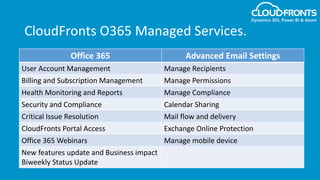
CloudFronts O365 Managed Services.
Office 365 Advanced Email Settings
User Account Management Manage Recipients
Billing and Subscription Management Manage Permissions
Health Monitoring and Reports Manage Compliance
Security and Compliance Calendar Sharing
Critical Issue Resolution Mail flow and delivery
CloudFronts Portal Access Exchange Online Protection
Office 365 Webinars Manage mobile device
New features update and Business impact
Biweekly Status Update
Connect with us!
https://www.linkedin.com/company/cloudfronts
@cloudfronts
https://www.youtube.com/cloudfronts
info@cloudfronts.com
CloudFronts Technologies, LLP.
+1 855 796 4355 (USA) | +91 92 2358 3878 (India)
Write to us : info@cloudfronts.com

Labels in Office 365

  • 1.
    Labels in Office365 Presented by – Abhishek Kumar
  • 2.
    Agenda: • Introduction. • Creatinga Label. • Publishing Label (Label Policies) • Applying Label to SharePoint (library, folder or document) and OneDrive.
  • 3.
    Introduction: Labels in Office365 can help you take right actions on the right content. With Labels, you can classify data across your organization for governance, and enforce retention rules based on that classification. In this webinar, we will take a look at Labels which is used for classification of data across organization. We will see how to create & publish labels and how to apply it to the documents in SharePoint and OneDrive.
  • 4.
    Creating a Label Forcreating Labels, go to Office 365 Admin Center > Security & Compliance > Classifications. With Labels you can, 1. Enable people in your organization to apply a Label manually. 2. Auto apply Labels to content automatically. Note: Auto-apply Labels requires an Office 365 Enterprise E5 subscription. Let’s see how to create a Label in Office 365.
  • 5.
    Publishing Label The primarypurpose of the label policy is to group a set of labels and specify the locations where you want those labels to appear. After creating Labels, click on Publish Label and then choose the locations where to publish those Labels. It can take up to 1 day to publish Labels in those location. Let’s see how to publish Labels.
  • 6.
    Applying Label toSharePoint and OneDrive After publishing Labels, those Labels can be seen in OneDrive or SharePoint. You can assign those Labels to the whole document library or to the individual documents. Let’s see how to apply the Labels to the documents.
  • 7.
    CloudFronts O365 ManagedServices. Office 365 Advanced Email Settings User Account Management Manage Recipients Billing and Subscription Management Manage Permissions Health Monitoring and Reports Manage Compliance Security and Compliance Calendar Sharing Critical Issue Resolution Mail flow and delivery CloudFronts Portal Access Exchange Online Protection Office 365 Webinars Manage mobile device New features update and Business impact Biweekly Status Update
  • 8.
    Connect with us! https://www.linkedin.com/company/cloudfronts @cloudfronts https://www.youtube.com/cloudfronts info@cloudfronts.com CloudFrontsTechnologies, LLP. +1 855 796 4355 (USA) | +91 92 2358 3878 (India) Write to us : info@cloudfronts.com