
Office 365 –
Data Loss Prevention (DLP)
Configuration Settings and Options available
https://support.office.com/en-us/article/Overview-of-data-loss-prevention-policies-1966b2a7-d1e2-4d92-
ab61-42efbb137f5e
Creating New DLP Policy – Step 1
https://support.office.com/en-us/article/What-the-DLP-policy-
templates-include-c2e588d3-8f4f-4937-a286-
8c399f28953a?ui=en-US&rs=en-US&ad=US
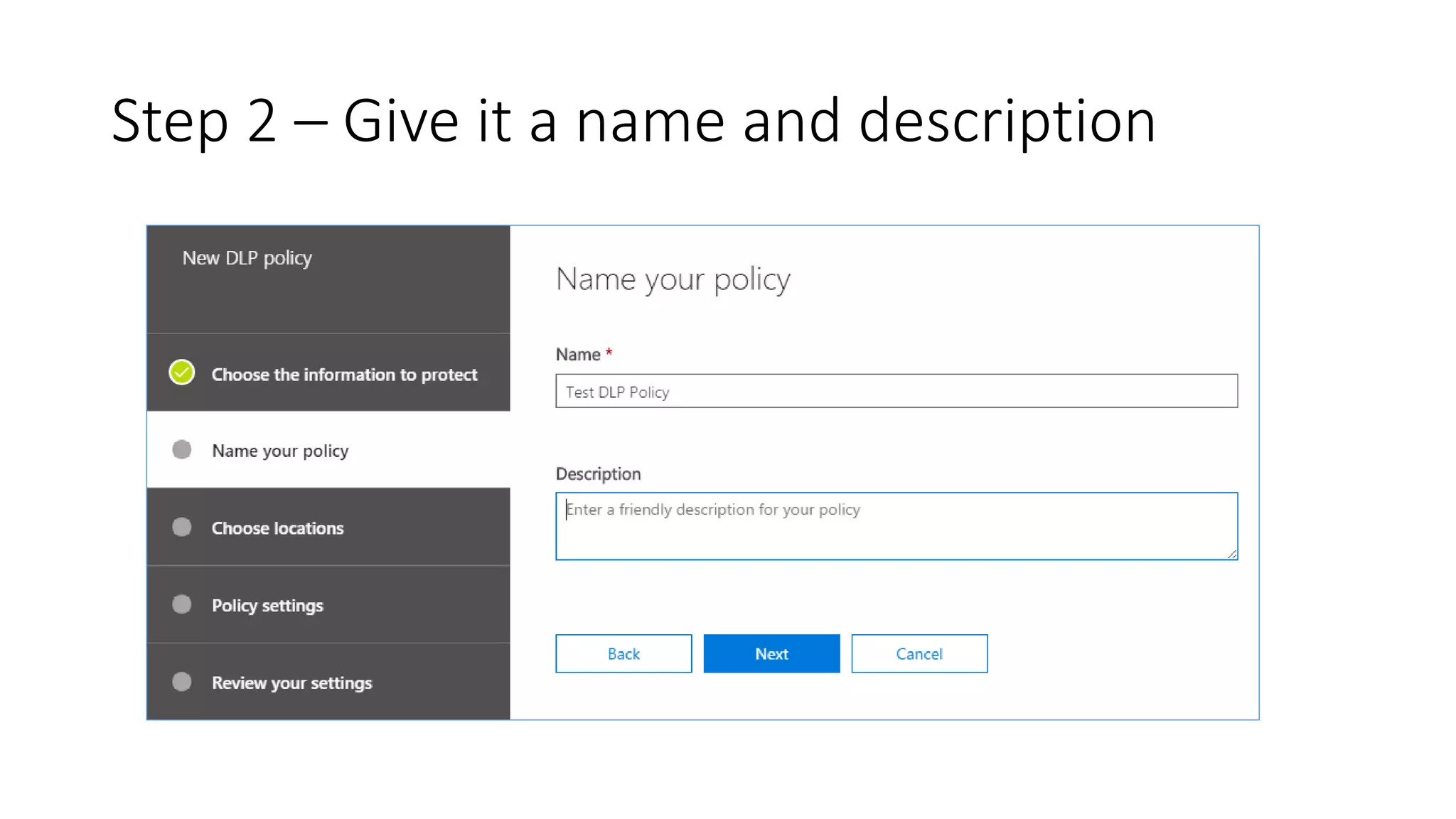
Step 2 – Give it a name and description
Step 3 – Choose Locations
Upon selecting the second option, you get this 
Here you can select, which sites you want to include, exclude,
Which users’ OneDrive you would like to protect and exclude
Step 4 – Policy Settings – Simple & Advanced
If Sensitive Info is detected (for instance an
ABA Routing Number)
Step 4 – Policy Settings - Advanced
• Advanced allows you to configure Rules
Turning On immediately or Off
Review and Close
Creating Custom Expressions for matching
• In your organization, if you have specific types and formats of content that
does not match the Microsoft provided Sensitive Information Types
templates, then, we can customize and create new templates, based on
Regular Expressions
• For instance, in your company, a patent format can look like: xxxx-xx-xxxx
for instance. You can build a Custom Template for this and thus the
matching content will be blocked out
• References:
• https://technet.microsoft.com/en-us/library/dn781122(v=exchg.150).aspx
• https://blogs.technet.microsoft.com/govcloud/2014/04/15/dlp-creating-custom-
rules/#.VGzf2_9OUiR
• https://justaucguy.wordpress.com/2014/11/21/adventures-in-custom-dlp-rules-part-
one/
Thank you…

Office 365 Data Loss Prevention

  • 1.
    Office 365 – DataLoss Prevention (DLP) Configuration Settings and Options available https://support.office.com/en-us/article/Overview-of-data-loss-prevention-policies-1966b2a7-d1e2-4d92- ab61-42efbb137f5e
  • 2.
    Creating New DLPPolicy – Step 1 https://support.office.com/en-us/article/What-the-DLP-policy- templates-include-c2e588d3-8f4f-4937-a286- 8c399f28953a?ui=en-US&rs=en-US&ad=US
  • 3.
    Step 2 –Give it a name and description
  • 4.
    Step 3 –Choose Locations Upon selecting the second option, you get this  Here you can select, which sites you want to include, exclude, Which users’ OneDrive you would like to protect and exclude
  • 5.
    Step 4 –Policy Settings – Simple & Advanced
  • 6.
    If Sensitive Infois detected (for instance an ABA Routing Number)
  • 7.
    Step 4 –Policy Settings - Advanced • Advanced allows you to configure Rules
  • 8.
  • 9.
  • 10.
    Creating Custom Expressionsfor matching • In your organization, if you have specific types and formats of content that does not match the Microsoft provided Sensitive Information Types templates, then, we can customize and create new templates, based on Regular Expressions • For instance, in your company, a patent format can look like: xxxx-xx-xxxx for instance. You can build a Custom Template for this and thus the matching content will be blocked out • References: • https://technet.microsoft.com/en-us/library/dn781122(v=exchg.150).aspx • https://blogs.technet.microsoft.com/govcloud/2014/04/15/dlp-creating-custom- rules/#.VGzf2_9OUiR • https://justaucguy.wordpress.com/2014/11/21/adventures-in-custom-dlp-rules-part- one/
  • 11.