

Mail Flow in Exchange Online
Presenter – Abhishek Kumar
Agenda:
• Introduction
• Mail Flow rules (Transport rules)
• Message Trace
• Accepted Domains
• Remote Domains
• Connectors
Introduction:
For most organizations using Office 365, mail flow are taken care of. It's the
simplest configuration and means that Office 365 manages all mailboxes and
filtering. However, some organizations need more complex mail flow setups
to make sure that they comply with specific regulatory or business needs.
In this webinar, we will take a look at how to create mail transport rules, how
to trace messages. We will also see how to manage accepted and remote
domains and how to use connectors in Exchange Online.
Mail Flow Rules.
Mail Flow rules also known as Transport Rules can be used to identify and take
action on messages that flow through your Office 365 organization. These rules are
similar to Inbox rule available in Outlook and OWA the difference is mail flow rules
take actions while messages are in transit and not after the message is delivered to
the mailbox.
Message Trace
As an administrator, you can find out what happened to an email message by
running the message trace in Exchange Admin Center(EAC). After running the
message trace, you can view the results in a list, and then view the details about a
specific message.
Accepted Domains
When you add your domain to Office 365, it’s called an accepted domain. This
means that users in this domain can send and receive mail.
After domain is added using the Office 365 admin center, you can use the Exchange
Admin Center to view your accepted domains and configure the domain type.
Types of Accepted Domains:
1. Authoritative
2. Internal Relay
Remote Domains
You can control the types of messages that are sent to domains outside your
Exchange organization by configuring Remote Domains.
The remote domain settings override settings that your users might configure in
Outlook or Outlook Web App, or that you configure using the Exchange admin
center (EAC).
Connectors
Connectors helps control the flow of email messages to and from your Office 365
organization. However most organizations don’t need to use Connectors.
Microsoft Exchange Online is ready to send and receive email from the Internet
right away. You don’t need to set up connectors unless you have EOP or other
specific circumstances.
You can setup Connectors to:
1. Enable mail flow between Office 365 and your organization’s email servers.
2. Enable mail flow between Office 365 and your partner organization for
enhanced security.
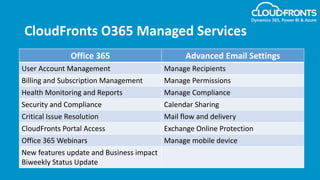
CloudFronts O365 Managed Services
Office 365 Advanced Email Settings
User Account Management Manage Recipients
Billing and Subscription Management Manage Permissions
Health Monitoring and Reports Manage Compliance
Security and Compliance Calendar Sharing
Critical Issue Resolution Mail flow and delivery
CloudFronts Portal Access Exchange Online Protection
Office 365 Webinars Manage mobile device
New features update and Business impact
Biweekly Status Update
Connect with us!
https://www.linkedin.com/company/cloudfronts
@cloudfronts
https://www.youtube.com/cloudfronts
info@cloudfronts.com
CloudFronts Technologies, LLP.
+1 855 796 4355 (USA) | +91 92 2358 3878 (India)
Write to us : info@cloudfronts.com

Mail flow in Exchange Online

  • 1.
    Mail Flow inExchange Online Presenter – Abhishek Kumar
  • 2.
    Agenda: • Introduction • MailFlow rules (Transport rules) • Message Trace • Accepted Domains • Remote Domains • Connectors
  • 3.
    Introduction: For most organizationsusing Office 365, mail flow are taken care of. It's the simplest configuration and means that Office 365 manages all mailboxes and filtering. However, some organizations need more complex mail flow setups to make sure that they comply with specific regulatory or business needs. In this webinar, we will take a look at how to create mail transport rules, how to trace messages. We will also see how to manage accepted and remote domains and how to use connectors in Exchange Online.
  • 4.
    Mail Flow Rules. MailFlow rules also known as Transport Rules can be used to identify and take action on messages that flow through your Office 365 organization. These rules are similar to Inbox rule available in Outlook and OWA the difference is mail flow rules take actions while messages are in transit and not after the message is delivered to the mailbox.
  • 5.
    Message Trace As anadministrator, you can find out what happened to an email message by running the message trace in Exchange Admin Center(EAC). After running the message trace, you can view the results in a list, and then view the details about a specific message.
  • 6.
    Accepted Domains When youadd your domain to Office 365, it’s called an accepted domain. This means that users in this domain can send and receive mail. After domain is added using the Office 365 admin center, you can use the Exchange Admin Center to view your accepted domains and configure the domain type. Types of Accepted Domains: 1. Authoritative 2. Internal Relay
  • 7.
    Remote Domains You cancontrol the types of messages that are sent to domains outside your Exchange organization by configuring Remote Domains. The remote domain settings override settings that your users might configure in Outlook or Outlook Web App, or that you configure using the Exchange admin center (EAC).
  • 8.
    Connectors Connectors helps controlthe flow of email messages to and from your Office 365 organization. However most organizations don’t need to use Connectors. Microsoft Exchange Online is ready to send and receive email from the Internet right away. You don’t need to set up connectors unless you have EOP or other specific circumstances. You can setup Connectors to: 1. Enable mail flow between Office 365 and your organization’s email servers. 2. Enable mail flow between Office 365 and your partner organization for enhanced security.
  • 9.
    CloudFronts O365 ManagedServices Office 365 Advanced Email Settings User Account Management Manage Recipients Billing and Subscription Management Manage Permissions Health Monitoring and Reports Manage Compliance Security and Compliance Calendar Sharing Critical Issue Resolution Mail flow and delivery CloudFronts Portal Access Exchange Online Protection Office 365 Webinars Manage mobile device New features update and Business impact Biweekly Status Update
  • 10.
    Connect with us! https://www.linkedin.com/company/cloudfronts @cloudfronts https://www.youtube.com/cloudfronts info@cloudfronts.com CloudFrontsTechnologies, LLP. +1 855 796 4355 (USA) | +91 92 2358 3878 (India) Write to us : info@cloudfronts.com