





Microsoft Purview
Information
Protection
Albert Hoitingh
@Alberthoitingh
https://linkedin.com/in/appieh
https://alberthoitingh.com
Sr. Consultant Microsoft 365 security,
compliance & risk @InSpark
DIAMOND LEVEL
PLATINUM LEVEL
GOLD LEVEL
THANK YOU TO OUR SPONSORS
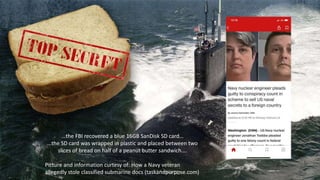
…the FBI recovered a blue 16GB SanDisk SD card…
…the SD card was wrapped in plastic and placed between two
slices of bread on half of a peanut butter sandwich….
Picture and information curtesy of: How a Navy veteran
allegedly stole classified submarine docs (taskandpurpose.com)
Session Objectives
During this session we will:
 Get an overview for Microsoft Purview
 Sensitivity labels
 Different clients
 Auto-labeling
 Advanced settings
 Tips & tricks (and Ignite 2022)
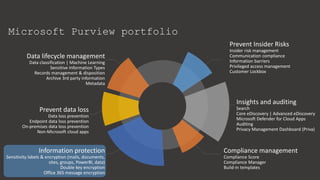
Microsoft Purview portfolio
Prevent Insider Risks
Insider risk management
Communication compliance
Information barriers
Privileged access management
Customer Lockbox
Compliance management
Compliance Score
Compliance Manager
Build-in templates
Insights and auditing
Search
Core eDiscovery | Advanced eDiscovery
Microsoft Defender for Cloud Apps
Auditing
Privacy Management Dashboard (Priva)
Information protection
Sensitivity labels & encryption (mails, documents,
sites, groups, PowerBI, data)
Double key encryption
Office 365 message encryption
Data lifecycle management
Data classification | Machine Learning
Sensitive Information Types
Records management & disposition
Archive 3rd party information
Metadata
Prevent data loss
Data loss prevention
Endpoint data loss prevention
On-premises data loss prevention
Non-Microsoft cloud apps
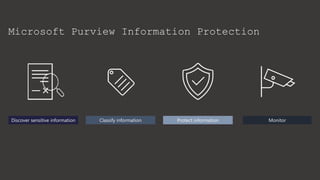
Microsoft Purview Information Protection
Discover sensitive information Classify information Protect information Monitor
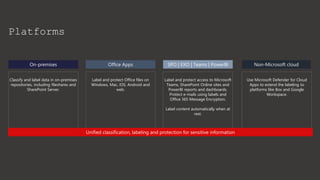
Platforms
On-premises
Classify and label data in on-premises
repositories, including fileshares and
SharePoint Server.
Office Apps SPO | EXO | Teams | PowerBI
Label and protect Office files on
Windows, Mac, iOS, Android and
web.
Label and protect access to Microsoft
Teams, SharePoint Online sites and
PowerBI reports and dashboards.
Protect e-mails using labels and
Office 365 Message Encryption.
Label content automatically when at
rest.
Non-Microsoft cloud
Use Microsoft Defender for Cloud
Apps to extend the labeling to
platforms like Box and Google
Workspace.
Unified classification, labeling and protection for sensitive information
Unified
labeling
–
sensitivity
labels
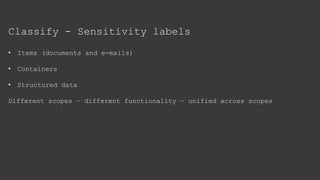
Classify - Sensitivity labels
• Items (documents and e-mails)
• Containers
• Structured data
Different scopes – different functionality – unified across scopes
Items
• Label applied to document/e-mail
• Label added as metadata and stays with
document
• Can be configured to:
- Apply visual markings
- Encrypt the document
- Allow offline access
- Work within DLP policies
• Works with a hierarchy, parents and sublabels
• Does not provide retention!
Containers
• Groups and sites
• Microsoft Teams | Microsoft 365 Groups
| SharePoint Online sites
• Privacy | External user access |
• Sharing settings for SharePoint Online
• Azure AD Conditional Access rules
• Default label per library (preview)
• Specific policy option
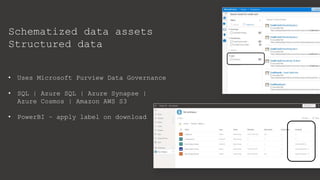
Schematized data assets
Structured data
• Uses Microsoft Purview Data Governance
• SQL | Azure SQL | Azure Synapse |
Azure Cosmos | Amazon AWS S3
• PowerBI – apply label on download
Short demonstration – labels in Teams
and Office Online
Encryption
Encryption and labels
• Uses Azure Rights Management and Azure AD accounts
• Microsoft Managed Keys | Bring Your Own Key | Double Key
• RMS Connector for Exchange on-premises
Microsoft Managed (Azure) key details
• Content protection: Symmetric AES 128/256 bit
• Key protection: Asymmetric RSA 2048 bit
• Certificate signing: SHA-256
• Protected document = Encrypted body + signed & encrypted policy
Beware!
• Licensing requirements
• Limitations (Double Key: only Office apps)
• Azure AD accounts (and working with guests)
• Co-authoring and auto-save for Office
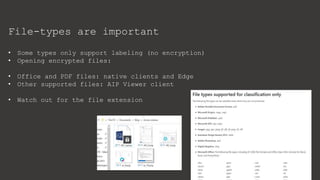
File-types are important
• Some types only support labeling (no encryption)
• Opening encrypted files:
• Office and PDF files: native clients and Edge
• Other supported files: AIP Viewer client
• Watch out for the file extension
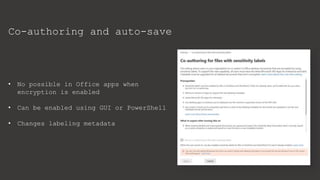
Co-authoring and auto-save
• No possible in Office apps when
encryption is enabled
• Can be enabled using GUI or PowerShell
• Changes labeling metadata
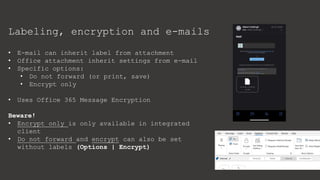
Labeling, encryption and e-mails
• E-mail can inherit label from attachment
• Office attachment inherit settings from e-mail
• Specific options:
• Do not forward (or print, save)
• Encrypt only
• Uses Office 365 Message Encryption
Beware!
• Encrypt only is only available in integrated
client
• Do not forward and encrypt can also be set
without labels (Options | Encrypt)
Different
clients
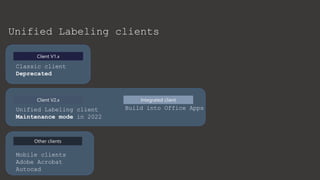
Unified Labeling clients
Client V1.x
Client V2.x Integrated client
Other clients
Mobile clients
Adobe Acrobat
Autocad
Build into Office Apps
Unified Labeling client
Maintenance mode in 2022
Classic client
Deprecated
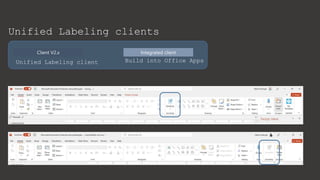
Unified Labeling clients
Client V2.x Integrated client
Build into Office Apps
Unified Labeling client
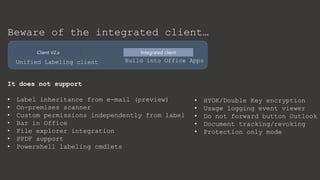
Beware of the integrated client…
It does not support
• Label inheritance from e-mail (preview)
• On-premises scanner
• Custom permissions independently from label
• Bar in Office
• File explorer integration
• PPDF support
• Powershell labeling cmdlets
Client V2.x Integrated client
Build into Office Apps
Unified Labeling client
• HYOK/Double Key encryption
• Usage logging event viewer
• Do not forward button Outlook
• Document tracking/revoking
• Protection only mode
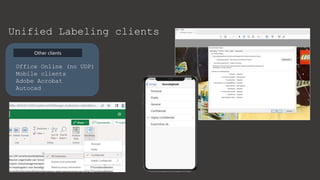
Unified Labeling clients
Other clients
Office Online (no UDP)
Mobile clients
Adobe Acrobat
Autocad
Automatic
detection and
classification
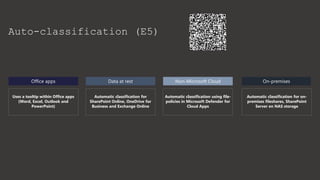
Auto-classification (E5)
Office apps
Uses a tooltip within Office apps
(Word, Excel, Outlook and
PowerPoint)
Data at rest Non-Microsoft Cloud
Automatic classification for
SharePoint Online, OneDrive for
Business and Exchange Online
Automatic classification using file-
policies in Microsoft Defender for
Cloud Apps
On-premises
Automatic classification for on-
premises fileshares, SharePoint
Server en NAS storage
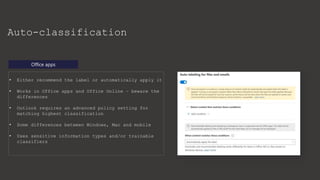
Auto-classification
Office apps
• Either recommend the label or automatically apply it
• Works in Office apps and Office Online – beware the
differences
• Outlook requires an advanced policy setting for
matching highest classification
• Some differences between Windows, Mac and mobile
• Uses sensitive information types and/or trainable
classifiers
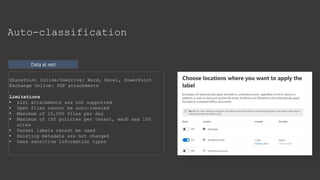
Data at rest
Auto-classification
SharePoint Online/OneDrive: Word, Excel, PowerPoint
Exchange Online: PDF attachments
Limitations
• List attachments are not supported
• Open files cannot be auto-labeled
• Maximum of 25,000 files per day
• Maximum of 100 policies per tenant, each max 100
sites
• Parent labels cannot be used
• Existing metadata are not changed
• Uses sensitive information types
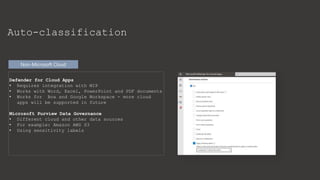
Non-Microsoft Cloud
Auto-classification
Defender for Cloud Apps
• Requires integration with MIP
• Works with Word, Excel, PowerPoint and PDF documents
• Works for Box and Google Workspace - more cloud
apps will be supported in future
Microsoft Purview Data Governance
• Different cloud and other data sources
• For example: Amazon AWS S3
• Using sensitivity labels
On-premises
Auto-classification
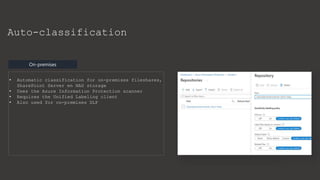
• Automatic classification for on-premises fileshares,
SharePoint Server en NAS storage
• Uses the Azure Information Protection scanner
• Requires the Unified Labeling client
• Also used for on-premises DLP
Advanced
configurations
Advanced configurations
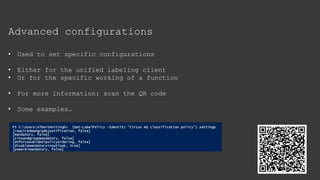
• Used to set specific configurations
• Either for the unified labeling client
• Or for the specific working of a function
• For more information: scan the QR code
• Some examples…
Advanced configurations PowerShell – 1
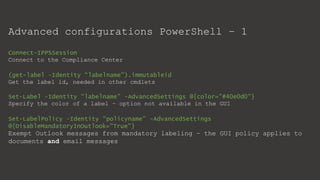
Connect-IPPSSession
Connect to the Compliance Center
(get-label -Identity “labelname").immutableid
Get the label id, needed in other cmdlets
Set-Label -Identity “labelname” -AdvancedSettings @{color="#40e0d0"}
Specify the color of a label – option not available in the GUI
Set-LabelPolicy -Identity “policyname” -AdvancedSettings
@{DisableMandatoryInOutlook="True"}
Exempt Outlook messages from mandatory labeling – the GUI policy applies to
documents and email messages
Advanced configurations PowerShell - 2
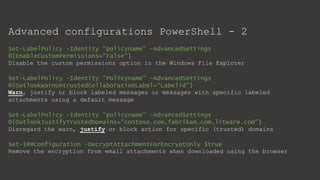
Set-LabelPolicy -Identity “policyname” -AdvancedSettings
@{EnableCustomPermissions="False"}
Disable the custom permissions option in the Windows File Explorer
Set-LabelPolicy -Identity “Policyname” -AdvancedSettings
@{OutlookWarnUntrustedCollaborationLabel=“Labelid"}
Warn, justify or block labeled messages or messages with specific labeled
attachments using a default message
Set-LabelPolicy -Identity “policyname” -AdvancedSettings
@{OutlookJustifyTrustedDomains="contoso.com,fabrikam.com,litware.com"}
Disregard the warn, justify or block action for specific (trusted) domains
Set-IRMConfiguration -DecryptAttachmentForEncryptOnly $true
Remove the encryption from email attachments when downloaded using the browser
Advanced configurations PowerShell - 3
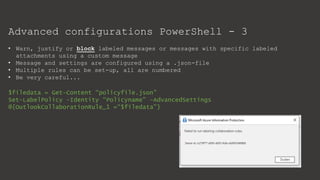
• Warn, justify or block labeled messages or messages with specific labeled
attachments using a custom message
• Message and settings are configured using a .json-file
• Multiple rules can be set-up, all are numbered
• Be very careful...
$filedata = Get-Content “policyfile.json"
Set-LabelPolicy -Identity “Policyname" -AdvancedSettings
@{OutlookCollaborationRule_1 =“$filedata"}
Advanced configurations PowerShell - 3
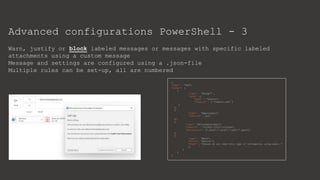
Warn, justify or block labeled messages or messages with specific labeled
attachments using a custom message
Message and settings are configured using a .json-file
Multiple rules can be set-up, all are numbered
Things to
consider
Tips, tricks and some things
to think about
• Sharing an encrypted file | working with guests
• Label/encrypt using DLP rules
• Decrypt file in SPO: Unlock-SensitivityLabelEncryptedFile
• Metadata change, MSIP_ cannot be used anymore
• Container based – don’t affect documents & require AAD CA policies
• Difference in clients
• Custom configuration for UL client
Tips, tricks and some things
to think about
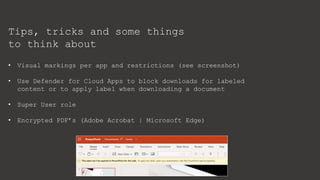
• Visual markings per app and restrictions (see screenshot)
• Use Defender for Cloud Apps to block downloads for labeled
content or to apply label when downloading a document
• Super User role
• Encrypted PDF’s (Adobe Acrobat | Microsoft Edge)
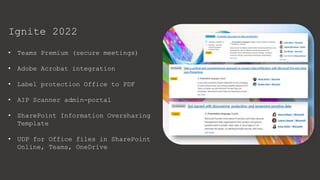
Ignite 2022
• Teams Premium (secure meetings)
• Adobe Acrobat integration
• Label protection Office to PDF
• AIP Scanner admin-portal
• SharePoint Information Oversharing
Template
• UDP for Office files in SharePoint
Online, Teams, OneDrive
Thank you!
@Alberthoitingh
https://linkedin.com/in/appieh
https://alberthoitingh.com

Microsoft Information Protection demystified Albert Hoitingh

  • 1.
  • 2.
  • 3.
    DIAMOND LEVEL PLATINUM LEVEL GOLDLEVEL THANK YOU TO OUR SPONSORS
  • 4.
    …the FBI recovereda blue 16GB SanDisk SD card… …the SD card was wrapped in plastic and placed between two slices of bread on half of a peanut butter sandwich…. Picture and information curtesy of: How a Navy veteran allegedly stole classified submarine docs (taskandpurpose.com)
  • 5.
    Session Objectives During thissession we will:  Get an overview for Microsoft Purview  Sensitivity labels  Different clients  Auto-labeling  Advanced settings  Tips & tricks (and Ignite 2022)
  • 6.
    Microsoft Purview portfolio PreventInsider Risks Insider risk management Communication compliance Information barriers Privileged access management Customer Lockbox Compliance management Compliance Score Compliance Manager Build-in templates Insights and auditing Search Core eDiscovery | Advanced eDiscovery Microsoft Defender for Cloud Apps Auditing Privacy Management Dashboard (Priva) Information protection Sensitivity labels & encryption (mails, documents, sites, groups, PowerBI, data) Double key encryption Office 365 message encryption Data lifecycle management Data classification | Machine Learning Sensitive Information Types Records management & disposition Archive 3rd party information Metadata Prevent data loss Data loss prevention Endpoint data loss prevention On-premises data loss prevention Non-Microsoft cloud apps
  • 7.
    Microsoft Purview InformationProtection Discover sensitive information Classify information Protect information Monitor
  • 8.
    Platforms On-premises Classify and labeldata in on-premises repositories, including fileshares and SharePoint Server. Office Apps SPO | EXO | Teams | PowerBI Label and protect Office files on Windows, Mac, iOS, Android and web. Label and protect access to Microsoft Teams, SharePoint Online sites and PowerBI reports and dashboards. Protect e-mails using labels and Office 365 Message Encryption. Label content automatically when at rest. Non-Microsoft cloud Use Microsoft Defender for Cloud Apps to extend the labeling to platforms like Box and Google Workspace. Unified classification, labeling and protection for sensitive information
  • 9.
  • 10.
    Classify - Sensitivitylabels • Items (documents and e-mails) • Containers • Structured data Different scopes – different functionality – unified across scopes
  • 11.
    Items • Label appliedto document/e-mail • Label added as metadata and stays with document • Can be configured to: - Apply visual markings - Encrypt the document - Allow offline access - Work within DLP policies • Works with a hierarchy, parents and sublabels • Does not provide retention!
  • 12.
    Containers • Groups andsites • Microsoft Teams | Microsoft 365 Groups | SharePoint Online sites • Privacy | External user access | • Sharing settings for SharePoint Online • Azure AD Conditional Access rules • Default label per library (preview) • Specific policy option
  • 13.
    Schematized data assets Structureddata • Uses Microsoft Purview Data Governance • SQL | Azure SQL | Azure Synapse | Azure Cosmos | Amazon AWS S3 • PowerBI – apply label on download
  • 14.
    Short demonstration –labels in Teams and Office Online
  • 15.
  • 16.
    Encryption and labels •Uses Azure Rights Management and Azure AD accounts • Microsoft Managed Keys | Bring Your Own Key | Double Key • RMS Connector for Exchange on-premises Microsoft Managed (Azure) key details • Content protection: Symmetric AES 128/256 bit • Key protection: Asymmetric RSA 2048 bit • Certificate signing: SHA-256 • Protected document = Encrypted body + signed & encrypted policy Beware! • Licensing requirements • Limitations (Double Key: only Office apps) • Azure AD accounts (and working with guests) • Co-authoring and auto-save for Office
  • 17.
    File-types are important •Some types only support labeling (no encryption) • Opening encrypted files: • Office and PDF files: native clients and Edge • Other supported files: AIP Viewer client • Watch out for the file extension
  • 18.
    Co-authoring and auto-save •No possible in Office apps when encryption is enabled • Can be enabled using GUI or PowerShell • Changes labeling metadata
  • 19.
    Labeling, encryption ande-mails • E-mail can inherit label from attachment • Office attachment inherit settings from e-mail • Specific options: • Do not forward (or print, save) • Encrypt only • Uses Office 365 Message Encryption Beware! • Encrypt only is only available in integrated client • Do not forward and encrypt can also be set without labels (Options | Encrypt)
  • 20.
  • 21.
    Unified Labeling clients ClientV1.x Client V2.x Integrated client Other clients Mobile clients Adobe Acrobat Autocad Build into Office Apps Unified Labeling client Maintenance mode in 2022 Classic client Deprecated
  • 22.
    Unified Labeling clients ClientV2.x Integrated client Build into Office Apps Unified Labeling client
  • 23.
    Beware of theintegrated client… It does not support • Label inheritance from e-mail (preview) • On-premises scanner • Custom permissions independently from label • Bar in Office • File explorer integration • PPDF support • Powershell labeling cmdlets Client V2.x Integrated client Build into Office Apps Unified Labeling client • HYOK/Double Key encryption • Usage logging event viewer • Do not forward button Outlook • Document tracking/revoking • Protection only mode
  • 24.
    Unified Labeling clients Otherclients Office Online (no UDP) Mobile clients Adobe Acrobat Autocad
  • 25.
  • 26.
    Auto-classification (E5) Office apps Usesa tooltip within Office apps (Word, Excel, Outlook and PowerPoint) Data at rest Non-Microsoft Cloud Automatic classification for SharePoint Online, OneDrive for Business and Exchange Online Automatic classification using file- policies in Microsoft Defender for Cloud Apps On-premises Automatic classification for on- premises fileshares, SharePoint Server en NAS storage
  • 27.
    Auto-classification Office apps • Eitherrecommend the label or automatically apply it • Works in Office apps and Office Online – beware the differences • Outlook requires an advanced policy setting for matching highest classification • Some differences between Windows, Mac and mobile • Uses sensitive information types and/or trainable classifiers
  • 28.
    Data at rest Auto-classification SharePointOnline/OneDrive: Word, Excel, PowerPoint Exchange Online: PDF attachments Limitations • List attachments are not supported • Open files cannot be auto-labeled • Maximum of 25,000 files per day • Maximum of 100 policies per tenant, each max 100 sites • Parent labels cannot be used • Existing metadata are not changed • Uses sensitive information types
  • 29.
    Non-Microsoft Cloud Auto-classification Defender forCloud Apps • Requires integration with MIP • Works with Word, Excel, PowerPoint and PDF documents • Works for Box and Google Workspace - more cloud apps will be supported in future Microsoft Purview Data Governance • Different cloud and other data sources • For example: Amazon AWS S3 • Using sensitivity labels
  • 30.
    On-premises Auto-classification • Automatic classificationfor on-premises fileshares, SharePoint Server en NAS storage • Uses the Azure Information Protection scanner • Requires the Unified Labeling client • Also used for on-premises DLP
  • 31.
  • 32.
    Advanced configurations • Usedto set specific configurations • Either for the unified labeling client • Or for the specific working of a function • For more information: scan the QR code • Some examples…
  • 33.
    Advanced configurations PowerShell– 1 Connect-IPPSSession Connect to the Compliance Center (get-label -Identity “labelname").immutableid Get the label id, needed in other cmdlets Set-Label -Identity “labelname” -AdvancedSettings @{color="#40e0d0"} Specify the color of a label – option not available in the GUI Set-LabelPolicy -Identity “policyname” -AdvancedSettings @{DisableMandatoryInOutlook="True"} Exempt Outlook messages from mandatory labeling – the GUI policy applies to documents and email messages
  • 34.
    Advanced configurations PowerShell- 2 Set-LabelPolicy -Identity “policyname” -AdvancedSettings @{EnableCustomPermissions="False"} Disable the custom permissions option in the Windows File Explorer Set-LabelPolicy -Identity “Policyname” -AdvancedSettings @{OutlookWarnUntrustedCollaborationLabel=“Labelid"} Warn, justify or block labeled messages or messages with specific labeled attachments using a default message Set-LabelPolicy -Identity “policyname” -AdvancedSettings @{OutlookJustifyTrustedDomains="contoso.com,fabrikam.com,litware.com"} Disregard the warn, justify or block action for specific (trusted) domains Set-IRMConfiguration -DecryptAttachmentForEncryptOnly $true Remove the encryption from email attachments when downloaded using the browser
  • 35.
    Advanced configurations PowerShell- 3 • Warn, justify or block labeled messages or messages with specific labeled attachments using a custom message • Message and settings are configured using a .json-file • Multiple rules can be set-up, all are numbered • Be very careful... $filedata = Get-Content “policyfile.json" Set-LabelPolicy -Identity “Policyname" -AdvancedSettings @{OutlookCollaborationRule_1 =“$filedata"}
  • 36.
    Advanced configurations PowerShell- 3 Warn, justify or block labeled messages or messages with specific labeled attachments using a custom message Message and settings are configured using a .json-file Multiple rules can be set-up, all are numbered
  • 37.
  • 38.
    Tips, tricks andsome things to think about • Sharing an encrypted file | working with guests • Label/encrypt using DLP rules • Decrypt file in SPO: Unlock-SensitivityLabelEncryptedFile • Metadata change, MSIP_ cannot be used anymore • Container based – don’t affect documents & require AAD CA policies • Difference in clients • Custom configuration for UL client
  • 39.
    Tips, tricks andsome things to think about • Visual markings per app and restrictions (see screenshot) • Use Defender for Cloud Apps to block downloads for labeled content or to apply label when downloading a document • Super User role • Encrypted PDF’s (Adobe Acrobat | Microsoft Edge)
  • 40.
    Ignite 2022 • TeamsPremium (secure meetings) • Adobe Acrobat integration • Label protection Office to PDF • AIP Scanner admin-portal • SharePoint Information Oversharing Template • UDP for Office files in SharePoint Online, Teams, OneDrive
  • 41.

Editor's Notes

  • #17 STEP 1: The RMS client creates a random key (the content key) and encrypts the document using this key with the AES symmetric encryption algorithm.   STEP 2: The RMS client then creates a certificate that includes a policy for the document that includes the usage rights for users or groups, and other restrictions, such as an expiration date. These settings can be defined in a template that an administrator previously configured or specified at the time the content is protected (sometimes referred to as an "ad hoc policy").   The main Azure AD attribute used to identify the selected users and groups is the Azure AD Proxy addresses attribute, which stores all the email addresses for a user or group. However, if a user account does not have any values in the AD Proxy addresses attribute, the user's User Principal Name value is used instead.   The RMS client then uses the organization’s key that was obtained when the user environment was initialized and uses this key to encrypt the policy and the symmetric content key. The RMS client also signs the policy with the user’s certificate that was obtained when the user environment was initialized.   STEP 3: The RMS client embeds the policy into a file with the body of the document encrypted previously, which together comprise a protected document. This document can be stored anywhere or shared by using any method, and the policy always stays with the encrypted document.