PRINTER SHARING
Aravindaraj K,
SCIENTIST TRAINEE,
TEK WIZARD,
ECIL ECIT,
CHENNAI- 600 016.
INTRODUCTION
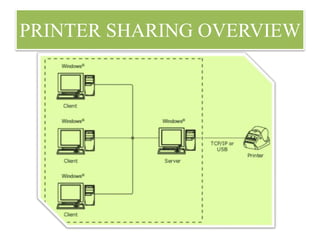
• An operational state in a computer that lets other users in the
network copy files and use the printer.
• Just because you have more than one computer doesn't mean
you have to have a printer for each computer We will now
show you how to share a printer between several computers on
a network in Windows 7.
PRINTER SHARING OVERVIEW
SHARING A PRINTER
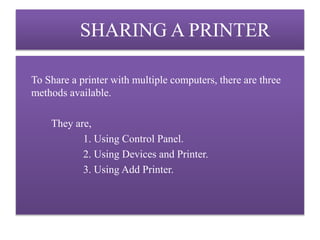
To Share a printer with multiple computers, there are three
methods available.
They are,
1. Using Control Panel.
2. Using Devices and Printer.
3. Using Add Printer.
Using Control Panel
First, on the computer that the printer is plugged in to, follow
these steps.
1. Click on Start in the bottom left corner of your screen. A popup
list will appear.
2. Select Control Panel from the popup list. Type the
word network in the search box.
3. Click on Network and Sharing Centre.
4. Click on Change advanced shared settings, in the left pane.
5. Click on the down arrow, which will expand the network profile.
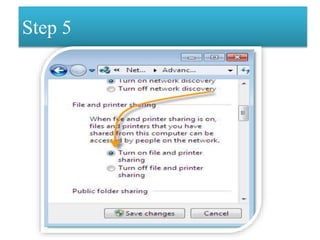
6. Select File and printer sharing and choose Turn on file and
printer sharing.
7. Click on Save changes.
Step 1
Step 2
Step 3
Step 4
Step 5
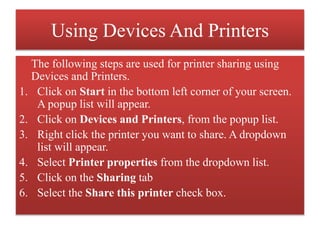
Using Devices And Printers
The following steps are used for printer sharing using
Devices and Printers.
1. Click on Start in the bottom left corner of your screen.
A popup list will appear.
2. Click on Devices and Printers, from the popup list.
3. Right click the printer you want to share. A dropdown
list will appear.
4. Select Printer properties from the dropdown list.
5. Click on the Sharing tab
6. Select the Share this printer check box.
Step 1-4 (Start-Devices and Printers-
Printer-Printer Properties)
Step 5-6 (Sharing-Ok)
Using Add Printers
In order for other people to connect to the printer, they just
have to add the network printer that you just opened for
sharing to their computers. Here's how to do this.
1. Click on Start in the bottom left corner of your screen. A
popup list will appear.
2. Click on Devices and Printers from the popup list.
3. Select Add a printer.
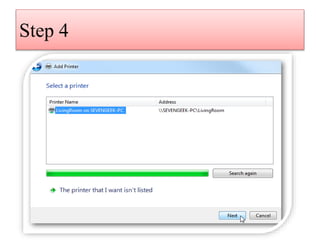
4. Click on Add a network, wireless or Bluetooth printer.
5. Click the shared printer.
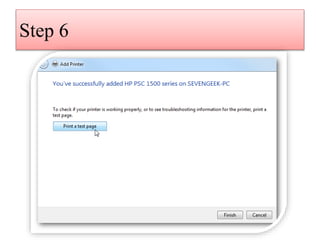
6. Click Next. Continue according to the instructions on the
screen
Step 1
Step 2
Step 3
Step 4
Step 5
Step 6
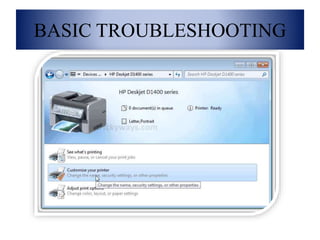
BASIC TROUBLESHOOTING
DEFAULT PRINTER
PRINTER DEFAULT MARK
PRINTER BY MEANS OF NAME
OR TCP/IP
Conclusion
These are the methods for sharing the printer with multiple
computers.
Sharing the printer with many computers make it impossible to
print more than one document at a time.
It will damage the printer .
THANK YOU

Printer sharing

  • 1.
    PRINTER SHARING Aravindaraj K, SCIENTISTTRAINEE, TEK WIZARD, ECIL ECIT, CHENNAI- 600 016.
  • 2.
    INTRODUCTION • An operationalstate in a computer that lets other users in the network copy files and use the printer. • Just because you have more than one computer doesn't mean you have to have a printer for each computer We will now show you how to share a printer between several computers on a network in Windows 7.
  • 3.
  • 4.
    SHARING A PRINTER ToShare a printer with multiple computers, there are three methods available. They are, 1. Using Control Panel. 2. Using Devices and Printer. 3. Using Add Printer.
  • 5.
    Using Control Panel First,on the computer that the printer is plugged in to, follow these steps. 1. Click on Start in the bottom left corner of your screen. A popup list will appear. 2. Select Control Panel from the popup list. Type the word network in the search box. 3. Click on Network and Sharing Centre. 4. Click on Change advanced shared settings, in the left pane. 5. Click on the down arrow, which will expand the network profile. 6. Select File and printer sharing and choose Turn on file and printer sharing. 7. Click on Save changes.
  • 6.
  • 7.
  • 8.
  • 9.
  • 10.
  • 11.
    Using Devices AndPrinters The following steps are used for printer sharing using Devices and Printers. 1. Click on Start in the bottom left corner of your screen. A popup list will appear. 2. Click on Devices and Printers, from the popup list. 3. Right click the printer you want to share. A dropdown list will appear. 4. Select Printer properties from the dropdown list. 5. Click on the Sharing tab 6. Select the Share this printer check box.
  • 12.
    Step 1-4 (Start-Devicesand Printers- Printer-Printer Properties)
  • 13.
  • 14.
    Using Add Printers Inorder for other people to connect to the printer, they just have to add the network printer that you just opened for sharing to their computers. Here's how to do this. 1. Click on Start in the bottom left corner of your screen. A popup list will appear. 2. Click on Devices and Printers from the popup list. 3. Select Add a printer. 4. Click on Add a network, wireless or Bluetooth printer. 5. Click the shared printer. 6. Click Next. Continue according to the instructions on the screen
  • 15.
  • 16.
  • 17.
  • 18.
  • 19.
  • 20.
  • 21.
  • 22.
  • 23.
  • 24.
    PRINTER BY MEANSOF NAME OR TCP/IP
  • 25.
    Conclusion These are themethods for sharing the printer with multiple computers. Sharing the printer with many computers make it impossible to print more than one document at a time. It will damage the printer .
  • 26.