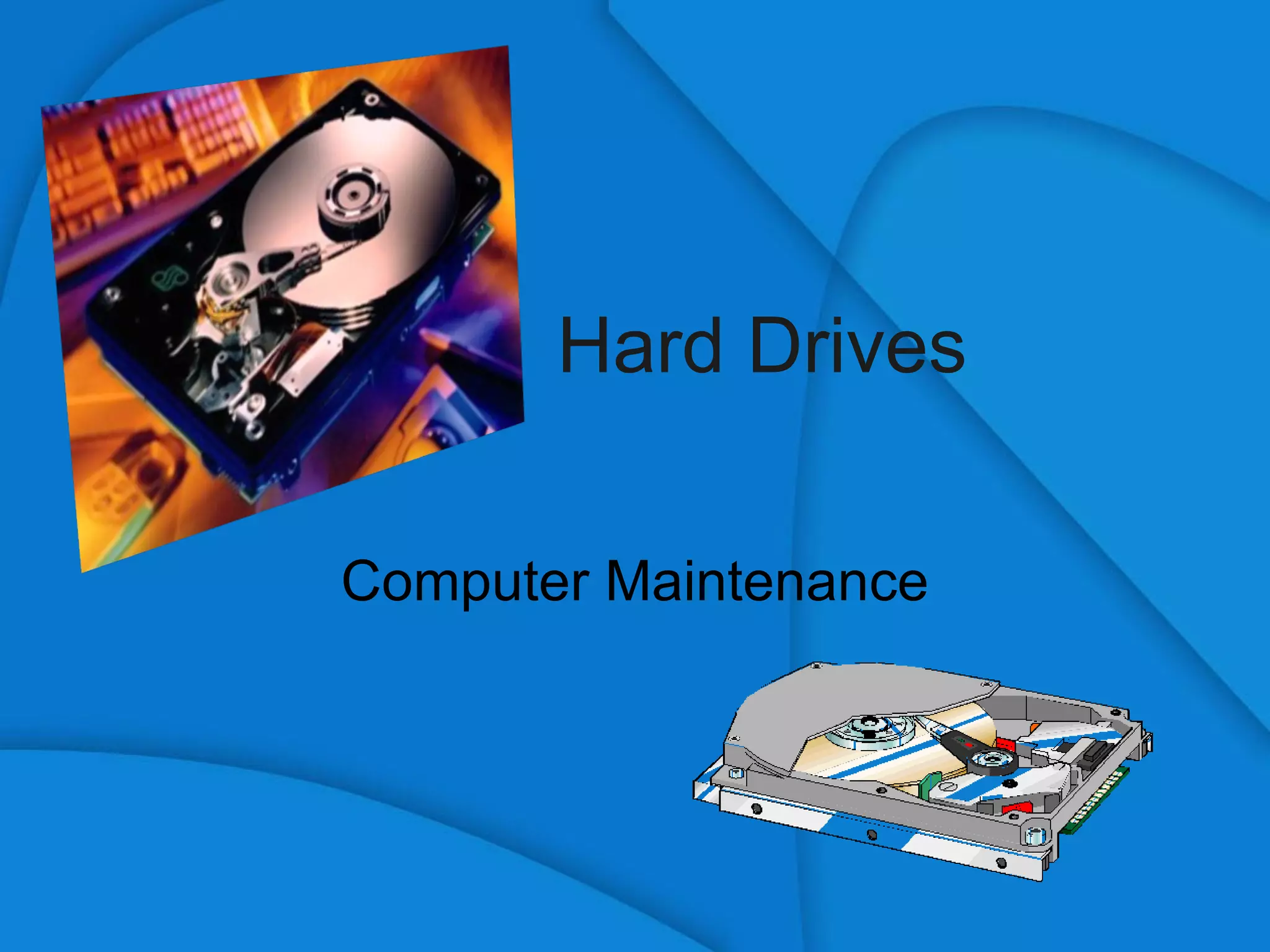
Hard Drives Computer Maintenance
Definition of: Hard drive – A device that stores data on permanently enclosed magnetic disks.  The vast majority of computers have at least one hard drive.  Data stored on a hard dive remains after the power is disconnected.  The operating system (OS) (such as Windows), along with programs and data, are almost always stored on a hard drive.
Characteristics Heads – Small devices that store and pick up magnetic information from the platters. Platters – A round magnetic plate that constitutes part of a hard disk. Most platters require two read/write heads, one for each side.  Cylinders - A single track location on all the platters making up a hard disk.  Sectors - The smallest unit that can be accessed on a disk.  Clusters -  A group of disk sectors.
Selecting a Hard Drive Compatibility Form factors IDE or SATA Quality Warranty Buffer (cache memory) Platter speed IDE or SATA
File Systems FAT32 NTFS
Partitions and Drive Letters Active partition: The partition that needs to contain the OS’s files because the BIOS looks to this partition for them. Master boot record (MBR): The area on a hard disk that contains boot file; this is the first sector on the disk. Physical disk: A hard drive. Disk partitioning: The act of dividing a hard disk drive into multiple virtual hard disk drives.
Motherboard Connection IDE Standard motherboards come with 2 IDE channels. Two devices can connect to each channel. Master and Slave SATA Newer connection type One device can be connected to each SATA connector. 4 connections on average on motherboard
Hard Drive Removal and Installation
Hard Drive Removal Disconnect all cables and power from computer Open the case Remove power and data connectors Remove screws holding hard drive (4) Handle with care
Hard Drive Installation Determine if you want it to be a master or slave. Make sure the jumpers are set correctly.
Ribbon Cables Pin 1 – Edge is colored differently Notch on connector
Hard Drive Bays Most common is in a cage that holds drives horizontally at the front of the case. Second most common is the bay that holds drives vertically at the front of the case. Connect the power connector.

Hard Drives

  • 1.
  • 2.
    Definition of: Harddrive – A device that stores data on permanently enclosed magnetic disks. The vast majority of computers have at least one hard drive. Data stored on a hard dive remains after the power is disconnected. The operating system (OS) (such as Windows), along with programs and data, are almost always stored on a hard drive.
  • 3.
    Characteristics Heads –Small devices that store and pick up magnetic information from the platters. Platters – A round magnetic plate that constitutes part of a hard disk. Most platters require two read/write heads, one for each side. Cylinders - A single track location on all the platters making up a hard disk. Sectors - The smallest unit that can be accessed on a disk. Clusters - A group of disk sectors.
  • 4.
    Selecting a HardDrive Compatibility Form factors IDE or SATA Quality Warranty Buffer (cache memory) Platter speed IDE or SATA
  • 5.
  • 6.
    Partitions and DriveLetters Active partition: The partition that needs to contain the OS’s files because the BIOS looks to this partition for them. Master boot record (MBR): The area on a hard disk that contains boot file; this is the first sector on the disk. Physical disk: A hard drive. Disk partitioning: The act of dividing a hard disk drive into multiple virtual hard disk drives.
  • 7.
    Motherboard Connection IDEStandard motherboards come with 2 IDE channels. Two devices can connect to each channel. Master and Slave SATA Newer connection type One device can be connected to each SATA connector. 4 connections on average on motherboard
  • 8.
    Hard Drive Removaland Installation
  • 9.
    Hard Drive RemovalDisconnect all cables and power from computer Open the case Remove power and data connectors Remove screws holding hard drive (4) Handle with care
  • 10.
    Hard Drive InstallationDetermine if you want it to be a master or slave. Make sure the jumpers are set correctly.
  • 11.
    Ribbon Cables Pin1 – Edge is colored differently Notch on connector
  • 12.
    Hard Drive BaysMost common is in a cage that holds drives horizontally at the front of the case. Second most common is the bay that holds drives vertically at the front of the case. Connect the power connector.

Editor's Notes

  • #5 Compatibility Form factor: Fitting the drive in the case, and thus are applicable only with internal hard drives. Desktop and tower computers are standardized for the 3.5-inch form factor, although it is possible to use smaller drives in one of these computers. UDMA: The speed of data transfer between system memory and the hard drive buffer measured in megabytes per second and, at the time of this writing, has possible values of 33, 66, 100, and 133. Check the motherboard’s max transfer speed and select the fastest hard drive the user can afford. Motherboards can accept any drives rated at their max speed or slower. EIDE or SATA: Some new motherboards have connector for both, but older boards accept EIDE only. SATA expansion cards for PCI slots are available. Quality Warranty: Before came with 3yr warranty now mainly 1yr. Try and get 3yr. Buffer: High-speed memory that is used to store a small amount of data while it is waiting to be read form or written to the drive. The bigger the better. 2MB good, 8MB much better. Less than 2MB likely to provide poor performance. Platter speed: The most common speeds are 5400 and 7200 revolutions per minute (RPM). The faster the platter spins, the faster data can be accessed and transferred. EIDE or SATA: SATA drives perform faster and more accurately than EIDE. Added advantage is that SATA cable are smaller, making for easier installation and better airflow.
  • #6 FAT: Original DOS and Windows file system. Storage efficiency is the lowest and it is highly susceptible to fragmentation. Limits file names to eight characters plus a three-character extension. Max partition size for FAT16 is 4GB. Only file system accessible in all versions of Windows and DOS and only file system usable by the original version of Windows 95 and older. It is the file system for floppy disks. FAT32: Stores files more efficiently than FAT16 and has support for long filenames. FAT32 drives can be read by every version of Windows since the second version of Windows 95 (except for NT 4.0), and is the default file system for 98 and Me. The max partition size for FAT32 is very large, although there is a 32GB limit in Windows XP. NTFS: Original version of NTFS was introduced with Windows NT. A newer version was introduced in Windows 2000, and it is the default file system for 2000 and XP. NTFS is somewhat resistant to fragmentation and allows for many of Windows 2000 and XP’s security features not available in FAT16 or 32. The max size for an NTFS partition is two terabytes (TB), which is 2048GB. Windows 9x and DOS cannot use NTFS.