Computer Concept :
File Management
End of the class, student should be able to :
• Explain the function of windows explorer.
• Launching, organize and close windows.
• Managing storage device / files.
• Knowing Files / File Extension
• Managing files :
      - Create Folder/Files
      - Cut
      - Copy
      - Rename
      - Delete
      - Finding Files
Windows Explorer
 Windows explorer is an application that is the
  “Operating System” of a computer.
 It allows user interaction between human and
  computer.
 It allows you to manipulate file (create, edit, delete,
  rename and etc.)
Starting Windows
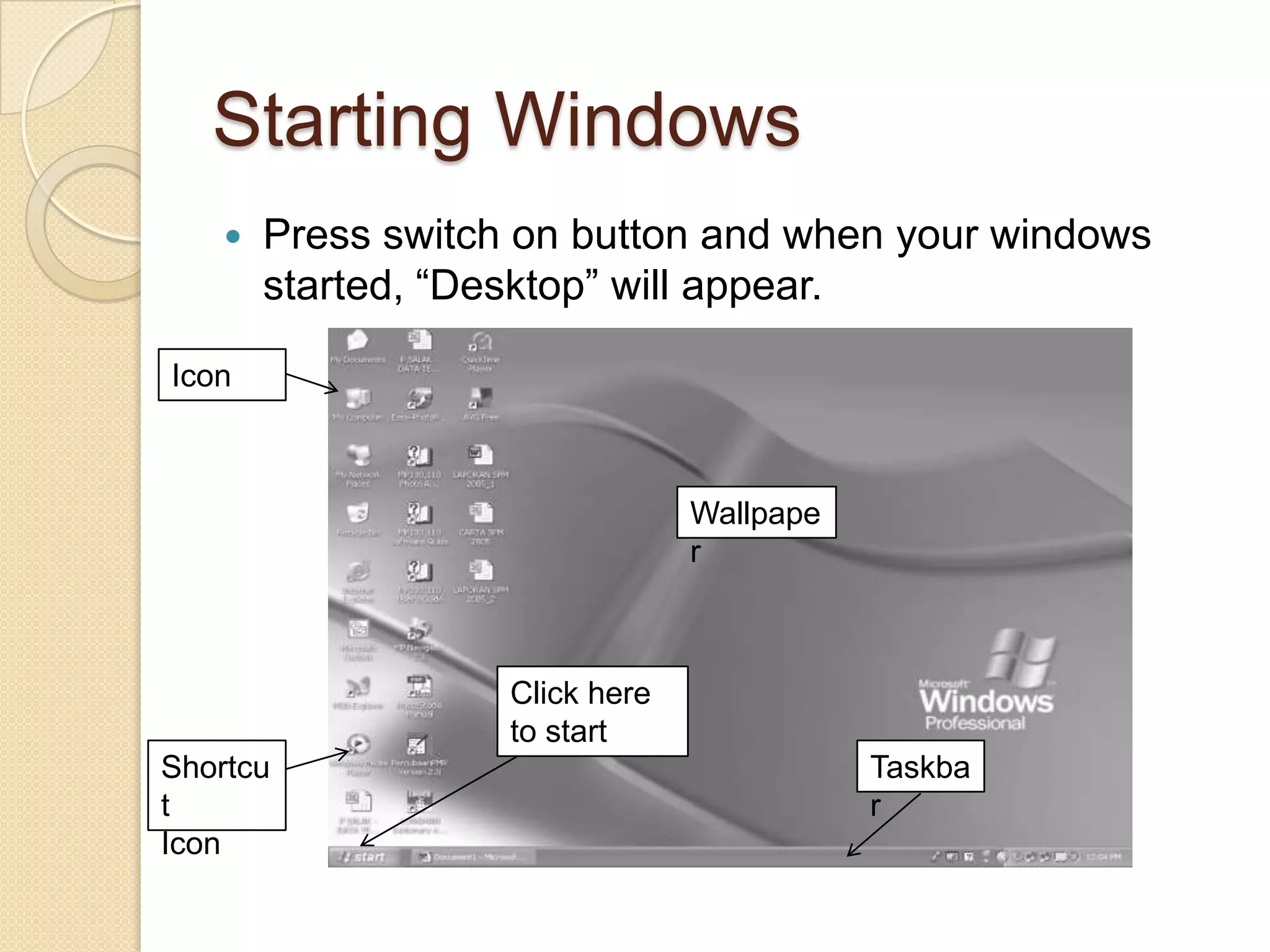
       Press switch on button and when your windows
        started, “Desktop” will appear.

Icon


                                 Wallpape
                                 r


                    Click here
                    to start
Shortcu                                     Taskba
t                                           r
Icon
Shut down Windows
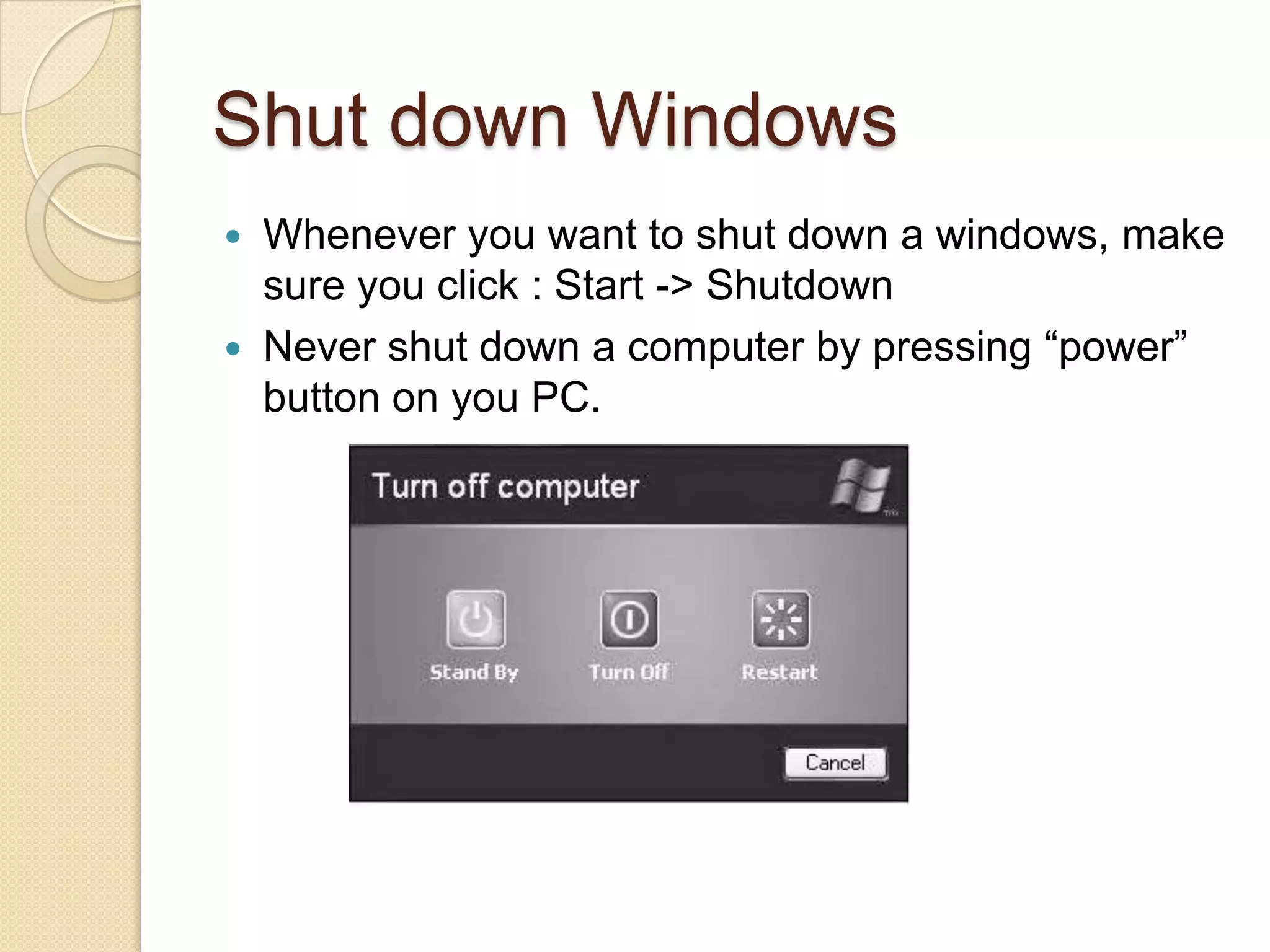
 Whenever you want to shut down a windows, make
  sure you click : Start -> Shutdown
 Never shut down a computer by pressing “power”
  button on you PC.
Managing Storage Device /
   Files : is the storage device where you store your
    Hard Disk
    windows and files.
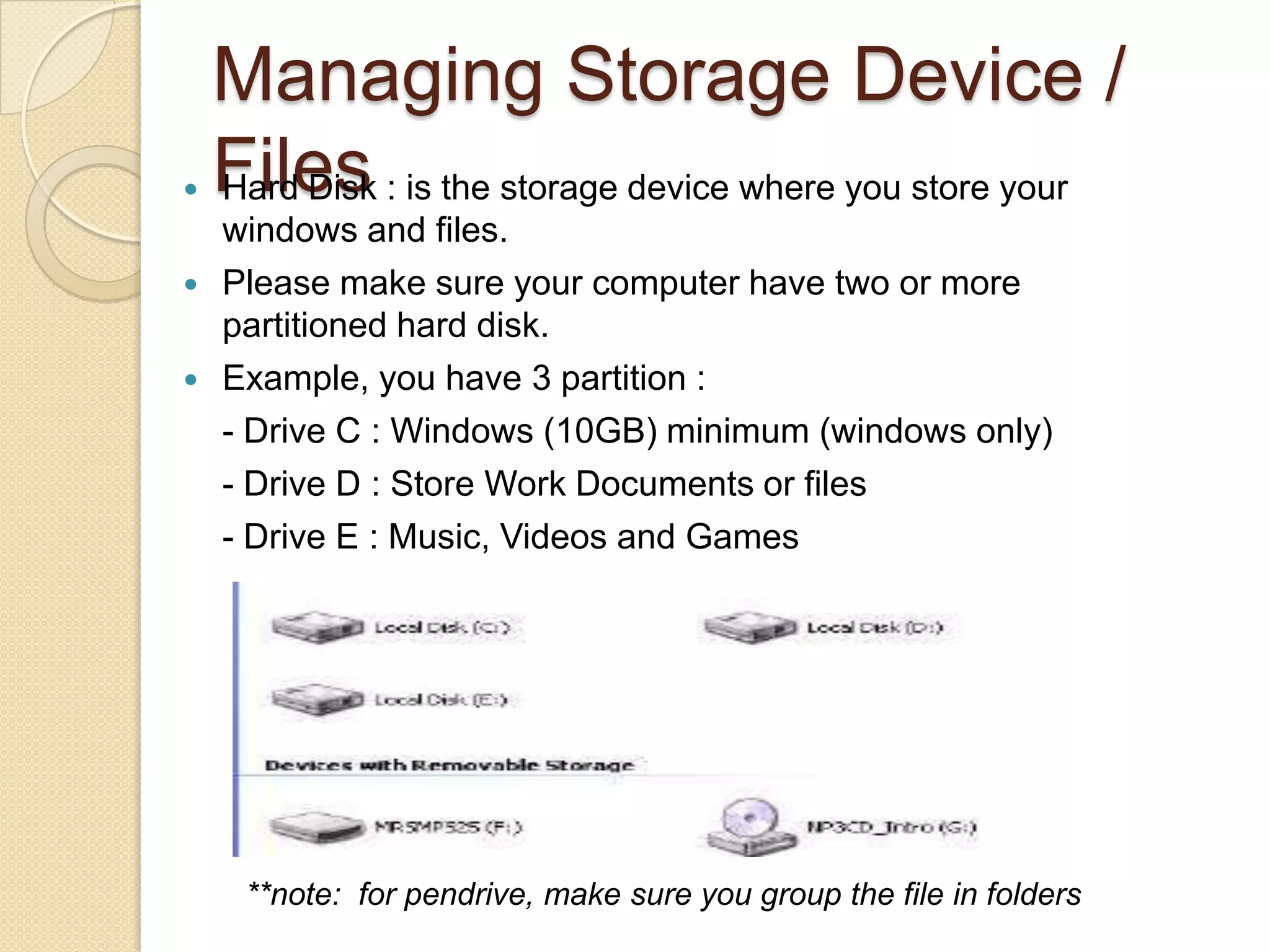
   Please make sure your computer have two or more
    partitioned hard disk.
   Example, you have 3 partition :
    - Drive C : Windows (10GB) minimum (windows only)
    - Drive D : Store Work Documents or files
    - Drive E : Music, Videos and Games


     **note: for pendrive, make sure you group the file in folders
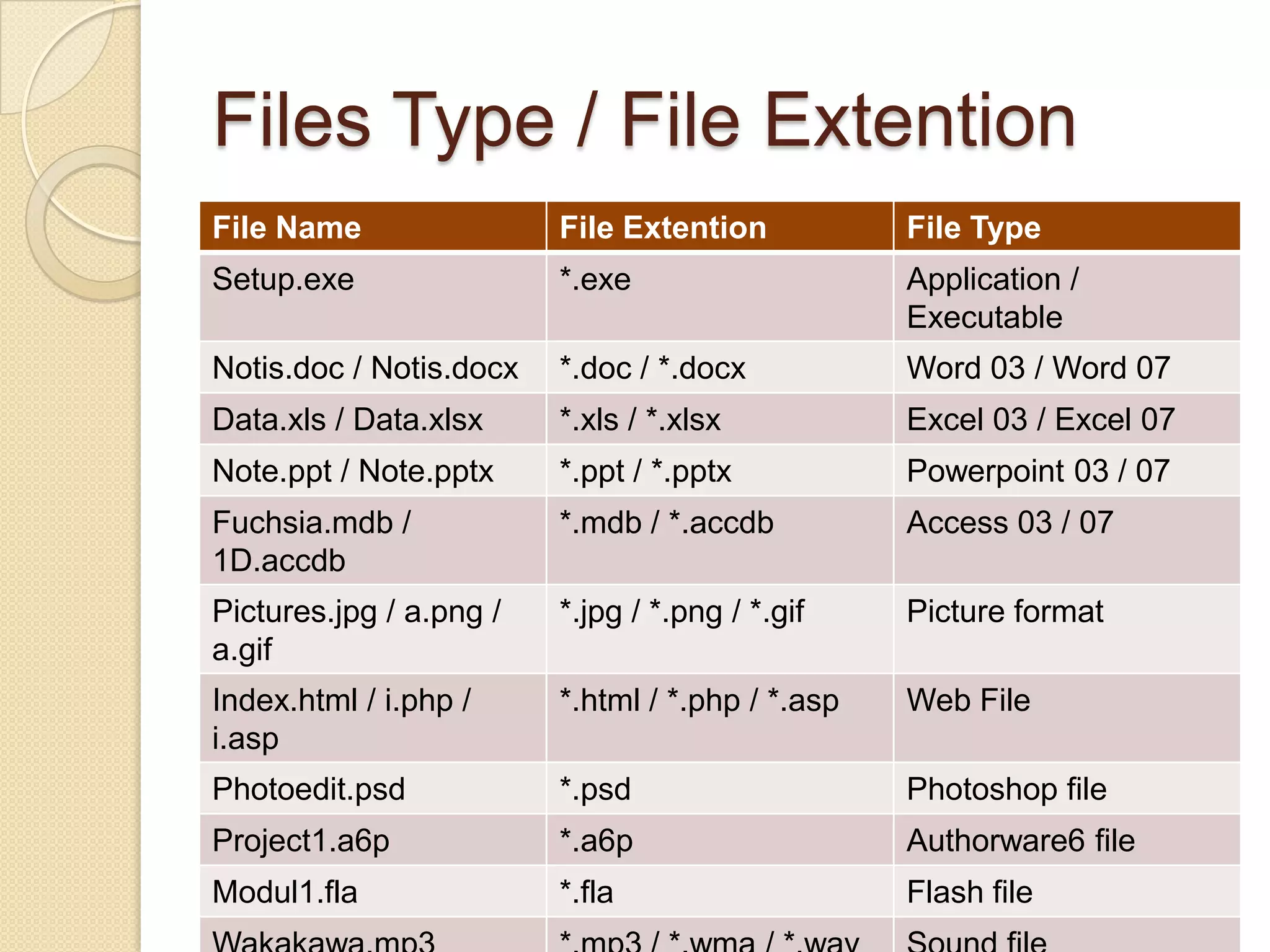
Files Type / File Extention
File Name                File Extention           File Type
Setup.exe                *.exe                    Application /
                                                  Executable
Notis.doc / Notis.docx   *.doc / *.docx           Word 03 / Word 07
Data.xls / Data.xlsx     *.xls / *.xlsx           Excel 03 / Excel 07
Note.ppt / Note.pptx     *.ppt / *.pptx           Powerpoint 03 / 07
Fuchsia.mdb /            *.mdb / *.accdb          Access 03 / 07
1D.accdb
Pictures.jpg / a.png /   *.jpg / *.png / *.gif    Picture format
a.gif
Index.html / i.php /     *.html / *.php / *.asp   Web File
i.asp
Photoedit.psd            *.psd                    Photoshop file
Project1.a6p             *.a6p                    Authorware6 file
Modul1.fla               *.fla                    Flash file
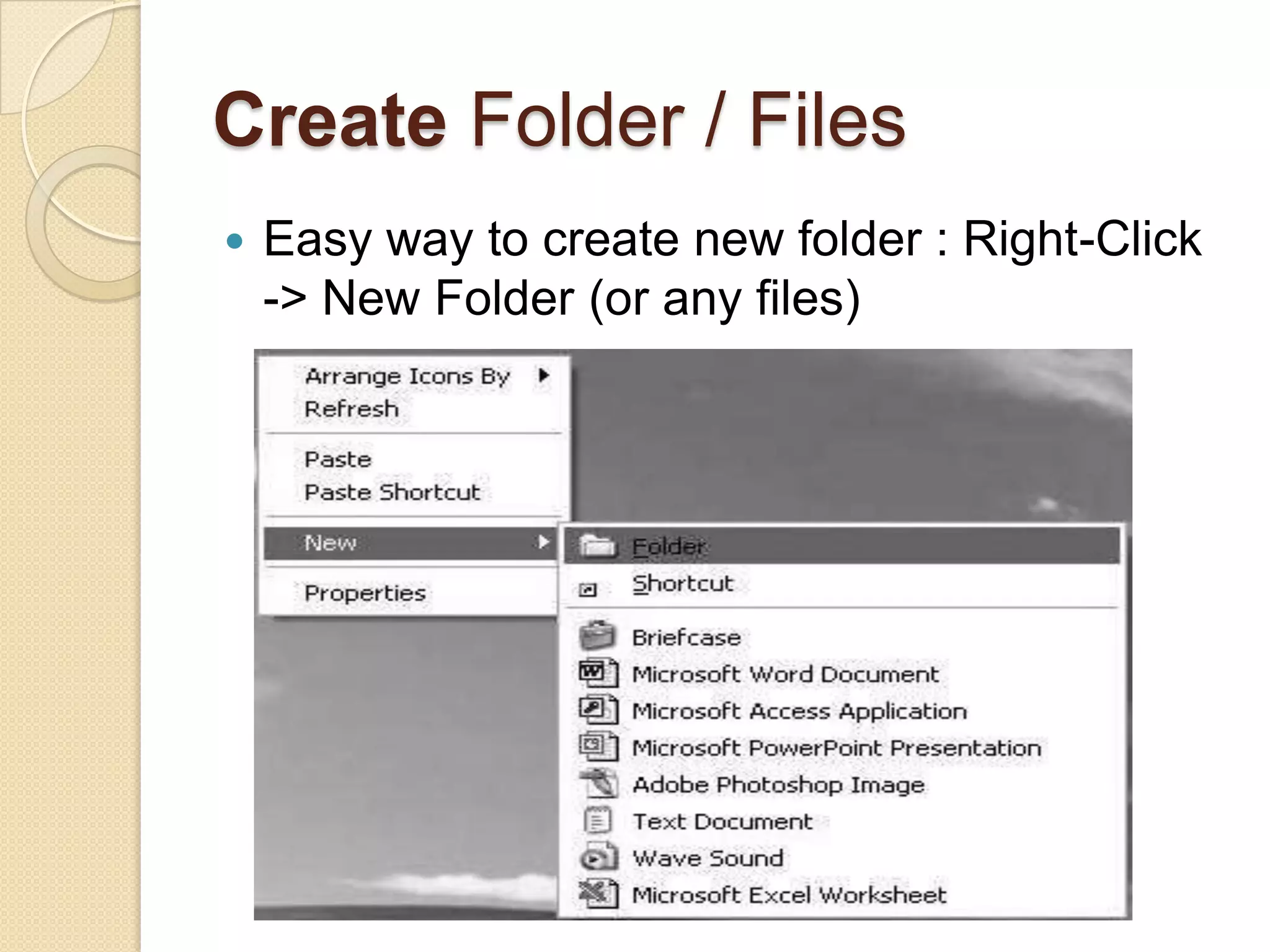
Create Folder / Files
   Easy way to create new folder : Right-Click
    -> New Folder (or any files)
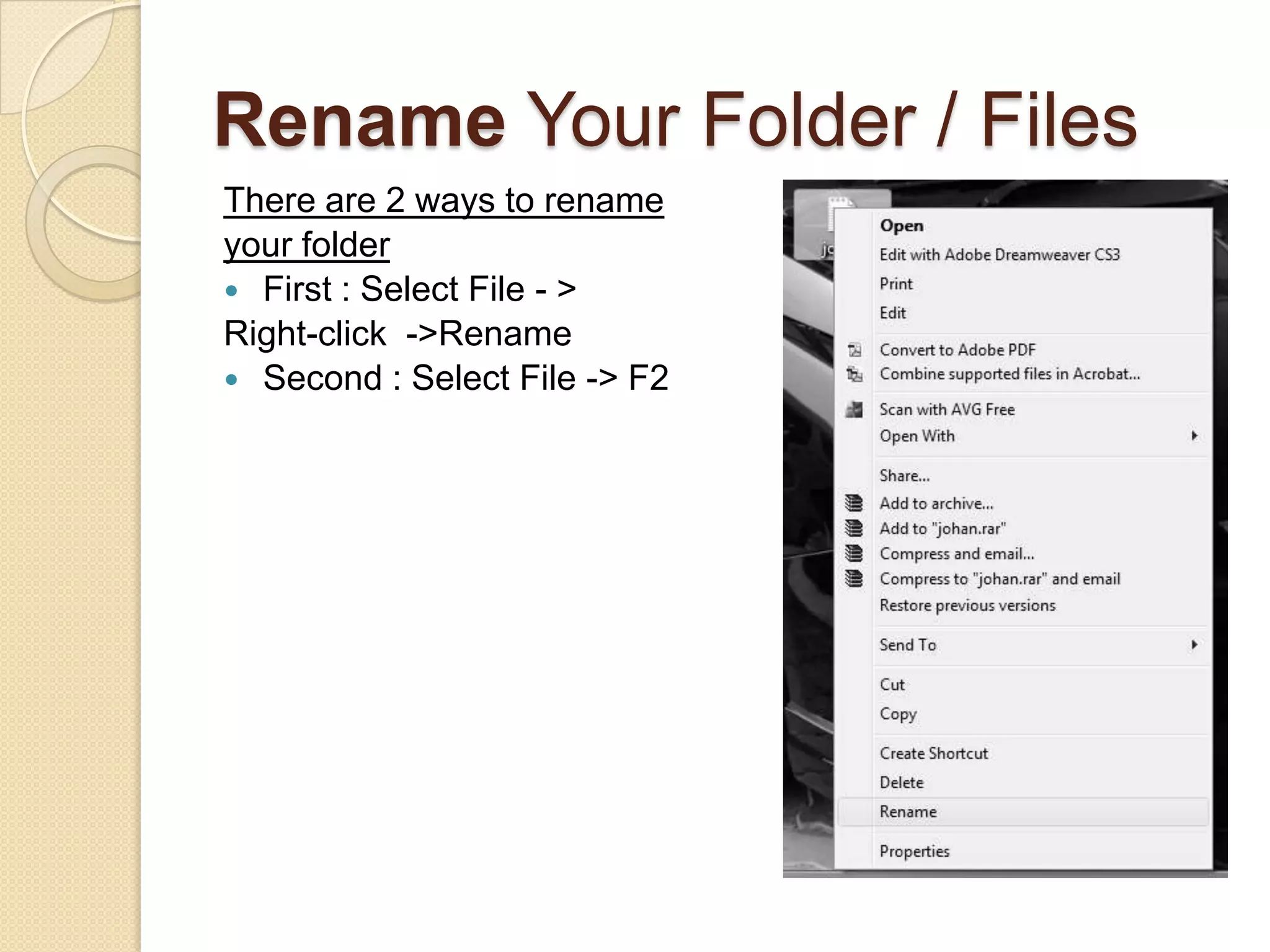
Rename Your Folder / Files
There are 2 ways to rename
your folder
 First : Select File - >
Right-click ->Rename
 Second : Select File -> F2
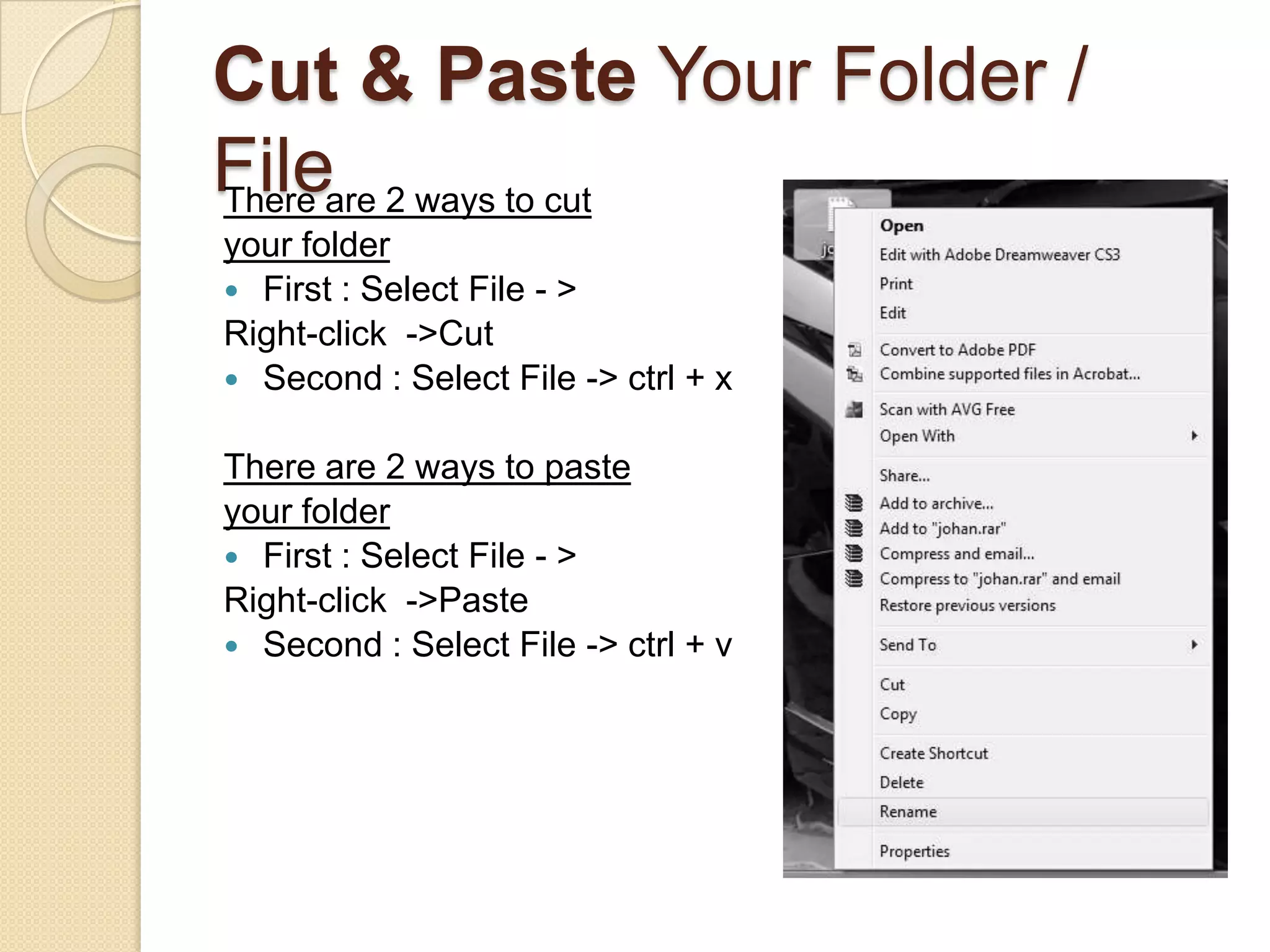
Cut & Paste Your Folder /
Fileare 2 ways to cut
There
your folder
 First : Select File - >
Right-click ->Cut
 Second : Select File -> ctrl + x


There are 2 ways to paste
your folder
 First : Select File - >
Right-click ->Paste
 Second : Select File -> ctrl + v
Copy & Paste Your Folder / File
There are 2 ways to copy
your folder
 First : Select File - >
Right-click ->Copy
 Second : Select File -> ctrl + c


There are 2 ways to paste
your folder
 First : Select File - >
Right-click ->Paste
 Second : Select File -> ctrl + v
Delete & Properties of Your
Folder / File
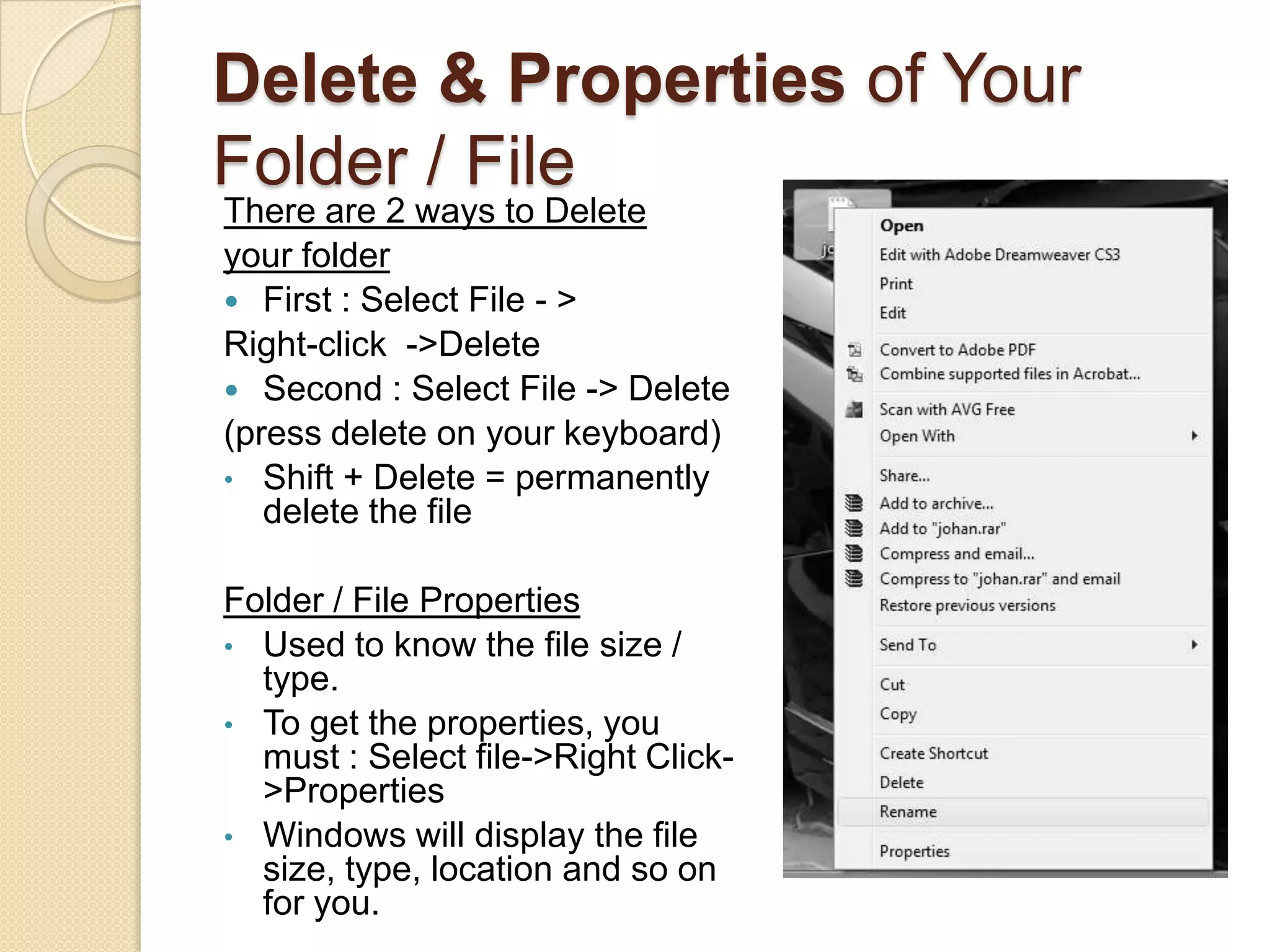
There are 2 ways to Delete
your folder
 First : Select File - >
Right-click ->Delete
 Second : Select File -> Delete
(press delete on your keyboard)
• Shift + Delete = permanently
   delete the file

Folder / File Properties
• Used to know the file size /
  type.
• To get the properties, you
  must : Select file->Right Click-
  >Properties
• Windows will display the file
  size, type, location and so on
  for you.
Finding Files


A


               B                                 C

A – Choose file that you want to search and press search.
B – If you want to search specific file type, search the extention
file for example “*.doc”
C – All the searched file will be displayed on this section

CHAP 2 - FILE MANAGEMENT

  • 1.
    Computer Concept : FileManagement End of the class, student should be able to : • Explain the function of windows explorer. • Launching, organize and close windows. • Managing storage device / files. • Knowing Files / File Extension • Managing files : - Create Folder/Files - Cut - Copy - Rename - Delete - Finding Files
  • 2.
    Windows Explorer  Windowsexplorer is an application that is the “Operating System” of a computer.  It allows user interaction between human and computer.  It allows you to manipulate file (create, edit, delete, rename and etc.)
  • 3.
    Starting Windows  Press switch on button and when your windows started, “Desktop” will appear. Icon Wallpape r Click here to start Shortcu Taskba t r Icon
  • 4.
    Shut down Windows Whenever you want to shut down a windows, make sure you click : Start -> Shutdown  Never shut down a computer by pressing “power” button on you PC.
  • 5.
    Managing Storage Device/  Files : is the storage device where you store your Hard Disk windows and files.  Please make sure your computer have two or more partitioned hard disk.  Example, you have 3 partition : - Drive C : Windows (10GB) minimum (windows only) - Drive D : Store Work Documents or files - Drive E : Music, Videos and Games **note: for pendrive, make sure you group the file in folders
  • 6.
    Files Type /File Extention File Name File Extention File Type Setup.exe *.exe Application / Executable Notis.doc / Notis.docx *.doc / *.docx Word 03 / Word 07 Data.xls / Data.xlsx *.xls / *.xlsx Excel 03 / Excel 07 Note.ppt / Note.pptx *.ppt / *.pptx Powerpoint 03 / 07 Fuchsia.mdb / *.mdb / *.accdb Access 03 / 07 1D.accdb Pictures.jpg / a.png / *.jpg / *.png / *.gif Picture format a.gif Index.html / i.php / *.html / *.php / *.asp Web File i.asp Photoedit.psd *.psd Photoshop file Project1.a6p *.a6p Authorware6 file Modul1.fla *.fla Flash file
  • 7.
    Create Folder /Files  Easy way to create new folder : Right-Click -> New Folder (or any files)
  • 8.
    Rename Your Folder/ Files There are 2 ways to rename your folder  First : Select File - > Right-click ->Rename  Second : Select File -> F2
  • 9.
    Cut & PasteYour Folder / Fileare 2 ways to cut There your folder  First : Select File - > Right-click ->Cut  Second : Select File -> ctrl + x There are 2 ways to paste your folder  First : Select File - > Right-click ->Paste  Second : Select File -> ctrl + v
  • 10.
    Copy & PasteYour Folder / File There are 2 ways to copy your folder  First : Select File - > Right-click ->Copy  Second : Select File -> ctrl + c There are 2 ways to paste your folder  First : Select File - > Right-click ->Paste  Second : Select File -> ctrl + v
  • 11.
    Delete & Propertiesof Your Folder / File There are 2 ways to Delete your folder  First : Select File - > Right-click ->Delete  Second : Select File -> Delete (press delete on your keyboard) • Shift + Delete = permanently delete the file Folder / File Properties • Used to know the file size / type. • To get the properties, you must : Select file->Right Click- >Properties • Windows will display the file size, type, location and so on for you.
  • 12.
    Finding Files A B C A – Choose file that you want to search and press search. B – If you want to search specific file type, search the extention file for example “*.doc” C – All the searched file will be displayed on this section