Microsoft Windows XP


Prepared by:   Jerick Merueñas
Menu
             *History               *Share Folders /
                                    Printers

 *   recommendations                  * Windows Network


* updates                                   * accessories


            * versions                 * Improvements

                          *Kernel
History
Windows XP


                      Windows XP-only and multi-purpose
                      operating system

          Windows XP was originally brought into
          being as an operating system which
          would combine the best features of the
          latest business operating system of the
          time
 Windows XP came into being around
 the year 2000/2001.
                                                          Next
• Windows XP is the attempt by Microsoft to deliver a
  single-purpose operating system, with the drawback to
  removing the support for programs based on MS-
  DOS operating system.
• It came as a logical progression from Windows 98 SE
  for many users although it had a look and feel about it
  much like Windows 2000 Professional. XP was
  originally brought into being as an operating system
  which would combine the best features of the latest
  business operating system, Windows 2000,


     Back                              Back to Menu
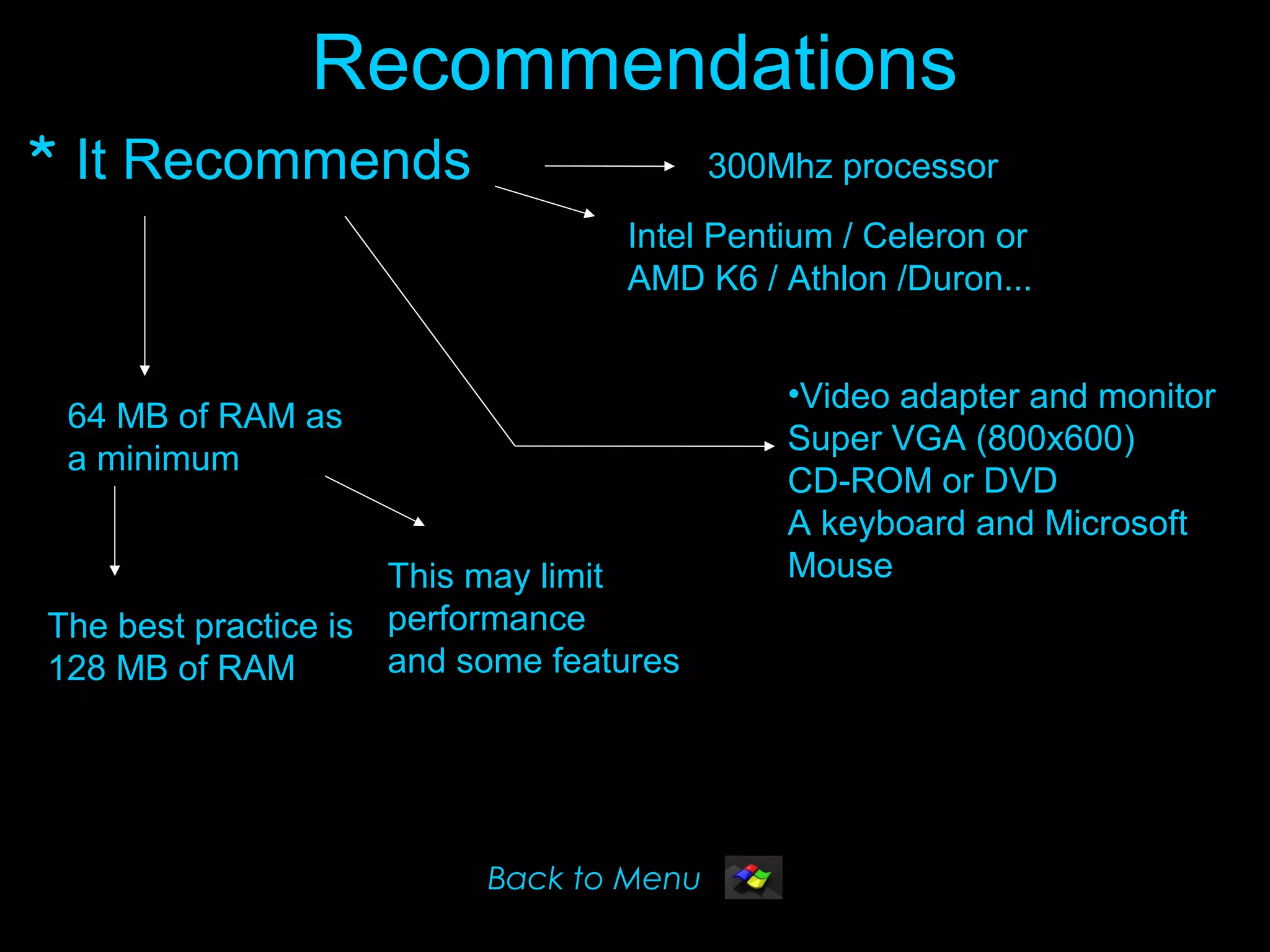
Recommendations
* It Recommends                          300Mhz processor
                                  Intel Pentium / Celeron or
                                  AMD K6 / Athlon /Duron...


                                             •Video adapter and monitor
 64 MB of RAM as
                                             Super VGA (800x600)
 a minimum
                                             CD-ROM or DVD
                                             A keyboard and Microsoft
                     This may limit          Mouse
The best practice is performance
128 MB of RAM        and some features


                          Back to Menu
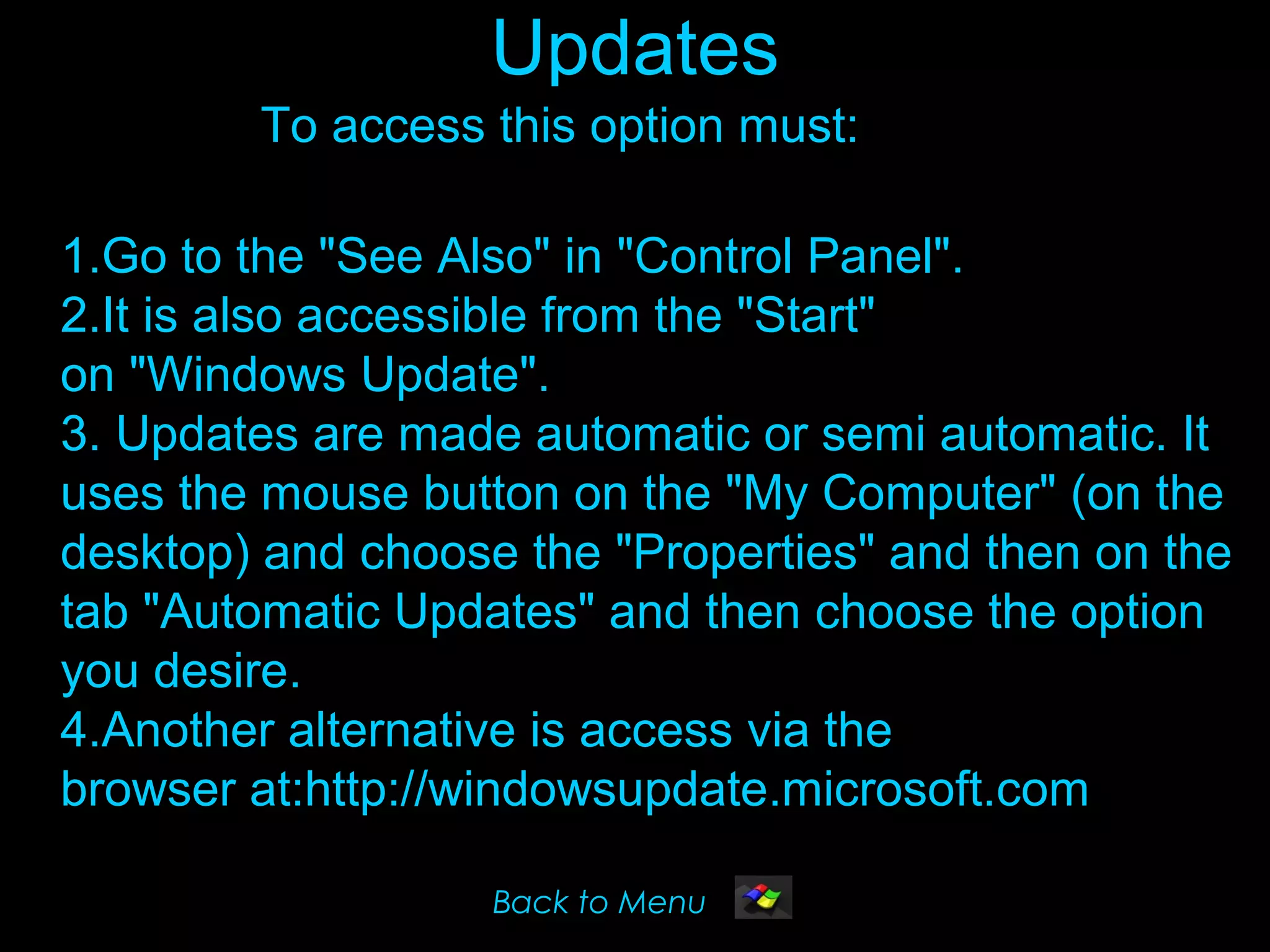
Updates
        To access this option must:

1.Go to the "See Also" in "Control Panel".
2.It is also accessible from the "Start"
on "Windows Update".
3. Updates are made automatic or semi automatic. It
uses the mouse button on the "My Computer" (on the
desktop) and choose the "Properties" and then on the
tab "Automatic Updates" and then choose the option
you desire.
4.Another alternative is access via the
browser at:http://windowsupdate.microsoft.com

                   Back to Menu
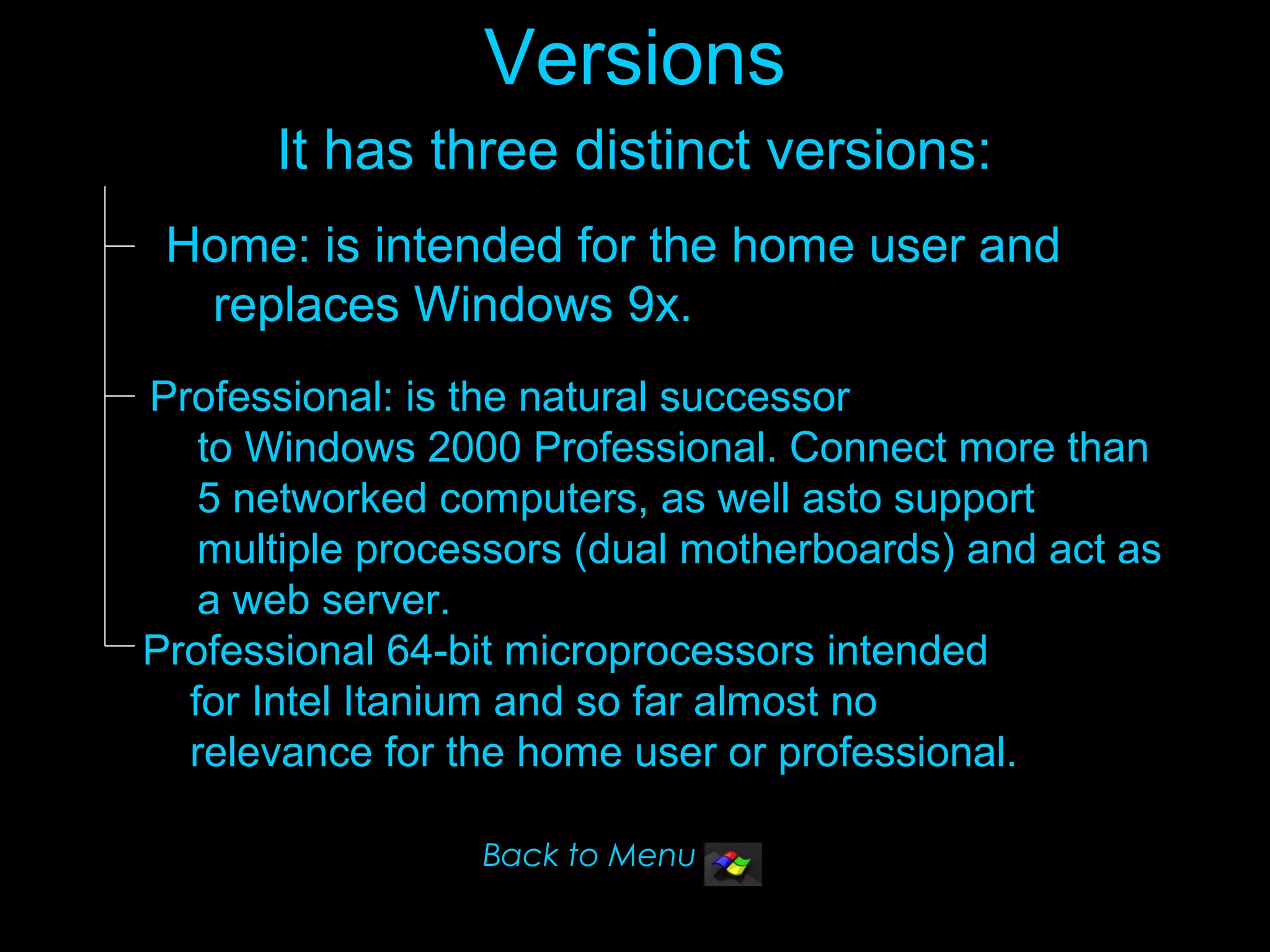
Versions
      It has three distinct versions:
 Home: is intended for the home user and
  replaces Windows 9x.
Professional: is the natural successor
   to Windows 2000 Professional. Connect more than
   5 networked computers, as well asto support
   multiple processors (dual motherboards) and act as
   a web server.
Professional 64-bit microprocessors intended
  for Intel Itanium and so far almost no
  relevance for the home user or professional.

                 Back to Menu
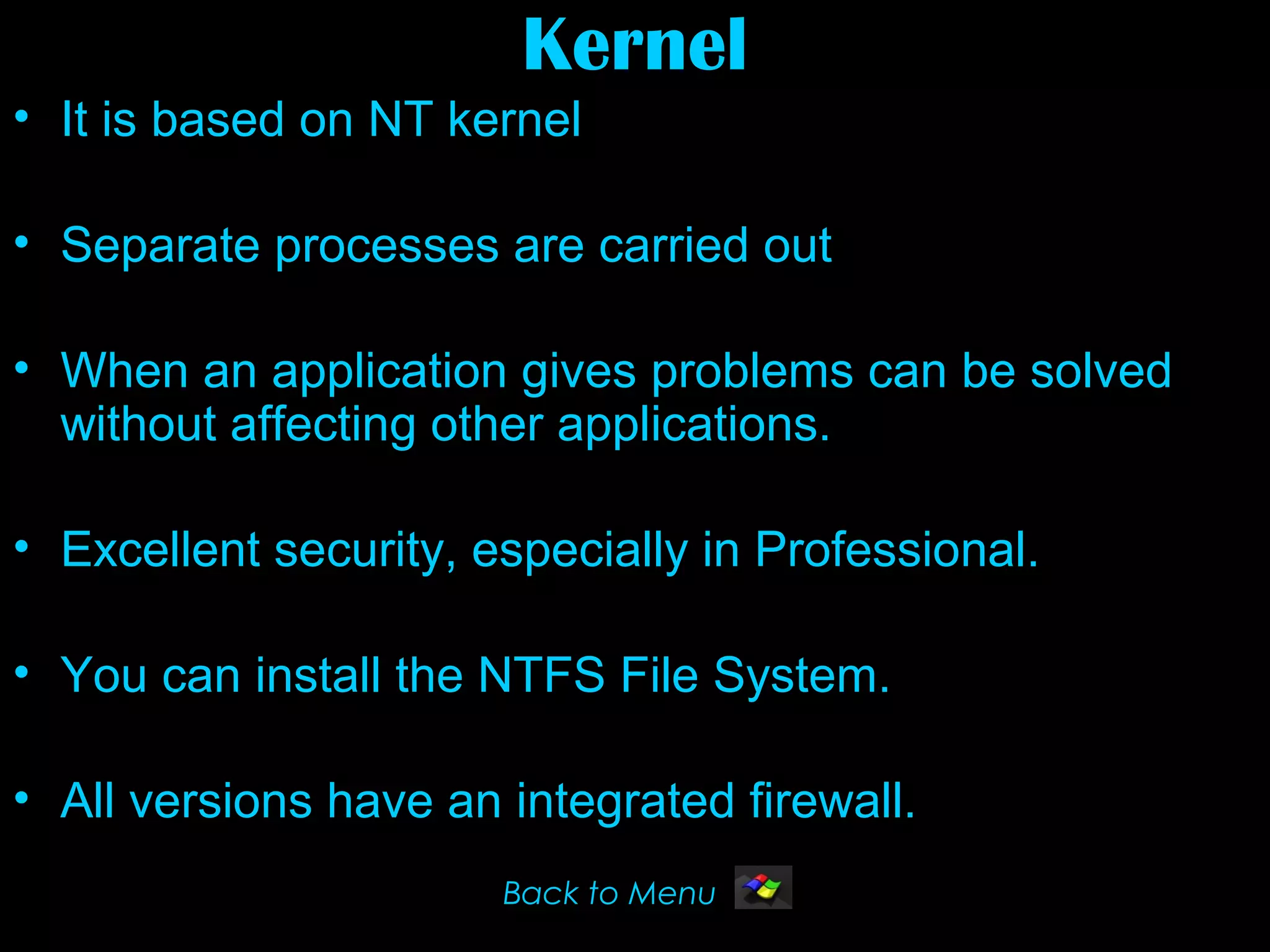
Kernel
• It is based on NT kernel

• Separate processes are carried out

• When an application gives problems can be solved
  without affecting other applications.

• Excellent security, especially in Professional.

• You can install the NTFS File System.

• All versions have an integrated firewall.
                       Back to Menu
Mejoras
• ♀ Integrates with Internet more.

  ♀ You can burn CDs with drag and drop from
  Explorer to the rewritable drive is not necessary
  to install a program to record.

  ♀ has a sidebar with useful tasks depending on
  the selected object.

  ♀ has a new way of seeing the images called
  "strip images", showing a large format picture and the
  rest in small format.

  Back to Menu                                  Back
Other Improvements
♀Change general appearance on screen
in Windows, the bars, buttons, icons, etc..

♀ is easier to set up a home network.

♀ is recovered better from mistakes, generating an
error log with all information and offers us
the possibility of sending over the Internet.

♀ starts faster than Windows 98. There is a
new component calledMovie Maker for editing movies,
adding titles sound, delete scenes, etc..
Next
                                              Back to Menu
Add New Hardware
               • the hardware must be
                   PLUG AND PLAY

               This means you only need to plug in the
               appropriate place.


                When starting the computer, Windows takes
                care of all configuration
                tasks without needing anything more for the
                user.


Back to Menu                                                  Next
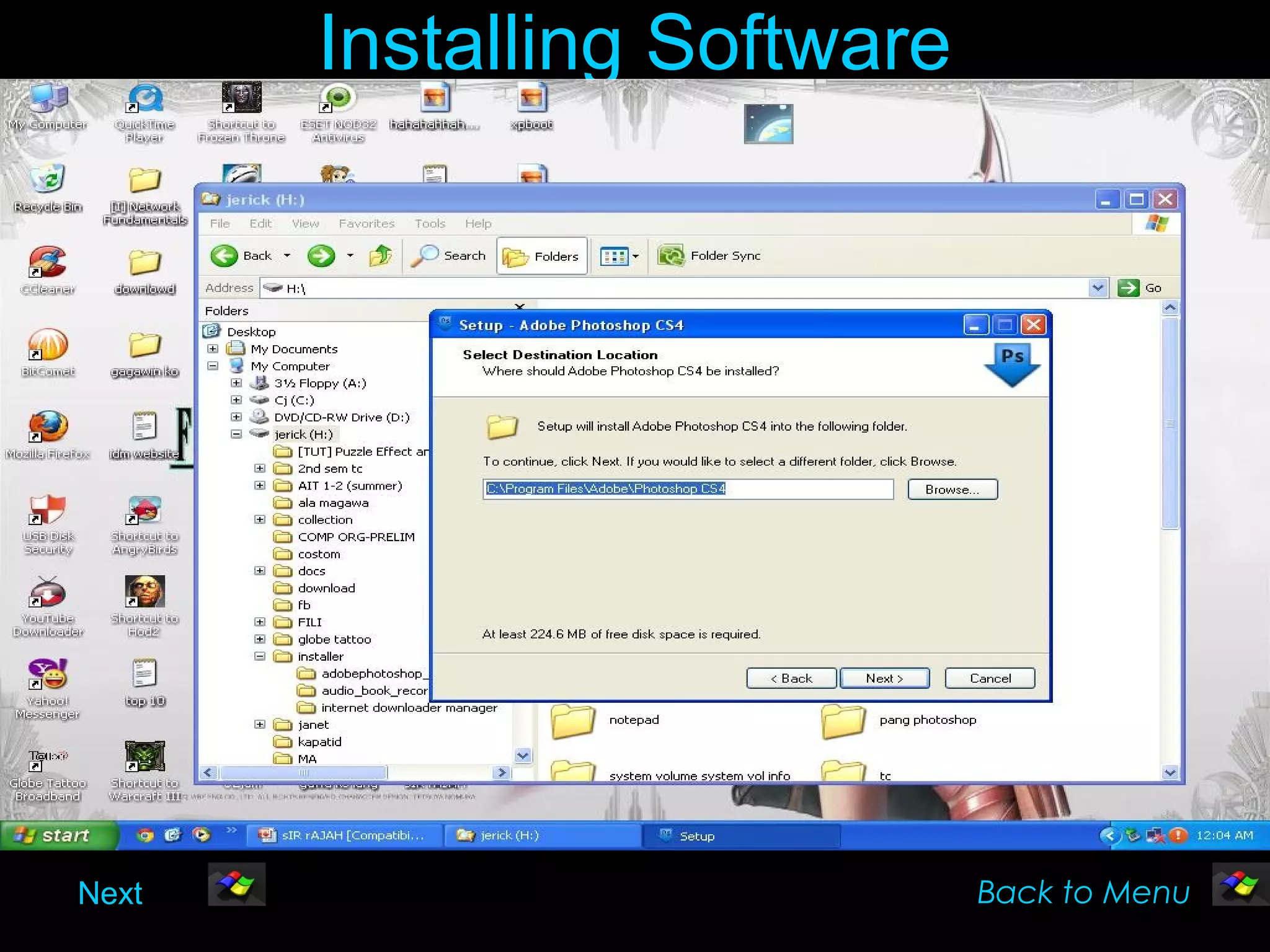
Installing Software
To install a software
  It is done through Control Panel
       There is a dialog box with two tabs
         The first tab allows installing
         applications
         In the second tab, where we find "Add or
         Remove Windows Components", we
         must tick the boxes to select the desired
         groups.
      Then you need to click next and see some
      pictures with messagescalling
      for the installation floppies,CDs or flash drive
  Back to Menu                                     Next
Installing Software


Next                         Back to Menu
Rename and delete files
• To rename a folder
     Click on the icon again on your behalf. But right
     click mouse and put "Rename"


• To delete files
     Select 1, / the appropriate files.


     Click on the button DELETE or DELETE. Otherwise, with the right
     mouse button click-on "remove"


       Next                                                 Back to Menu
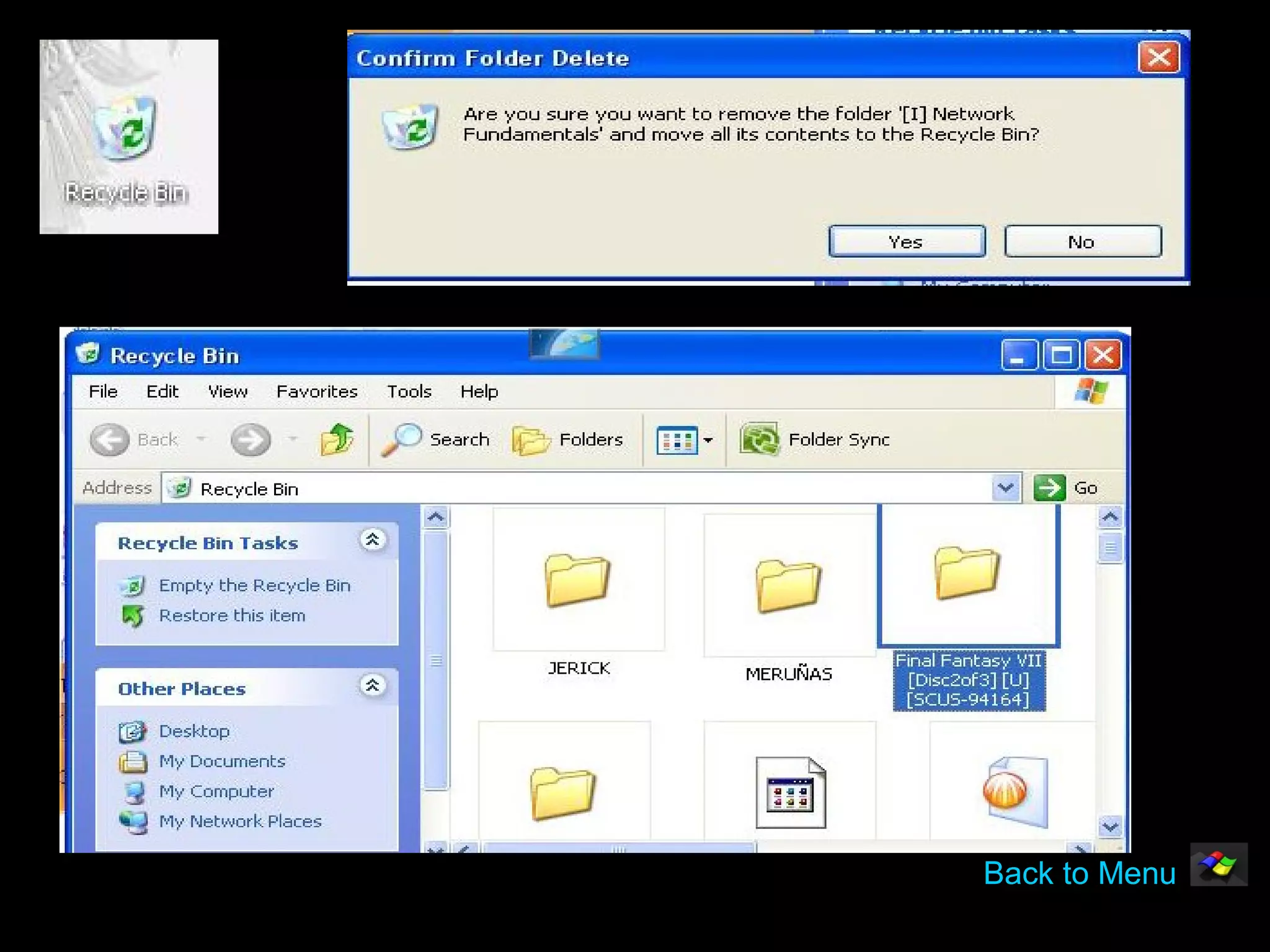
Recycle Bin
• It is a clipboard for deleted files.
      Deleted files go first to the trash


       To send files to the trash should be:

           Select the folders or files you want todelete.


            Drag them to the trash carefully.


           If you accidentally delete a file can be retrieved by
           clicking on theicon.

      Back to Menu                                                 Next
Back to Menu
Windows XP Accessories
Control panel       Add New Hardware
                    Installing the Software


Folder Management    Copying and moving files / folders
                     Rename, delete files


Recycle Bin


       Next
                                    Back to Menu
Windows XP Accessories
              Control panel

You can install and configure devices such
as modems. Printers, CD- Rom, etc.

It also has tools to
change the appearance features.


Access through a button click on the Settings /
Control Panel.

                                    Back to Menu
Place a Network with Windows XP
requirements
Choosing a Network Card
Cable Network Adapters
Installing the Network Adapter
Connecting the Routerr
Configuring the Router           Configurator

                                 sections


Router Configuration Modes
 next                                           Back to Menu
Place a network with Windows XP
• Requirements
    In the first measure needed a couple of computers. Initially you
    can use any machine.

    As operating system, choose between Windows Linux

    We can use different operating systems on machines that we
    use butwe must take into account the limitations of the
    connection between computers with different systems.

    In the case of having to share resources between Windows
    andLinux, we recommend using a software called SAMBA. This
    software makes visible shares on any Windows computer


     Next                                                Back to Menu
Place a network with Windows XP

Choosing a Network Card
   1, We installed a network adapter or wireless cable (you can alsouse
   the optical fiber, but not given household)


   The cable network adapters are numerous and are chosenaccording to
   our needs and characteristics of our team.

   There are PCMCIA adapters, PCI USB.


     Next                                                Back to Menu
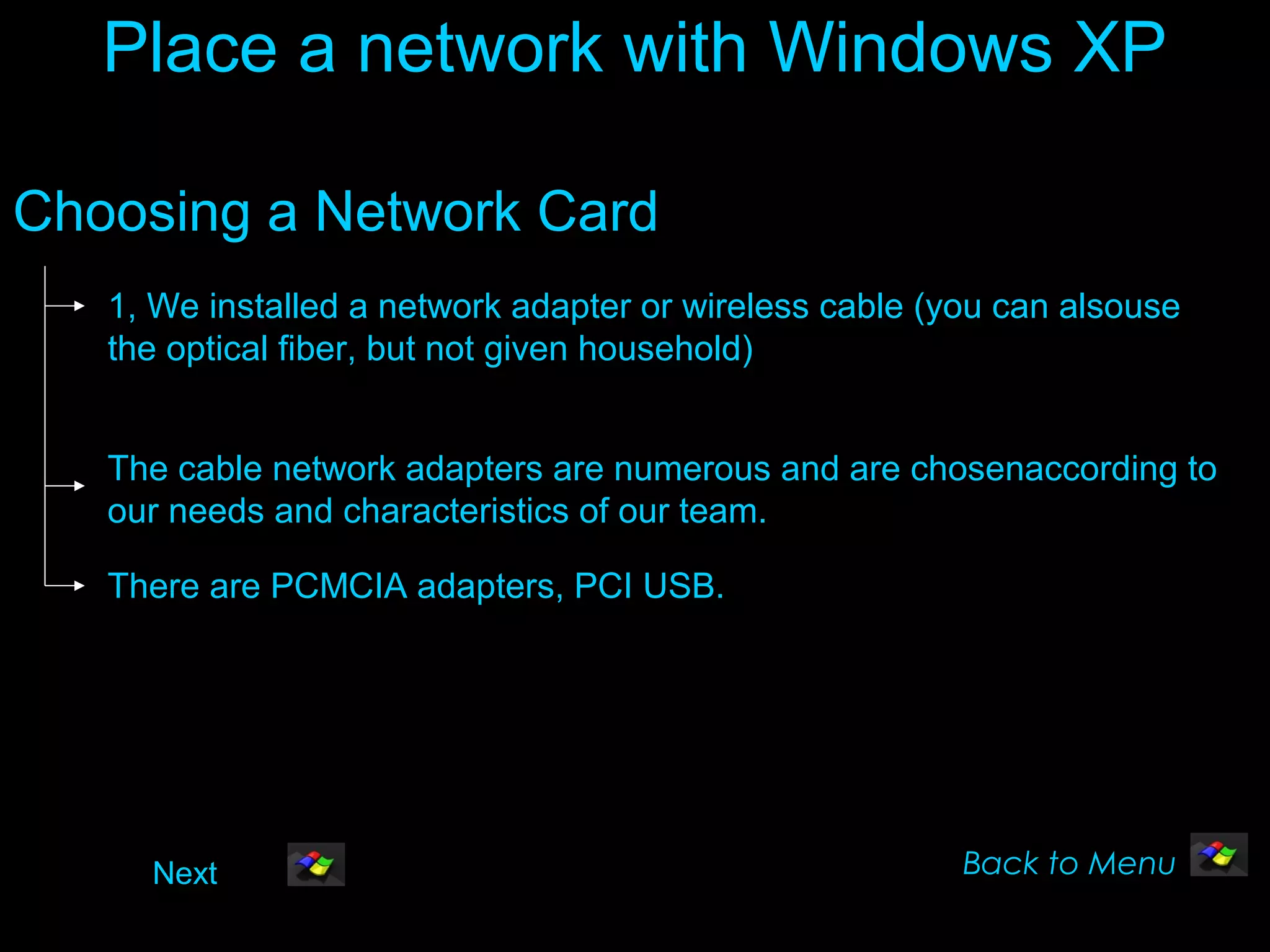
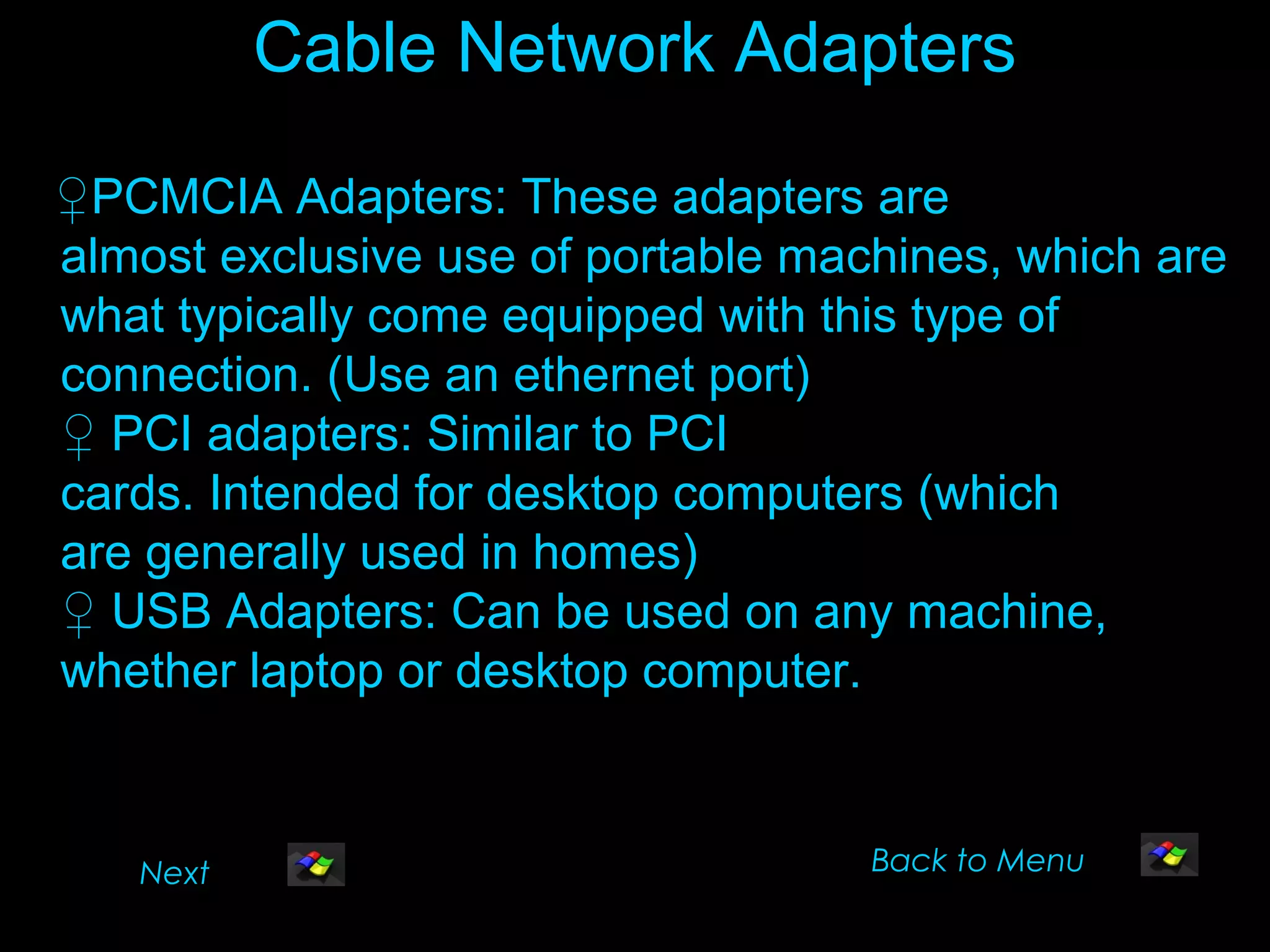
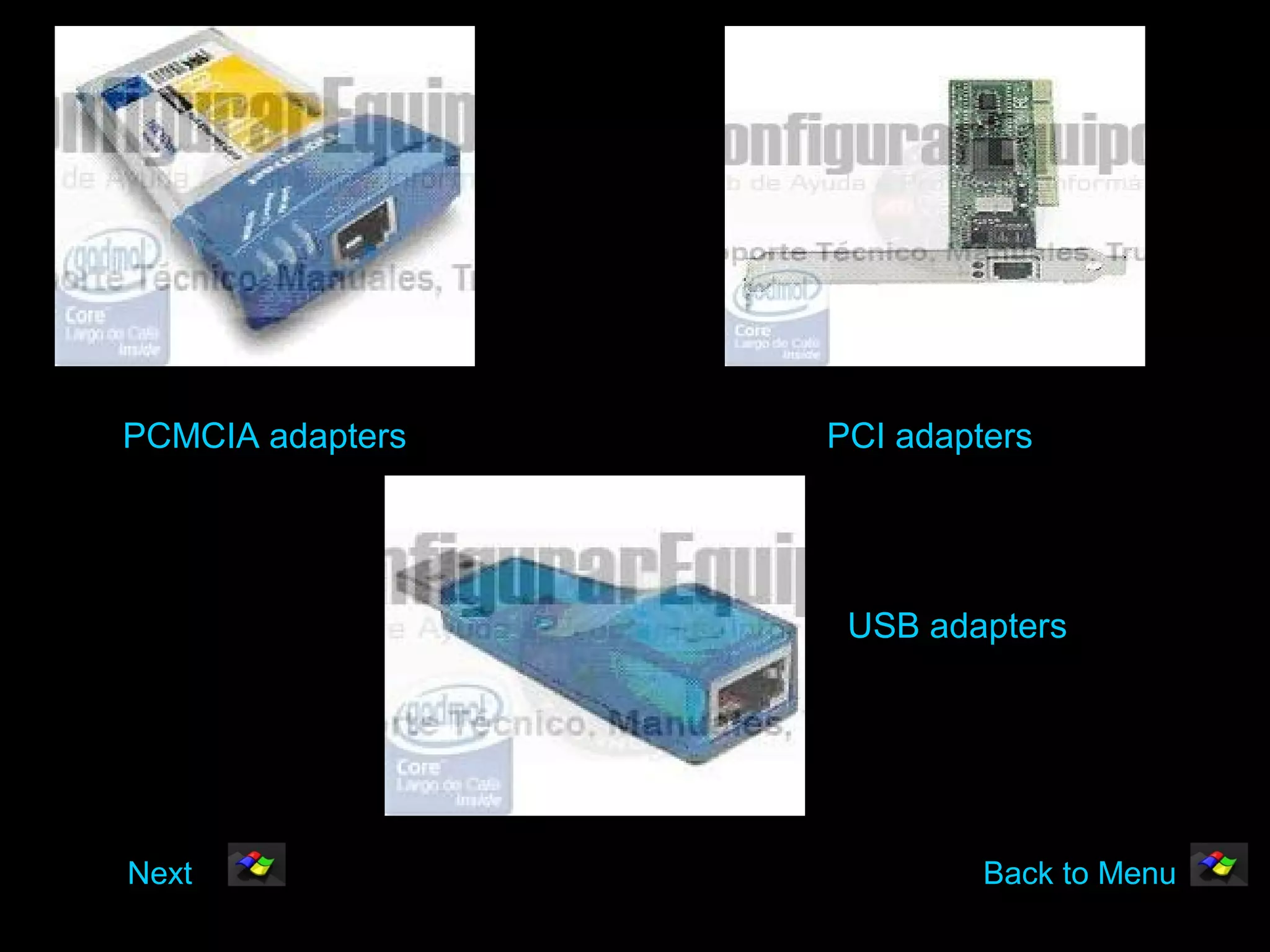
Cable Network Adapters

♀PCMCIA Adapters: These adapters are
almost exclusive use of portable machines, which are
what typically come equipped with this type of
connection. (Use an ethernet port)
♀ PCI adapters: Similar to PCI
cards. Intended for desktop computers (which
are generally used in homes)
♀ USB Adapters: Can be used on any machine,
whether laptop or desktop computer.


   Next                             Back to Menu
PCMCIA adapters   PCI adapters


                   USB adapters


Next                       Back to Menu
Installing the Network Adapter

♀ For PCMCIA or USB adapters, the procedure is very
simple,since only be placed in the appropriate location
and follow theinstructions.
♀ In the PCI adapters must follow the following steps:
1, Turn off computer. Then disconnect the power
cables.
2 ° Remove the lid of the box.
3 º Locate a free PCI slot.
4 º Install the card into it.
♀ After installing the card, turn on the computer
and install thesoftware.
    Next                                Back to Menu
Connecting the Router
• To connect the router (hardware for the
  interconnection of networks) should be checked
  for all the elements needed to work

     The apparatus.

     The power adapter to provide provision

     A four-wire telephone cable with RJ11 connectors to connect the
     router to the plate of the phone
     A twisted cable with RJ45 connectors, we can connect the PC to the
     router.

     The switch router must be shut down to prevent equipment
     damage.
     Next                                              Back to Menu
Configuring the router
You can configure the router through the
 program provided by the operator. Also be
 done through the Web configurator has the
 default Router
                                         To enter
 the configurator
  Type in the address bar of Internet Explorer

  Go to router's IP Address

  The address will be 192.168.1.1 if the router is new or has not
  changed in a previous configuration, otherwise you will have to type it.

      Next                                              Back to Menu
Configuring the router
Once you type the address if we are able to enter
 a setup wizard, this is recommended,
 otherwise, locate these sections:

    Once you type the address if we are able to enter a setup wizard, this
    is recommended, otherwise, locate these sections:


    Paragraph LAN allows us to set parameters for running the network.


    Paragraph SYSTEM: allows configuration of specific aspects of the
    router.
    Section SUA / NAT: allow for specific configuration settings such
    asopening ports.

     NEXT                                                Back to Menu
Router Configuration Modes
♀Mono with dynamic IP as: is the router configuration to connect
 a single PC. With this system, each time the computer is
 booted, it requests the router an IP address to associate with
 the network adapter for exchanging data.

♀Mono position with fixed IP router is setup to connect a single
 PC, to which we assign ourselves an IP address to configure
 the network adapter properties.

♀Multi position with Dynamic IP: The configuration of the router
 to connect more than one PC. With this system, each time the
 computer is booted, it requests the router an IP address to
 associate with the network adapter for exchanging data.

♀Multi position with fixed IP router is setup for more than one
 computer, which will assign ourselves an IP address to
 configure the network adapter properties.

       Next                                        Back to Menu
Copy and Move files or folders
♀You select the file or folder and drag with the
mouse (holding down) and is located in the
desired dropping.

♀To Move: The file is moved where you want
to locate, disappearingfrom the original
location.

♀To Copy: The file remains where it was and it
creates a copy in the target position.
                                     Back To Menu
Next                 END
SHARE FOLDERS

PRINTER SHARING


                  NEXT
Share Folders

1.we enter the Windows file explorer.
2. locate the folder you want to share.
3. we click Right on it and select "Sharing and
Security".
4. there us a window, which should enable the
"shared folder".
5.We indicate the number of
users can simultaneously access the folder, as well
as permissions.


   BACK                                 Back to Menu
printer Sharing
1.We have on our local network a computer with a printer
attached and configured. In the event that is
not configured, we cAn figure it.
2.the printer is set up, we go to the maintenance of printers
("Start", "Settings", "Printers and Faxes")
3.Sobre the icon of the printer you want to share, and in the
menu by clicking the right mouse button, select share.
4.When shared, configure the use, from another computer
on that printer. There are 2 ways: the first is
the usual "add printer" ("Start",“ Settings", "Printers
and Faxes") from the team that will be used. The
second method is with Windows Explorer, if we know the
computer that has the printer connected, we locate and we
click the right mouse button on the printer and then "share".
    BACK                               Go to End of Presentation
END OF THE PRESENTATION


Jerick Merueñas
     THANK                     YOU
jerickm.16@gmail.com

slideshow about windows xp and features

  • 1.
    Microsoft Windows XP Preparedby: Jerick Merueñas
  • 2.
    Menu *History *Share Folders / Printers * recommendations * Windows Network * updates * accessories * versions * Improvements *Kernel
  • 3.
    History Windows XP Windows XP-only and multi-purpose operating system Windows XP was originally brought into being as an operating system which would combine the best features of the latest business operating system of the time Windows XP came into being around the year 2000/2001. Next
  • 4.
    • Windows XPis the attempt by Microsoft to deliver a single-purpose operating system, with the drawback to removing the support for programs based on MS- DOS operating system. • It came as a logical progression from Windows 98 SE for many users although it had a look and feel about it much like Windows 2000 Professional. XP was originally brought into being as an operating system which would combine the best features of the latest business operating system, Windows 2000, Back Back to Menu
  • 5.
    Recommendations * It Recommends 300Mhz processor Intel Pentium / Celeron or AMD K6 / Athlon /Duron... •Video adapter and monitor 64 MB of RAM as Super VGA (800x600) a minimum CD-ROM or DVD A keyboard and Microsoft This may limit Mouse The best practice is performance 128 MB of RAM and some features Back to Menu
  • 6.
    Updates To access this option must: 1.Go to the "See Also" in "Control Panel". 2.It is also accessible from the "Start" on "Windows Update". 3. Updates are made automatic or semi automatic. It uses the mouse button on the "My Computer" (on the desktop) and choose the "Properties" and then on the tab "Automatic Updates" and then choose the option you desire. 4.Another alternative is access via the browser at:http://windowsupdate.microsoft.com Back to Menu
  • 7.
    Versions It has three distinct versions: Home: is intended for the home user and replaces Windows 9x. Professional: is the natural successor to Windows 2000 Professional. Connect more than 5 networked computers, as well asto support multiple processors (dual motherboards) and act as a web server. Professional 64-bit microprocessors intended for Intel Itanium and so far almost no relevance for the home user or professional. Back to Menu
  • 8.
    Kernel • It isbased on NT kernel • Separate processes are carried out • When an application gives problems can be solved without affecting other applications. • Excellent security, especially in Professional. • You can install the NTFS File System. • All versions have an integrated firewall. Back to Menu
  • 9.
    Mejoras • ♀ Integrateswith Internet more. ♀ You can burn CDs with drag and drop from Explorer to the rewritable drive is not necessary to install a program to record. ♀ has a sidebar with useful tasks depending on the selected object. ♀ has a new way of seeing the images called "strip images", showing a large format picture and the rest in small format. Back to Menu Back
  • 10.
    Other Improvements ♀Change generalappearance on screen in Windows, the bars, buttons, icons, etc.. ♀ is easier to set up a home network. ♀ is recovered better from mistakes, generating an error log with all information and offers us the possibility of sending over the Internet. ♀ starts faster than Windows 98. There is a new component calledMovie Maker for editing movies, adding titles sound, delete scenes, etc.. Next Back to Menu
  • 11.
    Add New Hardware • the hardware must be PLUG AND PLAY This means you only need to plug in the appropriate place. When starting the computer, Windows takes care of all configuration tasks without needing anything more for the user. Back to Menu Next
  • 12.
    Installing Software To installa software It is done through Control Panel There is a dialog box with two tabs The first tab allows installing applications In the second tab, where we find "Add or Remove Windows Components", we must tick the boxes to select the desired groups. Then you need to click next and see some pictures with messagescalling for the installation floppies,CDs or flash drive Back to Menu Next
  • 13.
  • 14.
    Rename and deletefiles • To rename a folder Click on the icon again on your behalf. But right click mouse and put "Rename" • To delete files Select 1, / the appropriate files. Click on the button DELETE or DELETE. Otherwise, with the right mouse button click-on "remove" Next Back to Menu
  • 15.
    Recycle Bin • Itis a clipboard for deleted files. Deleted files go first to the trash To send files to the trash should be: Select the folders or files you want todelete. Drag them to the trash carefully. If you accidentally delete a file can be retrieved by clicking on theicon. Back to Menu Next
  • 16.
  • 17.
    Windows XP Accessories Controlpanel Add New Hardware Installing the Software Folder Management Copying and moving files / folders Rename, delete files Recycle Bin Next Back to Menu
  • 18.
    Windows XP Accessories Control panel You can install and configure devices such as modems. Printers, CD- Rom, etc. It also has tools to change the appearance features. Access through a button click on the Settings / Control Panel. Back to Menu
  • 19.
    Place a Networkwith Windows XP requirements Choosing a Network Card Cable Network Adapters Installing the Network Adapter Connecting the Routerr Configuring the Router Configurator sections Router Configuration Modes next Back to Menu
  • 20.
    Place a networkwith Windows XP • Requirements In the first measure needed a couple of computers. Initially you can use any machine. As operating system, choose between Windows Linux We can use different operating systems on machines that we use butwe must take into account the limitations of the connection between computers with different systems. In the case of having to share resources between Windows andLinux, we recommend using a software called SAMBA. This software makes visible shares on any Windows computer Next Back to Menu
  • 21.
    Place a networkwith Windows XP Choosing a Network Card 1, We installed a network adapter or wireless cable (you can alsouse the optical fiber, but not given household) The cable network adapters are numerous and are chosenaccording to our needs and characteristics of our team. There are PCMCIA adapters, PCI USB. Next Back to Menu
  • 22.
    Cable Network Adapters ♀PCMCIAAdapters: These adapters are almost exclusive use of portable machines, which are what typically come equipped with this type of connection. (Use an ethernet port) ♀ PCI adapters: Similar to PCI cards. Intended for desktop computers (which are generally used in homes) ♀ USB Adapters: Can be used on any machine, whether laptop or desktop computer. Next Back to Menu
  • 23.
    PCMCIA adapters PCI adapters USB adapters Next Back to Menu
  • 24.
    Installing the NetworkAdapter ♀ For PCMCIA or USB adapters, the procedure is very simple,since only be placed in the appropriate location and follow theinstructions. ♀ In the PCI adapters must follow the following steps: 1, Turn off computer. Then disconnect the power cables. 2 ° Remove the lid of the box. 3 º Locate a free PCI slot. 4 º Install the card into it. ♀ After installing the card, turn on the computer and install thesoftware. Next Back to Menu
  • 25.
    Connecting the Router •To connect the router (hardware for the interconnection of networks) should be checked for all the elements needed to work The apparatus. The power adapter to provide provision A four-wire telephone cable with RJ11 connectors to connect the router to the plate of the phone A twisted cable with RJ45 connectors, we can connect the PC to the router. The switch router must be shut down to prevent equipment damage. Next Back to Menu
  • 26.
    Configuring the router Youcan configure the router through the program provided by the operator. Also be done through the Web configurator has the default Router To enter the configurator Type in the address bar of Internet Explorer Go to router's IP Address The address will be 192.168.1.1 if the router is new or has not changed in a previous configuration, otherwise you will have to type it. Next Back to Menu
  • 27.
    Configuring the router Onceyou type the address if we are able to enter a setup wizard, this is recommended, otherwise, locate these sections: Once you type the address if we are able to enter a setup wizard, this is recommended, otherwise, locate these sections: Paragraph LAN allows us to set parameters for running the network. Paragraph SYSTEM: allows configuration of specific aspects of the router. Section SUA / NAT: allow for specific configuration settings such asopening ports. NEXT Back to Menu
  • 28.
    Router Configuration Modes ♀Monowith dynamic IP as: is the router configuration to connect a single PC. With this system, each time the computer is booted, it requests the router an IP address to associate with the network adapter for exchanging data. ♀Mono position with fixed IP router is setup to connect a single PC, to which we assign ourselves an IP address to configure the network adapter properties. ♀Multi position with Dynamic IP: The configuration of the router to connect more than one PC. With this system, each time the computer is booted, it requests the router an IP address to associate with the network adapter for exchanging data. ♀Multi position with fixed IP router is setup for more than one computer, which will assign ourselves an IP address to configure the network adapter properties. Next Back to Menu
  • 29.
    Copy and Movefiles or folders ♀You select the file or folder and drag with the mouse (holding down) and is located in the desired dropping. ♀To Move: The file is moved where you want to locate, disappearingfrom the original location. ♀To Copy: The file remains where it was and it creates a copy in the target position. Back To Menu Next END
  • 30.
  • 31.
    Share Folders 1.we enterthe Windows file explorer. 2. locate the folder you want to share. 3. we click Right on it and select "Sharing and Security". 4. there us a window, which should enable the "shared folder". 5.We indicate the number of users can simultaneously access the folder, as well as permissions. BACK Back to Menu
  • 32.
    printer Sharing 1.We haveon our local network a computer with a printer attached and configured. In the event that is not configured, we cAn figure it. 2.the printer is set up, we go to the maintenance of printers ("Start", "Settings", "Printers and Faxes") 3.Sobre the icon of the printer you want to share, and in the menu by clicking the right mouse button, select share. 4.When shared, configure the use, from another computer on that printer. There are 2 ways: the first is the usual "add printer" ("Start",“ Settings", "Printers and Faxes") from the team that will be used. The second method is with Windows Explorer, if we know the computer that has the printer connected, we locate and we click the right mouse button on the printer and then "share". BACK Go to End of Presentation
  • 33.
    END OF THEPRESENTATION Jerick Merueñas THANK YOU jerickm.16@gmail.com