CompTIA Security+ Guide to
Network Security Fundamentals,
Fifth Edition
Chapter 12
Authentication and Account Management
© Cengage Learning 2015
Objectives
• Describe the different types of authentication
credentials
• Explain what single sign-on can do
• List the account management procedures for
securing passwords
CompTIA Security+ Guide to Network Security Fundamentals, Fifth
Edition
2
© Cengage Learning 2015
Authentication Credentials
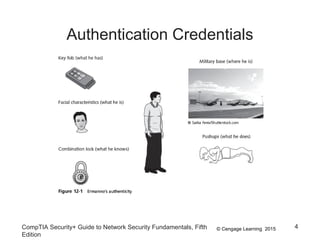
• Types of authentication credentials
– Where you are
• Example: a military base
– What you have
• Example: key fob to lock your car
– What you are
• Example: facial characteristics recognized
– What you know
• Example: combination to health club locker
– What you do
• Example: do something to prove authenticity
CompTIA Security+ Guide to Network Security Fundamentals, Fifth
Edition
3
© Cengage Learning 2015
Authentication Credentials
CompTIA Security+ Guide to Network Security Fundamentals, Fifth
Edition
4
© Cengage Learning 2015
What You Know: Passwords
• User logging in to a system
– Asked to identify himself
• User enters username
– User asked to authenticate
• User enters password
• Passwords are the most common type of
authentication today
• Passwords provide only weak protection
– Actions can be taken to strengthen passwords
CompTIA Security+ Guide to Network Security Fundamentals, Fifth
Edition
5
© Cengage Learning 2015
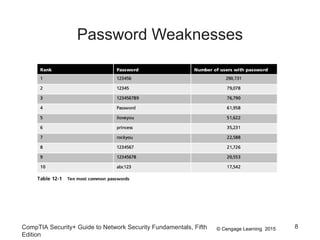
Password Weaknesses
• Weakness of passwords is linked to human
memory
– Humans can memorize only a limited number of
items
– Long, complex passwords are most effective
• Most difficult to memorize
• Users must remember passwords for many
different accounts
• Security policies mandate passwords must expire
– Users must repeatedly memorize passwords
CompTIA Security+ Guide to Network Security Fundamentals, Fifth
Edition
6
© Cengage Learning 2015
Password Weaknesses
• Users often take shortcuts
– Using a weak password
• Examples: common words, short password, or
personal information
– Reuse the same password for multiple accounts
• Easier for attacker who compromises one account to
access others
CompTIA Security+ Guide to Network Security Fundamentals, Fifth
Edition
7
© Cengage Learning 2015
Password Weaknesses
CompTIA Security+ Guide to Network Security Fundamentals, Fifth
Edition
8
© Cengage Learning 2015
Attacks on Passwords
• Attacks that can be used to discover passwords:
– Social engineering
• Phishing, shoulder surfing, dumpster diving
– Capturing
• Keylogger, protocol analyzer
• Man-in-the-middle and replay attacks
– Resetting
• Attacker gains physical access to computer and resets
password
CompTIA Security+ Guide to Network Security Fundamentals, Fifth
Edition
9
© Cengage Learning 2015
Attacks on Passwords
• Offline cracking
– Method used by most password attacks today
– Attackers steal file of password digests
• Compare with their own digests they have created
• Offline cracking types
– Brute force
• Every possible combination of letters, numbers, and
characters used to create encrypted passwords and
matched against stolen file
• Slowest, most thorough method
CompTIA Security+ Guide to Network Security Fundamentals, Fifth
Edition
10
© Cengage Learning 2015
Attacks on Passwords
• Automated brute force attack program parameters
– Password length
– Character set
– Language
– Pattern
– Skips
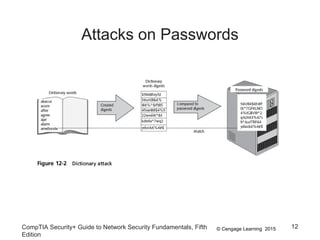
• Dictionary attack
– Attacker creates digests of common dictionary words
– Compares against stolen digest file
CompTIA Security+ Guide to Network Security Fundamentals, Fifth
Edition
11
© Cengage Learning 2015
Attacks on Passwords
CompTIA Security+ Guide to Network Security Fundamentals, Fifth
Edition
12
© Cengage Learning 2015
Attacks on Passwords
CompTIA Security+ Guide to Network Security Fundamentals, Fifth
Edition
13
• Pre-image attack
– A dictionary attack that uses a set of dictionary
words and compares it with the stolen digests
• Birthday attack
– The search for any two digests that are the same
© Cengage Learning 2015
Attacks on Passwords
• Hybrid attack
– Combines a dictionary attack with a brute force
attack and will slightly alter dictionary words
• Adding numbers to the end of the password
• Spelling words backward
• Slightly misspelling words
• Including special characters
• Rainbow tables
– Creates a large pregenerated data set of candidate
digests
CompTIA Security+ Guide to Network Security Fundamentals, Fifth
Edition
14
© Cengage Learning 2015
Attacks on Passwords
• Steps for using a rainbow table
– Creating the table
• Chain of plaintext passwords
• Encrypt initial password
• Feed into a function that produces different plaintext
passwords
• Repeat for a set number of rounds
– Using the table to crack a password
• Run encrypted password though same procedure
used to create initial table
• Results in initial chain password
CompTIA Security+ Guide to Network Security Fundamentals, Fifth
Edition
15
© Cengage Learning 2015
Attacks on Passwords
• Using the table to crack a password (cont’d.)
– Repeat, starting with this initial password until
original encryption is found
– Password used at last iteration is the cracked
password
• Rainbow table advantages over other attack
methods
– Can be used repeatedly
– Faster than dictionary attacks
– Less memory on the attacking machine is required
CompTIA Security+ Guide to Network Security Fundamentals, Fifth
Edition
16
© Cengage Learning 2015
Attacks on Passwords
• Password Collections
– It is estimated that over 100 million passwords were
stolen and published online in one year
– Websites now host lists of leaked passwords along
with statistical analysis
– Password mask attacks can significantly reduce the
amount of time needed to break a password
• Compared to a raw brute force attack
CompTIA Security+ Guide to Network Security Fundamentals, Fifth
Edition
17
© Cengage Learning 2015
Password Defenses
• Four primary defenses against password attacks:
– Password complexity
– Credential management
– Password hashing algorithms
– Salts
CompTIA Security+ Guide to Network Security Fundamentals, Fifth
Edition
18
© Cengage Learning 2015
Password Defenses
• Password Complexity
– One insight into creating complex passwords is to
examine password attack methods
• Most passwords consist of:
– Root
– Attachment
• Prefix or suffix
• Attack program method
– Tests password against 1000 common passwords
CompTIA Security+ Guide to Network Security Fundamentals, Fifth
Edition
19
© Cengage Learning 2015
Password Defenses
• Attack program method (cont’d.)
– Combines common passwords with common
suffixes
– Uses 5000 common dictionary words, 10,000
names, 100,000 comprehensive dictionary words
– Uses lowercase, initial uppercase, all uppercase,
and final character uppercase
– Makes common substitutions for letters in the
dictionary words
• Examples: $ for s, @ for a
CompTIA Security+ Guide to Network Security Fundamentals, Fifth
Edition
20
© Cengage Learning 2015
Password Defenses
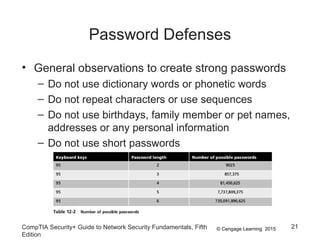
• General observations to create strong passwords
– Do not use dictionary words or phonetic words
– Do not repeat characters or use sequences
– Do not use birthdays, family member or pet names,
addresses or any personal information
– Do not use short passwords
CompTIA Security+ Guide to Network Security Fundamentals, Fifth
Edition
21
© Cengage Learning 2015
Password Defenses
• Credential Management
– One important defense: prevent attacker from
capturing the password digest files
• Defenses against theft of digest files:
– Do not leave computer unattended
– Screensavers should be set to resume with a
password
– Password protect the ROM BIOS
– Physically lock the computer case so it cannot be
opened
CompTIA Security+ Guide to Network Security Fundamentals, Fifth
Edition
22
© Cengage Learning 2015
Password Defenses
• Good password management practices
– Change passwords frequently
– Do not reuse old passwords
– Never write password down
– Use unique passwords for each account
– Set up temporary password for another user’s
access
– Do not allow computer to automatically sign in to an
account
CompTIA Security+ Guide to Network Security Fundamentals, Fifth
Edition
23
© Cengage Learning 2015
Password Defenses
• Good password management practices (cont’d.)
– Do not enter passwords on public access computers
– Never enter a password while connected to an
unencrypted wireless network
• Password management applications
– Programs that let a user create and store multiple
strong passwords in a single file protected by one
strong master password
– Many include enhanced encryption, in-memory
protection that prevents OS cache from being
exposed to reveal retrieved passwords
CompTIA Security+ Guide to Network Security Fundamentals, Fifth
Edition
24
© Cengage Learning 2015
Password Defenses
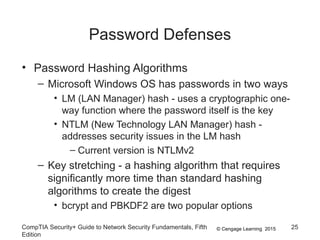
• Password Hashing Algorithms
– Microsoft Windows OS has passwords in two ways
• LM (LAN Manager) hash - uses a cryptographic one-
way function where the password itself is the key
• NTLM (New Technology LAN Manager) hash -
addresses security issues in the LM hash
– Current version is NTLMv2
– Key stretching - a hashing algorithm that requires
significantly more time than standard hashing
algorithms to create the digest
• bcrypt and PBKDF2 are two popular options
CompTIA Security+ Guide to Network Security Fundamentals, Fifth
Edition
25
© Cengage Learning 2015
Password Defenses
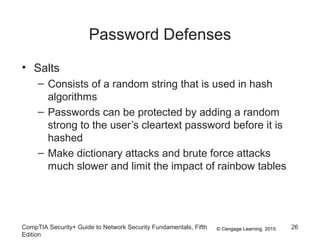
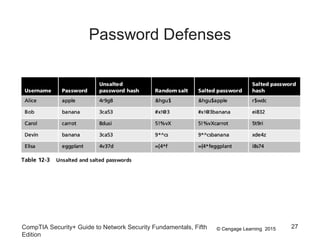
• Salts
– Consists of a random string that is used in hash
algorithms
– Passwords can be protected by adding a random
strong to the user’s cleartext password before it is
hashed
– Make dictionary attacks and brute force attacks
much slower and limit the impact of rainbow tables
CompTIA Security+ Guide to Network Security Fundamentals, Fifth
Edition
26
© Cengage Learning 2015
Password Defenses
CompTIA Security+ Guide to Network Security Fundamentals, Fifth
Edition
27
© Cengage Learning 2015
What You Have: Tokens, Cards, and
Cell Phones
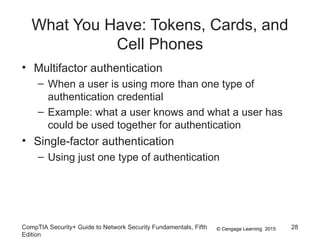
• Multifactor authentication
– When a user is using more than one type of
authentication credential
– Example: what a user knows and what a user has
could be used together for authentication
• Single-factor authentication
– Using just one type of authentication
CompTIA Security+ Guide to Network Security Fundamentals, Fifth
Edition
28
© Cengage Learning 2015
What You Have: Tokens, Cards, and
Cell Phones
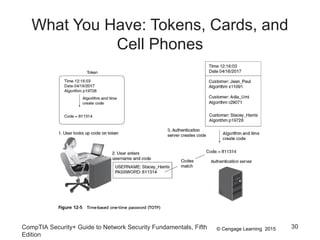
• Tokens
– Small devices with a window display
– Used to create a one-time password (OTP)
• Authentication code that can be used only once or for
a limited period of time
• Two types of OTPs
– Time-based one-time password (TOTP)
• Synched with an authentication server
• Code is generated from an algorithm
• Code changes every 30 to 60 seconds
CompTIA Security+ Guide to Network Security Fundamentals, Fifth
Edition
29
© Cengage Learning 2015
What You Have: Tokens, Cards, and
Cell Phones
CompTIA Security+ Guide to Network Security Fundamentals, Fifth
Edition
30
© Cengage Learning 2015
What You Have: Tokens, Cards, and
Cell Phones
• Two types of OTPs (cont’d)
– HMAC-based one-time password (HOTP)
• “Event-driven” and changes when a specific event
occurs
• Advantages over passwords
– Token code changes frequently
• Attacker would have to crack code within time limit
– User may not know if password has been stolen
• If token is stolen, it becomes obvious and steps could
be taken to disable account
CompTIA Security+ Guide to Network Security Fundamentals, Fifth
Edition
31
© Cengage Learning 2015
What You Have: Tokens, Cards, and
Cell Phones
• Cards
– Smart card contains integrated circuit chip that holds
information
– Contact pad allows electronic access to chip
contents
– Contactless cards
• Require no physical access to the card
– Common access card (CAC)
• Issued by US Department of Defense
• Bar code, magnetic strip, and bearer’s picture
CompTIA Security+ Guide to Network Security Fundamentals, Fifth
Edition
32
© Cengage Learning 2015
What You Have: Tokens, Cards, and
Cell Phones
• Cards (cont’d)
– The smart card standard covering all U.S.
government employees is the Personal Identity
Verification (PIV) standard
• Cell Phones
– Increasingly replacing tokens and cards
– A code can be sent to a user’s cell phone through an
app on the device
– Allow a user to send a request via the phone to
receive an HOTP authorization code
CompTIA Security+ Guide to Network Security Fundamentals, Fifth
Edition
33
© Cengage Learning 2015
What You Are: Biometrics
• Standard biometrics
– Uses a person’s unique physical characteristics for
authentication
– Fingerprint scanners are the most common type
– Face, hand, or eye characteristics also used
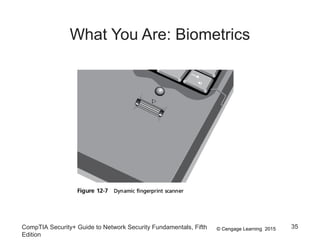
• Fingerprint scanner types
– Static fingerprint scanner
• Takes a picture and compares with image on file
– Dynamic fingerprint scanner
• Uses small slit or opening
CompTIA Security+ Guide to Network Security Fundamentals, Fifth
Edition
34
© Cengage Learning 2015
What You Are: Biometrics
CompTIA Security+ Guide to Network Security Fundamentals, Fifth
Edition
35
© Cengage Learning 2015
What You Are: Biometrics
• Disadvantages of standard biometrics
– Cost of hardware scanning devices
– Readers have some amount of error
• Reject authorized users
• Accept unauthorized users
• Cognitive biometrics
– Relates to perception, thought process, and
understanding of the user
– Easier for user to remember because it is based on
user’s life experiences
CompTIA Security+ Guide to Network Security Fundamentals, Fifth
Edition
36
© Cengage Learning 2015
What You Are: Biometrics
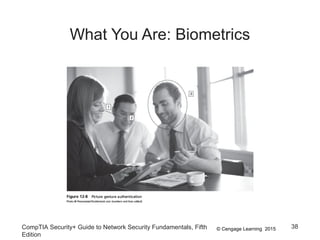
• Cognitive biometrics (cont’d.)
– Difficult for an attacker to imitate
– Picture gesture authentication (PGA)
• A user reproduces gestures seen on a previous
photograph
– Example: identifying specific faces
– Predicted to become a key element of authentication
in the future
CompTIA Security+ Guide to Network Security Fundamentals, Fifth
Edition
37
© Cengage Learning 2015
What You Are: Biometrics
CompTIA Security+ Guide to Network Security Fundamentals, Fifth
Edition
38
© Cengage Learning 2015
What You Do: Behavioral Biometrics
• Behavioral biometrics
– Authenticates by normal actions the user performs
• Two examples of behavioral biometrics
– Keystroke dynamics
– Voice recognition
CompTIA Security+ Guide to Network Security Fundamentals, Fifth
Edition
39
© Cengage Learning 2015
What You Are: Behavioral Biometrics
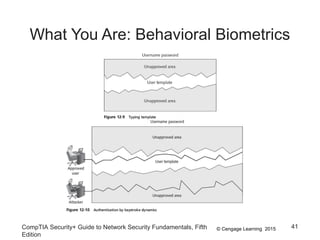
• Keystroke dynamics
– Attempts to recognize user’s typing rhythm
• All users type at a different pace
• Provides up to 98 percent accuracy
– Uses two unique typing variables
• Dwell time (time it takes to press and release a key)
• Flight time (time between keystrokes)
– Holds a great amount of potential
• It requires no specialized hardware
CompTIA Security+ Guide to Network Security Fundamentals, Fifth
Edition
40
© Cengage Learning 2015
What You Are: Behavioral Biometrics
CompTIA Security+ Guide to Network Security Fundamentals, Fifth
Edition
41
© Cengage Learning 2015
What You Are: Behavioral Biometrics
• Voice recognition
– Several characteristics make each person’s voice
unique
– Voice template can be created
– Difficult for an attacker to authenticate using a
recording of user’s voice
• Phonetic cadence of putting words together is part of
real speech pattern
CompTIA Security+ Guide to Network Security Fundamentals, Fifth
Edition
42
© Cengage Learning 2015
Where You Are: Geolocation
• Geolocation
– The identification of the location of a person or
object using technology
– Can indicate if an attacker is trying to perform a
malicious action from a location different from the
normal location of the user
– Many websites will not allow a user to access an
account if the computer is located in a different state
– Some websites may require a second type of
authentication
• A code sent as a text message to a cell phone number
on file
CompTIA Security+ Guide to Network Security Fundamentals, Fifth
Edition
43
© Cengage Learning 2015
Single Sign-On
• Identity management
– Using a single authentication credential shared
across multiple networks
– It is called federated identity management (FIM)
when networks are owned by different organizations
– Single sign-on (SSO) holds promise to reduce
burden of usernames and passwords to just one
• Examples of popular SSOs:
– Microsoft Account, OpenID, and OAuth
CompTIA Security+ Guide to Network Security Fundamentals, Fifth
Edition
44
© Cengage Learning 2015
Microsoft Account
• Introduced in 1999 as .NET passport
• Name changed to Microsoft Passport Network,
then Windows Live ID in 2006
– Designed as an SSO for Web commerce
• Today it is known as Microsoft Account
• Authentication process
– User enters username and password
– Once, authenticated, the user is given a time limited
“global” cookie stored on computer with encrypted ID
tag
CompTIA Security+ Guide to Network Security Fundamentals, Fifth
Edition
45
© Cengage Learning 2015
Microsoft Account
• Authentication process (cont’d.)
– ID tag sent to website the user wants to log into
– Web site uses ID tag for authentication
– Web site stores encrypted, time-limited “local” cookie
on user’s computer
• The use of “global” and “local” cookies is the basis
of Microsoft Account
• Cookies are erased when the user logs out of her
Microsoft account
CompTIA Security+ Guide to Network Security Fundamentals, Fifth
Edition
46
© Cengage Learning 2015
OpenID
• A decentralized open source FIM
• Does not require specific software to be installed
on the desktop
• URL-based identity system
• OpenID provides a means to prove a user owns
the URL
• Authentication process
– User goes to free site and given OpenID account of
Me.myopenID.com
CompTIA Security+ Guide to Network Security Fundamentals, Fifth
Edition
47
© Cengage Learning 2015
OpenID
• Authentication process (cont’d.)
– User visits Web commerce or other site and signs in
using his Open ID
– Site redirects user to MyOpenID.com where he
enters password to authenticate
– MyOpenID.com sends him back to Web site, now
authenticated
• Security weaknesses
– Relies on DNS which may have own weaknesses
– Not considered strong enough for most banking and
e-commerce Web sites
CompTIA Security+ Guide to Network Security Fundamentals, Fifth
Edition
48
© Cengage Learning 2015
Open Authorization (OAuth)
• Permits users to share resources stored on one
site with a second site
– Without forwarding authentication credentials
• Allows seamless data sharing among sites
• Relies on token credentials
– Replaces need to transfer user’s username and
password
– Tokens are for specific resources on a site
• For a limited time period
CompTIA Security+ Guide to Network Security Fundamentals, Fifth
Edition
49
© Cengage Learning 2015
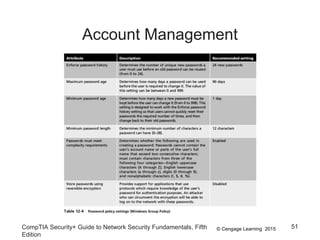
Account Management
• Managing user account passwords
– Can be done by setting password rules
– Too cumbersome to manage on a user-by-user basis
• Security risk if one user setting is overlooked
• Preferred approach: assign privileges by group
– Microsoft Windows group password settings
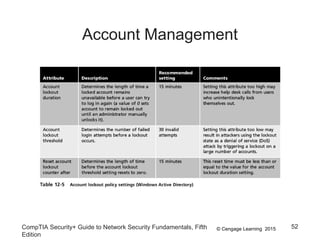
• Password Policy Settings
• Account Lockout Policy
CompTIA Security+ Guide to Network Security Fundamentals, Fifth
Edition
50
© Cengage Learning 2015
Account Management
CompTIA Security+ Guide to Network Security Fundamentals, Fifth
Edition
51
© Cengage Learning 2015
Account Management
CompTIA Security+ Guide to Network Security Fundamentals, Fifth
Edition
52
© Cengage Learning 2015
Account Management
CompTIA Security+ Guide to Network Security Fundamentals, Fifth
Edition
53
• Transitive trust
– A two-way relationship that is automatically created
between parent and child domains in a Microsoft
Active Directory Forest
– When a new domain is created, it shares resources
with its parent domain by default
• Can enable an authenticated user to access
resources in both the child and the parent
© Cengage Learning 2015
Summary
• Authentication credentials can be classified into
three categories: what you know, what you have,
and what you are
• Passwords provide a weak degree of protection
– Must rely on human memory
• Most password attacks today use offline cracking
– Attackers steal encrypted password file
• A token is a small device that generates a code
from an algorithm once every 30 to 60 seconds
CompTIA Security+ Guide to Network Security Fundamentals, Fifth
Edition
54
© Cengage Learning 2015
Summary
• Biometrics bases authentication on characteristics
of an individual
– Standard and cognitive biometrics are examples
• Behavioral biometrics authenticates by normal
actions the user performs
• Single sign-on allows a single username and
password to gain access to all accounts
• Group Policy settings allow an administrator to set
password restrictions for an entire group at once
CompTIA Security+ Guide to Network Security Fundamentals, Fifth
Edition
55

Chapter 12 Presentation

  • 1.
    CompTIA Security+ Guideto Network Security Fundamentals, Fifth Edition Chapter 12 Authentication and Account Management
  • 2.
    © Cengage Learning2015 Objectives • Describe the different types of authentication credentials • Explain what single sign-on can do • List the account management procedures for securing passwords CompTIA Security+ Guide to Network Security Fundamentals, Fifth Edition 2
  • 3.
    © Cengage Learning2015 Authentication Credentials • Types of authentication credentials – Where you are • Example: a military base – What you have • Example: key fob to lock your car – What you are • Example: facial characteristics recognized – What you know • Example: combination to health club locker – What you do • Example: do something to prove authenticity CompTIA Security+ Guide to Network Security Fundamentals, Fifth Edition 3
  • 4.
    © Cengage Learning2015 Authentication Credentials CompTIA Security+ Guide to Network Security Fundamentals, Fifth Edition 4
  • 5.
    © Cengage Learning2015 What You Know: Passwords • User logging in to a system – Asked to identify himself • User enters username – User asked to authenticate • User enters password • Passwords are the most common type of authentication today • Passwords provide only weak protection – Actions can be taken to strengthen passwords CompTIA Security+ Guide to Network Security Fundamentals, Fifth Edition 5
  • 6.
    © Cengage Learning2015 Password Weaknesses • Weakness of passwords is linked to human memory – Humans can memorize only a limited number of items – Long, complex passwords are most effective • Most difficult to memorize • Users must remember passwords for many different accounts • Security policies mandate passwords must expire – Users must repeatedly memorize passwords CompTIA Security+ Guide to Network Security Fundamentals, Fifth Edition 6
  • 7.
    © Cengage Learning2015 Password Weaknesses • Users often take shortcuts – Using a weak password • Examples: common words, short password, or personal information – Reuse the same password for multiple accounts • Easier for attacker who compromises one account to access others CompTIA Security+ Guide to Network Security Fundamentals, Fifth Edition 7
  • 8.
    © Cengage Learning2015 Password Weaknesses CompTIA Security+ Guide to Network Security Fundamentals, Fifth Edition 8
  • 9.
    © Cengage Learning2015 Attacks on Passwords • Attacks that can be used to discover passwords: – Social engineering • Phishing, shoulder surfing, dumpster diving – Capturing • Keylogger, protocol analyzer • Man-in-the-middle and replay attacks – Resetting • Attacker gains physical access to computer and resets password CompTIA Security+ Guide to Network Security Fundamentals, Fifth Edition 9
  • 10.
    © Cengage Learning2015 Attacks on Passwords • Offline cracking – Method used by most password attacks today – Attackers steal file of password digests • Compare with their own digests they have created • Offline cracking types – Brute force • Every possible combination of letters, numbers, and characters used to create encrypted passwords and matched against stolen file • Slowest, most thorough method CompTIA Security+ Guide to Network Security Fundamentals, Fifth Edition 10
  • 11.
    © Cengage Learning2015 Attacks on Passwords • Automated brute force attack program parameters – Password length – Character set – Language – Pattern – Skips • Dictionary attack – Attacker creates digests of common dictionary words – Compares against stolen digest file CompTIA Security+ Guide to Network Security Fundamentals, Fifth Edition 11
  • 12.
    © Cengage Learning2015 Attacks on Passwords CompTIA Security+ Guide to Network Security Fundamentals, Fifth Edition 12
  • 13.
    © Cengage Learning2015 Attacks on Passwords CompTIA Security+ Guide to Network Security Fundamentals, Fifth Edition 13 • Pre-image attack – A dictionary attack that uses a set of dictionary words and compares it with the stolen digests • Birthday attack – The search for any two digests that are the same
  • 14.
    © Cengage Learning2015 Attacks on Passwords • Hybrid attack – Combines a dictionary attack with a brute force attack and will slightly alter dictionary words • Adding numbers to the end of the password • Spelling words backward • Slightly misspelling words • Including special characters • Rainbow tables – Creates a large pregenerated data set of candidate digests CompTIA Security+ Guide to Network Security Fundamentals, Fifth Edition 14
  • 15.
    © Cengage Learning2015 Attacks on Passwords • Steps for using a rainbow table – Creating the table • Chain of plaintext passwords • Encrypt initial password • Feed into a function that produces different plaintext passwords • Repeat for a set number of rounds – Using the table to crack a password • Run encrypted password though same procedure used to create initial table • Results in initial chain password CompTIA Security+ Guide to Network Security Fundamentals, Fifth Edition 15
  • 16.
    © Cengage Learning2015 Attacks on Passwords • Using the table to crack a password (cont’d.) – Repeat, starting with this initial password until original encryption is found – Password used at last iteration is the cracked password • Rainbow table advantages over other attack methods – Can be used repeatedly – Faster than dictionary attacks – Less memory on the attacking machine is required CompTIA Security+ Guide to Network Security Fundamentals, Fifth Edition 16
  • 17.
    © Cengage Learning2015 Attacks on Passwords • Password Collections – It is estimated that over 100 million passwords were stolen and published online in one year – Websites now host lists of leaked passwords along with statistical analysis – Password mask attacks can significantly reduce the amount of time needed to break a password • Compared to a raw brute force attack CompTIA Security+ Guide to Network Security Fundamentals, Fifth Edition 17
  • 18.
    © Cengage Learning2015 Password Defenses • Four primary defenses against password attacks: – Password complexity – Credential management – Password hashing algorithms – Salts CompTIA Security+ Guide to Network Security Fundamentals, Fifth Edition 18
  • 19.
    © Cengage Learning2015 Password Defenses • Password Complexity – One insight into creating complex passwords is to examine password attack methods • Most passwords consist of: – Root – Attachment • Prefix or suffix • Attack program method – Tests password against 1000 common passwords CompTIA Security+ Guide to Network Security Fundamentals, Fifth Edition 19
  • 20.
    © Cengage Learning2015 Password Defenses • Attack program method (cont’d.) – Combines common passwords with common suffixes – Uses 5000 common dictionary words, 10,000 names, 100,000 comprehensive dictionary words – Uses lowercase, initial uppercase, all uppercase, and final character uppercase – Makes common substitutions for letters in the dictionary words • Examples: $ for s, @ for a CompTIA Security+ Guide to Network Security Fundamentals, Fifth Edition 20
  • 21.
    © Cengage Learning2015 Password Defenses • General observations to create strong passwords – Do not use dictionary words or phonetic words – Do not repeat characters or use sequences – Do not use birthdays, family member or pet names, addresses or any personal information – Do not use short passwords CompTIA Security+ Guide to Network Security Fundamentals, Fifth Edition 21
  • 22.
    © Cengage Learning2015 Password Defenses • Credential Management – One important defense: prevent attacker from capturing the password digest files • Defenses against theft of digest files: – Do not leave computer unattended – Screensavers should be set to resume with a password – Password protect the ROM BIOS – Physically lock the computer case so it cannot be opened CompTIA Security+ Guide to Network Security Fundamentals, Fifth Edition 22
  • 23.
    © Cengage Learning2015 Password Defenses • Good password management practices – Change passwords frequently – Do not reuse old passwords – Never write password down – Use unique passwords for each account – Set up temporary password for another user’s access – Do not allow computer to automatically sign in to an account CompTIA Security+ Guide to Network Security Fundamentals, Fifth Edition 23
  • 24.
    © Cengage Learning2015 Password Defenses • Good password management practices (cont’d.) – Do not enter passwords on public access computers – Never enter a password while connected to an unencrypted wireless network • Password management applications – Programs that let a user create and store multiple strong passwords in a single file protected by one strong master password – Many include enhanced encryption, in-memory protection that prevents OS cache from being exposed to reveal retrieved passwords CompTIA Security+ Guide to Network Security Fundamentals, Fifth Edition 24
  • 25.
    © Cengage Learning2015 Password Defenses • Password Hashing Algorithms – Microsoft Windows OS has passwords in two ways • LM (LAN Manager) hash - uses a cryptographic one- way function where the password itself is the key • NTLM (New Technology LAN Manager) hash - addresses security issues in the LM hash – Current version is NTLMv2 – Key stretching - a hashing algorithm that requires significantly more time than standard hashing algorithms to create the digest • bcrypt and PBKDF2 are two popular options CompTIA Security+ Guide to Network Security Fundamentals, Fifth Edition 25
  • 26.
    © Cengage Learning2015 Password Defenses • Salts – Consists of a random string that is used in hash algorithms – Passwords can be protected by adding a random strong to the user’s cleartext password before it is hashed – Make dictionary attacks and brute force attacks much slower and limit the impact of rainbow tables CompTIA Security+ Guide to Network Security Fundamentals, Fifth Edition 26
  • 27.
    © Cengage Learning2015 Password Defenses CompTIA Security+ Guide to Network Security Fundamentals, Fifth Edition 27
  • 28.
    © Cengage Learning2015 What You Have: Tokens, Cards, and Cell Phones • Multifactor authentication – When a user is using more than one type of authentication credential – Example: what a user knows and what a user has could be used together for authentication • Single-factor authentication – Using just one type of authentication CompTIA Security+ Guide to Network Security Fundamentals, Fifth Edition 28
  • 29.
    © Cengage Learning2015 What You Have: Tokens, Cards, and Cell Phones • Tokens – Small devices with a window display – Used to create a one-time password (OTP) • Authentication code that can be used only once or for a limited period of time • Two types of OTPs – Time-based one-time password (TOTP) • Synched with an authentication server • Code is generated from an algorithm • Code changes every 30 to 60 seconds CompTIA Security+ Guide to Network Security Fundamentals, Fifth Edition 29
  • 30.
    © Cengage Learning2015 What You Have: Tokens, Cards, and Cell Phones CompTIA Security+ Guide to Network Security Fundamentals, Fifth Edition 30
  • 31.
    © Cengage Learning2015 What You Have: Tokens, Cards, and Cell Phones • Two types of OTPs (cont’d) – HMAC-based one-time password (HOTP) • “Event-driven” and changes when a specific event occurs • Advantages over passwords – Token code changes frequently • Attacker would have to crack code within time limit – User may not know if password has been stolen • If token is stolen, it becomes obvious and steps could be taken to disable account CompTIA Security+ Guide to Network Security Fundamentals, Fifth Edition 31
  • 32.
    © Cengage Learning2015 What You Have: Tokens, Cards, and Cell Phones • Cards – Smart card contains integrated circuit chip that holds information – Contact pad allows electronic access to chip contents – Contactless cards • Require no physical access to the card – Common access card (CAC) • Issued by US Department of Defense • Bar code, magnetic strip, and bearer’s picture CompTIA Security+ Guide to Network Security Fundamentals, Fifth Edition 32
  • 33.
    © Cengage Learning2015 What You Have: Tokens, Cards, and Cell Phones • Cards (cont’d) – The smart card standard covering all U.S. government employees is the Personal Identity Verification (PIV) standard • Cell Phones – Increasingly replacing tokens and cards – A code can be sent to a user’s cell phone through an app on the device – Allow a user to send a request via the phone to receive an HOTP authorization code CompTIA Security+ Guide to Network Security Fundamentals, Fifth Edition 33
  • 34.
    © Cengage Learning2015 What You Are: Biometrics • Standard biometrics – Uses a person’s unique physical characteristics for authentication – Fingerprint scanners are the most common type – Face, hand, or eye characteristics also used • Fingerprint scanner types – Static fingerprint scanner • Takes a picture and compares with image on file – Dynamic fingerprint scanner • Uses small slit or opening CompTIA Security+ Guide to Network Security Fundamentals, Fifth Edition 34
  • 35.
    © Cengage Learning2015 What You Are: Biometrics CompTIA Security+ Guide to Network Security Fundamentals, Fifth Edition 35
  • 36.
    © Cengage Learning2015 What You Are: Biometrics • Disadvantages of standard biometrics – Cost of hardware scanning devices – Readers have some amount of error • Reject authorized users • Accept unauthorized users • Cognitive biometrics – Relates to perception, thought process, and understanding of the user – Easier for user to remember because it is based on user’s life experiences CompTIA Security+ Guide to Network Security Fundamentals, Fifth Edition 36
  • 37.
    © Cengage Learning2015 What You Are: Biometrics • Cognitive biometrics (cont’d.) – Difficult for an attacker to imitate – Picture gesture authentication (PGA) • A user reproduces gestures seen on a previous photograph – Example: identifying specific faces – Predicted to become a key element of authentication in the future CompTIA Security+ Guide to Network Security Fundamentals, Fifth Edition 37
  • 38.
    © Cengage Learning2015 What You Are: Biometrics CompTIA Security+ Guide to Network Security Fundamentals, Fifth Edition 38
  • 39.
    © Cengage Learning2015 What You Do: Behavioral Biometrics • Behavioral biometrics – Authenticates by normal actions the user performs • Two examples of behavioral biometrics – Keystroke dynamics – Voice recognition CompTIA Security+ Guide to Network Security Fundamentals, Fifth Edition 39
  • 40.
    © Cengage Learning2015 What You Are: Behavioral Biometrics • Keystroke dynamics – Attempts to recognize user’s typing rhythm • All users type at a different pace • Provides up to 98 percent accuracy – Uses two unique typing variables • Dwell time (time it takes to press and release a key) • Flight time (time between keystrokes) – Holds a great amount of potential • It requires no specialized hardware CompTIA Security+ Guide to Network Security Fundamentals, Fifth Edition 40
  • 41.
    © Cengage Learning2015 What You Are: Behavioral Biometrics CompTIA Security+ Guide to Network Security Fundamentals, Fifth Edition 41
  • 42.
    © Cengage Learning2015 What You Are: Behavioral Biometrics • Voice recognition – Several characteristics make each person’s voice unique – Voice template can be created – Difficult for an attacker to authenticate using a recording of user’s voice • Phonetic cadence of putting words together is part of real speech pattern CompTIA Security+ Guide to Network Security Fundamentals, Fifth Edition 42
  • 43.
    © Cengage Learning2015 Where You Are: Geolocation • Geolocation – The identification of the location of a person or object using technology – Can indicate if an attacker is trying to perform a malicious action from a location different from the normal location of the user – Many websites will not allow a user to access an account if the computer is located in a different state – Some websites may require a second type of authentication • A code sent as a text message to a cell phone number on file CompTIA Security+ Guide to Network Security Fundamentals, Fifth Edition 43
  • 44.
    © Cengage Learning2015 Single Sign-On • Identity management – Using a single authentication credential shared across multiple networks – It is called federated identity management (FIM) when networks are owned by different organizations – Single sign-on (SSO) holds promise to reduce burden of usernames and passwords to just one • Examples of popular SSOs: – Microsoft Account, OpenID, and OAuth CompTIA Security+ Guide to Network Security Fundamentals, Fifth Edition 44
  • 45.
    © Cengage Learning2015 Microsoft Account • Introduced in 1999 as .NET passport • Name changed to Microsoft Passport Network, then Windows Live ID in 2006 – Designed as an SSO for Web commerce • Today it is known as Microsoft Account • Authentication process – User enters username and password – Once, authenticated, the user is given a time limited “global” cookie stored on computer with encrypted ID tag CompTIA Security+ Guide to Network Security Fundamentals, Fifth Edition 45
  • 46.
    © Cengage Learning2015 Microsoft Account • Authentication process (cont’d.) – ID tag sent to website the user wants to log into – Web site uses ID tag for authentication – Web site stores encrypted, time-limited “local” cookie on user’s computer • The use of “global” and “local” cookies is the basis of Microsoft Account • Cookies are erased when the user logs out of her Microsoft account CompTIA Security+ Guide to Network Security Fundamentals, Fifth Edition 46
  • 47.
    © Cengage Learning2015 OpenID • A decentralized open source FIM • Does not require specific software to be installed on the desktop • URL-based identity system • OpenID provides a means to prove a user owns the URL • Authentication process – User goes to free site and given OpenID account of Me.myopenID.com CompTIA Security+ Guide to Network Security Fundamentals, Fifth Edition 47
  • 48.
    © Cengage Learning2015 OpenID • Authentication process (cont’d.) – User visits Web commerce or other site and signs in using his Open ID – Site redirects user to MyOpenID.com where he enters password to authenticate – MyOpenID.com sends him back to Web site, now authenticated • Security weaknesses – Relies on DNS which may have own weaknesses – Not considered strong enough for most banking and e-commerce Web sites CompTIA Security+ Guide to Network Security Fundamentals, Fifth Edition 48
  • 49.
    © Cengage Learning2015 Open Authorization (OAuth) • Permits users to share resources stored on one site with a second site – Without forwarding authentication credentials • Allows seamless data sharing among sites • Relies on token credentials – Replaces need to transfer user’s username and password – Tokens are for specific resources on a site • For a limited time period CompTIA Security+ Guide to Network Security Fundamentals, Fifth Edition 49
  • 50.
    © Cengage Learning2015 Account Management • Managing user account passwords – Can be done by setting password rules – Too cumbersome to manage on a user-by-user basis • Security risk if one user setting is overlooked • Preferred approach: assign privileges by group – Microsoft Windows group password settings • Password Policy Settings • Account Lockout Policy CompTIA Security+ Guide to Network Security Fundamentals, Fifth Edition 50
  • 51.
    © Cengage Learning2015 Account Management CompTIA Security+ Guide to Network Security Fundamentals, Fifth Edition 51
  • 52.
    © Cengage Learning2015 Account Management CompTIA Security+ Guide to Network Security Fundamentals, Fifth Edition 52
  • 53.
    © Cengage Learning2015 Account Management CompTIA Security+ Guide to Network Security Fundamentals, Fifth Edition 53 • Transitive trust – A two-way relationship that is automatically created between parent and child domains in a Microsoft Active Directory Forest – When a new domain is created, it shares resources with its parent domain by default • Can enable an authenticated user to access resources in both the child and the parent
  • 54.
    © Cengage Learning2015 Summary • Authentication credentials can be classified into three categories: what you know, what you have, and what you are • Passwords provide a weak degree of protection – Must rely on human memory • Most password attacks today use offline cracking – Attackers steal encrypted password file • A token is a small device that generates a code from an algorithm once every 30 to 60 seconds CompTIA Security+ Guide to Network Security Fundamentals, Fifth Edition 54
  • 55.
    © Cengage Learning2015 Summary • Biometrics bases authentication on characteristics of an individual – Standard and cognitive biometrics are examples • Behavioral biometrics authenticates by normal actions the user performs • Single sign-on allows a single username and password to gain access to all accounts • Group Policy settings allow an administrator to set password restrictions for an entire group at once CompTIA Security+ Guide to Network Security Fundamentals, Fifth Edition 55

Editor's Notes

  • #2 CompTIA Security+ Guide to Network Security Fundamentals, Fifth Edition Chapter 12 Authentication and Account Management
  • #3 Objectives Describe the different types of authentication credentials Explain what single sign-on can do List the account management procedures for securing passwords
  • #4 Authentication Credentials Types of authentication credentials Where you are Example: a military base What you have Example: key fob to lock your car What you are Example: facial characteristics recognized What you know Example: combination to health club locker What you do Example: do something to prove authenticity
  • #5 Authentication Credentials Figure 12-1 Ermanno’s authenticity
  • #6 What You Know: Passwords User logging in to a system Asked to identify himself User enters username User asked to authenticate User enters password Passwords are the most common type of authentication today Passwords provide only weak protection Actions can be taken to strengthen passwords
  • #7 Password Weaknesses Weakness of passwords is linked to human memory Humans can memorize only a limited number of items Long, complex passwords are most effective Most difficult to memorize Users must remember passwords for many different accounts Security policies mandate passwords must expire Users must repeatedly memorize passwords
  • #8 Password Weaknesses Users often take shortcuts Using a weak password Examples: common words, short password, or personal information Reuse the same password for multiple accounts Easier for attacker who compromises one account to access others
  • #9 Password Weaknesses Table 12-1 Ten most common passwords
  • #10 Attacks on Passwords Attacks that can be used to discover passwords: Social engineering Phishing, shoulder surfing, dumpster diving Capturing Keylogger, protocol analyzer Man-in-the-middle and replay attacks Resetting Attacker gains physical access to computer and resets password
  • #11 Attacks on Passwords Offline cracking Method used by most password attacks today Attackers steal file of password digests Compare with their own digests they have created Offline cracking types Brute force Every possible combination of letters, numbers, and characters used to create encrypted passwords and matched against stolen file Slowest, most thorough method
  • #12 Attacks on Passwords Automated brute force attack program parameters Password length Character set Language Pattern Skips Dictionary attack Attacker creates digests of common dictionary words Compares against stolen digest file
  • #13 Attacks on Passwords Figure 12-2 Dictionary attack
  • #14 Attacks on Passwords Pre-image attack A dictionary attack that uses a set of dictionary words and compares it with the stolen digests Birthday attack The search for any two digests that are the same
  • #15 Attacks on Passwords Hybrid attack Combines a dictionary attack with a brute force attack and will slightly alter dictionary words Adding numbers to the end of the password Spelling words backward Slightly misspelling words Including special characters Rainbow tables Creates a large pregenerated data set of candidate digests
  • #16 Attacks on Passwords Steps for using a rainbow table Creating the table Chain of plaintext passwords Encrypt initial password Feed into a function that produces different plaintext passwords Repeat for a set number of rounds Using the table to crack a password Run encrypted password though same procedure used to create initial table Results in initial chain password
  • #17 Attacks on Passwords Using the table to crack a password (cont’d.) Repeat, starting with this initial password until original encryption is found Password used at last iteration is the cracked password Rainbow table advantages over other attack methods Can be used repeatedly Faster than dictionary attacks Less memory on the attacking machine is required
  • #18 Attacks on Passwords Password Collections It is estimated that over 100 million passwords were stolen and published online in one year Websites now host lists of leaked passwords along with statistical analysis Password mask attacks can significantly reduce the amount of time needed to break a password Compared to a raw brute force attack
  • #19 Password Defenses Four primary defenses against password attacks: Password complexity Credential management Password hashing algorithms Salts
  • #20 Password Defenses Password Complexity One insight into creating complex passwords is to examine password attack methods Most passwords consist of: Root Attachment Prefix or suffix Attack program method Tests password against 1000 common passwords
  • #21 Password Defenses Attack program method (cont’d.) Combines common passwords with common suffixes Uses 5000 common dictionary words, 10,000 names, 100,000 comprehensive dictionary words Uses lowercase, initial uppercase, all uppercase, and final character uppercase Makes common substitutions for letters in the dictionary words Examples: $ for s, @ for a
  • #22 Password Defenses General observations to create strong passwords Do not use dictionary words or phonetic words Do not repeat characters or use sequences Do not use birthdays, family member or pet names, addresses or any personal information Do not use short passwords Table 12-2 Number of possible passwords
  • #23 Password Defenses Credential Management One important defense: prevent attacker from capturing the password digest files Defenses against theft of digest files: Do not leave computer unattended Screensavers should be set to resume with a password Password protect the ROM BIOS Physically lock the computer case so it cannot be opened
  • #24 Password Defenses Good password management practices Change passwords frequently Do not reuse old passwords Never write password down Use unique passwords for each account Set up temporary password for another user’s access Do not allow computer to automatically sign in to an account
  • #25 Password Defenses Good password management practices (cont’d.) Do not enter passwords on public access computers Never enter a password while connected to an unencrypted wireless network Password management applications Programs that let a user create and store multiple strong passwords in a single file protected by one strong master password Many include enhanced encryption, in-memory protection that prevents OS cache from being exposed to reveal retrieved passwords
  • #26 Password Defenses Password Hashing Algorithms Microsoft Windows OS has passwords in two ways LM (LAN Manager) hash - uses a cryptographic one-way function where the password itself is the key NTLM (New Technology LAN Manager) hash - addresses security issues in the LM hash Current version is NTLMv2 Key stretching - a hashing algorithm that requires significantly more time than standard hashing algorithms to create the digest bcrypt and PBKDF2 are two popular options
  • #27 Password Defenses Salts Consists of a random string that is used in hash algorithms Passwords can be protected by adding a random strong to the user’s cleartext password before it is hashed Make dictionary attacks and brute force attacks much slower and limit the impact of rainbow tables
  • #28 Password Defenses Table 12-3 Unsalted and salted passwords
  • #29 What You Have: Tokens, Cards, and Cell Phones Multifactor authentication When a user is using more than one type of authentication credential Example: what a user knows and what a user has could be used together for authentication Single-factor authentication Using just one type of authentication
  • #30 What You Have: Tokens, Cards, and Cell Phones Tokens Small devices with a window display Used to create a one-time password (OTP) Authentication code that can be used only once or for a limited period of time Two types of OTPs Time-based one-time password (TOTP) Synched with an authentication server Code is generated from an algorithm Code changes every 30 to 60 seconds
  • #31 What You Have: Tokens, Cards, and Cell Phones Figure 12-5 Time-based one-time password (TOTP)
  • #32 What You Have: Tokens, Cards, and Cell Phones Two types of OTPs (cont’d) HMAC-based one-time password (HOTP) “Event-driven” and changes when a specific event occurs Advantages over passwords Token code changes frequently Attacker would have to crack code within time limit User may not know if password has been stolen If token is stolen, it becomes obvious and steps could be taken to disable account
  • #33 What You Have: Tokens, Cards, and Cell Phones Cards Smart card contains integrated circuit chip that holds information Contact pad allows electronic access to chip contents Contactless cards Require no physical access to the card Common access card (CAC) Issued by US Department of Defense Bar code, magnetic strip, and bearer’s picture
  • #34 What You Have: Tokens, Cards, and Cell Phones Cards (cont’d) The smart card standard covering all U.S. government employees is the Personal Identity Verification (PIV) standard Cell Phones Increasingly replacing tokens and cards A code can be sent to a user’s cell phone through an app on the device Allow a user to send a request via the phone to receive an HOTP authorization code
  • #35 What You Are: Biometrics Standard biometrics Uses a person’s unique physical characteristics for authentication Fingerprint scanners are the most common type Face, hand, or eye characteristics also used Fingerprint scanner types Static fingerprint scanner Takes a picture and compares with image on file Dynamic fingerprint scanner Uses small slit or opening
  • #36 What You Are: Biometrics Figure 12-7 Dynamic fingerprint scanner
  • #37 What You Are: Biometrics Disadvantages of standard biometrics Cost of hardware scanning devices Readers have some amount of error Reject authorized users Accept unauthorized users Cognitive biometrics Relates to perception, thought process, and understanding of the user Easier for user to remember because it is based on user’s life experiences
  • #38 What You Are: Biometrics Cognitive biometrics (cont’d.) Difficult for an attacker to imitate Picture gesture authentication (PGA) A user reproduces gestures seen on a previous photograph Example: identifying specific faces Predicted to become a key element of authentication in the future
  • #39 What You Are: Biometrics Figure 12-8 Picture gesture authentication
  • #40 What You Do: Behavioral Biometrics Behavioral biometrics Authenticates by normal actions the user performs Two examples of behavioral biometrics Keystroke dynamics Voice recognition
  • #41 What You Are: Behavioral Biometrics Keystroke dynamics Attempts to recognize user’s typing rhythm All users type at a different pace Provides up to 98 percent accuracy Uses two unique typing variables Dwell time (time it takes to press and release a key) Flight time (time between keystrokes) Holds a great amount of potential It requires no specialized hardware
  • #42 What You Are: Behavioral Biometrics Figure 12-10 Authentication by keystroke dynamics
  • #43 What You Are: Behavioral Biometrics Voice recognition Several characteristics make each person’s voice unique Voice template can be created Difficult for an attacker to authenticate using a recording of user’s voice Phonetic cadence of putting words together is part of real speech pattern
  • #44 Where You Are: Geolocation Geolocation The identification of the location of a person or object using technology Can indicate if an attacker is trying to perform a malicious action from a location different from the normal location of the user Many websites will not allow a user to access an account if the computer is located in a different state Some websites may require a second type of authentication A code sent as a text message to a cell phone number on file
  • #45 Single Sign-On Identity management Using a single authentication credential shared across multiple networks It is called federated identity management (FIM) when networks are owned by different organizations Single sign-on (SSO) holds promise to reduce burden of usernames and passwords to just one Examples of popular SSOs: Microsoft Account, OpenID, and OAuth
  • #46 Microsoft Account Introduced in 1999 as .NET passport Name changed to Microsoft Passport Network, then Windows Live ID in 2006 Designed as an SSO for Web commerce Today it is known as Microsoft Account Authentication process User enters username and password Once, authenticated, the user is given a time limited “global” cookie stored on computer with encrypted ID tag
  • #47 Microsoft Account Authentication process (cont’d.) ID tag sent to website the user wants to log into Web site uses ID tag for authentication Web site stores encrypted, time-limited “local” cookie on user’s computer The use of “global” and “local” cookies is the basis of Microsoft Account Cookies are erased when the user logs out of her Microsoft account
  • #48 OpenID A decentralized open source FIM Does not require specific software to be installed on the desktop URL-based identity system OpenID provides a means to prove a user owns the URL Authentication process User goes to free site and given OpenID account of Me.myopenID.com
  • #49 OpenID Authentication process (cont’d.) User visits Web commerce or other site and signs in using his Open ID Site redirects user to MyOpenID.com where he enters password to authenticate MyOpenID.com sends him back to Web site, now authenticated Security weaknesses Relies on DNS which may have own weaknesses Not considered strong enough for most banking and e-commerce Web sites
  • #50 Open Authorization (OAuth) Permits users to share resources stored on one site with a second site Without forwarding authentication credentials Allows seamless data sharing among sites Relies on token credentials Replaces need to transfer user’s username and password Tokens are for specific resources on a site For a limited time period
  • #51 Account Management Managing user account passwords Can be done by setting password rules Too cumbersome to manage on a user-by-user basis Security risk if one user setting is overlooked Preferred approach: assign privileges by group Microsoft Windows group password settings Password Policy Settings Account Lockout Policy
  • #52 Account Management Table 12-4 Password policy settings (Windows Group Policy)
  • #53 Account Management Table 12-5 Account lockout policy settings (Windows Active Directory)
  • #54 Account Management Transitive trust A two-way relationship that is automatically created between parent and child domains in a Microsoft Active Directory Forest When a new domain is created, it shares resources with its parent domain by default Can enable an authenticated user to access resources in both the child and the parent
  • #55 Summary Authentication credentials can be classified into three categories: what you know, what you have, and what you are Passwords provide a weak degree of protection Must rely on human memory Most password attacks today use offline cracking Attackers steal encrypted password file A token is a small device that generates a code from an algorithm once every 30 to 60 seconds
  • #56 Summary Biometrics bases authentication on characteristics of an individual Standard and cognitive biometrics are examples Behavioral biometrics authenticates by normal actions the user performs Single sign-on allows a single username and password to gain access to all accounts Group Policy settings allow an administrator to set password restrictions for an entire group at once