A+ Guide to IT Technical Support, 9th
Edition
Chapter 5
Supporting the Power System and
Troubleshooting Computers
© Cengage Learning 2017
A+ Guide to IT Technical Support, 9th
Edition
2
Objectives
• Describe the methods and devices for keeping a
system cool
• Select a power supply to meet the power needs of a
system
• Demonstrate an organized approach to solving any
computer problem, especially hardware problems
occurring during the boot
• Troubleshoot problems with the electrical system
© Cengage Learning 2017
A+ Guide to IT Technical Support, 9th
Edition
3
Objectives
• Troubleshoot problems with the motherboard,
processor, and RAM
• Troubleshoot hardware problems with mobile
devices
© Cengage Learning 2017
Cooling Methods and Devices
• If processor, expansion cards, and other
components overheat:
– System can get unstable
– Components can fail or be damaged
• Devices used to cool a system:
– CPU and case fans
– Coolers
– Heat sinks
– Liquid cooling systems
A+ Guide to IT Technical Support, 9th
Edition
4
© Cengage Learning 2017
Processor Coolers, Fans, and Heat
Sinks
• Computer systems use a cooling assembly
designed for a specific processor to keep
temperatures below the processor maximum
temperature
• Good processor coolers maintain a temperature of:
– 90-110 degrees F (32-43 degrees C)
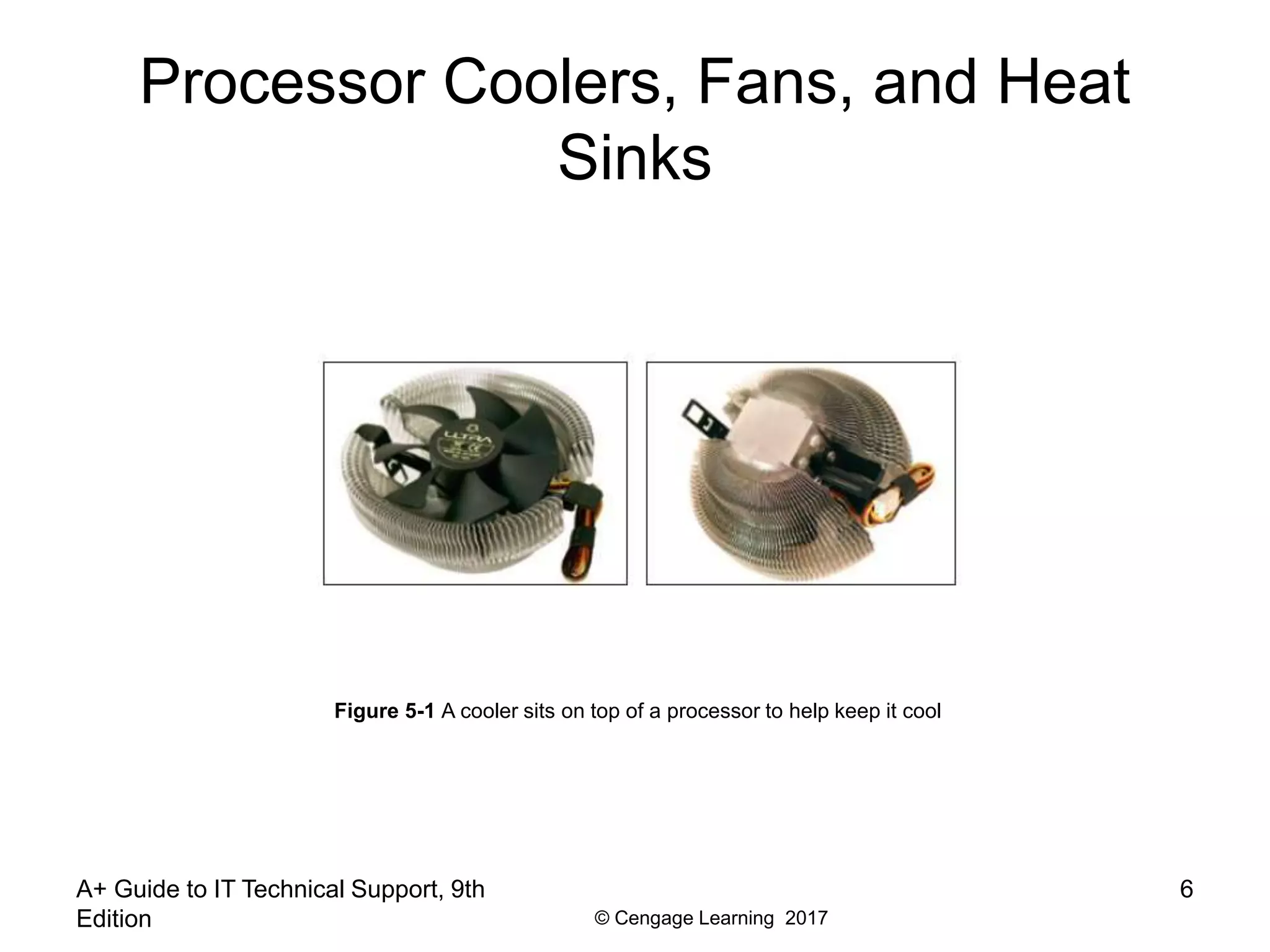
• Cooler: sits on top of processor
– Consists of a fan and heat sink
– Heat sink: uses fins that draw heat away from
processor
– Fan: blows drawn heat away from CPU unit
A+ Guide to IT Technical Support, 9th
Edition
5
© Cengage Learning 2017
Processor Coolers, Fans, and Heat
Sinks
A+ Guide to IT Technical Support, 9th
Edition
6
Figure 5-1 A cooler sits on top of a processor to help keep it cool
© Cengage Learning 2017
Processor Coolers, Fans, and Heat
Sinks
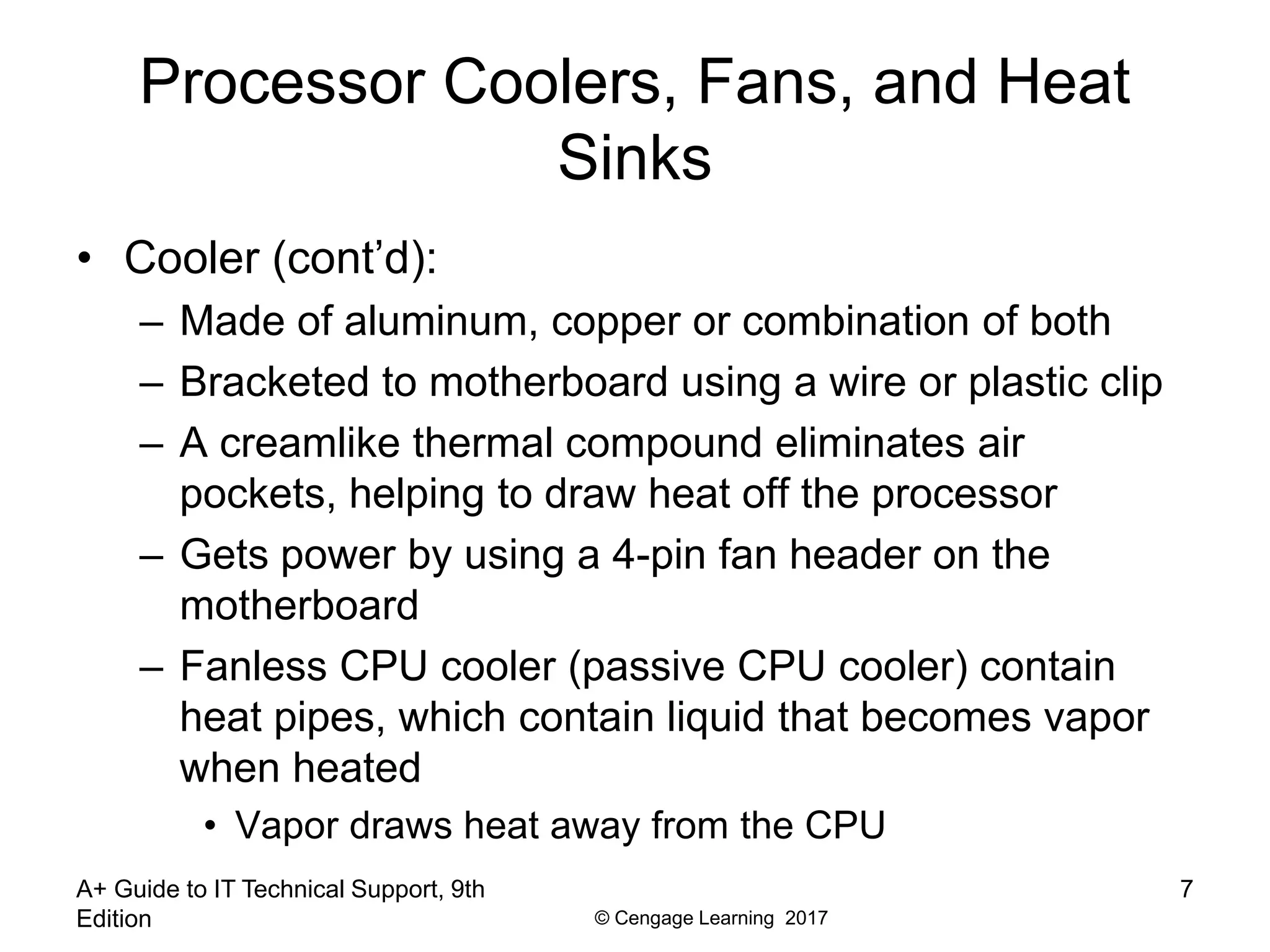
• Cooler (cont’d):
– Made of aluminum, copper or combination of both
– Bracketed to motherboard using a wire or plastic clip
– A creamlike thermal compound eliminates air
pockets, helping to draw heat off the processor
– Gets power by using a 4-pin fan header on the
motherboard
– Fanless CPU cooler (passive CPU cooler) contain
heat pipes, which contain liquid that becomes vapor
when heated
• Vapor draws heat away from the CPU
A+ Guide to IT Technical Support, 9th
Edition
7
© Cengage Learning 2017
Case Fans and Other Fans and Heat
Sinks
• Case fans: help draw air out of the case to prevent
overheating
– Most cases have one or more positions on the case
to hold a case fan
– Large fans tend to perform better than small fans
• Other fans:
– Some graphics (video) cards come with a fan
– Fan cards can be mounted next to graphics cards
• Be sure to select a fan card that fits the expansion slot
you plan to use
A+ Guide to IT Technical Support, 9th
Edition
8
© Cengage Learning 2017
Case Fans and Other Fans and Heat
Sinks
• Other fans (cont’d):
– RAM cooler – clips over a DIMM memory module
• May be powered by a SATA or 4-pin Molex power
connector
A+ Guide to IT Technical Support, 9th
Edition
9
Figure 5-7 A RAM cooler keeps memory modules cool
© Cengage Learning 2017
Liquid Cooling Systems
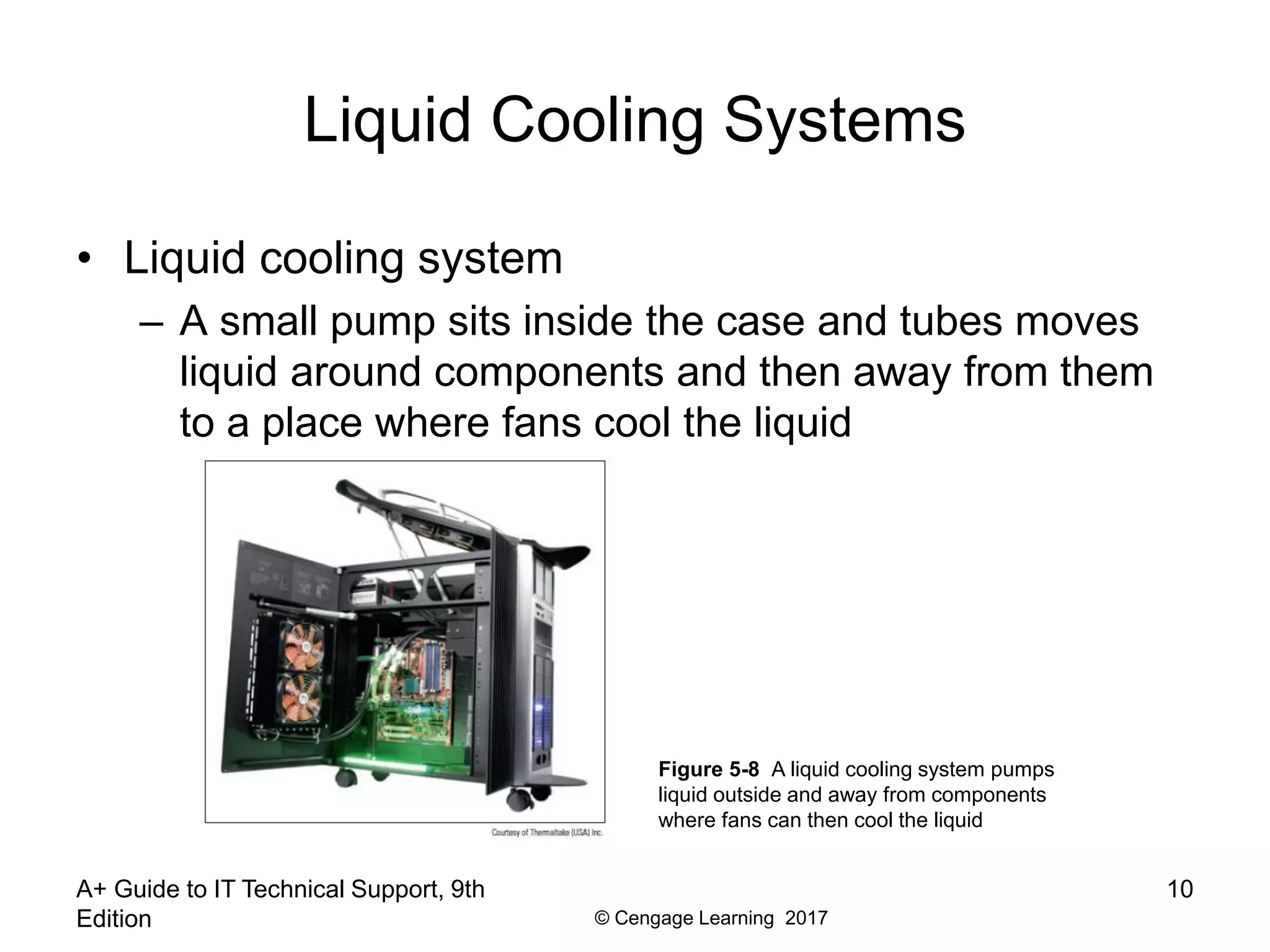
• Liquid cooling system
– A small pump sits inside the case and tubes moves
liquid around components and then away from them
to a place where fans cool the liquid
A+ Guide to IT Technical Support, 9th
Edition
10
Figure 5-8 A liquid cooling system pumps
liquid outside and away from components
where fans can then cool the liquid
© Cengage Learning 2017
A+ Guide to IT Technical Support, 9th
Edition
11
Selecting a Power Supply
• Reasons to replace a power supply:
– Power supply in existing system fails
– Power supply in existing system is not adequate
• When building from scratch, some cases come with
power supply already installed
© Cengage Learning 2017
A+ Guide to IT Technical Support, 9th
Edition
12
Types and Characteristics of Power
Supplies
• Important power supply feature considerations:
– Form factor determines power supply size
– Wattage ratings (listed in documentation)
– Number and type of connectors
– Fans inside the PSU
– Dual voltage options
– Warranty and overall quality
© Cengage Learning 2017
A+ Guide to IT Technical Support, 9th
Edition
13
How to Calculate Wattage Capacity
• Determining wattage capacity
– Consider all components inside case
– Consider USB and FireWire devices
• Get power from ports connected to the motherboard
• Points to keep in mind
– Video cards draw the most power
– The power supply should be rated 30 percent higher
than expected needs
• What size Power Supply?
– Add up wattage requirements and add 30 percent
© Cengage Learning 2017
A+ Guide to IT Technical Support, 9th
Edition
14
How to Calculate Wattage Capacity
Table 5-2 To calculate the power supply rating you need, add up total wattage
© Cengage Learning 2017
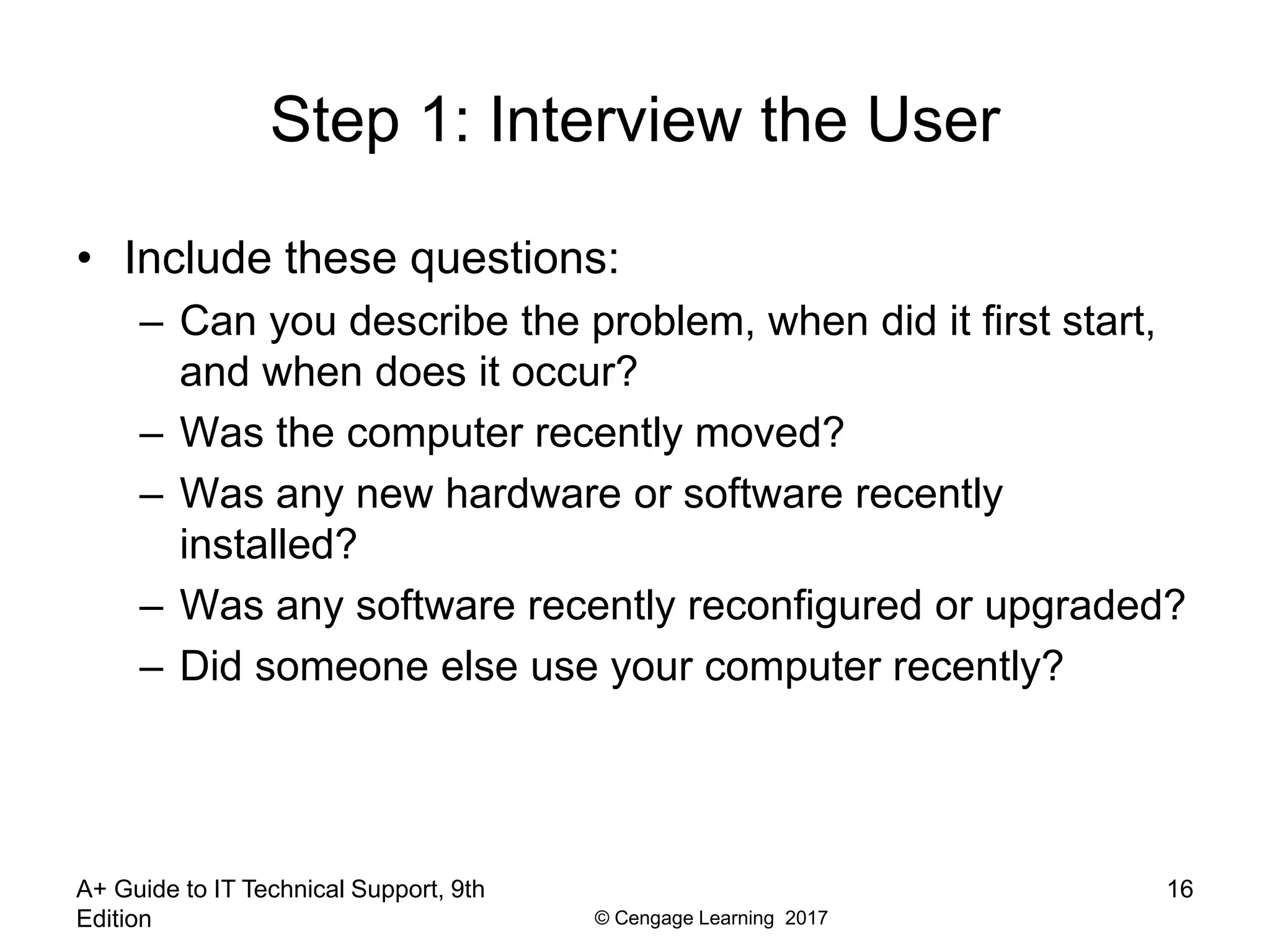
How to Approach a Hardware Problem
• Troubleshooting resources:
– The web (Internet)
– Chat forums or email technical support
– Manufacturer’s diagnostic software
– User manuals
– Technical associates in your organization
A+ Guide to IT Technical Support, 9th
Edition
15
© Cengage Learning 2017
Step 1: Interview the User
• Include these questions:
– Can you describe the problem, when did it first start,
and when does it occur?
– Was the computer recently moved?
– Was any new hardware or software recently
installed?
– Was any software recently reconfigured or upgraded?
– Did someone else use your computer recently?
A+ Guide to IT Technical Support, 9th
Edition
16
© Cengage Learning 2017
Step 1: Interview the User
• Include these questions (cont’d):
– Does the computer have a history of similar
problems?
– Is there important data on the drive that is not backed
up?
– Can you show me how to reproduce the problem?
• After gathering information:
– Prioritize what to do and begin diagnosing and
addressing the problem
A+ Guide to IT Technical Support, 9th
Edition
17
© Cengage Learning 2017
Step 2: Back Up Data As Needed
• Three options for backing up data:
– Move the hard drive to another system
– Use file recovery software
– Hire a professional file recovery service
• Before selecting a service, read reviews, understand
the warranty and guarantees, and get a customer
recommendation
A+ Guide to IT Technical Support, 9th
Edition
18
© Cengage Learning 2017
Step 3: Examine the System and
Establish a Theory
A+ Guide to IT Technical Support, 9th
Edition
19
Figure 5-16 Use this
flowchart when first
facing a computer
problem
© Cengage Learning 2017
Step 3: Examine the System and
Establish a Theory
A+ Guide to IT Technical Support, 9th
Edition
20
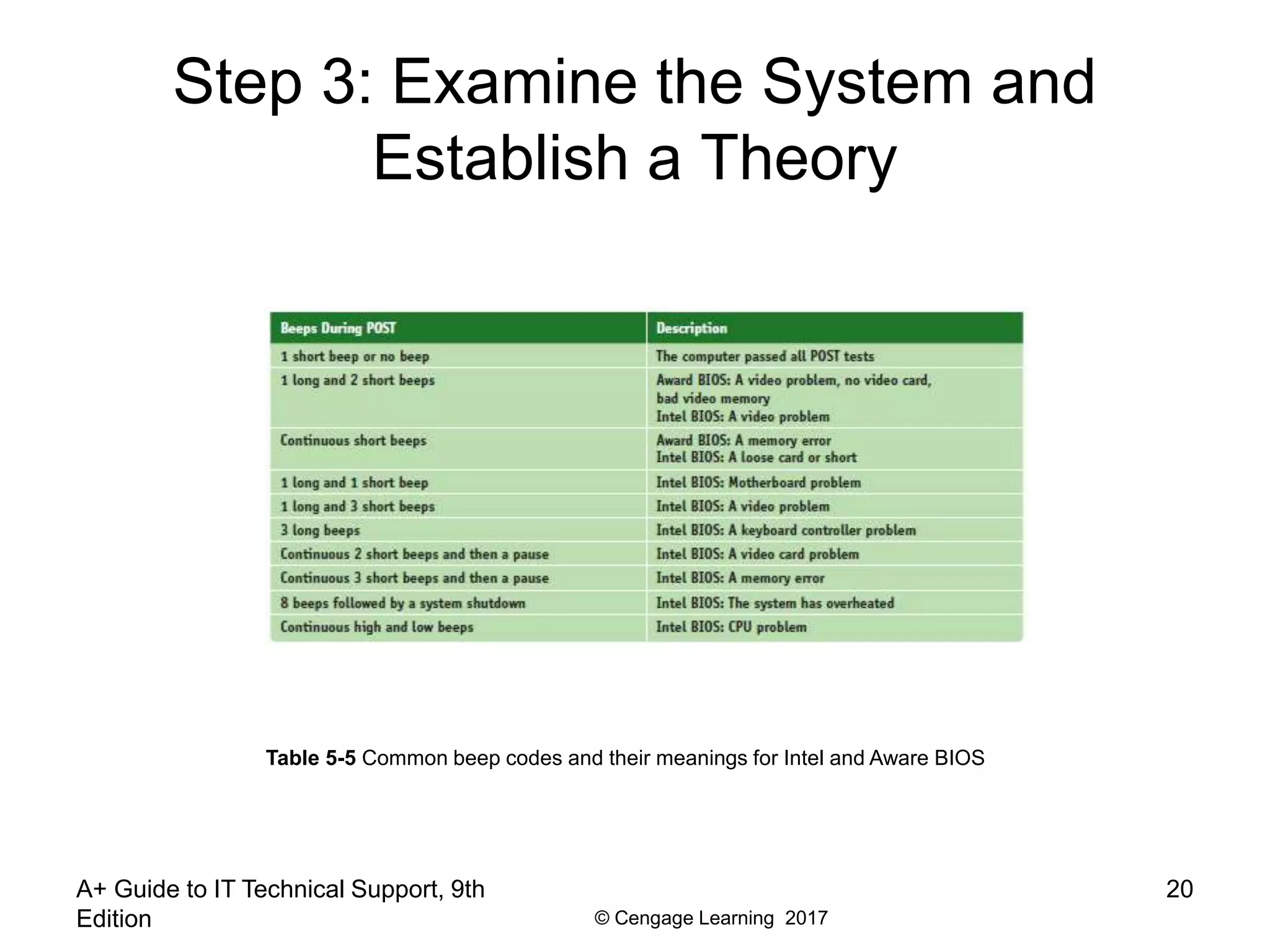
Table 5-5 Common beep codes and their meanings for Intel and Aware BIOS
© Cengage Learning 2017
Steps 4, 5, and 6: Fix the Problem,
Verify the Fix, and Document the
Outcome
• After understanding the problem
– Plan steps to resolve the problem
• After the fix
– Verify the system works by performing one last hard
boot and making sure everything works as expected
– Ask if anything could have been done to prevent the
problem, if so, take preventative action
• Most organization require documentation in a call
tracking or helpdesk application
– Record findings
A+ Guide to IT Technical Support, 9th
Edition
21
© Cengage Learning 2017
Special Concerns when
Troubleshooting Mobile Device
Hardware
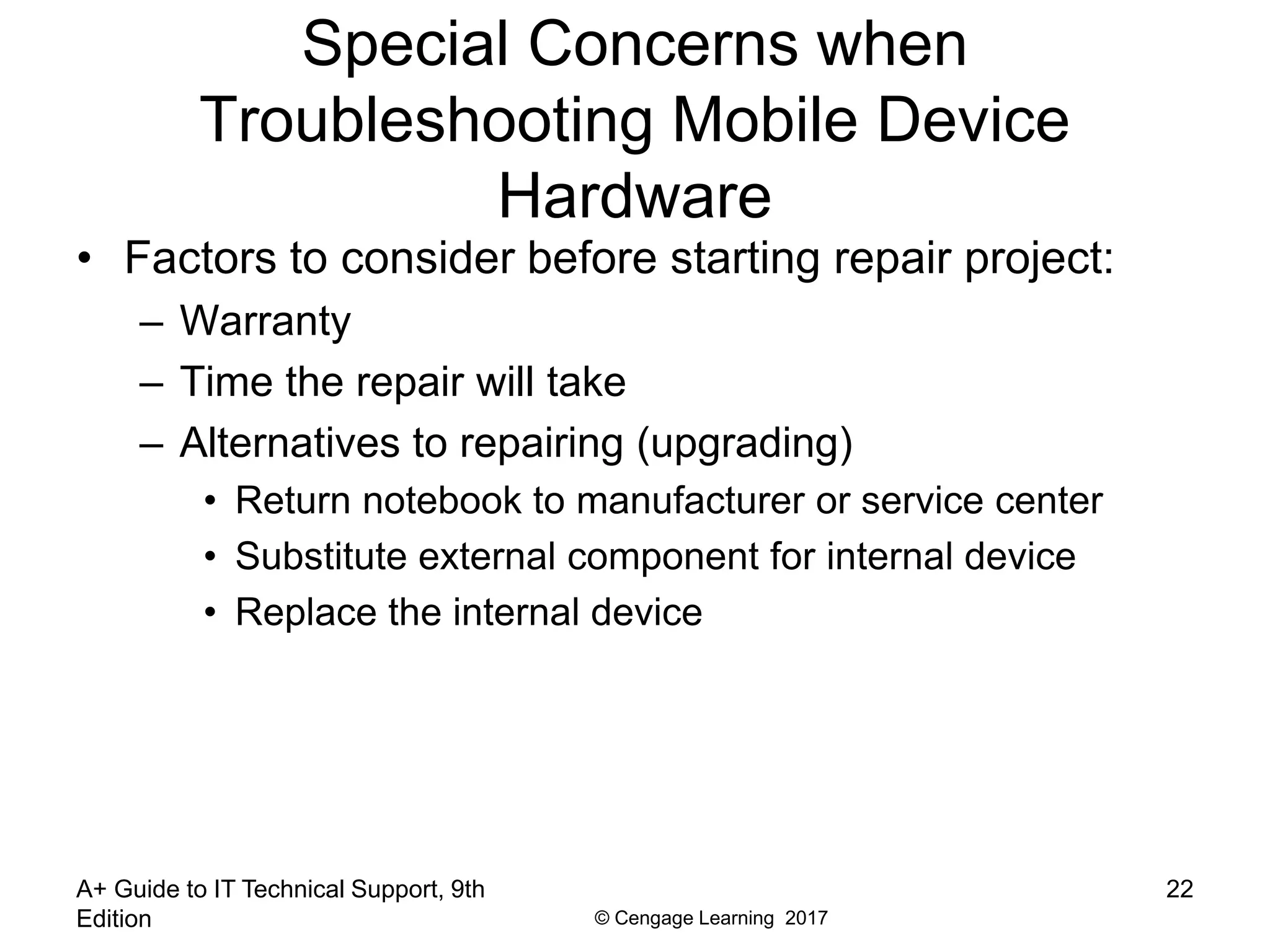
• Factors to consider before starting repair project:
– Warranty
– Time the repair will take
– Alternatives to repairing (upgrading)
• Return notebook to manufacturer or service center
• Substitute external component for internal device
• Replace the internal device
A+ Guide to IT Technical Support, 9th
Edition
22
© Cengage Learning 2017
Troubleshooting the Electrical System
• Electrical problems can:
– Occur before or after the boot
– Be consistent or intermittent
• Possible symptoms of electrical problem:
– Computer appears to be “dead”
– Computer sometimes locks up during booting
– Error codes or beeps occur during booting
– Smell burnt parts or odors
– Computer powers down at unexpected times
– Computer appears dead except you hear a whine
coming from the power supply
A+ Guide to IT Technical Support, 9th
Edition
23
© Cengage Learning 2017
Troubleshooting the Electrical System
• Try these simple things first:
– If you small any burnt part, don’t turn system on
• Find fried part and replace
– If power supply is whining, don’t turn system on
• Open case and look for short or consider upgrading
• Test power supply with a power supply tester
– Check power cord connection and power bar it may
be plugged into
– Is power outlet controlled by wall switch? If so, turn it
on
– Are any cable connections loose?
A+ Guide to IT Technical Support, 9th
Edition
24
© Cengage Learning 2017
Troubleshooting the Electrical System
• Try these simple things first (cont’d):
– Is the circuit breaker blown? Is the house circuit
overloaded?
– Are all switches on the system turned on?
– Is it possible the system has overheated? If so, wait
awhile and try again
– Older computers might be affected by
electromagnetic interference (EMI)
• Check for sources of EMI such as fluorescent lighting
or an electric fan or copier sitting near PC
A+ Guide to IT Technical Support, 9th
Edition
25
© Cengage Learning 2017
Troubleshooting the Electrical System
• Problem still not solved, look inside the case:
– Check all power connections from the power supply
to the motherboard and drives
– If you smell burnt parts, search for shorts and frayed
and burnt wires
– If you suspect the power supply is bad, test it with a
power supply tester
A+ Guide to IT Technical Support, 9th
Edition
26
© Cengage Learning 2017
Problems That Come and Go
• Generally, intermittent problems are more difficult to
solve
• Symptoms of what may be an intermittent problem:
– Computer stops or hangs for no reason
– Memory errors appear intermittently
– Data is written incorrectly to the hard drive
– Keyboard stops working at odd times
– Motherboard fails or is damaged
– Power supply overheats and becomes hot to touch
– Power supply fan whines and becomes noisy
A+ Guide to IT Technical Support, 9th
Edition
27
© Cengage Learning 2017
Problems That Come and Go
• Eliminate the electrical system as the source of an
intermittent problem:
– Consider the power supply is inadequate
– Suspect the power supply is faulty
– The power supply fan might not work
A+ Guide to IT Technical Support, 9th
Edition
28
© Cengage Learning 2017
Power Problems With the Motherboard
• Short might occur if a motherboard component
makes improper contact with the chassis
– Can seriously damage the motherboard
– Check for missing/loose standoffs or loose screws
• Shorts in motherboard circuits might also cause
problems
– Look for damage on the bottom of the motherboard
– Look for burned-out capacitors that are spotted brown
or corroded
A+ Guide to IT Technical Support, 9th
Edition
29
© Cengage Learning 2017
Problems With Overheating
• Symptoms of overheating:
– System hangs or freezes at odd times or after the
boot starts
– Windows BSOD (blue screen of death) error occurs
during the boot
– You cannot hear a fan running or the fan makes a
whining sound
– You cannot feel air being pulled into or out of the case
• You can purchase a temperature sensor that will
sound an alarm when the inside of the case is too
hot
A+ Guide to IT Technical Support, 9th
Edition
30
© Cengage Learning 2017
Problems With Overheating
• Things to do to solve overheating:
– If system hangs, go into UEFI/BIOS setup and find
the CPU screen that reports temperature (should not
exceed that recommended by the CPU manufacturer)
– Use compressed air, a blower, or antistatic vacuum to
remove dust from the power supply and vents
– Check airflow inside the case to see if fans are
running (may need to replace a fan)
– Install extra fans if case will hold them
– Can the side of the case hold a chassis air guide that
guides air to the processor? If so, install one
A+ Guide to IT Technical Support, 9th
Edition
31
© Cengage Learning 2017
Problems With Overheating
A+ Guide to IT Technical Support, 9th
Edition
32
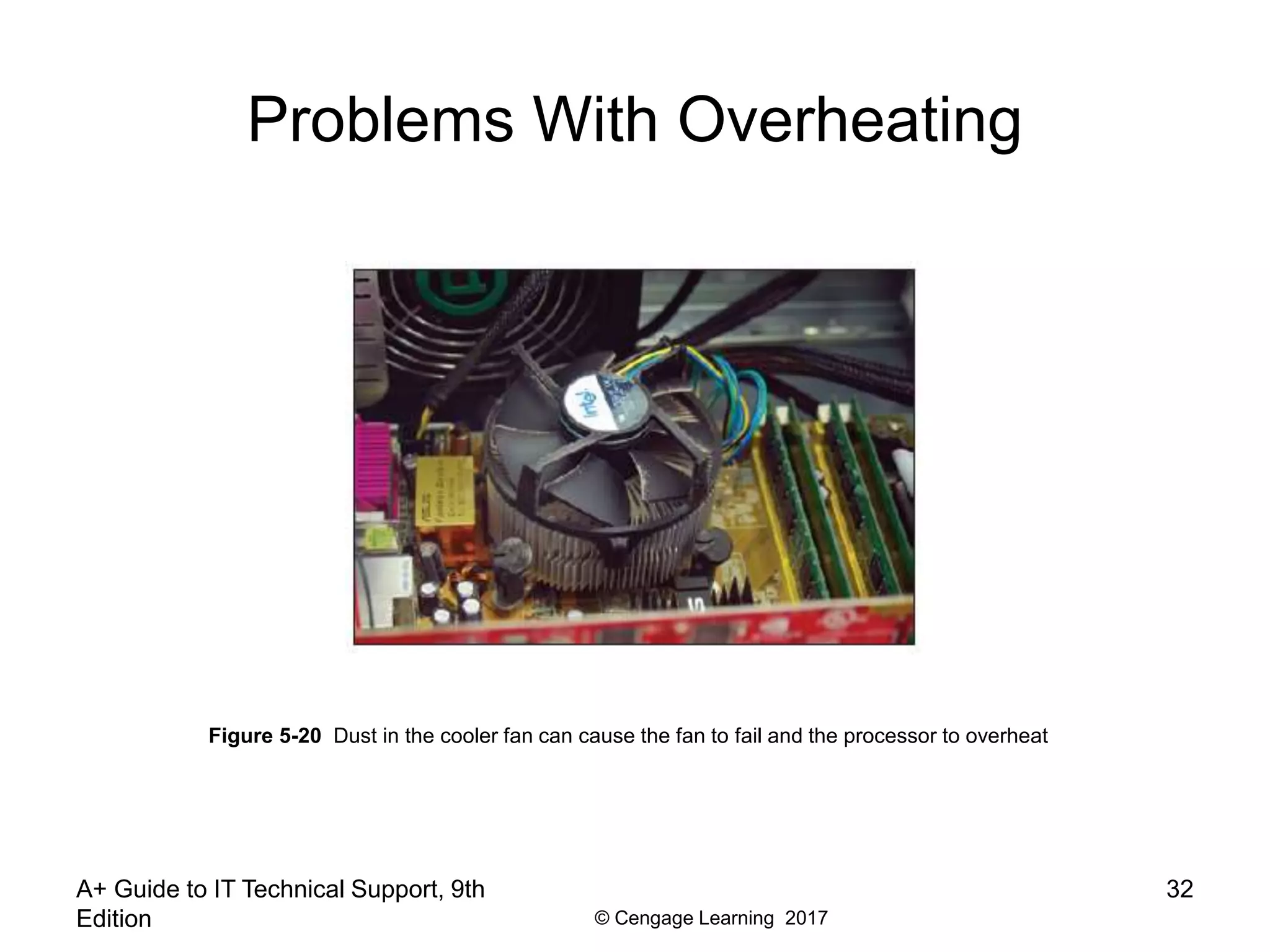
Figure 5-20 Dust in the cooler fan can cause the fan to fail and the processor to overheat
© Cengage Learning 2017
Problems With Overheating
A+ Guide to IT Technical Support, 9th
Edition
33
Figure 5-21 Install one exhaust fan on the rear of the case to help pull air through the case
© Cengage Learning 2017
Problems With Overheating
• Things to do to solve overheating (cont’d):
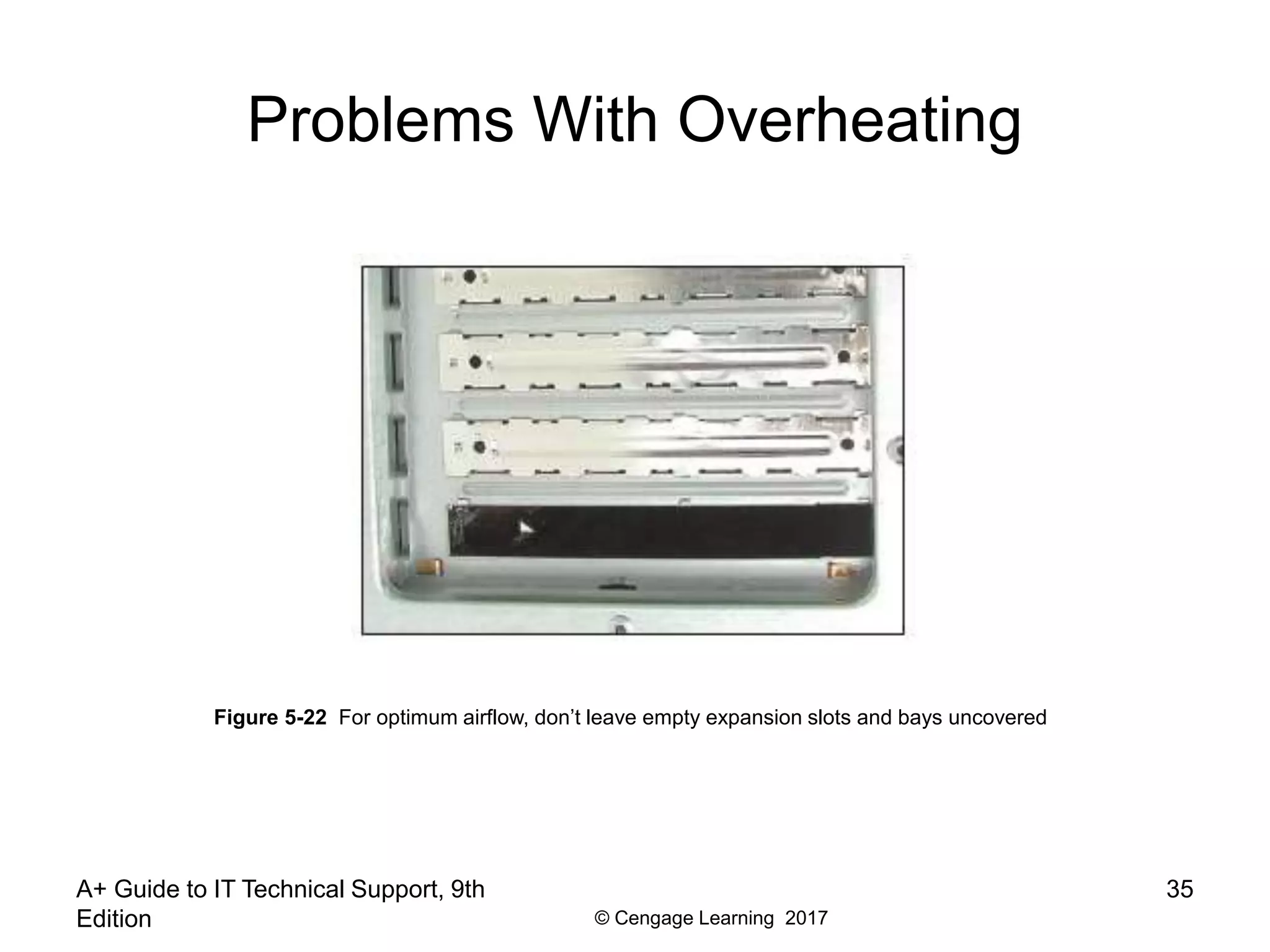
– To improve airflow, replace missing faceplates and
expansion slot covers
– Ensure cables are not in the way of airflow
– Place case so that there are a few inches of space on
both sides and the top of the case
– Verify the cooler is connected properly to the
processor
– After closing the case, leave system off for at least 30
minutes
A+ Guide to IT Technical Support, 9th
Edition
34
© Cengage Learning 2017
Problems With Overheating
A+ Guide to IT Technical Support, 9th
Edition
35
Figure 5-22 For optimum airflow, don’t leave empty expansion slots and bays uncovered
© Cengage Learning 2017
Problems With Overheating
A+ Guide to IT Technical Support, 9th
Edition
36
Figure 5-23 Use cable ties to hold cables out of the way of fans and airflow
© Cengage Learning 2017
Problems With Overheating
• Things to do to solve overheating (cont’d):
– Check UEFI/BIOS setup to see if the processor is
being overclocked (can cause system to overheat)
– Have too many peripherals been installed inside the
case? Try to leave an empty slot between each card
– Flash UEFI/BIOS to update firmware on motherboard
– Replace thermal compound if it has hardened
A+ Guide to IT Technical Support, 9th
Edition
37
© Cengage Learning 2017
Problems With Overheating
A+ Guide to IT Technical Support, 9th
Edition
38
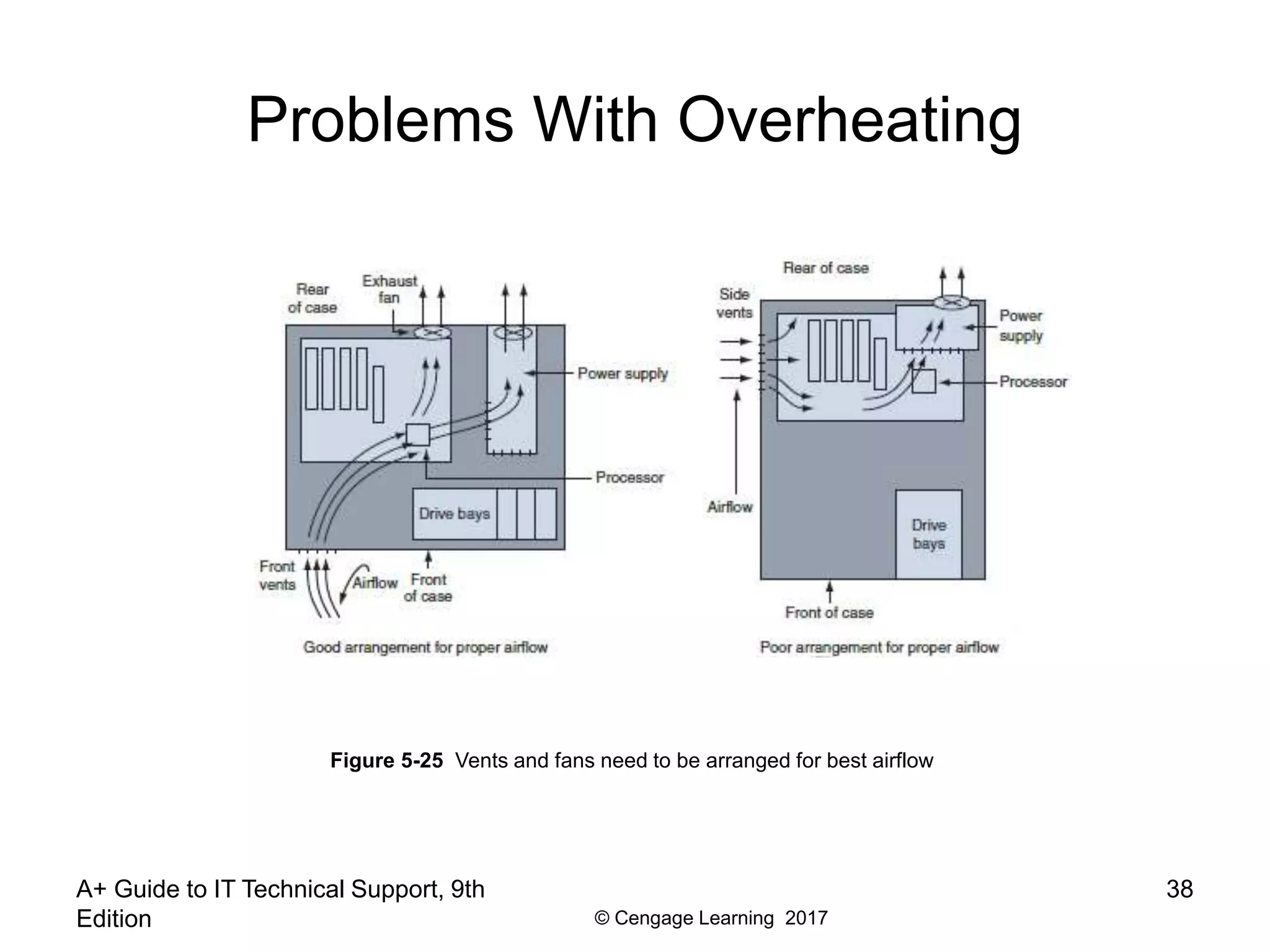
Figure 5-25 Vents and fans need to be arranged for best airflow
© Cengage Learning 2017
Problems With Overheating
• Use a power supply that has vents on the bottom
and front for better ventilation
A+ Guide to IT Technical Support, 9th
Edition
39
Figure 5-26 This power supply has vents on the bottom to provide better airflow inside the case
© Cengage Learning 2017
Problems With Overheating
• An intake fan on the front of the case might help pull
air into the case
• Check with processor and case manufacturers
– For specific instructions as to the placement of fans
and what type of fan and heat sink to use
• Intel and AMD recommend a chassis air guide
(CAG) as part of the case design
– A round air duct that helps pull and direct fresh air
from outside the case to the cooler and processor
A+ Guide to IT Technical Support, 9th
Edition
40
© Cengage Learning 2017
Problems with Laptop Power Systems
• Laptop power sources
– AC adapter or a battery pack
– Today’s batteries use lithium ion technology
• Auto-switching AC adapter feature
– Device automatically switches from 110 V to 220 V
AC power
• Some laptops use two batteries
– Second battery is known as a sheet battery
A+ Guide to IT Technical Support, 9th
Edition
41
© Cengage Learning 2017
Problems with Laptop Power Systems
• If power is not getting to the system or battery
indicator light is lit:
– Verify the AC adapter is plugged into an outlet
– Check if AC adapter’s plug is secure outlet
– Check connections on both sides of AC adapter
transformer
– Check connection at notebook
• If battery is not charging when AC adapter is
plugged in, problem might be with battery or
motherboard
A+ Guide to IT Technical Support, 9th
Edition
42
© Cengage Learning 2017
Troubleshooting the Motherboard,
Processor, and RAM
• Symptoms that a motherboard, processor, or
memory is failing:
– System begins to boot but then powers down
– Error message is displayed during the boot
– System reports less memory than installed
– System becomes unstable, hangs, or freezes
– Intermittent Windows or hard drive errors occur
– Components on the motherboard or devices
connected to it don’t work
• Check simple things first
A+ Guide to IT Technical Support, 9th
Edition
43
© Cengage Learning 2017
Troubleshooting the Motherboard,
Processor, and RAM
• Follow these steps to find source of problem:
– 1. Search the Internet for the error message
– 2. Run antivirus software to check for viruses
– 3. A memory module might be failing
• Use Memory Diagnostics tool to test memory
– 4. Check for potential hardware problems using
Device Manager
– 5. Download and install any Windows updates or
patches
– 6. If problem began after a change or new install,
uninstall device or application
A+ Guide to IT Technical Support, 9th
Edition
44
© Cengage Learning 2017
Troubleshooting the Motherboard,
Processor, and RAM
• Follow these steps to find source of problem (cont’d):
– 7. Use System window to find out how much RAM is
installed (consider upgrading if not enough)
– 8. Check UEFI/BIOS setup to ensure proper settings
– 9. Disable any quick booting features in BIOS
• Then look for errors reported during the boot
– 10. Flash BIOS to update firmware on the board
– 11. Check CD that came with motherboard
• May have diagnostic tests
– 12. Update all drivers of motherboard components that
are not working
A+ Guide to IT Technical Support, 9th
Edition
45
© Cengage Learning 2017
Troubleshooting the Motherboard,
Processor, and RAM
• Follow these steps to find source of problem (cont’d):
– 13. If an onboard port is not working:
• Verify the problem is not with the device using the port
• Go into UEFI/BIOS setup and verify the port is enabled
• Check Device Manager and verify Windows recognizes
port with no errors
• Update motherboard drivers for this port from
manufacturer’s web site
• Use a loop-back plug to test the port
• Disable the port in BIOS setup and install an expansion
card
A+ Guide to IT Technical Support, 9th
Edition
46
© Cengage Learning 2017
Troubleshooting the Motherboard,
Processor, and RAM
• Follow these steps to find source of problem (cont’d):
– 14. Suspect the problem is a failing hard drive
– 15. Suspect the problem is caused by overheating
– 16. Verify the installed processor is supported by the
motherboard
A+ Guide to IT Technical Support, 9th
Edition
47
© Cengage Learning 2017
Troubleshooting the Motherboard,
Processor, and RAM
• For Windows 8, many continuous restart errors can
be solved by performing a Startup Repair process
• For Windows 7/Vista, error messages disappear
before they can be read as the system reboots
– Disable automatic restarts by using the Advanced
Boot Options menu (press F8 as Windows starts)
A+ Guide to IT Technical Support, 9th
Edition
48
© Cengage Learning 2017
Troubleshooting the Motherboard,
Processor, and RAM
• If you have checked Windows and UEFI/BIOS
settings and have not identified the source of the
problem, open the case and check inside
• With the case open, follow these steps:
– 1. Check that all power and data cables are securely
connected
– 2. Look for physical damage on the motherboard
– 3. Reduce the system to essentials
– 4. Try using a POST diagnostic card
– 5. Suspect the problem is caused by a failing power
supply
A+ Guide to IT Technical Support, 9th
Edition
49
© Cengage Learning 2017
Troubleshooting the Motherboard,
Processor, and RAM
• With the case open, follow these steps (cont’d):
– 6. Exchange the processor
– 7. Exchange the motherboard
• Before you do this, measure the voltage output of the
power supply or replace it (in case it damaged the
motherboard)
A+ Guide to IT Technical Support, 9th
Edition
50
© Cengage Learning 2017
Troubleshooting Mobile Devices
• Solutions for a cell phone that is overheating:
– Check if heat is coming from the bottom of cell phone,
where battery is located
• Use different AC adapter to charge battery
• Examine battery for damage (if no longer under
warranty)
– If heat is coming from other areas of the phone:
• Too many apps might be open
• Follow troubleshooting steps for phone’s OS
• Phone processor might be overworked (allow to cool)
• Remove phone from case
A+ Guide to IT Technical Support, 9th
Edition
51
© Cengage Learning 2017
Troubleshooting Mobile Devices
• Other problems and solutions:
– For a frozen system:
• For iPhone or iPad, reset the device
• For Android device, reboot the system by following
manufacturer directions for a reboot
• For Windows Phone, hold down the Power button and
then swipe Slide down to power off
– Battery charge lasts a short time
• Try exchanging the AC adapter
• If that doesn’t work, exchange battery unless device is
under warranty
A+ Guide to IT Technical Support, 9th
Edition
52
© Cengage Learning 2017
Troubleshooting Mobile Devices
• Other problems and solutions:
– When installing apps that don’t load or load slowly
• A hot or failing battery might be the problem
– For slow performance, close apps you’re not using,
clean Android cached data, and disable live
wallpapers
– If device is unable to decrypt email, may need to
generate a new public key and private key and
distribute your new public key to those who send
encrypted email
A+ Guide to IT Technical Support, 9th
Edition
53
© Cengage Learning 2017
Summary
• Devices used to keep a processor and system cool
include CPU coolers, fans, heat sinks, and liquid cooling
• Liquid cooling system use liquids pumped through
system to keep it cool
• Important features of a power supply to consider when
purchasing it are: form factor, wattage capacity, number
and type of connectors, fan size, support dual video
cards, and warranty
• To decide on the wattage capacity of a power supply,
add up the wattage requirements for all components and
add 30 percent
A+ Guide to IT Technical Support, 9th
Edition
54
© Cengage Learning 2017
A+ Guide to IT Technical Support, 9th
Edition
55
Summary
• Always begin troubleshooting by interviewing the
user
• When troubleshooting, check the simple things first
• Decide if problem occurs before or after a
successful boot and if it is caused by hardware or
software
• When troubleshooting mobile devices, consider the
warranty and that replacing a component might cost
more than replacing the device
• Listen for spinning fans or drives and look for
indicator lights to ensure a system is getting power
© Cengage Learning 2017
A+ Guide to IT Technical Support, 9th
Edition
56
Summary
• Use a power supply tester to test the power supply
• Intermittent problems that come and go are the most
difficult to solve
• Removing dust from a system, providing for proper
ventilation, and installing extra fans can help keep a
system from overheating
• The battery and DC jack are considered field
replaceable units in a laptop that pertain to the
power system
• Use a multimeter to check the voltage output of an
AC adapter
© Cengage Learning 2017
Summary
• UEFI/BIOS gives beep codes when a POST error
occurs during the boot before it tests video
• Error messages on a black screen during the boot
are usually put there by startup UEFI/BIOS during
the POST
• An unstable system that freezes or hangs at odd
times can be caused by a faulty power supply, RAM,
hard drive, motherboard, processor, Windows error,
or overheating
• A POST diagnostic card can troubleshoot problems
with the motherboard
A+ Guide to IT Technical Support, 9th
Edition
57
© Cengage Learning 2017
Summary
• A mobile device battery that overheats or quickly
loses its charge might need replacing, but first try
replacing the AC adapter
• For a frozen system, try resetting an iPhone or iPad,
rebooting an Android device, or resetting a Windows
Phone
A+ Guide to IT Technical Support, 9th
Edition
58

A+ Chapter 5 Review

  • 1.
    A+ Guide toIT Technical Support, 9th Edition Chapter 5 Supporting the Power System and Troubleshooting Computers
  • 2.
    © Cengage Learning2017 A+ Guide to IT Technical Support, 9th Edition 2 Objectives • Describe the methods and devices for keeping a system cool • Select a power supply to meet the power needs of a system • Demonstrate an organized approach to solving any computer problem, especially hardware problems occurring during the boot • Troubleshoot problems with the electrical system
  • 3.
    © Cengage Learning2017 A+ Guide to IT Technical Support, 9th Edition 3 Objectives • Troubleshoot problems with the motherboard, processor, and RAM • Troubleshoot hardware problems with mobile devices
  • 4.
    © Cengage Learning2017 Cooling Methods and Devices • If processor, expansion cards, and other components overheat: – System can get unstable – Components can fail or be damaged • Devices used to cool a system: – CPU and case fans – Coolers – Heat sinks – Liquid cooling systems A+ Guide to IT Technical Support, 9th Edition 4
  • 5.
    © Cengage Learning2017 Processor Coolers, Fans, and Heat Sinks • Computer systems use a cooling assembly designed for a specific processor to keep temperatures below the processor maximum temperature • Good processor coolers maintain a temperature of: – 90-110 degrees F (32-43 degrees C) • Cooler: sits on top of processor – Consists of a fan and heat sink – Heat sink: uses fins that draw heat away from processor – Fan: blows drawn heat away from CPU unit A+ Guide to IT Technical Support, 9th Edition 5
  • 6.
    © Cengage Learning2017 Processor Coolers, Fans, and Heat Sinks A+ Guide to IT Technical Support, 9th Edition 6 Figure 5-1 A cooler sits on top of a processor to help keep it cool
  • 7.
    © Cengage Learning2017 Processor Coolers, Fans, and Heat Sinks • Cooler (cont’d): – Made of aluminum, copper or combination of both – Bracketed to motherboard using a wire or plastic clip – A creamlike thermal compound eliminates air pockets, helping to draw heat off the processor – Gets power by using a 4-pin fan header on the motherboard – Fanless CPU cooler (passive CPU cooler) contain heat pipes, which contain liquid that becomes vapor when heated • Vapor draws heat away from the CPU A+ Guide to IT Technical Support, 9th Edition 7
  • 8.
    © Cengage Learning2017 Case Fans and Other Fans and Heat Sinks • Case fans: help draw air out of the case to prevent overheating – Most cases have one or more positions on the case to hold a case fan – Large fans tend to perform better than small fans • Other fans: – Some graphics (video) cards come with a fan – Fan cards can be mounted next to graphics cards • Be sure to select a fan card that fits the expansion slot you plan to use A+ Guide to IT Technical Support, 9th Edition 8
  • 9.
    © Cengage Learning2017 Case Fans and Other Fans and Heat Sinks • Other fans (cont’d): – RAM cooler – clips over a DIMM memory module • May be powered by a SATA or 4-pin Molex power connector A+ Guide to IT Technical Support, 9th Edition 9 Figure 5-7 A RAM cooler keeps memory modules cool
  • 10.
    © Cengage Learning2017 Liquid Cooling Systems • Liquid cooling system – A small pump sits inside the case and tubes moves liquid around components and then away from them to a place where fans cool the liquid A+ Guide to IT Technical Support, 9th Edition 10 Figure 5-8 A liquid cooling system pumps liquid outside and away from components where fans can then cool the liquid
  • 11.
    © Cengage Learning2017 A+ Guide to IT Technical Support, 9th Edition 11 Selecting a Power Supply • Reasons to replace a power supply: – Power supply in existing system fails – Power supply in existing system is not adequate • When building from scratch, some cases come with power supply already installed
  • 12.
    © Cengage Learning2017 A+ Guide to IT Technical Support, 9th Edition 12 Types and Characteristics of Power Supplies • Important power supply feature considerations: – Form factor determines power supply size – Wattage ratings (listed in documentation) – Number and type of connectors – Fans inside the PSU – Dual voltage options – Warranty and overall quality
  • 13.
    © Cengage Learning2017 A+ Guide to IT Technical Support, 9th Edition 13 How to Calculate Wattage Capacity • Determining wattage capacity – Consider all components inside case – Consider USB and FireWire devices • Get power from ports connected to the motherboard • Points to keep in mind – Video cards draw the most power – The power supply should be rated 30 percent higher than expected needs • What size Power Supply? – Add up wattage requirements and add 30 percent
  • 14.
    © Cengage Learning2017 A+ Guide to IT Technical Support, 9th Edition 14 How to Calculate Wattage Capacity Table 5-2 To calculate the power supply rating you need, add up total wattage
  • 15.
    © Cengage Learning2017 How to Approach a Hardware Problem • Troubleshooting resources: – The web (Internet) – Chat forums or email technical support – Manufacturer’s diagnostic software – User manuals – Technical associates in your organization A+ Guide to IT Technical Support, 9th Edition 15
  • 16.
    © Cengage Learning2017 Step 1: Interview the User • Include these questions: – Can you describe the problem, when did it first start, and when does it occur? – Was the computer recently moved? – Was any new hardware or software recently installed? – Was any software recently reconfigured or upgraded? – Did someone else use your computer recently? A+ Guide to IT Technical Support, 9th Edition 16
  • 17.
    © Cengage Learning2017 Step 1: Interview the User • Include these questions (cont’d): – Does the computer have a history of similar problems? – Is there important data on the drive that is not backed up? – Can you show me how to reproduce the problem? • After gathering information: – Prioritize what to do and begin diagnosing and addressing the problem A+ Guide to IT Technical Support, 9th Edition 17
  • 18.
    © Cengage Learning2017 Step 2: Back Up Data As Needed • Three options for backing up data: – Move the hard drive to another system – Use file recovery software – Hire a professional file recovery service • Before selecting a service, read reviews, understand the warranty and guarantees, and get a customer recommendation A+ Guide to IT Technical Support, 9th Edition 18
  • 19.
    © Cengage Learning2017 Step 3: Examine the System and Establish a Theory A+ Guide to IT Technical Support, 9th Edition 19 Figure 5-16 Use this flowchart when first facing a computer problem
  • 20.
    © Cengage Learning2017 Step 3: Examine the System and Establish a Theory A+ Guide to IT Technical Support, 9th Edition 20 Table 5-5 Common beep codes and their meanings for Intel and Aware BIOS
  • 21.
    © Cengage Learning2017 Steps 4, 5, and 6: Fix the Problem, Verify the Fix, and Document the Outcome • After understanding the problem – Plan steps to resolve the problem • After the fix – Verify the system works by performing one last hard boot and making sure everything works as expected – Ask if anything could have been done to prevent the problem, if so, take preventative action • Most organization require documentation in a call tracking or helpdesk application – Record findings A+ Guide to IT Technical Support, 9th Edition 21
  • 22.
    © Cengage Learning2017 Special Concerns when Troubleshooting Mobile Device Hardware • Factors to consider before starting repair project: – Warranty – Time the repair will take – Alternatives to repairing (upgrading) • Return notebook to manufacturer or service center • Substitute external component for internal device • Replace the internal device A+ Guide to IT Technical Support, 9th Edition 22
  • 23.
    © Cengage Learning2017 Troubleshooting the Electrical System • Electrical problems can: – Occur before or after the boot – Be consistent or intermittent • Possible symptoms of electrical problem: – Computer appears to be “dead” – Computer sometimes locks up during booting – Error codes or beeps occur during booting – Smell burnt parts or odors – Computer powers down at unexpected times – Computer appears dead except you hear a whine coming from the power supply A+ Guide to IT Technical Support, 9th Edition 23
  • 24.
    © Cengage Learning2017 Troubleshooting the Electrical System • Try these simple things first: – If you small any burnt part, don’t turn system on • Find fried part and replace – If power supply is whining, don’t turn system on • Open case and look for short or consider upgrading • Test power supply with a power supply tester – Check power cord connection and power bar it may be plugged into – Is power outlet controlled by wall switch? If so, turn it on – Are any cable connections loose? A+ Guide to IT Technical Support, 9th Edition 24
  • 25.
    © Cengage Learning2017 Troubleshooting the Electrical System • Try these simple things first (cont’d): – Is the circuit breaker blown? Is the house circuit overloaded? – Are all switches on the system turned on? – Is it possible the system has overheated? If so, wait awhile and try again – Older computers might be affected by electromagnetic interference (EMI) • Check for sources of EMI such as fluorescent lighting or an electric fan or copier sitting near PC A+ Guide to IT Technical Support, 9th Edition 25
  • 26.
    © Cengage Learning2017 Troubleshooting the Electrical System • Problem still not solved, look inside the case: – Check all power connections from the power supply to the motherboard and drives – If you smell burnt parts, search for shorts and frayed and burnt wires – If you suspect the power supply is bad, test it with a power supply tester A+ Guide to IT Technical Support, 9th Edition 26
  • 27.
    © Cengage Learning2017 Problems That Come and Go • Generally, intermittent problems are more difficult to solve • Symptoms of what may be an intermittent problem: – Computer stops or hangs for no reason – Memory errors appear intermittently – Data is written incorrectly to the hard drive – Keyboard stops working at odd times – Motherboard fails or is damaged – Power supply overheats and becomes hot to touch – Power supply fan whines and becomes noisy A+ Guide to IT Technical Support, 9th Edition 27
  • 28.
    © Cengage Learning2017 Problems That Come and Go • Eliminate the electrical system as the source of an intermittent problem: – Consider the power supply is inadequate – Suspect the power supply is faulty – The power supply fan might not work A+ Guide to IT Technical Support, 9th Edition 28
  • 29.
    © Cengage Learning2017 Power Problems With the Motherboard • Short might occur if a motherboard component makes improper contact with the chassis – Can seriously damage the motherboard – Check for missing/loose standoffs or loose screws • Shorts in motherboard circuits might also cause problems – Look for damage on the bottom of the motherboard – Look for burned-out capacitors that are spotted brown or corroded A+ Guide to IT Technical Support, 9th Edition 29
  • 30.
    © Cengage Learning2017 Problems With Overheating • Symptoms of overheating: – System hangs or freezes at odd times or after the boot starts – Windows BSOD (blue screen of death) error occurs during the boot – You cannot hear a fan running or the fan makes a whining sound – You cannot feel air being pulled into or out of the case • You can purchase a temperature sensor that will sound an alarm when the inside of the case is too hot A+ Guide to IT Technical Support, 9th Edition 30
  • 31.
    © Cengage Learning2017 Problems With Overheating • Things to do to solve overheating: – If system hangs, go into UEFI/BIOS setup and find the CPU screen that reports temperature (should not exceed that recommended by the CPU manufacturer) – Use compressed air, a blower, or antistatic vacuum to remove dust from the power supply and vents – Check airflow inside the case to see if fans are running (may need to replace a fan) – Install extra fans if case will hold them – Can the side of the case hold a chassis air guide that guides air to the processor? If so, install one A+ Guide to IT Technical Support, 9th Edition 31
  • 32.
    © Cengage Learning2017 Problems With Overheating A+ Guide to IT Technical Support, 9th Edition 32 Figure 5-20 Dust in the cooler fan can cause the fan to fail and the processor to overheat
  • 33.
    © Cengage Learning2017 Problems With Overheating A+ Guide to IT Technical Support, 9th Edition 33 Figure 5-21 Install one exhaust fan on the rear of the case to help pull air through the case
  • 34.
    © Cengage Learning2017 Problems With Overheating • Things to do to solve overheating (cont’d): – To improve airflow, replace missing faceplates and expansion slot covers – Ensure cables are not in the way of airflow – Place case so that there are a few inches of space on both sides and the top of the case – Verify the cooler is connected properly to the processor – After closing the case, leave system off for at least 30 minutes A+ Guide to IT Technical Support, 9th Edition 34
  • 35.
    © Cengage Learning2017 Problems With Overheating A+ Guide to IT Technical Support, 9th Edition 35 Figure 5-22 For optimum airflow, don’t leave empty expansion slots and bays uncovered
  • 36.
    © Cengage Learning2017 Problems With Overheating A+ Guide to IT Technical Support, 9th Edition 36 Figure 5-23 Use cable ties to hold cables out of the way of fans and airflow
  • 37.
    © Cengage Learning2017 Problems With Overheating • Things to do to solve overheating (cont’d): – Check UEFI/BIOS setup to see if the processor is being overclocked (can cause system to overheat) – Have too many peripherals been installed inside the case? Try to leave an empty slot between each card – Flash UEFI/BIOS to update firmware on motherboard – Replace thermal compound if it has hardened A+ Guide to IT Technical Support, 9th Edition 37
  • 38.
    © Cengage Learning2017 Problems With Overheating A+ Guide to IT Technical Support, 9th Edition 38 Figure 5-25 Vents and fans need to be arranged for best airflow
  • 39.
    © Cengage Learning2017 Problems With Overheating • Use a power supply that has vents on the bottom and front for better ventilation A+ Guide to IT Technical Support, 9th Edition 39 Figure 5-26 This power supply has vents on the bottom to provide better airflow inside the case
  • 40.
    © Cengage Learning2017 Problems With Overheating • An intake fan on the front of the case might help pull air into the case • Check with processor and case manufacturers – For specific instructions as to the placement of fans and what type of fan and heat sink to use • Intel and AMD recommend a chassis air guide (CAG) as part of the case design – A round air duct that helps pull and direct fresh air from outside the case to the cooler and processor A+ Guide to IT Technical Support, 9th Edition 40
  • 41.
    © Cengage Learning2017 Problems with Laptop Power Systems • Laptop power sources – AC adapter or a battery pack – Today’s batteries use lithium ion technology • Auto-switching AC adapter feature – Device automatically switches from 110 V to 220 V AC power • Some laptops use two batteries – Second battery is known as a sheet battery A+ Guide to IT Technical Support, 9th Edition 41
  • 42.
    © Cengage Learning2017 Problems with Laptop Power Systems • If power is not getting to the system or battery indicator light is lit: – Verify the AC adapter is plugged into an outlet – Check if AC adapter’s plug is secure outlet – Check connections on both sides of AC adapter transformer – Check connection at notebook • If battery is not charging when AC adapter is plugged in, problem might be with battery or motherboard A+ Guide to IT Technical Support, 9th Edition 42
  • 43.
    © Cengage Learning2017 Troubleshooting the Motherboard, Processor, and RAM • Symptoms that a motherboard, processor, or memory is failing: – System begins to boot but then powers down – Error message is displayed during the boot – System reports less memory than installed – System becomes unstable, hangs, or freezes – Intermittent Windows or hard drive errors occur – Components on the motherboard or devices connected to it don’t work • Check simple things first A+ Guide to IT Technical Support, 9th Edition 43
  • 44.
    © Cengage Learning2017 Troubleshooting the Motherboard, Processor, and RAM • Follow these steps to find source of problem: – 1. Search the Internet for the error message – 2. Run antivirus software to check for viruses – 3. A memory module might be failing • Use Memory Diagnostics tool to test memory – 4. Check for potential hardware problems using Device Manager – 5. Download and install any Windows updates or patches – 6. If problem began after a change or new install, uninstall device or application A+ Guide to IT Technical Support, 9th Edition 44
  • 45.
    © Cengage Learning2017 Troubleshooting the Motherboard, Processor, and RAM • Follow these steps to find source of problem (cont’d): – 7. Use System window to find out how much RAM is installed (consider upgrading if not enough) – 8. Check UEFI/BIOS setup to ensure proper settings – 9. Disable any quick booting features in BIOS • Then look for errors reported during the boot – 10. Flash BIOS to update firmware on the board – 11. Check CD that came with motherboard • May have diagnostic tests – 12. Update all drivers of motherboard components that are not working A+ Guide to IT Technical Support, 9th Edition 45
  • 46.
    © Cengage Learning2017 Troubleshooting the Motherboard, Processor, and RAM • Follow these steps to find source of problem (cont’d): – 13. If an onboard port is not working: • Verify the problem is not with the device using the port • Go into UEFI/BIOS setup and verify the port is enabled • Check Device Manager and verify Windows recognizes port with no errors • Update motherboard drivers for this port from manufacturer’s web site • Use a loop-back plug to test the port • Disable the port in BIOS setup and install an expansion card A+ Guide to IT Technical Support, 9th Edition 46
  • 47.
    © Cengage Learning2017 Troubleshooting the Motherboard, Processor, and RAM • Follow these steps to find source of problem (cont’d): – 14. Suspect the problem is a failing hard drive – 15. Suspect the problem is caused by overheating – 16. Verify the installed processor is supported by the motherboard A+ Guide to IT Technical Support, 9th Edition 47
  • 48.
    © Cengage Learning2017 Troubleshooting the Motherboard, Processor, and RAM • For Windows 8, many continuous restart errors can be solved by performing a Startup Repair process • For Windows 7/Vista, error messages disappear before they can be read as the system reboots – Disable automatic restarts by using the Advanced Boot Options menu (press F8 as Windows starts) A+ Guide to IT Technical Support, 9th Edition 48
  • 49.
    © Cengage Learning2017 Troubleshooting the Motherboard, Processor, and RAM • If you have checked Windows and UEFI/BIOS settings and have not identified the source of the problem, open the case and check inside • With the case open, follow these steps: – 1. Check that all power and data cables are securely connected – 2. Look for physical damage on the motherboard – 3. Reduce the system to essentials – 4. Try using a POST diagnostic card – 5. Suspect the problem is caused by a failing power supply A+ Guide to IT Technical Support, 9th Edition 49
  • 50.
    © Cengage Learning2017 Troubleshooting the Motherboard, Processor, and RAM • With the case open, follow these steps (cont’d): – 6. Exchange the processor – 7. Exchange the motherboard • Before you do this, measure the voltage output of the power supply or replace it (in case it damaged the motherboard) A+ Guide to IT Technical Support, 9th Edition 50
  • 51.
    © Cengage Learning2017 Troubleshooting Mobile Devices • Solutions for a cell phone that is overheating: – Check if heat is coming from the bottom of cell phone, where battery is located • Use different AC adapter to charge battery • Examine battery for damage (if no longer under warranty) – If heat is coming from other areas of the phone: • Too many apps might be open • Follow troubleshooting steps for phone’s OS • Phone processor might be overworked (allow to cool) • Remove phone from case A+ Guide to IT Technical Support, 9th Edition 51
  • 52.
    © Cengage Learning2017 Troubleshooting Mobile Devices • Other problems and solutions: – For a frozen system: • For iPhone or iPad, reset the device • For Android device, reboot the system by following manufacturer directions for a reboot • For Windows Phone, hold down the Power button and then swipe Slide down to power off – Battery charge lasts a short time • Try exchanging the AC adapter • If that doesn’t work, exchange battery unless device is under warranty A+ Guide to IT Technical Support, 9th Edition 52
  • 53.
    © Cengage Learning2017 Troubleshooting Mobile Devices • Other problems and solutions: – When installing apps that don’t load or load slowly • A hot or failing battery might be the problem – For slow performance, close apps you’re not using, clean Android cached data, and disable live wallpapers – If device is unable to decrypt email, may need to generate a new public key and private key and distribute your new public key to those who send encrypted email A+ Guide to IT Technical Support, 9th Edition 53
  • 54.
    © Cengage Learning2017 Summary • Devices used to keep a processor and system cool include CPU coolers, fans, heat sinks, and liquid cooling • Liquid cooling system use liquids pumped through system to keep it cool • Important features of a power supply to consider when purchasing it are: form factor, wattage capacity, number and type of connectors, fan size, support dual video cards, and warranty • To decide on the wattage capacity of a power supply, add up the wattage requirements for all components and add 30 percent A+ Guide to IT Technical Support, 9th Edition 54
  • 55.
    © Cengage Learning2017 A+ Guide to IT Technical Support, 9th Edition 55 Summary • Always begin troubleshooting by interviewing the user • When troubleshooting, check the simple things first • Decide if problem occurs before or after a successful boot and if it is caused by hardware or software • When troubleshooting mobile devices, consider the warranty and that replacing a component might cost more than replacing the device • Listen for spinning fans or drives and look for indicator lights to ensure a system is getting power
  • 56.
    © Cengage Learning2017 A+ Guide to IT Technical Support, 9th Edition 56 Summary • Use a power supply tester to test the power supply • Intermittent problems that come and go are the most difficult to solve • Removing dust from a system, providing for proper ventilation, and installing extra fans can help keep a system from overheating • The battery and DC jack are considered field replaceable units in a laptop that pertain to the power system • Use a multimeter to check the voltage output of an AC adapter
  • 57.
    © Cengage Learning2017 Summary • UEFI/BIOS gives beep codes when a POST error occurs during the boot before it tests video • Error messages on a black screen during the boot are usually put there by startup UEFI/BIOS during the POST • An unstable system that freezes or hangs at odd times can be caused by a faulty power supply, RAM, hard drive, motherboard, processor, Windows error, or overheating • A POST diagnostic card can troubleshoot problems with the motherboard A+ Guide to IT Technical Support, 9th Edition 57
  • 58.
    © Cengage Learning2017 Summary • A mobile device battery that overheats or quickly loses its charge might need replacing, but first try replacing the AC adapter • For a frozen system, try resetting an iPhone or iPad, rebooting an Android device, or resetting a Windows Phone A+ Guide to IT Technical Support, 9th Edition 58