A+ Guide to IT Technical Support, 9th
Edition
Chapter 3
All About Motherboards
1
© Cengage Learning 2017
A+ Guide to IT Technical Support, 9th
Edition
2
Objectives
• Describe and contrast various types and features of
motherboards
• Configure a motherboard using BIOS or UEFI
firmware
• Maintain a motherboard, including updating drivers,
flashing UEFI/BIOS, and replacing the CMOS
battery
• Select, install, and replace a motherboard
© Cengage Learning 2017
A+ Guide to IT Technical Support, 9th
Edition
3
Motherboard Types and Features
• Motherboard
– Most complicated computer component
– One of the first items to consider when building a
computer
• Consider the following when purchasing a
motherboard:
– Form factor
– Processor socket and chipset
– Buses and number of bus slots
– Other connectors, slots, and ports
© Cengage Learning 2017
A+ Guide to IT Technical Support, 9th
Edition
4
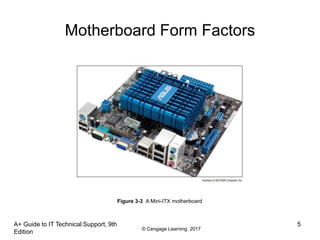
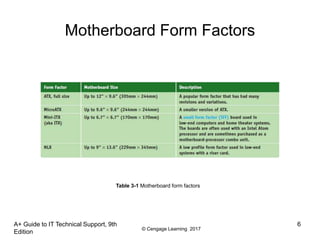
Motherboard Form Factors
• Determines motherboard size, features
– Compatible with power supplies, cases, processors,
expansion cards
• Most popular
– ATX, MicroATX, and Mini-ITX
• Mini-ITX is smaller than MicroATX and is also known as
ITX
• The following slides show examples of form factors
and comparisons of sizes and hold positions of
several form factors
© Cengage Learning 2017
A+ Guide to IT Technical Support, 9th
Edition
5
Motherboard Form Factors
Figure 3-3 A Mini-ITX motherboard
© Cengage Learning 2017
A+ Guide to IT Technical Support, 9th
Edition
6
Motherboard Form Factors
Table 3-1 Motherboard form factors
© Cengage Learning 2017
A+ Guide to IT Technical Support, 9th
Edition
7
Processor Sockets
• Processor socket – determines which processors a
board can support
– Socket holds Intel or AMD processors
• Sockets for Intel processors
– Intel makes several Itanium and Xeon processors
designed for servers
© Cengage Learning 2017
A+ Guide to IT Technical Support, 9th
Edition
8
Processor Sockets
• Sockets and processor use different methods to
make contacts between them:
– Pin grid array (PGA) socket
• Pins aligned in uniform rows around socket
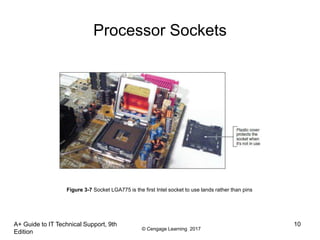
– Land grid array (LGA)
• Uses lands (pads) rather than pins
• Examples of LGA sockets: LGA775 and LGA1366
– Flip-chip land grid array (FCLGA) socket
• Chip is flipped over so that the top of the chip is on the
bottom and makes contact with the socket
© Cengage Learning 2017
Processor Sockets
• Sockets and processor use different methods to
make contacts between them (cont’d):
– Staggered pin grid array (SPGA)
• Pins staggered over socket
• Squeezes more pins into a small space
– Ball grid array (BGA)
• Not really a socket
• Processor is soldered to the motherboard
A+ Guide to IT Technical Support, 9th
Edition
9
© Cengage Learning 2017
Processor Sockets
A+ Guide to IT Technical Support, 9th
Edition
10
Figure 3-7 Socket LGA775 is the first Intel socket to use lands rather than pins
© Cengage Learning 2017
A+ Guide to IT Technical Support, 9th
Edition
11
Processor Sockets
• Zero insertion force (ZIF) sockets
– All current processor sockets
– Side lever lifts processor up and out of the socket
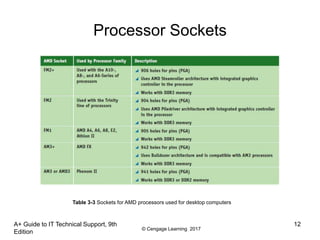
• Sockets for AMD Processors
– AMD uses the PGA socket architecture (desktops)
© Cengage Learning 2017
Processor Sockets
A+ Guide to IT Technical Support, 9th
Edition
12
Table 3-3 Sockets for AMD processors used for desktop computers
© Cengage Learning 2017
A+ Guide to IT Technical Support, 9th
Edition
13
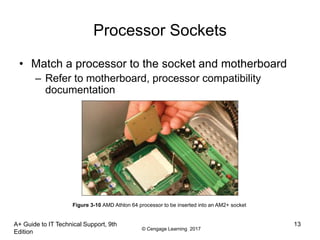
Processor Sockets
• Match a processor to the socket and motherboard
– Refer to motherboard, processor compatibility
documentation
Figure 3-10 AMD Athlon 64 processor to be inserted into an AM2+ socket
© Cengage Learning 2017
A+ Guide to IT Technical Support, 9th
Edition
14
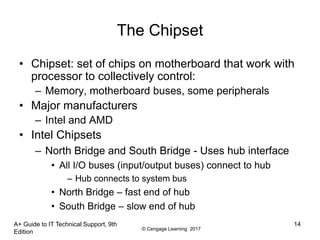
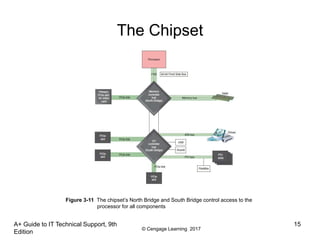
The Chipset
• Chipset: set of chips on motherboard that work with
processor to collectively control:
– Memory, motherboard buses, some peripherals
• Major manufacturers
– Intel and AMD
• Intel Chipsets
– North Bridge and South Bridge - Uses hub interface
• All I/O buses (input/output buses) connect to hub
– Hub connects to system bus
• North Bridge – fast end of hub
• South Bridge – slow end of hub
© Cengage Learning 2017
A+ Guide to IT Technical Support, 9th
Edition
15
The Chipset
Figure 3-11 The chipset’s North Bridge and South Bridge control access to the
processor for all components
© Cengage Learning 2017
A+ Guide to IT Technical Support, 9th
Edition
16
The Chipset
• Intel Chipsets (cont’d)
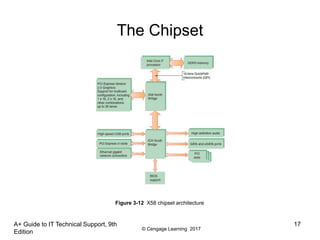
– Nehalem chipset
• Contain memory controller within processor housing
• Memory connects directly to processor
• Has QuickPath Interconnect (QPI) technology
– Has 16 lanes for data packets
– Sandy Bridge chipset
• Memory and graphics controller in processor
• Second Generation Core i7 processor is an example
• Sandy Bridge motherboards use DDR3 memory
© Cengage Learning 2017
A+ Guide to IT Technical Support, 9th
Edition
17
The Chipset
Figure 3-12 X58 chipset architecture
© Cengage Learning 2017
The Chipset
• Intel Chipsets (cont’d)
– Ivy Bridge chipset – 3rd generation processors
released in 2012
• Use less power
• More transistors in a smaller place
• Perform better than earlier products
• Uses a single Platform Controller Hub
A+ Guide to IT Technical Support, 9th
Edition
18
© Cengage Learning 2017
The Chipset
• Intel Chipsets (cont’d)
– Haswell and Broadwell chipsets
• Haswell - released in 2013
– Work with the LGA1150 and LGA2011 sockets
– Work with DDR3 and DDR4 memory and use less power
than previous chipsets
• Broadwell – released in 2015
– Faster than the Haswell chipsets
– Use the LGA1150 socket
A+ Guide to IT Technical Support, 9th
Edition
19
© Cengage Learning 2017
A+ Guide to IT Technical Support, 9th
Edition
20
The Chipset
• AMD chipsets
– AMD A-series
• Designed to support the AMD Accelerated Processing Unit
(APU), which is a combination of a CPU and a graphics
processing unit (GPU)
• Support AMD CrossFire technology, which uses dual video
cards in the same system
– AMD 9-series
• Designed to support AMD processors that can have up to
eight cores
© Cengage Learning 2017
A+ Guide to IT Technical Support, 9th
Edition
21
Buses and Expansion Slots
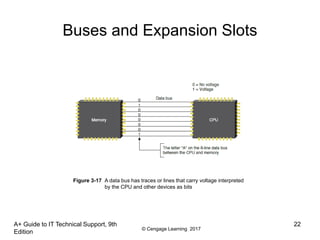
• Bus
– System of pathways used for communication
• Carried by bus:
– Power, control signals, memory addresses, data
– These lines are sometimes called data bus
• Data and instructions exist in binary
– Only two states: on and off
• Data path size: width of a data bus
– Examples: 8-bit bus has eight wire (lines) to transmit
© Cengage Learning 2017
A+ Guide to IT Technical Support, 9th
Edition
22
Buses and Expansion Slots
Figure 3-17 A data bus has traces or lines that carry voltage interpreted
by the CPU and other devices as bits
© Cengage Learning 2017
Buses and Expansion Slots
• System clock (system timer) – times activities on the
motherboard
• Speed of memory, Front Side Bus, processor, or
other component is measured in hertz (Hz), which is
one cycle per second
– Megahertz (MHz): one million cycles per second
– Gigahertz (GHz): one billion cycles per second
• Motherboards can have more than one bus
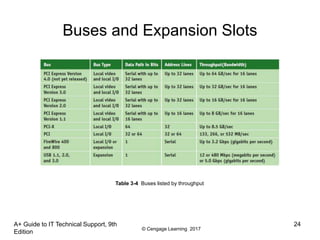
– Table 3-4 on the following slide lists many buses
A+ Guide to IT Technical Support, 9th
Edition
23
© Cengage Learning 2017
A+ Guide to IT Technical Support, 9th
Edition
24
Buses and Expansion Slots
Table 3-4 Buses listed by throughput
© Cengage Learning 2017
A+ Guide to IT Technical Support, 9th
Edition
25
Buses and Expansion Slots
• Conventional PCI
– Improved several times
– PCI Version 2.x introduced the 64-bit, 3.3 V PCI slot,
doubling the data throughput of the bus
– Four types of slots and six possible PCI card
configurations
© Cengage Learning 2017
Buses and Expansion Slots
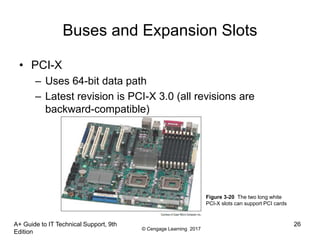
• PCI-X
– Uses 64-bit data path
– Latest revision is PCI-X 3.0 (all revisions are
backward-compatible)
A+ Guide to IT Technical Support, 9th
Edition
26
Figure 3-20 The two long white
PCI-X slots can support PCI cards
© Cengage Learning 2017
Buses and Expansion Slots
• PCI Express (PCIe)
– Not backward compatible with conventional PCI or
PCI-X
– Expected to replace both PCI and PCI-X
– Uses a serial bus, which is faster than parallel
– Comes in four different slot sizes
• PCI Express x1, x4, x8, and x16
– Latest version is PCIe 4.0 which doubles the
throughput of version 3.0
A+ Guide to IT Technical Support, 9th
Edition
27
© Cengage Learning 2017
Buses and Expansion Slots
A+ Guide to IT Technical Support, 9th
Edition
28
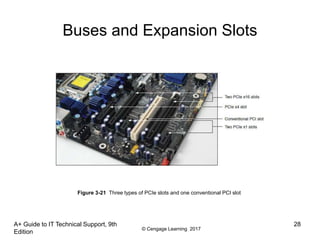
Figure 3-21 Three types of PCIe slots and one conventional PCI slot
© Cengage Learning 2017
Buses and Expansion Slots
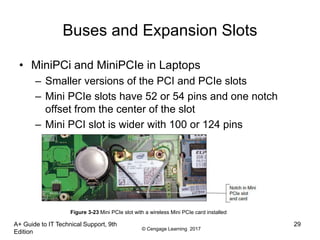
• MiniPCi and MiniPCIe in Laptops
– Smaller versions of the PCI and PCIe slots
– Mini PCIe slots have 52 or 54 pins and one notch
offset from the center of the slot
– Mini PCI slot is wider with 100 or 124 pins
A+ Guide to IT Technical Support, 9th
Edition
29
Figure 3-23 Mini PCIe slot with a wireless Mini PCIe card installed
© Cengage Learning 2017
A+ Guide to IT Technical Support, 9th
Edition
30
Buses and Expansion Slots
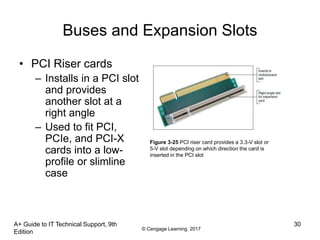
• PCI Riser cards
– Installs in a PCI slot
and provides
another slot at a
right angle
– Used to fit PCI,
PCIe, and PCI-X
cards into a low-
profile or slimline
case
Figure 3-25 PCI riser card provides a 3.3-V slot or
5-V slot depending on which direction the card is
inserted in the PCI slot
© Cengage Learning 2017
A+ Guide to IT Technical Support, 9th
Edition
31
Onboard Ports and Connectors
• Onboard ports (integrated components)
– Ports coming directly off the motherboard
• USB, sound, network, FireWire, video, eSATA ports
• Older motherboards might have mouse and keyboard
ports, parallel and serial ports
• I/O shield
– Plate installed in computer case providing holes for
on-board ports
• Internal connectors
– SATA, USB or FireWire (IEEE 1394) connectors
© Cengage Learning 2017
A+ Guide to IT Technical Support, 9th
Edition
32
Configuring a Motherboard
• Motherboard settings
– Enable or disable connector or port
– Set CPU frequency, system bus, other buses
– Control security features
– Control what happens when PC first boots
• Motherboards may use these types of firmware:
– BIOS – used on older motherboards
– UEFI – replacing BIOS
– UEFI with BIOS – for backward compatibility
© Cengage Learning 2017
A+ Guide to IT Technical Support, 9th
Edition
33
Using BIOS Setup To Configure a
Motherboard
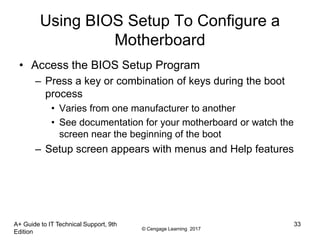
• Access the BIOS Setup Program
– Press a key or combination of keys during the boot
process
• Varies from one manufacturer to another
• See documentation for your motherboard or watch the
screen near the beginning of the boot
– Setup screen appears with menus and Help features
© Cengage Learning 2017
A+ Guide to IT Technical Support, 9th
Edition
34
Using BIOS Setup To Configure a
Motherboard
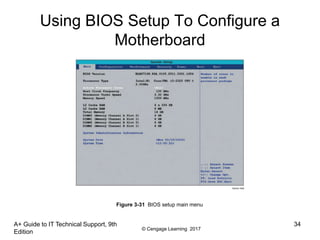
Figure 3-31 BIOS setup main menu
© Cengage Learning 2017
A+ Guide to IT Technical Support, 9th
Edition
35
Using Setup BIOS To Configure a
Motherboard
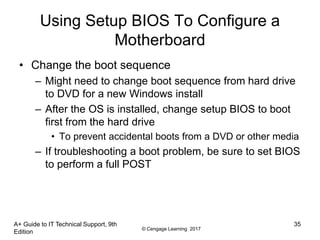
• Change the boot sequence
– Might need to change boot sequence from hard drive
to DVD for a new Windows install
– After the OS is installed, change setup BIOS to boot
first from the hard drive
• To prevent accidental boots from a DVD or other media
– If troubleshooting a boot problem, be sure to set BIOS
to perform a full POST
© Cengage Learning 2017
Using Setup BIOS To Configure a
Motherboard
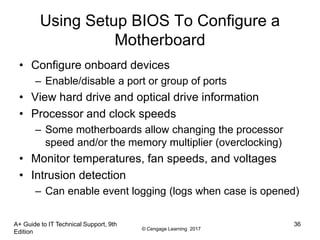
• Configure onboard devices
– Enable/disable a port or group of ports
• View hard drive and optical drive information
• Processor and clock speeds
– Some motherboards allow changing the processor
speed and/or the memory multiplier (overclocking)
• Monitor temperatures, fan speeds, and voltages
• Intrusion detection
– Can enable event logging (logs when case is opened)
A+ Guide to IT Technical Support, 9th
Edition
36
© Cengage Learning 2017
Using Setup BIOS To Configure a
Motherboard
• Power-on passwords
– Assigned in BIOS setup to prevent unauthorized
access to the computer and/or BIOS setup utility
– May be possible to set a supervisor and user password
• If both passwords are set, must enter a valid password
to boot the system
– How to set passwords varies depending on
motherboard and BIOS
A+ Guide to IT Technical Support, 9th
Edition
37
© Cengage Learning 2017
Using Setup BIOS To Configure a
Motherboard
• BIOS Support for Virtualization
– Virtualization is when one physical machine hosts
activities that are normally done on multiple machines
– Virtual machine (VM) is software that simulates the
hardware of a physical computer
• Each VM works like a physical computer and is assigned
virtual devices such as virtual motherboard and virtual
hard drive
– Virtualization must be enabled in BIOS setup
A+ Guide to IT Technical Support, 9th
Edition
38
© Cengage Learning 2017
Using Setup BIOS To Configure a
Motherboard
• LoJack for Laptops Technology
– Technology embedded in the BIOS of many laptops
to protect a system against theft
– Must subscribe to service
– Software and BIOS work together to locate a laptop
whenever it connects to the Internet
• Drive Encryption and Drive Password Protection
– Some motherboards allow you to set a password in
order to access the hard drive
– Password is kept on drive so that it still works even if
drive is moved to another computer
A+ Guide to IT Technical Support, 9th
Edition
39
© Cengage Learning 2017
Using Setup BIOS To Configure a
Motherboard
• TPM chip – Trusted Platform Module chip
– BitLocker Encryption in Windows 8/7/Vista works with
this chip
– Encryption key is kept on chip
– Assures that a drive cannot be used in another
computer
– Can be used with other encryption software that may
be installed on the hard drive other than BitLocker
– If the motherboard fails and is replaced, you’ll need a
backup copy of the startup key to access data on the
hard drive
A+ Guide to IT Technical Support, 9th
Edition
40
© Cengage Learning 2017
Using Setup BIOS To Configure a
Motherboard
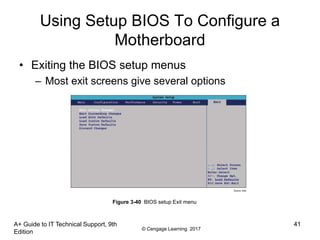
• Exiting the BIOS setup menus
– Most exit screens give several options
A+ Guide to IT Technical Support, 9th
Edition
41
Figure 3-40 BIOS setup Exit menu
© Cengage Learning 2017
Using UEFI Setup to Configure a
Motherboard
• Extensible Firmware Interface (EFI), original version
first developed by Intel
• Improves on BIOS in these ways:
– Faster and better booting
– Mouse-enabled interface
– Secure boot
– Support for hard drives larger than 2 TB
• Provides a BIOS boot through its Compatibility
Support Module (CSM)
A+ Guide to IT Technical Support, 9th
Edition
42
© Cengage Learning 2017
A+ Guide to IT Technical Support, 9th
Edition
43
Maintaining a Motherboard
• Motherboard is considered a field replaceable unit
– Need to know how to:
• Update motherboard drivers
• Update flash BIOS or UEFI
• Replace CMOS battery
© Cengage Learning 2017
A+ Guide to IT Technical Support, 9th
Edition
44
Updating Motherboard Drivers
• Device drivers are small programs that allow software
to interact with certain hardware
• Use Windows internal drivers, bundled CD drivers, or
download drivers from manufacturer site
• Always use 32-bit drivers with a 32-bit OS and 64-bit
drivers with a 64-bit OS
© Cengage Learning 2017
A+ Guide to IT Technical Support, 9th
Edition
45
Flashing BIOS
• Flashing BIOS is the process of upgrading or
refreshing the programming stored on the firmware
chip
– BIOS updates are downloaded from motherboard
manufacturer’s Web site or third party site
– Performed if:
• System hangs at odd times or during boot
• Motherboard becomes unstable
• Incorporating new feature, or component
© Cengage Learning 2017
A+ Guide to IT Technical Support, 9th
Edition
46
Flashing BIOS
• Methods of installing BIOS updates
– Express BIOS update
– Update from a USB flash drive using setup BIOS
– Update using a bootable CD
– Recovery from a failed update
• “If it’s not broke, don’t fix it” – only update if you’re
having trouble with a motherboard
• Don’t update unless the update is a later version
than the one installed
• Update should not be interrupted while in progress
© Cengage Learning 2017
Flashing UEFI
• UEFI updates are more secure than BIOS updates
– Require digital signatures for update to be verified
• UEFI firmware, drivers, and databases can be
updated by way of a USB flash drive or from within
Windows
• Windows updates sometimes include UEFI updates
– When Windows receives a UEFI update, it hands off
the update to UEFI
– Firmware is responsible for applying the update and
displays a screen letting user know not to disturb the
system while the update is in progress
A+ Guide to IT Technical Support, 9th
Edition
47
© Cengage Learning 2017
Using Jumpers to Clear BIOS Settings
• Jumper – two small posts or metal pins that stick up
off the motherboard that is open or closed
– Open jumper has no cover and a closed jumper has a
cover on the two pins
• Jumpers can be used to clear a forgotten supervisor
or power-on password
• If flashing BIOS fails, a jumper can be set to undo
the update
A+ Guide to IT Technical Support, 9th
Edition
48
© Cengage Learning 2017
A+ Guide to IT Technical Support, 9th
Edition
49
Replacing the CMOS Battery
• CMOS (complementary metal-oxide semiconductor)
RAM is a small amount of memory stored on the
motherboard that retains data
– Even when computer is turned off
– If the CMOS battery is disconnected or fails, setup
information is lost
• To replace the CMOS battery:
– Choose correct replacement battery
– Power down system, unplug it, press power button to
drain the power, remove case cover
– Use ESD strap, remove old battery using a flat-head
screwdriver, pop new battery into place
© Cengage Learning 2017
Installing or Replacing a Motherboard
• A motherboard is considered a field replaceable unit
• A technician needs to know how to:
– Select an appropriate motherboard
– Install or replace one in a desktop or laptop computer
A+ Guide to IT Technical Support, 9th
Edition
50
© Cengage Learning 2017
How to Select a Desktop Motherboard
• Three approaches to selecting a motherboard:
– Select the board that provides the most room for
expansion, so you can upgrade and exchange
components and add devices easily
– Select the board that best suits the needs of the
computer’s current configuration
– Select a motherboard that meets your present needs
with moderate room for expansion
A+ Guide to IT Technical Support, 9th
Edition
51
© Cengage Learning 2017
How to Select a Desktop Motherboard
• Consider the following when selecting a
motherboard:
– Form factor
– The brand (Intel or AMD) and model processors the
board supports
– Chipset and memory speeds the board supports
– Expansion slots (type and how many needed)
– Hard drive controllers
– Case
– Price and warranty
– Support
A+ Guide to IT Technical Support, 9th
Edition
52
© Cengage Learning 2017
A+ Guide to IT Technical Support, 9th
Edition
53
How to Install or Replace a
Motherboard
• General process for replacing a motherboard:
– 1. Verify right motherboard is selected
– 2. Get familiar with documentation, features, settings
– 3. Remove components to reach old motherboard
– 4. Install the I/O shield (metal plate)
– 5. Install motherboard
– 6. Install processor and processor cooler
– 7. Install RAM
– 8. Attach cabling (case switches, power supply,
drives)
© Cengage Learning 2017
A+ Guide to IT Technical Support, 9th
Edition
54
How to Install or Replace a
Motherboard
• General process for replacing motherboard (cont’d.)
– 9. Install video card on motherboard
– 10. Plug in PC, attach monitor, keyboard
– 11. Boot system, enter UEFI/BIOS setup
– 12. Observe POST, verify no errors
– 13. Verify Windows starts with no errors
– 14. Install the motherboard drivers
– 15. Install other expansion cards and drivers
– 16. Verify system operating properly, make final OS
and UEFI/BIOS adjustments
• setting power-on passwords
© Cengage Learning 2017
Replacing a Laptop System Board
• May need to fully disassemble the entire notebook
– Consider alternatives before proceeding
• General procedure for replacing the motherboard:
– Remove the keyboard, optical drive, and mini PCIe
card
– Remove the notebook lid and keyboard bezel
assembly
– Lift up the assembly and disconnect two cables
connecting it to the motherboard
– Remove CPU and DVD drive
– Remove screw that hold motherboard in place
A+ Guide to IT Technical Support, 9th
Edition
55
© Cengage Learning 2017
A+ Guide to IT Technical Support, 9th
Edition
56
Summary
• The motherboard is the most complicated of all
components inside a computer
• Most popular motherboard form factors are ATX,
MicroATX and Mini-ITX
• Motherboard will have one or more processor
sockets
• Chipset embedded on the motherboard determines
what kind of processor/memory are supported
• Major advancements in Intel: Accelerated Hub
Architecture, Nehalem chipsets, and Sandy Bridge
© Cengage Learning 2017
A+ Guide to IT Technical Support, 9th
Edition
57
Summary
• Buses include conventional PCI, PIC-X, and PCI
Express
• Some components can be built into the
motherboard, called on-board components
• Firmware that controls a motherboard and the boot
is the older BIOS and the newer UEFI
• Settings that can be changed include: changing boot
order, enabling or disabling onboard devices,
support for virtualization, and security settings
© Cengage Learning 2017
Summary
• Motherboard drivers and/or BIOS might need
updating to fix a problem
• CMOS battery might need replacing
• When selecting a motherboard pay attention to the
form factor, chipset, expansion slots, memory slots,
and processors supported
• Study motherboard manual before installing it
• For laptops, it’s usually more cost effective to
replace the laptop than to replace a failed system
board
A+ Guide to IT Technical Support, 9th
Edition
58

A+ Chapter 3 Review

  • 1.
    A+ Guide toIT Technical Support, 9th Edition Chapter 3 All About Motherboards 1
  • 2.
    © Cengage Learning2017 A+ Guide to IT Technical Support, 9th Edition 2 Objectives • Describe and contrast various types and features of motherboards • Configure a motherboard using BIOS or UEFI firmware • Maintain a motherboard, including updating drivers, flashing UEFI/BIOS, and replacing the CMOS battery • Select, install, and replace a motherboard
  • 3.
    © Cengage Learning2017 A+ Guide to IT Technical Support, 9th Edition 3 Motherboard Types and Features • Motherboard – Most complicated computer component – One of the first items to consider when building a computer • Consider the following when purchasing a motherboard: – Form factor – Processor socket and chipset – Buses and number of bus slots – Other connectors, slots, and ports
  • 4.
    © Cengage Learning2017 A+ Guide to IT Technical Support, 9th Edition 4 Motherboard Form Factors • Determines motherboard size, features – Compatible with power supplies, cases, processors, expansion cards • Most popular – ATX, MicroATX, and Mini-ITX • Mini-ITX is smaller than MicroATX and is also known as ITX • The following slides show examples of form factors and comparisons of sizes and hold positions of several form factors
  • 5.
    © Cengage Learning2017 A+ Guide to IT Technical Support, 9th Edition 5 Motherboard Form Factors Figure 3-3 A Mini-ITX motherboard
  • 6.
    © Cengage Learning2017 A+ Guide to IT Technical Support, 9th Edition 6 Motherboard Form Factors Table 3-1 Motherboard form factors
  • 7.
    © Cengage Learning2017 A+ Guide to IT Technical Support, 9th Edition 7 Processor Sockets • Processor socket – determines which processors a board can support – Socket holds Intel or AMD processors • Sockets for Intel processors – Intel makes several Itanium and Xeon processors designed for servers
  • 8.
    © Cengage Learning2017 A+ Guide to IT Technical Support, 9th Edition 8 Processor Sockets • Sockets and processor use different methods to make contacts between them: – Pin grid array (PGA) socket • Pins aligned in uniform rows around socket – Land grid array (LGA) • Uses lands (pads) rather than pins • Examples of LGA sockets: LGA775 and LGA1366 – Flip-chip land grid array (FCLGA) socket • Chip is flipped over so that the top of the chip is on the bottom and makes contact with the socket
  • 9.
    © Cengage Learning2017 Processor Sockets • Sockets and processor use different methods to make contacts between them (cont’d): – Staggered pin grid array (SPGA) • Pins staggered over socket • Squeezes more pins into a small space – Ball grid array (BGA) • Not really a socket • Processor is soldered to the motherboard A+ Guide to IT Technical Support, 9th Edition 9
  • 10.
    © Cengage Learning2017 Processor Sockets A+ Guide to IT Technical Support, 9th Edition 10 Figure 3-7 Socket LGA775 is the first Intel socket to use lands rather than pins
  • 11.
    © Cengage Learning2017 A+ Guide to IT Technical Support, 9th Edition 11 Processor Sockets • Zero insertion force (ZIF) sockets – All current processor sockets – Side lever lifts processor up and out of the socket • Sockets for AMD Processors – AMD uses the PGA socket architecture (desktops)
  • 12.
    © Cengage Learning2017 Processor Sockets A+ Guide to IT Technical Support, 9th Edition 12 Table 3-3 Sockets for AMD processors used for desktop computers
  • 13.
    © Cengage Learning2017 A+ Guide to IT Technical Support, 9th Edition 13 Processor Sockets • Match a processor to the socket and motherboard – Refer to motherboard, processor compatibility documentation Figure 3-10 AMD Athlon 64 processor to be inserted into an AM2+ socket
  • 14.
    © Cengage Learning2017 A+ Guide to IT Technical Support, 9th Edition 14 The Chipset • Chipset: set of chips on motherboard that work with processor to collectively control: – Memory, motherboard buses, some peripherals • Major manufacturers – Intel and AMD • Intel Chipsets – North Bridge and South Bridge - Uses hub interface • All I/O buses (input/output buses) connect to hub – Hub connects to system bus • North Bridge – fast end of hub • South Bridge – slow end of hub
  • 15.
    © Cengage Learning2017 A+ Guide to IT Technical Support, 9th Edition 15 The Chipset Figure 3-11 The chipset’s North Bridge and South Bridge control access to the processor for all components
  • 16.
    © Cengage Learning2017 A+ Guide to IT Technical Support, 9th Edition 16 The Chipset • Intel Chipsets (cont’d) – Nehalem chipset • Contain memory controller within processor housing • Memory connects directly to processor • Has QuickPath Interconnect (QPI) technology – Has 16 lanes for data packets – Sandy Bridge chipset • Memory and graphics controller in processor • Second Generation Core i7 processor is an example • Sandy Bridge motherboards use DDR3 memory
  • 17.
    © Cengage Learning2017 A+ Guide to IT Technical Support, 9th Edition 17 The Chipset Figure 3-12 X58 chipset architecture
  • 18.
    © Cengage Learning2017 The Chipset • Intel Chipsets (cont’d) – Ivy Bridge chipset – 3rd generation processors released in 2012 • Use less power • More transistors in a smaller place • Perform better than earlier products • Uses a single Platform Controller Hub A+ Guide to IT Technical Support, 9th Edition 18
  • 19.
    © Cengage Learning2017 The Chipset • Intel Chipsets (cont’d) – Haswell and Broadwell chipsets • Haswell - released in 2013 – Work with the LGA1150 and LGA2011 sockets – Work with DDR3 and DDR4 memory and use less power than previous chipsets • Broadwell – released in 2015 – Faster than the Haswell chipsets – Use the LGA1150 socket A+ Guide to IT Technical Support, 9th Edition 19
  • 20.
    © Cengage Learning2017 A+ Guide to IT Technical Support, 9th Edition 20 The Chipset • AMD chipsets – AMD A-series • Designed to support the AMD Accelerated Processing Unit (APU), which is a combination of a CPU and a graphics processing unit (GPU) • Support AMD CrossFire technology, which uses dual video cards in the same system – AMD 9-series • Designed to support AMD processors that can have up to eight cores
  • 21.
    © Cengage Learning2017 A+ Guide to IT Technical Support, 9th Edition 21 Buses and Expansion Slots • Bus – System of pathways used for communication • Carried by bus: – Power, control signals, memory addresses, data – These lines are sometimes called data bus • Data and instructions exist in binary – Only two states: on and off • Data path size: width of a data bus – Examples: 8-bit bus has eight wire (lines) to transmit
  • 22.
    © Cengage Learning2017 A+ Guide to IT Technical Support, 9th Edition 22 Buses and Expansion Slots Figure 3-17 A data bus has traces or lines that carry voltage interpreted by the CPU and other devices as bits
  • 23.
    © Cengage Learning2017 Buses and Expansion Slots • System clock (system timer) – times activities on the motherboard • Speed of memory, Front Side Bus, processor, or other component is measured in hertz (Hz), which is one cycle per second – Megahertz (MHz): one million cycles per second – Gigahertz (GHz): one billion cycles per second • Motherboards can have more than one bus – Table 3-4 on the following slide lists many buses A+ Guide to IT Technical Support, 9th Edition 23
  • 24.
    © Cengage Learning2017 A+ Guide to IT Technical Support, 9th Edition 24 Buses and Expansion Slots Table 3-4 Buses listed by throughput
  • 25.
    © Cengage Learning2017 A+ Guide to IT Technical Support, 9th Edition 25 Buses and Expansion Slots • Conventional PCI – Improved several times – PCI Version 2.x introduced the 64-bit, 3.3 V PCI slot, doubling the data throughput of the bus – Four types of slots and six possible PCI card configurations
  • 26.
    © Cengage Learning2017 Buses and Expansion Slots • PCI-X – Uses 64-bit data path – Latest revision is PCI-X 3.0 (all revisions are backward-compatible) A+ Guide to IT Technical Support, 9th Edition 26 Figure 3-20 The two long white PCI-X slots can support PCI cards
  • 27.
    © Cengage Learning2017 Buses and Expansion Slots • PCI Express (PCIe) – Not backward compatible with conventional PCI or PCI-X – Expected to replace both PCI and PCI-X – Uses a serial bus, which is faster than parallel – Comes in four different slot sizes • PCI Express x1, x4, x8, and x16 – Latest version is PCIe 4.0 which doubles the throughput of version 3.0 A+ Guide to IT Technical Support, 9th Edition 27
  • 28.
    © Cengage Learning2017 Buses and Expansion Slots A+ Guide to IT Technical Support, 9th Edition 28 Figure 3-21 Three types of PCIe slots and one conventional PCI slot
  • 29.
    © Cengage Learning2017 Buses and Expansion Slots • MiniPCi and MiniPCIe in Laptops – Smaller versions of the PCI and PCIe slots – Mini PCIe slots have 52 or 54 pins and one notch offset from the center of the slot – Mini PCI slot is wider with 100 or 124 pins A+ Guide to IT Technical Support, 9th Edition 29 Figure 3-23 Mini PCIe slot with a wireless Mini PCIe card installed
  • 30.
    © Cengage Learning2017 A+ Guide to IT Technical Support, 9th Edition 30 Buses and Expansion Slots • PCI Riser cards – Installs in a PCI slot and provides another slot at a right angle – Used to fit PCI, PCIe, and PCI-X cards into a low- profile or slimline case Figure 3-25 PCI riser card provides a 3.3-V slot or 5-V slot depending on which direction the card is inserted in the PCI slot
  • 31.
    © Cengage Learning2017 A+ Guide to IT Technical Support, 9th Edition 31 Onboard Ports and Connectors • Onboard ports (integrated components) – Ports coming directly off the motherboard • USB, sound, network, FireWire, video, eSATA ports • Older motherboards might have mouse and keyboard ports, parallel and serial ports • I/O shield – Plate installed in computer case providing holes for on-board ports • Internal connectors – SATA, USB or FireWire (IEEE 1394) connectors
  • 32.
    © Cengage Learning2017 A+ Guide to IT Technical Support, 9th Edition 32 Configuring a Motherboard • Motherboard settings – Enable or disable connector or port – Set CPU frequency, system bus, other buses – Control security features – Control what happens when PC first boots • Motherboards may use these types of firmware: – BIOS – used on older motherboards – UEFI – replacing BIOS – UEFI with BIOS – for backward compatibility
  • 33.
    © Cengage Learning2017 A+ Guide to IT Technical Support, 9th Edition 33 Using BIOS Setup To Configure a Motherboard • Access the BIOS Setup Program – Press a key or combination of keys during the boot process • Varies from one manufacturer to another • See documentation for your motherboard or watch the screen near the beginning of the boot – Setup screen appears with menus and Help features
  • 34.
    © Cengage Learning2017 A+ Guide to IT Technical Support, 9th Edition 34 Using BIOS Setup To Configure a Motherboard Figure 3-31 BIOS setup main menu
  • 35.
    © Cengage Learning2017 A+ Guide to IT Technical Support, 9th Edition 35 Using Setup BIOS To Configure a Motherboard • Change the boot sequence – Might need to change boot sequence from hard drive to DVD for a new Windows install – After the OS is installed, change setup BIOS to boot first from the hard drive • To prevent accidental boots from a DVD or other media – If troubleshooting a boot problem, be sure to set BIOS to perform a full POST
  • 36.
    © Cengage Learning2017 Using Setup BIOS To Configure a Motherboard • Configure onboard devices – Enable/disable a port or group of ports • View hard drive and optical drive information • Processor and clock speeds – Some motherboards allow changing the processor speed and/or the memory multiplier (overclocking) • Monitor temperatures, fan speeds, and voltages • Intrusion detection – Can enable event logging (logs when case is opened) A+ Guide to IT Technical Support, 9th Edition 36
  • 37.
    © Cengage Learning2017 Using Setup BIOS To Configure a Motherboard • Power-on passwords – Assigned in BIOS setup to prevent unauthorized access to the computer and/or BIOS setup utility – May be possible to set a supervisor and user password • If both passwords are set, must enter a valid password to boot the system – How to set passwords varies depending on motherboard and BIOS A+ Guide to IT Technical Support, 9th Edition 37
  • 38.
    © Cengage Learning2017 Using Setup BIOS To Configure a Motherboard • BIOS Support for Virtualization – Virtualization is when one physical machine hosts activities that are normally done on multiple machines – Virtual machine (VM) is software that simulates the hardware of a physical computer • Each VM works like a physical computer and is assigned virtual devices such as virtual motherboard and virtual hard drive – Virtualization must be enabled in BIOS setup A+ Guide to IT Technical Support, 9th Edition 38
  • 39.
    © Cengage Learning2017 Using Setup BIOS To Configure a Motherboard • LoJack for Laptops Technology – Technology embedded in the BIOS of many laptops to protect a system against theft – Must subscribe to service – Software and BIOS work together to locate a laptop whenever it connects to the Internet • Drive Encryption and Drive Password Protection – Some motherboards allow you to set a password in order to access the hard drive – Password is kept on drive so that it still works even if drive is moved to another computer A+ Guide to IT Technical Support, 9th Edition 39
  • 40.
    © Cengage Learning2017 Using Setup BIOS To Configure a Motherboard • TPM chip – Trusted Platform Module chip – BitLocker Encryption in Windows 8/7/Vista works with this chip – Encryption key is kept on chip – Assures that a drive cannot be used in another computer – Can be used with other encryption software that may be installed on the hard drive other than BitLocker – If the motherboard fails and is replaced, you’ll need a backup copy of the startup key to access data on the hard drive A+ Guide to IT Technical Support, 9th Edition 40
  • 41.
    © Cengage Learning2017 Using Setup BIOS To Configure a Motherboard • Exiting the BIOS setup menus – Most exit screens give several options A+ Guide to IT Technical Support, 9th Edition 41 Figure 3-40 BIOS setup Exit menu
  • 42.
    © Cengage Learning2017 Using UEFI Setup to Configure a Motherboard • Extensible Firmware Interface (EFI), original version first developed by Intel • Improves on BIOS in these ways: – Faster and better booting – Mouse-enabled interface – Secure boot – Support for hard drives larger than 2 TB • Provides a BIOS boot through its Compatibility Support Module (CSM) A+ Guide to IT Technical Support, 9th Edition 42
  • 43.
    © Cengage Learning2017 A+ Guide to IT Technical Support, 9th Edition 43 Maintaining a Motherboard • Motherboard is considered a field replaceable unit – Need to know how to: • Update motherboard drivers • Update flash BIOS or UEFI • Replace CMOS battery
  • 44.
    © Cengage Learning2017 A+ Guide to IT Technical Support, 9th Edition 44 Updating Motherboard Drivers • Device drivers are small programs that allow software to interact with certain hardware • Use Windows internal drivers, bundled CD drivers, or download drivers from manufacturer site • Always use 32-bit drivers with a 32-bit OS and 64-bit drivers with a 64-bit OS
  • 45.
    © Cengage Learning2017 A+ Guide to IT Technical Support, 9th Edition 45 Flashing BIOS • Flashing BIOS is the process of upgrading or refreshing the programming stored on the firmware chip – BIOS updates are downloaded from motherboard manufacturer’s Web site or third party site – Performed if: • System hangs at odd times or during boot • Motherboard becomes unstable • Incorporating new feature, or component
  • 46.
    © Cengage Learning2017 A+ Guide to IT Technical Support, 9th Edition 46 Flashing BIOS • Methods of installing BIOS updates – Express BIOS update – Update from a USB flash drive using setup BIOS – Update using a bootable CD – Recovery from a failed update • “If it’s not broke, don’t fix it” – only update if you’re having trouble with a motherboard • Don’t update unless the update is a later version than the one installed • Update should not be interrupted while in progress
  • 47.
    © Cengage Learning2017 Flashing UEFI • UEFI updates are more secure than BIOS updates – Require digital signatures for update to be verified • UEFI firmware, drivers, and databases can be updated by way of a USB flash drive or from within Windows • Windows updates sometimes include UEFI updates – When Windows receives a UEFI update, it hands off the update to UEFI – Firmware is responsible for applying the update and displays a screen letting user know not to disturb the system while the update is in progress A+ Guide to IT Technical Support, 9th Edition 47
  • 48.
    © Cengage Learning2017 Using Jumpers to Clear BIOS Settings • Jumper – two small posts or metal pins that stick up off the motherboard that is open or closed – Open jumper has no cover and a closed jumper has a cover on the two pins • Jumpers can be used to clear a forgotten supervisor or power-on password • If flashing BIOS fails, a jumper can be set to undo the update A+ Guide to IT Technical Support, 9th Edition 48
  • 49.
    © Cengage Learning2017 A+ Guide to IT Technical Support, 9th Edition 49 Replacing the CMOS Battery • CMOS (complementary metal-oxide semiconductor) RAM is a small amount of memory stored on the motherboard that retains data – Even when computer is turned off – If the CMOS battery is disconnected or fails, setup information is lost • To replace the CMOS battery: – Choose correct replacement battery – Power down system, unplug it, press power button to drain the power, remove case cover – Use ESD strap, remove old battery using a flat-head screwdriver, pop new battery into place
  • 50.
    © Cengage Learning2017 Installing or Replacing a Motherboard • A motherboard is considered a field replaceable unit • A technician needs to know how to: – Select an appropriate motherboard – Install or replace one in a desktop or laptop computer A+ Guide to IT Technical Support, 9th Edition 50
  • 51.
    © Cengage Learning2017 How to Select a Desktop Motherboard • Three approaches to selecting a motherboard: – Select the board that provides the most room for expansion, so you can upgrade and exchange components and add devices easily – Select the board that best suits the needs of the computer’s current configuration – Select a motherboard that meets your present needs with moderate room for expansion A+ Guide to IT Technical Support, 9th Edition 51
  • 52.
    © Cengage Learning2017 How to Select a Desktop Motherboard • Consider the following when selecting a motherboard: – Form factor – The brand (Intel or AMD) and model processors the board supports – Chipset and memory speeds the board supports – Expansion slots (type and how many needed) – Hard drive controllers – Case – Price and warranty – Support A+ Guide to IT Technical Support, 9th Edition 52
  • 53.
    © Cengage Learning2017 A+ Guide to IT Technical Support, 9th Edition 53 How to Install or Replace a Motherboard • General process for replacing a motherboard: – 1. Verify right motherboard is selected – 2. Get familiar with documentation, features, settings – 3. Remove components to reach old motherboard – 4. Install the I/O shield (metal plate) – 5. Install motherboard – 6. Install processor and processor cooler – 7. Install RAM – 8. Attach cabling (case switches, power supply, drives)
  • 54.
    © Cengage Learning2017 A+ Guide to IT Technical Support, 9th Edition 54 How to Install or Replace a Motherboard • General process for replacing motherboard (cont’d.) – 9. Install video card on motherboard – 10. Plug in PC, attach monitor, keyboard – 11. Boot system, enter UEFI/BIOS setup – 12. Observe POST, verify no errors – 13. Verify Windows starts with no errors – 14. Install the motherboard drivers – 15. Install other expansion cards and drivers – 16. Verify system operating properly, make final OS and UEFI/BIOS adjustments • setting power-on passwords
  • 55.
    © Cengage Learning2017 Replacing a Laptop System Board • May need to fully disassemble the entire notebook – Consider alternatives before proceeding • General procedure for replacing the motherboard: – Remove the keyboard, optical drive, and mini PCIe card – Remove the notebook lid and keyboard bezel assembly – Lift up the assembly and disconnect two cables connecting it to the motherboard – Remove CPU and DVD drive – Remove screw that hold motherboard in place A+ Guide to IT Technical Support, 9th Edition 55
  • 56.
    © Cengage Learning2017 A+ Guide to IT Technical Support, 9th Edition 56 Summary • The motherboard is the most complicated of all components inside a computer • Most popular motherboard form factors are ATX, MicroATX and Mini-ITX • Motherboard will have one or more processor sockets • Chipset embedded on the motherboard determines what kind of processor/memory are supported • Major advancements in Intel: Accelerated Hub Architecture, Nehalem chipsets, and Sandy Bridge
  • 57.
    © Cengage Learning2017 A+ Guide to IT Technical Support, 9th Edition 57 Summary • Buses include conventional PCI, PIC-X, and PCI Express • Some components can be built into the motherboard, called on-board components • Firmware that controls a motherboard and the boot is the older BIOS and the newer UEFI • Settings that can be changed include: changing boot order, enabling or disabling onboard devices, support for virtualization, and security settings
  • 58.
    © Cengage Learning2017 Summary • Motherboard drivers and/or BIOS might need updating to fix a problem • CMOS battery might need replacing • When selecting a motherboard pay attention to the form factor, chipset, expansion slots, memory slots, and processors supported • Study motherboard manual before installing it • For laptops, it’s usually more cost effective to replace the laptop than to replace a failed system board A+ Guide to IT Technical Support, 9th Edition 58