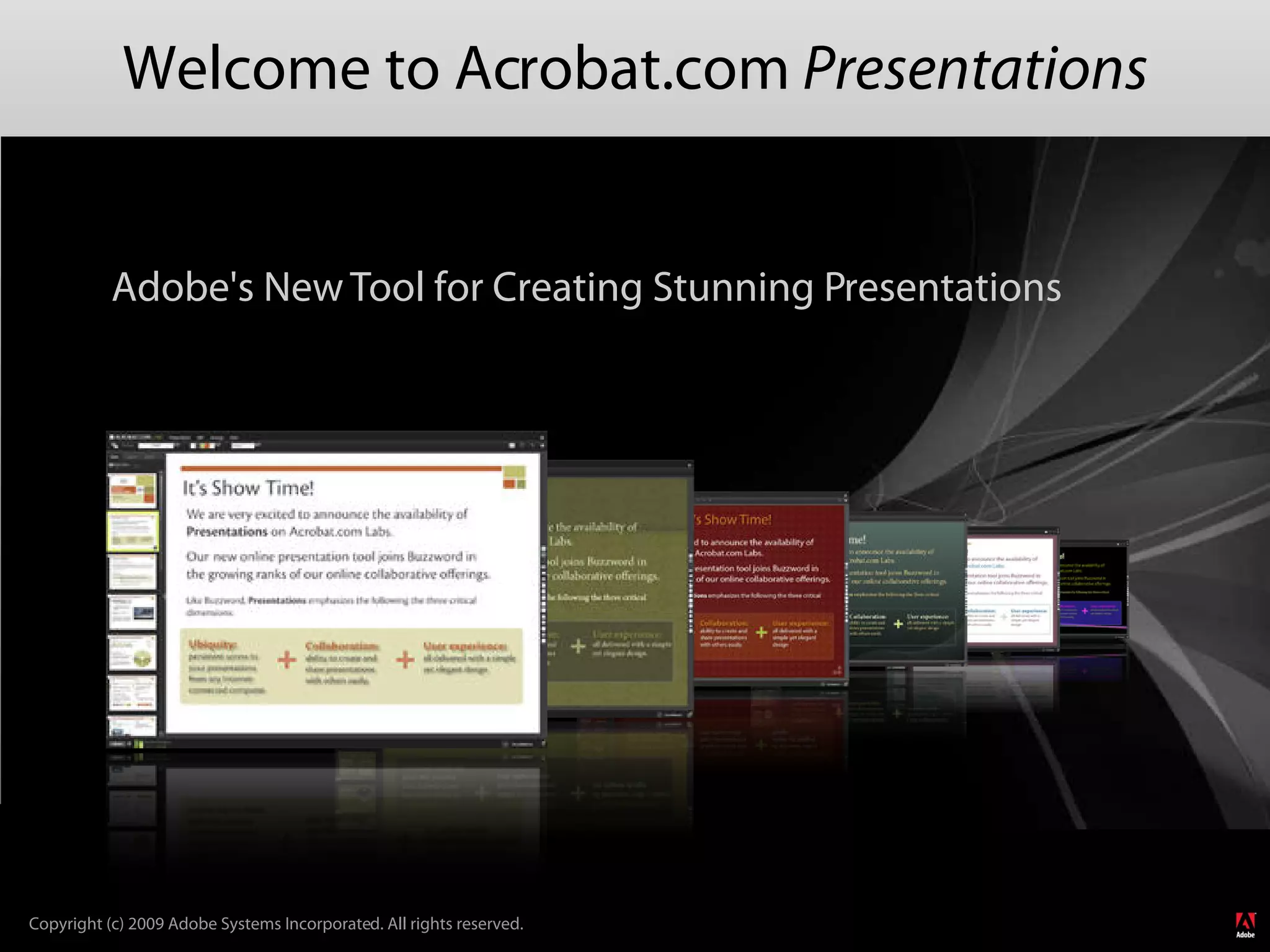
Welcome to Acrobat.com Presentations


           Adobe's New Tool for Creating Stunning Presentations


Copyright (c) 2009 Adobe Systems Incorporated. All rights reserved.
New Features Since the Preview Release

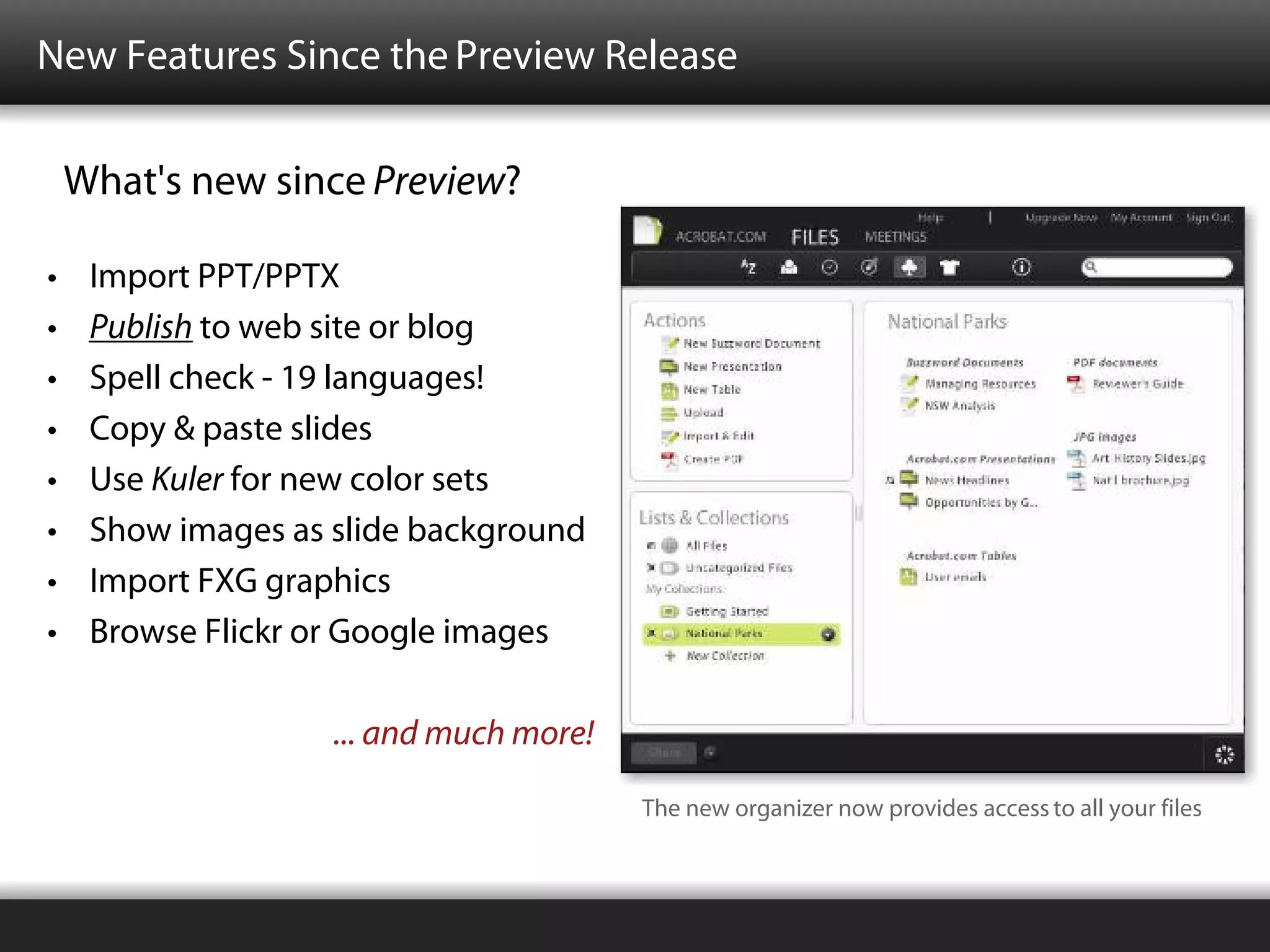
    What's new since Preview?

•    Import PPT/PPTX
•    Publish to web site or blog
•    Spell check - 19 languages!
•    Copy & paste slides
•    Use Kuler for new color sets
•    Show images as slide background
•    Import FXG graphics
•    Browse Flickr or Google images

                    ... and much more!

                                         The new organizer now provides access to all your files
Acrobat.com and Presentations


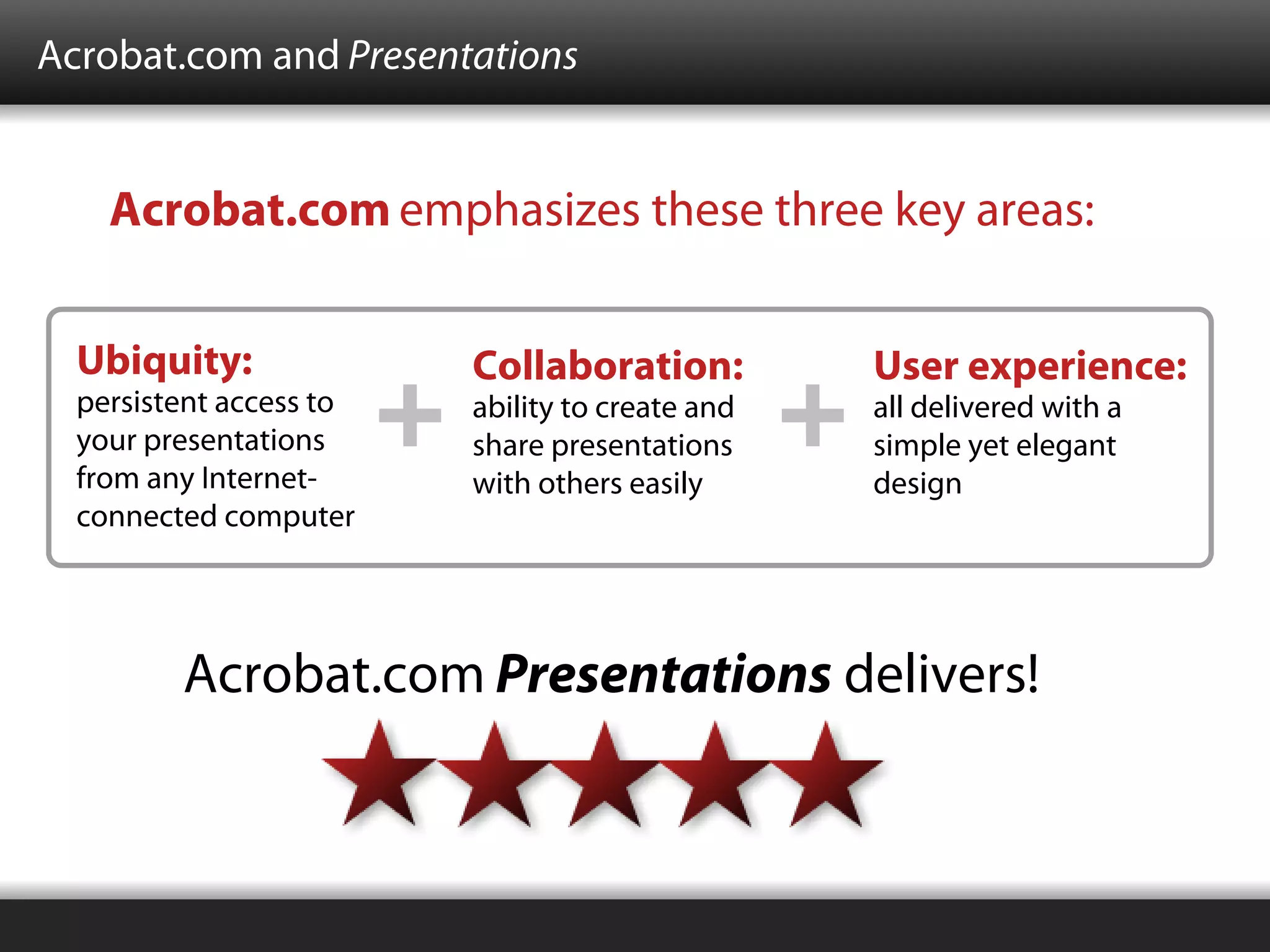
    Acrobat.com emphasizes these three key areas:


  Ubiquity:              Collaboration:          User experience:
  persistent access to   ability to create and   all delivered with a
  your presentations     share presentations     simple yet elegant
  from any Internet-     with others easily      design
  connected computer


         Acrobat.com Presentations delivers!
Streamlining Your Workflow

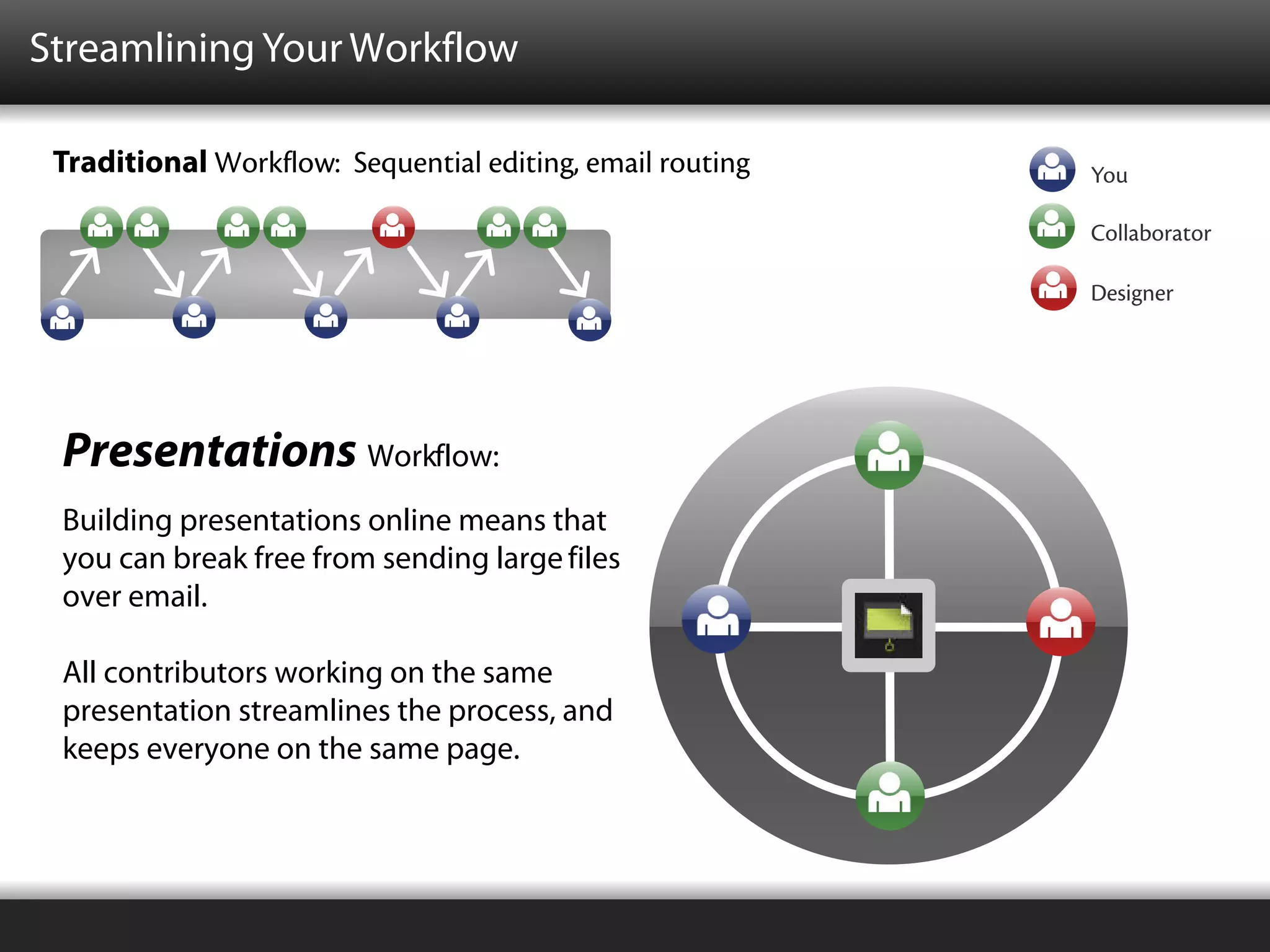
 Traditional Workflow: Sequential editing, email routing   You

                                                           Collaborator

                                                           Designer


 Presentations Workflow:
 Simultaneous Access
 Building presentations online means that
 you can break free from sending large files
 over email.

 All contributors working on the same
 presentation streamlines the process, and
 keeps everyone on the same page.
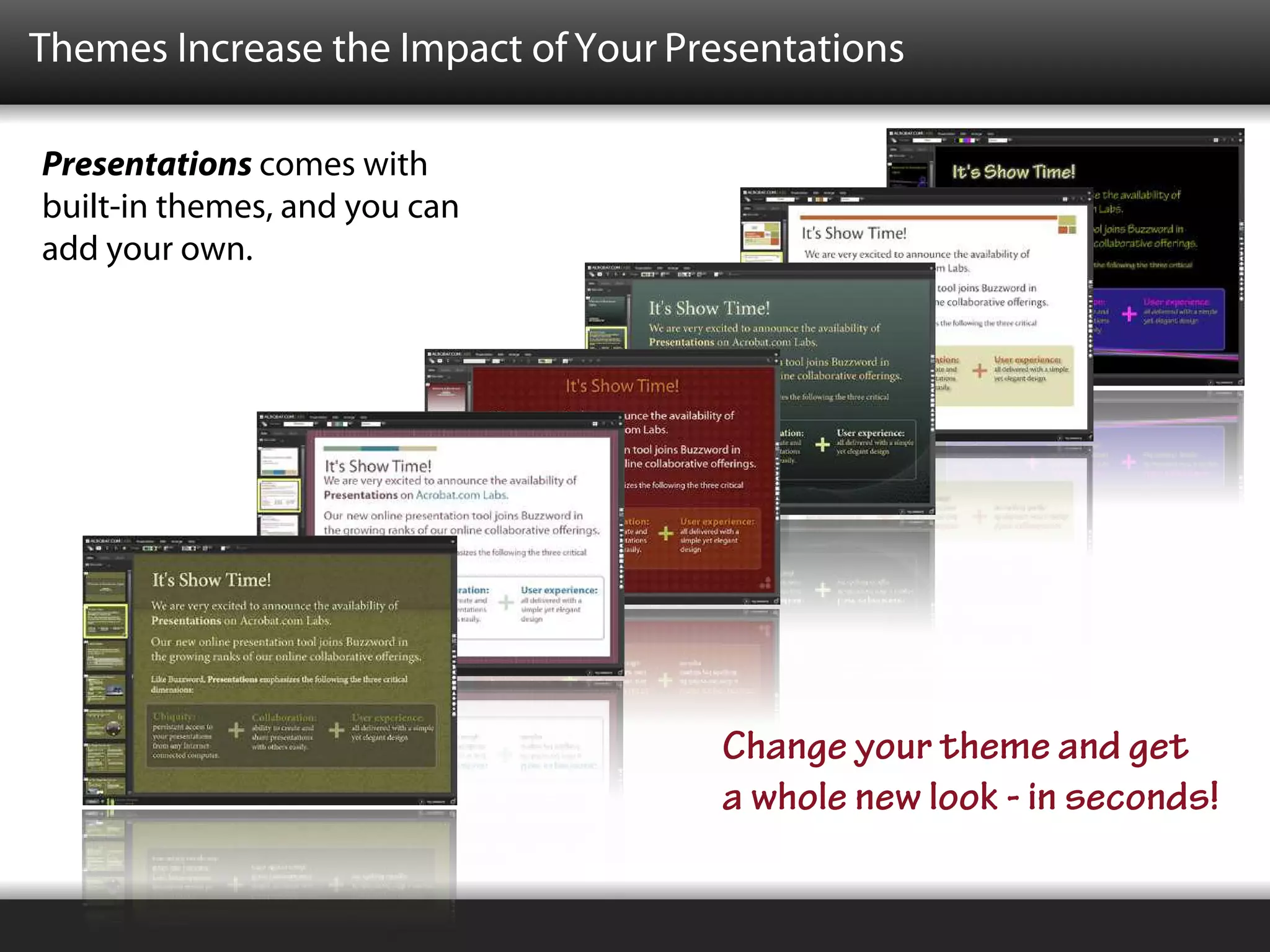
Themes Increase the Impact of Your Presentations

Presentations comes with
built-in themes, and you can
add your own.


                                     Change your theme and get
                                     a whole new look - in seconds!
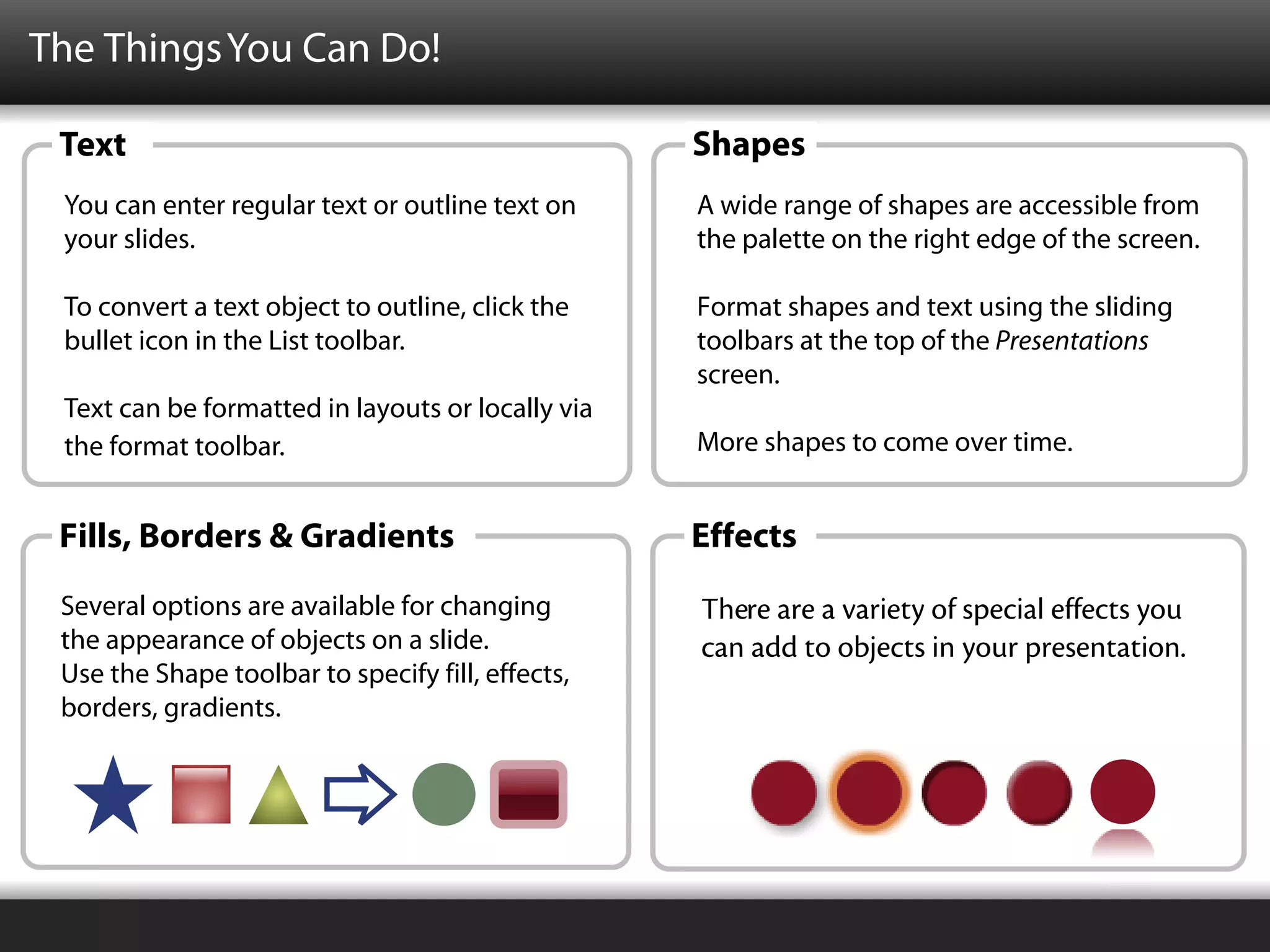
The Things You Can Do!

 Text                                              Shapes
 You can enter regular text or outline text on     A wide range of shapes are accessible from
 your slides.                                      the palette on the right edge of the screen.

 To convert a text object to outline, click the    Format shapes and text using the sliding
 bullet icon in the List toolbar.                  toolbars at the top of the Presentations
                                                   screen.
 Text can be formatted in layouts or locally via
 the format toolbar.                               More shapes to come over time.


 Fills, Borders & Gradients                        Effects
 Several options are available for changing        There are a variety of special effects you
 the appearance of objects on a slide.             can add to objects in your presentation.
 Use the Shape toolbar to specify fill, effects,
 borders, gradients.
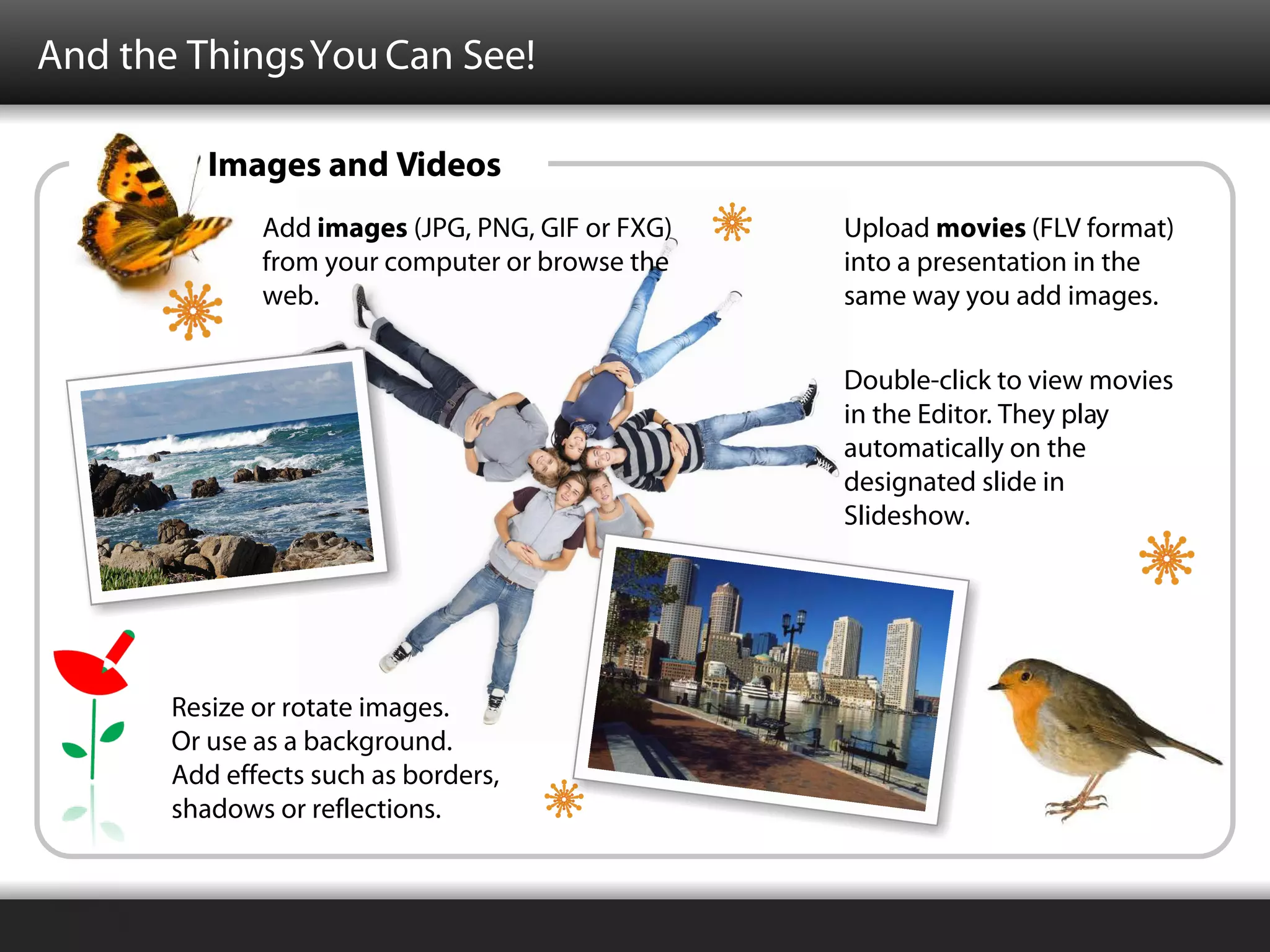
And the Things You Can See!

          Images and Videos
              Add images (JPG, PNG, GIF or FXG)   Upload movies (FLV format)
              from your computer or browse the    into a presentation in the
              web.                                same way you add images.

                                                  Double-click to view movies
                                                  in the Editor. They play
                                                  automatically on the
                                                  designated slide in
                                                  Slideshow.


       Resize or rotate images.
       Or use as a background.
       Add effects such as borders,
       shadows or reflections.
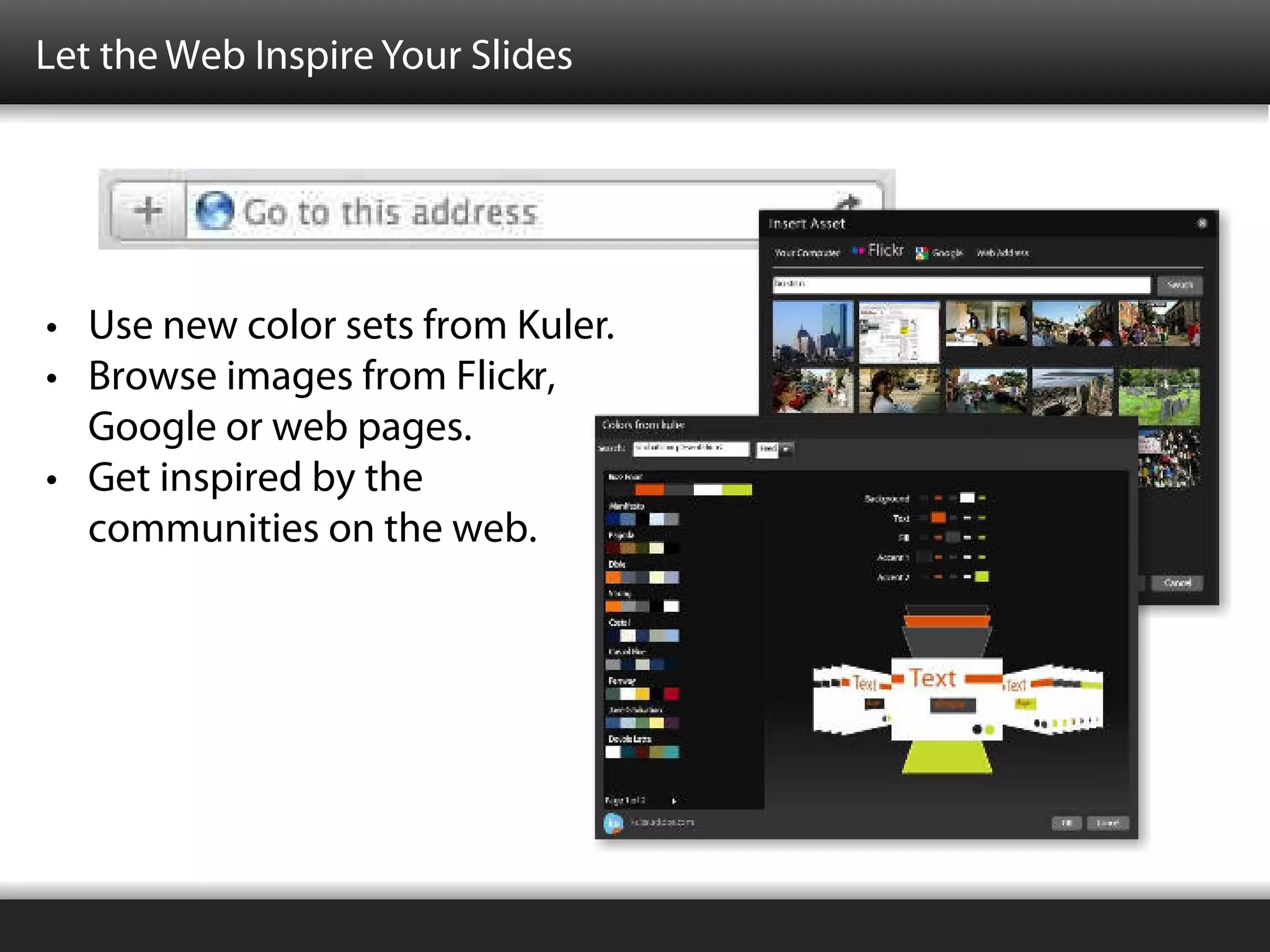
Let the Web Inspire Your Slides


• Use new color sets from Kuler.
• Browse images from Flickr,
  Google or web pages.
• Get inspired by the
  communities on the web.
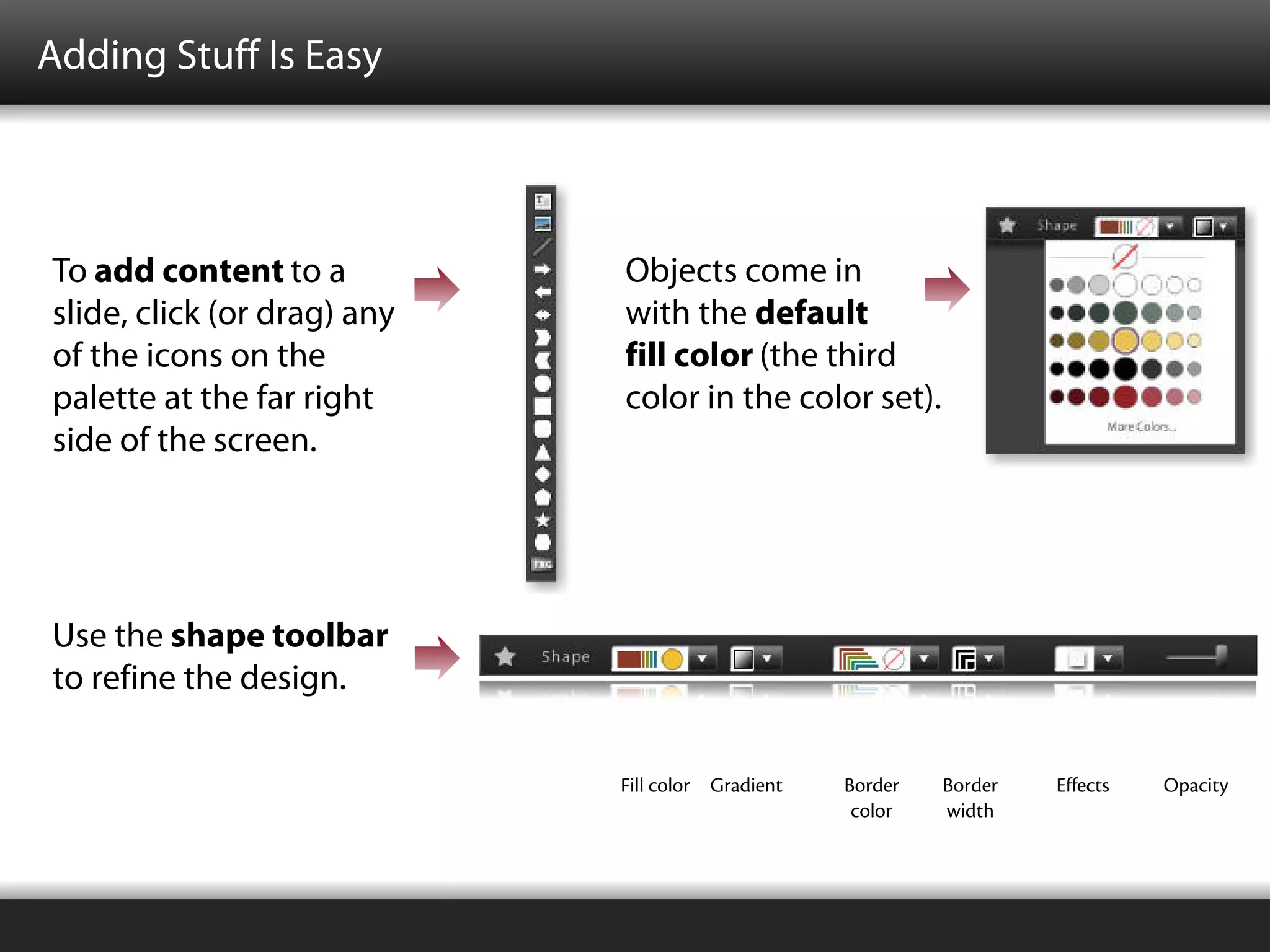
Adding Stuff Is Easy


To add content to a          Objects come in
slide, click (or drag) any   with the default
of the icons on the          fill color (the third
palette at the far right     color in the color set).
side of the screen.


Use the shape toolbar
to refine the design.

                             Fill color Gradient   Border   Border   Effects   Opacity
                                                    color   width
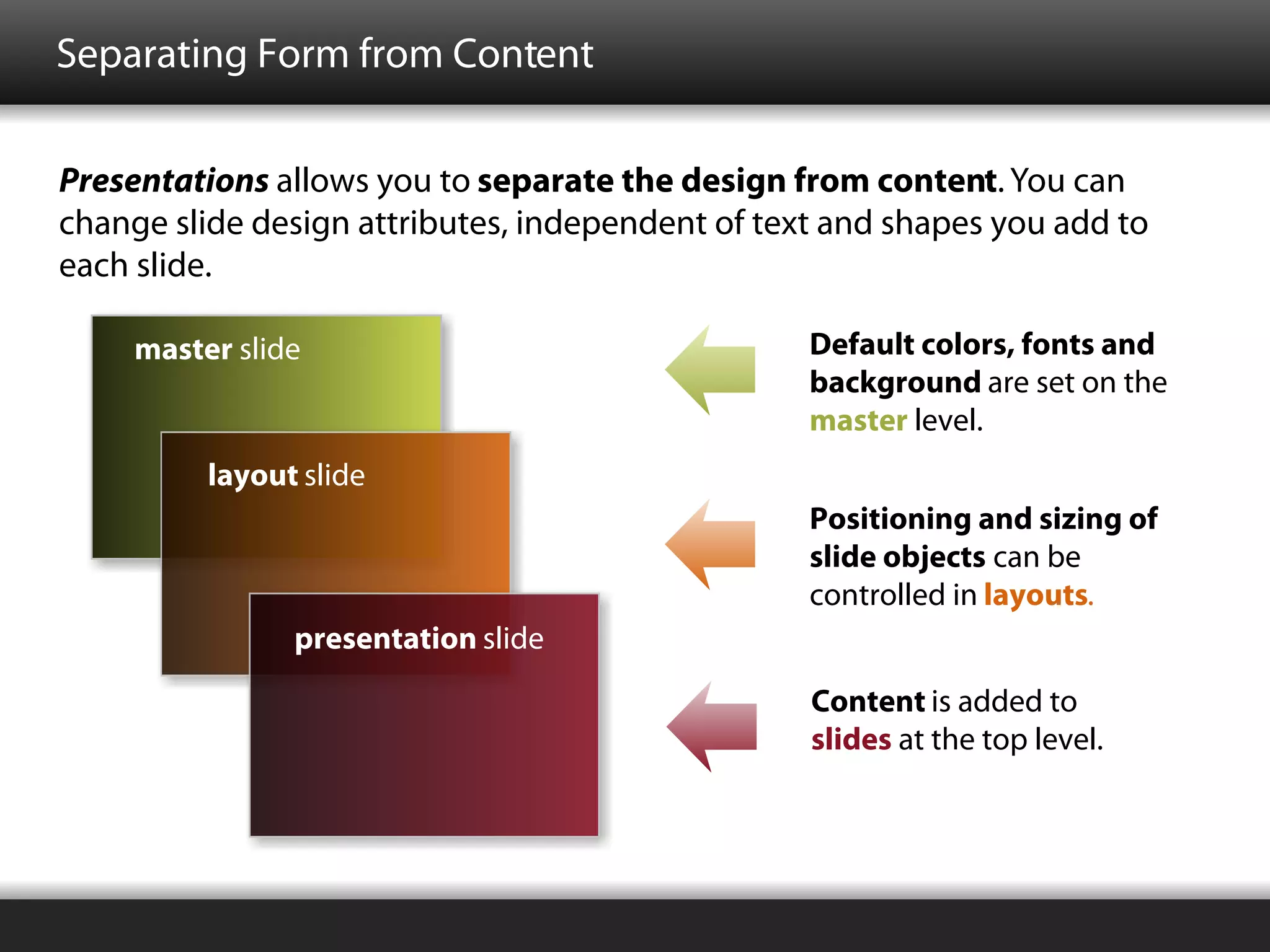
Separating Form from Content

Presentations allows you to separate the design from content. You can
change slide design attributes, independent of text and shapes you add to
each slide.

     master slide                                 Default colors, fonts and
                                                  background are set on the
                                                  master level.
          layout slide
                                                  Positioning and sizing of
                                                  slide objects can be
                                                  controlled in layouts.
                presentation slide
                                                  Content is added to
                                                  slides at the top level.
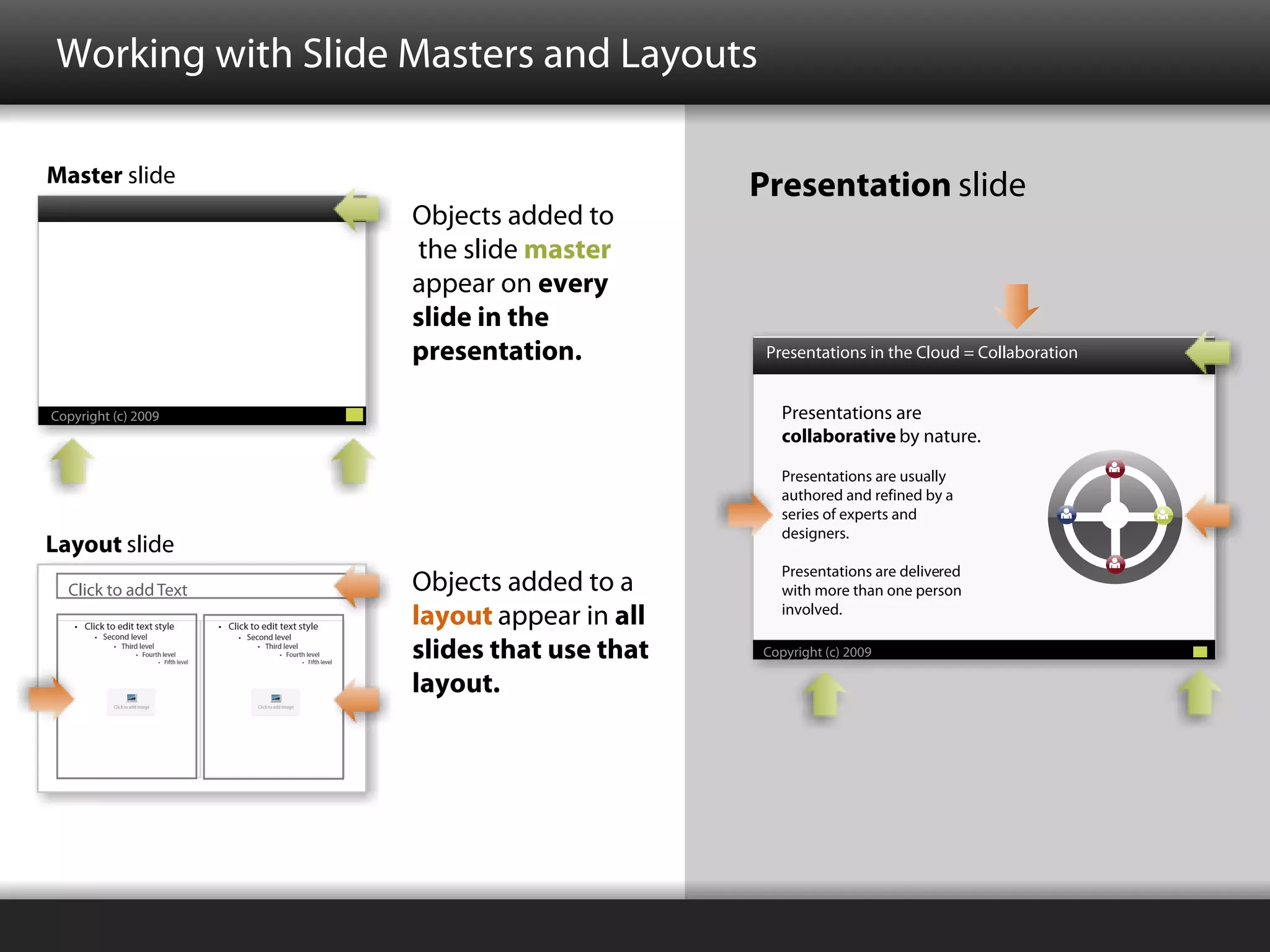
Working with Slide Masters and Layouts

Master slide
                                             Presentation slide
                      Objects added to
                      the slide master
                      appear on every
                      slide in the
                      presentation.           Presentations in the Cloud = Collaboration


Copyright (c) 2009                              Presentations are
                                                collaborative by nature.

                                                Presentations are usually
                                                authored and refined by a
                                                series of experts and
                                                designers.
Layout slide
                                                Presentations are delivered
  Click to add Text   Objects added to a        with more than one person
                                                involved.
                      layout appear in all
                      slides that use that   Copyright (c) 2009

                      layout.
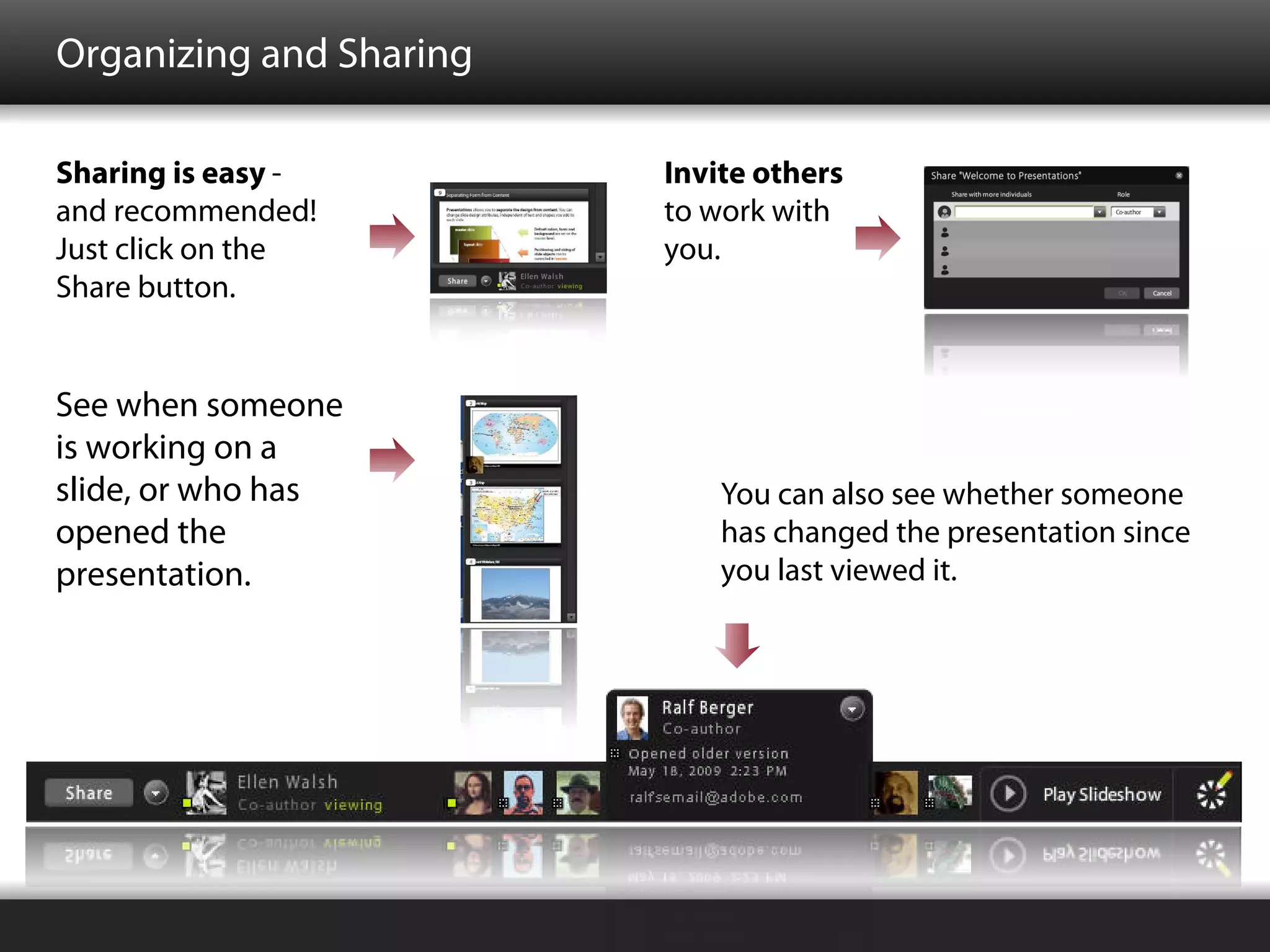
Organizing and Sharing

Sharing is easy -        Invite others
and recommended!         to work with
Just click on the        you.
Share button.


See when someone
is working on a
slide, or who has            You can also see whether someone
opened the                   has changed the presentation since
presentation.                you last viewed it.
And When It's Showtime.....


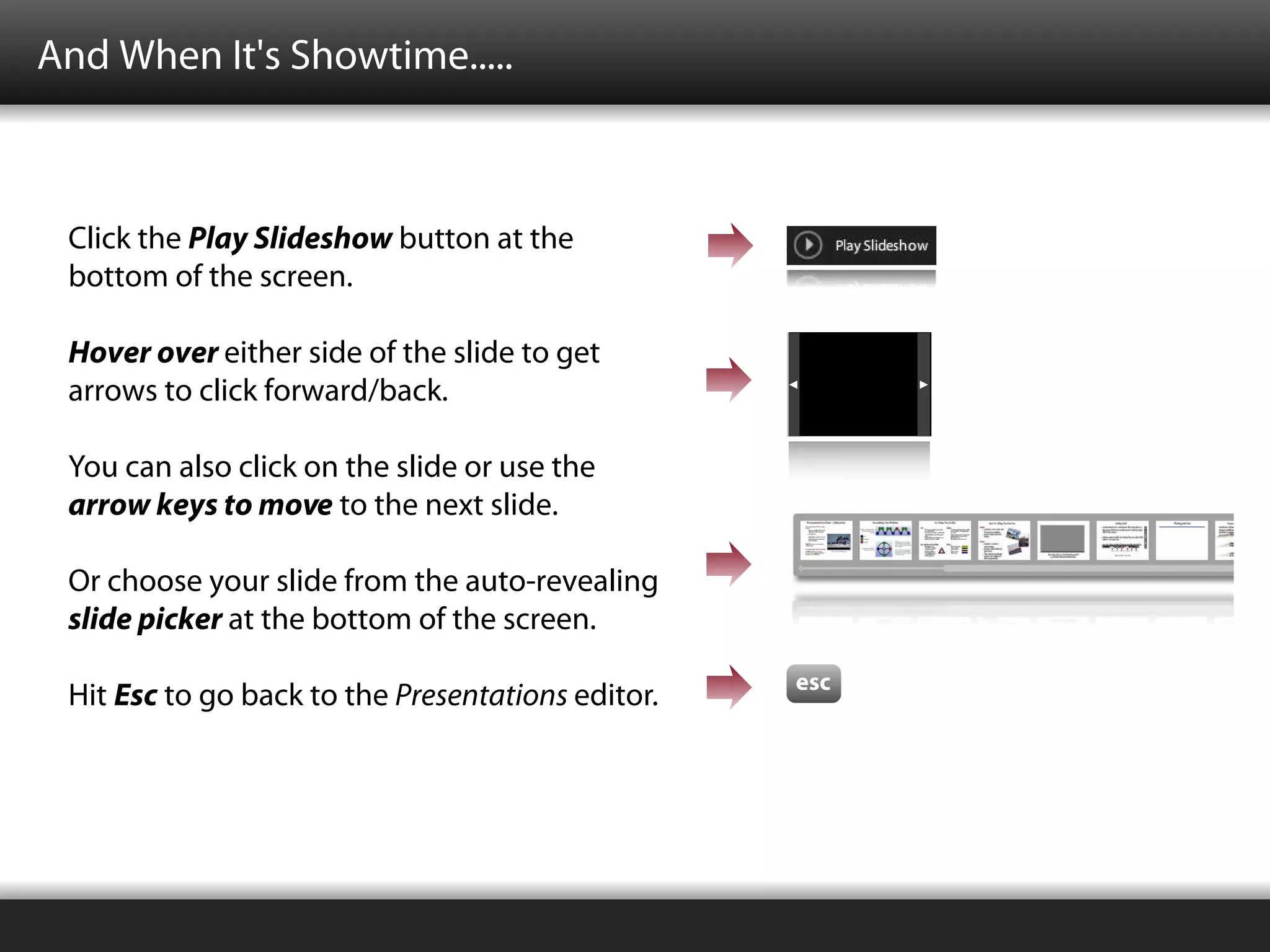
 Click the Play Slideshow button at the
 bottom of the screen.

 Hover over either side of the slide to get
 arrows to click forward/back.

 You can also click on the slide or use the
 arrow keys to move to the next slide.

 Or choose your slide from the auto-revealing
 slide picker at the bottom of the screen.
                                                   esc
 Hit Esc to go back to the Presentations editor.
Publish with a Click and a Smile

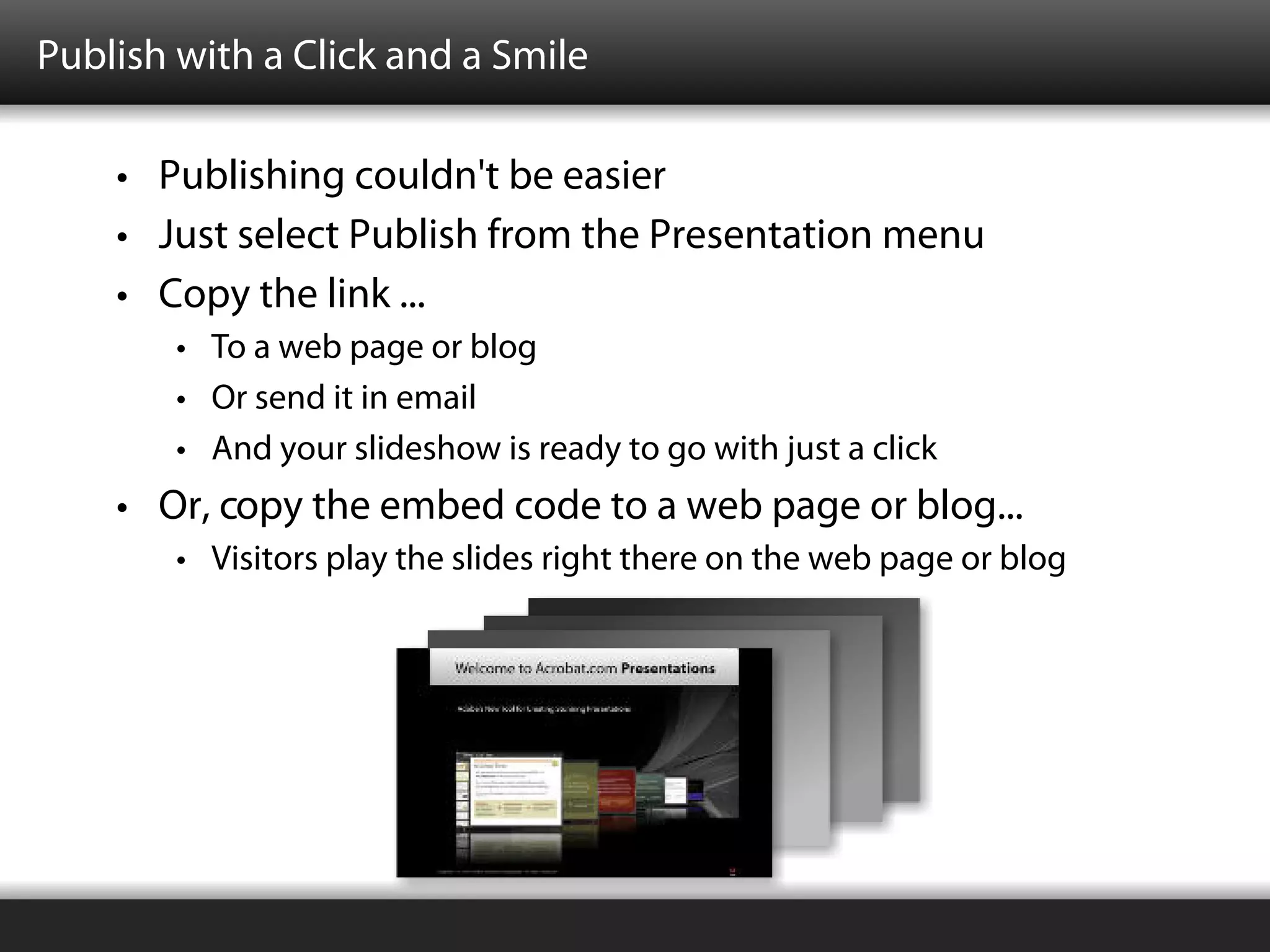
    • Publishing couldn't be easier
    • Just select Publish from the Presentation menu
    • Copy the link ...
        • To a web page or blog
        • Or send it in email
        • And your slideshow is ready to go with just a click
    • Or, copy the embed code to a web page or blog...
        • Visitors play the slides right there on the web page or blog
Next Steps...


                      Thank you
                for taking a look at Presentations
                                    Next Steps:
          •     Share this presentation with others!
          •     Click the Share button in the lower left corner.
          •     Please send us feedback - presentation_feedback@adobe.com.
          •     If you're viewing in Slideshow mode, press Esc to go to the editor.

slideshow example

  • 1.
    Welcome to Acrobat.comPresentations Adobe's New Tool for Creating Stunning Presentations Copyright (c) 2009 Adobe Systems Incorporated. All rights reserved.
  • 2.
    New Features Sincethe Preview Release What's new since Preview? • Import PPT/PPTX • Publish to web site or blog • Spell check - 19 languages! • Copy & paste slides • Use Kuler for new color sets • Show images as slide background • Import FXG graphics • Browse Flickr or Google images ... and much more! The new organizer now provides access to all your files
  • 3.
    Acrobat.com and Presentations Acrobat.com emphasizes these three key areas: Ubiquity: Collaboration: User experience: persistent access to ability to create and all delivered with a your presentations share presentations simple yet elegant from any Internet- with others easily design connected computer Acrobat.com Presentations delivers!
  • 4.
    Streamlining Your Workflow Traditional Workflow: Sequential editing, email routing You Collaborator Designer Presentations Workflow: Simultaneous Access Building presentations online means that you can break free from sending large files over email. All contributors working on the same presentation streamlines the process, and keeps everyone on the same page.
  • 5.
    Themes Increase theImpact of Your Presentations Presentations comes with built-in themes, and you can add your own. Change your theme and get a whole new look - in seconds!
  • 6.
    The Things YouCan Do! Text Shapes You can enter regular text or outline text on A wide range of shapes are accessible from your slides. the palette on the right edge of the screen. To convert a text object to outline, click the Format shapes and text using the sliding bullet icon in the List toolbar. toolbars at the top of the Presentations screen. Text can be formatted in layouts or locally via the format toolbar. More shapes to come over time. Fills, Borders & Gradients Effects Several options are available for changing There are a variety of special effects you the appearance of objects on a slide. can add to objects in your presentation. Use the Shape toolbar to specify fill, effects, borders, gradients.
  • 7.
    And the ThingsYou Can See! Images and Videos Add images (JPG, PNG, GIF or FXG) Upload movies (FLV format) from your computer or browse the into a presentation in the web. same way you add images. Double-click to view movies in the Editor. They play automatically on the designated slide in Slideshow. Resize or rotate images. Or use as a background. Add effects such as borders, shadows or reflections.
  • 8.
    Let the WebInspire Your Slides • Use new color sets from Kuler. • Browse images from Flickr, Google or web pages. • Get inspired by the communities on the web.
  • 9.
    Adding Stuff IsEasy To add content to a Objects come in slide, click (or drag) any with the default of the icons on the fill color (the third palette at the far right color in the color set). side of the screen. Use the shape toolbar to refine the design. Fill color Gradient Border Border Effects Opacity color width
  • 10.
    Separating Form fromContent Presentations allows you to separate the design from content. You can change slide design attributes, independent of text and shapes you add to each slide. master slide Default colors, fonts and background are set on the master level. layout slide Positioning and sizing of slide objects can be controlled in layouts. presentation slide Content is added to slides at the top level.
  • 11.
    Working with SlideMasters and Layouts Master slide Presentation slide Objects added to the slide master appear on every slide in the presentation. Presentations in the Cloud = Collaboration Copyright (c) 2009 Presentations are collaborative by nature. Presentations are usually authored and refined by a series of experts and designers. Layout slide Presentations are delivered Click to add Text Objects added to a with more than one person involved. layout appear in all slides that use that Copyright (c) 2009 layout.
  • 12.
    Organizing and Sharing Sharingis easy - Invite others and recommended! to work with Just click on the you. Share button. See when someone is working on a slide, or who has You can also see whether someone opened the has changed the presentation since presentation. you last viewed it.
  • 13.
    And When It'sShowtime..... Click the Play Slideshow button at the bottom of the screen. Hover over either side of the slide to get arrows to click forward/back. You can also click on the slide or use the arrow keys to move to the next slide. Or choose your slide from the auto-revealing slide picker at the bottom of the screen. esc Hit Esc to go back to the Presentations editor.
  • 14.
    Publish with aClick and a Smile • Publishing couldn't be easier • Just select Publish from the Presentation menu • Copy the link ... • To a web page or blog • Or send it in email • And your slideshow is ready to go with just a click • Or, copy the embed code to a web page or blog... • Visitors play the slides right there on the web page or blog
  • 15.
    Next Steps... Thank you for taking a look at Presentations Next Steps: • Share this presentation with others! • Click the Share button in the lower left corner. • Please send us feedback - presentation_feedback@adobe.com. • If you're viewing in Slideshow mode, press Esc to go to the editor.