#1 Plan It Out       #4 Think of “Flow”    #7 Download A Template


#2 Choose Your Colors   #5 Minimum “2” Fonts      #8 Get Animated

  #3 Think Visually        #6 Add Music         #9 Say No To Clutter


                        #10 Share Your PPT
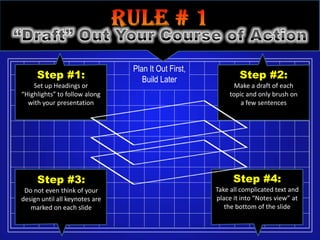
Plan It Out First,
     Step #1:                      Build Later               Step #2:
    Set up Headings or                                     Make a draft of each
“Highlights” to follow along                             topic and only brush on
  with your presentation                                     a few sentences


     Step #3:                                              Step #4:
 Do not even think of your                           Take all complicated text and
design until all keynotes are                        place it into “Notes view” at
   marked on each slide                                 the bottom of the slide
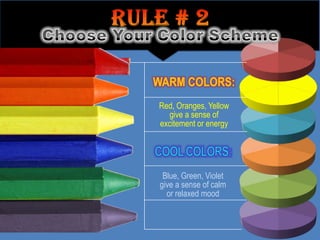
Red, Oranges, Yellow
  give a sense of
excitement or energy


 Blue, Green, Violet
give a sense of calm
  or relaxed mood
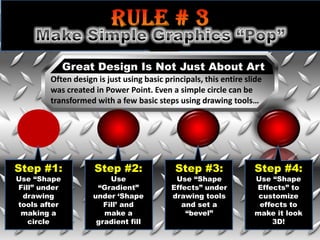
Great Design Is Not Just About Art
        Often design is just using basic principals, this entire slide
        was created in Power Point. Even a simple circle can be
        transformed with a few basic steps using drawing tools…


Step #1:            Step #2:                Step #3:               Step #4:
Use “Shape               Use                Use “Shape             Use “Shape
Fill” under          “Gradient”            Effects” under          Effects” to
 drawing            under „Shape           drawing tools            customize
tools after            Fill‟ and              and set a             effects to
 making a              make a                  “bevel”             make it look
   circle            gradient fill                                     3D!
When someone reads text, eyes flow from left to right,
                             [ just as you are reading this….]


                  The eye is then drawn to the body
                     or the center of the design
              Your layout should follow the same principle.


Finally the eye will read the bottom of the design or slide.
This format is a lot like the letter “Z” in that the design is mimicking the flow of the eye.
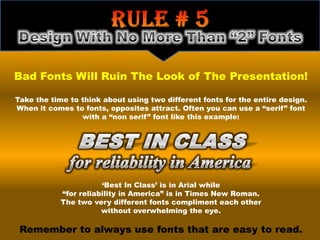
Bad Fonts Will Ruin The Look of The Presentation!

Take the time to think about using two different fonts for the entire design.
When it comes to fonts, opposites attract. Often you can use a “serif” font
                 with a “non serif” font like this example:


                       „Best In Class‟ is in Arial while
            “for reliability in America” is in Times New Roman.
            The two very different fonts compliment each other
                       without overwhelming the eye.

 Remember to always use fonts that are easy to read.
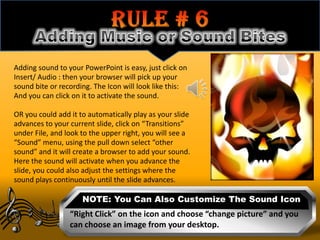
Adding sound to your PowerPoint is easy, just click on
Insert/ Audio : then your browser will pick up your
sound bite or recording. The Icon will look like this:
And you can click on it to activate the sound.

OR you could add it to automatically play as your slide
advances to your current slide, click on “Transitions”
under File, and look to the upper right, you will see a
“Sound” menu, using the pull down select “other
sound” and it will create a browser to add your sound.
Here the sound will activate when you advance the
slide, you could also adjust the settings where the
sound plays continuously until the slide advances.

                     NOTE: You Can Also Customize The Sound Icon
                 “Right Click” on the icon and choose “change picture” and you
                 can choose an image from your desktop.
Feeling Uninspired About Designing Your PPT?
         Here are a few alternatives to consider:

                                     Slideshare.net
           Slideshare is a free site with literally thousands of templates that a user can
           download to their computer and my favorite choice to search for templates.
 A bonus feature of slideshare is the ability for those to share their PowerPoint with other users- if
                you elect to not share – then you can setup the PPT to be private.

                                         Office.com
   Click on “TEMPLATES” and then click “Power Point” to browse their library of free downloads.
  There are plenty of different themes to choose from but are usually suited for the individual who
has a home computer that wants to make a calendar to share with friends or to setup photo albums

                               presentermedia.com
PresenterMedia has a library of template downloads that are more geared towards those who want
to have a “business” presentation, the only drawback is that you will have to pay for a subscription
                        to their site in order to download these templates.
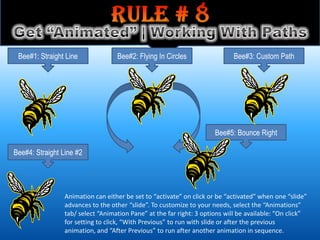
Bee#1: Straight Line              Bee#2: Flying In Circles                  Bee#3: Custom Path


                                                                      Bee#5: Bounce Right

Bee#4: Straight Line #2


                 Animation can either be set to “activate” on click or be “activated” when one “slide”
                 advances to the other “slide”. To customize to your needs, select the “Animations”
                 tab/ select “Animation Pane” at the far right: 3 options will be available: “On click”
                 for setting to click, “With Previous” to run with slide or after the previous
                 animation, and “After Previous” to run after another animation in sequence.
EXAMPLE A: Cluttered Space                          EXAMPLE B: White Space

NOTHING IS MORE UNAPPEALING                          Nothing is more unappealing
    THAN PLACING LOADS OF                            than placing loads of graphics
   GRAPHICS OR TEXT INTO A                             or text into a presentation
 PRESENTATION [THE VERY LOOK                           [the very look of it immediately
 OF IT IMMEDIATELY MAKES THE                                makes the eyes strain]
EYES STRAIN] NO ONE WANTS TO
 LOOK AT A BUNCH OF TEXT, OR                         No one wants to look at a bunch of
  CROWDED GRAPHICS, KEEP IN                              text, or crowded graphics.
   MIND THAT “LESS IS MORE”
   WHEN DESIGNING. ALLOW                              Keep in mind that “less is more”
 “WHITE SPACE” OR BREATHING                         when designing. Allow “white space”
SPACE TO FLOW IN THE TEXT AND                       or breathing space to flow in the text
    GRAPHICS OF EACH SLIDE.                              and graphics of each slide.

 BOTH EXAMPLES HAVE THE SAME MESSAGE! It is easier to read “B” than “A” because there
   is space between the sentences. Avoid using capital letters because it really does not
emphasis the message. Try making your main point in a different color instead for emphasis.
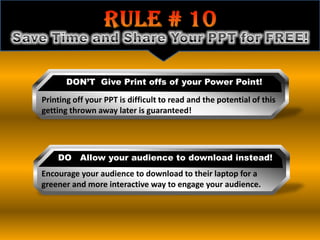
DON‟T Give Print offs of your Power Point!

Printing off your PPT is difficult to read and the potential of this
getting thrown away later is guaranteed!


    DO     Allow your audience to download instead!
Encourage your audience to download to their laptop for a
greener and more interactive way to engage your audience.

Rock that Power Point

  • 2.
    #1 Plan ItOut #4 Think of “Flow” #7 Download A Template #2 Choose Your Colors #5 Minimum “2” Fonts #8 Get Animated #3 Think Visually #6 Add Music #9 Say No To Clutter #10 Share Your PPT
  • 3.
    Plan It OutFirst, Step #1: Build Later Step #2: Set up Headings or Make a draft of each “Highlights” to follow along topic and only brush on with your presentation a few sentences Step #3: Step #4: Do not even think of your Take all complicated text and design until all keynotes are place it into “Notes view” at marked on each slide the bottom of the slide
  • 4.
    Red, Oranges, Yellow give a sense of excitement or energy Blue, Green, Violet give a sense of calm or relaxed mood
  • 5.
    Great Design IsNot Just About Art Often design is just using basic principals, this entire slide was created in Power Point. Even a simple circle can be transformed with a few basic steps using drawing tools… Step #1: Step #2: Step #3: Step #4: Use “Shape Use Use “Shape Use “Shape Fill” under “Gradient” Effects” under Effects” to drawing under „Shape drawing tools customize tools after Fill‟ and and set a effects to making a make a “bevel” make it look circle gradient fill 3D!
  • 6.
    When someone readstext, eyes flow from left to right, [ just as you are reading this….] The eye is then drawn to the body or the center of the design Your layout should follow the same principle. Finally the eye will read the bottom of the design or slide. This format is a lot like the letter “Z” in that the design is mimicking the flow of the eye.
  • 7.
    Bad Fonts WillRuin The Look of The Presentation! Take the time to think about using two different fonts for the entire design. When it comes to fonts, opposites attract. Often you can use a “serif” font with a “non serif” font like this example: „Best In Class‟ is in Arial while “for reliability in America” is in Times New Roman. The two very different fonts compliment each other without overwhelming the eye. Remember to always use fonts that are easy to read.
  • 8.
    Adding sound toyour PowerPoint is easy, just click on Insert/ Audio : then your browser will pick up your sound bite or recording. The Icon will look like this: And you can click on it to activate the sound. OR you could add it to automatically play as your slide advances to your current slide, click on “Transitions” under File, and look to the upper right, you will see a “Sound” menu, using the pull down select “other sound” and it will create a browser to add your sound. Here the sound will activate when you advance the slide, you could also adjust the settings where the sound plays continuously until the slide advances. NOTE: You Can Also Customize The Sound Icon “Right Click” on the icon and choose “change picture” and you can choose an image from your desktop.
  • 9.
    Feeling Uninspired AboutDesigning Your PPT? Here are a few alternatives to consider: Slideshare.net Slideshare is a free site with literally thousands of templates that a user can download to their computer and my favorite choice to search for templates. A bonus feature of slideshare is the ability for those to share their PowerPoint with other users- if you elect to not share – then you can setup the PPT to be private. Office.com Click on “TEMPLATES” and then click “Power Point” to browse their library of free downloads. There are plenty of different themes to choose from but are usually suited for the individual who has a home computer that wants to make a calendar to share with friends or to setup photo albums presentermedia.com PresenterMedia has a library of template downloads that are more geared towards those who want to have a “business” presentation, the only drawback is that you will have to pay for a subscription to their site in order to download these templates.
  • 10.
    Bee#1: Straight Line Bee#2: Flying In Circles Bee#3: Custom Path Bee#5: Bounce Right Bee#4: Straight Line #2 Animation can either be set to “activate” on click or be “activated” when one “slide” advances to the other “slide”. To customize to your needs, select the “Animations” tab/ select “Animation Pane” at the far right: 3 options will be available: “On click” for setting to click, “With Previous” to run with slide or after the previous animation, and “After Previous” to run after another animation in sequence.
  • 11.
    EXAMPLE A: ClutteredSpace EXAMPLE B: White Space NOTHING IS MORE UNAPPEALING Nothing is more unappealing THAN PLACING LOADS OF than placing loads of graphics GRAPHICS OR TEXT INTO A or text into a presentation PRESENTATION [THE VERY LOOK [the very look of it immediately OF IT IMMEDIATELY MAKES THE makes the eyes strain] EYES STRAIN] NO ONE WANTS TO LOOK AT A BUNCH OF TEXT, OR No one wants to look at a bunch of CROWDED GRAPHICS, KEEP IN text, or crowded graphics. MIND THAT “LESS IS MORE” WHEN DESIGNING. ALLOW Keep in mind that “less is more” “WHITE SPACE” OR BREATHING when designing. Allow “white space” SPACE TO FLOW IN THE TEXT AND or breathing space to flow in the text GRAPHICS OF EACH SLIDE. and graphics of each slide. BOTH EXAMPLES HAVE THE SAME MESSAGE! It is easier to read “B” than “A” because there is space between the sentences. Avoid using capital letters because it really does not emphasis the message. Try making your main point in a different color instead for emphasis.
  • 12.
    DON‟T Give Printoffs of your Power Point! Printing off your PPT is difficult to read and the potential of this getting thrown away later is guaranteed! DO Allow your audience to download instead! Encourage your audience to download to their laptop for a greener and more interactive way to engage your audience.

Editor's Notes

  • #4 You will need a plan to make this work, assuming that you already planned the speech for the audience, it is important that you give some careful thought as to how you want this presented and how many slides you will want to display. The best way to imagine this as you build your presentation is to think of this as play with separate acts to follow with it. With that in mind, consider the highlight points that you want to make and then plan to use only the highlights as your heading for each slide. Keep in mind that this presentation is going to emphasis your speech, do not write everything on the Power Point word for word to follow your speech- it is important that as you are planning the design process think "less" is "more" and only "touch" on those key topics.
  • #5 Choosing your colors is as simple as when you choose colors in grade school, some colors look garish together while other colors complement each other. Consider for a moment a cool color scheme: blues, greens, and purples [or violet] all complement each other as those from a warm color scheme: red, orange, and red-violet.
  • #6 Be aware that just sticking words in your presentation will put your audience to sleep. Also we are talking about engaging the audience on a very large format- as most presentations are placed on a large view screen. Power Point has the ability to change that simple photo into something more interesting with the use of custom frames and with the use of the animation pane to get the image to "fly in" as activated by your "click" or set to time "with previous" as your slide progresses to the that current slide. Initially it takes a few more extra minutes to add the animation feature, but it can be more visually interesting than just sticking a static image on the slide. Again you are looking to engage the audience into your conversation, take the necessary time to make this interesting to view on the "big screen".
  • #7 Ok so that template you were going to use in your presentation has all the text centered in the middle of the slide- well to be honest that is just boring and uninteresting to look at. Think of magazine ads, bill board ads, and even television advertising; all of them use text but do not "smack" it in the center-because it's mundane and uninteresting to look at. The eye flows around a design in a certain pattern - just like you are reading this your eyes are traveling from left to right. So, when you build the presentation consider the "headline" and concentrate on how the eye will be drawn from the title, across the flow of the "body" of the slide, and then flatly across the bottom of the page- much like in a "Z" pattern.
  • #8 This is just another concept of "Keep It Simple", remember that less is more when you set up your presentation. Often people will attempt to "stuff" an entire biography onto one slide-. Keep only a few bullet points to each slide and make sure to not make it visually confusing with an overload of different fonts. I prefer to keep any design I build to be no more than two fonts- more than three fonts will make it look junky, cluttered, and seem unprofessional. Often I will elect to have a "Chunky" Headline font and a "thin" and more "delicate" font for the body of the design. This is an example of opposites attracting and making it graphically appealing.
  • #9 PowerPoint provides two ways to add sound, either as a "button" that you press on your slide or you may choose to add a sound to each slide using your "transition" tab, however, either one will work but the transition tab [see the "sound" menu with the pull down window] will allow for the sound to be played without having to actively "click" on the sound button. If the sounds are not exactly what you need, then you can download new sounds with sound bible which provides free sound bites that you can listen to before you download. If you cannot find a free sound bite through sound bible then you could elect instead to purchase one for a nominal fee with istockphoto.com.
  • #11 Here is an example of what you can do with simple clip art, I got the bees from the “Clip Art” section with the “Include Office.com” selected. Then all three bees were just “cut and pasted” to look like three different “bees”, I then used the “Animations” tab and used assorted functions for bees#1 and #2- Bee #1 had the “Fly In” and Bee #2 had the “Spin”, However Bee #3 had the custom path and that is found in the “More Motion Effects” located under the pull down menu under the scroll window.
  • #12 Designers use the element of “white space” in their designs to give the piece a strong visual. If the slides you present are too cluttered with text, then it will be difficult for the audience to follow along with you. Keep the “less is more” principle for your slides and don’t clutter with too many words or bullet points.