TITLE :PAGE MAKER
STAFF NAME :M.JANCYPRIYA. [M.SC.,M.PHIL.,B.ED.]
CLASS : III_BCA
SEMESTER : IV
UNIT : UNIT_3
TOPIC :Working with Text
Working with Text
[page maker 7.0]
Working with text:
 Page maker is includes tools that make to lay out a publication is include
lot of text .
 Then create columns, how to import, place and control the flow of text, and
formatting headlines.
Planning a fact sheet:
 A fact sheet is an informational publication that describes a company
product or services in detail.
 Fact sheet can be one page or several page and usually contain large
amount text.
Creating columns:
 Start the page maker, open the file PM C-1.pmd from the drive and folder
where your project files are located, and save the file.
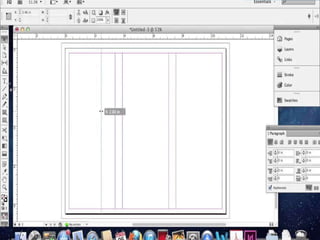
 Click layout menu on the menu bar, then click column guides.
 Type 3 in the number of columns text box, click ok.
 Type text from the pasteboard on the publication page, then place it.
 Type more text in the second and third column of the publication page then
place it.
 Click file menu on the menu bar, then save.
 Save your changes to the publication.
Importing and placing Text:
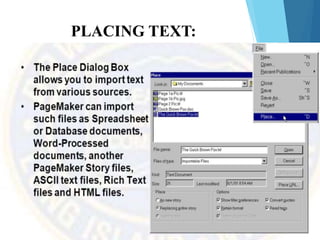
 You can use place command on the file menu, then click
file menu to import a created in a word processing
program in to a publication.
 Click the file menu on the menu bar, then click place.
 Open the place dialog box.
 Click look in list arrow, drive and folder where you
project located, then click PM C-2.doc.
 Click open and then click ok.
 Position in the upper left corner of the third column.
 Save your changes to the publication.
maxresdefault
PLACING TEXT:
Moving text block:
 Moves text block containing the point to response to the
bottom of page.
 Click point of text block in the upper left corner of the
page then select it.
 Position the pointer over middle of the text then press and
hold the mouse button.
 Move and selected position and release the mouse button.
Resizing the image:
 Resizing the image.
 Select the image and click resize button in the tool box
click ok.
 Press and hold the mouse button then click corner of the
image drag them.
 Finally resizing the image.
Drag placing text:
 Click the file menu bar then click place
 Click the look in list in the arrow then drive and folder
where your project located , click the file PM C -4.doc,
then click open
 Position at the intersection of the top and left margin
guides
 Select the text block then drag them
 When you satisfied with the text block dimensions
release the mouse button
 Save your changes to the publication
Using reverse text:
 Reverse text is while or lightly shaded letter and lines
against a dark background
 Click the text tool in the text block, then select the two
lines of headline text
 Click type on the menu bar point to alignment then
center
 Click the type on the menu bar and select the reverse
then click to deselect the text
 Click the element menu on the menu bar point to Fill
then click solid
 Click element menu on the menu bar, point to arrange
,then send to back
 Save your changes to the publication
THANK YOU

Working with text 3

  • 1.
    TITLE :PAGE MAKER STAFFNAME :M.JANCYPRIYA. [M.SC.,M.PHIL.,B.ED.] CLASS : III_BCA SEMESTER : IV UNIT : UNIT_3 TOPIC :Working with Text
  • 2.
  • 3.
    Working with text: Page maker is includes tools that make to lay out a publication is include lot of text .  Then create columns, how to import, place and control the flow of text, and formatting headlines.
  • 4.
    Planning a factsheet:  A fact sheet is an informational publication that describes a company product or services in detail.  Fact sheet can be one page or several page and usually contain large amount text.
  • 5.
    Creating columns:  Startthe page maker, open the file PM C-1.pmd from the drive and folder where your project files are located, and save the file.  Click layout menu on the menu bar, then click column guides.  Type 3 in the number of columns text box, click ok.  Type text from the pasteboard on the publication page, then place it.  Type more text in the second and third column of the publication page then place it.  Click file menu on the menu bar, then save.  Save your changes to the publication.
  • 8.
    Importing and placingText:  You can use place command on the file menu, then click file menu to import a created in a word processing program in to a publication.  Click the file menu on the menu bar, then click place.  Open the place dialog box.  Click look in list arrow, drive and folder where you project located, then click PM C-2.doc.  Click open and then click ok.  Position in the upper left corner of the third column.  Save your changes to the publication.
  • 9.
  • 10.
  • 11.
    Moving text block: Moves text block containing the point to response to the bottom of page.  Click point of text block in the upper left corner of the page then select it.  Position the pointer over middle of the text then press and hold the mouse button.  Move and selected position and release the mouse button.
  • 13.
    Resizing the image: Resizing the image.  Select the image and click resize button in the tool box click ok.  Press and hold the mouse button then click corner of the image drag them.  Finally resizing the image.
  • 15.
    Drag placing text: Click the file menu bar then click place  Click the look in list in the arrow then drive and folder where your project located , click the file PM C -4.doc, then click open  Position at the intersection of the top and left margin guides  Select the text block then drag them  When you satisfied with the text block dimensions release the mouse button  Save your changes to the publication
  • 17.
    Using reverse text: Reverse text is while or lightly shaded letter and lines against a dark background  Click the text tool in the text block, then select the two lines of headline text  Click type on the menu bar point to alignment then center  Click the type on the menu bar and select the reverse then click to deselect the text  Click the element menu on the menu bar point to Fill then click solid  Click element menu on the menu bar, point to arrange ,then send to back  Save your changes to the publication
  • 19.