Advanced Microsoft Word We will learn about: inserting & formatting text formatting a table
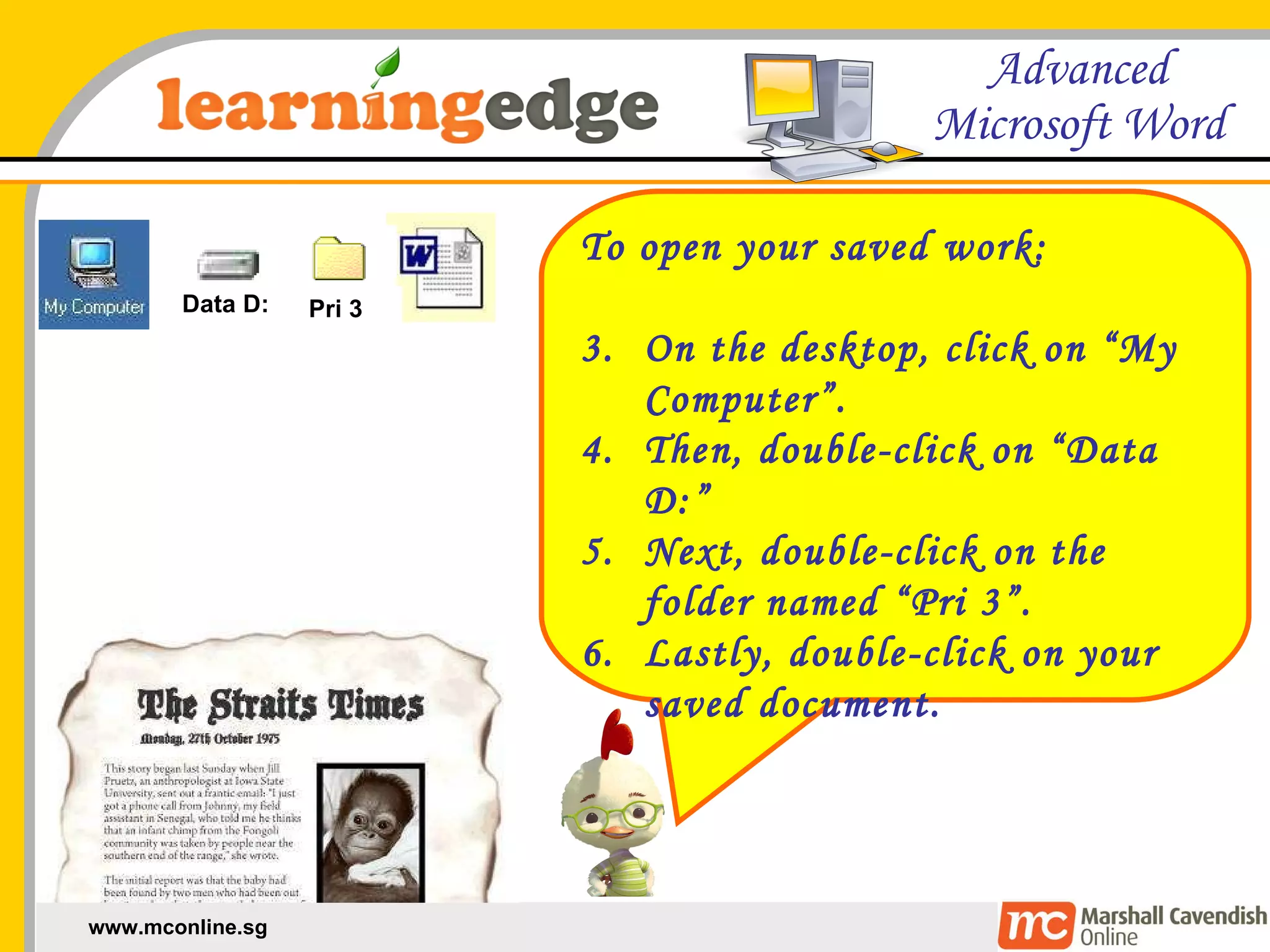
To open your saved work: On the desktop, click on “My Computer”. Then, double-click on “Data D:” Next, double-click on the folder named “Pri 3”. Lastly, double-click on your saved document. Data D: Pri 3
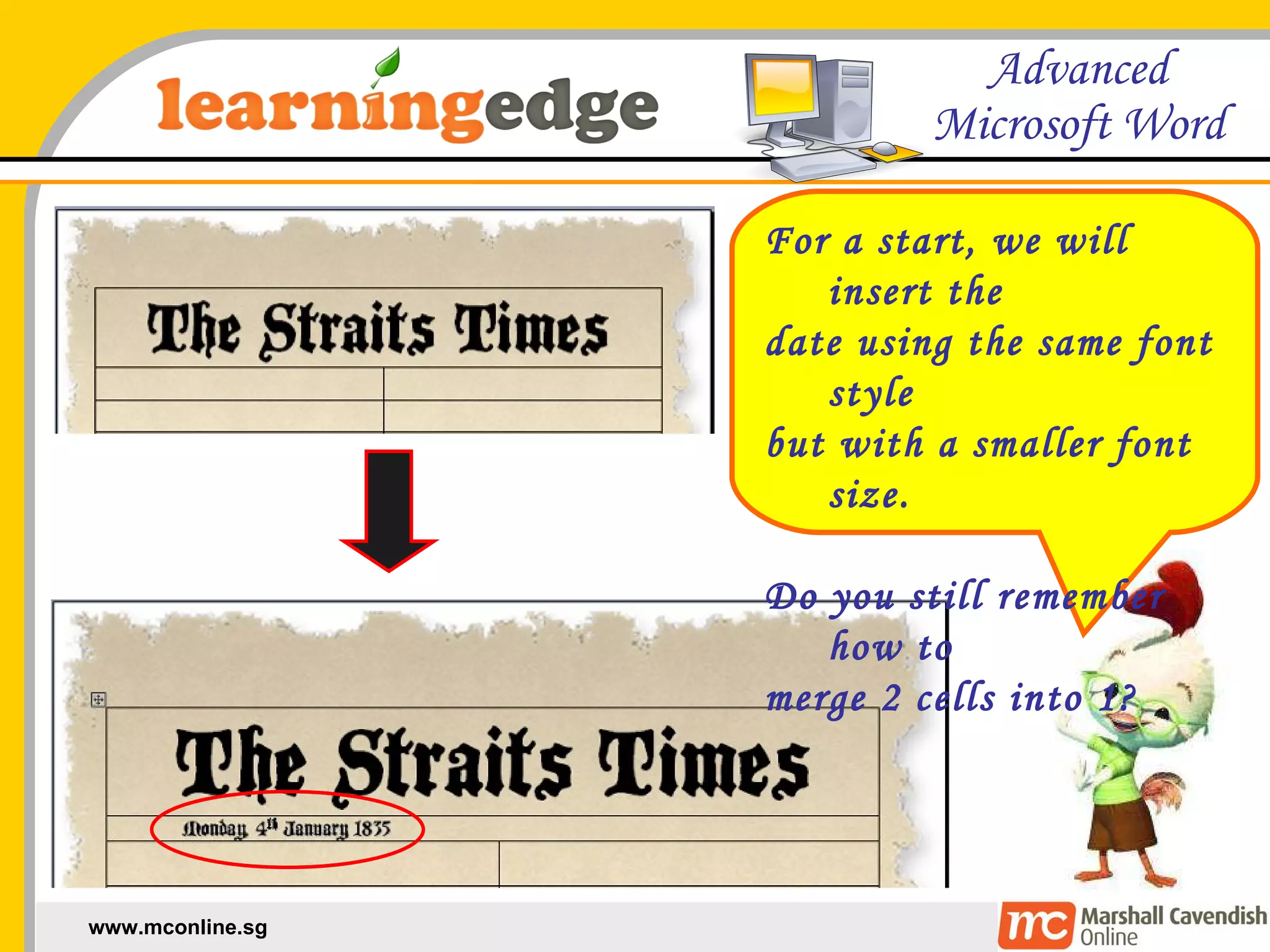
For a start, we will insert the  date using the same font style but with a smaller font size. Do you still remember how to  merge 2 cells into 1?
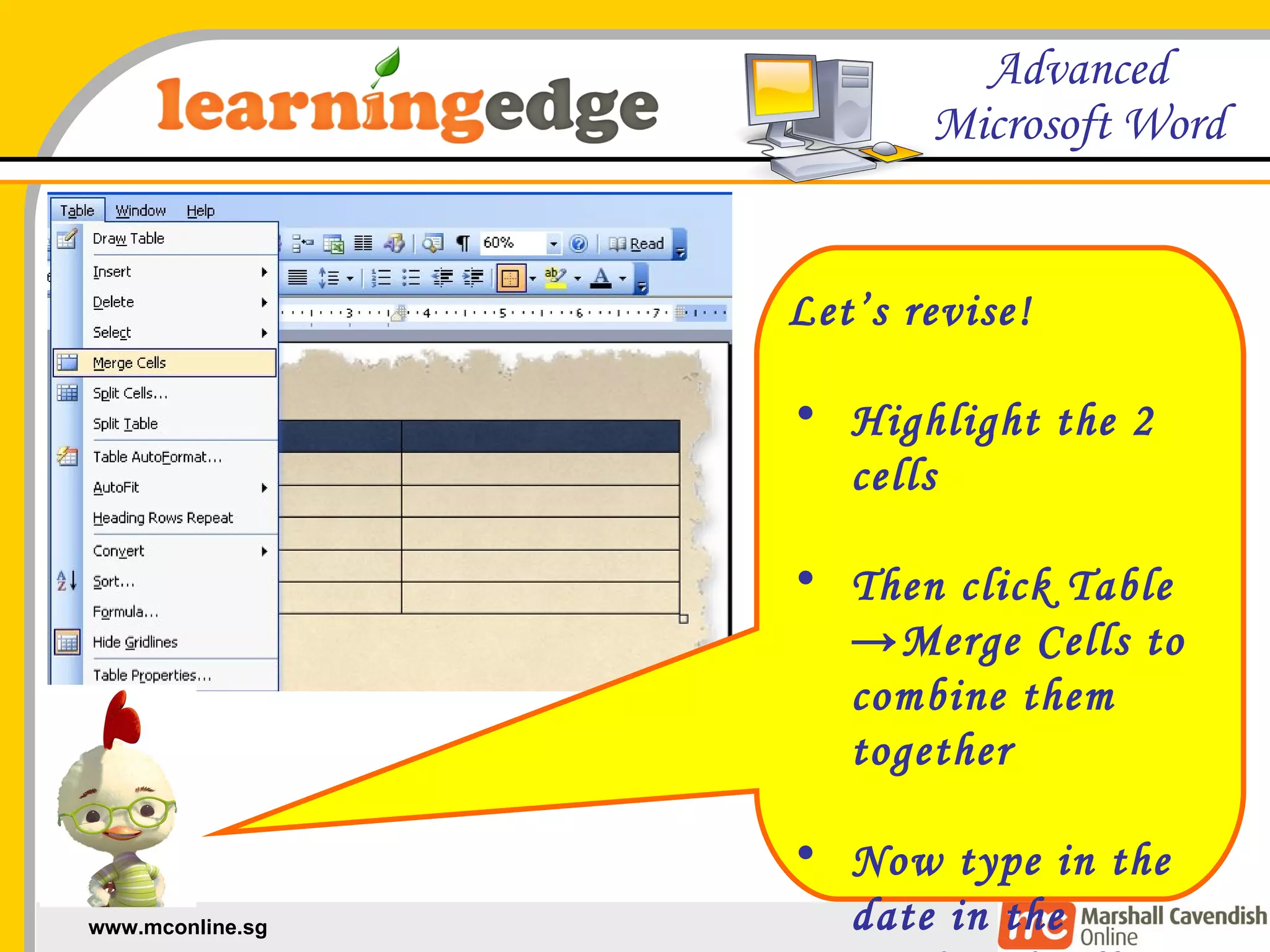
Let’s revise! Highlight the 2 cells Then click Table ->Merge Cells to combine them together Now type in the date in the combined cell
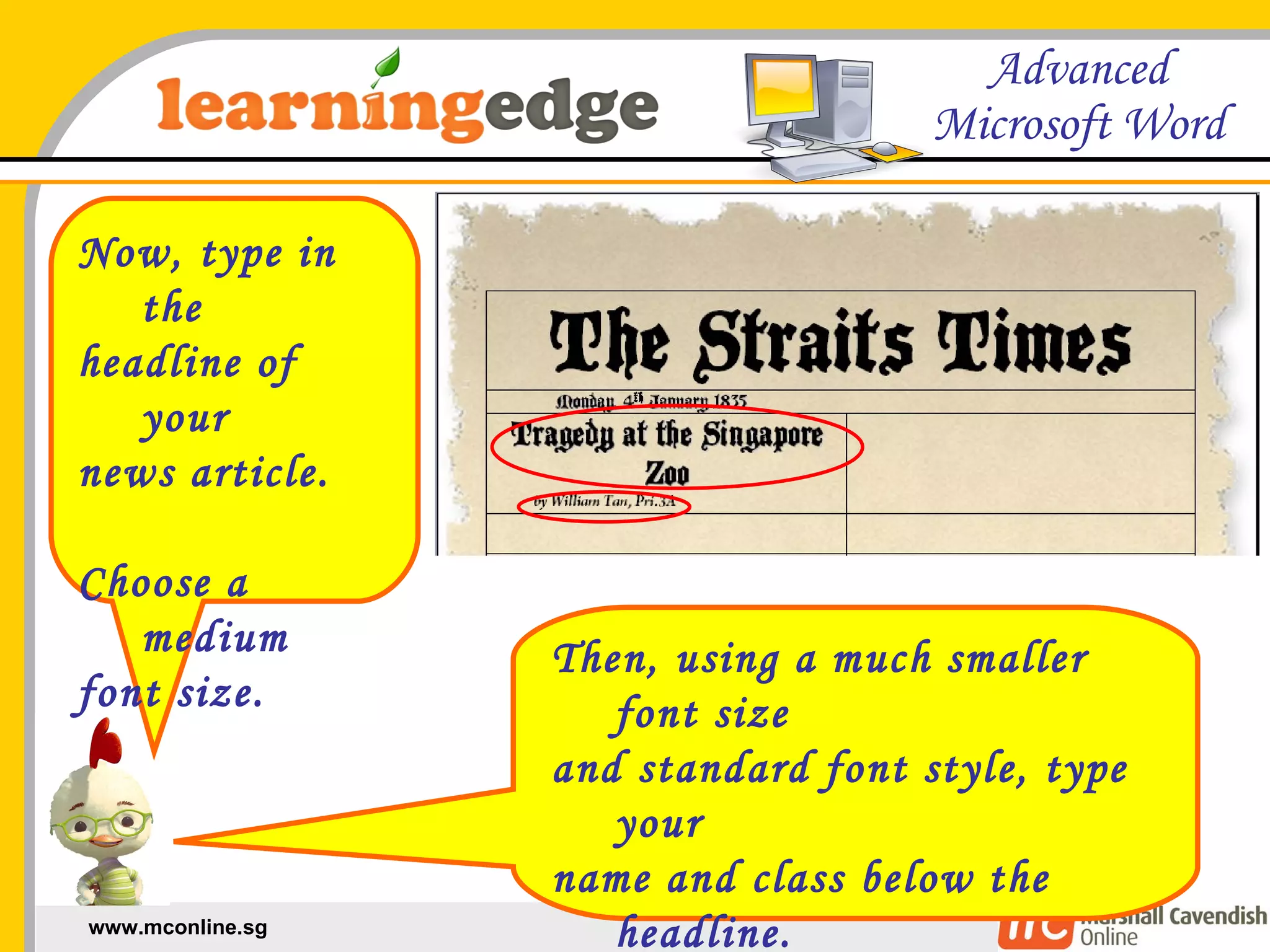
Now, type in the  headline of your  news article. Choose a medium  font size. Then, using a much smaller font size  and standard font style, type your  name and class below the headline. You will be the news reporter.
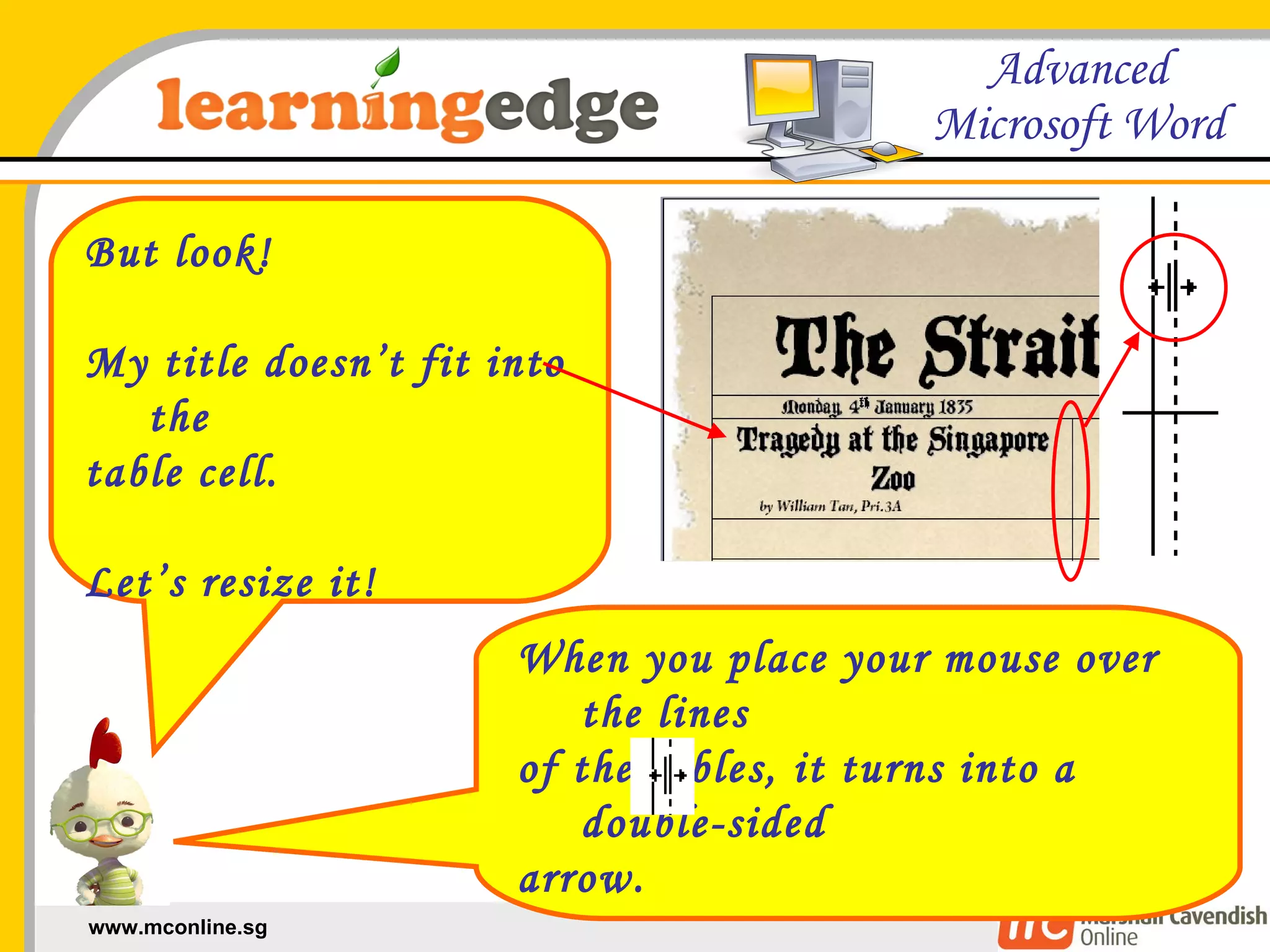
But look! My title doesn’t fit into the  table cell. Let’s resize it! When you place your mouse over the lines  of the tables, it turns into a double-sided  arrow. Click and drag your mouse to resize them.
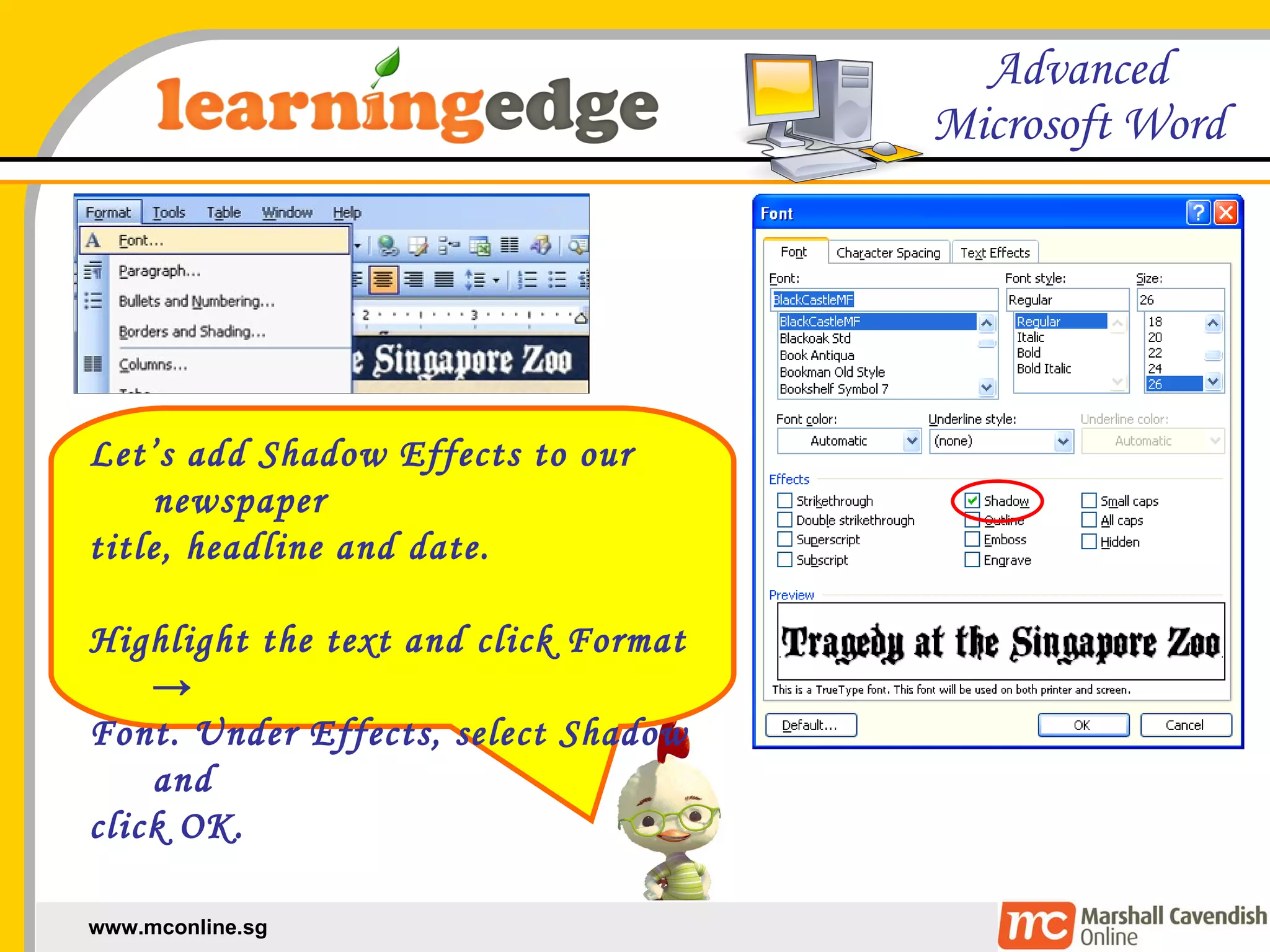
Let’s add Shadow Effects to our newspaper  title, headline and date. Highlight the text and click Format ->  Font. Under Effects, select Shadow and  click OK.
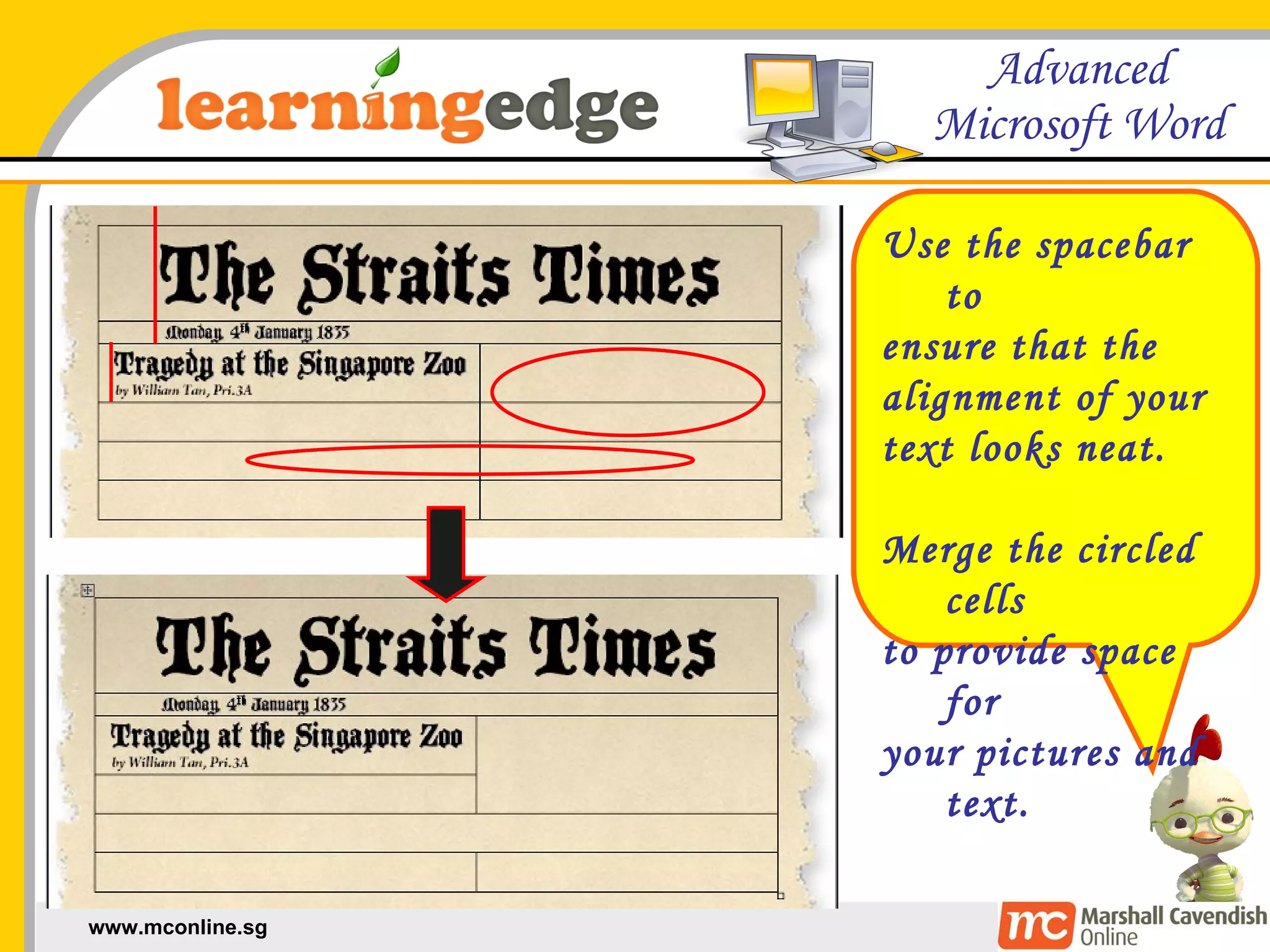
Use the spacebar to  ensure that the  alignment of your  text looks neat. Merge the circled cells  to provide space for  your pictures and text.
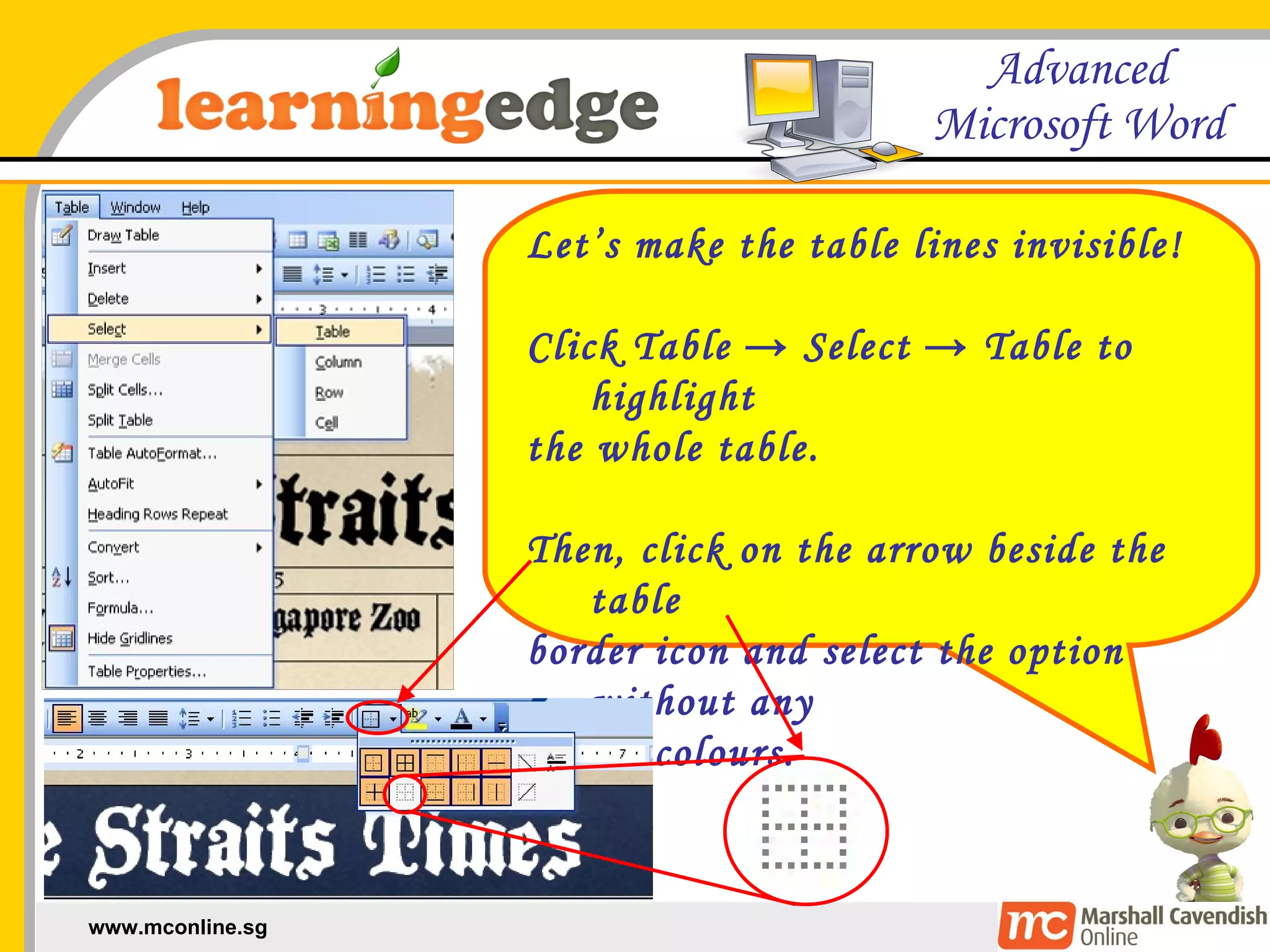
Let’s make the table lines invisible! Click Table -> Select -> Table to highlight  the whole table. Then, click on the arrow beside the table  border icon and select the option without any  border colours.
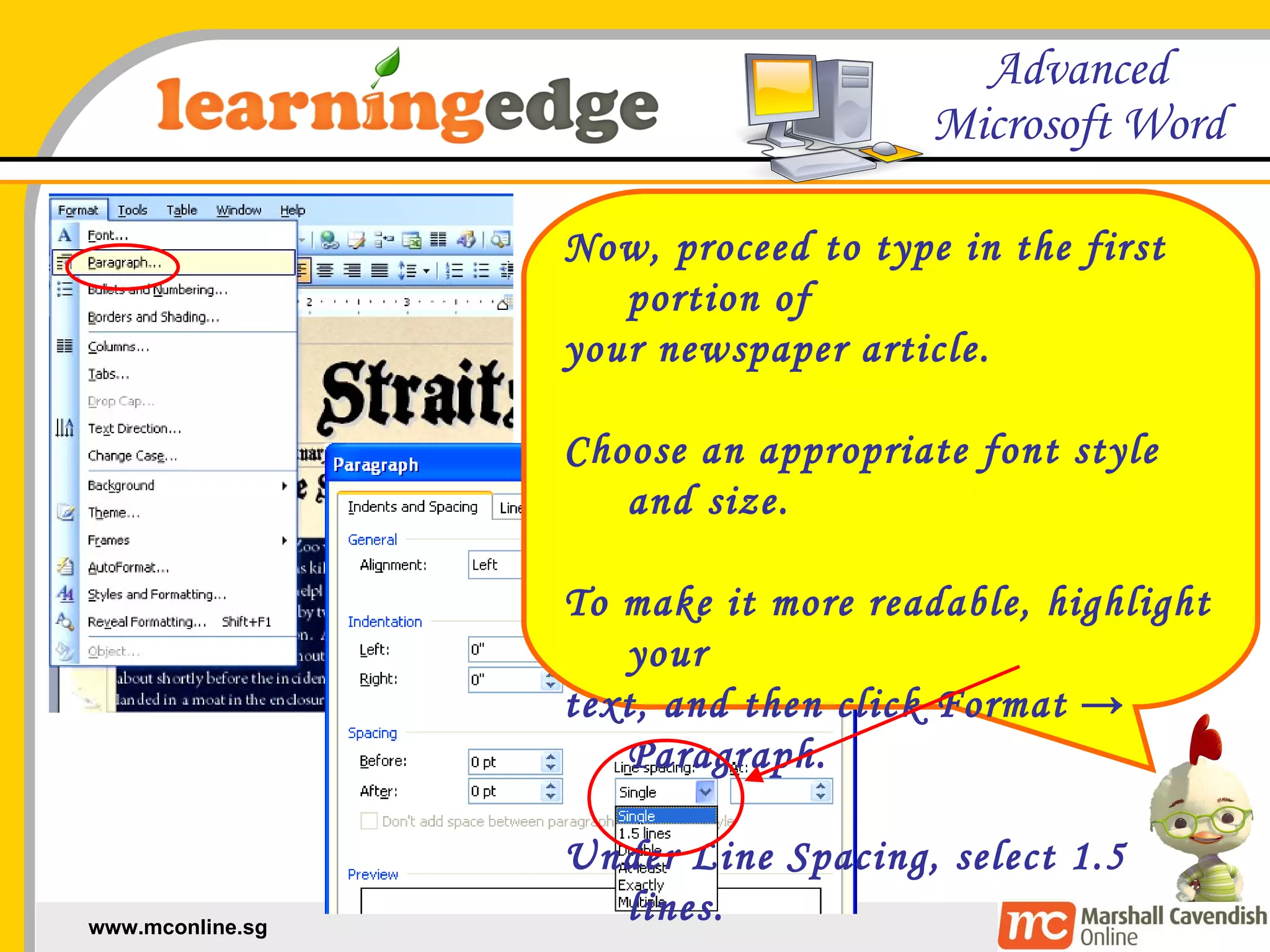
Now, proceed to type in the first portion of  your newspaper article. Choose an appropriate font style and size.  To make it more readable, highlight your  text, and then click Format -> Paragraph. Under Line Spacing, select 1.5 lines.
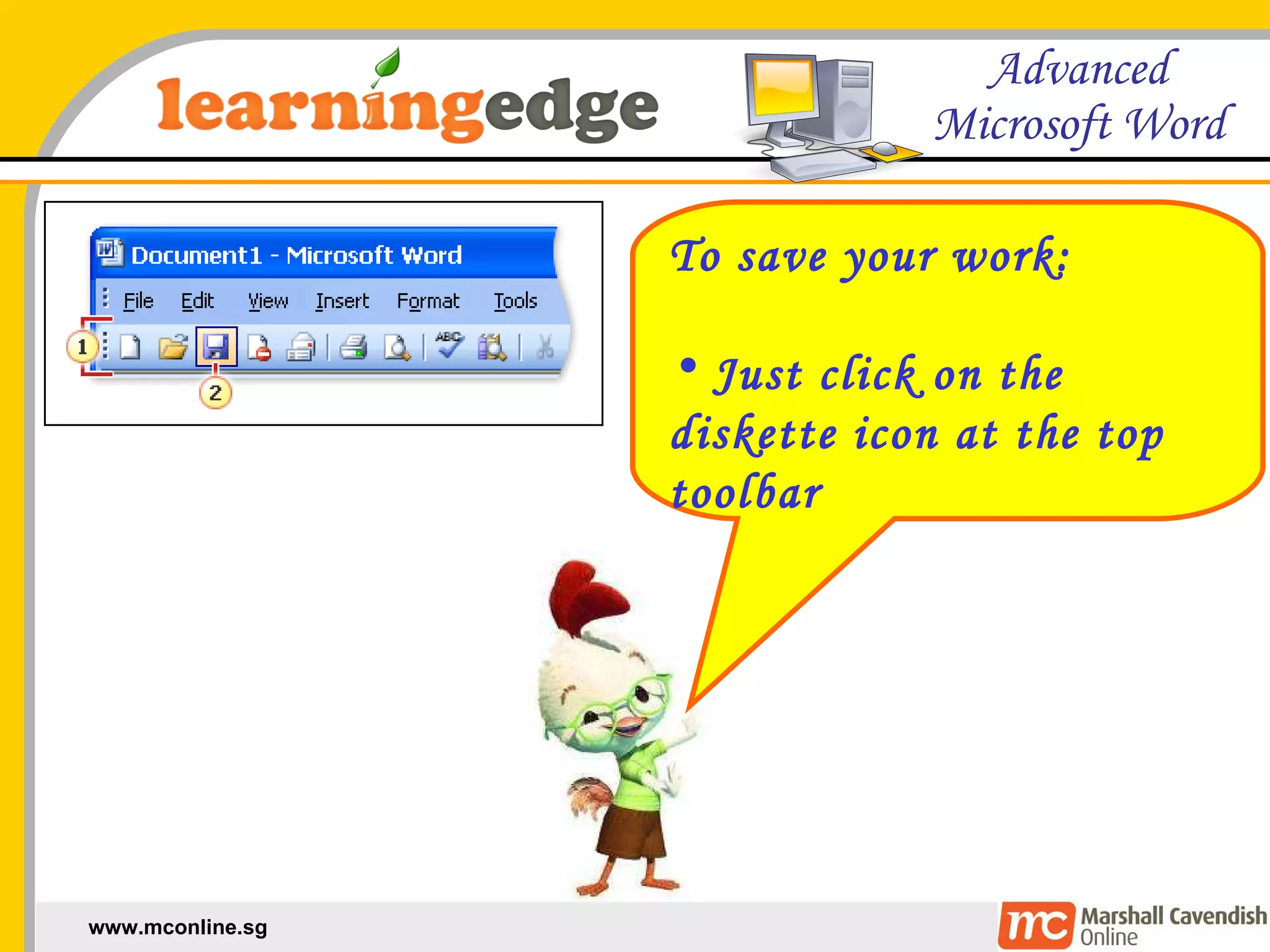
To save your work: Just click on the diskette icon at the top toolbar

AdvancedWord02

  • 1.
    Advanced Microsoft WordWe will learn about: inserting & formatting text formatting a table
  • 2.
    To open yoursaved work: On the desktop, click on “My Computer”. Then, double-click on “Data D:” Next, double-click on the folder named “Pri 3”. Lastly, double-click on your saved document. Data D: Pri 3
  • 3.
    For a start,we will insert the date using the same font style but with a smaller font size. Do you still remember how to merge 2 cells into 1?
  • 4.
    Let’s revise! Highlightthe 2 cells Then click Table ->Merge Cells to combine them together Now type in the date in the combined cell
  • 5.
    Now, type inthe headline of your news article. Choose a medium font size. Then, using a much smaller font size and standard font style, type your name and class below the headline. You will be the news reporter.
  • 6.
    But look! Mytitle doesn’t fit into the table cell. Let’s resize it! When you place your mouse over the lines of the tables, it turns into a double-sided arrow. Click and drag your mouse to resize them.
  • 7.
    Let’s add ShadowEffects to our newspaper title, headline and date. Highlight the text and click Format -> Font. Under Effects, select Shadow and click OK.
  • 8.
    Use the spacebarto ensure that the alignment of your text looks neat. Merge the circled cells to provide space for your pictures and text.
  • 9.
    Let’s make thetable lines invisible! Click Table -> Select -> Table to highlight the whole table. Then, click on the arrow beside the table border icon and select the option without any border colours.
  • 10.
    Now, proceed totype in the first portion of your newspaper article. Choose an appropriate font style and size. To make it more readable, highlight your text, and then click Format -> Paragraph. Under Line Spacing, select 1.5 lines.
  • 11.
    To save yourwork: Just click on the diskette icon at the top toolbar