USING THE MOUSE
•The Mouse Pointer

•Basic moves
   •Clicking (aka left-
   clicking)
   •Double-clicking
   •Right clicking

•Additional moves
   •Dragging (for
   highlighting or moving)
USING THE MOUSE
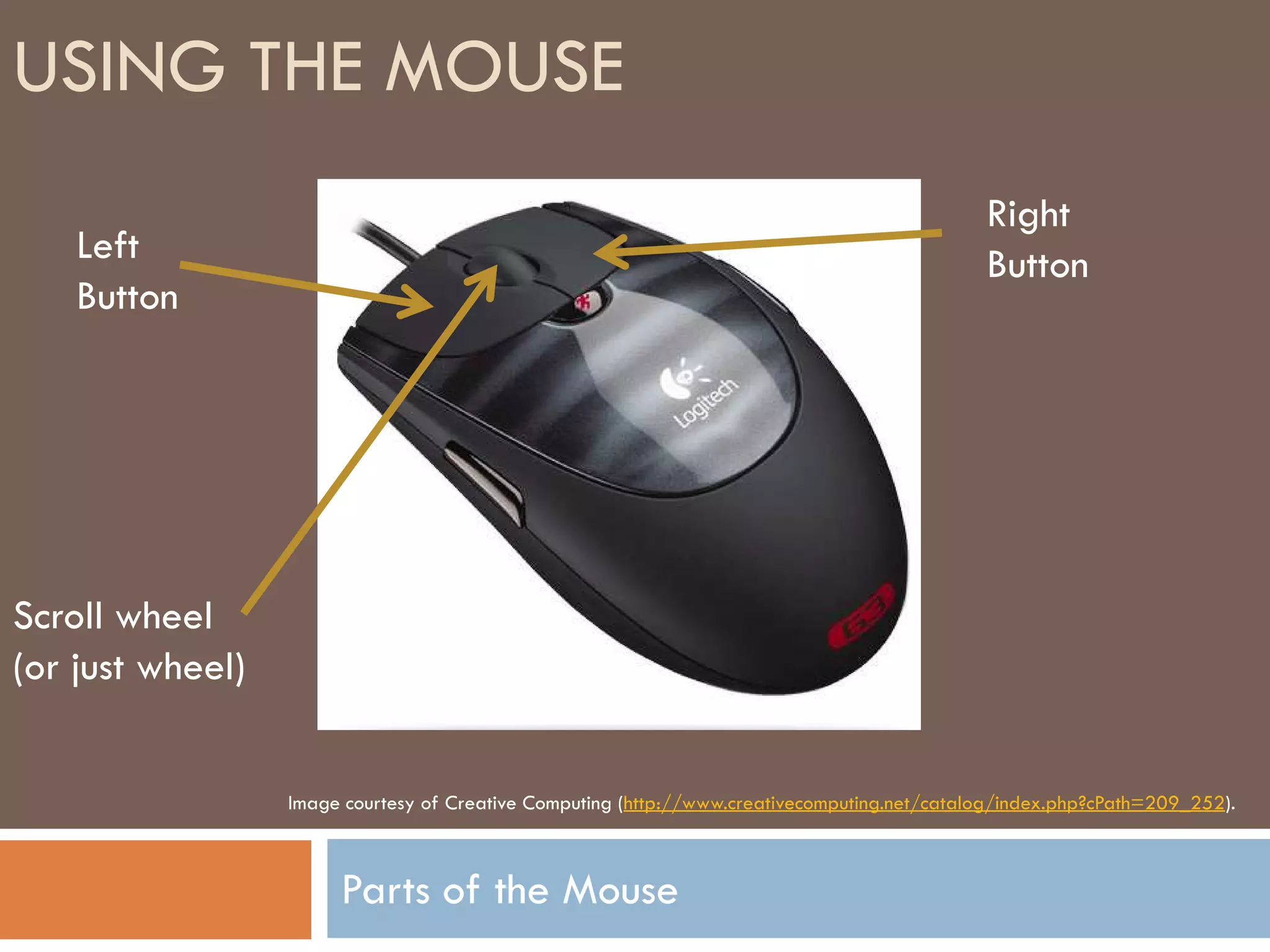
                                                                                              Right
    Left                                                                                      Button
    Button


Scroll wheel
(or just wheel)


                  Image courtesy of Creative Computing (http://www.creativecomputing.net/catalog/index.php?cPath=209_252).


                       Parts of the Mouse
USING THE MOUSE
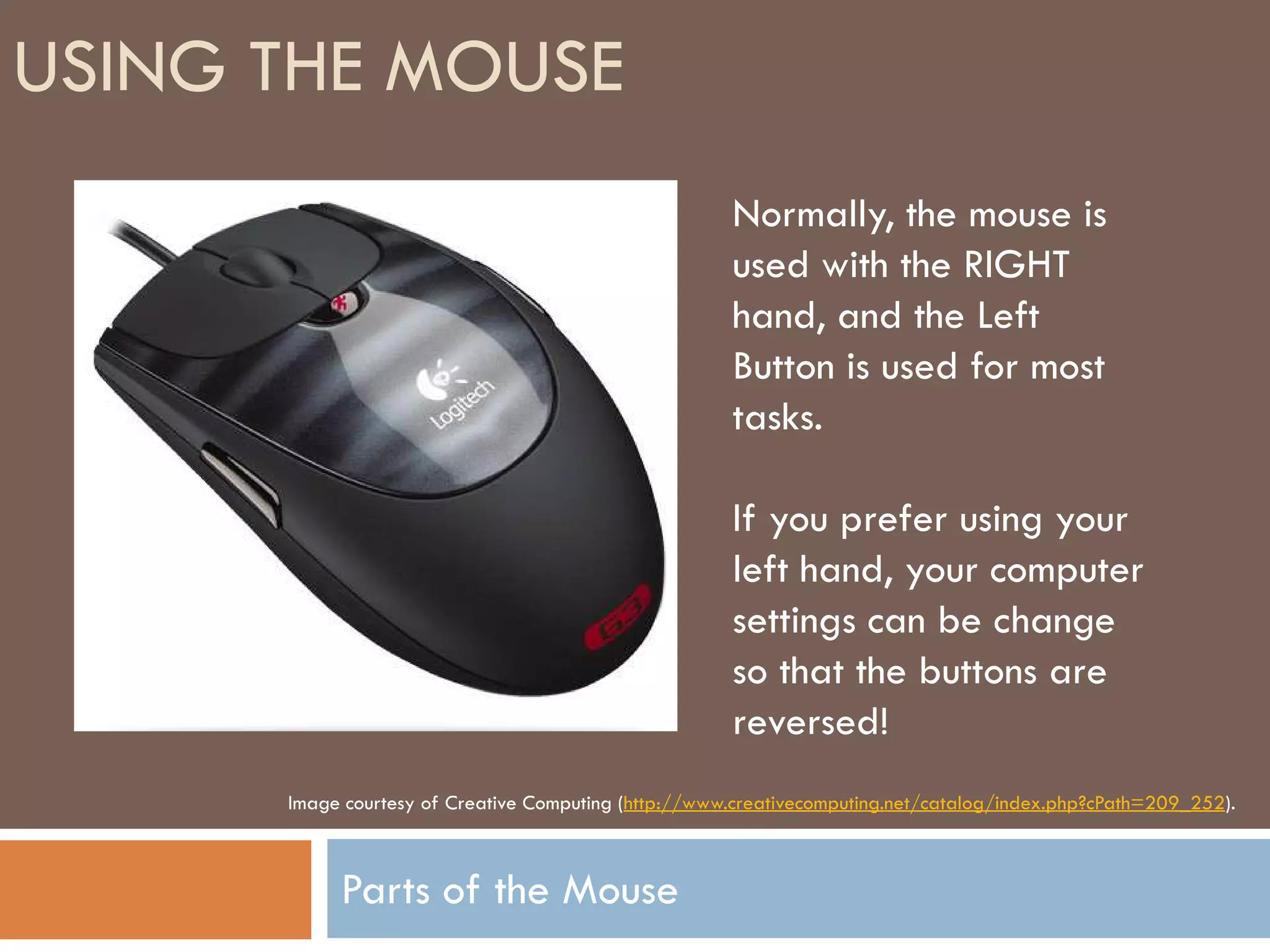
                                                      Normally, the mouse is
                                                      used with the RIGHT
                                                      hand, and the Left
                                                      Button is used for most
                                                      tasks.

                                                      If you prefer using your
                                                      left hand, your computer
                                                      settings can be change
                                                      so that the buttons are
                                                      reversed!
      Image courtesy of Creative Computing (http://www.creativecomputing.net/catalog/index.php?cPath=209_252).


           Parts of the Mouse
USING THE MOUSE
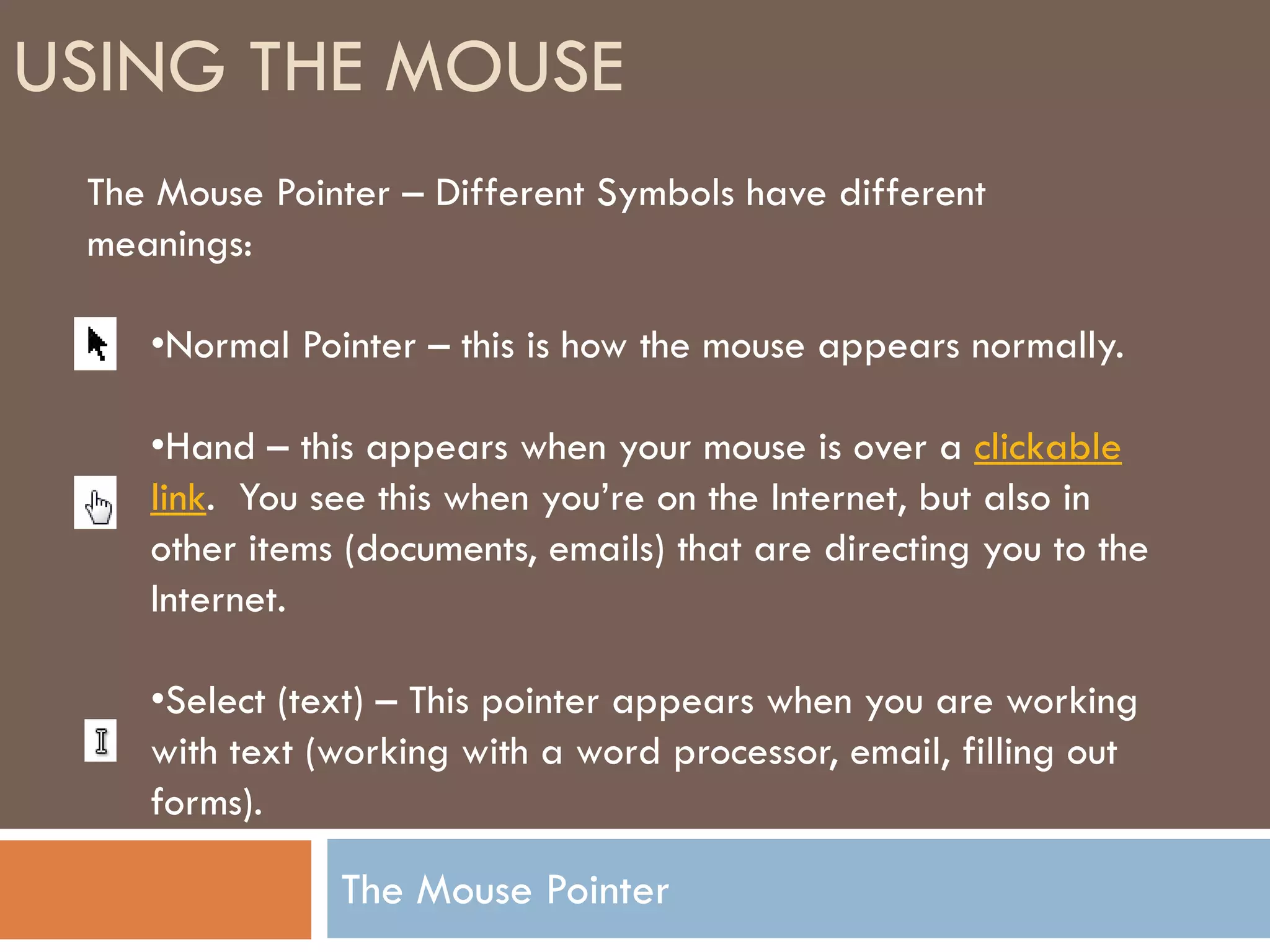
 The Mouse Pointer – Different Symbols have different
 meanings:

    •Normal Pointer – this is how the mouse appears normally.

    •Hand – this appears when your mouse is over a clickable
    link. You see this when you’re on the Internet, but also in
    other items (documents, emails) that are directing you to the
    Internet.

    •Select (text) – This pointer appears when you are working
    with text (working with a word processor, email, filling out
    forms).

               The Mouse Pointer
USING THE MOUSE
  The Mouse Pointer – Different Symbols have different meanings:


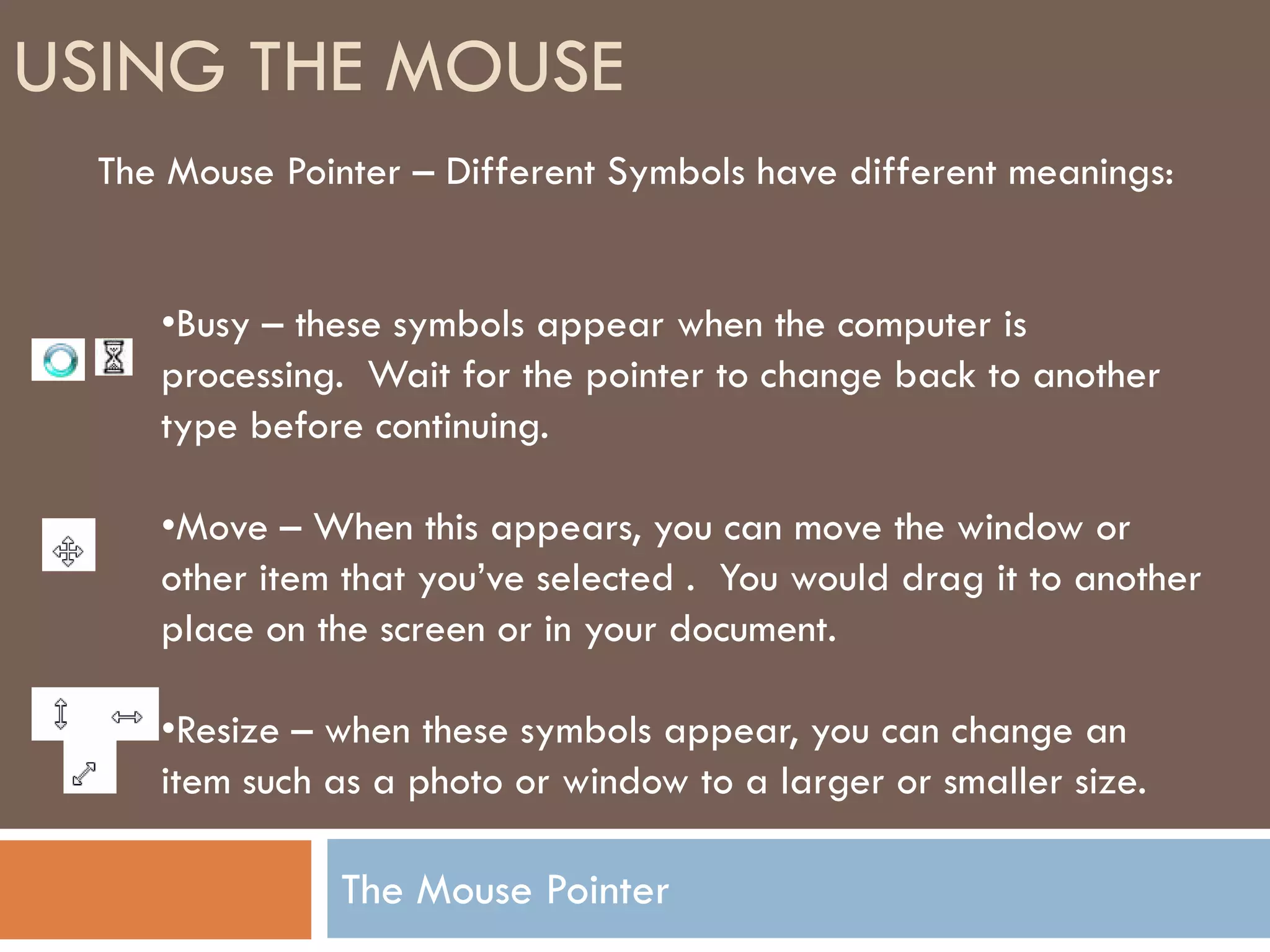
     •Busy – these symbols appear when the computer is
     processing. Wait for the pointer to change back to another
     type before continuing.

     •Move – When this appears, you can move the window or
     other item that you’ve selected . You would drag it to another
     place on the screen or in your document.

     •Resize – when these symbols appear, you can change an
     item such as a photo or window to a larger or smaller size.

                The Mouse Pointer
USING THE MOUSE

 Double-clicking – One of the first things you need to do
 with your mouse is open a program! “Double-clicking” your
 mouse’s left button will open a program on your computer’s
 “desktop” (The screen you see after your computer has started
 up.)

 1. Place the mouse over the computer program that you wish to
    open.
 2. Click the left mouse button 2 times in a row. Do this fairly
    quickly, but relax. Often when people are tense or try to
    click to quickly, they move the mouse pointer away from the
    program.

               Basic Mousing Moves
USING THE MOUSE

 Single-clicking – Another common move is the single-click
 with the left mouse button. Use this when pressing a button or
 selecting a link, and in many other cases.

 1. Place the mouse over the item you wish to select.
 2. Gently click the left mouse button one time.


                Basic Mousing Moves
USING THE MOUSE

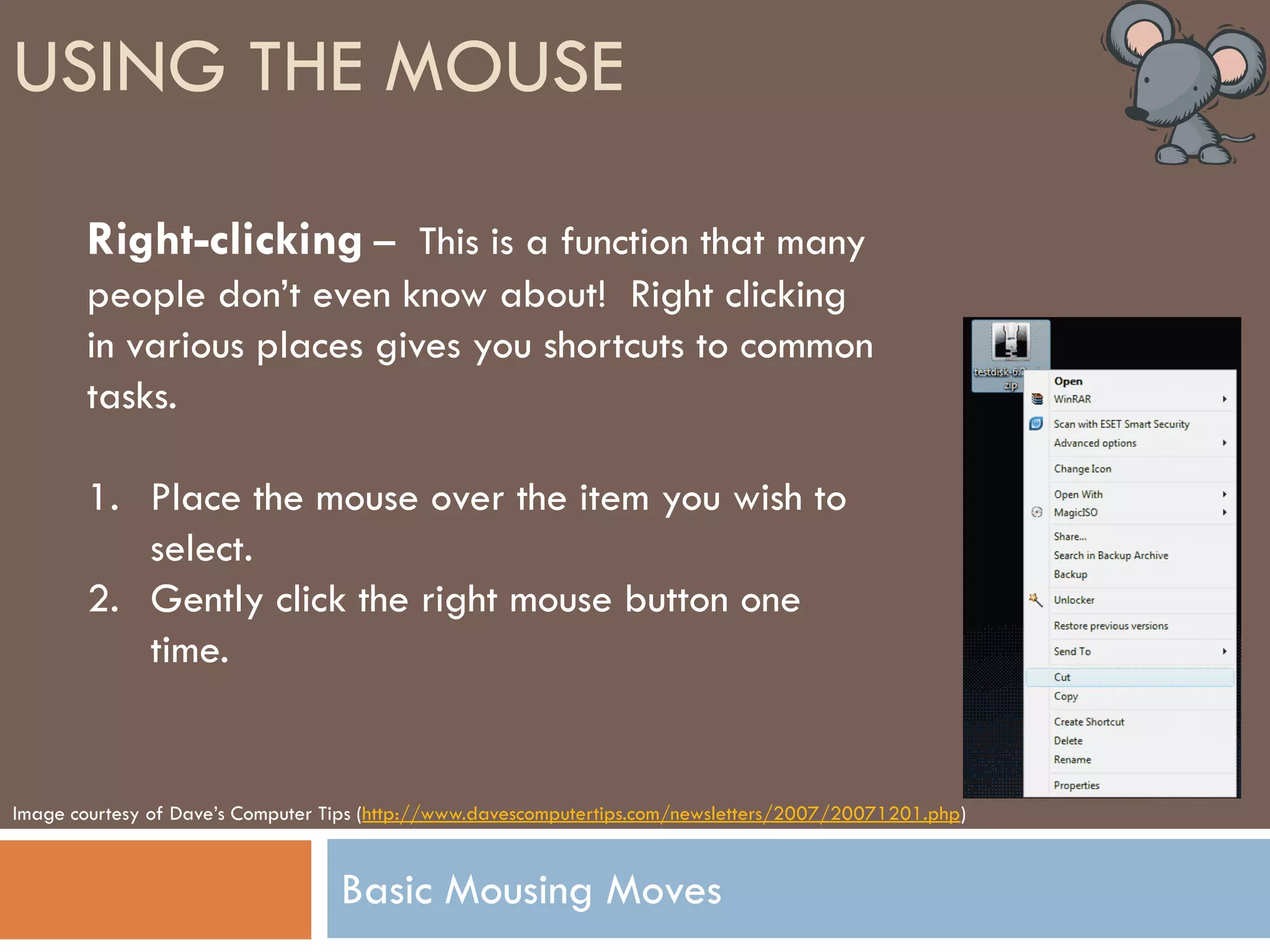
        Right-clicking – This is a function that many
        people don’t even know about! Right clicking
        in various places gives you shortcuts to common
        tasks.

        1. Place the mouse over the item you wish to
           select.
        2. Gently click the right mouse button one
           time.


Image courtesy of Dave’s Computer Tips (http://www.davescomputertips.com/newsletters/2007/20071201.php)


                                   Basic Mousing Moves
USING THE MOUSE

 Dragging – This move allows you to do a
 variety of things. You can move items around
 (pictures, windows), and you can also highlight
 sections of text.


                Basic Mousing Moves
USING THE MOUSE

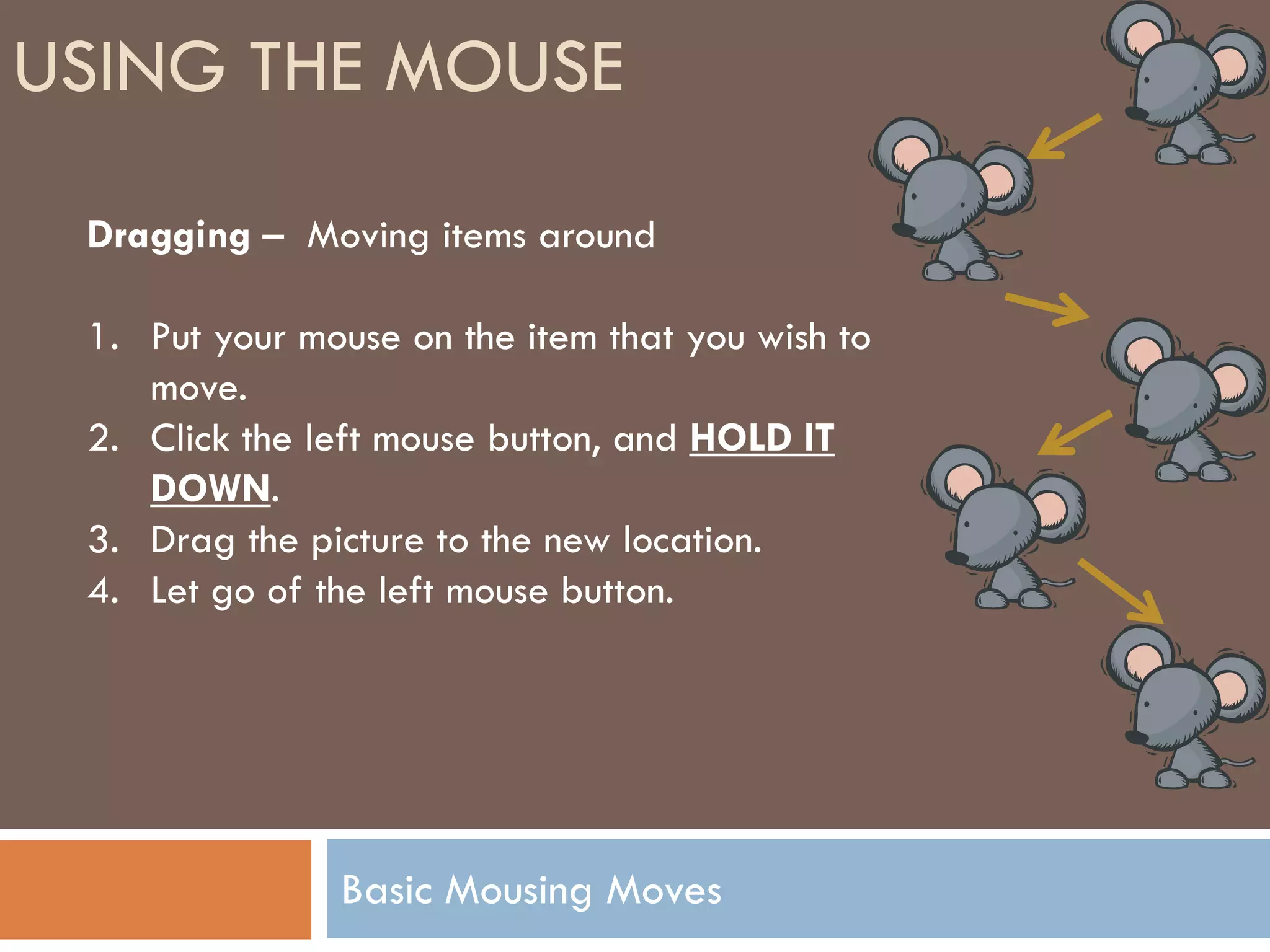
 Dragging – Moving items around

 1. Put your mouse on the item that you wish to
    move.
 2. Click the left mouse button, and HOLD IT
    DOWN.
 3. Drag the picture to the new location.
 4. Let go of the left mouse button.


               Basic Mousing Moves
USING THE MOUSE

 Dragging –
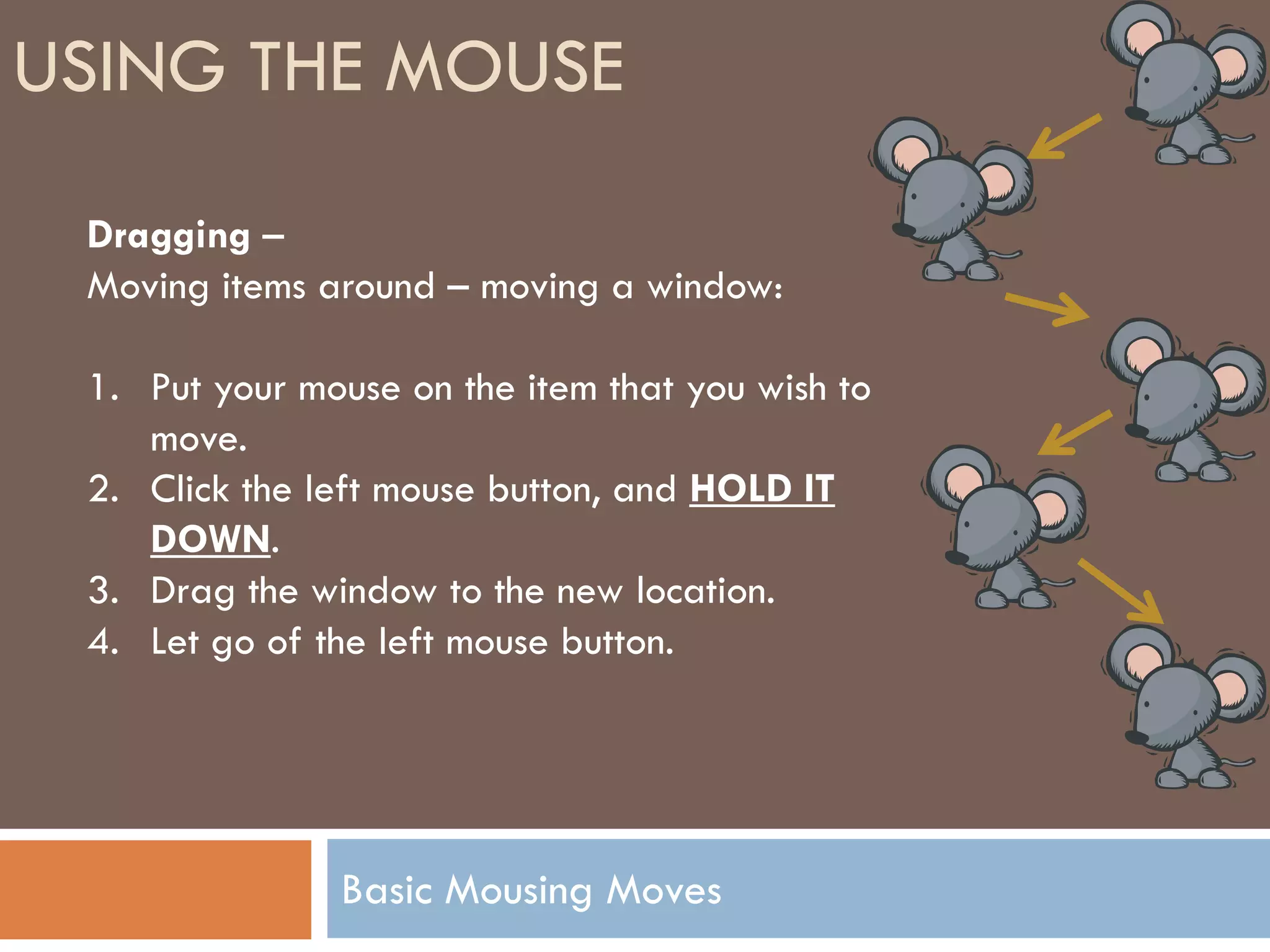
 Moving items around – moving a window:

 1. Put your mouse on the item that you wish to
    move.
 2. Click the left mouse button, and HOLD IT
    DOWN.
 3. Drag the window to the new location.
 4. Let go of the left mouse button.


               Basic Mousing Moves
USING THE MOUSE
           Dragging –
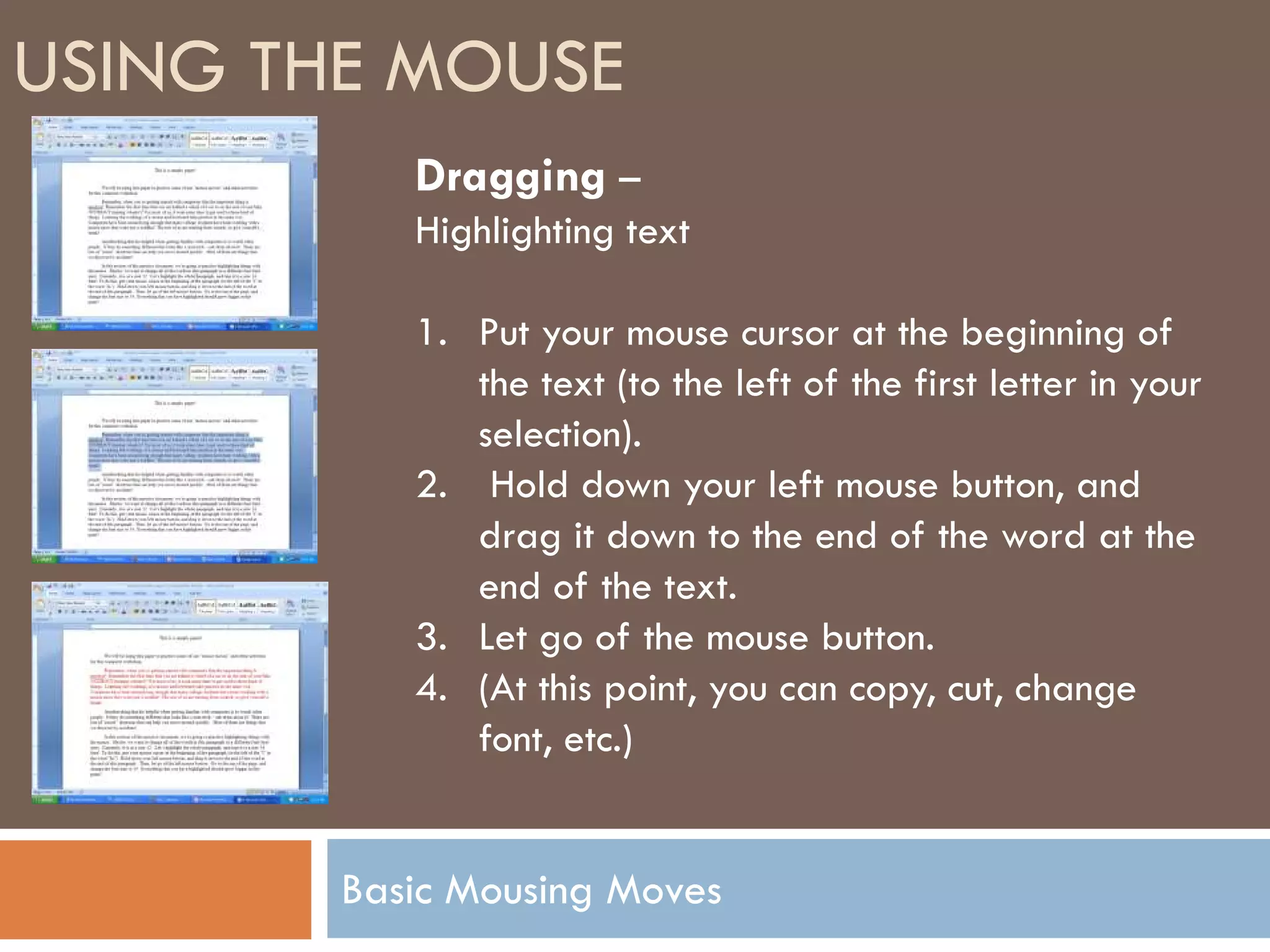
           Highlighting text

           1. Put your mouse cursor at the beginning of
              the text (to the left of the first letter in your
              selection).
           2. Hold down your left mouse button, and
              drag it down to the end of the word at the
              end of the text.
           3. Let go of the mouse button.
           4. (At this point, you can copy, cut, change
              font, etc.)


        Basic Mousing Moves
USING THE MOUSE
  Keep Practicing:
  •Palm Beach County Library’s (PBCL) Tutorial:
  http://www.pbclibrary.org/mousing/
  •PBCL’s “mousercise” practice:
  http://www.pbclibrary.org/mousing/mousercise.htm
  •PBCL’s games practice site:
  http://www.pbclibrary.org/mousing/games.htm
  •Central Kansas Library System’s “mouserobics”:
  http://www.ckls.org/~crippel/computerlab/tutorials
  /mouse/page1.html


             Basic Mousing Moves

Using the Mouse

  • 1.
    USING THE MOUSE •TheMouse Pointer •Basic moves •Clicking (aka left- clicking) •Double-clicking •Right clicking •Additional moves •Dragging (for highlighting or moving)
  • 2.
    USING THE MOUSE Right Left Button Button Scroll wheel (or just wheel) Image courtesy of Creative Computing (http://www.creativecomputing.net/catalog/index.php?cPath=209_252). Parts of the Mouse
  • 3.
    USING THE MOUSE Normally, the mouse is used with the RIGHT hand, and the Left Button is used for most tasks. If you prefer using your left hand, your computer settings can be change so that the buttons are reversed! Image courtesy of Creative Computing (http://www.creativecomputing.net/catalog/index.php?cPath=209_252). Parts of the Mouse
  • 4.
    USING THE MOUSE The Mouse Pointer – Different Symbols have different meanings: •Normal Pointer – this is how the mouse appears normally. •Hand – this appears when your mouse is over a clickable link. You see this when you’re on the Internet, but also in other items (documents, emails) that are directing you to the Internet. •Select (text) – This pointer appears when you are working with text (working with a word processor, email, filling out forms). The Mouse Pointer
  • 5.
    USING THE MOUSE The Mouse Pointer – Different Symbols have different meanings: •Busy – these symbols appear when the computer is processing. Wait for the pointer to change back to another type before continuing. •Move – When this appears, you can move the window or other item that you’ve selected . You would drag it to another place on the screen or in your document. •Resize – when these symbols appear, you can change an item such as a photo or window to a larger or smaller size. The Mouse Pointer
  • 6.
    USING THE MOUSE Double-clicking – One of the first things you need to do with your mouse is open a program! “Double-clicking” your mouse’s left button will open a program on your computer’s “desktop” (The screen you see after your computer has started up.) 1. Place the mouse over the computer program that you wish to open. 2. Click the left mouse button 2 times in a row. Do this fairly quickly, but relax. Often when people are tense or try to click to quickly, they move the mouse pointer away from the program. Basic Mousing Moves
  • 7.
    USING THE MOUSE Single-clicking – Another common move is the single-click with the left mouse button. Use this when pressing a button or selecting a link, and in many other cases. 1. Place the mouse over the item you wish to select. 2. Gently click the left mouse button one time. Basic Mousing Moves
  • 8.
    USING THE MOUSE Right-clicking – This is a function that many people don’t even know about! Right clicking in various places gives you shortcuts to common tasks. 1. Place the mouse over the item you wish to select. 2. Gently click the right mouse button one time. Image courtesy of Dave’s Computer Tips (http://www.davescomputertips.com/newsletters/2007/20071201.php) Basic Mousing Moves
  • 9.
    USING THE MOUSE Dragging – This move allows you to do a variety of things. You can move items around (pictures, windows), and you can also highlight sections of text. Basic Mousing Moves
  • 10.
    USING THE MOUSE Dragging – Moving items around 1. Put your mouse on the item that you wish to move. 2. Click the left mouse button, and HOLD IT DOWN. 3. Drag the picture to the new location. 4. Let go of the left mouse button. Basic Mousing Moves
  • 11.
    USING THE MOUSE Dragging – Moving items around – moving a window: 1. Put your mouse on the item that you wish to move. 2. Click the left mouse button, and HOLD IT DOWN. 3. Drag the window to the new location. 4. Let go of the left mouse button. Basic Mousing Moves
  • 12.
    USING THE MOUSE Dragging – Highlighting text 1. Put your mouse cursor at the beginning of the text (to the left of the first letter in your selection). 2. Hold down your left mouse button, and drag it down to the end of the word at the end of the text. 3. Let go of the mouse button. 4. (At this point, you can copy, cut, change font, etc.) Basic Mousing Moves
  • 13.
    USING THE MOUSE Keep Practicing: •Palm Beach County Library’s (PBCL) Tutorial: http://www.pbclibrary.org/mousing/ •PBCL’s “mousercise” practice: http://www.pbclibrary.org/mousing/mousercise.htm •PBCL’s games practice site: http://www.pbclibrary.org/mousing/games.htm •Central Kansas Library System’s “mouserobics”: http://www.ckls.org/~crippel/computerlab/tutorials /mouse/page1.html Basic Mousing Moves