ScienceDirect
Advanced Features
Create an Account

To take advantage of ScienceDirect’s
personalized features, you will need to
Register for a new account (or log in if
you already have done this).
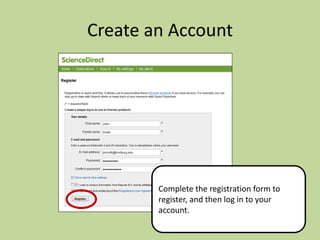
Create an Account

Complete the registration form to
register, and then log in to your
account.
Save Search Alert

To be alerted when new articles match
one of your favorite searches, run your
search, and then select Save as a
search alert.
Save Search Alert
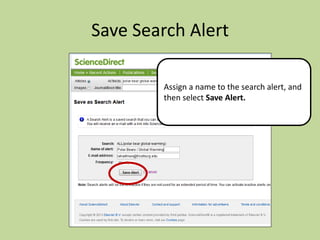
Assign a name to the search alert, and
then select Save Alert.
Save Search Alert

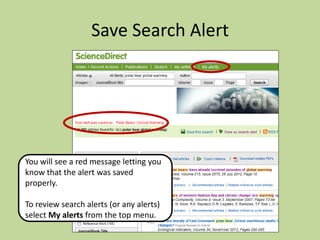
You will see a red message letting you
know that the alert was saved
properly.
To review search alerts (or any alerts)
select My alerts from the top menu.
Save Search Alert

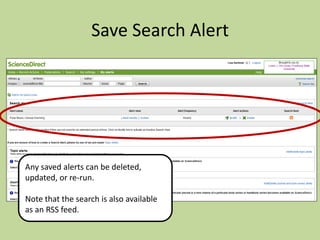
Any saved alerts can be deleted,
updated, or re-run.

Note that the search is also available
as an RSS feed.
Save A Search

Searches can also be saved without
creating an alert. Perform your
search, and then select Save this
search.
Save A Search

A red message should appear, letting
you know that the search was saved.
Save A Search
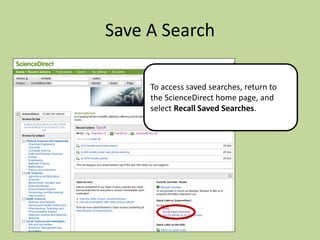
To access saved searches, return to
the ScienceDirect home page, and
select Recall Saved Searches.
Save A Search
A saved search can be completely rerun, or it can look only for articles that
have become available since the last
time it was run. To do this, select your
search and then select Retrieve new
articles.
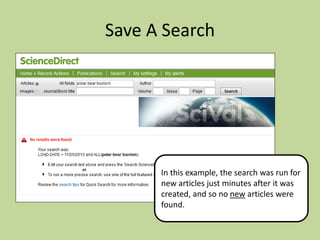
Save A Search

In this example, the search was run for
new articles just minutes after it was
created, and so no new articles were
found.
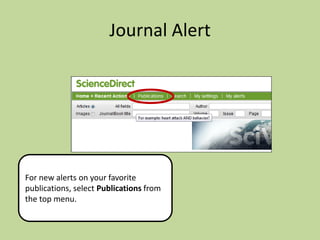
Journal Alert

For new alerts on your favorite
publications, select Publications from
the top menu.
Journal Alert

If you know the title of your
publication, search for it under
Journal/Book title at the top.
To browse journals by subject, select a
subject on the list at left…
Journal Alert
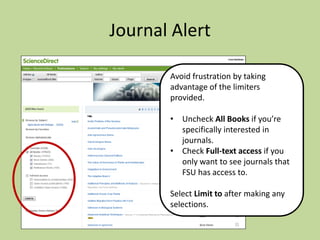
Avoid frustration by taking
advantage of the limiters
provided.
• Uncheck All Books if you’re
specifically interested in
journals.
• Check Full-text access if you
only want to see journals that
FSU has access to.

Select Limit to after making any
selections.
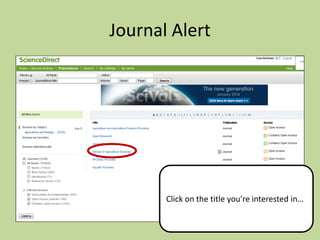
Journal Alert

Click on the title you’re interested in…
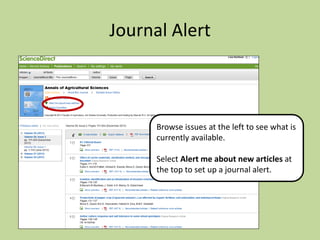
Journal Alert

Browse issues at the left to see what is
currently available.
Select Alert me about new articles at
the top to set up a journal alert.
Journal Alert

After setting up a journal alert, the
text at the top of the journal page will
say that you’re Signed up for new
article alerts.
Topic Alerts

Another feature that may be helpful is
to set up topic alerts. Select MyAlerts
to access this option.
Topic Alerts

In the Topic Alerts section, select
Add/Delete topic alerts.
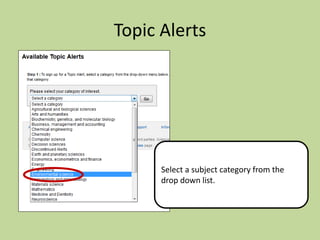
Topic Alerts

Select a subject category from the
drop down list.
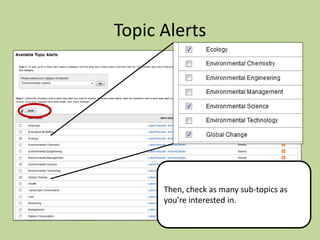
Topic Alerts

Then, check as many sub-topics as
you’re interested in.
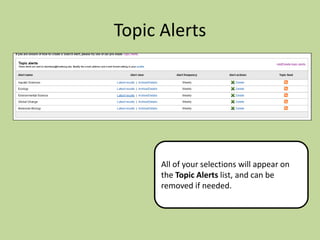
Topic Alerts

All of your selections will appear on
the Topic Alerts list, and can be
removed if needed.
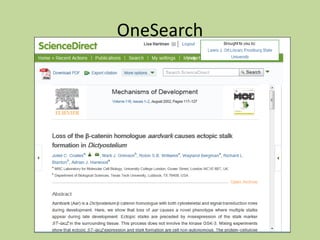
OneSearch

ScienceDirect journals are included in
the OneSearch interface. Be sure to
use the find it button to locate the
full-text of the articles.
OneSearch
OneSearch

Science direct advanced features

  • 1.
  • 2.
    Create an Account Totake advantage of ScienceDirect’s personalized features, you will need to Register for a new account (or log in if you already have done this).
  • 3.
    Create an Account Completethe registration form to register, and then log in to your account.
  • 4.
    Save Search Alert Tobe alerted when new articles match one of your favorite searches, run your search, and then select Save as a search alert.
  • 5.
    Save Search Alert Assigna name to the search alert, and then select Save Alert.
  • 6.
    Save Search Alert Youwill see a red message letting you know that the alert was saved properly. To review search alerts (or any alerts) select My alerts from the top menu.
  • 7.
    Save Search Alert Anysaved alerts can be deleted, updated, or re-run. Note that the search is also available as an RSS feed.
  • 8.
    Save A Search Searchescan also be saved without creating an alert. Perform your search, and then select Save this search.
  • 9.
    Save A Search Ared message should appear, letting you know that the search was saved.
  • 10.
    Save A Search Toaccess saved searches, return to the ScienceDirect home page, and select Recall Saved Searches.
  • 11.
    Save A Search Asaved search can be completely rerun, or it can look only for articles that have become available since the last time it was run. To do this, select your search and then select Retrieve new articles.
  • 12.
    Save A Search Inthis example, the search was run for new articles just minutes after it was created, and so no new articles were found.
  • 13.
    Journal Alert For newalerts on your favorite publications, select Publications from the top menu.
  • 14.
    Journal Alert If youknow the title of your publication, search for it under Journal/Book title at the top. To browse journals by subject, select a subject on the list at left…
  • 15.
    Journal Alert Avoid frustrationby taking advantage of the limiters provided. • Uncheck All Books if you’re specifically interested in journals. • Check Full-text access if you only want to see journals that FSU has access to. Select Limit to after making any selections.
  • 16.
    Journal Alert Click onthe title you’re interested in…
  • 17.
    Journal Alert Browse issuesat the left to see what is currently available. Select Alert me about new articles at the top to set up a journal alert.
  • 18.
    Journal Alert After settingup a journal alert, the text at the top of the journal page will say that you’re Signed up for new article alerts.
  • 19.
    Topic Alerts Another featurethat may be helpful is to set up topic alerts. Select MyAlerts to access this option.
  • 20.
    Topic Alerts In theTopic Alerts section, select Add/Delete topic alerts.
  • 21.
    Topic Alerts Select asubject category from the drop down list.
  • 22.
    Topic Alerts Then, checkas many sub-topics as you’re interested in.
  • 23.
    Topic Alerts All ofyour selections will appear on the Topic Alerts list, and can be removed if needed.
  • 24.
    OneSearch ScienceDirect journals areincluded in the OneSearch interface. Be sure to use the find it button to locate the full-text of the articles.
  • 25.
  • 26.