Getting Started with Computers Presented by Jennifer Springfield  at the Dixon Public Library on September 19, 2009
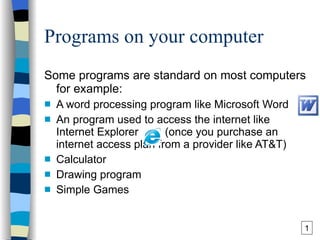
Programs on your computer Some programs are standard on most computers for example: A word processing program like Microsoft Word  An program used to access the internet like Internet Explorer   (once you purchase an internet access plan from a provider like AT&T) Calculator Drawing program Simple Games 1
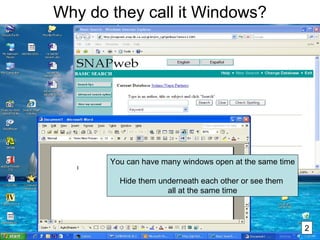
Why do they call it Windows? You can have many windows open at the same time Hide them underneath each other or see them  all at the same time 2
The Mouse What to do with a Mouse Move the pointer Moving the mouse around moves the mouse pointer/cursor on the screen. When you see a hand shape it usually means that the pointer is over a link to click on,  like on a web page. Click Press a mouse button and release it. Usually the left button although the right button can do some neat things too. Use this mostly to select things that you want. Remember that when a single click doesn’t seem to work try a double-click. Double-click Press the left mouse button twice quickly. Mostly used to open programs or documents. Drag   Hold the left mouse button down while moving the mouse. Usually what the mouse pointer was over on the screen will move, change sizes, or be highlighted when you drag. Scroll Rolling the wheel that some mice have will move the document up and down in the current window .  For example, if you are typing your resume in a Word document you can scroll to the bottom using the wheel. To use your mouse comfortably you must practice, practice, practice. This is a physical skill which uses muscles in your hand and forearm and even the chest that you may not have used before in quite this way.  3
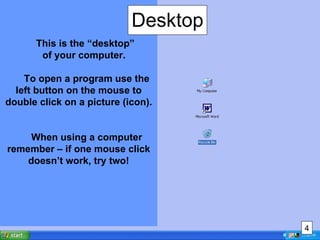
Desktop This is the “desktop”  of your computer.    To open a program use the left button on the mouse to double click on a picture (icon).   When using a computer remember – if one mouse click doesn’t work, try two! 4
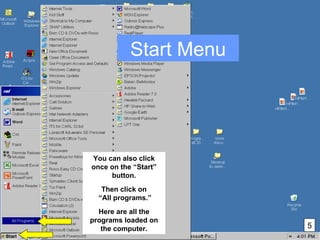
You can also click once on the “Start” button. Then click on “ All programs.” Here are all the programs loaded on the computer. Start Menu 5
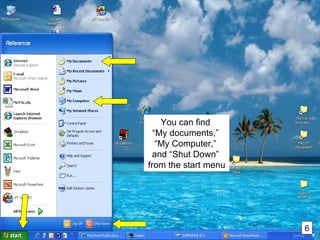
You can find  “ My documents,”  “ My Computer,”  and “Shut Down”  from the start menu 6
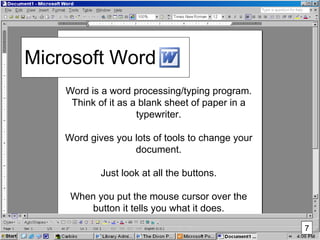
Microsoft Word Word is a word processing/typing program. Think of it as a blank sheet of paper in a typewriter. Word gives you lots of tools to change your document. Just look at all the buttons. When you put the mouse cursor over the button it tells you what it does. 7
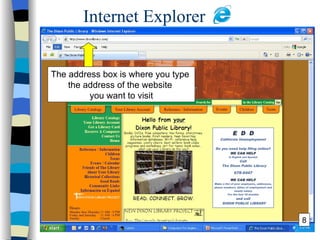
Internet Explorer The address box is where you type  the address of the website  you want to visit 8
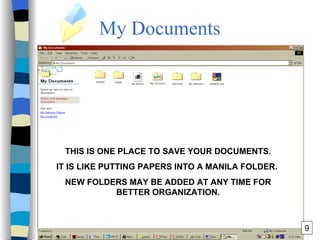
My Documents THIS IS ONE PLACE TO SAVE YOUR DOCUMENTS. IT IS LIKE PUTTING PAPERS INTO A MANILA FOLDER.  NEW FOLDERS MAY BE ADDED AT ANY TIME FOR BETTER ORGANIZATION. 9
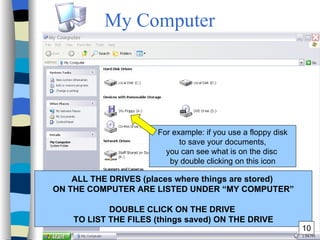
My Computer ALL THE DRIVES (places where things are stored)  ON THE COMPUTER ARE LISTED UNDER “MY COMPUTER” DOUBLE CLICK ON THE DRIVE  TO LIST THE FILES (things saved) ON THE DRIVE For example: if you use a floppy disk to save your documents, you can see what is on the disc  by double clicking on this icon 10
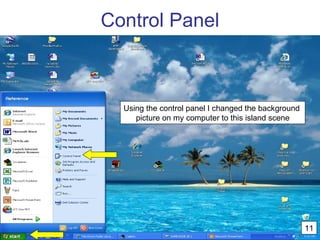
Control Panel Using the control panel I changed the background  picture on my computer to this island scene 11
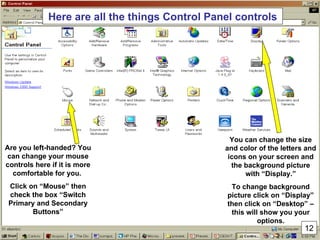
Control panel from start menu Here are all the things Control Panel controls You can change the size and color of the letters and icons on your screen and the background picture with “Display.” To change background picture click on “Display” then click on “Desktop” – this will show you your options. Are you left-handed? You can change your mouse controls here if it is more comfortable for you.  Click on “Mouse” then check the box “Switch Primary and Secondary Buttons” 12
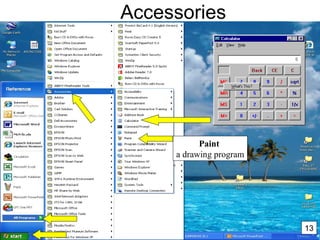
Accessories  Paint   a drawing program 13
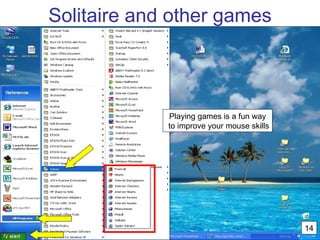
Solitaire and other games 14 Playing games is a fun way to improve your mouse skills
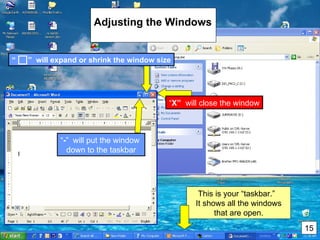
Adjusting the windows 2 “ X”  will close the window “ - ”  will put the window  down to the taskbar “  ”  will expand or shrink the window size Adjusting the Windows 15 This is your “taskbar.”  It shows all the windows that are open.
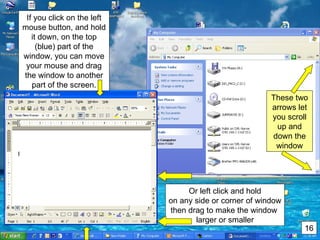
If you click on the left mouse button, and hold it down, on the top (blue) part of the window, you can move your mouse and drag the window to another part of the screen. These two arrows let you scroll up and down the window Or left click and hold on any side or corner of window then drag to make the window  larger or smaller 16
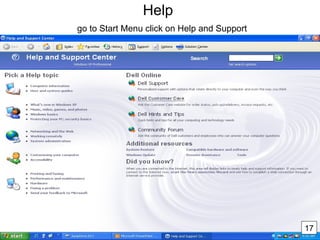
Help    go to Start Menu click on Help and Support 17
Remember to … Practice … Practice … Practice It’s the only way you will get better … at anything!! Don’t let it the computer get the best of you  SMILE and be patient with it If you would like a free 30 minute tutorial,  just you, me, and the computer,  please call me to make an appointment. Jennifer 678-5447 **These handouts are also available for viewing at  www.slideshare.net/Dixon Click on “Computers for Beginners” to open Powerpoint presentation.
Resources Some of the beginning computer books owned by the  Dixon Public Library: Absolute beginner's guide to computer basics   by Michael Miller  Basic computers for beginners  by Web Wise Seniors in Large Print Computer wimp no more : the intelligent beginner's guide to computers   by John Bear and David M. Pozerycki  Other titles are available in the SNAP catalog.  Ask a librarian to help you find them. Some Websites to try for more computer instruction: Internet 4 Classrooms – Entry Level Computer Skills  http://www.internet4classrooms.com/entry_level_pc_index_ie.htm Mouserobics - Learning to use the mouse  http://www.ckls.org/~crippel/computerlab/tutorials/mouse/page1.html New Computer User tutorial   http://tech.tln.lib.mi.us/tutor/welcome.htm
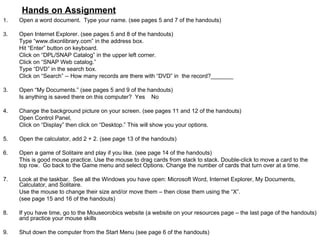
Hands on Assignment Open a word document.  Type your name. (see pages 5 and 7 of the handouts) Open Internet Explorer. (see pages 5 and 8 of the handouts)  Type “www.dixonlibrary.com” in the address box.  Hit “Enter” button on keyboard.  Click on “DPL/SNAP Catalog” in the upper left corner. Click on “SNAP Web catalog.” Type “DVD” in the search box. Click on “Search” -- How many records are there with “DVD” in  the record?_______ 3. Open “My Documents.” (see pages 5 and 9 of the handouts)  Is anything is saved there on this computer?  Yes  No 4. Change the background picture on your screen. (see pages 11 and 12 of the handouts)  Open Control Panel,  Click on “Display” then click on “Desktop.” This will show you your options. 5. Open the calculator, add 2 + 2. (see page 13 of the handouts)  6. Open a game of Solitaire and play if you like.  (see page 14 of the handouts)  This is good mouse practice. Use the mouse to drag cards from stack to stack. Double-click to move a card to the top row.  Go back to the Game menu and select Options. Change the number of cards that turn over at a time.  7. Look at the taskbar.  See all the Windows you have open: Microsoft Word, Internet Explorer, My Documents, Calculator, and Solitaire.  Use the mouse to change their size and/or move them – then close them using the “X”.  (see page 15 and 16 of the handouts)  8. If you have time, go to the Mouseorobics website (a website on your resources page – the last page of the handouts) and practice your mouse skills 9. Shut down the computer from the Start Menu  (see page 6 of the handouts)

Getting Started with Computers

  • 1.
    Getting Started withComputers Presented by Jennifer Springfield at the Dixon Public Library on September 19, 2009
  • 2.
    Programs on yourcomputer Some programs are standard on most computers for example: A word processing program like Microsoft Word An program used to access the internet like Internet Explorer (once you purchase an internet access plan from a provider like AT&T) Calculator Drawing program Simple Games 1
  • 3.
    Why do theycall it Windows? You can have many windows open at the same time Hide them underneath each other or see them all at the same time 2
  • 4.
    The Mouse Whatto do with a Mouse Move the pointer Moving the mouse around moves the mouse pointer/cursor on the screen. When you see a hand shape it usually means that the pointer is over a link to click on, like on a web page. Click Press a mouse button and release it. Usually the left button although the right button can do some neat things too. Use this mostly to select things that you want. Remember that when a single click doesn’t seem to work try a double-click. Double-click Press the left mouse button twice quickly. Mostly used to open programs or documents. Drag Hold the left mouse button down while moving the mouse. Usually what the mouse pointer was over on the screen will move, change sizes, or be highlighted when you drag. Scroll Rolling the wheel that some mice have will move the document up and down in the current window . For example, if you are typing your resume in a Word document you can scroll to the bottom using the wheel. To use your mouse comfortably you must practice, practice, practice. This is a physical skill which uses muscles in your hand and forearm and even the chest that you may not have used before in quite this way. 3
  • 5.
    Desktop This isthe “desktop” of your computer.   To open a program use the left button on the mouse to double click on a picture (icon).   When using a computer remember – if one mouse click doesn’t work, try two! 4
  • 6.
    You can alsoclick once on the “Start” button. Then click on “ All programs.” Here are all the programs loaded on the computer. Start Menu 5
  • 7.
    You can find “ My documents,” “ My Computer,” and “Shut Down” from the start menu 6
  • 8.
    Microsoft Word Wordis a word processing/typing program. Think of it as a blank sheet of paper in a typewriter. Word gives you lots of tools to change your document. Just look at all the buttons. When you put the mouse cursor over the button it tells you what it does. 7
  • 9.
    Internet Explorer Theaddress box is where you type the address of the website you want to visit 8
  • 10.
    My Documents THISIS ONE PLACE TO SAVE YOUR DOCUMENTS. IT IS LIKE PUTTING PAPERS INTO A MANILA FOLDER. NEW FOLDERS MAY BE ADDED AT ANY TIME FOR BETTER ORGANIZATION. 9
  • 11.
    My Computer ALLTHE DRIVES (places where things are stored) ON THE COMPUTER ARE LISTED UNDER “MY COMPUTER” DOUBLE CLICK ON THE DRIVE TO LIST THE FILES (things saved) ON THE DRIVE For example: if you use a floppy disk to save your documents, you can see what is on the disc by double clicking on this icon 10
  • 12.
    Control Panel Usingthe control panel I changed the background picture on my computer to this island scene 11
  • 13.
    Control panel fromstart menu Here are all the things Control Panel controls You can change the size and color of the letters and icons on your screen and the background picture with “Display.” To change background picture click on “Display” then click on “Desktop” – this will show you your options. Are you left-handed? You can change your mouse controls here if it is more comfortable for you. Click on “Mouse” then check the box “Switch Primary and Secondary Buttons” 12
  • 14.
    Accessories Paint a drawing program 13
  • 15.
    Solitaire and othergames 14 Playing games is a fun way to improve your mouse skills
  • 16.
    Adjusting the windows2 “ X” will close the window “ - ” will put the window down to the taskbar “ ” will expand or shrink the window size Adjusting the Windows 15 This is your “taskbar.” It shows all the windows that are open.
  • 17.
    If you clickon the left mouse button, and hold it down, on the top (blue) part of the window, you can move your mouse and drag the window to another part of the screen. These two arrows let you scroll up and down the window Or left click and hold on any side or corner of window then drag to make the window larger or smaller 16
  • 18.
    Help go to Start Menu click on Help and Support 17
  • 19.
    Remember to …Practice … Practice … Practice It’s the only way you will get better … at anything!! Don’t let it the computer get the best of you SMILE and be patient with it If you would like a free 30 minute tutorial, just you, me, and the computer, please call me to make an appointment. Jennifer 678-5447 **These handouts are also available for viewing at www.slideshare.net/Dixon Click on “Computers for Beginners” to open Powerpoint presentation.
  • 20.
    Resources Some ofthe beginning computer books owned by the Dixon Public Library: Absolute beginner's guide to computer basics by Michael Miller Basic computers for beginners by Web Wise Seniors in Large Print Computer wimp no more : the intelligent beginner's guide to computers by John Bear and David M. Pozerycki Other titles are available in the SNAP catalog. Ask a librarian to help you find them. Some Websites to try for more computer instruction: Internet 4 Classrooms – Entry Level Computer Skills http://www.internet4classrooms.com/entry_level_pc_index_ie.htm Mouserobics - Learning to use the mouse http://www.ckls.org/~crippel/computerlab/tutorials/mouse/page1.html New Computer User tutorial http://tech.tln.lib.mi.us/tutor/welcome.htm
  • 21.
    Hands on AssignmentOpen a word document. Type your name. (see pages 5 and 7 of the handouts) Open Internet Explorer. (see pages 5 and 8 of the handouts) Type “www.dixonlibrary.com” in the address box. Hit “Enter” button on keyboard. Click on “DPL/SNAP Catalog” in the upper left corner. Click on “SNAP Web catalog.” Type “DVD” in the search box. Click on “Search” -- How many records are there with “DVD” in the record?_______ 3. Open “My Documents.” (see pages 5 and 9 of the handouts) Is anything is saved there on this computer? Yes No 4. Change the background picture on your screen. (see pages 11 and 12 of the handouts) Open Control Panel, Click on “Display” then click on “Desktop.” This will show you your options. 5. Open the calculator, add 2 + 2. (see page 13 of the handouts) 6. Open a game of Solitaire and play if you like. (see page 14 of the handouts) This is good mouse practice. Use the mouse to drag cards from stack to stack. Double-click to move a card to the top row.  Go back to the Game menu and select Options. Change the number of cards that turn over at a time. 7. Look at the taskbar. See all the Windows you have open: Microsoft Word, Internet Explorer, My Documents, Calculator, and Solitaire. Use the mouse to change their size and/or move them – then close them using the “X”. (see page 15 and 16 of the handouts) 8. If you have time, go to the Mouseorobics website (a website on your resources page – the last page of the handouts) and practice your mouse skills 9. Shut down the computer from the Start Menu (see page 6 of the handouts)