Web of Knowledge
(Web of Science / Biological Abstracts)
Search and citation alerts
&
Citation maps
1
Changes Coming!
Many of these screen shots will be out-of-date
soon. Web of Science is re-designing their
interface, and the changes are expected to take
effect in January 2014.
Free webinars are available to see a preview at:
http://wokinfo.com/redesignpreview. This includes
a recorded session. Attendees of live sessions will
be given access to a preview database after the
session.
2
Register an Account
with Web of Knowledge

To take advantage of Web of
Knowledge’s personalization functions,
you will need to have an account. To
sign in, or to create a new account,
select Sign In at the top.
3
Register an Account
with Web of Knowledge

To create an account, select Register,
otherwise, sign in.

4
Register an Account
with Web of Knowledge

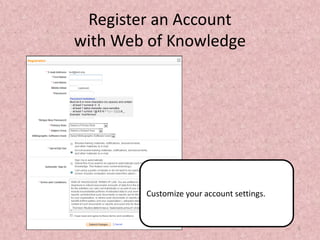
Customize your account settings.

5
Saved Searches

Favorite searches can be saved so that
they’re easily repeated in the future.
After performing a search, select
Search History.
6
Saved Searches

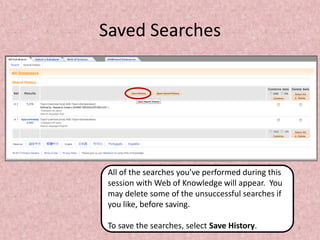
All of the searches you’ve performed during this
session with Web of Knowledge will appear. You
may delete some of the unsuccessful searches if
you like, before saving.
To save the searches, select Save History.

7
Saved Searches

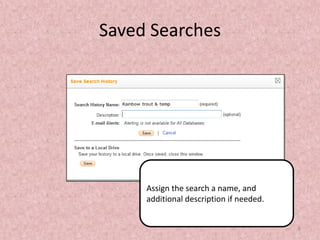
Assign the search a name, and
additional description if needed.

8
Saved Searches

To locate previously saved searches,
select Saved Searches and Alerts,
then Saved Searches fro the top
menu.
9
Saved Searches

Choose the search that you wish to
run, and select Open.

10
Saved Searches

Run search will re-run that search for
you.

11
Saved Searches

Before the search is processed, you
are given options for timespan
limiters. This can help to eliminate
items that you’ve already discovered
in previous searches.
12
Saved Searches

In this case, the search looked at just the last 4 weeks.
There were no hits in the search for all variables, but 12
were found in a search that wasn’t narrowed to the
subject of Forestry. Click that section to see the items.
13
Search Alerts

If you would like e-mail notifications about new search
results, consider creating a search alert.
In the previous examples, a message appeared saying
that Alerting was not available for All Databases.
14
Search Alerts

So, you will need to limit your search to just one
of the Web of Knowledge Databases.
To do this, click the select a database tab, and
then choose one of the databases.
15
Search Alerts

In these search results, you will se an
option so Create Alert / RSS above the
results. Click this to create an alert.
16
Search Alerts

Enter the appropriate information for
your alert, and then save it.
17
Search Alerts

A confirmation message will appear.

18
Search Alerts

When you review your saved searches,
the search alert will be included.

19
Citation Alerts

If you would like to know of any times
that a specific article is cited in
another Web of Knowledge article,
you may set up a citation alert.
20
Citation Alerts

The box on the right lists the Web of
Knowledge articles that are currently
citing the article. To learn of future
citations, select the Create Citation
Alert button.

21
Citation Alerts

Enter your e-mail address and select a
format for the e-mails.
Note that these alert expire after 1
year.
22
Citation Alerts

To review or edit your citation alerts,
select Saved Searches and Alerts,
followed by Citation Alerts at the top
of the page.
23
Citation Alerts

Alerts can be renewed, edited, or
deleted from this list.
24
Citation Map

Another citation-tracking feature of note is the
Citation Map. The citation map shows both:
• Articles that the current article has cited.
• Articles that have cited the current article.
25
Citation Map

Select Citation Map from the box on
the right.

26
Citation Map

You an choose from
• Forward only – showing only articles that have cited the current article.
• Backward only – showing only the articles that the current article has cited.
• Both – Showing both articles cited in the article and articles that have cited
the article.
27
Citation Map

Make your choice, and then select
Create Map.
28
Citation Map

You may get a warning before running
the application, select accept, and
then run.
29
Citation Map
The current article
appears in the
middle of the
illustration.
The list of all
associated articles
appears at bottom
left.
Information about
the currently
selected article
appears at the
bottom right.
30
Citation Map

By double-clicking on an item in the map, or an item in the list at bottom
left, the information in the box at bottom right will change to the
currently selected article.
31
Citation Map

The Citation Map can be saved as an
image by selecting Manage, then Save
Citation Map As Image at top, left.

32
Citation Map

Click the word here to download, and
then save or open the map. It will be
available as a .png file.
33
OneSearch

Many of the Web of Science articles also appear in OneSearch. If you
see this, be sure to select View this record from ISI Web of Science,
rather than the FindIt button, otherwise, you may see this:
34
OneSearch

Using the FindIt button in this case
makes it appear that the article isn’t
available.
35
OneSearch

But using the Web of Science link will
take you to it!

36

Web of knowledge advanced features

  • 1.
    Web of Knowledge (Webof Science / Biological Abstracts) Search and citation alerts & Citation maps 1
  • 2.
    Changes Coming! Many ofthese screen shots will be out-of-date soon. Web of Science is re-designing their interface, and the changes are expected to take effect in January 2014. Free webinars are available to see a preview at: http://wokinfo.com/redesignpreview. This includes a recorded session. Attendees of live sessions will be given access to a preview database after the session. 2
  • 3.
    Register an Account withWeb of Knowledge To take advantage of Web of Knowledge’s personalization functions, you will need to have an account. To sign in, or to create a new account, select Sign In at the top. 3
  • 4.
    Register an Account withWeb of Knowledge To create an account, select Register, otherwise, sign in. 4
  • 5.
    Register an Account withWeb of Knowledge Customize your account settings. 5
  • 6.
    Saved Searches Favorite searchescan be saved so that they’re easily repeated in the future. After performing a search, select Search History. 6
  • 7.
    Saved Searches All ofthe searches you’ve performed during this session with Web of Knowledge will appear. You may delete some of the unsuccessful searches if you like, before saving. To save the searches, select Save History. 7
  • 8.
    Saved Searches Assign thesearch a name, and additional description if needed. 8
  • 9.
    Saved Searches To locatepreviously saved searches, select Saved Searches and Alerts, then Saved Searches fro the top menu. 9
  • 10.
    Saved Searches Choose thesearch that you wish to run, and select Open. 10
  • 11.
    Saved Searches Run searchwill re-run that search for you. 11
  • 12.
    Saved Searches Before thesearch is processed, you are given options for timespan limiters. This can help to eliminate items that you’ve already discovered in previous searches. 12
  • 13.
    Saved Searches In thiscase, the search looked at just the last 4 weeks. There were no hits in the search for all variables, but 12 were found in a search that wasn’t narrowed to the subject of Forestry. Click that section to see the items. 13
  • 14.
    Search Alerts If youwould like e-mail notifications about new search results, consider creating a search alert. In the previous examples, a message appeared saying that Alerting was not available for All Databases. 14
  • 15.
    Search Alerts So, youwill need to limit your search to just one of the Web of Knowledge Databases. To do this, click the select a database tab, and then choose one of the databases. 15
  • 16.
    Search Alerts In thesesearch results, you will se an option so Create Alert / RSS above the results. Click this to create an alert. 16
  • 17.
    Search Alerts Enter theappropriate information for your alert, and then save it. 17
  • 18.
    Search Alerts A confirmationmessage will appear. 18
  • 19.
    Search Alerts When youreview your saved searches, the search alert will be included. 19
  • 20.
    Citation Alerts If youwould like to know of any times that a specific article is cited in another Web of Knowledge article, you may set up a citation alert. 20
  • 21.
    Citation Alerts The boxon the right lists the Web of Knowledge articles that are currently citing the article. To learn of future citations, select the Create Citation Alert button. 21
  • 22.
    Citation Alerts Enter youre-mail address and select a format for the e-mails. Note that these alert expire after 1 year. 22
  • 23.
    Citation Alerts To reviewor edit your citation alerts, select Saved Searches and Alerts, followed by Citation Alerts at the top of the page. 23
  • 24.
    Citation Alerts Alerts canbe renewed, edited, or deleted from this list. 24
  • 25.
    Citation Map Another citation-trackingfeature of note is the Citation Map. The citation map shows both: • Articles that the current article has cited. • Articles that have cited the current article. 25
  • 26.
    Citation Map Select CitationMap from the box on the right. 26
  • 27.
    Citation Map You anchoose from • Forward only – showing only articles that have cited the current article. • Backward only – showing only the articles that the current article has cited. • Both – Showing both articles cited in the article and articles that have cited the article. 27
  • 28.
    Citation Map Make yourchoice, and then select Create Map. 28
  • 29.
    Citation Map You mayget a warning before running the application, select accept, and then run. 29
  • 30.
    Citation Map The currentarticle appears in the middle of the illustration. The list of all associated articles appears at bottom left. Information about the currently selected article appears at the bottom right. 30
  • 31.
    Citation Map By double-clickingon an item in the map, or an item in the list at bottom left, the information in the box at bottom right will change to the currently selected article. 31
  • 32.
    Citation Map The CitationMap can be saved as an image by selecting Manage, then Save Citation Map As Image at top, left. 32
  • 33.
    Citation Map Click theword here to download, and then save or open the map. It will be available as a .png file. 33
  • 34.
    OneSearch Many of theWeb of Science articles also appear in OneSearch. If you see this, be sure to select View this record from ISI Web of Science, rather than the FindIt button, otherwise, you may see this: 34
  • 35.
    OneSearch Using the FindItbutton in this case makes it appear that the article isn’t available. 35
  • 36.
    OneSearch But using theWeb of Science link will take you to it! 36