

























April 2nd, 2013   Human computer Interaction


Mouse - re-programmed
Group 3
What is Mouse

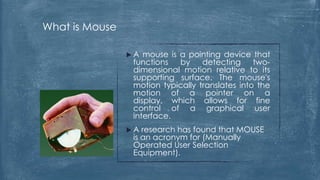
                A  mouse is a pointing device that
                 functions   by    detecting     two-
                 dimensional motion relative to its
                 supporting surface. The mouse's
                 motion typically translates into the
                 motion of a pointer on a
                 display, which allows for fine
                 control of a graphical user
                 interface.
                A  research has found that MOUSE
                 is an acronym for (Manually
                 Operated User Selection
                 Equipment).
Inventor of the Mouse

Douglas Engelbart of the Stanford Research Institute
invented the wheel-based mouse in 1963. The first ball-
based mouse was invented by Bill English at Xerox PARC in
1972.
Inventor of the Mouse…

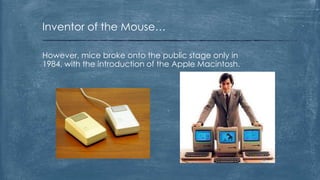
However, mice broke onto the public stage only in
1984, with the introduction of the Apple Macintosh.
How it connects

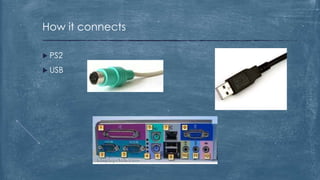
 PS2

 USB
Functionality of the Mouse
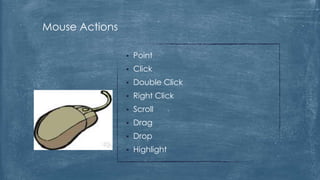
Mouse Actions

                   Point
                   Click
                   Double Click
                   Right Click
                   Scroll
                   Drag
                   Drop
                   Highlight
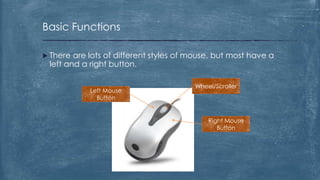
Basic Functions

 There are lots of different styles of mouse, but most have a
 left and a right button.

                                        Wheel/Scroller
            Left Mouse
              Button


                                            Right Mouse
                                               Button
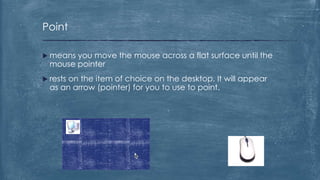
Point

 means you move the mouse across a flat surface until the
  mouse pointer
 restson the item of choice on the desktop. It will appear
  as an arrow (pointer) for you to use to point.
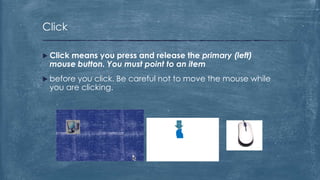
Click

 Click
     means you press and release the primary (left)
 mouse button. You must point to an item
 beforeyou click. Be careful not to move the mouse while
 you are clicking.
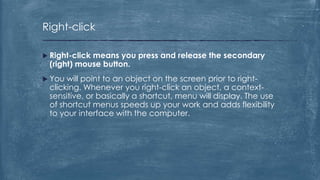
Right-click

 Right-click
            means you press and release the secondary
 (right) mouse button.
 You will point to an object on the screen prior to right-
 clicking. Whenever you right-click an object, a context-
 sensitive, or basically a shortcut, menu will display. The use
 of shortcut menus speeds up your work and adds flexibility
 to your interface with the computer.
Right-click contd.
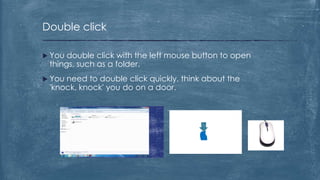
Double click

 You double click with the left mouse button to open
 things, such as a folder.
 Youneed to double click quickly, think about the
 'knock, knock' you do on a door.
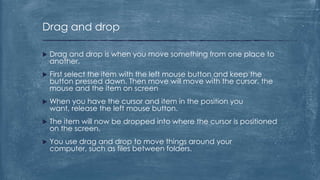
Drag and drop

   Drag and drop is when you move something from one place to
    another.
   First select the item with the left mouse button and keep the
    button pressed down. Then move will move with the cursor. the
    mouse and the item on screen
   When you have the cursor and item in the position you
    want, release the left mouse button.
   The item will now be dropped into where the cursor is positioned
    on the screen.
   You use drag and drop to move things around your
    computer, such as files between folders.
Drag and drop
Scrolling Wheel

 TheScrolling Wheel allows you to quickly scroll vertically
 on your page. Every mouse does
 not
    have a scrolling wheel, however, it is an efficient and
 convenient way to scroll up and down
How Data Sent

Whenever the mouse moves or the user clicks a button, the mouse
  sends 3 bytes of data to the computer. The first byte's 8 bits contain


  1.    Left button state (0 = off, 1 = on)
  2.    Right button state (0 = off, 1 = on)
  3.    Middle button state (0 = off, 1 = on)
  4.    1
  5.    X direction (positive or negative)
  6.    Y direction
  7.    X overflow (the mouse moved more than 255 pulses in 1/40th of a second)
  8.    Y overflow
How Data Sent contd.

   The next 2 bytes contain the X and Y movement values,
    respectively. These 2 bytes contain the number of pulses that
    have been detected in the X and Y direction since the last
    packet was sent.
How Should I Hold the Mouse?


              Keep your arm straight without
              moving your wrist. Only move your
              arm and elbow, not your wrist. This
              will help to prevent carpal tunnel.
How Should I Hold the Mouse?


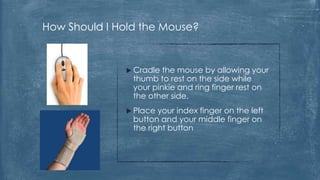
               Cradle  the mouse by allowing your
                thumb to rest on the side while
                your pinkie and ring finger rest on
                the other side.
               Place  your index finger on the left
                button and your middle finger on
                the right button
Why Does the Pointer Change Its Shape?


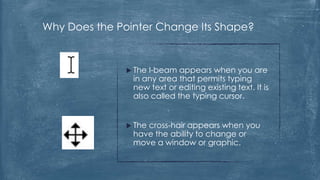
                TheI-beam appears when you are
                in any area that permits typing
                new text or editing existing text. It is
                also called the typing cursor.


                The
                   cross-hair appears when you
                have the ability to change or
                move a window or graphic.
Why Does the Pointer Change Its Shape?

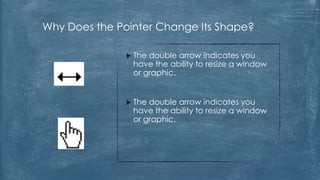
                Thedouble arrow indicates you
                have the ability to resize a window
                or graphic.


                Thedouble arrow indicates you
                have the ability to resize a window
                or graphic.
Why Does the Pointer Change Its Shape?


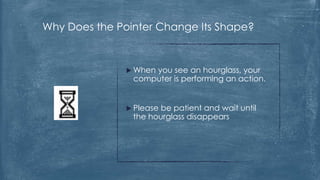
                When
                    you see an hourglass, your
                computer is performing an action.


                Pleasebe patient and wait until
                the hourglass disappears
Mouse Types
Mouse types


 Mice
     available in the market can be categorized
 according to several characteristics.


 • By Available features
 • By number of buttons it has
 • By technology used to connect
Mouse Types
By Available Features
Mouse Types by available features

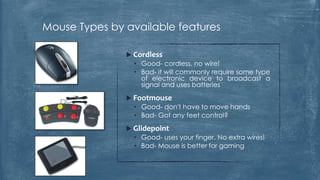
                Cordless
                 • Good- cordless, no wire!
                 • Bad- it will commonly require some type
                   of electronic device to broadcast a
                   signal and uses batteries
                Footmouse
                 • Good- don't have to move hands
                 • Bad- Got any feet control?
                Glidepoint
                 • Good- uses your finger. No extra wires!
                 • Bad- Mouse is better for gaming
Mouse Types by available features

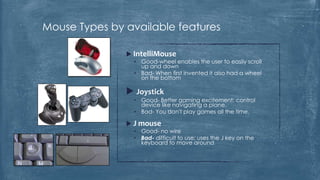
                IntelliMouse
                 • Good-wheel enables the user to easily scroll
                   up and down
                 • Bad- When first invented it also had a wheel
                   on the bottom

                Joystick
                 • Good- Better gaming excitement; control
                   device like navigating a plane.
                 • Bad- You don't play games all the time.

                J mouse
                 • Good- no wire
                 • Bad- difficult to use; uses the J key on the
                   keyboard to move around
Mouse Types by available features

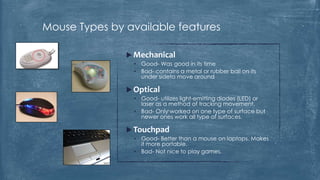
                Mechanical
                 • Good- Was good in its time
                 • Bad- contains a metal or rubber ball on its
                   under sideto move around

                Optical
                 • Good- utilizes light-emitting diodes (LED) or
                   laser as a method of tracking movement.
                 • Bad- Only worked on one type of surface but
                   newer ones work all type of surfaces.

                Touchpad
                 • Good- Better than a mouse on laptops. Makes
                   it more portable.
                 • Bad- Not nice to play games.
Mouse Types by available features

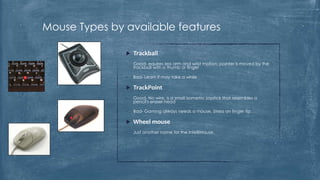
                  Trackball
               •   Good- equires less arm and wrist motion; pointer is moved by the
                   trackball with a thumb or finger

               •   Bad- Learn it may take a while

                  TrackPoint
               •   Good- No wire; is a small isometric joystick that resembles a
                   pencil's eraser head

               •   Bad- Gaming always needs a mouse. Stress on finger tip.

                  Wheel mouse
               •   Just another name for the IntelliMouse.
                   •   .
Mouse Types
By Number of Buttons
Mouse Types by Number of Buttons


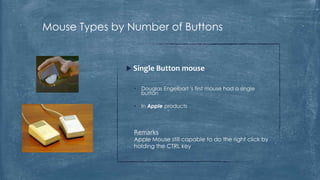
               Single Button mouse


                •   Douglas Engelbart 's first mouse had a single
                    button

                •   In Apple products


                Remarks
                Apple Mouse still capable to do the right click by
                holding the CTRL key
Mouse Types by Number of Buttons


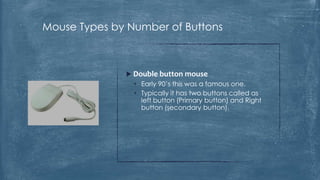
               Double button mouse
                • Early 90’s this was a famous one.
                • Typically it has two buttons called as
                  left button (Primary button) and Right
                  button (secondary button).
Mouse Types by Number of Buttons


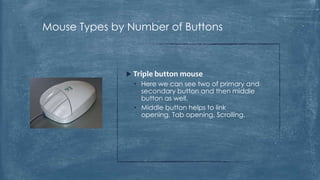
               Triple button mouse
                • Here we can see two of primary and
                  secondary button and then middle
                  button as well.
                • Middle button helps to link
                  opening, Tab opening, Scrolling.
Mouse Types by Number of Buttons


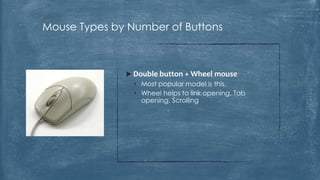
               Double button + Wheel mouse
                • Most popular model is this.
                • Wheel helps to link opening, Tab
                  opening, Scrolling
Mouse Types by Number of Buttons


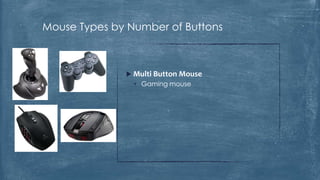
               Multi Button Mouse
                • Gaming mouse
Mouse Types
By Technology Used
Mouse Types by Technology Used


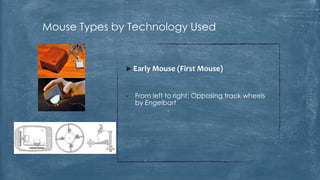
               Early Mouse (First Mouse)


              •   From left to right: Opposing track wheels
                  by Engelbart
Mouse Types by Technology Used


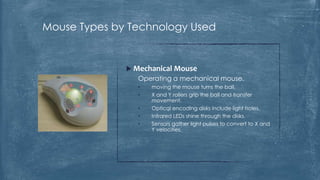
               Mechanical Mouse
                 Operating a mechanical mouse.
                 •   moving the mouse turns the ball.
                 •   X and Y rollers grip the ball and transfer
                     movement.
                 •   Optical encoding disks include light holes.
                 •   Infrared LEDs shine through the disks.
                 •   Sensors gather light pulses to convert to X and
                     Y velocities.
Mouse Types by Technology Used


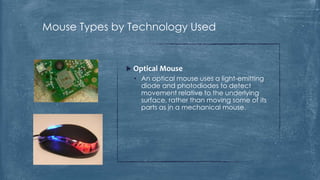
               Optical Mouse
                • An optical mouse uses a light-emitting
                  diode and photodiodes to detect
                  movement relative to the underlying
                  surface, rather than moving some of its
                  parts as in a mechanical mouse.
Mouse Types by Technology Used


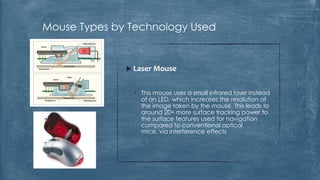
               Laser Mouse


                • This mouse uses a small infrared laser instead
                  of an LED, which increases the resolution of
                  the image taken by the mouse. This leads to
                  around 20× more surface tracking power to
                  the surface features used for navigation
                  compared to conventional optical
                  mice, via interference effects
Mouse Types by Technology Used


   Inertial Mouse


    •   Inertial mice use a tuning fork or other accelerometer to detect movement for
        every axis supported. Usually cordless, they often have a switch to deactivate
        the movement circuitry between use, allowing the user freedom of movement
        without affecting the pointer position.
Left Hand Friendly Mouse
Left hand ?

 March  9, 2006 Roughly 13% of the population is left-
  handed, meaning there are around 850 million people on
  planet earth with a preference for using their left hand for
  a variety of tasks
 Earlierleft-handed computer users have only had the
  choice of navigating with an ambidextrous-shaped mouse
  or unnaturally using their right hand to scroll, point and
  click.
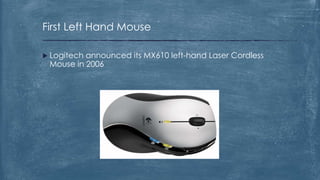
First Left Hand Mouse

 Logitechannounced its MX610 left-hand Laser Cordless
 Mouse in 2006
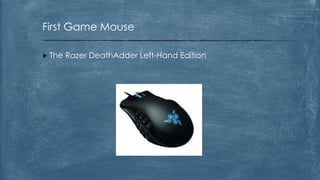
First Game Mouse

 The   Razer DeathAdder Left-Hand Edition
 Todaythere are many brand of left
 hand mouse devices available on
 the market.
 But
    you don’t always have to go
 and buy a left hand mouse.
 You
    can easily switch your ordinary
 mouse to left-handed mode.
How to reprogram the
mouse for left hand users?
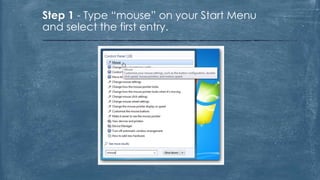
Step 1 - Type “mouse” on your Start Menu
and select the first entry.
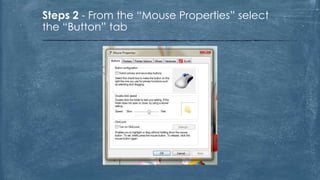
Steps 2 - From the “Mouse Properties” select
the “Button” tab
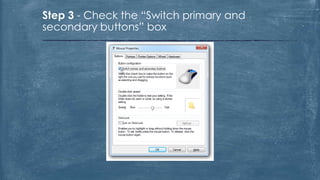
Step 3 - Check the “Switch primary and
secondary buttons” box
Now your primary select
button is your right
button, and the secondary
button is the left button.
How to change mouse
pointers for left hand
users?
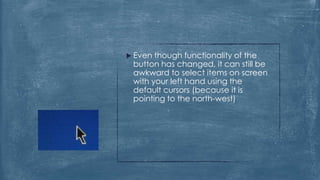
 Even though functionality of the
 button has changed, it can still be
 awkward to select items on screen
 with your left hand using the
 default cursors (because it is
 pointing to the north-west)
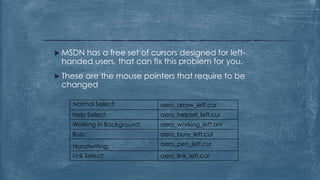
 MSDNhas a free set of cursors designed for left-
 handed users, that can fix this problem for you.
 These
      are the mouse pointers that require to be
 changed

    Normal Select:           aero_arrow_left.cur
    Help Select:             aero_helpsel_left.cur
    Working in Background:   aero_working_left.ani
    Busy:                    aero_busy_left.cur

    Handwriting:             aero_pen_left.cur
    Link Select:             aero_link_left.cur
Step 1- Visit the following link to download left
hand mouse pointers from MSDN


    http://archive.msdn.microsoft.com/lefthanded/Release/ProjectRel
                       eases.aspx?ReleaseId=2509
Step 2 - Click each link to
download all 6 cursors for
your size.
Step 3 - Click “I Agree” after selecting the cursors
to accept the license agreement and download
them.
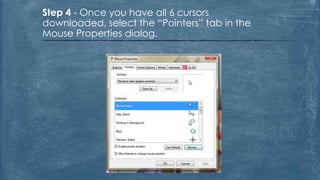
Step 4 - Once you have all 6 cursors
downloaded, select the “Pointers” tab in the
Mouse Properties dialog.
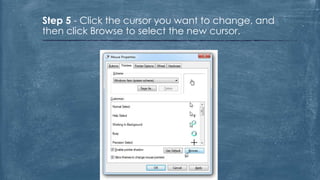
Step 5 - Click the cursor you want to change, and
then click Browse to select the new cursor.
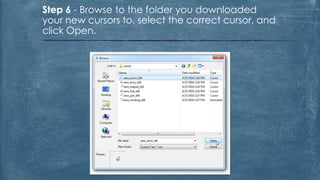
Step 6 - Browse to the folder you downloaded
your new cursors to, select the correct cursor, and
click Open.
Step 8 - After changing all the
cursors, click Save As… to save this
mouse scheme so you can easily
select it in the future. Finally click Ok
to close the Mouse Properties dialog
and accept the changes.
 After successfully implementing the
 left hand mouse pointers it will look
 like this (mouse pointer turning to
 the north east side).
Evolution of mouse
The B.X. (Before Xerox) Era


                   The mouse was invented by Douglas
                    Engelbart in 1964.
                   It consisted of a wooden shell, circuit
                    board and two metal wheels that came
                    into contact with the surface it was being
                    used on. The rotation of each single wheel
                    translating into motion along one of the
                    respective axes.
                   The name “mouse” originates from the
                    fact that the device had a “tail” behind
                    it, connecting it to a computer and a
                    display and was the idea of Bill English, a
                    colleague of Engelbart's and the person
                    who actually built the prototype device.
The “ball mouse” and Xerox

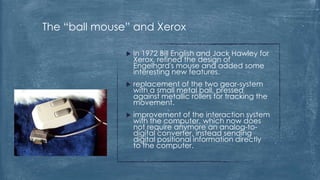
                  In 1972 Bill English and Jack Hawley for
                   Xerox, refined the design of
                   Engelhard's mouse and added some
                   interesting new features.
                  replacement of the two gear-system
                   with a small metal ball, pressed
                   against metallic rollers for tracking the
                   movement.
                  improvement of the interaction system
                   with the computer, which now does
                   not require anymore an analog-to-
                   digital converter, instead sending
                   digital positional information directly
                   to the computer.
Apple gets into the mouse game

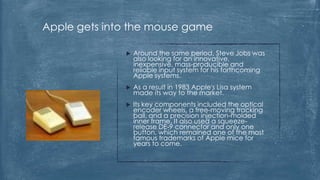
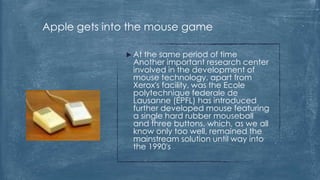
                 Around the same period, Steve Jobs was
                  also looking for an innovative,
                  inexpensive, mass-producible and
                  reliable input system for his forthcoming
                  Apple systems.
                 As a result in 1983 Apple's Lisa system
                  made its way to the market.
                 Its key components included the optical
                  encoder wheels, a free-moving tracking
                  ball, and a precision injection-molded
                  inner frame. It also used a squeeze-
                  release DE-9 connector and only one
                  button, which remained one of the most
                  famous trademarks of Apple mice for
                  years to come.
Apple gets into the mouse game

               At the same period of time
                Another important research center
                involved in the development of
                mouse technology, apart from
                Xerox's facility, was the Ecole
                polytechnique federale de
                Lausanne (EPFL) has introduced
                further developed mouse featuring
                a single hard rubber mouseball
                and three buttons, which, as we all
                know only too well, remained the
                mainstream solution until way into
                the 1990's
Experimenting with the first optical mouse
and the first cordless mouse

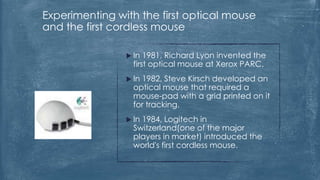
                 In  1981, Richard Lyon invented the
                  first optical mouse at Xerox PARC.
                 In1982, Steve Kirsch developed an
                  optical mouse that required a
                  mouse-pad with a grid printed on it
                  for tracking.
                 In1984, Logitech in
                  Switzerland(one of the major
                  players in market) introduced the
                  world's first cordless mouse.
The second half of the 1980's and early 1990's

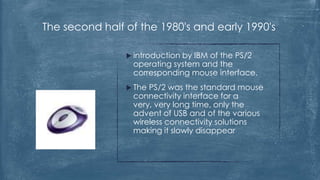
                 introduction
                             by IBM of the PS/2
                 operating system and the
                 corresponding mouse interface.
                 ThePS/2 was the standard mouse
                 connectivity interface for a
                 very, very long time, only the
                 advent of USB and of the various
                 wireless connectivity solutions
                 making it slowly disappear
The second half of the 1980's and early 1990's

                   Towards the beginning of the
                    1990's, Logitech managed to refine its
                    cordless mouse design and came up
                    with RF-based solutions, the first of
                    which was called the Cordless Mouse-
                    Man and arrived on the market in
                    1991. Still too expensive for most
                    people to afford, but at least it was a
                    step in the right direction.
                   In 1993, Honeywell launched an
                    alternate approach to the mouse
                    tracking concept, namely the Opto-
                    Mechanical mouse, which used two
                    small angled discs on its bottom that
                    track movement instead of the ball.
Let's start scrolling!

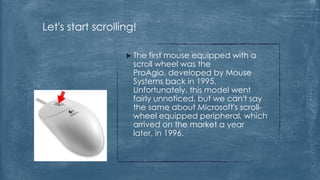
                    The  first mouse equipped with a
                     scroll wheel was the
                     ProAgio, developed by Mouse
                     Systems back in 1995.
                     Unfortunately, this model went
                     fairly unnoticed, but we can't say
                     the same about Microsoft's scroll-
                     wheel equipped peripheral, which
                     arrived on the market a year
                     later, in 1996.
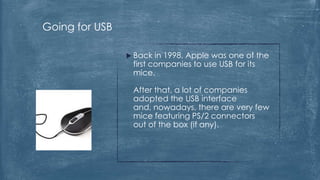
Going for USB

                 Back  in 1998, Apple was one of the
                 first companies to use USB for its
                 mice.

                 After that, a lot of companies
                 adopted the USB interface
                 and, nowadays, there are very few
                 mice featuring PS/2 connectors
                 out of the box (if any).
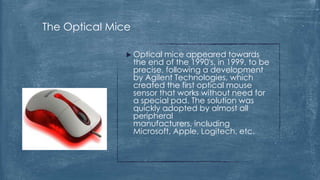
The Optical Mice

                Optical   mice appeared towards
                   the end of the 1990's, in 1999, to be
                   precise, following a development
                   by Agilent Technologies, which
                   created the first optical mouse
                   sensor that works without need for
                   a special pad. The solution was
                   quickly adopted by almost all
                   peripheral
                   manufacturers, including
                   Microsoft, Apple, Logitech, etc.
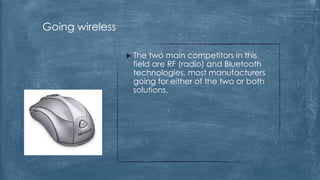
Going wireless

                  The two main competitors in this
                  field are RF (radio) and Bluetooth
                  technologies, most manufacturers
                  going for either of the two or both
                  solutions.
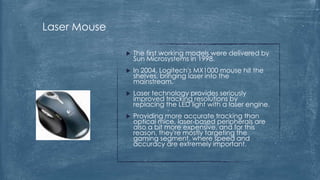
Laser Mouse

                 The first working models were delivered by
                  Sun Microsystems in 1998.
                 In 2004, Logitech's MX1000 mouse hit the
                  shelves, bringing laser into the
                  mainstream.
                 Laser technology provides seriously
                  improved tracking resolutions by
                  replacing the LED light with a laser engine.
                 Providing more accurate tracking than
                  optical mice, laser-based peripherals are
                  also a bit more expensive, and for this
                  reason, they're mostly targeting the
                  gaming segment, where speed and
                  accuracy are extremely important.
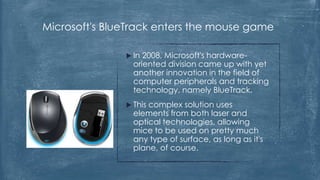
Microsoft's BlueTrack enters the mouse game

                In 2008, Microsoft's hardware-
                 oriented division came up with yet
                 another innovation in the field of
                 computer peripherals and tracking
                 technology, namely BlueTrack.
                Thiscomplex solution uses
                 elements from both laser and
                 optical technologies, allowing
                 mice to be used on pretty much
                 any type of surface, as long as it's
                 plane, of course.
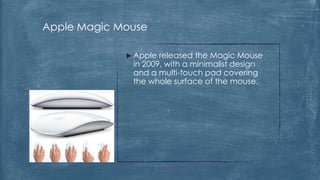
Apple Magic Mouse

              Apple released the Magic Mouse
              in 2009, with a minimalist design
              and a multi-touch pad covering
              the whole surface of the mouse.
Future of the mouse and
new trends.
Future of the mouse

               There are lots of new experiments going
               on the field of interaction between
               humans and computer today.

               People are researching on
               innovative, more accurate and more
               faster ways of communicating with
               devices.

               Hand aided mouse is becoming an old
               slow technology. So in near future it will
               be an obsolete technology which
               beautifies the history of evolution in the
               interaction devices.
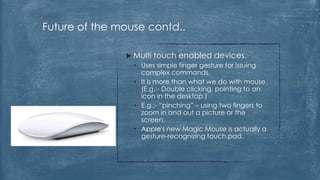
Future of the mouse contd..

                Multi touch enabled devices.
                 • Uses simple finger gesture for issuing
                   complex commands.
                 • It is more than what we do with mouse.
                   (E.g.:- Double clicking, pointing to an
                   icon in the desktop.)
                 • E.g.:- “pinching” – using two fingers to
                   zoom in and out a picture or the
                   screen.
                 • Apple's new Magic Mouse is actually a
                   gesture-recognizing touch pad.
Future and new trends contd..

  Gesture sensing.
   • Its more than what we do with motion of the boll in a mouse
     to track the movement and move the curser accordingly.
   • Gesture sensing allows the user to give a command in a
     three dimensional space.
   • In the games players can shoot using finger gestures and
     captures the physical movements of the humans to play the
     games and other movements.
   • This can interact with more real time sense of doing
     something for a rich human computer interaction.
   • By taking human-computer interactions outside of the two-
     dimensional screen of the computer, it makes the time we
     spend with our computers will become more physical,
     rewarding and effective.
Future of the mouse contd..


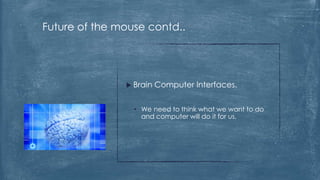
                Brain   Computer Interfaces.


                 • We need to think what we want to do
                   and computer will do it for us.
Future and new trends contd..


  So people are moving to use the brain signals or waves to capture
   and use it in the computer functionality.

  This is more and more faster that we can’t even imagine.

  With those technologies mouse is definitely going to be dead in
   future.
Future and new trends contd..

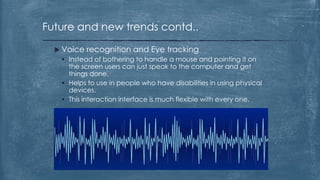
   Voice recognition and Eye tracking
     Instead of bothering to handle a mouse and pointing it on
      the screen users can just speak to the computer and get
      things done.
     Helps to use in people who have disabilities in using physical
      devices.
     This interaction interface is much flexible with every one.
Future of the mouse contd..


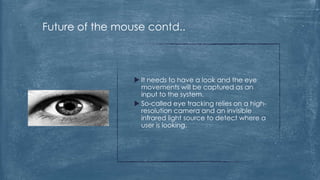
                  It needs to have a look and the eye
                   movements will be captured as an
                   input to the system.
                  So-called eye tracking relies on a high-
                   resolution camera and an invisible
                   infrared light source to detect where a
                   user is looking.
Questions & Discussion

Mouse re-programmed

  • 1.
    April 2nd, 2013 Human computer Interaction Mouse - re-programmed Group 3
  • 2.
    What is Mouse A mouse is a pointing device that functions by detecting two- dimensional motion relative to its supporting surface. The mouse's motion typically translates into the motion of a pointer on a display, which allows for fine control of a graphical user interface. A research has found that MOUSE is an acronym for (Manually Operated User Selection Equipment).
  • 3.
    Inventor of theMouse Douglas Engelbart of the Stanford Research Institute invented the wheel-based mouse in 1963. The first ball- based mouse was invented by Bill English at Xerox PARC in 1972.
  • 4.
    Inventor of theMouse… However, mice broke onto the public stage only in 1984, with the introduction of the Apple Macintosh.
  • 5.
  • 6.
  • 7.
    Mouse Actions  Point  Click  Double Click  Right Click  Scroll  Drag  Drop  Highlight
  • 8.
    Basic Functions  Thereare lots of different styles of mouse, but most have a left and a right button. Wheel/Scroller Left Mouse Button Right Mouse Button
  • 9.
    Point  means youmove the mouse across a flat surface until the mouse pointer  restson the item of choice on the desktop. It will appear as an arrow (pointer) for you to use to point.
  • 10.
    Click  Click means you press and release the primary (left) mouse button. You must point to an item  beforeyou click. Be careful not to move the mouse while you are clicking.
  • 11.
    Right-click  Right-click means you press and release the secondary (right) mouse button.  You will point to an object on the screen prior to right- clicking. Whenever you right-click an object, a context- sensitive, or basically a shortcut, menu will display. The use of shortcut menus speeds up your work and adds flexibility to your interface with the computer.
  • 12.
  • 13.
    Double click  Youdouble click with the left mouse button to open things, such as a folder.  Youneed to double click quickly, think about the 'knock, knock' you do on a door.
  • 14.
    Drag and drop  Drag and drop is when you move something from one place to another.  First select the item with the left mouse button and keep the button pressed down. Then move will move with the cursor. the mouse and the item on screen  When you have the cursor and item in the position you want, release the left mouse button.  The item will now be dropped into where the cursor is positioned on the screen.  You use drag and drop to move things around your computer, such as files between folders.
  • 15.
  • 16.
    Scrolling Wheel  TheScrollingWheel allows you to quickly scroll vertically on your page. Every mouse does  not have a scrolling wheel, however, it is an efficient and convenient way to scroll up and down
  • 17.
    How Data Sent Wheneverthe mouse moves or the user clicks a button, the mouse sends 3 bytes of data to the computer. The first byte's 8 bits contain 1. Left button state (0 = off, 1 = on) 2. Right button state (0 = off, 1 = on) 3. Middle button state (0 = off, 1 = on) 4. 1 5. X direction (positive or negative) 6. Y direction 7. X overflow (the mouse moved more than 255 pulses in 1/40th of a second) 8. Y overflow
  • 18.
    How Data Sentcontd.  The next 2 bytes contain the X and Y movement values, respectively. These 2 bytes contain the number of pulses that have been detected in the X and Y direction since the last packet was sent.
  • 19.
    How Should IHold the Mouse? Keep your arm straight without moving your wrist. Only move your arm and elbow, not your wrist. This will help to prevent carpal tunnel.
  • 20.
    How Should IHold the Mouse?  Cradle the mouse by allowing your thumb to rest on the side while your pinkie and ring finger rest on the other side.  Place your index finger on the left button and your middle finger on the right button
  • 21.
    Why Does thePointer Change Its Shape?  TheI-beam appears when you are in any area that permits typing new text or editing existing text. It is also called the typing cursor.  The cross-hair appears when you have the ability to change or move a window or graphic.
  • 22.
    Why Does thePointer Change Its Shape?  Thedouble arrow indicates you have the ability to resize a window or graphic.  Thedouble arrow indicates you have the ability to resize a window or graphic.
  • 23.
    Why Does thePointer Change Its Shape?  When you see an hourglass, your computer is performing an action.  Pleasebe patient and wait until the hourglass disappears
  • 24.
  • 25.
    Mouse types  Mice available in the market can be categorized according to several characteristics. • By Available features • By number of buttons it has • By technology used to connect
  • 26.
  • 27.
    Mouse Types byavailable features  Cordless • Good- cordless, no wire! • Bad- it will commonly require some type of electronic device to broadcast a signal and uses batteries  Footmouse • Good- don't have to move hands • Bad- Got any feet control?  Glidepoint • Good- uses your finger. No extra wires! • Bad- Mouse is better for gaming
  • 28.
    Mouse Types byavailable features  IntelliMouse • Good-wheel enables the user to easily scroll up and down • Bad- When first invented it also had a wheel on the bottom  Joystick • Good- Better gaming excitement; control device like navigating a plane. • Bad- You don't play games all the time.  J mouse • Good- no wire • Bad- difficult to use; uses the J key on the keyboard to move around
  • 29.
    Mouse Types byavailable features  Mechanical • Good- Was good in its time • Bad- contains a metal or rubber ball on its under sideto move around  Optical • Good- utilizes light-emitting diodes (LED) or laser as a method of tracking movement. • Bad- Only worked on one type of surface but newer ones work all type of surfaces.  Touchpad • Good- Better than a mouse on laptops. Makes it more portable. • Bad- Not nice to play games.
  • 30.
    Mouse Types byavailable features  Trackball • Good- equires less arm and wrist motion; pointer is moved by the trackball with a thumb or finger • Bad- Learn it may take a while  TrackPoint • Good- No wire; is a small isometric joystick that resembles a pencil's eraser head • Bad- Gaming always needs a mouse. Stress on finger tip.  Wheel mouse • Just another name for the IntelliMouse. • .
  • 31.
  • 32.
    Mouse Types byNumber of Buttons  Single Button mouse • Douglas Engelbart 's first mouse had a single button • In Apple products Remarks Apple Mouse still capable to do the right click by holding the CTRL key
  • 33.
    Mouse Types byNumber of Buttons  Double button mouse • Early 90’s this was a famous one. • Typically it has two buttons called as left button (Primary button) and Right button (secondary button).
  • 34.
    Mouse Types byNumber of Buttons  Triple button mouse • Here we can see two of primary and secondary button and then middle button as well. • Middle button helps to link opening, Tab opening, Scrolling.
  • 35.
    Mouse Types byNumber of Buttons  Double button + Wheel mouse • Most popular model is this. • Wheel helps to link opening, Tab opening, Scrolling
  • 36.
    Mouse Types byNumber of Buttons  Multi Button Mouse • Gaming mouse
  • 37.
  • 38.
    Mouse Types byTechnology Used  Early Mouse (First Mouse) • From left to right: Opposing track wheels by Engelbart
  • 39.
    Mouse Types byTechnology Used  Mechanical Mouse Operating a mechanical mouse. • moving the mouse turns the ball. • X and Y rollers grip the ball and transfer movement. • Optical encoding disks include light holes. • Infrared LEDs shine through the disks. • Sensors gather light pulses to convert to X and Y velocities.
  • 40.
    Mouse Types byTechnology Used  Optical Mouse • An optical mouse uses a light-emitting diode and photodiodes to detect movement relative to the underlying surface, rather than moving some of its parts as in a mechanical mouse.
  • 41.
    Mouse Types byTechnology Used  Laser Mouse • This mouse uses a small infrared laser instead of an LED, which increases the resolution of the image taken by the mouse. This leads to around 20× more surface tracking power to the surface features used for navigation compared to conventional optical mice, via interference effects
  • 42.
    Mouse Types byTechnology Used  Inertial Mouse • Inertial mice use a tuning fork or other accelerometer to detect movement for every axis supported. Usually cordless, they often have a switch to deactivate the movement circuitry between use, allowing the user freedom of movement without affecting the pointer position.
  • 43.
  • 44.
    Left hand ? March 9, 2006 Roughly 13% of the population is left- handed, meaning there are around 850 million people on planet earth with a preference for using their left hand for a variety of tasks  Earlierleft-handed computer users have only had the choice of navigating with an ambidextrous-shaped mouse or unnaturally using their right hand to scroll, point and click.
  • 45.
    First Left HandMouse  Logitechannounced its MX610 left-hand Laser Cordless Mouse in 2006
  • 46.
    First Game Mouse The Razer DeathAdder Left-Hand Edition
  • 47.
     Todaythere aremany brand of left hand mouse devices available on the market.  But you don’t always have to go and buy a left hand mouse.  You can easily switch your ordinary mouse to left-handed mode.
  • 48.
    How to reprogramthe mouse for left hand users?
  • 49.
    Step 1 -Type “mouse” on your Start Menu and select the first entry.
  • 50.
    Steps 2 -From the “Mouse Properties” select the “Button” tab
  • 51.
    Step 3 -Check the “Switch primary and secondary buttons” box
  • 52.
    Now your primaryselect button is your right button, and the secondary button is the left button.
  • 53.
    How to changemouse pointers for left hand users?
  • 54.
     Even thoughfunctionality of the button has changed, it can still be awkward to select items on screen with your left hand using the default cursors (because it is pointing to the north-west)
  • 55.
     MSDNhas afree set of cursors designed for left- handed users, that can fix this problem for you.  These are the mouse pointers that require to be changed Normal Select: aero_arrow_left.cur Help Select: aero_helpsel_left.cur Working in Background: aero_working_left.ani Busy: aero_busy_left.cur Handwriting: aero_pen_left.cur Link Select: aero_link_left.cur
  • 56.
    Step 1- Visitthe following link to download left hand mouse pointers from MSDN http://archive.msdn.microsoft.com/lefthanded/Release/ProjectRel eases.aspx?ReleaseId=2509
  • 57.
    Step 2 -Click each link to download all 6 cursors for your size.
  • 58.
    Step 3 -Click “I Agree” after selecting the cursors to accept the license agreement and download them.
  • 59.
    Step 4 -Once you have all 6 cursors downloaded, select the “Pointers” tab in the Mouse Properties dialog.
  • 60.
    Step 5 -Click the cursor you want to change, and then click Browse to select the new cursor.
  • 61.
    Step 6 -Browse to the folder you downloaded your new cursors to, select the correct cursor, and click Open.
  • 62.
    Step 8 -After changing all the cursors, click Save As… to save this mouse scheme so you can easily select it in the future. Finally click Ok to close the Mouse Properties dialog and accept the changes.
  • 63.
     After successfullyimplementing the left hand mouse pointers it will look like this (mouse pointer turning to the north east side).
  • 64.
  • 65.
    The B.X. (BeforeXerox) Era  The mouse was invented by Douglas Engelbart in 1964.  It consisted of a wooden shell, circuit board and two metal wheels that came into contact with the surface it was being used on. The rotation of each single wheel translating into motion along one of the respective axes.  The name “mouse” originates from the fact that the device had a “tail” behind it, connecting it to a computer and a display and was the idea of Bill English, a colleague of Engelbart's and the person who actually built the prototype device.
  • 66.
    The “ball mouse”and Xerox  In 1972 Bill English and Jack Hawley for Xerox, refined the design of Engelhard's mouse and added some interesting new features.  replacement of the two gear-system with a small metal ball, pressed against metallic rollers for tracking the movement.  improvement of the interaction system with the computer, which now does not require anymore an analog-to- digital converter, instead sending digital positional information directly to the computer.
  • 67.
    Apple gets intothe mouse game  Around the same period, Steve Jobs was also looking for an innovative, inexpensive, mass-producible and reliable input system for his forthcoming Apple systems.  As a result in 1983 Apple's Lisa system made its way to the market.  Its key components included the optical encoder wheels, a free-moving tracking ball, and a precision injection-molded inner frame. It also used a squeeze- release DE-9 connector and only one button, which remained one of the most famous trademarks of Apple mice for years to come.
  • 68.
    Apple gets intothe mouse game  At the same period of time Another important research center involved in the development of mouse technology, apart from Xerox's facility, was the Ecole polytechnique federale de Lausanne (EPFL) has introduced further developed mouse featuring a single hard rubber mouseball and three buttons, which, as we all know only too well, remained the mainstream solution until way into the 1990's
  • 69.
    Experimenting with thefirst optical mouse and the first cordless mouse  In 1981, Richard Lyon invented the first optical mouse at Xerox PARC.  In1982, Steve Kirsch developed an optical mouse that required a mouse-pad with a grid printed on it for tracking.  In1984, Logitech in Switzerland(one of the major players in market) introduced the world's first cordless mouse.
  • 70.
    The second halfof the 1980's and early 1990's  introduction by IBM of the PS/2 operating system and the corresponding mouse interface.  ThePS/2 was the standard mouse connectivity interface for a very, very long time, only the advent of USB and of the various wireless connectivity solutions making it slowly disappear
  • 71.
    The second halfof the 1980's and early 1990's  Towards the beginning of the 1990's, Logitech managed to refine its cordless mouse design and came up with RF-based solutions, the first of which was called the Cordless Mouse- Man and arrived on the market in 1991. Still too expensive for most people to afford, but at least it was a step in the right direction.  In 1993, Honeywell launched an alternate approach to the mouse tracking concept, namely the Opto- Mechanical mouse, which used two small angled discs on its bottom that track movement instead of the ball.
  • 72.
    Let's start scrolling!  The first mouse equipped with a scroll wheel was the ProAgio, developed by Mouse Systems back in 1995. Unfortunately, this model went fairly unnoticed, but we can't say the same about Microsoft's scroll- wheel equipped peripheral, which arrived on the market a year later, in 1996.
  • 73.
    Going for USB  Back in 1998, Apple was one of the first companies to use USB for its mice. After that, a lot of companies adopted the USB interface and, nowadays, there are very few mice featuring PS/2 connectors out of the box (if any).
  • 74.
    The Optical Mice  Optical mice appeared towards the end of the 1990's, in 1999, to be precise, following a development by Agilent Technologies, which created the first optical mouse sensor that works without need for a special pad. The solution was quickly adopted by almost all peripheral manufacturers, including Microsoft, Apple, Logitech, etc.
  • 75.
    Going wireless  The two main competitors in this field are RF (radio) and Bluetooth technologies, most manufacturers going for either of the two or both solutions.
  • 76.
    Laser Mouse  The first working models were delivered by Sun Microsystems in 1998.  In 2004, Logitech's MX1000 mouse hit the shelves, bringing laser into the mainstream.  Laser technology provides seriously improved tracking resolutions by replacing the LED light with a laser engine.  Providing more accurate tracking than optical mice, laser-based peripherals are also a bit more expensive, and for this reason, they're mostly targeting the gaming segment, where speed and accuracy are extremely important.
  • 77.
    Microsoft's BlueTrack entersthe mouse game  In 2008, Microsoft's hardware- oriented division came up with yet another innovation in the field of computer peripherals and tracking technology, namely BlueTrack.  Thiscomplex solution uses elements from both laser and optical technologies, allowing mice to be used on pretty much any type of surface, as long as it's plane, of course.
  • 78.
    Apple Magic Mouse  Apple released the Magic Mouse in 2009, with a minimalist design and a multi-touch pad covering the whole surface of the mouse.
  • 79.
    Future of themouse and new trends.
  • 80.
    Future of themouse There are lots of new experiments going on the field of interaction between humans and computer today. People are researching on innovative, more accurate and more faster ways of communicating with devices. Hand aided mouse is becoming an old slow technology. So in near future it will be an obsolete technology which beautifies the history of evolution in the interaction devices.
  • 81.
    Future of themouse contd..  Multi touch enabled devices. • Uses simple finger gesture for issuing complex commands. • It is more than what we do with mouse. (E.g.:- Double clicking, pointing to an icon in the desktop.) • E.g.:- “pinching” – using two fingers to zoom in and out a picture or the screen. • Apple's new Magic Mouse is actually a gesture-recognizing touch pad.
  • 82.
    Future and newtrends contd..  Gesture sensing. • Its more than what we do with motion of the boll in a mouse to track the movement and move the curser accordingly. • Gesture sensing allows the user to give a command in a three dimensional space. • In the games players can shoot using finger gestures and captures the physical movements of the humans to play the games and other movements. • This can interact with more real time sense of doing something for a rich human computer interaction. • By taking human-computer interactions outside of the two- dimensional screen of the computer, it makes the time we spend with our computers will become more physical, rewarding and effective.
  • 83.
    Future of themouse contd..  Brain Computer Interfaces. • We need to think what we want to do and computer will do it for us.
  • 84.
    Future and newtrends contd..  So people are moving to use the brain signals or waves to capture and use it in the computer functionality.  This is more and more faster that we can’t even imagine.  With those technologies mouse is definitely going to be dead in future.
  • 85.
    Future and newtrends contd..  Voice recognition and Eye tracking  Instead of bothering to handle a mouse and pointing it on the screen users can just speak to the computer and get things done.  Helps to use in people who have disabilities in using physical devices.  This interaction interface is much flexible with every one.
  • 86.
    Future of themouse contd..  It needs to have a look and the eye movements will be captured as an input to the system.  So-called eye tracking relies on a high- resolution camera and an invisible infrared light source to detect where a user is looking.
  • 87.