Kerry Turner
Developer Relations Engineer
Unity Technologies
Real world performance
analysis and
optimisation
What we’ll cover
• Memory usage
• Load times
• CPU optimisation: animations
What we’ll cover FIRST
• Memory usage
• Load times
• CPU optimisation: animations
• Profiling
Profiling:
Best practice
• Profile in real-world conditions
• Don’t profile in the Unity Editor
• Profile on target hardware
• Profile in a typical environment
• Profile the whole state of your game
• Find the cause of your problem
• Understand your resource budget
• Profile before and after you make a change
Profiling:
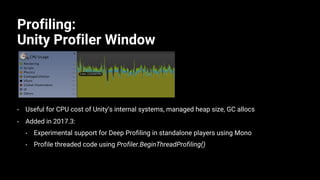
Unity Profiler Window
• Useful for CPU cost of Unity’s internal systems, managed heap size, GC allocs
• Added in 2017.3:
• Experimental support for Deep Profiling in standalone players using Mono
• Profile threaded code using Profiler.BeginThreadProfiling()
Profiling:
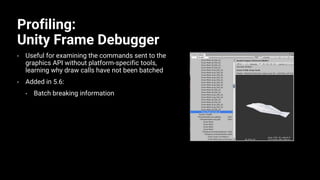
Unity Frame Debugger
• Useful for examining the commands sent to the
graphics API without platform-specific tools,
learning why draw calls have not been batched
• Added in 5.6:
• Batch breaking information
Profiling:
Unity Memory Profiler
• Useful for identifying assets that are inappropriately
large, or that should not be resident in memory
• Download from
bitbucket.org/Unity-Technologies/memoryprofiler
• 2017.3:
• Support for Mono .NET 3.5 runtime
Profiling:
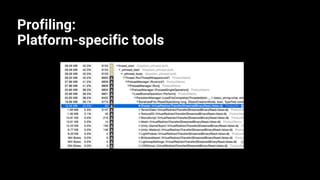
Platform-specific tools
Runtime memory usage:
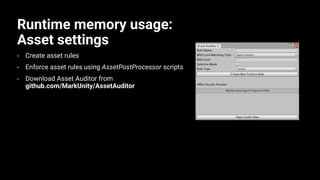
Asset settings
• Create asset rules
• Enforce asset rules using AssetPostProcessor scripts
• Download Asset Auditor from
github.com/MarkUnity/AssetAuditor
Runtime memory usage:
Asset complexity
• Overly large and complex source assets are a very common cause of excessive
runtime memory usage
• Identify overly large or complex source assets by examining a memory
snapshot and auditing assets
• Reducing source asset size and complexity has other benefits
• Faster asset load times
• Meshes with fewer vertices = reduced vertex processing cost on GPU
• Lower resolution textures = reduced texture read cost on GPU
• Animations with fewer curves = reduced animation cost on CPU
• This is a good example of where asset rules can prevent human error
Runtime memory usage:
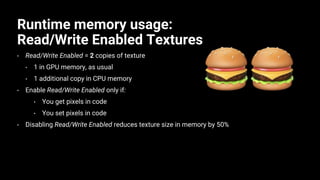
Read/Write Enabled Textures
• Read/Write Enabled = 2 copies of texture
• 1 in GPU memory, as usual
• 1 additional copy in CPU memory
• Enable Read/Write Enabled only if:
• You get pixels in code
• You set pixels in code
• Disabling Read/Write Enabled reduces texture size in memory by 50%
Runtime memory usage:
Read/Write Enabled Textures
• Texture2D instances created in code are read/write enabled by default
• Make Texture2D instances read-only by calling
texture2D.Apply(updateMipmaps, true);
• This uploads the texture from main RAM to the GPU
• If makeNoLongerReadable is true, the copy in main RAM is then discarded
Runtime memory usage:
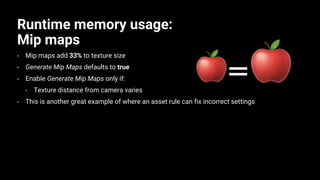
Mip maps
• Mip maps add 33% to texture size
• Generate Mip Maps defaults to true
• Enable Generate Mip Maps only if:
• Texture distance from camera varies
• This is another great example of where an asset rule can fix incorrect settings
Runtime memory usage:
Read/Write Enabled Meshes
• Read/Write Enabled = 2 copies of mesh
• 1 copy in GPU memory, as usual
• 1 additional copy in CPU memory
• This can more than double the size of a mesh in memory
• Enable Read/Write Enabled only if:
• You access the mesh properties in code
• You are using a MeshCollider and the mesh transform has negative scaling
• You are using a MeshCollider and the mesh transform is skewed or sheared
Runtime memory usage:
Read/Write Enabled Meshes
• Mesh instances created in code are read/write enabled by default
• Make mesh instances read-only by calling
mesh.UploadMeshData(true);
• This uploads the texture from main RAM to the GPU
• If markNoLongerReadable is true, the copy in main RAM is then discarded
Runtime memory usage:
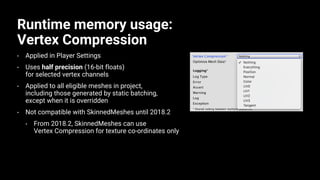
Vertex Compression
• Applied in Player Settings
• Uses half precision (16-bit floats)
for selected vertex channels
• Applied to all eligible meshes in project,
including those generated by static batching,
except when it is overridden
• Not compatible with SkinnedMeshes until 2018.2
• From 2018.2, SkinnedMeshes can use
Vertex Compression for texture co-ordinates only
Runtime memory usage:
Vertex Compression
• Vertex Compression cannot be applied when:
• A mesh has Mesh Compression applied
• Mesh Compression is a lossy compression that affects size on disk only
• Mesh Compression is applied to individual mesh assets at import time
• To use Vertex Compression on a mesh, disable Mesh Compression
• A mesh is read/write enabled
• When a mesh is read/write enabled, 2 uncompressed copies are resident
in memory
Runtime memory usage:
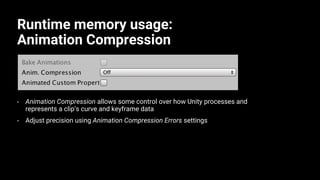
Animation Compression
• Animation Compression allows some control over how Unity processes and
represents a clip’s curve and keyframe data
• Adjust precision using Animation Compression Errors settings
Runtime memory usage:
Animation Compression
• Off (default)
• Keyframe reduction
• Applied after import, iterates over each curve and removes
redundant keyframes
• Optimal (Generic and Humanoid only)
• Applied at build time, allows for use of Dense curve type for additional file
size reduction
• Recommended settings:
• Legacy: Keyframe reduction
• Generic or Humanoid: Optimal
Runtime memory usage:
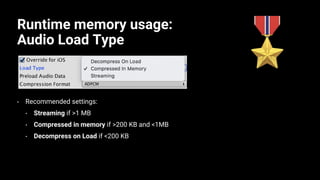
Audio Load Type
• Recommended settings:
• Streaming if >1 MB
• Compressed in memory if >200 KB and <1MB
• Decompress on Load if <200 KB
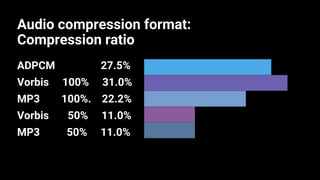
Audio compression format:
Compression ratio
ADPCM 27.5%
Vorbis 100% 31.0%
MP3 100%. 22.2%
Vorbis 50% 11.0%
MP3 50% 11.0%
27.50
31.00
22
11
11
0 8.25 16.5 24.75 33
ms
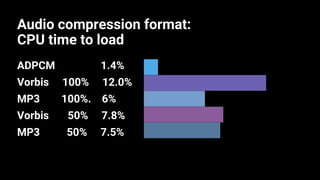
Audio compression format:
CPU time to load
ADPCM 1.4%
Vorbis 100% 12.0%
MP3 100%. 6%
Vorbis 50% 7.8%
MP3 50% 7.5%
1.40
12.00
6
8
8
0 3.75 7.5 11.25 15
%
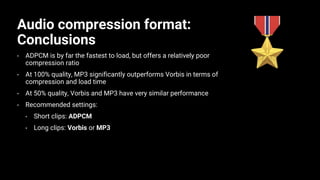
Audio compression format:
Conclusions
• ADPCM is by far the fastest to load, but offers a relatively poor
compression ratio
• At 100% quality, MP3 significantly outperforms Vorbis in terms of
compression and load time
• At 50% quality, Vorbis and MP3 have very similar performance
• Recommended settings:
• Short clips: ADPCM
• Long clips: Vorbis or MP3
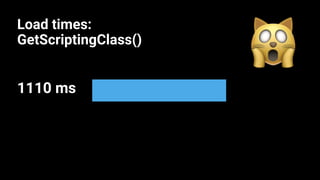
Load times:
GetScriptingClass()
1110 ms 1.10
0.9 1.2
ms
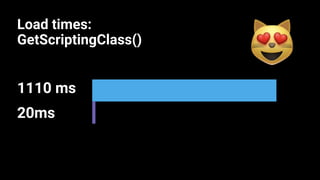
Load times:
GetScriptingClass()
1110 ms
20ms
1.10
0.02
0 0.3 0.6 0.9 1.2
ms
Load times:
GetScriptingClass()
• MonoManager::GetScriptingClass() searches assemblies for class types during
application startup
• Performance regression led to this function taking up to 50% of application
startup time in IL2CPP projects
• This was due to inefficient string operations
• Fixed in 2018.2
• String operations have been replaced with a hash map
• Patched to all versions of Unity 2017
Load times:
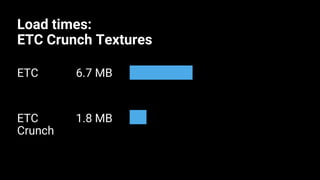
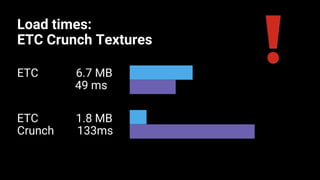
ETC Crunch Textures
• Crunch compression is a lossy texture compression format that provides
additional file size savings
• Unity moved to a new Crunch library in 2017.3
• Before 2017.3, Unity could apply Crunch to DXT only
• From 2017.3, Unity now allows for Crunch compression of
• ETC_RGB4
• ETC2_RGBA8
Load times:
ETC Crunch Textures
ETC 6.7 MB
ETC 1.8 MB
Crunch
67.00%
18.00%
0 37.5 75 112.5 150
ETC
ETC Crunch
Load times:
ETC Crunch Textures
ETC 6.7 MB
49 ms
ETC 1.8 MB
Crunch 133ms
67.00%
18.00%
49.00%
133.00%
0 37.5 75 112.5 150
ETC
ETC Crunch
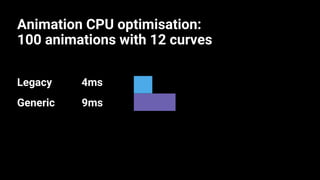
Animation CPU optimisation:
100 animations with 12 curves
Legacy 4ms
Generic 9ms
4.00
9.00
-4.5 3 10.5 18 25.5 33
ms
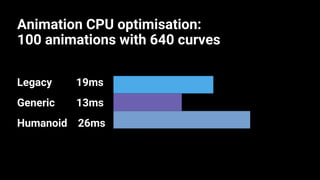
Animation CPU optimisation:
100 animations with 640 curves
Legacy 19ms
Generic 13ms
Humanoid 26ms
19.00
13.00
26
0 8.25 16.5 24.75 33
ms
Animation CPU optimisation:
Conclusions
• Unity Animation System becomes more efficient with a higher
number of curves
• Recommended settings for lower-end devices:
• Unity Animation System for clips with >300 curves
• Legacy Animation System for clips with <300 curves
Animation CPU optimisation:
Humanoid or Generic?
• Humanoid performs operations related to retargeting, root motion and
IK every frame, regardless of whether those features are used
• Recommended settings:
• Humanoid when using retargeting and IK
• Generic in all other cases
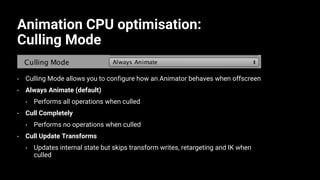
Animation CPU optimisation:
Culling Mode
• Culling Mode allows you to configure how an Animator behaves when offscreen
• Always Animate (default)
• Performs all operations when culled
• Cull Completely
• Performs no operations when culled
• Cull Update Transforms
• Updates internal state but skips transform writes, retargeting and IK when
culled
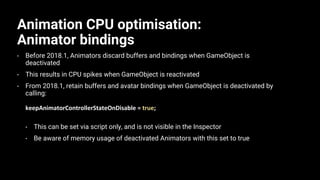
Animation CPU optimisation:
Animator bindings
• Before 2018.1, Animators discard buffers and bindings when GameObject is
deactivated
• This results in CPU spikes when GameObject is reactivated
• From 2018.1, retain buffers and avatar bindings when GameObject is deactivated by
calling:
keepAnimatorControllerStateOnDisable = true;
• This can be set via script only, and is not visible in the Inspector
• Be aware of memory usage of deactivated Animators with this set to true
One last tip:
More talks like this
• Unite Europe 2017 - Squeezing Unity
• Unite 2016 - Let's Talk (Content) Optimization
• Unite Europe 2016 - Optimizing Mobile Applications
Thank you!

【Unite Tokyo 2018】実践的なパフォーマンス分析と最適化

  • 1.
    Kerry Turner Developer RelationsEngineer Unity Technologies
  • 2.
  • 3.
    What we’ll cover •Memory usage • Load times • CPU optimisation: animations
  • 4.
    What we’ll coverFIRST • Memory usage • Load times • CPU optimisation: animations • Profiling
  • 5.
    Profiling: Best practice • Profilein real-world conditions • Don’t profile in the Unity Editor • Profile on target hardware • Profile in a typical environment • Profile the whole state of your game • Find the cause of your problem • Understand your resource budget • Profile before and after you make a change
  • 6.
    Profiling: Unity Profiler Window •Useful for CPU cost of Unity’s internal systems, managed heap size, GC allocs • Added in 2017.3: • Experimental support for Deep Profiling in standalone players using Mono • Profile threaded code using Profiler.BeginThreadProfiling()
  • 7.
    Profiling: Unity Frame Debugger •Useful for examining the commands sent to the graphics API without platform-specific tools, learning why draw calls have not been batched • Added in 5.6: • Batch breaking information
  • 8.
    Profiling: Unity Memory Profiler •Useful for identifying assets that are inappropriately large, or that should not be resident in memory • Download from bitbucket.org/Unity-Technologies/memoryprofiler • 2017.3: • Support for Mono .NET 3.5 runtime
  • 9.
  • 10.
    Runtime memory usage: Assetsettings • Create asset rules • Enforce asset rules using AssetPostProcessor scripts • Download Asset Auditor from github.com/MarkUnity/AssetAuditor
  • 11.
    Runtime memory usage: Assetcomplexity • Overly large and complex source assets are a very common cause of excessive runtime memory usage • Identify overly large or complex source assets by examining a memory snapshot and auditing assets • Reducing source asset size and complexity has other benefits • Faster asset load times • Meshes with fewer vertices = reduced vertex processing cost on GPU • Lower resolution textures = reduced texture read cost on GPU • Animations with fewer curves = reduced animation cost on CPU • This is a good example of where asset rules can prevent human error
  • 12.
    Runtime memory usage: Read/WriteEnabled Textures • Read/Write Enabled = 2 copies of texture • 1 in GPU memory, as usual • 1 additional copy in CPU memory • Enable Read/Write Enabled only if: • You get pixels in code • You set pixels in code • Disabling Read/Write Enabled reduces texture size in memory by 50%
  • 13.
    Runtime memory usage: Read/WriteEnabled Textures • Texture2D instances created in code are read/write enabled by default • Make Texture2D instances read-only by calling texture2D.Apply(updateMipmaps, true); • This uploads the texture from main RAM to the GPU • If makeNoLongerReadable is true, the copy in main RAM is then discarded
  • 14.
    Runtime memory usage: Mipmaps • Mip maps add 33% to texture size • Generate Mip Maps defaults to true • Enable Generate Mip Maps only if: • Texture distance from camera varies • This is another great example of where an asset rule can fix incorrect settings
  • 15.
    Runtime memory usage: Read/WriteEnabled Meshes • Read/Write Enabled = 2 copies of mesh • 1 copy in GPU memory, as usual • 1 additional copy in CPU memory • This can more than double the size of a mesh in memory • Enable Read/Write Enabled only if: • You access the mesh properties in code • You are using a MeshCollider and the mesh transform has negative scaling • You are using a MeshCollider and the mesh transform is skewed or sheared
  • 16.
    Runtime memory usage: Read/WriteEnabled Meshes • Mesh instances created in code are read/write enabled by default • Make mesh instances read-only by calling mesh.UploadMeshData(true); • This uploads the texture from main RAM to the GPU • If markNoLongerReadable is true, the copy in main RAM is then discarded
  • 17.
    Runtime memory usage: VertexCompression • Applied in Player Settings • Uses half precision (16-bit floats) for selected vertex channels • Applied to all eligible meshes in project, including those generated by static batching, except when it is overridden • Not compatible with SkinnedMeshes until 2018.2 • From 2018.2, SkinnedMeshes can use Vertex Compression for texture co-ordinates only
  • 18.
    Runtime memory usage: VertexCompression • Vertex Compression cannot be applied when: • A mesh has Mesh Compression applied • Mesh Compression is a lossy compression that affects size on disk only • Mesh Compression is applied to individual mesh assets at import time • To use Vertex Compression on a mesh, disable Mesh Compression • A mesh is read/write enabled • When a mesh is read/write enabled, 2 uncompressed copies are resident in memory
  • 19.
    Runtime memory usage: AnimationCompression • Animation Compression allows some control over how Unity processes and represents a clip’s curve and keyframe data • Adjust precision using Animation Compression Errors settings
  • 20.
    Runtime memory usage: AnimationCompression • Off (default) • Keyframe reduction • Applied after import, iterates over each curve and removes redundant keyframes • Optimal (Generic and Humanoid only) • Applied at build time, allows for use of Dense curve type for additional file size reduction • Recommended settings: • Legacy: Keyframe reduction • Generic or Humanoid: Optimal
  • 21.
    Runtime memory usage: AudioLoad Type • Recommended settings: • Streaming if >1 MB • Compressed in memory if >200 KB and <1MB • Decompress on Load if <200 KB
  • 22.
    Audio compression format: Compressionratio ADPCM 27.5% Vorbis 100% 31.0% MP3 100%. 22.2% Vorbis 50% 11.0% MP3 50% 11.0% 27.50 31.00 22 11 11 0 8.25 16.5 24.75 33 ms
  • 23.
    Audio compression format: CPUtime to load ADPCM 1.4% Vorbis 100% 12.0% MP3 100%. 6% Vorbis 50% 7.8% MP3 50% 7.5% 1.40 12.00 6 8 8 0 3.75 7.5 11.25 15 %
  • 24.
    Audio compression format: Conclusions •ADPCM is by far the fastest to load, but offers a relatively poor compression ratio • At 100% quality, MP3 significantly outperforms Vorbis in terms of compression and load time • At 50% quality, Vorbis and MP3 have very similar performance • Recommended settings: • Short clips: ADPCM • Long clips: Vorbis or MP3
  • 25.
  • 26.
  • 27.
    Load times: GetScriptingClass() • MonoManager::GetScriptingClass()searches assemblies for class types during application startup • Performance regression led to this function taking up to 50% of application startup time in IL2CPP projects • This was due to inefficient string operations • Fixed in 2018.2 • String operations have been replaced with a hash map • Patched to all versions of Unity 2017
  • 28.
    Load times: ETC CrunchTextures • Crunch compression is a lossy texture compression format that provides additional file size savings • Unity moved to a new Crunch library in 2017.3 • Before 2017.3, Unity could apply Crunch to DXT only • From 2017.3, Unity now allows for Crunch compression of • ETC_RGB4 • ETC2_RGBA8
  • 29.
    Load times: ETC CrunchTextures ETC 6.7 MB ETC 1.8 MB Crunch 67.00% 18.00% 0 37.5 75 112.5 150 ETC ETC Crunch
  • 30.
    Load times: ETC CrunchTextures ETC 6.7 MB 49 ms ETC 1.8 MB Crunch 133ms 67.00% 18.00% 49.00% 133.00% 0 37.5 75 112.5 150 ETC ETC Crunch
  • 31.
    Animation CPU optimisation: 100animations with 12 curves Legacy 4ms Generic 9ms 4.00 9.00 -4.5 3 10.5 18 25.5 33 ms
  • 32.
    Animation CPU optimisation: 100animations with 640 curves Legacy 19ms Generic 13ms Humanoid 26ms 19.00 13.00 26 0 8.25 16.5 24.75 33 ms
  • 33.
    Animation CPU optimisation: Conclusions •Unity Animation System becomes more efficient with a higher number of curves • Recommended settings for lower-end devices: • Unity Animation System for clips with >300 curves • Legacy Animation System for clips with <300 curves
  • 34.
    Animation CPU optimisation: Humanoidor Generic? • Humanoid performs operations related to retargeting, root motion and IK every frame, regardless of whether those features are used • Recommended settings: • Humanoid when using retargeting and IK • Generic in all other cases
  • 35.
    Animation CPU optimisation: CullingMode • Culling Mode allows you to configure how an Animator behaves when offscreen • Always Animate (default) • Performs all operations when culled • Cull Completely • Performs no operations when culled • Cull Update Transforms • Updates internal state but skips transform writes, retargeting and IK when culled
  • 36.
    Animation CPU optimisation: Animatorbindings • Before 2018.1, Animators discard buffers and bindings when GameObject is deactivated • This results in CPU spikes when GameObject is reactivated • From 2018.1, retain buffers and avatar bindings when GameObject is deactivated by calling: keepAnimatorControllerStateOnDisable = true; • This can be set via script only, and is not visible in the Inspector • Be aware of memory usage of deactivated Animators with this set to true
  • 37.
    One last tip: Moretalks like this • Unite Europe 2017 - Squeezing Unity • Unite 2016 - Let's Talk (Content) Optimization • Unite Europe 2016 - Optimizing Mobile Applications
  • 38.