Generative
Art
—
Made
with
Unity
Mobile Graphics Best
Practices for Artists
Unite Seoul 2020
Owen Wu | Developer Relations Engineer, Arm | owen.wu@arm.com
Agenda
3
— Introduction
— Texturing
— Geometry
— Shaders
— Frame Rendering
— Resources
Texturing
Texture Filtering - Trilinear
— Trilinear - Like Bilinear but with
added blur between mipmap
level
— Don’t use trilinear without
mipmap
— This filtering will remove
noticeable change between
mipmap by adding smooth
transition
— Trilinear filtering is still
expensive on mobile
— Use it with caution
Texture Filtering - Anisotropic
— Anisotropic - Make textures look
better when viewed from different
angle, which is good for ground level
textures
— Higher anisotropic level cost higher
Texture Filtering
— Use bilinear for balance between performance and visual quality
— Trilinear will cost more memory bandwidth than bilinear and needs to be
used selectively
— Bilinear + 2x Anisotropic most of the time will look and perform better
than Trilinear + 1x Anisotropic, so this combination can be better solution
rather than using Trilinear
— Keep the anisotropic level low
— Using a level higher than 2 should be done very selectively for critical
game assets
– This is because higher anisotropic level will cost a lot more bandwidth and affect
device battery life
Always Use Mipmap If Camera Is Not Still
— Using mipmapping will improve
GPU performance
— Less cache miss
— Mipmapping also reduce
texture aliasing and improve
final image quality
— Don’t use it on 2D objects
Texture Color Space
— Use linear color space rendering if using
dynamic lighting
— Check sRGB in texture inspector window
— Textures that are not processed as color
should NOT be used in sRGB color space
(such as metallic, roughness, normal map,
etc)
— Current hardware supports sRGB format
and hardware will do Gamma correction
automatically for free
Texture Compression
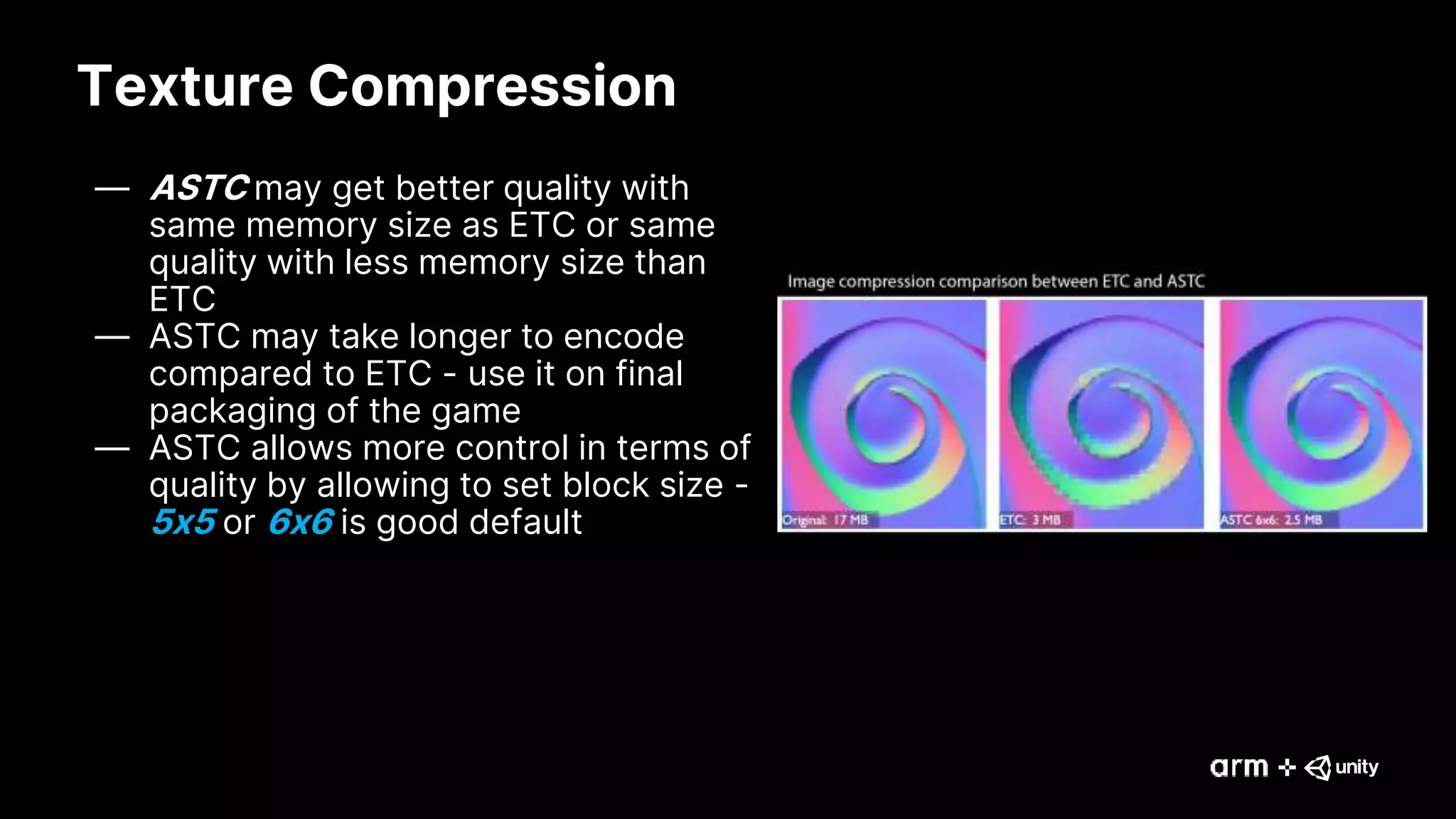
— ASTC may get better quality with
same memory size as ETC or same
quality with less memory size than
ETC
— ASTC may take longer to encode
compared to ETC - use it on final
packaging of the game
— ASTC allows more control in terms of
quality by allowing to set block size -
5x5 or 6x6 is good default
Texture Channel Packing
— Use texture channels to pack multiple
textures into one
— Commonly used to pack roughness, or
smoothness, and metallic into one
texture
— Can be applied for any texture mask
— Make good use of alpha channel
Geometry
Avoid Rendering Small Triangles
— The bandwidth and processing cost
of a vertex is typically orders of
magnitude higher than the cost of
processing a fragment
— Make sure that you get many pixels
worth of fragment work for each
primitive
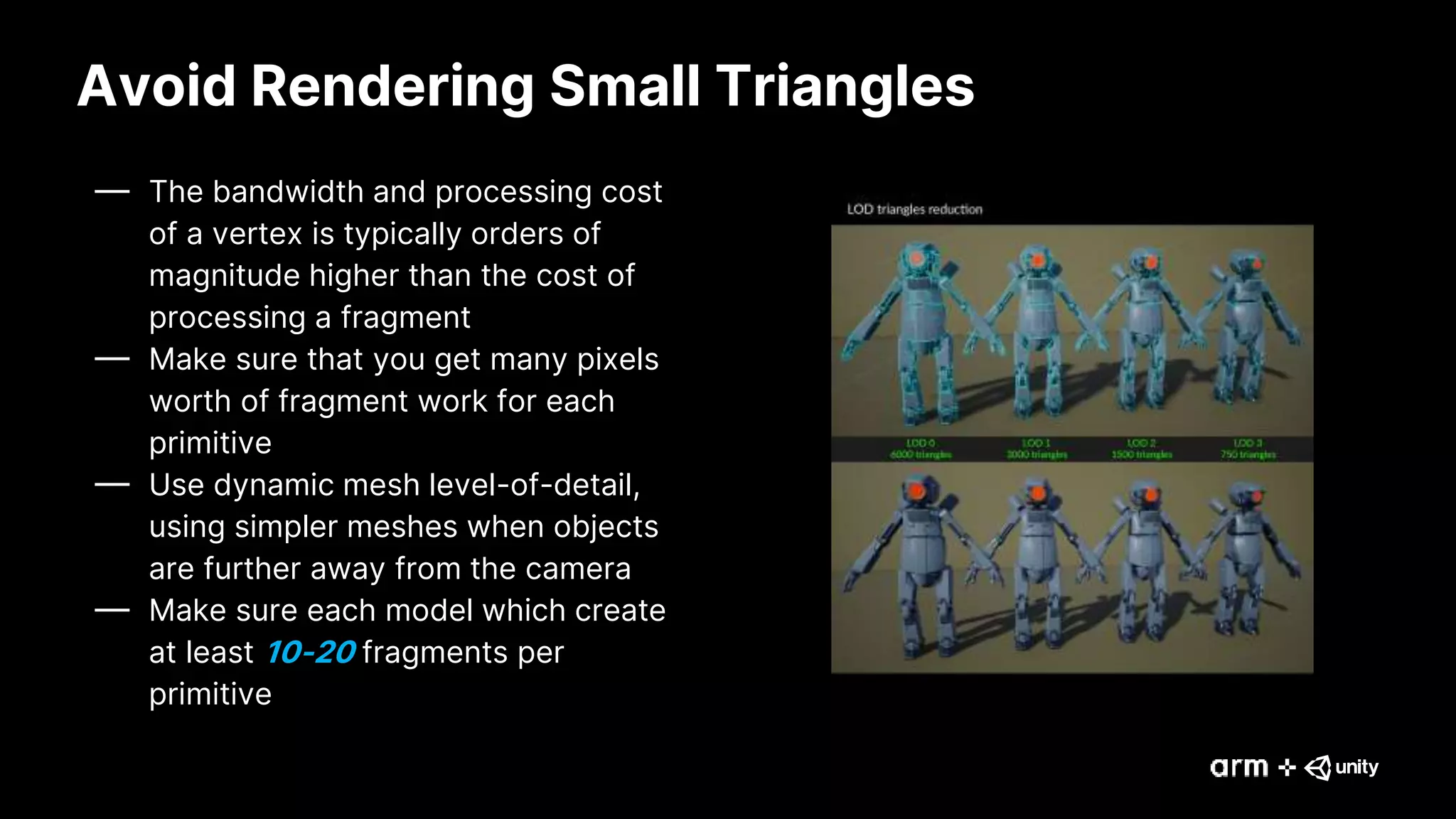
— Use dynamic mesh level-of-detail,
using simpler meshes when objects
are further away from the camera
— Make sure each model which create
at least 10-20 fragments per
primitive
Avoid Rendering Long Thin Triangles
— More expensive for the GPU to process when compared
with normal triangles
— GPUs process pixels in quad blocks
— Long thin triangle edges will waste more GPU power to
rasterize
— Adjacent long thin triangles will waste doubly
Avoid Duplicating Vertices
— Reuse as many vertices as possible
— Transformed vertex data can be cached to save
computation power
— Avoid duplicating vertices unless it’s necessary
V0
V1
V2
V3
V4
V0
V1
V2
V3
V5
V4 V7
V6
V8
T1 : (V0, V1, V2)
T2 : (V1, V3, V2)
T3 : (V2, V3, V4)
T1 : (V0, V1, V2)
T2 : (V3, V4, V5)
T3 : (V6, V7, V8)
GOOD BAD
Instancing
— Render many objects using the same
mesh
— Each instance can have its own
properties
— Reduce the number of draw call and
memory bandwidth
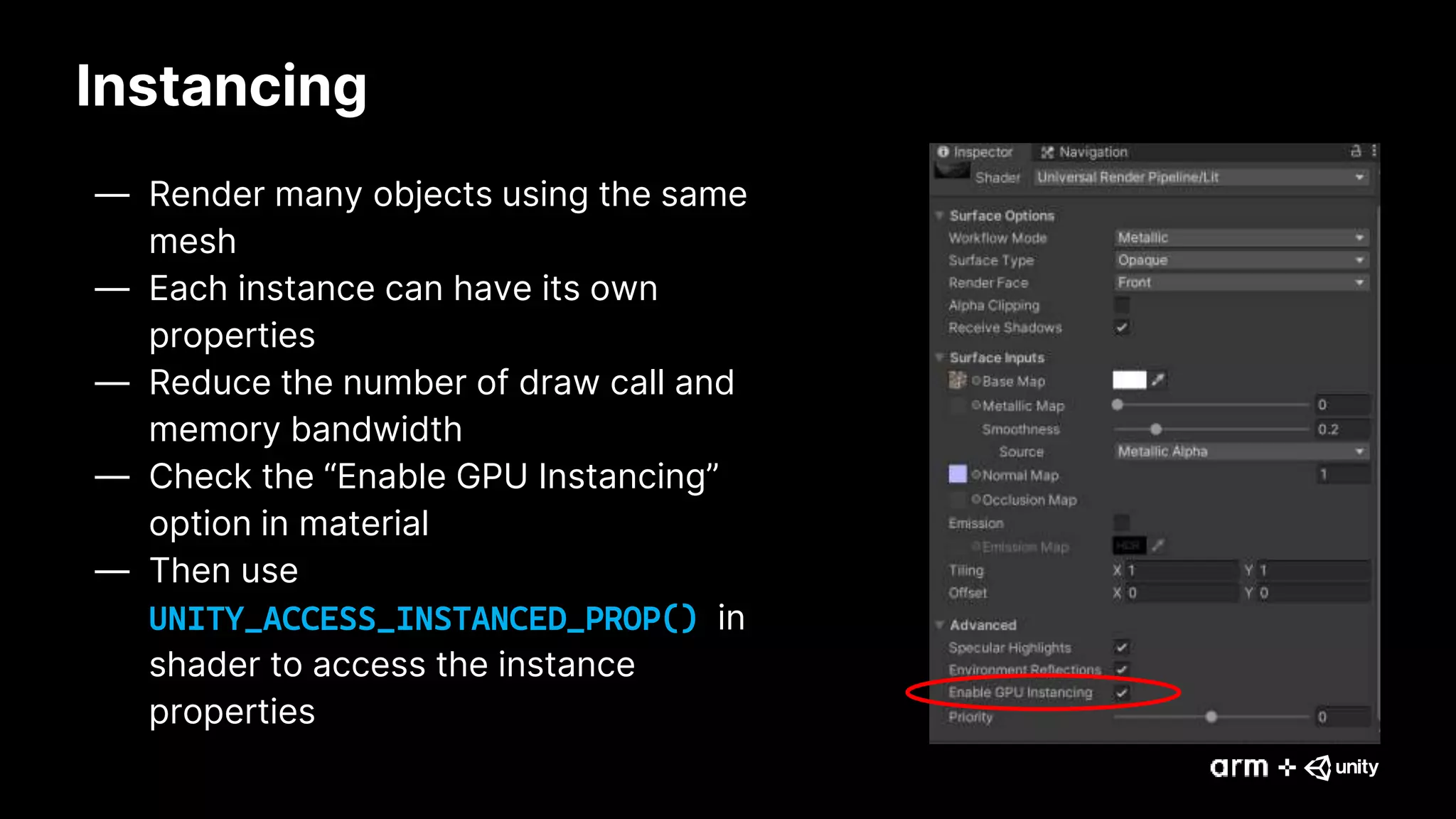
— Check the “Enable GPU Instancing”
option in material
— Then use
UNITY_ACCESS_INSTANCED_PROP() in
shader to access the instance
properties
Shaders
Shader Floating-point Precision
— Use mediump and highp keywords
— Full FP32 of vertex attributes is unnecessary for many
uses of attribute data
— Keep the data at the minimum precision needed to
produce an acceptable final output
— Use FP32 for computing vertex positions only
— Use the lowest possible precision for other attributes
— Don’t always use FP32 for everything
— Don’t upload FP32 data into a buffer and then read it as a
mediump attribute
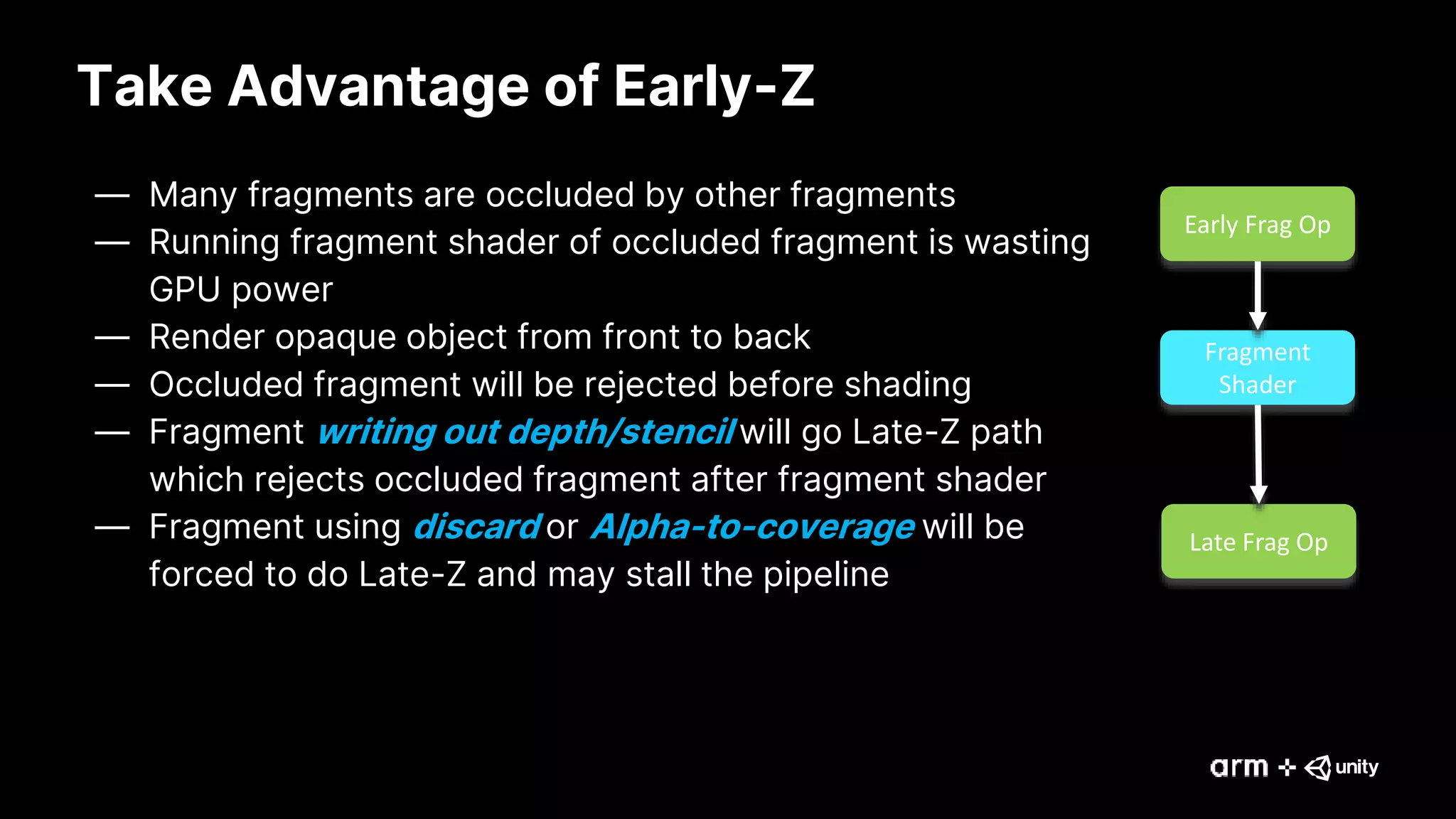
Take Advantage of Early-Z
— Many fragments are occluded by other fragments
— Running fragment shader of occluded fragment is wasting
GPU power
— Render opaque object from front to back
— Occluded fragment will be rejected before shading
— Fragment writing out depth/stencil will go Late-Z path
which rejects occluded fragment after fragment shader
— Fragment using discard or Alpha-to-coverage will be
forced to do Late-Z and may stall the pipeline
Early Frag Op
Fragment
Shader
Late Frag Op
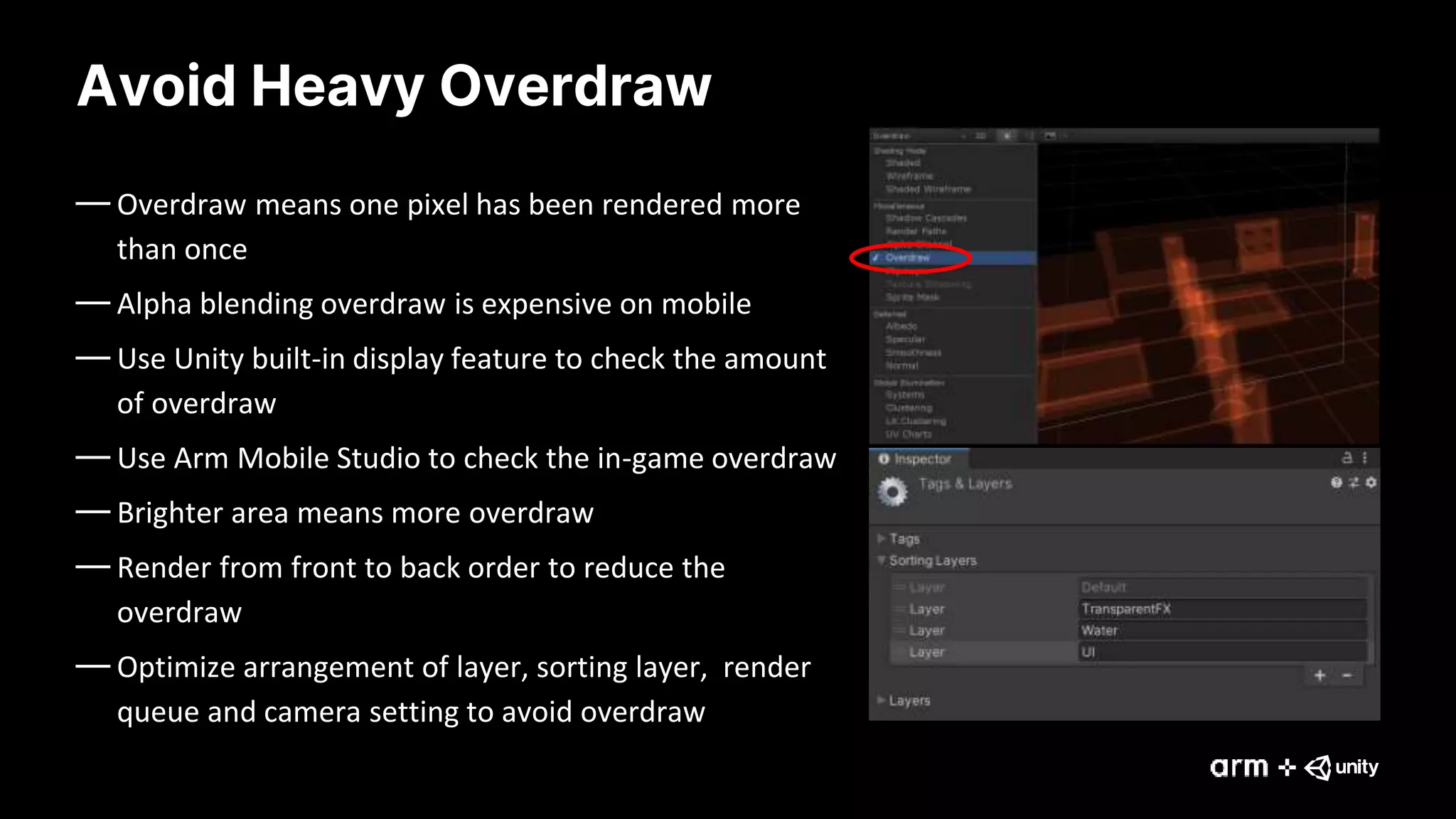
Avoid Heavy Overdraw
— Overdraw means one pixel has been rendered more
than once
— Alpha blending overdraw is expensive on mobile
— Use Unity built-in display feature to check the amount
of overdraw
— Use Arm Mobile Studio to check the in-game overdraw
— Brighter area means more overdraw
— Render from front to back order to reduce the
overdraw
— Optimize arrangement of layer, sorting layer, render
queue and camera setting to avoid overdraw
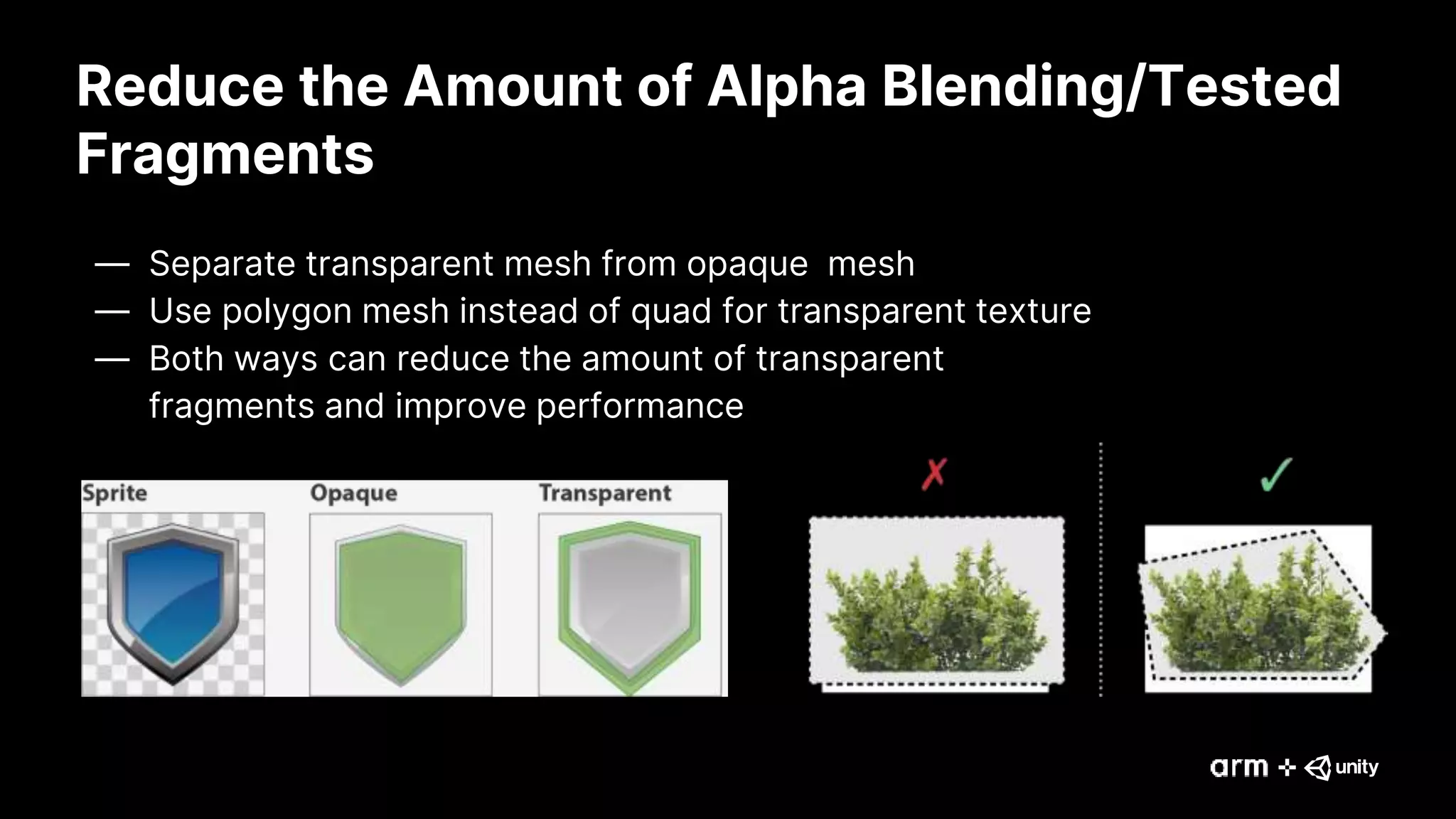
Reduce the Amount of Alpha Blending/Tested
Fragments
— Separate transparent mesh from opaque mesh
— Use polygon mesh instead of quad for transparent texture
— Both ways can reduce the amount of transparent
fragments and improve performance
Dynamic Branching
— Dynamic branching in shader is not as expensive as most
developers think, but…
— Both sides of branch will be executed and pick one if the
branching area is too small
— Shader compiler will optimize it automatically
— Use dynamic branching when it can skip enough
computation
Frame Rendering
Reduce Render State Switch
— Render state switch is very expensive operation
— Rendering as many primitives as possible before render state(SetPass)
switch
— Don’t just check number of draw calls or batches
— Number of render state switch is also an important index
— Check Tris/SetPass (i.e. 95.2K/34)
— Batch as many draw calls as possible
– Static batching
– GPU Instancing
– Dynamic batching
Reduce Frame Buffer Switch
— Bind each frame buffer only once
— Making all required draw calls before
switching to the next frame buffer
— Avoid unnecessary render buffer switch
— Can reduce memory bandwidth
requirement and power consumption
(~100mW for 1GB/s)
— Use Unity frame debugger to check
— Use Arm Mobile Studio to do API level
check
Clear Frame Buffer Before
Rendering
— Before rendering, GPU will read frame buffer into
tile memory from external memory
— Minimizing tile loads at renderpass start
— Can cheaply initialize the tile memory to a clear
color value
— Ensure that you clear or invalidate all of your
attachments at the start of each render pass
— Use Unity frame debugger to check
— Use Arm Mobile Studio to do API level check
Doesn’t clear before rendering
Bad for performance
Reduce Frame Buffer Write
— After rendering, GPU will write result from tile
memory to external memory
— Minimizing tile stores at renderpass end
— Avoid writing back to external memory
whenever is possible
— Don’t bind depth/stencil buffer if depth/stencil
value is not used
— Use RenderTexture.DiscardContents() to
invalidate frame buffers if you don’t need the
data at next frame
— Use Unity frame debugger to check
— Use Arm Mobile Studio to do API level check
Resources
Generative
Art
—
Made
with
Unity
Arm Mobile Studio – Free Tool for Mobile Optimization
• https://developer.arm.com/mobile-studio
Arm Guide for Unity Developers
• https://developer.arm.com/solutions/graphics-and-gaming/gaming-
engine/unity/arm-guide-for-unity-developers
모바일 게임 아티스트를 위한 베스트 프랙티스 가이드
• https://blogs.unity3d.com/kr/2020/04/07/artists-best-practices-for-
mobile-game-development/
Arm DevRel
• developer@arm.com
Generative
Art
—
Made
with
Unity
Thank You

[Unite Seoul 2020] Mobile Graphics Best Practices for Artists

  • 2.
    Generative Art — Made with Unity Mobile Graphics Best Practicesfor Artists Unite Seoul 2020 Owen Wu | Developer Relations Engineer, Arm | owen.wu@arm.com
  • 3.
    Agenda 3 — Introduction — Texturing —Geometry — Shaders — Frame Rendering — Resources
  • 4.
  • 5.
    Texture Filtering -Trilinear — Trilinear - Like Bilinear but with added blur between mipmap level — Don’t use trilinear without mipmap — This filtering will remove noticeable change between mipmap by adding smooth transition — Trilinear filtering is still expensive on mobile — Use it with caution
  • 6.
    Texture Filtering -Anisotropic — Anisotropic - Make textures look better when viewed from different angle, which is good for ground level textures — Higher anisotropic level cost higher
  • 7.
    Texture Filtering — Usebilinear for balance between performance and visual quality — Trilinear will cost more memory bandwidth than bilinear and needs to be used selectively — Bilinear + 2x Anisotropic most of the time will look and perform better than Trilinear + 1x Anisotropic, so this combination can be better solution rather than using Trilinear — Keep the anisotropic level low — Using a level higher than 2 should be done very selectively for critical game assets – This is because higher anisotropic level will cost a lot more bandwidth and affect device battery life
  • 8.
    Always Use MipmapIf Camera Is Not Still — Using mipmapping will improve GPU performance — Less cache miss — Mipmapping also reduce texture aliasing and improve final image quality — Don’t use it on 2D objects
  • 9.
    Texture Color Space —Use linear color space rendering if using dynamic lighting — Check sRGB in texture inspector window — Textures that are not processed as color should NOT be used in sRGB color space (such as metallic, roughness, normal map, etc) — Current hardware supports sRGB format and hardware will do Gamma correction automatically for free
  • 10.
    Texture Compression — ASTCmay get better quality with same memory size as ETC or same quality with less memory size than ETC — ASTC may take longer to encode compared to ETC - use it on final packaging of the game — ASTC allows more control in terms of quality by allowing to set block size - 5x5 or 6x6 is good default
  • 11.
    Texture Channel Packing —Use texture channels to pack multiple textures into one — Commonly used to pack roughness, or smoothness, and metallic into one texture — Can be applied for any texture mask — Make good use of alpha channel
  • 12.
  • 13.
    Avoid Rendering SmallTriangles — The bandwidth and processing cost of a vertex is typically orders of magnitude higher than the cost of processing a fragment — Make sure that you get many pixels worth of fragment work for each primitive — Use dynamic mesh level-of-detail, using simpler meshes when objects are further away from the camera — Make sure each model which create at least 10-20 fragments per primitive
  • 14.
    Avoid Rendering LongThin Triangles — More expensive for the GPU to process when compared with normal triangles — GPUs process pixels in quad blocks — Long thin triangle edges will waste more GPU power to rasterize — Adjacent long thin triangles will waste doubly
  • 15.
    Avoid Duplicating Vertices —Reuse as many vertices as possible — Transformed vertex data can be cached to save computation power — Avoid duplicating vertices unless it’s necessary V0 V1 V2 V3 V4 V0 V1 V2 V3 V5 V4 V7 V6 V8 T1 : (V0, V1, V2) T2 : (V1, V3, V2) T3 : (V2, V3, V4) T1 : (V0, V1, V2) T2 : (V3, V4, V5) T3 : (V6, V7, V8) GOOD BAD
  • 16.
    Instancing — Render manyobjects using the same mesh — Each instance can have its own properties — Reduce the number of draw call and memory bandwidth — Check the “Enable GPU Instancing” option in material — Then use UNITY_ACCESS_INSTANCED_PROP() in shader to access the instance properties
  • 17.
  • 18.
    Shader Floating-point Precision —Use mediump and highp keywords — Full FP32 of vertex attributes is unnecessary for many uses of attribute data — Keep the data at the minimum precision needed to produce an acceptable final output — Use FP32 for computing vertex positions only — Use the lowest possible precision for other attributes — Don’t always use FP32 for everything — Don’t upload FP32 data into a buffer and then read it as a mediump attribute
  • 19.
    Take Advantage ofEarly-Z — Many fragments are occluded by other fragments — Running fragment shader of occluded fragment is wasting GPU power — Render opaque object from front to back — Occluded fragment will be rejected before shading — Fragment writing out depth/stencil will go Late-Z path which rejects occluded fragment after fragment shader — Fragment using discard or Alpha-to-coverage will be forced to do Late-Z and may stall the pipeline Early Frag Op Fragment Shader Late Frag Op
  • 20.
    Avoid Heavy Overdraw —Overdraw means one pixel has been rendered more than once — Alpha blending overdraw is expensive on mobile — Use Unity built-in display feature to check the amount of overdraw — Use Arm Mobile Studio to check the in-game overdraw — Brighter area means more overdraw — Render from front to back order to reduce the overdraw — Optimize arrangement of layer, sorting layer, render queue and camera setting to avoid overdraw
  • 21.
    Reduce the Amountof Alpha Blending/Tested Fragments — Separate transparent mesh from opaque mesh — Use polygon mesh instead of quad for transparent texture — Both ways can reduce the amount of transparent fragments and improve performance
  • 22.
    Dynamic Branching — Dynamicbranching in shader is not as expensive as most developers think, but… — Both sides of branch will be executed and pick one if the branching area is too small — Shader compiler will optimize it automatically — Use dynamic branching when it can skip enough computation
  • 23.
  • 24.
    Reduce Render StateSwitch — Render state switch is very expensive operation — Rendering as many primitives as possible before render state(SetPass) switch — Don’t just check number of draw calls or batches — Number of render state switch is also an important index — Check Tris/SetPass (i.e. 95.2K/34) — Batch as many draw calls as possible – Static batching – GPU Instancing – Dynamic batching
  • 25.
    Reduce Frame BufferSwitch — Bind each frame buffer only once — Making all required draw calls before switching to the next frame buffer — Avoid unnecessary render buffer switch — Can reduce memory bandwidth requirement and power consumption (~100mW for 1GB/s) — Use Unity frame debugger to check — Use Arm Mobile Studio to do API level check
  • 26.
    Clear Frame BufferBefore Rendering — Before rendering, GPU will read frame buffer into tile memory from external memory — Minimizing tile loads at renderpass start — Can cheaply initialize the tile memory to a clear color value — Ensure that you clear or invalidate all of your attachments at the start of each render pass — Use Unity frame debugger to check — Use Arm Mobile Studio to do API level check Doesn’t clear before rendering Bad for performance
  • 27.
    Reduce Frame BufferWrite — After rendering, GPU will write result from tile memory to external memory — Minimizing tile stores at renderpass end — Avoid writing back to external memory whenever is possible — Don’t bind depth/stencil buffer if depth/stencil value is not used — Use RenderTexture.DiscardContents() to invalidate frame buffers if you don’t need the data at next frame — Use Unity frame debugger to check — Use Arm Mobile Studio to do API level check
  • 28.
  • 29.
    Generative Art — Made with Unity Arm Mobile Studio– Free Tool for Mobile Optimization • https://developer.arm.com/mobile-studio Arm Guide for Unity Developers • https://developer.arm.com/solutions/graphics-and-gaming/gaming- engine/unity/arm-guide-for-unity-developers 모바일 게임 아티스트를 위한 베스트 프랙티스 가이드 • https://blogs.unity3d.com/kr/2020/04/07/artists-best-practices-for- mobile-game-development/ Arm DevRel • developer@arm.com
  • 30.