Optimizing Unity Games
for Mobile Platforms
Angelo Theodorou
Software Engineer
Unite 2013, 28th
-30th
August
2
Agenda
 Introduction
 The author and ARM
 Preliminary knowledge
 Unity Pro, OpenGL ES 3.0
 Identify the bottleneck
 CPU
 Vertex processing
 Fragment processing
 Bandwidth
 Profiling tools
 The Unity Profiler (Pro only)
 ARM DS-5 Streamline Performance Analyzer
 Example application overview
3
Introduction
4
The Author
 Angelo Theodorou
 Software Engineer
 Media Processing Division, ARM®
Ltd.
 Mali™
Ecosystem Use-Cases team
 B.Sc. In Computer Science
 Studied at Università degli Studi di Napoli “Federico II”, Italy
 Worked on the game From Cheese in the past
 Website: http://www.fromcheese.com
 Grand Prize winner at the Samsung Smart App Challenge 2012
 Made with Unity™
Pro 3.5
 Responsible for SPen integration and additional programming
5
ARM Ltd.
 Founded at the end of 1990, 13 engineers and a CEO
 Main goal was to design low power embedded 32bit
processors, but to never build them
 Now more than 2500 employees
 More than 1000 in Cambridge, the headquarters
 Hundreds of partners, a fundamental part of our business
 The business model is based on licenses and royalties
 ARM technology is everywhere: mobile, embedded,
enterprise, home
6
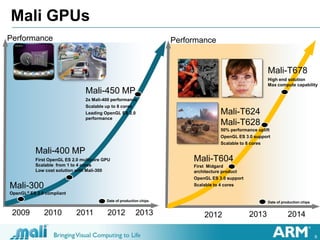
Mali GPUs
Performance
2012 2013 2014
Mali-T604
First Midgard
architecture product
OpenGL ES 3.0 support
Scalable to 4 cores
Mali-T624
Mali-T628
50% performance uplift
OpenGL ES 3.0 support
Scalable to 8 cores
Mali-T678
High end solution
Max compute capability
Date of production chips
Performance
2009 2010 2011 2012 2013
Mali-400 MP
First OpenGL ES 2.0 multicore GPU
Scalable from 1 to 4 cores
Low cost solution with Mali-300
Mali-300
OpenGL® ES 2.0 compliant
Mali-450 MP
2x Mali-400 performance
Scalable up to 8 cores
Leading OpenGL ES 2.0
performance
Date of production chips
7
Preliminary knowledge
 What is a draw call?
 A call to a function of the underlying API (e.g. OpenGL ES) to draw
something on screen
 What is a fragment?
 A candidate pixel which may or may not end up on screen for different
reasons (e.g. being discarded, being overwritten, etc.)
 Differences between opaque and transparent render queue
 Objects in the first queue are rendered in front to back order to make
use of depth testing and minimize the overdraw, transparent ones are
rendered afterwards in back to front order to preserve correctness
 What does batching mean?
 To group similar draw calls in one call operating on the whole data set
 Why mobile platforms are different?
 Immediate vs deferred rendering
8
Why mobile platforms are different?
 Desktop platforms
 Immediate mode: graphics commands are executed when issued
 Huge amount of bandwidth available between GPU and dedicated
video memory (>100 GB/s)
 No strict limits in size, power consumption or heat generation
 Mobile platforms
 Deferred mode: graphics commands are collected by the driver and
issued later
 Tile based: rendering occurs in a small on-chip buffer before being
written to memory
 Bandwidth is severely reduced (~5 GB/s) and transferring data needs
a great amount of power
 Memory is unified and shared between CPU and GPU
9
Unity Pro
 Pro only optimization features:
 Profiler
 Level of Detail
 Occlusion Culling
 Light Probes
 Static Batching
10
OpenGL ES 3.0
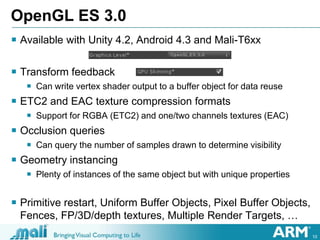
 Available with Unity 4.2, Android 4.3 and Mali-T6xx
 Transform feedback
 Can write vertex shader output to a buffer object for data reuse
 ETC2 and EAC texture compression formats
 Support for RGBA (ETC2) and one/two channels textures (EAC)
 Occlusion queries
 Can query the number of samples drawn to determine visibility
 Geometry instancing
 Plenty of instances of the same object but with unique properties
 Primitive restart, Uniform Buffer Objects, Pixel Buffer Objects,
Fences, FP/3D/depth textures, Multiple Render Targets, …
11
Identify the bottleneck
12
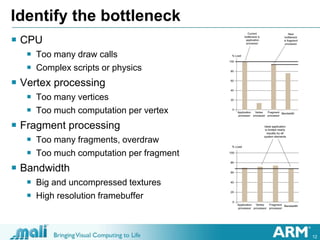
Identify the bottleneck
 CPU
 Too many draw calls
 Complex scripts or physics
 Vertex processing
 Too many vertices
 Too much computation per vertex
 Fragment processing
 Too many fragments, overdraw
 Too much computation per fragment
 Bandwidth
 Big and uncompressed textures
 High resolution framebuffer
13
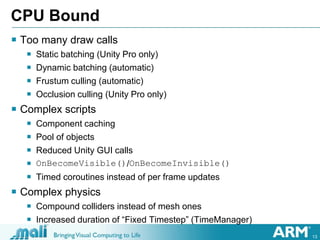
CPU Bound
 Too many draw calls
 Static batching (Unity Pro only)
 Dynamic batching (automatic)
 Frustum culling (automatic)
 Occlusion culling (Unity Pro only)
 Complex scripts
 Component caching
 Pool of objects
 Reduced Unity GUI calls
 OnBecomeVisible()/OnBecomeInvisible()
 Timed coroutines instead of per frame updates
 Complex physics
 Compound colliders instead of mesh ones
 Increased duration of “Fixed Timestep” (TimeManager)
16
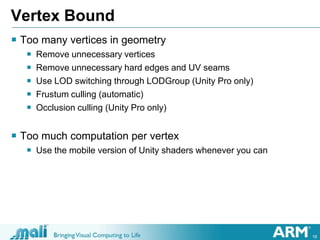
Vertex Bound
 Too many vertices in geometry
 Remove unnecessary vertices
 Remove unnecessary hard edges and UV seams
 Use LOD switching through LODGroup (Unity Pro only)
 Frustum culling (automatic)
 Occlusion culling (Unity Pro only)
 Too much computation per vertex
 Use the mobile version of Unity shaders whenever you can
17
Vertex Bound – Level of Detail
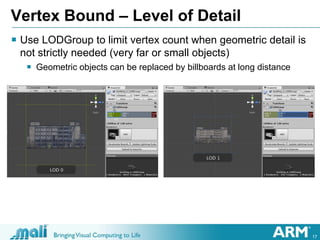
 Use LODGroup to limit vertex count when geometric detail is
not strictly needed (very far or small objects)
 Geometric objects can be replaced by billboards at long distance
18
Fragment Bound
 Overdraw
 When you are drawing to each pixel on screen more than once
 Drawing your objects front to back instead of back to front reduces
overdraw, thanks to depth testing
 Limit the amount of transparency in the scene (beware of particles!)
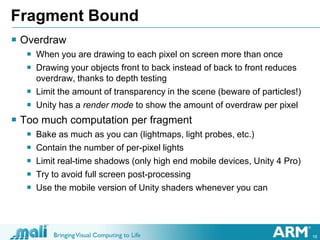
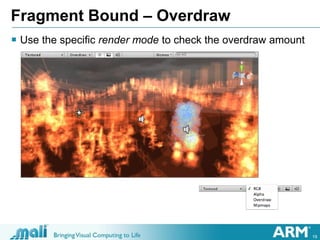
 Unity has a render mode to show the amount of overdraw per pixel
 Too much computation per fragment
 Bake as much as you can (lightmaps, light probes, etc.)
 Contain the number of per-pixel lights
 Limit real-time shadows (only high end mobile devices, Unity 4 Pro)
 Try to avoid full screen post-processing
 Use the mobile version of Unity shaders whenever you can
19
Fragment Bound – Overdraw
 Use the specific render mode to check the overdraw amount
22
Bandwidth Bound
 Use texture compression
 ETC1 with OpenGL ES 2.0, ETC2 and EAC with OpenGL ES 3.0
 ASTC is the new Khronos standard soon to be supported by Unity
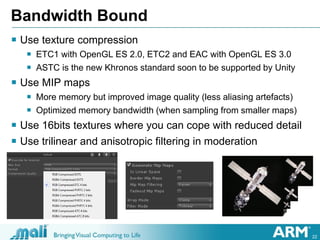
 Use MIP maps
 More memory but improved image quality (less aliasing artefacts)
 Optimized memory bandwidth (when sampling from smaller maps)
 Use 16bits textures where you can cope with reduced detail
 Use trilinear and anisotropic filtering in moderation
23
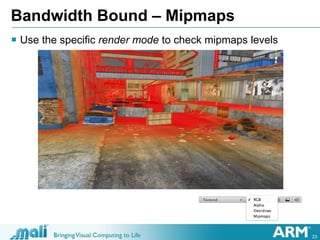
Bandwidth Bound – Mipmaps
 Use the specific render mode to check mipmaps levels
24
Profiling tools
25
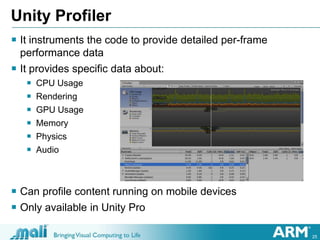
Unity Profiler
 It instruments the code to provide detailed per-frame
performance data
 It provides specific data about:
 CPU Usage
 Rendering
 GPU Usage
 Memory
 Physics
 Audio
 Can profile content running on mobile devices
 Only available in Unity Pro
26
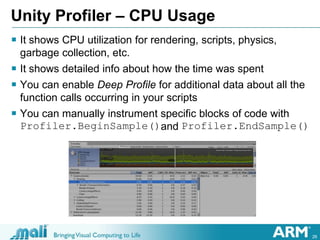
Unity Profiler – CPU Usage
 It shows CPU utilization for rendering, scripts, physics,
garbage collection, etc.
 It shows detailed info about how the time was spent
 You can enable Deep Profile for additional data about all the
function calls occurring in your scripts
 You can manually instrument specific blocks of code with
Profiler.BeginSample()and Profiler.EndSample()
27
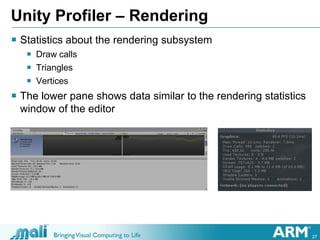
Unity Profiler – Rendering
 Statistics about the rendering subsystem
 Draw calls
 Triangles
 Vertices
 The lower pane shows data similar to the rendering statistics
window of the editor
28
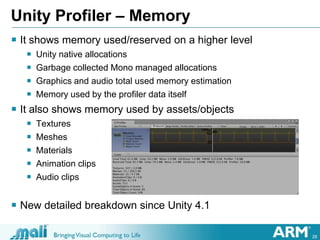
Unity Profiler – Memory
 It shows memory used/reserved on a higher level
 Unity native allocations
 Garbage collected Mono managed allocations
 Graphics and audio total used memory estimation
 Memory used by the profiler data itself
 It also shows memory used by assets/objects
 Textures
 Meshes
 Materials
 Animation clips
 Audio clips
 New detailed breakdown since Unity 4.1
29
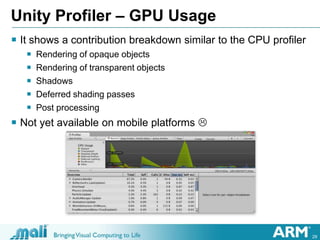
Unity Profiler – GPU Usage
 It shows a contribution breakdown similar to the CPU profiler
 Rendering of opaque objects
 Rendering of transparent objects
 Shadows
 Deferred shading passes
 Post processing
 Not yet available on mobile platforms 
32
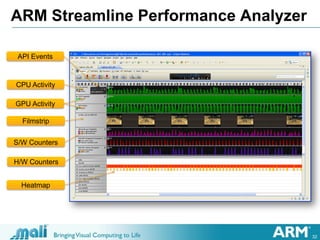
ARM Streamline Performance Analyzer
Filmstrip
CPU Activity
S/W Counters
H/W Counters
GPU Activity
API Events
Heatmap
34
Example application overview
35
Example application overview
 Composed of seven different scenes
 Geometry (high vertex count, frustum culling)
 LOD (using level of detail through LODGroup)
 Particles (transparent rendering)
 Texture (MIP mapping and compression)
 Overdraw (alpha blending and alpha test)
 Lights (vertex and pixel lighting)
 Atlas (texture atlas)
 Most of them are based on a Prefab and Instantiate()
 All instances are created at once in the beginning and deactivated
 Number of active instances can adapt to maintain a target FPS value
 Positioning is made in screen space and based on camera aspect
36
Geometry Scene
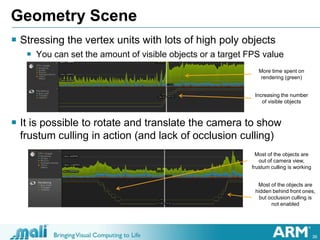
 Stressing the vertex units with lots of high poly objects
 You can set the amount of visible objects or a target FPS value
 It is possible to rotate and translate the camera to show
frustum culling in action (and lack of occlusion culling)
Increasing the number
of visible objects
Most of the objects are
out of camera view,
frustum culling is working
Most of the objects are
hidden behind front ones,
but occlusion culling is
not enabled
More time spent on
rendering (green)
37
LOD Scene
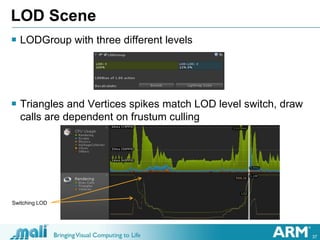
 LODGroup with three different levels
 Triangles and Vertices spikes match LOD level switch, draw
calls are dependent on frustum culling
Switching LOD
38
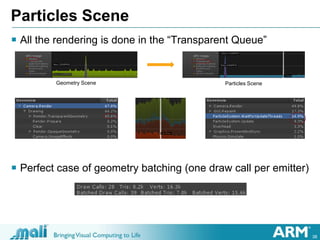
Particles Scene
 All the rendering is done in the “Transparent Queue”
 Perfect case of geometry batching (one draw call per emitter)
Geometry Scene Particles Scene
39
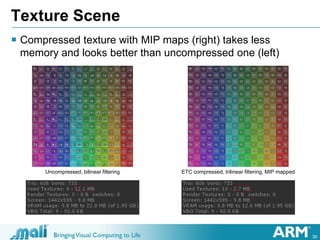
Texture Scene
 Compressed texture with MIP maps (right) takes less
memory and looks better than uncompressed one (left)
Uncompressed, bilinear filtering ETC compressed, trilinear filtering, MIP mapped
40
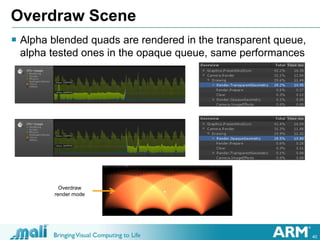
Overdraw Scene
 Alpha blended quads are rendered in the transparent queue,
alpha tested ones in the opaque queue, same performances
Overdraw
render mode
41
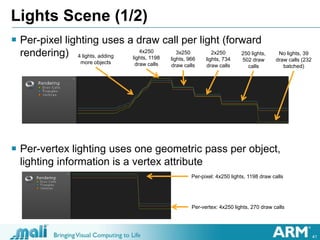
Lights Scene (1/2)
 Per-pixel lighting uses a draw call per light (forward
rendering)
 Per-vertex lighting uses one geometric pass per object,
lighting information is a vertex attribute
4 lights, adding
more objects
4x250
lights, 1198
draw calls
3x250
lights, 966
draw calls
2x250
lights, 734
draw calls
250 lights,
502 draw
calls
No lights, 39
draw calls (232
batched)
Per-pixel: 4x250 lights, 1198 draw calls
Per-vertex: 4x250 lights, 270 draw calls
42
Lights Scene (2/2)
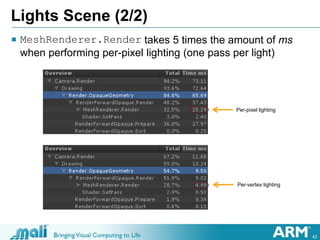
 MeshRenderer.Render takes 5 times the amount of ms
when performing per-pixel lighting (one pass per light)
Per-pixel lighting
Per-vertex lighting
43
Atlas Scene (1/2)
 No Atlas rendering
 Each instance has its own texture
 Same material if multiple instances share the same texture
 One draw call per material (multiple instances)
 Atlas rendering changing material UV
 Each instance share the same texture atlas
 UV coordinates are changed using mainTextureScale and
mainTextureOffset
 Leads to a new unique material per instance and breaks instancing
 One draw call per instance
 Atlas rendering changing mesh UV
 Each instance share the same texture atlas
 UV coordinates are changed accessing the instance mesh
 One draw call for all the instances (single material)
44
Atlas Scene (2/2)
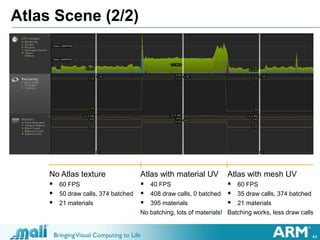
No Atlas texture
 60 FPS
 50 draw calls, 374 batched
 21 materials
Atlas with material UV
 40 FPS
 408 draw calls, 0 batched
 395 materials
No batching, lots of materials!
Atlas with mesh UV
 60 FPS
 35 draw calls, 374 batched
 21 materials
Batching works, less draw calls
45
Links
 Practical Guide to Optimization for Mobiles (Unity Manual)
 Optimizing Graphics Performance (Unity Manual)
 Profiler (Unity Manual)
 ShadowGun: Optimizing for Mobile Sample Level (Unity Blog)
 “Fast Mobile Shaders” talk at SIGGRAPH 2011 (Unity Blog)
 Introducing the new Memory Profiler (Unity Blog)
 Unity 4.2 has arrived (Unity Blog)
 http://malideveloper.arm.com/
 OpenGL ES 3.0 Developer Resources (Mali Developer Center)
 ASTC Texture Compression: ARM Pushes the Envelope in Graphics
Technology (ARM Blogs)
46
The End

Unite 2013 optimizing unity games for mobile platforms

  • 1.
    Optimizing Unity Games forMobile Platforms Angelo Theodorou Software Engineer Unite 2013, 28th -30th August
  • 2.
    2 Agenda  Introduction  Theauthor and ARM  Preliminary knowledge  Unity Pro, OpenGL ES 3.0  Identify the bottleneck  CPU  Vertex processing  Fragment processing  Bandwidth  Profiling tools  The Unity Profiler (Pro only)  ARM DS-5 Streamline Performance Analyzer  Example application overview
  • 3.
  • 4.
    4 The Author  AngeloTheodorou  Software Engineer  Media Processing Division, ARM® Ltd.  Mali™ Ecosystem Use-Cases team  B.Sc. In Computer Science  Studied at Università degli Studi di Napoli “Federico II”, Italy  Worked on the game From Cheese in the past  Website: http://www.fromcheese.com  Grand Prize winner at the Samsung Smart App Challenge 2012  Made with Unity™ Pro 3.5  Responsible for SPen integration and additional programming
  • 5.
    5 ARM Ltd.  Foundedat the end of 1990, 13 engineers and a CEO  Main goal was to design low power embedded 32bit processors, but to never build them  Now more than 2500 employees  More than 1000 in Cambridge, the headquarters  Hundreds of partners, a fundamental part of our business  The business model is based on licenses and royalties  ARM technology is everywhere: mobile, embedded, enterprise, home
  • 6.
    6 Mali GPUs Performance 2012 20132014 Mali-T604 First Midgard architecture product OpenGL ES 3.0 support Scalable to 4 cores Mali-T624 Mali-T628 50% performance uplift OpenGL ES 3.0 support Scalable to 8 cores Mali-T678 High end solution Max compute capability Date of production chips Performance 2009 2010 2011 2012 2013 Mali-400 MP First OpenGL ES 2.0 multicore GPU Scalable from 1 to 4 cores Low cost solution with Mali-300 Mali-300 OpenGL® ES 2.0 compliant Mali-450 MP 2x Mali-400 performance Scalable up to 8 cores Leading OpenGL ES 2.0 performance Date of production chips
  • 7.
    7 Preliminary knowledge  Whatis a draw call?  A call to a function of the underlying API (e.g. OpenGL ES) to draw something on screen  What is a fragment?  A candidate pixel which may or may not end up on screen for different reasons (e.g. being discarded, being overwritten, etc.)  Differences between opaque and transparent render queue  Objects in the first queue are rendered in front to back order to make use of depth testing and minimize the overdraw, transparent ones are rendered afterwards in back to front order to preserve correctness  What does batching mean?  To group similar draw calls in one call operating on the whole data set  Why mobile platforms are different?  Immediate vs deferred rendering
  • 8.
    8 Why mobile platformsare different?  Desktop platforms  Immediate mode: graphics commands are executed when issued  Huge amount of bandwidth available between GPU and dedicated video memory (>100 GB/s)  No strict limits in size, power consumption or heat generation  Mobile platforms  Deferred mode: graphics commands are collected by the driver and issued later  Tile based: rendering occurs in a small on-chip buffer before being written to memory  Bandwidth is severely reduced (~5 GB/s) and transferring data needs a great amount of power  Memory is unified and shared between CPU and GPU
  • 9.
    9 Unity Pro  Proonly optimization features:  Profiler  Level of Detail  Occlusion Culling  Light Probes  Static Batching
  • 10.
    10 OpenGL ES 3.0 Available with Unity 4.2, Android 4.3 and Mali-T6xx  Transform feedback  Can write vertex shader output to a buffer object for data reuse  ETC2 and EAC texture compression formats  Support for RGBA (ETC2) and one/two channels textures (EAC)  Occlusion queries  Can query the number of samples drawn to determine visibility  Geometry instancing  Plenty of instances of the same object but with unique properties  Primitive restart, Uniform Buffer Objects, Pixel Buffer Objects, Fences, FP/3D/depth textures, Multiple Render Targets, …
  • 11.
  • 12.
    12 Identify the bottleneck CPU  Too many draw calls  Complex scripts or physics  Vertex processing  Too many vertices  Too much computation per vertex  Fragment processing  Too many fragments, overdraw  Too much computation per fragment  Bandwidth  Big and uncompressed textures  High resolution framebuffer
  • 13.
    13 CPU Bound  Toomany draw calls  Static batching (Unity Pro only)  Dynamic batching (automatic)  Frustum culling (automatic)  Occlusion culling (Unity Pro only)  Complex scripts  Component caching  Pool of objects  Reduced Unity GUI calls  OnBecomeVisible()/OnBecomeInvisible()  Timed coroutines instead of per frame updates  Complex physics  Compound colliders instead of mesh ones  Increased duration of “Fixed Timestep” (TimeManager)
  • 14.
    16 Vertex Bound  Toomany vertices in geometry  Remove unnecessary vertices  Remove unnecessary hard edges and UV seams  Use LOD switching through LODGroup (Unity Pro only)  Frustum culling (automatic)  Occlusion culling (Unity Pro only)  Too much computation per vertex  Use the mobile version of Unity shaders whenever you can
  • 15.
    17 Vertex Bound –Level of Detail  Use LODGroup to limit vertex count when geometric detail is not strictly needed (very far or small objects)  Geometric objects can be replaced by billboards at long distance
  • 16.
    18 Fragment Bound  Overdraw When you are drawing to each pixel on screen more than once  Drawing your objects front to back instead of back to front reduces overdraw, thanks to depth testing  Limit the amount of transparency in the scene (beware of particles!)  Unity has a render mode to show the amount of overdraw per pixel  Too much computation per fragment  Bake as much as you can (lightmaps, light probes, etc.)  Contain the number of per-pixel lights  Limit real-time shadows (only high end mobile devices, Unity 4 Pro)  Try to avoid full screen post-processing  Use the mobile version of Unity shaders whenever you can
  • 17.
    19 Fragment Bound –Overdraw  Use the specific render mode to check the overdraw amount
  • 18.
    22 Bandwidth Bound  Usetexture compression  ETC1 with OpenGL ES 2.0, ETC2 and EAC with OpenGL ES 3.0  ASTC is the new Khronos standard soon to be supported by Unity  Use MIP maps  More memory but improved image quality (less aliasing artefacts)  Optimized memory bandwidth (when sampling from smaller maps)  Use 16bits textures where you can cope with reduced detail  Use trilinear and anisotropic filtering in moderation
  • 19.
    23 Bandwidth Bound –Mipmaps  Use the specific render mode to check mipmaps levels
  • 20.
  • 21.
    25 Unity Profiler  Itinstruments the code to provide detailed per-frame performance data  It provides specific data about:  CPU Usage  Rendering  GPU Usage  Memory  Physics  Audio  Can profile content running on mobile devices  Only available in Unity Pro
  • 22.
    26 Unity Profiler –CPU Usage  It shows CPU utilization for rendering, scripts, physics, garbage collection, etc.  It shows detailed info about how the time was spent  You can enable Deep Profile for additional data about all the function calls occurring in your scripts  You can manually instrument specific blocks of code with Profiler.BeginSample()and Profiler.EndSample()
  • 23.
    27 Unity Profiler –Rendering  Statistics about the rendering subsystem  Draw calls  Triangles  Vertices  The lower pane shows data similar to the rendering statistics window of the editor
  • 24.
    28 Unity Profiler –Memory  It shows memory used/reserved on a higher level  Unity native allocations  Garbage collected Mono managed allocations  Graphics and audio total used memory estimation  Memory used by the profiler data itself  It also shows memory used by assets/objects  Textures  Meshes  Materials  Animation clips  Audio clips  New detailed breakdown since Unity 4.1
  • 25.
    29 Unity Profiler –GPU Usage  It shows a contribution breakdown similar to the CPU profiler  Rendering of opaque objects  Rendering of transparent objects  Shadows  Deferred shading passes  Post processing  Not yet available on mobile platforms 
  • 26.
    32 ARM Streamline PerformanceAnalyzer Filmstrip CPU Activity S/W Counters H/W Counters GPU Activity API Events Heatmap
  • 27.
  • 28.
    35 Example application overview Composed of seven different scenes  Geometry (high vertex count, frustum culling)  LOD (using level of detail through LODGroup)  Particles (transparent rendering)  Texture (MIP mapping and compression)  Overdraw (alpha blending and alpha test)  Lights (vertex and pixel lighting)  Atlas (texture atlas)  Most of them are based on a Prefab and Instantiate()  All instances are created at once in the beginning and deactivated  Number of active instances can adapt to maintain a target FPS value  Positioning is made in screen space and based on camera aspect
  • 29.
    36 Geometry Scene  Stressingthe vertex units with lots of high poly objects  You can set the amount of visible objects or a target FPS value  It is possible to rotate and translate the camera to show frustum culling in action (and lack of occlusion culling) Increasing the number of visible objects Most of the objects are out of camera view, frustum culling is working Most of the objects are hidden behind front ones, but occlusion culling is not enabled More time spent on rendering (green)
  • 30.
    37 LOD Scene  LODGroupwith three different levels  Triangles and Vertices spikes match LOD level switch, draw calls are dependent on frustum culling Switching LOD
  • 31.
    38 Particles Scene  Allthe rendering is done in the “Transparent Queue”  Perfect case of geometry batching (one draw call per emitter) Geometry Scene Particles Scene
  • 32.
    39 Texture Scene  Compressedtexture with MIP maps (right) takes less memory and looks better than uncompressed one (left) Uncompressed, bilinear filtering ETC compressed, trilinear filtering, MIP mapped
  • 33.
    40 Overdraw Scene  Alphablended quads are rendered in the transparent queue, alpha tested ones in the opaque queue, same performances Overdraw render mode
  • 34.
    41 Lights Scene (1/2) Per-pixel lighting uses a draw call per light (forward rendering)  Per-vertex lighting uses one geometric pass per object, lighting information is a vertex attribute 4 lights, adding more objects 4x250 lights, 1198 draw calls 3x250 lights, 966 draw calls 2x250 lights, 734 draw calls 250 lights, 502 draw calls No lights, 39 draw calls (232 batched) Per-pixel: 4x250 lights, 1198 draw calls Per-vertex: 4x250 lights, 270 draw calls
  • 35.
    42 Lights Scene (2/2) MeshRenderer.Render takes 5 times the amount of ms when performing per-pixel lighting (one pass per light) Per-pixel lighting Per-vertex lighting
  • 36.
    43 Atlas Scene (1/2) No Atlas rendering  Each instance has its own texture  Same material if multiple instances share the same texture  One draw call per material (multiple instances)  Atlas rendering changing material UV  Each instance share the same texture atlas  UV coordinates are changed using mainTextureScale and mainTextureOffset  Leads to a new unique material per instance and breaks instancing  One draw call per instance  Atlas rendering changing mesh UV  Each instance share the same texture atlas  UV coordinates are changed accessing the instance mesh  One draw call for all the instances (single material)
  • 37.
    44 Atlas Scene (2/2) NoAtlas texture  60 FPS  50 draw calls, 374 batched  21 materials Atlas with material UV  40 FPS  408 draw calls, 0 batched  395 materials No batching, lots of materials! Atlas with mesh UV  60 FPS  35 draw calls, 374 batched  21 materials Batching works, less draw calls
  • 38.
    45 Links  Practical Guideto Optimization for Mobiles (Unity Manual)  Optimizing Graphics Performance (Unity Manual)  Profiler (Unity Manual)  ShadowGun: Optimizing for Mobile Sample Level (Unity Blog)  “Fast Mobile Shaders” talk at SIGGRAPH 2011 (Unity Blog)  Introducing the new Memory Profiler (Unity Blog)  Unity 4.2 has arrived (Unity Blog)  http://malideveloper.arm.com/  OpenGL ES 3.0 Developer Resources (Mali Developer Center)  ASTC Texture Compression: ARM Pushes the Envelope in Graphics Technology (ARM Blogs)
  • 39.