Unit V Build and Deploy
Build Settings - Player Settings - Types of Platforms - Bug Analysis - Bug fixing - Optimization -
Application Output - Publish.
5.1 Build Settings
Unity can build your application for different platforms and with different settings. This
documentation describes how to define the scenes, target platform, and settings for your
build.
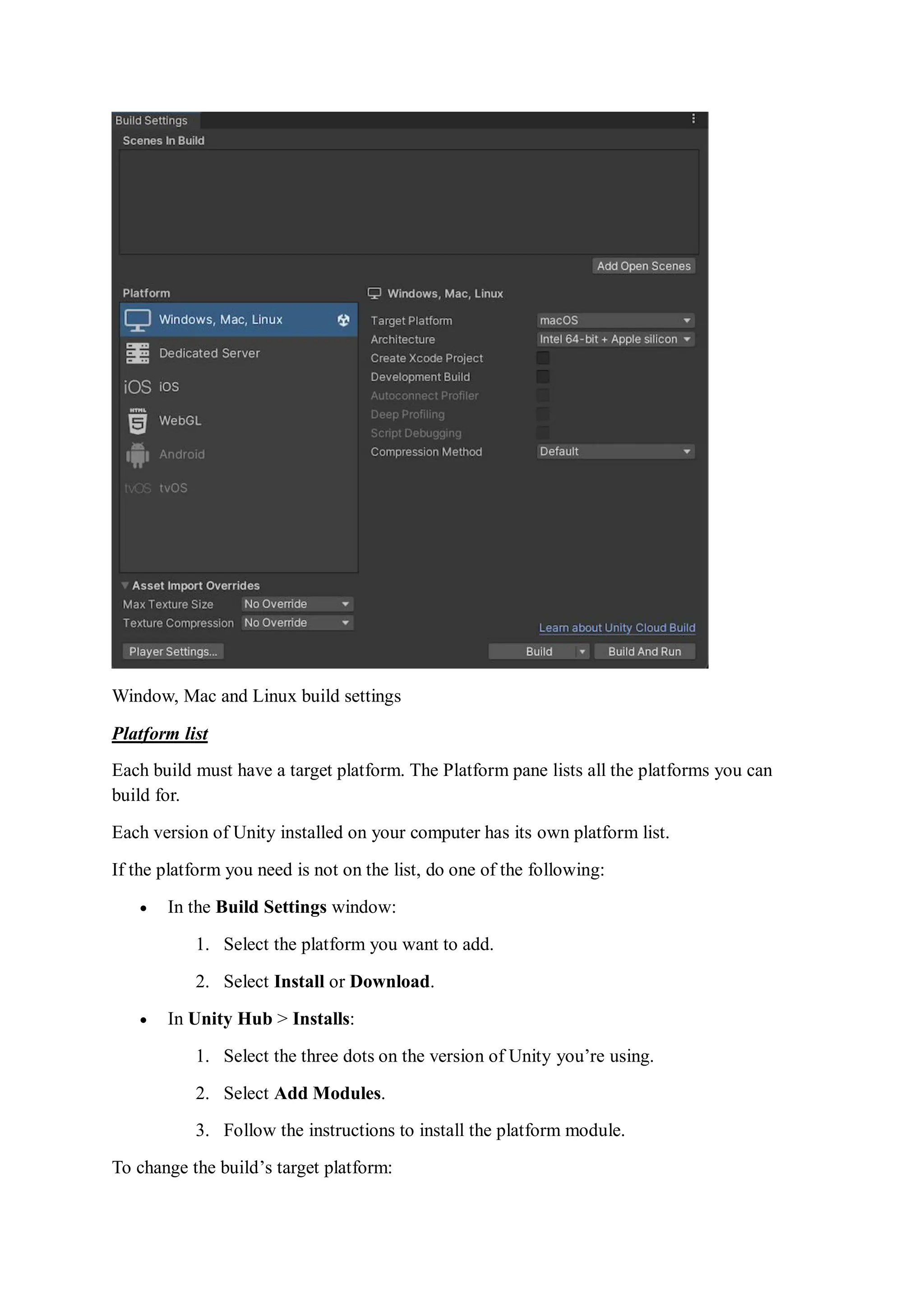
To select your platform and settings, and start the build process, use the Build
Settings window. To access the Build Settings window: from Unity’s main menu, go
to File > Build Settings.
Understanding builds
Unity produces two build types:
 A release build, which includes only what’s necessary to run the application. This is
the default build type.
 A development build, which includes scripting debug symbols and the Profiler
. Selecting the development build option enables an additional set of options, such as
deep profiling support and script debugging. These options are explained in the Generic
Platform Settings section.
For faster iteration during development, Unity uses an incremental build pipeline that
rebuilds artifacts only if they have changed since the previous build.
Managing scenes in a build
When you build your application, Unity builds all selected scenes in the Scenes In
Build pane. Unity builds scenes in the order in which they appear in the list.
You can add, exclude, remove, and reorder scenes in the list:
 To add all currently open scenes to the list: Select Add Open Scenes. You can also
drag scenes from your Project window into the list.
 To exclude a scene in the list from the build: Clear the checkbox next to that scene.
This removes the scene from the build, but not from the list.
 To remove a scene from the list: Select the scene and press Delete.
 To adjust the scene order: Drag and drop scenes in the list to reorder them.
Window, Mac and Linux build settings
Platform list
Each build must have a target platform. The Platform pane lists all the platforms you can
build for.
Each version of Unity installed on your computer has its own platform list.
If the platform you need is not on the list, do one of the following:
 In the Build Settings window:
1. Select the platform you want to add.
2. Select Install or Download.
 In Unity Hub > Installs:
1. Select the three dots on the version of Unity you’re using.
2. Select Add Modules.
3. Follow the instructions to install the platform module.
To change the build’s target platform:
1. Select the platform you want to switch to.
Tip: The list displays the Unity icon next to the platform currently selected as the
target platform.
2. Select Switch Platforms.
If Unity needs to re-import your assets in formats that match your target platform, the
switch process can take a long time.
Build settings
When you select a platform, Unity displays a list of options that you can adjust for the build.
Some settings apply to all platforms, and some are platform specific.
Generic platform settings
The following settings apply to all platforms.
Setting: Function:
Development
Build
Include scripting debug symbols and the Profiler in your build. You should use
this setting when you want to test your application.
When you select this option, Unity sets the DEVELOPMENT_BUILD scripting
define. Your build then includes preprocessor directives that
set DEVELOPMENT_BUILD as a condition (see Platform-dependent
compilations).
Autoconnect
Profiler
Automatically connect the Unity Profiler to your build.
This option is only available if you selected Development Build.
Deep Profiling
Support
Turn on Deep Profiling in the Profiler. This makes the Profiler instrument every
function call in your application so it returns more detailed profiling data. This
option might slow down script execution.
This option is only available if you selected Development Build.
Script
Debugging
Allow your script code to be debugged.
This option is only available if you selected Development Build.
This option is not available for WebGL.
Wait for
Managed
Debugger
Make the Player wait for a debugger to be attached before it executes any script
code.
This option is only available if you selected Script Debugging.
IL2CPP Code
Generation
Define how Unity manages IL2CPP code generation.
This option is only available if you are using IL2CPP for your scripting
backend, not Mono.
To change your scripting backend, go to Player
Settings > Configuration > Scripting Backend and change
from Mono to IL2CPP.
a. Faster
runtime
Generates code that is optimized for runtime performance. This is the default,
and the behavior in previous versions of Unity.
b. Faster
(smaller) builds
Generates code that is optimized for build size and iteration. It generates less
code and produces a smaller build, but may have an impact on runtime
performance, especially for generic code. You might want to use this option
when faster build times are important, such as when iterating on changes.
Compression
Method
Compress the data in your Project when you build the Player. This
includes Assets
, Scenes, Player settings and GI data.
This option is not available for the WebGL platform.
a. Default On PC, Mac, Linux Standalone, and iOS, there is no default compression.
On Android, the default compression is ZIP, which gives slightly better
compression results than LZ4HC. However, ZIP data is slower to decompress.
b. LZ4 A fast compression format that is useful for development builds. For more
information, see BuildOptions.CompressWithLz4.
c. LZ4HC A high compression variant of LZ4 that is slower to build but produces better
results for release builds. For more information,
see BuildOptions.CompressWithLz4HC.
Asset Import Overrides
To speed up import and platform switch time, you can locally override all texture import
settings. Usually you would not ship your final build with any import overrides, but during
development they can be useful to speed up iteration time, especially if you are not concerned
with assets (textures, in this case) looking as good as possible.
To set asset import overrides for initial project imports, use the editor command line
arguments -overrideMaxTextureSize and -overrideTextureCompression.
The default value for both override options is No Override.
Setting: Function:
Max Texture Size Override the maximum imported texture size. Unity imports textures in the
lower of two values: this value, or the Max Size value specified in Texture
import settings.
The time it takes to import a texture is roughly proportional to the number
of pixels it contains, so a lower maximum allowed texture size can speed
up import times. However, the resulting textures are lower resolution, so
use this setting only during development.
Texture Compression Override the texture compression options set in Texture import settings.
Only affects textures imported into one of the compressed texture formats.
a. Force Fast
Compressor
Use a faster but lower quality texture compression mode for formats that
support it (BC7, BC6H, ASTC, ETC, ETC2). Usually this results in more
compression artifacts, but for many formats the compression itself is 2 to
20 times faster.
This setting also disables Crunch texture compression format on any
textures that have it.
The effect of this setting is the same as if all textures had
their Compressor Quality set to Fast setting in their platform’s Texture
import settings.
b. Force
Uncompressed
Do not compress the textures; use uncompressed formats instead. This is
faster to import (because it skips the texture compression process), but the
resulting textures take up more memory and game data size, and can
impact rendering performance.
The effect of this setting is the same as if all textures had
their Compression set to None in their platforms’ Texture import settings.
Note:
Texture compression overview
Bits per pixel (bpp) is the amount of storage required for a single texture pixel. Textures with
a lower bpp value have a smaller size on disk and in memory. A lower bpp value also means
that the GPU uses less memory bandwidth to read the texture pixels. GPU memory bandwidth
can often be a frame rate bottleneck, and thus texture compression helps to avoid it.
The higher the visual quality of a texture asset, the higher the bits per pixel; which,
consequently, leads to greater build size, loading time, and runtime memory usage. All texture
compression formats are lossy, to some extent. Uncompressed textures offer the highest quality,
but they also have the highest bits per pixel. Different texture compression formats offer
different trade-offs.
In general, for the best runtime performance and size on disk, for most of your texture assets,
you should choose a texture compression format that is supported by your target device, and
has the fewest bits per pixel for the visual quality you want.
When you use a texture for a specific purpose, you can change its individual settings. For
example, if you are using a texture with only one channel as a mask, you might choose the BC4
format to reduce file size but preserve quality. If you are using some textures for pixel-
perfect UI , you might choose not to compress them.
Choose a format that your target platforms and devices support. When Unity loads a texture
with a compression format that the device does not support, it decompresses the texture to the
default uncompressed format for that platform and stores the uncompressed copy in memory
alongside the original compressed texture. This increases texture loading time and uses
additional memory. When Unity loads a texture with a compression format that the device
supports, the GPU can use the data without any need for conversion.
Crunch compression
Crunch is a compression format that works on top of DXT or ETC compression, by providing
additional variable bit rate compression. When Unity loads a Crunch-compressed texture, it
decompresses the texture to DXT or ETC on the CPU, and then uploads the DXT or ETC
compressed texture data to the GPU.
Crunch compression helps the texture use the lowest possible amount of disk space but has
no effect on runtime memory usage. Crunch textures can take a long time to compress, but
decompression at runtime is fairly fast. You can adjust how lossy Crunch compression is, to
strike a balance between file size and quality.
If you are particularly concerned about the size of your build and Crunch is supported on
your target platform, consider adding Crunch compression.
Platform-specific settings
Each platform also has specific build settings:
 PC, Mac, and Linux Standalone: See PC, Mac, and Linux build settings.
 Universal Windows Platform : See Universal Windows Platform build settings.
 tvOS: See Building your application for tvOS.
 iOS: See iOS build settings.
 Android: See Android Build Settings.
 WebGL : See Building and Running a WebGL project.
 For the Build Settings for closed platform development, see the documentation
included in the Unity installer, or consult the Unity Forums.
Building your application
To build your application, select one of the following:
 Build: Compile a Player, then do nothing. The default build is incremental, except for
the first build, which is always a full non-incremental (clean) build. To force a clean
build instead of an incremental build, select Clean Build from the dropdown
menu.
 Build and run: Compile a Player and open it on your target platform (for more
information, see the individual platform pages). This option always uses the
incremental build.
Case Study:
Android Build Settings
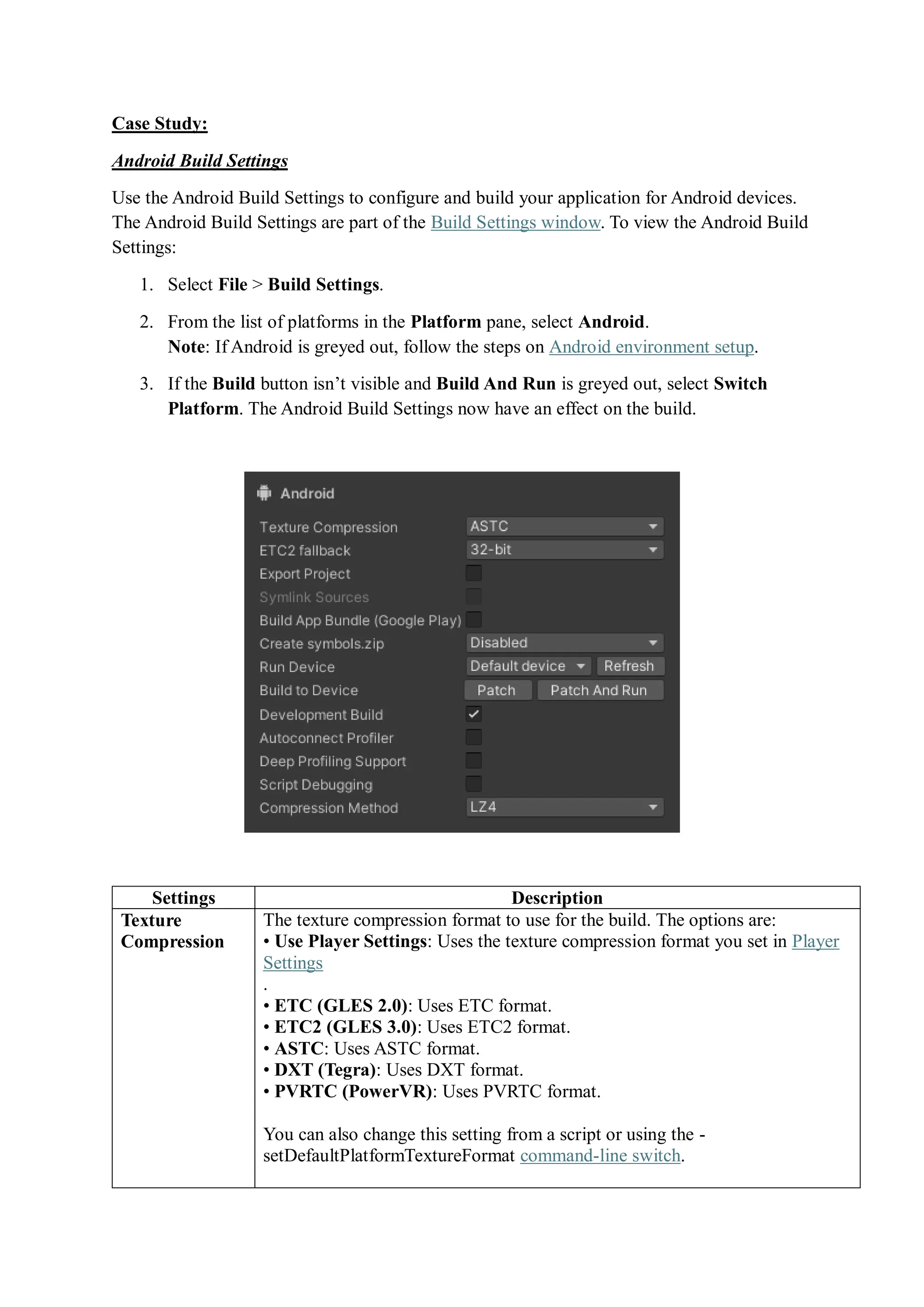
Use the Android Build Settings to configure and build your application for Android devices.
The Android Build Settings are part of the Build Settings window. To view the Android Build
Settings:
1. Select File > Build Settings.
2. From the list of platforms in the Platform pane, select Android.
Note: If Android is greyed out, follow the steps on Android environment setup.
3. If the Build button isn’t visible and Build And Run is greyed out, select Switch
Platform. The Android Build Settings now have an effect on the build.
Settings Description
Texture
Compression
The texture compression format to use for the build. The options are:
• Use Player Settings: Uses the texture compression format you set in Player
Settings
.
• ETC (GLES 2.0): Uses ETC format.
• ETC2 (GLES 3.0): Uses ETC2 format.
• ASTC: Uses ASTC format.
• DXT (Tegra): Uses DXT format.
• PVRTC (PowerVR): Uses PVRTC format.
You can also change this setting from a script or using the -
setDefaultPlatformTextureFormat command-line switch.
For more information, see Recommended, default, and supported texture
compression formats, by platform.
ETC2 fallback Specifies the uncompressed RGBA texture format that Unity uses for Android
devices that don’t support ETC2. This affects the amount of memory
uncompressed textures use and their image quality. The options are:
 32-bit: Stores RGBA textures in full resolution using 32 bits to store
each pixel (8 bits per color channel). This is the highest quality
uncompressed texture format and uses the most memory.
 16-bit: Stores RGBA textures in full resolution using 16 bits to store
each pixel (4 bits per color channel). This uses half of the memory
that 32-bit uses, but textures can lose valuable color information
because of the lower precision.
 32-bit, half resolution: Stores RGBA textures in half resolution using
32 bits to store each pixel (8 bits per color channel). This uses a quarter
of the memory that 32-bit uses, but the texture can become blurry.
Note: If a texture doesn’t use ETC2 compression format:
• Most compression formats use the 32-bit fallback.
• Single-channel and two-channel texture compression formats fall
back to a different format depending on what the GPU supports. For
example, it could be R8_UNorm or R8G8B8A8_SRGB.
• ASTC HDR formats fall back to a floating-point format if the GPU
supports it. Otherwise, they fall back to 32-bit.
Export Project Indicates whether to export the Unity project as a Gradle
project that you can import into Android Studio. For more information, refer
to Exporting an Android project.
Symlink
Sources
Indicates whether to share Java and Kotlin source files between the Unity and
exported Gradle project.
Enable this setting to create symbolic links so the Gradle project references
Java and Kotlin source files in the Unity project. This is useful to test and
iterate Java and Kotlin code because it means any changes you make to Java
and Kotlin source files in the exported Gradle project persist if you re-export
the Unity project.
Disable this setting to make Unity copy Java and Kotlin source files from the
Unity project into the exported Gradle project.
You can only interact with this setting if you enable Export Project.
Build App
Bundle (Google
Play)
Indicates whether to build the application as an Android App Bundle (AAB) to
distribute on Google Play. If you enable this setting, Unity builds the
application as an AAB. If you disable this setting, Unity builds the application
as an APK.
The setting only appears if you disable Export Project.
Export for App
Bundle
Indicates whether to configure the exported Gradle project to build as an
Android App Bundle.
The setting only appears if you enable Export Project.
Create
symbols.zip
Specifies how Unity generates a symbols package when it builds your
application. The options are:
• Disabled: Unity doesn’t generate a symbols package.
• Public: Unity generates a public symbols package for your application.
• Debugging: Unity generates a debugging symbols package for your
application.
Run Device Specifies which attached device to test the build on. Devices connected via USB
should appear in the list automatically. If you connect a new device or don’t find
an attached device in the list, click Refresh. To connect a new device wirelessly
over Android Debug Bridge, select the <Enter IP> option. For more
information, refer to Debug on Android devices or Debugging on a ChromeOS
device, depending on the platform you want to build for.
Build to Device A build pipeline that doesn’t create a full build and instead deploys single files
that changed since the last patch directly to the device. Patch deploys changed
files to the devices and Patch and Run deploys changed files and then runs the
application on the device. For more information, refer to Application patching.
You can only interact with this setting if you enable Development Build.
Development
Build
Indicates whether to include scripting debug symbols and the Profiler
in your build.
Use this setting when you want to test your application.
When you select this option, Unity sets the DEVELOPMENT_BUILD scripting
define. Your build then includes preprocessor directives that set
DEVELOPMENT_BUILD as a condition.
For more information, refer to Platform-dependent compilations.
Auto connect
Profiler
Indicates whether to automatically connect the Profiler to the built application
when it runs.
You can only interact with this setting if you enable Development Build.
Deep Profiling
Support
Indicates whether to enable Deep Profiling in the Profiler. This makes the
Profiler instrument every function call in your application so it returns more
detailed profiling data. This option might slow down script execution.
You can only interact with this setting if you enable Development Build.
Script
Debugging
Indicates whether to allow debugging for the application’s script code.
You can only interact with this setting if you enable Development Build.
Wait For
Managed
Debugger
Indicates whether the application waits for a debugger to attach before it runs
any script code.
This setting only appears if you enable Script Debugging. Also, you can only
interact with this setting if you enable Development Build.
Compression
Method
Specifies the method Unity uses to compress the data in your Project when it
builds the Player. This includes Assets
, Scenes, Player settings, and GI data. The options are:
• Default: Uses ZIP which gives slightly better compressions results than LZ4
and LZ4HC but data is slower to decompress.
• LZ4: Uses LZ4, a fast compression format that’s useful for development
builds. Using LZ4 compression instead of ZIP can significantly improve
loading time for Unity applications. For more information, refer
to BuildOptions.CompressWithLz4.
• LZ4HC: A high compression variant of LZ4 that’s slower to build but
produces better results for release builds. Using LZ4HC compression instead
of ZIP can significantly improve loading time for Unity applications. For more
information, refer to BuildOptions.CompressWithLz4.
Setting the Android SDK Target API
The Unity Hub installs the latest version of the Android SDK Target API that Google Play
requires. If you need to use a more recent version, you can change it in the Android Player
Settings. To do this:
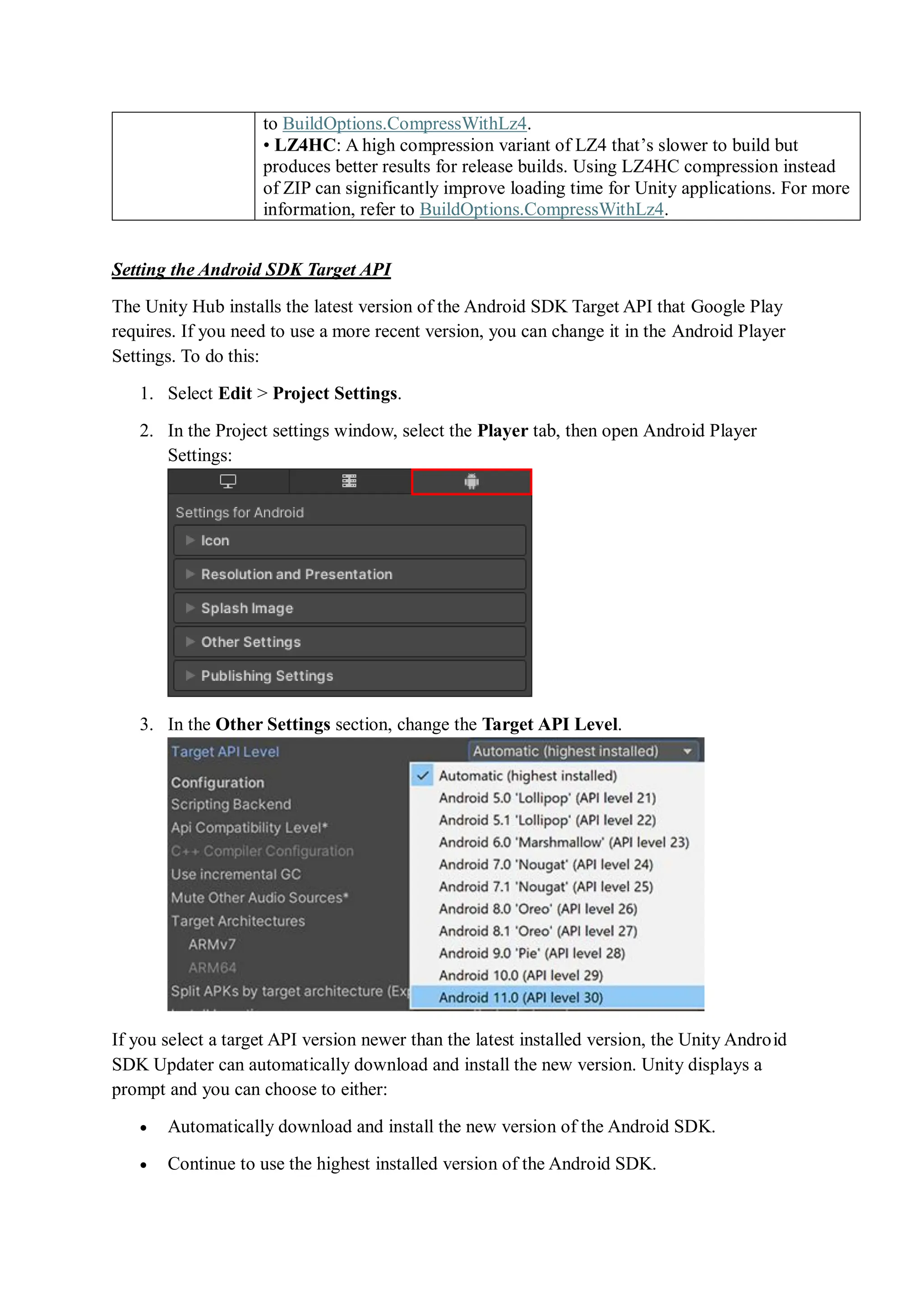
1. Select Edit > Project Settings.
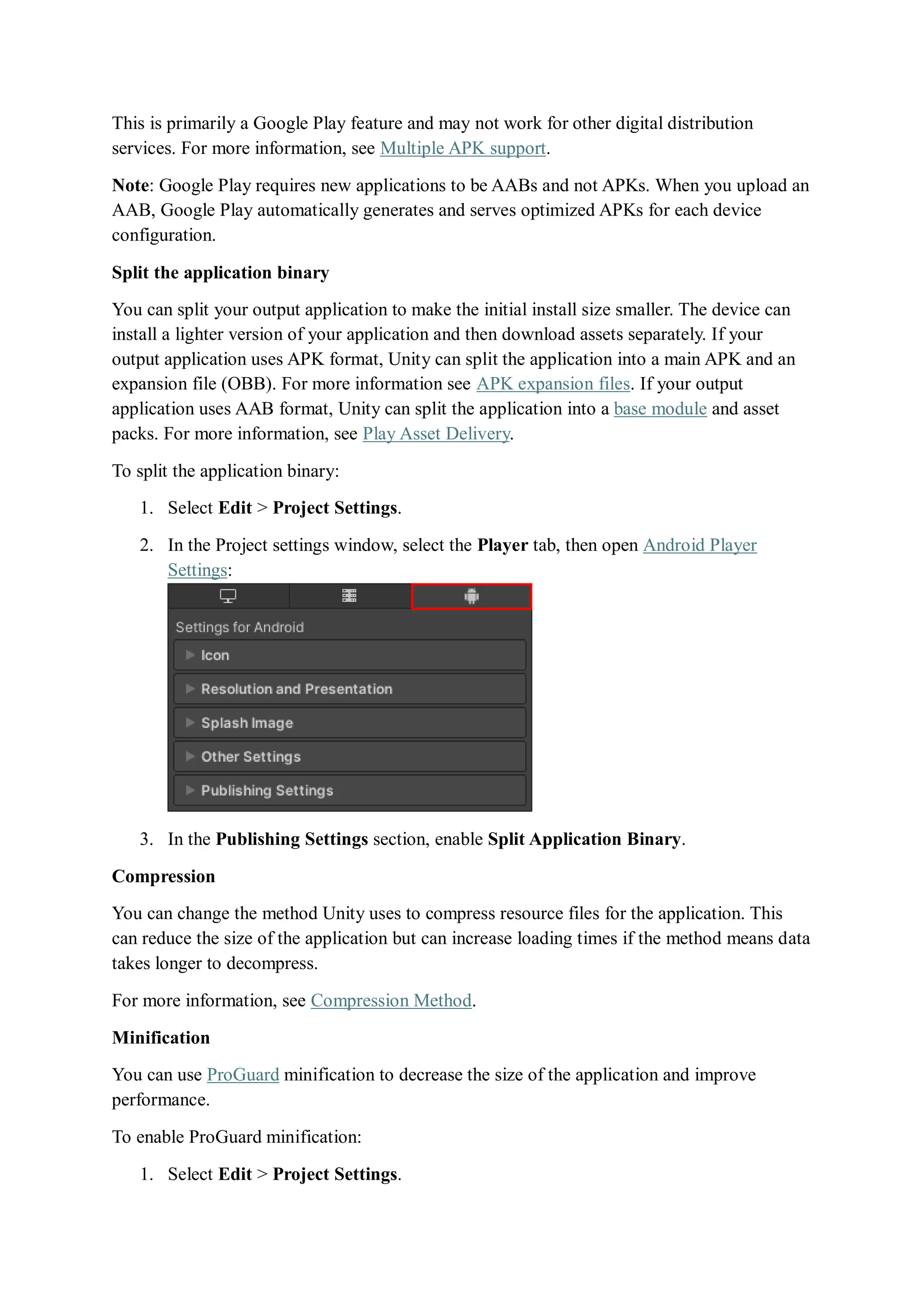
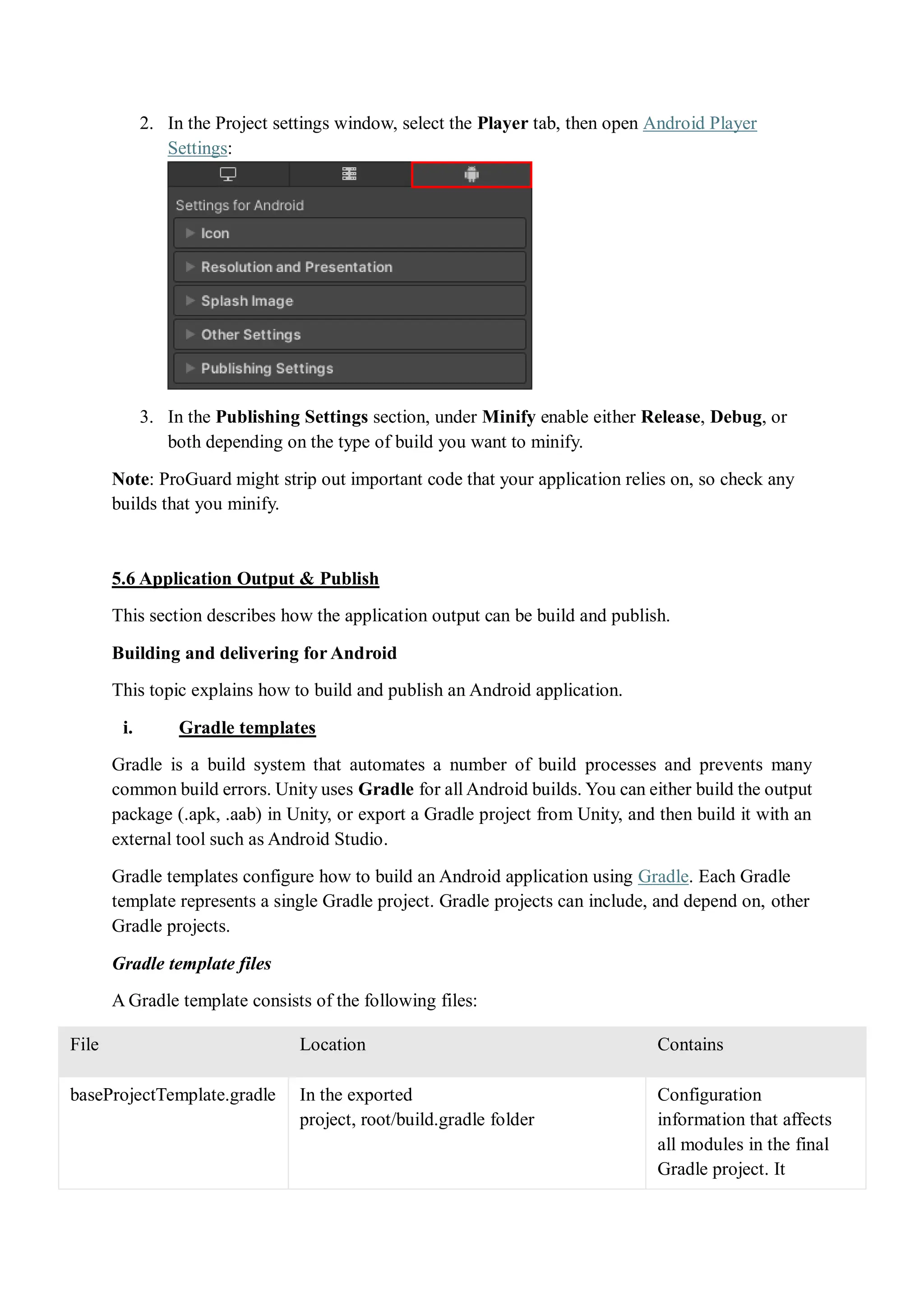
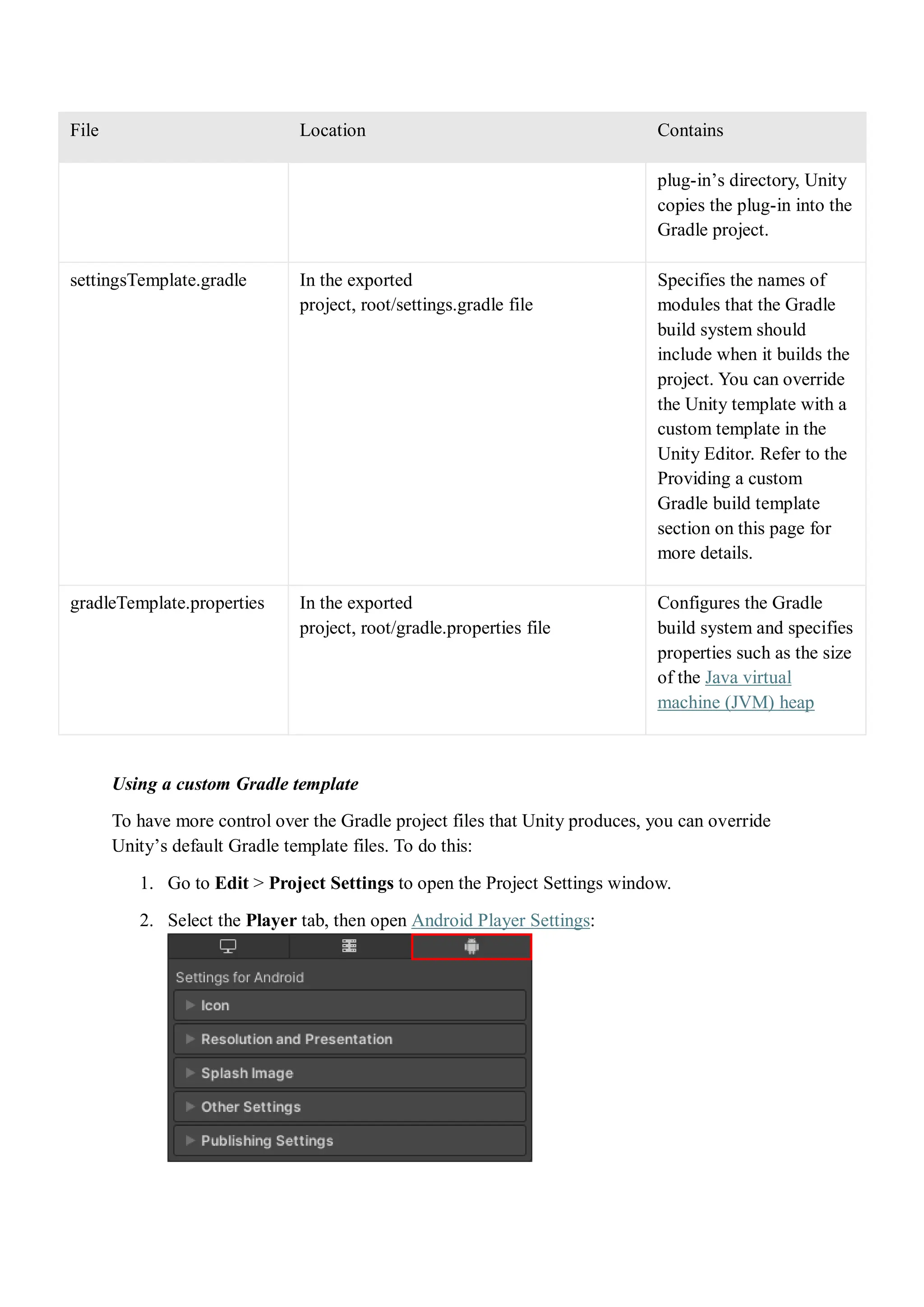
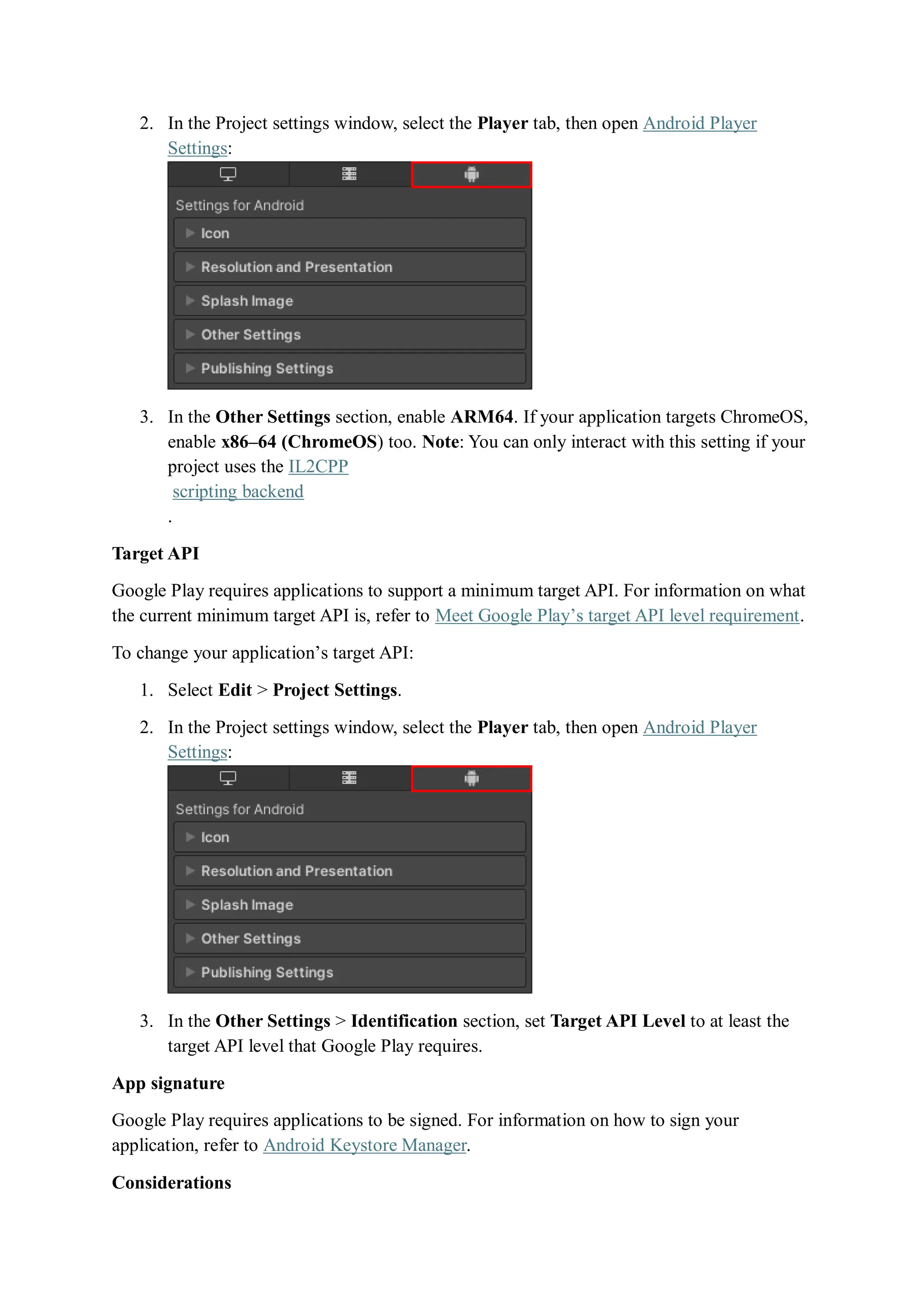
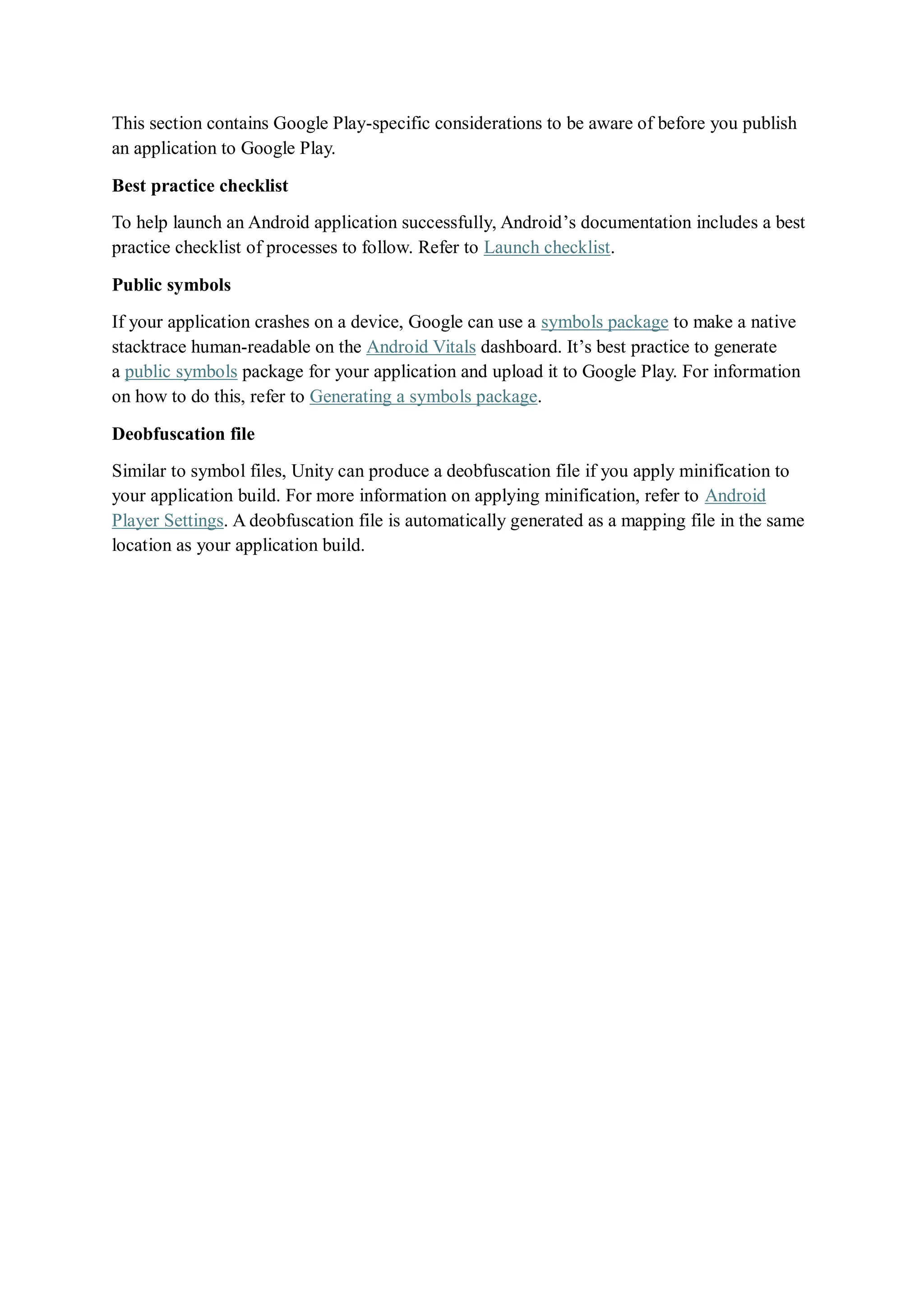
2. In the Project settings window, select the Player tab, then open Android Player
Settings:
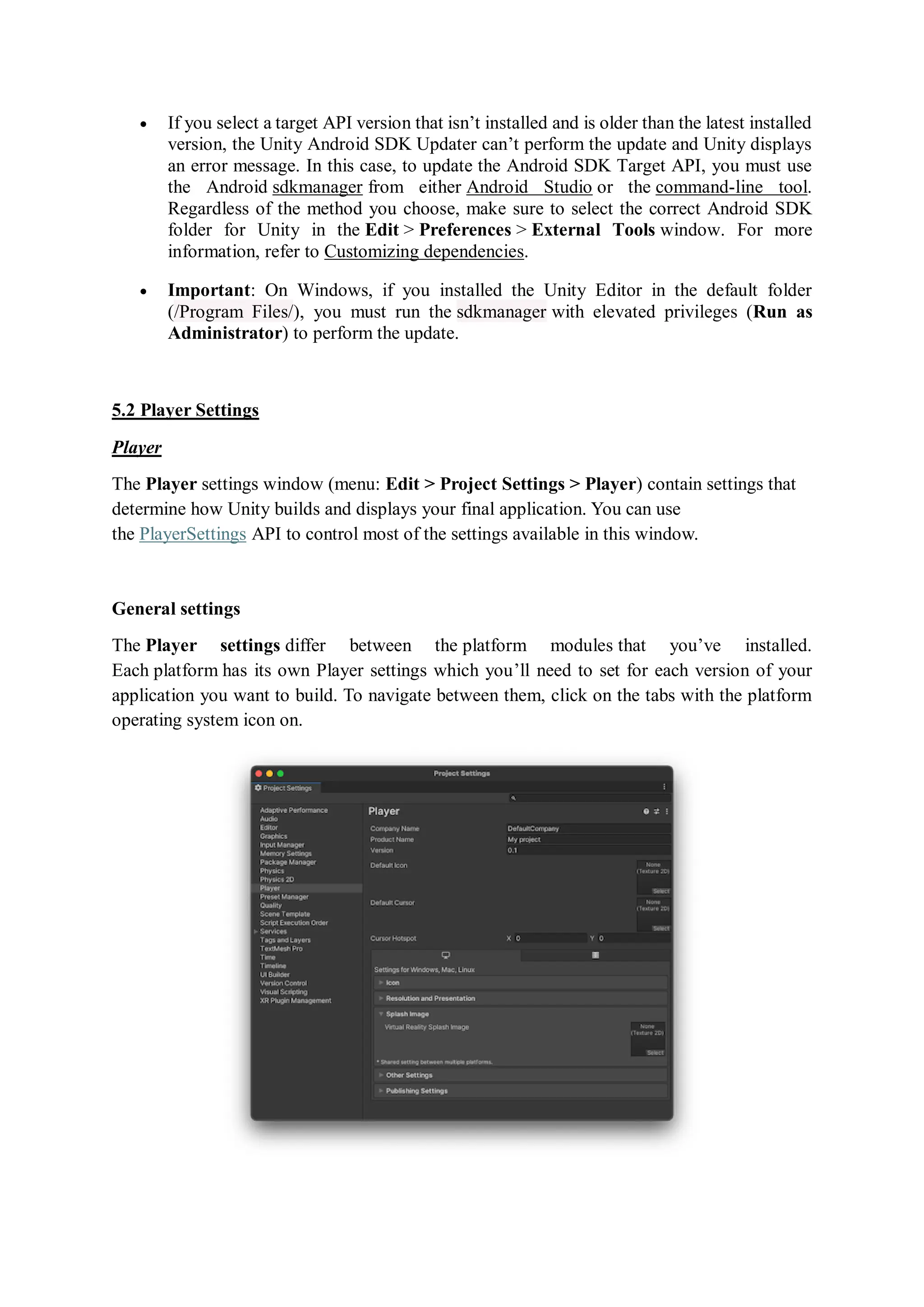
3. In the Other Settings section, change the Target API Level.
If you select a target API version newer than the latest installed version, the Unity Android
SDK Updater can automatically download and install the new version. Unity displays a
prompt and you can choose to either:
 Automatically download and install the new version of the Android SDK.
 Continue to use the highest installed version of the Android SDK.
 If you select a target API version that isn’t installed and is older than the latest installed
version, the Unity Android SDK Updater can’t perform the update and Unity displays
an error message. In this case, to update the Android SDK Target API, you must use
the Android sdkmanager from either Android Studio or the command-line tool.
Regardless of the method you choose, make sure to select the correct Android SDK
folder for Unity in the Edit > Preferences > External Tools window. For more
information, refer to Customizing dependencies.
 Important: On Windows, if you installed the Unity Editor in the default folder
(/Program Files/), you must run the sdkmanager with elevated privileges (Run as
Administrator) to perform the update.
5.2 Player Settings
Player
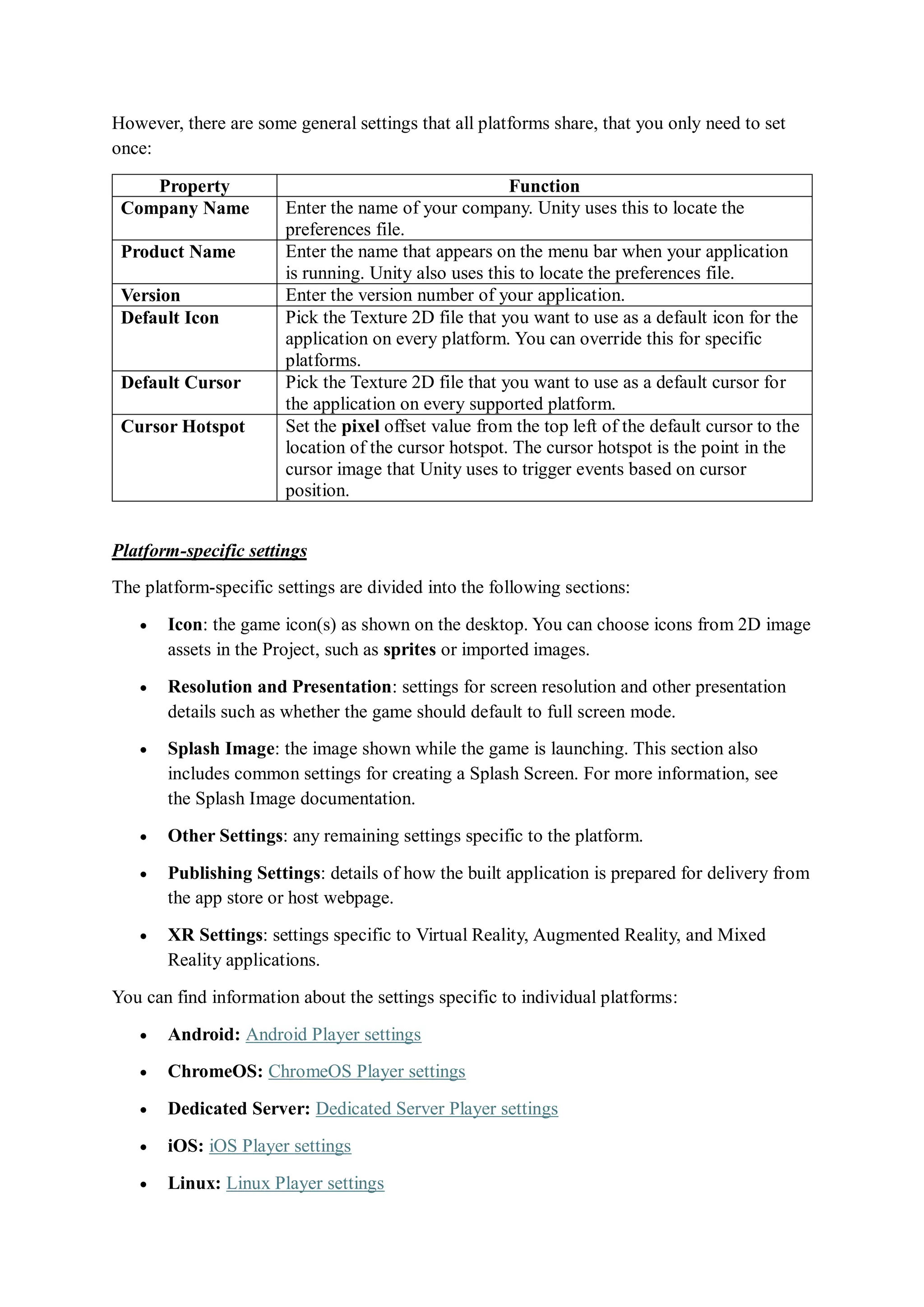
The Player settings window (menu: Edit > Project Settings > Player) contain settings that
determine how Unity builds and displays your final application. You can use
the PlayerSettings API to control most of the settings available in this window.
General settings
The Player settings differ between the platform modules that you’ve installed.
Each platform has its own Player settings which you’ll need to set for each version of your
application you want to build. To navigate between them, click on the tabs with the platform
operating system icon on.
However, there are some general settings that all platforms share, that you only need to set
once:
Property Function
Company Name Enter the name of your company. Unity uses this to locate the
preferences file.
Product Name Enter the name that appears on the menu bar when your application
is running. Unity also uses this to locate the preferences file.
Version Enter the version number of your application.
Default Icon Pick the Texture 2D file that you want to use as a default icon for the
application on every platform. You can override this for specific
platforms.
Default Cursor Pick the Texture 2D file that you want to use as a default cursor for
the application on every supported platform.
Cursor Hotspot Set the pixel offset value from the top left of the default cursor to the
location of the cursor hotspot. The cursor hotspot is the point in the
cursor image that Unity uses to trigger events based on cursor
position.
Platform-specific settings
The platform-specific settings are divided into the following sections:
 Icon: the game icon(s) as shown on the desktop. You can choose icons from 2D image
assets in the Project, such as sprites or imported images.
 Resolution and Presentation: settings for screen resolution and other presentation
details such as whether the game should default to full screen mode.
 Splash Image: the image shown while the game is launching. This section also
includes common settings for creating a Splash Screen. For more information, see
the Splash Image documentation.
 Other Settings: any remaining settings specific to the platform.
 Publishing Settings: details of how the built application is prepared for delivery from
the app store or host webpage.
 XR Settings: settings specific to Virtual Reality, Augmented Reality, and Mixed
Reality applications.
You can find information about the settings specific to individual platforms:
 Android: Android Player settings
 ChromeOS: ChromeOS Player settings
 Dedicated Server: Dedicated Server Player settings
 iOS: iOS Player settings
 Linux: Linux Player settings
 macOS: macOS Player settings
 tvOS: tvOS Player settings
 WebGL: WebGL Player settings
 Windows: Windows Player settings
Case Study:
Android Player Settings
Android Player settings
This topic explains about the details of the Player Settings for the Android platform. For a
description of the general Player settings, refer to Player Settings
.
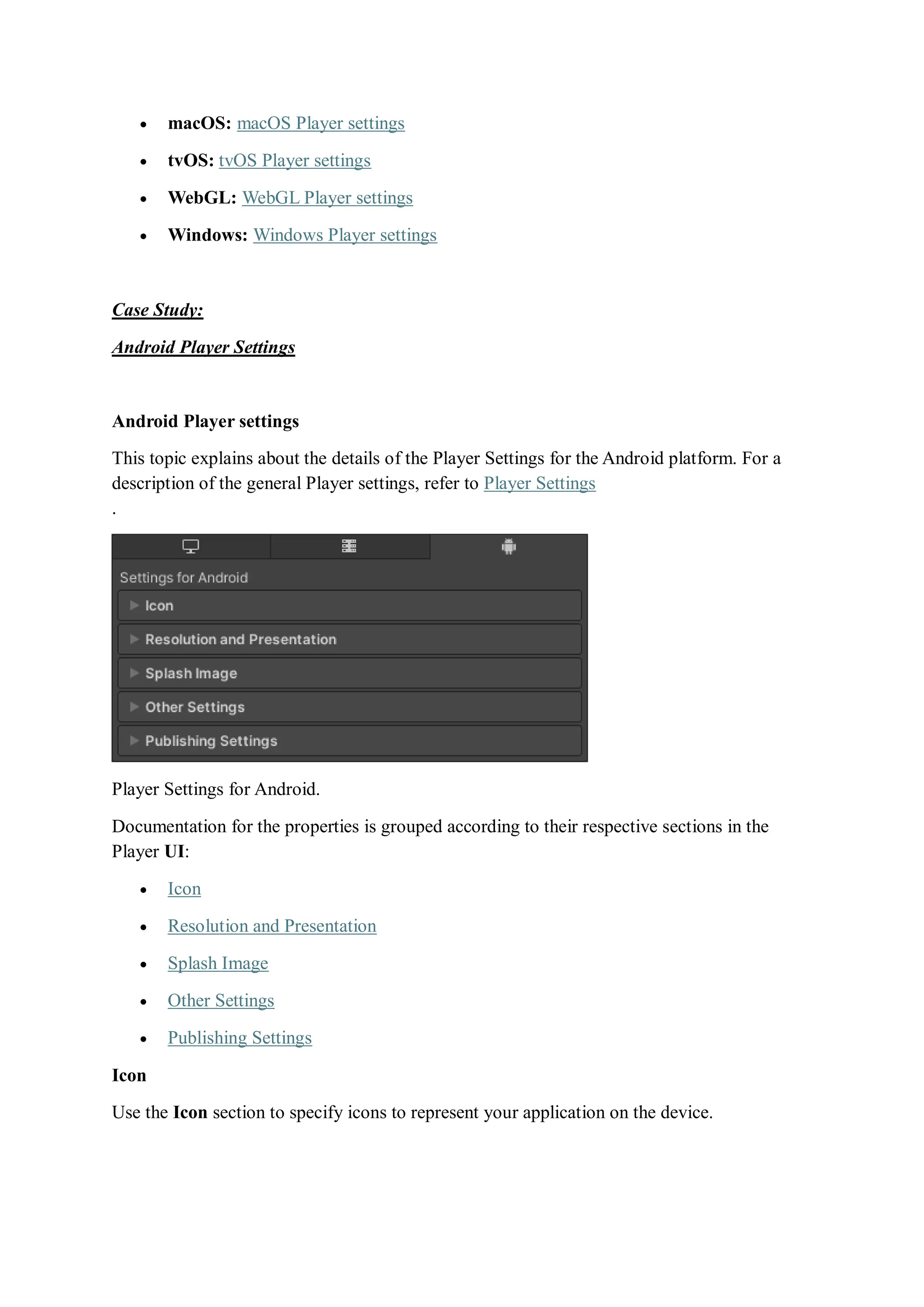
Player Settings for Android.
Documentation for the properties is grouped according to their respective sections in the
Player UI:
 Icon
 Resolution and Presentation
 Splash Image
 Other Settings
 Publishing Settings
Icon
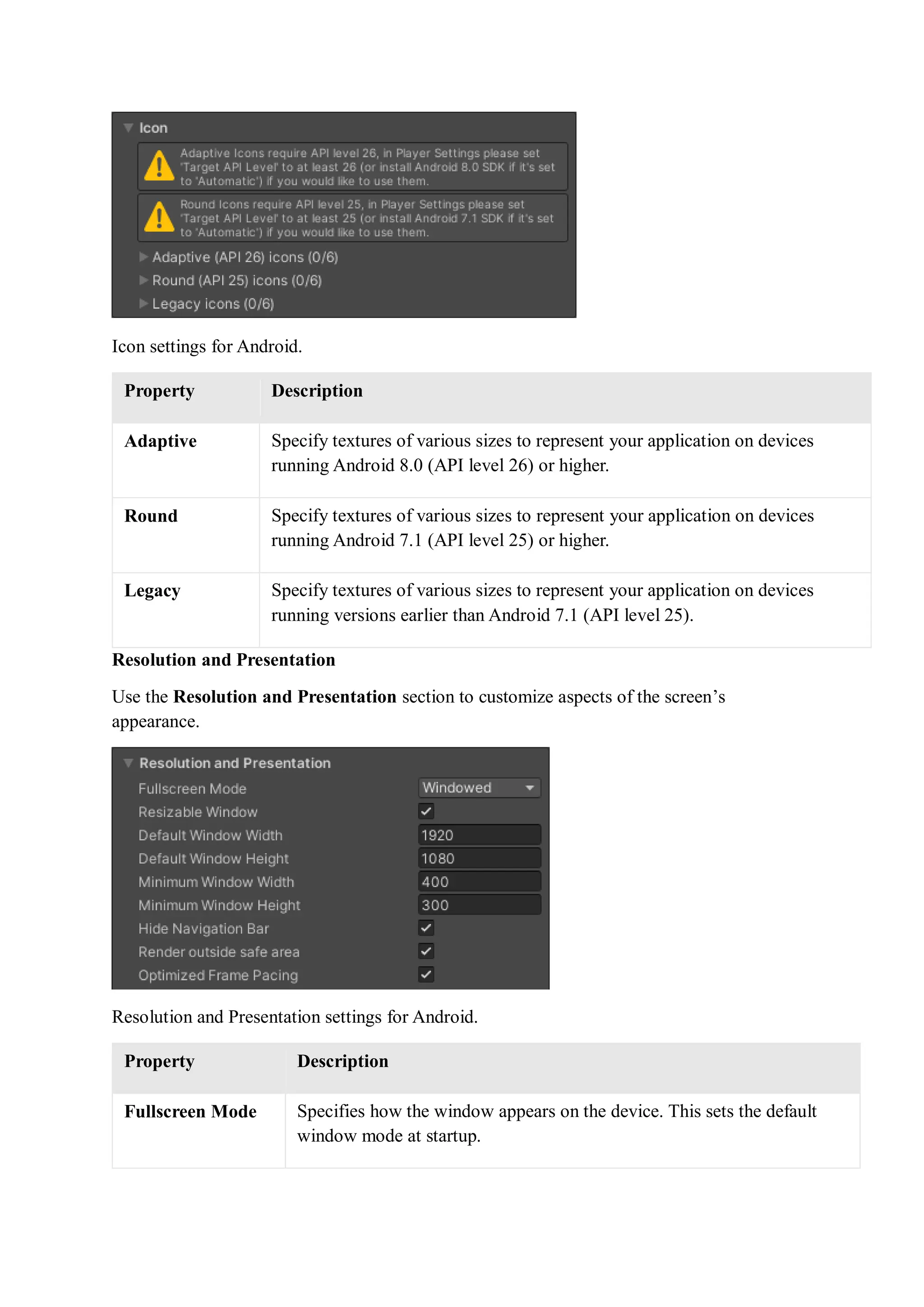
Use the Icon section to specify icons to represent your application on the device.
Icon settings for Android.
Property Description
Adaptive Specify textures of various sizes to represent your application on devices
running Android 8.0 (API level 26) or higher.
Round Specify textures of various sizes to represent your application on devices
running Android 7.1 (API level 25) or higher.
Legacy Specify textures of various sizes to represent your application on devices
running versions earlier than Android 7.1 (API level 25).
Resolution and Presentation
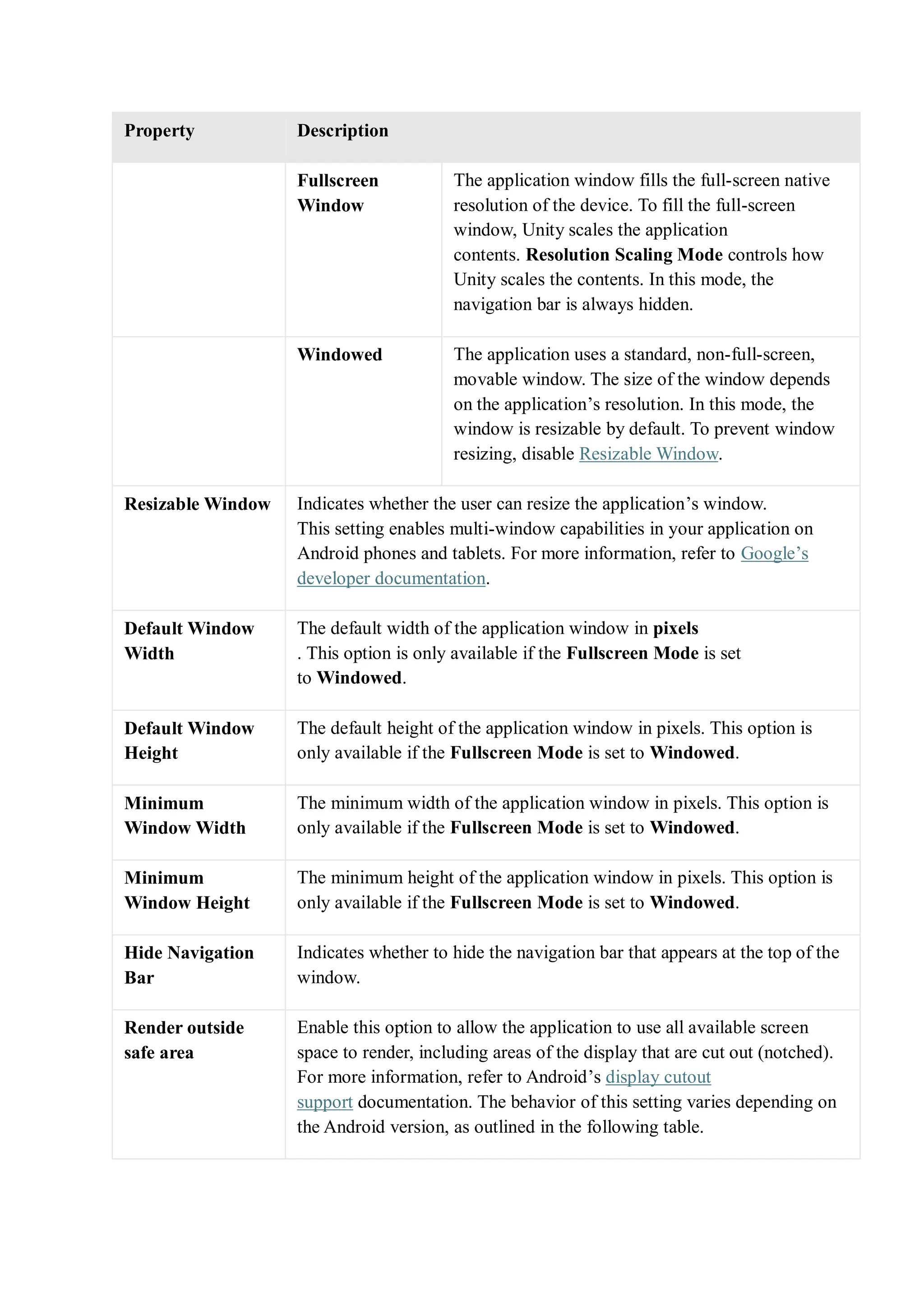
Use the Resolution and Presentation section to customize aspects of the screen’s
appearance.
Resolution and Presentation settings for Android.
Property Description
Fullscreen Mode Specifies how the window appears on the device. This sets the default
window mode at startup.
Property Description
Fullscreen
Window
The application window fills the full-screen native
resolution of the device. To fill the full-screen
window, Unity scales the application
contents. Resolution Scaling Mode controls how
Unity scales the contents. In this mode, the
navigation bar is always hidden.
Windowed The application uses a standard, non-full-screen,
movable window. The size of the window depends
on the application’s resolution. In this mode, the
window is resizable by default. To prevent window
resizing, disable Resizable Window.
Resizable Window Indicates whether the user can resize the application’s window.
This setting enables multi-window capabilities in your application on
Android phones and tablets. For more information, refer to Google’s
developer documentation.
Default Window
Width
The default width of the application window in pixels
. This option is only available if the Fullscreen Mode is set
to Windowed.
Default Window
Height
The default height of the application window in pixels. This option is
only available if the Fullscreen Mode is set to Windowed.
Minimum
Window Width
The minimum width of the application window in pixels. This option is
only available if the Fullscreen Mode is set to Windowed.
Minimum
Window Height
The minimum height of the application window in pixels. This option is
only available if the Fullscreen Mode is set to Windowed.
Hide Navigation
Bar
Indicates whether to hide the navigation bar that appears at the top of the
window.
Render outside
safe area
Enable this option to allow the application to use all available screen
space to render, including areas of the display that are cut out (notched).
For more information, refer to Android’s display cutout
support documentation. The behavior of this setting varies depending on
the Android version, as outlined in the following table.
Property Description
Android 15 and
newer
This setting has no effect as the application uses the
entire screen space by default. For more
information, refer to Android documentation.
Android 11 to 14 When enabled, the application uses the entire screen
space available. When disabled, the application uses
the space around the cutout only if it’s within the
system bar (top or bottom of the device), otherwise
the application displays black bars over the cutout
area. For more information on when the application
uses the space around the cutout, refer to Android
documentation.
Android 10 and
older
When enabled, the application uses the screen space
around the cutout on the shorter edge (such as the
top or bottom) of the device. However, the
application blocks the cutout on the longer edge
(such as the sides) of the device with black bars. For
more information on how the application uses the
space around cutouts on shorter edges, refer
to Android documentation. When disabled, the
application uses the space around the cutout only if
it’s within the system bar, otherwise the application
displays black bars over the cutout area. For more
information on when the application uses the space
around the cutout, refer to Android documentation.
Optimized Frame
Pacing
Enable this option to allow Unity to evenly distribute frames for less
variance in frame rate and create a smoother experience.
Other Resolution and Presentation settings are grouped under the following sections:
 Resolution Scaling
 Supported Aspect Ratio
 Orientation
 Allowed Orientations for Auto Rotation
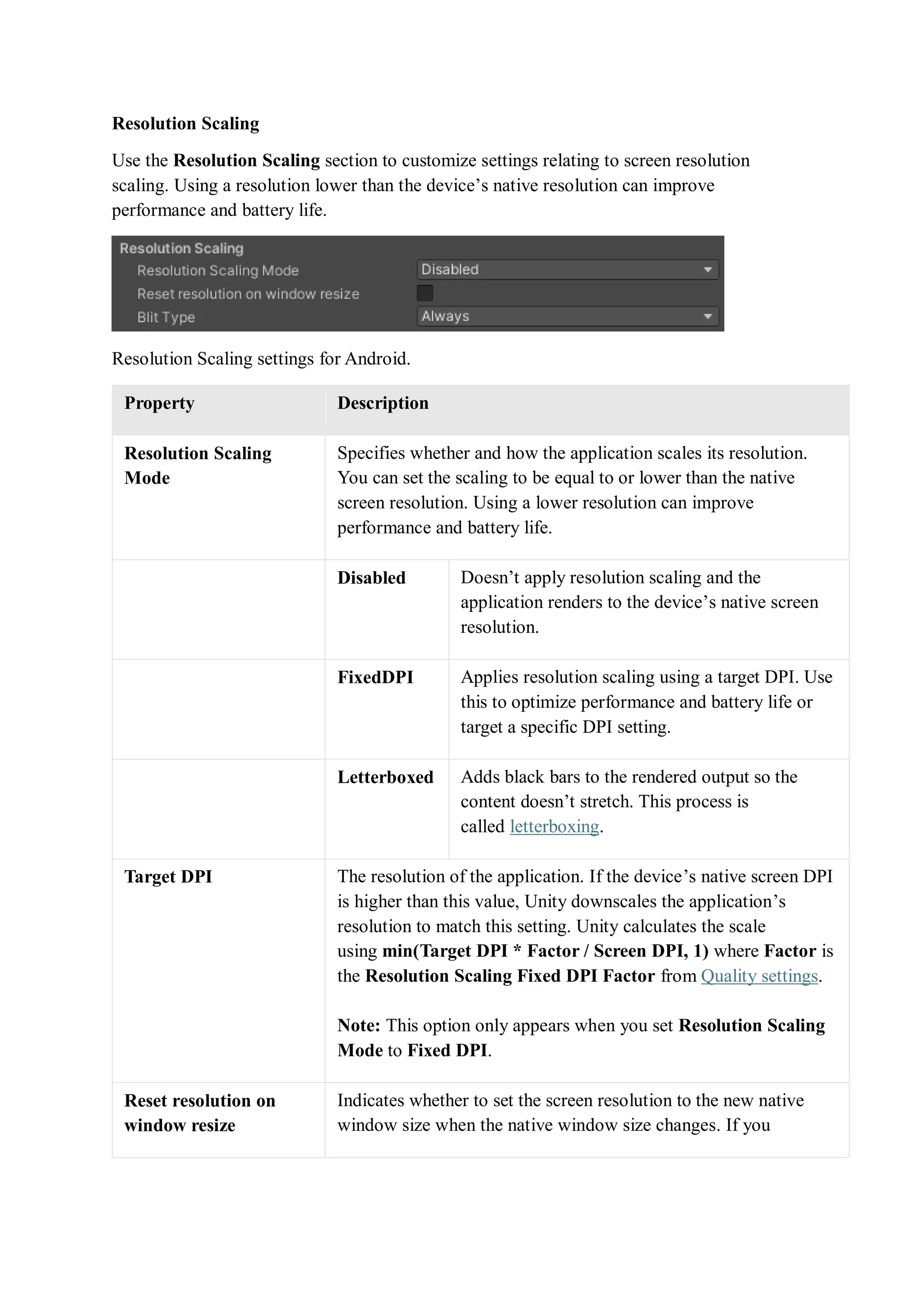
Resolution Scaling
Use the Resolution Scaling section to customize settings relating to screen resolution
scaling. Using a resolution lower than the device’s native resolution can improve
performance and battery life.
Resolution Scaling settings for Android.
Property Description
Resolution Scaling
Mode
Specifies whether and how the application scales its resolution.
You can set the scaling to be equal to or lower than the native
screen resolution. Using a lower resolution can improve
performance and battery life.
Disabled Doesn’t apply resolution scaling and the
application renders to the device’s native screen
resolution.
FixedDPI Applies resolution scaling using a target DPI. Use
this to optimize performance and battery life or
target a specific DPI setting.
Letterboxed Adds black bars to the rendered output so the
content doesn’t stretch. This process is
called letterboxing.
Target DPI The resolution of the application. If the device’s native screen DPI
is higher than this value, Unity downscales the application’s
resolution to match this setting. Unity calculates the scale
using min(Target DPI * Factor / Screen DPI, 1) where Factor is
the Resolution Scaling Fixed DPI Factor from Quality settings.
Note: This option only appears when you set Resolution Scaling
Mode to Fixed DPI.
Reset resolution on
window resize
Indicates whether to set the screen resolution to the new native
window size when the native window size changes. If you
Property Description
set Resolution Scaling Mode to Fixed DPI, Unity recalculates the
resolution based on Fixed DPI property.
Blit
Type
Controls whether to use a blit to render the final image to the
screen. Using a blit is compatible with most devices but is usually
slower than not using a blit.
Always Unity renders to an offscreen buffer and then uses
a blit to copy the contents of the buffer to the
device’s framebuffer. This is compatible with
most devices but is usually slower than not using
blit.
Never Unity renders to the framebuffer provided by the
device’s operating system. If this fails, the
application prints a one-time warning to the
device log. This is usually faster than using blit,
but it isn’t compatible with all devices.
Auto Unity renders to the framebuffer provided by the
device’s operating system if possible. If this fails,
Unity prints a warning to the device console and
uses a blit to render the final image to the screen.
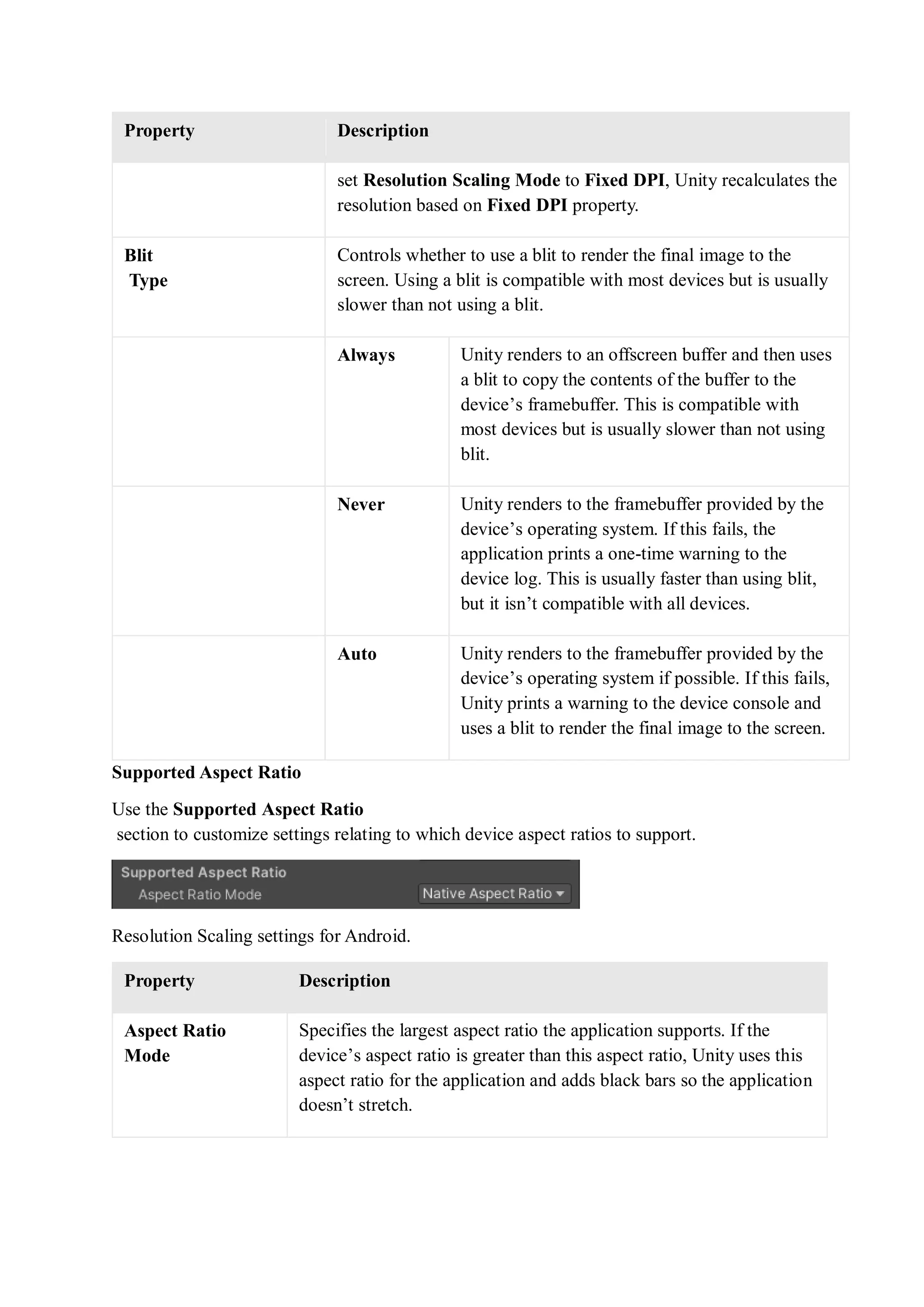
Supported Aspect Ratio
Use the Supported Aspect Ratio
section to customize settings relating to which device aspect ratios to support.
Resolution Scaling settings for Android.
Property Description
Aspect Ratio
Mode
Specifies the largest aspect ratio the application supports. If the
device’s aspect ratio is greater than this aspect ratio, Unity uses this
aspect ratio for the application and adds black bars so the application
doesn’t stretch.
Property Description
Legacy Wide Screen (1.86) The application supports aspect
ratios up to Android’s legacy
wide-screen aspect ratio.
Native Aspect Ratio The application supports aspect
ratios up to Android’s native
aspect ratio.
Custom The application supports aspect
ratios up to the aspect ratio you
set in Up To.
Up To The custom maximum aspect ratio.
This setting only appears when you set Aspect Ratio
Mode to Custom.
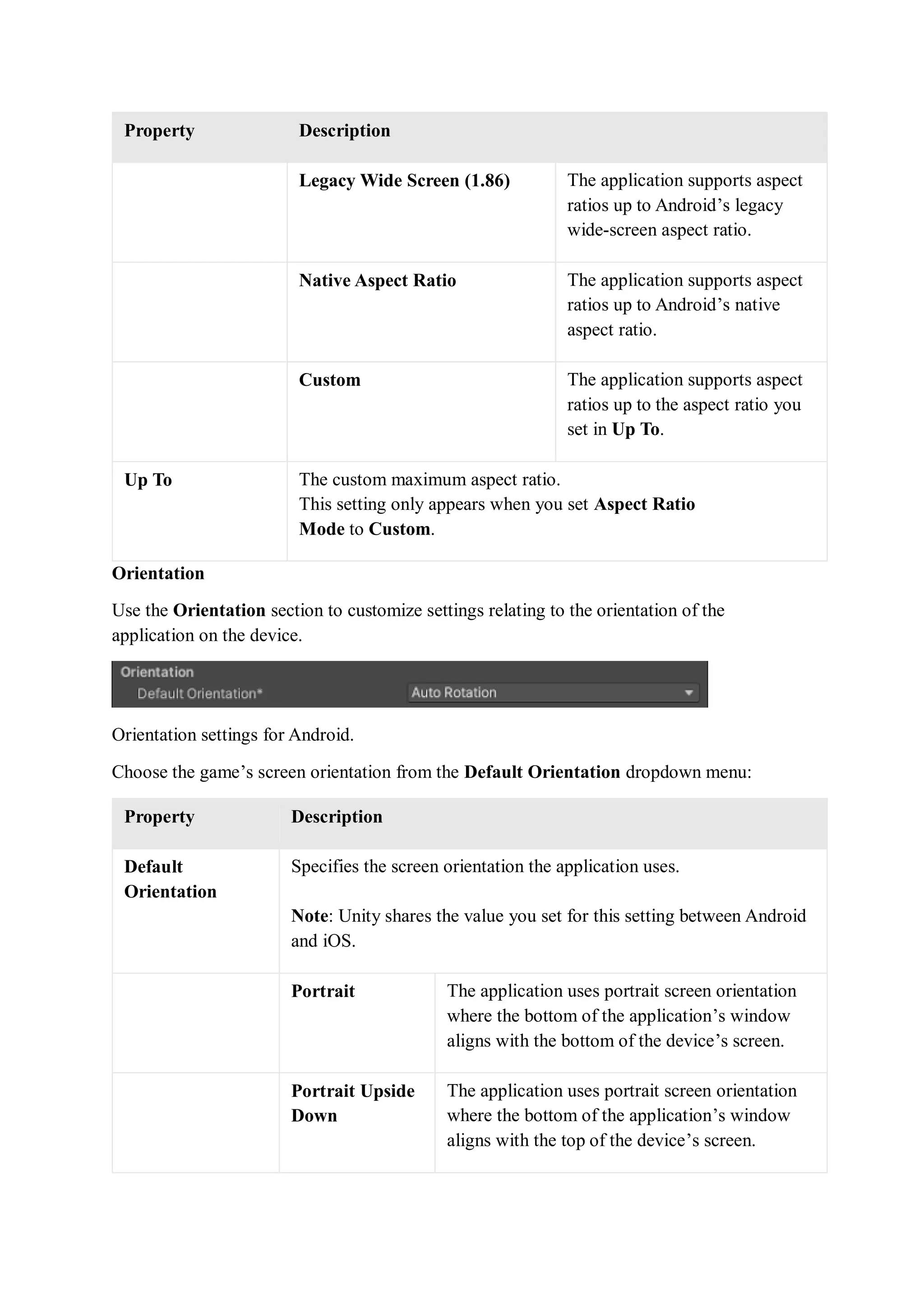
Orientation
Use the Orientation section to customize settings relating to the orientation of the
application on the device.
Orientation settings for Android.
Choose the game’s screen orientation from the Default Orientation dropdown menu:
Property Description
Default
Orientation
Specifies the screen orientation the application uses.
Note: Unity shares the value you set for this setting between Android
and iOS.
Portrait The application uses portrait screen orientation
where the bottom of the application’s window
aligns with the bottom of the device’s screen.
Portrait Upside
Down
The application uses portrait screen orientation
where the bottom of the application’s window
aligns with the top of the device’s screen.
Property Description
Landscape
Right
The application uses landscape screen
orientation where the right side of the
application’s window aligns with the bottom of
the device’s screen.
Landscape Left The application uses landscape screen
orientation where the right side of the
application’s window aligns with the top of the
device’s screen.
Auto Rotation The screen can rotate to any of the orientations
you specify in the Allowed Orientations for Auto
Rotation section.
Auto Rotation
Behavior
Specify how the application window adjusts its orientation based on
the device’s rotation sensor and orientation settings, when the Default
Orientation is set to Auto Rotation.
Note: This property is visible only when you set the Default
Orientation to Auto Rotation. By default, this property is set
to User.
User The application window adjusts its orientation
according to the device’s orientation settings. If
the user locks the device’s auto rotate orientation
setting, the application window doesn’t follow
the preferences set in the Allowed Orientations
for Auto Rotation section. The application
window only rotates as per the set preferences
when the user turns off the device’s auto rotate
orientation setting.
Sensor The application window adjusts its orientation
according to the device’s rotation sensor
regardless of the device’s orientation settings.
However, the application window only rotates as
per the preferences set in the Allowed
Orientations for Auto Rotation section.
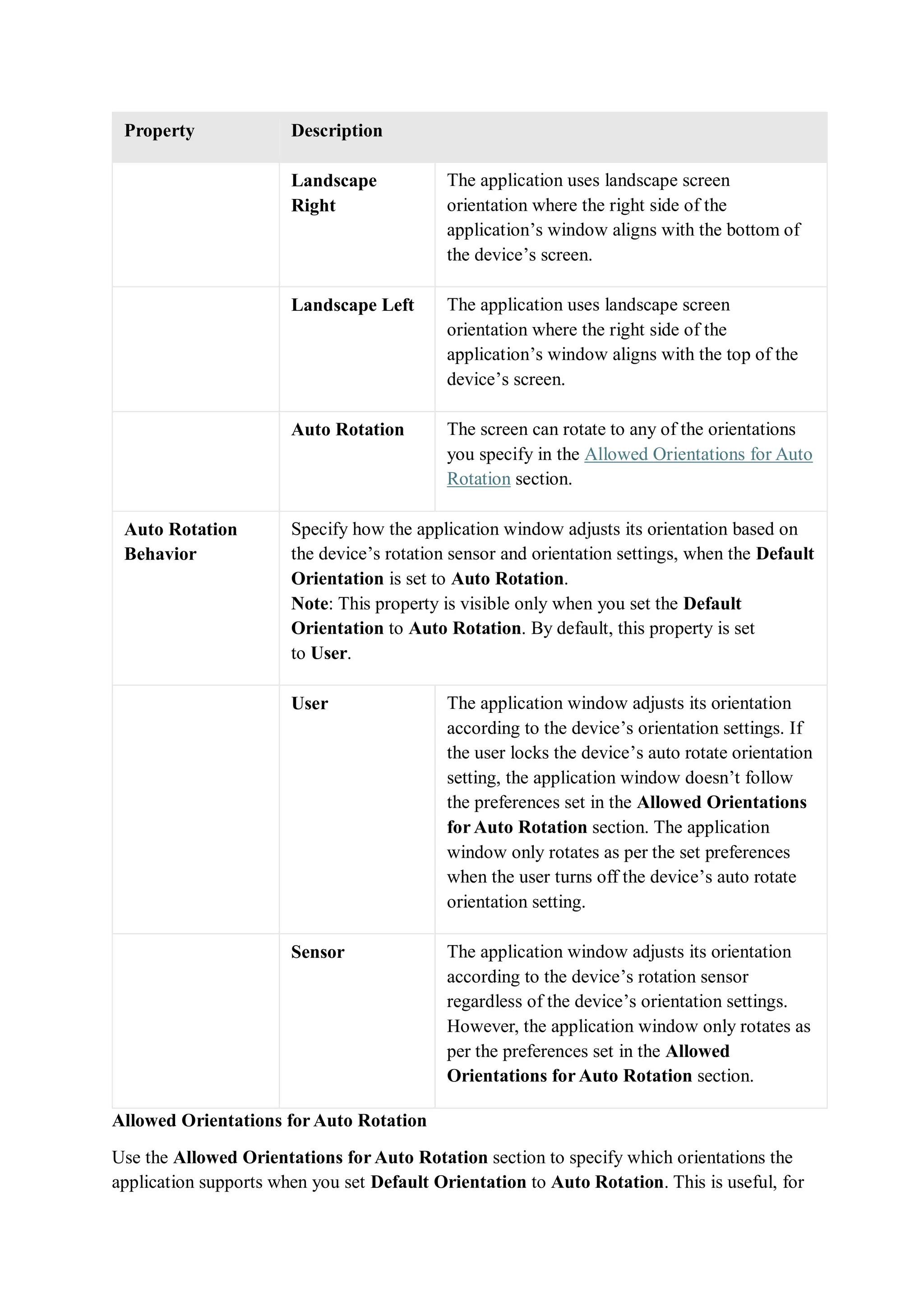
Allowed Orientations for Auto Rotation
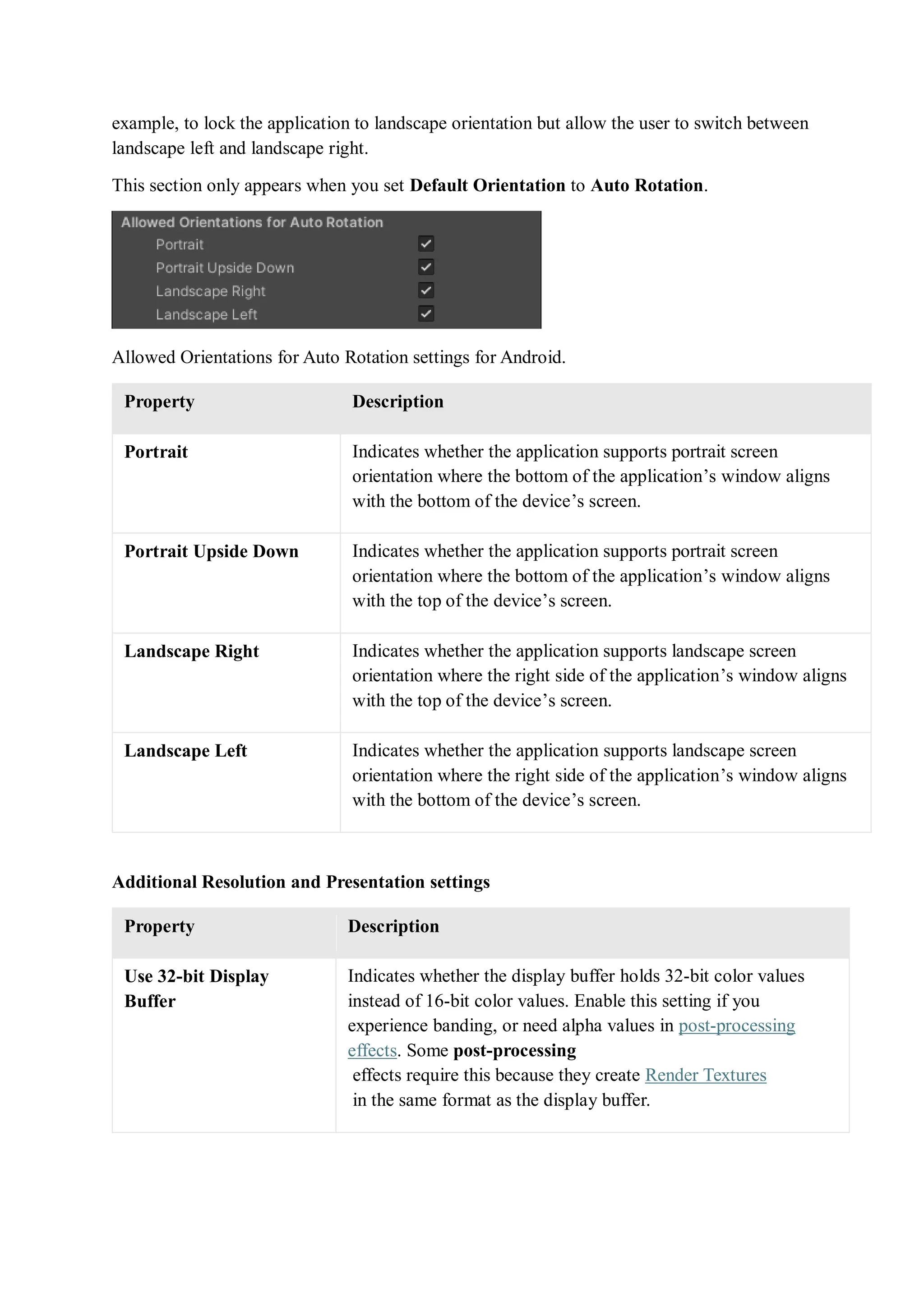
Use the Allowed Orientations for Auto Rotation section to specify which orientations the
application supports when you set Default Orientation to Auto Rotation. This is useful, for
example, to lock the application to landscape orientation but allow the user to switch between
landscape left and landscape right.
This section only appears when you set Default Orientation to Auto Rotation.
Allowed Orientations for Auto Rotation settings for Android.
Property Description
Portrait Indicates whether the application supports portrait screen
orientation where the bottom of the application’s window aligns
with the bottom of the device’s screen.
Portrait Upside Down Indicates whether the application supports portrait screen
orientation where the bottom of the application’s window aligns
with the top of the device’s screen.
Landscape Right Indicates whether the application supports landscape screen
orientation where the right side of the application’s window aligns
with the top of the device’s screen.
Landscape Left Indicates whether the application supports landscape screen
orientation where the right side of the application’s window aligns
with the bottom of the device’s screen.
Additional Resolution and Presentation settings
Property Description
Use 32-bit Display
Buffer
Indicates whether the display buffer holds 32-bit color values
instead of 16-bit color values. Enable this setting if you
experience banding, or need alpha values in post-processing
effects. Some post-processing
effects require this because they create Render Textures
in the same format as the display buffer.
Property Description
Disable Depth and
Stencil
Indicates whether to disable depth and stencil buffers
.
Render Over Native UI Indicates whether to render on top of native UI on Android or
iOS. For this setting to take effect, set your Camera
’s Clear Flags to use a solid color with an alpha value lower than
1.
Show Loading Indicator Specifies if and how the loading indicator appears.
Don’t Show The loading indicator doesn’t
appear.
Large A large loading indicator
appears.
Inversed Large A large loading indicator
appears with inversed color.
Small A small loading indicator
appears.
Inversed Small A small loading indicator
appears with inversed color.
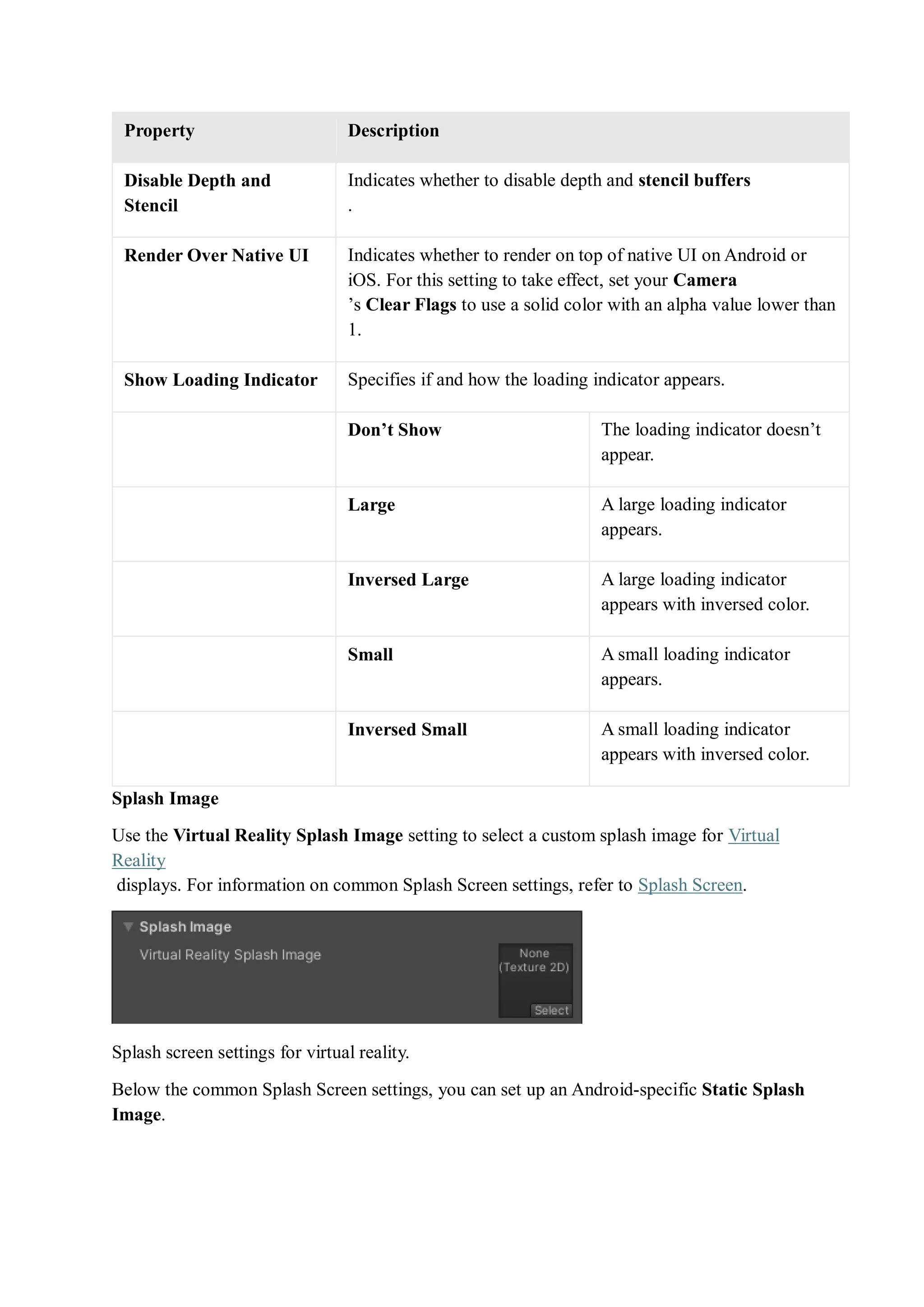
Splash Image
Use the Virtual Reality Splash Image setting to select a custom splash image for Virtual
Reality
displays. For information on common Splash Screen settings, refer to Splash Screen.
Splash screen settings for virtual reality.
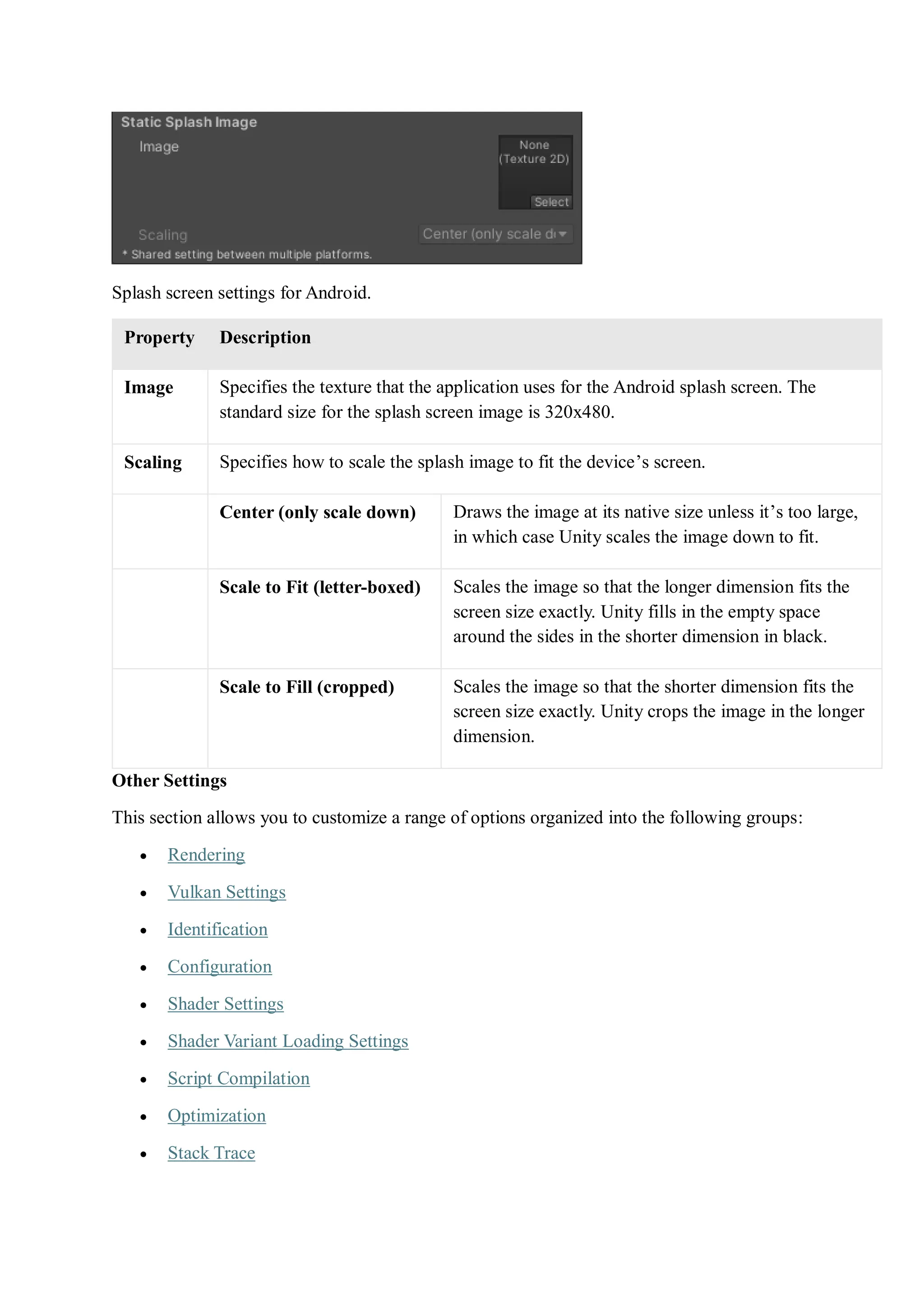
Below the common Splash Screen settings, you can set up an Android-specific Static Splash
Image.
Splash screen settings for Android.
Property Description
Image Specifies the texture that the application uses for the Android splash screen. The
standard size for the splash screen image is 320x480.
Scaling Specifies how to scale the splash image to fit the device’s screen.
Center (only scale down) Draws the image at its native size unless it’s too large,
in which case Unity scales the image down to fit.
Scale to Fit (letter-boxed) Scales the image so that the longer dimension fits the
screen size exactly. Unity fills in the empty space
around the sides in the shorter dimension in black.
Scale to Fill (cropped) Scales the image so that the shorter dimension fits the
screen size exactly. Unity crops the image in the longer
dimension.
Other Settings
This section allows you to customize a range of options organized into the following groups:
 Rendering
 Vulkan Settings
 Identification
 Configuration
 Shader Settings
 Shader Variant Loading Settings
 Script Compilation
 Optimization
 Stack Trace
 Legacy
Rendering
Use these settings to customize how Unity renders your game for the Android platform.
Property Description
Color Space Choose which color space should be used for
rendering: Gamma or Linear.
Refer to Linear rendering overview for an explanation of the
difference between the two.
MSAA Fallback Select the multi sample antialiasing
fallback strategy to upgrade or downgrade the sample count if
the sample count requested by the user isn’t supported by the
device.
Upgrade The sample count reduces to the nearest
supported lower sample count.
Downgrade The sample count increases to the next higher
sample count. If that sample count is not
supported, then it reduces to the nearest
supported lower sample count.
Auto Graphics API Disable this option to manually pick and reorder the graphics
APIs. By default, this option is enabled, and Unity tries to use
Vulkan. If the device doesn’t support Vulkan, Unity falls back
to GLES3.2, GLES3.1 or GLES3.0.
Important: Unity adds the GLES3/GLES3.1/AEP/3.2
requirement to your Android App Manifest only if GLES2 isn’t
in the list of APIs when Auto Graphics API is disabled. In this
case only, your application doesn’t appear on unsupported
devices in the Google Play Store.
Require ES3.1 Indicates whether to require that the minimum OpenGL ES 3
minor version is 3.1. This property is visible only if you
enable Auto Graphics API or if Graphics
APIs includes OpenGLES3.
Require ES3.1+AEP Indicates whether to require that the minimum OpenGL ES 3
minor version is 3.1+AEP. This property is visible only if you
Property Description
enable Auto Graphics API or if Graphics
APIs includes OpenGLES3.
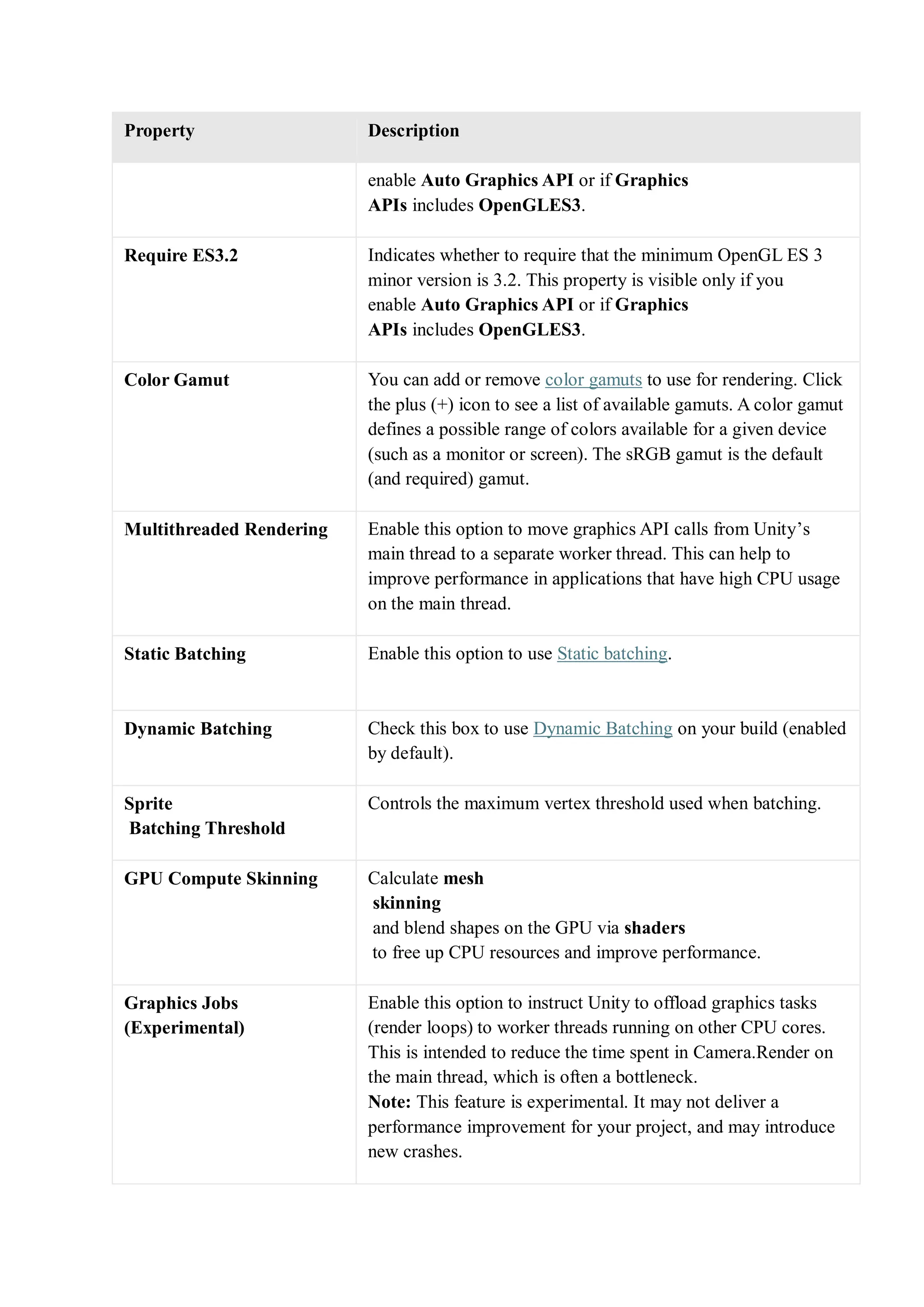
Require ES3.2 Indicates whether to require that the minimum OpenGL ES 3
minor version is 3.2. This property is visible only if you
enable Auto Graphics API or if Graphics
APIs includes OpenGLES3.
Color Gamut You can add or remove color gamuts to use for rendering. Click
the plus (+) icon to see a list of available gamuts. A color gamut
defines a possible range of colors available for a given device
(such as a monitor or screen). The sRGB gamut is the default
(and required) gamut.
Multithreaded Rendering Enable this option to move graphics API calls from Unity’s
main thread to a separate worker thread. This can help to
improve performance in applications that have high CPU usage
on the main thread.
Static Batching Enable this option to use Static batching.
Dynamic Batching Check this box to use Dynamic Batching on your build (enabled
by default).
Sprite
Batching Threshold
Controls the maximum vertex threshold used when batching.
GPU Compute Skinning Calculate mesh
skinning
and blend shapes on the GPU via shaders
to free up CPU resources and improve performance.
Graphics Jobs
(Experimental)
Enable this option to instruct Unity to offload graphics tasks
(render loops) to worker threads running on other CPU cores.
This is intended to reduce the time spent in Camera.Render on
the main thread, which is often a bottleneck.
Note: This feature is experimental. It may not deliver a
performance improvement for your project, and may introduce
new crashes.
Property Description
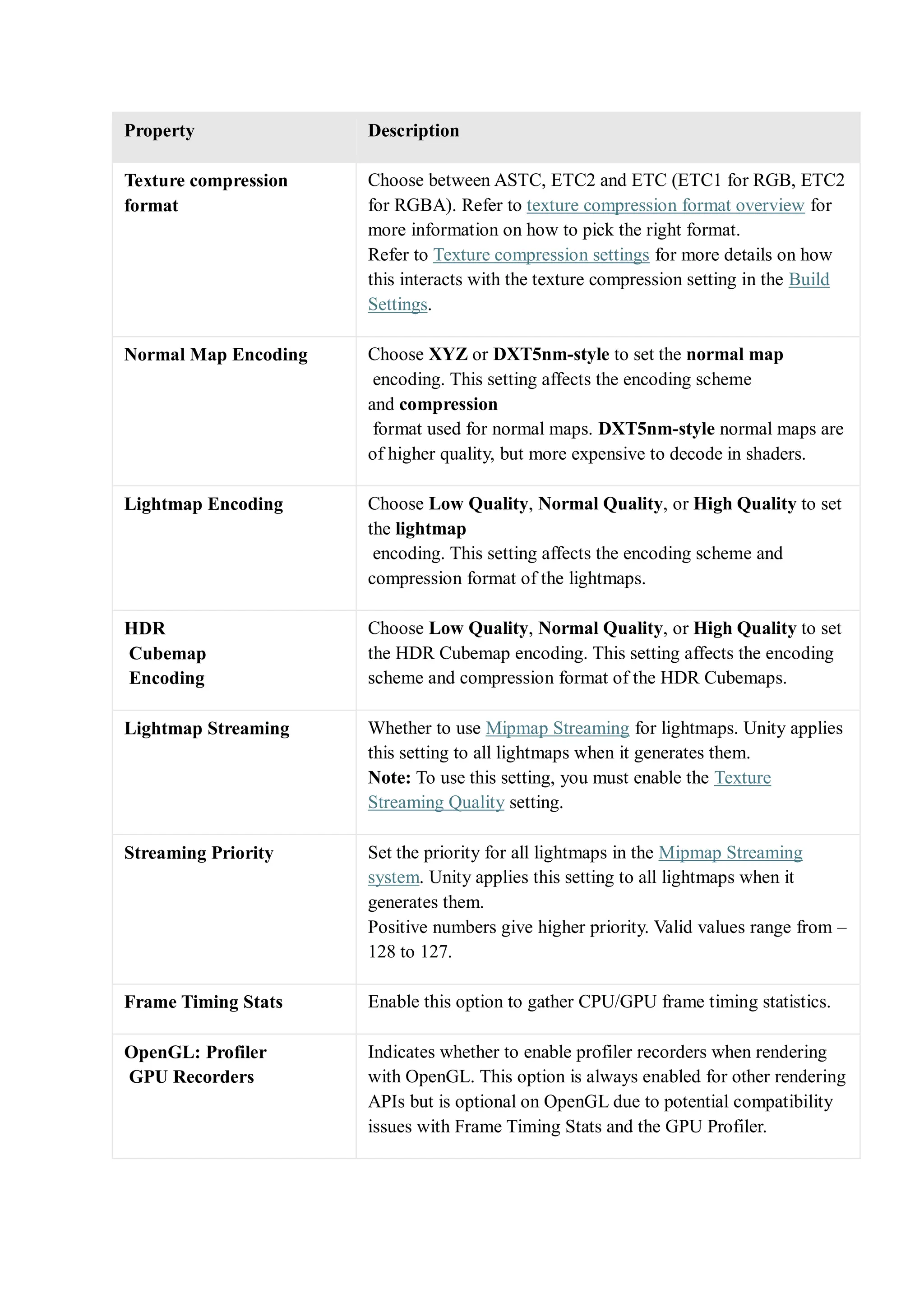
Texture compression
format
Choose between ASTC, ETC2 and ETC (ETC1 for RGB, ETC2
for RGBA). Refer to texture compression format overview for
more information on how to pick the right format.
Refer to Texture compression settings for more details on how
this interacts with the texture compression setting in the Build
Settings.
Normal Map Encoding Choose XYZ or DXT5nm-style to set the normal map
encoding. This setting affects the encoding scheme
and compression
format used for normal maps. DXT5nm-style normal maps are
of higher quality, but more expensive to decode in shaders.
Lightmap Encoding Choose Low Quality, Normal Quality, or High Quality to set
the lightmap
encoding. This setting affects the encoding scheme and
compression format of the lightmaps.
HDR
Cubemap
Encoding
Choose Low Quality, Normal Quality, or High Quality to set
the HDR Cubemap encoding. This setting affects the encoding
scheme and compression format of the HDR Cubemaps.
Lightmap Streaming Whether to use Mipmap Streaming for lightmaps. Unity applies
this setting to all lightmaps when it generates them.
Note: To use this setting, you must enable the Texture
Streaming Quality setting.
Streaming Priority Set the priority for all lightmaps in the Mipmap Streaming
system. Unity applies this setting to all lightmaps when it
generates them.
Positive numbers give higher priority. Valid values range from –
128 to 127.
Frame Timing Stats Enable this option to gather CPU/GPU frame timing statistics.
OpenGL: Profiler
GPU Recorders
Indicates whether to enable profiler recorders when rendering
with OpenGL. This option is always enabled for other rendering
APIs but is optional on OpenGL due to potential compatibility
issues with Frame Timing Stats and the GPU Profiler.
Property Description
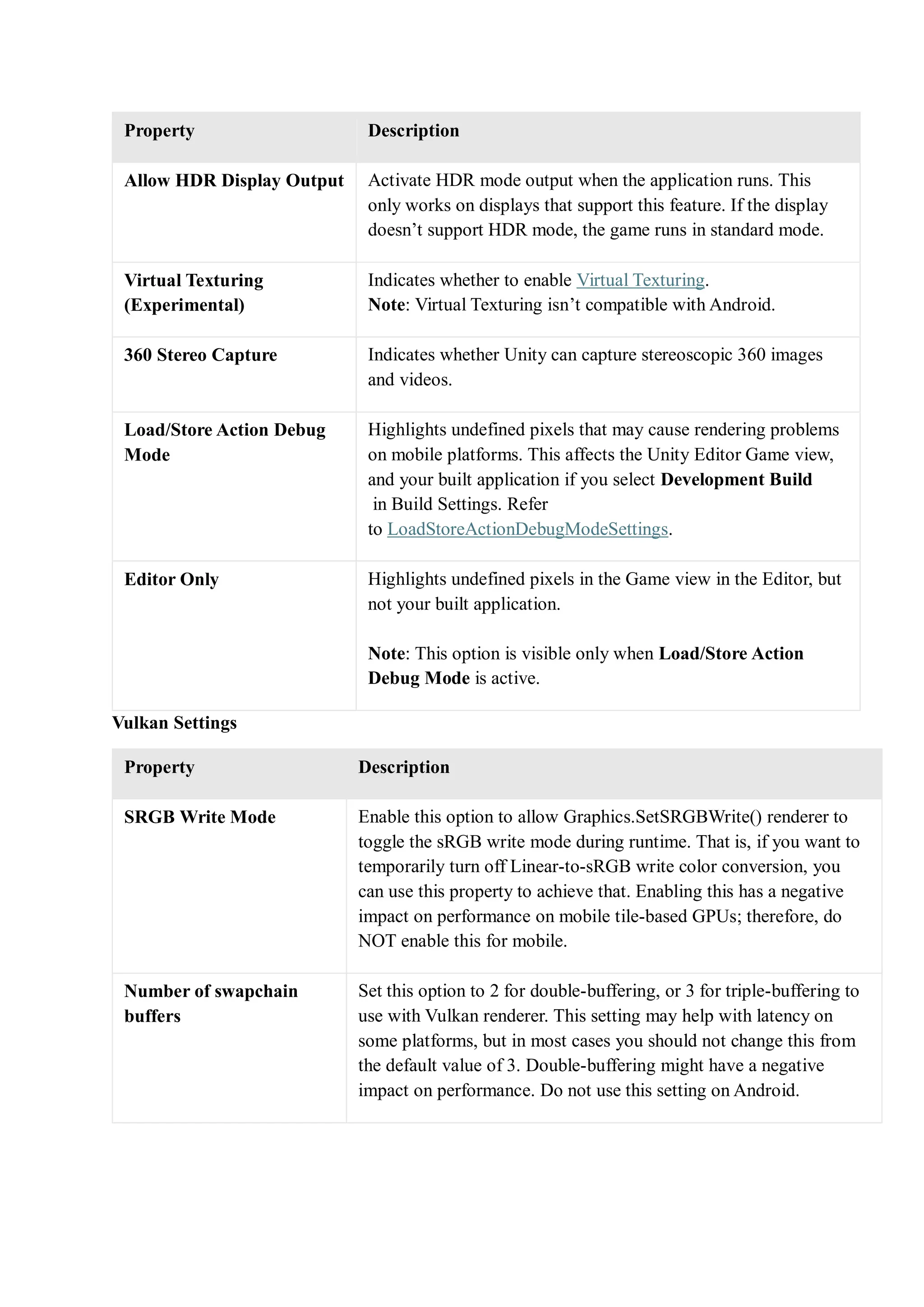
Allow HDR Display Output Activate HDR mode output when the application runs. This
only works on displays that support this feature. If the display
doesn’t support HDR mode, the game runs in standard mode.
Virtual Texturing
(Experimental)
Indicates whether to enable Virtual Texturing.
Note: Virtual Texturing isn’t compatible with Android.
360 Stereo Capture Indicates whether Unity can capture stereoscopic 360 images
and videos.
Load/Store Action Debug
Mode
Highlights undefined pixels that may cause rendering problems
on mobile platforms. This affects the Unity Editor Game view,
and your built application if you select Development Build
in Build Settings. Refer
to LoadStoreActionDebugModeSettings.
Editor Only Highlights undefined pixels in the Game view in the Editor, but
not your built application.
Note: This option is visible only when Load/Store Action
Debug Mode is active.
Vulkan Settings
Property Description
SRGB Write Mode Enable this option to allow Graphics.SetSRGBWrite() renderer to
toggle the sRGB write mode during runtime. That is, if you want to
temporarily turn off Linear-to-sRGB write color conversion, you
can use this property to achieve that. Enabling this has a negative
impact on performance on mobile tile-based GPUs; therefore, do
NOT enable this for mobile.
Number of swapchain
buffers
Set this option to 2 for double-buffering, or 3 for triple-buffering to
use with Vulkan renderer. This setting may help with latency on
some platforms, but in most cases you should not change this from
the default value of 3. Double-buffering might have a negative
impact on performance. Do not use this setting on Android.
Property Description
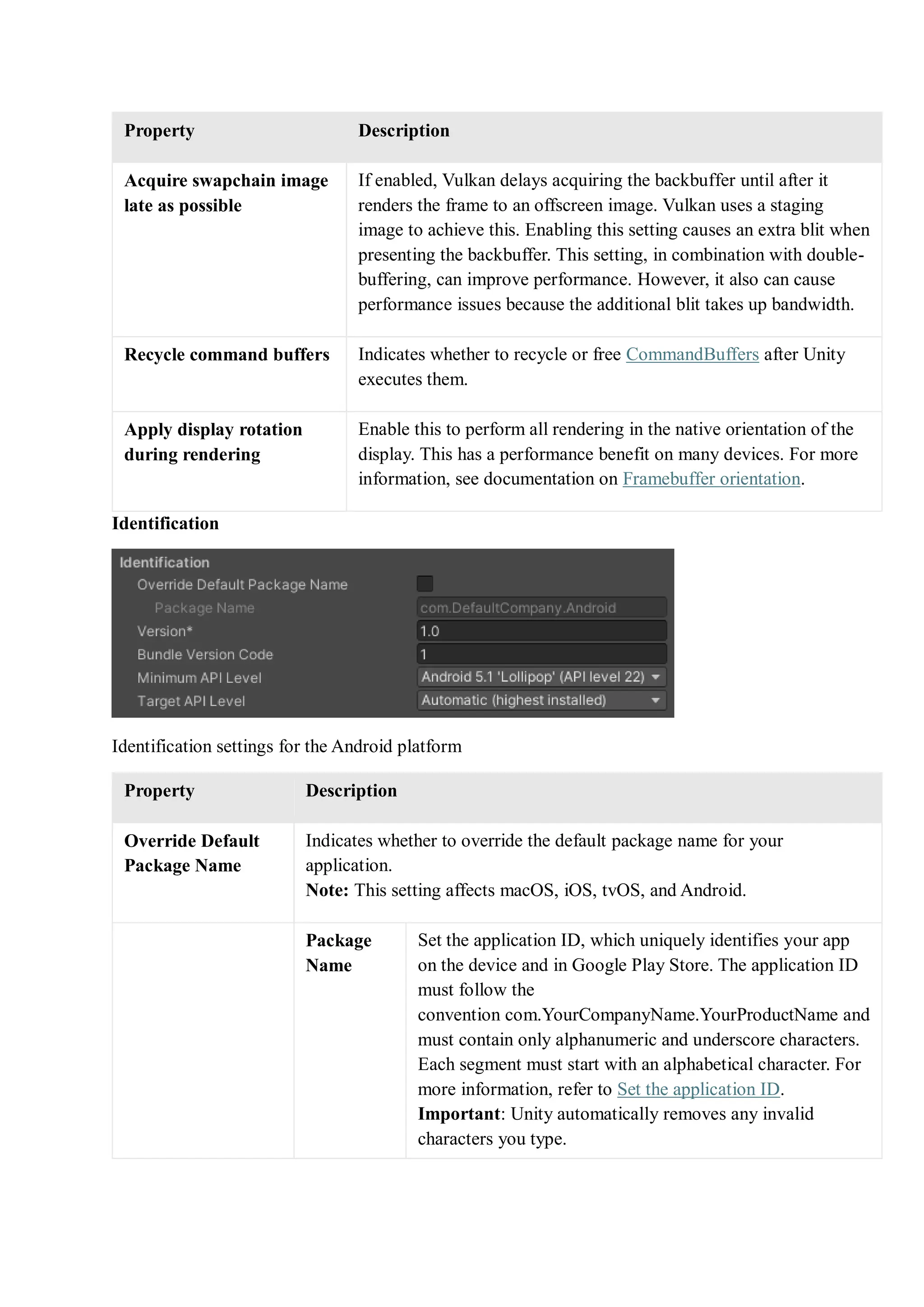
Acquire swapchain image
late as possible
If enabled, Vulkan delays acquiring the backbuffer until after it
renders the frame to an offscreen image. Vulkan uses a staging
image to achieve this. Enabling this setting causes an extra blit when
presenting the backbuffer. This setting, in combination with double-
buffering, can improve performance. However, it also can cause
performance issues because the additional blit takes up bandwidth.
Recycle command buffers Indicates whether to recycle or free CommandBuffers after Unity
executes them.
Apply display rotation
during rendering
Enable this to perform all rendering in the native orientation of the
display. This has a performance benefit on many devices. For more
information, see documentation on Framebuffer orientation.
Identification
Identification settings for the Android platform
Property Description
Override Default
Package Name
Indicates whether to override the default package name for your
application.
Note: This setting affects macOS, iOS, tvOS, and Android.
Package
Name
Set the application ID, which uniquely identifies your app
on the device and in Google Play Store. The application ID
must follow the
convention com.YourCompanyName.YourProductName and
must contain only alphanumeric and underscore characters.
Each segment must start with an alphabetical character. For
more information, refer to Set the application ID.
Important: Unity automatically removes any invalid
characters you type.
Property Description
To set this property, enable Override Default Package
Name.
Version Enter the build version number of the bundle, which identifies an iteration
(released or unreleased) of the bundle. The version is specified in the
common format of a string containing numbers separated by dots (For
example, 4.3.2). (Shared between iOS and Android.)
Bundle Version
Code
An internal version number. This number is used only to determine whether
one version is more recent than another, with higher numbers indicating
more recent versions. This isn’t the version number shown to users; that
number is set by the versionName attribute. The value must be set as an
integer, such as “100”. You can define it however you want, as long as each
successive version has a higher number.
For example, it could be a build number. Or you could translate a version
number in “x.y” format to an integer by encoding the “x” and “y”
separately in the lower and upper 16 bits. Or you could simply increase the
number by one each time a new version is released.
Keep this number under 100000 if Split APKs by target architecture is
enabled. Each APK must have a unique version code so Unity adds 100000
to the number for ARMv7, and 200000 for ARM64.
Minimum API
Level
Minimum Android version (API level) required to run the application.
Target API Level Target Android version (API level) against which to compile the
application.
Configuration
Property Description
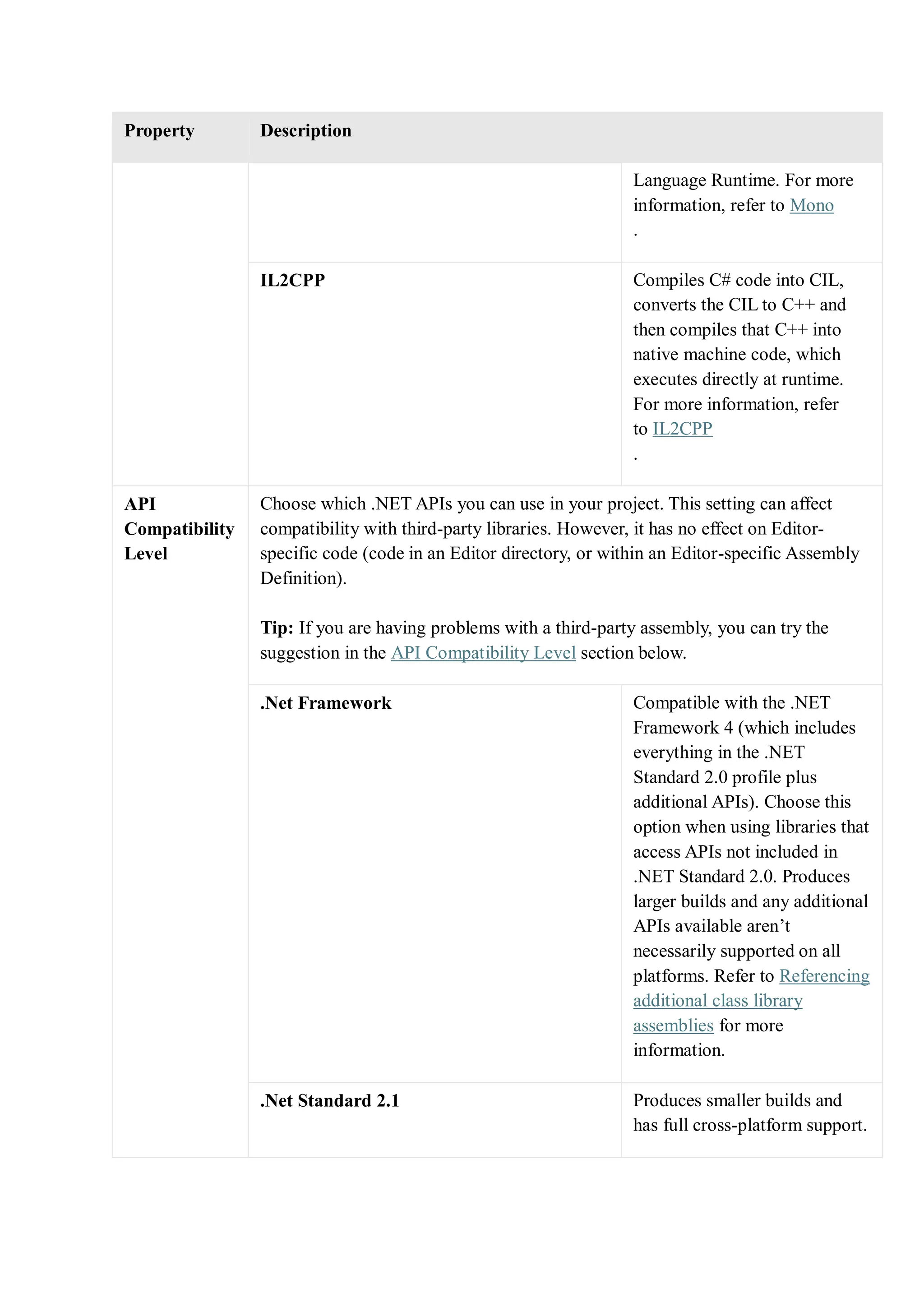
Scripting
Backend
Choose the scripting backend you want to use. The scripting backend determines
how Unity compiles and executes C# code in your Project.
Mono Compiles C# code into .NET
Common Intermediate
Language (CIL) and executes
that CIL using a Common
Property Description
Language Runtime. For more
information, refer to Mono
.
IL2CPP Compiles C# code into CIL,
converts the CIL to C++ and
then compiles that C++ into
native machine code, which
executes directly at runtime.
For more information, refer
to IL2CPP
.
API
Compatibility
Level
Choose which .NET APIs you can use in your project. This setting can affect
compatibility with third-party libraries. However, it has no effect on Editor-
specific code (code in an Editor directory, or within an Editor-specific Assembly
Definition).
Tip: If you are having problems with a third-party assembly, you can try the
suggestion in the API Compatibility Level section below.
.Net Framework Compatible with the .NET
Framework 4 (which includes
everything in the .NET
Standard 2.0 profile plus
additional APIs). Choose this
option when using libraries that
access APIs not included in
.NET Standard 2.0. Produces
larger builds and any additional
APIs available aren’t
necessarily supported on all
platforms. Refer to Referencing
additional class library
assemblies for more
information.
.Net Standard 2.1 Produces smaller builds and
has full cross-platform support.
Property Description
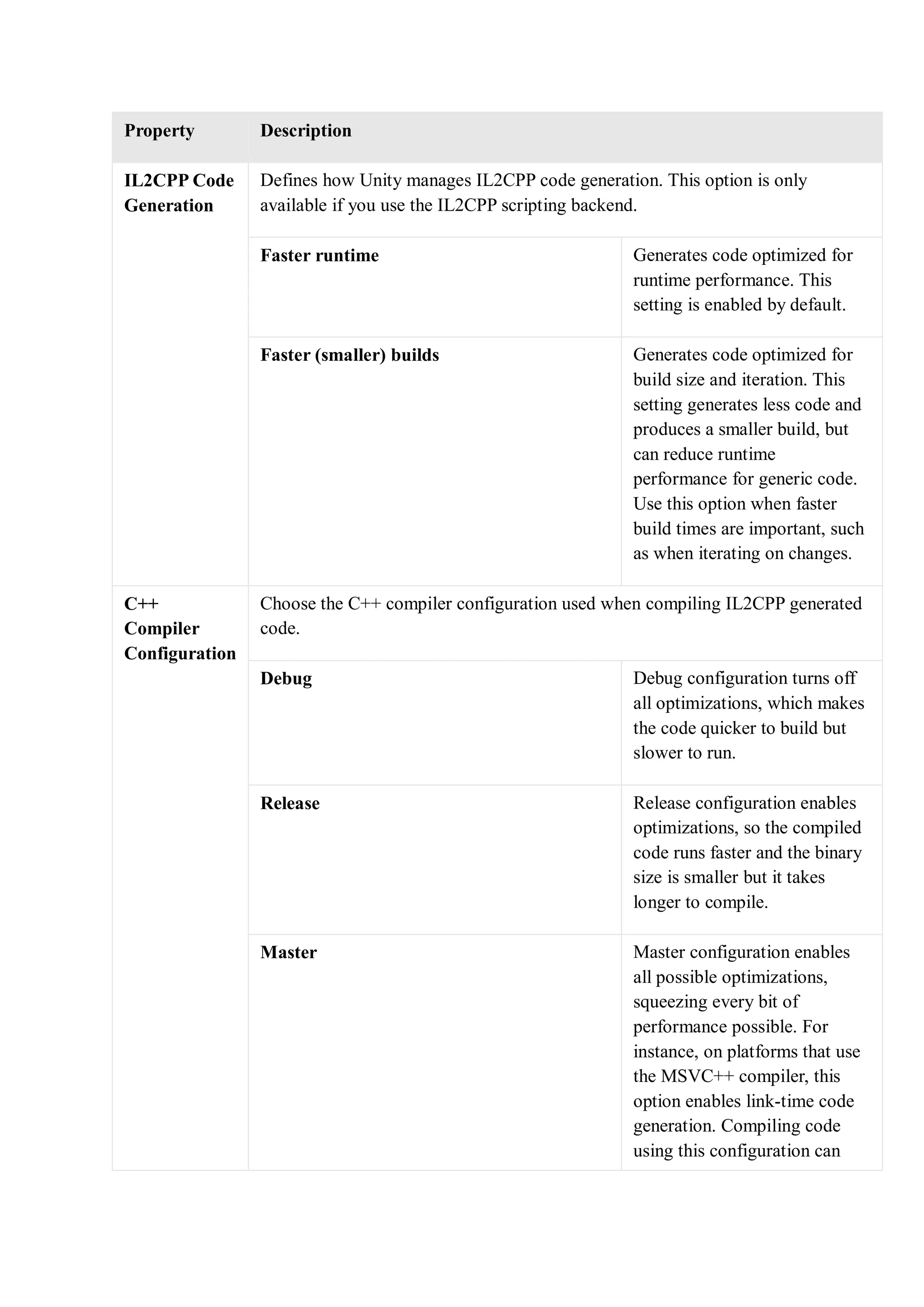
IL2CPP Code
Generation
Defines how Unity manages IL2CPP code generation. This option is only
available if you use the IL2CPP scripting backend.
Faster runtime Generates code optimized for
runtime performance. This
setting is enabled by default.
Faster (smaller) builds Generates code optimized for
build size and iteration. This
setting generates less code and
produces a smaller build, but
can reduce runtime
performance for generic code.
Use this option when faster
build times are important, such
as when iterating on changes.
C++
Compiler
Configuration
Choose the C++ compiler configuration used when compiling IL2CPP generated
code.
Debug Debug configuration turns off
all optimizations, which makes
the code quicker to build but
slower to run.
Release Release configuration enables
optimizations, so the compiled
code runs faster and the binary
size is smaller but it takes
longer to compile.
Master Master configuration enables
all possible optimizations,
squeezing every bit of
performance possible. For
instance, on platforms that use
the MSVC++ compiler, this
option enables link-time code
generation. Compiling code
using this configuration can
Property Description
take significantly longer than it
does using the Release
configuration. Unity
recommends building the
shipping version of your game
using the Master configuration
if the increase in build time is
acceptable.
Use
incremental
GC
Uses the incremental garbage collector, which spreads garbage collection over
several frames to reduce garbage collection-related spikes in frame duration. For
more information, refer to Automatic Memory Management.
Allow
downloads
over HTTP
Indicates whether to allow downloading content over HTTP. The options are Not
allowed, Allowed in Development builds only, and Always allowed. The
default option is Not allowed due to the recommended protocol being HTTPS,
which is more secure.
Mute Other
Audio
Sources
Enable this option if you want your Unity application to stop Audio from
applications running in the background. Otherwise, Audio from background
applications continues to play alongside your Unity application.
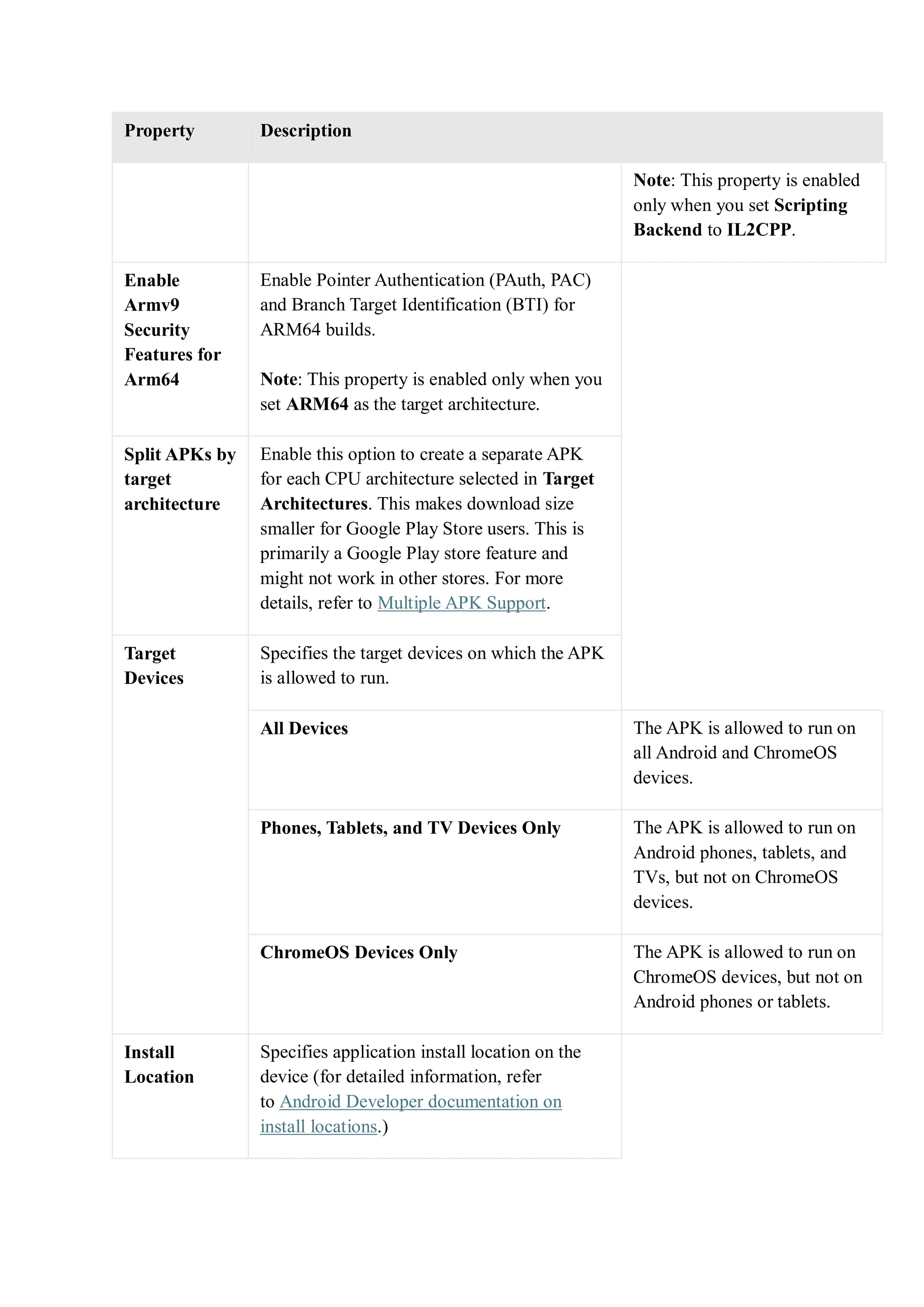
Target
Architectures
Specifies which architecture to target.
ARMv7 Enable support for ARMv7
architecture.
ARM64 Enable support for ARM64
architecture.
Note: This property is enabled
only when you set Scripting
Backend to IL2CPP.
x86 (ChromeOS) Enable support for x86
architecture.
x86–64 (ChromeOS and Magic Leap 2) Enable support for x86–64
architecture.
Property Description
Note: This property is enabled
only when you set Scripting
Backend to IL2CPP.
Enable
Armv9
Security
Features for
Arm64
Enable Pointer Authentication (PAuth, PAC)
and Branch Target Identification (BTI) for
ARM64 builds.
Note: This property is enabled only when you
set ARM64 as the target architecture.
Split APKs by
target
architecture
Enable this option to create a separate APK
for each CPU architecture selected in Target
Architectures. This makes download size
smaller for Google Play Store users. This is
primarily a Google Play store feature and
might not work in other stores. For more
details, refer to Multiple APK Support.
Target
Devices
Specifies the target devices on which the APK
is allowed to run.
All Devices The APK is allowed to run on
all Android and ChromeOS
devices.
Phones, Tablets, and TV Devices Only The APK is allowed to run on
Android phones, tablets, and
TVs, but not on ChromeOS
devices.
ChromeOS Devices Only The APK is allowed to run on
ChromeOS devices, but not on
Android phones or tablets.
Install
Location
Specifies application install location on the
device (for detailed information, refer
to Android Developer documentation on
install locations.)
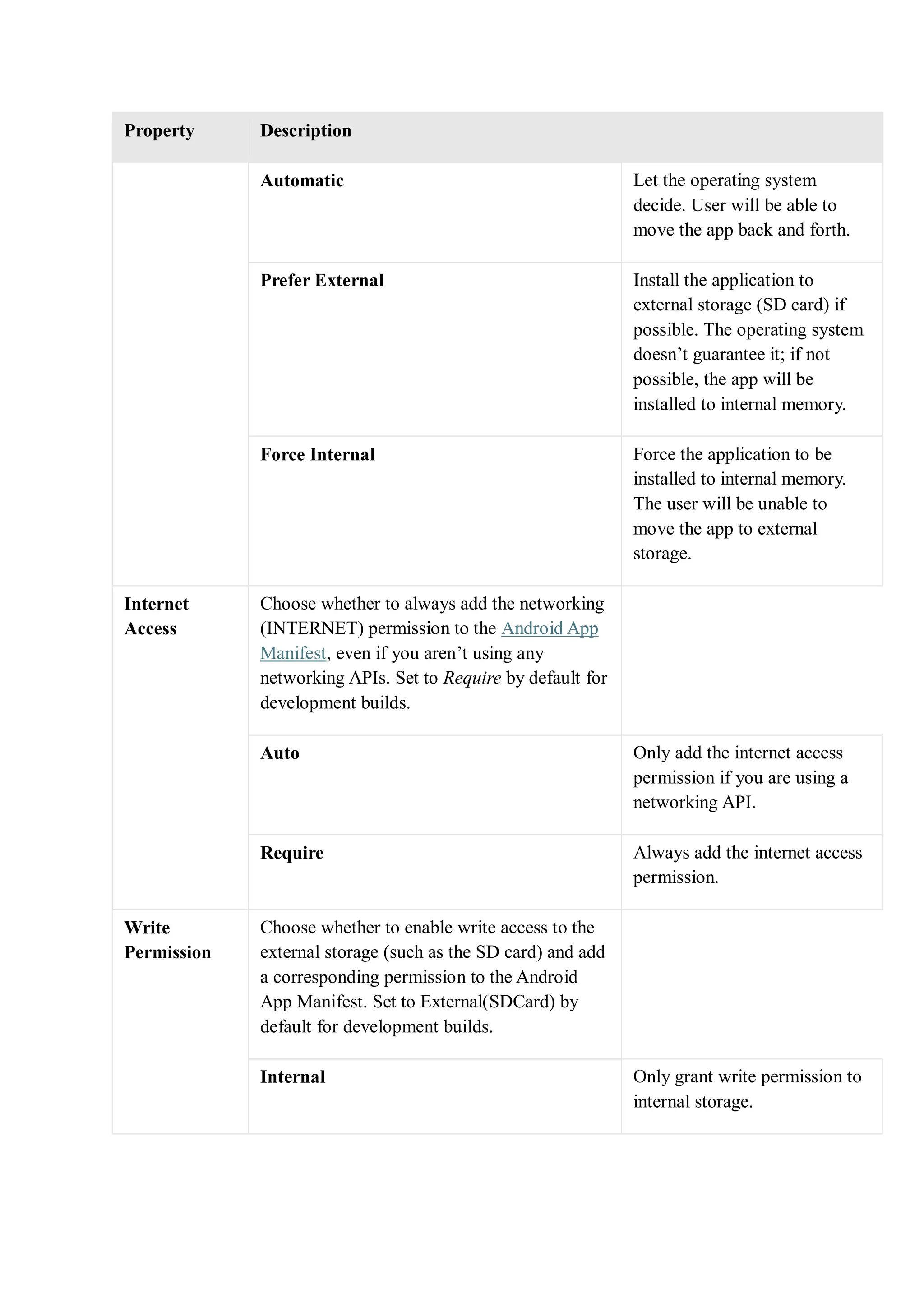
Property Description
Automatic Let the operating system
decide. User will be able to
move the app back and forth.
Prefer External Install the application to
external storage (SD card) if
possible. The operating system
doesn’t guarantee it; if not
possible, the app will be
installed to internal memory.
Force Internal Force the application to be
installed to internal memory.
The user will be unable to
move the app to external
storage.
Internet
Access
Choose whether to always add the networking
(INTERNET) permission to the Android App
Manifest, even if you aren’t using any
networking APIs. Set to Require by default for
development builds.
Auto Only add the internet access
permission if you are using a
networking API.
Require Always add the internet access
permission.
Write
Permission
Choose whether to enable write access to the
external storage (such as the SD card) and add
a corresponding permission to the Android
App Manifest. Set to External(SDCard) by
default for development builds.
Internal Only grant write permission to
internal storage.
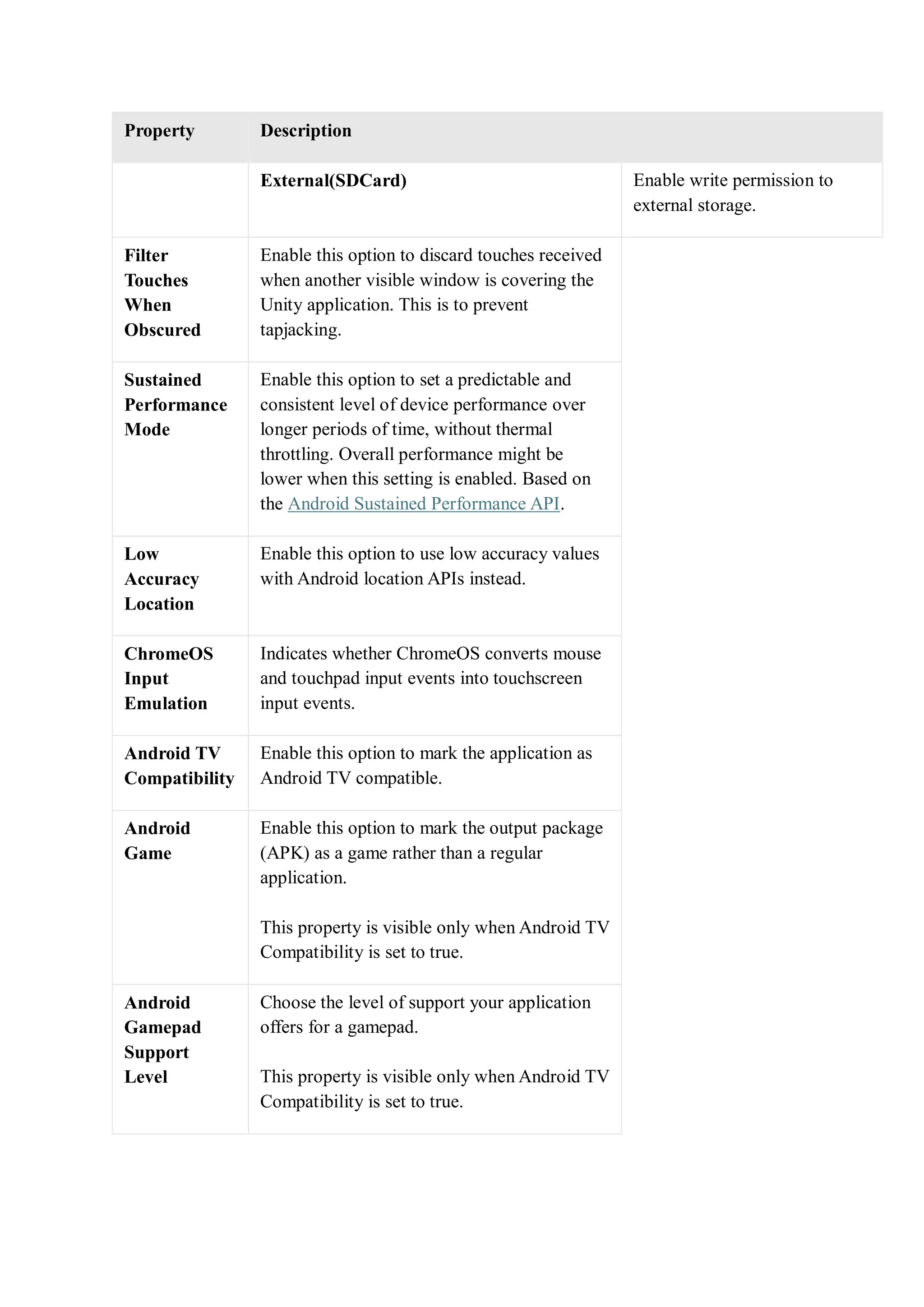
Property Description
External(SDCard) Enable write permission to
external storage.
Filter
Touches
When
Obscured
Enable this option to discard touches received
when another visible window is covering the
Unity application. This is to prevent
tapjacking.
Sustained
Performance
Mode
Enable this option to set a predictable and
consistent level of device performance over
longer periods of time, without thermal
throttling. Overall performance might be
lower when this setting is enabled. Based on
the Android Sustained Performance API.
Low
Accuracy
Location
Enable this option to use low accuracy values
with Android location APIs instead.
ChromeOS
Input
Emulation
Indicates whether ChromeOS converts mouse
and touchpad input events into touchscreen
input events.
Android TV
Compatibility
Enable this option to mark the application as
Android TV compatible.
Android
Game
Enable this option to mark the output package
(APK) as a game rather than a regular
application.
This property is visible only when Android TV
Compatibility is set to true.
Android
Gamepad
Support
Level
Choose the level of support your application
offers for a gamepad.
This property is visible only when Android TV
Compatibility is set to true.
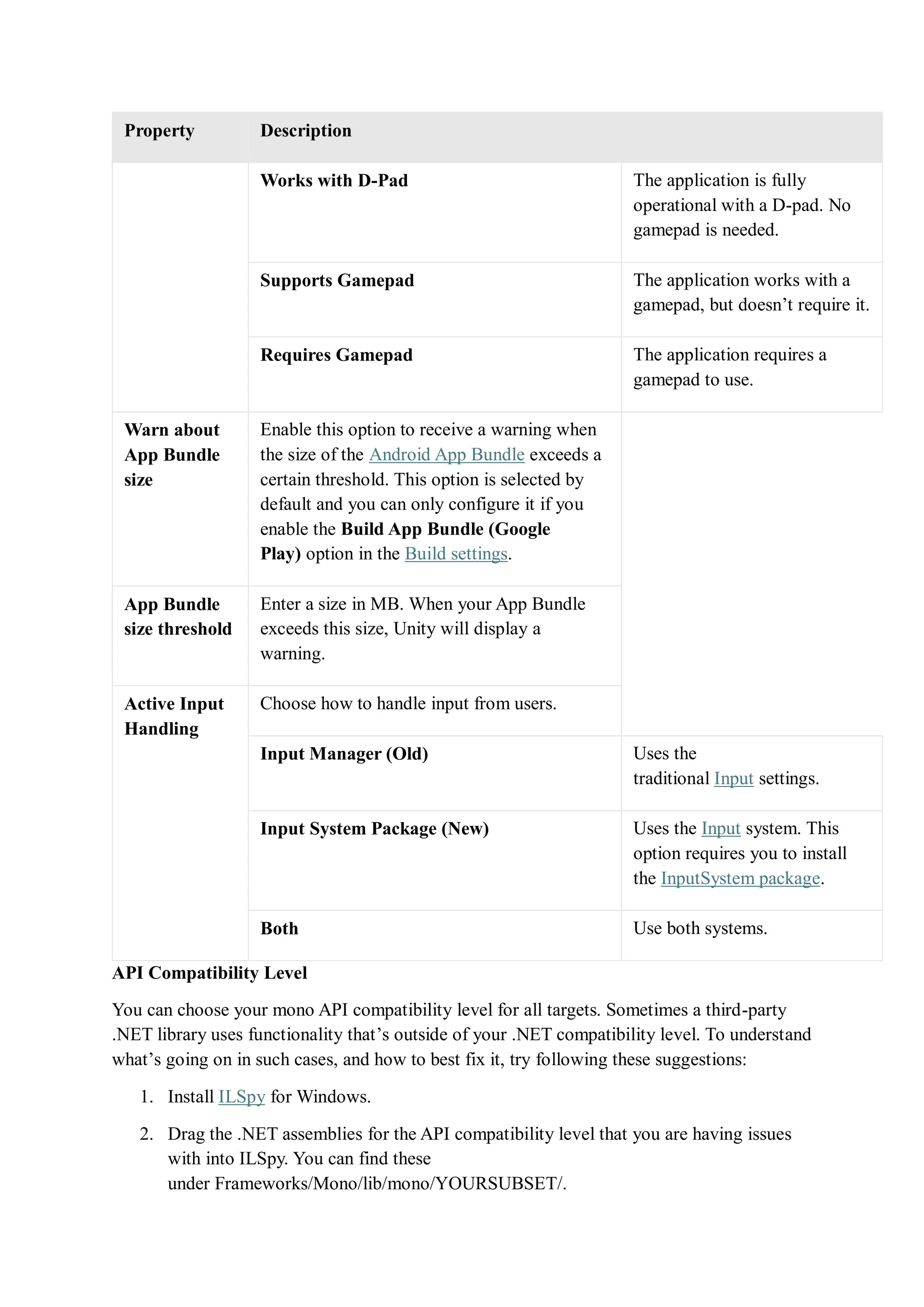
Property Description
Works with D-Pad The application is fully
operational with a D-pad. No
gamepad is needed.
Supports Gamepad The application works with a
gamepad, but doesn’t require it.
Requires Gamepad The application requires a
gamepad to use.
Warn about
App Bundle
size
Enable this option to receive a warning when
the size of the Android App Bundle exceeds a
certain threshold. This option is selected by
default and you can only configure it if you
enable the Build App Bundle (Google
Play) option in the Build settings.
App Bundle
size threshold
Enter a size in MB. When your App Bundle
exceeds this size, Unity will display a
warning.
Active Input
Handling
Choose how to handle input from users.
Input Manager (Old) Uses the
traditional Input settings.
Input System Package (New) Uses the Input system. This
option requires you to install
the InputSystem package.
Both Use both systems.
API Compatibility Level
You can choose your mono API compatibility level for all targets. Sometimes a third-party
.NET library uses functionality that’s outside of your .NET compatibility level. To understand
what’s going on in such cases, and how to best fix it, try following these suggestions:
1. Install ILSpy for Windows.
2. Drag the .NET assemblies for the API compatibility level that you are having issues
with into ILSpy. You can find these
under Frameworks/Mono/lib/mono/YOURSUBSET/.
3. Drag in your third-party assembly.
4. Right-click your third-party assembly and select Analyze.
5. In the analysis report, inspect the Depends on section. The report highlights anything
that the third-party assembly depends on, but that’s not available in the .NET
compatibility level of your choice in red.
Shader Settings
Property Description
Shader Precision Model Select the default precision shaders use. For more information,
refer to Use 16-bit precision in shaders.
Platform
default
Use lower precision on mobile platforms,
and full precision on other platforms.
Unified Use lower precision if the platform
supports it.
Strict shader variant
matching
Enable this option to use the error shader for rendering if a
shader variant is missing in the Player build and display an
error in the console. The error specifies the shader, subshader
index, pass, and keywords used for shader variant search
Keep Loaded Shaders Alive Keep all loaded shaders alive and prevent unloading. For more
information, refer to shader loading.
Shader Variant Loading Settings
Use these settings to control how much memory shaders use at runtime.
Property Description
Default chunk size (MB) Sets the maximum size of compressed shader variant data chunks
Unity stores in your built application for all platforms. The default
is 16. For more information, refer to Shader loading.
Default chunk count Sets the default limit on how many decompressed chunks Unity
keeps in memory on all platforms. The default is 0, which means
there’s no limit.
Override Enables overriding Default chunk size and Default chunk
count for this build target.
Property Description
Chunk size (MB) Overrides the value of Default chunk size (MB) on this build
target.
Chunk count Overrides the value of Default chunk count on this build target.
Script Compilation
Script compilation settings for the Android platform
Property Description
Scripting Define Symbols Sets custom compilation flags.
For more details, see Platform dependent compilation.
Additional Compiler Arguments Adds entries to this list to pass additional arguments to the
Roslyn compiler. Use one new entry for each additional
argument.
To create a new entry, click Add (+). To remove an entry,
click Remove (-).
When you have added all desired arguments,
click Apply to include your additional arguments in future
compilations. Click Revert to reset this list to the most
recent applied state.
Suppress Common Warnings Indicates whether to display the C#
warnings CS0169 and CS0649.
Property Description
Allow ‘unsafe’ Code Enables support for compiling ‘unsafe’ C# code in a pre-
defined assembly (for example, Assembly-CSharp.dll).
For Assembly Definition Files (.asmdef), click on one of
your .asmdef files and enable the option in the Inspector
window that appears.
Use Deterministic Compilation Indicates whether to prevent compilation with the -
deterministic C# flag. With this setting enabled, compiled
assemblies are byte-for-byte identical each time they are
compiled.
For more information, see Microsoft’s deterministic
compiler option.
Optimization
Optimization settings for the Android platform
Property Description
Prebake Collision
Meshes
Adds collision data to Meshes at build time.
Preloaded Assets Sets an array of Assets for the player to load on startup.
To add new Assets, increase the value of the Size property and then set
a reference to the Asset to load in the new Element box that appears.
Strip Engine Code Enable this option if you want the Unity Linker tool to remove code for
Unity Engine features that your Project doesn’t use. This setting is only
available with the IL2CPP scripting backend.
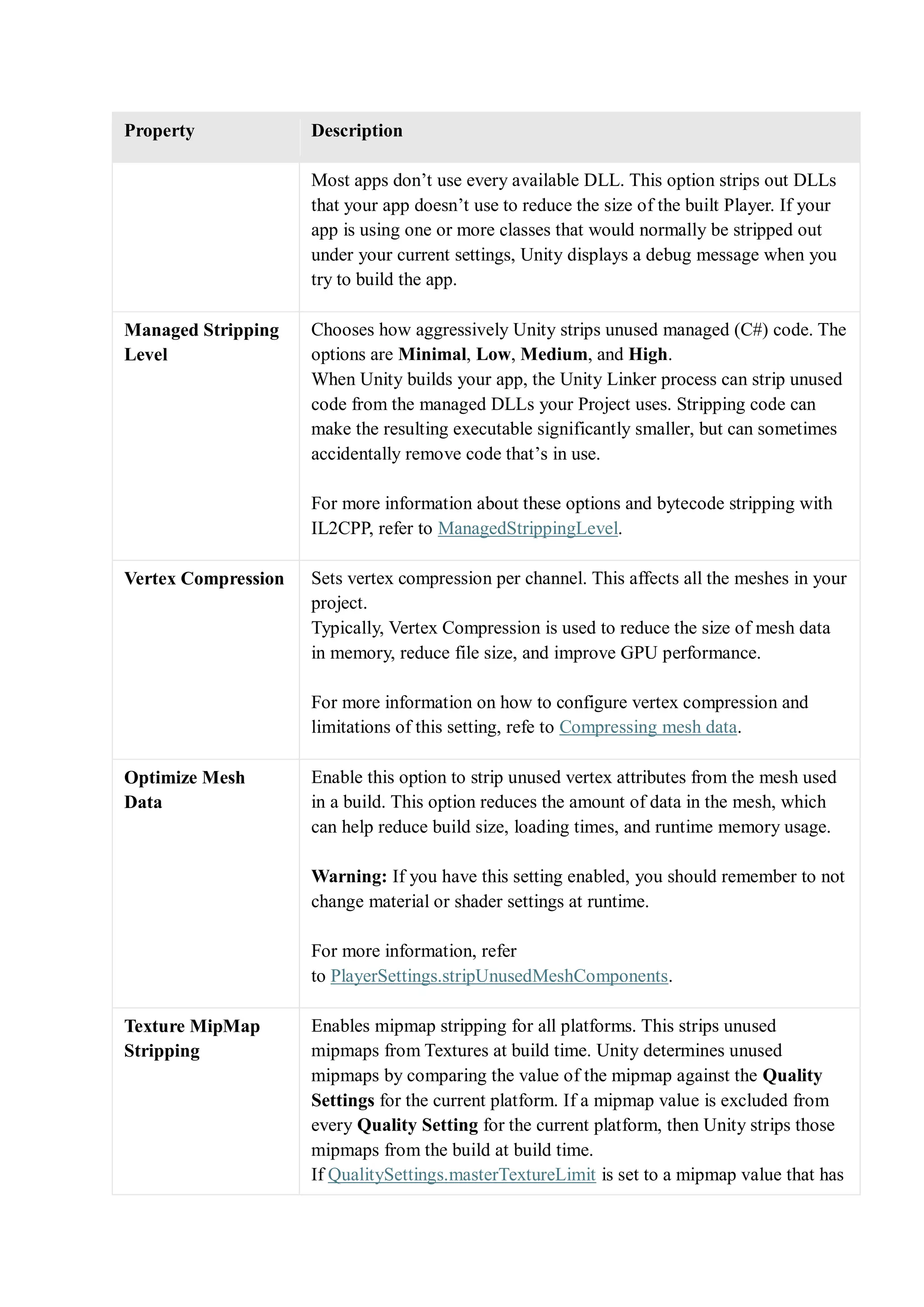
Property Description
Most apps don’t use every available DLL. This option strips out DLLs
that your app doesn’t use to reduce the size of the built Player. If your
app is using one or more classes that would normally be stripped out
under your current settings, Unity displays a debug message when you
try to build the app.
Managed Stripping
Level
Chooses how aggressively Unity strips unused managed (C#) code. The
options are Minimal, Low, Medium, and High.
When Unity builds your app, the Unity Linker process can strip unused
code from the managed DLLs your Project uses. Stripping code can
make the resulting executable significantly smaller, but can sometimes
accidentally remove code that’s in use.
For more information about these options and bytecode stripping with
IL2CPP, refer to ManagedStrippingLevel.
Vertex Compression Sets vertex compression per channel. This affects all the meshes in your
project.
Typically, Vertex Compression is used to reduce the size of mesh data
in memory, reduce file size, and improve GPU performance.
For more information on how to configure vertex compression and
limitations of this setting, refe to Compressing mesh data.
Optimize Mesh
Data
Enable this option to strip unused vertex attributes from the mesh used
in a build. This option reduces the amount of data in the mesh, which
can help reduce build size, loading times, and runtime memory usage.
Warning: If you have this setting enabled, you should remember to not
change material or shader settings at runtime.
For more information, refer
to PlayerSettings.stripUnusedMeshComponents.
Texture MipMap
Stripping
Enables mipmap stripping for all platforms. This strips unused
mipmaps from Textures at build time. Unity determines unused
mipmaps by comparing the value of the mipmap against the Quality
Settings for the current platform. If a mipmap value is excluded from
every Quality Setting for the current platform, then Unity strips those
mipmaps from the build at build time.
If QualitySettings.masterTextureLimit is set to a mipmap value that has
Property Description
been stripped, Unity will set the value to the closest mipmap value that
has not been stripped.
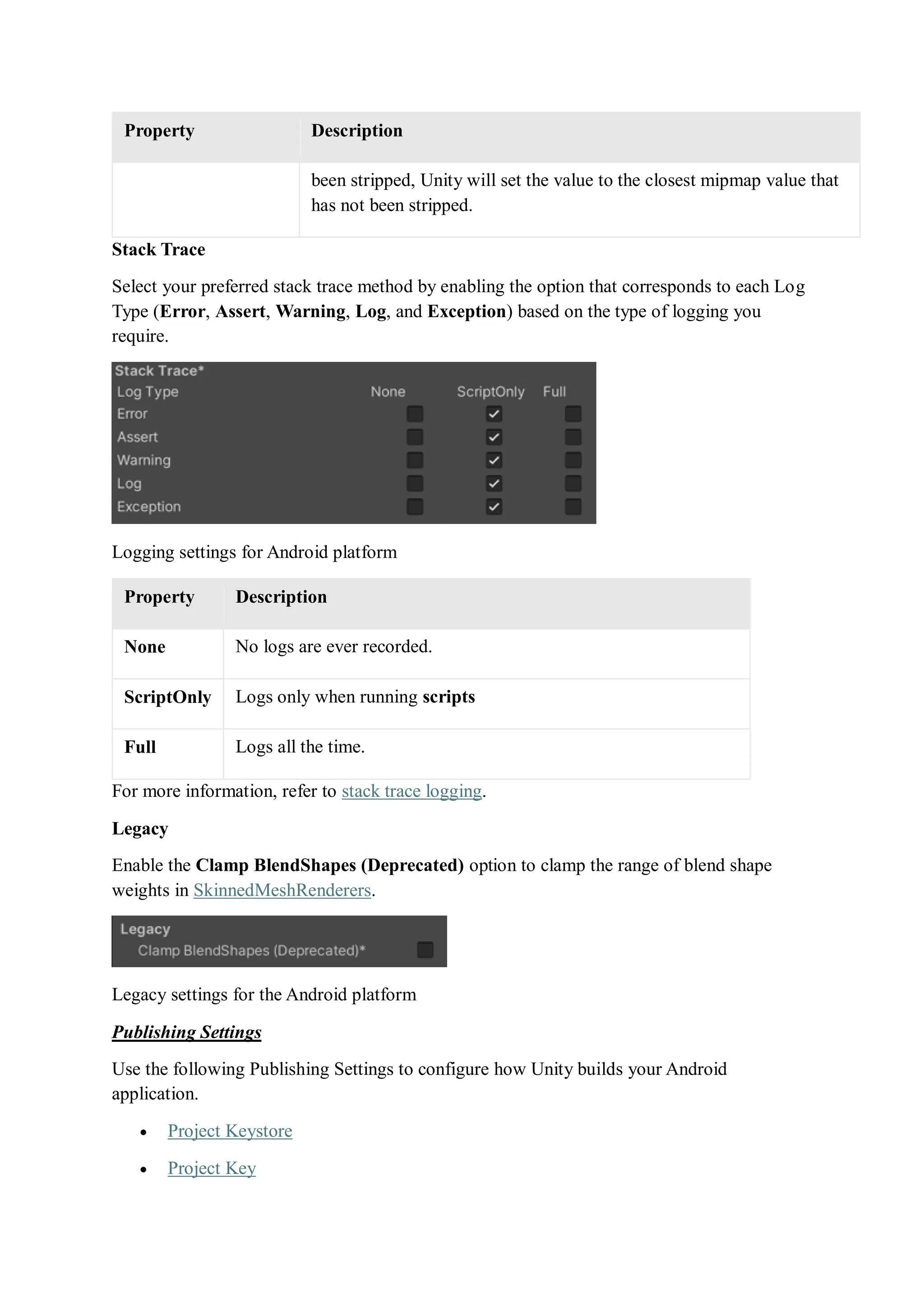
Stack Trace
Select your preferred stack trace method by enabling the option that corresponds to each Log
Type (Error, Assert, Warning, Log, and Exception) based on the type of logging you
require.
Logging settings for Android platform
Property Description
None No logs are ever recorded.
ScriptOnly Logs only when running scripts
Full Logs all the time.
For more information, refer to stack trace logging.
Legacy
Enable the Clamp BlendShapes (Deprecated) option to clamp the range of blend shape
weights in SkinnedMeshRenderers.
Legacy settings for the Android platform
Publishing Settings
Use the following Publishing Settings to configure how Unity builds your Android
application.
 Project Keystore
 Project Key
 Build
 Minify
 Split Application Binary
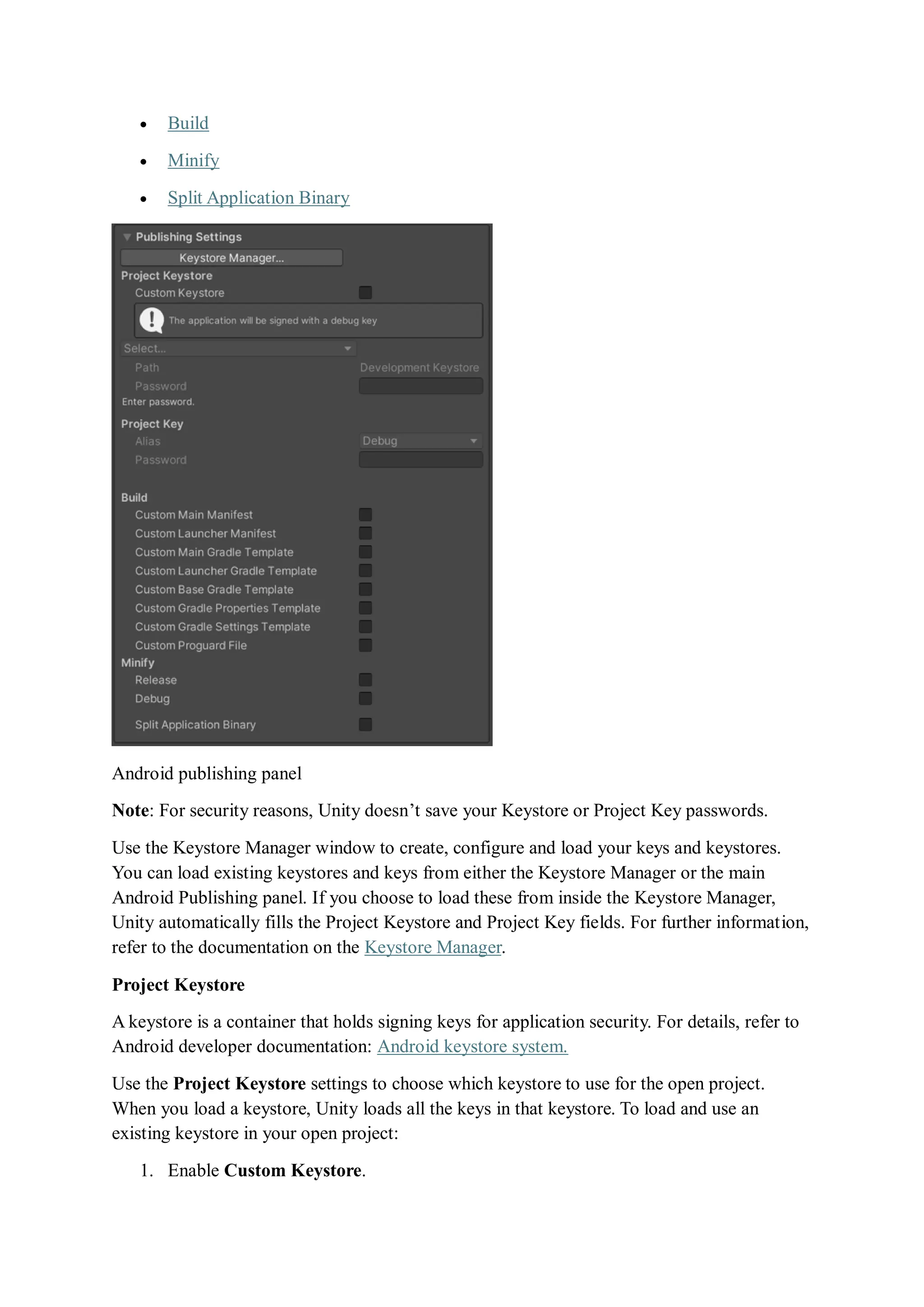
Android publishing panel
Note: For security reasons, Unity doesn’t save your Keystore or Project Key passwords.
Use the Keystore Manager window to create, configure and load your keys and keystores.
You can load existing keystores and keys from either the Keystore Manager or the main
Android Publishing panel. If you choose to load these from inside the Keystore Manager,
Unity automatically fills the Project Keystore and Project Key fields. For further information,
refer to the documentation on the Keystore Manager.
Project Keystore
A keystore is a container that holds signing keys for application security. For details, refer to
Android developer documentation: Android keystore system.
Use the Project Keystore settings to choose which keystore to use for the open project.
When you load a keystore, Unity loads all the keys in that keystore. To load and use an
existing keystore in your open project:
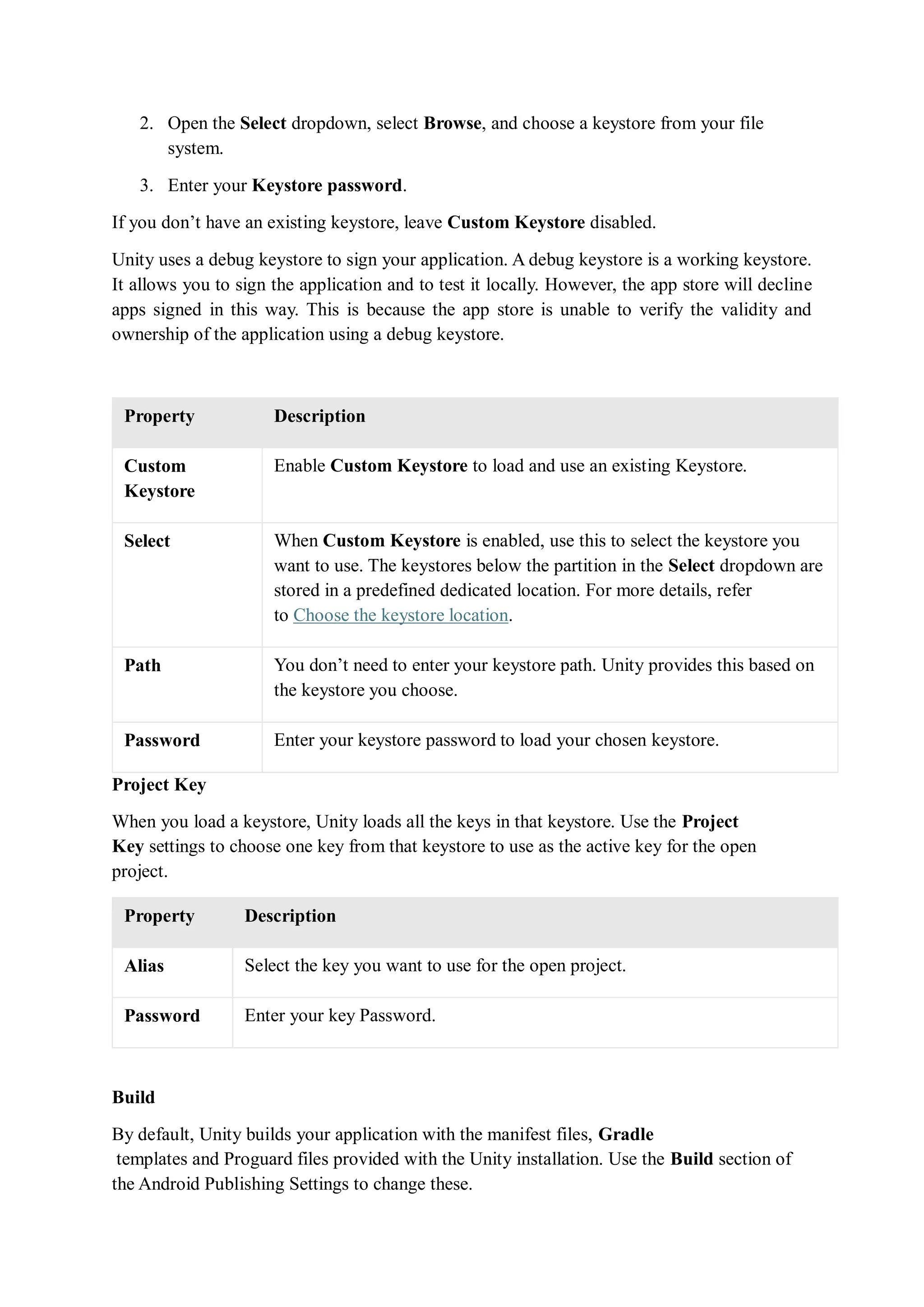
1. Enable Custom Keystore.
2. Open the Select dropdown, select Browse, and choose a keystore from your file
system.
3. Enter your Keystore password.
If you don’t have an existing keystore, leave Custom Keystore disabled.
Unity uses a debug keystore to sign your application. A debug keystore is a working keystore.
It allows you to sign the application and to test it locally. However, the app store will decline
apps signed in this way. This is because the app store is unable to verify the validity and
ownership of the application using a debug keystore.
Property Description
Custom
Keystore
Enable Custom Keystore to load and use an existing Keystore.
Select When Custom Keystore is enabled, use this to select the keystore you
want to use. The keystores below the partition in the Select dropdown are
stored in a predefined dedicated location. For more details, refer
to Choose the keystore location.
Path You don’t need to enter your keystore path. Unity provides this based on
the keystore you choose.
Password Enter your keystore password to load your chosen keystore.
Project Key
When you load a keystore, Unity loads all the keys in that keystore. Use the Project
Key settings to choose one key from that keystore to use as the active key for the open
project.
Property Description
Alias Select the key you want to use for the open project.
Password Enter your key Password.
Build
By default, Unity builds your application with the manifest files, Gradle
templates and Proguard files provided with the Unity installation. Use the Build section of
the Android Publishing Settings to change these.
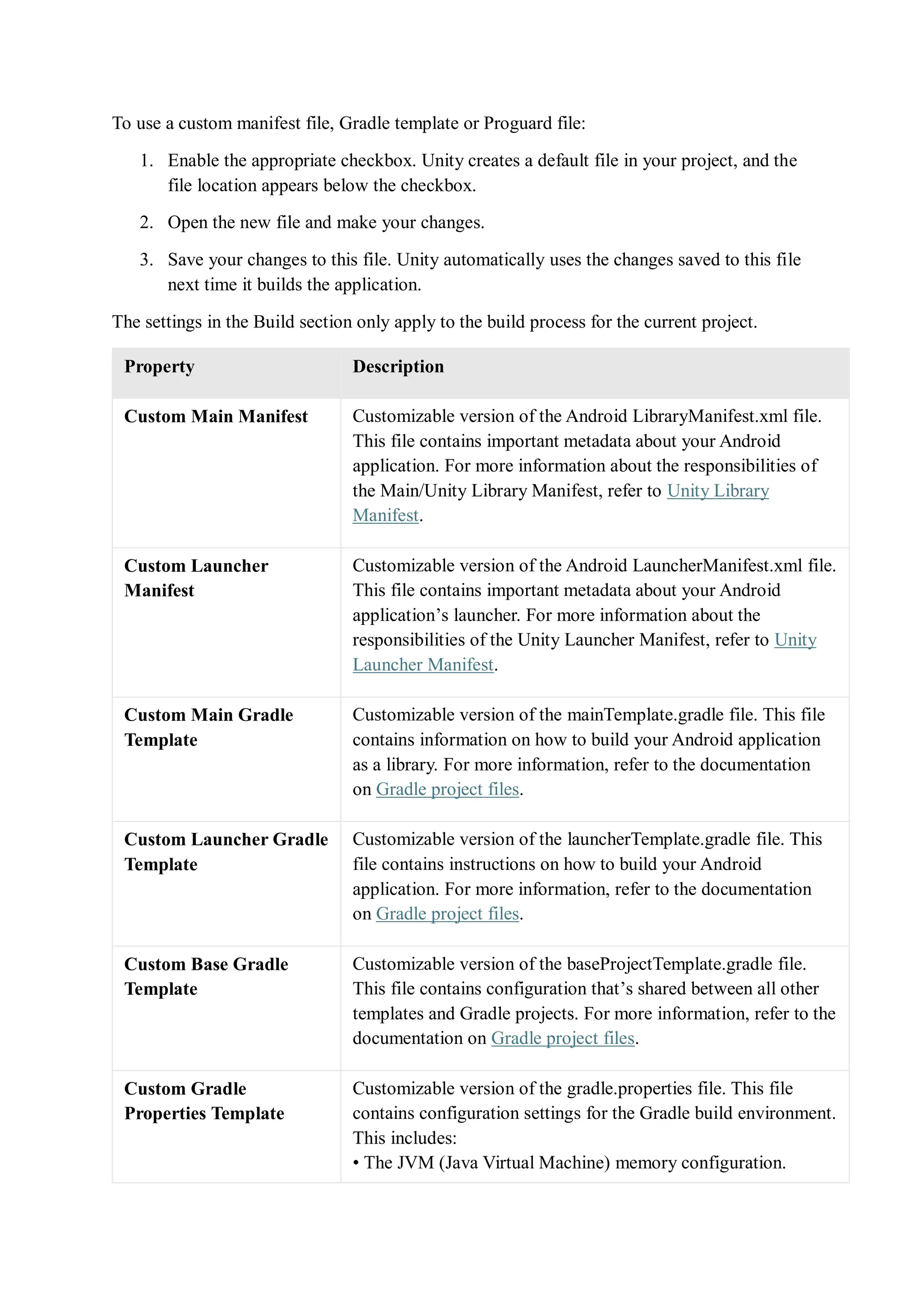
To use a custom manifest file, Gradle template or Proguard file:
1. Enable the appropriate checkbox. Unity creates a default file in your project, and the
file location appears below the checkbox.
2. Open the new file and make your changes.
3. Save your changes to this file. Unity automatically uses the changes saved to this file
next time it builds the application.
The settings in the Build section only apply to the build process for the current project.
Property Description
Custom Main Manifest Customizable version of the Android LibraryManifest.xml file.
This file contains important metadata about your Android
application. For more information about the responsibilities of
the Main/Unity Library Manifest, refer to Unity Library
Manifest.
Custom Launcher
Manifest
Customizable version of the Android LauncherManifest.xml file.
This file contains important metadata about your Android
application’s launcher. For more information about the
responsibilities of the Unity Launcher Manifest, refer to Unity
Launcher Manifest.
Custom Main Gradle
Template
Customizable version of the mainTemplate.gradle file. This file
contains information on how to build your Android application
as a library. For more information, refer to the documentation
on Gradle project files.
Custom Launcher Gradle
Template
Customizable version of the launcherTemplate.gradle file. This
file contains instructions on how to build your Android
application. For more information, refer to the documentation
on Gradle project files.
Custom Base Gradle
Template
Customizable version of the baseProjectTemplate.gradle file.
This file contains configuration that’s shared between all other
templates and Gradle projects. For more information, refer to the
documentation on Gradle project files.
Custom Gradle
Properties Template
Customizable version of the gradle.properties file. This file
contains configuration settings for the Gradle build environment.
This includes:
• The JVM (Java Virtual Machine) memory configuration.
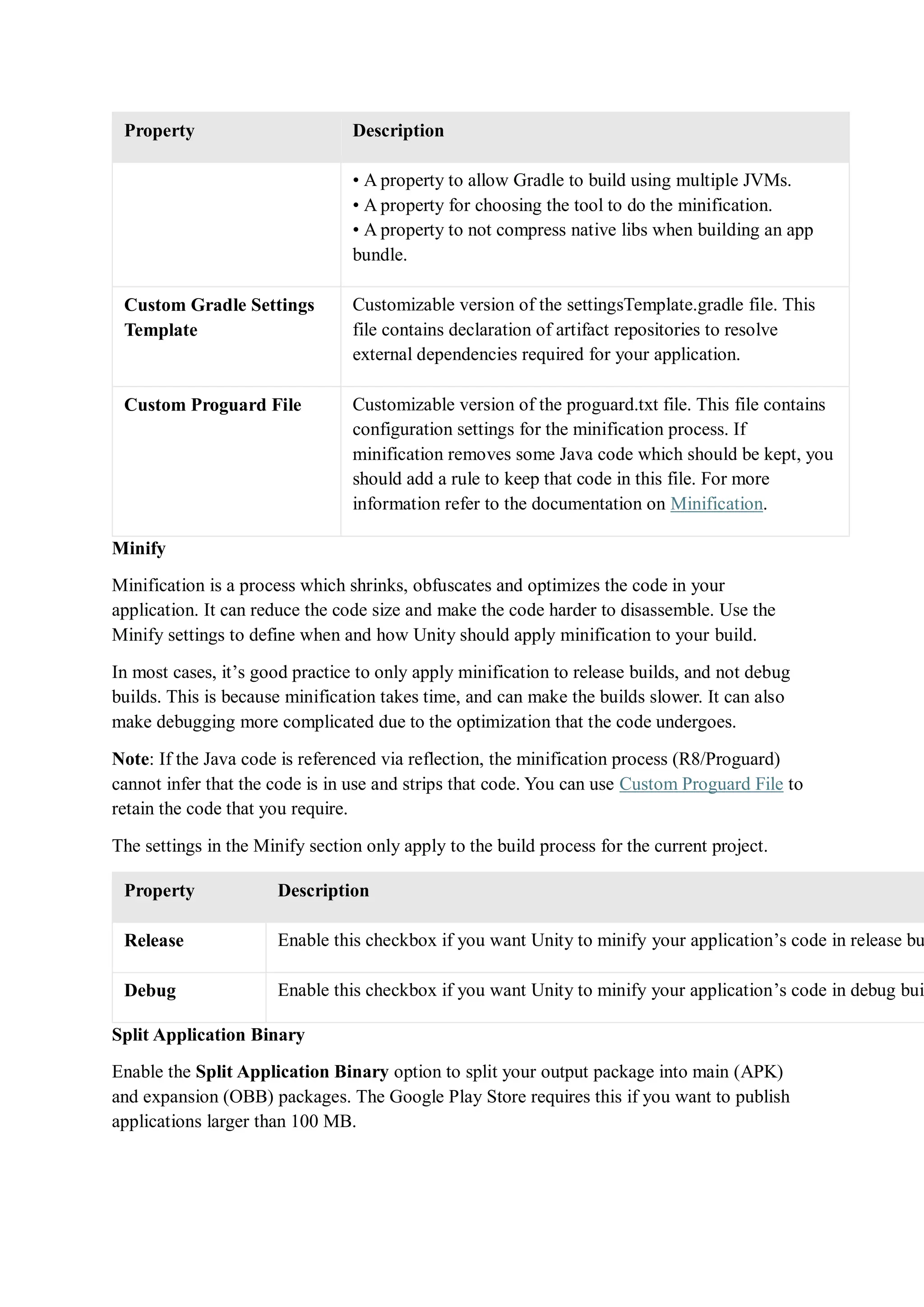
Property Description
• A property to allow Gradle to build using multiple JVMs.
• A property for choosing the tool to do the minification.
• A property to not compress native libs when building an app
bundle.
Custom Gradle Settings
Template
Customizable version of the settingsTemplate.gradle file. This
file contains declaration of artifact repositories to resolve
external dependencies required for your application.
Custom Proguard File Customizable version of the proguard.txt file. This file contains
configuration settings for the minification process. If
minification removes some Java code which should be kept, you
should add a rule to keep that code in this file. For more
information refer to the documentation on Minification.
Minify
Minification is a process which shrinks, obfuscates and optimizes the code in your
application. It can reduce the code size and make the code harder to disassemble. Use the
Minify settings to define when and how Unity should apply minification to your build.
In most cases, it’s good practice to only apply minification to release builds, and not debug
builds. This is because minification takes time, and can make the builds slower. It can also
make debugging more complicated due to the optimization that the code undergoes.
Note: If the Java code is referenced via reflection, the minification process (R8/Proguard)
cannot infer that the code is in use and strips that code. You can use Custom Proguard File to
retain the code that you require.
The settings in the Minify section only apply to the build process for the current project.
Property Description
Release Enable this checkbox if you want Unity to minify your application’s code in release bu
Debug Enable this checkbox if you want Unity to minify your application’s code in debug bui
Split Application Binary
Enable the Split Application Binary option to split your output package into main (APK)
and expansion (OBB) packages. The Google Play Store requires this if you want to publish
applications larger than 100 MB.
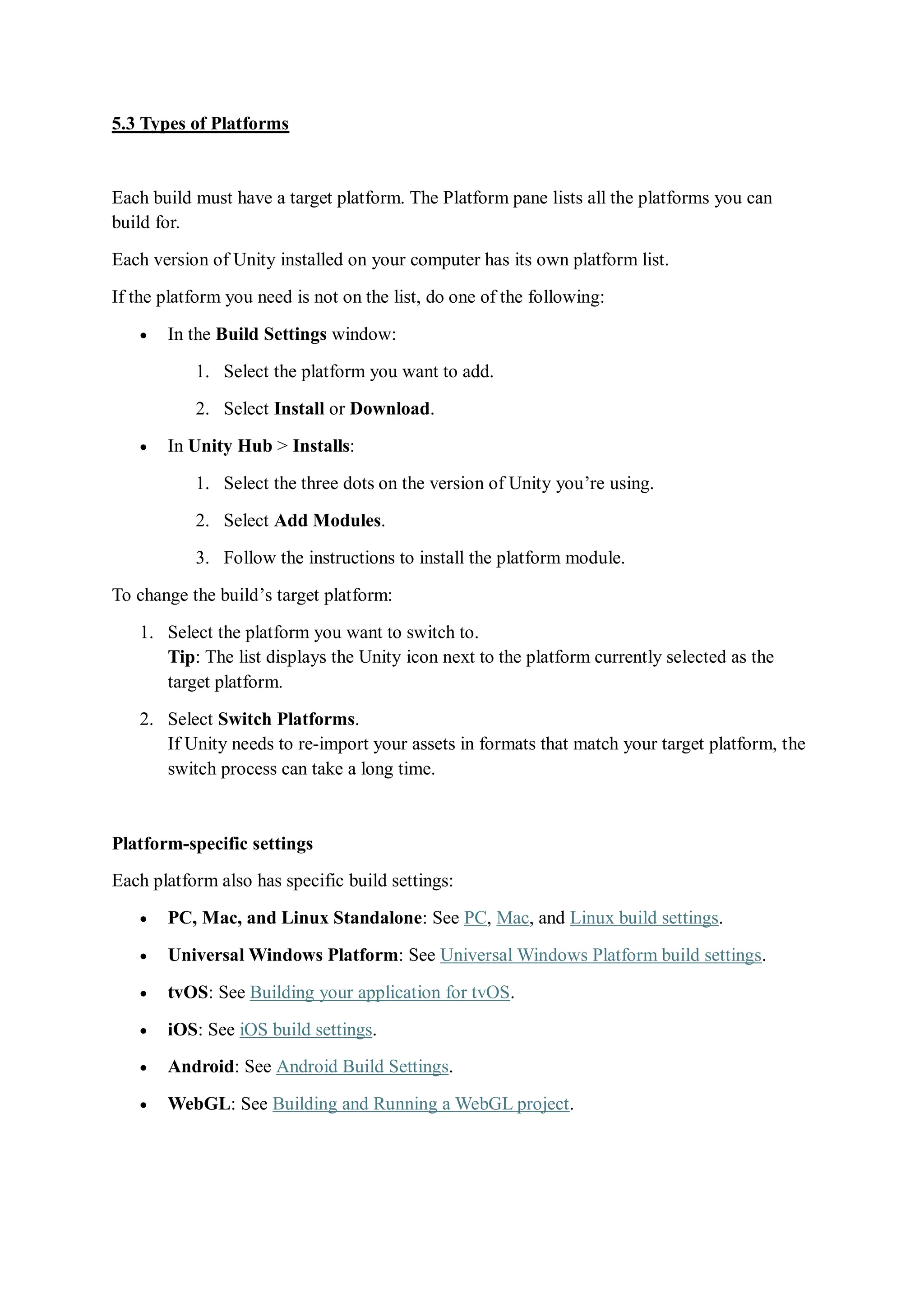
5.3 Types of Platforms
Each build must have a target platform. The Platform pane lists all the platforms you can
build for.
Each version of Unity installed on your computer has its own platform list.
If the platform you need is not on the list, do one of the following:
 In the Build Settings window:
1. Select the platform you want to add.
2. Select Install or Download.
 In Unity Hub > Installs:
1. Select the three dots on the version of Unity you’re using.
2. Select Add Modules.
3. Follow the instructions to install the platform module.
To change the build’s target platform:
1. Select the platform you want to switch to.
Tip: The list displays the Unity icon next to the platform currently selected as the
target platform.
2. Select Switch Platforms.
If Unity needs to re-import your assets in formats that match your target platform, the
switch process can take a long time.
Platform-specific settings
Each platform also has specific build settings:
 PC, Mac, and Linux Standalone: See PC, Mac, and Linux build settings.
 Universal Windows Platform: See Universal Windows Platform build settings.
 tvOS: See Building your application for tvOS.
 iOS: See iOS build settings.
 Android: See Android Build Settings.
 WebGL: See Building and Running a WebGL project.
 For the Build Settings for closed platform
development, see the documentation included in the Unity installer, or consult the
Unity Forums.
5.4 Bug Analysis & Bug Fixing
Unity supports the following ways to debug an application on an Android device:
 USB debugging.
 Both wired and wireless connection through Android Debug Bridge.
USB debugging
Unity supports USB debugging for Android devices. To use USB debugging, enable
developer options on your device. To do this, refer to Android’s Configure developer
options documentation.
Use a USB cable to connect the device to your computer. If you are developing on a
Windows computer, you might need to install a device-specific USB driver. See the
manufacturer’s website for your device for additional information.
The setup process differs for Windows and macOS. For more information on connecting your
Android device to the SDK, refer to the Run Your App section of the Android Developer
documentation.
Note: Unity doesn’t support USB debugging for ChromeOS devices. Instead, use Android
Debug Bridge over wireless connection.
Android Debug Bridge
Unity supports Android Debug Bridge (ADB) over USB for Android devices and over wireless
connection for Android and ChromeOS devices. Wireless connection is useful when you can’t
perform USB debugging, such as when using a ChromeOS device, when a controller is plugged
into the Android device, or when debugging VR applications and you insert the Android device
into the VR Kit. For information on how to connect a ChromeOS device to Unity through ADB
, refer to Debugging on a ChromeOS device.
Connect via USB
To connect an Android device to Unity through ADB using a USB:
1. Enable ADB on the device. For information on how to do this, refer to Set up a device
for development.
2. Use a USB cable to connect your Android device to the machine running Unity.
3. Navigate to File > Build Settings > Android.
4. From the Run Device build setting, select your device from the available options. If
your device doesn’t appear, click Refresh.
5. Select Build And Run to build the application and run it on the device.
Connect wirelessly
To wirelessly connect an Android device to Unity through ADB:
1. Enable wireless ADB on the device. For information on how to do this, refer
to Connect to your device using Wi-Fi.
2. Find the IP address of your device. The process to do this depends on your device
manufacturer.
3. Navigate to File > Build Settings > Android.
4. From the Run Device build setting, select the <Enter IP> option.
5. In the window that opens, enter the IP address and port number of the device. If the
device’s port number is 5555, you don’t need to enter it.
6. Select Add. Once Unity connects to the device, the device name appears in the Run
Device list and is selected.
7. Select Build And Run to build the application and run it on the device.
View Android logs
When you run a build of your application on an Android device, Android collects messages
such as stack traces and logs from scripts
. To see these messages, Android provides the logcat command-line tool. To use this tool with
your Unity application, either:
 Launch ADB with the logcat parameter: $ adb logcat
 Use the Android Logcat package which implements the logcat command-line tool and
displays messages from the application in a dedicated window in Unity.
Android symbols
To debug your application, Unity can generate a package that contains symbol files for native
Unity libraries. Symbol files contain a table that translates active memory addresses into
information you can use, like a method name. The translation process is called symbolication.
You can upload a symbols package to the Google Play Console to see a human-readable stack
trace on the Android Vitals dashboard.
There are two types of symbol files:
 Public: A small file that contains a symbol table. For more information, refer to Public
symbols.
 Debug: Contains everything that a public symbol file contains, and full debugging
information that you can use for more in-depth debugging. For more information,
refer to Debugging symbols.
You can generate symbol files for the following libraries:
 libmain: Responsible for initial Unity engine loading logic.
 libunity: Unity’s engine code.
 libil2cpp: Contains C# scripts
from the project converted to C++ code.
Unity generates the libmain and libunity symbol files. Gradle
generates the libil2cpp symbol file.
Public symbols
A public symbol file contains information that resolves function addresses to human-readable
strings. Unity uses the --strip-debug parameter to create public symbols that remove more in-
depth debug information. This makes public symbol files and packages smaller
than debugging symbol files and packages.
Debugging symbols
A debugging symbol file contains full debugging information and a symbol table. Use it to:
 Resolve stack traces and to debug applications that you have source code available for.
 Attach a native debugger to the application and debug the code.
Unity uses the --only-keep-debug parameter to create debugging symbols. For more
information, refer to –only-keep-debug in the Linux user manual.
Note: If debugging symbols aren’t available, Unity places a public symbol file in your project
at build time. For the libmain and libunity libraries, debugging symbols aren’t available and
Unity always generates public symbol files.
Custom symbols
You can instruct Unity to include additional symbol files. This is useful if you use shared
libraries and want your local debugger, and Google Play, to resolve the shared library stack
traces if the application crashes.
To make Unity include a custom symbols file:
1. In the Project window
, select a plug-in
that has a .so file extension.
2. In the Inspector
, find the Platform settings section.
3. Set CPU to the CPU architecture that the symbols file is compatible with.
4. Set Shared Library Type to Symbol.
Whenever Unity generates a symbols package, it adds the additional symbol files to the
symbols package.
Simulate an Android device
Unity’s Device Simulator can simulate the appearance and behavior of a variety of Android
devices. This helps you test basic interactions and view the layout of your application on
Android devices. This reduces costs, because you don’t need to own a device to simulate it,
and helps you to improve device coverage. Additionally, the Device Simulator doesn’t require
you to build your application which means you can debug layout issues and iterate quickly.
The Device Simulator doesn’t simulate the graphics backend of the target device and renders
your application in the same way that the Editor does. This means that it doesn’t impose
limitations that the graphics backend of the target device might have. The Device Simulator
also doesn’t simulate the performance characteristics of the device, so to profile your
application, you must create a build and run it directly on the device. For more information,
refer to Profile on an Android device. For more information on the capabilities and limitations
of the Device Simulator, refer to Device Simulator introduction.
The device Simulator includes a variety of Android devices, but you can also add other
devices if necessary. For information on how to do this, refer to Add a device.
Profile on an Android device
It’s important to profile your application on the device you are developing the application for.
You can profile your application in the Unity Editor to get an idea of how it will perform, but
the hardware differences between a desktop development machine and a mobile device mean
that, to get a clear understanding of how the application will perform for your end-user, you
must profile it on a target device. There are also mobile-specific performance characteristics
which you can only profile on a device. For example, the affect on battery life.
For information on how to connect Unity to an instance of your application running on an
Android device, refer to Profile your application on a target platform.
Application patching
Building an application for Android can take a significant amount of time. For faster
iterations during development, you can patch the application package instead of rebuilding it.
When you patch an application package, Unity only processes files you made changes to
since the last patch and sends them to the connected Android device.
Platform compatibility
Platform Application patching
Android Supported
ChromeOS Unsupported
Patching an application
To patch an application, you can use the Unity Editor or, if you implement your own build
pipeline, the scripting API.
The first time you patch an application, Unity sets up the patch application environment on
the device. This means that the first patch takes longer than future patches.
From the Editor
To patch an application from the Unity Editor:
1. Open the Build Settings window (menu: File > Build Settings).
2. Select the Android platform from the Platform list.
3. Enable Development Build
.
4. Select Patch or, if you want to run the patch after Unity finishes building it, Patch
And Run.
The Android Build Settings window.
Using the scripting API
If you implement your own build pipeline, you can use the scripting API to patch your
application. To do this, pass
the BuildOptions.BuildScriptsOnly and BuildOptions.PatchPackage options to
the BuildPipeline.BuildPlayer method.
For example:
BuildPlayerOptions buildPlayerOptions = new BuildPlayerOptions();
buildPlayerOptions.scenes = new[] { "Assets/Scene1.unity"};
buildPlayerOptions.target = BuildTarget.Android;
// Use Patch & Run for all builds for optimal turn-around times.
// (In prior versions, an initial regular Build & Run was necessary.)
buildPlayerOptions.options = BuildOptions.PatchPackage | BuildOptions.AutoRunPlayer |
BuildOptions.Development;
BuildPipeline.BuildPlayer(buildPlayerOptions);
How application patching works
When you patch an application, Unity:
 Creates a minimal APK
that contains all compiled Java sources.
 Takes files that have changed since the last patch and stores them in a directory inside
the application’s cache folder
at: /storage/emulated/0/Android/data/<PackageName>/pram-shadow-files/.
 Stores native library files, including scripts compiled using Il2cpp
, in the application’s data directory at: /data/data/<PackageName>/pram-shadow-
files/lib/.
When the application starts, it checks for a marker file inside the APK. If the marker exists, the
application redirects its file reads to the pram-shadow-files directory.
A Build & Run doesn’t clear any of the patch files. Instead, it replaces the APK install. This
disables the redirect to the pram-shadow-files directory. This means that subsequent patch
builds can re-use unchanged files.
Clearing patch files
You can use the Android storage settings to clear the application’s cache. Clearing the cache
removes the patch files installed by the application patching build process.
The steps to clear an application’s cache are different depending on the Android device. To find
the steps for your device:
1. Go to Get help from your device manufacturer.
2. Find your device manufacturer and follow the link to its support site.
3. Search the support site for steps on clearing an application’s cache.
5.5 Optimization
Optimize distribution size
Some digital distribution services have a limit on the initial install size of your application.
Unity includes the following methods to help you to optimize the install size:
 Split APKs by target architecture.
 Split the application binary.
 Compression
 Minification.
Split APKs by target architecture
If your output application uses APK
format, the Split APKs by target architecture Player Setting optimizes the application
download and installation size. Instead of producing one APK that contains binaries for every
target CPU architecture selected in the Target Architectures Player Setting, Unity creates a
separate APK for each CPU architecture. You can upload this set of APKs to digital
distribution services which serve the APK with the correct target CPU architecture to each
device that downloads your application.
This is primarily a Google Play feature and may not work for other digital distribution
services. For more information, see Multiple APK support.
Note: Google Play requires new applications to be AABs and not APKs. When you upload an
AAB, Google Play automatically generates and serves optimized APKs for each device
configuration.
Split the application binary
You can split your output application to make the initial install size smaller. The device can
install a lighter version of your application and then download assets separately. If your
output application uses APK format, Unity can split the application into a main APK and an
expansion file (OBB). For more information see APK expansion files. If your output
application uses AAB format, Unity can split the application into a base module and asset
packs. For more information, see Play Asset Delivery.
To split the application binary:
1. Select Edit > Project Settings.
2. In the Project settings window, select the Player tab, then open Android Player
Settings:
3. In the Publishing Settings section, enable Split Application Binary.
Compression
You can change the method Unity uses to compress resource files for the application. This
can reduce the size of the application but can increase loading times if the method means data
takes longer to decompress.
For more information, see Compression Method.
Minification
You can use ProGuard minification to decrease the size of the application and improve
performance.
To enable ProGuard minification:
1. Select Edit > Project Settings.
2. In the Project settings window, select the Player tab, then open Android Player
Settings:
3. In the Publishing Settings section, under Minify enable either Release, Debug, or
both depending on the type of build you want to minify.
Note: ProGuard might strip out important code that your application relies on, so check any
builds that you minify.
5.6 Application Output & Publish
This section describes how the application output can be build and publish.
Building and delivering for Android
This topic explains how to build and publish an Android application.
i. Gradle templates
Gradle is a build system that automates a number of build processes and prevents many
common build errors. Unity uses Gradle for all Android builds. You can either build the output
package (.apk, .aab) in Unity, or export a Gradle project from Unity, and then build it with an
external tool such as Android Studio.
Gradle templates configure how to build an Android application using Gradle. Each Gradle
template represents a single Gradle project. Gradle projects can include, and depend on, other
Gradle projects.
Gradle template files
A Gradle template consists of the following files:
File Location Contains
baseProjectTemplate.gradle In the exported
project, root/build.gradle folder
Configuration
information that affects
all modules in the final
Gradle project. It
File Location Contains
specifies which Android
Gradle Plugin version to
use and locations of java
plugins. The locations are
a combination of online
repositories and java
plugins inside of this
project.
launcherTemplate.gradle In the exported
project, root/launcher/build.gradle folder
Instructions on how to
build the Android
application. This includes
bundling, signing, and
whether to split the apk
. It depends on the
unityLibrary project and
outputs either an .apk file
or an app bundle.
mainTemplate.gradle In the exported
project, root/unityLibrary/build.gradle folder
Instructions on how to
build Unity as a Library.
This outputs an .aar file.
You can override the
Unity template with a
custom template in the
Unity Editor. Refer to the
Providing a custom
Gradle build template
section on this page for
more details.
libTemplate.gradle Varies If an Android Library
Project plug-in
doesn’t include
a build.gradle file, Unity
uses
the libTemplate.gradle file
as a template to generate
one. After Unity generates
the build.gradle file, or if
one already exists in the
File Location Contains
plug-in’s directory, Unity
copies the plug-in into the
Gradle project.
settingsTemplate.gradle In the exported
project, root/settings.gradle file
Specifies the names of
modules that the Gradle
build system should
include when it builds the
project. You can override
the Unity template with a
custom template in the
Unity Editor. Refer to the
Providing a custom
Gradle build template
section on this page for
more details.
gradleTemplate.properties In the exported
project, root/gradle.properties file
Configures the Gradle
build system and specifies
properties such as the size
of the Java virtual
machine (JVM) heap
Using a custom Gradle template
To have more control over the Gradle project files that Unity produces, you can override
Unity’s default Gradle template files. To do this:
1. Go to Edit > Project Settings to open the Project Settings window.
2. Select the Player tab, then open Android Player Settings:
3. In the Publishing Settings section, enable the checkbox that corresponds to the
Gradle project file type you want to create a custom template for. This creates a
Gradle project template file and displays the path to the file.
4. Modify the template file to control the format and contents of the final Gradle project
file.
Modifying the exported Gradle project using C#
To modify the Gradle project after Unity assembles it, create a class that inherits
from IPostGenerateGradleAndroidProject and override
the OnPostGenerateGradleAndroidProject function. This function receives the path to the
unityLibrary module as a parameter and you can use it to reach the application’s manifest and
resources through C# scripting.
Warning: Unity now uses an incremental build pipeline which means Unity reuses the same
Gradle project for consecutive builds. This means that any modifications you do using this API
accumulate since Unity no longer creates a new Gradle project for every build. For example, if
you use this API to add an additional file to the Gradle project, the first build works as expected,
but during the second build the file already exists. A second example is if you use this API to
add a permission to a particular file. Each successive build adds another entry for the
permission. It is crucial to make sure that modifications you want to make aren’t already present
in the build.
ii. Override the Android App Manifest
Gradle generates the Android App Manifest for your application during the build process.
You can override this Android App Manifest with your own content in one of the following
ways:
 Create a template Unity Library Manifest file that Unity uses to structure the Unity
Library Manifest it produces. For more information, see Creating a template Unity
Library Manifest file.
 Export the Unity project and modify the final Android App Manifest file directly in
Android Studio. For more information, see Editing the Android App Manifest in
Android Studio.
Create a template Unity Library Manifest file
To have some control over the format and contents of the Android App Manifest file, override
the default Unity Library Manifest file with a custom template. To do this:
1. Go to Edit > Project Settings to open the Project Settings window.
2. Select the Player tab, then open Android Player Settings:
3. In the Publishing Settings section, enable Custom Main Manifest. This creates a
Unity Library Manifest file and displays the path to the file. For information on the
settings that the Unity Library Manifest controls, refer to Unity Library Manifest.
Gradle merges the manifests from your Android libraries into this main manifest and makes
sure that the final configuration is correct.
Note: If there is a discrepancy between the values set in the Android Player settings
and the template file, Unity displays a warning message, and Player settings take precedence.
Editing the Android App Manifest in Android Studio
To have full control over the Android App Manifest file, export your Unity project and edit
the Android App Manifest in Android Studio. For more information, see Exporting an
Android Project.
iii. Android Build Settings (Refer the Case Study in 5.1)
iv. Building for Android
This contains instructions on how to build your Unity application for Android as well as
considerations to be aware of when you do. For information on the build process for Android
and the tools Unity uses, see How Unity builds Android applications.
Instead of building your application, you can also export the Unity project as a Gradle project
and import that into Android Studio. This is useful if you want more control over the build
pipeline, want to see or modify the Android App Manifest that Unity generates for your
application, or integrate Unity-powered features into another Android application. For more
information, see Exporting an Android project.
Some digital distribution services that host Android applications have particular requirements
that can change the build process. For example, Google Play requires your application to be
an Android App Bundle (AAB) and not an APK. If you are targeting a specific digital
distribution service with your build, see the documentation for that Digital distribution
service first to check if the requirements differ.
Some digital distribution services have a limit on the initial install size of your application.
Unity includes multiple methods that you can use to optimize the install size. For more
information, see Optimize distribution size.
If you want to build your application for debugging purposes, application patching can help
you reduce the time it takes to build your application. For more information, refer
to Application patching.
Configure the build
Before you create a build, configure your project’s settings so that Unity builds the application
with the runtime settings and build system properties you want. There are two sets of settings
that configure a Unity build:
 Player Settings: Configure runtime and build settings for the application.
 Build Settings: Configure build system settings.
Publishing format
Unity can build Android applications in the following publishing formats:
 APK
 Android App Bundle (AAB)
By default, Unity builds Android applications in the APK publishing format. To make Unity
build the Android application as an AAB:
1. Select File > Build Settings.
2. From the list of platforms in the Platform pane, select Android.
3. Enable Build App Bundle (Google Play). This setting is visible only when Export
Project is disabled. If you want to export the project and build it in Android Studio,
enable Export Project, then enable Export for App Bundle.
Build the application
To build your Unity application for Android:
1. Select File > Build Settings.
2. From the list of platforms in the Platform pane, select Android.
Note: If Android is greyed out, set up your project for Android development.
3. Disable Export Project. If you want to export your project for Android Studio instead
of building it within Unity, refer to Exporting your Android project.
4. If you want to use the Build and Run option to immediately run the build on a target
device, set Run Device to the device you want to run the application on.
5. Click either Build or Build and Run.
6. Select the destination for Unity to place the application. If you selected Build and Run,
Unity also installs the application on the Run Device.
7. Click Save. This starts the build.
If you selected Build and Run, when Unity creates the build:
 If the Split Application Binary Player Setting is enabled and the Build App Bundle
(Google Play) Build Setting is disabled, Unity builds Android expansion files (OBB)
for the APK and places them in the correct location on your device.
 If the Development Build Build Setting is enabled, Unity also sets up a Profiler
tunnel and enables CheckJNI before it launches your application.
Tip: After you specify the output path the first time, you can use Ctrl+B (macOS: Cmd+B)
keyboard shortcut to build and run the application.
Application signing
Android applications must be digitally signed to run on an Android device. There are two
types of application signing:
 Debug signing: The default signing method for a new Unity Project. Applications that
use debug signing are able to run on an Android device, but you can’t publish them.
 Custom signing: The signing method that Gradle uses when you provide custom
signing information. Applications that use custom signing are able to run on an
Android device and you can publish them.
To provide custom signing information, create a keystore and load it into Publishing Settings.
When you provide custom signing information, Unity doesn’t store keystores and key
passwords on disk for security reasons. This means that you need to re-enter key passwords
each time you restart the Unity Editor. If you don’t provide the passwords and attempt to build
the application, the build process fails. To avoid entering passwords each time you open the
Unity Editor, it’s best practice to only provide custom signing information when you want to
build the application to publish. To create a build for testing on a device, don’t provide custom
signing information and use debug signing instead.
v. Exporting your Android project
If you need more control over the build pipeline, you can export a Unity project as a Gradle
project and import that into Android Studio. This is useful if you want more control over the
build pipeline, want to see or modify the Android App Manifest that Unity generates for your
application, or integrate Unity-powered features into another Android application.
Exporting
To export a Unity project for Android Studio:
1. Select File > Build Settings.
2. From the list of platforms in the Platform pane, select Android.
Note: If Android is greyed out, set up your project for Android development.
3. Enable Export Project.
4. Click Export.
5. Select the destination folder and click Select Folder to start the export process.
vi. Digital distribution services for Android
Delivering to Google Play
This page contains information about Google Play-specific delivery requirements and
considerations.
For information on how to publish your application on Google Play, see Google Play.
Delivery requirements
Google Play has requirements an application must fulfil before you publish it. This section
describes Google Play-specific requirements and explains how to meet them.
Android App Bundle
Google Play requires new apps to be an Android App Bundle (AAB) instead of an APK
. For information on why, refer to The future of Android App Bundles is here.
To configure an application to be an AAB:
1. Select Edit > Project Settings.
2. In the Project settings window, select the Player tab, then open Android Player
Settings:
3. In the Publishing Settings section, enable Split Application Binary.
4. Select File > Build Settings.
5. From the list of platforms in the Platform pane, select Android.
6. Enable Build App Bundle (Google Play). If you want to export the project and build
it in Android Studio, enable Export Project then enable Export for App Bundle.
Note: Build App Bundle (Google Play) setting is visible only if you disable Export
Project setting.
Now when you build the application, Unity builds the application as an AAB.
Application size
Google Play limits the install size of applications. The following table describes the size
limitations Google Play has for each application type:
Application
type
Size limitation
APK If you split the application binary or use a custom expansion file, the
APK must be smaller than 100MB and the expansion file must be
smaller than 2GB. Otherwise, the APK must be smaller than
100MB.
AAB If you split the application binary or use custom asset packs, the
base module inside the AAB must be smaller than 200MB and the
asset packs must fit the file sizes described in Android’s Download
Size Limits documentation. Otherwise, the AAB must be smaller
than 200MB.
For information on how to optimize the install size of your application, refer to Optimize
distribution size.
64-bit Architecture
Google Play requires applications to support 64-bit architecture. For more information, refer
to Support 64-bit architectures. To make your application support 64-bit architecture:
1. Select Edit > Project Settings.
2. In the Project settings window, select the Player tab, then open Android Player
Settings:
3. In the Other Settings section, enable ARM64. If your application targets ChromeOS,
enable x86–64 (ChromeOS) too. Note: You can only interact with this setting if your
project uses the IL2CPP
scripting backend
.
Target API
Google Play requires applications to support a minimum target API. For information on what
the current minimum target API is, refer to Meet Google Play’s target API level requirement.
To change your application’s target API:
1. Select Edit > Project Settings.
2. In the Project settings window, select the Player tab, then open Android Player
Settings:
3. In the Other Settings > Identification section, set Target API Level to at least the
target API level that Google Play requires.
App signature
Google Play requires applications to be signed. For information on how to sign your
application, refer to Android Keystore Manager.
Considerations
This section contains Google Play-specific considerations to be aware of before you publish
an application to Google Play.
Best practice checklist
To help launch an Android application successfully, Android’s documentation includes a best
practice checklist of processes to follow. Refer to Launch checklist.
Public symbols
If your application crashes on a device, Google can use a symbols package to make a native
stacktrace human-readable on the Android Vitals dashboard. It’s best practice to generate
a public symbols package for your application and upload it to Google Play. For information
on how to do this, refer to Generating a symbols package.
Deobfuscation file
Similar to symbol files, Unity can produce a deobfuscation file if you apply minification to
your application build. For more information on applying minification, refer to Android
Player Settings. A deobfuscation file is automatically generated as a mapping file in the same
location as your application build.

Unit V_Player Settings and Build Settings.pdf

  • 1.
    Unit V Buildand Deploy Build Settings - Player Settings - Types of Platforms - Bug Analysis - Bug fixing - Optimization - Application Output - Publish. 5.1 Build Settings Unity can build your application for different platforms and with different settings. This documentation describes how to define the scenes, target platform, and settings for your build. To select your platform and settings, and start the build process, use the Build Settings window. To access the Build Settings window: from Unity’s main menu, go to File > Build Settings. Understanding builds Unity produces two build types:  A release build, which includes only what’s necessary to run the application. This is the default build type.  A development build, which includes scripting debug symbols and the Profiler . Selecting the development build option enables an additional set of options, such as deep profiling support and script debugging. These options are explained in the Generic Platform Settings section. For faster iteration during development, Unity uses an incremental build pipeline that rebuilds artifacts only if they have changed since the previous build. Managing scenes in a build When you build your application, Unity builds all selected scenes in the Scenes In Build pane. Unity builds scenes in the order in which they appear in the list. You can add, exclude, remove, and reorder scenes in the list:  To add all currently open scenes to the list: Select Add Open Scenes. You can also drag scenes from your Project window into the list.  To exclude a scene in the list from the build: Clear the checkbox next to that scene. This removes the scene from the build, but not from the list.  To remove a scene from the list: Select the scene and press Delete.  To adjust the scene order: Drag and drop scenes in the list to reorder them.
  • 2.
    Window, Mac andLinux build settings Platform list Each build must have a target platform. The Platform pane lists all the platforms you can build for. Each version of Unity installed on your computer has its own platform list. If the platform you need is not on the list, do one of the following:  In the Build Settings window: 1. Select the platform you want to add. 2. Select Install or Download.  In Unity Hub > Installs: 1. Select the three dots on the version of Unity you’re using. 2. Select Add Modules. 3. Follow the instructions to install the platform module. To change the build’s target platform:
  • 3.
    1. Select theplatform you want to switch to. Tip: The list displays the Unity icon next to the platform currently selected as the target platform. 2. Select Switch Platforms. If Unity needs to re-import your assets in formats that match your target platform, the switch process can take a long time. Build settings When you select a platform, Unity displays a list of options that you can adjust for the build. Some settings apply to all platforms, and some are platform specific. Generic platform settings The following settings apply to all platforms. Setting: Function: Development Build Include scripting debug symbols and the Profiler in your build. You should use this setting when you want to test your application. When you select this option, Unity sets the DEVELOPMENT_BUILD scripting define. Your build then includes preprocessor directives that set DEVELOPMENT_BUILD as a condition (see Platform-dependent compilations). Autoconnect Profiler Automatically connect the Unity Profiler to your build. This option is only available if you selected Development Build. Deep Profiling Support Turn on Deep Profiling in the Profiler. This makes the Profiler instrument every function call in your application so it returns more detailed profiling data. This option might slow down script execution. This option is only available if you selected Development Build. Script Debugging Allow your script code to be debugged. This option is only available if you selected Development Build. This option is not available for WebGL. Wait for Managed Debugger Make the Player wait for a debugger to be attached before it executes any script code. This option is only available if you selected Script Debugging. IL2CPP Code Generation Define how Unity manages IL2CPP code generation. This option is only available if you are using IL2CPP for your scripting backend, not Mono. To change your scripting backend, go to Player Settings > Configuration > Scripting Backend and change from Mono to IL2CPP. a. Faster runtime Generates code that is optimized for runtime performance. This is the default, and the behavior in previous versions of Unity. b. Faster (smaller) builds Generates code that is optimized for build size and iteration. It generates less code and produces a smaller build, but may have an impact on runtime
  • 4.
    performance, especially forgeneric code. You might want to use this option when faster build times are important, such as when iterating on changes. Compression Method Compress the data in your Project when you build the Player. This includes Assets , Scenes, Player settings and GI data. This option is not available for the WebGL platform. a. Default On PC, Mac, Linux Standalone, and iOS, there is no default compression. On Android, the default compression is ZIP, which gives slightly better compression results than LZ4HC. However, ZIP data is slower to decompress. b. LZ4 A fast compression format that is useful for development builds. For more information, see BuildOptions.CompressWithLz4. c. LZ4HC A high compression variant of LZ4 that is slower to build but produces better results for release builds. For more information, see BuildOptions.CompressWithLz4HC. Asset Import Overrides To speed up import and platform switch time, you can locally override all texture import settings. Usually you would not ship your final build with any import overrides, but during development they can be useful to speed up iteration time, especially if you are not concerned with assets (textures, in this case) looking as good as possible. To set asset import overrides for initial project imports, use the editor command line arguments -overrideMaxTextureSize and -overrideTextureCompression. The default value for both override options is No Override. Setting: Function: Max Texture Size Override the maximum imported texture size. Unity imports textures in the lower of two values: this value, or the Max Size value specified in Texture import settings. The time it takes to import a texture is roughly proportional to the number of pixels it contains, so a lower maximum allowed texture size can speed up import times. However, the resulting textures are lower resolution, so use this setting only during development. Texture Compression Override the texture compression options set in Texture import settings. Only affects textures imported into one of the compressed texture formats. a. Force Fast Compressor Use a faster but lower quality texture compression mode for formats that support it (BC7, BC6H, ASTC, ETC, ETC2). Usually this results in more compression artifacts, but for many formats the compression itself is 2 to 20 times faster. This setting also disables Crunch texture compression format on any textures that have it.
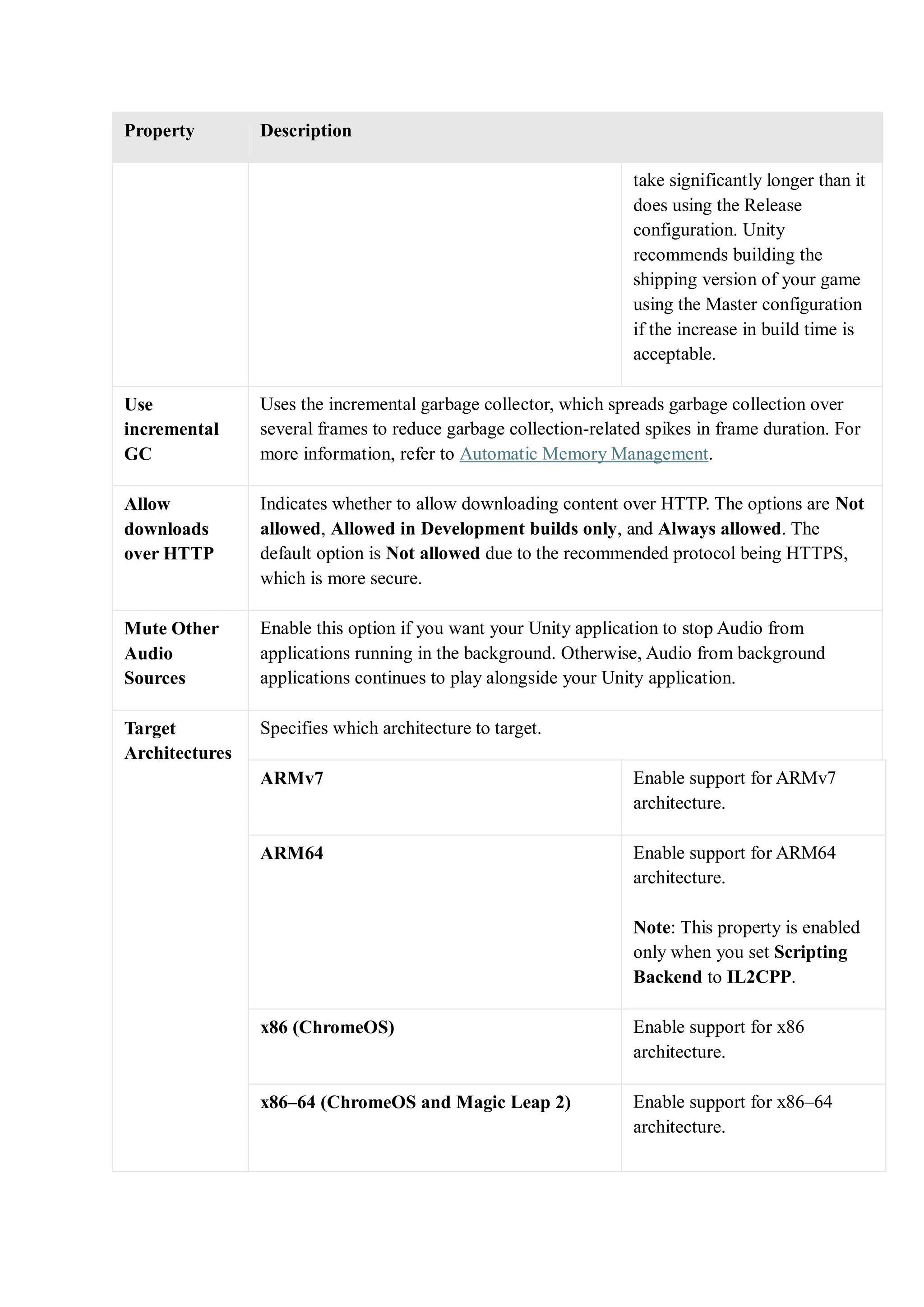
  • 5.
    The effect ofthis setting is the same as if all textures had their Compressor Quality set to Fast setting in their platform’s Texture import settings. b. Force Uncompressed Do not compress the textures; use uncompressed formats instead. This is faster to import (because it skips the texture compression process), but the resulting textures take up more memory and game data size, and can impact rendering performance. The effect of this setting is the same as if all textures had their Compression set to None in their platforms’ Texture import settings. Note: Texture compression overview Bits per pixel (bpp) is the amount of storage required for a single texture pixel. Textures with a lower bpp value have a smaller size on disk and in memory. A lower bpp value also means that the GPU uses less memory bandwidth to read the texture pixels. GPU memory bandwidth can often be a frame rate bottleneck, and thus texture compression helps to avoid it. The higher the visual quality of a texture asset, the higher the bits per pixel; which, consequently, leads to greater build size, loading time, and runtime memory usage. All texture compression formats are lossy, to some extent. Uncompressed textures offer the highest quality, but they also have the highest bits per pixel. Different texture compression formats offer different trade-offs. In general, for the best runtime performance and size on disk, for most of your texture assets, you should choose a texture compression format that is supported by your target device, and has the fewest bits per pixel for the visual quality you want. When you use a texture for a specific purpose, you can change its individual settings. For example, if you are using a texture with only one channel as a mask, you might choose the BC4 format to reduce file size but preserve quality. If you are using some textures for pixel- perfect UI , you might choose not to compress them. Choose a format that your target platforms and devices support. When Unity loads a texture with a compression format that the device does not support, it decompresses the texture to the default uncompressed format for that platform and stores the uncompressed copy in memory alongside the original compressed texture. This increases texture loading time and uses additional memory. When Unity loads a texture with a compression format that the device supports, the GPU can use the data without any need for conversion. Crunch compression Crunch is a compression format that works on top of DXT or ETC compression, by providing additional variable bit rate compression. When Unity loads a Crunch-compressed texture, it decompresses the texture to DXT or ETC on the CPU, and then uploads the DXT or ETC compressed texture data to the GPU.
  • 6.
    Crunch compression helpsthe texture use the lowest possible amount of disk space but has no effect on runtime memory usage. Crunch textures can take a long time to compress, but decompression at runtime is fairly fast. You can adjust how lossy Crunch compression is, to strike a balance between file size and quality. If you are particularly concerned about the size of your build and Crunch is supported on your target platform, consider adding Crunch compression. Platform-specific settings Each platform also has specific build settings:  PC, Mac, and Linux Standalone: See PC, Mac, and Linux build settings.  Universal Windows Platform : See Universal Windows Platform build settings.  tvOS: See Building your application for tvOS.  iOS: See iOS build settings.  Android: See Android Build Settings.  WebGL : See Building and Running a WebGL project.  For the Build Settings for closed platform development, see the documentation included in the Unity installer, or consult the Unity Forums. Building your application To build your application, select one of the following:  Build: Compile a Player, then do nothing. The default build is incremental, except for the first build, which is always a full non-incremental (clean) build. To force a clean build instead of an incremental build, select Clean Build from the dropdown menu.  Build and run: Compile a Player and open it on your target platform (for more information, see the individual platform pages). This option always uses the incremental build.
  • 7.
    Case Study: Android BuildSettings Use the Android Build Settings to configure and build your application for Android devices. The Android Build Settings are part of the Build Settings window. To view the Android Build Settings: 1. Select File > Build Settings. 2. From the list of platforms in the Platform pane, select Android. Note: If Android is greyed out, follow the steps on Android environment setup. 3. If the Build button isn’t visible and Build And Run is greyed out, select Switch Platform. The Android Build Settings now have an effect on the build. Settings Description Texture Compression The texture compression format to use for the build. The options are: • Use Player Settings: Uses the texture compression format you set in Player Settings . • ETC (GLES 2.0): Uses ETC format. • ETC2 (GLES 3.0): Uses ETC2 format. • ASTC: Uses ASTC format. • DXT (Tegra): Uses DXT format. • PVRTC (PowerVR): Uses PVRTC format. You can also change this setting from a script or using the - setDefaultPlatformTextureFormat command-line switch.
  • 8.
    For more information,see Recommended, default, and supported texture compression formats, by platform. ETC2 fallback Specifies the uncompressed RGBA texture format that Unity uses for Android devices that don’t support ETC2. This affects the amount of memory uncompressed textures use and their image quality. The options are:  32-bit: Stores RGBA textures in full resolution using 32 bits to store each pixel (8 bits per color channel). This is the highest quality uncompressed texture format and uses the most memory.  16-bit: Stores RGBA textures in full resolution using 16 bits to store each pixel (4 bits per color channel). This uses half of the memory that 32-bit uses, but textures can lose valuable color information because of the lower precision.  32-bit, half resolution: Stores RGBA textures in half resolution using 32 bits to store each pixel (8 bits per color channel). This uses a quarter of the memory that 32-bit uses, but the texture can become blurry. Note: If a texture doesn’t use ETC2 compression format: • Most compression formats use the 32-bit fallback. • Single-channel and two-channel texture compression formats fall back to a different format depending on what the GPU supports. For example, it could be R8_UNorm or R8G8B8A8_SRGB. • ASTC HDR formats fall back to a floating-point format if the GPU supports it. Otherwise, they fall back to 32-bit. Export Project Indicates whether to export the Unity project as a Gradle project that you can import into Android Studio. For more information, refer to Exporting an Android project. Symlink Sources Indicates whether to share Java and Kotlin source files between the Unity and exported Gradle project. Enable this setting to create symbolic links so the Gradle project references Java and Kotlin source files in the Unity project. This is useful to test and iterate Java and Kotlin code because it means any changes you make to Java and Kotlin source files in the exported Gradle project persist if you re-export the Unity project. Disable this setting to make Unity copy Java and Kotlin source files from the Unity project into the exported Gradle project. You can only interact with this setting if you enable Export Project. Build App Bundle (Google Play) Indicates whether to build the application as an Android App Bundle (AAB) to distribute on Google Play. If you enable this setting, Unity builds the application as an AAB. If you disable this setting, Unity builds the application as an APK. The setting only appears if you disable Export Project. Export for App Bundle Indicates whether to configure the exported Gradle project to build as an Android App Bundle. The setting only appears if you enable Export Project.
  • 9.
    Create symbols.zip Specifies how Unitygenerates a symbols package when it builds your application. The options are: • Disabled: Unity doesn’t generate a symbols package. • Public: Unity generates a public symbols package for your application. • Debugging: Unity generates a debugging symbols package for your application. Run Device Specifies which attached device to test the build on. Devices connected via USB should appear in the list automatically. If you connect a new device or don’t find an attached device in the list, click Refresh. To connect a new device wirelessly over Android Debug Bridge, select the <Enter IP> option. For more information, refer to Debug on Android devices or Debugging on a ChromeOS device, depending on the platform you want to build for. Build to Device A build pipeline that doesn’t create a full build and instead deploys single files that changed since the last patch directly to the device. Patch deploys changed files to the devices and Patch and Run deploys changed files and then runs the application on the device. For more information, refer to Application patching. You can only interact with this setting if you enable Development Build. Development Build Indicates whether to include scripting debug symbols and the Profiler in your build. Use this setting when you want to test your application. When you select this option, Unity sets the DEVELOPMENT_BUILD scripting define. Your build then includes preprocessor directives that set DEVELOPMENT_BUILD as a condition. For more information, refer to Platform-dependent compilations. Auto connect Profiler Indicates whether to automatically connect the Profiler to the built application when it runs. You can only interact with this setting if you enable Development Build. Deep Profiling Support Indicates whether to enable Deep Profiling in the Profiler. This makes the Profiler instrument every function call in your application so it returns more detailed profiling data. This option might slow down script execution. You can only interact with this setting if you enable Development Build. Script Debugging Indicates whether to allow debugging for the application’s script code. You can only interact with this setting if you enable Development Build. Wait For Managed Debugger Indicates whether the application waits for a debugger to attach before it runs any script code. This setting only appears if you enable Script Debugging. Also, you can only interact with this setting if you enable Development Build. Compression Method Specifies the method Unity uses to compress the data in your Project when it builds the Player. This includes Assets , Scenes, Player settings, and GI data. The options are: • Default: Uses ZIP which gives slightly better compressions results than LZ4 and LZ4HC but data is slower to decompress. • LZ4: Uses LZ4, a fast compression format that’s useful for development builds. Using LZ4 compression instead of ZIP can significantly improve loading time for Unity applications. For more information, refer
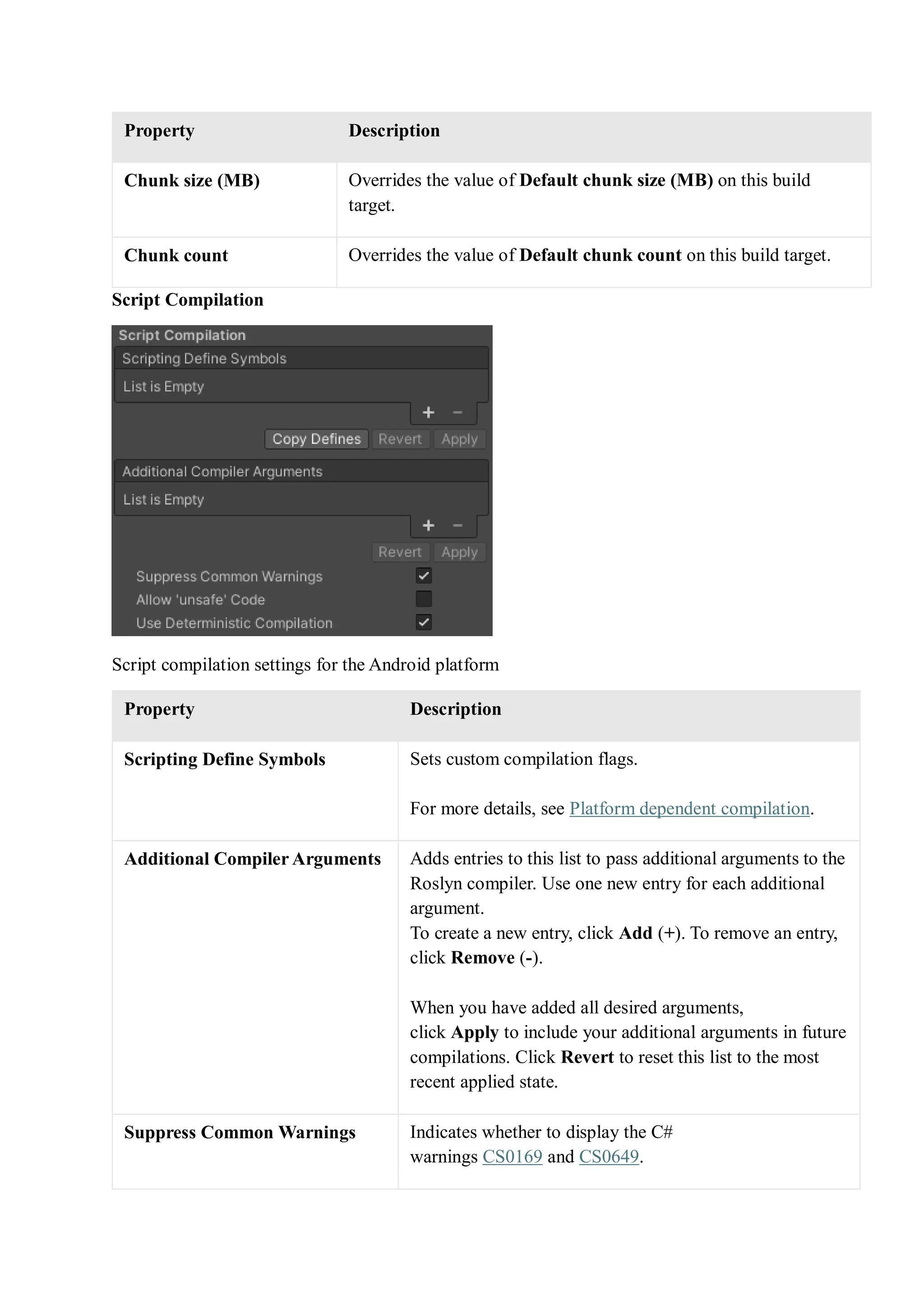
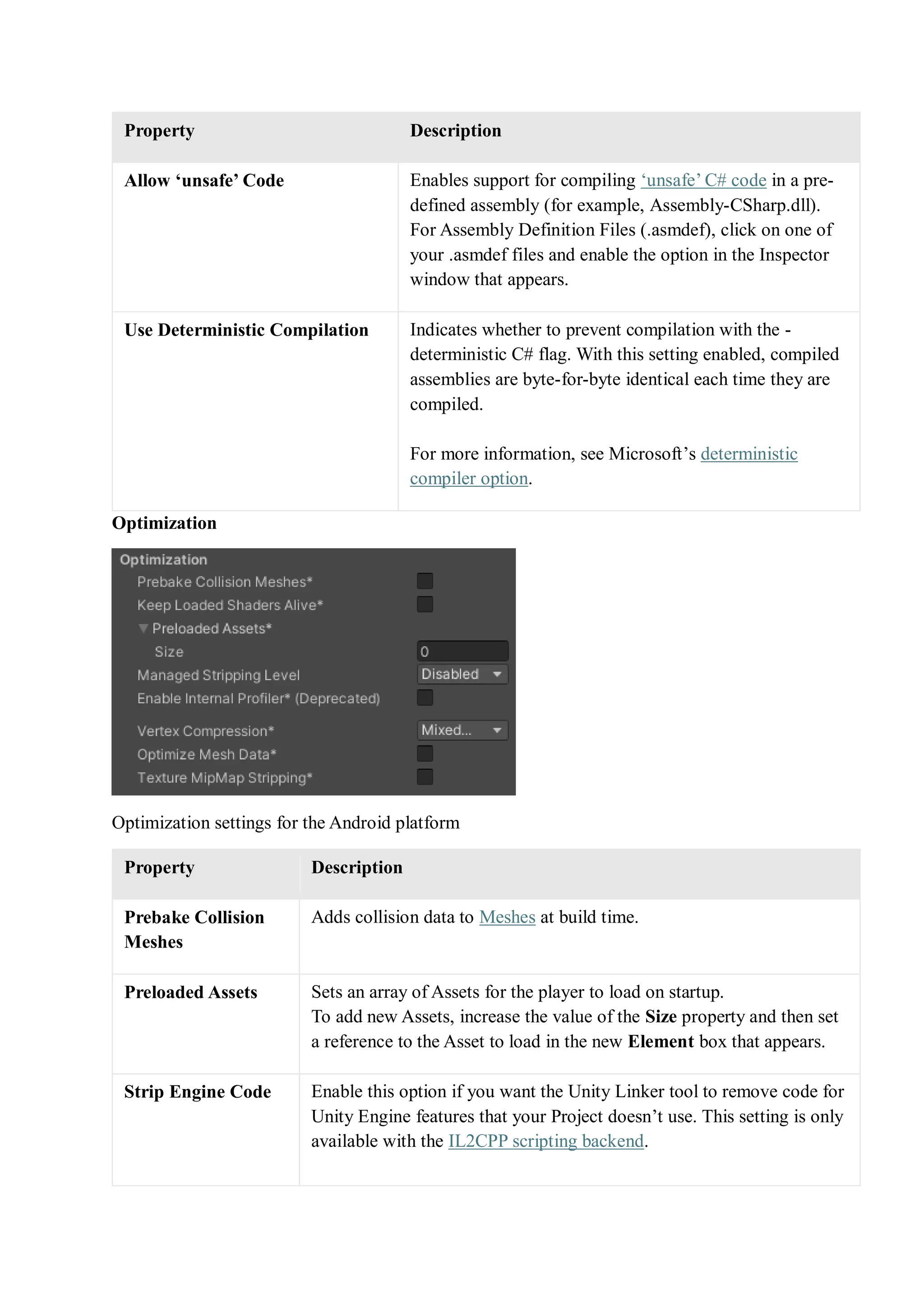
  • 10.
    to BuildOptions.CompressWithLz4. • LZ4HC:A high compression variant of LZ4 that’s slower to build but produces better results for release builds. Using LZ4HC compression instead of ZIP can significantly improve loading time for Unity applications. For more information, refer to BuildOptions.CompressWithLz4. Setting the Android SDK Target API The Unity Hub installs the latest version of the Android SDK Target API that Google Play requires. If you need to use a more recent version, you can change it in the Android Player Settings. To do this: 1. Select Edit > Project Settings. 2. In the Project settings window, select the Player tab, then open Android Player Settings: 3. In the Other Settings section, change the Target API Level. If you select a target API version newer than the latest installed version, the Unity Android SDK Updater can automatically download and install the new version. Unity displays a prompt and you can choose to either:  Automatically download and install the new version of the Android SDK.  Continue to use the highest installed version of the Android SDK.
  • 11.
     If youselect a target API version that isn’t installed and is older than the latest installed version, the Unity Android SDK Updater can’t perform the update and Unity displays an error message. In this case, to update the Android SDK Target API, you must use the Android sdkmanager from either Android Studio or the command-line tool. Regardless of the method you choose, make sure to select the correct Android SDK folder for Unity in the Edit > Preferences > External Tools window. For more information, refer to Customizing dependencies.  Important: On Windows, if you installed the Unity Editor in the default folder (/Program Files/), you must run the sdkmanager with elevated privileges (Run as Administrator) to perform the update. 5.2 Player Settings Player The Player settings window (menu: Edit > Project Settings > Player) contain settings that determine how Unity builds and displays your final application. You can use the PlayerSettings API to control most of the settings available in this window. General settings The Player settings differ between the platform modules that you’ve installed. Each platform has its own Player settings which you’ll need to set for each version of your application you want to build. To navigate between them, click on the tabs with the platform operating system icon on.
  • 12.
    However, there aresome general settings that all platforms share, that you only need to set once: Property Function Company Name Enter the name of your company. Unity uses this to locate the preferences file. Product Name Enter the name that appears on the menu bar when your application is running. Unity also uses this to locate the preferences file. Version Enter the version number of your application. Default Icon Pick the Texture 2D file that you want to use as a default icon for the application on every platform. You can override this for specific platforms. Default Cursor Pick the Texture 2D file that you want to use as a default cursor for the application on every supported platform. Cursor Hotspot Set the pixel offset value from the top left of the default cursor to the location of the cursor hotspot. The cursor hotspot is the point in the cursor image that Unity uses to trigger events based on cursor position. Platform-specific settings The platform-specific settings are divided into the following sections:  Icon: the game icon(s) as shown on the desktop. You can choose icons from 2D image assets in the Project, such as sprites or imported images.  Resolution and Presentation: settings for screen resolution and other presentation details such as whether the game should default to full screen mode.  Splash Image: the image shown while the game is launching. This section also includes common settings for creating a Splash Screen. For more information, see the Splash Image documentation.  Other Settings: any remaining settings specific to the platform.  Publishing Settings: details of how the built application is prepared for delivery from the app store or host webpage.  XR Settings: settings specific to Virtual Reality, Augmented Reality, and Mixed Reality applications. You can find information about the settings specific to individual platforms:  Android: Android Player settings  ChromeOS: ChromeOS Player settings  Dedicated Server: Dedicated Server Player settings  iOS: iOS Player settings  Linux: Linux Player settings
  • 13.
     macOS: macOSPlayer settings  tvOS: tvOS Player settings  WebGL: WebGL Player settings  Windows: Windows Player settings Case Study: Android Player Settings Android Player settings This topic explains about the details of the Player Settings for the Android platform. For a description of the general Player settings, refer to Player Settings . Player Settings for Android. Documentation for the properties is grouped according to their respective sections in the Player UI:  Icon  Resolution and Presentation  Splash Image  Other Settings  Publishing Settings Icon Use the Icon section to specify icons to represent your application on the device.
  • 14.
    Icon settings forAndroid. Property Description Adaptive Specify textures of various sizes to represent your application on devices running Android 8.0 (API level 26) or higher. Round Specify textures of various sizes to represent your application on devices running Android 7.1 (API level 25) or higher. Legacy Specify textures of various sizes to represent your application on devices running versions earlier than Android 7.1 (API level 25). Resolution and Presentation Use the Resolution and Presentation section to customize aspects of the screen’s appearance. Resolution and Presentation settings for Android. Property Description Fullscreen Mode Specifies how the window appears on the device. This sets the default window mode at startup.
  • 15.
    Property Description Fullscreen Window The applicationwindow fills the full-screen native resolution of the device. To fill the full-screen window, Unity scales the application contents. Resolution Scaling Mode controls how Unity scales the contents. In this mode, the navigation bar is always hidden. Windowed The application uses a standard, non-full-screen, movable window. The size of the window depends on the application’s resolution. In this mode, the window is resizable by default. To prevent window resizing, disable Resizable Window. Resizable Window Indicates whether the user can resize the application’s window. This setting enables multi-window capabilities in your application on Android phones and tablets. For more information, refer to Google’s developer documentation. Default Window Width The default width of the application window in pixels . This option is only available if the Fullscreen Mode is set to Windowed. Default Window Height The default height of the application window in pixels. This option is only available if the Fullscreen Mode is set to Windowed. Minimum Window Width The minimum width of the application window in pixels. This option is only available if the Fullscreen Mode is set to Windowed. Minimum Window Height The minimum height of the application window in pixels. This option is only available if the Fullscreen Mode is set to Windowed. Hide Navigation Bar Indicates whether to hide the navigation bar that appears at the top of the window. Render outside safe area Enable this option to allow the application to use all available screen space to render, including areas of the display that are cut out (notched). For more information, refer to Android’s display cutout support documentation. The behavior of this setting varies depending on the Android version, as outlined in the following table.
  • 16.
    Property Description Android 15and newer This setting has no effect as the application uses the entire screen space by default. For more information, refer to Android documentation. Android 11 to 14 When enabled, the application uses the entire screen space available. When disabled, the application uses the space around the cutout only if it’s within the system bar (top or bottom of the device), otherwise the application displays black bars over the cutout area. For more information on when the application uses the space around the cutout, refer to Android documentation. Android 10 and older When enabled, the application uses the screen space around the cutout on the shorter edge (such as the top or bottom) of the device. However, the application blocks the cutout on the longer edge (such as the sides) of the device with black bars. For more information on how the application uses the space around cutouts on shorter edges, refer to Android documentation. When disabled, the application uses the space around the cutout only if it’s within the system bar, otherwise the application displays black bars over the cutout area. For more information on when the application uses the space around the cutout, refer to Android documentation. Optimized Frame Pacing Enable this option to allow Unity to evenly distribute frames for less variance in frame rate and create a smoother experience. Other Resolution and Presentation settings are grouped under the following sections:  Resolution Scaling  Supported Aspect Ratio  Orientation  Allowed Orientations for Auto Rotation
  • 17.
    Resolution Scaling Use theResolution Scaling section to customize settings relating to screen resolution scaling. Using a resolution lower than the device’s native resolution can improve performance and battery life. Resolution Scaling settings for Android. Property Description Resolution Scaling Mode Specifies whether and how the application scales its resolution. You can set the scaling to be equal to or lower than the native screen resolution. Using a lower resolution can improve performance and battery life. Disabled Doesn’t apply resolution scaling and the application renders to the device’s native screen resolution. FixedDPI Applies resolution scaling using a target DPI. Use this to optimize performance and battery life or target a specific DPI setting. Letterboxed Adds black bars to the rendered output so the content doesn’t stretch. This process is called letterboxing. Target DPI The resolution of the application. If the device’s native screen DPI is higher than this value, Unity downscales the application’s resolution to match this setting. Unity calculates the scale using min(Target DPI * Factor / Screen DPI, 1) where Factor is the Resolution Scaling Fixed DPI Factor from Quality settings. Note: This option only appears when you set Resolution Scaling Mode to Fixed DPI. Reset resolution on window resize Indicates whether to set the screen resolution to the new native window size when the native window size changes. If you
  • 18.
    Property Description set ResolutionScaling Mode to Fixed DPI, Unity recalculates the resolution based on Fixed DPI property. Blit Type Controls whether to use a blit to render the final image to the screen. Using a blit is compatible with most devices but is usually slower than not using a blit. Always Unity renders to an offscreen buffer and then uses a blit to copy the contents of the buffer to the device’s framebuffer. This is compatible with most devices but is usually slower than not using blit. Never Unity renders to the framebuffer provided by the device’s operating system. If this fails, the application prints a one-time warning to the device log. This is usually faster than using blit, but it isn’t compatible with all devices. Auto Unity renders to the framebuffer provided by the device’s operating system if possible. If this fails, Unity prints a warning to the device console and uses a blit to render the final image to the screen. Supported Aspect Ratio Use the Supported Aspect Ratio section to customize settings relating to which device aspect ratios to support. Resolution Scaling settings for Android. Property Description Aspect Ratio Mode Specifies the largest aspect ratio the application supports. If the device’s aspect ratio is greater than this aspect ratio, Unity uses this aspect ratio for the application and adds black bars so the application doesn’t stretch.
  • 19.
    Property Description Legacy WideScreen (1.86) The application supports aspect ratios up to Android’s legacy wide-screen aspect ratio. Native Aspect Ratio The application supports aspect ratios up to Android’s native aspect ratio. Custom The application supports aspect ratios up to the aspect ratio you set in Up To. Up To The custom maximum aspect ratio. This setting only appears when you set Aspect Ratio Mode to Custom. Orientation Use the Orientation section to customize settings relating to the orientation of the application on the device. Orientation settings for Android. Choose the game’s screen orientation from the Default Orientation dropdown menu: Property Description Default Orientation Specifies the screen orientation the application uses. Note: Unity shares the value you set for this setting between Android and iOS. Portrait The application uses portrait screen orientation where the bottom of the application’s window aligns with the bottom of the device’s screen. Portrait Upside Down The application uses portrait screen orientation where the bottom of the application’s window aligns with the top of the device’s screen.
  • 20.
    Property Description Landscape Right The applicationuses landscape screen orientation where the right side of the application’s window aligns with the bottom of the device’s screen. Landscape Left The application uses landscape screen orientation where the right side of the application’s window aligns with the top of the device’s screen. Auto Rotation The screen can rotate to any of the orientations you specify in the Allowed Orientations for Auto Rotation section. Auto Rotation Behavior Specify how the application window adjusts its orientation based on the device’s rotation sensor and orientation settings, when the Default Orientation is set to Auto Rotation. Note: This property is visible only when you set the Default Orientation to Auto Rotation. By default, this property is set to User. User The application window adjusts its orientation according to the device’s orientation settings. If the user locks the device’s auto rotate orientation setting, the application window doesn’t follow the preferences set in the Allowed Orientations for Auto Rotation section. The application window only rotates as per the set preferences when the user turns off the device’s auto rotate orientation setting. Sensor The application window adjusts its orientation according to the device’s rotation sensor regardless of the device’s orientation settings. However, the application window only rotates as per the preferences set in the Allowed Orientations for Auto Rotation section. Allowed Orientations for Auto Rotation Use the Allowed Orientations for Auto Rotation section to specify which orientations the application supports when you set Default Orientation to Auto Rotation. This is useful, for
  • 21.
    example, to lockthe application to landscape orientation but allow the user to switch between landscape left and landscape right. This section only appears when you set Default Orientation to Auto Rotation. Allowed Orientations for Auto Rotation settings for Android. Property Description Portrait Indicates whether the application supports portrait screen orientation where the bottom of the application’s window aligns with the bottom of the device’s screen. Portrait Upside Down Indicates whether the application supports portrait screen orientation where the bottom of the application’s window aligns with the top of the device’s screen. Landscape Right Indicates whether the application supports landscape screen orientation where the right side of the application’s window aligns with the top of the device’s screen. Landscape Left Indicates whether the application supports landscape screen orientation where the right side of the application’s window aligns with the bottom of the device’s screen. Additional Resolution and Presentation settings Property Description Use 32-bit Display Buffer Indicates whether the display buffer holds 32-bit color values instead of 16-bit color values. Enable this setting if you experience banding, or need alpha values in post-processing effects. Some post-processing effects require this because they create Render Textures in the same format as the display buffer.
  • 22.
    Property Description Disable Depthand Stencil Indicates whether to disable depth and stencil buffers . Render Over Native UI Indicates whether to render on top of native UI on Android or iOS. For this setting to take effect, set your Camera ’s Clear Flags to use a solid color with an alpha value lower than 1. Show Loading Indicator Specifies if and how the loading indicator appears. Don’t Show The loading indicator doesn’t appear. Large A large loading indicator appears. Inversed Large A large loading indicator appears with inversed color. Small A small loading indicator appears. Inversed Small A small loading indicator appears with inversed color. Splash Image Use the Virtual Reality Splash Image setting to select a custom splash image for Virtual Reality displays. For information on common Splash Screen settings, refer to Splash Screen. Splash screen settings for virtual reality. Below the common Splash Screen settings, you can set up an Android-specific Static Splash Image.
  • 23.
    Splash screen settingsfor Android. Property Description Image Specifies the texture that the application uses for the Android splash screen. The standard size for the splash screen image is 320x480. Scaling Specifies how to scale the splash image to fit the device’s screen. Center (only scale down) Draws the image at its native size unless it’s too large, in which case Unity scales the image down to fit. Scale to Fit (letter-boxed) Scales the image so that the longer dimension fits the screen size exactly. Unity fills in the empty space around the sides in the shorter dimension in black. Scale to Fill (cropped) Scales the image so that the shorter dimension fits the screen size exactly. Unity crops the image in the longer dimension. Other Settings This section allows you to customize a range of options organized into the following groups:  Rendering  Vulkan Settings  Identification  Configuration  Shader Settings  Shader Variant Loading Settings  Script Compilation  Optimization  Stack Trace
  • 24.
     Legacy Rendering Use thesesettings to customize how Unity renders your game for the Android platform. Property Description Color Space Choose which color space should be used for rendering: Gamma or Linear. Refer to Linear rendering overview for an explanation of the difference between the two. MSAA Fallback Select the multi sample antialiasing fallback strategy to upgrade or downgrade the sample count if the sample count requested by the user isn’t supported by the device. Upgrade The sample count reduces to the nearest supported lower sample count. Downgrade The sample count increases to the next higher sample count. If that sample count is not supported, then it reduces to the nearest supported lower sample count. Auto Graphics API Disable this option to manually pick and reorder the graphics APIs. By default, this option is enabled, and Unity tries to use Vulkan. If the device doesn’t support Vulkan, Unity falls back to GLES3.2, GLES3.1 or GLES3.0. Important: Unity adds the GLES3/GLES3.1/AEP/3.2 requirement to your Android App Manifest only if GLES2 isn’t in the list of APIs when Auto Graphics API is disabled. In this case only, your application doesn’t appear on unsupported devices in the Google Play Store. Require ES3.1 Indicates whether to require that the minimum OpenGL ES 3 minor version is 3.1. This property is visible only if you enable Auto Graphics API or if Graphics APIs includes OpenGLES3. Require ES3.1+AEP Indicates whether to require that the minimum OpenGL ES 3 minor version is 3.1+AEP. This property is visible only if you
  • 25.
    Property Description enable AutoGraphics API or if Graphics APIs includes OpenGLES3. Require ES3.2 Indicates whether to require that the minimum OpenGL ES 3 minor version is 3.2. This property is visible only if you enable Auto Graphics API or if Graphics APIs includes OpenGLES3. Color Gamut You can add or remove color gamuts to use for rendering. Click the plus (+) icon to see a list of available gamuts. A color gamut defines a possible range of colors available for a given device (such as a monitor or screen). The sRGB gamut is the default (and required) gamut. Multithreaded Rendering Enable this option to move graphics API calls from Unity’s main thread to a separate worker thread. This can help to improve performance in applications that have high CPU usage on the main thread. Static Batching Enable this option to use Static batching. Dynamic Batching Check this box to use Dynamic Batching on your build (enabled by default). Sprite Batching Threshold Controls the maximum vertex threshold used when batching. GPU Compute Skinning Calculate mesh skinning and blend shapes on the GPU via shaders to free up CPU resources and improve performance. Graphics Jobs (Experimental) Enable this option to instruct Unity to offload graphics tasks (render loops) to worker threads running on other CPU cores. This is intended to reduce the time spent in Camera.Render on the main thread, which is often a bottleneck. Note: This feature is experimental. It may not deliver a performance improvement for your project, and may introduce new crashes.
  • 26.
    Property Description Texture compression format Choosebetween ASTC, ETC2 and ETC (ETC1 for RGB, ETC2 for RGBA). Refer to texture compression format overview for more information on how to pick the right format. Refer to Texture compression settings for more details on how this interacts with the texture compression setting in the Build Settings. Normal Map Encoding Choose XYZ or DXT5nm-style to set the normal map encoding. This setting affects the encoding scheme and compression format used for normal maps. DXT5nm-style normal maps are of higher quality, but more expensive to decode in shaders. Lightmap Encoding Choose Low Quality, Normal Quality, or High Quality to set the lightmap encoding. This setting affects the encoding scheme and compression format of the lightmaps. HDR Cubemap Encoding Choose Low Quality, Normal Quality, or High Quality to set the HDR Cubemap encoding. This setting affects the encoding scheme and compression format of the HDR Cubemaps. Lightmap Streaming Whether to use Mipmap Streaming for lightmaps. Unity applies this setting to all lightmaps when it generates them. Note: To use this setting, you must enable the Texture Streaming Quality setting. Streaming Priority Set the priority for all lightmaps in the Mipmap Streaming system. Unity applies this setting to all lightmaps when it generates them. Positive numbers give higher priority. Valid values range from – 128 to 127. Frame Timing Stats Enable this option to gather CPU/GPU frame timing statistics. OpenGL: Profiler GPU Recorders Indicates whether to enable profiler recorders when rendering with OpenGL. This option is always enabled for other rendering APIs but is optional on OpenGL due to potential compatibility issues with Frame Timing Stats and the GPU Profiler.
  • 27.
    Property Description Allow HDRDisplay Output Activate HDR mode output when the application runs. This only works on displays that support this feature. If the display doesn’t support HDR mode, the game runs in standard mode. Virtual Texturing (Experimental) Indicates whether to enable Virtual Texturing. Note: Virtual Texturing isn’t compatible with Android. 360 Stereo Capture Indicates whether Unity can capture stereoscopic 360 images and videos. Load/Store Action Debug Mode Highlights undefined pixels that may cause rendering problems on mobile platforms. This affects the Unity Editor Game view, and your built application if you select Development Build in Build Settings. Refer to LoadStoreActionDebugModeSettings. Editor Only Highlights undefined pixels in the Game view in the Editor, but not your built application. Note: This option is visible only when Load/Store Action Debug Mode is active. Vulkan Settings Property Description SRGB Write Mode Enable this option to allow Graphics.SetSRGBWrite() renderer to toggle the sRGB write mode during runtime. That is, if you want to temporarily turn off Linear-to-sRGB write color conversion, you can use this property to achieve that. Enabling this has a negative impact on performance on mobile tile-based GPUs; therefore, do NOT enable this for mobile. Number of swapchain buffers Set this option to 2 for double-buffering, or 3 for triple-buffering to use with Vulkan renderer. This setting may help with latency on some platforms, but in most cases you should not change this from the default value of 3. Double-buffering might have a negative impact on performance. Do not use this setting on Android.
  • 28.
    Property Description Acquire swapchainimage late as possible If enabled, Vulkan delays acquiring the backbuffer until after it renders the frame to an offscreen image. Vulkan uses a staging image to achieve this. Enabling this setting causes an extra blit when presenting the backbuffer. This setting, in combination with double- buffering, can improve performance. However, it also can cause performance issues because the additional blit takes up bandwidth. Recycle command buffers Indicates whether to recycle or free CommandBuffers after Unity executes them. Apply display rotation during rendering Enable this to perform all rendering in the native orientation of the display. This has a performance benefit on many devices. For more information, see documentation on Framebuffer orientation. Identification Identification settings for the Android platform Property Description Override Default Package Name Indicates whether to override the default package name for your application. Note: This setting affects macOS, iOS, tvOS, and Android. Package Name Set the application ID, which uniquely identifies your app on the device and in Google Play Store. The application ID must follow the convention com.YourCompanyName.YourProductName and must contain only alphanumeric and underscore characters. Each segment must start with an alphabetical character. For more information, refer to Set the application ID. Important: Unity automatically removes any invalid characters you type.
  • 29.
    Property Description To setthis property, enable Override Default Package Name. Version Enter the build version number of the bundle, which identifies an iteration (released or unreleased) of the bundle. The version is specified in the common format of a string containing numbers separated by dots (For example, 4.3.2). (Shared between iOS and Android.) Bundle Version Code An internal version number. This number is used only to determine whether one version is more recent than another, with higher numbers indicating more recent versions. This isn’t the version number shown to users; that number is set by the versionName attribute. The value must be set as an integer, such as “100”. You can define it however you want, as long as each successive version has a higher number. For example, it could be a build number. Or you could translate a version number in “x.y” format to an integer by encoding the “x” and “y” separately in the lower and upper 16 bits. Or you could simply increase the number by one each time a new version is released. Keep this number under 100000 if Split APKs by target architecture is enabled. Each APK must have a unique version code so Unity adds 100000 to the number for ARMv7, and 200000 for ARM64. Minimum API Level Minimum Android version (API level) required to run the application. Target API Level Target Android version (API level) against which to compile the application. Configuration Property Description Scripting Backend Choose the scripting backend you want to use. The scripting backend determines how Unity compiles and executes C# code in your Project. Mono Compiles C# code into .NET Common Intermediate Language (CIL) and executes that CIL using a Common
  • 30.
    Property Description Language Runtime.For more information, refer to Mono . IL2CPP Compiles C# code into CIL, converts the CIL to C++ and then compiles that C++ into native machine code, which executes directly at runtime. For more information, refer to IL2CPP . API Compatibility Level Choose which .NET APIs you can use in your project. This setting can affect compatibility with third-party libraries. However, it has no effect on Editor- specific code (code in an Editor directory, or within an Editor-specific Assembly Definition). Tip: If you are having problems with a third-party assembly, you can try the suggestion in the API Compatibility Level section below. .Net Framework Compatible with the .NET Framework 4 (which includes everything in the .NET Standard 2.0 profile plus additional APIs). Choose this option when using libraries that access APIs not included in .NET Standard 2.0. Produces larger builds and any additional APIs available aren’t necessarily supported on all platforms. Refer to Referencing additional class library assemblies for more information. .Net Standard 2.1 Produces smaller builds and has full cross-platform support.
  • 31.
    Property Description IL2CPP Code Generation Defineshow Unity manages IL2CPP code generation. This option is only available if you use the IL2CPP scripting backend. Faster runtime Generates code optimized for runtime performance. This setting is enabled by default. Faster (smaller) builds Generates code optimized for build size and iteration. This setting generates less code and produces a smaller build, but can reduce runtime performance for generic code. Use this option when faster build times are important, such as when iterating on changes. C++ Compiler Configuration Choose the C++ compiler configuration used when compiling IL2CPP generated code. Debug Debug configuration turns off all optimizations, which makes the code quicker to build but slower to run. Release Release configuration enables optimizations, so the compiled code runs faster and the binary size is smaller but it takes longer to compile. Master Master configuration enables all possible optimizations, squeezing every bit of performance possible. For instance, on platforms that use the MSVC++ compiler, this option enables link-time code generation. Compiling code using this configuration can
  • 32.
    Property Description take significantlylonger than it does using the Release configuration. Unity recommends building the shipping version of your game using the Master configuration if the increase in build time is acceptable. Use incremental GC Uses the incremental garbage collector, which spreads garbage collection over several frames to reduce garbage collection-related spikes in frame duration. For more information, refer to Automatic Memory Management. Allow downloads over HTTP Indicates whether to allow downloading content over HTTP. The options are Not allowed, Allowed in Development builds only, and Always allowed. The default option is Not allowed due to the recommended protocol being HTTPS, which is more secure. Mute Other Audio Sources Enable this option if you want your Unity application to stop Audio from applications running in the background. Otherwise, Audio from background applications continues to play alongside your Unity application. Target Architectures Specifies which architecture to target. ARMv7 Enable support for ARMv7 architecture. ARM64 Enable support for ARM64 architecture. Note: This property is enabled only when you set Scripting Backend to IL2CPP. x86 (ChromeOS) Enable support for x86 architecture. x86–64 (ChromeOS and Magic Leap 2) Enable support for x86–64 architecture.
  • 33.
    Property Description Note: Thisproperty is enabled only when you set Scripting Backend to IL2CPP. Enable Armv9 Security Features for Arm64 Enable Pointer Authentication (PAuth, PAC) and Branch Target Identification (BTI) for ARM64 builds. Note: This property is enabled only when you set ARM64 as the target architecture. Split APKs by target architecture Enable this option to create a separate APK for each CPU architecture selected in Target Architectures. This makes download size smaller for Google Play Store users. This is primarily a Google Play store feature and might not work in other stores. For more details, refer to Multiple APK Support. Target Devices Specifies the target devices on which the APK is allowed to run. All Devices The APK is allowed to run on all Android and ChromeOS devices. Phones, Tablets, and TV Devices Only The APK is allowed to run on Android phones, tablets, and TVs, but not on ChromeOS devices. ChromeOS Devices Only The APK is allowed to run on ChromeOS devices, but not on Android phones or tablets. Install Location Specifies application install location on the device (for detailed information, refer to Android Developer documentation on install locations.)
  • 34.
    Property Description Automatic Letthe operating system decide. User will be able to move the app back and forth. Prefer External Install the application to external storage (SD card) if possible. The operating system doesn’t guarantee it; if not possible, the app will be installed to internal memory. Force Internal Force the application to be installed to internal memory. The user will be unable to move the app to external storage. Internet Access Choose whether to always add the networking (INTERNET) permission to the Android App Manifest, even if you aren’t using any networking APIs. Set to Require by default for development builds. Auto Only add the internet access permission if you are using a networking API. Require Always add the internet access permission. Write Permission Choose whether to enable write access to the external storage (such as the SD card) and add a corresponding permission to the Android App Manifest. Set to External(SDCard) by default for development builds. Internal Only grant write permission to internal storage.
  • 35.
    Property Description External(SDCard) Enablewrite permission to external storage. Filter Touches When Obscured Enable this option to discard touches received when another visible window is covering the Unity application. This is to prevent tapjacking. Sustained Performance Mode Enable this option to set a predictable and consistent level of device performance over longer periods of time, without thermal throttling. Overall performance might be lower when this setting is enabled. Based on the Android Sustained Performance API. Low Accuracy Location Enable this option to use low accuracy values with Android location APIs instead. ChromeOS Input Emulation Indicates whether ChromeOS converts mouse and touchpad input events into touchscreen input events. Android TV Compatibility Enable this option to mark the application as Android TV compatible. Android Game Enable this option to mark the output package (APK) as a game rather than a regular application. This property is visible only when Android TV Compatibility is set to true. Android Gamepad Support Level Choose the level of support your application offers for a gamepad. This property is visible only when Android TV Compatibility is set to true.
  • 36.
    Property Description Works withD-Pad The application is fully operational with a D-pad. No gamepad is needed. Supports Gamepad The application works with a gamepad, but doesn’t require it. Requires Gamepad The application requires a gamepad to use. Warn about App Bundle size Enable this option to receive a warning when the size of the Android App Bundle exceeds a certain threshold. This option is selected by default and you can only configure it if you enable the Build App Bundle (Google Play) option in the Build settings. App Bundle size threshold Enter a size in MB. When your App Bundle exceeds this size, Unity will display a warning. Active Input Handling Choose how to handle input from users. Input Manager (Old) Uses the traditional Input settings. Input System Package (New) Uses the Input system. This option requires you to install the InputSystem package. Both Use both systems. API Compatibility Level You can choose your mono API compatibility level for all targets. Sometimes a third-party .NET library uses functionality that’s outside of your .NET compatibility level. To understand what’s going on in such cases, and how to best fix it, try following these suggestions: 1. Install ILSpy for Windows. 2. Drag the .NET assemblies for the API compatibility level that you are having issues with into ILSpy. You can find these under Frameworks/Mono/lib/mono/YOURSUBSET/.
  • 37.
    3. Drag inyour third-party assembly. 4. Right-click your third-party assembly and select Analyze. 5. In the analysis report, inspect the Depends on section. The report highlights anything that the third-party assembly depends on, but that’s not available in the .NET compatibility level of your choice in red. Shader Settings Property Description Shader Precision Model Select the default precision shaders use. For more information, refer to Use 16-bit precision in shaders. Platform default Use lower precision on mobile platforms, and full precision on other platforms. Unified Use lower precision if the platform supports it. Strict shader variant matching Enable this option to use the error shader for rendering if a shader variant is missing in the Player build and display an error in the console. The error specifies the shader, subshader index, pass, and keywords used for shader variant search Keep Loaded Shaders Alive Keep all loaded shaders alive and prevent unloading. For more information, refer to shader loading. Shader Variant Loading Settings Use these settings to control how much memory shaders use at runtime. Property Description Default chunk size (MB) Sets the maximum size of compressed shader variant data chunks Unity stores in your built application for all platforms. The default is 16. For more information, refer to Shader loading. Default chunk count Sets the default limit on how many decompressed chunks Unity keeps in memory on all platforms. The default is 0, which means there’s no limit. Override Enables overriding Default chunk size and Default chunk count for this build target.
  • 38.
    Property Description Chunk size(MB) Overrides the value of Default chunk size (MB) on this build target. Chunk count Overrides the value of Default chunk count on this build target. Script Compilation Script compilation settings for the Android platform Property Description Scripting Define Symbols Sets custom compilation flags. For more details, see Platform dependent compilation. Additional Compiler Arguments Adds entries to this list to pass additional arguments to the Roslyn compiler. Use one new entry for each additional argument. To create a new entry, click Add (+). To remove an entry, click Remove (-). When you have added all desired arguments, click Apply to include your additional arguments in future compilations. Click Revert to reset this list to the most recent applied state. Suppress Common Warnings Indicates whether to display the C# warnings CS0169 and CS0649.
  • 39.
    Property Description Allow ‘unsafe’Code Enables support for compiling ‘unsafe’ C# code in a pre- defined assembly (for example, Assembly-CSharp.dll). For Assembly Definition Files (.asmdef), click on one of your .asmdef files and enable the option in the Inspector window that appears. Use Deterministic Compilation Indicates whether to prevent compilation with the - deterministic C# flag. With this setting enabled, compiled assemblies are byte-for-byte identical each time they are compiled. For more information, see Microsoft’s deterministic compiler option. Optimization Optimization settings for the Android platform Property Description Prebake Collision Meshes Adds collision data to Meshes at build time. Preloaded Assets Sets an array of Assets for the player to load on startup. To add new Assets, increase the value of the Size property and then set a reference to the Asset to load in the new Element box that appears. Strip Engine Code Enable this option if you want the Unity Linker tool to remove code for Unity Engine features that your Project doesn’t use. This setting is only available with the IL2CPP scripting backend.
  • 40.
    Property Description Most appsdon’t use every available DLL. This option strips out DLLs that your app doesn’t use to reduce the size of the built Player. If your app is using one or more classes that would normally be stripped out under your current settings, Unity displays a debug message when you try to build the app. Managed Stripping Level Chooses how aggressively Unity strips unused managed (C#) code. The options are Minimal, Low, Medium, and High. When Unity builds your app, the Unity Linker process can strip unused code from the managed DLLs your Project uses. Stripping code can make the resulting executable significantly smaller, but can sometimes accidentally remove code that’s in use. For more information about these options and bytecode stripping with IL2CPP, refer to ManagedStrippingLevel. Vertex Compression Sets vertex compression per channel. This affects all the meshes in your project. Typically, Vertex Compression is used to reduce the size of mesh data in memory, reduce file size, and improve GPU performance. For more information on how to configure vertex compression and limitations of this setting, refe to Compressing mesh data. Optimize Mesh Data Enable this option to strip unused vertex attributes from the mesh used in a build. This option reduces the amount of data in the mesh, which can help reduce build size, loading times, and runtime memory usage. Warning: If you have this setting enabled, you should remember to not change material or shader settings at runtime. For more information, refer to PlayerSettings.stripUnusedMeshComponents. Texture MipMap Stripping Enables mipmap stripping for all platforms. This strips unused mipmaps from Textures at build time. Unity determines unused mipmaps by comparing the value of the mipmap against the Quality Settings for the current platform. If a mipmap value is excluded from every Quality Setting for the current platform, then Unity strips those mipmaps from the build at build time. If QualitySettings.masterTextureLimit is set to a mipmap value that has
  • 41.
    Property Description been stripped,Unity will set the value to the closest mipmap value that has not been stripped. Stack Trace Select your preferred stack trace method by enabling the option that corresponds to each Log Type (Error, Assert, Warning, Log, and Exception) based on the type of logging you require. Logging settings for Android platform Property Description None No logs are ever recorded. ScriptOnly Logs only when running scripts Full Logs all the time. For more information, refer to stack trace logging. Legacy Enable the Clamp BlendShapes (Deprecated) option to clamp the range of blend shape weights in SkinnedMeshRenderers. Legacy settings for the Android platform Publishing Settings Use the following Publishing Settings to configure how Unity builds your Android application.  Project Keystore  Project Key
  • 42.
     Build  Minify Split Application Binary Android publishing panel Note: For security reasons, Unity doesn’t save your Keystore or Project Key passwords. Use the Keystore Manager window to create, configure and load your keys and keystores. You can load existing keystores and keys from either the Keystore Manager or the main Android Publishing panel. If you choose to load these from inside the Keystore Manager, Unity automatically fills the Project Keystore and Project Key fields. For further information, refer to the documentation on the Keystore Manager. Project Keystore A keystore is a container that holds signing keys for application security. For details, refer to Android developer documentation: Android keystore system. Use the Project Keystore settings to choose which keystore to use for the open project. When you load a keystore, Unity loads all the keys in that keystore. To load and use an existing keystore in your open project: 1. Enable Custom Keystore.
  • 43.
    2. Open theSelect dropdown, select Browse, and choose a keystore from your file system. 3. Enter your Keystore password. If you don’t have an existing keystore, leave Custom Keystore disabled. Unity uses a debug keystore to sign your application. A debug keystore is a working keystore. It allows you to sign the application and to test it locally. However, the app store will decline apps signed in this way. This is because the app store is unable to verify the validity and ownership of the application using a debug keystore. Property Description Custom Keystore Enable Custom Keystore to load and use an existing Keystore. Select When Custom Keystore is enabled, use this to select the keystore you want to use. The keystores below the partition in the Select dropdown are stored in a predefined dedicated location. For more details, refer to Choose the keystore location. Path You don’t need to enter your keystore path. Unity provides this based on the keystore you choose. Password Enter your keystore password to load your chosen keystore. Project Key When you load a keystore, Unity loads all the keys in that keystore. Use the Project Key settings to choose one key from that keystore to use as the active key for the open project. Property Description Alias Select the key you want to use for the open project. Password Enter your key Password. Build By default, Unity builds your application with the manifest files, Gradle templates and Proguard files provided with the Unity installation. Use the Build section of the Android Publishing Settings to change these.
  • 44.
    To use acustom manifest file, Gradle template or Proguard file: 1. Enable the appropriate checkbox. Unity creates a default file in your project, and the file location appears below the checkbox. 2. Open the new file and make your changes. 3. Save your changes to this file. Unity automatically uses the changes saved to this file next time it builds the application. The settings in the Build section only apply to the build process for the current project. Property Description Custom Main Manifest Customizable version of the Android LibraryManifest.xml file. This file contains important metadata about your Android application. For more information about the responsibilities of the Main/Unity Library Manifest, refer to Unity Library Manifest. Custom Launcher Manifest Customizable version of the Android LauncherManifest.xml file. This file contains important metadata about your Android application’s launcher. For more information about the responsibilities of the Unity Launcher Manifest, refer to Unity Launcher Manifest. Custom Main Gradle Template Customizable version of the mainTemplate.gradle file. This file contains information on how to build your Android application as a library. For more information, refer to the documentation on Gradle project files. Custom Launcher Gradle Template Customizable version of the launcherTemplate.gradle file. This file contains instructions on how to build your Android application. For more information, refer to the documentation on Gradle project files. Custom Base Gradle Template Customizable version of the baseProjectTemplate.gradle file. This file contains configuration that’s shared between all other templates and Gradle projects. For more information, refer to the documentation on Gradle project files. Custom Gradle Properties Template Customizable version of the gradle.properties file. This file contains configuration settings for the Gradle build environment. This includes: • The JVM (Java Virtual Machine) memory configuration.
  • 45.
    Property Description • Aproperty to allow Gradle to build using multiple JVMs. • A property for choosing the tool to do the minification. • A property to not compress native libs when building an app bundle. Custom Gradle Settings Template Customizable version of the settingsTemplate.gradle file. This file contains declaration of artifact repositories to resolve external dependencies required for your application. Custom Proguard File Customizable version of the proguard.txt file. This file contains configuration settings for the minification process. If minification removes some Java code which should be kept, you should add a rule to keep that code in this file. For more information refer to the documentation on Minification. Minify Minification is a process which shrinks, obfuscates and optimizes the code in your application. It can reduce the code size and make the code harder to disassemble. Use the Minify settings to define when and how Unity should apply minification to your build. In most cases, it’s good practice to only apply minification to release builds, and not debug builds. This is because minification takes time, and can make the builds slower. It can also make debugging more complicated due to the optimization that the code undergoes. Note: If the Java code is referenced via reflection, the minification process (R8/Proguard) cannot infer that the code is in use and strips that code. You can use Custom Proguard File to retain the code that you require. The settings in the Minify section only apply to the build process for the current project. Property Description Release Enable this checkbox if you want Unity to minify your application’s code in release bu Debug Enable this checkbox if you want Unity to minify your application’s code in debug bui Split Application Binary Enable the Split Application Binary option to split your output package into main (APK) and expansion (OBB) packages. The Google Play Store requires this if you want to publish applications larger than 100 MB.
  • 46.
    5.3 Types ofPlatforms Each build must have a target platform. The Platform pane lists all the platforms you can build for. Each version of Unity installed on your computer has its own platform list. If the platform you need is not on the list, do one of the following:  In the Build Settings window: 1. Select the platform you want to add. 2. Select Install or Download.  In Unity Hub > Installs: 1. Select the three dots on the version of Unity you’re using. 2. Select Add Modules. 3. Follow the instructions to install the platform module. To change the build’s target platform: 1. Select the platform you want to switch to. Tip: The list displays the Unity icon next to the platform currently selected as the target platform. 2. Select Switch Platforms. If Unity needs to re-import your assets in formats that match your target platform, the switch process can take a long time. Platform-specific settings Each platform also has specific build settings:  PC, Mac, and Linux Standalone: See PC, Mac, and Linux build settings.  Universal Windows Platform: See Universal Windows Platform build settings.  tvOS: See Building your application for tvOS.  iOS: See iOS build settings.  Android: See Android Build Settings.  WebGL: See Building and Running a WebGL project.
  • 47.
     For theBuild Settings for closed platform development, see the documentation included in the Unity installer, or consult the Unity Forums. 5.4 Bug Analysis & Bug Fixing Unity supports the following ways to debug an application on an Android device:  USB debugging.  Both wired and wireless connection through Android Debug Bridge. USB debugging Unity supports USB debugging for Android devices. To use USB debugging, enable developer options on your device. To do this, refer to Android’s Configure developer options documentation. Use a USB cable to connect the device to your computer. If you are developing on a Windows computer, you might need to install a device-specific USB driver. See the manufacturer’s website for your device for additional information. The setup process differs for Windows and macOS. For more information on connecting your Android device to the SDK, refer to the Run Your App section of the Android Developer documentation. Note: Unity doesn’t support USB debugging for ChromeOS devices. Instead, use Android Debug Bridge over wireless connection. Android Debug Bridge Unity supports Android Debug Bridge (ADB) over USB for Android devices and over wireless connection for Android and ChromeOS devices. Wireless connection is useful when you can’t perform USB debugging, such as when using a ChromeOS device, when a controller is plugged into the Android device, or when debugging VR applications and you insert the Android device into the VR Kit. For information on how to connect a ChromeOS device to Unity through ADB , refer to Debugging on a ChromeOS device. Connect via USB To connect an Android device to Unity through ADB using a USB: 1. Enable ADB on the device. For information on how to do this, refer to Set up a device for development. 2. Use a USB cable to connect your Android device to the machine running Unity. 3. Navigate to File > Build Settings > Android.
  • 48.
    4. From theRun Device build setting, select your device from the available options. If your device doesn’t appear, click Refresh. 5. Select Build And Run to build the application and run it on the device. Connect wirelessly To wirelessly connect an Android device to Unity through ADB: 1. Enable wireless ADB on the device. For information on how to do this, refer to Connect to your device using Wi-Fi. 2. Find the IP address of your device. The process to do this depends on your device manufacturer. 3. Navigate to File > Build Settings > Android. 4. From the Run Device build setting, select the <Enter IP> option. 5. In the window that opens, enter the IP address and port number of the device. If the device’s port number is 5555, you don’t need to enter it. 6. Select Add. Once Unity connects to the device, the device name appears in the Run Device list and is selected. 7. Select Build And Run to build the application and run it on the device. View Android logs When you run a build of your application on an Android device, Android collects messages such as stack traces and logs from scripts . To see these messages, Android provides the logcat command-line tool. To use this tool with your Unity application, either:  Launch ADB with the logcat parameter: $ adb logcat  Use the Android Logcat package which implements the logcat command-line tool and displays messages from the application in a dedicated window in Unity. Android symbols To debug your application, Unity can generate a package that contains symbol files for native Unity libraries. Symbol files contain a table that translates active memory addresses into information you can use, like a method name. The translation process is called symbolication. You can upload a symbols package to the Google Play Console to see a human-readable stack trace on the Android Vitals dashboard.
  • 49.
    There are twotypes of symbol files:  Public: A small file that contains a symbol table. For more information, refer to Public symbols.  Debug: Contains everything that a public symbol file contains, and full debugging information that you can use for more in-depth debugging. For more information, refer to Debugging symbols. You can generate symbol files for the following libraries:  libmain: Responsible for initial Unity engine loading logic.  libunity: Unity’s engine code.  libil2cpp: Contains C# scripts from the project converted to C++ code. Unity generates the libmain and libunity symbol files. Gradle generates the libil2cpp symbol file. Public symbols A public symbol file contains information that resolves function addresses to human-readable strings. Unity uses the --strip-debug parameter to create public symbols that remove more in- depth debug information. This makes public symbol files and packages smaller than debugging symbol files and packages. Debugging symbols A debugging symbol file contains full debugging information and a symbol table. Use it to:  Resolve stack traces and to debug applications that you have source code available for.  Attach a native debugger to the application and debug the code. Unity uses the --only-keep-debug parameter to create debugging symbols. For more information, refer to –only-keep-debug in the Linux user manual. Note: If debugging symbols aren’t available, Unity places a public symbol file in your project at build time. For the libmain and libunity libraries, debugging symbols aren’t available and Unity always generates public symbol files. Custom symbols You can instruct Unity to include additional symbol files. This is useful if you use shared libraries and want your local debugger, and Google Play, to resolve the shared library stack traces if the application crashes. To make Unity include a custom symbols file:
  • 50.
    1. In theProject window , select a plug-in that has a .so file extension. 2. In the Inspector , find the Platform settings section. 3. Set CPU to the CPU architecture that the symbols file is compatible with. 4. Set Shared Library Type to Symbol. Whenever Unity generates a symbols package, it adds the additional symbol files to the symbols package. Simulate an Android device Unity’s Device Simulator can simulate the appearance and behavior of a variety of Android devices. This helps you test basic interactions and view the layout of your application on Android devices. This reduces costs, because you don’t need to own a device to simulate it, and helps you to improve device coverage. Additionally, the Device Simulator doesn’t require you to build your application which means you can debug layout issues and iterate quickly. The Device Simulator doesn’t simulate the graphics backend of the target device and renders your application in the same way that the Editor does. This means that it doesn’t impose limitations that the graphics backend of the target device might have. The Device Simulator also doesn’t simulate the performance characteristics of the device, so to profile your application, you must create a build and run it directly on the device. For more information, refer to Profile on an Android device. For more information on the capabilities and limitations of the Device Simulator, refer to Device Simulator introduction. The device Simulator includes a variety of Android devices, but you can also add other devices if necessary. For information on how to do this, refer to Add a device. Profile on an Android device It’s important to profile your application on the device you are developing the application for. You can profile your application in the Unity Editor to get an idea of how it will perform, but the hardware differences between a desktop development machine and a mobile device mean that, to get a clear understanding of how the application will perform for your end-user, you must profile it on a target device. There are also mobile-specific performance characteristics which you can only profile on a device. For example, the affect on battery life. For information on how to connect Unity to an instance of your application running on an Android device, refer to Profile your application on a target platform.
  • 51.
    Application patching Building anapplication for Android can take a significant amount of time. For faster iterations during development, you can patch the application package instead of rebuilding it. When you patch an application package, Unity only processes files you made changes to since the last patch and sends them to the connected Android device. Platform compatibility Platform Application patching Android Supported ChromeOS Unsupported Patching an application To patch an application, you can use the Unity Editor or, if you implement your own build pipeline, the scripting API. The first time you patch an application, Unity sets up the patch application environment on the device. This means that the first patch takes longer than future patches. From the Editor To patch an application from the Unity Editor: 1. Open the Build Settings window (menu: File > Build Settings). 2. Select the Android platform from the Platform list. 3. Enable Development Build . 4. Select Patch or, if you want to run the patch after Unity finishes building it, Patch And Run.
  • 52.
    The Android BuildSettings window. Using the scripting API If you implement your own build pipeline, you can use the scripting API to patch your application. To do this, pass the BuildOptions.BuildScriptsOnly and BuildOptions.PatchPackage options to the BuildPipeline.BuildPlayer method. For example: BuildPlayerOptions buildPlayerOptions = new BuildPlayerOptions(); buildPlayerOptions.scenes = new[] { "Assets/Scene1.unity"}; buildPlayerOptions.target = BuildTarget.Android; // Use Patch & Run for all builds for optimal turn-around times. // (In prior versions, an initial regular Build & Run was necessary.) buildPlayerOptions.options = BuildOptions.PatchPackage | BuildOptions.AutoRunPlayer | BuildOptions.Development; BuildPipeline.BuildPlayer(buildPlayerOptions); How application patching works When you patch an application, Unity:  Creates a minimal APK that contains all compiled Java sources.  Takes files that have changed since the last patch and stores them in a directory inside the application’s cache folder at: /storage/emulated/0/Android/data/<PackageName>/pram-shadow-files/.
  • 53.
     Stores nativelibrary files, including scripts compiled using Il2cpp , in the application’s data directory at: /data/data/<PackageName>/pram-shadow- files/lib/. When the application starts, it checks for a marker file inside the APK. If the marker exists, the application redirects its file reads to the pram-shadow-files directory. A Build & Run doesn’t clear any of the patch files. Instead, it replaces the APK install. This disables the redirect to the pram-shadow-files directory. This means that subsequent patch builds can re-use unchanged files. Clearing patch files You can use the Android storage settings to clear the application’s cache. Clearing the cache removes the patch files installed by the application patching build process. The steps to clear an application’s cache are different depending on the Android device. To find the steps for your device: 1. Go to Get help from your device manufacturer. 2. Find your device manufacturer and follow the link to its support site. 3. Search the support site for steps on clearing an application’s cache. 5.5 Optimization Optimize distribution size Some digital distribution services have a limit on the initial install size of your application. Unity includes the following methods to help you to optimize the install size:  Split APKs by target architecture.  Split the application binary.  Compression  Minification. Split APKs by target architecture If your output application uses APK format, the Split APKs by target architecture Player Setting optimizes the application download and installation size. Instead of producing one APK that contains binaries for every target CPU architecture selected in the Target Architectures Player Setting, Unity creates a separate APK for each CPU architecture. You can upload this set of APKs to digital distribution services which serve the APK with the correct target CPU architecture to each device that downloads your application.
  • 54.
    This is primarilya Google Play feature and may not work for other digital distribution services. For more information, see Multiple APK support. Note: Google Play requires new applications to be AABs and not APKs. When you upload an AAB, Google Play automatically generates and serves optimized APKs for each device configuration. Split the application binary You can split your output application to make the initial install size smaller. The device can install a lighter version of your application and then download assets separately. If your output application uses APK format, Unity can split the application into a main APK and an expansion file (OBB). For more information see APK expansion files. If your output application uses AAB format, Unity can split the application into a base module and asset packs. For more information, see Play Asset Delivery. To split the application binary: 1. Select Edit > Project Settings. 2. In the Project settings window, select the Player tab, then open Android Player Settings: 3. In the Publishing Settings section, enable Split Application Binary. Compression You can change the method Unity uses to compress resource files for the application. This can reduce the size of the application but can increase loading times if the method means data takes longer to decompress. For more information, see Compression Method. Minification You can use ProGuard minification to decrease the size of the application and improve performance. To enable ProGuard minification: 1. Select Edit > Project Settings.
  • 55.
    2. In theProject settings window, select the Player tab, then open Android Player Settings: 3. In the Publishing Settings section, under Minify enable either Release, Debug, or both depending on the type of build you want to minify. Note: ProGuard might strip out important code that your application relies on, so check any builds that you minify. 5.6 Application Output & Publish This section describes how the application output can be build and publish. Building and delivering for Android This topic explains how to build and publish an Android application. i. Gradle templates Gradle is a build system that automates a number of build processes and prevents many common build errors. Unity uses Gradle for all Android builds. You can either build the output package (.apk, .aab) in Unity, or export a Gradle project from Unity, and then build it with an external tool such as Android Studio. Gradle templates configure how to build an Android application using Gradle. Each Gradle template represents a single Gradle project. Gradle projects can include, and depend on, other Gradle projects. Gradle template files A Gradle template consists of the following files: File Location Contains baseProjectTemplate.gradle In the exported project, root/build.gradle folder Configuration information that affects all modules in the final Gradle project. It
  • 56.
    File Location Contains specifieswhich Android Gradle Plugin version to use and locations of java plugins. The locations are a combination of online repositories and java plugins inside of this project. launcherTemplate.gradle In the exported project, root/launcher/build.gradle folder Instructions on how to build the Android application. This includes bundling, signing, and whether to split the apk . It depends on the unityLibrary project and outputs either an .apk file or an app bundle. mainTemplate.gradle In the exported project, root/unityLibrary/build.gradle folder Instructions on how to build Unity as a Library. This outputs an .aar file. You can override the Unity template with a custom template in the Unity Editor. Refer to the Providing a custom Gradle build template section on this page for more details. libTemplate.gradle Varies If an Android Library Project plug-in doesn’t include a build.gradle file, Unity uses the libTemplate.gradle file as a template to generate one. After Unity generates the build.gradle file, or if one already exists in the
  • 57.
    File Location Contains plug-in’sdirectory, Unity copies the plug-in into the Gradle project. settingsTemplate.gradle In the exported project, root/settings.gradle file Specifies the names of modules that the Gradle build system should include when it builds the project. You can override the Unity template with a custom template in the Unity Editor. Refer to the Providing a custom Gradle build template section on this page for more details. gradleTemplate.properties In the exported project, root/gradle.properties file Configures the Gradle build system and specifies properties such as the size of the Java virtual machine (JVM) heap Using a custom Gradle template To have more control over the Gradle project files that Unity produces, you can override Unity’s default Gradle template files. To do this: 1. Go to Edit > Project Settings to open the Project Settings window. 2. Select the Player tab, then open Android Player Settings:
  • 58.
    3. In thePublishing Settings section, enable the checkbox that corresponds to the Gradle project file type you want to create a custom template for. This creates a Gradle project template file and displays the path to the file. 4. Modify the template file to control the format and contents of the final Gradle project file. Modifying the exported Gradle project using C# To modify the Gradle project after Unity assembles it, create a class that inherits from IPostGenerateGradleAndroidProject and override the OnPostGenerateGradleAndroidProject function. This function receives the path to the unityLibrary module as a parameter and you can use it to reach the application’s manifest and resources through C# scripting. Warning: Unity now uses an incremental build pipeline which means Unity reuses the same Gradle project for consecutive builds. This means that any modifications you do using this API accumulate since Unity no longer creates a new Gradle project for every build. For example, if you use this API to add an additional file to the Gradle project, the first build works as expected, but during the second build the file already exists. A second example is if you use this API to add a permission to a particular file. Each successive build adds another entry for the permission. It is crucial to make sure that modifications you want to make aren’t already present in the build. ii. Override the Android App Manifest Gradle generates the Android App Manifest for your application during the build process. You can override this Android App Manifest with your own content in one of the following ways:  Create a template Unity Library Manifest file that Unity uses to structure the Unity Library Manifest it produces. For more information, see Creating a template Unity Library Manifest file.  Export the Unity project and modify the final Android App Manifest file directly in Android Studio. For more information, see Editing the Android App Manifest in Android Studio. Create a template Unity Library Manifest file To have some control over the format and contents of the Android App Manifest file, override the default Unity Library Manifest file with a custom template. To do this: 1. Go to Edit > Project Settings to open the Project Settings window.
  • 59.
    2. Select thePlayer tab, then open Android Player Settings: 3. In the Publishing Settings section, enable Custom Main Manifest. This creates a Unity Library Manifest file and displays the path to the file. For information on the settings that the Unity Library Manifest controls, refer to Unity Library Manifest. Gradle merges the manifests from your Android libraries into this main manifest and makes sure that the final configuration is correct. Note: If there is a discrepancy between the values set in the Android Player settings and the template file, Unity displays a warning message, and Player settings take precedence. Editing the Android App Manifest in Android Studio To have full control over the Android App Manifest file, export your Unity project and edit the Android App Manifest in Android Studio. For more information, see Exporting an Android Project. iii. Android Build Settings (Refer the Case Study in 5.1) iv. Building for Android This contains instructions on how to build your Unity application for Android as well as considerations to be aware of when you do. For information on the build process for Android and the tools Unity uses, see How Unity builds Android applications. Instead of building your application, you can also export the Unity project as a Gradle project and import that into Android Studio. This is useful if you want more control over the build pipeline, want to see or modify the Android App Manifest that Unity generates for your application, or integrate Unity-powered features into another Android application. For more information, see Exporting an Android project. Some digital distribution services that host Android applications have particular requirements that can change the build process. For example, Google Play requires your application to be an Android App Bundle (AAB) and not an APK. If you are targeting a specific digital
  • 60.
    distribution service withyour build, see the documentation for that Digital distribution service first to check if the requirements differ. Some digital distribution services have a limit on the initial install size of your application. Unity includes multiple methods that you can use to optimize the install size. For more information, see Optimize distribution size. If you want to build your application for debugging purposes, application patching can help you reduce the time it takes to build your application. For more information, refer to Application patching. Configure the build Before you create a build, configure your project’s settings so that Unity builds the application with the runtime settings and build system properties you want. There are two sets of settings that configure a Unity build:  Player Settings: Configure runtime and build settings for the application.  Build Settings: Configure build system settings. Publishing format Unity can build Android applications in the following publishing formats:  APK  Android App Bundle (AAB) By default, Unity builds Android applications in the APK publishing format. To make Unity build the Android application as an AAB: 1. Select File > Build Settings. 2. From the list of platforms in the Platform pane, select Android. 3. Enable Build App Bundle (Google Play). This setting is visible only when Export Project is disabled. If you want to export the project and build it in Android Studio, enable Export Project, then enable Export for App Bundle. Build the application To build your Unity application for Android: 1. Select File > Build Settings. 2. From the list of platforms in the Platform pane, select Android. Note: If Android is greyed out, set up your project for Android development. 3. Disable Export Project. If you want to export your project for Android Studio instead of building it within Unity, refer to Exporting your Android project.
  • 61.
    4. If youwant to use the Build and Run option to immediately run the build on a target device, set Run Device to the device you want to run the application on. 5. Click either Build or Build and Run. 6. Select the destination for Unity to place the application. If you selected Build and Run, Unity also installs the application on the Run Device. 7. Click Save. This starts the build. If you selected Build and Run, when Unity creates the build:  If the Split Application Binary Player Setting is enabled and the Build App Bundle (Google Play) Build Setting is disabled, Unity builds Android expansion files (OBB) for the APK and places them in the correct location on your device.  If the Development Build Build Setting is enabled, Unity also sets up a Profiler tunnel and enables CheckJNI before it launches your application. Tip: After you specify the output path the first time, you can use Ctrl+B (macOS: Cmd+B) keyboard shortcut to build and run the application. Application signing Android applications must be digitally signed to run on an Android device. There are two types of application signing:  Debug signing: The default signing method for a new Unity Project. Applications that use debug signing are able to run on an Android device, but you can’t publish them.  Custom signing: The signing method that Gradle uses when you provide custom signing information. Applications that use custom signing are able to run on an Android device and you can publish them. To provide custom signing information, create a keystore and load it into Publishing Settings. When you provide custom signing information, Unity doesn’t store keystores and key passwords on disk for security reasons. This means that you need to re-enter key passwords each time you restart the Unity Editor. If you don’t provide the passwords and attempt to build the application, the build process fails. To avoid entering passwords each time you open the Unity Editor, it’s best practice to only provide custom signing information when you want to build the application to publish. To create a build for testing on a device, don’t provide custom signing information and use debug signing instead. v. Exporting your Android project If you need more control over the build pipeline, you can export a Unity project as a Gradle project and import that into Android Studio. This is useful if you want more control over the build pipeline, want to see or modify the Android App Manifest that Unity generates for your application, or integrate Unity-powered features into another Android application.
  • 62.
    Exporting To export aUnity project for Android Studio: 1. Select File > Build Settings. 2. From the list of platforms in the Platform pane, select Android. Note: If Android is greyed out, set up your project for Android development. 3. Enable Export Project. 4. Click Export. 5. Select the destination folder and click Select Folder to start the export process. vi. Digital distribution services for Android Delivering to Google Play This page contains information about Google Play-specific delivery requirements and considerations. For information on how to publish your application on Google Play, see Google Play. Delivery requirements Google Play has requirements an application must fulfil before you publish it. This section describes Google Play-specific requirements and explains how to meet them. Android App Bundle Google Play requires new apps to be an Android App Bundle (AAB) instead of an APK . For information on why, refer to The future of Android App Bundles is here. To configure an application to be an AAB: 1. Select Edit > Project Settings. 2. In the Project settings window, select the Player tab, then open Android Player Settings:
  • 63.
    3. In thePublishing Settings section, enable Split Application Binary. 4. Select File > Build Settings. 5. From the list of platforms in the Platform pane, select Android. 6. Enable Build App Bundle (Google Play). If you want to export the project and build it in Android Studio, enable Export Project then enable Export for App Bundle. Note: Build App Bundle (Google Play) setting is visible only if you disable Export Project setting. Now when you build the application, Unity builds the application as an AAB. Application size Google Play limits the install size of applications. The following table describes the size limitations Google Play has for each application type: Application type Size limitation APK If you split the application binary or use a custom expansion file, the APK must be smaller than 100MB and the expansion file must be smaller than 2GB. Otherwise, the APK must be smaller than 100MB. AAB If you split the application binary or use custom asset packs, the base module inside the AAB must be smaller than 200MB and the asset packs must fit the file sizes described in Android’s Download Size Limits documentation. Otherwise, the AAB must be smaller than 200MB. For information on how to optimize the install size of your application, refer to Optimize distribution size. 64-bit Architecture Google Play requires applications to support 64-bit architecture. For more information, refer to Support 64-bit architectures. To make your application support 64-bit architecture: 1. Select Edit > Project Settings.
  • 64.
    2. In theProject settings window, select the Player tab, then open Android Player Settings: 3. In the Other Settings section, enable ARM64. If your application targets ChromeOS, enable x86–64 (ChromeOS) too. Note: You can only interact with this setting if your project uses the IL2CPP scripting backend . Target API Google Play requires applications to support a minimum target API. For information on what the current minimum target API is, refer to Meet Google Play’s target API level requirement. To change your application’s target API: 1. Select Edit > Project Settings. 2. In the Project settings window, select the Player tab, then open Android Player Settings: 3. In the Other Settings > Identification section, set Target API Level to at least the target API level that Google Play requires. App signature Google Play requires applications to be signed. For information on how to sign your application, refer to Android Keystore Manager. Considerations
  • 65.
    This section containsGoogle Play-specific considerations to be aware of before you publish an application to Google Play. Best practice checklist To help launch an Android application successfully, Android’s documentation includes a best practice checklist of processes to follow. Refer to Launch checklist. Public symbols If your application crashes on a device, Google can use a symbols package to make a native stacktrace human-readable on the Android Vitals dashboard. It’s best practice to generate a public symbols package for your application and upload it to Google Play. For information on how to do this, refer to Generating a symbols package. Deobfuscation file Similar to symbol files, Unity can produce a deobfuscation file if you apply minification to your application build. For more information on applying minification, refer to Android Player Settings. A deobfuscation file is automatically generated as a mapping file in the same location as your application build.