Optimizing Mobile Applications
Introduction
Us
Mark Ian
About This Talk
• Getting Good Data
• General Best Practices
• Common Problems & Solutions
• Memory Usage
• CPU Performance
Profiling
Use The Best Tools
• iOS: Instruments
• Android: VTune, Snapdragon Profiler
• Unity Editor
• Timeline
• 5.3: Memory Profiler
Instruments!
• Free, included with XCode
• Works perfectly with Unity IL2CPP builds
• Best tool for mobile CPU profiling
• Best tool for startup time profiling
Instruments! (2)
• Instructions on how to run it:
• http://blogs.unity3d.com/2016/02/01/profiling-with-
instruments/
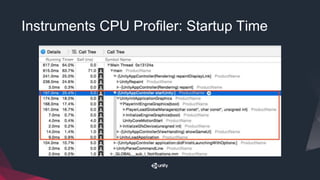
Instruments CPU Profiler: Startup Time
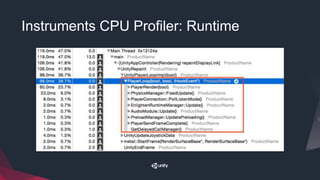
Instruments CPU Profiler: Runtime
Instruments: Reading the PlayerLoop
• BaseBehaviourManager::CommonUpdate
• Update, FixedUpdate and LateUpdate callbacks
• PhysicsManager::FixedUpdate
• PhysX simulation, OnCollision* and OnTrigger* callbacks
• Physics2DManager::FixedUpdate if using 2D physics
• DelayedCallManager::Update
• Resumed coroutines
Instruments: Reading the PlayerLoop (2)
• PlayerRender
• Draw calls, batching, OnWillRender & image effect callbacks
• UI::CanvasManager::WillRenderCanvases
• UI canvas rebatching, text mesh generation, etc.
• EnlightenRuntimeManager::Update
• Enlighten, precomputed realtime GI, reflection probes
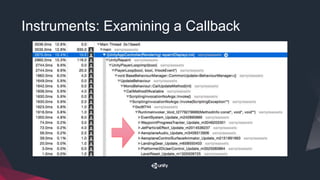
Instruments: Examining a Callback
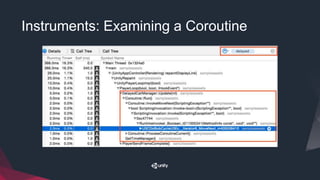
Instruments: Examining a Coroutine
Instruments: Coroutines (2)
• Coroutine execution is split between two places:
• The method where the coroutine was started.
• i.e. where StartCoroutine() was called
• DelayedCallManager
• StartCoroutine runs all code until the first yield
• DelayedCalledManager runs the rest
Instruments: Summarizing Distributed Costs
• Enter method name into “Search” box
• Suggested searches:
• “::Box”, “Box(“ and “_Box”
• “String_”
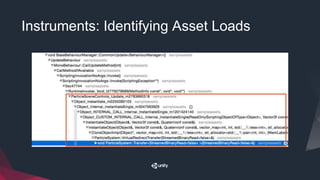
Instruments: Identifying Asset Loads
5.3 Memory Profiler
5.3 Memory Profiler
• Download code from Bitbucket
• http://bitbucket.org/Unity-Technologies/MemoryProfiler/
• Drop into an Editor folder inside Assets
• In Unity Editor: Window > MemoryProfilerWindow
• Connect Unity Profiler via Profiler Window
• Click “Take Snapshot”
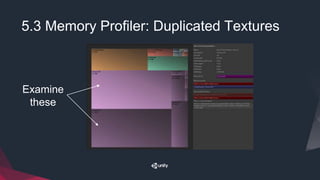
5.3 Memory Profiler: Duplicated Textures
Examine
these
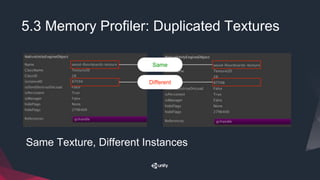
5.3 Memory Profiler: Duplicated Textures
Same Texture, Different Instances
Same
Different
5.3 Memory Profiler
Assets
Asset Auditing: Preventing Mistakes
• Developers are people (arguably)
• People make mistakes
• Mistakes cost dev time
• Write tools to prevent common, costly errors
Asset Auditing: Common Errors
• Insane texture sizes
• Asset compression
• Improper Avatar/Rig settings
• Different rules for different parts of project
Asset Auditing: HOWTO
public class AssetAuditExample : AssetPostprocessor {
public void OnPreprocessTexture() {
// …
}
public void OnPreprocessModel() {
// …
}
}
Asset Auditing: HOWTO (2)
• AssetPostprocessor classes receive callbacks on import
• Implement OnPreprocess* methods
• Apply your project’s rules to assetImporter instance
Asset Auditing: HOWTO (3)
public class ReadOnlyModelPostprocessor : AssetPostprocessor {
public void OnPreprocessModel() {
ModelImporter modelImporter = (ModelImporter)assetImporter;
if(modelImporter.isReadable) {
modelImporter.isReadable = false;
modelImporter.SaveAndReimport();
}
}
}
Common Rules: Textures
• Make sure Read/Write is disabled
• Disable mipmaps if possible
• Make sure textures are Compressed
• Ensure sizes aren’t too large
• 2048x2048 or 1024x1024 for UI atlases
• 512x512 or smaller for model textures
Common Rules: Models
• Make sure Read/Write is disabled
• Disable rig on non-character models
• Copy avatars for characters with shared rigs
• Enable mesh compression
Common Rules: Audio
• MP3 compression on iOS
• Vorbis compression on Android
• “Force Mono” for mobile games
• Set bitrate as low as possible
Memory in Unity
Managed Memory: How It Works
Texture #1Texture #2Audio ClipMesh
int[] Arraystringstringstring
Heap contains objects allocated for Assets and Scripts
Managed Memory: How It Works
Texture #1Texture #2Audio ClipMesh
int[] Arraystringstringstring
int[] someNumbers = new int[2048];
More memory is allocated when requested by code.
int[] Array
Managed Memory: How It Works
Texture #1Texture #2Audio ClipMesh
int[] Arraystringstringstring
GC.Collect();
Garbage collector runs periodically, looks for unused
objects.
Unused objects are deleted.
int[] Array
Managed Memory: How It Works
Texture #1Texture #2Audio ClipMesh
int[] Arraystring
Holes are not filled. This is Memory Fragmentation.
int[] Array
Managed Memory: How It Works
Texture #1Texture #2Audio ClipMesh
int[] Arraystring
When there isn’t enough space for new objects…
int[] Array
int[] Array
TOO SMALL
Managed Memory: How It Works
Texture #1Texture #2Audio ClipMesh
int[] Arraystring
The heap expands.
int[] Array
int[] Array
Managed Memory: Problems
• In Unity, the heap only expands. It never shrinks.
• iOS & Android still care about reserved pages.
• Detail: Unused blocks of the heap remain reserved, but
are paged out of the working set.
Managed Memory: Problems (2)
• Temporary memory allocations are really bad.
• 1 kilobyte of allocation per frame, 60 FPS
• = 60 kilobytes per second of allocation
• If GC runs once per minute (BAD for framerate)…
• 3600 kilobytes of memory needed!
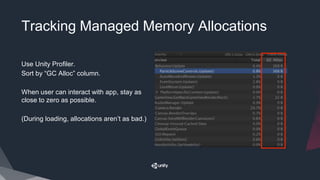
Tracking Managed Memory Allocations
Use Unity Profiler.
Sort by “GC Alloc” column.
When user can interact with app, stay as
close to zero as possible.
(During loading, allocations aren’t as bad.)
Memory Conservation
• Reuse Collections (Lists, HashSets, etc.)
• Avoid string concatenation
• Reuse StringBuilders to compose strings
• Avoid closures & anonymous methods
Memory Conservation: Boxing
• Happens when passing a value type as a reference
type.
• Value is temporarily allocated on the heap.
• Example:
int x = 1;
object y = new object();
y.Equals(x); // Boxes “x” onto the heap
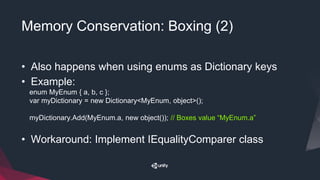
Memory Conservation: Boxing (2)
• Also happens when using enums as Dictionary keys
• Example:
enum MyEnum { a, b, c };
var myDictionary = new Dictionary<MyEnum, object>();
myDictionary.Add(MyEnum.a, new object()); // Boxes value “MyEnum.a”
• Workaround: Implement IEqualityComparer class
Memory Conservation: Foreach
• Allocates a Enumerator when loop begins
• Specific to Unity’s version of Mono
• Just don’t use it.
Memory Conservation: Unity APIs
• If a Unity API returns an array, it allocates a new copy.
• Every time it is accessed.
• Even if the values do not change.
Memory Conservation: Unity APIs (2)
• This code allocates many Touch[] arrays.
for ( int i = 0; i < Input.touches.Length; i++ )
{
Touch touch = Input.touches[i];
// …
}
Memory Conservation: Unity APIs (3)
• This code allocates only one copy of the Touch[] array.
Touch[] touches = Input.touches;
for ( int i = 0; i < touches.Length; i++ )
{
Touch touch = touches[i];
// …
}
CPU Performance Tips: Loading
XML, JSON & other text formats
• Parsing text is very slow.
• Avoid parsers built on Reflection — extremely slow.
• In 5.3: Use Unity’s JsonUtility class!
• Three strategies to speed up data parsing.
XML/JSON: Reduce Workload
• Strategy 1: Don’t parse text.
• Bake text data to binary
• Use ScriptableObject
• Useful for data that does not change often.
• e.g. Game design parameters
XML/JSON: Reduce Workload (2)
• Strategy 2: Do less work.
• Split data into smaller chunks.
• Parse only the parts that are needed.
• Cache parsing results for later reuse.
XML/JSON: Reduce Workload (3)
• Strategy 3: Threads.
• Pure C# types only.
• No Unity Assets (ScriptableObjects, Textures, etc.)
• Be VERY careful.
Large Prefabs
• All GameObjects & Components in a prefab are
serialized into the prefab’s data file.
• Includes all settings on all Components.
• 2 identical GameObjects in a prefab = 2 copies of data
Large Prefabs (2)
• For very large prefabs, split into smaller parts
• Use Awake callbacks to instantiate duplicated parts
The Resources Folder
• An index of Resources is loaded at startup.
• Cannot be avoided or deferred.
• Solution: Move assets from Resources to Asset
Bundles.
CPU Performance Tips: Runtime
Easy: Material/Animator/Shader Properties
• Never address Material, Shader, or Animator properties
by name.
• Internally, hashes the property name into an integer.
• Don’t do this:
material.SetColor(“_Color”, Color.white);
animator.SetTrigger(“attack”);
Cached Material/Animator/Shader
Properties
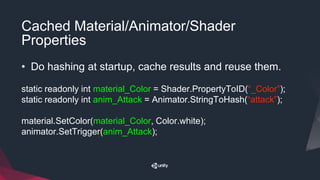
• Do hashing at startup, cache results and reuse them.
static readonly int material_Color = Shader.PropertyToID(“_Color”);
static readonly int anim_Attack = Animator.StringToHash(“attack”);
material.SetColor(material_Color, Color.white);
animator.SetTrigger(anim_Attack);
Boxing & String Manipulation
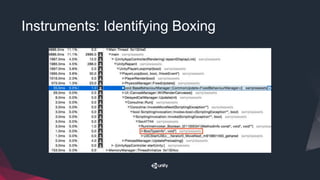
• These are so expensive we had to mention them twice.
• Slow: RegExps, String.StartsWith, String.EndsWith
• Instruments:
• Search for “::Box” and “_Box”
• Search for “String_”
Instruments: Identifying Boxing
Unity UI
Canvases, Draw Calls and Batching
• Canvases “rebuild” their batches to reduce draw calls
• Rebuilds are very expensive.
• A canvas rebuilds if any Drawable component changes.
• Any visual change will force a canvas to rebuild.
• Drawable = anything visible on a canvas.
Canvases, Draw Calls and Batching
• Cost of a rebuild based on number of elements.
• Includes children.
• Frequent changes + lots of UI = lots of CPU usage!
Reducing Batching Cost
• Reduce number of Drawables.
• Merge sprites, merge text objects
• Split up Canvases
• Balance cost of draw calls and cost of batching.
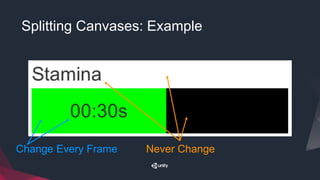
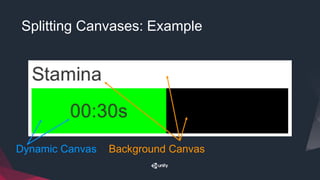
Splitting Canvases
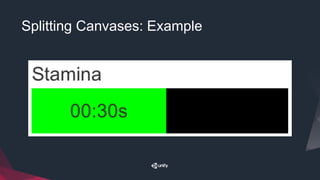
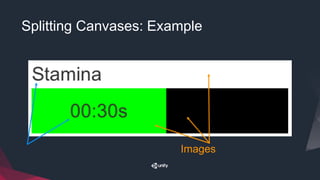
• Can nest a canvas within another canvas
• Nested canvases isolate their children from rebuilds.
• Guideline: Move elements that change every frame onto
separate canvases from static elements.
Splitting Canvases: Example
Images
Splitting Canvases: Example
Change Every Frame Never Change
Splitting Canvases: Example
Dynamic Canvas Background Canvas
Trampolines
Remember…
• Profile before optimizing.
• Apply these techniques only when needed.
How Unity Invokes Callbacks
• Internally, C++ Linked List of Components with callbacks
• Update, LateUpdate, etc.
• Iterate over the Linked List and invoke each callback.
• Small overhead when invoking scripts
How Unity Invokes Callbacks
• If number of callbacks becomes very large, overhead
can become significant.
• Thousands of callbacks: 10-20% of Update CPU time
Replacing Callbacks
• Remove Update, LateUpdate, etc.
• Make a GameObject with a MonoBehaviour
• Implement Update, LateUpdate, and other callbacks on this
object
• All other code: Subscribe to needed callbacks
Replacing Callbacks: UpdateManager
object
public class UpdateManager : MonoBehaviour {
public static UpdateManager Instance { get; set; }
void Awake() { Instance = this; }
public UnityEvent OnUpdate = new UnityEvent();
void Update() {
OnUpdate.Invoke();
}
}
Replacing Callbacks: Advantages
• Eliminates native-to-managed trampoline overhead.
• Objects can intelligently unsubscribe.
• Don’t need to return out of Update callbacks!
• Works well with pooled objects.
Optimizing mobile applications - Ian Dundore, Mark Harkness

Optimizing mobile applications - Ian Dundore, Mark Harkness

  • 2.
  • 3.
  • 4.
  • 5.
    About This Talk •Getting Good Data • General Best Practices • Common Problems & Solutions • Memory Usage • CPU Performance
  • 6.
  • 7.
    Use The BestTools • iOS: Instruments • Android: VTune, Snapdragon Profiler • Unity Editor • Timeline • 5.3: Memory Profiler
  • 8.
    Instruments! • Free, includedwith XCode • Works perfectly with Unity IL2CPP builds • Best tool for mobile CPU profiling • Best tool for startup time profiling
  • 9.
    Instruments! (2) • Instructionson how to run it: • http://blogs.unity3d.com/2016/02/01/profiling-with- instruments/
  • 10.
  • 11.
  • 12.
    Instruments: Reading thePlayerLoop • BaseBehaviourManager::CommonUpdate • Update, FixedUpdate and LateUpdate callbacks • PhysicsManager::FixedUpdate • PhysX simulation, OnCollision* and OnTrigger* callbacks • Physics2DManager::FixedUpdate if using 2D physics • DelayedCallManager::Update • Resumed coroutines
  • 13.
    Instruments: Reading thePlayerLoop (2) • PlayerRender • Draw calls, batching, OnWillRender & image effect callbacks • UI::CanvasManager::WillRenderCanvases • UI canvas rebatching, text mesh generation, etc. • EnlightenRuntimeManager::Update • Enlighten, precomputed realtime GI, reflection probes
  • 14.
  • 15.
  • 16.
    Instruments: Coroutines (2) •Coroutine execution is split between two places: • The method where the coroutine was started. • i.e. where StartCoroutine() was called • DelayedCallManager • StartCoroutine runs all code until the first yield • DelayedCalledManager runs the rest
  • 17.
    Instruments: Summarizing DistributedCosts • Enter method name into “Search” box • Suggested searches: • “::Box”, “Box(“ and “_Box” • “String_”
  • 18.
  • 19.
  • 20.
    5.3 Memory Profiler •Download code from Bitbucket • http://bitbucket.org/Unity-Technologies/MemoryProfiler/ • Drop into an Editor folder inside Assets • In Unity Editor: Window > MemoryProfilerWindow • Connect Unity Profiler via Profiler Window • Click “Take Snapshot”
  • 21.
    5.3 Memory Profiler:Duplicated Textures Examine these
  • 22.
    5.3 Memory Profiler:Duplicated Textures Same Texture, Different Instances Same Different
  • 23.
  • 24.
  • 25.
    Asset Auditing: PreventingMistakes • Developers are people (arguably) • People make mistakes • Mistakes cost dev time • Write tools to prevent common, costly errors
  • 26.
    Asset Auditing: CommonErrors • Insane texture sizes • Asset compression • Improper Avatar/Rig settings • Different rules for different parts of project
  • 27.
    Asset Auditing: HOWTO publicclass AssetAuditExample : AssetPostprocessor { public void OnPreprocessTexture() { // … } public void OnPreprocessModel() { // … } }
  • 28.
    Asset Auditing: HOWTO(2) • AssetPostprocessor classes receive callbacks on import • Implement OnPreprocess* methods • Apply your project’s rules to assetImporter instance
  • 29.
    Asset Auditing: HOWTO(3) public class ReadOnlyModelPostprocessor : AssetPostprocessor { public void OnPreprocessModel() { ModelImporter modelImporter = (ModelImporter)assetImporter; if(modelImporter.isReadable) { modelImporter.isReadable = false; modelImporter.SaveAndReimport(); } } }
  • 30.
    Common Rules: Textures •Make sure Read/Write is disabled • Disable mipmaps if possible • Make sure textures are Compressed • Ensure sizes aren’t too large • 2048x2048 or 1024x1024 for UI atlases • 512x512 or smaller for model textures
  • 31.
    Common Rules: Models •Make sure Read/Write is disabled • Disable rig on non-character models • Copy avatars for characters with shared rigs • Enable mesh compression
  • 32.
    Common Rules: Audio •MP3 compression on iOS • Vorbis compression on Android • “Force Mono” for mobile games • Set bitrate as low as possible
  • 33.
  • 34.
    Managed Memory: HowIt Works Texture #1Texture #2Audio ClipMesh int[] Arraystringstringstring Heap contains objects allocated for Assets and Scripts
  • 35.
    Managed Memory: HowIt Works Texture #1Texture #2Audio ClipMesh int[] Arraystringstringstring int[] someNumbers = new int[2048]; More memory is allocated when requested by code. int[] Array
  • 36.
    Managed Memory: HowIt Works Texture #1Texture #2Audio ClipMesh int[] Arraystringstringstring GC.Collect(); Garbage collector runs periodically, looks for unused objects. Unused objects are deleted. int[] Array
  • 37.
    Managed Memory: HowIt Works Texture #1Texture #2Audio ClipMesh int[] Arraystring Holes are not filled. This is Memory Fragmentation. int[] Array
  • 38.
    Managed Memory: HowIt Works Texture #1Texture #2Audio ClipMesh int[] Arraystring When there isn’t enough space for new objects… int[] Array int[] Array TOO SMALL
  • 39.
    Managed Memory: HowIt Works Texture #1Texture #2Audio ClipMesh int[] Arraystring The heap expands. int[] Array int[] Array
  • 40.
    Managed Memory: Problems •In Unity, the heap only expands. It never shrinks. • iOS & Android still care about reserved pages. • Detail: Unused blocks of the heap remain reserved, but are paged out of the working set.
  • 41.
    Managed Memory: Problems(2) • Temporary memory allocations are really bad. • 1 kilobyte of allocation per frame, 60 FPS • = 60 kilobytes per second of allocation • If GC runs once per minute (BAD for framerate)… • 3600 kilobytes of memory needed!
  • 42.
    Tracking Managed MemoryAllocations Use Unity Profiler. Sort by “GC Alloc” column. When user can interact with app, stay as close to zero as possible. (During loading, allocations aren’t as bad.)
  • 43.
    Memory Conservation • ReuseCollections (Lists, HashSets, etc.) • Avoid string concatenation • Reuse StringBuilders to compose strings • Avoid closures & anonymous methods
  • 44.
    Memory Conservation: Boxing •Happens when passing a value type as a reference type. • Value is temporarily allocated on the heap. • Example: int x = 1; object y = new object(); y.Equals(x); // Boxes “x” onto the heap
  • 45.
    Memory Conservation: Boxing(2) • Also happens when using enums as Dictionary keys • Example: enum MyEnum { a, b, c }; var myDictionary = new Dictionary<MyEnum, object>(); myDictionary.Add(MyEnum.a, new object()); // Boxes value “MyEnum.a” • Workaround: Implement IEqualityComparer class
  • 46.
    Memory Conservation: Foreach •Allocates a Enumerator when loop begins • Specific to Unity’s version of Mono • Just don’t use it.
  • 47.
    Memory Conservation: UnityAPIs • If a Unity API returns an array, it allocates a new copy. • Every time it is accessed. • Even if the values do not change.
  • 48.
    Memory Conservation: UnityAPIs (2) • This code allocates many Touch[] arrays. for ( int i = 0; i < Input.touches.Length; i++ ) { Touch touch = Input.touches[i]; // … }
  • 49.
    Memory Conservation: UnityAPIs (3) • This code allocates only one copy of the Touch[] array. Touch[] touches = Input.touches; for ( int i = 0; i < touches.Length; i++ ) { Touch touch = touches[i]; // … }
  • 50.
  • 51.
    XML, JSON &other text formats • Parsing text is very slow. • Avoid parsers built on Reflection — extremely slow. • In 5.3: Use Unity’s JsonUtility class! • Three strategies to speed up data parsing.
  • 52.
    XML/JSON: Reduce Workload •Strategy 1: Don’t parse text. • Bake text data to binary • Use ScriptableObject • Useful for data that does not change often. • e.g. Game design parameters
  • 53.
    XML/JSON: Reduce Workload(2) • Strategy 2: Do less work. • Split data into smaller chunks. • Parse only the parts that are needed. • Cache parsing results for later reuse.
  • 54.
    XML/JSON: Reduce Workload(3) • Strategy 3: Threads. • Pure C# types only. • No Unity Assets (ScriptableObjects, Textures, etc.) • Be VERY careful.
  • 55.
    Large Prefabs • AllGameObjects & Components in a prefab are serialized into the prefab’s data file. • Includes all settings on all Components. • 2 identical GameObjects in a prefab = 2 copies of data
  • 56.
    Large Prefabs (2) •For very large prefabs, split into smaller parts • Use Awake callbacks to instantiate duplicated parts
  • 57.
    The Resources Folder •An index of Resources is loaded at startup. • Cannot be avoided or deferred. • Solution: Move assets from Resources to Asset Bundles.
  • 58.
  • 59.
    Easy: Material/Animator/Shader Properties •Never address Material, Shader, or Animator properties by name. • Internally, hashes the property name into an integer. • Don’t do this: material.SetColor(“_Color”, Color.white); animator.SetTrigger(“attack”);
  • 60.
    Cached Material/Animator/Shader Properties • Dohashing at startup, cache results and reuse them. static readonly int material_Color = Shader.PropertyToID(“_Color”); static readonly int anim_Attack = Animator.StringToHash(“attack”); material.SetColor(material_Color, Color.white); animator.SetTrigger(anim_Attack);
  • 61.
    Boxing & StringManipulation • These are so expensive we had to mention them twice. • Slow: RegExps, String.StartsWith, String.EndsWith • Instruments: • Search for “::Box” and “_Box” • Search for “String_”
  • 62.
  • 63.
  • 64.
    Canvases, Draw Callsand Batching • Canvases “rebuild” their batches to reduce draw calls • Rebuilds are very expensive. • A canvas rebuilds if any Drawable component changes. • Any visual change will force a canvas to rebuild. • Drawable = anything visible on a canvas.
  • 65.
    Canvases, Draw Callsand Batching • Cost of a rebuild based on number of elements. • Includes children. • Frequent changes + lots of UI = lots of CPU usage!
  • 66.
    Reducing Batching Cost •Reduce number of Drawables. • Merge sprites, merge text objects • Split up Canvases • Balance cost of draw calls and cost of batching.
  • 67.
    Splitting Canvases • Cannest a canvas within another canvas • Nested canvases isolate their children from rebuilds. • Guideline: Move elements that change every frame onto separate canvases from static elements.
  • 68.
  • 69.
  • 70.
    Splitting Canvases: Example ChangeEvery Frame Never Change
  • 71.
    Splitting Canvases: Example DynamicCanvas Background Canvas
  • 72.
  • 73.
    Remember… • Profile beforeoptimizing. • Apply these techniques only when needed.
  • 74.
    How Unity InvokesCallbacks • Internally, C++ Linked List of Components with callbacks • Update, LateUpdate, etc. • Iterate over the Linked List and invoke each callback. • Small overhead when invoking scripts
  • 75.
    How Unity InvokesCallbacks • If number of callbacks becomes very large, overhead can become significant. • Thousands of callbacks: 10-20% of Update CPU time
  • 76.
    Replacing Callbacks • RemoveUpdate, LateUpdate, etc. • Make a GameObject with a MonoBehaviour • Implement Update, LateUpdate, and other callbacks on this object • All other code: Subscribe to needed callbacks
  • 77.
    Replacing Callbacks: UpdateManager object publicclass UpdateManager : MonoBehaviour { public static UpdateManager Instance { get; set; } void Awake() { Instance = this; } public UnityEvent OnUpdate = new UnityEvent(); void Update() { OnUpdate.Invoke(); } }
  • 78.
    Replacing Callbacks: Advantages •Eliminates native-to-managed trampoline overhead. • Objects can intelligently unsubscribe. • Don’t need to return out of Update callbacks! • Works well with pooled objects.