RedHat Enterprise Linux Essential
  Unit 5: vim: An Advanced Text Editor
vim: An Advanced Text Editor
   Introducing vim
   vim: A Modal Editor
   vim Basics
   Opening a file in vim
   Modifying a File Insert Mode
   Saving a File and Exiting vim Ex Mode
   Using Command Mode
   Moving Around Command Mode
   Search and Replace Command Mode
   Manipulating Text Command Mode
   Undoing Changes Command Mode
   Visual Mode
   Using multiple "windows“
   Configuring vi and vim
   Learning more
Introducing vim
 Newer version of vi, the standard Unix text editor
     Executing vi runs vim by default
 gvim: Graphical version of vim
     Applications + Programming -> Vi iMproved
     Provided by vim-X11 package
 Advantages:
    Speed: Do more with fewer keystrokes
    Simplicity: No dependence on mouse/GUI
    Availability: Included with most Unix-like OSes
 Disadvantages
    Difficulty: Steeper learning curve than simpler editors
        ‱ Key bindings emphasize speed over intuitiveness
vim Basics

 To use vim, you must at least be able to
    Open a file

    Modify a file (insert mode)

    Save a file (ex mode)
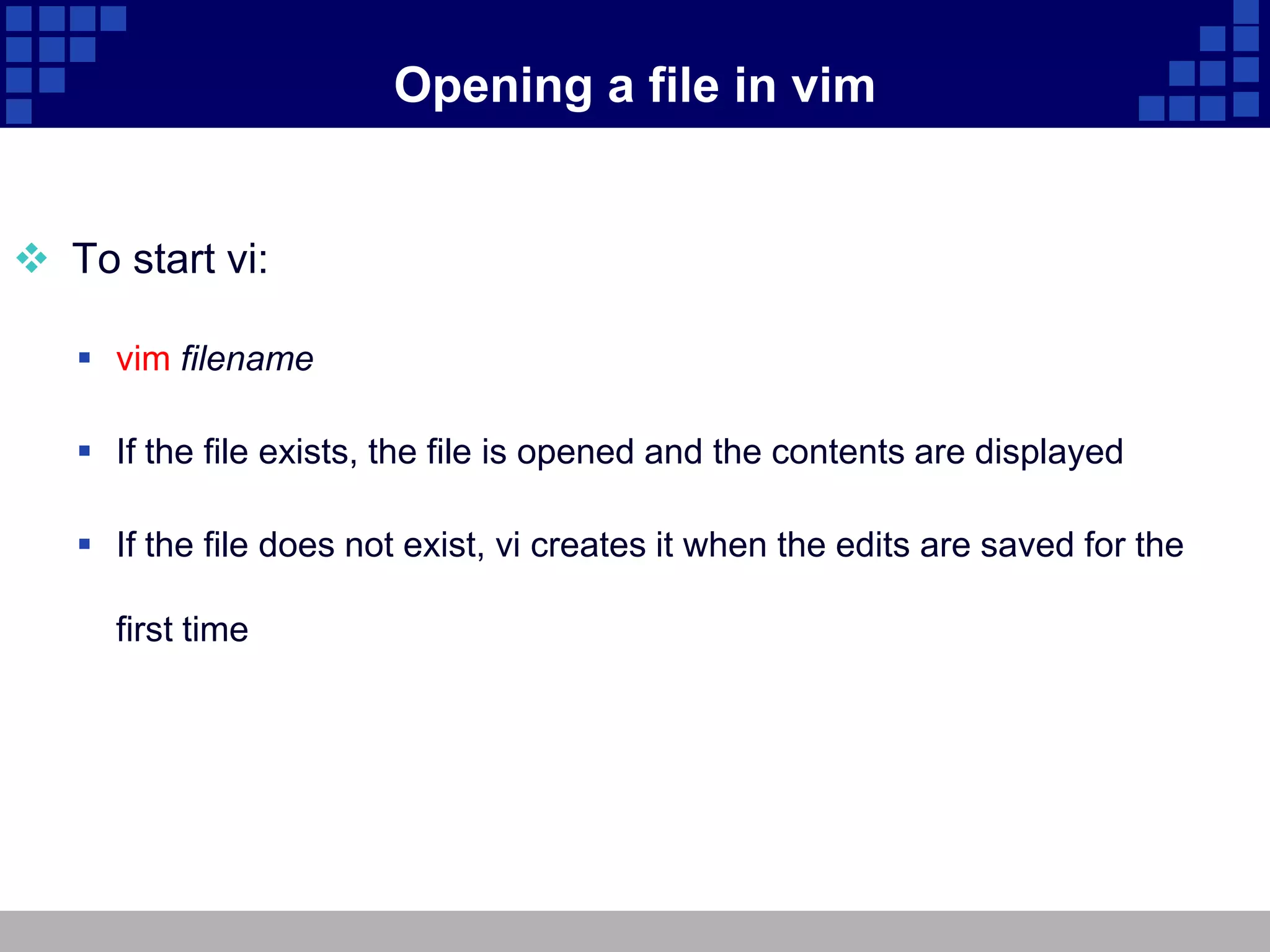
Opening a file in vim


 To start vi:

    vim filename

    If the file exists, the file is opened and the contents are displayed

    If the file does not exist, vi creates it when the edits are saved for the

     first time
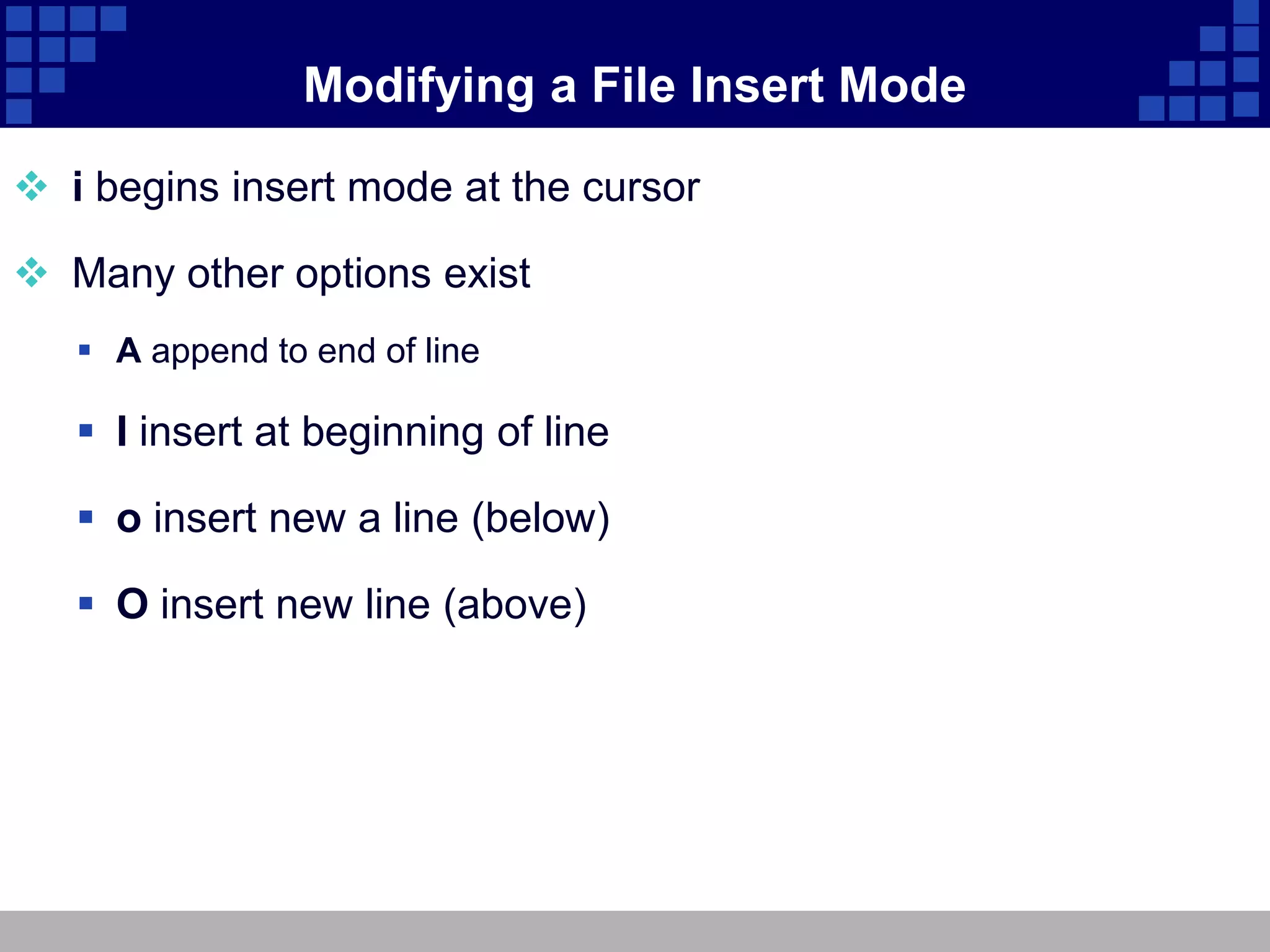
Modifying a File Insert Mode

 i begins insert mode at the cursor

 Many other options exist
    A append to end of line

    I insert at beginning of line

    o insert new a line (below)

    O insert new line (above)
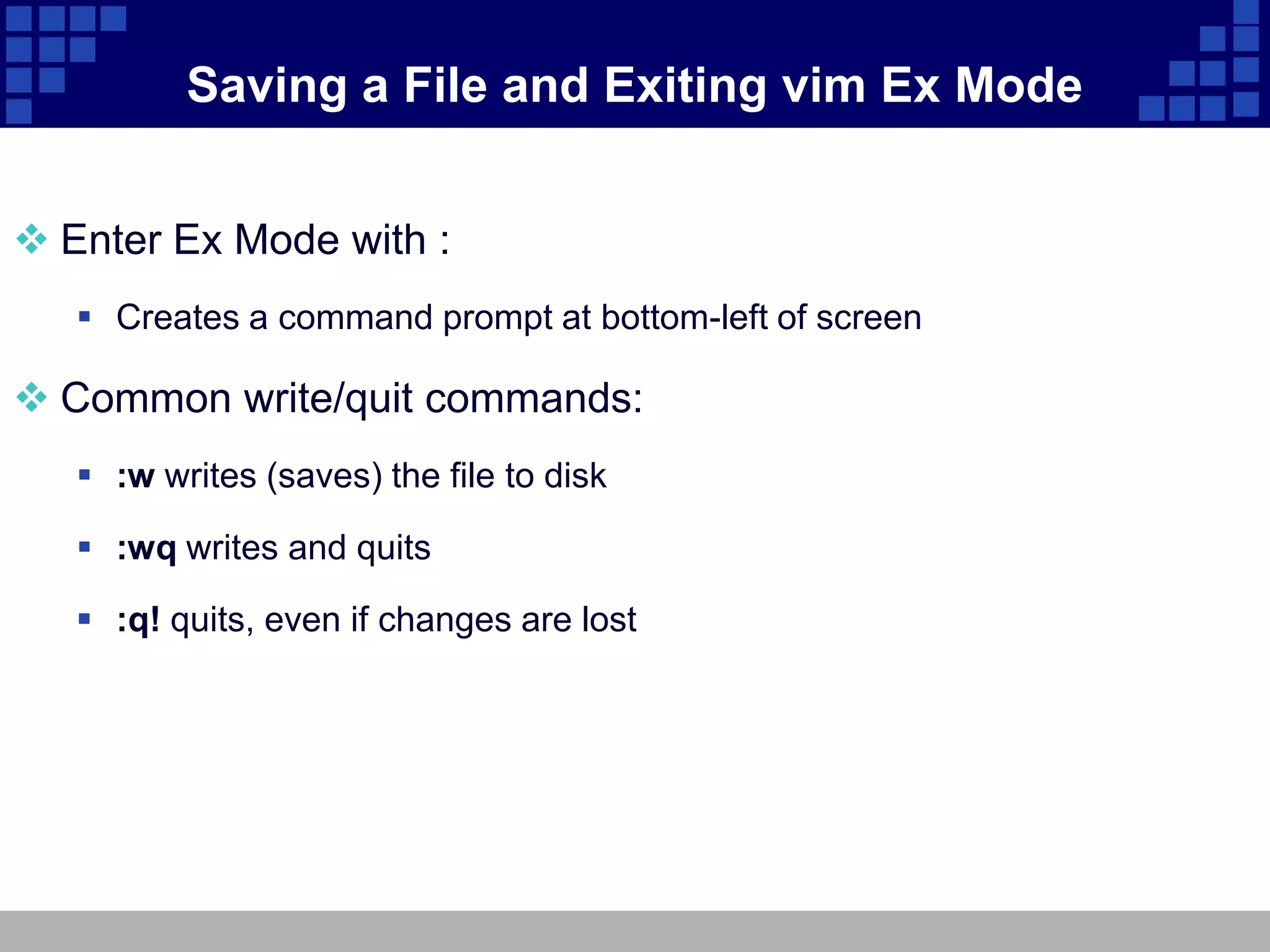
Saving a File and Exiting vim Ex Mode


 Enter Ex Mode with :
    Creates a command prompt at bottom-left of screen

 Common write/quit commands:
    :w writes (saves) the file to disk

    :wq writes and quits

    :q! quits, even if changes are lost
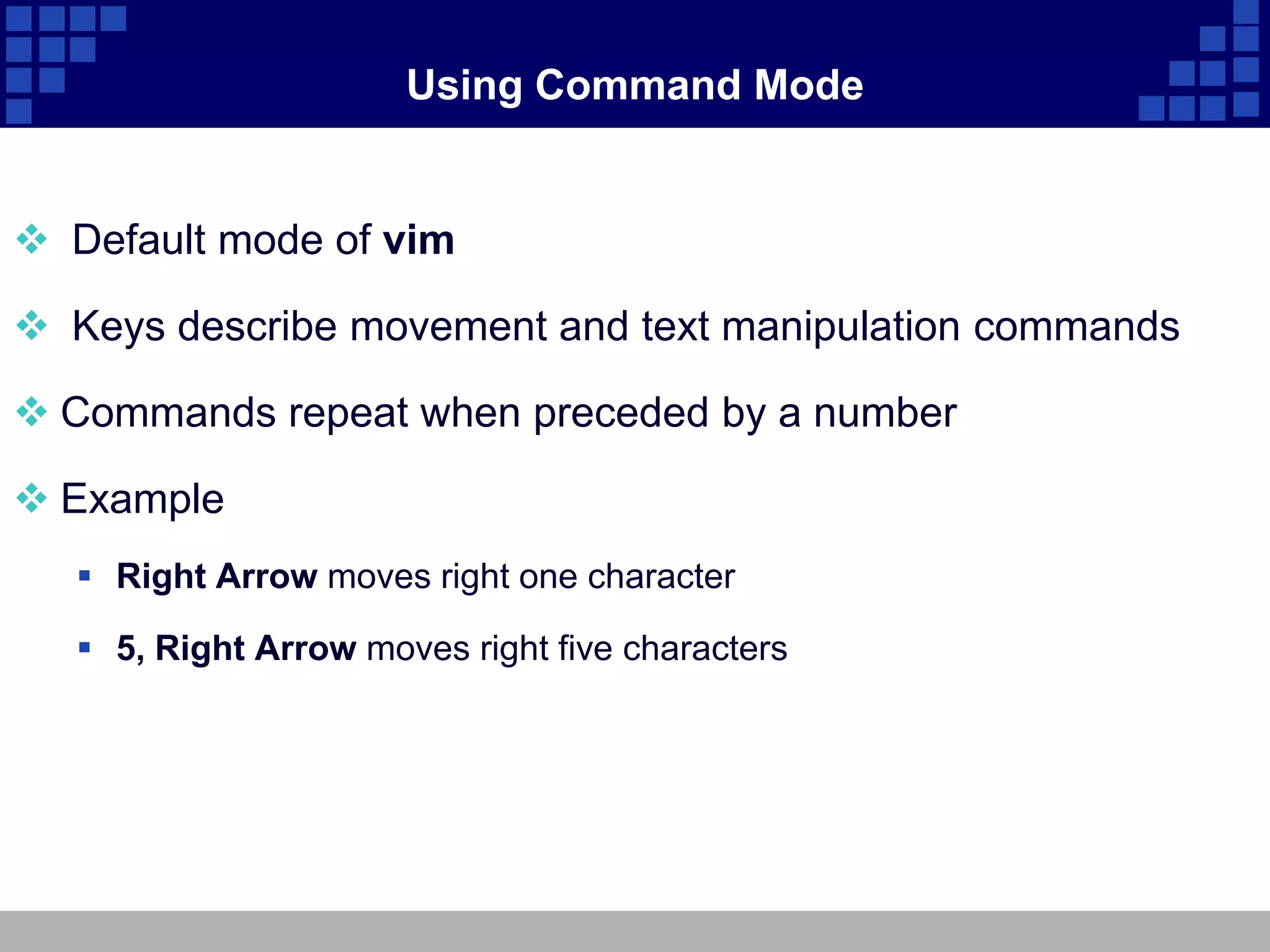
Using Command Mode


 Default mode of vim

 Keys describe movement and text manipulation commands

 Commands repeat when preceded by a number

 Example
    Right Arrow moves right one character

    5, Right Arrow moves right five characters
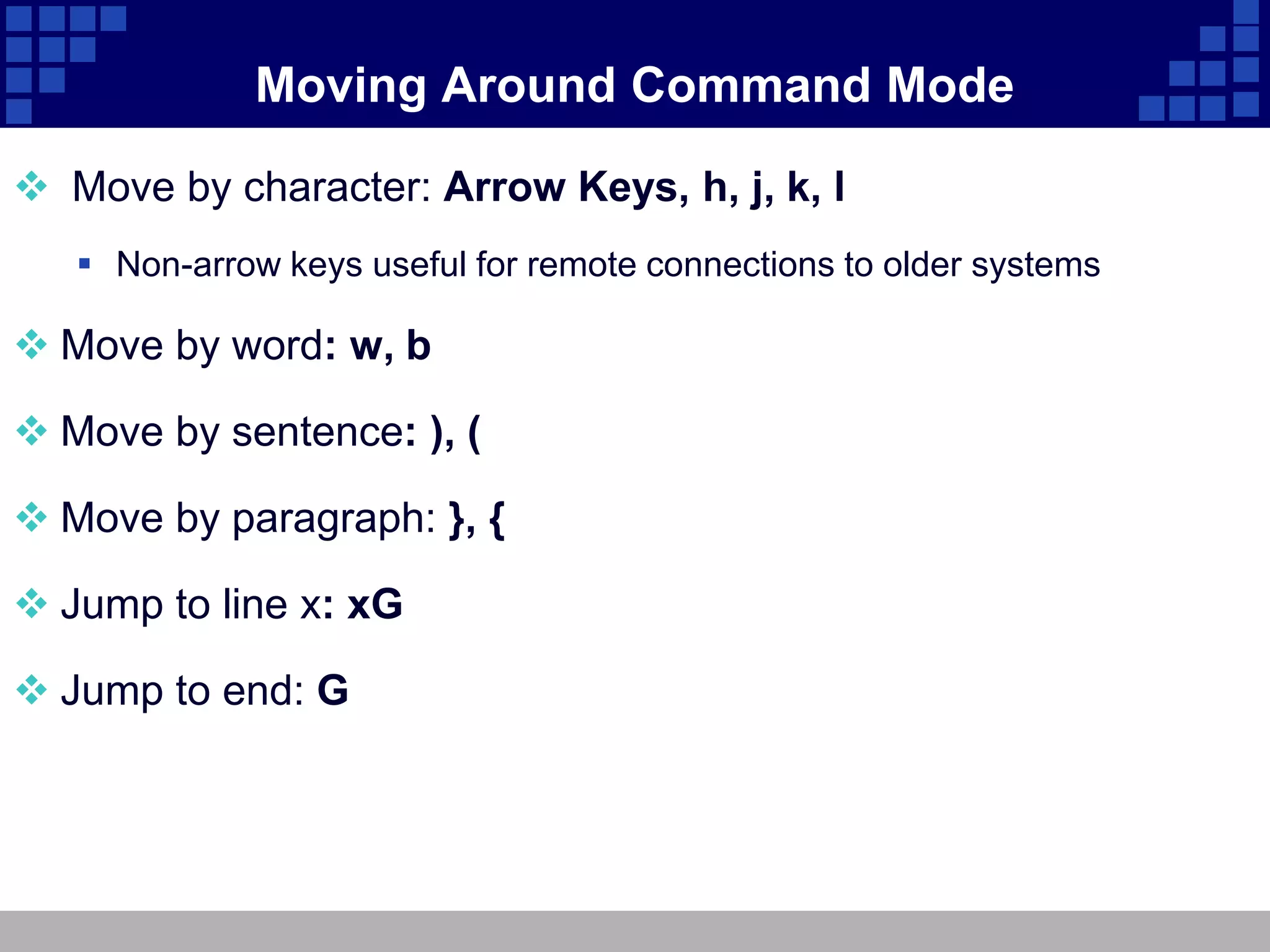
Moving Around Command Mode

 Move by character: Arrow Keys, h, j, k, l
    Non-arrow keys useful for remote connections to older systems

 Move by word: w, b

 Move by sentence: ), (

 Move by paragraph: }, {

 Jump to line x: xG

 Jump to end: G
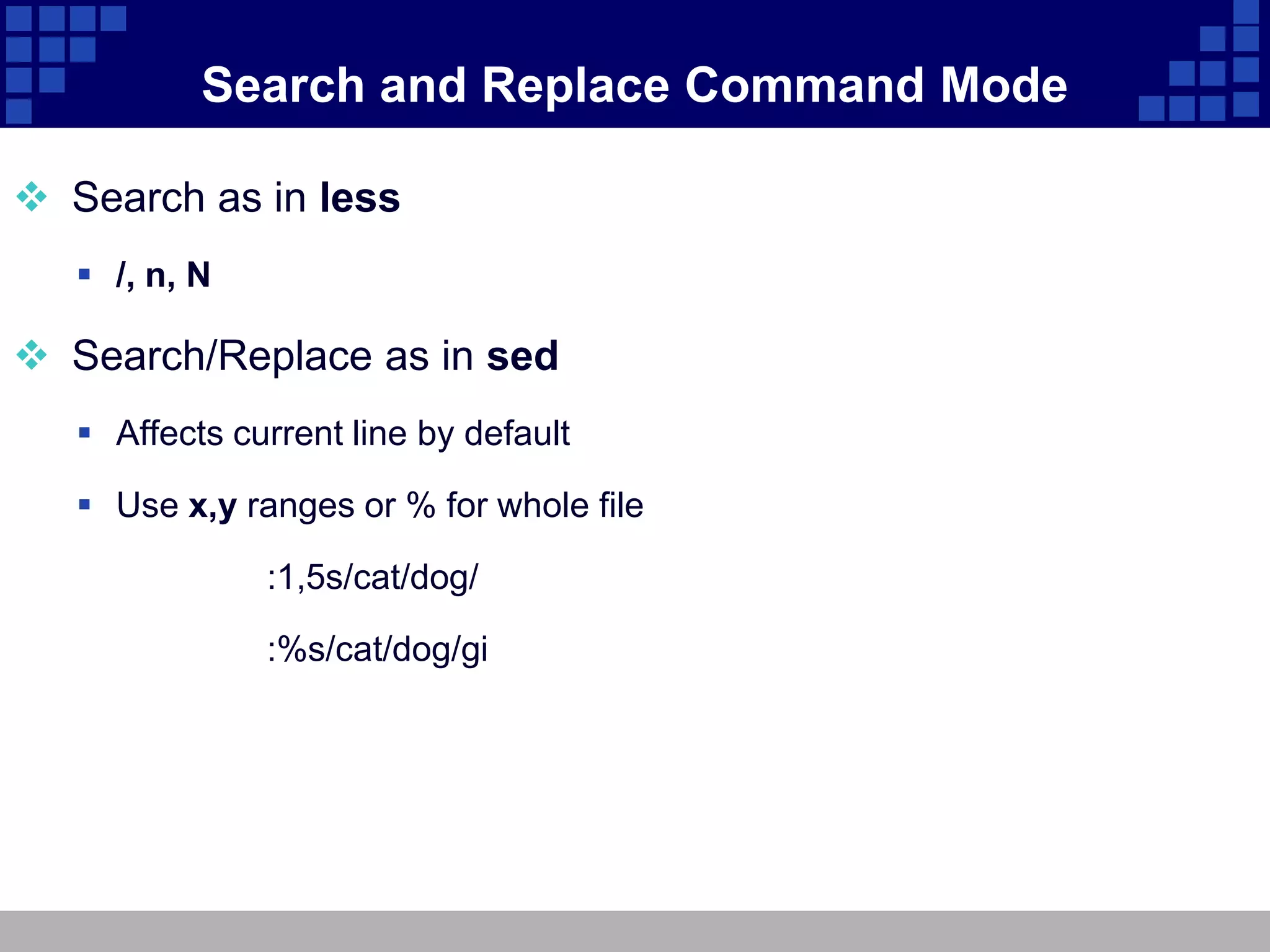
Search and Replace Command Mode

 Search as in less
    /, n, N

 Search/Replace as in sed
    Affects current line by default

    Use x,y ranges or % for whole file

               :1,5s/cat/dog/

               :%s/cat/dog/gi
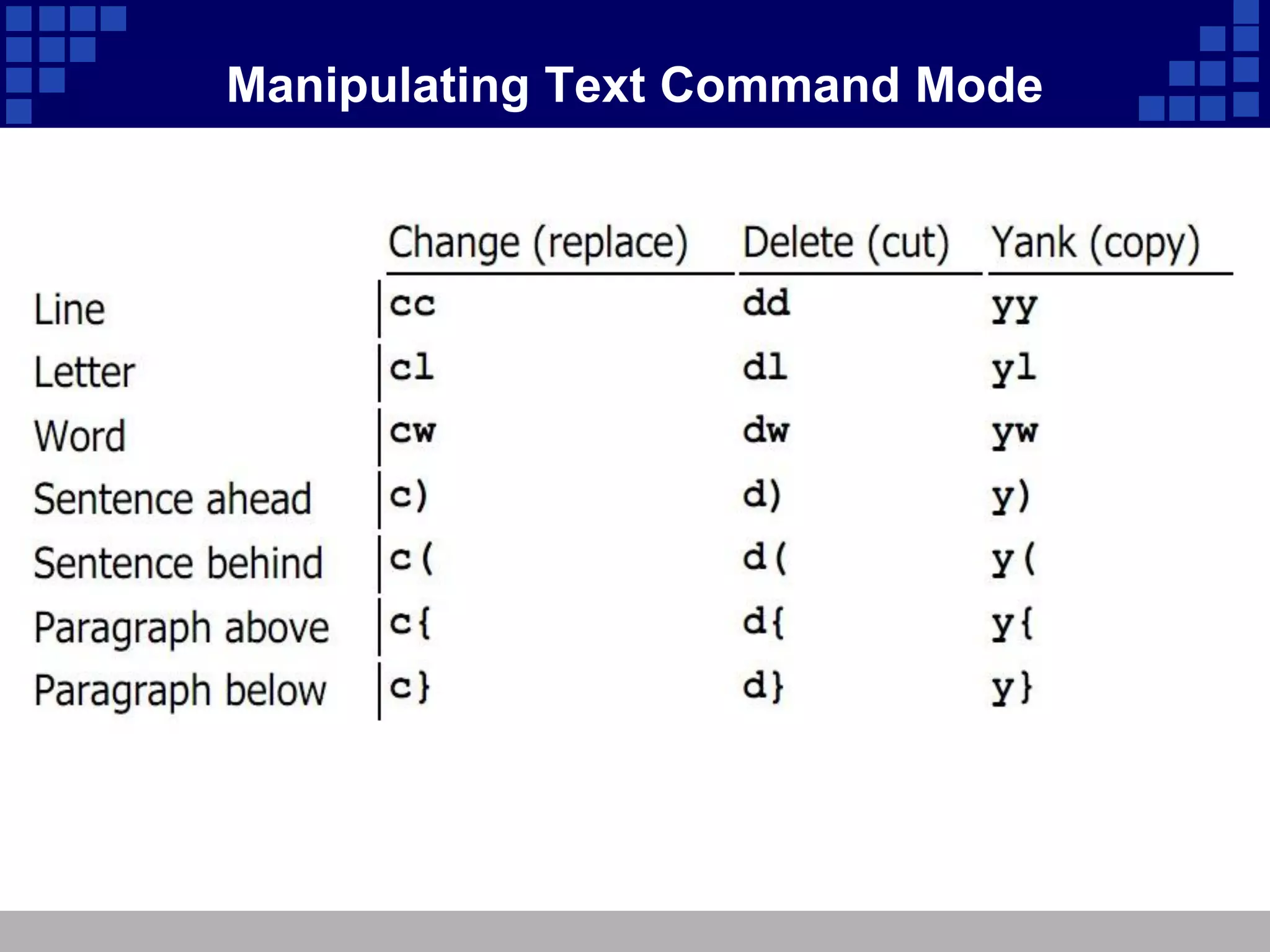
Manipulating Text Command Mode
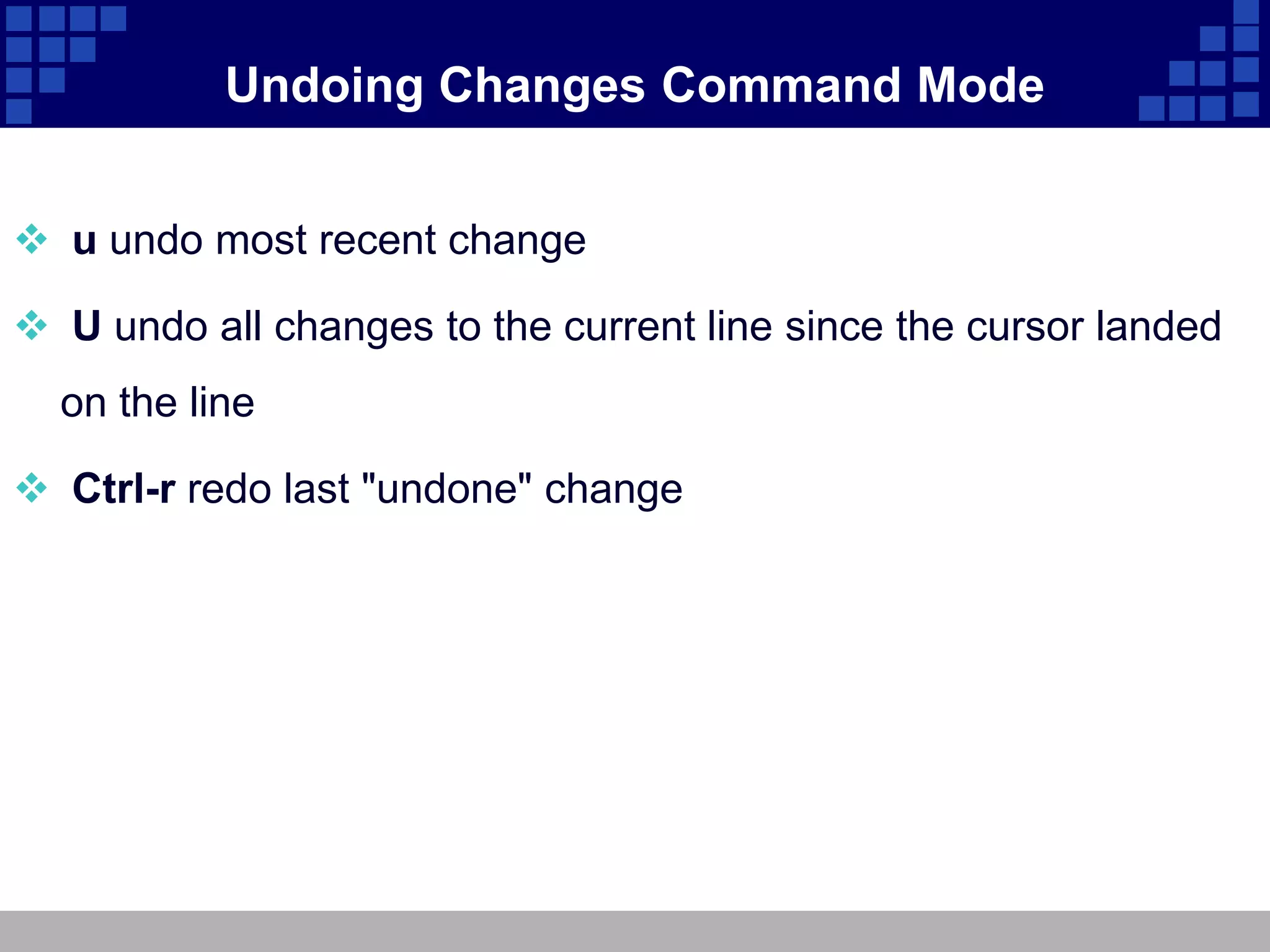
Undoing Changes Command Mode


 u undo most recent change

 U undo all changes to the current line since the cursor landed
  on the line

 Ctrl-r redo last "undone" change
Visual Mode


 Allows selection of blocks of text
    v starts character-oriented highlighting

    V starts line-oriented highlighting

    Activated with mouse in gvim

 Visual keys can be used in conjunction with movement keys:
    w, ), }, arrows, etc

 Highlighted text can be deleted, yanked, changed, filtered,
  search/replaced, etc.
Using multiple "windows"


 Multiple documents can be viewed in a single vim screen.

       $ vim –o ~/.bashrc ~/.bash_profile
    Ctrl-w, s splits the screen horizontally

    Ctrl-w, v splits the screen vertically

    Ctrl-w, Arrow moves between windows

 Ex-mode instructions always affect the current window

 :help windows displays more window commands
Configuring vi and vim
 Configuring on the fly
                :set or :set all
 Configuring permanently
                ~/.vimrc or ~/.exrc
 A few common configuration items
      :set number
      :set autoindent
      :set textwidth=65 (vim only)
      :set wrapmargin=15
      :set ignorecase
 Run :help option-list for a complete list
Learning more


 vi/vim built-in help
    :help

    :help topic

    Use :q to exit help

 vimtutor command
Unit 5 vim an advanced text editor

Unit 5 vim an advanced text editor

  • 1.
    RedHat Enterprise LinuxEssential Unit 5: vim: An Advanced Text Editor
  • 2.
    vim: An AdvancedText Editor  Introducing vim  vim: A Modal Editor  vim Basics  Opening a file in vim  Modifying a File Insert Mode  Saving a File and Exiting vim Ex Mode  Using Command Mode  Moving Around Command Mode  Search and Replace Command Mode  Manipulating Text Command Mode  Undoing Changes Command Mode  Visual Mode  Using multiple "windows“  Configuring vi and vim  Learning more
  • 3.
    Introducing vim  Newerversion of vi, the standard Unix text editor  Executing vi runs vim by default  gvim: Graphical version of vim  Applications + Programming -> Vi iMproved  Provided by vim-X11 package  Advantages:  Speed: Do more with fewer keystrokes  Simplicity: No dependence on mouse/GUI  Availability: Included with most Unix-like OSes  Disadvantages  Difficulty: Steeper learning curve than simpler editors ‱ Key bindings emphasize speed over intuitiveness
  • 4.
    vim Basics  Touse vim, you must at least be able to  Open a file  Modify a file (insert mode)  Save a file (ex mode)
  • 5.
    Opening a filein vim  To start vi:  vim filename  If the file exists, the file is opened and the contents are displayed  If the file does not exist, vi creates it when the edits are saved for the first time
  • 6.
    Modifying a FileInsert Mode  i begins insert mode at the cursor  Many other options exist  A append to end of line  I insert at beginning of line  o insert new a line (below)  O insert new line (above)
  • 7.
    Saving a Fileand Exiting vim Ex Mode  Enter Ex Mode with :  Creates a command prompt at bottom-left of screen  Common write/quit commands:  :w writes (saves) the file to disk  :wq writes and quits  :q! quits, even if changes are lost
  • 8.
    Using Command Mode Default mode of vim  Keys describe movement and text manipulation commands  Commands repeat when preceded by a number  Example  Right Arrow moves right one character  5, Right Arrow moves right five characters
  • 9.
    Moving Around CommandMode  Move by character: Arrow Keys, h, j, k, l  Non-arrow keys useful for remote connections to older systems  Move by word: w, b  Move by sentence: ), (  Move by paragraph: }, {  Jump to line x: xG  Jump to end: G
  • 10.
    Search and ReplaceCommand Mode  Search as in less  /, n, N  Search/Replace as in sed  Affects current line by default  Use x,y ranges or % for whole file :1,5s/cat/dog/ :%s/cat/dog/gi
  • 11.
  • 12.
    Undoing Changes CommandMode  u undo most recent change  U undo all changes to the current line since the cursor landed on the line  Ctrl-r redo last "undone" change
  • 13.
    Visual Mode  Allowsselection of blocks of text  v starts character-oriented highlighting  V starts line-oriented highlighting  Activated with mouse in gvim  Visual keys can be used in conjunction with movement keys:  w, ), }, arrows, etc  Highlighted text can be deleted, yanked, changed, filtered, search/replaced, etc.
  • 14.
    Using multiple "windows" Multiple documents can be viewed in a single vim screen. $ vim –o ~/.bashrc ~/.bash_profile  Ctrl-w, s splits the screen horizontally  Ctrl-w, v splits the screen vertically  Ctrl-w, Arrow moves between windows  Ex-mode instructions always affect the current window  :help windows displays more window commands
  • 15.
    Configuring vi andvim  Configuring on the fly :set or :set all  Configuring permanently ~/.vimrc or ~/.exrc  A few common configuration items  :set number  :set autoindent  :set textwidth=65 (vim only)  :set wrapmargin=15  :set ignorecase  Run :help option-list for a complete list
  • 16.
    Learning more  vi/vimbuilt-in help  :help  :help topic  Use :q to exit help  vimtutor command