USING VIM   The best text
            editor ever
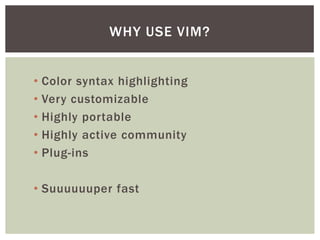
WHY USE VIM?


• Color syntax highlighting
• Very customizable
• Highly portable
• Highly active community
• Plug-ins

• Suuuuuuper fast
BEFORE WE BEGIN REMEMBER…


VIM’s effectiveness comes from not using the
          arrow keys or the mouse
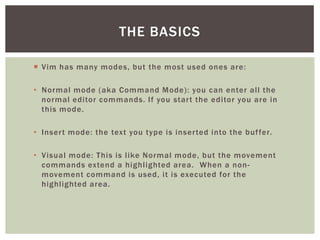
THE BASICS

 Vim has many modes, but the most used ones are:

• Normal mode (aka Command Mode): you can enter all the
  normal editor commands. If you star t the editor you are in
  this mode.

• Inser t mode: the text you type is inser ted into the buf fer.

• Visual mode: This is like Normal mode, but the movement
  commands extend a highlighted area. When a non-
  movement command is used, it is executed for the
  highlighted area.
NORMAL MODE

Main mode to make all the movement of the cursor

•   h j k l: moves the cursor left down up right respectively
•   w: jump to the start of the next word
•   e: jump to the end of the word
•   b: jump backward by words
•   0: start of the line
•   $: end of the line
•   ^: first non-blank character of the line
•   gg: top of the buf fer
•   G: bottom of the buf fer
•   #G: go to line #

N o te : P r e f i x a c u r s o r m o v e m e n t c o m m a n d w i t h a n u m b e r to r e p e a t i t . Fo r ex a m p l e , 4 j
moves down 4 lines.
MORE NORMAL MODE COMMANDS

   x: delete character under the cursor
   r: replace the character under the cursor
   R: replace everything you type until you press <ESC>
   cw: change word
   c$: change to the end of the line
   cc: change entire line
   f: find character
   p: paste from buf fer
   y: copy selected text
   . : repeat last command
   u: undo

And many more…
INSERT MODE

   i: Enter insert mode at cursor
   I: Enter insert mode at the start of the line
   a: Enter insert mode after the cursor
   A: Enter insert mode at the end of the line
   o: open a new line below the cursor
   O: open a new line above the cursor
   <ESC>: exit insert mode
VISUAL MODE

   v: start visual mode
   V: linewise visual mode
   <Ctrl> + v: block visual mode
   i: select the inner stuf f of things (i.e. vit, vi{, vi(, etc)
   <Esc>: exit visual mode
OTHER STUFF

 Command-line mode is used to enter Ex commands
  (":"), search patterns ("/" and " ?”)
  i.e. saving(:w), quitting (:q), running terminal commands (: !),
  finding and replacing: (:s)

 Searching:
     /pattern – searches for the pattern in the document
     ?pattern – searches for the pattern backwards
     n – looks for the next ocurrence of the search
     N – looks for the previous ocurrence of the search
     :%s/old/new/g - replaces all old with new throughout file
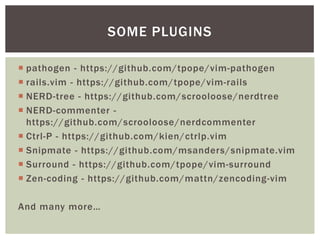
SOME PLUGINS

 pathogen - https://github.com/tpope/vim-pathogen
 rails.vim - https://github.com/tpope/vim-rails
 NERD-tree - https://github.com/scrooloose/nerdtree
 NERD-commenter -
  https://github.com/scrooloose/nerdcommenter
 Ctrl-P - https://github.com/kien/ctrlp.vim
 Snipmate - https://github.com/msanders/snipmate.vim
 Surround - https://github.com/tpope/vim-surround
 Zen-coding - https://github.com/mattn/zencoding-vim

And many more…
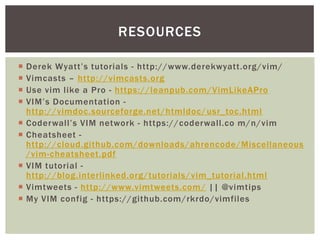
RESOURCES

   Derek Wyatt’s tutorials - http://www.derekwyatt.org/vim/
   Vimcasts – http://vimcasts.org
   Use vim like a Pro - https://leanpub.com/VimLikeAPro
   VIM’s Documentation -
    http://vimdoc.sourceforge.net/htmldoc/ usr_toc.html
   Coderwall’s VIM network - https://coderwall.co m/n/vim
   Cheatsheet -
    http://cloud.github.com/downloads/ahrencode/Miscellaneous
    /vim-cheatsheet.pdf
   VIM tutorial -
    http://blog.interlinked.org/tutorials/ vim_tutorial.html
   Vimtweets - http://www.vimtweets.com / || @vimtips
   My VIM config - https://github.com/rkrdo/vimfiles
THANK YOU!

Presentacion vim

  • 1.
    USING VIM The best text editor ever
  • 2.
    WHY USE VIM? •Color syntax highlighting • Very customizable • Highly portable • Highly active community • Plug-ins • Suuuuuuper fast
  • 3.
    BEFORE WE BEGINREMEMBER… VIM’s effectiveness comes from not using the arrow keys or the mouse
  • 4.
    THE BASICS  Vimhas many modes, but the most used ones are: • Normal mode (aka Command Mode): you can enter all the normal editor commands. If you star t the editor you are in this mode. • Inser t mode: the text you type is inser ted into the buf fer. • Visual mode: This is like Normal mode, but the movement commands extend a highlighted area. When a non- movement command is used, it is executed for the highlighted area.
  • 5.
    NORMAL MODE Main modeto make all the movement of the cursor • h j k l: moves the cursor left down up right respectively • w: jump to the start of the next word • e: jump to the end of the word • b: jump backward by words • 0: start of the line • $: end of the line • ^: first non-blank character of the line • gg: top of the buf fer • G: bottom of the buf fer • #G: go to line # N o te : P r e f i x a c u r s o r m o v e m e n t c o m m a n d w i t h a n u m b e r to r e p e a t i t . Fo r ex a m p l e , 4 j moves down 4 lines.
  • 6.
    MORE NORMAL MODECOMMANDS  x: delete character under the cursor  r: replace the character under the cursor  R: replace everything you type until you press <ESC>  cw: change word  c$: change to the end of the line  cc: change entire line  f: find character  p: paste from buf fer  y: copy selected text  . : repeat last command  u: undo And many more…
  • 7.
    INSERT MODE  i: Enter insert mode at cursor  I: Enter insert mode at the start of the line  a: Enter insert mode after the cursor  A: Enter insert mode at the end of the line  o: open a new line below the cursor  O: open a new line above the cursor  <ESC>: exit insert mode
  • 8.
    VISUAL MODE  v: start visual mode  V: linewise visual mode  <Ctrl> + v: block visual mode  i: select the inner stuf f of things (i.e. vit, vi{, vi(, etc)  <Esc>: exit visual mode
  • 9.
    OTHER STUFF  Command-linemode is used to enter Ex commands (":"), search patterns ("/" and " ?”) i.e. saving(:w), quitting (:q), running terminal commands (: !), finding and replacing: (:s)  Searching:  /pattern – searches for the pattern in the document  ?pattern – searches for the pattern backwards  n – looks for the next ocurrence of the search  N – looks for the previous ocurrence of the search  :%s/old/new/g - replaces all old with new throughout file
  • 10.
    SOME PLUGINS  pathogen- https://github.com/tpope/vim-pathogen  rails.vim - https://github.com/tpope/vim-rails  NERD-tree - https://github.com/scrooloose/nerdtree  NERD-commenter - https://github.com/scrooloose/nerdcommenter  Ctrl-P - https://github.com/kien/ctrlp.vim  Snipmate - https://github.com/msanders/snipmate.vim  Surround - https://github.com/tpope/vim-surround  Zen-coding - https://github.com/mattn/zencoding-vim And many more…
  • 11.
    RESOURCES  Derek Wyatt’s tutorials - http://www.derekwyatt.org/vim/  Vimcasts – http://vimcasts.org  Use vim like a Pro - https://leanpub.com/VimLikeAPro  VIM’s Documentation - http://vimdoc.sourceforge.net/htmldoc/ usr_toc.html  Coderwall’s VIM network - https://coderwall.co m/n/vim  Cheatsheet - http://cloud.github.com/downloads/ahrencode/Miscellaneous /vim-cheatsheet.pdf  VIM tutorial - http://blog.interlinked.org/tutorials/ vim_tutorial.html  Vimtweets - http://www.vimtweets.com / || @vimtips  My VIM config - https://github.com/rkrdo/vimfiles
  • 12.

Editor's Notes

  • #6 vim –u NONE -N