RedHat Enterprise Linux Essential
  Unit 12: Finding and Processing Files
Objectives

Upon completion of this unit, you should be able to:

 Use locate

 Use find

 Use the Gnome Search tool
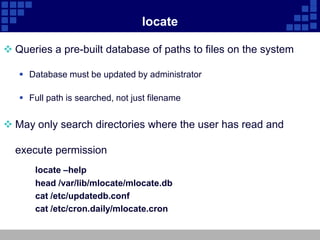
locate

 Queries a pre-built database of paths to files on the system

    Database must be updated by administrator

    Full path is searched, not just filename


 May only search directories where the user has read and

  execute permission
       locate –help
       head /var/lib/mlocate/mlocate.db
       cat /etc/updatedb.conf
       cat /etc/cron.daily/mlocate.cron
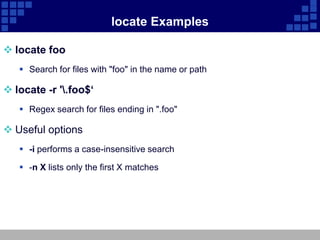
locate Examples

 locate foo
    Search for files with "foo" in the name or path

 locate -r '.foo$‘
    Regex search for files ending in ".foo"

 Useful options
    -i performs a case-insensitive search

    -n X lists only the first X matches
find

 find [directory...] [criteria...]

 Searches directory trees in real-time
    Slower but more accurate than locate

    CWD is used if no starting directory given

    All files are matched if no criteria given

 Can execute commands on found files

 May only search directories where the user has read and
  execute permission
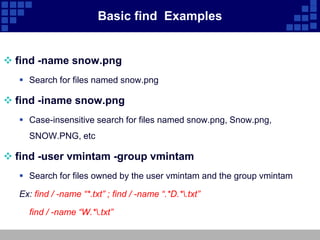
Basic find Examples


 find -name snow.png
   Search for files named snow.png

 find -iname snow.png
   Case-insensitive search for files named snow.png, Snow.png,
    SNOW.PNG, etc

 find -user vmintam -group vmintam
   Search for files owned by the user vmintam and the group vmintam

  Ex: find / -name “*.txt” ; find / -name “.*D.*.txt”

    find / -name “W.*.txt”
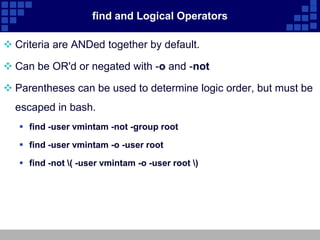
find and Logical Operators

 Criteria are ANDed together by default.

 Can be OR'd or negated with -o and -not

 Parentheses can be used to determine logic order, but must be
  escaped in bash.
    find -user vmintam -not -group root

    find -user vmintam -o -user root

    find -not ( -user vmintam -o -user root )
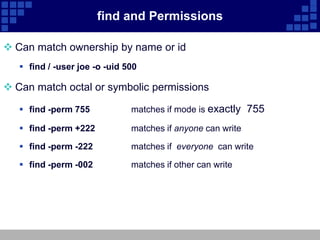
find and Permissions

 Can match ownership by name or id
    find / -user joe -o -uid 500

 Can match octal or symbolic permissions

    find -perm 755            matches if mode is exactly 755

    find -perm +222           matches if anyone can write

    find -perm -222           matches if everyone can write

    find -perm -002           matches if other can write
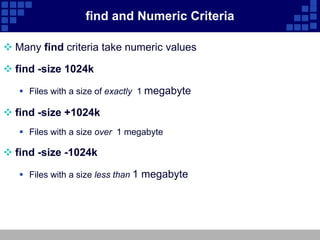
find and Numeric Criteria

 Many find criteria take numeric values

 find -size 1024k

    Files with a size of exactly 1 megabyte

 find -size +1024k
    Files with a size over 1 megabyte

 find -size -1024k

    Files with a size less than 1 megabyte
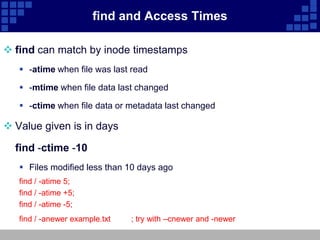
find and Access Times

 find can match by inode timestamps
    -atime when file was last read

    -mtime when file data last changed

    -ctime when file data or metadata last changed

 Value given is in days

  find -ctime -10
    Files modified less than 10 days ago
   find / -atime 5;
   find / -atime +5;
   find / -atime -5;
   find / -anewer example.txt   ; try with –cnewer and -newer
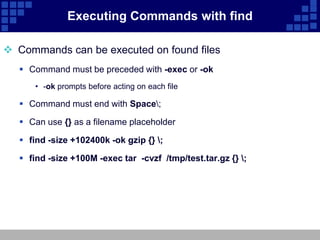
Executing Commands with find

 Commands can be executed on found files
    Command must be preceded with -exec or -ok
       • -ok prompts before acting on each file

    Command must end with Space;

    Can use {} as a filename placeholder

    find -size +102400k -ok gzip {} ;

    find -size +100M -exec tar -cvzf /tmp/test.tar.gz {} ;
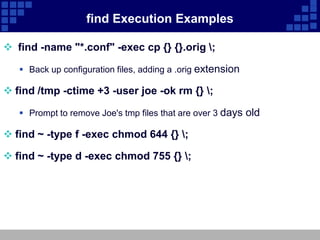
find Execution Examples

 find -name "*.conf" -exec cp {} {}.orig ;

    Back up configuration files, adding a .orig extension

 find /tmp -ctime +3 -user joe -ok rm {} ;

    Prompt to remove Joe's tmp files that are over 3 days old

 find ~ -type f -exec chmod 644 {} ;

 find ~ -type d -exec chmod 755 {} ;
Unit 12 finding and processing files

Unit 12 finding and processing files

  • 1.
    RedHat Enterprise LinuxEssential Unit 12: Finding and Processing Files
  • 2.
    Objectives Upon completion ofthis unit, you should be able to:  Use locate  Use find  Use the Gnome Search tool
  • 3.
    locate  Queries apre-built database of paths to files on the system  Database must be updated by administrator  Full path is searched, not just filename  May only search directories where the user has read and execute permission locate –help head /var/lib/mlocate/mlocate.db cat /etc/updatedb.conf cat /etc/cron.daily/mlocate.cron
  • 4.
    locate Examples  locatefoo  Search for files with "foo" in the name or path  locate -r '.foo$‘  Regex search for files ending in ".foo"  Useful options  -i performs a case-insensitive search  -n X lists only the first X matches
  • 5.
    find  find [directory...][criteria...]  Searches directory trees in real-time  Slower but more accurate than locate  CWD is used if no starting directory given  All files are matched if no criteria given  Can execute commands on found files  May only search directories where the user has read and execute permission
  • 6.
    Basic find Examples find -name snow.png  Search for files named snow.png  find -iname snow.png  Case-insensitive search for files named snow.png, Snow.png, SNOW.PNG, etc  find -user vmintam -group vmintam  Search for files owned by the user vmintam and the group vmintam Ex: find / -name “*.txt” ; find / -name “.*D.*.txt” find / -name “W.*.txt”
  • 7.
    find and LogicalOperators  Criteria are ANDed together by default.  Can be OR'd or negated with -o and -not  Parentheses can be used to determine logic order, but must be escaped in bash.  find -user vmintam -not -group root  find -user vmintam -o -user root  find -not ( -user vmintam -o -user root )
  • 8.
    find and Permissions Can match ownership by name or id  find / -user joe -o -uid 500  Can match octal or symbolic permissions  find -perm 755 matches if mode is exactly 755  find -perm +222 matches if anyone can write  find -perm -222 matches if everyone can write  find -perm -002 matches if other can write
  • 9.
    find and NumericCriteria  Many find criteria take numeric values  find -size 1024k  Files with a size of exactly 1 megabyte  find -size +1024k  Files with a size over 1 megabyte  find -size -1024k  Files with a size less than 1 megabyte
  • 10.
    find and AccessTimes  find can match by inode timestamps  -atime when file was last read  -mtime when file data last changed  -ctime when file data or metadata last changed  Value given is in days find -ctime -10  Files modified less than 10 days ago find / -atime 5; find / -atime +5; find / -atime -5; find / -anewer example.txt ; try with –cnewer and -newer
  • 11.
    Executing Commands withfind  Commands can be executed on found files  Command must be preceded with -exec or -ok • -ok prompts before acting on each file  Command must end with Space;  Can use {} as a filename placeholder  find -size +102400k -ok gzip {} ;  find -size +100M -exec tar -cvzf /tmp/test.tar.gz {} ;
  • 12.
    find Execution Examples find -name "*.conf" -exec cp {} {}.orig ;  Back up configuration files, adding a .orig extension  find /tmp -ctime +3 -user joe -ok rm {} ;  Prompt to remove Joe's tmp files that are over 3 days old  find ~ -type f -exec chmod 644 {} ;  find ~ -type d -exec chmod 755 {} ;