RedHat Enterprise Linux Essential
    Unit 3: Browsing the Filesystem
Objectives
Upon completion of this unit, you should be able to:
 Describe important elements of the filesystem hierarchy

 Copy, move, and remove files

 Create and view files

 Manage files with Nautilus
Linux File Hierarchy concepts

 Files and directories are organized into a single-rooted

  inverted tree structure

 Filesystem begins at the root directory, represented by a lone /

  (forward slash) character.

 Names are case-sensitive

 Paths are delimited by /

 Symbols: .. , .
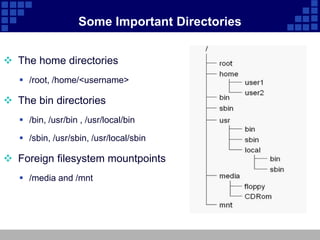
Some Important Directories


 The home directories
    /root, /home/<username>

 The bin directories
    /bin, /usr/bin , /usr/local/bin

    /sbin, /usr/sbin, /usr/local/sbin

 Foreign filesystem mountpoints
    /media and /mnt
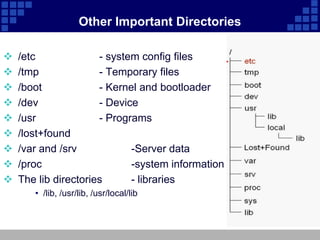
Other Important Directories

   /etc              - system config files
   /tmp              - Temporary files
   /boot             - Kernel and bootloader
   /dev              - Device
   /usr              - Programs
   /lost+found
   /var and /srv            -Server data
   /proc                    -system information
   The lib directories      - libraries
       • /lib, /usr/lib, /usr/local/lib
Current Woking Directory

 Each shell and system process has a current working

  directory (cwd)

 pwd

    Display the absolute path to the current directory (the shell's cwd)
File and Directory Names

 Names may be up to 255 characters

 All characters are valid, except the "/"
    It may be unwise to use certain special characters in file or directory
     names

    Some characters should be included in quotation marks when
     referencing them

 Names are case-sensitive
    Example: MAIL, Mail, mail and mAIl

    Again, possible, but may not be wise
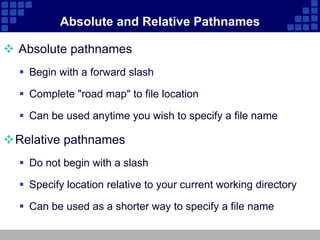
Absolute and Relative Pathnames

 Absolute pathnames
   Begin with a forward slash

   Complete "road map" to file location

   Can be used anytime you wish to specify a file name

Relative pathnames
   Do not begin with a slash

   Specify location relative to your current working directory

   Can be used as a shorter way to specify a file name
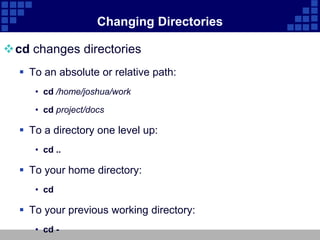
Changing Directories

cd changes directories
   To an absolute or relative path:
     • cd /home/joshua/work

     • cd project/docs

   To a directory one level up:
     • cd ..

   To your home directory:
     • cd

   To your previous working directory:
     • cd -
Listing Directory Contents
 List the contents of the current directory or a specified directory

 Usage:
    ls [options] [files_or_dirs]

 Example:
    ls -a (include hidden files)

    ls -l (display extra information)

    ls -R (recurse through directories)

    ls -ld (directory and symlink information)
Copying Files and Directories
 cp copy files and directories

 usage:

      cp [options] file destination

 More than one file may be copied at a time if the destination is
  a directory

      cp [options] file1 file2 dest
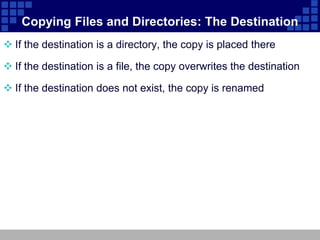
Copying Files and Directories: The Destination
 If the destination is a directory, the copy is placed there

 If the destination is a file, the copy overwrites the destination

 If the destination does not exist, the copy is renamed
Moving and Renaming Files and Directories


 mv            move and/or rename files and directories

 Usage:
    mv [options] file destination

 More than one file may be moved at a time if the destination is
  a directory
    mv [options] file1 file2 destination

 Destination works like cp
Creating and Removing Files
 touch - create empty files or update file timestamps

 rm - remove files

 Usage:
    rm [options] <file>...

 Example:
    rm -i file (interactive)

    rm -r directory (recursive)

    rm -f file (force)
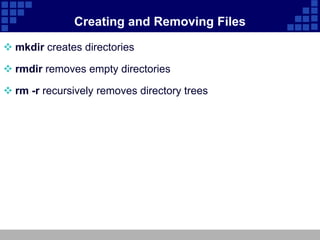
Creating and Removing Files

 mkdir creates directories

 rmdir removes empty directories

 rm -r recursively removes directory trees
Using Nautilus

 Gnome graphical filesystem browser

 Can run in spatial or browser mode

 Accessed via...
    Desktop icons
      • Home: Your home directory

      • Computer: Root filesystem, network resources and removable media

 Applications->System Tools->File Browser
Moving and Copying in Nautilus

 Drag-and-Drop
   Drag: Move on same filesystem, copy on different filesystem

   Drag + Ctrl: Always copy

   Drag + Alt: Ask whether to copy, move or create symbolic link (alias)

 Context menu
   Right-click to rename, cut, copy or paste
Determining File Content
 Files can contain many types of data

 Check file type with file before opening to determine
  appropriate command or application to use

 Syntax

       file [options] <filename>...
Unit3 browsing the filesystem

Unit3 browsing the filesystem

  • 1.
    RedHat Enterprise LinuxEssential Unit 3: Browsing the Filesystem
  • 2.
    Objectives Upon completion ofthis unit, you should be able to:  Describe important elements of the filesystem hierarchy  Copy, move, and remove files  Create and view files  Manage files with Nautilus
  • 3.
    Linux File Hierarchyconcepts  Files and directories are organized into a single-rooted inverted tree structure  Filesystem begins at the root directory, represented by a lone / (forward slash) character.  Names are case-sensitive  Paths are delimited by /  Symbols: .. , .
  • 4.
    Some Important Directories The home directories  /root, /home/<username>  The bin directories  /bin, /usr/bin , /usr/local/bin  /sbin, /usr/sbin, /usr/local/sbin  Foreign filesystem mountpoints  /media and /mnt
  • 5.
    Other Important Directories  /etc - system config files  /tmp - Temporary files  /boot - Kernel and bootloader  /dev - Device  /usr - Programs  /lost+found  /var and /srv -Server data  /proc -system information  The lib directories - libraries • /lib, /usr/lib, /usr/local/lib
  • 6.
    Current Woking Directory Each shell and system process has a current working directory (cwd)  pwd  Display the absolute path to the current directory (the shell's cwd)
  • 7.
    File and DirectoryNames  Names may be up to 255 characters  All characters are valid, except the "/"  It may be unwise to use certain special characters in file or directory names  Some characters should be included in quotation marks when referencing them  Names are case-sensitive  Example: MAIL, Mail, mail and mAIl  Again, possible, but may not be wise
  • 8.
    Absolute and RelativePathnames  Absolute pathnames  Begin with a forward slash  Complete "road map" to file location  Can be used anytime you wish to specify a file name Relative pathnames  Do not begin with a slash  Specify location relative to your current working directory  Can be used as a shorter way to specify a file name
  • 9.
    Changing Directories cd changesdirectories  To an absolute or relative path: • cd /home/joshua/work • cd project/docs  To a directory one level up: • cd ..  To your home directory: • cd  To your previous working directory: • cd -
  • 10.
    Listing Directory Contents List the contents of the current directory or a specified directory  Usage:  ls [options] [files_or_dirs]  Example:  ls -a (include hidden files)  ls -l (display extra information)  ls -R (recurse through directories)  ls -ld (directory and symlink information)
  • 11.
    Copying Files andDirectories  cp copy files and directories  usage: cp [options] file destination  More than one file may be copied at a time if the destination is a directory cp [options] file1 file2 dest
  • 12.
    Copying Files andDirectories: The Destination  If the destination is a directory, the copy is placed there  If the destination is a file, the copy overwrites the destination  If the destination does not exist, the copy is renamed
  • 13.
    Moving and RenamingFiles and Directories  mv move and/or rename files and directories  Usage:  mv [options] file destination  More than one file may be moved at a time if the destination is a directory  mv [options] file1 file2 destination  Destination works like cp
  • 14.
    Creating and RemovingFiles  touch - create empty files or update file timestamps  rm - remove files  Usage:  rm [options] <file>...  Example:  rm -i file (interactive)  rm -r directory (recursive)  rm -f file (force)
  • 15.
    Creating and RemovingFiles  mkdir creates directories  rmdir removes empty directories  rm -r recursively removes directory trees
  • 16.
    Using Nautilus  Gnomegraphical filesystem browser  Can run in spatial or browser mode  Accessed via...  Desktop icons • Home: Your home directory • Computer: Root filesystem, network resources and removable media  Applications->System Tools->File Browser
  • 17.
    Moving and Copyingin Nautilus  Drag-and-Drop  Drag: Move on same filesystem, copy on different filesystem  Drag + Ctrl: Always copy  Drag + Alt: Ask whether to copy, move or create symbolic link (alias)  Context menu  Right-click to rename, cut, copy or paste
  • 18.
    Determining File Content Files can contain many types of data  Check file type with file before opening to determine appropriate command or application to use  Syntax file [options] <filename>...