Tuffarsi in VIM


http://www.vim.org


   samba@autistici.org
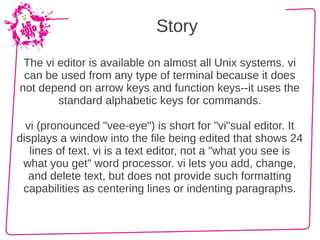
Story
 The vi editor is available on almost all Unix systems. vi
 can be used from any type of terminal because it does
not depend on arrow keys and function keys--it uses the
        standard alphabetic keys for commands.

  vi (pronounced "vee-eye") is short for "vi"sual editor. It
displays a window into the file being edited that shows 24
   lines of text. vi is a text editor, not a "what you see is
 what you get" word processor. vi lets you add, change,
   and delete text, but does not provide such formatting
 capabilities as centering lines or indenting paragraphs.
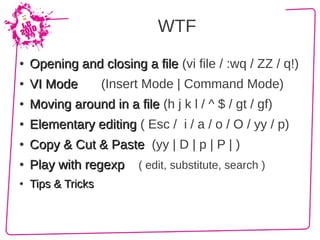
WTF
●   Opening and closing a file (vi file / :wq / ZZ / q!)
●   VI Mode         (Insert Mode | Command Mode)
●   Moving around in a file (h j k l / ^ $ / gt / gf)
●   Elementary editing ( Esc / i / a / o / O / yy / p)
●   Copy & Cut & Paste (yy | D | p | P | )
●   Play with regexp     ( edit, substitute, search )
●   Tips & Tricks
Power is nothing without control

➔   On first problem try:
      $ man vim
➔   On second problem try:
      :help [keyword]
➔   Ok, now ?
vi has many other commands and options not described here. The following
resources can help you get started using the vi editor.


VIMDOC: http://vimdoc.sourceforge.net/
VIMFAQ: http://vimdoc.sourceforge.net/htmldoc/vimfaq.html
VIMTUTOR: http://www.oualline.com/vim-cook.html
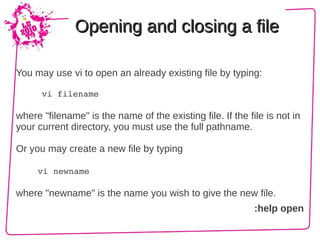
Opening and closing a file

You may use vi to open an already existing file by typing:

     vi filename

where "filename" is the name of the existing file. If the file is not in
your current directory, you must use the full pathname.

Or you may create a new file by typing

     vi newname

where "newname" is the name you wish to give the new file.
                                                            :help open
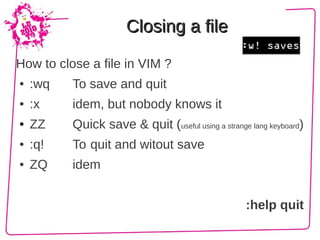
Closing a file

How to close a file in VIM ?
●   :wq   To save and quit
●   :x    idem, but nobody knows it
●   ZZ    Quick save & quit (useful using a strange lang keyboard)
●   :q!   To quit and witout save
●   ZQ    idem


                                                   :help quit
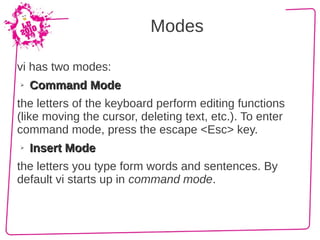
Modes

vi has two modes:
➢   Command Mode
the letters of the keyboard perform editing functions
(like moving the cursor, deleting text, etc.). To enter
command mode, press the escape <Esc> key.
➢   Insert Mode
the letters you type form words and sentences. By
default vi starts up in command mode.
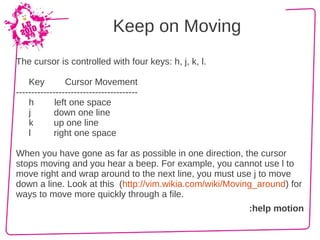
Keep on Moving
The cursor is controlled with four keys: h, j, k, l.

    Key         Cursor Movement
----------------------------------------
    h        left one space
    j       down one line
    k       up one line
    l       right one space

When you have gone as far as possible in one direction, the cursor
stops moving and you hear a beep. For example, you cannot use l to
move right and wrap around to the next line, you must use j to move
down a line. Look at this (http://vim.wikia.com/wiki/Moving_around) for
ways to move more quickly through a file.
                                                         :help motion
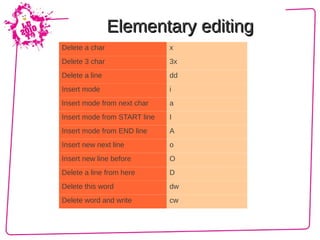
Elementary editing
Delete a char                 x
Delete 3 char                 3x
Delete a line                 dd
Insert mode                   i
Insert mode from next char    a
Insert mode from START line   I
Insert mode from END line     A
Insert new next line          o
Insert new line before        O
Delete a line from here       D
Delete this word              dw
Delete word and write         cw
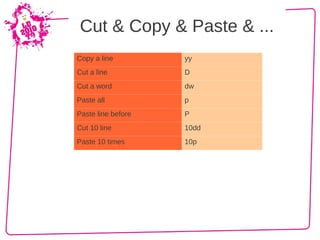
Cut & Copy & Paste & ...
Copy a line         yy
Cut a line          D
Cut a word          dw
Paste all           p
Paste line before   P
Cut 10 line         10dd
Paste 10 times      10p
Play with regexp

Using regexp with vim for all:
    Comment all lines                     :%s/^/#/
    Uncomment all                         :%s/^#//
    Change all foo in this bar            :s/foo/bar/g
    Change just first foo for this line   :s/foo/bar/
    Change all and ask each time          :%s/foo/bar/gc
    Change and do case unsensitive        :%s/foo/bar/gi
    Search and remove all numbers         :%s/[0-9]+//g
    Change each double newline in a       :%s/nn/r/g
    single newline
                                                           :help regexp
Tips & Tricks
                                  http://www.vim.org/tips


       ● <C­N> <C­P>  : word completion in insert mode
       ● <C­X><C­L>   : Line complete SUPER USEFUL

       ● :Ex     : file explorer note capital Ex
       ● guu     : lowercase line
       ● gUU     : uppercase line
       ● ~       : invert case of current character
       ● %       : Jump to open/close parenthesis ([{}])
       ● [       : To jump to the beginning of a C code block
       ● 


● http://www.rayninfo.co.uk/vimtips.html
● http://www.cs.swarthmore.edu/help/vim

● http://vim.wikia.com/wiki/VimTip1

● http://vim.wikia.com/wiki/Fix_indentation

● http://vim.wikia.com/wiki/Power_of_g

● http://vim.wikia.com/wiki/Did_you_know
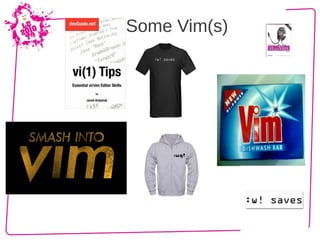
Some Vim(s)
TNX 2

                                      Thanks to:
●   http://www.washington.edu/computing/unix/vi.html
●   http://www.vim.org
●   http://www.gooooooogle.com
●   http://wikipedia.org
●   http://www.autistici.org/underscore
●   http://linuxdaytorino.org


                                samba@autistici.org


                           http://sambismo.wordpress.com

Tuffarsi in vim

  • 1.
  • 2.
    Story The vieditor is available on almost all Unix systems. vi can be used from any type of terminal because it does not depend on arrow keys and function keys--it uses the standard alphabetic keys for commands. vi (pronounced "vee-eye") is short for "vi"sual editor. It displays a window into the file being edited that shows 24 lines of text. vi is a text editor, not a "what you see is what you get" word processor. vi lets you add, change, and delete text, but does not provide such formatting capabilities as centering lines or indenting paragraphs.
  • 3.
    WTF ● Opening and closing a file (vi file / :wq / ZZ / q!) ● VI Mode (Insert Mode | Command Mode) ● Moving around in a file (h j k l / ^ $ / gt / gf) ● Elementary editing ( Esc / i / a / o / O / yy / p) ● Copy & Cut & Paste (yy | D | p | P | ) ● Play with regexp ( edit, substitute, search ) ● Tips & Tricks
  • 4.
    Power is nothingwithout control ➔ On first problem try: $ man vim ➔ On second problem try: :help [keyword] ➔ Ok, now ? vi has many other commands and options not described here. The following resources can help you get started using the vi editor. VIMDOC: http://vimdoc.sourceforge.net/ VIMFAQ: http://vimdoc.sourceforge.net/htmldoc/vimfaq.html VIMTUTOR: http://www.oualline.com/vim-cook.html
  • 5.
    Opening and closinga file You may use vi to open an already existing file by typing:      vi filename where "filename" is the name of the existing file. If the file is not in your current directory, you must use the full pathname. Or you may create a new file by typing vi newname where "newname" is the name you wish to give the new file. :help open
  • 6.
    Closing a file Howto close a file in VIM ? ● :wq To save and quit ● :x idem, but nobody knows it ● ZZ Quick save & quit (useful using a strange lang keyboard) ● :q! To quit and witout save ● ZQ idem :help quit
  • 7.
    Modes vi has twomodes: ➢ Command Mode the letters of the keyboard perform editing functions (like moving the cursor, deleting text, etc.). To enter command mode, press the escape <Esc> key. ➢ Insert Mode the letters you type form words and sentences. By default vi starts up in command mode.
  • 8.
    Keep on Moving Thecursor is controlled with four keys: h, j, k, l. Key Cursor Movement ---------------------------------------- h left one space j down one line k up one line l right one space When you have gone as far as possible in one direction, the cursor stops moving and you hear a beep. For example, you cannot use l to move right and wrap around to the next line, you must use j to move down a line. Look at this (http://vim.wikia.com/wiki/Moving_around) for ways to move more quickly through a file. :help motion
  • 9.
    Elementary editing Delete achar x Delete 3 char 3x Delete a line dd Insert mode i Insert mode from next char a Insert mode from START line I Insert mode from END line A Insert new next line o Insert new line before O Delete a line from here D Delete this word dw Delete word and write cw
  • 10.
    Cut & Copy& Paste & ... Copy a line yy Cut a line D Cut a word dw Paste all p Paste line before P Cut 10 line 10dd Paste 10 times 10p
  • 11.
    Play with regexp Usingregexp with vim for all: Comment all lines :%s/^/#/ Uncomment all :%s/^#// Change all foo in this bar :s/foo/bar/g Change just first foo for this line :s/foo/bar/ Change all and ask each time :%s/foo/bar/gc Change and do case unsensitive :%s/foo/bar/gi Search and remove all numbers :%s/[0-9]+//g Change each double newline in a :%s/nn/r/g single newline :help regexp
  • 12.
    Tips & Tricks http://www.vim.org/tips ● <C­N> <C­P>  : word completion in insert mode ● <C­X><C­L>   : Line complete SUPER USEFUL ● :Ex    : file explorer note capital Ex ● guu    : lowercase line ● gUU    : uppercase line ● ~       : invert case of current character ● %  : Jump to open/close parenthesis ([{}]) ● [ : To jump to the beginning of a C code block ●  ● http://www.rayninfo.co.uk/vimtips.html ● http://www.cs.swarthmore.edu/help/vim ● http://vim.wikia.com/wiki/VimTip1 ● http://vim.wikia.com/wiki/Fix_indentation ● http://vim.wikia.com/wiki/Power_of_g ● http://vim.wikia.com/wiki/Did_you_know
  • 13.
  • 14.
    TNX 2 Thanks to: ● http://www.washington.edu/computing/unix/vi.html ● http://www.vim.org ● http://www.gooooooogle.com ● http://wikipedia.org ● http://www.autistici.org/underscore ● http://linuxdaytorino.org samba@autistici.org http://sambismo.wordpress.com