VIM and Python - Tips and Tricks


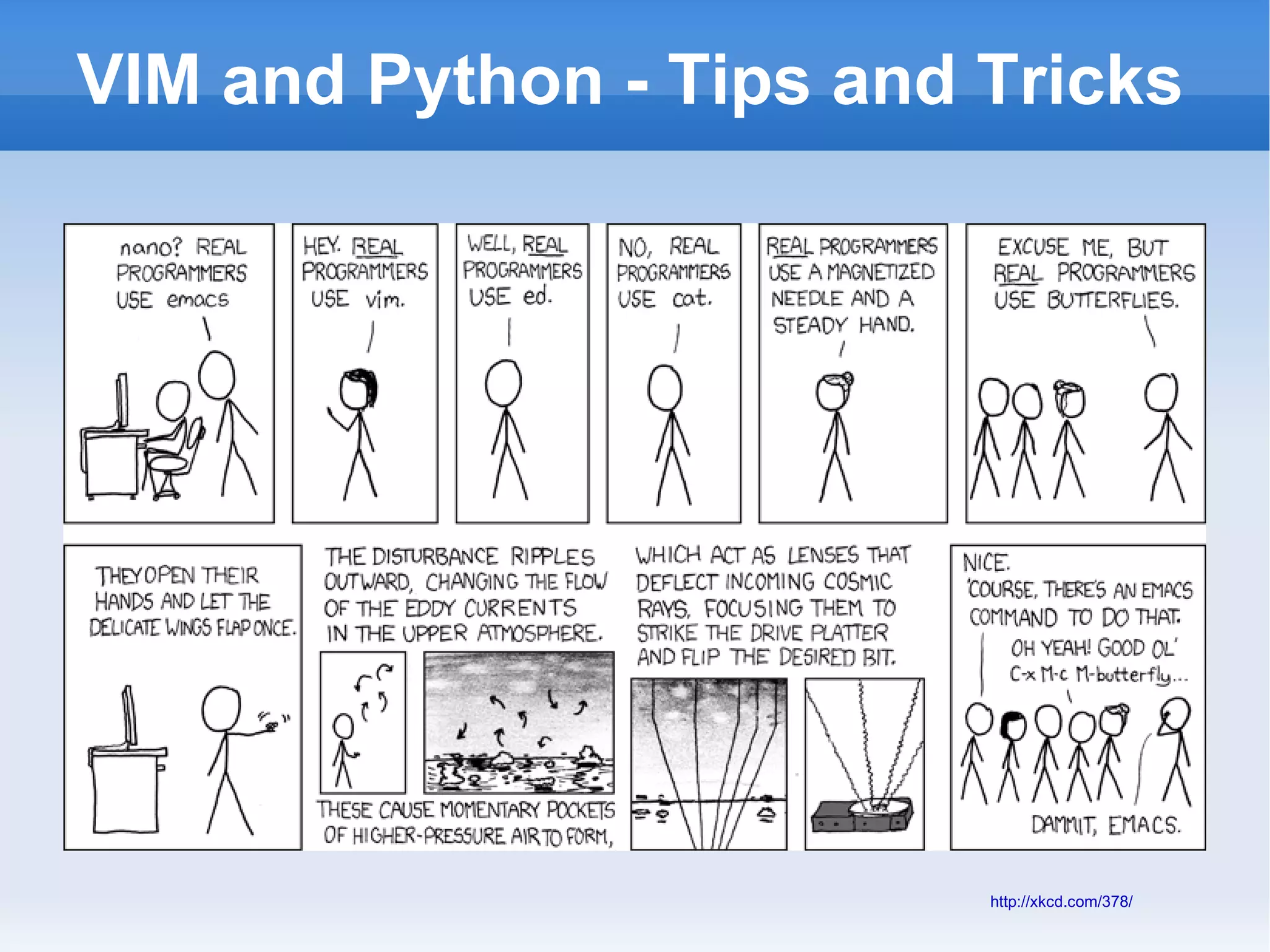
                          http://xkcd.com/378/
Getting Around

h/j/k/l
gg and G – start/end of buffer
^ - first non-blank character in current line
$ - last character on current line
CTRL-u / CTRL-d – page up / page down
:n – go to line number n.
H/M/L – go to first/middle/last line on screen*
% - jump to corresponding bracket [] {} ()
Marks

m followed by a letter to set a mark
` followed by the letter – jump to that mark
:marks will list current marks
Vim has some special marks (a few examples):
  `. - jump to position where the last change occured
  `` - jump back to position where you jumped from
lots more found in :help `
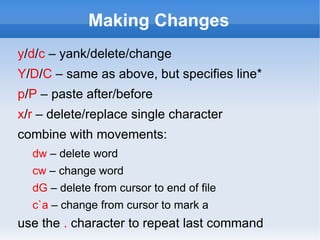
Making Changes

y/d/c – yank/delete/change
Y/D/C – same as above, but specifies line*
p/P – paste before/after
combine with movements:
  dw – delete word
  cw – change word
  dG – delete from cursor to end of file
  c`a – change from cursor to mark a
Making Changes
y/d/c – yank/delete/change
Y/D/C – same as above, but specifies line*
p/P – paste after/before
x/r – delete/replace single character
combine with movements:
  dw – delete word
  cw – change word
  dG – delete from cursor to end of file
  c`a – change from cursor to mark a
use the . character to repeat last command
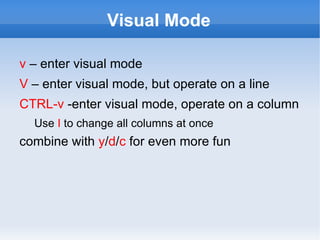
Visual Mode

v – enter visual mode
V – enter visual mode, but operate on a line
CTRL-v -enter visual mode, operate on a column
  Use I to change all columns at once
combine with y/d/c for even more fun
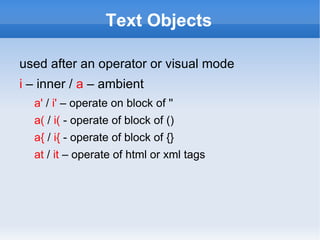
Text Objects

used after an operator or visual mode
i – inner / a – ambient
  a' / i' – operate on block of ''
  a( / i( - operate of block of ()
  a{ / i{ - operate of block of {}
  at / it – operate of html or xml tags
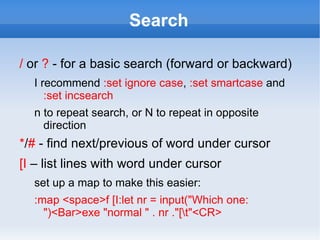
Search

/ or ? - for a basic search (forward or backward)
  I recommend :set ignore case, :set smartcase and
     :set incsearch
  n to repeat search, or N to repeat in opposite
    direction
*/# - find next/previous of word under cursor
[I – list lines with word under cursor
  set up a map to make this easier:
  :map <space>f [I:let nr = input("Which one:
    ")<Bar>exe "normal " . nr ."[t"<CR>
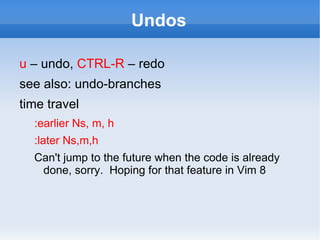
Undos

u – undo, CTRL-R – redo
see also: undo-branches
time travel
  :earlier Ns, m, h
  :later Ns,m,h
  Can't jump to the future when the code is already
   done, sorry. Hoping for that feature in Vim 8
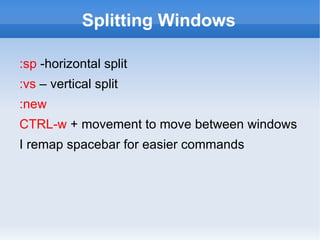
Splitting Windows

:sp -horizontal split
:vs – vertical split
:new
CTRL-w + movement to move between windows
I remap spacebar for easier commands
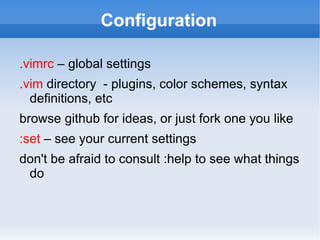
Configuration

.vimrc – global settings
.vim directory - plugins, color schemes, syntax
  definitions, etc
browse github for ideas, or just fork one you like
:set – see your current settings
don't be afraid to consult :help to see what things
 do
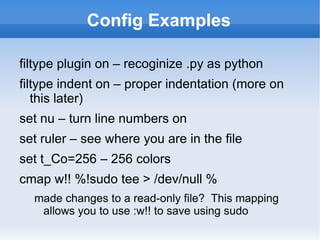
Config Examples

filtype plugin on – recoginize .py as python
filtype indent on – proper indentation (more on
   this later)
set nu – turn line numbers on
set ruler – see where you are in the file
set t_Co=256 – 256 colors
cmap w!! %!sudo tee > /dev/null %
  made changes to a read-only file? This mapping
   allows you to use :w!! to save using sudo
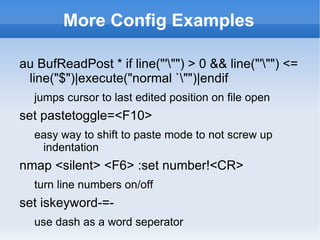
More Config Examples

au BufReadPost * if line("'"") > 0 && line("'"") <=
 line("$")|execute("normal `"")|endif
  jumps cursor to last edited position on file open
set pastetoggle=<F10>
  easy way to shift to paste mode to not screw up
   indentation
nmap <silent> <F6> :set number!<CR>
  turn line numbers on/off
set iskeyword-=-
  use dash as a word seperator
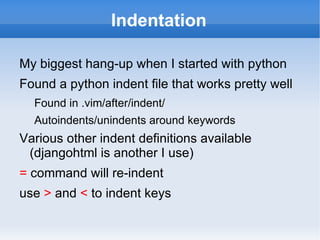
Indentation

My biggest hang-up when I started with python
Found a python indent file that works pretty well
  Found in .vim/after/indent/
  Autoindents/unindents around keywords
Various other indent definitions available
 (djangohtml is another I use)
= command will re-indent
use > and < to indent keys
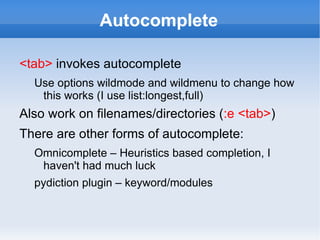
Autocomplete

<tab> invokes autocomplete
  Use options wildmode and wildmenu to change how
   this works (I use list:longest,full)
Also work on filenames/directories (:e <tab>)
There are other forms of autocomplete:
  Omnicomplete – Heuristics based completion, I
   haven't had much luck
  pydiction plugin – keyword/modules
tags

I map F4 to rebuild tags file using ctags
CTRL-] - jump to tag under cursor
CTRL-T – return to where you came from
:tag <tagname> - jump to a tag
If there are multiple matches, you select from a
   list
taglist is another useful plugin to view the tags in
  the current file
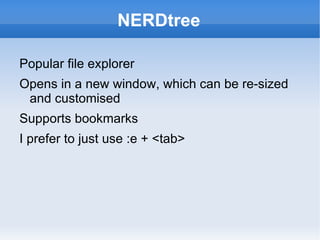
NERDtree

Popular file explorer
Opens in a new window, which can be re-sized
 and customised
Supports bookmarks
I prefer to just use :e + <tab>
SelectBuf


Similar to a file explorer, but limited to buffers
  already open
A must-have if you normally operate many
 buffers at once
flake-8

wrapper for flake8 (must install seperately)
  PyFlakes
  PEP8
  complexity checker
Can configure to ignore errors
I map to F5, as I also use makeprg for other
  languages using the same key
Doxygen

Generate comment skeletons
  :DoxLic - License
  :DoxAuth - Author
  :Dox - function/class block headers
  Works well out of the box, but config options available
Other Plugins to Check Out

vimpdb
commandT
project
vcscommand
OScan
snippets
netrw
scratch
Resources

http://www.tuxfiles.org/linuxhelp/vimcheat.html
http://www.vim.org/scripts/index.php
http://www.pixelbeat.org/vim.tips.html
http://www.catswhocode.com/blog/100-vim-command
http://www.reddit.com/r/vim/

Vim and Python

  • 1.
    VIM and Python- Tips and Tricks http://xkcd.com/378/
  • 2.
    Getting Around h/j/k/l gg andG – start/end of buffer ^ - first non-blank character in current line $ - last character on current line CTRL-u / CTRL-d – page up / page down :n – go to line number n. H/M/L – go to first/middle/last line on screen* % - jump to corresponding bracket [] {} ()
  • 3.
    Marks m followed bya letter to set a mark ` followed by the letter – jump to that mark :marks will list current marks Vim has some special marks (a few examples): `. - jump to position where the last change occured `` - jump back to position where you jumped from lots more found in :help `
  • 4.
    Making Changes y/d/c –yank/delete/change Y/D/C – same as above, but specifies line* p/P – paste before/after combine with movements: dw – delete word cw – change word dG – delete from cursor to end of file c`a – change from cursor to mark a
  • 5.
    Making Changes y/d/c –yank/delete/change Y/D/C – same as above, but specifies line* p/P – paste after/before x/r – delete/replace single character combine with movements: dw – delete word cw – change word dG – delete from cursor to end of file c`a – change from cursor to mark a use the . character to repeat last command
  • 6.
    Visual Mode v –enter visual mode V – enter visual mode, but operate on a line CTRL-v -enter visual mode, operate on a column Use I to change all columns at once combine with y/d/c for even more fun
  • 7.
    Text Objects used afteran operator or visual mode i – inner / a – ambient a' / i' – operate on block of '' a( / i( - operate of block of () a{ / i{ - operate of block of {} at / it – operate of html or xml tags
  • 8.
    Search / or ?- for a basic search (forward or backward) I recommend :set ignore case, :set smartcase and :set incsearch n to repeat search, or N to repeat in opposite direction */# - find next/previous of word under cursor [I – list lines with word under cursor set up a map to make this easier: :map <space>f [I:let nr = input("Which one: ")<Bar>exe "normal " . nr ."[t"<CR>
  • 9.
    Undos u – undo,CTRL-R – redo see also: undo-branches time travel :earlier Ns, m, h :later Ns,m,h Can't jump to the future when the code is already done, sorry. Hoping for that feature in Vim 8
  • 10.
    Splitting Windows :sp -horizontalsplit :vs – vertical split :new CTRL-w + movement to move between windows I remap spacebar for easier commands
  • 11.
    Configuration .vimrc – globalsettings .vim directory - plugins, color schemes, syntax definitions, etc browse github for ideas, or just fork one you like :set – see your current settings don't be afraid to consult :help to see what things do
  • 12.
    Config Examples filtype pluginon – recoginize .py as python filtype indent on – proper indentation (more on this later) set nu – turn line numbers on set ruler – see where you are in the file set t_Co=256 – 256 colors cmap w!! %!sudo tee > /dev/null % made changes to a read-only file? This mapping allows you to use :w!! to save using sudo
  • 13.
    More Config Examples auBufReadPost * if line("'"") > 0 && line("'"") <= line("$")|execute("normal `"")|endif jumps cursor to last edited position on file open set pastetoggle=<F10> easy way to shift to paste mode to not screw up indentation nmap <silent> <F6> :set number!<CR> turn line numbers on/off set iskeyword-=- use dash as a word seperator
  • 14.
    Indentation My biggest hang-upwhen I started with python Found a python indent file that works pretty well Found in .vim/after/indent/ Autoindents/unindents around keywords Various other indent definitions available (djangohtml is another I use) = command will re-indent use > and < to indent keys
  • 15.
    Autocomplete <tab> invokes autocomplete Use options wildmode and wildmenu to change how this works (I use list:longest,full) Also work on filenames/directories (:e <tab>) There are other forms of autocomplete: Omnicomplete – Heuristics based completion, I haven't had much luck pydiction plugin – keyword/modules
  • 16.
    tags I map F4to rebuild tags file using ctags CTRL-] - jump to tag under cursor CTRL-T – return to where you came from :tag <tagname> - jump to a tag If there are multiple matches, you select from a list taglist is another useful plugin to view the tags in the current file
  • 17.
    NERDtree Popular file explorer Opensin a new window, which can be re-sized and customised Supports bookmarks I prefer to just use :e + <tab>
  • 18.
    SelectBuf Similar to afile explorer, but limited to buffers already open A must-have if you normally operate many buffers at once
  • 19.
    flake-8 wrapper for flake8(must install seperately) PyFlakes PEP8 complexity checker Can configure to ignore errors I map to F5, as I also use makeprg for other languages using the same key
  • 20.
    Doxygen Generate comment skeletons :DoxLic - License :DoxAuth - Author :Dox - function/class block headers Works well out of the box, but config options available
  • 21.
    Other Plugins toCheck Out vimpdb commandT project vcscommand OScan snippets netrw scratch
  • 22.