














Vim
the final text editor you need to learn
!

⾼高⾒見⻯⿓龍
Current Status

80% iOS app, 20% Ruby/Rails
Scenario
I'm looking for a text editor..
1. launch quickly
2. easy to navigate between files
3. and pretty syntax highlight
Vim
Vim = Vi iMproved
Free and Charity
What's Vim?
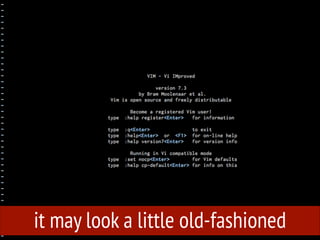
it may look a little old-fashioned
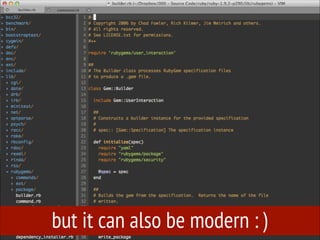
but it can also be modern : )
So, Why Vim?
Keyboard-driven
Keyboard is King!
and, Why not Vim?
seems very hard to learn..
you won’t use other editors after learning
Vim..
Today, we have 2 Goals..
no Mouse
no Arrow keys
muscle memory
Tips
in terminal:
1. ctrl + z to stash vim, and type fg to bring it back.
2. ctrl + w to delete a word, ctrl + u to delete a whole
line, both work in terminal and vim edit mode.
3. ctrl + r to find history commands fuzzily.
How to Vim?
Practice:
Install Vim in your machine.

http://www.vim.org/download.php
:help
Modes
normal, visual, and edit mode
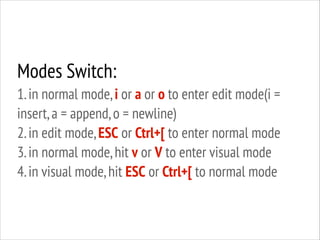
Modes Switch:
1. in normal mode, i or a or o to enter edit mode(i =
insert, a = append, o = newline)
2. in edit mode, ESC or Ctrl+[ to enter normal mode
3. in normal mode, hit v or V to enter visual mode
4. in visual mode, hit ESC or Ctrl+[ to normal mode
ESC or Ctrl + [
Practice:
launch Vim and switch between normal,
visual, and edit mode.
Movement
:h movement
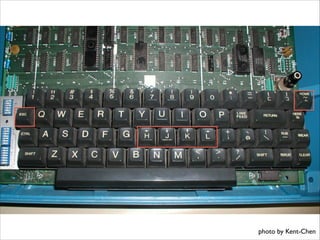
move cursor with h, j, k and l
disable arrow keys if possible
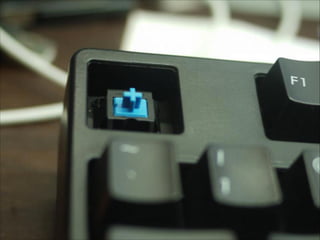
photo by Kent-Chen
Practice:
Use h, j, k, l instead of using arrow keys.
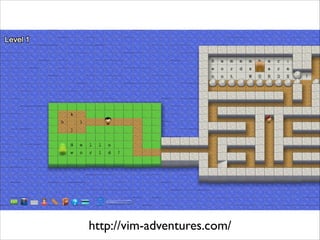
http://vim-adventures.com/
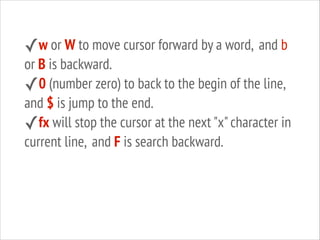
✓w or W to move cursor forward by a word, and b

or B is backward.
✓0 (number zero) to back to the begin of the line,
and $ is jump to the end.
✓fx will stop the cursor at the next "x" character in
current line, and F is search backward.
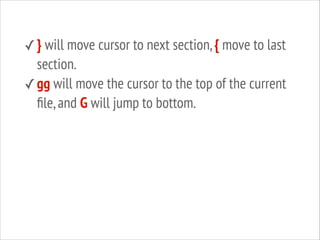
✓ } will move cursor to next section, { move to last

section.
✓ gg will move the cursor to the top of the current
file, and G will jump to bottom.
Practice:
Use word jumpers (b, w, fx..etc) to move
cursor between words and lines.
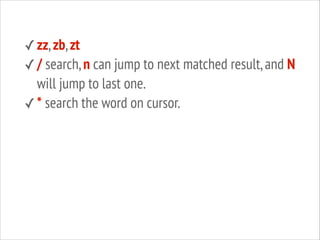
✓ zz, zb, zt
✓ / search, n can jump to next matched result, and N

will jump to last one.
✓ * search the word on cursor.
Practice:
search some keywords in your document.
Visual Selection
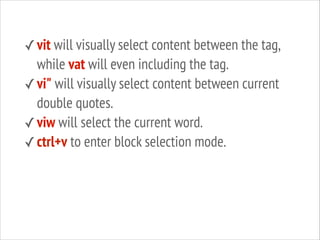
✓ vit will visually select content between the tag,

while vat will even including the tag.
✓ vi" will visually select content between current
double quotes.
✓ viw will select the current word.
✓ ctrl+v to enter block selection mode.
Basic
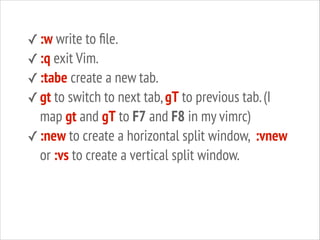
✓ :w write to file.
✓ :q exit Vim.
✓ :tabe create a new tab.
✓ gt to switch to next tab, gT to previous tab. (I

map gt and gT to F7 and F8 in my vimrc)
✓ :new to create a horizontal split window, :vnew
or :vs to create a vertical split window.
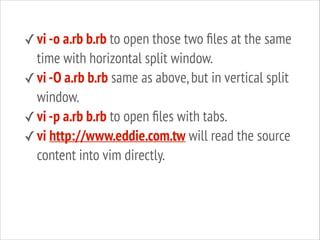
✓ vi -o a.rb b.rb to open those two files at the same

time with horizontal split window.
✓ vi -O a.rb b.rb same as above, but in vertical split
window.
✓ vi -p a.rb b.rb to open files with tabs.
✓ vi http://www.eddie.com.tw will read the source
content into vim directly.
Practice:
1. quit Vim, and launch Vim, quite Vim, and
launch Vim .. x N
2. open a file with Vim, exit, then open it
again, then exit .. x N
Buffers
:ls, :bd, :b3, :b filename, :tab ba
Practice:
try to open several files, and switch between
them with buffer commands.
Vim Text Objects
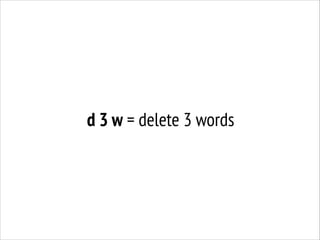
d 3 w = delete 3 words
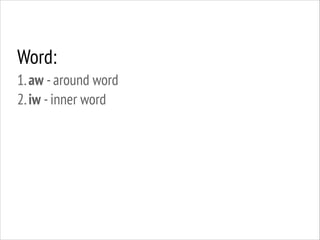
Word:
1. aw - around word
2. iw - inner word
Practice:
1. select a word, deselect, and select another word, and
deselect.. x N
!

2. select a word, delete it, select another word, and
delete.. X N
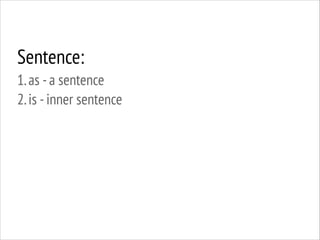
Sentence:
1. as - a sentence
2. is - inner sentence
Practice:
1. select a sentence, deselect, and select another
sentence, and deselect.. x N
!

2. select a sentence, delete it, select another sentence,
and delete.. X N
Paragraph:
1. ap - a paragraph
2. ip - inner paragraph
Practice:
1. select a paragraph, deselect, and select another
paragraph, and deselect.. x N
!

2. select a paragraph, delete it, select another
paragraph, and delete.. X N
Folding
:h folds
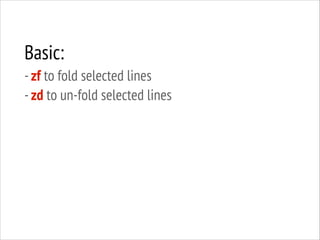
Basic:
- zf to fold selected lines
- zd to un-fold selected lines
Practice:
fold several lines, and unfold them .. x N
Editing
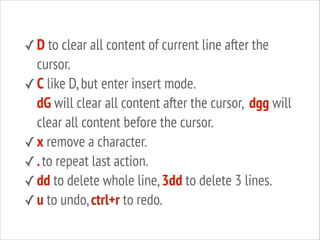
✓ D to clear all content of current line after the

cursor.
✓ C like D, but enter insert mode.
dG will clear all content after the cursor, dgg will
clear all content before the cursor.
✓ x remove a character.
✓ . to repeat last action.
✓ dd to delete whole line, 3dd to delete 3 lines.
✓ u to undo, ctrl+r to redo.
Practice!
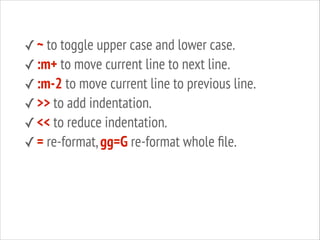
✓ ~ to toggle upper case and lower case.
✓ :m+ to move current line to next line.
✓ :m-2 to move current line to previous line.
✓ >> to add indentation.
✓ << to reduce indentation.
✓ = re-format, gg=G re-format whole file.
Practice!
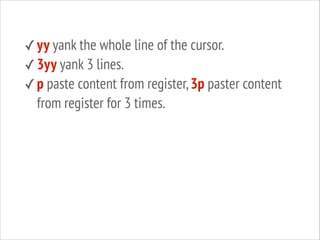
✓ yy yank the whole line of the cursor.
✓ 3yy yank 3 lines.
✓ p paste content from register, 3p paster content

from register for 3 times.
Practice!
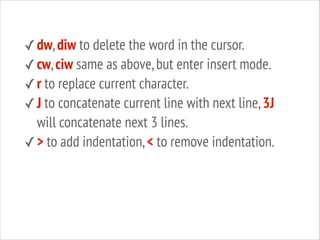
✓ dw, diw to delete the word in the cursor.
✓ cw, ciw same as above, but enter insert mode.
✓ r to replace current character.
✓ J to concatenate current line with next line, 3J

will concatenate next 3 lines.
✓ > to add indentation, < to remove indentation.
.vimrc
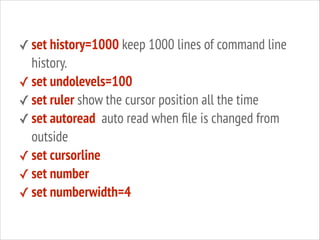
✓ set history=1000 keep 1000 lines of command line

history.
✓ set undolevels=100
✓ set ruler show the cursor position all the time
✓ set autoread auto read when file is changed from
outside
✓ set cursorline
✓ set number
✓ set numberwidth=4
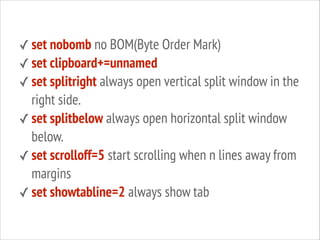
✓ set nobomb no BOM(Byte Order Mark)
✓ set clipboard+=unnamed
✓ set splitright always open vertical split window in the

right side.
✓ set splitbelow always open horizontal split window
below.
✓ set scrolloff=5 start scrolling when n lines away from
margins
✓ set showtabline=2 always show tab
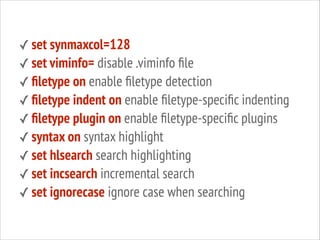
✓ set synmaxcol=128
✓ set viminfo= disable .viminfo file
✓ filetype on enable filetype detection
✓ filetype indent on enable filetype-specific indenting
✓ filetype plugin on enable filetype-specific plugins
✓ syntax on syntax highlight
✓ set hlsearch search highlighting
✓ set incsearch incremental search
✓ set ignorecase ignore case when searching
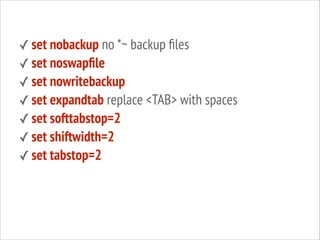
✓ set nobackup no *~ backup files
✓ set noswapfile
✓ set nowritebackup
✓ set expandtab replace <TAB> with spaces
✓ set softtabstop=2
✓ set shiftwidth=2
✓ set tabstop=2
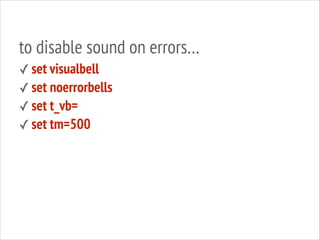
to disable sound on errors…
✓ set visualbell
✓ set noerrorbells
✓ set t_vb=
✓ set tm=500
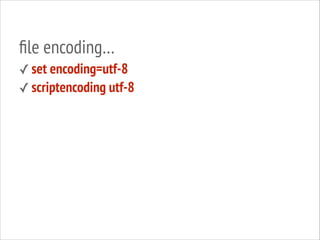
file encoding…
✓ set encoding=utf-8
✓ scriptencoding utf-8
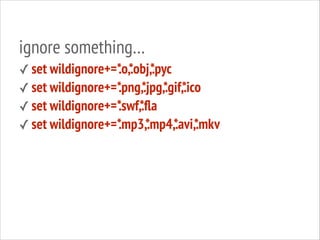
ignore something…
.o,.obj,.pyc
✓ set wildignore+=* * *
.png,.jpg,.gif,.ico
✓ set wildignore+=* * * *
.swf,.fla
✓ set wildignore+=* *
.mp3,*
.mp4,* *
.avi,.mkv
✓ set wildignore+=*
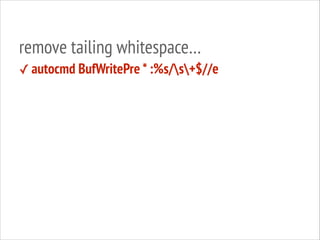
remove tailing whitespace…
✓ autocmd BufWritePre * :%s/s+$//e
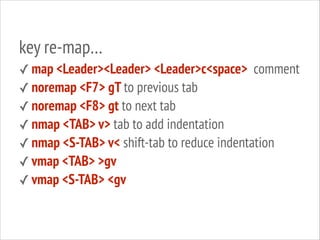
key re-map…
✓ map <Leader><Leader> <Leader>c<space> comment
✓ noremap <F7> gT to previous tab
✓ noremap <F8> gt to next tab
✓ nmap <TAB> v> tab to add indentation
✓ nmap <S-TAB> v< shift-tab to reduce indentation
✓ vmap <TAB> >gv
✓ vmap <S-TAB> <gv
!
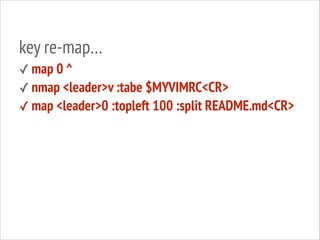
key re-map…
✓ map 0 ^
✓ nmap <leader>v :tabe $MYVIMRC<CR>
✓ map <leader>0 :topleft 100 :split README.md<CR>
Plugins
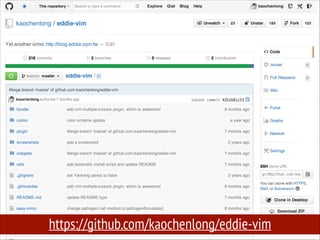
https://github.com/kaochenlong/eddie-vim
if you want to use my .vimrc
1. clone from my Github repo
2. cd to cloned repo and execute install script
3. make symbolic link for vim
4. done!
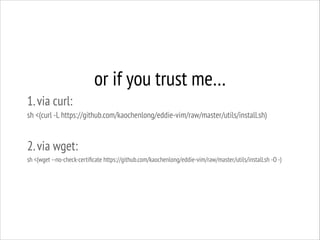
or if you trust me…
1. via curl:
sh <(curl -L https://github.com/kaochenlong/eddie-vim/raw/master/utils/install.sh)
!

2. via wget:
sh <(wget --no-check-certificate https://github.com/kaochenlong/eddie-vim/raw/master/utils/install.sh -O -)
Pathogen
nice plugin manager

https://github.com/tpope/vim-pathogen
NERDTree
A tree explorer

https://github.com/scrooloose/nerdtree
SnipMate
code snippets plugin, inspired by TextMate

https://github.com/msanders/snipmate.vim
ctrlp
Fuzzy file, buffer, mru, tag, etc finder

https://github.com/kien/ctrlp.vim
surround.vim
quoting/parenthesizing made simple

https://github.com/tpope/vim-surround
vim-multiple-cursors
Sublime Text style multiple selections for Vim

https://github.com/terryma/vim-multiple-cursors
powerline
the ultimate vim statusline utility

https://github.com/Lokaltog/vim-powerline
rails.vim
Ruby on Rails power tools

https://github.com/tpope/vim-rails
fugitive
a git wrapper for vim

https://github.com/tpope/vim-fugitive
vimwiki
personal wiki for vim

https://github.com/vim-scripts/vimwiki
ragtag

https://github.com/tpope/vim-ragtag
Practicing!
References
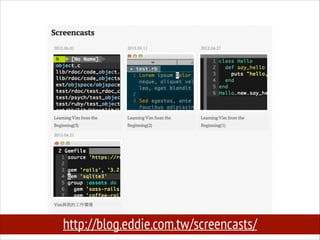
http://blog.eddie.com.tw/screencasts/
and more practice.. : )

Vim