Top Apps for the
Classroom
Laura Mackenthun
Sauk Rapids-Rice Schools
Laura.mackenthun@isd47.org
@lem_511
Sauk Rapids-Rice Technology
Status/Background
• Not a 1:1 environment
• Elementary schools have 1 iPad per classroom with pools of 45 in lower grades
• HS/MS have small pools of devices from Grants and district
money
• BYOD is encouraged and implemented in various classrooms
Goals/Intents
• Share some Apps used
• Provide background~thinking~reasons
• Give classroom examples
Pictures of students learning---but so much more—
Final projects (ways to save 3D work)
Exemplars of good work (save to show next year)
Practice-(record doing a speech or skill in PE class)
Photos of a project in process (Science Fair)
Vocabulary words (Take pictures demonstrating word)
Demonstration of learning (how can you show you know the
material?)
Make learning materials (pictures of things that start with a
letter or where lab supplies are in the classroom.)
Picture of board (easier than taking notes for an absent student)

Photos and Videos
• Dropbox (Move pictures between devices)
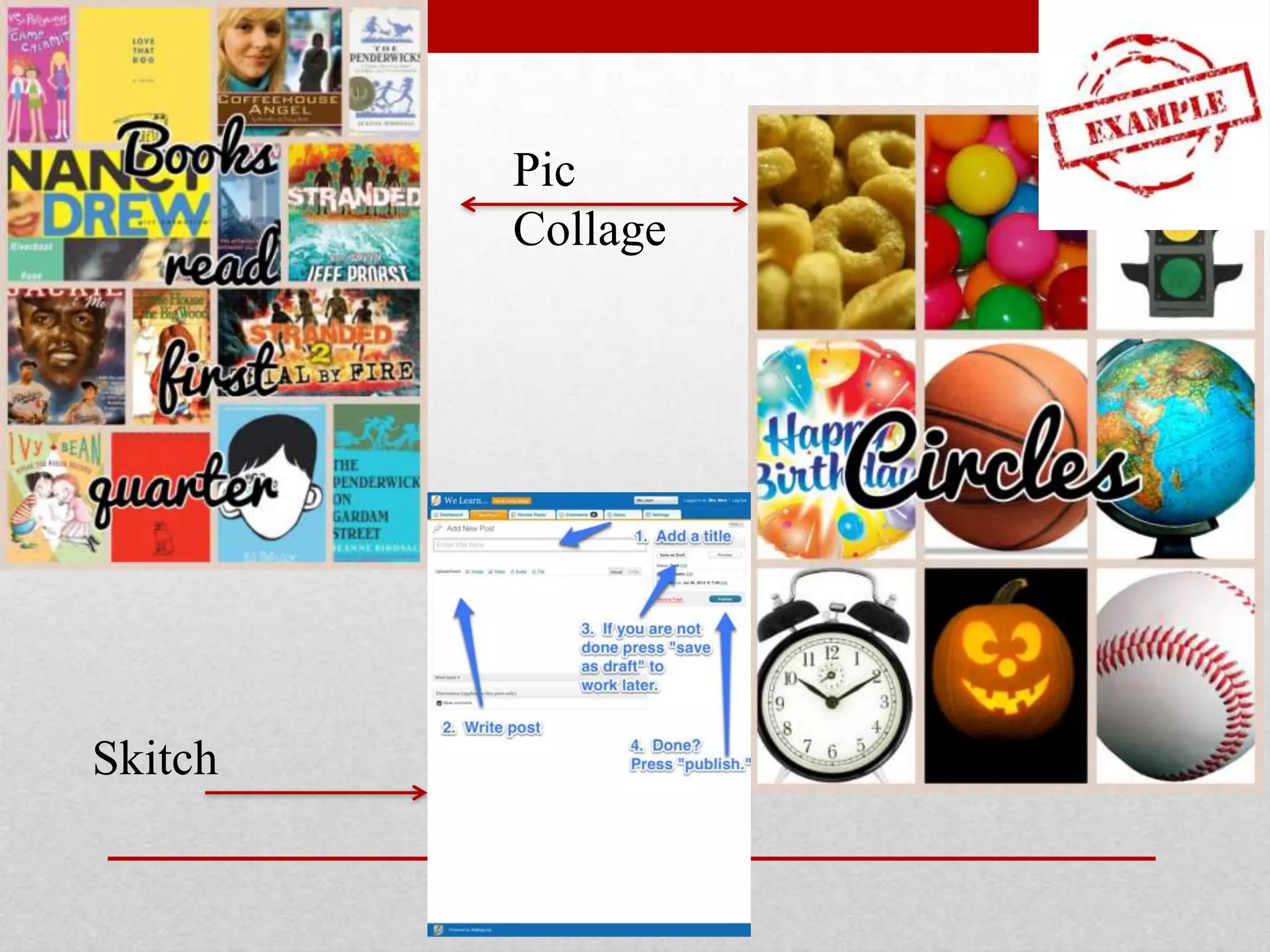
• Pic Collage (Create collages of pictures with text)
• Walgreens or other local business (Quickly, inexpensively
print pictures)
• Skitch (Annotate pictures—Evernote product)
• Blogger/Weebly (Upload pictures to web site/blog)
• Haiku Deck (Slideshow with little work)

Apps for use with Photos
Pic
Collage

Skitch
• Process:
•
•
•
•
•
•

Used Flip video camera to create videos on sewing techniques
Edited in iMovie
Uploaded to YouTube
Linked to classroom Blog
Put Web Clip on home page of iPad
Students use iPad when they need to review a skills

FACS Video Project
• Share work (―templates‖)
• Forms to collect information (Think-Formative assessment)
• Note taking
• SO MUCH MORE!!!!!

Google Drive
• Blank worksheet for evaluating a web site
• Form created asking name and words per minute

Computer Apps Class
• Organize sites
• Create Bookmark Folders
• Create Web Clips (or folders of Web Clips) on home
screens

Safari/Web Browser
• Folder created on desktop
• Some apps (free, lite versions)
• Web Sites
• Encyclopedia through ELM
• Other web sites

Animal Research Project
• Upload PDF’s as a way to have instruction sheets
available for students
• Look for Free Books (Search iBook store by Free –in Top
Charts)

iBooks
• Free Art Drawing Books
• PDFs of other drawing handouts

iBooks in Art Class
• Flashcard creation site
• Teacher creates account
• Students only need account if they’re going to ―report‖ their
work
• Create your own stacks of flashcards
• Or use someone else’s and edit
• Apps on devices or online

Quizlet
• Created a stack of flashcards for each chapter
• Shared across all teachers
• Also stack for MCA math terms

th Math
7
• Other similar-Screen Chomp/Whiteboard/ShowMe
• Teacher account logged in on iPads
• Student create narrated, annotated videos on iPad whiteboard
demonstrating their learning.
• Saves to Educreations web site so can be viewed from other
devices.

Educreations
• Throughout the unit, students do problems and save them
to Educreations
• Teacher uses these for reteaching, test review, help for
absent students etc.

Math Review
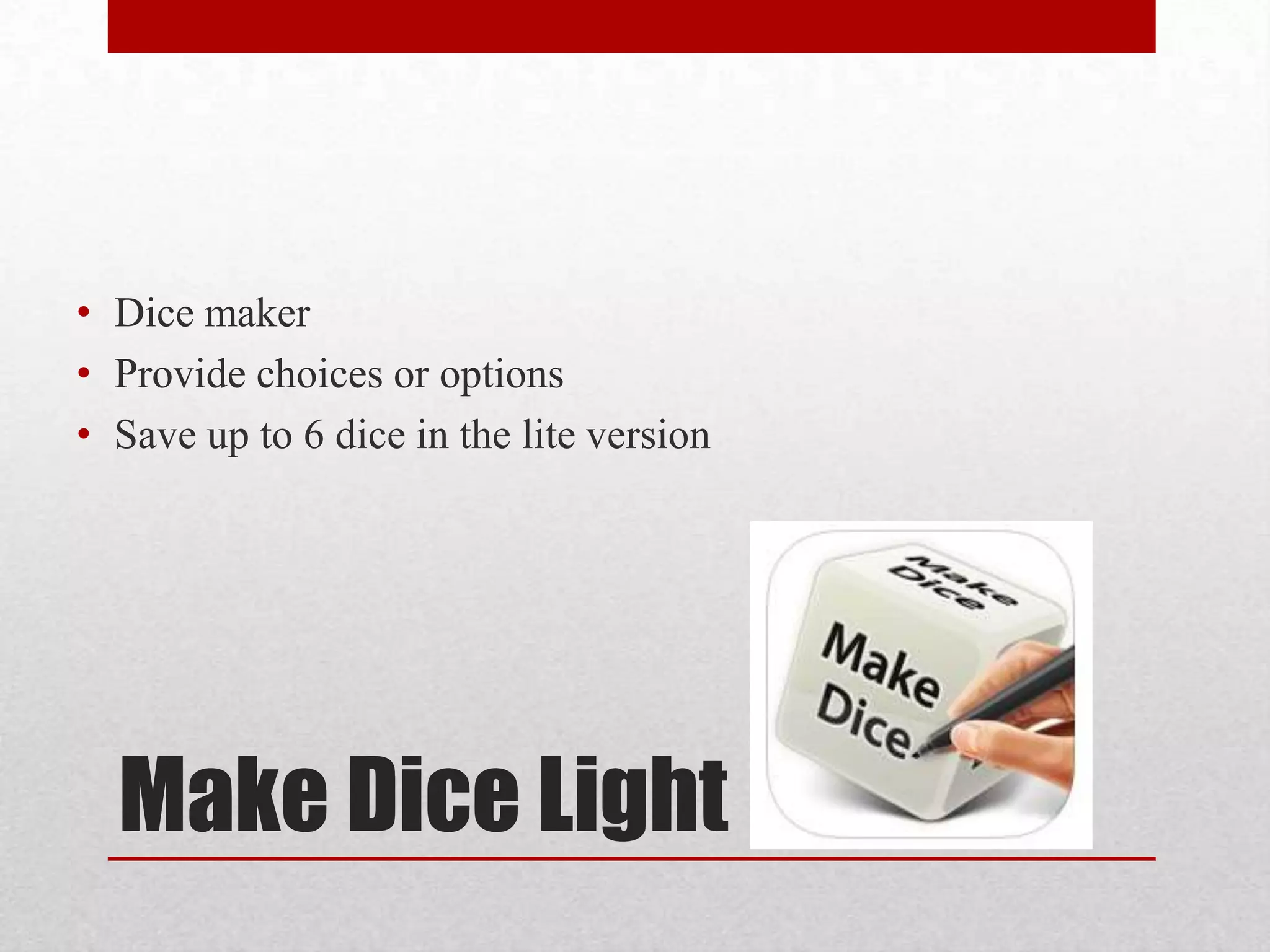
• Dice maker
• Provide choices or options
• Save up to 6 dice in the lite version

Make Dice Light
PE Class
• Kids who can’t have physical contact
• Roll dice with options such as 30 pushups, 25 jumping jacks

Language Arts Class
• Literature discussion
• Roll dice with options such as –What is the
setting? Or How does the setting affect the story?
• Technology is a tool like many others teachers have.
• Start with the ―end in mind‖
• What do our learners need to be able to do or know?
• Now match the tool and the task.
• ***Technology engages students!

Some closing thoughts

Top Apps for Classrooms

  • 1.
    Top Apps forthe Classroom Laura Mackenthun Sauk Rapids-Rice Schools Laura.mackenthun@isd47.org @lem_511
  • 2.
    Sauk Rapids-Rice Technology Status/Background •Not a 1:1 environment • Elementary schools have 1 iPad per classroom with pools of 45 in lower grades • HS/MS have small pools of devices from Grants and district money • BYOD is encouraged and implemented in various classrooms
  • 3.
    Goals/Intents • Share someApps used • Provide background~thinking~reasons • Give classroom examples
  • 4.
    Pictures of studentslearning---but so much more— Final projects (ways to save 3D work) Exemplars of good work (save to show next year) Practice-(record doing a speech or skill in PE class) Photos of a project in process (Science Fair) Vocabulary words (Take pictures demonstrating word) Demonstration of learning (how can you show you know the material?) Make learning materials (pictures of things that start with a letter or where lab supplies are in the classroom.) Picture of board (easier than taking notes for an absent student) Photos and Videos
  • 5.
    • Dropbox (Movepictures between devices) • Pic Collage (Create collages of pictures with text) • Walgreens or other local business (Quickly, inexpensively print pictures) • Skitch (Annotate pictures—Evernote product) • Blogger/Weebly (Upload pictures to web site/blog) • Haiku Deck (Slideshow with little work) Apps for use with Photos
  • 6.
  • 7.
    • Process: • • • • • • Used Flipvideo camera to create videos on sewing techniques Edited in iMovie Uploaded to YouTube Linked to classroom Blog Put Web Clip on home page of iPad Students use iPad when they need to review a skills FACS Video Project
  • 8.
    • Share work(―templates‖) • Forms to collect information (Think-Formative assessment) • Note taking • SO MUCH MORE!!!!! Google Drive
  • 9.
    • Blank worksheetfor evaluating a web site • Form created asking name and words per minute Computer Apps Class
  • 10.
    • Organize sites •Create Bookmark Folders • Create Web Clips (or folders of Web Clips) on home screens Safari/Web Browser
  • 11.
    • Folder createdon desktop • Some apps (free, lite versions) • Web Sites • Encyclopedia through ELM • Other web sites Animal Research Project
  • 12.
    • Upload PDF’sas a way to have instruction sheets available for students • Look for Free Books (Search iBook store by Free –in Top Charts) iBooks
  • 13.
    • Free ArtDrawing Books • PDFs of other drawing handouts iBooks in Art Class
  • 14.
    • Flashcard creationsite • Teacher creates account • Students only need account if they’re going to ―report‖ their work • Create your own stacks of flashcards • Or use someone else’s and edit • Apps on devices or online Quizlet
  • 15.
    • Created astack of flashcards for each chapter • Shared across all teachers • Also stack for MCA math terms th Math 7
  • 16.
    • Other similar-ScreenChomp/Whiteboard/ShowMe • Teacher account logged in on iPads • Student create narrated, annotated videos on iPad whiteboard demonstrating their learning. • Saves to Educreations web site so can be viewed from other devices. Educreations
  • 17.
    • Throughout theunit, students do problems and save them to Educreations • Teacher uses these for reteaching, test review, help for absent students etc. Math Review
  • 18.
    • Dice maker •Provide choices or options • Save up to 6 dice in the lite version Make Dice Light
  • 19.
    PE Class • Kidswho can’t have physical contact • Roll dice with options such as 30 pushups, 25 jumping jacks Language Arts Class • Literature discussion • Roll dice with options such as –What is the setting? Or How does the setting affect the story?
  • 20.
    • Technology isa tool like many others teachers have. • Start with the ―end in mind‖ • What do our learners need to be able to do or know? • Now match the tool and the task. • ***Technology engages students! Some closing thoughts