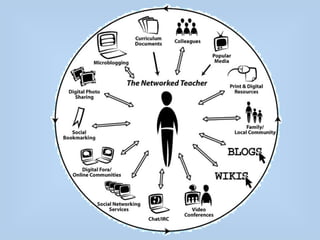
Integrating Technology

     Elena De La Rosa
        NASA JSC
Pre-Service Teacher Institute
Classroom Hardware Care

  Things not to forget to do…
Teacher Computer
• Will usually lock after 15 minutes
• District may run updates at high peak times so
  Internet will be slow at those times.
• Do no play streaming video from computer,
  download it then put it on common drive to save
  disk space if your district has one.
• Back up your work on a flash drive or the
  common
• Mouses are usually laser sensored, so don’t
  always work well with mouse pad
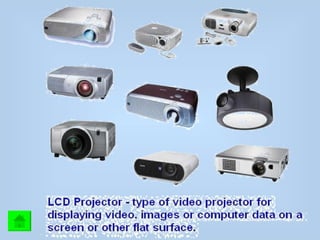
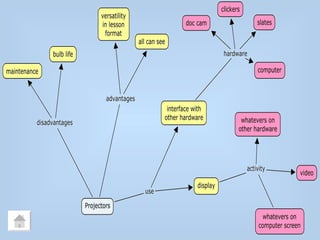
Projector
• Clean filter at least twice a week
• Turn OFF lamp when not in use by muting
   or standby
• Make sure image is large enough for all to
  see
• Secure chords so that they are in a safe
  place
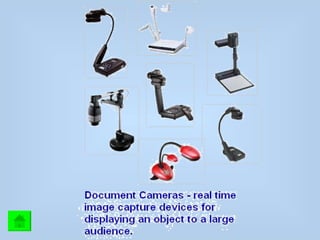
Document Cameras
• Secure base
• Use light to give more light
• Focus camera
• When not “talking” to projector, connect
  directly to projector use remote  select
  menu  make sure your setting is on
  presentation
• Don’t forget to mute when not in use.
Student Computers
• Do not let students surf as this will ‘clog’
  the computer and make it slow down
• Recommend using either your campus
  website or one you have created for
  activities
• Student links should have student online
  resources and updated often.
• Turn them off at end of day.
Tech Integration

 Yes, but how???
Definition
Technology integration incorporates
 technology tools to teach content using
 effective instructional practices.
 Technology can empower students to
 think critically, solve problems, and
 evaluate more effectively. Good
 integration is characterized by how and
 why technology is used, not by the amount
 or type of technology.
Technology
Integration
 looks like:
Teachers:
• See that knowledge is something children
  must construct rather than something to
  be transferred
• Meet the needs of all students
• Are facilitators
• Collaborate with colleagues and
  administrators
Students:

• Have an active role
• Apply what they learn in authentic
  situations
• Use the technology for a purpose that is
  clear to them
• Collaborate to maximize learning
Lessons:
•   Should be seamless
•   Can be interdisciplinary project-based
•   Promote higher order thinking
•   Are supportive of curriculum and standard-
    based
Support Personnel Provide:
•   Administrative support
•   Adequate and dependable equipment
•   Reliable network
•   Technology resource teachers
The Five Principles of Effective Tech Integration
• Identify the learning objectives for your lesson or activity.
  Knowing your goals will guide your decisions throughout the lesson.
• Determine what technology is best suited to meet your learning
  objectives.
  Will you use spreadsheets, word processing, the Internet, and/or
  other technology applications? Your learning objectives should
  guide your decision.
• Review the technology skills you and your students will need
  to best utilize the technology for the lesson.
  You want your students to be focusing on the instruction, not on how
  to use the technology.
• Organize your classroom to best meet the needs of the lesson.
  This might mean moving things around in your classroom to set up
  workstations. It might mean reserving time in the computer lab or
  using a single computer as a projector. There are many possibilities.
• Set the student outcomes for the lesson.
  Determine what students should know by the end of the lesson and
  what work they will provide to demonstrate this understanding.
Elements
•   Graphic Organizers
•   Lesson Plans
•   Software
•   Interval Integration
•   Web access
Professional Resources
• Technology Integration module
  http://www.edutopia.org/teaching-module-tech

• Edutopia http://www.edutopia.org
• Classroom2.0
  http://www.classroom20.com/
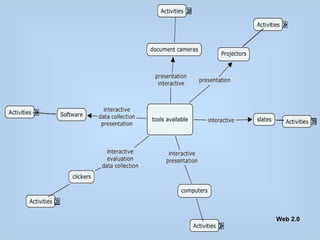
Interactive Tools

How to use them in your
      classroom.
Web 2.0
Web2.0?

    What is it?
  How do I use?
Do I want to use it?
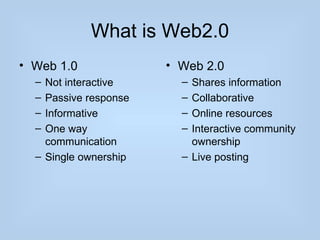
What is Web2.0
• Web 1.0              • Web 2.0
  – Not interactive      – Shares information
  – Passive response     – Collaborative
  – Informative          – Online resources
  – One way              – Interactive community
    communication          ownership
  – Single ownership     – Live posting
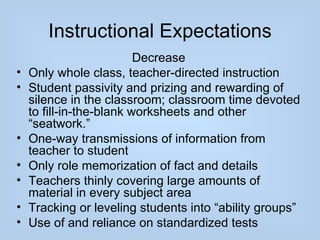
Instructional Expectations
                          Decrease
•   Only whole class, teacher-directed instruction
•   Student passivity and prizing and rewarding of
    silence in the classroom; classroom time devoted
    to fill-in-the-blank worksheets and other
    “seatwork.”
•   One-way transmissions of information from
    teacher to student
•   Only role memorization of fact and details
•   Teachers thinly covering large amounts of
    material in every subject area
•   Tracking or leveling students into “ability groups”
•   Use of and reliance on standardized tests
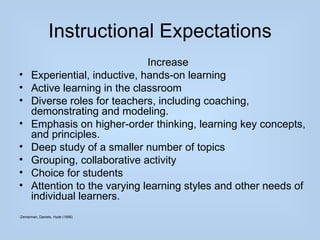
Instructional Expectations
                                Increase
•     Experiential, inductive, hands-on learning
•     Active learning in the classroom
•     Diverse roles for teachers, including coaching,
      demonstrating and modeling.
•     Emphasis on higher-order thinking, learning key concepts,
      and principles.
•     Deep study of a smaller number of topics
•     Grouping, collaborative activity
•     Choice for students
•     Attention to the varying learning styles and other needs of
      individual learners.
-Zemeiman, Daniels, Hyde (1995)
Blogs
Blogs are used to share information with
  others. One manager
• Blogger
• Edublogs.org
• Kidblog
• List of Free Blogs
Wikis
Wiki is Hawaiian for quick. It can also be the
  acronym “What I know”. Community
  based.
• Wikipedia
• Wetpaint
• PBWorks
• Wikispaces
• Weebly
Social Bookmarking
• Delicious
• Diigo
Open Source Software
•   Gimp
•   OpenOffice Docs
•   Audacity
•   Youtube converter
•   Celestia
•   TuxPaint
Free online tools
•   Google Docs
•   Google Earth
•   Kerpoof
•   Read Write Think
•   Internet4Class
Online Video
• Youtube
• Teachertube
• DiscoveryEducation
Resources
Blogs
• http://edublogs.org/
• https://www.blogger.com/start
• http://www.google.com/intl/en/options/
• http://kidblog.org/home.php
Wikis
• http://www.google.com/intl/en/options/
• http://pbwiki.com/
• http://www.wikispaces.com/
Resources
Social Bookmarking
• http://delicious.com/
• http://www.diigo.com/
Video
• http://www.youtube.com/
• http://www.teachertube.com/
• http://streaming.discoveryeducation.com/index
Resources
Software
• http://www.gimp.org/
• http://www.openoffice.org/
• http://audacity.sourceforge.net/
• http://www.techsmith.com/jing.html?gclid=CLfyxfK56bACFSW
• http://download.cnet.com/VLC-Media-Player/3000-13632_4-1
• http://zacbrowser.com/
• http://www.aspexsoftware.com/shapes.htm
Resources
Free online
• http://
  www.readwritethink.org/student_mat/index.asp
• http://www.internet4classrooms.com/grade_lev
Resources
•   http://earth.google.com/
•   http://youtubedownload.altervista.org/
•   http://www.shatters.net/celestia/
•   http://www.kerpoof.com/
•   http://www.tuxpaint.org/
Questions???

  Contact Information

edelaros@houstonisd.org

edelaros151@gmail.com

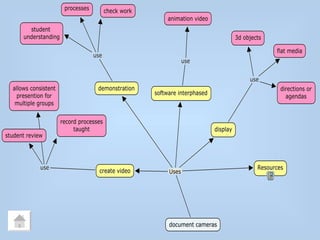
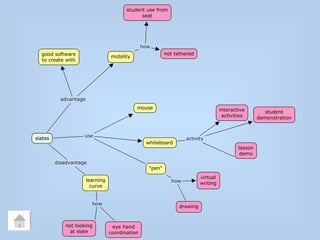
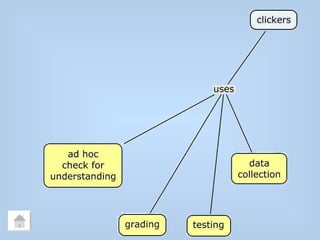
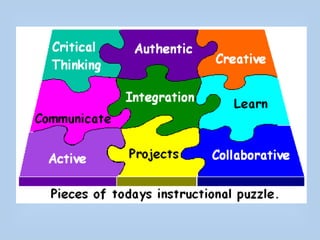
Interactive instruction

  • 1.
    Integrating Technology Elena De La Rosa NASA JSC Pre-Service Teacher Institute
  • 2.
    Classroom Hardware Care Things not to forget to do…
  • 3.
    Teacher Computer • Willusually lock after 15 minutes • District may run updates at high peak times so Internet will be slow at those times. • Do no play streaming video from computer, download it then put it on common drive to save disk space if your district has one. • Back up your work on a flash drive or the common • Mouses are usually laser sensored, so don’t always work well with mouse pad
  • 4.
    Projector • Clean filterat least twice a week • Turn OFF lamp when not in use by muting or standby • Make sure image is large enough for all to see • Secure chords so that they are in a safe place
  • 5.
    Document Cameras • Securebase • Use light to give more light • Focus camera • When not “talking” to projector, connect directly to projector use remote  select menu  make sure your setting is on presentation • Don’t forget to mute when not in use.
  • 6.
    Student Computers • Donot let students surf as this will ‘clog’ the computer and make it slow down • Recommend using either your campus website or one you have created for activities • Student links should have student online resources and updated often. • Turn them off at end of day.
  • 7.
  • 8.
    Definition Technology integration incorporates technology tools to teach content using effective instructional practices. Technology can empower students to think critically, solve problems, and evaluate more effectively. Good integration is characterized by how and why technology is used, not by the amount or type of technology.
  • 10.
  • 11.
    Teachers: • See thatknowledge is something children must construct rather than something to be transferred • Meet the needs of all students • Are facilitators • Collaborate with colleagues and administrators
  • 12.
    Students: • Have anactive role • Apply what they learn in authentic situations • Use the technology for a purpose that is clear to them • Collaborate to maximize learning
  • 13.
    Lessons: • Should be seamless • Can be interdisciplinary project-based • Promote higher order thinking • Are supportive of curriculum and standard- based
  • 14.
    Support Personnel Provide: • Administrative support • Adequate and dependable equipment • Reliable network • Technology resource teachers
  • 15.
    The Five Principlesof Effective Tech Integration • Identify the learning objectives for your lesson or activity. Knowing your goals will guide your decisions throughout the lesson. • Determine what technology is best suited to meet your learning objectives. Will you use spreadsheets, word processing, the Internet, and/or other technology applications? Your learning objectives should guide your decision. • Review the technology skills you and your students will need to best utilize the technology for the lesson. You want your students to be focusing on the instruction, not on how to use the technology. • Organize your classroom to best meet the needs of the lesson. This might mean moving things around in your classroom to set up workstations. It might mean reserving time in the computer lab or using a single computer as a projector. There are many possibilities. • Set the student outcomes for the lesson. Determine what students should know by the end of the lesson and what work they will provide to demonstrate this understanding.
  • 16.
    Elements • Graphic Organizers • Lesson Plans • Software • Interval Integration • Web access
  • 17.
    Professional Resources • TechnologyIntegration module http://www.edutopia.org/teaching-module-tech • Edutopia http://www.edutopia.org • Classroom2.0 http://www.classroom20.com/
  • 18.
    Interactive Tools How touse them in your classroom.
  • 19.
  • 32.
    Web2.0? What is it? How do I use? Do I want to use it?
  • 34.
    What is Web2.0 •Web 1.0 • Web 2.0 – Not interactive – Shares information – Passive response – Collaborative – Informative – Online resources – One way – Interactive community communication ownership – Single ownership – Live posting
  • 35.
    Instructional Expectations Decrease • Only whole class, teacher-directed instruction • Student passivity and prizing and rewarding of silence in the classroom; classroom time devoted to fill-in-the-blank worksheets and other “seatwork.” • One-way transmissions of information from teacher to student • Only role memorization of fact and details • Teachers thinly covering large amounts of material in every subject area • Tracking or leveling students into “ability groups” • Use of and reliance on standardized tests
  • 36.
    Instructional Expectations Increase • Experiential, inductive, hands-on learning • Active learning in the classroom • Diverse roles for teachers, including coaching, demonstrating and modeling. • Emphasis on higher-order thinking, learning key concepts, and principles. • Deep study of a smaller number of topics • Grouping, collaborative activity • Choice for students • Attention to the varying learning styles and other needs of individual learners. -Zemeiman, Daniels, Hyde (1995)
  • 37.
    Blogs Blogs are usedto share information with others. One manager • Blogger • Edublogs.org • Kidblog • List of Free Blogs
  • 38.
    Wikis Wiki is Hawaiianfor quick. It can also be the acronym “What I know”. Community based. • Wikipedia • Wetpaint • PBWorks • Wikispaces • Weebly
  • 39.
  • 40.
    Open Source Software • Gimp • OpenOffice Docs • Audacity • Youtube converter • Celestia • TuxPaint
  • 41.
    Free online tools • Google Docs • Google Earth • Kerpoof • Read Write Think • Internet4Class
  • 42.
    Online Video • Youtube •Teachertube • DiscoveryEducation
  • 43.
    Resources Blogs • http://edublogs.org/ • https://www.blogger.com/start •http://www.google.com/intl/en/options/ • http://kidblog.org/home.php Wikis • http://www.google.com/intl/en/options/ • http://pbwiki.com/ • http://www.wikispaces.com/
  • 44.
    Resources Social Bookmarking • http://delicious.com/ •http://www.diigo.com/ Video • http://www.youtube.com/ • http://www.teachertube.com/ • http://streaming.discoveryeducation.com/index
  • 45.
    Resources Software • http://www.gimp.org/ • http://www.openoffice.org/ •http://www.openoffice.org/ • http://audacity.sourceforge.net/ • http://www.techsmith.com/jing.html?gclid=CLfyxfK56bACFSW • http://download.cnet.com/VLC-Media-Player/3000-13632_4-1 • http://zacbrowser.com/ • http://www.aspexsoftware.com/shapes.htm
  • 46.
    Resources Free online • http:// www.readwritethink.org/student_mat/index.asp • http://www.internet4classrooms.com/grade_lev
  • 47.
    Resources • http://earth.google.com/ • http://youtubedownload.altervista.org/ • http://www.shatters.net/celestia/ • http://www.kerpoof.com/ • http://www.tuxpaint.org/
  • 48.
    Questions??? ContactInformation edelaros@houstonisd.org edelaros151@gmail.com

Editor's Notes

  • #37 Blogs – is (a contraction of the term " Web log ") is a Web site, usually maintained by an individual with regular entries of commentary, descriptions of events, or other material such as graphics or video. Entries are commonly displayed in reverse-chronological order.
  • #39 Wikis - is a page or collection of Web pages designed to enable anyone who accesses it to contribute or modify content, using a simplified markup language.[1][2] Wikis are often used to create collaborative websites and to power community websites.