PC Hardware Servicing
Chapter 27: The Boot Process
Chapter 27 Objectives
• Understand bootable disks
• Identify key boot files in each OS version
• List the boot sequence for each OS
• Use alternative boot modes
• Create and use a boot floppy
• Use the Recovery Console
• Create and use an ERD
• Troubleshoot startup and shutdown problems
What Constitutes a Bootable Disk?
• A disk that can bring the PC to a functional
level, with the OS ready to accept user
commands
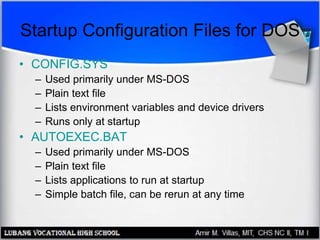
Startup Configuration Files for DOS
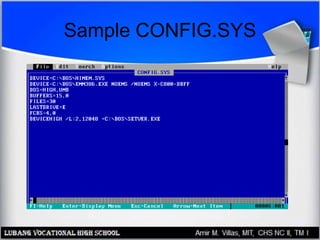
• CONFIG.SYS
– Used primarily under MS-DOS
– Plain text file
– Lists environment variables and device drivers
– Runs only at startup
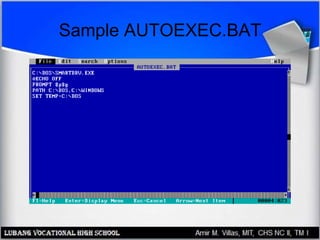
• AUTOEXEC.BAT
– Used primarily under MS-DOS
– Plain text file
– Lists applications to run at startup
– Simple batch file, can be rerun at any time
Sample CONFIG.SYS
Sample AUTOEXEC.BAT
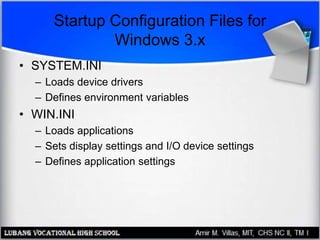
Startup Configuration Files for
Windows 3.x
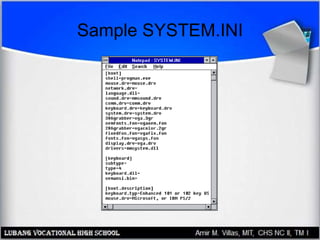
• SYSTEM.INI
– Loads device drivers
– Defines environment variables
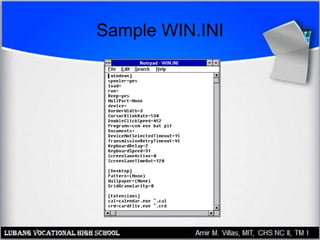
• WIN.INI
– Loads applications
– Sets display settings and I/O device settings
– Defines application settings
Sample SYSTEM.INI
Sample WIN.INI
The Registry
• 32-bit versions of Windows system
settings files
• In Windows 9x: SYSTEM.DAT and
USER.DAT
• In Windows NT/2000/XP:
SAM, SECURITY, SYSTEM, SOFTWARE,
DEFAULT
• Accessed through the Registry Editor as a
single database
MS-DOS Boot Sequence
1. BIOS performs POST
2. BIOS searches for master boot record
(MBR), which defines the active partition
3. MBR takes control and locates IO.SYS
4. IO.SYS takes control, identifies hardware
5. IO.SYS runs CONFIG.SYS
6. MSDOS.SYS takes control, loads OS kernel
into RAM
7. MSDOS.SYS runs AUTOEXEC.BAT
8. Command.com displays a command prompt
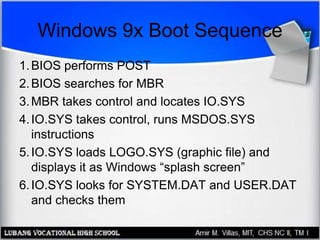
Windows 9x Boot Sequence
1.BIOS performs POST
2.BIOS searches for MBR
3.MBR takes control and locates IO.SYS
4.IO.SYS takes control, runs MSDOS.SYS
instructions
5.IO.SYS loads LOGO.SYS (graphic file) and
displays it as Windows “splash screen”
6.IO.SYS looks for SYSTEM.DAT and USER.DAT
and checks them
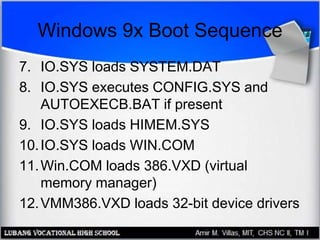
Windows 9x Boot Sequence
7. IO.SYS loads SYSTEM.DAT
8. IO.SYS executes CONFIG.SYS and
AUTOEXECB.BAT if present
9. IO.SYS loads HIMEM.SYS
10.IO.SYS loads WIN.COM
11.Win.COM loads 386.VXD (virtual
memory manager)
12.VMM386.VXD loads 32-bit device drivers
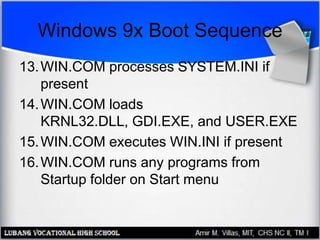
Windows 9x Boot Sequence
13.WIN.COM processes SYSTEM.INI if
present
14.WIN.COM loads
KRNL32.DLL, GDI.EXE, and USER.EXE
15.WIN.COM executes WIN.INI if present
16.WIN.COM runs any programs from
Startup folder on Start menu
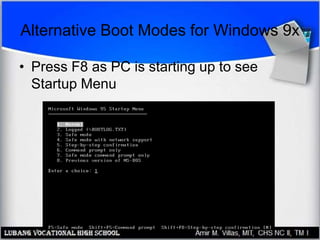
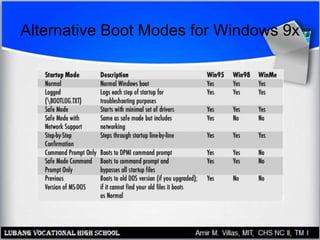
Alternative Boot Modes for Windows 9x
• Press F8 as PC is starting up to see
Startup Menu
Alternative Boot Modes for Windows 9x
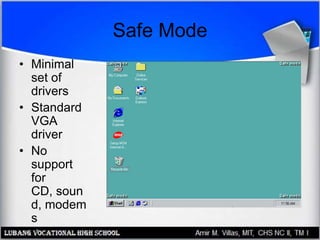
Safe Mode
• Minimal
set of
drivers
• Standard
VGA
driver
• No
support
for
CD, soun
d, modem
s
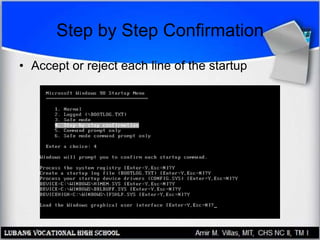
Step by Step Confirmation
• Accept or reject each line of the startup
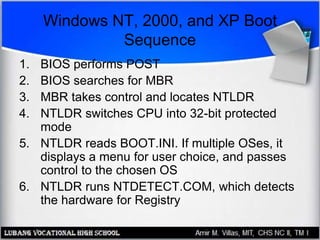
Windows NT, 2000, and XP Boot
Sequence
1. BIOS performs POST
2. BIOS searches for MBR
3. MBR takes control and locates NTLDR
4. NTLDR switches CPU into 32-bit protected
mode
5. NTLDR reads BOOT.INI. If multiple OSes, it
displays a menu for user choice, and passes
control to the chosen OS
6. NTLDR runs NTDETECT.COM, which detects
the hardware for Registry
Windows NT, 2000, and XP Boot
Sequence
7. NTLDR reads NTOSKRNL (OS kernel)
into memory
8. NTLDR locates drivers for Registry-
reported hardware
9. NTLDR hands over control to
NTOSKRNL.EXE
10.NTOSKRNL.EXE loads the device
drivers and the GUI
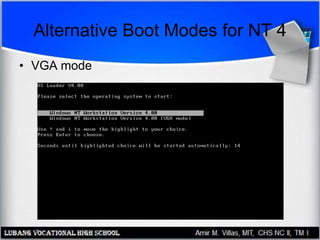
Alternative Boot Modes for NT 4
• VGA mode
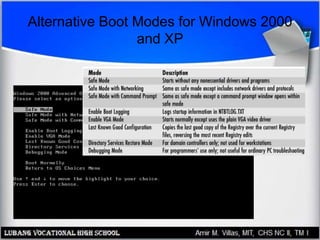
Alternative Boot Modes for Windows 2000
and XP
Troubleshooting 9x Startup
• No operating system found
– No bootable disk is available
– PC does not see hard drive
– Hard drive not formatting
– No OS installed
– Loose connection to hard disk
– Physical malfunction
– Virus infection
– IO.SYS or MSDOS.SYS missing or corrupted
Troubleshooting 9x Startup
• Error in CONFIG.SYS Line xx
– Driver called for in CONFIG.SYS missing or
corrupted
• Bad or Missing COMMAND.COM
• Stuck at Windows splash screen
– Press Esc to see what is going on behind it
– Disable virtual memory
– Rebuild paging file
Troubleshooting 9x Startup
• Missing, Corrupt, or Unloaded
HIMEM.SYS
• Windows protection error
– Virtual device driver problem
– Start in Safe Mode and check for a real-mode
driver on CONFIG.SYS
– Remove and reinstall the device
• Device referenced in SYSTEM.INI or
WIN.INI not found
Troubleshooting 9x Startup
• General protection fault (GPF)
– Two programs try to use the same memory
space
– Make a note of the file causing the error, and
restart
– If repeats, try reinstalling the associated
program or using EXTRACT to re-copy file
from Windows disc
Troubleshooting 2000/XP Startup
• Try Safe Mode
• Try restoring last known good
configuration
• If Windows XP, use System Restore
• Repair Windows installation by booting
from Setup CD and choosing Repair
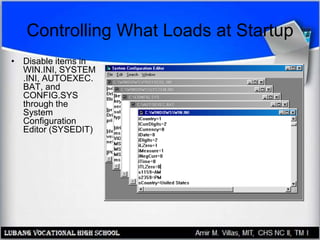
Controlling What Loads at Startup
• Disable items in
WIN.INI, SYSTEM
.INI, AUTOEXEC.
BAT, and
CONFIG.SYS
through the
System
Configuration
Editor (SYSEDIT)
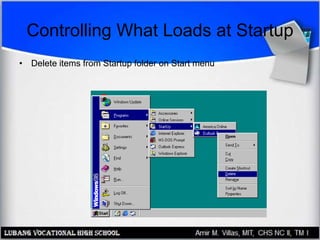
Controlling What Loads at Startup
• Delete items from Startup folder on Start menu
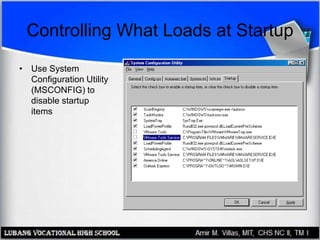
Controlling What Loads at Startup
• Use System
Configuration Utility
(MSCONFIG) to
disable startup
items
Creating a 9x Startup Floppy
1. Open Control Panel
2. Add/Remove Programs, Startup Disk tab
3. Click Create Disk and follow the prompts
How a Boot Floppy Works
1.Booting from floppy creates RAM disk
2.Compressed files are decompressed onto
RAM disk
Therefore… some utilities are directly on
the floppy, and others are on the RAM disk
Files on a Boot Floppy
• DRVSPACE.BIN: Support for hard disks compressed
with DriveSpace
• EBD.CAB: The compressed file containing extra utilities
to be placed on RAM disk
• AUTOEXEC.BAT and CONFIG.SYS
• FINDRAMD.EXE: Locates the RAM disk
• EXTRACT.EXE: Extracts compressed files to RAM disk
• FDISK: Partitions disks
• README.TXT: Information
• CD-ROM drivers
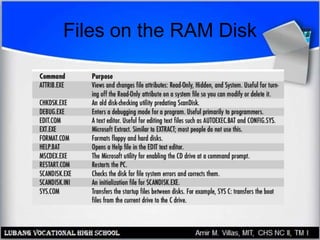
Files on the RAM Disk
What is an ERD?
• Emergency Repair Disk
• For Windows 2000/XP only
• Not bootable
• Stores settings that can help repair
Windows, along with Windows Setup’s
Repair mode
• Specific to that PC
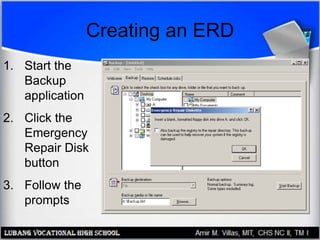
Creating an ERD
1. Start the
Backup
application
2. Click the
Emergency
Repair Disk
button
3. Follow the
prompts
What Is the Recovery Console?
• Command-line interface
• Limited set of commands
• Accessible even when Windows will not
start normally
• Can repair the MBR, disable services, etc.
Booting to the Recovery Console
1.Boot from the Windows CD
2.Choose R for Repair
3.Choose C for Recovery Console
4.Type 1 to choose the Windows installation
5.Enter administrator password when
prompted
Recovery Console Commands
– ATTRIB
– CD
– MD
– COPY
– DEL
– CHKDSK
– DIR
– EXIT
– EXPAND
– FORMAT
– MD
– RD
– REN
Some are same as with Win9x startup disk:
Recovery Console Commands
• Some are different from normal command
prompt commands:
– BATCH
– DISABLE
– DISKPART
– ENABLE
– FIXBOOT
– FIXMBR
– LISTSYS
Troubleshooting Shutdown
Problems
• Does not shut off with Shut Down
command
– Is ACPI enabled in BIOS Setup?
– Is it an ATX motherboard?
– Is ACPI enabled in Windows?
– Are case wires connected to motherboard?
– Is a BIOS update available for motherboard?
Troubleshooting Shutdown
Problems
• Application Not Responding
– Click End Task if dialog box appears
– Press Ctrl+Alt+Delete and shut down
application
• No Shutdown with Power Button
– Hold power button down for 5 seconds
Troubleshooting Shutdown
Problems
• Windows 98 locks up when shutting down
– Download patch for Windows 98
– Disable Fast Shutdown (in MSCONFIG)

The Boot Process

  • 1.
    PC Hardware Servicing Chapter27: The Boot Process
  • 2.
    Chapter 27 Objectives •Understand bootable disks • Identify key boot files in each OS version • List the boot sequence for each OS • Use alternative boot modes • Create and use a boot floppy • Use the Recovery Console • Create and use an ERD • Troubleshoot startup and shutdown problems
  • 3.
    What Constitutes aBootable Disk? • A disk that can bring the PC to a functional level, with the OS ready to accept user commands
  • 4.
    Startup Configuration Filesfor DOS • CONFIG.SYS – Used primarily under MS-DOS – Plain text file – Lists environment variables and device drivers – Runs only at startup • AUTOEXEC.BAT – Used primarily under MS-DOS – Plain text file – Lists applications to run at startup – Simple batch file, can be rerun at any time
  • 5.
  • 6.
  • 7.
    Startup Configuration Filesfor Windows 3.x • SYSTEM.INI – Loads device drivers – Defines environment variables • WIN.INI – Loads applications – Sets display settings and I/O device settings – Defines application settings
  • 8.
  • 9.
  • 10.
    The Registry • 32-bitversions of Windows system settings files • In Windows 9x: SYSTEM.DAT and USER.DAT • In Windows NT/2000/XP: SAM, SECURITY, SYSTEM, SOFTWARE, DEFAULT • Accessed through the Registry Editor as a single database
  • 11.
    MS-DOS Boot Sequence 1.BIOS performs POST 2. BIOS searches for master boot record (MBR), which defines the active partition 3. MBR takes control and locates IO.SYS 4. IO.SYS takes control, identifies hardware 5. IO.SYS runs CONFIG.SYS 6. MSDOS.SYS takes control, loads OS kernel into RAM 7. MSDOS.SYS runs AUTOEXEC.BAT 8. Command.com displays a command prompt
  • 12.
    Windows 9x BootSequence 1.BIOS performs POST 2.BIOS searches for MBR 3.MBR takes control and locates IO.SYS 4.IO.SYS takes control, runs MSDOS.SYS instructions 5.IO.SYS loads LOGO.SYS (graphic file) and displays it as Windows “splash screen” 6.IO.SYS looks for SYSTEM.DAT and USER.DAT and checks them
  • 13.
    Windows 9x BootSequence 7. IO.SYS loads SYSTEM.DAT 8. IO.SYS executes CONFIG.SYS and AUTOEXECB.BAT if present 9. IO.SYS loads HIMEM.SYS 10.IO.SYS loads WIN.COM 11.Win.COM loads 386.VXD (virtual memory manager) 12.VMM386.VXD loads 32-bit device drivers
  • 14.
    Windows 9x BootSequence 13.WIN.COM processes SYSTEM.INI if present 14.WIN.COM loads KRNL32.DLL, GDI.EXE, and USER.EXE 15.WIN.COM executes WIN.INI if present 16.WIN.COM runs any programs from Startup folder on Start menu
  • 15.
    Alternative Boot Modesfor Windows 9x • Press F8 as PC is starting up to see Startup Menu
  • 16.
    Alternative Boot Modesfor Windows 9x
  • 17.
    Safe Mode • Minimal setof drivers • Standard VGA driver • No support for CD, soun d, modem s
  • 18.
    Step by StepConfirmation • Accept or reject each line of the startup
  • 19.
    Windows NT, 2000,and XP Boot Sequence 1. BIOS performs POST 2. BIOS searches for MBR 3. MBR takes control and locates NTLDR 4. NTLDR switches CPU into 32-bit protected mode 5. NTLDR reads BOOT.INI. If multiple OSes, it displays a menu for user choice, and passes control to the chosen OS 6. NTLDR runs NTDETECT.COM, which detects the hardware for Registry
  • 20.
    Windows NT, 2000,and XP Boot Sequence 7. NTLDR reads NTOSKRNL (OS kernel) into memory 8. NTLDR locates drivers for Registry- reported hardware 9. NTLDR hands over control to NTOSKRNL.EXE 10.NTOSKRNL.EXE loads the device drivers and the GUI
  • 21.
    Alternative Boot Modesfor NT 4 • VGA mode
  • 22.
    Alternative Boot Modesfor Windows 2000 and XP
  • 23.
    Troubleshooting 9x Startup •No operating system found – No bootable disk is available – PC does not see hard drive – Hard drive not formatting – No OS installed – Loose connection to hard disk – Physical malfunction – Virus infection – IO.SYS or MSDOS.SYS missing or corrupted
  • 24.
    Troubleshooting 9x Startup •Error in CONFIG.SYS Line xx – Driver called for in CONFIG.SYS missing or corrupted • Bad or Missing COMMAND.COM • Stuck at Windows splash screen – Press Esc to see what is going on behind it – Disable virtual memory – Rebuild paging file
  • 25.
    Troubleshooting 9x Startup •Missing, Corrupt, or Unloaded HIMEM.SYS • Windows protection error – Virtual device driver problem – Start in Safe Mode and check for a real-mode driver on CONFIG.SYS – Remove and reinstall the device • Device referenced in SYSTEM.INI or WIN.INI not found
  • 26.
    Troubleshooting 9x Startup •General protection fault (GPF) – Two programs try to use the same memory space – Make a note of the file causing the error, and restart – If repeats, try reinstalling the associated program or using EXTRACT to re-copy file from Windows disc
  • 27.
    Troubleshooting 2000/XP Startup •Try Safe Mode • Try restoring last known good configuration • If Windows XP, use System Restore • Repair Windows installation by booting from Setup CD and choosing Repair
  • 28.
    Controlling What Loadsat Startup • Disable items in WIN.INI, SYSTEM .INI, AUTOEXEC. BAT, and CONFIG.SYS through the System Configuration Editor (SYSEDIT)
  • 29.
    Controlling What Loadsat Startup • Delete items from Startup folder on Start menu
  • 30.
    Controlling What Loadsat Startup • Use System Configuration Utility (MSCONFIG) to disable startup items
  • 31.
    Creating a 9xStartup Floppy 1. Open Control Panel 2. Add/Remove Programs, Startup Disk tab 3. Click Create Disk and follow the prompts
  • 32.
    How a BootFloppy Works 1.Booting from floppy creates RAM disk 2.Compressed files are decompressed onto RAM disk Therefore… some utilities are directly on the floppy, and others are on the RAM disk
  • 33.
    Files on aBoot Floppy • DRVSPACE.BIN: Support for hard disks compressed with DriveSpace • EBD.CAB: The compressed file containing extra utilities to be placed on RAM disk • AUTOEXEC.BAT and CONFIG.SYS • FINDRAMD.EXE: Locates the RAM disk • EXTRACT.EXE: Extracts compressed files to RAM disk • FDISK: Partitions disks • README.TXT: Information • CD-ROM drivers
  • 34.
    Files on theRAM Disk
  • 35.
    What is anERD? • Emergency Repair Disk • For Windows 2000/XP only • Not bootable • Stores settings that can help repair Windows, along with Windows Setup’s Repair mode • Specific to that PC
  • 36.
    Creating an ERD 1.Start the Backup application 2. Click the Emergency Repair Disk button 3. Follow the prompts
  • 37.
    What Is theRecovery Console? • Command-line interface • Limited set of commands • Accessible even when Windows will not start normally • Can repair the MBR, disable services, etc.
  • 38.
    Booting to theRecovery Console 1.Boot from the Windows CD 2.Choose R for Repair 3.Choose C for Recovery Console 4.Type 1 to choose the Windows installation 5.Enter administrator password when prompted
  • 39.
    Recovery Console Commands –ATTRIB – CD – MD – COPY – DEL – CHKDSK – DIR – EXIT – EXPAND – FORMAT – MD – RD – REN Some are same as with Win9x startup disk:
  • 40.
    Recovery Console Commands •Some are different from normal command prompt commands: – BATCH – DISABLE – DISKPART – ENABLE – FIXBOOT – FIXMBR – LISTSYS
  • 41.
    Troubleshooting Shutdown Problems • Doesnot shut off with Shut Down command – Is ACPI enabled in BIOS Setup? – Is it an ATX motherboard? – Is ACPI enabled in Windows? – Are case wires connected to motherboard? – Is a BIOS update available for motherboard?
  • 42.
    Troubleshooting Shutdown Problems • ApplicationNot Responding – Click End Task if dialog box appears – Press Ctrl+Alt+Delete and shut down application • No Shutdown with Power Button – Hold power button down for 5 seconds
  • 43.
    Troubleshooting Shutdown Problems • Windows98 locks up when shutting down – Download patch for Windows 98 – Disable Fast Shutdown (in MSCONFIG)