LINUX/UNIX
Chapter 2:
Linux system architecture
Determine and configure hardware settings
• Computer hardware is the physical parts
or components of acomputer, such as the
monitor, keyboard, computer data storage,
hard disk drive (HDD), graphic cards, sound
cards, memory (RAM), motherboard, and so
on, all of which are tangible physical objects.
Determine and configure hardware settings
HAL
• HAL (Hardware Abstraction Layer or rather Hardware
Annotation Library) is a software subsystem for UNIX-
like operating systems providing hardware abstraction.
• Functionality is being merged into udev on Linux as of
2008–2010 and devd on FreeBSD. Previously, HAL was
built on top of udev.
• Some other OS-es which don't have an alternative like
udev or devd, still use HAL.
Determine and configure hardware settings
• The purpose of the hardware abstraction layer
was to allow desktop applications to discover
and use the hardware of the host system
through a simple, portable and abstract API,
regardless of the type of the underlying
hardware
Determine and configure hardware settings
dbus
• In computing, D-Bus or DBus is an inter-process
communication (IPC) and remote procedure call (RPC)
mechanism that allows communication between
multiple computer programs (that is, processes)
concurrently running on the same machine.
• For example, when you install a USB into your
computer, dbus lets GNOME know about it.
• Using dbus, hardware & software can talk with each
other.
Determine and configure hardware settings
udev
• Udev is the device manager for the Linux 2.6 kernel that
creates/removes device nodes in the /dev directory dynamically.
• It is the successor of devfs and hotplug.
• It runs in userspace and the user can change device names
using Udev rules.
• Udev depends on the sysfs file system which was introduced in the
2.5 kernel.
• udev lets you control what will be what in /dev. For example, you
can use a rule to force your 8GB flash drive with one specific vendor
to be /dev/mybackup all the time or you can tell it to copy all photos
to your home directory as soon as your camera is connected.

Determine and configure hardware settings
sysfs
• sysfs is a virtual file system provided by the Linux
kernel that exports information about various kernel
subsystems, hardware devices, and associated device
drivers from the kernel's device model to user space
through virtual files.
• The /sys directory is where HAL keeps its database of
everything connected to the system.
• This is where kernel keeps its data structure and is
created in RAM.
Determine and configure hardware settings
• Lsmod is the command to Shows kernel
modules.
Determine and configure hardware settings
• If you need to add a module to your kernel
(say a new driver for a hardware) or remove it
(uninstall a driver) you can
use rmmod and modprobe.
# rmmod iwlwifi for installing the modules:
• # insmod
Determine and configure hardware settings
But nobody uses insmod because it does not
understand dependencies and you need to give
it the whole path to the module file.
Instead use the modprobe command:
• # modprobe iwlwifi
Determine and configure hardware settings
lspci
• Shows PCI devices that are connected to the
computer
lsusb
• Shows all the USB devices connected to the
system.
Determine and configure hardware settings
lspcmcia
• Shows available PCMCIA cards on this
computer.
lshal
• Shows HAL data.
lshw
• Shows hardware.
Determine and configure hardware settings
Device UUIDs
• Each device has an ID.
• If you speak about /dev/sda, you are speaking
about the "first hard" but if you want a
specific drive to be your /home, you have to
use UUID.
Determine and configure hardware settings
hotplug
• To hotplug, or hotplugging, means plugging a hardware device of
some kind into a running computer and having it work without
requiring a reboot of the computer.
• The most common devices that support this
are USB devices.Other device that can be hotplugged
are PCMCIA/CardBus, Firewire, CompactPCI, 'normal' PCI (through
use of a special hotplug controllers), IDE (some RAID controlles
support this), SCSI, CPUs, memory
• Hotplugging support in Linux is made out of two parts,
– A kernel part that deals with generating events when there is a change
in the devices (e.g. a device is disconnected).
– The event is then passed to a command in userspace.
Determine and configure hardware settings
Note:
• Hotplug also supports coldplugging, that means it
can be called at boot to configure all the currently
connected devices. And because it supports most
types of devices it works like a full Automatic
Hardware Configuration tool.
The Basic Input/Output Systems (BIOS)
• The BIOS (Basic input /output systems ) is a piece of
software that's built-in to the machine, usually stored
in a flash ROM on the motherboard.
• The BIOS has effectively two purposes.
– The first is the one we're directly concerned with here:
taking the machine from its initial power-on state to the
point where it can run GRUB.
– The second purpose, and the source of the BIOS's name, is
to provide a set of rudimentary device drivers for some of
the hardware in the machine, so that bootloaders, and OSes
that don't know any better, have slightly easier lives.
The Basic Input/Output Systems (BIOS)
• The first responsibility of the BIOS is to set up various
aspects of the motherboard chipset so that the
machine will behave like a normal PC.
• Modern PCs have a reasonably flexible and sensible
hardware architecture, but when the operating
system starts, it expects the system to look more-or-
less like it belongs in 1983.
• When Linux starts, it will, of course, reverse a fair
chunk of this brain-damage, but it's all necessary for
backward compatibility
Stages of Linux Boot Process
• Press the power button on your system, and
after few moments you see the Linux login
prompt.
• Have you ever wondered what happens
behind the scenes from the time you press the
power button until the Linux login prompt
appears.
Stages of Linux Boot Process
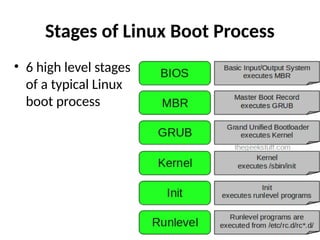
• 6 high level stages
of a typical Linux
boot process
The characteristics of BIOS
1) BIOS stands for Basic Input/Output System
2) Performs some system integrity checks
3) Searches, loads, and executes the boot loader program.
4) It looks for boot loader in floppy, cd-rom, or hard drive. You
can press a key (typically F12 of F2, but it depends on your
system) during the BIOS startup to change the boot
sequence.
5) Once the boot loader program is detected and loaded into
the memory, BIOS gives the control to it.
6) So, in simple terms BIOS loads and executes the MBR boot
loader.
The Characteristics of MBR
1. MBR stands for Master Boot Record.
2. It is located in the 1st sector of the bootable disk.
Typically /dev/hda, or /dev/sda
3. MBR is less than 512 bytes in size. This has three
components 1) primary boot loader info in 1st 446 bytes 2)
partition table info in next 64 bytes 3) mbr validation check
in last 2 bytes.
4. It contains information about GRUB (or LILO in old
systems).
5. So, in simple terms MBR loads and executes the GRUB boot
loader.
The Characteristics of GRUB
1. GRUB stands for Grand Unified Bootloader.
2. If you have multiple kernel images installed on your system,
you can choose which one to be executed.
3. GRUB displays a splash screen, waits for few seconds, if you
don’t enter anything, it loads the default kernel image as
specified in the grub configuration file.
4. GRUB has the knowledge of the filesystem (the older Linux
loader LILO didn’t understand filesystem).
5. Grub configuration file is /boot/grub/grub.conf
(/etc/grub.conf is a link to this). The following is sample
grub.conf of CentOS.
6. it contains kernel and initrd image.
7. GRUB just loads and executes Kernel and initrd images.
The Characteristics of GRUB
8. Mounts the root file system as specified in the “root=”
in grub.conf
9. Kernel executes the /sbin/init program
10. Since init was the 1st program to be executed by
Linux Kernel, it has the process id (PID) of 1. Do a ‘ps -ef |
grep init’ and check the pid.
11. Initrd stands for Initial RAM Disk.
12. Initrd is used by kernel as temporary root file system
until kernel is booted and the real root file system is
mounted.
The characteristics of Init
• It decide the Linux run level.
• Following are the available run levels
– 0 – halt
– 1 – Single user mode
– 2 – Multiuser, without NFS
– 3 – Full multiuser mode
– 4 – unused
– 5 – X11
– 6 – reboot
The characteristics of Init
• Init identifies the default initlevel from
/etc/inittab and uses that to load all
appropriate program.
• Execute ‘grep initdefault /etc/inittab’ on your
system to identify the default run level
Linux Runlevel program
• When the Linux system is booting up, you might see various
services getting started. For example, it might say “starting
sendmail …. OK”. Those are the runlevel programs, executed
from the run level directory as defined by your run level.
• Depending on your default init level setting, the system will
execute the programs from one of the following directories.
– Run level 0 – /etc/rc.d/rc0.d/
– Run level 1 – /etc/rc.d/rc1.d/
– Run level 2 – /etc/rc.d/rc2.d/
– Run level 3 – /etc/rc.d/rc3.d/
– Run level 4 – /etc/rc.d/rc4.d/
– Run level 5 – /etc/rc.d/rc5.d/
– Run level 6 – /etc/rc.d/rc6.d/
Linux boot loaders
1. GNU GRUB. GNU GRUB is a popular and
probably the most used multiboot
Linux boot loader available, based on the
original GRUB (GRand Unified Bootlader) which
was created by Eirch Stefan Broleyn. ...
2. LILO (Linux Loader) LILO is a simple yet
powerful and stable Linux bootloader. ...
3. BURG – New Boot Loader. ...
4. Syslinux.
The Fundamental concept of GRUB
• GRUB (GRand Unified Bootloader)
• Is a bootloader (can also be spelled boot
loader) capable of loading a variety of free and
proprietary operating systems. GRUB will work
well with Linux, DOS, Windows, or BSD..
• GRUB is dynamically configurable.
• It means user can make changes during the
boot time, which include:
– altering existing boot entries,
– Adding boot entries new,
– custom boot entries entries,
– selecting different kernels,
• GRUB can be run from or be installed to any
device (floppy disk, hard disk, CD-ROM, USB
drive, network drive) and can load operating
systems from just as many locations, including
network drives.
• It can also decompress operating system
images before booting them.
• You may have heard about another Linux
bootloader called LILO (stands for LInux
LOader). While a sensible option for many
Linux users, GRUB is a better choice, for
several reasons:
GRUB vs LILO
1. LILO supports only up to 16 different boot
selections; GRUB supports an unlimited
number of boot entries.
2. LILO cannot boot from network; GRUB can.
3. LILO must be written again every time you
change the configuration file; GRUB does not.
4. LILO does not have an interactive command
interface.
How GRUB works
1. When a computer boots, the BIOS transfers control to the first
boot device, which can be a hard disk, a floppy disk, a CD-ROM,
or any other BIOS-recognized device. We'll concentrate on hard
disks, for the sake of simplicity.
2. The first sector on a hard is called the Master Boot Record (MBR).
This sector is only 512 bytes long and contains a small piece of
code (446 bytes) called the primary boot loader and the partition
table (64 bytes) describing the primary and extended partitions.
3. By default, MBR code looks for the partition marked as active and
once such a partition is found, it loads its boot sector into
memory and passes control to it.
4. GRUB replaces the default MBR with its own code.
How GRUB works
• Stage 1: is located in the MBR and mainly points to Stage 2,
since the MBR is too small to contain all of the needed data.
• Stage 2: points to its configuration file, which contains all of the
complex user interface and options we are normally familiar
with when talking about GRUB. Stage 2 can be located
anywhere on the disk. If Stage 2 cannot find its configuration
table, GRUB will cease the boot sequence and present the user
with a command line for manual configuration.
• Stage 1.5 also exists and might be used if the boot information
is small enough to fit in the area immediately after MBR.
GRUB Notation
(hd0,1)
• The brackets are a must; all devices listed in GRUB menu must be
enclosed in brackets.
• hd stands for hard disk; alternatively, fd stands for floppy disk, cd
stands for CD-ROM etc.
• The first number (integer for geeks) refers to the physical hard
drive number; in this case, the first drive, as they are counted
from zero up. For example, hd2 refers to the third physical hard
drive.
• The second number refers to the partition number of the selected
hard drive; again, partitions are counted from zero up. In this
case, 1 stands for the second partition.
GRUB Notation
• Primary partitions are marked from 0 to 3
(hd?,0), (hd?,1), (hd?,2), (hd?,3). Logical
partitions in the extended partition are
counted from 4 up, regardless of the actual
number of primary partitions on the hard disk,
e.g. (hd1,7).
Change runlevels and shutdown or reboot
system
• A runlevel is a state the system can be in, and
is characterised by the set of system services
that are available in that state.
• init's main job is to handle changes in runlevel.
• This includes first entering a runlevel when the
system starts, and switching to runlevel 0 or 6
just before it stops.
• entering runlevel 0 instructs the system to
shut down,
• entering runlevel 6 instructs it to reboot.
• Runlevel 1 is conventionally used for “single-
user mode”, in which the system has as little
running as possible.
• Runlevels 2 through 5 are available for your
use.
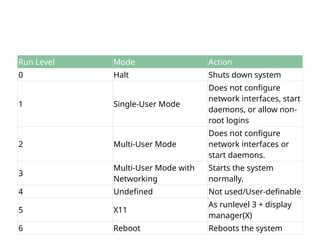
Run Level Mode Action
0 Halt Shuts down system
1 Single-User Mode
Does not configure
network interfaces, start
daemons, or allow non-
root logins
2 Multi-User Mode
Does not configure
network interfaces or
start daemons.
3
Multi-User Mode with
Networking
Starts the system
normally.
4 Undefined Not used/User-definable
5 X11
As runlevel 3 + display
manager(X)
6 Reboot Reboots the system
Configuring the Default Run Level
• A runlevel is a state, or mode, defined by services that are meant
to be run when this runlevel is selected. Seven numbered runlevels
exist (indexed from 0):
• To check in which runlevel you are operating, type the following:
~]$ runlevel
N 5
• The runlevel command displays previous and current runlevel.
• In this case it is number 5, which means the system is running in a
full multi-user mode with a graphical user interface.
• .
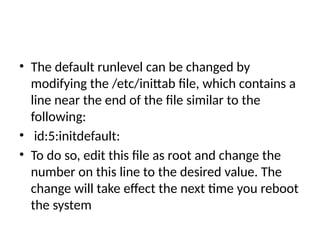
• The default runlevel can be changed by
modifying the /etc/inittab file, which contains a
line near the end of the file similar to the
following:
• id:5:initdefault:
• To do so, edit this file as root and change the
number on this line to the desired value. The
change will take effect the next time you reboot
the system
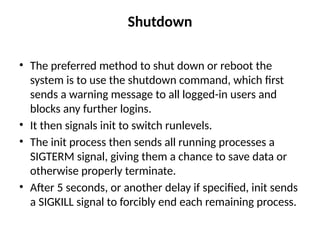
Shutdown
• The preferred method to shut down or reboot the
system is to use the shutdown command, which first
sends a warning message to all logged-in users and
blocks any further logins.
• It then signals init to switch runlevels.
• The init process then sends all running processes a
SIGTERM signal, giving them a chance to save data or
otherwise properly terminate.
• After 5 seconds, or another delay if specified, init sends
a SIGKILL signal to forcibly end each remaining process.
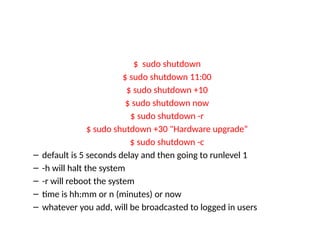
$ sudo shutdown
$ sudo shutdown 11:00
$ sudo shutdown +10
$ sudo shutdown now
$ sudo shutdown -r
$ sudo shutdown +30 "Hardware upgrade“
$ sudo shutdown -c
– default is 5 seconds delay and then going to runlevel 1
– -h will halt the system
– -r will reboot the system
– time is hh:mm or n (minutes) or now
– whatever you add, will be broadcasted to logged in users
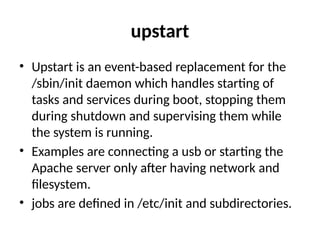
upstart
• Upstart is an event-based replacement for the
/sbin/init daemon which handles starting of
tasks and services during boot, stopping them
during shutdown and supervising them while
the system is running.
• Examples are connecting a usb or starting the
Apache server only after having network and
filesystem.
• jobs are defined in /etc/init and subdirectories.

introduction to computer Linux essential.pptx

  • 1.
  • 2.
    Determine and configurehardware settings • Computer hardware is the physical parts or components of acomputer, such as the monitor, keyboard, computer data storage, hard disk drive (HDD), graphic cards, sound cards, memory (RAM), motherboard, and so on, all of which are tangible physical objects.
  • 3.
    Determine and configurehardware settings HAL • HAL (Hardware Abstraction Layer or rather Hardware Annotation Library) is a software subsystem for UNIX- like operating systems providing hardware abstraction. • Functionality is being merged into udev on Linux as of 2008–2010 and devd on FreeBSD. Previously, HAL was built on top of udev. • Some other OS-es which don't have an alternative like udev or devd, still use HAL.
  • 4.
    Determine and configurehardware settings • The purpose of the hardware abstraction layer was to allow desktop applications to discover and use the hardware of the host system through a simple, portable and abstract API, regardless of the type of the underlying hardware
  • 5.
    Determine and configurehardware settings dbus • In computing, D-Bus or DBus is an inter-process communication (IPC) and remote procedure call (RPC) mechanism that allows communication between multiple computer programs (that is, processes) concurrently running on the same machine. • For example, when you install a USB into your computer, dbus lets GNOME know about it. • Using dbus, hardware & software can talk with each other.
  • 6.
    Determine and configurehardware settings udev • Udev is the device manager for the Linux 2.6 kernel that creates/removes device nodes in the /dev directory dynamically. • It is the successor of devfs and hotplug. • It runs in userspace and the user can change device names using Udev rules. • Udev depends on the sysfs file system which was introduced in the 2.5 kernel. • udev lets you control what will be what in /dev. For example, you can use a rule to force your 8GB flash drive with one specific vendor to be /dev/mybackup all the time or you can tell it to copy all photos to your home directory as soon as your camera is connected.
  • 7.
    Determine and configurehardware settings sysfs • sysfs is a virtual file system provided by the Linux kernel that exports information about various kernel subsystems, hardware devices, and associated device drivers from the kernel's device model to user space through virtual files. • The /sys directory is where HAL keeps its database of everything connected to the system. • This is where kernel keeps its data structure and is created in RAM.
  • 8.
    Determine and configurehardware settings • Lsmod is the command to Shows kernel modules.
  • 9.
    Determine and configurehardware settings • If you need to add a module to your kernel (say a new driver for a hardware) or remove it (uninstall a driver) you can use rmmod and modprobe. # rmmod iwlwifi for installing the modules: • # insmod
  • 10.
    Determine and configurehardware settings But nobody uses insmod because it does not understand dependencies and you need to give it the whole path to the module file. Instead use the modprobe command: • # modprobe iwlwifi
  • 11.
    Determine and configurehardware settings lspci • Shows PCI devices that are connected to the computer lsusb • Shows all the USB devices connected to the system.
  • 12.
    Determine and configurehardware settings lspcmcia • Shows available PCMCIA cards on this computer. lshal • Shows HAL data. lshw • Shows hardware.
  • 13.
    Determine and configurehardware settings Device UUIDs • Each device has an ID. • If you speak about /dev/sda, you are speaking about the "first hard" but if you want a specific drive to be your /home, you have to use UUID.
  • 14.
    Determine and configurehardware settings hotplug • To hotplug, or hotplugging, means plugging a hardware device of some kind into a running computer and having it work without requiring a reboot of the computer. • The most common devices that support this are USB devices.Other device that can be hotplugged are PCMCIA/CardBus, Firewire, CompactPCI, 'normal' PCI (through use of a special hotplug controllers), IDE (some RAID controlles support this), SCSI, CPUs, memory • Hotplugging support in Linux is made out of two parts, – A kernel part that deals with generating events when there is a change in the devices (e.g. a device is disconnected). – The event is then passed to a command in userspace.
  • 15.
    Determine and configurehardware settings Note: • Hotplug also supports coldplugging, that means it can be called at boot to configure all the currently connected devices. And because it supports most types of devices it works like a full Automatic Hardware Configuration tool.
  • 16.
    The Basic Input/OutputSystems (BIOS) • The BIOS (Basic input /output systems ) is a piece of software that's built-in to the machine, usually stored in a flash ROM on the motherboard. • The BIOS has effectively two purposes. – The first is the one we're directly concerned with here: taking the machine from its initial power-on state to the point where it can run GRUB. – The second purpose, and the source of the BIOS's name, is to provide a set of rudimentary device drivers for some of the hardware in the machine, so that bootloaders, and OSes that don't know any better, have slightly easier lives.
  • 17.
    The Basic Input/OutputSystems (BIOS) • The first responsibility of the BIOS is to set up various aspects of the motherboard chipset so that the machine will behave like a normal PC. • Modern PCs have a reasonably flexible and sensible hardware architecture, but when the operating system starts, it expects the system to look more-or- less like it belongs in 1983. • When Linux starts, it will, of course, reverse a fair chunk of this brain-damage, but it's all necessary for backward compatibility
  • 18.
    Stages of LinuxBoot Process • Press the power button on your system, and after few moments you see the Linux login prompt. • Have you ever wondered what happens behind the scenes from the time you press the power button until the Linux login prompt appears.
  • 19.
    Stages of LinuxBoot Process • 6 high level stages of a typical Linux boot process
  • 20.
    The characteristics ofBIOS 1) BIOS stands for Basic Input/Output System 2) Performs some system integrity checks 3) Searches, loads, and executes the boot loader program. 4) It looks for boot loader in floppy, cd-rom, or hard drive. You can press a key (typically F12 of F2, but it depends on your system) during the BIOS startup to change the boot sequence. 5) Once the boot loader program is detected and loaded into the memory, BIOS gives the control to it. 6) So, in simple terms BIOS loads and executes the MBR boot loader.
  • 21.
    The Characteristics ofMBR 1. MBR stands for Master Boot Record. 2. It is located in the 1st sector of the bootable disk. Typically /dev/hda, or /dev/sda 3. MBR is less than 512 bytes in size. This has three components 1) primary boot loader info in 1st 446 bytes 2) partition table info in next 64 bytes 3) mbr validation check in last 2 bytes. 4. It contains information about GRUB (or LILO in old systems). 5. So, in simple terms MBR loads and executes the GRUB boot loader.
  • 22.
    The Characteristics ofGRUB 1. GRUB stands for Grand Unified Bootloader. 2. If you have multiple kernel images installed on your system, you can choose which one to be executed. 3. GRUB displays a splash screen, waits for few seconds, if you don’t enter anything, it loads the default kernel image as specified in the grub configuration file. 4. GRUB has the knowledge of the filesystem (the older Linux loader LILO didn’t understand filesystem). 5. Grub configuration file is /boot/grub/grub.conf (/etc/grub.conf is a link to this). The following is sample grub.conf of CentOS. 6. it contains kernel and initrd image. 7. GRUB just loads and executes Kernel and initrd images.
  • 23.
    The Characteristics ofGRUB 8. Mounts the root file system as specified in the “root=” in grub.conf 9. Kernel executes the /sbin/init program 10. Since init was the 1st program to be executed by Linux Kernel, it has the process id (PID) of 1. Do a ‘ps -ef | grep init’ and check the pid. 11. Initrd stands for Initial RAM Disk. 12. Initrd is used by kernel as temporary root file system until kernel is booted and the real root file system is mounted.
  • 24.
    The characteristics ofInit • It decide the Linux run level. • Following are the available run levels – 0 – halt – 1 – Single user mode – 2 – Multiuser, without NFS – 3 – Full multiuser mode – 4 – unused – 5 – X11 – 6 – reboot
  • 25.
    The characteristics ofInit • Init identifies the default initlevel from /etc/inittab and uses that to load all appropriate program. • Execute ‘grep initdefault /etc/inittab’ on your system to identify the default run level
  • 26.
    Linux Runlevel program •When the Linux system is booting up, you might see various services getting started. For example, it might say “starting sendmail …. OK”. Those are the runlevel programs, executed from the run level directory as defined by your run level. • Depending on your default init level setting, the system will execute the programs from one of the following directories. – Run level 0 – /etc/rc.d/rc0.d/ – Run level 1 – /etc/rc.d/rc1.d/ – Run level 2 – /etc/rc.d/rc2.d/ – Run level 3 – /etc/rc.d/rc3.d/ – Run level 4 – /etc/rc.d/rc4.d/ – Run level 5 – /etc/rc.d/rc5.d/ – Run level 6 – /etc/rc.d/rc6.d/
  • 27.
    Linux boot loaders 1.GNU GRUB. GNU GRUB is a popular and probably the most used multiboot Linux boot loader available, based on the original GRUB (GRand Unified Bootlader) which was created by Eirch Stefan Broleyn. ... 2. LILO (Linux Loader) LILO is a simple yet powerful and stable Linux bootloader. ... 3. BURG – New Boot Loader. ... 4. Syslinux.
  • 28.
    The Fundamental conceptof GRUB • GRUB (GRand Unified Bootloader) • Is a bootloader (can also be spelled boot loader) capable of loading a variety of free and proprietary operating systems. GRUB will work well with Linux, DOS, Windows, or BSD..
  • 29.
    • GRUB isdynamically configurable. • It means user can make changes during the boot time, which include: – altering existing boot entries, – Adding boot entries new, – custom boot entries entries, – selecting different kernels,
  • 30.
    • GRUB canbe run from or be installed to any device (floppy disk, hard disk, CD-ROM, USB drive, network drive) and can load operating systems from just as many locations, including network drives. • It can also decompress operating system images before booting them.
  • 31.
    • You mayhave heard about another Linux bootloader called LILO (stands for LInux LOader). While a sensible option for many Linux users, GRUB is a better choice, for several reasons:
  • 32.
    GRUB vs LILO 1.LILO supports only up to 16 different boot selections; GRUB supports an unlimited number of boot entries. 2. LILO cannot boot from network; GRUB can. 3. LILO must be written again every time you change the configuration file; GRUB does not. 4. LILO does not have an interactive command interface.
  • 33.
    How GRUB works 1.When a computer boots, the BIOS transfers control to the first boot device, which can be a hard disk, a floppy disk, a CD-ROM, or any other BIOS-recognized device. We'll concentrate on hard disks, for the sake of simplicity. 2. The first sector on a hard is called the Master Boot Record (MBR). This sector is only 512 bytes long and contains a small piece of code (446 bytes) called the primary boot loader and the partition table (64 bytes) describing the primary and extended partitions. 3. By default, MBR code looks for the partition marked as active and once such a partition is found, it loads its boot sector into memory and passes control to it. 4. GRUB replaces the default MBR with its own code.
  • 34.
    How GRUB works •Stage 1: is located in the MBR and mainly points to Stage 2, since the MBR is too small to contain all of the needed data. • Stage 2: points to its configuration file, which contains all of the complex user interface and options we are normally familiar with when talking about GRUB. Stage 2 can be located anywhere on the disk. If Stage 2 cannot find its configuration table, GRUB will cease the boot sequence and present the user with a command line for manual configuration. • Stage 1.5 also exists and might be used if the boot information is small enough to fit in the area immediately after MBR.
  • 35.
    GRUB Notation (hd0,1) • Thebrackets are a must; all devices listed in GRUB menu must be enclosed in brackets. • hd stands for hard disk; alternatively, fd stands for floppy disk, cd stands for CD-ROM etc. • The first number (integer for geeks) refers to the physical hard drive number; in this case, the first drive, as they are counted from zero up. For example, hd2 refers to the third physical hard drive. • The second number refers to the partition number of the selected hard drive; again, partitions are counted from zero up. In this case, 1 stands for the second partition.
  • 36.
    GRUB Notation • Primarypartitions are marked from 0 to 3 (hd?,0), (hd?,1), (hd?,2), (hd?,3). Logical partitions in the extended partition are counted from 4 up, regardless of the actual number of primary partitions on the hard disk, e.g. (hd1,7).
  • 37.
    Change runlevels andshutdown or reboot system • A runlevel is a state the system can be in, and is characterised by the set of system services that are available in that state. • init's main job is to handle changes in runlevel. • This includes first entering a runlevel when the system starts, and switching to runlevel 0 or 6 just before it stops.
  • 38.
    • entering runlevel0 instructs the system to shut down, • entering runlevel 6 instructs it to reboot. • Runlevel 1 is conventionally used for “single- user mode”, in which the system has as little running as possible. • Runlevels 2 through 5 are available for your use.
  • 39.
    Run Level ModeAction 0 Halt Shuts down system 1 Single-User Mode Does not configure network interfaces, start daemons, or allow non- root logins 2 Multi-User Mode Does not configure network interfaces or start daemons. 3 Multi-User Mode with Networking Starts the system normally. 4 Undefined Not used/User-definable 5 X11 As runlevel 3 + display manager(X) 6 Reboot Reboots the system
  • 40.
    Configuring the DefaultRun Level • A runlevel is a state, or mode, defined by services that are meant to be run when this runlevel is selected. Seven numbered runlevels exist (indexed from 0): • To check in which runlevel you are operating, type the following: ~]$ runlevel N 5 • The runlevel command displays previous and current runlevel. • In this case it is number 5, which means the system is running in a full multi-user mode with a graphical user interface. • .
  • 41.
    • The defaultrunlevel can be changed by modifying the /etc/inittab file, which contains a line near the end of the file similar to the following: • id:5:initdefault: • To do so, edit this file as root and change the number on this line to the desired value. The change will take effect the next time you reboot the system
  • 42.
    Shutdown • The preferredmethod to shut down or reboot the system is to use the shutdown command, which first sends a warning message to all logged-in users and blocks any further logins. • It then signals init to switch runlevels. • The init process then sends all running processes a SIGTERM signal, giving them a chance to save data or otherwise properly terminate. • After 5 seconds, or another delay if specified, init sends a SIGKILL signal to forcibly end each remaining process.
  • 43.
    $ sudo shutdown $sudo shutdown 11:00 $ sudo shutdown +10 $ sudo shutdown now $ sudo shutdown -r $ sudo shutdown +30 "Hardware upgrade“ $ sudo shutdown -c – default is 5 seconds delay and then going to runlevel 1 – -h will halt the system – -r will reboot the system – time is hh:mm or n (minutes) or now – whatever you add, will be broadcasted to logged in users
  • 44.
    upstart • Upstart isan event-based replacement for the /sbin/init daemon which handles starting of tasks and services during boot, stopping them during shutdown and supervising them while the system is running. • Examples are connecting a usb or starting the Apache server only after having network and filesystem. • jobs are defined in /etc/init and subdirectories.