PC Hardware Servicing
Chapter 18: Working with Printers
Chapter 18 Objectives
• Identify basic printer functions
• Distinguish between classes of printers
• Explain printer technologies
• Explain the laser printing process
• Install and manage printer drivers in
Windows
• View and install Windows fonts
• Troubleshoot printer problems
Basic Printing Functions
• Receive data from the PC through an I/O
interface
• Store the data in printer RAM
• Convert the data into print instructions
• Feed the paper in and out
• Store and dispense ink or toner
• Transfer the image onto the paper
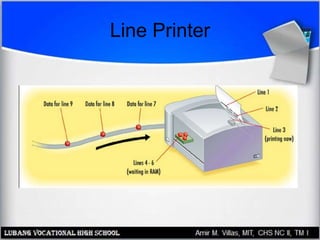
Line Printer
• Print job is still spooling to the printer as
the page begins printing
• Requires very little RAM of its own
• Examples: Ink-jet, dot matrix, daisywheel
Line Printer
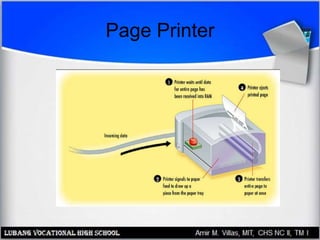
Page Printer
• Entire page collects in printer RAM, then is
transferred to the paper
• Requires more RAM than a line printer
because it must hold more data at a time
• Examples: Laser, LED
Page Printer
Ink or Toner
• Liquid ink: Sprayed onto paper
• Dry toner: Transferred to paper with
electrical charge and then fused (melted)
to the paper with heat
• Inked ribbon: Pins or hammers strike the
ribbon, leaving a mark on the paper
behind it
Impact and Non-Impact
• Impact printer strikes a ribbon physically.
Only an impact printer is able to print on
multi-part forms (such as carbon paper)
– Inkjet, Daisywheel
• Non-impact printer does not use physical
force to place the image on the page.
Multiple copies must be printed
individually.
– Laser, inkjet, LED, thermal wax transfer
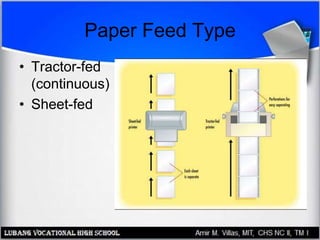
Paper Feed Type
• Tractor-fed
(continuous)
• Sheet-fed
Factors for Evaluating Printers
• Initial cost
• Cost of supplies
– Ink, toner, special paper
• Speed
– Delay before printing starts
– Pages per minute
Factors for Evaluating Printers
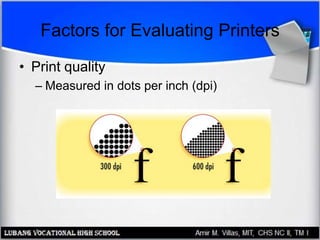
• Print quality
– Measured in dots per inch (dpi)
Factors for Evaluating Printers
• Interface
– Parallel, USB, network
• Paper tray
– Number of sheets of input, output
• Paper feed type (tractor-fed, sheet-fed)
• Extra RAM
• Page description language (PDL)
Types of Printer Technology
• Daisywheel (obsolete)
• Dot Matrix
• Inkjet
• Laser
• LED
• Dye Sublimation
• Solid Ink
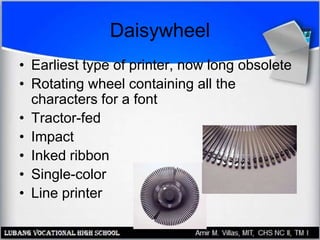
Daisywheel
• Earliest type of printer, now long obsolete
• Rotating wheel containing all the
characters for a font
• Tractor-fed
• Impact
• Inked ribbon
• Single-color
• Line printer
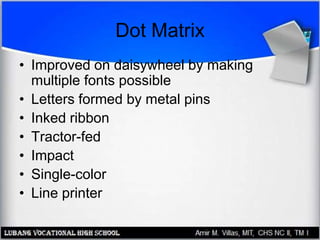
Dot Matrix
• Improved on daisywheel by making
multiple fonts possible
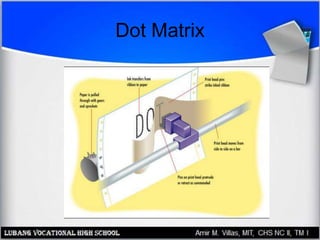
• Letters formed by metal pins
• Inked ribbon
• Tractor-fed
• Impact
• Single-color
• Line printer
Dot Matrix
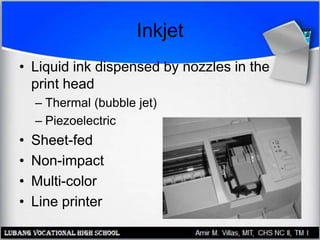
Inkjet
• Liquid ink dispensed by nozzles in the
print head
– Thermal (bubble jet)
– Piezoelectric
• Sheet-fed
• Non-impact
• Multi-color
• Line printer
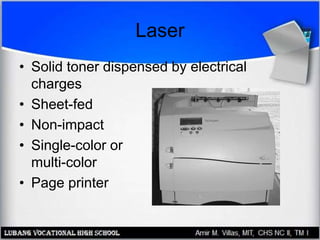
Laser
• Solid toner dispensed by electrical
charges
• Sheet-fed
• Non-impact
• Single-color or
multi-color
• Page printer
Laser Printing Process
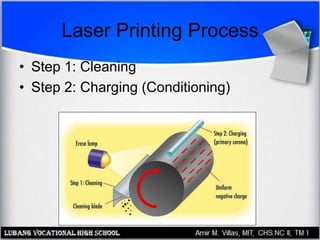
• Step 1: Cleaning
• Step 2: Charging (Conditioning)
Laser Printing Process
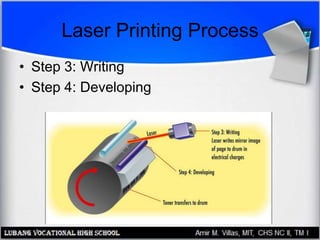
• Step 3: Writing
• Step 4: Developing
Laser Printing Process
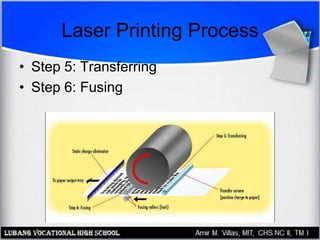
• Step 5: Transferring
• Step 6: Fusing
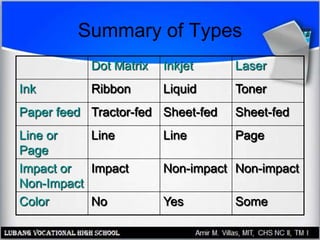
Summary of Types
Dot Matrix Inkjet Laser
Ink Ribbon Liquid Toner
Paper feed Tractor-fed Sheet-fed Sheet-fed
Line or
Page
Line Line Page
Impact or
Non-Impact
Impact Non-impact Non-impact
Color No Yes Some
Printer Interfaces
• Legacy Parallel
– SPP (Standard
Parallel Port)
– Bidirectional
– EPP
– ECP
• USB
• Network
• Infrared (rare)
• Legacy serial
(obsolete)
Printer Drivers
• Page Description Languages (PDLs)
translate between PC and printer
• Popular PDLs include:
–Printer Control Panguage (PCL),
developed by HP for laser printers
–PostScript, developed by Adobe for
professional typesetting
Installing a Printer Driver in
Windows
• Windows refers to a driver as a
“printer”
• You can have more than one driver
installed for the same
printer, resulting in multiple “printers”
in Windows for a single physical unit
Installing a Printer Driver in
Windows
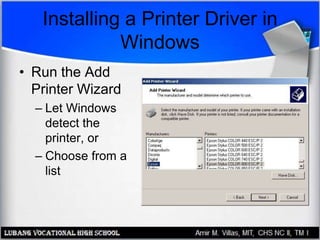
• Run the Add
Printer Wizard
– Let Windows
detect the
printer, or
– Choose from a
list
Printer Driver Maintenance
• Remove a Printer
– Delete its icon from the Printers (or Printers
and Faxes) folder
• Set Default Printer
– Right-click icon and choose Set as Default
• View Driver Properties
– Right-click icon and choose Properties
Laser Printer Maintenance
• Wipe out the inside
• Run printer’s cleaning sequence
• Adjust toner delivery
• Change toner cartridge
• Change cleaning pad
• Clean corona wires
• Replace drum
Inkjet Printer Maintenance
• Change ink cartridges
• Run printer’s cleaning sequence
Fonts and Typefaces
• Resident fonts: built into the printer
– Built-in fonts: Fonts that come with the printer
– Cartridge fonts: Fonts added to the printer via
a cartridge plugged into it (rare)
• Soft fonts: files in Windows
– Screen fonts: Fonts for displaying onscreen
– Printer fonts: Fonts for sending to the printer
Fonts and Typefaces
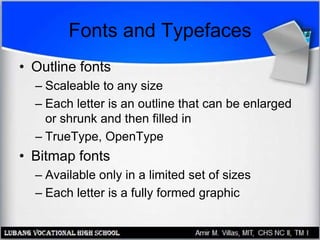
• Outline fonts
– Scaleable to any size
– Each letter is an outline that can be enlarged
or shrunk and then filled in
– TrueType, OpenType
• Bitmap fonts
– Available only in a limited set of sizes
– Each letter is a fully formed graphic
Fonts and Typefaces
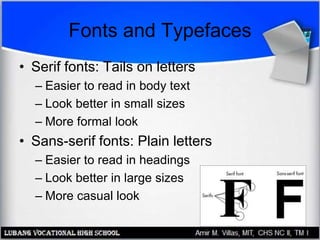
• Serif fonts: Tails on letters
– Easier to read in body text
– Look better in small sizes
– More formal look
• Sans-serif fonts: Plain letters
– Easier to read in headings
– Look better in large sizes
– More casual look
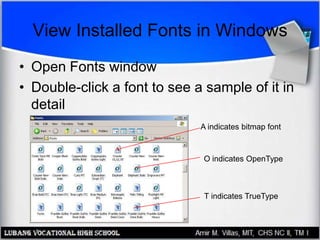
View Installed Fonts in Windows
• Open Fonts window
• Double-click a font to see a sample of it in
detail
A indicates bitmap font
O indicates OpenType
T indicates TrueType
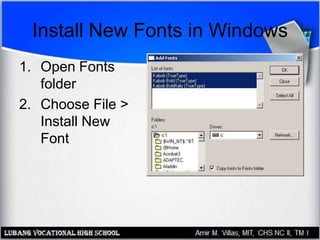
Install New Fonts in Windows
1. Open Fonts
folder
2. Choose File >
Install New
Font
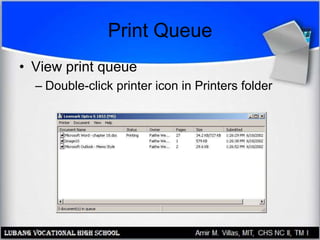
Print Queue
• View print queue
– Double-click printer icon in Printers folder
Managing a Print Queue
• Pause print queue
– Printer > Pause Printing
• Clear print queue
– Printer > Cancel All Documents
• Pause an individual print job
– Document > Pause
• Cancel an individual print job
– Document > Cancel, or press Delete
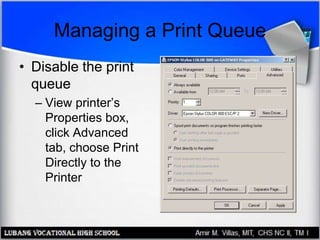
Managing a Print Queue
• Disable the print
queue
– View printer’s
Properties box,
click Advanced
tab, choose Print
Directly to the
Printer
Troubleshooting Printing Problems
• Stalled queue
– Pause and resume queue after deleting job
with error
• Junk characters in printout
– Power printer off
– Clear queue
– Power printer on and try again
– If problem persists, reinstall driver
Troubleshooting Printing Problems
• Paper jams
– Fan paper before inserting in tray
– Check feed rollers
– Check for obstructions inside printer (ex. bits
of paper)
– Use different weight of paper
Troubleshooting Printing Problems
• Illegal operation or general protection fault
– Pause and resume print queue
– Restart computer
– Remove and reinstall printer driver
Laser Quality Problems
• Printout faint in some spots
– Shake toner cartridge gently
– Replace toner cartridge
• Loose or smeared toner
– Check fuser
• Vertical white streaks
– Dirty corona wires
Laser Quality Problems
• Gray mist
– Dirty corona wires
– Print density set too high
– Drum needs replacing
• Horizontal black lines
– Dirty or damaged roller
• Regularly spaced splotches
– Scratched or dirty drum
Laser Quality Problems
• All-white page
– Transfer corona broken
– Printer is completely out of toner
• All-black page
– Primary corona broken
– Drum not holding a charge
Inkjet Quality Problems
• Stripes, or one color missing
– Clean ink jets using printer’s utility
– Run printer’s self-test
• Colors off alignment
– Run printer’s alignment utility
Dot-Matrix Quality Problems
• Flecks and smudges
– Ribbon is too tight
• Faint printing overall
– Ribbon is worn out
• Faint printing on one side
– Platen is misaligned
• Missing sections of letters
– Pins on print head damaged

Working with Printers

  • 1.
    PC Hardware Servicing Chapter18: Working with Printers
  • 2.
    Chapter 18 Objectives •Identify basic printer functions • Distinguish between classes of printers • Explain printer technologies • Explain the laser printing process • Install and manage printer drivers in Windows • View and install Windows fonts • Troubleshoot printer problems
  • 3.
    Basic Printing Functions •Receive data from the PC through an I/O interface • Store the data in printer RAM • Convert the data into print instructions • Feed the paper in and out • Store and dispense ink or toner • Transfer the image onto the paper
  • 4.
    Line Printer • Printjob is still spooling to the printer as the page begins printing • Requires very little RAM of its own • Examples: Ink-jet, dot matrix, daisywheel
  • 5.
  • 6.
    Page Printer • Entirepage collects in printer RAM, then is transferred to the paper • Requires more RAM than a line printer because it must hold more data at a time • Examples: Laser, LED
  • 7.
  • 8.
    Ink or Toner •Liquid ink: Sprayed onto paper • Dry toner: Transferred to paper with electrical charge and then fused (melted) to the paper with heat • Inked ribbon: Pins or hammers strike the ribbon, leaving a mark on the paper behind it
  • 9.
    Impact and Non-Impact •Impact printer strikes a ribbon physically. Only an impact printer is able to print on multi-part forms (such as carbon paper) – Inkjet, Daisywheel • Non-impact printer does not use physical force to place the image on the page. Multiple copies must be printed individually. – Laser, inkjet, LED, thermal wax transfer
  • 10.
    Paper Feed Type •Tractor-fed (continuous) • Sheet-fed
  • 11.
    Factors for EvaluatingPrinters • Initial cost • Cost of supplies – Ink, toner, special paper • Speed – Delay before printing starts – Pages per minute
  • 12.
    Factors for EvaluatingPrinters • Print quality – Measured in dots per inch (dpi)
  • 13.
    Factors for EvaluatingPrinters • Interface – Parallel, USB, network • Paper tray – Number of sheets of input, output • Paper feed type (tractor-fed, sheet-fed) • Extra RAM • Page description language (PDL)
  • 14.
    Types of PrinterTechnology • Daisywheel (obsolete) • Dot Matrix • Inkjet • Laser • LED • Dye Sublimation • Solid Ink
  • 15.
    Daisywheel • Earliest typeof printer, now long obsolete • Rotating wheel containing all the characters for a font • Tractor-fed • Impact • Inked ribbon • Single-color • Line printer
  • 16.
    Dot Matrix • Improvedon daisywheel by making multiple fonts possible • Letters formed by metal pins • Inked ribbon • Tractor-fed • Impact • Single-color • Line printer
  • 17.
  • 18.
    Inkjet • Liquid inkdispensed by nozzles in the print head – Thermal (bubble jet) – Piezoelectric • Sheet-fed • Non-impact • Multi-color • Line printer
  • 19.
    Laser • Solid tonerdispensed by electrical charges • Sheet-fed • Non-impact • Single-color or multi-color • Page printer
  • 20.
    Laser Printing Process •Step 1: Cleaning • Step 2: Charging (Conditioning)
  • 21.
    Laser Printing Process •Step 3: Writing • Step 4: Developing
  • 22.
    Laser Printing Process •Step 5: Transferring • Step 6: Fusing
  • 23.
    Summary of Types DotMatrix Inkjet Laser Ink Ribbon Liquid Toner Paper feed Tractor-fed Sheet-fed Sheet-fed Line or Page Line Line Page Impact or Non-Impact Impact Non-impact Non-impact Color No Yes Some
  • 24.
    Printer Interfaces • LegacyParallel – SPP (Standard Parallel Port) – Bidirectional – EPP – ECP • USB • Network • Infrared (rare) • Legacy serial (obsolete)
  • 25.
    Printer Drivers • PageDescription Languages (PDLs) translate between PC and printer • Popular PDLs include: –Printer Control Panguage (PCL), developed by HP for laser printers –PostScript, developed by Adobe for professional typesetting
  • 26.
    Installing a PrinterDriver in Windows • Windows refers to a driver as a “printer” • You can have more than one driver installed for the same printer, resulting in multiple “printers” in Windows for a single physical unit
  • 27.
    Installing a PrinterDriver in Windows • Run the Add Printer Wizard – Let Windows detect the printer, or – Choose from a list
  • 28.
    Printer Driver Maintenance •Remove a Printer – Delete its icon from the Printers (or Printers and Faxes) folder • Set Default Printer – Right-click icon and choose Set as Default • View Driver Properties – Right-click icon and choose Properties
  • 29.
    Laser Printer Maintenance •Wipe out the inside • Run printer’s cleaning sequence • Adjust toner delivery • Change toner cartridge • Change cleaning pad • Clean corona wires • Replace drum
  • 30.
    Inkjet Printer Maintenance •Change ink cartridges • Run printer’s cleaning sequence
  • 31.
    Fonts and Typefaces •Resident fonts: built into the printer – Built-in fonts: Fonts that come with the printer – Cartridge fonts: Fonts added to the printer via a cartridge plugged into it (rare) • Soft fonts: files in Windows – Screen fonts: Fonts for displaying onscreen – Printer fonts: Fonts for sending to the printer
  • 32.
    Fonts and Typefaces •Outline fonts – Scaleable to any size – Each letter is an outline that can be enlarged or shrunk and then filled in – TrueType, OpenType • Bitmap fonts – Available only in a limited set of sizes – Each letter is a fully formed graphic
  • 33.
    Fonts and Typefaces •Serif fonts: Tails on letters – Easier to read in body text – Look better in small sizes – More formal look • Sans-serif fonts: Plain letters – Easier to read in headings – Look better in large sizes – More casual look
  • 34.
    View Installed Fontsin Windows • Open Fonts window • Double-click a font to see a sample of it in detail A indicates bitmap font O indicates OpenType T indicates TrueType
  • 35.
    Install New Fontsin Windows 1. Open Fonts folder 2. Choose File > Install New Font
  • 36.
    Print Queue • Viewprint queue – Double-click printer icon in Printers folder
  • 37.
    Managing a PrintQueue • Pause print queue – Printer > Pause Printing • Clear print queue – Printer > Cancel All Documents • Pause an individual print job – Document > Pause • Cancel an individual print job – Document > Cancel, or press Delete
  • 38.
    Managing a PrintQueue • Disable the print queue – View printer’s Properties box, click Advanced tab, choose Print Directly to the Printer
  • 39.
    Troubleshooting Printing Problems •Stalled queue – Pause and resume queue after deleting job with error • Junk characters in printout – Power printer off – Clear queue – Power printer on and try again – If problem persists, reinstall driver
  • 40.
    Troubleshooting Printing Problems •Paper jams – Fan paper before inserting in tray – Check feed rollers – Check for obstructions inside printer (ex. bits of paper) – Use different weight of paper
  • 41.
    Troubleshooting Printing Problems •Illegal operation or general protection fault – Pause and resume print queue – Restart computer – Remove and reinstall printer driver
  • 42.
    Laser Quality Problems •Printout faint in some spots – Shake toner cartridge gently – Replace toner cartridge • Loose or smeared toner – Check fuser • Vertical white streaks – Dirty corona wires
  • 43.
    Laser Quality Problems •Gray mist – Dirty corona wires – Print density set too high – Drum needs replacing • Horizontal black lines – Dirty or damaged roller • Regularly spaced splotches – Scratched or dirty drum
  • 44.
    Laser Quality Problems •All-white page – Transfer corona broken – Printer is completely out of toner • All-black page – Primary corona broken – Drum not holding a charge
  • 45.
    Inkjet Quality Problems •Stripes, or one color missing – Clean ink jets using printer’s utility – Run printer’s self-test • Colors off alignment – Run printer’s alignment utility
  • 46.
    Dot-Matrix Quality Problems •Flecks and smudges – Ribbon is too tight • Faint printing overall – Ribbon is worn out • Faint printing on one side – Platen is misaligned • Missing sections of letters – Pins on print head damaged