Chapter 08 – Program Control
Instructions
Sections 8-3-3 to 8-3-5
Subroutines
 Subroutine(s) is a group of program code that performs a
specific task. The subroutine(s) are part of a program (in our
case, the MainProgram) and are not part of the MainRoutine.
 A subroutine can be invoked, (called), from anyplace in the
MainRoutine or from another subroutine. When a subroutine
is called from within another subroutine it is referred to as
nesting subroutines.
 Most, if not all, computer programs and PLC/PAC programs
contain subroutines.
 Subroutines are used to make what would be an enormous
program more manageable by breaking up the code into
smaller tasks. Specific functions within a task should be
placed in subroutines.
 Organizing a program by using subroutines makes the code
easier to read, understand and maintain.
 Subroutines can also be reused in other programs that require
the same task be performed.
Subroutines
 The ControlLogix uses separate routines
to store and execute subroutines. The
number of routines is limited to 32 per
program.
 The MainRoutine is the main ladder and is
the one that has been used for all previous
labs.
 Scan starts at rung 0 in the MainRoutine
and ends at the End statement in the
MainRoutine.
Creating a Subroutine
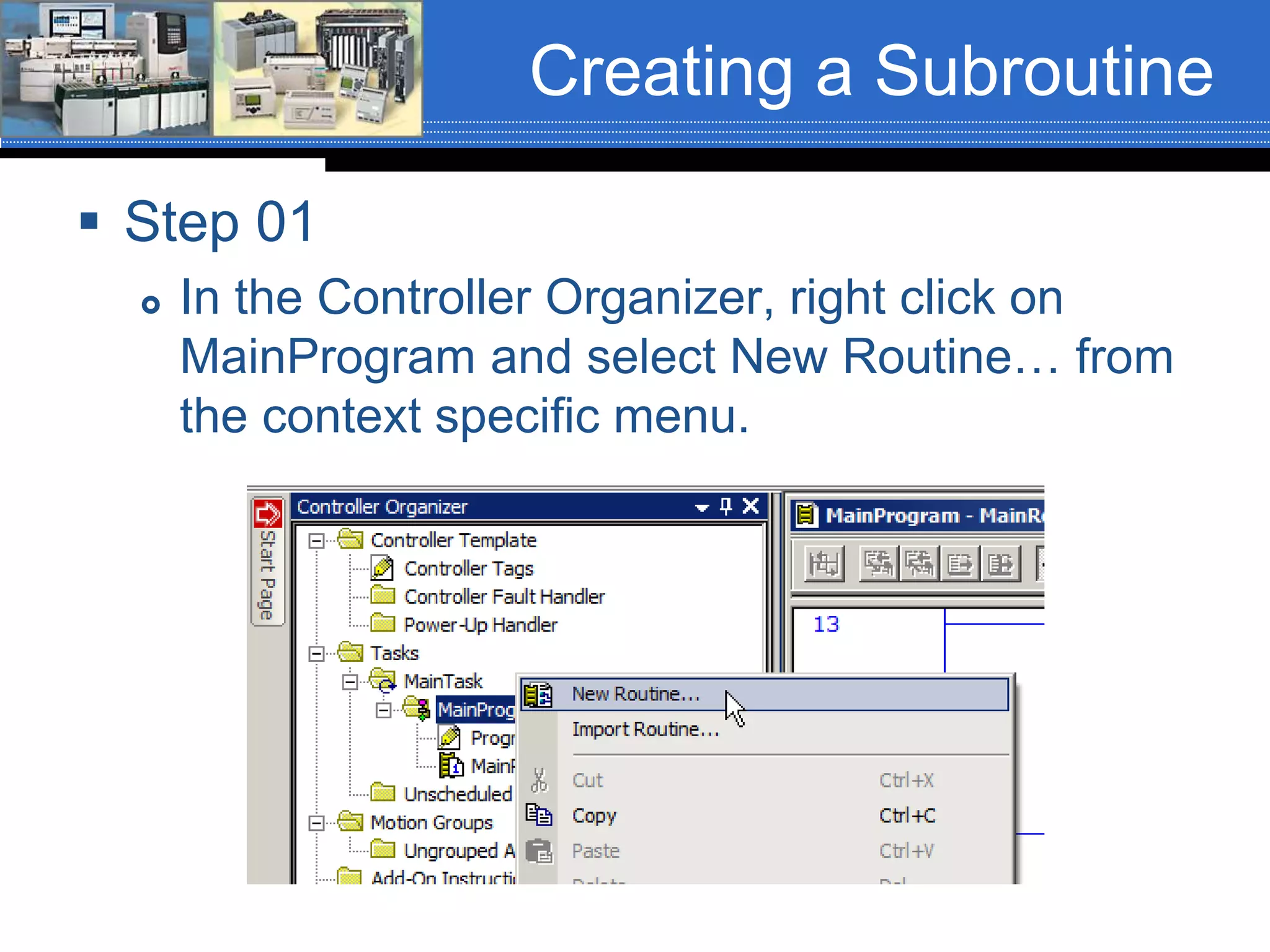
 Step 01
 In the Controller Organizer, right click on
MainProgram and select New Routine… from
the context specific menu.
Creating a Subroutine
 Step 02
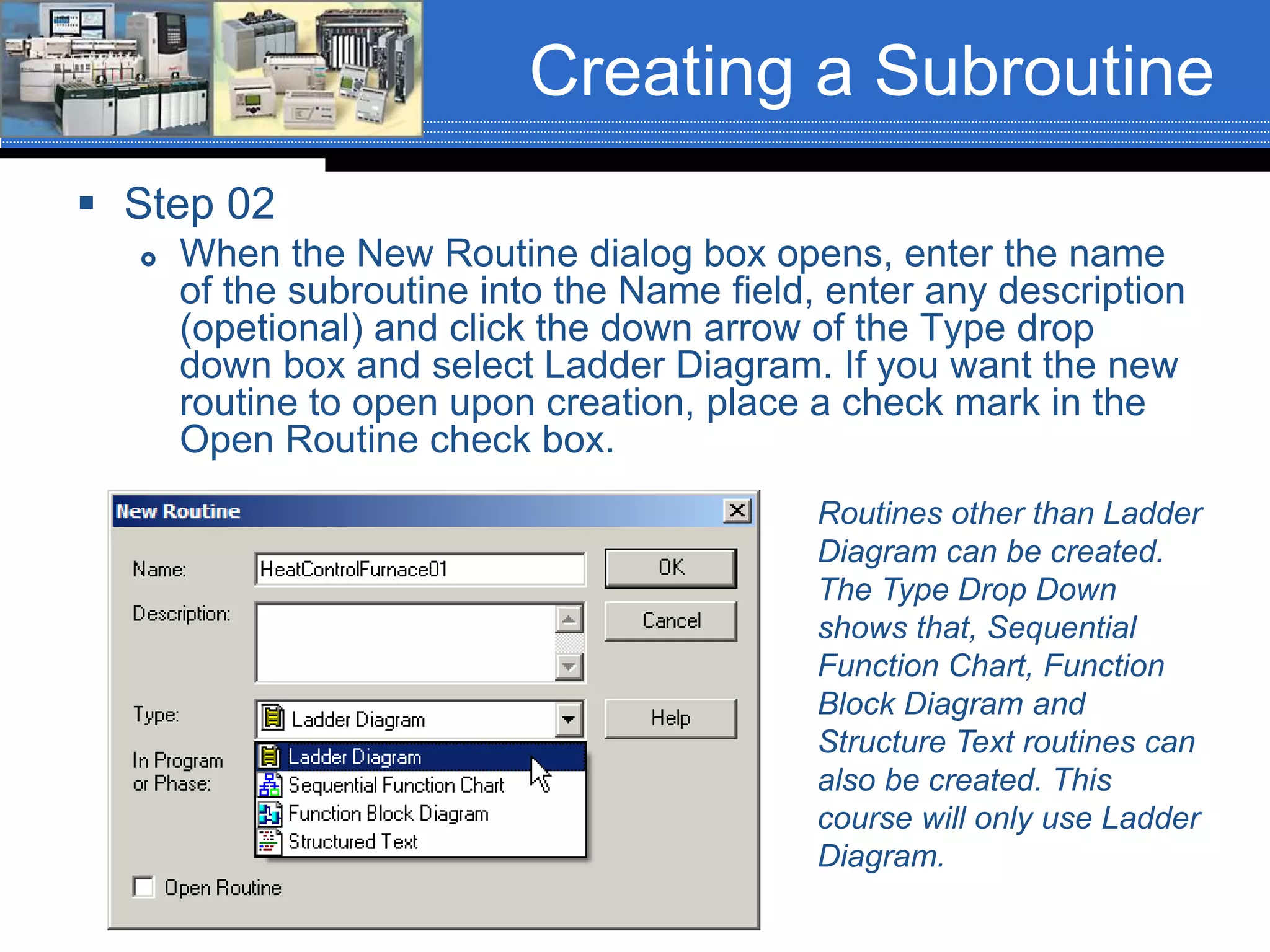
 When the New Routine dialog box opens, enter the name
of the subroutine into the Name field, enter any description
(opetional) and click the down arrow of the Type drop
down box and select Ladder Diagram. If you want the new
routine to open upon creation, place a check mark in the
Open Routine check box.
Routines other than Ladder
Diagram can be created.
The Type Drop Down
shows that, Sequential
Function Chart, Function
Block Diagram and
Structure Text routines can
also be created. This
course will only use Ladder
Diagram.
Creating a Subroutine
 Step 03
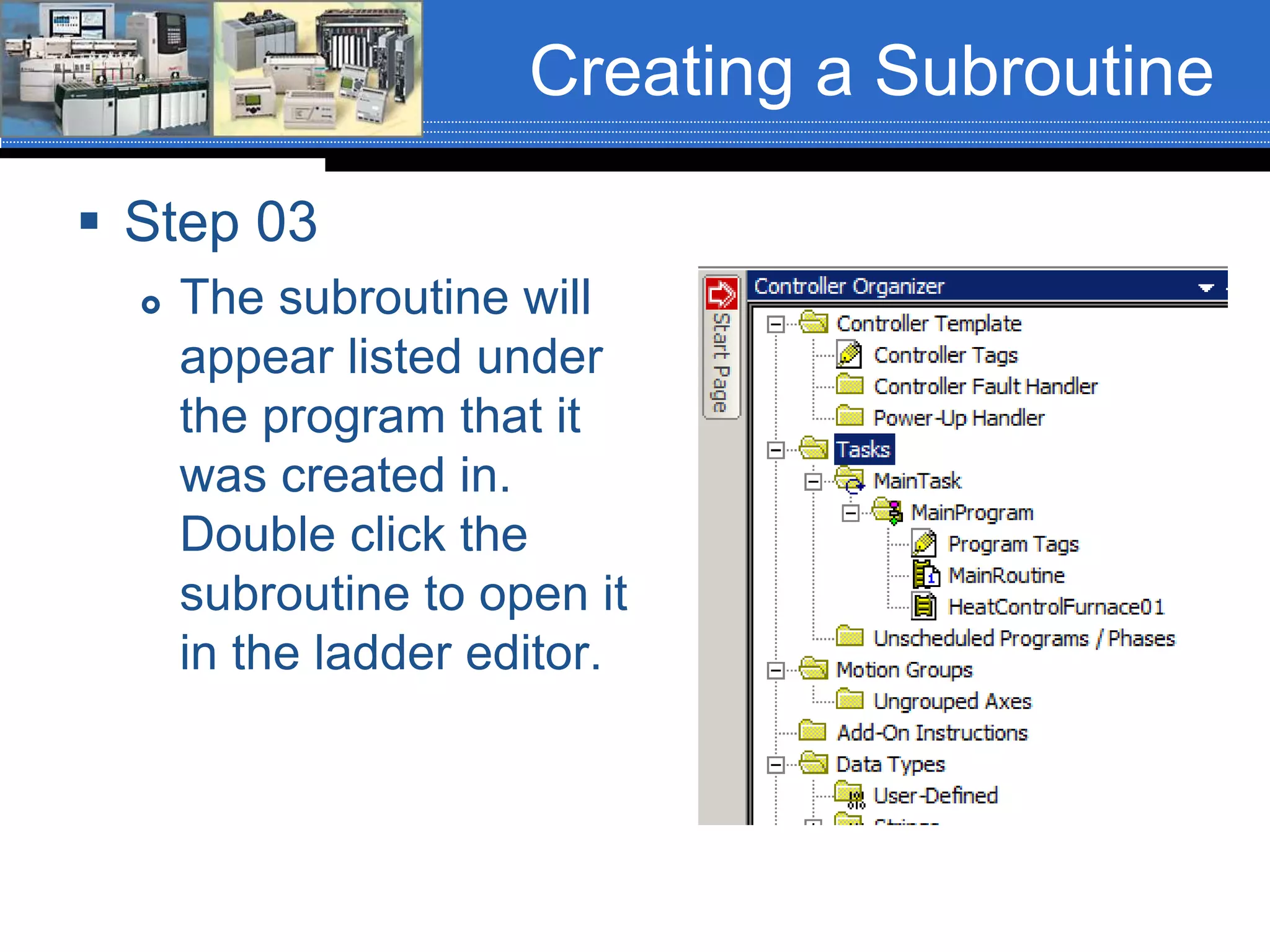
 The subroutine will
appear listed under
the program that it
was created in.
Double click the
subroutine to open it
in the ladder editor.
Program Control
Instructions
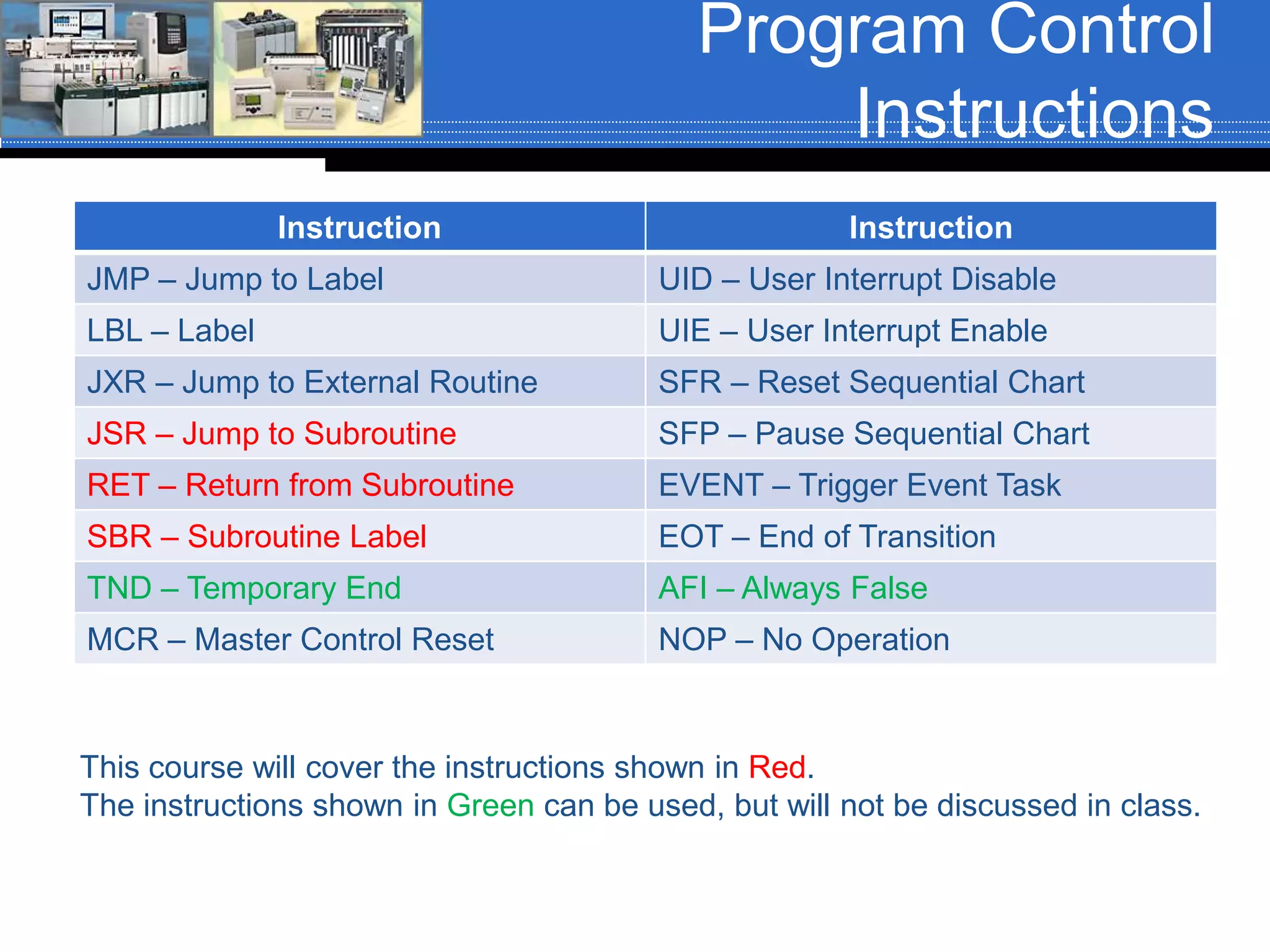
Instruction Instruction
JMP – Jump to Label UID – User Interrupt Disable
LBL – Label UIE – User Interrupt Enable
JXR – Jump to External Routine SFR – Reset Sequential Chart
JSR – Jump to Subroutine SFP – Pause Sequential Chart
RET – Return from Subroutine EVENT – Trigger Event Task
SBR – Subroutine Label EOT – End of Transition
TND – Temporary End AFI – Always False
MCR – Master Control Reset NOP – No Operation
This course will cover the instructions shown in Red.
The instructions shown in Green can be used, but will not be discussed in class.
Program Control
Instructions
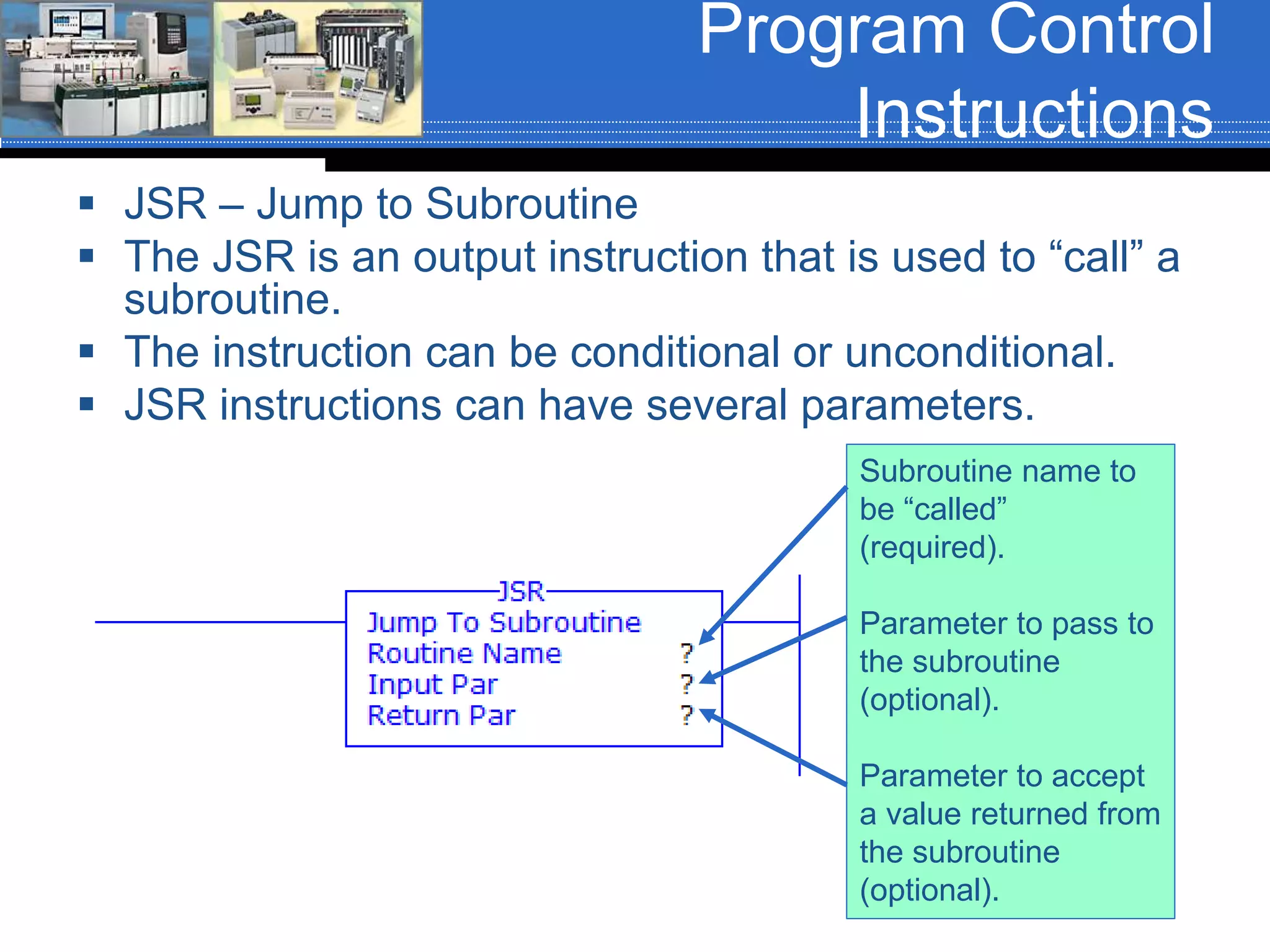
 JSR – Jump to Subroutine
 The JSR is an output instruction that is used to “call” a
subroutine.
 The instruction can be conditional or unconditional.
 JSR instructions can have several parameters.
Subroutine name to
be “called”
(required).
Parameter to pass to
the subroutine
(optional).
Parameter to accept
a value returned from
the subroutine
(optional).
Program Control
Instructions
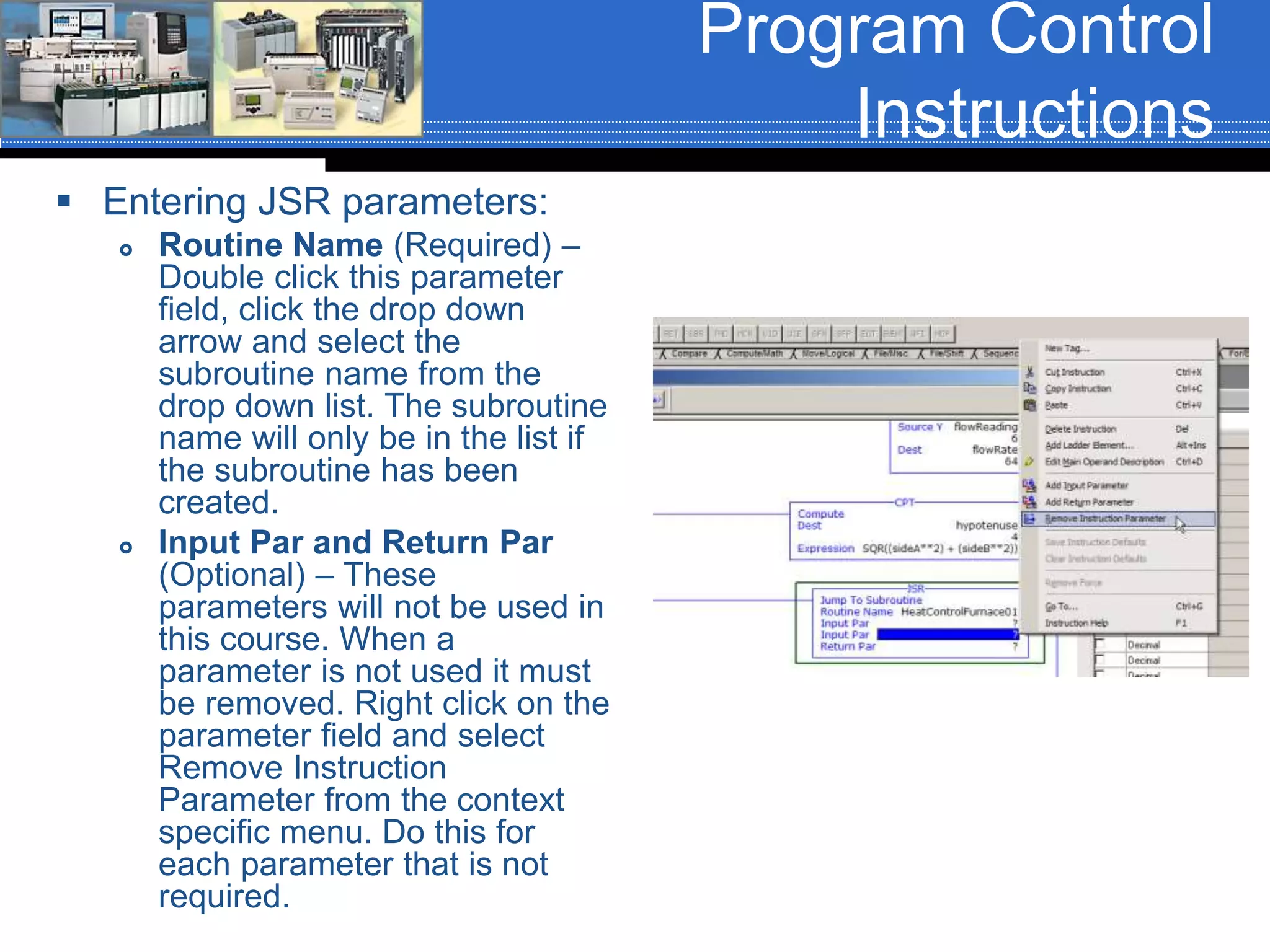
 Entering JSR parameters:
 Routine Name (Required) –
Double click this parameter
field, click the drop down
arrow and select the
subroutine name from the
drop down list. The subroutine
name will only be in the list if
the subroutine has been
created.
 Input Par and Return Par
(Optional) – These
parameters will not be used in
this course. When a
parameter is not used it must
be removed. Right click on the
parameter field and select
Remove Instruction
Parameter from the context
specific menu. Do this for
each parameter that is not
required.
Program Control
Instructions
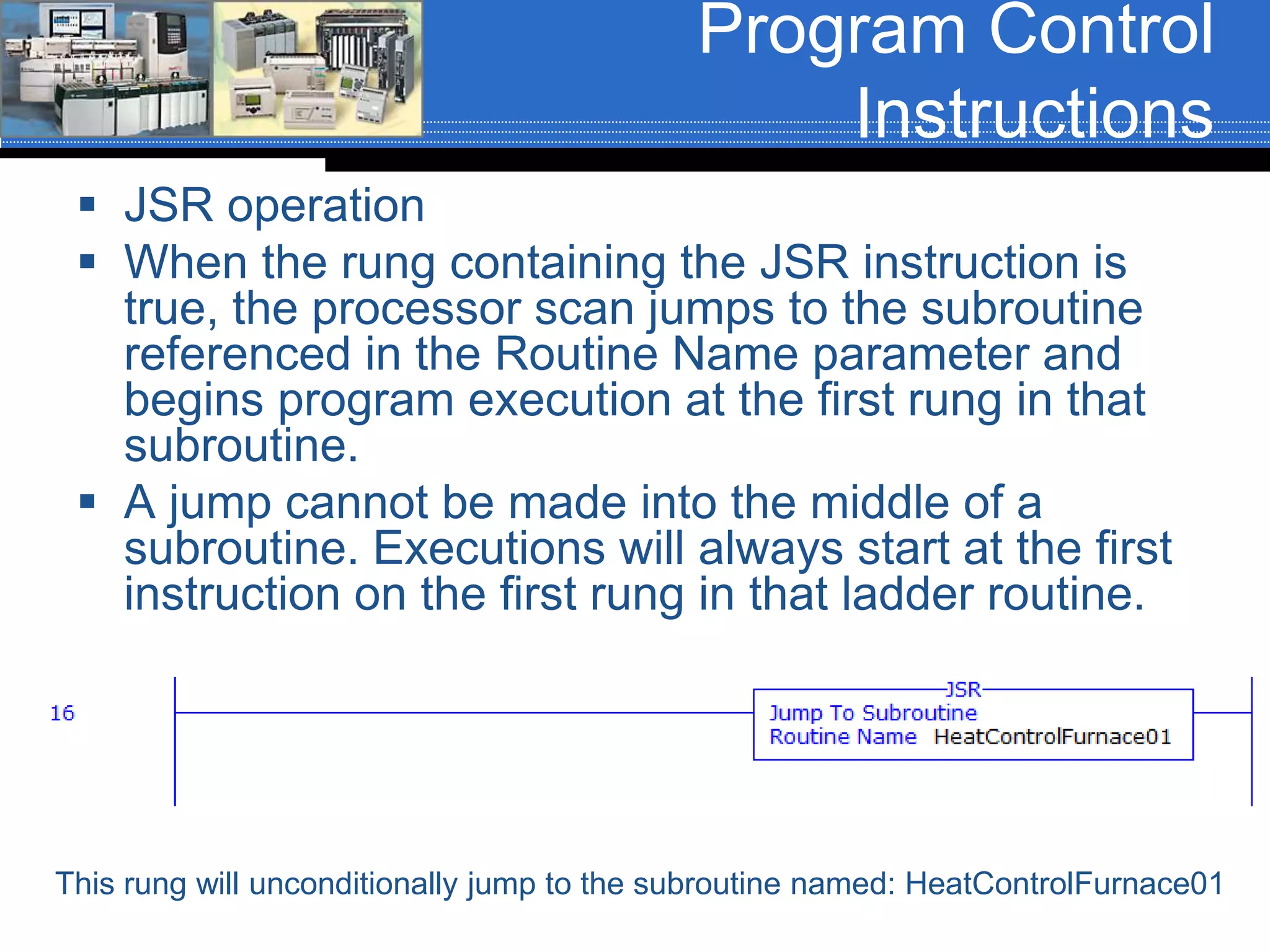
 JSR operation
 When the rung containing the JSR instruction is
true, the processor scan jumps to the subroutine
referenced in the Routine Name parameter and
begins program execution at the first rung in that
subroutine.
 A jump cannot be made into the middle of a
subroutine. Executions will always start at the first
instruction on the first rung in that ladder routine.
This rung will unconditionally jump to the subroutine named: HeatControlFurnace01
Program Control
Instructions
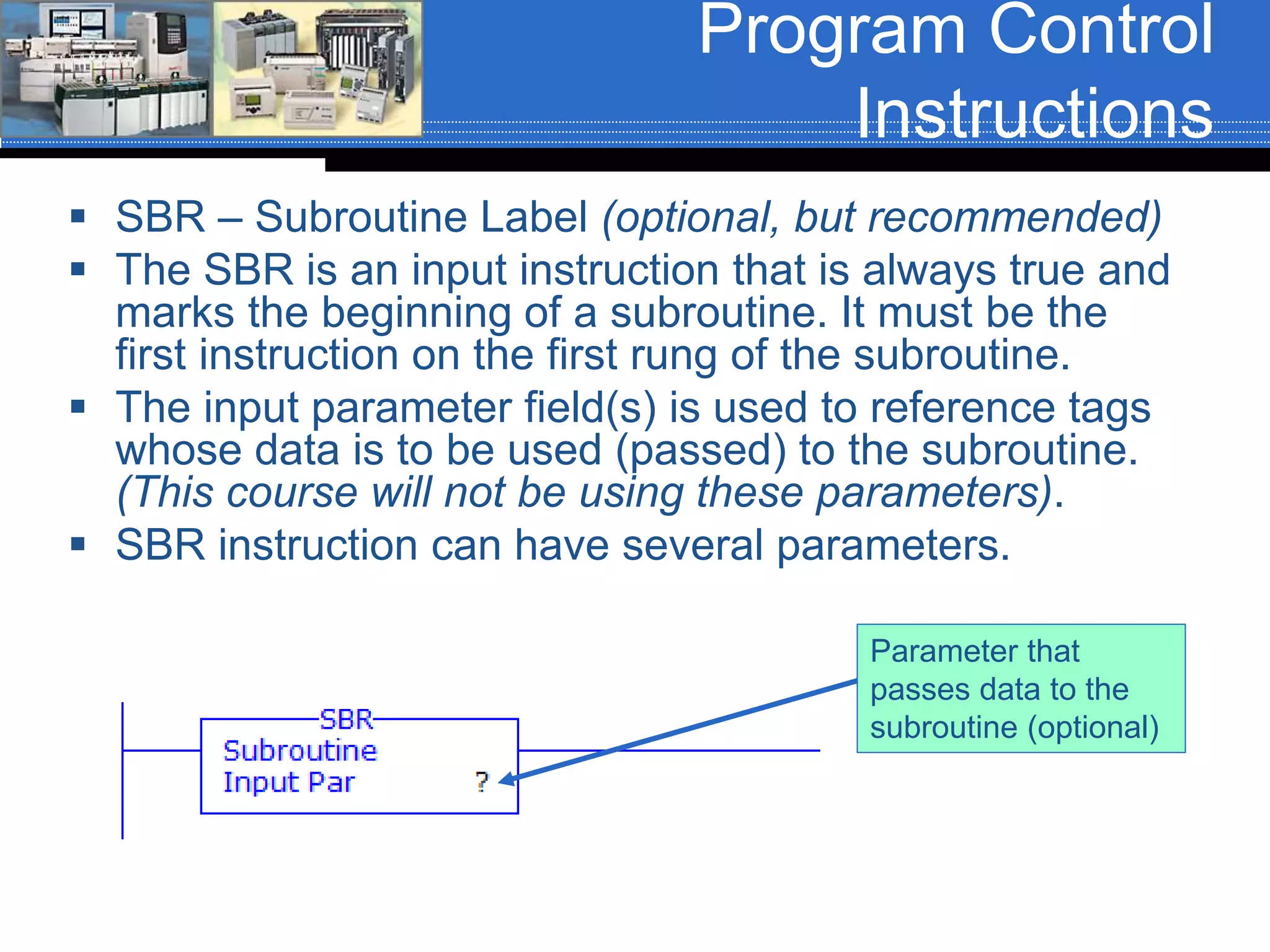
 SBR – Subroutine Label (optional, but recommended)
 The SBR is an input instruction that is always true and
marks the beginning of a subroutine. It must be the
first instruction on the first rung of the subroutine.
 The input parameter field(s) is used to reference tags
whose data is to be used (passed) to the subroutine.
(This course will not be using these parameters).
 SBR instruction can have several parameters.
Parameter that
passes data to the
subroutine (optional)
Program Control
Instructions
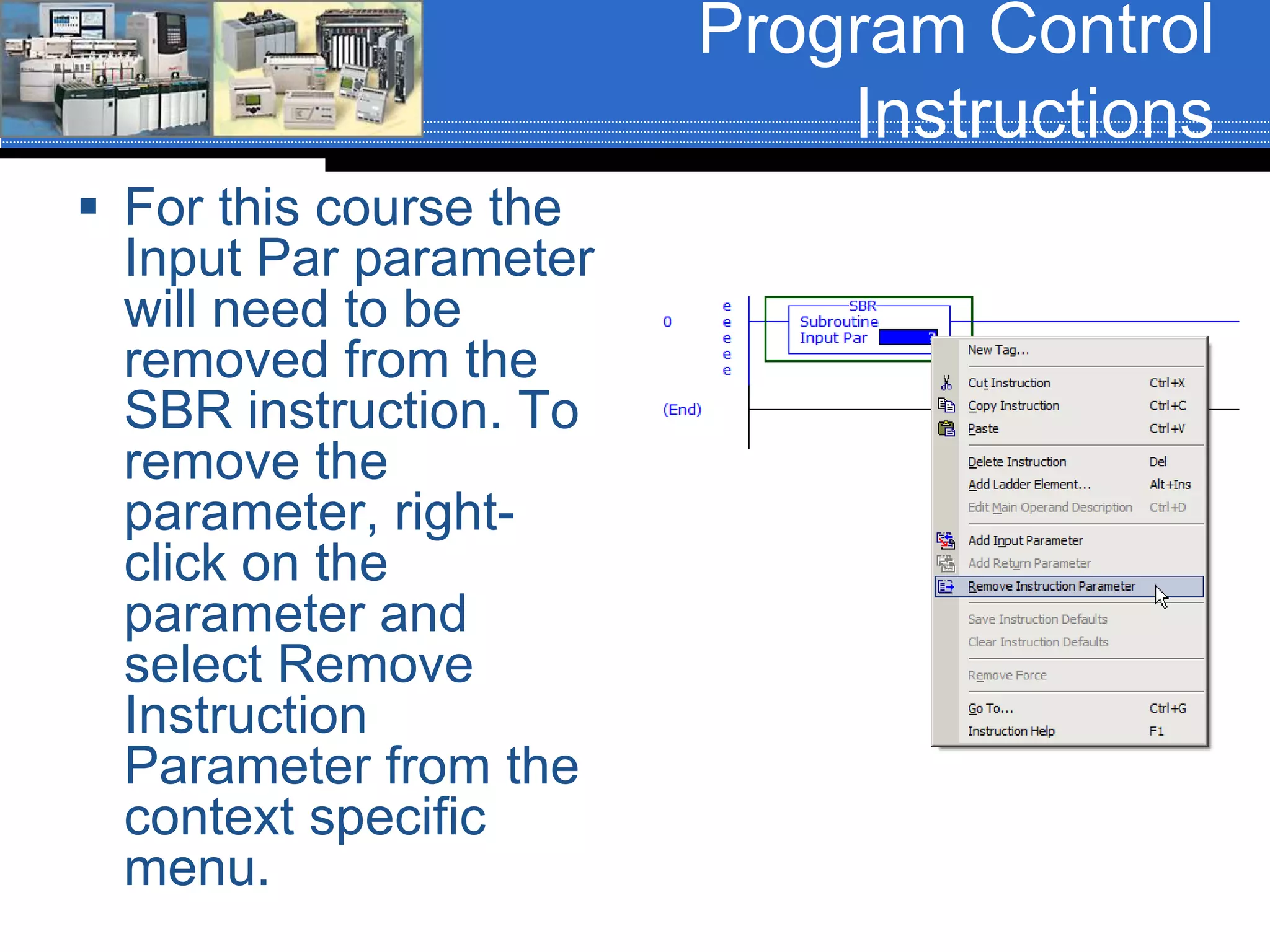
 For this course the
Input Par parameter
will need to be
removed from the
SBR instruction. To
remove the
parameter, right-
click on the
parameter and
select Remove
Instruction
Parameter from the
context specific
menu.
Program Control
Instructions
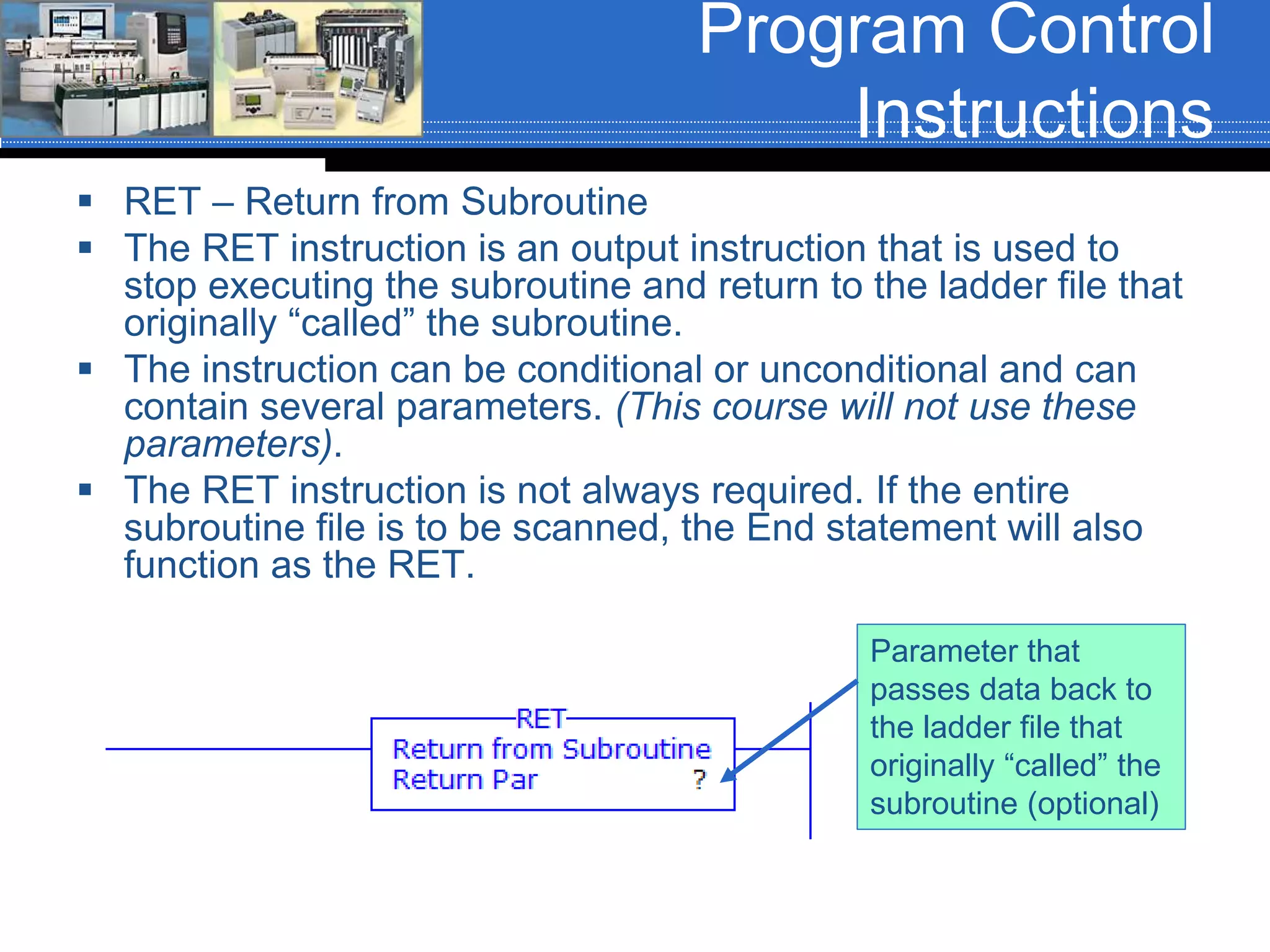
 RET – Return from Subroutine
 The RET instruction is an output instruction that is used to
stop executing the subroutine and return to the ladder file that
originally “called” the subroutine.
 The instruction can be conditional or unconditional and can
contain several parameters. (This course will not use these
parameters).
 The RET instruction is not always required. If the entire
subroutine file is to be scanned, the End statement will also
function as the RET.
Parameter that
passes data back to
the ladder file that
originally “called” the
subroutine (optional)
Program Control
Instructions
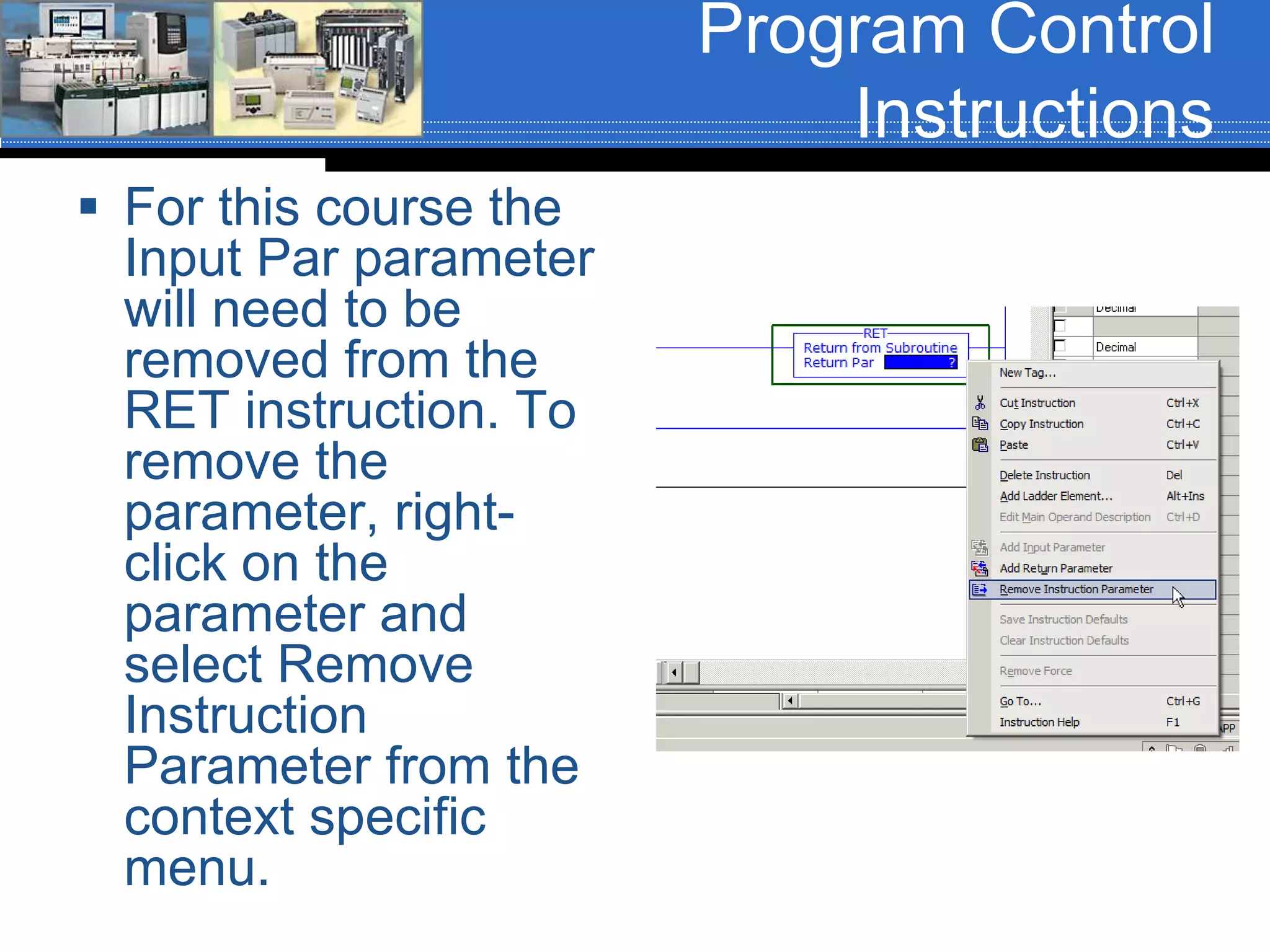
 For this course the
Input Par parameter
will need to be
removed from the
RET instruction. To
remove the
parameter, right-
click on the
parameter and
select Remove
Instruction
Parameter from the
context specific
menu.
Program Control
Instructions
 Several conditional RET instruction can be present in
a subroutine. As an example:
 If an RET instruction becomes true that is on rung-6 in a
subroutine containing 45-rungs, the program scan will
return to the ladder file that originally called the subroutine
and rung 7 through 45 will not execute.
 If the RET instruction on rung-6 becomes false and
another RET instruction at rung-10 becomes true, the
program scan will return to the ladder file that originally
called the subroutine and rungs 11 through 45 will not
execute.
 If the entire subroutine ladder file is to be always
scanned, placing a RET instruction on the last rung of
the program is optional. If an RET instruction is not
found in the subroutine ladder file, the End statement
performs the return.
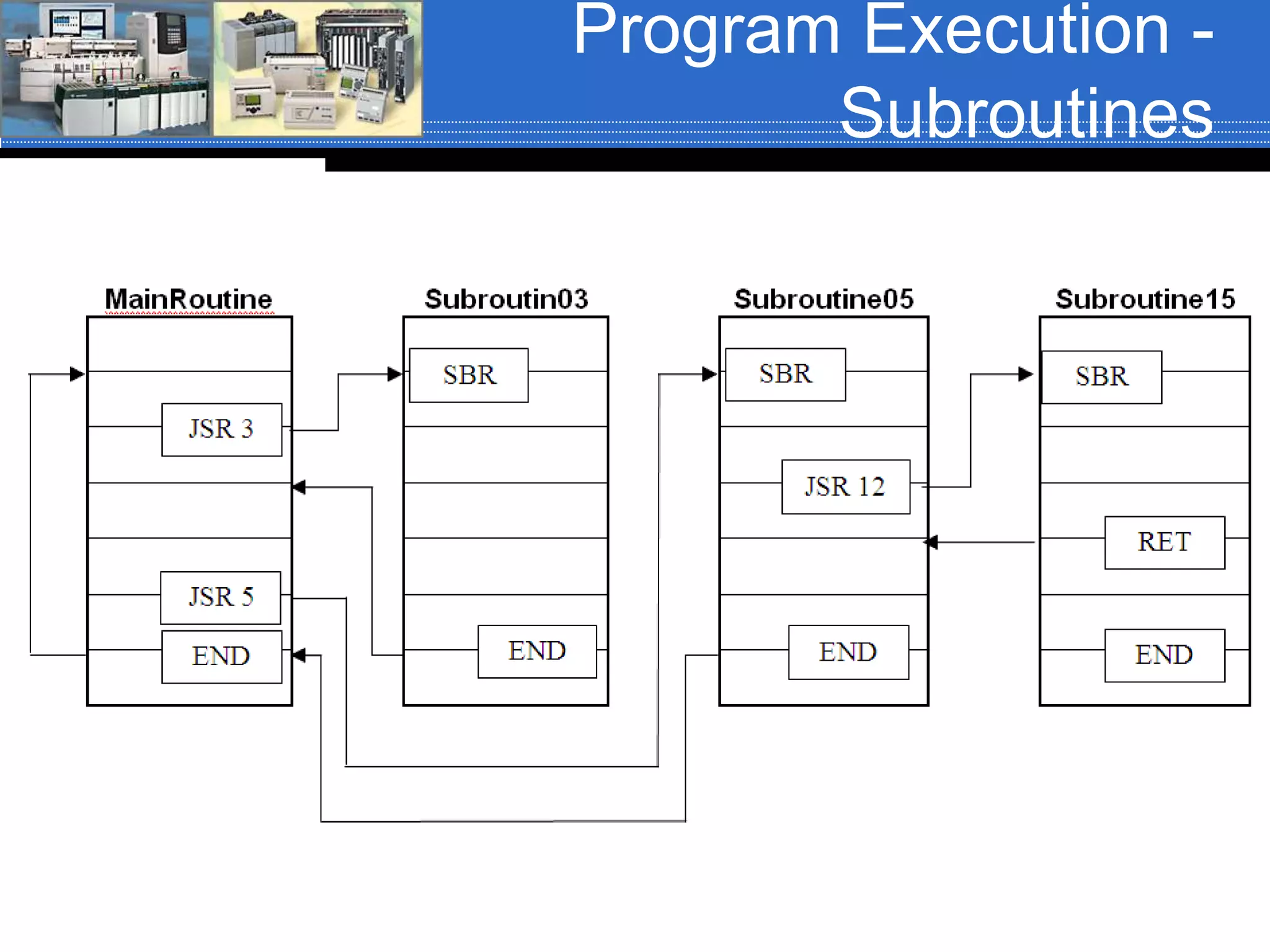
Program Execution -
Subroutines
Program Control
Instructions - Siemens
 Siemens processors do not use
subroutines per say.
 Siemens uses:
 Organizational Blocks
 Function Blocks
 Functions
 Data Blocks
 These will not be covered in this course.
Program Control
Instruction - CCW
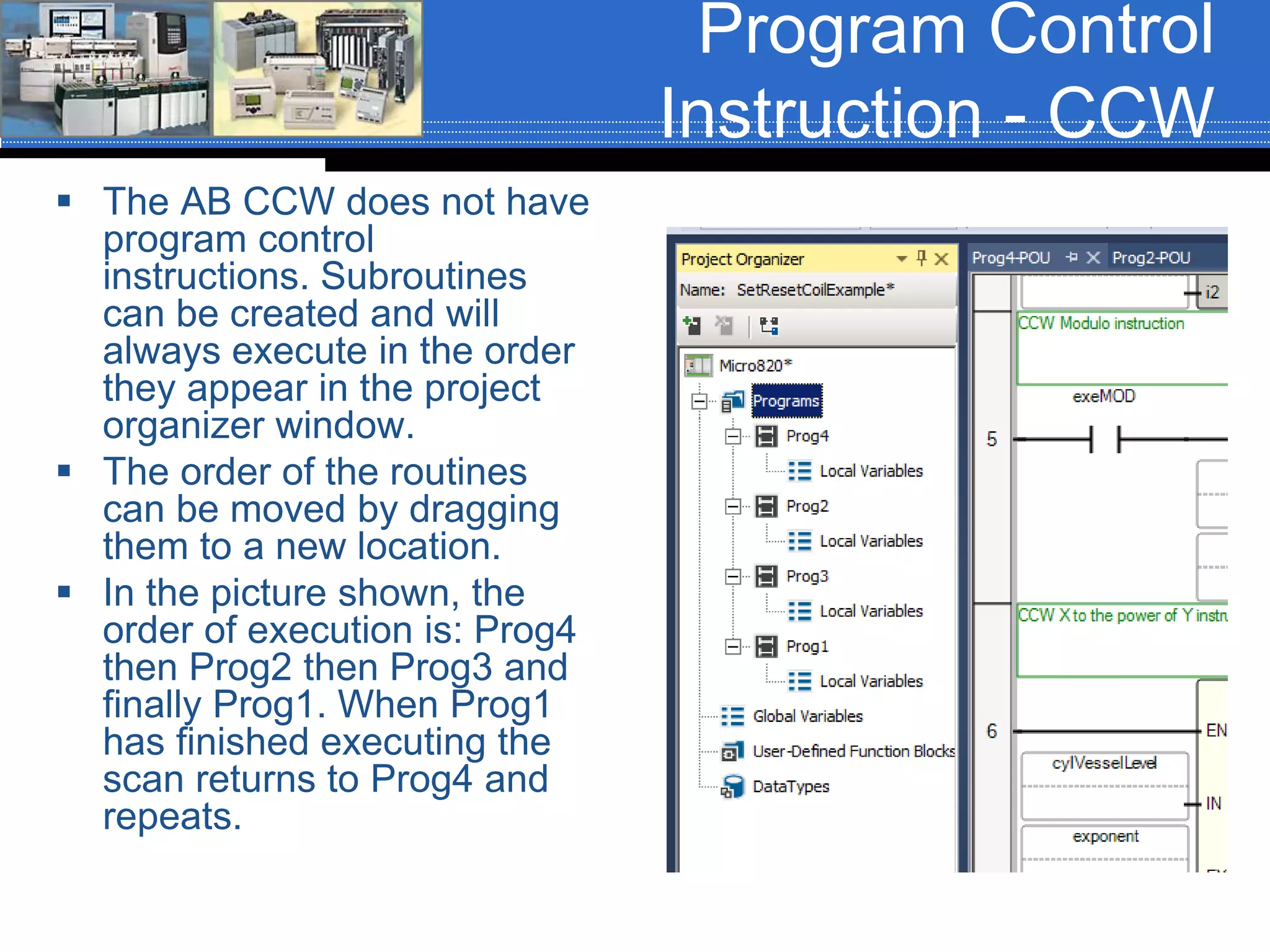
 The AB CCW does not have
program control
instructions. Subroutines
can be created and will
always execute in the order
they appear in the project
organizer window.
 The order of the routines
can be moved by dragging
them to a new location.
 In the picture shown, the
order of execution is: Prog4
then Prog2 then Prog3 and
finally Prog1. When Prog1
has finished executing the
scan returns to Prog4 and
repeats.

Subroutines rev01 fa16

  • 1.
    Chapter 08 –Program Control Instructions Sections 8-3-3 to 8-3-5
  • 2.
    Subroutines  Subroutine(s) isa group of program code that performs a specific task. The subroutine(s) are part of a program (in our case, the MainProgram) and are not part of the MainRoutine.  A subroutine can be invoked, (called), from anyplace in the MainRoutine or from another subroutine. When a subroutine is called from within another subroutine it is referred to as nesting subroutines.  Most, if not all, computer programs and PLC/PAC programs contain subroutines.  Subroutines are used to make what would be an enormous program more manageable by breaking up the code into smaller tasks. Specific functions within a task should be placed in subroutines.  Organizing a program by using subroutines makes the code easier to read, understand and maintain.  Subroutines can also be reused in other programs that require the same task be performed.
  • 3.
    Subroutines  The ControlLogixuses separate routines to store and execute subroutines. The number of routines is limited to 32 per program.  The MainRoutine is the main ladder and is the one that has been used for all previous labs.  Scan starts at rung 0 in the MainRoutine and ends at the End statement in the MainRoutine.
  • 4.
    Creating a Subroutine Step 01  In the Controller Organizer, right click on MainProgram and select New Routine… from the context specific menu.
  • 5.
    Creating a Subroutine Step 02  When the New Routine dialog box opens, enter the name of the subroutine into the Name field, enter any description (opetional) and click the down arrow of the Type drop down box and select Ladder Diagram. If you want the new routine to open upon creation, place a check mark in the Open Routine check box. Routines other than Ladder Diagram can be created. The Type Drop Down shows that, Sequential Function Chart, Function Block Diagram and Structure Text routines can also be created. This course will only use Ladder Diagram.
  • 6.
    Creating a Subroutine Step 03  The subroutine will appear listed under the program that it was created in. Double click the subroutine to open it in the ladder editor.
  • 7.
    Program Control Instructions Instruction Instruction JMP– Jump to Label UID – User Interrupt Disable LBL – Label UIE – User Interrupt Enable JXR – Jump to External Routine SFR – Reset Sequential Chart JSR – Jump to Subroutine SFP – Pause Sequential Chart RET – Return from Subroutine EVENT – Trigger Event Task SBR – Subroutine Label EOT – End of Transition TND – Temporary End AFI – Always False MCR – Master Control Reset NOP – No Operation This course will cover the instructions shown in Red. The instructions shown in Green can be used, but will not be discussed in class.
  • 8.
    Program Control Instructions  JSR– Jump to Subroutine  The JSR is an output instruction that is used to “call” a subroutine.  The instruction can be conditional or unconditional.  JSR instructions can have several parameters. Subroutine name to be “called” (required). Parameter to pass to the subroutine (optional). Parameter to accept a value returned from the subroutine (optional).
  • 9.
    Program Control Instructions  EnteringJSR parameters:  Routine Name (Required) – Double click this parameter field, click the drop down arrow and select the subroutine name from the drop down list. The subroutine name will only be in the list if the subroutine has been created.  Input Par and Return Par (Optional) – These parameters will not be used in this course. When a parameter is not used it must be removed. Right click on the parameter field and select Remove Instruction Parameter from the context specific menu. Do this for each parameter that is not required.
  • 10.
    Program Control Instructions  JSRoperation  When the rung containing the JSR instruction is true, the processor scan jumps to the subroutine referenced in the Routine Name parameter and begins program execution at the first rung in that subroutine.  A jump cannot be made into the middle of a subroutine. Executions will always start at the first instruction on the first rung in that ladder routine. This rung will unconditionally jump to the subroutine named: HeatControlFurnace01
  • 11.
    Program Control Instructions  SBR– Subroutine Label (optional, but recommended)  The SBR is an input instruction that is always true and marks the beginning of a subroutine. It must be the first instruction on the first rung of the subroutine.  The input parameter field(s) is used to reference tags whose data is to be used (passed) to the subroutine. (This course will not be using these parameters).  SBR instruction can have several parameters. Parameter that passes data to the subroutine (optional)
  • 12.
    Program Control Instructions  Forthis course the Input Par parameter will need to be removed from the SBR instruction. To remove the parameter, right- click on the parameter and select Remove Instruction Parameter from the context specific menu.
  • 13.
    Program Control Instructions  RET– Return from Subroutine  The RET instruction is an output instruction that is used to stop executing the subroutine and return to the ladder file that originally “called” the subroutine.  The instruction can be conditional or unconditional and can contain several parameters. (This course will not use these parameters).  The RET instruction is not always required. If the entire subroutine file is to be scanned, the End statement will also function as the RET. Parameter that passes data back to the ladder file that originally “called” the subroutine (optional)
  • 14.
    Program Control Instructions  Forthis course the Input Par parameter will need to be removed from the RET instruction. To remove the parameter, right- click on the parameter and select Remove Instruction Parameter from the context specific menu.
  • 15.
    Program Control Instructions  Severalconditional RET instruction can be present in a subroutine. As an example:  If an RET instruction becomes true that is on rung-6 in a subroutine containing 45-rungs, the program scan will return to the ladder file that originally called the subroutine and rung 7 through 45 will not execute.  If the RET instruction on rung-6 becomes false and another RET instruction at rung-10 becomes true, the program scan will return to the ladder file that originally called the subroutine and rungs 11 through 45 will not execute.  If the entire subroutine ladder file is to be always scanned, placing a RET instruction on the last rung of the program is optional. If an RET instruction is not found in the subroutine ladder file, the End statement performs the return.
  • 16.
  • 17.
    Program Control Instructions -Siemens  Siemens processors do not use subroutines per say.  Siemens uses:  Organizational Blocks  Function Blocks  Functions  Data Blocks  These will not be covered in this course.
  • 18.
    Program Control Instruction -CCW  The AB CCW does not have program control instructions. Subroutines can be created and will always execute in the order they appear in the project organizer window.  The order of the routines can be moved by dragging them to a new location.  In the picture shown, the order of execution is: Prog4 then Prog2 then Prog3 and finally Prog1. When Prog1 has finished executing the scan returns to Prog4 and repeats.