Viewing sorting and
 printing references
Viewing, sorting and printing references


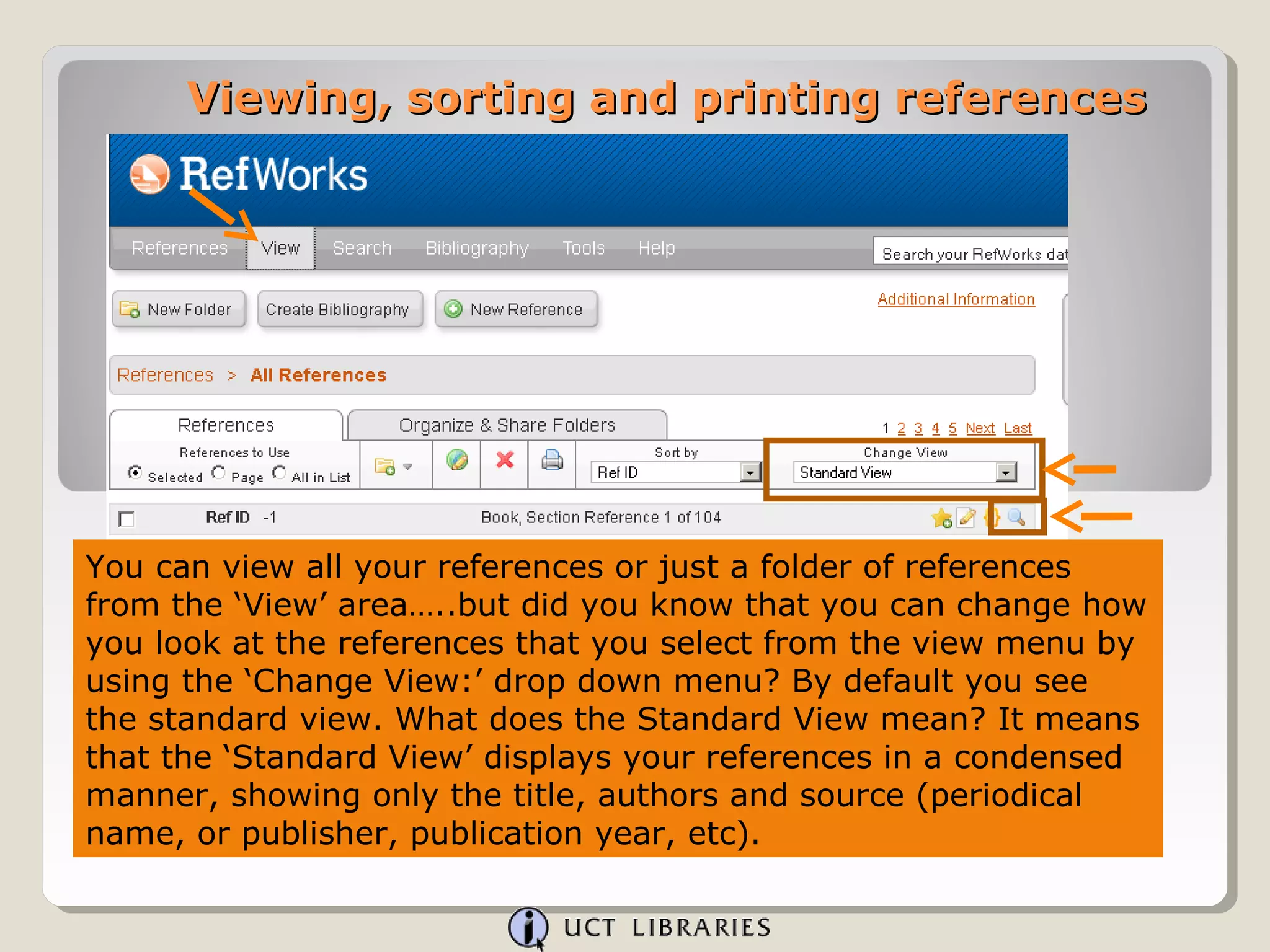
You can view all your references or just a folder of references
from the ‘View’ area…..but did you know that you can change how
you look at the references that you select from the view menu by
using the ‘Change View:’ drop down menu? By default you see
the standard view. What does the Standard View mean? It means
that the ‘Standard View’ displays your references in a condensed
manner, showing only the title, authors and source (periodical
name, or publisher, publication year, etc).
Viewing, sorting and printing references


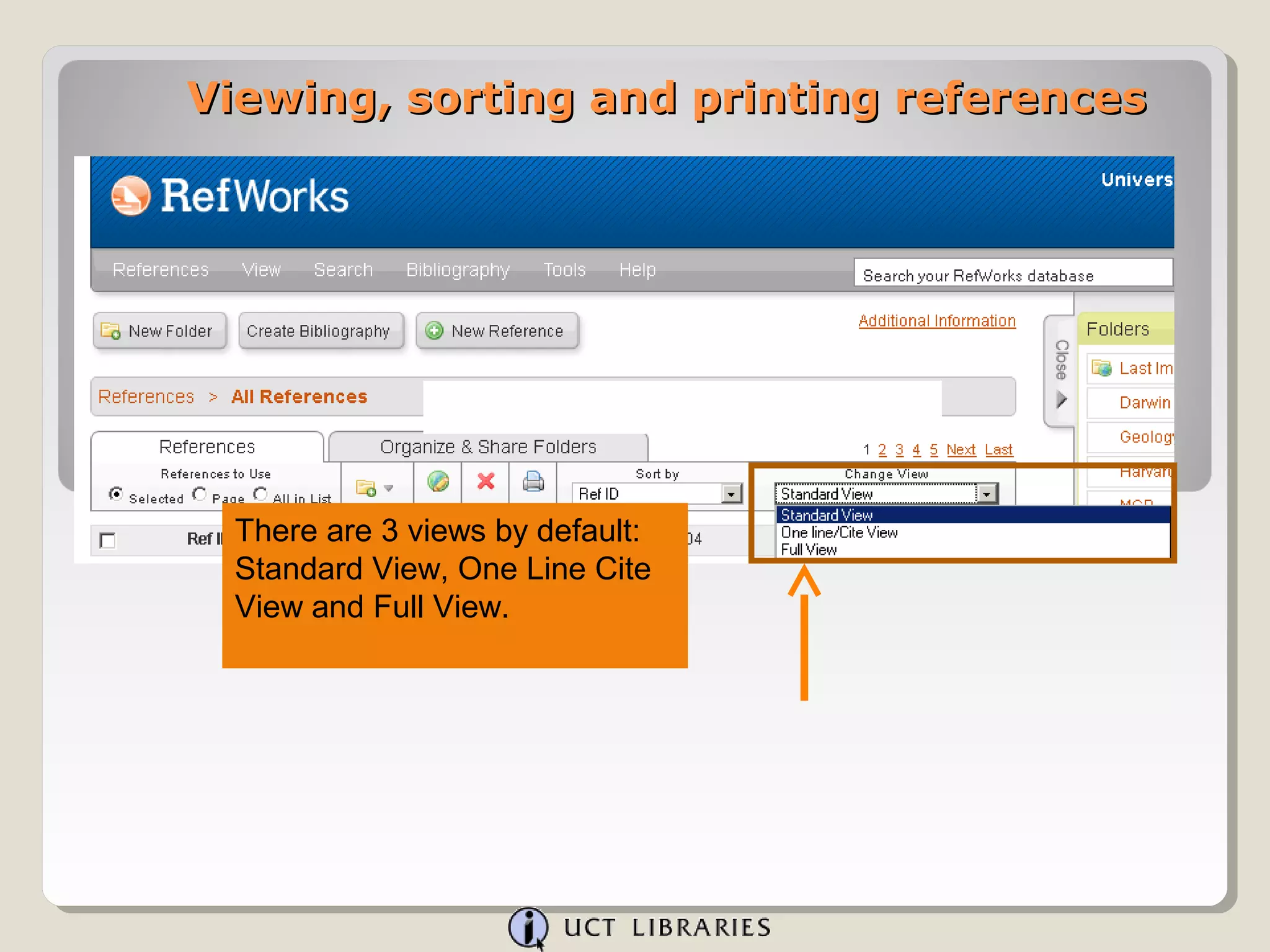
  There are 3 views by default:
  Standard View, One Line Cite
  View and Full View.
Viewing, sorting and printing references


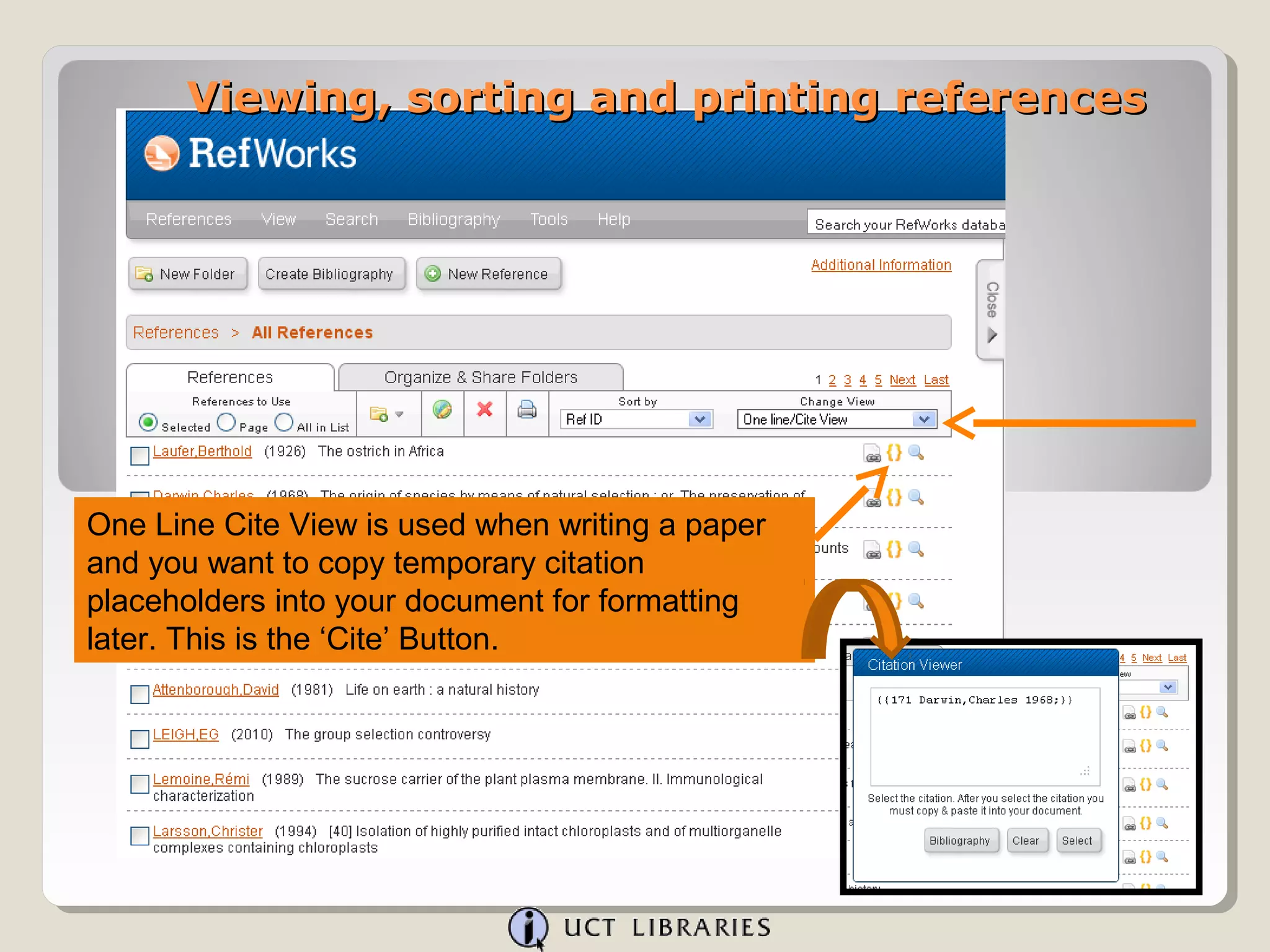
One Line Cite View is used when writing a paper
and you want to copy temporary citation
placeholders into your document for formatting
later. This is the ‘Cite’ Button.
Viewing, sorting and printing references


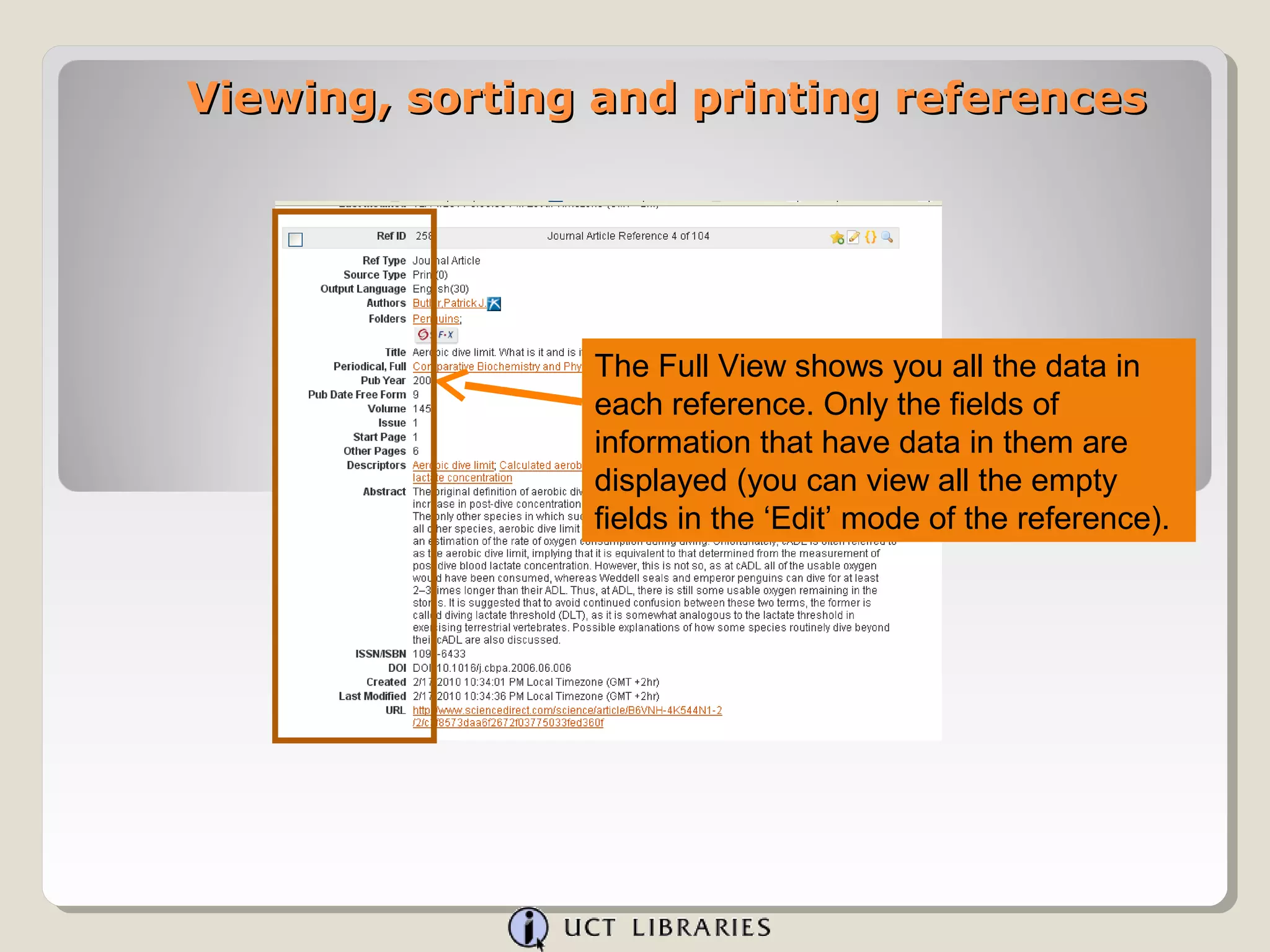
                The Full View shows you all the data in
                each reference. Only the fields of
                information that have data in them are
                displayed (you can view all the empty
                fields in the ‘Edit’ mode of the reference).
Viewing, sorting and printing references


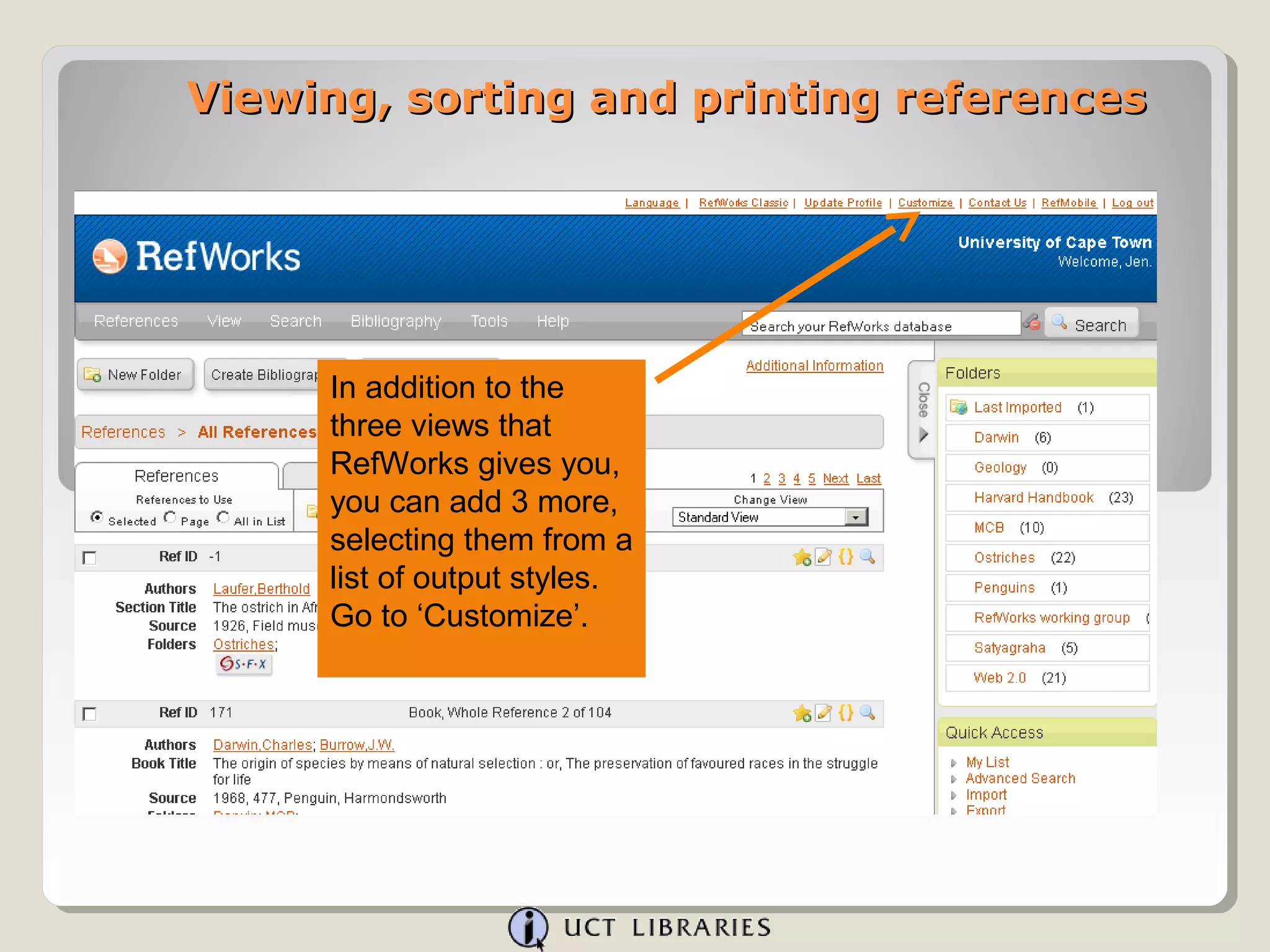
     In addition to the
     three views that
     RefWorks gives you,
     you can add 3 more,
     selecting them from a
     list of output styles.
     Go to ‘Customize’.
Viewing, sorting and printing references


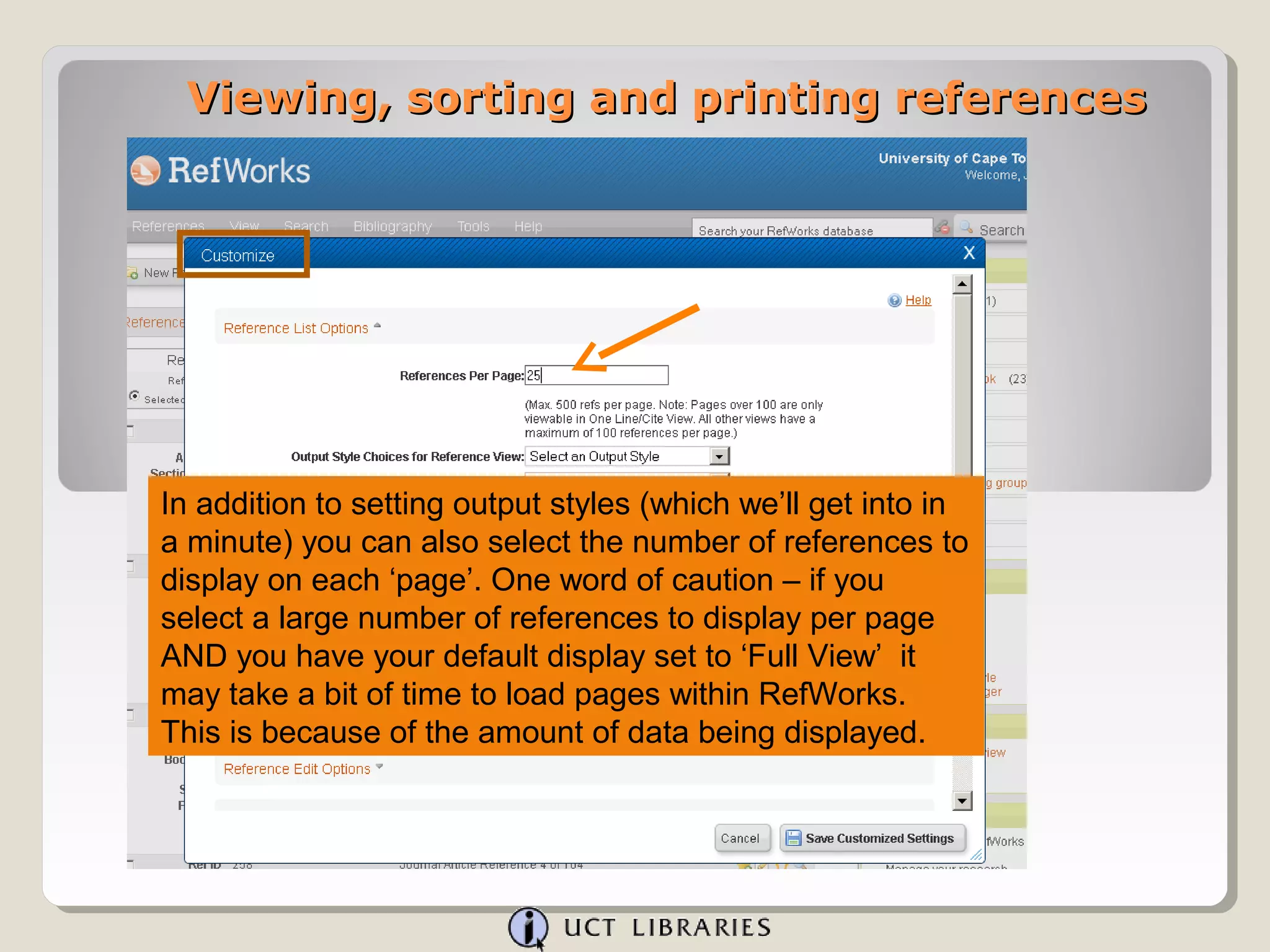
In addition to setting output styles (which we’ll get into in
a minute) you can also select the number of references to
display on each ‘page’. One word of caution – if you
select a large number of references to display per page
AND you have your default display set to ‘Full View’ it
may take a bit of time to load pages within RefWorks.
This is because of the amount of data being displayed.
Viewing, sorting and printing references


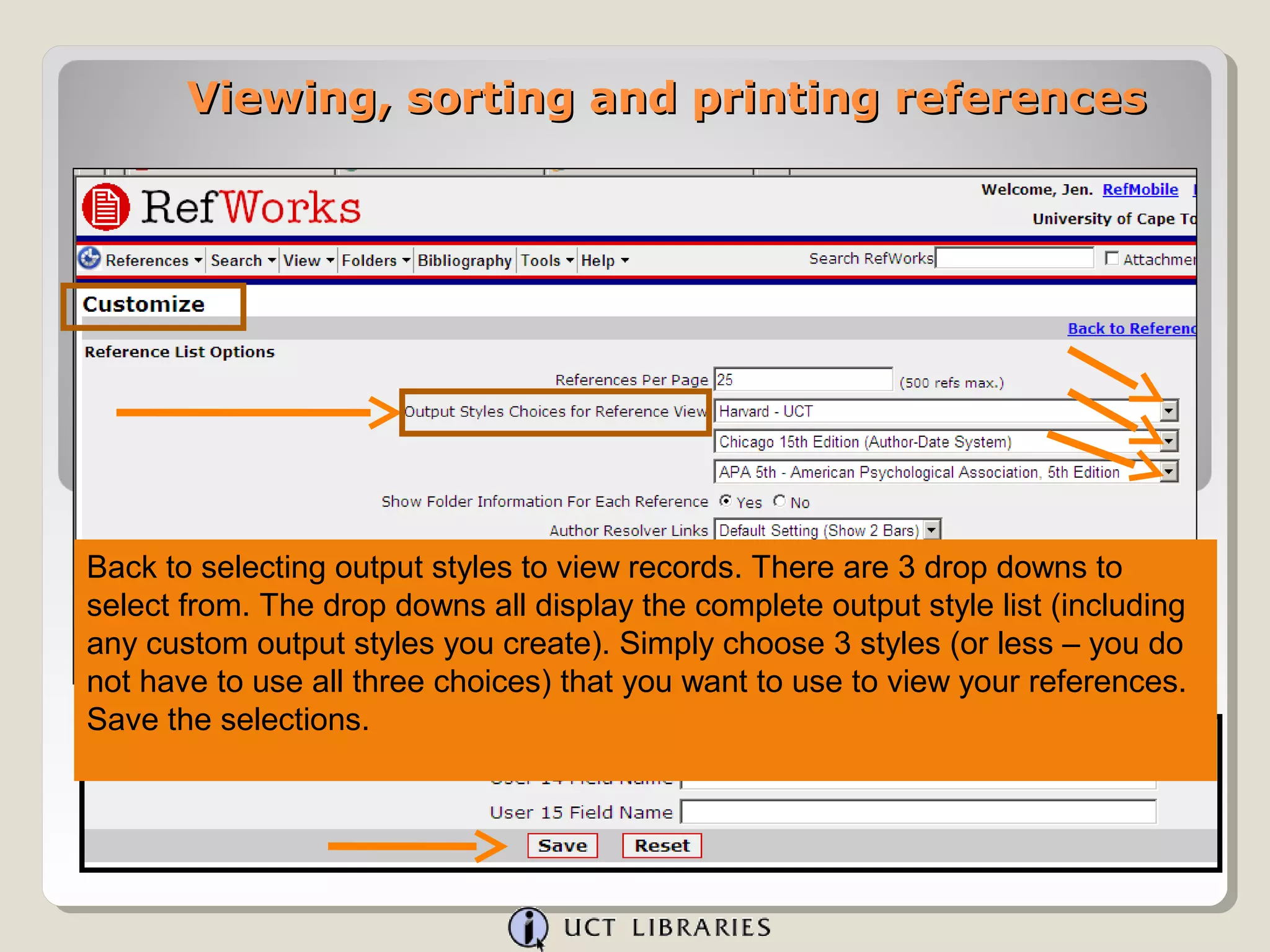
Back to selecting output styles to view records. There are 3 drop downs to
select from. The drop downs all display the complete output style list (including
any custom output styles you create). Simply choose 3 styles (or less – you do
not have to use all three choices) that you want to use to view your references.
Save the selections.
Viewing, sorting and printing references


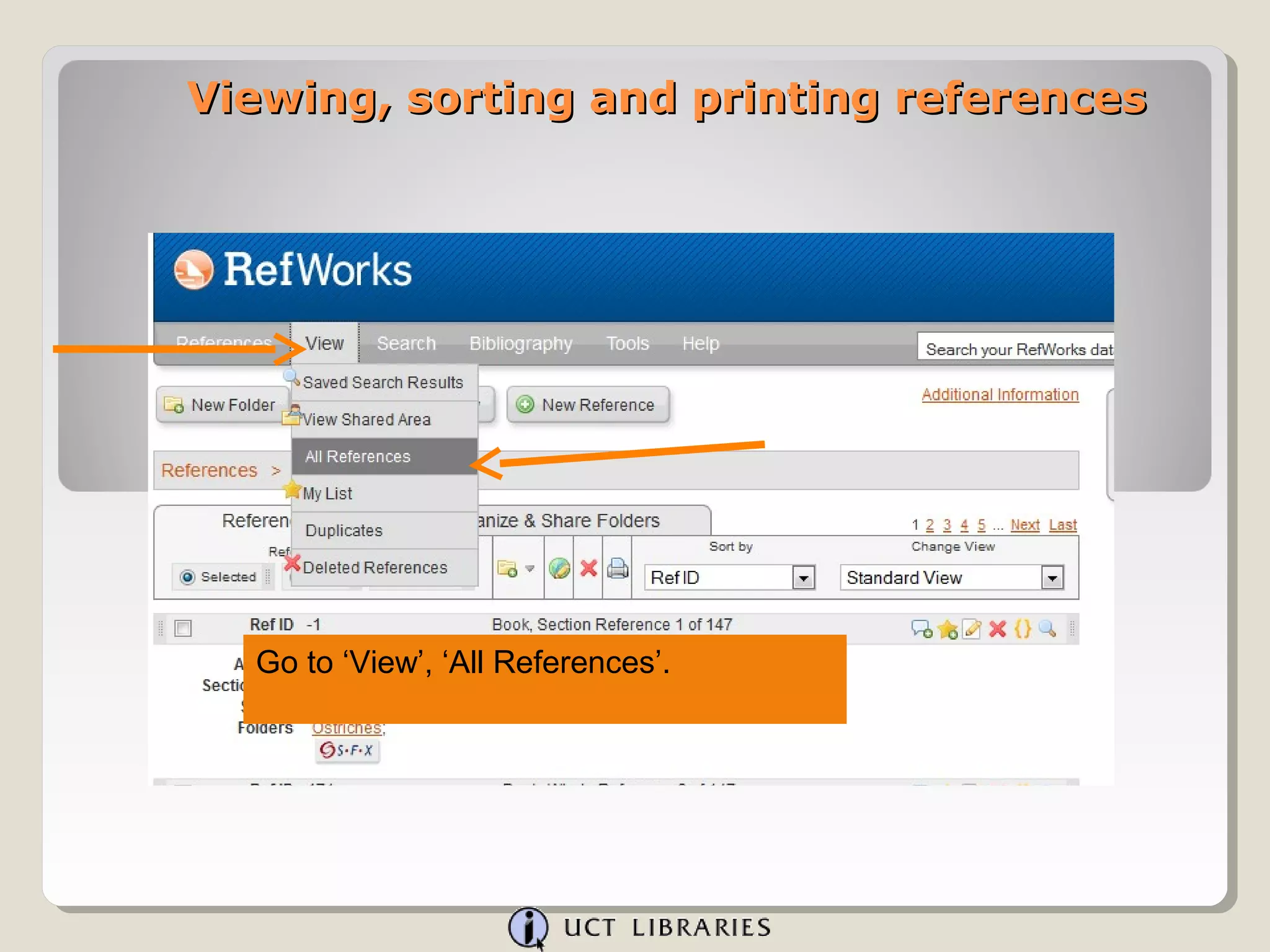
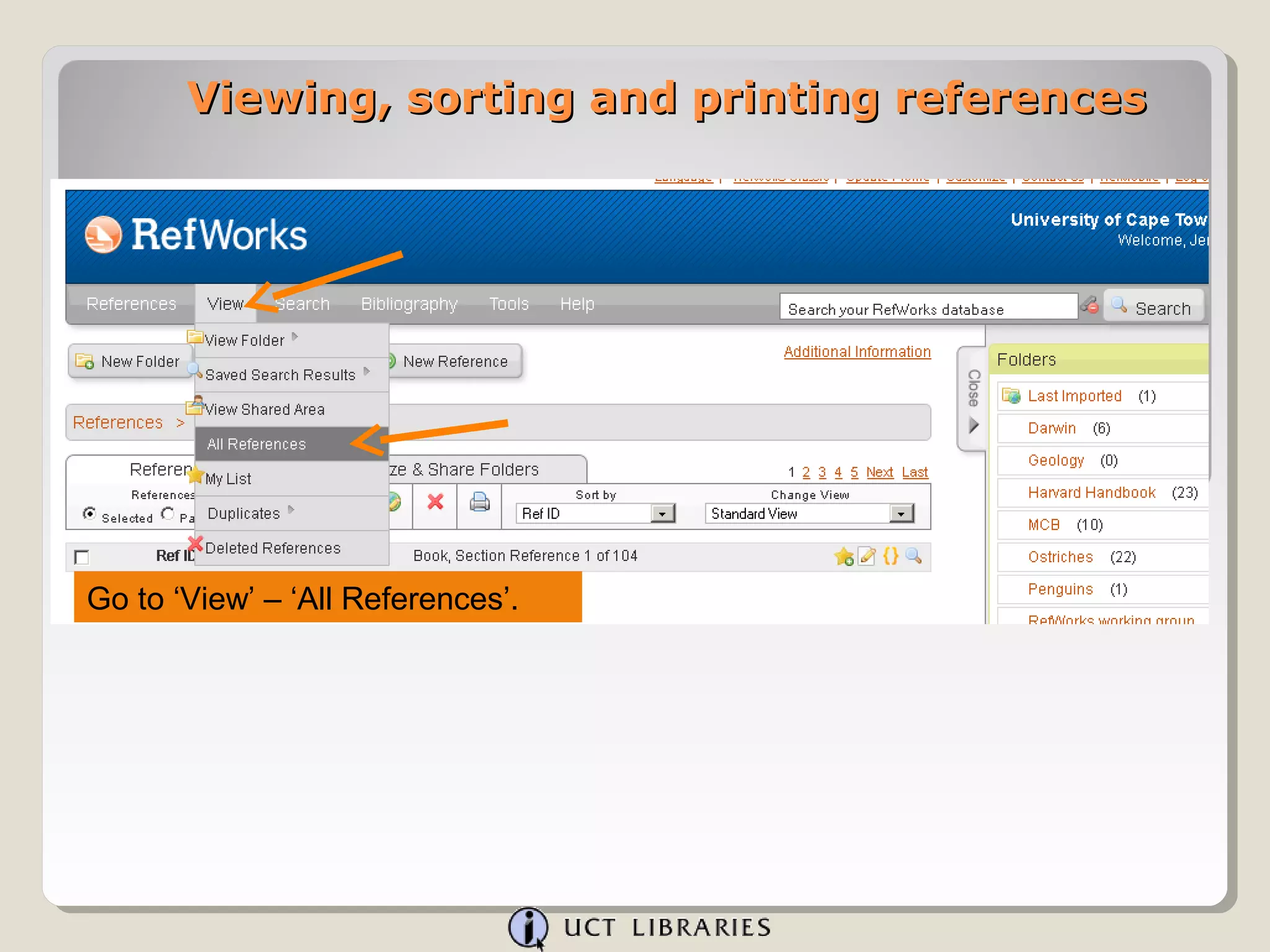
  Go to ‘View’, ‘All References’.
Viewing, sorting and printing references


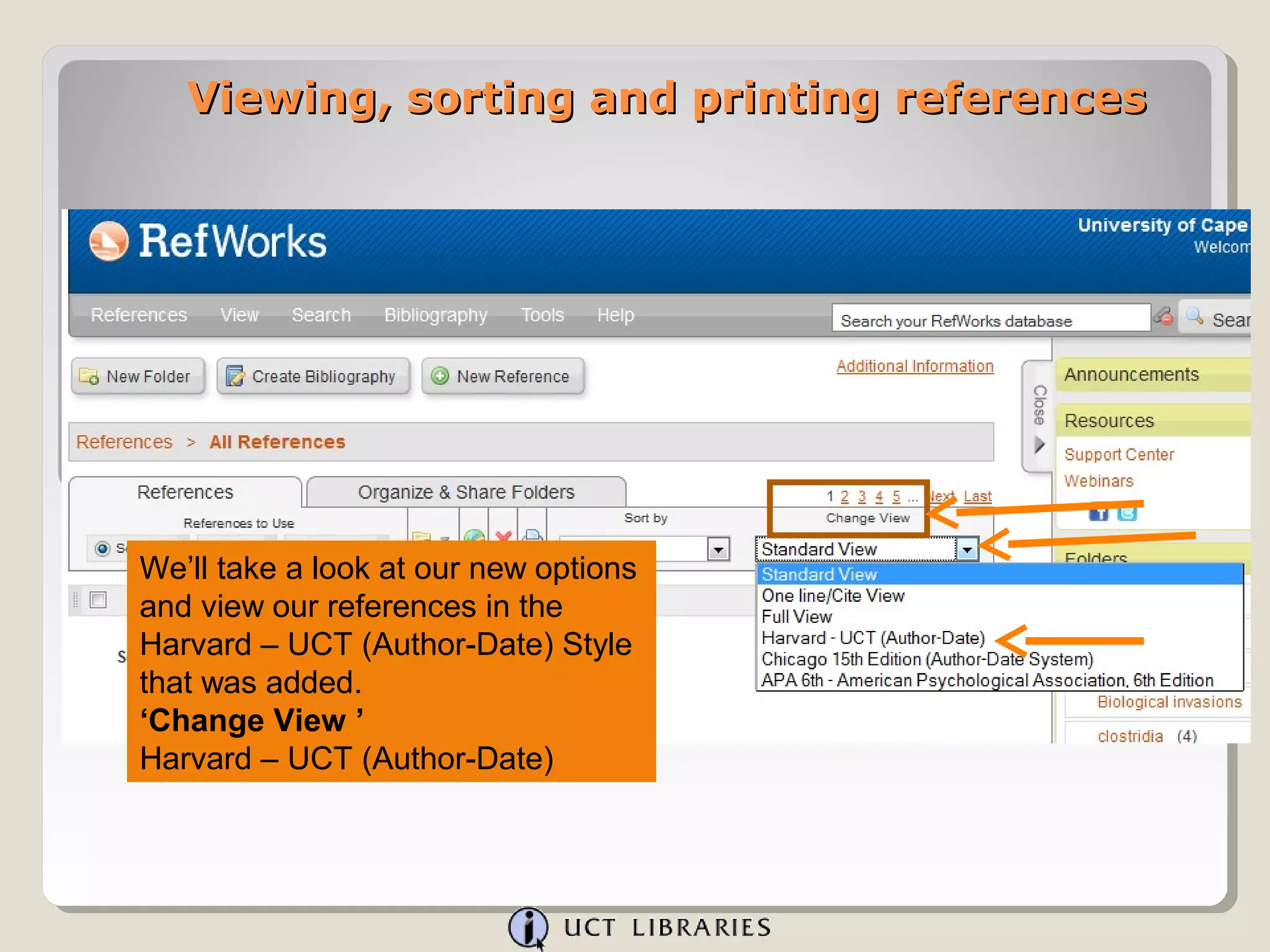
We’ll take a look at our new options
and view our references in the
Harvard – UCT (Author-Date) Style
that was added.
‘Change View ’
Harvard – UCT (Author-Date)
Viewing, sorting and printing references

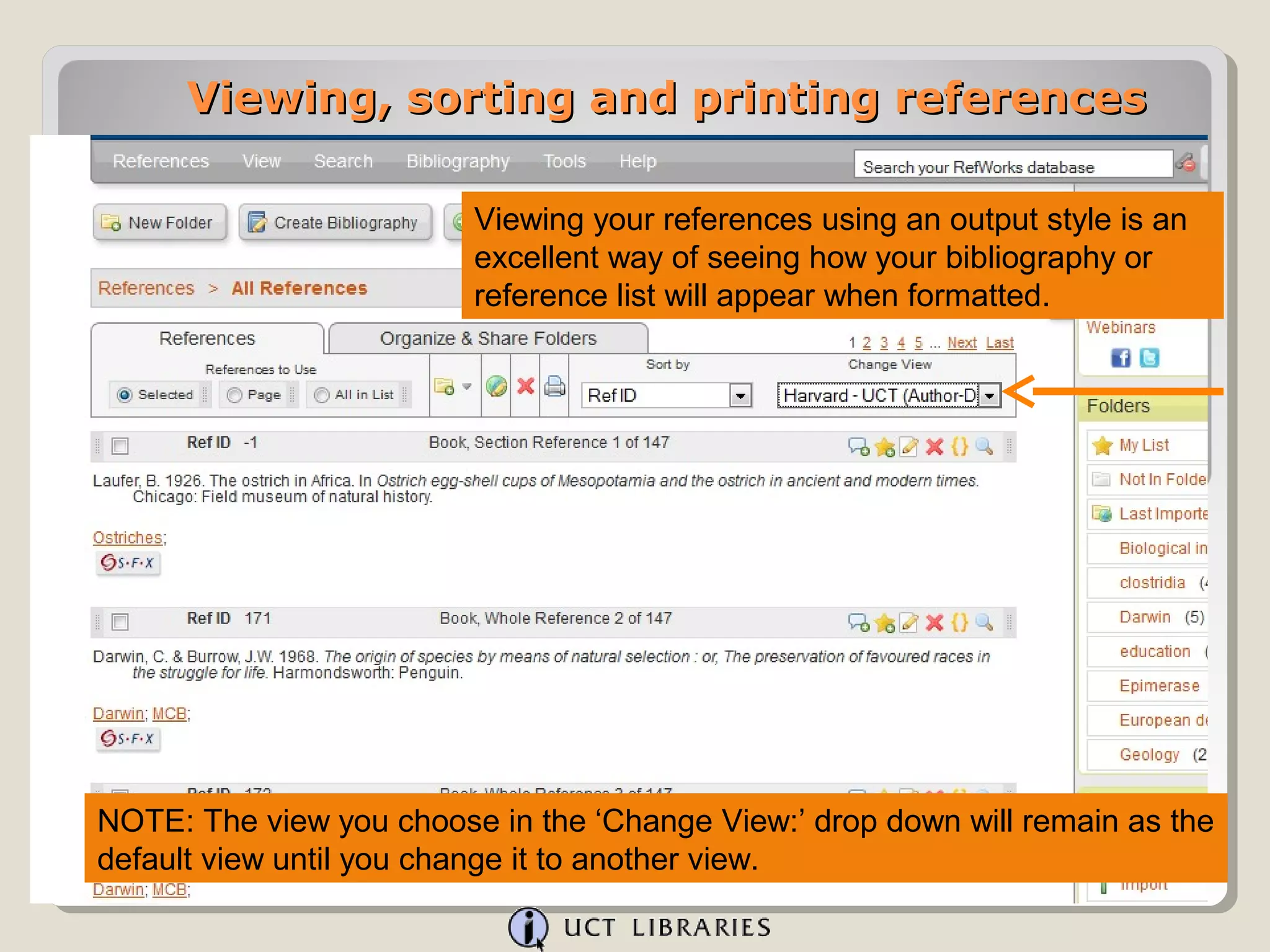
                         Viewing your references using an output style is an
                         excellent way of seeing how your bibliography or
                         reference list will appear when formatted.


NOTE: The view you choose in the ‘Change View:’ drop down will remain as the
default view until you change it to another view.
Viewing, sorting and printing references


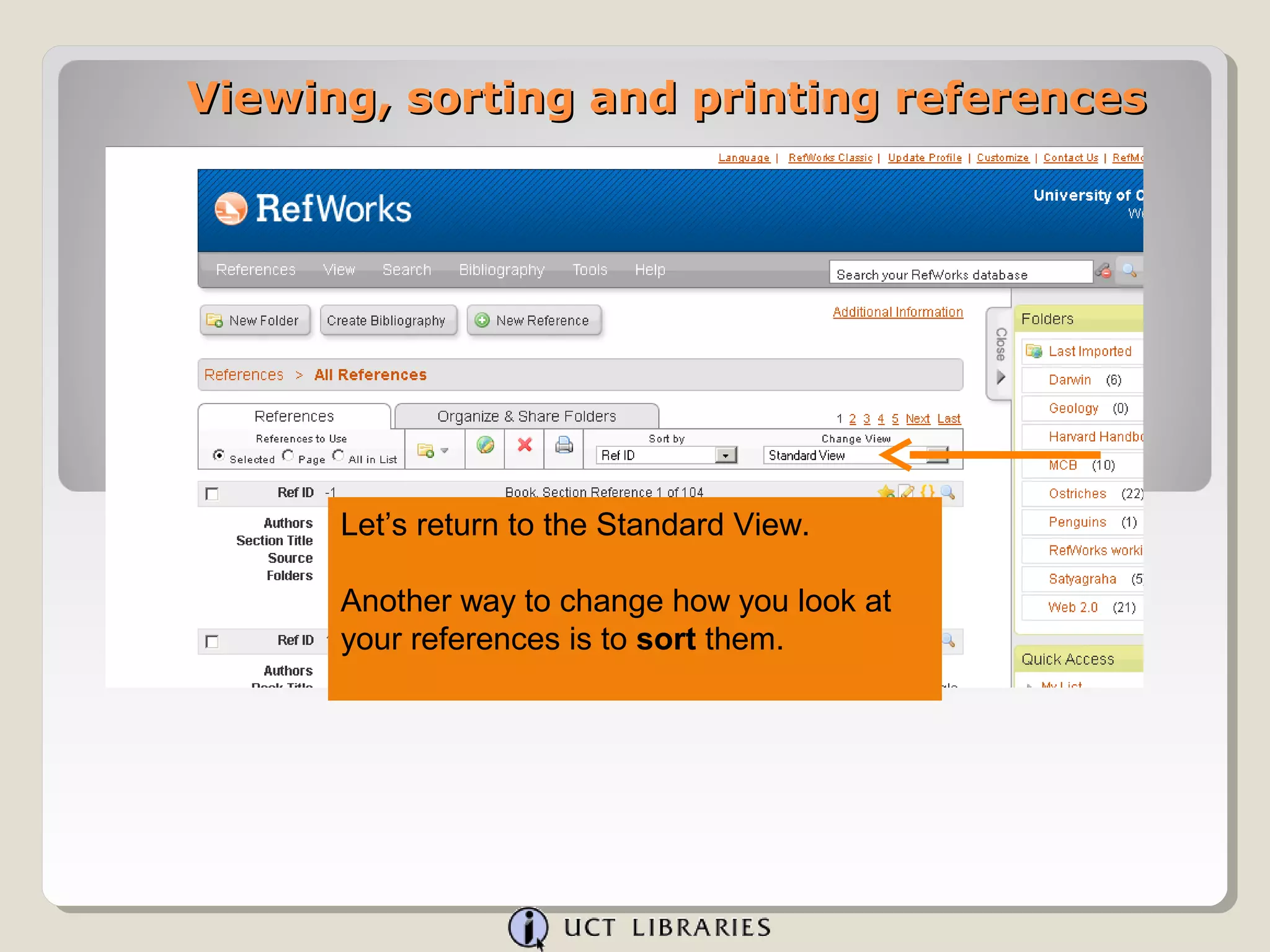
      Let’s return to the Standard View.

      Another way to change how you look at
      your references is to sort them.
Viewing, sorting and printing references


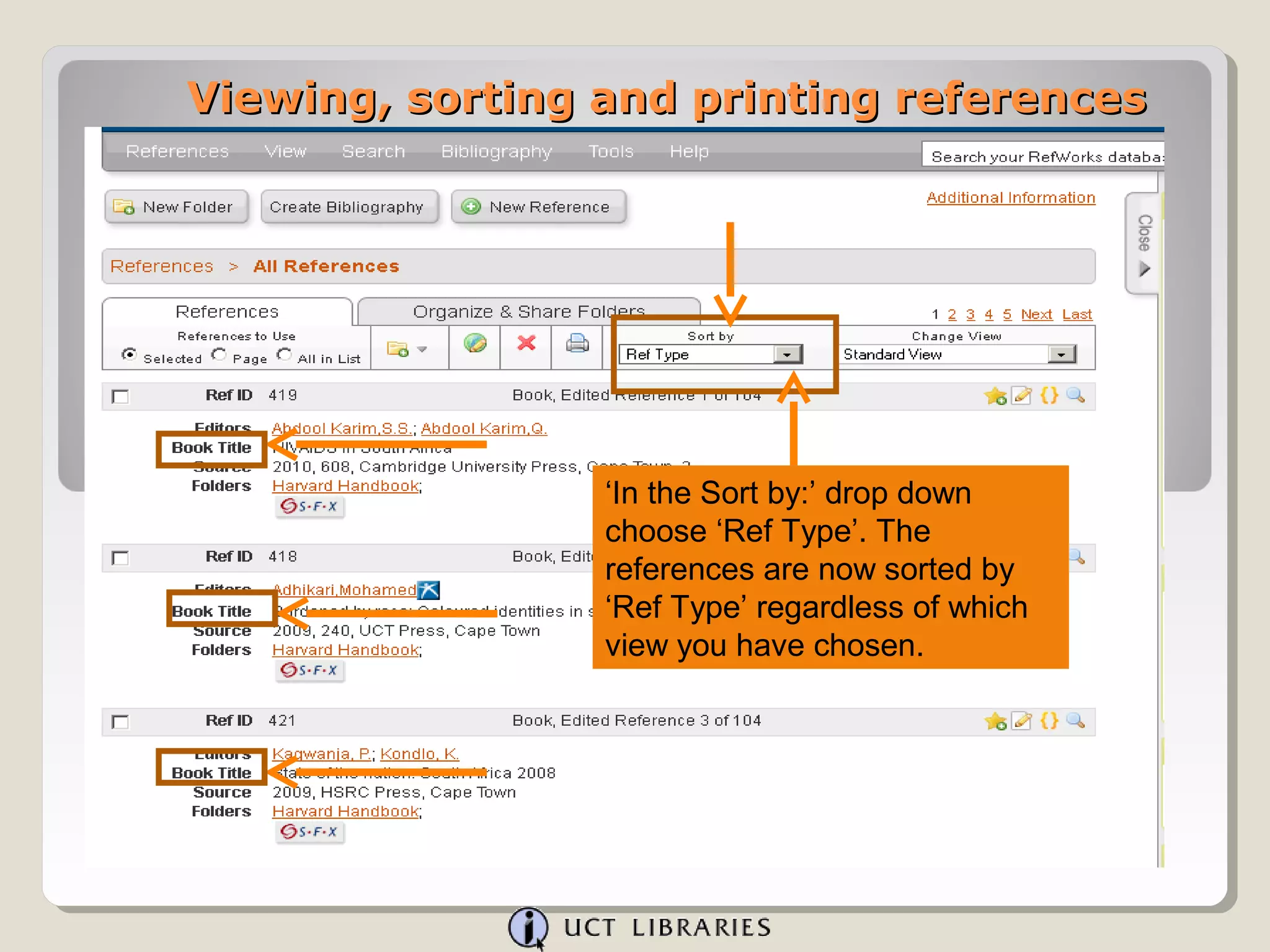
                 ‘In the Sort by:’ drop down
                 choose ‘Ref Type’. The
                 references are now sorted by
                 ‘Ref Type’ regardless of which
                 view you have chosen.
Viewing, sorting and printing references


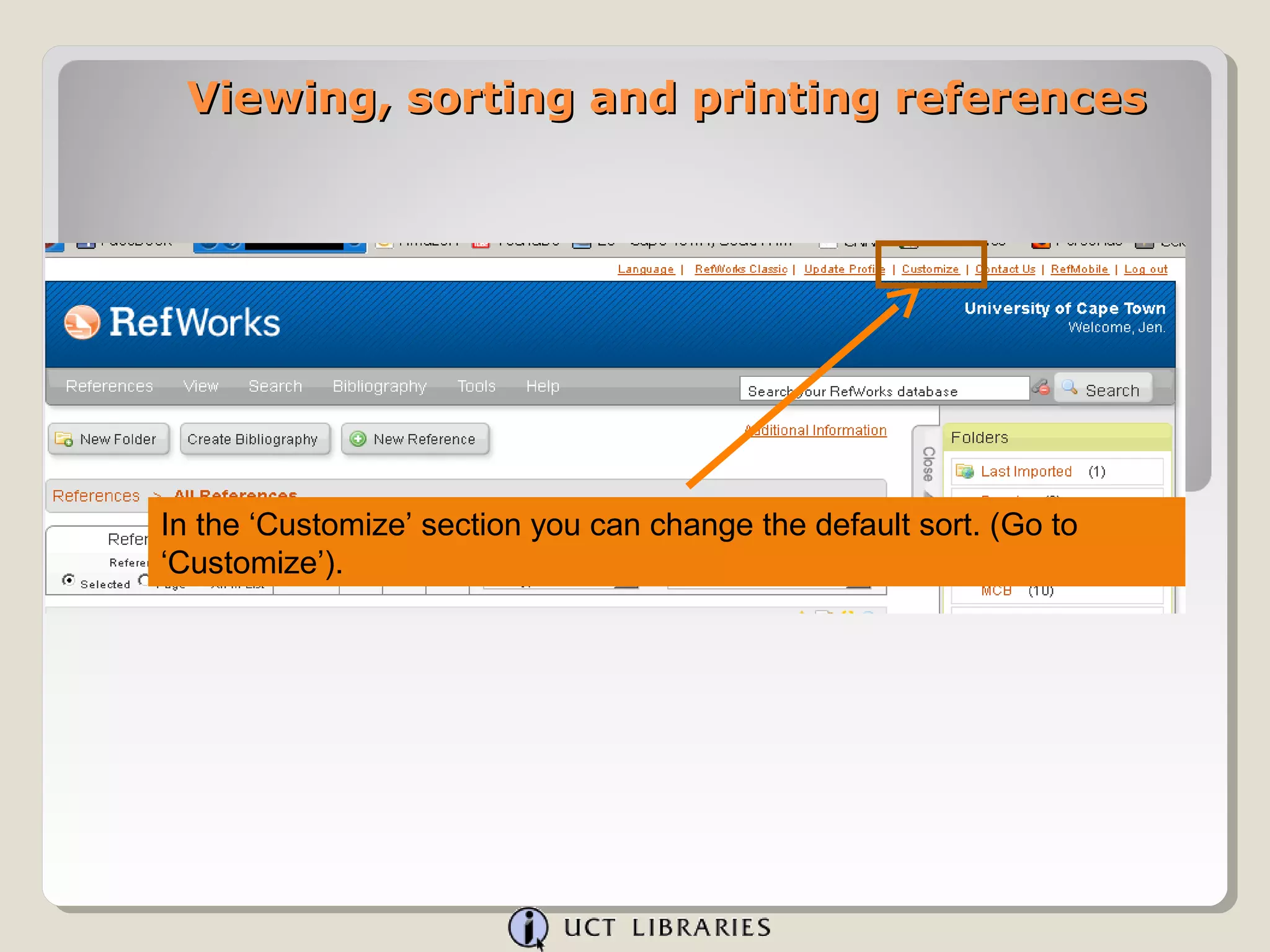
In the ‘Customize’ section you can change the default sort. (Go to
‘Customize’).
Viewing, sorting and printing references


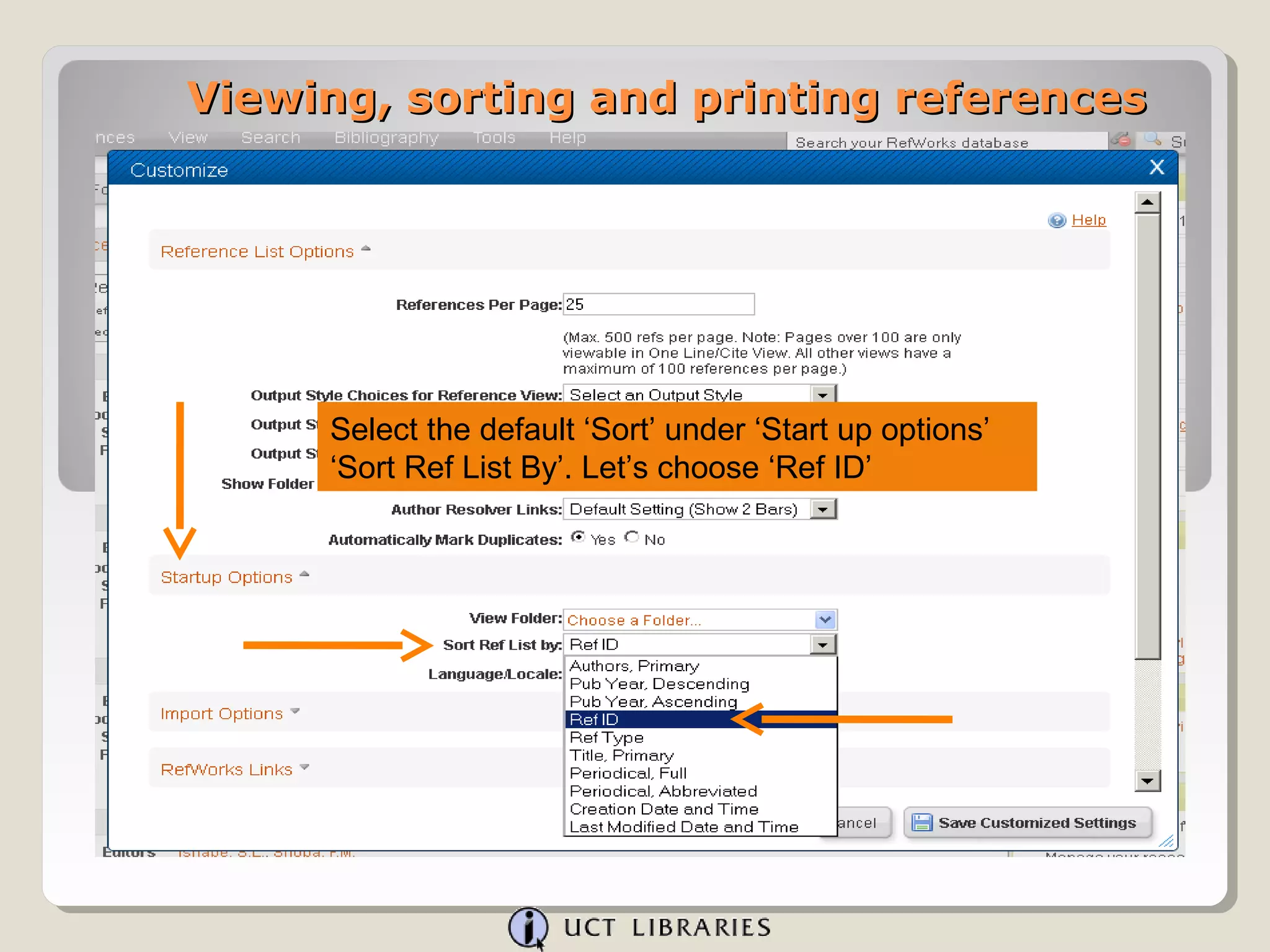
     Select the default ‘Sort’ under ‘Start up options’
     ‘Sort Ref List By’. Let’s choose ‘Ref ID’
Viewing, sorting and printing references


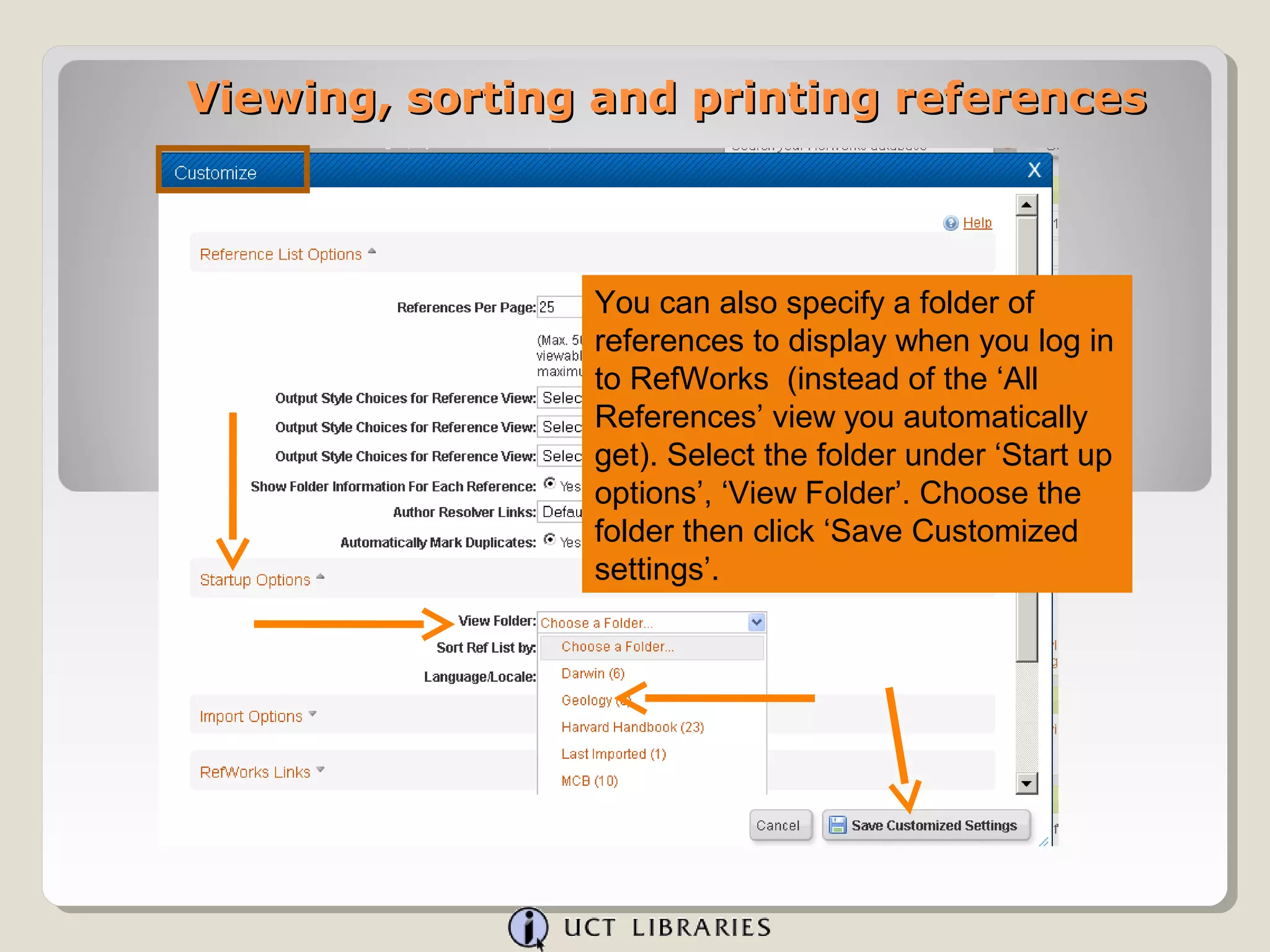
                You can also specify a folder of
                references to display when you log in
                to RefWorks (instead of the ‘All
                References’ view you automatically
                get). Select the folder under ‘Start up
                options’, ‘View Folder’. Choose the
                folder then click ‘Save Customized
                settings’.
Viewing, sorting and printing references


Go to ‘View’ – ‘All References’.
Viewing, sorting and printing references


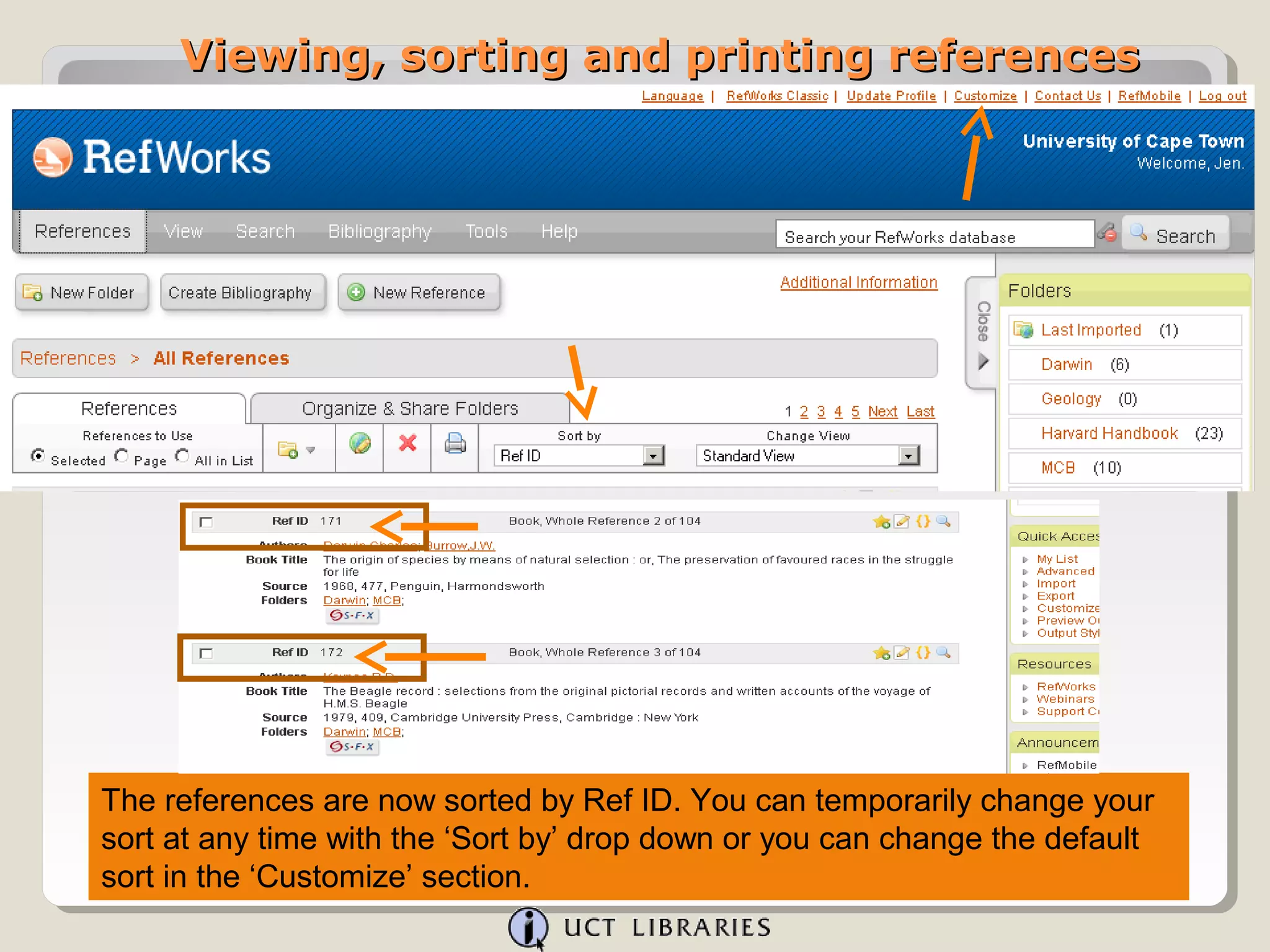
The references are now sorted by Ref ID. You can temporarily change your
sort at any time with the ‘Sort by’ drop down or you can change the default
sort in the ‘Customize’ section.
Viewing, sorting and printing references


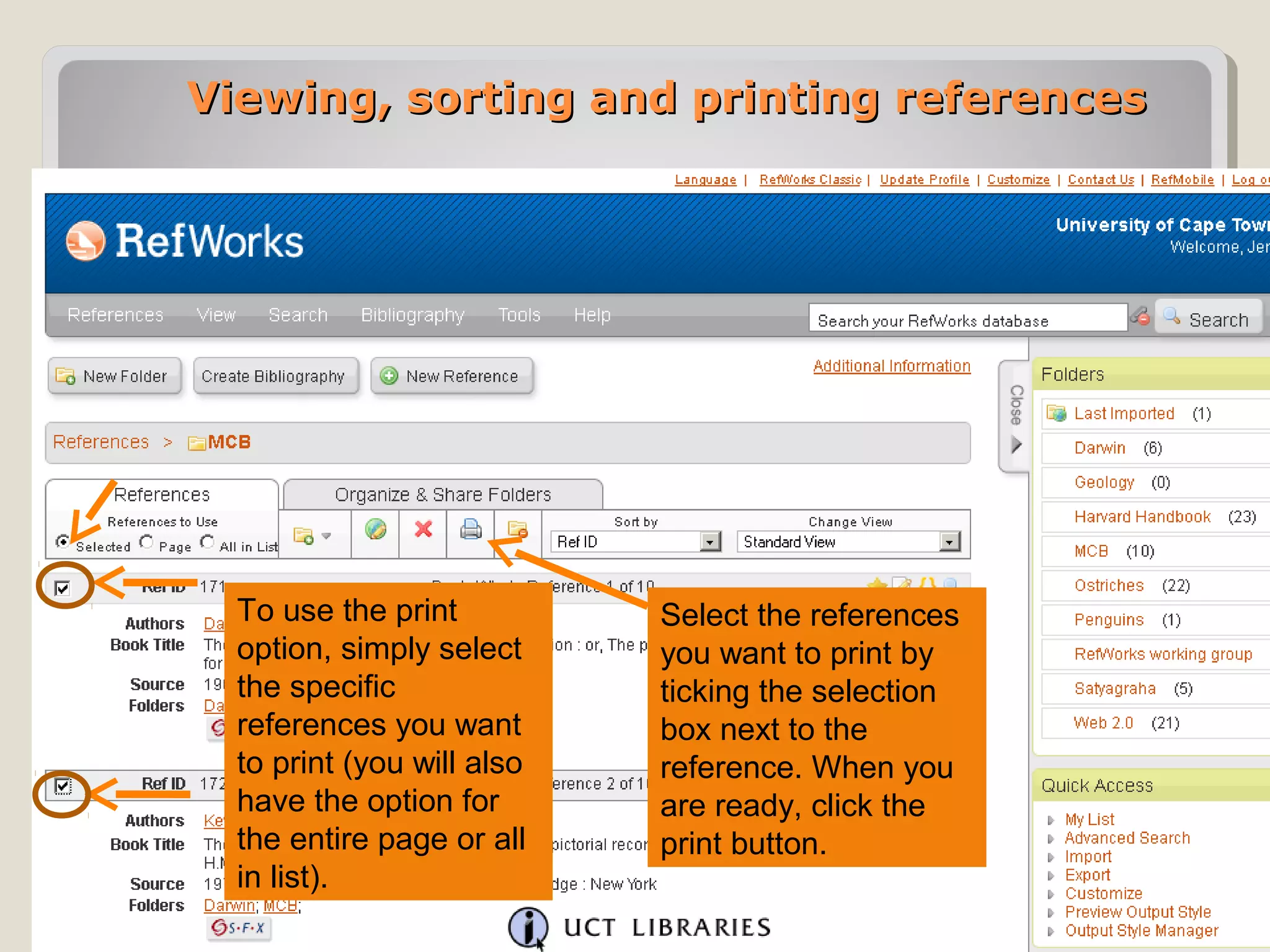
  To use the print          Select the references
  option, simply select     you want to print by
  the specific              ticking the selection
  references you want       box next to the
  to print (you will also   reference. When you
  have the option for       are ready, click the
  the entire page or all    print button.
  in list).
Viewing, sorting and printing references


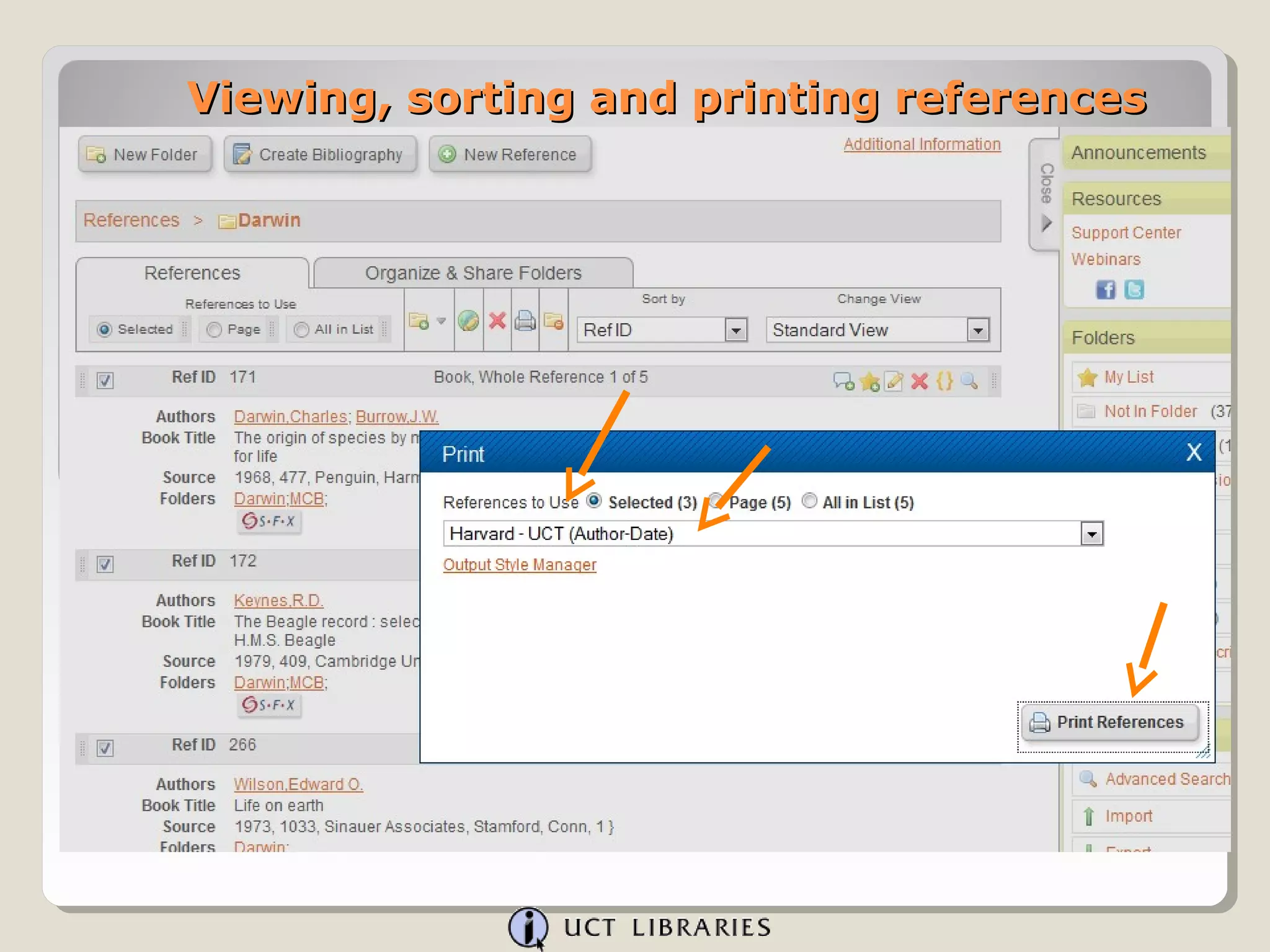
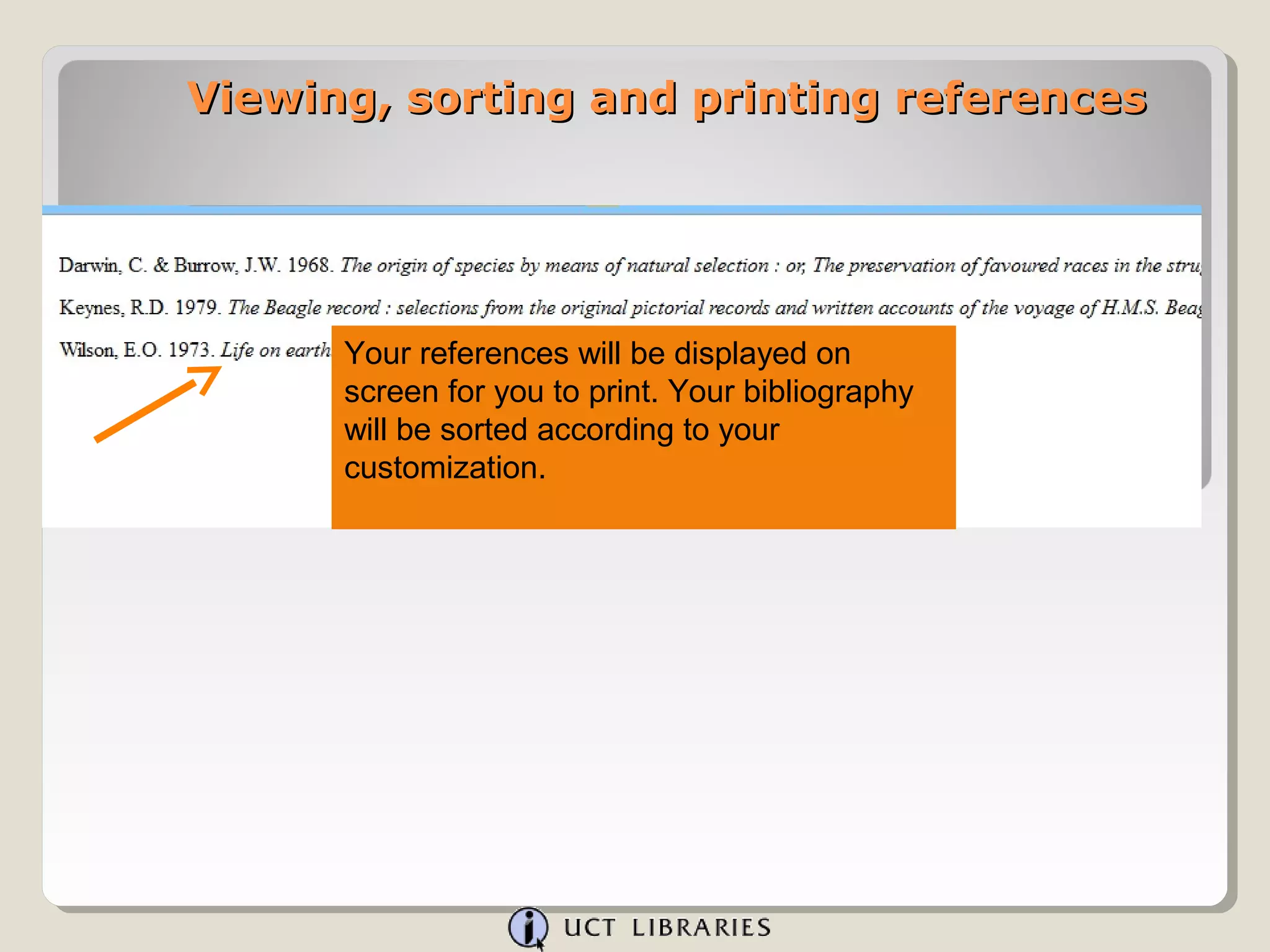
      Your references will be displayed on
      screen for you to print. Your bibliography
      will be sorted according to your
      customization.

RefWorks 2.0 viewing sorting printing

  • 1.
    Viewing sorting and printing references
  • 2.
    Viewing, sorting andprinting references You can view all your references or just a folder of references from the ‘View’ area…..but did you know that you can change how you look at the references that you select from the view menu by using the ‘Change View:’ drop down menu? By default you see the standard view. What does the Standard View mean? It means that the ‘Standard View’ displays your references in a condensed manner, showing only the title, authors and source (periodical name, or publisher, publication year, etc).
  • 3.
    Viewing, sorting andprinting references There are 3 views by default: Standard View, One Line Cite View and Full View.
  • 4.
    Viewing, sorting andprinting references One Line Cite View is used when writing a paper and you want to copy temporary citation placeholders into your document for formatting later. This is the ‘Cite’ Button.
  • 5.
    Viewing, sorting andprinting references The Full View shows you all the data in each reference. Only the fields of information that have data in them are displayed (you can view all the empty fields in the ‘Edit’ mode of the reference).
  • 6.
    Viewing, sorting andprinting references In addition to the three views that RefWorks gives you, you can add 3 more, selecting them from a list of output styles. Go to ‘Customize’.
  • 7.
    Viewing, sorting andprinting references In addition to setting output styles (which we’ll get into in a minute) you can also select the number of references to display on each ‘page’. One word of caution – if you select a large number of references to display per page AND you have your default display set to ‘Full View’ it may take a bit of time to load pages within RefWorks. This is because of the amount of data being displayed.
  • 8.
    Viewing, sorting andprinting references Back to selecting output styles to view records. There are 3 drop downs to select from. The drop downs all display the complete output style list (including any custom output styles you create). Simply choose 3 styles (or less – you do not have to use all three choices) that you want to use to view your references. Save the selections.
  • 9.
    Viewing, sorting andprinting references Go to ‘View’, ‘All References’.
  • 10.
    Viewing, sorting andprinting references We’ll take a look at our new options and view our references in the Harvard – UCT (Author-Date) Style that was added. ‘Change View ’ Harvard – UCT (Author-Date)
  • 11.
    Viewing, sorting andprinting references Viewing your references using an output style is an excellent way of seeing how your bibliography or reference list will appear when formatted. NOTE: The view you choose in the ‘Change View:’ drop down will remain as the default view until you change it to another view.
  • 12.
    Viewing, sorting andprinting references Let’s return to the Standard View. Another way to change how you look at your references is to sort them.
  • 13.
    Viewing, sorting andprinting references ‘In the Sort by:’ drop down choose ‘Ref Type’. The references are now sorted by ‘Ref Type’ regardless of which view you have chosen.
  • 14.
    Viewing, sorting andprinting references In the ‘Customize’ section you can change the default sort. (Go to ‘Customize’).
  • 15.
    Viewing, sorting andprinting references Select the default ‘Sort’ under ‘Start up options’ ‘Sort Ref List By’. Let’s choose ‘Ref ID’
  • 16.
    Viewing, sorting andprinting references You can also specify a folder of references to display when you log in to RefWorks (instead of the ‘All References’ view you automatically get). Select the folder under ‘Start up options’, ‘View Folder’. Choose the folder then click ‘Save Customized settings’.
  • 17.
    Viewing, sorting andprinting references Go to ‘View’ – ‘All References’.
  • 18.
    Viewing, sorting andprinting references The references are now sorted by Ref ID. You can temporarily change your sort at any time with the ‘Sort by’ drop down or you can change the default sort in the ‘Customize’ section.
  • 19.
    Viewing, sorting andprinting references To use the print Select the references option, simply select you want to print by the specific ticking the selection references you want box next to the to print (you will also reference. When you have the option for are ready, click the the entire page or all print button. in list).
  • 20.
    Viewing, sorting andprinting references
  • 21.
    Viewing, sorting andprinting references Your references will be displayed on screen for you to print. Your bibliography will be sorted according to your customization.