REFWORKS
Presented and compiled by Jen Eidelman
http://www.lib.uct.ac.za/
Email: jen.eidelman@uct.ac.za
Ph: 021 650 2773

This work is licensed under a Creative Commons AttributionNonCommercial-ShareAlike 3.0 Unported License.
What will I learn today?

1. RefWorks:
•
•
•
•
•
•

How to find RefWorks HELP
How to create an account in RefWorks
Direct export citations from 2 databases
Create a folder
Create a bibliography from a list of references
Create a bibliography using Write-N-Cite

2. UCT Harvard Referencing Style
•
•
•
•

Where to find referencing HELP from the library page
Books
Journal Articles
Web pages
Introducing RefWorks
Why use RefWorks?
• Create a personal database accessible from any computer
linked to the Internet without having to download or install
special software;
• Import and store an unlimited number of references from
databases–search results from a wide variety of databases can
be automatically exported into RefWorks with the click of a
button;
• Organize and manage references–sort and file references
quickly and easily using folders;
• Search references by keyword, author, journal title;
• Use Write-N-Cite together with MS Word to automatically insert
in-text citations into documents and create bibliographies in the
citation style of your choice.
Introducing RefWorks
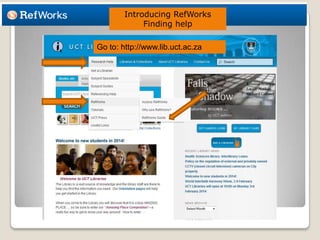
Finding help
Go to: http://www.lib.uct.ac.za
Introducing RefWorks - Finding help
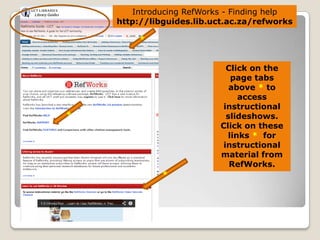
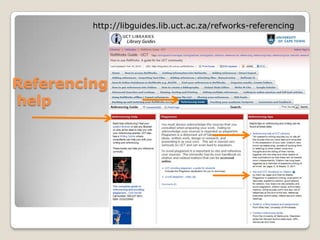
http://libguides.lib.uct.ac.za/refworks

Click on the
page tabs
above * to
access
instructional
slideshows.
Click on these
links * for
instructional
material from
RefWorks.
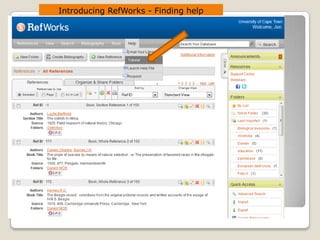
Introducing RefWorks - Finding help
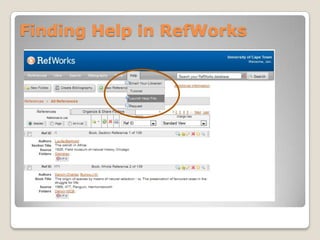
Finding Help in RefWorks
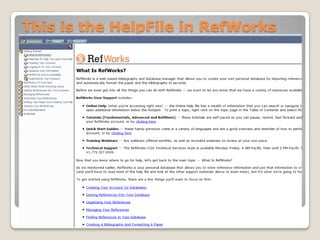
This is the HelpFile in RefWorks
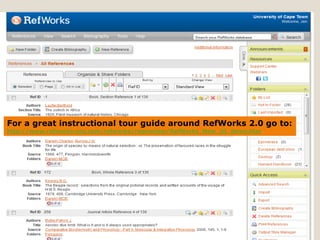
For a great instructional tour guide around RefWorks 2.0 go to:
http://www.refworks-cos.com/refworks/rwpreview/RefWorks_New_UI_demo.htm
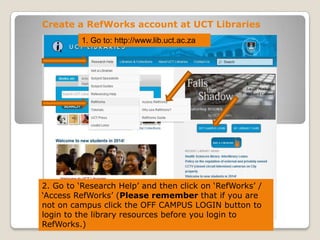
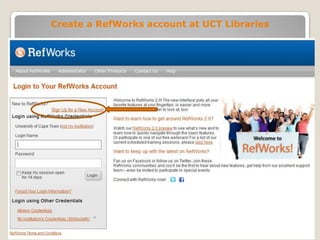
Create a RefWorks account at UCT Libraries
1. Go to: http://www.lib.uct.ac.za

2. Go to „Research Help‟ and then click on „RefWorks‟ /
„Access RefWorks‟ (Please remember that if you are
not on campus click the OFF CAMPUS LOGIN button to
login to the library resources before you login to
RefWorks.)
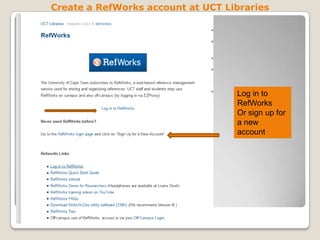
Create a RefWorks account at UCT Libraries

Log in to
RefWorks
Or sign up for
a new
account
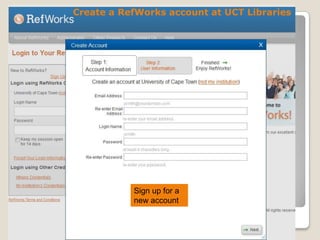
Create a RefWorks account at UCT Libraries

Sign up for a
new account
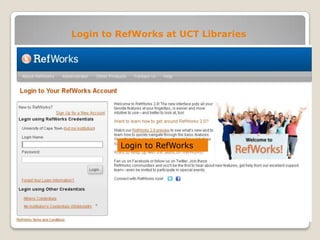
Login to RefWorks at UCT Libraries

Login to RefWorks
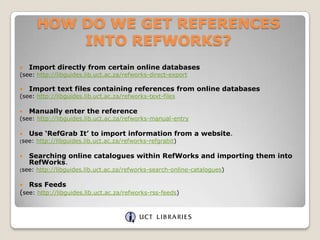
HOW DO WE GET REFERENCES
INTO REFWORKS?


Import directly from certain online databases
(see: http://libguides.lib.uct.ac.za/refworks-direct-export


Import text files containing references from online databases
(see: http://libguides.lib.uct.ac.za/refworks-text-files


Manually enter the reference

(see: http://libguides.lib.uct.ac.za/refworks-manual-entry


Use ‘RefGrab It’ to import information from a website.

(see:



Searching online catalogues within RefWorks and importing them into
RefWorks.

(see:



http://libguides.lib.uct.ac.za/refworks-refgrabit)

http://libguides.lib.uct.ac.za/refworks-search-online-catalogues)

Rss Feeds

(see: http://libguides.lib.uct.ac.za/refworks-rss-feeds)
Direct Export to RefWorks
from a Database
Using Web of Science as an example
Get references into RefWorks
DIRECT Export method
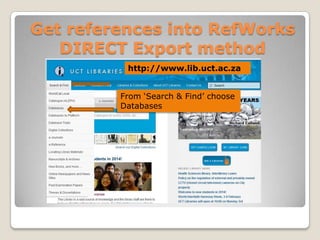
http://www.lib.uct.ac.za
From „Search & Find‟ choose
Databases
Get references into RefWorks
DIRECT Export method

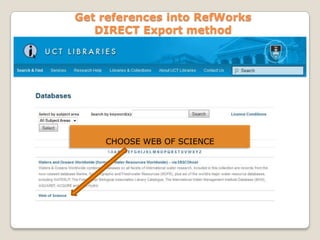
CHOOSE WEB OF SCIENCE
Web of Science
Get references into RefWorks – Direct export

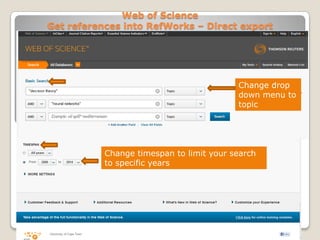
Change drop
down menu to
topic

Change timespan to limit your search
to specific years
Web of Science
Get references into RefWorks – Direct export

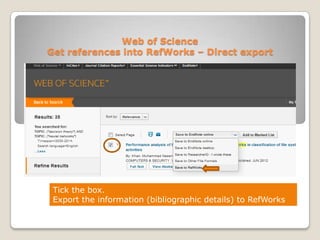
Tick the box.
Export the information (bibliographic details) to RefWorks
Web of Science
Get references into RefWorks – Direct export

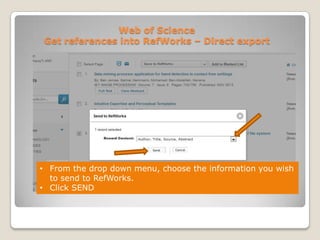
• From the drop down menu, choose the information you wish
to send to RefWorks.
• Click SEND
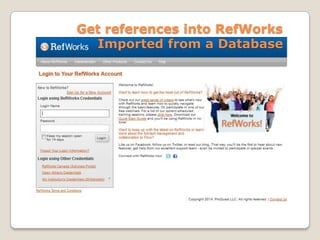
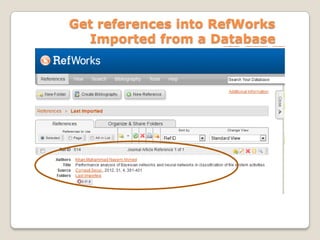
Get references into RefWorks
Imported from a Database
Get references into RefWorks
Imported from a Database
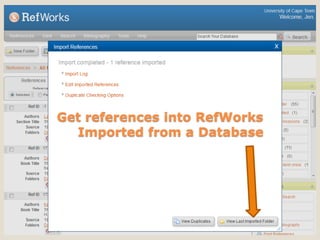
Get references into RefWorks
Imported from a Database
Save a reference from a
database search.
Attach the file in RefWorks.
Use SFX to check availability of full text access.
Attach your saved full text reference to the reference in
RefWorks
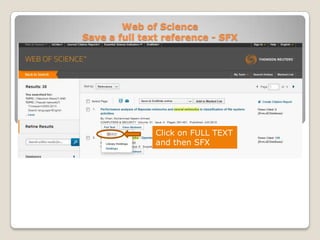
Web of Science
Save a full text reference - SFX

Click on FULL TEXT
and then SFX
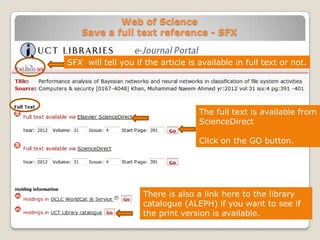
Web of Science
Save a full text reference - SFX
SFX will tell you if the article is available in full text or not.

The full text is available from
ScienceDirect

Click on the GO button.

There is also a link here to the library
catalogue (ALEPH) if you want to see if
the print version is available.
Web of Science
Save a full text reference
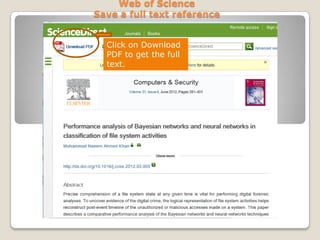
Click on Download
PDF to get the full
text.
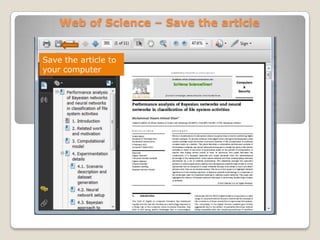
Web of Science – Save the article
Save the article to
your computer
Web of Science
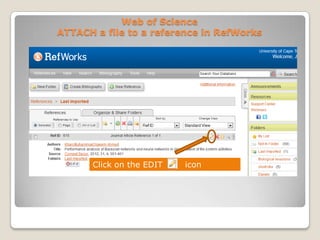
ATTACH a file to a reference in RefWorks

Click on the EDIT

icon
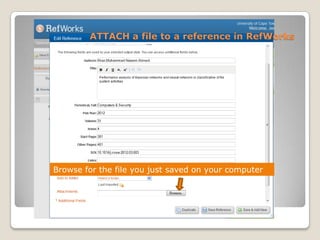
ATTACH a file to a reference in RefWorks

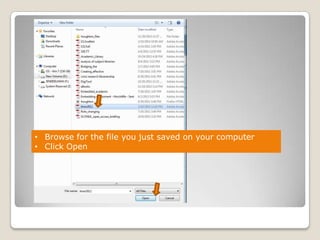
Browse for the file you just saved on your computer
• Browse for the file you just saved on your computer
• Click Open
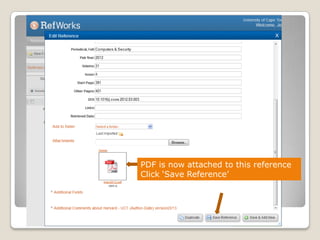
PDF is now attached to this reference
Click „Save Reference‟
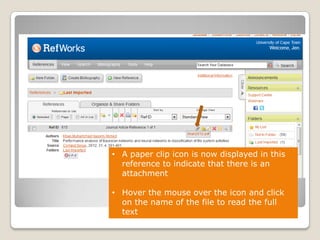
• A paper clip icon is now displayed in this
reference to indicate that there is an
attachment
• Hover the mouse over the icon and click
on the name of the file to read the full
text
Direct Export to RefWorks
from a Database
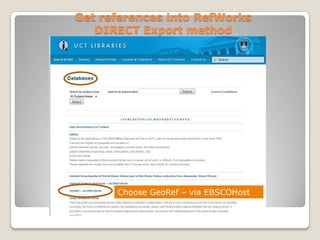
Using GeoRef via EBSCOHost as an example
Get references into RefWorks
DIRECT Export method

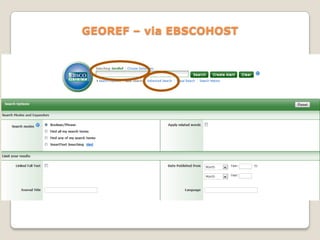
Choose GeoRef – via EBSCOHost
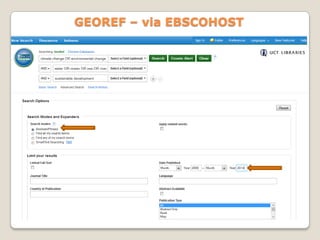
GEOREF – via EBSCOHOST
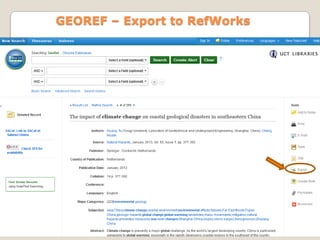
GEOREF – Export to RefWorks

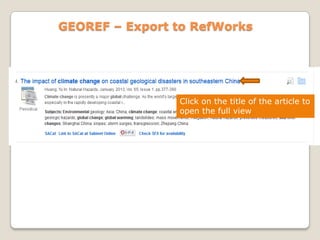
Click on the title of the article to
open the full view
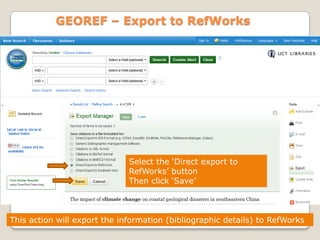
GEOREF – Export to RefWorks

Select the „Direct export to
RefWorks‟ button
Then click „Save‟

This action will export the information (bibliographic details) to RefWorks
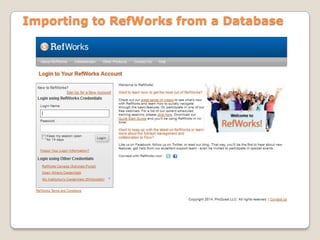
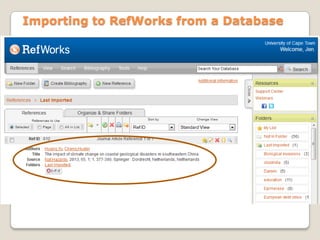
Importing to RefWorks from a Database
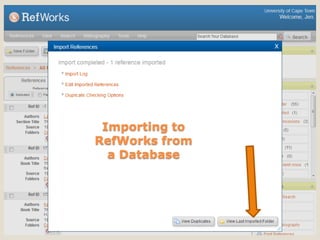
Importing to
RefWorks from
a Database
Importing to RefWorks from a Database
DIRECT Export

For a full list of all the Direct Export partners available
see:
http://www.refworks-cos.com/refworks/DEPartners/
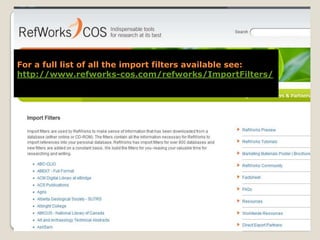
For a full list of all the import filters available see:
http://www.refworks-cos.com/refworks/ImportFilters/
Organising your results
in RefWorks
Now that you have done your research and imported your
references you might want to organise them.
Organising your results in RefWorks

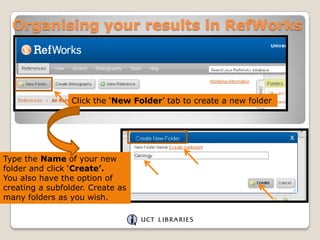
Click the „New Folder‟ tab to create a new folder

Type the Name of your new
folder and click „Create’.
You also have the option of
creating a subfolder. Create as
many folders as you wish.
Organising your results in RefWorks

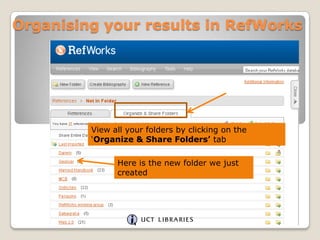
View all your folders by clicking on the
„Organize & Share Folders’ tab

Here is the new folder we just
created
Organising your results in RefWorks

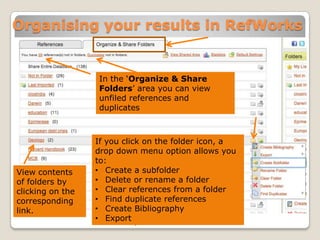
In the „Organize & Share
Folders‟ area you can view
unfiled references and
duplicates

View contents
of folders by
clicking on the
corresponding
link.

If you click on the folder icon, a
drop down menu option allows you
to:
• Create a subfolder
• Delete or rename a folder
• Clear references from a folder
• Find duplicate references
• Create Bibliography
• Export
Organising your results in RefWorks

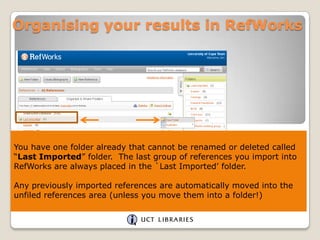
You have one folder already that cannot be renamed or deleted called
“Last Imported” folder. The last group of references you import into
RefWorks are always placed in the `Last Imported‟ folder.
Any previously imported references are automatically moved into the
unfiled references area (unless you move them into a folder!)
Organising your results in RefWorks
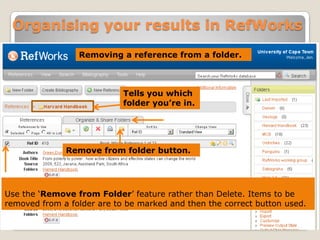
Removing a reference from a folder.

Tells you which
folder you’re in.

Remove from folder button.

Use the „Remove from Folder‟ feature rather than Delete. Items to be
removed from a folder are to be marked and then the correct button used.
How to get your references into
folders
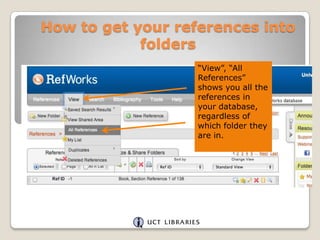
“View”, “All
References”
shows you all the
references in
your database,
regardless of
which folder they
are in.
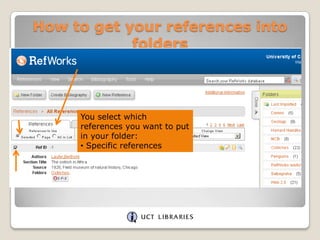
How to get your references into
folders

You select which
references you want to put
in your folder:
• Specific references
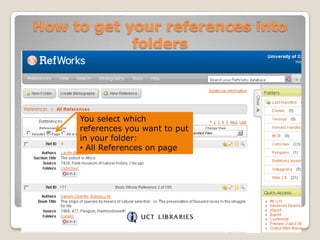
How to get your references into
folders

You select which
references you want to put
in your folder:
• All References on page
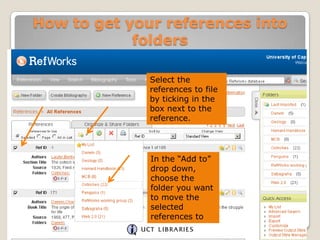
How to get your references into
folders
Select the
references to file
by ticking in the
box next to the
reference.

In the “Add to”
drop down,
choose the
folder you want
to move the
selected
references to
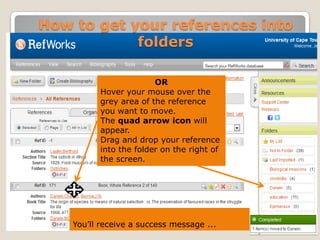
How to get your references into
folders
OR
Hover your mouse over the
grey area of the reference
you want to move.
The quad arrow icon will
appear.
Drag and drop your reference
into the folder on the right of
the screen.

You‟ll receive a success message ...
How to get your references into
folders

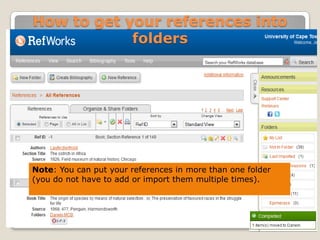
Note: You can put your references in more than one folder
(you do not have to add or import them multiple times).
Generate a
bibliography
“Format a Bibliography from a List of References” allows you to
generate a bibliography (in the output format you choose) based on
all the references in your database, selected references or only
references in a specific folder.
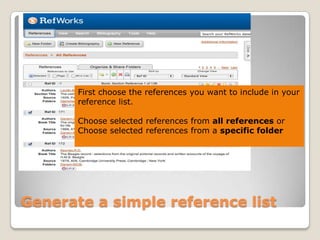
First choose the references you want to include in your
reference list.
Choose selected references from all references or
Choose selected references from a specific folder

Generate a simple reference list
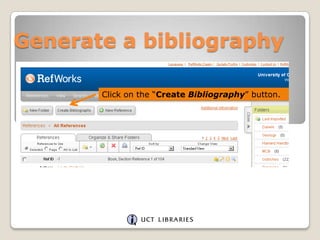
Generate a bibliography
Click on the “Create Bibliography” button.
Generate a bibliography
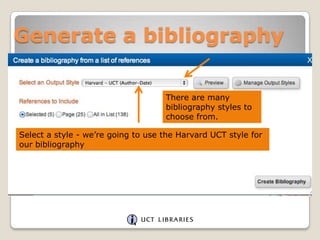
There are many
bibliography styles to
choose from.

Select a style - we‟re going to use the Harvard UCT style for
our bibliography
Generate a bibliography

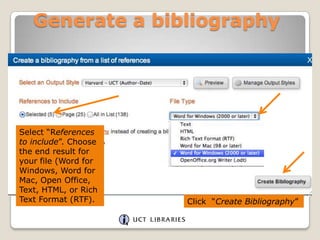
Select “References
to include”. Choose
the end result for
your file (Word for
Windows, Word for
Mac, Open Office,
Text, HTML, or Rich
Text Format (RTF).

Click “Create Bibliography”
Generate a bibliography
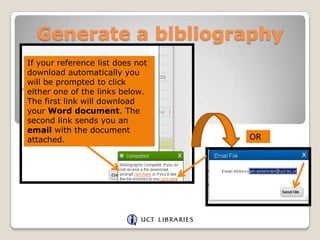
If your reference list does not
download automatically you
will be prompted to click
either one of the links below.
The first link will download
your Word document. The
second link sends you an
email with the document
attached.

OR
Generate a bibliography
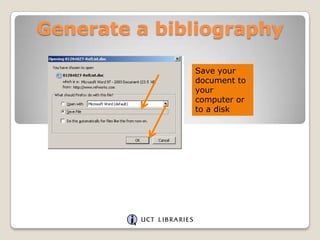
Save your
document to
your
computer or
to a disk
Generate a bibliography

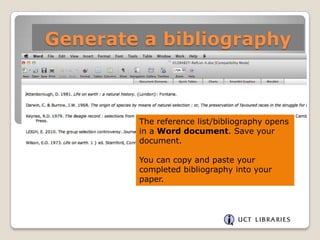
The reference list/bibliography opens
in a Word document. Save your
document.
You can copy and paste your
completed bibliography into your
paper.
Write-N-Cite III

Write-N-Cite allows you to write your paper in Microsoft
Word and insert temporary citation placeholders directly
from RefWorks with the click of a button.
Then Write-N-Cite will create your in text citations and
your bibliography (based on your citation placeholders)
and add it to your paper!
Write-N-Cite

Write-N-Cite requires you to download a small (free)
program that provides access to an abbreviated version of
your RefWorks account while you are working in MS Word.
You won‟t be able to add, edit or delete references, but
you will be able to search, view and cite them.
Write-N-Cite
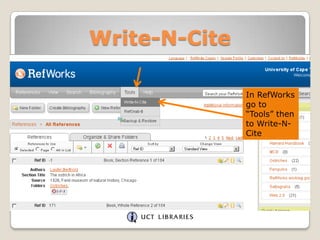
In RefWorks
go to
“Tools” then
to Write-NCite
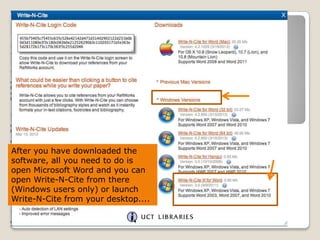
After you have downloaded the
software, all you need to do is
open Microsoft Word and you can
open Write-N-Cite from there
(Windows users only) or launch
Write-N-Cite from your desktop....
Write-N-Cite
Microsoft Word Window

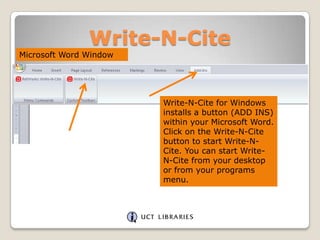
Write-N-Cite for Windows
installs a button (ADD INS)
within your Microsoft Word.
Click on the Write-N-Cite
button to start Write-NCite. You can start WriteN-Cite from your desktop
or from your programs
menu.
Write-N-Cite
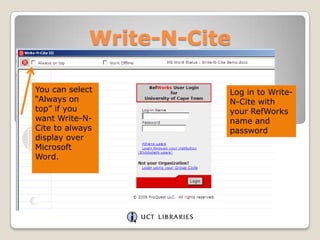
You can select
“Always on
top” if you
want Write-NCite to always
display over
Microsoft
Word.

Log in to WriteN-Cite with
your RefWorks
name and
password
Write-N-Cite
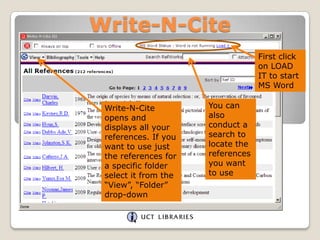
First click
on LOAD
IT to start
MS Word
Write-N-Cite
opens and
displays all your
references. If you
want to use just
the references for
a specific folder
select it from the
“View”, “Folder”
drop-down

You can
also
conduct a
search to
locate the
references
you want
to use
Write-N-Cite
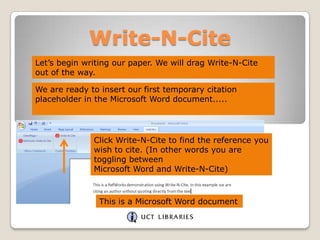
Let‟s begin writing our paper. We will drag Write-N-Cite
out of the way.
We are ready to insert our first temporary citation
placeholder in the Microsoft Word document.....

Click Write-N-Cite to find the reference you
wish to cite. (In other words you are
toggling between
Microsoft Word and Write-N-Cite)

This is a Microsoft Word document
Write-N-Cite
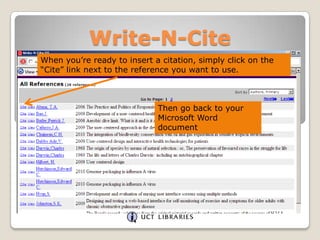
When you‟re ready to insert a citation, simply click on the
“Cite” link next to the reference you want to use.

Then go back to your
Microsoft Word
document
Write-N-Cite
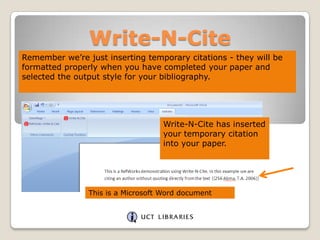
Remember we‟re just inserting temporary citations - they will be
formatted properly when you have completed your paper and
selected the output style for your bibliography.

Write-N-Cite has inserted
your temporary citation
into your paper.

This is a Microsoft Word document
Write-N-Cite

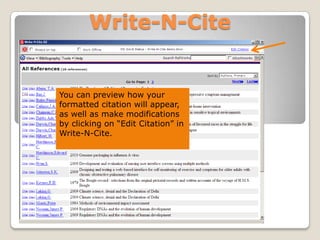
You can preview how your
formatted citation will appear,
as well as make modifications
by clicking on “Edit Citation” in
Write-N-Cite.
Write-N-Cite
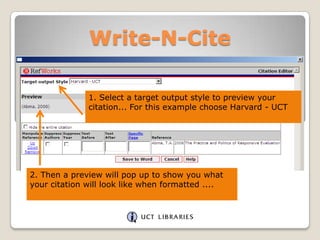
1. Select a target output style to preview your
citation... For this example choose Harvard - UCT

2. Then a preview will pop up to show you what
your citation will look like when formatted ....
Write-N-Cite

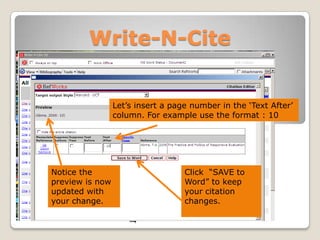
Let‟s insert a page number in the „Text After‟
column. For example use the format : 10

Notice the
preview is now
updated with
your change.

Click “SAVE to
Word” to keep
your citation
changes.
Write-N-Cite

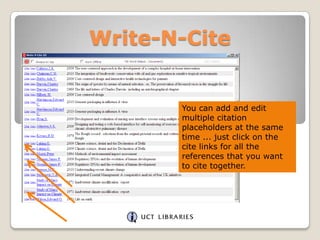
You can add and edit
multiple citation
placeholders at the same
time ... just click on the
cite links for all the
references that you want
to cite together.
Write-N-Cite
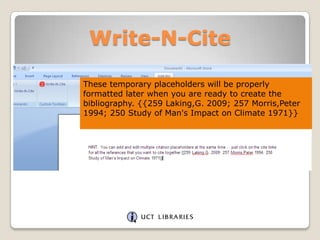
These temporary placeholders will be properly
formatted later when you are ready to create the
bibliography. {{259 Laking,G. 2009; 257 Morris,Peter
1994; 250 Study of Man's Impact on Climate 1971}}
Write-N-Cite
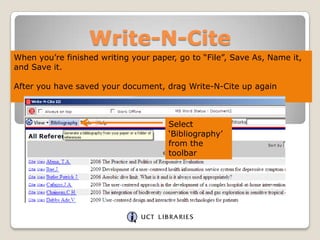
When you‟re finished writing your paper, go to “File”, Save As, Name it,
and Save it.
After you have saved your document, drag Write-N-Cite up again

Select
„Bibliography‟
from the
toolbar
Write-N-Cite
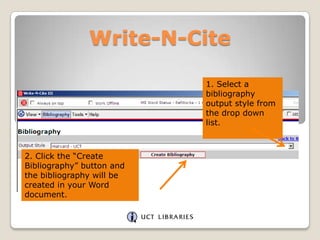
1. Select a
bibliography
output style from
the drop down
list.

2. Click the “Create
Bibliography” button and
the bibliography will be
created in your Word
document.
Write-N-Cite

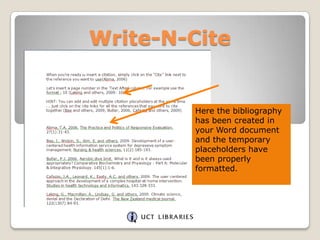
Here the bibliography
has been created in
your Word document
and the temporary
placeholders have
been properly
formatted.
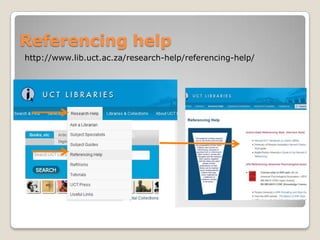
Referencing help
http://www.lib.uct.ac.za/research-help/referencing-help/
http://libguides.lib.uct.ac.za/refworks-referencing

Referencing
help
THANK YOU!
Jen.Eidelman@uct.ac.za

Introducing RefWorks training 2014

  • 1.
    REFWORKS Presented and compiledby Jen Eidelman http://www.lib.uct.ac.za/ Email: jen.eidelman@uct.ac.za Ph: 021 650 2773 This work is licensed under a Creative Commons AttributionNonCommercial-ShareAlike 3.0 Unported License.
  • 2.
    What will Ilearn today? 1. RefWorks: • • • • • • How to find RefWorks HELP How to create an account in RefWorks Direct export citations from 2 databases Create a folder Create a bibliography from a list of references Create a bibliography using Write-N-Cite 2. UCT Harvard Referencing Style • • • • Where to find referencing HELP from the library page Books Journal Articles Web pages
  • 3.
    Introducing RefWorks Why useRefWorks? • Create a personal database accessible from any computer linked to the Internet without having to download or install special software; • Import and store an unlimited number of references from databases–search results from a wide variety of databases can be automatically exported into RefWorks with the click of a button; • Organize and manage references–sort and file references quickly and easily using folders; • Search references by keyword, author, journal title; • Use Write-N-Cite together with MS Word to automatically insert in-text citations into documents and create bibliographies in the citation style of your choice.
  • 4.
    Introducing RefWorks Finding help Goto: http://www.lib.uct.ac.za
  • 5.
    Introducing RefWorks -Finding help http://libguides.lib.uct.ac.za/refworks Click on the page tabs above * to access instructional slideshows. Click on these links * for instructional material from RefWorks.
  • 6.
  • 7.
  • 8.
    This is theHelpFile in RefWorks
  • 9.
    For a greatinstructional tour guide around RefWorks 2.0 go to: http://www.refworks-cos.com/refworks/rwpreview/RefWorks_New_UI_demo.htm
  • 10.
    Create a RefWorksaccount at UCT Libraries 1. Go to: http://www.lib.uct.ac.za 2. Go to „Research Help‟ and then click on „RefWorks‟ / „Access RefWorks‟ (Please remember that if you are not on campus click the OFF CAMPUS LOGIN button to login to the library resources before you login to RefWorks.)
  • 11.
    Create a RefWorksaccount at UCT Libraries Log in to RefWorks Or sign up for a new account
  • 12.
    Create a RefWorksaccount at UCT Libraries
  • 13.
    Create a RefWorksaccount at UCT Libraries Sign up for a new account
  • 14.
    Login to RefWorksat UCT Libraries Login to RefWorks
  • 15.
    HOW DO WEGET REFERENCES INTO REFWORKS?  Import directly from certain online databases (see: http://libguides.lib.uct.ac.za/refworks-direct-export  Import text files containing references from online databases (see: http://libguides.lib.uct.ac.za/refworks-text-files  Manually enter the reference (see: http://libguides.lib.uct.ac.za/refworks-manual-entry  Use ‘RefGrab It’ to import information from a website. (see:  Searching online catalogues within RefWorks and importing them into RefWorks. (see:  http://libguides.lib.uct.ac.za/refworks-refgrabit) http://libguides.lib.uct.ac.za/refworks-search-online-catalogues) Rss Feeds (see: http://libguides.lib.uct.ac.za/refworks-rss-feeds)
  • 16.
    Direct Export toRefWorks from a Database Using Web of Science as an example
  • 17.
    Get references intoRefWorks DIRECT Export method http://www.lib.uct.ac.za From „Search & Find‟ choose Databases
  • 18.
    Get references intoRefWorks DIRECT Export method CHOOSE WEB OF SCIENCE
  • 19.
    Web of Science Getreferences into RefWorks – Direct export Change drop down menu to topic Change timespan to limit your search to specific years
  • 20.
    Web of Science Getreferences into RefWorks – Direct export Tick the box. Export the information (bibliographic details) to RefWorks
  • 21.
    Web of Science Getreferences into RefWorks – Direct export • From the drop down menu, choose the information you wish to send to RefWorks. • Click SEND
  • 22.
    Get references intoRefWorks Imported from a Database
  • 23.
    Get references intoRefWorks Imported from a Database
  • 24.
    Get references intoRefWorks Imported from a Database
  • 25.
    Save a referencefrom a database search. Attach the file in RefWorks. Use SFX to check availability of full text access. Attach your saved full text reference to the reference in RefWorks
  • 26.
    Web of Science Savea full text reference - SFX Click on FULL TEXT and then SFX
  • 27.
    Web of Science Savea full text reference - SFX SFX will tell you if the article is available in full text or not. The full text is available from ScienceDirect Click on the GO button. There is also a link here to the library catalogue (ALEPH) if you want to see if the print version is available.
  • 28.
    Web of Science Savea full text reference Click on Download PDF to get the full text.
  • 29.
    Web of Science– Save the article Save the article to your computer
  • 30.
    Web of Science ATTACHa file to a reference in RefWorks Click on the EDIT icon
  • 31.
    ATTACH a fileto a reference in RefWorks Browse for the file you just saved on your computer
  • 32.
    • Browse forthe file you just saved on your computer • Click Open
  • 33.
    PDF is nowattached to this reference Click „Save Reference‟
  • 34.
    • A paperclip icon is now displayed in this reference to indicate that there is an attachment • Hover the mouse over the icon and click on the name of the file to read the full text
  • 35.
    Direct Export toRefWorks from a Database Using GeoRef via EBSCOHost as an example
  • 36.
    Get references intoRefWorks DIRECT Export method Choose GeoRef – via EBSCOHost
  • 37.
  • 38.
  • 39.
    GEOREF – Exportto RefWorks Click on the title of the article to open the full view
  • 40.
  • 41.
    GEOREF – Exportto RefWorks Select the „Direct export to RefWorks‟ button Then click „Save‟ This action will export the information (bibliographic details) to RefWorks
  • 42.
    Importing to RefWorksfrom a Database
  • 43.
  • 44.
    Importing to RefWorksfrom a Database
  • 45.
    DIRECT Export For afull list of all the Direct Export partners available see: http://www.refworks-cos.com/refworks/DEPartners/
  • 46.
    For a fulllist of all the import filters available see: http://www.refworks-cos.com/refworks/ImportFilters/
  • 47.
    Organising your results inRefWorks Now that you have done your research and imported your references you might want to organise them.
  • 48.
    Organising your resultsin RefWorks Click the „New Folder‟ tab to create a new folder Type the Name of your new folder and click „Create’. You also have the option of creating a subfolder. Create as many folders as you wish.
  • 49.
    Organising your resultsin RefWorks View all your folders by clicking on the „Organize & Share Folders’ tab Here is the new folder we just created
  • 50.
    Organising your resultsin RefWorks In the „Organize & Share Folders‟ area you can view unfiled references and duplicates View contents of folders by clicking on the corresponding link. If you click on the folder icon, a drop down menu option allows you to: • Create a subfolder • Delete or rename a folder • Clear references from a folder • Find duplicate references • Create Bibliography • Export
  • 51.
    Organising your resultsin RefWorks You have one folder already that cannot be renamed or deleted called “Last Imported” folder. The last group of references you import into RefWorks are always placed in the `Last Imported‟ folder. Any previously imported references are automatically moved into the unfiled references area (unless you move them into a folder!)
  • 52.
    Organising your resultsin RefWorks Removing a reference from a folder. Tells you which folder you’re in. Remove from folder button. Use the „Remove from Folder‟ feature rather than Delete. Items to be removed from a folder are to be marked and then the correct button used.
  • 53.
    How to getyour references into folders “View”, “All References” shows you all the references in your database, regardless of which folder they are in.
  • 54.
    How to getyour references into folders You select which references you want to put in your folder: • Specific references
  • 55.
    How to getyour references into folders You select which references you want to put in your folder: • All References on page
  • 56.
    How to getyour references into folders Select the references to file by ticking in the box next to the reference. In the “Add to” drop down, choose the folder you want to move the selected references to
  • 57.
    How to getyour references into folders OR Hover your mouse over the grey area of the reference you want to move. The quad arrow icon will appear. Drag and drop your reference into the folder on the right of the screen. You‟ll receive a success message ...
  • 58.
    How to getyour references into folders Note: You can put your references in more than one folder (you do not have to add or import them multiple times).
  • 59.
    Generate a bibliography “Format aBibliography from a List of References” allows you to generate a bibliography (in the output format you choose) based on all the references in your database, selected references or only references in a specific folder.
  • 60.
    First choose thereferences you want to include in your reference list. Choose selected references from all references or Choose selected references from a specific folder Generate a simple reference list
  • 61.
    Generate a bibliography Clickon the “Create Bibliography” button.
  • 62.
    Generate a bibliography Thereare many bibliography styles to choose from. Select a style - we‟re going to use the Harvard UCT style for our bibliography
  • 63.
    Generate a bibliography Select“References to include”. Choose the end result for your file (Word for Windows, Word for Mac, Open Office, Text, HTML, or Rich Text Format (RTF). Click “Create Bibliography”
  • 64.
    Generate a bibliography Ifyour reference list does not download automatically you will be prompted to click either one of the links below. The first link will download your Word document. The second link sends you an email with the document attached. OR
  • 65.
    Generate a bibliography Saveyour document to your computer or to a disk
  • 66.
    Generate a bibliography Thereference list/bibliography opens in a Word document. Save your document. You can copy and paste your completed bibliography into your paper.
  • 67.
    Write-N-Cite III Write-N-Cite allowsyou to write your paper in Microsoft Word and insert temporary citation placeholders directly from RefWorks with the click of a button. Then Write-N-Cite will create your in text citations and your bibliography (based on your citation placeholders) and add it to your paper!
  • 68.
    Write-N-Cite Write-N-Cite requires youto download a small (free) program that provides access to an abbreviated version of your RefWorks account while you are working in MS Word. You won‟t be able to add, edit or delete references, but you will be able to search, view and cite them.
  • 69.
  • 70.
    After you havedownloaded the software, all you need to do is open Microsoft Word and you can open Write-N-Cite from there (Windows users only) or launch Write-N-Cite from your desktop....
  • 71.
    Write-N-Cite Microsoft Word Window Write-N-Citefor Windows installs a button (ADD INS) within your Microsoft Word. Click on the Write-N-Cite button to start Write-NCite. You can start WriteN-Cite from your desktop or from your programs menu.
  • 72.
    Write-N-Cite You can select “Alwayson top” if you want Write-NCite to always display over Microsoft Word. Log in to WriteN-Cite with your RefWorks name and password
  • 73.
    Write-N-Cite First click on LOAD ITto start MS Word Write-N-Cite opens and displays all your references. If you want to use just the references for a specific folder select it from the “View”, “Folder” drop-down You can also conduct a search to locate the references you want to use
  • 74.
    Write-N-Cite Let‟s begin writingour paper. We will drag Write-N-Cite out of the way. We are ready to insert our first temporary citation placeholder in the Microsoft Word document..... Click Write-N-Cite to find the reference you wish to cite. (In other words you are toggling between Microsoft Word and Write-N-Cite) This is a Microsoft Word document
  • 75.
    Write-N-Cite When you‟re readyto insert a citation, simply click on the “Cite” link next to the reference you want to use. Then go back to your Microsoft Word document
  • 76.
    Write-N-Cite Remember we‟re justinserting temporary citations - they will be formatted properly when you have completed your paper and selected the output style for your bibliography. Write-N-Cite has inserted your temporary citation into your paper. This is a Microsoft Word document
  • 77.
    Write-N-Cite You can previewhow your formatted citation will appear, as well as make modifications by clicking on “Edit Citation” in Write-N-Cite.
  • 78.
    Write-N-Cite 1. Select atarget output style to preview your citation... For this example choose Harvard - UCT 2. Then a preview will pop up to show you what your citation will look like when formatted ....
  • 79.
    Write-N-Cite Let‟s insert apage number in the „Text After‟ column. For example use the format : 10 Notice the preview is now updated with your change. Click “SAVE to Word” to keep your citation changes.
  • 80.
    Write-N-Cite You can addand edit multiple citation placeholders at the same time ... just click on the cite links for all the references that you want to cite together.
  • 81.
    Write-N-Cite These temporary placeholderswill be properly formatted later when you are ready to create the bibliography. {{259 Laking,G. 2009; 257 Morris,Peter 1994; 250 Study of Man's Impact on Climate 1971}}
  • 82.
    Write-N-Cite When you‟re finishedwriting your paper, go to “File”, Save As, Name it, and Save it. After you have saved your document, drag Write-N-Cite up again Select „Bibliography‟ from the toolbar
  • 83.
    Write-N-Cite 1. Select a bibliography outputstyle from the drop down list. 2. Click the “Create Bibliography” button and the bibliography will be created in your Word document.
  • 84.
    Write-N-Cite Here the bibliography hasbeen created in your Word document and the temporary placeholders have been properly formatted.
  • 85.
  • 86.
  • 87.