Welcome to the Library! 
MUS 601 
Baumgartner 
Sept. 3rd, 2014 6pm
Overview 
 RefWorks 
 Scores/Books 
 Articles 
 Evaluating 
sources 
 Creating a 
Bibliography 
 Work time
Setting up RefWorks 
 From the Library homepage, click on 
RefWorks. 
 Under Information for First Time Users, 
click on "Login to RefWorks". 
 Click on Sign up for a New Account. 
 Fill in form on the Left, choosing your own 
user name and password. 
 You must include an e-mail address.
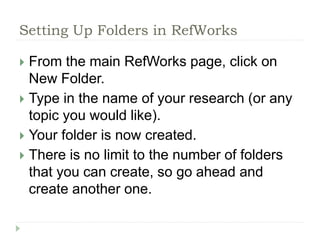
Setting Up Folders in RefWorks 
 From the main RefWorks page, click on 
New Folder. 
 Type in the name of your research (or any 
topic you would like). 
 Your folder is now created. 
 There is no limit to the number of folders 
that you can create, so go ahead and 
create another one.
Format
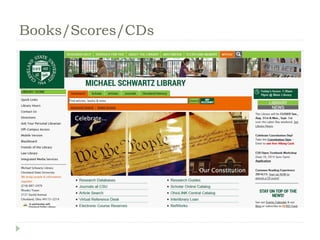
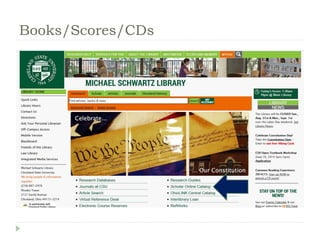
Books/Scores/CDs
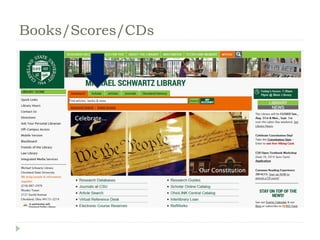
Books/Scores/CDs
Books/Scores/CDs
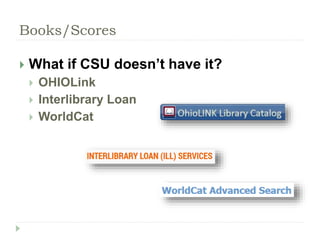
Books/Scores 
 What if CSU doesn’t have it? 
 OHIOLink 
 Interlibrary Loan 
 WorldCat
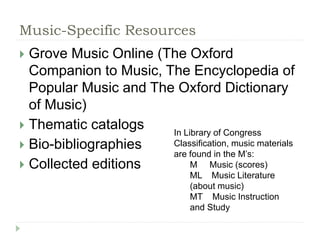
Music-Specific Resources 
 Grove Music Online (The Oxford 
Companion to Music, The Encyclopedia of 
Popular Music and The Oxford Dictionary 
of Music) 
 Thematic catalogs 
 Bio-bibliographies 
 Collected editions 
In Library of Congress 
Classification, music materials 
are found in the M’s: 
M Music (scores) 
ML Music Literature 
(about music) 
MT Music Instruction 
and Study
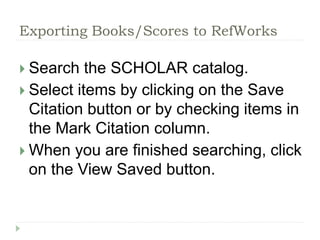
Exporting Books/Scores to RefWorks 
 Search the SCHOLAR catalog. 
 Select items by clicking on the Save 
Citation button or by checking items in 
the Mark Citation column. 
 When you are finished searching, click 
on the View Saved button.
Exporting Books/Scores to RefWorks 
 Select End-Note/RefWorks under 
Format of List. 
 Select Local Disk under Send List To. 
 Mark the citations to export under Your 
List of Saved Records. 
 Click on the Submit button. 
 Click on Save File in the Opening 
export.txt box. Save the document as 
a Text (.txt) File.
Exporting Books/Scores to RefWorks 
 Go to RefWorks. 
 Under References, click on Import. 
 For Import Filter/Data Source, select 
Cleveland State University. 
 For Database, select Cleveland State 
University [innovative interfaces 
(Endnote/RefWorks Format)].
Exporting Books/Scores to RefWorks 
 Under Import Data from the following 
Text File, click on Browse to locate the 
file, select the file and 
 click on Open, and then click on 
Import. 
 On the next screen, click on View Last 
Imported Folder.
Exporting Books/Scores to RefWorks 
 Click on Edit to add missing 
information if necessary. 
 Select citations, select the folder 
where you want to add then and then 
remove them from the Last Imported 
Folder.
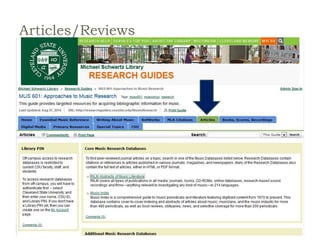
Articles/Reviews
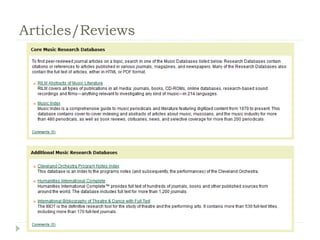
Articles/Reviews
Articles/Reviews
Articles/Reviews 
 Evaluate your sources 
 Who wrote this? What are his/her 
credentials? 
 What is this article about? Look at the 
abstract and subject headings. 
 When was this published? 
 Where was this published? What kind of 
journal is this published in? Is it peer-reviewed? 
 Why was this published? What is the 
underlying purpose of this article?
Articles/Reviews 
 Evaluate your sources 
 Who wrote this? What are his/her credentials? 
 CLUES: 
 What else has he/she published? 
 Google search 
 Affiliations
Articles/Reviews 
 Evaluate your sources 
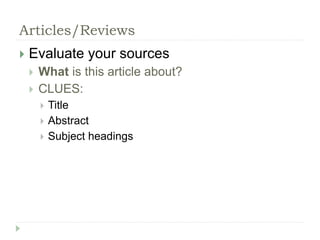
 What is this article about? 
 CLUES: 
 Title 
 Abstract 
 Subject headings
Articles/Reviews 
 Evaluate your sources 
 When was this published? 
 CLUES: 
 Date
Articles/Reviews 
 Evaluate your sources 
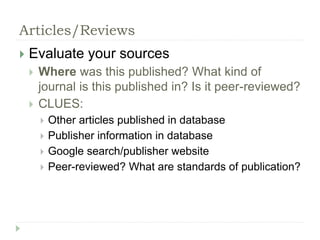
 Where was this published? What kind of 
journal is this published in? Is it peer-reviewed? 
 CLUES: 
 Other articles published in database 
 Publisher information in database 
 Google search/publisher website 
 Peer-reviewed? What are standards of publication?
Articles/Reviews 
 Evaluate your sources 
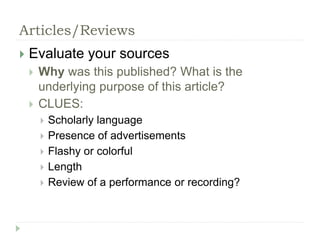
 Why was this published? What is the 
underlying purpose of this article? 
 CLUES: 
 Scholarly language 
 Presence of advertisements 
 Flashy or colorful 
 Length 
 Review of a performance or recording?
Evaluating Sources Activity 
 If you haven’t chosen a topic for your 
assignment yet, choose a tentative one for 
this exercise. 
 Use the music databases to find an article 
and evaluate it using the standards we just 
discussed. In your evaluations, assume 
you are using the article to support class-related 
research. 
 Ask Ms. Mandi questions if you need to!
Creating a Bibliography in RefWorks 
 Click the button for Create Bibliography or 
click the tab for Bibliography and then click 
on Create. 
 Select an output style--the style guide that 
you require, or a specific journal. 
 Under Format a Bibliography from a List of 
References, select the File type (probably 
Word for Windows).
Creating a Bibliography in RefWorks 
 For the drop-down menu for References to 
Include, select one of your folders to use for 
the bibliography. 
 Click Create Bibliography. 
 A small window opens in the lower right 
corner of your screen with a download 
prompt. 
 Follow the click here prompt to view your 
bibliography. 
 Check the bibliography for errors and then 
save the bibliography. Copy and paste to the 
end of your paper, unless you are using 
Write-N-Cite.
Questions? 
Mandi Goodsett 
a.goodsett@csuohio.ed 
u 
216-802-3362

MUS 601: Approaches to Music Research

  • 1.
    Welcome to theLibrary! MUS 601 Baumgartner Sept. 3rd, 2014 6pm
  • 2.
    Overview  RefWorks  Scores/Books  Articles  Evaluating sources  Creating a Bibliography  Work time
  • 3.
    Setting up RefWorks  From the Library homepage, click on RefWorks.  Under Information for First Time Users, click on "Login to RefWorks".  Click on Sign up for a New Account.  Fill in form on the Left, choosing your own user name and password.  You must include an e-mail address.
  • 4.
    Setting Up Foldersin RefWorks  From the main RefWorks page, click on New Folder.  Type in the name of your research (or any topic you would like).  Your folder is now created.  There is no limit to the number of folders that you can create, so go ahead and create another one.
  • 5.
  • 6.
  • 7.
  • 8.
  • 9.
    Books/Scores  Whatif CSU doesn’t have it?  OHIOLink  Interlibrary Loan  WorldCat
  • 10.
    Music-Specific Resources Grove Music Online (The Oxford Companion to Music, The Encyclopedia of Popular Music and The Oxford Dictionary of Music)  Thematic catalogs  Bio-bibliographies  Collected editions In Library of Congress Classification, music materials are found in the M’s: M Music (scores) ML Music Literature (about music) MT Music Instruction and Study
  • 11.
    Exporting Books/Scores toRefWorks  Search the SCHOLAR catalog.  Select items by clicking on the Save Citation button or by checking items in the Mark Citation column.  When you are finished searching, click on the View Saved button.
  • 12.
    Exporting Books/Scores toRefWorks  Select End-Note/RefWorks under Format of List.  Select Local Disk under Send List To.  Mark the citations to export under Your List of Saved Records.  Click on the Submit button.  Click on Save File in the Opening export.txt box. Save the document as a Text (.txt) File.
  • 13.
    Exporting Books/Scores toRefWorks  Go to RefWorks.  Under References, click on Import.  For Import Filter/Data Source, select Cleveland State University.  For Database, select Cleveland State University [innovative interfaces (Endnote/RefWorks Format)].
  • 14.
    Exporting Books/Scores toRefWorks  Under Import Data from the following Text File, click on Browse to locate the file, select the file and  click on Open, and then click on Import.  On the next screen, click on View Last Imported Folder.
  • 15.
    Exporting Books/Scores toRefWorks  Click on Edit to add missing information if necessary.  Select citations, select the folder where you want to add then and then remove them from the Last Imported Folder.
  • 16.
  • 17.
  • 18.
  • 19.
    Articles/Reviews  Evaluateyour sources  Who wrote this? What are his/her credentials?  What is this article about? Look at the abstract and subject headings.  When was this published?  Where was this published? What kind of journal is this published in? Is it peer-reviewed?  Why was this published? What is the underlying purpose of this article?
  • 20.
    Articles/Reviews  Evaluateyour sources  Who wrote this? What are his/her credentials?  CLUES:  What else has he/she published?  Google search  Affiliations
  • 21.
    Articles/Reviews  Evaluateyour sources  What is this article about?  CLUES:  Title  Abstract  Subject headings
  • 22.
    Articles/Reviews  Evaluateyour sources  When was this published?  CLUES:  Date
  • 23.
    Articles/Reviews  Evaluateyour sources  Where was this published? What kind of journal is this published in? Is it peer-reviewed?  CLUES:  Other articles published in database  Publisher information in database  Google search/publisher website  Peer-reviewed? What are standards of publication?
  • 24.
    Articles/Reviews  Evaluateyour sources  Why was this published? What is the underlying purpose of this article?  CLUES:  Scholarly language  Presence of advertisements  Flashy or colorful  Length  Review of a performance or recording?
  • 25.
    Evaluating Sources Activity  If you haven’t chosen a topic for your assignment yet, choose a tentative one for this exercise.  Use the music databases to find an article and evaluate it using the standards we just discussed. In your evaluations, assume you are using the article to support class-related research.  Ask Ms. Mandi questions if you need to!
  • 26.
    Creating a Bibliographyin RefWorks  Click the button for Create Bibliography or click the tab for Bibliography and then click on Create.  Select an output style--the style guide that you require, or a specific journal.  Under Format a Bibliography from a List of References, select the File type (probably Word for Windows).
  • 27.
    Creating a Bibliographyin RefWorks  For the drop-down menu for References to Include, select one of your folders to use for the bibliography.  Click Create Bibliography.  A small window opens in the lower right corner of your screen with a download prompt.  Follow the click here prompt to view your bibliography.  Check the bibliography for errors and then save the bibliography. Copy and paste to the end of your paper, unless you are using Write-N-Cite.
  • 28.
    Questions? Mandi Goodsett a.goodsett@csuohio.ed u 216-802-3362

Editor's Notes

  • #9 Basics: icons, 3 most imp. things