MikroTik Certified Network Associate
(MTCNA)
Laval, Canada
January 1st to 3rd, 2013
2013-01-01 1
Why take the MTCNA course?
•Introduction to RouterOS and
RouterBOARD products.
•Gives you an overview of what that can be
done with RouterOS and RouterBOARD
products.
•Will give you a solid foundation and
valuable tools to do your work.
2013-01-01 2
Course objectives
At the end of this course, the student will:
•Be familiar with RouterOS software and
RouterBoard products
•Be able to configure, manage, do basic
troubleshooting of a MikroTik router
•Be able to provide basic services to clients
2013-01-01 3
About the trainer
•A
•B
•C
2013-01-01 4
Schedule
•Typical day (3 of them)
–9h00 to 17h00
•30 minute breaks
–10h30 and 15h00
•Lunch break
–11h30 to 12h30
•Exam
–On last day, 1 hour duration
2013-01-01 5
House keeping
•Emergency exits
•Dress code
•Food and drinks while in class
•This course is based on RouterOS 6 and
RB951-2n
–Module 1 is based on ROS 5.25
2013-01-01 6
Various
Out of respect for the other students and the
trainer:
•Put you cell phone and other business tools
on vibration mode
•Take your calls outside the classroom
2013-01-01 7
Module 1
Introduction
2013-01-01 8
RouterOS and RouterBoard
2013-01-01 9
What is RouterOS?
•MikroTik RouterOS is the operating system
of MikroTik RouterBOARD hardware.
•It has all the necessary features for an ISP
or network administrator such as routing,
firewall, bandwidth management, wireless
access point, backhaul link, hotspot
gateway, VPN server and more.
2013-01-01 10
What is RouterOS?
•RouterOS is a stand-alone operating
system based on the Linux v3.3.5 kernel
and provides all the functions in a quick and
simple installation and with an easy to use
interface
2013-01-01 11
What is RouterBOARD?
•A family of hardware solutions created by
MikroTik to answer the needs of customers
around the world.
•All operate with RouterOS.
routerboard.com or
2013-01-01 12
Integrated Solutions
•These products are provided complete with
cases and power adapters.
•Ready to use and preconfigured with the
most basic functionality.
•All you need to do is to plug it in and
connect to the Internet or a corporate
network.
2013-01-01 13
RouterBOARD (boards only)
•Small motherboard devices that are sold
“as is”. You must choose the case, power
adapter and interfaces separately. Perfect
for assembling your own systems as they
offer the biggest customization options.
2013-01-01 14
Enclosures
•Indoor and outdoor casings to house your
RouterBOARD devices. Select based on:
–intended location of use
–the RouterBOARD model
–the type of connections needed (USB,
antennas, etc.).
2013-01-01 15
Interfaces
•Ethernet modules, fiber SFPs or wireless
radio cards to expand the functionality of
RouterBOARD devices and PCs running
RouterOS.
•Once again, selection is based on your
needs.
2013-01-01 16
Accessories
•These devices are made for MikroTik
products - power adapters, mounts,
antennas and PoE injectors.
2013-01-01 17
MFM
•With the MFM (Made for Mikrotik) program,
3rd party options make creating your router
even better!
2013-01-01 18
Why get an integrated router?
•Can address many needs
•Some add-on options
•Little to no expansion
•Fixed configuration
•Simple, yet solid solution for many needs
2013-01-01 19
Integrated router, examples
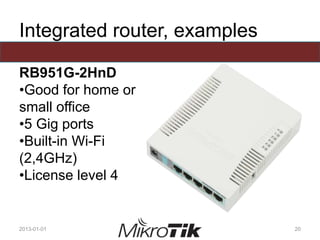
RB951G-2HnD
•Good for home or
small office
•5 Gig ports
•Built-in Wi-Fi
(2,4GHz)
•License level 4
2013-01-01 20
Integrated router, examples
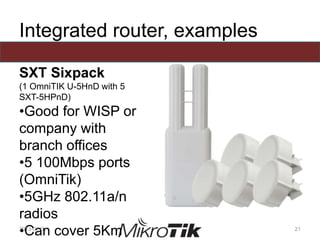
SXT Sixpack
(1 OmniTIK U-5HnD with 5
SXT-5HPnD)
•Good for WISP or
company with
branch offices
•5 100Mbps ports
(OmniTik)
•5GHz 802.11a/n
radios
•Can cover 5Km2013-01-01 21
Integrated router, examples
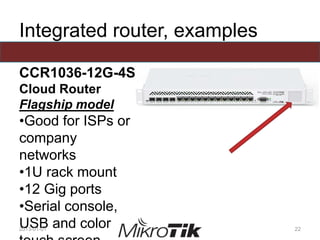
CCR1036-12G-4S
Cloud Router
Flagship model
•Good for ISPs or
company
networks
•1U rack mount
•12 Gig ports
•Serial console,
USB and color2013-01-01 22
Note of interest
•Router names are selected according to
feature set. Here are some examples:
–CCR : Cloud Core Router
–RB : RouterBoard
–2, 5 : 2,4GHZ or 5GHz wifi radio
–H : High powered radio
–S : SFP
–U : USB
–i : Injector
–G : Gigabit ethernet
2013-01-01 23
Why build your own router?
•Can address a greater variety of needs
•Many add-on options / Lots of expansion
•Customizable configuration
•Can be integrated into client equipment or
cabinet
•More complete solution for particular needs
2013-01-01 24
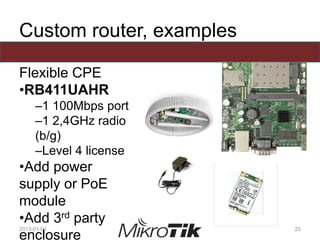
Custom router, examples
Flexible CPE
•RB411UAHR
–1 100Mbps port
–1 2,4GHz radio
(b/g)
–Level 4 license
•Add power
supply or PoE
module
•Add 3rd party
enclosure
2013-01-01 25
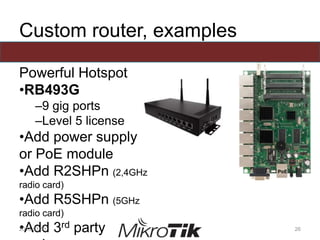
Custom router, examples
Powerful Hotspot
•RB493G
–9 gig ports
–Level 5 license
•Add power supply
or PoE module
•Add R2SHPn (2,4GHz
radio card)
•Add R5SHPn (5GHz
radio card)
•Add 3rd party2013-01-01 26
First time accessing the router
2013-01-01 27
Internet browser
•Intuitive way of connecting to a RouterOS
router.
2013-01-01 28
Internet browser
•Connect to router with Ethernet cable
•Launch browser
•Type in the IP address
•If asked for, log in. Username is “admin”
and password is blank
2013-01-01 29
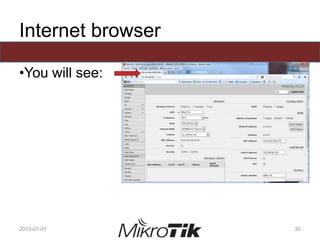
Internet browser
•You will see:
2013-01-01 30
WinBox and MAC-Winbox
•WinBox is MikroTik’s proprietary interface to
access RouterOS routers.
•It can be downloaded from MikroTik’s
website or from the router.
•It is used to access the router through IP
(OSI layer 3) or MAC (OSI layer 2).
2013-01-01 31
WinBox and MAC-Winbox
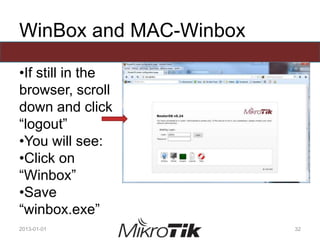
•If still in the
browser, scroll
down and click
“logout”
•You will see:
•Click on
“Winbox”
•Save
“winbox.exe”
2013-01-01 32
WinBox and MAC-WinBox
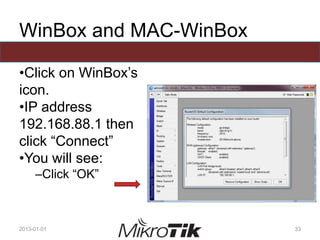
•Click on WinBox’s
icon.
•IP address
192.168.88.1 then
click “Connect”
•You will see:
–Click “OK”
2013-01-01 33
WinBox’s menus
•Take 5 minutes to go through the menus
•Take special notice of:
–IP  Addresses
–IP  Routes
–System  SNTP
–System  Packages
–System  Routerboard
2013-01-01 34
Console port
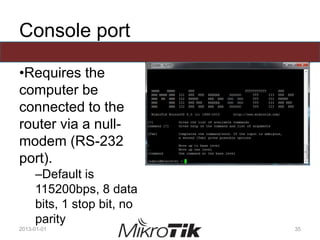
•Requires the
computer be
connected to the
router via a null-
modem (RS-232
port).
–Default is
115200bps, 8 data
bits, 1 stop bit, no
parity
2013-01-01 35
SSH and Telnet
•Standard IP tools to access router
•Telnet communications are in clear text
–Available on most Operating Systems
–Unsecured!!
•SSH communications are encrypted
–Secured!!
–Many Open Source (free) tools available such
as PuTTY (http://www.putty.org/)
2013-01-01 36
CLI
•Stands for Command Line Interface
•It’s what you see when you use the console
port, SSH, Telnet, or New Terminal (inside
Winbox)
•A must know if you plan to use scripts or
automate tasks!
2013-01-01 37
Initial configuration (Internet
access)
2013-01-01 38
Basic or blank configuration?
•You may or may not have a basic
configuration when freshly installed
•You may choose not to take the default
basic configuration
•Check the following web page to find out
how your device will behave:
–http://wiki.mikrotik.com/wiki/Manual:Default_Configurations
2013-01-01 39
Basic configuration
•Depending on your hardware, you will have
a default setup, which may include:
–WAN port
–LAN port(s)
–DHCP client (WAN) and server (LAN)
–Basic firewall rules
–NAT rule
–Default LAN IP address
2013-01-01 40
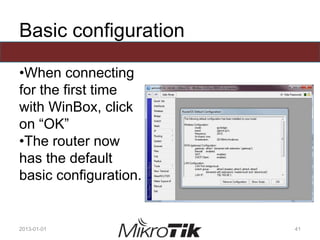
Basic configuration
•When connecting
for the first time
with WinBox, click
on “OK”
•The router now
has the default
basic configuration.
2013-01-01 41
Blank configuration
•Can be used in situations when the default
basic configuration is not required.
–No need for firewall rules
–No need for NATing
2013-01-01 42
Blank configuration
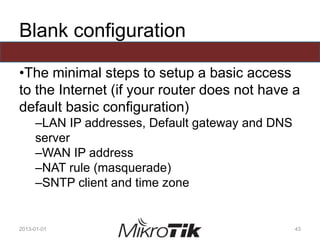
•The minimal steps to setup a basic access
to the Internet (if your router does not have a
default basic configuration)
–LAN IP addresses, Default gateway and DNS
server
–WAN IP address
–NAT rule (masquerade)
–SNTP client and time zone
2013-01-01 43
Upgrading the router
2013-01-01 44
When to upgrade
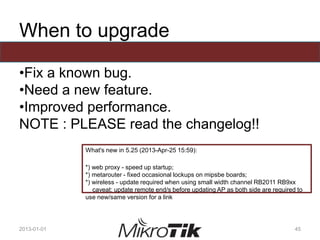
•Fix a known bug.
•Need a new feature.
•Improved performance.
NOTE : PLEASE read the changelog!!
2013-01-01 45
What's new in 5.25 (2013-Apr-25 15:59):
*) web proxy - speed up startup;
*) metarouter - fixed occasional lockups on mipsbe boards;
*) wireless - update required when using small width channel RB2011 RB9xx
caveat: update remote end/s before updating AP as both side are required to
use new/same version for a link
The procedure
•It requires planning.
–Steps may have to be done in precise order.
•It requires testing…
–And testing…
–And, yes, testing!
2013-01-01 46
Before you upgrade
•Know what architecture (mipsbe, ppc, x86,
mipsle, tile) you are upgrading.
–If in doubt, Winbox indicates the architecture in
top left corner!
•Know what files you require:
–NPK : Base RouterOS image with standard
packages (Always)
–ZIP : Additional packages (based on needs)
–Changelog : Indicates what has changed and
special indications (Always)
2013-01-01 47
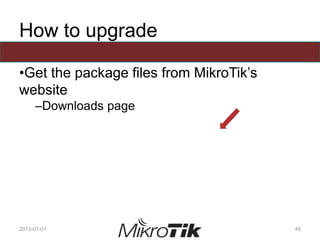
How to upgrade
•Get the package files from MikroTik’s
website
–Downloads page
2013-01-01 48
How to upgrade
•Three ways
–Download file(s) and copy over to router.
–“Check for updates” (System -> Packages)
–Auto Upgrade (System -> Auto Upgrade)
2013-01-01 49
Downloading the files
•Copy file(s) to the router via “Files” window.
Examples are:
–routeros-mipsbe-5.25.npk
–ntp-5.25-mipsbe.npk
•Reboot
•Validate state of router
2013-01-01 50
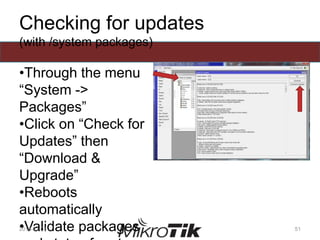
Checking for updates
(with /system packages)
•Through the menu
“System ->
Packages”
•Click on “Check for
Updates” then
“Download &
Upgrade”
•Reboots
automatically
•Validate packages2013-01-01 51
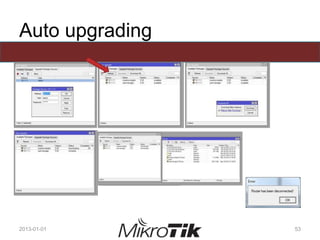
Auto upgrading
•Copy required files by all routers to an
internal router (source).
•Configure all routers to point to source
router
•Display available packages
•Select and download packages
•Reboot and validate router
2013-01-01 52
Auto upgrading
2013-01-01 53
RouterBOOT firmware upgrade
•Check current version
2013-01-01 54
[admin@MikroTik] > /system routerboard print
routerboard: yes
model: 951-2n
serial-number: 35F60246052A
current-firmware: 3.02
upgrade-firmware: 3.05
[admin@MikroTik] >
RouterBOOT firmware upgrade
•Upgrade if required (It is in this example)
2013-01-01 55
[admin@MikroTik] > /system routerboard upgrade
Do you really want to upgrade firmware? [y/n]
y
firmware upgraded successfully, please reboot for changes to take effect!
[admin@MikroTik] > /system reboot
Reboot, yes? [y/N]:
Managing RouterOS logins
2013-01-01 56
User accounts
•Create user accounts to
–Manage privileges
–Log user actions
•Create user groups to
–Have greater flexibility when assigning
privileges
2013-01-01 57
Managing RouterOS services
2013-01-01 58
IP Services
•Manage IP services to
–Limit resource usage (CPU, memory)
–Limit security threats (Open ports)
–Change TCP ports
–Limit accepted IP addresses / IP subnets
2013-01-01 59
IP Services
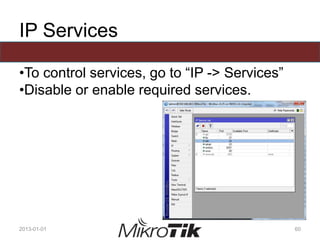
•To control services, go to “IP -> Services”
•Disable or enable required services.
2013-01-01 60
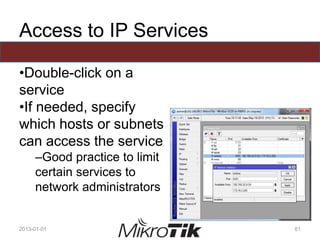
Access to IP Services
•Double-click on a
service
•If needed, specify
which hosts or subnets
can access the service
–Good practice to limit
certain services to
network administrators
2013-01-01 61
Managing configuration
backups
2013-01-01 62
Types of backups
•Binary backup
•Configuration export
2013-01-01 63
Binary backups
•Complete system backup
•Includes passwords
•Assumes that restores will be on same
router
2013-01-01 64
Export files
•Complete or partial
configuration
•Generates a script
file or sends to
screen
•Use “compact” to
show only non-
default configurations
(default on ROS6)
•Use “verbose” to2013-01-01 65
Archiving backup files
•Once generated, copy them to a server
–With SFTP (secured approach)
–With FTP, if enabled in IP Services
–Using drag and drop from “Files” window
•Leaving backup files on the router IS NOT a
good archival strategy
–No tape or CD backups are made of routers
2013-01-01 66
RouterOS licenses
2013-01-01 67
License levels
•6 levels of licenses
–0 : Demo (24 hours)
–1 : Free (very limited)
–3 : WISP CPE (Wi-Fi client)
–4 : WISP (required to run an access point)
–5 : WISP (more capabilities)
–6 : Controller (unlimited capabilities)
2013-01-01 68
Licenses
•Determines the capabilities allowed on your
router.
•RouterBOARD come with a preinstalled
license.
–Levels vary
•Licenses must be purchased for an X86
system.
–One license is valid for only one machine.
2013-01-01 69
Updating licenses
•Levels are described at the web page
http://wiki.mikrotik.com/wiki/Manual:License
•Typical uses
–Level 3: CPE, wireless client
–Level 4: WISP
–Level 5: Larger WISP
–Level 6: ISP internal infrastructure (Cloud
Core)
2013-01-01 70
Use of licenses
•Cannot upgrade license level. Buy the right
device / license right from the start.
•The license is bound to the drive it is
installed on. Be careful not to format the
drive using non-Mikrotik tools.
•Read the license web page for more
details!
2013-01-01 71
Netinstall
2013-01-01 72
Uses of Netinstall
•Reinstall RouterOS if the original one
became damaged
•Reinstall RouterOS if the “admin” password
was lost
•Can be found on MikroTik’s web site under
the download tab
2013-01-01 73
Procedure, no COM port
For RBs without a COM port.
•Connect computer to Ethernet port 1
–Give computer a static IP address and mask
•Launch Netinstall
–Click on “Net booting” and write a random IP
address in the same subnet as computer
•In “Packages” section, click “Browse” and
select directory containing valid NPK files
2013-01-01 74
Procedure, no COM port
•Press the “reset” button until the “ACT” LED
turns off
–Router will appear in “Routers/Drives” section
–Select it!
•Select required RouterOS version from
“Packages” section
–“Install” button becomes available; click it!
2013-01-01 75
Procedure, no COM port
•The progress bar will turn blue as the NPK
file is being transferred
•Once completed, reconnect the computer
cable in one of valid ports and Internet
access cable in port 1
•Use MAC-Winbox to connect as
configuration will be blank
–Even if “Keep old configuration” was checked!!
2013-01-01 76
Procedure, no COM port
•Upload a configuration backup and reboot
–(thus the importance of proper backup
management!)
•If the problem was a lost password, redo
the configuration from scratch, as the
backup will use the same forgotten
password
–(thus the importance of proper access
management!)
2013-01-01 77
Procedure, with COM port
For RBs with a COM port
•It starts off (almost) the same
–PC in Ethernet port 1 with static address
–Connect PC’s serial port to RouterBOARD’s
console (COM) port
–Launch Netinstall (and configure the “Net
Booting” parameter)
–Select directory with NPK files
2013-01-01 78
Procedure, with COM port
•Reboot the router
•Press “Enter”, when prompted, to enter
setup
•Press “o” for boot device
•Press “e” for Ethernet
•Press “x” to exit setup (which reboots the
router)
2013-01-01 79
Procedure, with COM port
•Router will appear in “Routers/Drives”
section
–Select it
•Select RouterOS package that will be
installed
•Click “Keep old configuration”
•“Install” button becomes available; click it!
2013-01-01 80
Procedure, with COM port
•The progress bar will turn blue as the NPK
file is being transferred
•Once completed, reconnect the computer
cable in one of valid ports and Internet
access cable in port 1
•You can use Winbox to connect
–The “Keep old configuration” option works
here!!
2013-01-01 81
Procedure, with COM port
•Reboot the router
•Press “Enter”, when prompted, to enter
setup
•Press “o” for boot device
•Press “n” for NAND then Ethernet on fail
–If you forget, you will always boot from
Ethernet
•Press “x” to exit setup (which reboots the
router)
2013-01-01 82
Additional Ressources
2013-01-01 83
Wiki
http://wiki.mikrotik.com/wiki/Manual:TOC
•RouterOS main Wiki page
•Documentation on all RouterOS commands
–Explanation
–Syntax
–Examples
•Extra tips and tricks
2013-01-01 84
Tiktube
http://www.tiktube.com/
•Video resources on various subjects
•Presented by trainers, partners, ISPs, etc.
•May include presentation slides
•Various languages
2013-01-01 85
Forum
http://forum.mikrotik.com/
•Moderated by Mikrotik staff
•Discussion board on various topics
•A LOT of information can be found here
–You could find a solution to your problem!
•Please search BEFORE posting a question
–Standard forum etiquette
2013-01-01 86
Mikrotik support
support@mikrotik.com
•Support procedures explained at
http://www.mikrotik.com/support.html
•Support from Mikrotik for 15 days (license
level 4) and 30 days (license level 5 and
level 6) if router bought from them
2013-01-01 87
Distributor / consultant support
•Support is given by distributor when router
is purchased from them
•Certified consultants can be hired for
special needs. Visit
http://www.mikrotik.com/consultants.html for
more information
2013-01-01 88
End of module 1
Time for a practical exercise
2013-01-01 89
Laboratory
•Goals of the lab
–Familiarise students with access methods
–Configure Internet access
–Upgrade the router with current RouterOS
–Create a limited access group, assign it a user
–Manage IP services
–Do a backup of current configuration and
restore it after doing a factory reset
2013-01-01 90
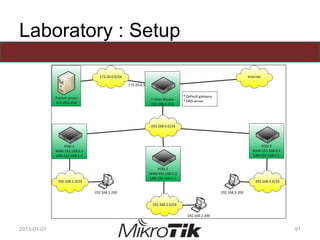
Laboratory : Setup
2013-01-01 91
Laboratory : step 1
•Configure your computer with the static IP
address of your pod
–Specify subnet mask
–Specify default gateway (your router)
–Specify DNS server (your router)
•Do a Netinstall of ROS 6
•Once rebooted, connect to it in the manner
that will allow you full access
2013-01-01 92
Laboratory : step 2
•Configure the router’s LAN IP address
•Configure the router’s WAN IP address
•Configure the router’s NAT rule
•Configure the router’s DNS server
•Configure the router’s default route*
2013-01-01 93
Laboratory : step 3
•Add a group named “minimal”
–Give it the “telnet”, “read”, and “winbox” rights
–Explain these rights
•Add a user and give it your name
–Assign it to “minimal” group
–Give it a password
•Assign a password to “admin”
–Give it “podX”, where “X” is your pod number
–Open a new terminal. What happened?
2013-01-01 94
Laboratory : step 4
•Insure that RouterBOARD firmware is up to
date.
•Copy NTP package (NPK file)
–Check System -> SNTP Client
–Check System -> NTP Client and NTP Server
–What happened?
•Once rebooted
–Check System -> SNTP Client
–Check System -> NTP Client and NTP Server
•Configure NTP client and clock’s timezone
2013-01-01 95
Laboratory : step 5
•The students will telnet into the router
•The students will disable these IP services:
–Telnet
–WWW
•The students will connect to the router
using Telnet, a Web browser and SSH
–Explain the results
2013-01-01 96
Laboratory : step 6
•Open a “New Terminal” and the “Files”
window
•Export the configuration, from the root, to a
file named “module1-podX”
•Do a binary backup
•Copy both files to your computer
–Open both of them and view contents
–Delete your NAT rule and use the “exported”
file to recreate it rapidly
2013-01-01 97
Laboratory : step 7
•View the routerBOARD’s license
–Check the level of the router and indicate it’s
meaning
–As a group, discuss the potential uses from
this level of license
2013-01-01 98
End of Laboratory 1
2013-01-01 99

MTCNA

  • 1.
    MikroTik Certified NetworkAssociate (MTCNA) Laval, Canada January 1st to 3rd, 2013 2013-01-01 1
  • 2.
    Why take theMTCNA course? •Introduction to RouterOS and RouterBOARD products. •Gives you an overview of what that can be done with RouterOS and RouterBOARD products. •Will give you a solid foundation and valuable tools to do your work. 2013-01-01 2
  • 3.
    Course objectives At theend of this course, the student will: •Be familiar with RouterOS software and RouterBoard products •Be able to configure, manage, do basic troubleshooting of a MikroTik router •Be able to provide basic services to clients 2013-01-01 3
  • 4.
  • 5.
    Schedule •Typical day (3of them) –9h00 to 17h00 •30 minute breaks –10h30 and 15h00 •Lunch break –11h30 to 12h30 •Exam –On last day, 1 hour duration 2013-01-01 5
  • 6.
    House keeping •Emergency exits •Dresscode •Food and drinks while in class •This course is based on RouterOS 6 and RB951-2n –Module 1 is based on ROS 5.25 2013-01-01 6
  • 7.
    Various Out of respectfor the other students and the trainer: •Put you cell phone and other business tools on vibration mode •Take your calls outside the classroom 2013-01-01 7
  • 8.
  • 9.
  • 10.
    What is RouterOS? •MikroTikRouterOS is the operating system of MikroTik RouterBOARD hardware. •It has all the necessary features for an ISP or network administrator such as routing, firewall, bandwidth management, wireless access point, backhaul link, hotspot gateway, VPN server and more. 2013-01-01 10
  • 11.
    What is RouterOS? •RouterOSis a stand-alone operating system based on the Linux v3.3.5 kernel and provides all the functions in a quick and simple installation and with an easy to use interface 2013-01-01 11
  • 12.
    What is RouterBOARD? •Afamily of hardware solutions created by MikroTik to answer the needs of customers around the world. •All operate with RouterOS. routerboard.com or 2013-01-01 12
  • 13.
    Integrated Solutions •These productsare provided complete with cases and power adapters. •Ready to use and preconfigured with the most basic functionality. •All you need to do is to plug it in and connect to the Internet or a corporate network. 2013-01-01 13
  • 14.
    RouterBOARD (boards only) •Smallmotherboard devices that are sold “as is”. You must choose the case, power adapter and interfaces separately. Perfect for assembling your own systems as they offer the biggest customization options. 2013-01-01 14
  • 15.
    Enclosures •Indoor and outdoorcasings to house your RouterBOARD devices. Select based on: –intended location of use –the RouterBOARD model –the type of connections needed (USB, antennas, etc.). 2013-01-01 15
  • 16.
    Interfaces •Ethernet modules, fiberSFPs or wireless radio cards to expand the functionality of RouterBOARD devices and PCs running RouterOS. •Once again, selection is based on your needs. 2013-01-01 16
  • 17.
    Accessories •These devices aremade for MikroTik products - power adapters, mounts, antennas and PoE injectors. 2013-01-01 17
  • 18.
    MFM •With the MFM(Made for Mikrotik) program, 3rd party options make creating your router even better! 2013-01-01 18
  • 19.
    Why get anintegrated router? •Can address many needs •Some add-on options •Little to no expansion •Fixed configuration •Simple, yet solid solution for many needs 2013-01-01 19
  • 20.
    Integrated router, examples RB951G-2HnD •Goodfor home or small office •5 Gig ports •Built-in Wi-Fi (2,4GHz) •License level 4 2013-01-01 20
  • 21.
    Integrated router, examples SXTSixpack (1 OmniTIK U-5HnD with 5 SXT-5HPnD) •Good for WISP or company with branch offices •5 100Mbps ports (OmniTik) •5GHz 802.11a/n radios •Can cover 5Km2013-01-01 21
  • 22.
    Integrated router, examples CCR1036-12G-4S CloudRouter Flagship model •Good for ISPs or company networks •1U rack mount •12 Gig ports •Serial console, USB and color2013-01-01 22
  • 23.
    Note of interest •Routernames are selected according to feature set. Here are some examples: –CCR : Cloud Core Router –RB : RouterBoard –2, 5 : 2,4GHZ or 5GHz wifi radio –H : High powered radio –S : SFP –U : USB –i : Injector –G : Gigabit ethernet 2013-01-01 23
  • 24.
    Why build yourown router? •Can address a greater variety of needs •Many add-on options / Lots of expansion •Customizable configuration •Can be integrated into client equipment or cabinet •More complete solution for particular needs 2013-01-01 24
  • 25.
    Custom router, examples FlexibleCPE •RB411UAHR –1 100Mbps port –1 2,4GHz radio (b/g) –Level 4 license •Add power supply or PoE module •Add 3rd party enclosure 2013-01-01 25
  • 26.
    Custom router, examples PowerfulHotspot •RB493G –9 gig ports –Level 5 license •Add power supply or PoE module •Add R2SHPn (2,4GHz radio card) •Add R5SHPn (5GHz radio card) •Add 3rd party2013-01-01 26
  • 27.
    First time accessingthe router 2013-01-01 27
  • 28.
    Internet browser •Intuitive wayof connecting to a RouterOS router. 2013-01-01 28
  • 29.
    Internet browser •Connect torouter with Ethernet cable •Launch browser •Type in the IP address •If asked for, log in. Username is “admin” and password is blank 2013-01-01 29
  • 30.
    Internet browser •You willsee: 2013-01-01 30
  • 31.
    WinBox and MAC-Winbox •WinBoxis MikroTik’s proprietary interface to access RouterOS routers. •It can be downloaded from MikroTik’s website or from the router. •It is used to access the router through IP (OSI layer 3) or MAC (OSI layer 2). 2013-01-01 31
  • 32.
    WinBox and MAC-Winbox •Ifstill in the browser, scroll down and click “logout” •You will see: •Click on “Winbox” •Save “winbox.exe” 2013-01-01 32
  • 33.
    WinBox and MAC-WinBox •Clickon WinBox’s icon. •IP address 192.168.88.1 then click “Connect” •You will see: –Click “OK” 2013-01-01 33
  • 34.
    WinBox’s menus •Take 5minutes to go through the menus •Take special notice of: –IP  Addresses –IP  Routes –System  SNTP –System  Packages –System  Routerboard 2013-01-01 34
  • 35.
    Console port •Requires the computerbe connected to the router via a null- modem (RS-232 port). –Default is 115200bps, 8 data bits, 1 stop bit, no parity 2013-01-01 35
  • 36.
    SSH and Telnet •StandardIP tools to access router •Telnet communications are in clear text –Available on most Operating Systems –Unsecured!! •SSH communications are encrypted –Secured!! –Many Open Source (free) tools available such as PuTTY (http://www.putty.org/) 2013-01-01 36
  • 37.
    CLI •Stands for CommandLine Interface •It’s what you see when you use the console port, SSH, Telnet, or New Terminal (inside Winbox) •A must know if you plan to use scripts or automate tasks! 2013-01-01 37
  • 38.
  • 39.
    Basic or blankconfiguration? •You may or may not have a basic configuration when freshly installed •You may choose not to take the default basic configuration •Check the following web page to find out how your device will behave: –http://wiki.mikrotik.com/wiki/Manual:Default_Configurations 2013-01-01 39
  • 40.
    Basic configuration •Depending onyour hardware, you will have a default setup, which may include: –WAN port –LAN port(s) –DHCP client (WAN) and server (LAN) –Basic firewall rules –NAT rule –Default LAN IP address 2013-01-01 40
  • 41.
    Basic configuration •When connecting forthe first time with WinBox, click on “OK” •The router now has the default basic configuration. 2013-01-01 41
  • 42.
    Blank configuration •Can beused in situations when the default basic configuration is not required. –No need for firewall rules –No need for NATing 2013-01-01 42
  • 43.
    Blank configuration •The minimalsteps to setup a basic access to the Internet (if your router does not have a default basic configuration) –LAN IP addresses, Default gateway and DNS server –WAN IP address –NAT rule (masquerade) –SNTP client and time zone 2013-01-01 43
  • 44.
  • 45.
    When to upgrade •Fixa known bug. •Need a new feature. •Improved performance. NOTE : PLEASE read the changelog!! 2013-01-01 45 What's new in 5.25 (2013-Apr-25 15:59): *) web proxy - speed up startup; *) metarouter - fixed occasional lockups on mipsbe boards; *) wireless - update required when using small width channel RB2011 RB9xx caveat: update remote end/s before updating AP as both side are required to use new/same version for a link
  • 46.
    The procedure •It requiresplanning. –Steps may have to be done in precise order. •It requires testing… –And testing… –And, yes, testing! 2013-01-01 46
  • 47.
    Before you upgrade •Knowwhat architecture (mipsbe, ppc, x86, mipsle, tile) you are upgrading. –If in doubt, Winbox indicates the architecture in top left corner! •Know what files you require: –NPK : Base RouterOS image with standard packages (Always) –ZIP : Additional packages (based on needs) –Changelog : Indicates what has changed and special indications (Always) 2013-01-01 47
  • 48.
    How to upgrade •Getthe package files from MikroTik’s website –Downloads page 2013-01-01 48
  • 49.
    How to upgrade •Threeways –Download file(s) and copy over to router. –“Check for updates” (System -> Packages) –Auto Upgrade (System -> Auto Upgrade) 2013-01-01 49
  • 50.
    Downloading the files •Copyfile(s) to the router via “Files” window. Examples are: –routeros-mipsbe-5.25.npk –ntp-5.25-mipsbe.npk •Reboot •Validate state of router 2013-01-01 50
  • 51.
    Checking for updates (with/system packages) •Through the menu “System -> Packages” •Click on “Check for Updates” then “Download & Upgrade” •Reboots automatically •Validate packages2013-01-01 51
  • 52.
    Auto upgrading •Copy requiredfiles by all routers to an internal router (source). •Configure all routers to point to source router •Display available packages •Select and download packages •Reboot and validate router 2013-01-01 52
  • 53.
  • 54.
    RouterBOOT firmware upgrade •Checkcurrent version 2013-01-01 54 [admin@MikroTik] > /system routerboard print routerboard: yes model: 951-2n serial-number: 35F60246052A current-firmware: 3.02 upgrade-firmware: 3.05 [admin@MikroTik] >
  • 55.
    RouterBOOT firmware upgrade •Upgradeif required (It is in this example) 2013-01-01 55 [admin@MikroTik] > /system routerboard upgrade Do you really want to upgrade firmware? [y/n] y firmware upgraded successfully, please reboot for changes to take effect! [admin@MikroTik] > /system reboot Reboot, yes? [y/N]:
  • 56.
  • 57.
    User accounts •Create useraccounts to –Manage privileges –Log user actions •Create user groups to –Have greater flexibility when assigning privileges 2013-01-01 57
  • 58.
  • 59.
    IP Services •Manage IPservices to –Limit resource usage (CPU, memory) –Limit security threats (Open ports) –Change TCP ports –Limit accepted IP addresses / IP subnets 2013-01-01 59
  • 60.
    IP Services •To controlservices, go to “IP -> Services” •Disable or enable required services. 2013-01-01 60
  • 61.
    Access to IPServices •Double-click on a service •If needed, specify which hosts or subnets can access the service –Good practice to limit certain services to network administrators 2013-01-01 61
  • 62.
  • 63.
    Types of backups •Binarybackup •Configuration export 2013-01-01 63
  • 64.
    Binary backups •Complete systembackup •Includes passwords •Assumes that restores will be on same router 2013-01-01 64
  • 65.
    Export files •Complete orpartial configuration •Generates a script file or sends to screen •Use “compact” to show only non- default configurations (default on ROS6) •Use “verbose” to2013-01-01 65
  • 66.
    Archiving backup files •Oncegenerated, copy them to a server –With SFTP (secured approach) –With FTP, if enabled in IP Services –Using drag and drop from “Files” window •Leaving backup files on the router IS NOT a good archival strategy –No tape or CD backups are made of routers 2013-01-01 66
  • 67.
  • 68.
    License levels •6 levelsof licenses –0 : Demo (24 hours) –1 : Free (very limited) –3 : WISP CPE (Wi-Fi client) –4 : WISP (required to run an access point) –5 : WISP (more capabilities) –6 : Controller (unlimited capabilities) 2013-01-01 68
  • 69.
    Licenses •Determines the capabilitiesallowed on your router. •RouterBOARD come with a preinstalled license. –Levels vary •Licenses must be purchased for an X86 system. –One license is valid for only one machine. 2013-01-01 69
  • 70.
    Updating licenses •Levels aredescribed at the web page http://wiki.mikrotik.com/wiki/Manual:License •Typical uses –Level 3: CPE, wireless client –Level 4: WISP –Level 5: Larger WISP –Level 6: ISP internal infrastructure (Cloud Core) 2013-01-01 70
  • 71.
    Use of licenses •Cannotupgrade license level. Buy the right device / license right from the start. •The license is bound to the drive it is installed on. Be careful not to format the drive using non-Mikrotik tools. •Read the license web page for more details! 2013-01-01 71
  • 72.
  • 73.
    Uses of Netinstall •ReinstallRouterOS if the original one became damaged •Reinstall RouterOS if the “admin” password was lost •Can be found on MikroTik’s web site under the download tab 2013-01-01 73
  • 74.
    Procedure, no COMport For RBs without a COM port. •Connect computer to Ethernet port 1 –Give computer a static IP address and mask •Launch Netinstall –Click on “Net booting” and write a random IP address in the same subnet as computer •In “Packages” section, click “Browse” and select directory containing valid NPK files 2013-01-01 74
  • 75.
    Procedure, no COMport •Press the “reset” button until the “ACT” LED turns off –Router will appear in “Routers/Drives” section –Select it! •Select required RouterOS version from “Packages” section –“Install” button becomes available; click it! 2013-01-01 75
  • 76.
    Procedure, no COMport •The progress bar will turn blue as the NPK file is being transferred •Once completed, reconnect the computer cable in one of valid ports and Internet access cable in port 1 •Use MAC-Winbox to connect as configuration will be blank –Even if “Keep old configuration” was checked!! 2013-01-01 76
  • 77.
    Procedure, no COMport •Upload a configuration backup and reboot –(thus the importance of proper backup management!) •If the problem was a lost password, redo the configuration from scratch, as the backup will use the same forgotten password –(thus the importance of proper access management!) 2013-01-01 77
  • 78.
    Procedure, with COMport For RBs with a COM port •It starts off (almost) the same –PC in Ethernet port 1 with static address –Connect PC’s serial port to RouterBOARD’s console (COM) port –Launch Netinstall (and configure the “Net Booting” parameter) –Select directory with NPK files 2013-01-01 78
  • 79.
    Procedure, with COMport •Reboot the router •Press “Enter”, when prompted, to enter setup •Press “o” for boot device •Press “e” for Ethernet •Press “x” to exit setup (which reboots the router) 2013-01-01 79
  • 80.
    Procedure, with COMport •Router will appear in “Routers/Drives” section –Select it •Select RouterOS package that will be installed •Click “Keep old configuration” •“Install” button becomes available; click it! 2013-01-01 80
  • 81.
    Procedure, with COMport •The progress bar will turn blue as the NPK file is being transferred •Once completed, reconnect the computer cable in one of valid ports and Internet access cable in port 1 •You can use Winbox to connect –The “Keep old configuration” option works here!! 2013-01-01 81
  • 82.
    Procedure, with COMport •Reboot the router •Press “Enter”, when prompted, to enter setup •Press “o” for boot device •Press “n” for NAND then Ethernet on fail –If you forget, you will always boot from Ethernet •Press “x” to exit setup (which reboots the router) 2013-01-01 82
  • 83.
  • 84.
    Wiki http://wiki.mikrotik.com/wiki/Manual:TOC •RouterOS main Wikipage •Documentation on all RouterOS commands –Explanation –Syntax –Examples •Extra tips and tricks 2013-01-01 84
  • 85.
    Tiktube http://www.tiktube.com/ •Video resources onvarious subjects •Presented by trainers, partners, ISPs, etc. •May include presentation slides •Various languages 2013-01-01 85
  • 86.
    Forum http://forum.mikrotik.com/ •Moderated by Mikrotikstaff •Discussion board on various topics •A LOT of information can be found here –You could find a solution to your problem! •Please search BEFORE posting a question –Standard forum etiquette 2013-01-01 86
  • 87.
    Mikrotik support support@mikrotik.com •Support proceduresexplained at http://www.mikrotik.com/support.html •Support from Mikrotik for 15 days (license level 4) and 30 days (license level 5 and level 6) if router bought from them 2013-01-01 87
  • 88.
    Distributor / consultantsupport •Support is given by distributor when router is purchased from them •Certified consultants can be hired for special needs. Visit http://www.mikrotik.com/consultants.html for more information 2013-01-01 88
  • 89.
    End of module1 Time for a practical exercise 2013-01-01 89
  • 90.
    Laboratory •Goals of thelab –Familiarise students with access methods –Configure Internet access –Upgrade the router with current RouterOS –Create a limited access group, assign it a user –Manage IP services –Do a backup of current configuration and restore it after doing a factory reset 2013-01-01 90
  • 91.
  • 92.
    Laboratory : step1 •Configure your computer with the static IP address of your pod –Specify subnet mask –Specify default gateway (your router) –Specify DNS server (your router) •Do a Netinstall of ROS 6 •Once rebooted, connect to it in the manner that will allow you full access 2013-01-01 92
  • 93.
    Laboratory : step2 •Configure the router’s LAN IP address •Configure the router’s WAN IP address •Configure the router’s NAT rule •Configure the router’s DNS server •Configure the router’s default route* 2013-01-01 93
  • 94.
    Laboratory : step3 •Add a group named “minimal” –Give it the “telnet”, “read”, and “winbox” rights –Explain these rights •Add a user and give it your name –Assign it to “minimal” group –Give it a password •Assign a password to “admin” –Give it “podX”, where “X” is your pod number –Open a new terminal. What happened? 2013-01-01 94
  • 95.
    Laboratory : step4 •Insure that RouterBOARD firmware is up to date. •Copy NTP package (NPK file) –Check System -> SNTP Client –Check System -> NTP Client and NTP Server –What happened? •Once rebooted –Check System -> SNTP Client –Check System -> NTP Client and NTP Server •Configure NTP client and clock’s timezone 2013-01-01 95
  • 96.
    Laboratory : step5 •The students will telnet into the router •The students will disable these IP services: –Telnet –WWW •The students will connect to the router using Telnet, a Web browser and SSH –Explain the results 2013-01-01 96
  • 97.
    Laboratory : step6 •Open a “New Terminal” and the “Files” window •Export the configuration, from the root, to a file named “module1-podX” •Do a binary backup •Copy both files to your computer –Open both of them and view contents –Delete your NAT rule and use the “exported” file to recreate it rapidly 2013-01-01 97
  • 98.
    Laboratory : step7 •View the routerBOARD’s license –Check the level of the router and indicate it’s meaning –As a group, discuss the potential uses from this level of license 2013-01-01 98
  • 99.
    End of Laboratory1 2013-01-01 99